

Page 1
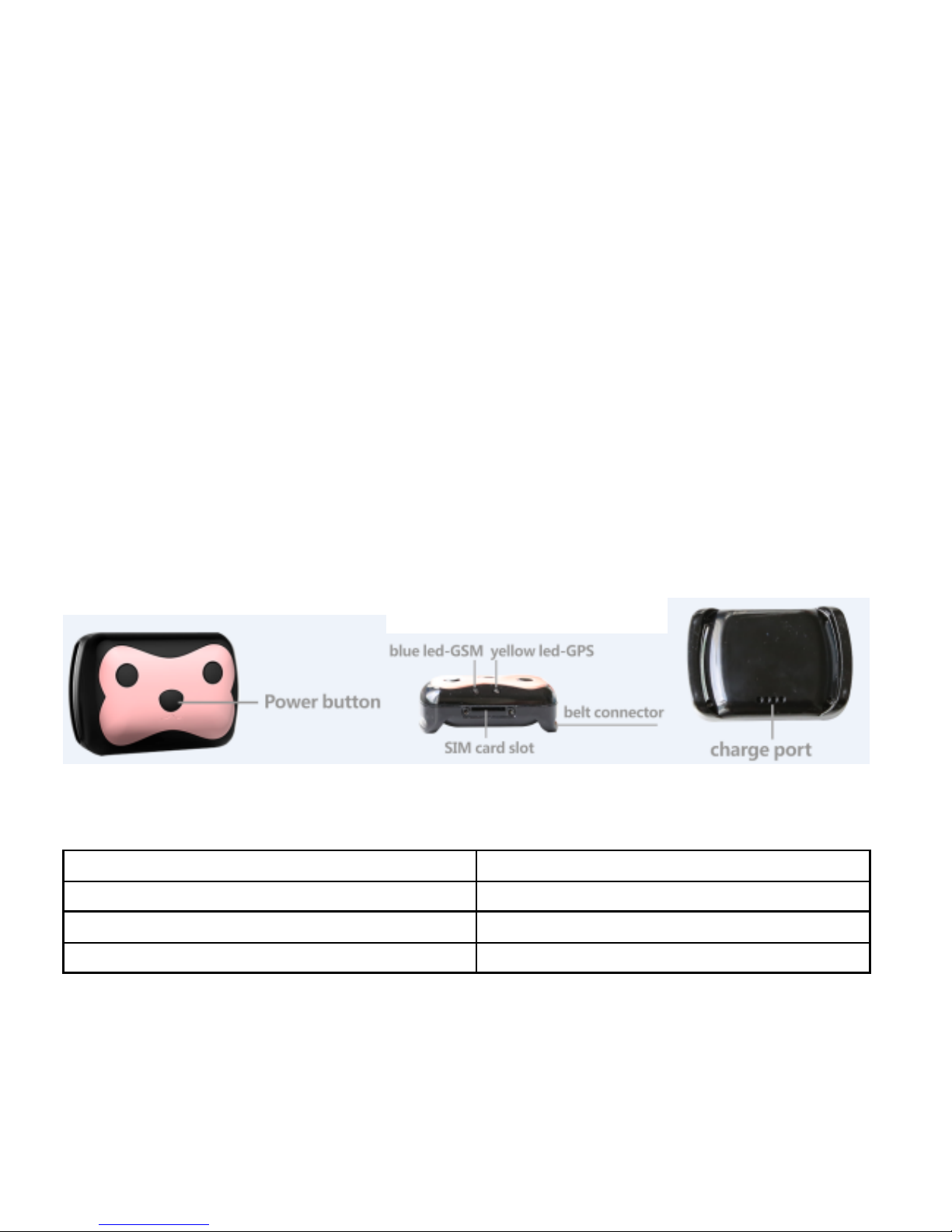
Deest69 pets locator
(Instructions)
1.Deest69 accessories
Charger 1pc
Cable 1pc
Screw tool 1pc
Extra Screw (to fix the Nano-sim card cover)
2.Deest Indication photos
2.1 Blue LED-GPS Indication
Light station
Meaning
Quick flash
GPS location success
Continuously in bright status
Search GPS signal
Sleeping mode
Light off
Page 2
2.2 Yellow LED-GSM Indication
Light station
Meaning
Quick flash
GSM/GPRS location success
Continuously in bright status
No GSM signal
Sleeping mode
Light off
2.3 Charge indicator change
When charge the device, The equipment indicator is flashing staggered blue and
yellow , when full charge, the yellow and blue indicator will be light off
(Charger requirement:<5.0V=2000mA)
3.DEEST69 quick guide
3.1 SIM card installation
Follow the direction shown to insert the 2G—GSM—SIM card (suggest to open
GPRS network data 30M/month)
Notes:
Please use a SIM card adaptable to 2G-GSM network;
Terminal SIM card needs to open up the caller ID display function.
The PIN code of terminal SIM card closed.
Terminal SIM card needs to open up the GPRS function.
3.2 Device starting
3.2.1 After insert the SIM Card, long press power on/off key until the indicator
light on and then release the on/off key. Device successfully works if GPS indicator
light flash.
Page 3
4. APP operation:
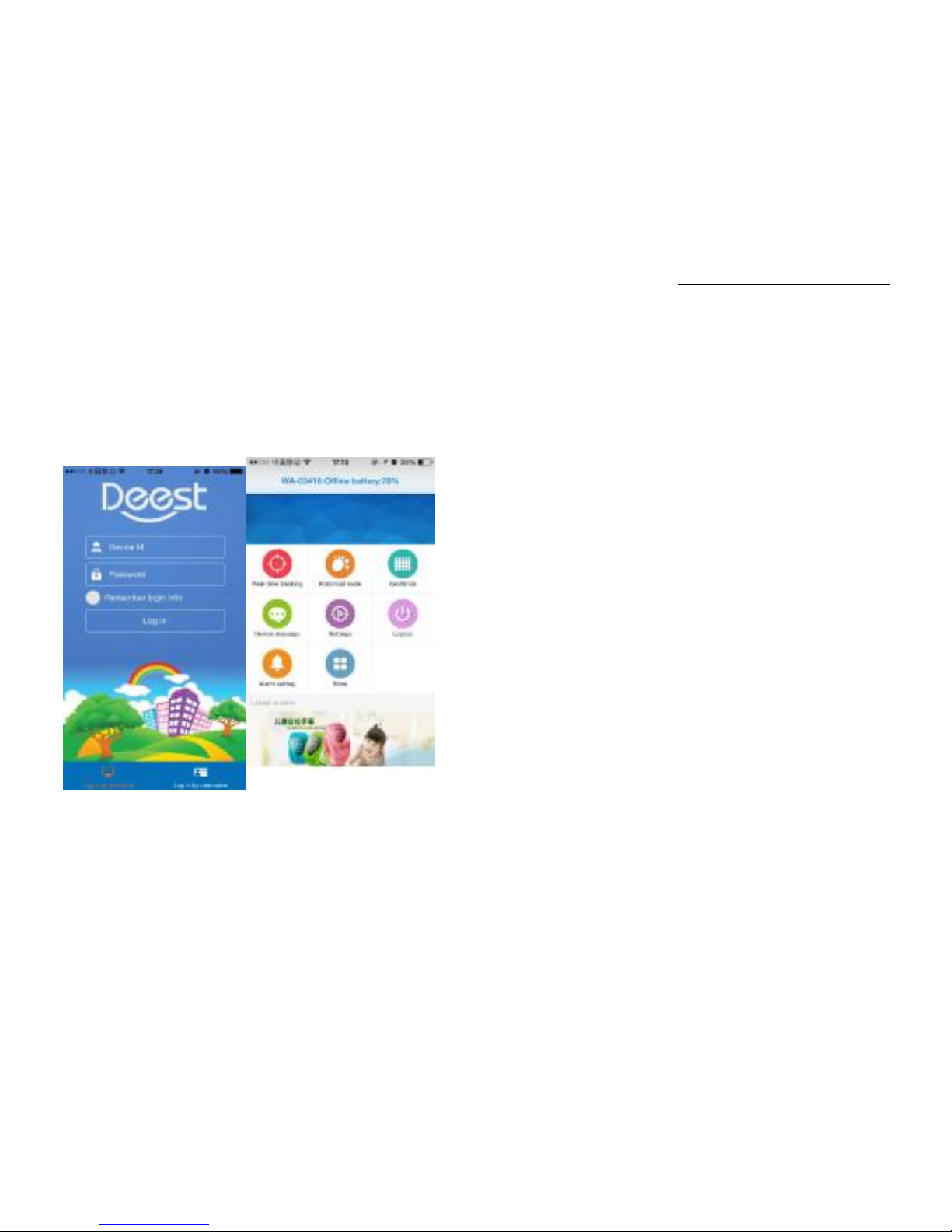
4.1 Download the app
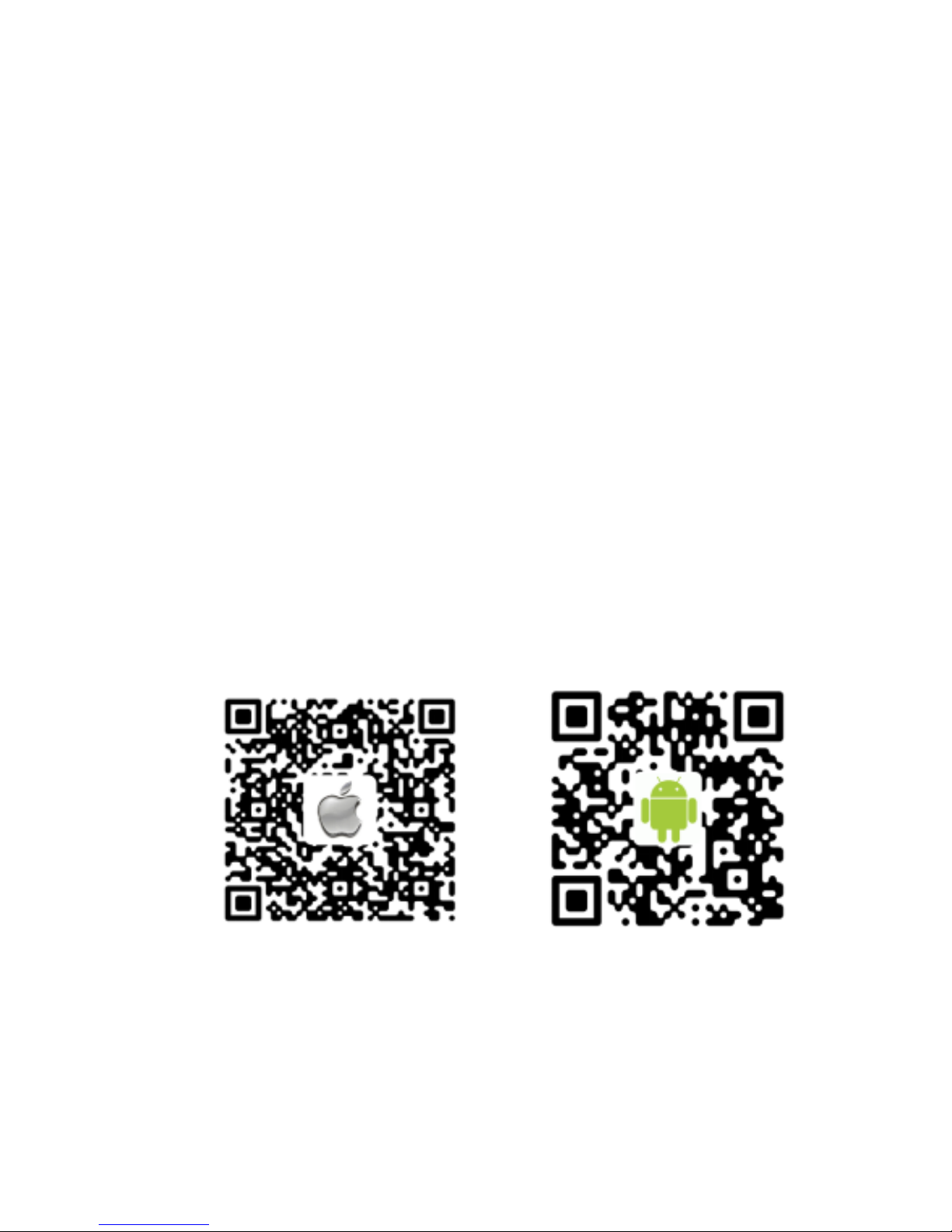
Scan the QR on the bottom of the manual or open web: http://102.gpsjm.com
to download the APP.
4.2 Log-in
Open the APP UI and choose the device ID to log in on the bottom of the
app. Then entrance ID: 10 digits on the device, Default Password: 123456 to log
in
4.3 Anti - Harassment
Factory-default allows any number to call the device.
But
device can receive calls only from users on the white list, in addition to the main nu
mber and emergency numbers, to avoid unwanted calls after set the main monitor
number.
Page 4
4.4 Real-time Tracking
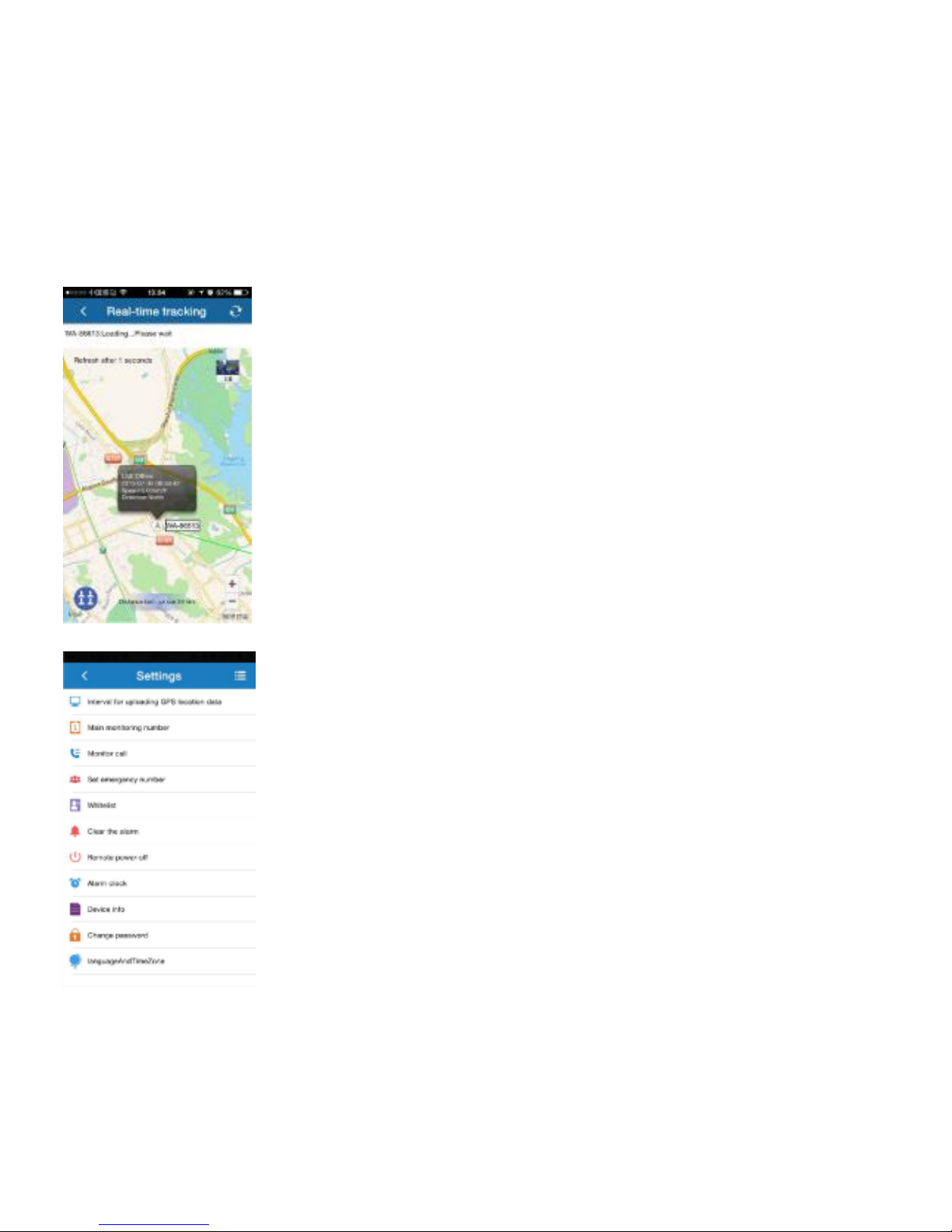
● Enter the Real-time Tracking menu, and you can see the location of the device,cli
ck refresh button can get the latest location.
4.5 APP Settings
Page 5

● Interval of sending GPS data- 3 modes available
i. Quick positioning----reported every 30 seconds.
ii.Default mode----reported every 10 minutes (recommended)
iii. Power-saving Mode----reported every 1 hour.
● Main monitoring number
Enter Commend menu → Main monitoring number→ Input your phone number &
click OK(This number is used to receive Low battery alarm message).Device only
accept calls from main monitor number and white list numbers after set.
● Monitoring Call
Input your phone number and click OK,the device will dialing to you when comme
nd successfully .Device can not heard from you when calling.
● White list
You can add more phone numbers to contact with kids beside main monitor
number.
●LED indicator remote switching
When you are familiar with the equipment operation and no need to device LED
lights,you can remotely shut down the device LED lights.
● Time setting
According to your time zone setting.For east time zone, plus “+” , and for western
time zone, plus”-”
EG: East 8 area: write “+8”, west 3 areas,write “-3”
4.6 Historical Track
You can check the latest 90 days routes on APP.
4.7 Geo-Fence
Add an electric fence name & set a fence to device as the center and with a radius o
f 100 to 5000 meters. When kids exit or enter the area, it will alarm by APP.
Page 6

4.8 Device messages
APP received all alerts by device
5.Question and Answer
How to Set GPRS Parameters
Most of the countries’ GPRS Parameters is including in the device when is out of
the factory; If the device can’t location and offline, please send SMS of setting the
GPRS Parameters, to set the APN of the SIM Card in the device, to make the
device normal work.
Different Countries and different GSM Operators, the APN is Different, Please
consult with your local Operator to know the APN of the SIM Card.
Instruction format: pw,123456,apn,network name#
Example: pw,123456,apn,cmwap#
The “cmwap” in the example is representative the APN of China Mobile Operator.
If successfully to set the APN, it will reply a message show “APN set
successfully”.
When using the mobile to call the device it shows: the dial number is on a call,
it means the SIM Card don’t open the caller ID display, pls open the caller ID
display.
After set instruction on the APP, it always shows is under sending or fail to sent:
A: it may don’t have the GPRS Network signal or bad signal, so it can’t send the
GPRS data
B: The SIM Card didn’t open the GPRS, suggest to open the 30M GPRS data per
month
Page 7
C: Device is on a call, When make a phone call GPRS data transmit automatic
close
Device on APP is always offline:
A: the SIM Card don’t have the money, can’t transmit the data and make phone call
B: Device don’t turn on or power off
C: There is no signal or weak signal ( Mainly shows the device can’t transmit the
data to the server)
The position of the device is far away from the physical location about several
hundred meter: Device is under LBS location, The accurate location of LBS is
due to the LBS density of the device’s physical location, the normal accuracy
location about LBS is between 50-1000 meter. ( Log in the web server, Under
the more information about the device to filter LBS, It means to close the LBS)
IOS APP Android APP
Page 8

 Loading...