

Page 1
Note: ON/OFF button can be used as restore button,
long press can change the flashing speed and
will restore your smart socket to factory defaults.
Only do this if you are sure you want to erase all
your settings.
Output
Register Account
Connecting Your Socket with App
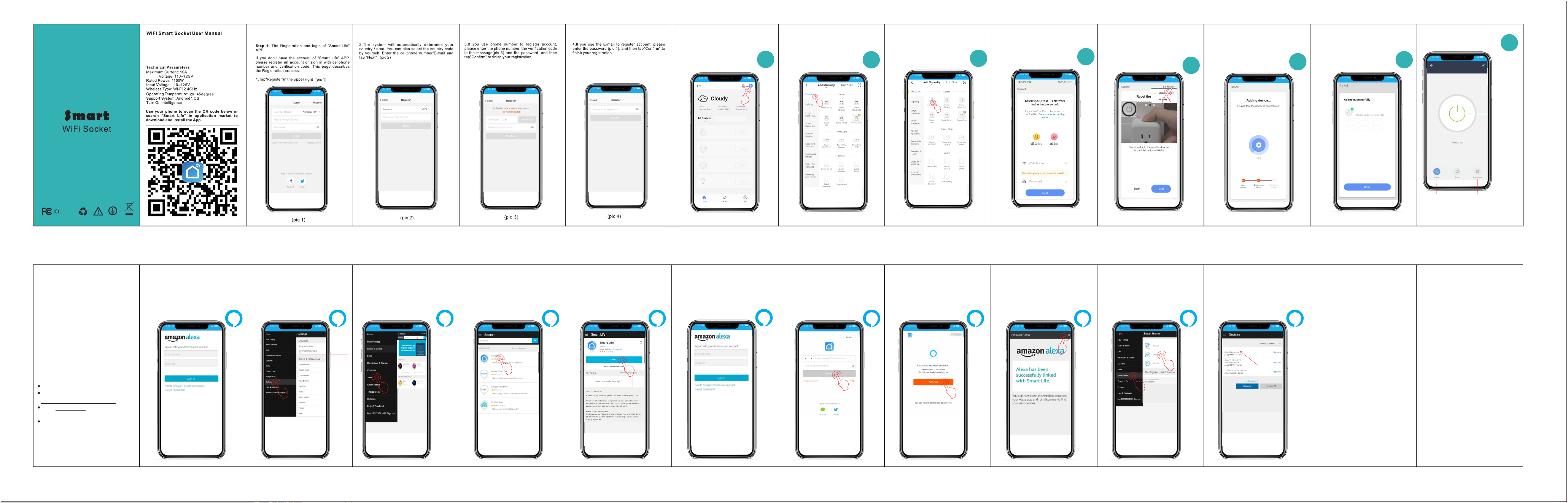
A. Easy Mode (Recommend)
1. Please make sure the mini socket has
connected with electricity at the beginning,
then open the" Smart Life" App, tap the
" ADD DEVICES" or the
“+”
1
2. At the upper right corner of the page and
select "Electrican"
2
3. Choose "Socket (Wi-Fi)”
3
4. Connect to local WiFi-2.4GHz
Enter the Wi-Fi name and password
5.0 Choose "EZ Mode"
5.1 Reset the device
4
Long press on/off button of the device for
5 seconds until indicator light quickly flashed
for 0.5 seconds at a time
5
6. Adding device
Ensure that the WiFi signal is good
Ensure that the device is powered on
6
7. Device added successfully,
then tap "Done”
7
8. APP control page
Bedroom Light
8
Setup/Edit
Pg05
Quick Guide of Using Amazon
Echo to Control Smart Devices
1.Note:
Before using Echo to control your smart devices,
make sure you meet the following conditions.
1)Stable Wi-Fi network which could access to Amazon server.
2) An Echo device, including Echo, Echo Tap, or Echo Dot.
3)An Amazon account.
4)Smart Life app and a related account.
5)Smart devices.
6)Make sure that more than one device is tied to your
“Smart Life” APP account and that the device name
must be an English name that Echo can easily recognize
(Such as bedroom light)
2.1 Set up Echo with Alexa app
You can skip this part if your Echo is already set up.
1) Make sure your Echo device is energized.
2)Open the Alexa app by tapping the app icon on your
mobile device.
3)Type in your Amazon account and password,
then tap "SIGN IN".
11
4) After successful login, click the menu on
the left of the Home page and select
“Settings” to make sure Echo is “Online”
Echo
Online
2
3. Link Smart Life account to Alexa
1) Tap "Skills" in the hamburger menu, then
search "Smart Life".
3
Smart Life
2) Search "Smart Life". Select "Smart Life"
4
Smart Life
3) Tap "ENABLE" to enable the Skill.
5
3) Enter your account number and password
again then tap "SIGN IN".
6
4) You will be redirected to the account link page.
Type in your Smart Life account and password,
don't forget to select the country/region where
your account belongs to. Then tap "Link Now"
to link your Smart Life account.
7
5) Click on the authorization
6) When the phrase "Alexa has been successfully
linked with Smart Life" appears, it means that
the account has been successfully linked.Click
on the upper right corner of ✘ back to Alexa app
8 9
4. After successful connection, check the device
1) Select "Smart Home" from the menu,
then click "Devices”
10
3) You will see the device controlled by Echo.
(Such as bedroom light)
Note: every time you change the device's name on
Smart Life app, Echo must re-discover before you
control them.
11
Bedroom Light
Bedroom Light
On/Off
Turn on or off at regular intervals
Countdown on or off
On/Off
2. Set up Amazon Echo and enable Smart Life Skill
User can configure Echo through web or Alexa app.
Web configuration link:
http://alexa.amazon.com/spa/index.html
Search "Amazon Alexa" in App Store or Google Play
to install the app.
We take app configuration as an example.
Configuration through web and app are
basically the same
 Loading...