

Page 1
MonaVie VIEW
Antioxidant Scanner
User Guide
Page 2

EN US/CA Version 1.1
2
Read Me First ................................................... 3
Warnings ........................................................ 4
Servicing ......................................................... 6
Before You Begin ............................................... 7
What’s in the Box .............................................. 8
Why Use the Scanner? ..................................... 10
Scanner Overview ........................................... 12
Software Overview .......................................... 18
Getting Started ............................................... 19
Pairing the Scanner to Your Mobile Device ........... 20
Linking Your Scanner to the View App ................. 22
Allowing Location Services ............................. 22
Syncing Data ............................................... 22
Changing from One Mobile Device to Another ..... 23
VIEW Session Check ....................................... 24
Scanning Overview ......................................... 28
How the scanner works ................................. 28
What does your scanner score mean? .............. 28
Quick Scan vs. Life Scan Score .......................... 30
How to Set Up a Quick Scan Event .................... 32
How to Join a Quick Scan Event ....................... 34
How to Conduct a Single Quick Scan ................. 36
How to Conduct a Life Scan Score ..................... 38
Technical Support ............................................ 42
TABLE OF CONTENTS
Page 3

©2013 MonaVie LLC
3
Congratulations on receiving your MonaVie VIEW
Antioxidant Scanner. This device will help you in your efforts
to educate your customers and fellow distributors about
antioxidants and the benets of MonaVie products.
In addition to this scanner, you will need:
• An iPad, iPhone, iPod Touch, or an Android mobile
phone or tablet. These devices are used to control your
scanner.
• The MonaVie VIEW app, (available through iTunes
or Google Play). The app will provide the features to
perform Life Score and QUICK SCANS.
• MonaVie Virtual Ofce (VO) Account. Inside the VO
you will be able to track scans, customers’ progress,
and much more.
Read Me First
Page 4

EN US/CA Version 1.1
4
• To reduce the risk of re and electric shock, do not
expose the VIEW scanner to rain or moisture. Do not
operate the device near a bathtub, kitchen sink, wet
basement, or any bodies of water. If any liquids are
spilled on the device, unplug the device from electrical
outlets and contact MonaVie support.
• To reduce the risk of electric shock, do not disassemble
the device to reach the internal components; there are
NO user serviceable parts inside. Any evidence of
device tampering will void your warranty and make
you liable for the full cost of the device.
• Do not operate the device in extremely hot conditions
or near re. The battery inside the device may be
damaged and explode if subjected to excessive heat.
• Do not operate the device in direct sunlight. This
device uses light sensitive detectors to determine your
antioxidant score; direct exposure to sunlight may result
in incorrect scores.
• Do not scan shiny or reective objects with the scanner.
Doing so can damage the sensitive optical components
of the scanner
• Do not use any power adapter other than the provided
adapter. Failure to do so may cause re and/or
electric shock.
• Do not overload outlets or extension cords as this can
result in re and/or electric shock.
• Do not stare directly at the light source within the
scanner at close ranges. Though the LEDs used in the
scanner are used in household lightings and ashlights,
direct exposure at close proximity for prolonged
periods of time may cause damage to your eyesight.
Please operate the scanner responsibly and in the
manner specied by MonaVie. Failure to do so may
harm the users and damage the device.
Warnings
Page 5
©2013 MonaVie LLC
5
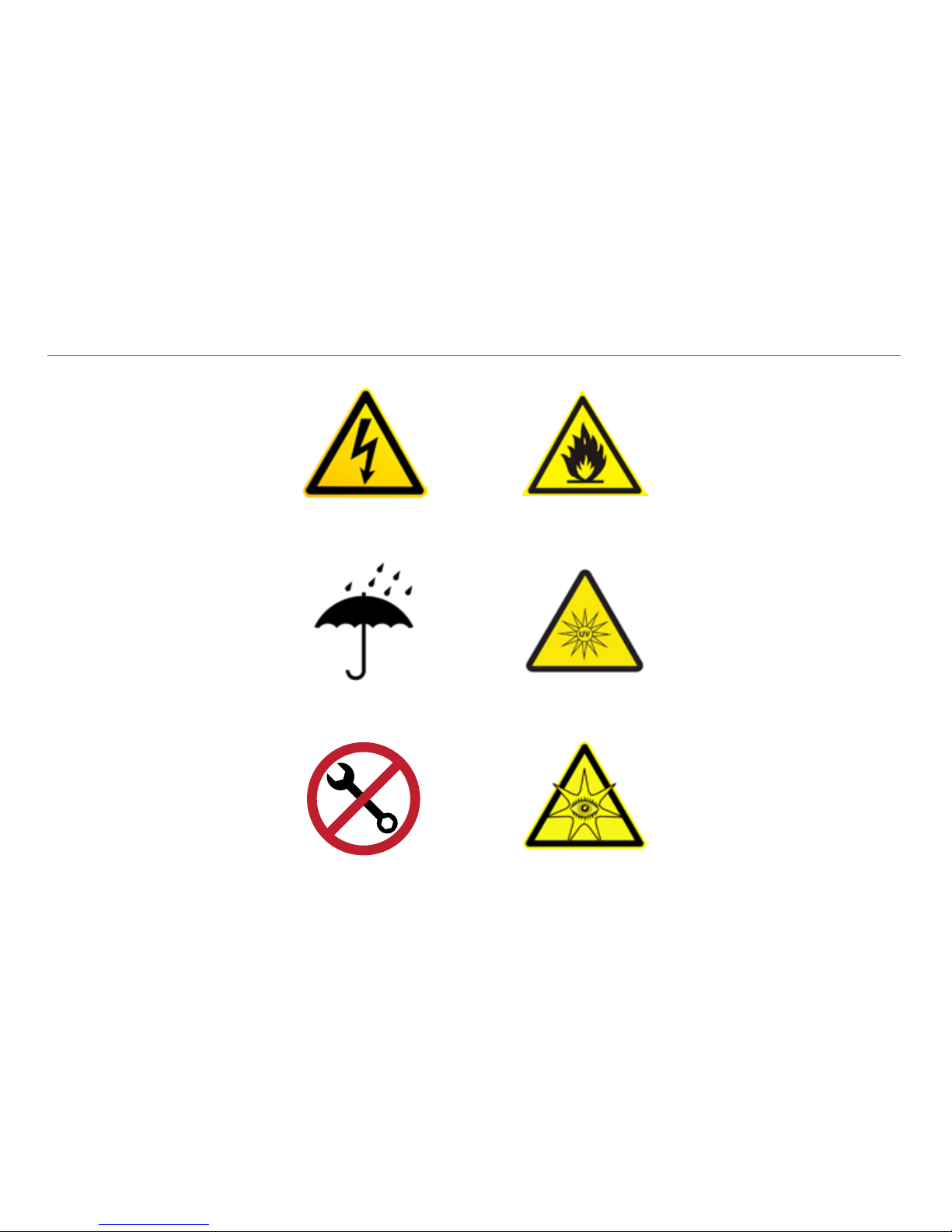
SHOCK HAZARD
MOISTURE SENSITIVE
DO NOT TAMPER
FIRE HAZARD
UV SENSITIVE
EYE SENSITIVITY HAZARD
Page 6

EN US/CA Version 1.1
6
The user and any third parties are prohibited from
performing any service or repairs on the scanner. The
scanner is designed and meant to be repaired only by
qualied technicians. Any signs of tampering will void your
warranty and make you liable for the full cost of the device.
The scanner housing and scanner lens should be
periodically cleaned using a standard alcohol wipe. The
scanner cradle should be removed when cleaning the lens
(See page 9).
If the device is malfunctioning, please contact MonaVie
customer support for a replacement unit.
Email: [email protected]
Call: 1-866-348-1388
Servicing
Page 7

©2013 MonaVie LLC
7
• Review the MonaVie VIEW Antioxidant Scanner User
Guide. This will ensure that you are aware of all the
scanners features and operating instructions.
• Watch the online videos from your Virtual Ofce
explaining how to use your scanner.
• Develop a strategy. The MonaVie VIEW Antioxidant
Scanner is a valuable prospecting and recruiting tool
that brings science into your business-building efforts.
Make sure you take the time to strategize with your
upline on ways to make the scanner as productive for
your business as possible.
Before You Begin
Page 8
EN US/CA Version 1.1
8
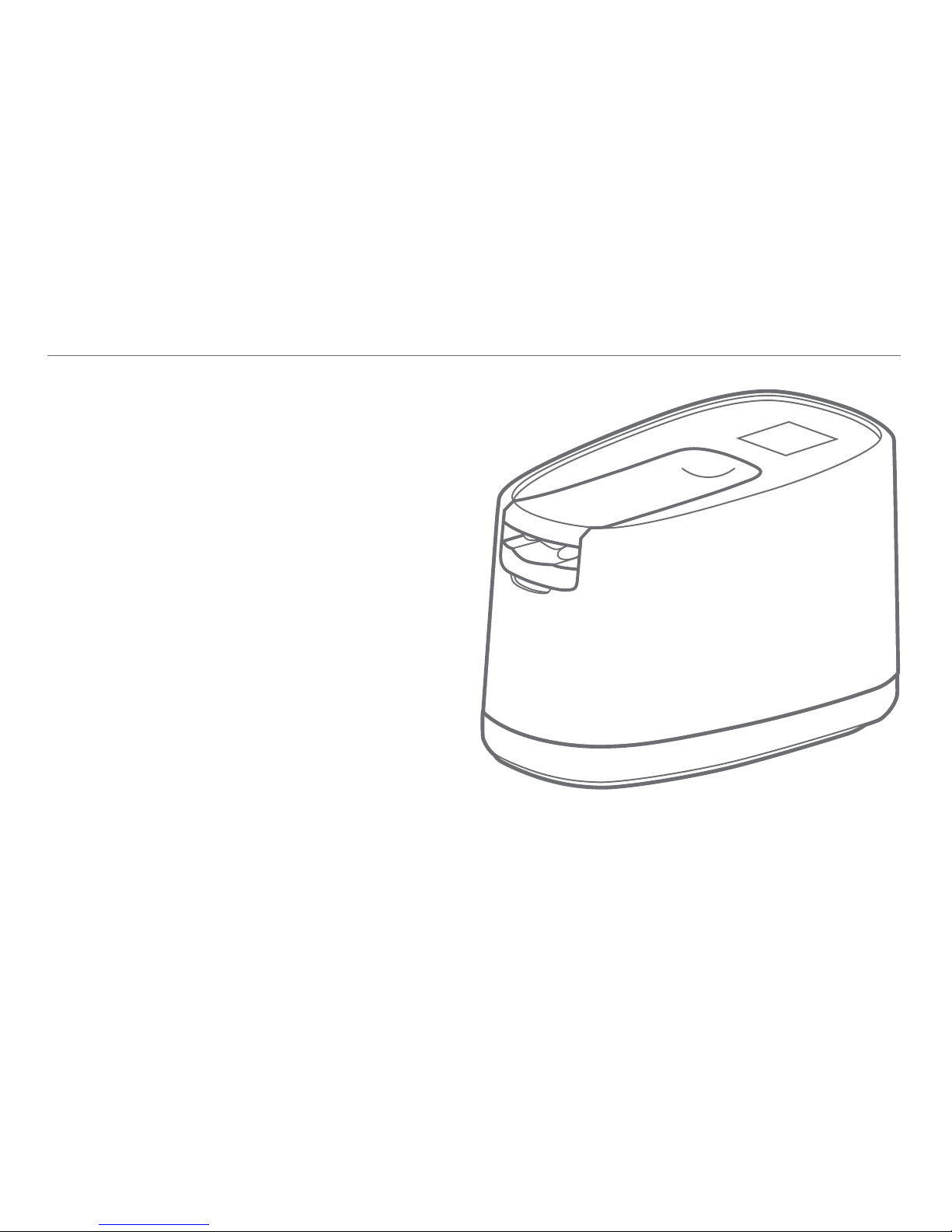
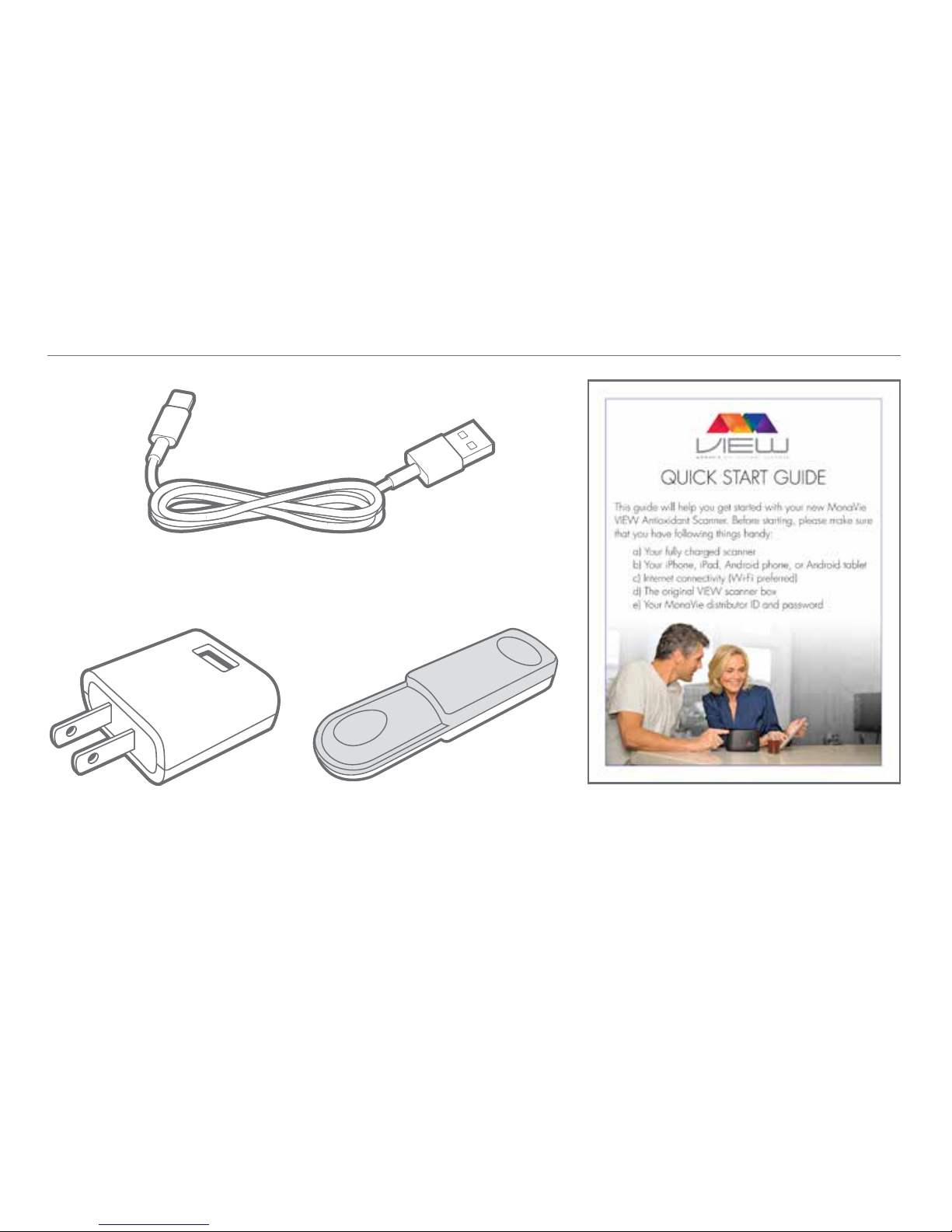
Your MonaVie VIEW Antioxidant Scanner comes with the
following:
• MonaVie VIEW Antioxidant Scanner
• Scanner power cord/ USB charging cord
• Power adapter
• Calibration standard
• Quick Start Guide
What’s in the Box
MonaVie VIEW Antioxidant Scanner
Page 9
©2013 MonaVie LLC
9
Scanner power cord/ USB charging cord
Power adapter
Quick Start GuideCalibration standard
Page 10

EN US/CA Version 1.1
10
There are many methods used in the health and wellness
arena to provide a snapshot of a person’s health. The
MonaVie VIEW Antioxidant Scanner is a revolutionary
device that will allow you to quickly and easily use a
patented, non-invasive scan to determine a person’s overall
antioxidant level. Specically, the VIEW scanner measures
two critical elements within your body: carotenoids and
avonoids. The scanner then creates a composite score
that is the most accurate antioxidant scan in the world. To
understand why all of this is so important, let’s start with a
few brief denitions.
Antioxidants:
Simply put, an antioxidant is a molecule that inhibits the
oxidation of other molecules. Oxidation of molecules
can produce free radicals. Free radicals can start chain
reactions in a cell that can damage or even kill the cell. This
damage is called oxidative stress. The higher the level of
antioxidants in your body, the more likely you are to avoid
damaging or killing cells in your body that are vital to your
overall health.
Carotenoids:
Carotenoids are compounds that are commonly found in
foods such as sweet potatoes, leafy greens, vegetables,
carrots, and many fruits. A diet that is rich in carotenoids
is also rich in antioxidants and has been shown to aid
in improving and maintaining overall heath. Carotenoids
are present in your skin and can be measured using the
MonaVie VIEW Antioxidant Scanner.
Flavonoids:
Flavonoids are the most common group of polyphenols
(organic compounds and acids vital to your health) found in
plants and are critical to a healthy diet. Preliminary research
shows that avonoids may modify many elements that affect
your body, including allergens, viruses, and carcinogens.
The presence of strong levels of avonoids is a strong
indicator of the antioxidant levels within your body.
Why Use the Scanner?
Page 11
©2013 MonaVie LLC
11
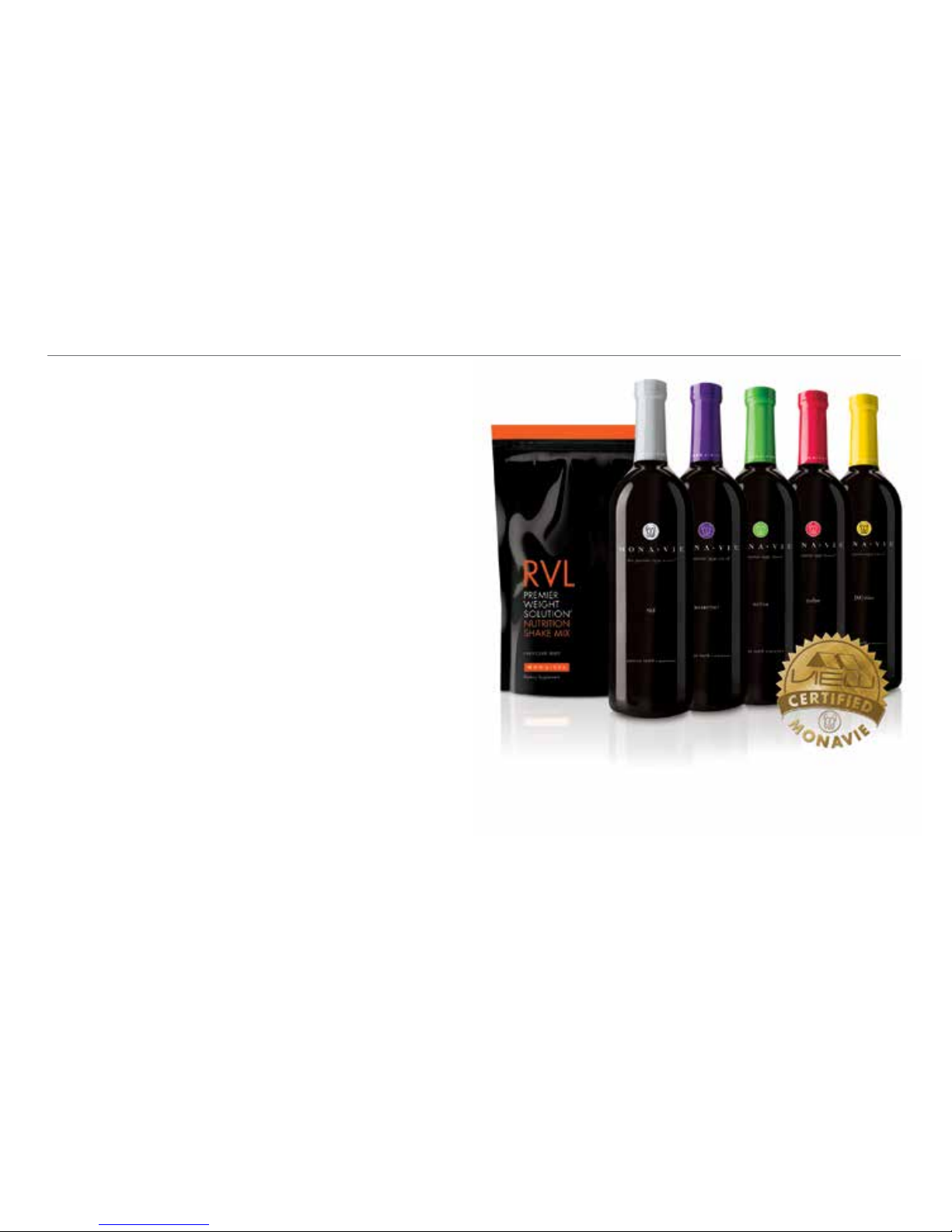
Performing a Life Scan score using the MonaVie
VIEW Antioxidant Scanner combines measurements
of carotenoids and flavonoids to accurately determine
antioxidant levels. Once your customers have their Life
Score and the the opportunity to track their improvement as
they use MonaVie VIEW certified products, you will have
science backing up the benefits of MonaVie products.
Page 12
EN US/CA Version 1.1
12
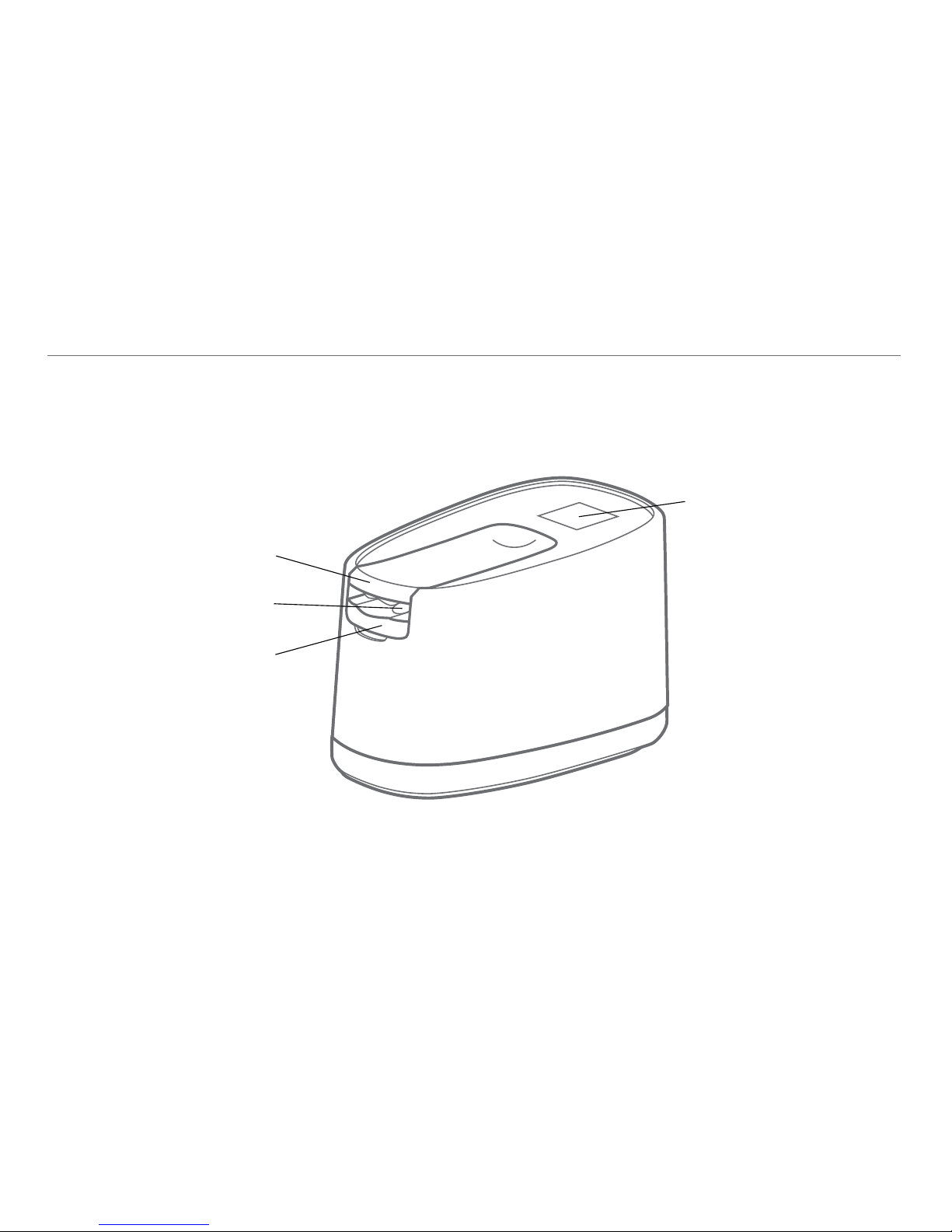
Scanner Overview
Clamp
Lens
Cradle
(Removable for cleaning)
OLED
Display Screen
Page 13
©2013 MonaVie LLC
13
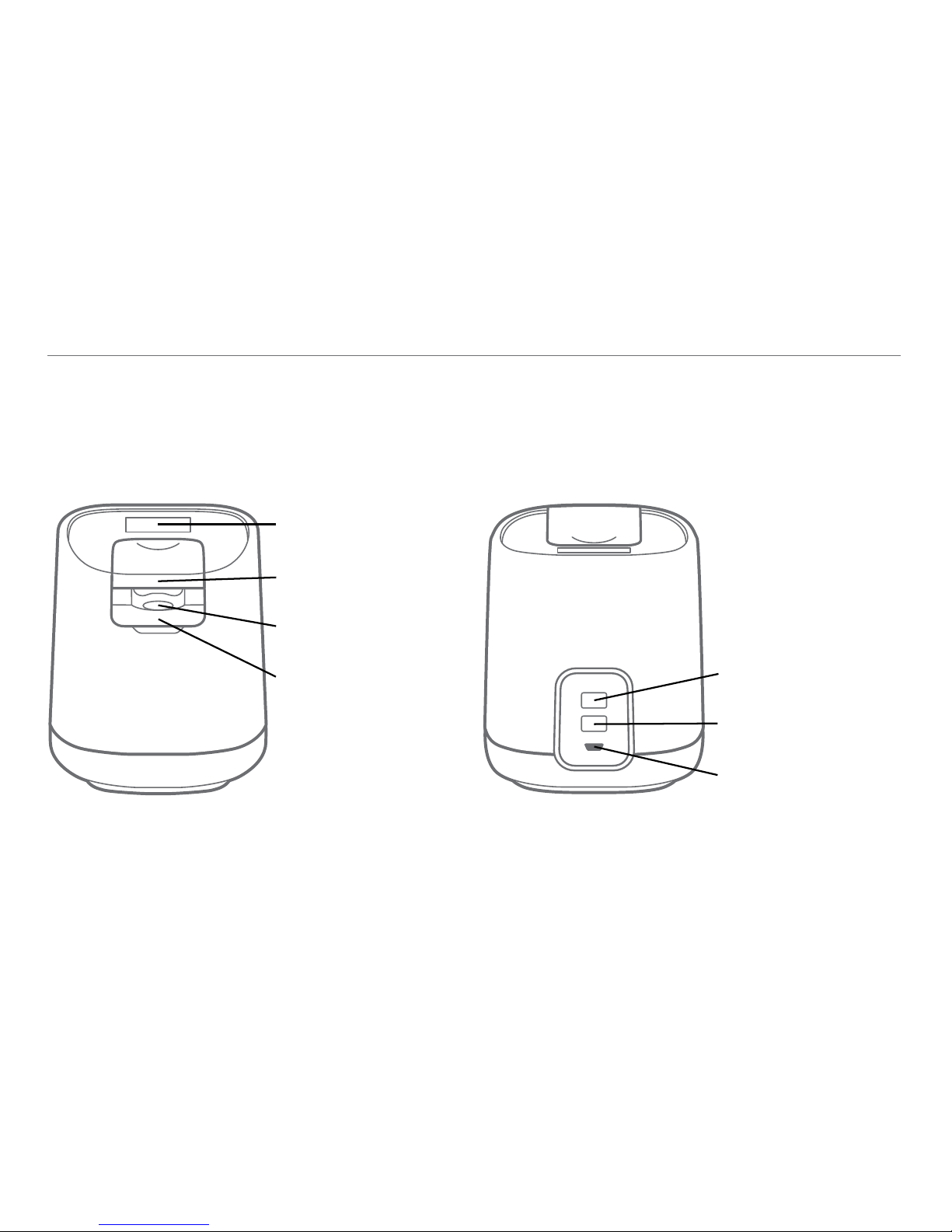
Bluetooth Sync Indicator
On/Off Switch
USB Power Supply Port
OLED Display Screen
Clamp
Lens
Cradle
FRONT BACK
CONTINUED
Page 14
EN US/CA Version 1.1
14
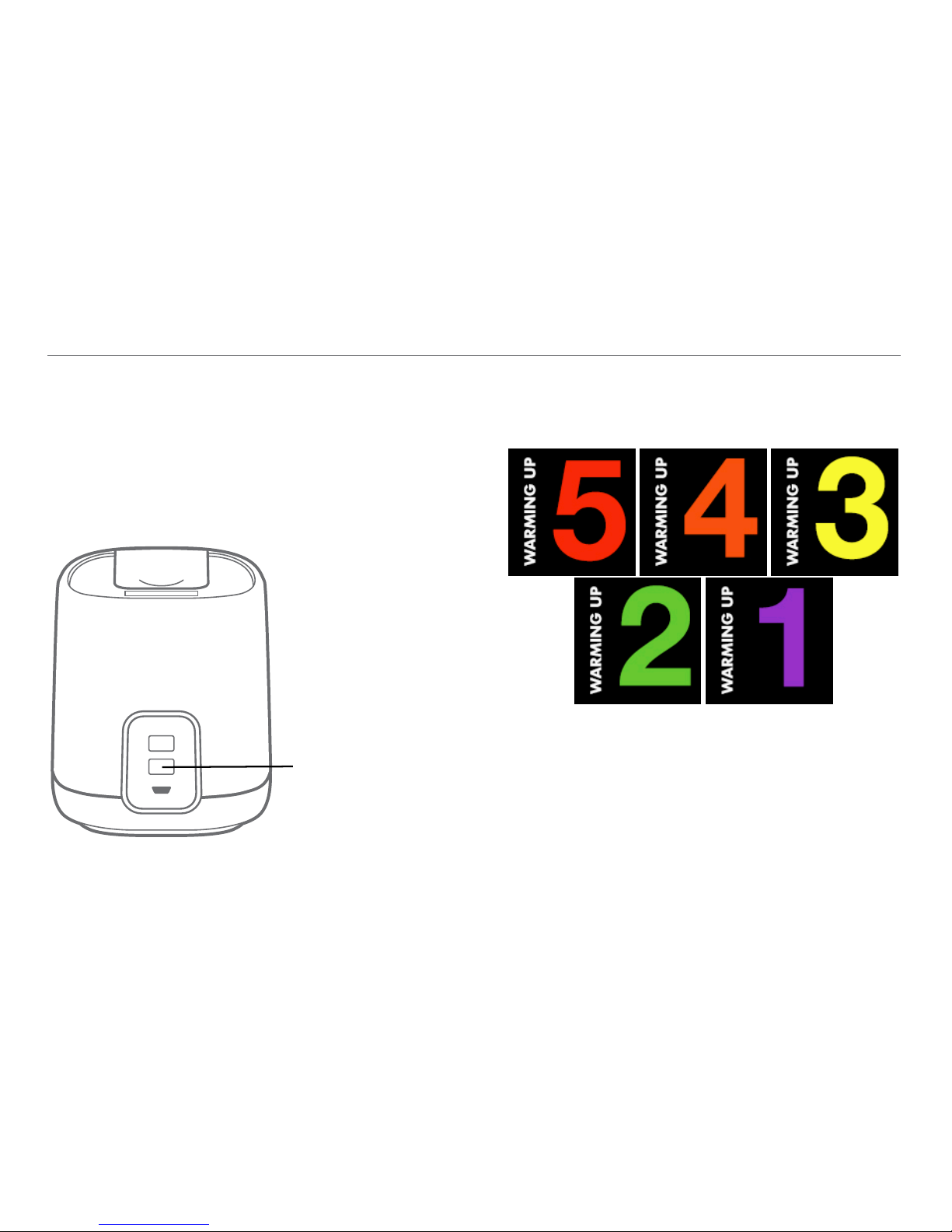
Turning the Scanner On and Off
To turn the VIEW scanner on, simply press the On/Off
switch located on the back of the unit.
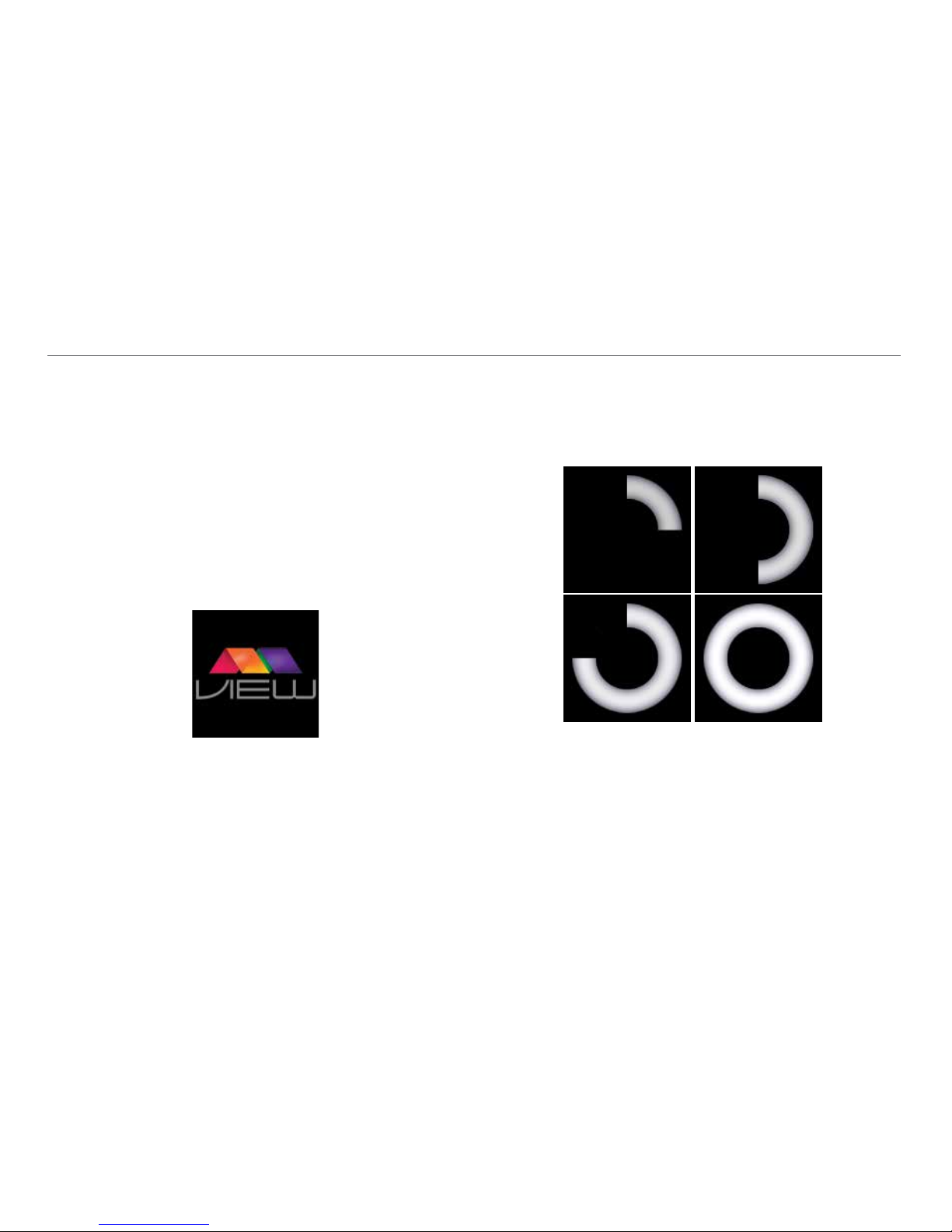
The scanner takes about ve minutes to warm up before you
can conduct your rst scan. During the warm up period, you
will see the following images on the scanner display screen:
To turn the VIEW scanner off, press the same button again.
On/Off Switch
Scanner Overview
Page 15
©2013 MonaVie LLC
15
Display Screen
The VIEW display screen is your window to the status of your
scanner. Each image has a specic meaning as listed below:
Initializing and/or Ready
The VIEW logo appears as the VIEW initiates its systems once
turned on. The logo also appears while the scanner is in standby mode waiting to scan. After each scan is completed and the
score or color is displayed, the system will revert back to this
image.
Scan in Progress
As a scan is being conducted, the screen will show a progress
circle icon that spins clockwise as the scan is progressing.
CONTINUED
Page 16
EN US/CA Version 1.1
16
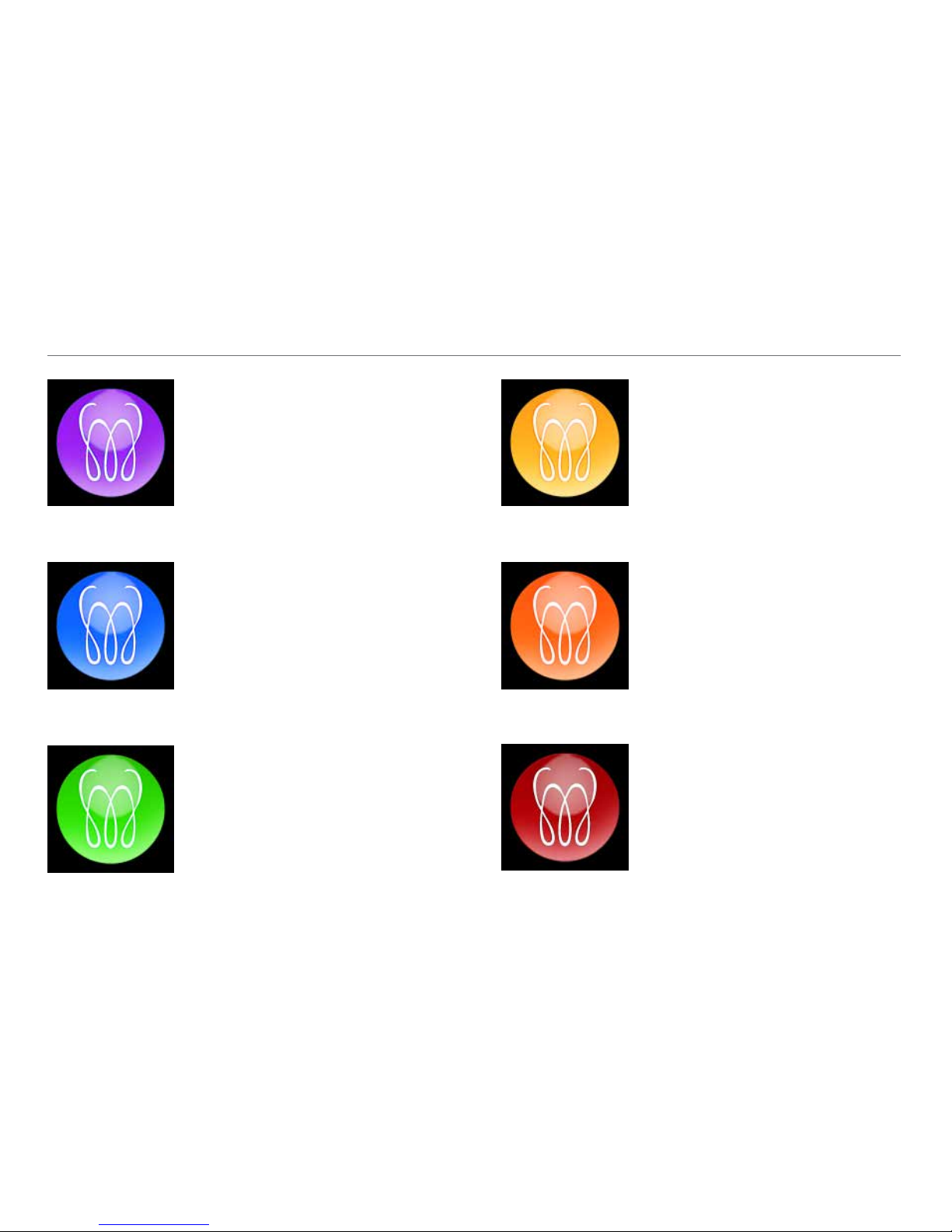
Maximum High Score
This will display when the person’s
antioxidant score is in the maximum
high range.
Purple 85,001–100,000
High Score
This will display when the person’s
antioxidant score is in the high range.
Blue 70,001–85,000
Medium-High Score
This will display when the person’s
antioxidant score is in the mediumhigh range.
Green 55,001–70,000
Scanner Overview
Medium Score
This will display when the person’s
antioxidant score is in the medium
range.
Yellow 40,001–55,000
Medium-Low Score
This will display when the person’s
antioxidant score is in the mediumlow range.
Orange 25,001–40,000
Low Score
This will display when the person’s
antioxidant score is in the low range.
Red 10,000–25,000
Page 17
©2013 MonaVie LLC
17
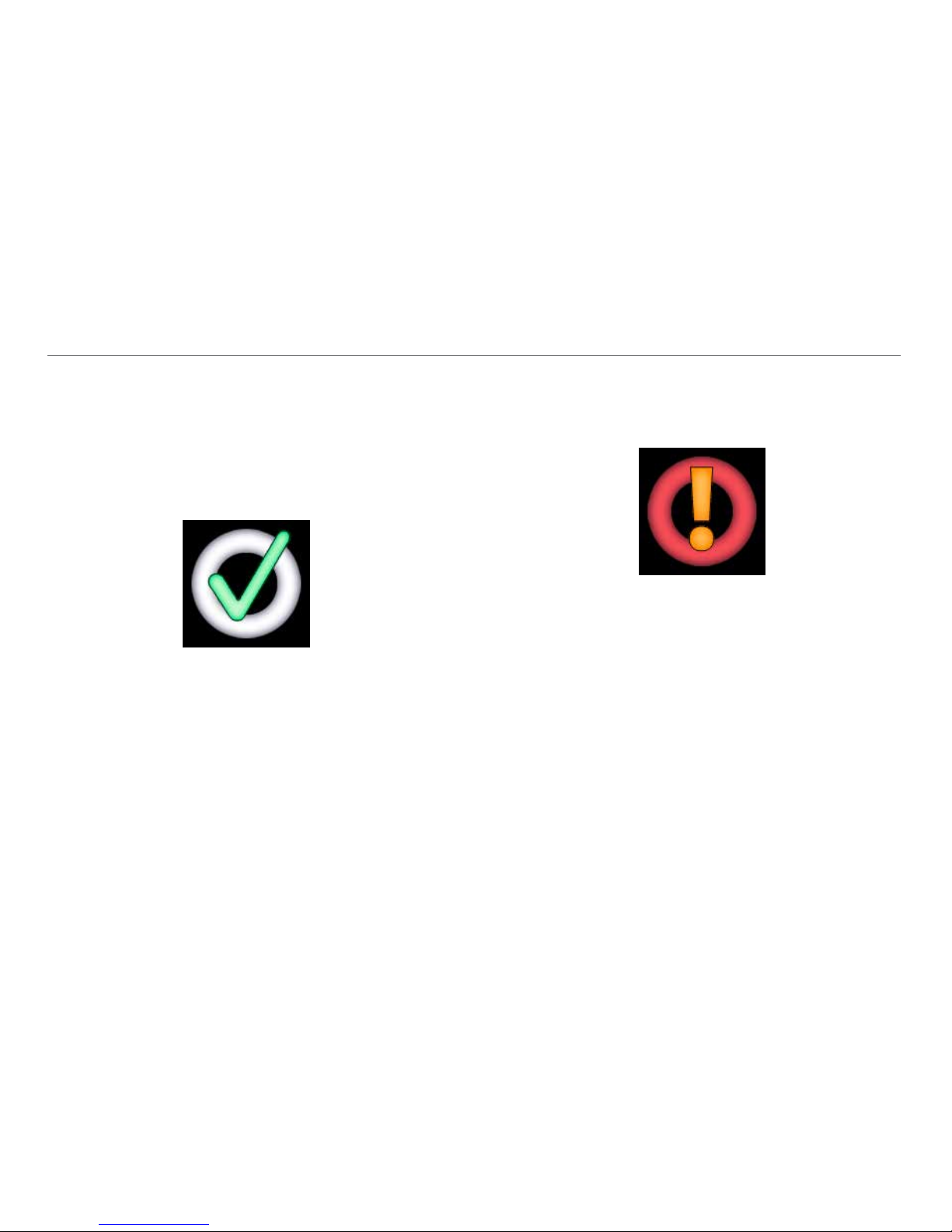
Successful Scan
Your scan was completed successfully. This image appears
briey on OLED of Scanner upon scan completion just prior
to the score image being displayed.
Error
The scan was not completed successfully.
Page 18
EN US/CA Version 1.1
18
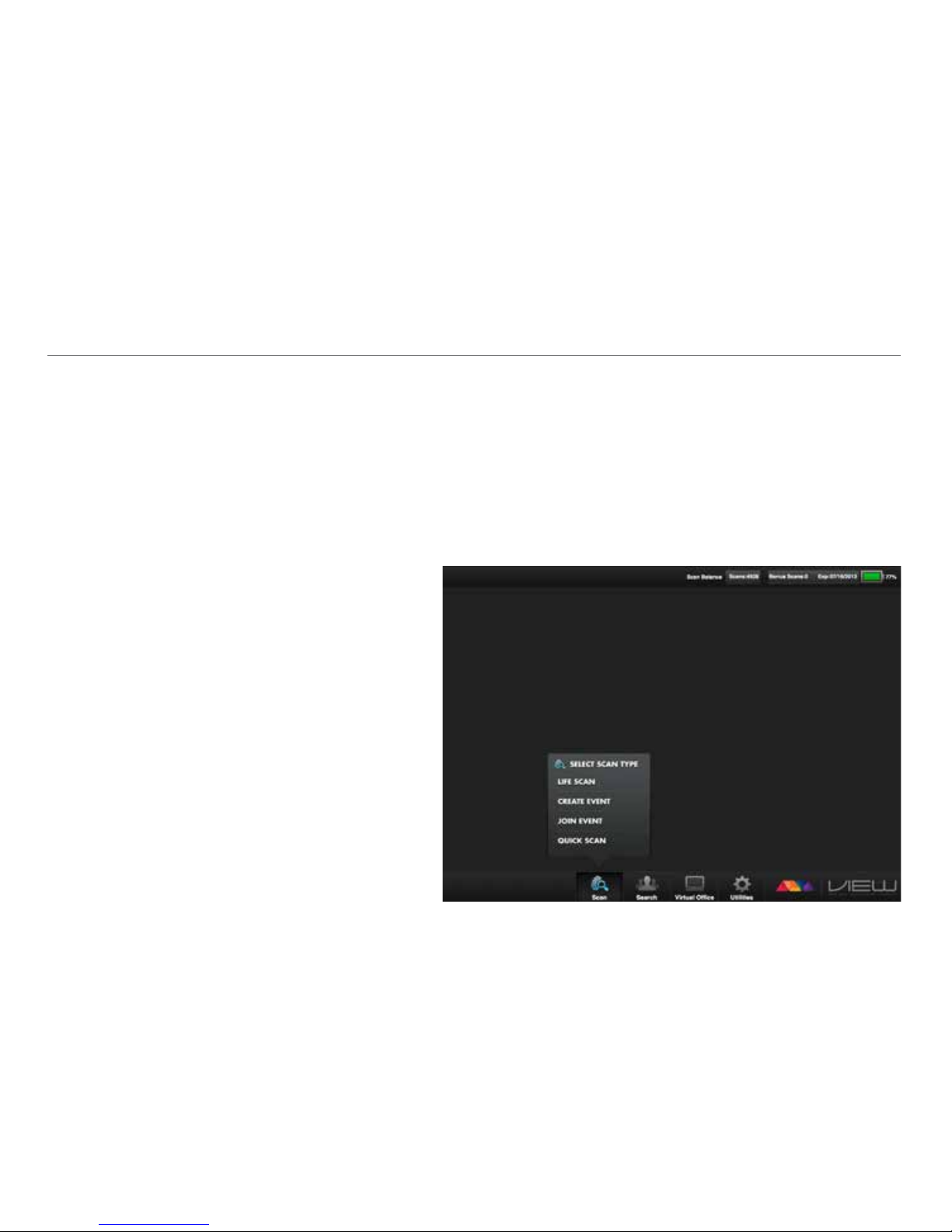
The scanner is controlled by the MonaVie VIEW app which
can be downloaded for free on your Apple iPhone and
iPad, or your Android phone and tablet. This app allows
you to perform Life Scan scores, host quick scan events, and
join events created by others.
The following is a quick overview of the app features:
a) Paid and bonus Life Scans available on your account
b) Expiration date of the bonus Life Scans
c) Battery life remaining on the scanner
d) “Life Scan” menu
e) “Create Event” menu
f) “Join Event” menu
g) “Quick Scan” menu
h) Icon linking you to your Virtual Ofce account
i) Utilities menu icon
j) Search icon linking you to your Life and Quick
Scan scores, by selecting either the Life Scan or
Quick Scan tabs.
You can also access your VIEW data from your Virtual
Ofce by clicking the “VIEW” tab. The VIEW products
will be available in the Orders tab if you have successfully
placed an order for the scanner.
*Menu titles may vary slightly depending on the device
you are using.
Software Overview
a
d
e
f
g
h i
b c
j
Page 19
©2013 MonaVie LLC
19
Getting Started
Downloading the App:
Download the MonaVie VIEW Antioxidant Scanner app
from the Apple app store if you are using an iPhone or iPad,
or Google Play if you are using an Android phone or tablet.
Follow the normal downloading procedures to download
and install the app to your mobile devices. Once the app
has properly installed, paired, and linked, you will see the
following icon on your mobile device:
Apple:
iPod touch (4th and 5th)
iPad (2, 3, and 4)
iPad mini
iPhone (3GS, 4S, and 5)
Android:
Gingerbread (2.3.5 – 2.3.7)
Honeycomb (3.0 – 3.2)
Ice Cream Sandwich (4.0 – 4.0.4)
Jelly Bean (4.1 – 4.2.1)
Page 20
EN US/CA Version 1.1
20
The Scanner will communicate with your mobile device
wirelessly. To do so, your scanner must be linked or “paired”
to your mobile device. This step does not require the
Internet.
To begin pairing your scanner with the mobile device:
1. Power up the scanner by pressing the On/Off Switch on
the back of the scanner.
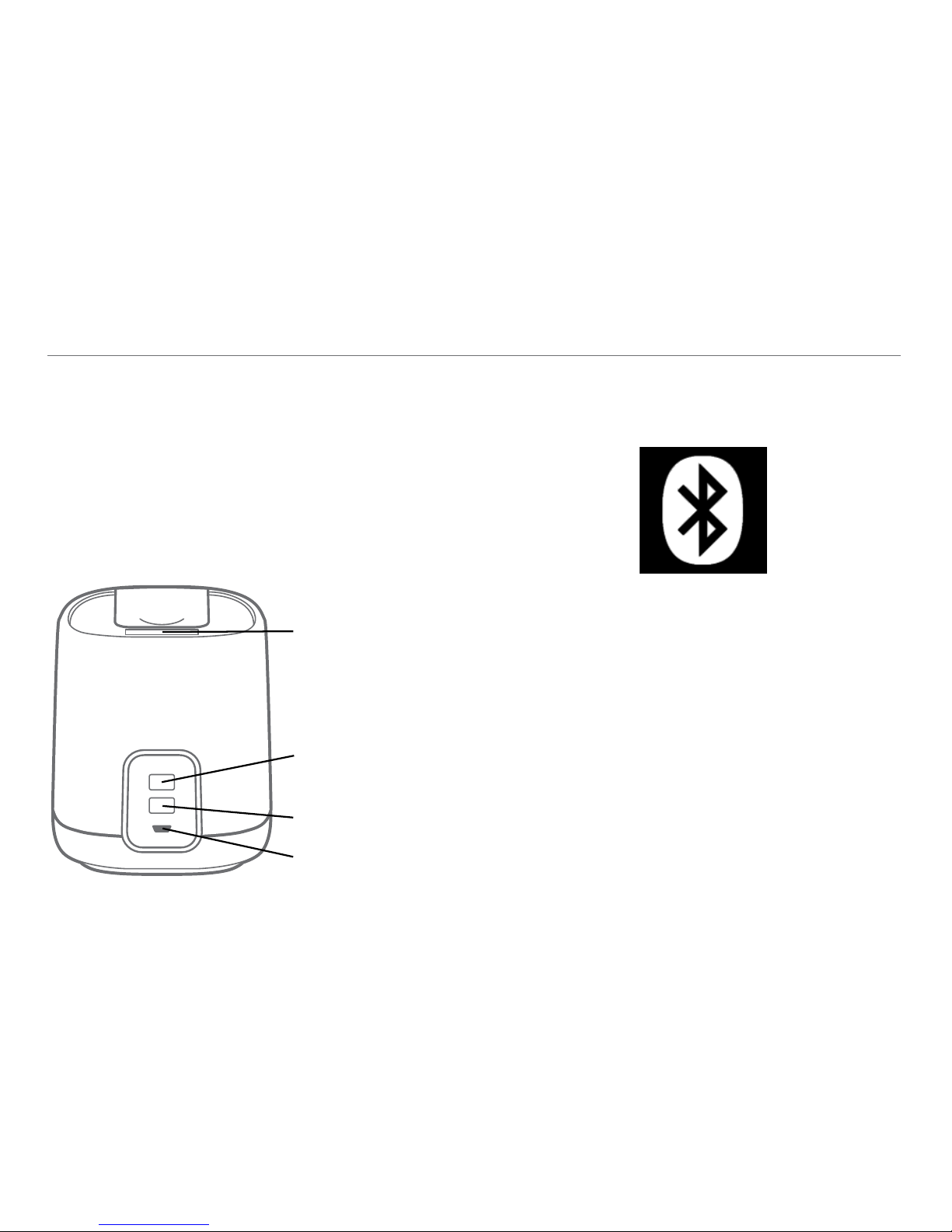
2. Press and hold the Bluetooth pairing button until you
see the white bluetooth icon appear on the scanner OLED,
indicating it is ready to be paired.
3. On your mobile device, click the setting menu
a) If you have an iPhone, iTouch, or iPad:
1) Click on the Setting icon for your device.
2) Select Bluetooth from the menu options
b) If you have an Android device:
1) Click on the Setting icon for your device.
2) Select Wireless and Network and click on the
Bluetooth icon
4) Set Bluetooth to on. Make sure your mobile device is
Pairing the Scanner to Your Mobile Device
OLED
Display Screen
Bluetooth Pairing
Indicator
On/Off Switch
USB Power
Supply Port
Page 21
©2013 MonaVie LLC
21
within 10 feet of the scanner. Your scanner will be detected
and will appear in the Devices menu as “MonaVie-XXXXXX.”
The last six digits are unique to your scanner and should be the
same as the serial number on your box.
a) If you have an iPhone, iTouch, or iPad:
1) Select your scanner from the menu.
If your mobile device asks whether you want to pair with
that device, answer yes.
The OLED display on the scanner will show a blue
Bluetooth icon for two seconds, indicating the Bluetooth
paring has been successfully completed.
The display will then return to the default screen. Your
scanner is now paired with your mobile device.
b) If you have an Android device:
1) Select your Scanner (e.g. Monavie-XXXXXX) under the
available devices section. (note: If your scanner device
does not appear, select either Scan or Search for
devices).
2) Select the OK button in the message dialog: “Bluetooth
pairing request dialog appears: Conrm passkey is
xxxxx to pair with Monavie-XXXXXX. OK or Cancel.”
The OLED display on the scanner will NOT show a blue
Bluetooth icon for Androids. It will appear only after opening
the app.
The display will then return to the default VIEW screen. Your
scanner is now paired with your mobile device.
Note: You do not need to pair your device each time you
wish to use the scanner unless you touch the pairing button on
the scanner again, which will cause your pairing to be lost.
If the pairing is lost, you will need to link the scanner and the
MonaVie VIEW app on your mobile device.
Page 22
EN US/CA Version 1.1
22
Once the scanner and MonaVie VIEW app have been
successfully paired using Bluetooth, you must link the scanner
to the MonaVie VIEW app before you can begin scanning.
To do this, open the MonaVie VIEW app:
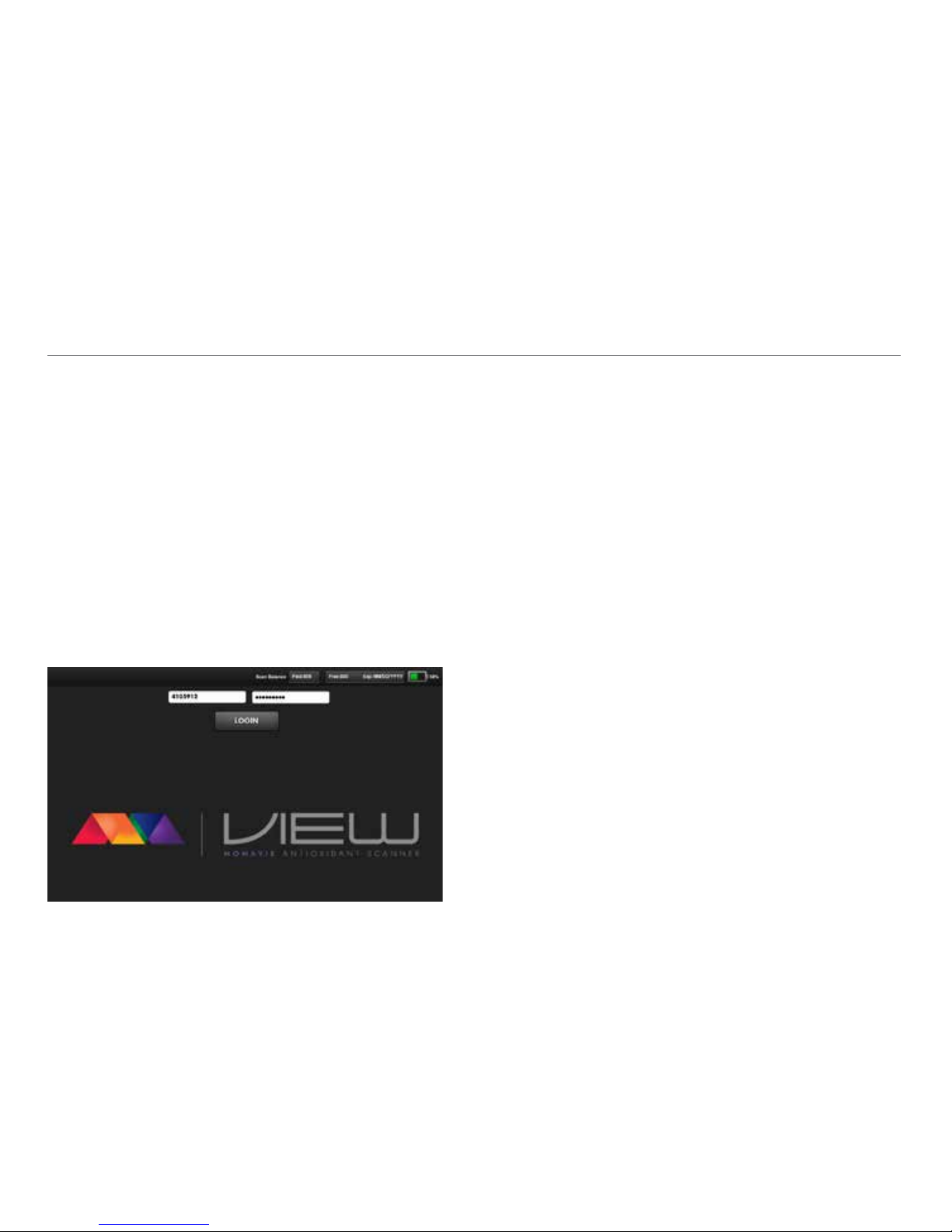
a) Open or launch the MonaVie VIEW application.
b) Select the OK button when you are prompted with the
message dialog “The VIEW. Would you like to use your
current location? OK or Don’t Allow.”
c) Enter your MonaVie Distributor ID and MonaVie
Password.
d) Click Continue.
The app authenticates your distributor id and password
against your assigned scanner and, if successful, will
display all your available options.
Allowing Location Services
The app requires you to enable location services. This
allows the software to provide accurate information, units
of measurements, and other security features based on the
location where you are scanning. Location Services also
ensure that the scanner is being used in compliance with
international rules and regulations. On the MonaVie VIEW
Antioxidant Scanner website, you can see a map showing
all the MonaVie scans currently taking place by clicking on
the GPS Map tab at the top of the page.
Syncing Data
With your scanner and mobile device properly paired and
linked, the scanning data will automatically sync between
the unit and mobile device as long as both are turned on
and within proximity of each other.
Linking Your Scanner to the VIEW App
*Images in this guide represent general functions of the VIEW
software app. Screen shots may vary depending on your device.
Page 23

©2013 MonaVie LLC
23
Changing from One Mobile Device to Another
Your scanner can only be paired to ONE mobile device
at a time. Once the pairing is complete, the units will stay
paired to each other each time they are turned on.
Page 24
EN US/CA Version 1.1
24
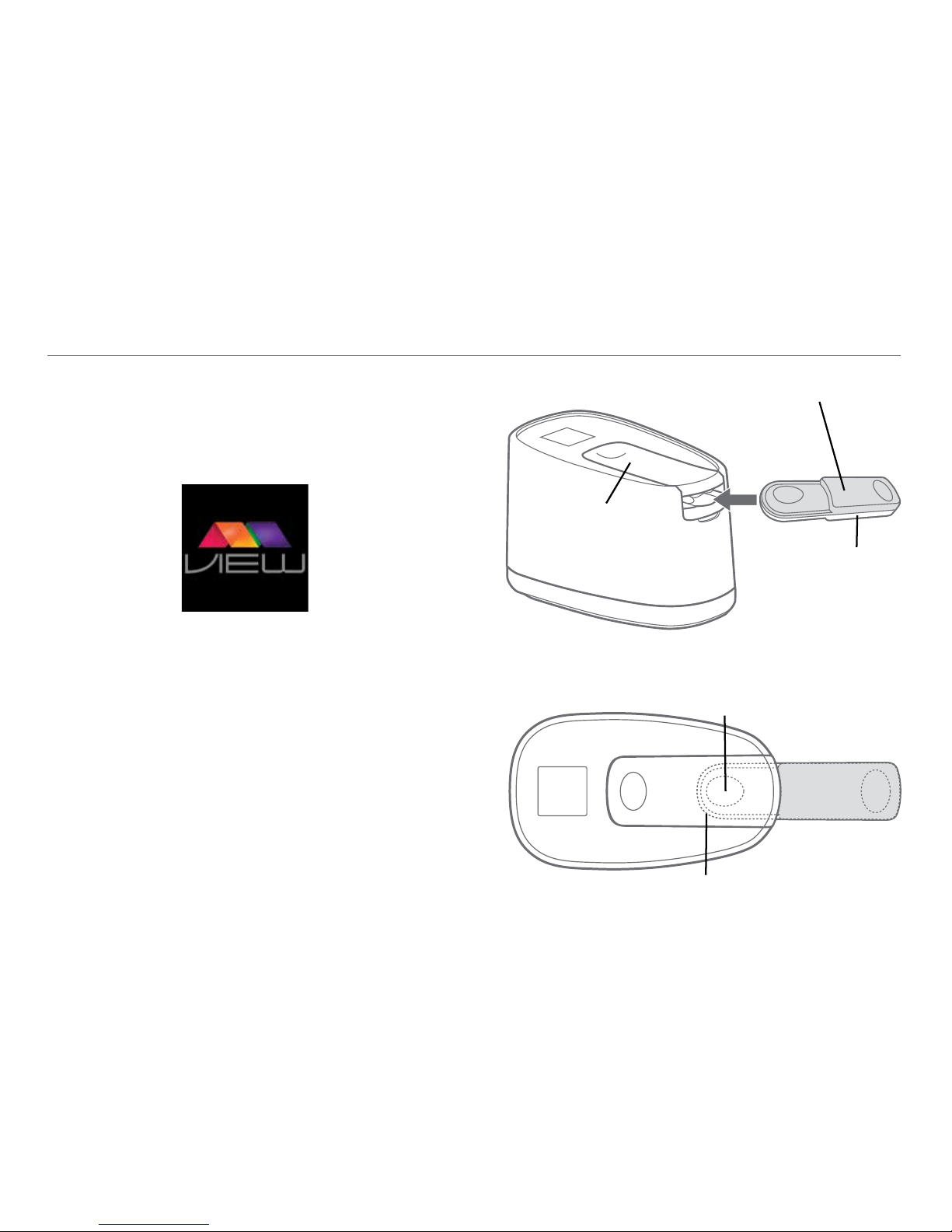
To properly place the calibration standard to conduct a
VIEW Session Check, follow these simple instructions:
1. Make sure the VIEW scanner is turned on and the warm-
up phase is completed.
2. Open the pressure lever (clamp) on the top of the scanner
as you would when performing a normal Life Scan score or
Quick Scan.
3. Place the calibration standard with the white side facing
down and the round end pointing towards the scanner so
that the concave shape on the white side of the reference
tool ts snugly over the VIEW lens.
VIEW Session Check
Concave shape
ts over the
VIEW lens
White side
facing down
Round end
Clamp
Calibration standard
3
2
1
Page 25
©2013 MonaVie LLC
25
CONTINUED
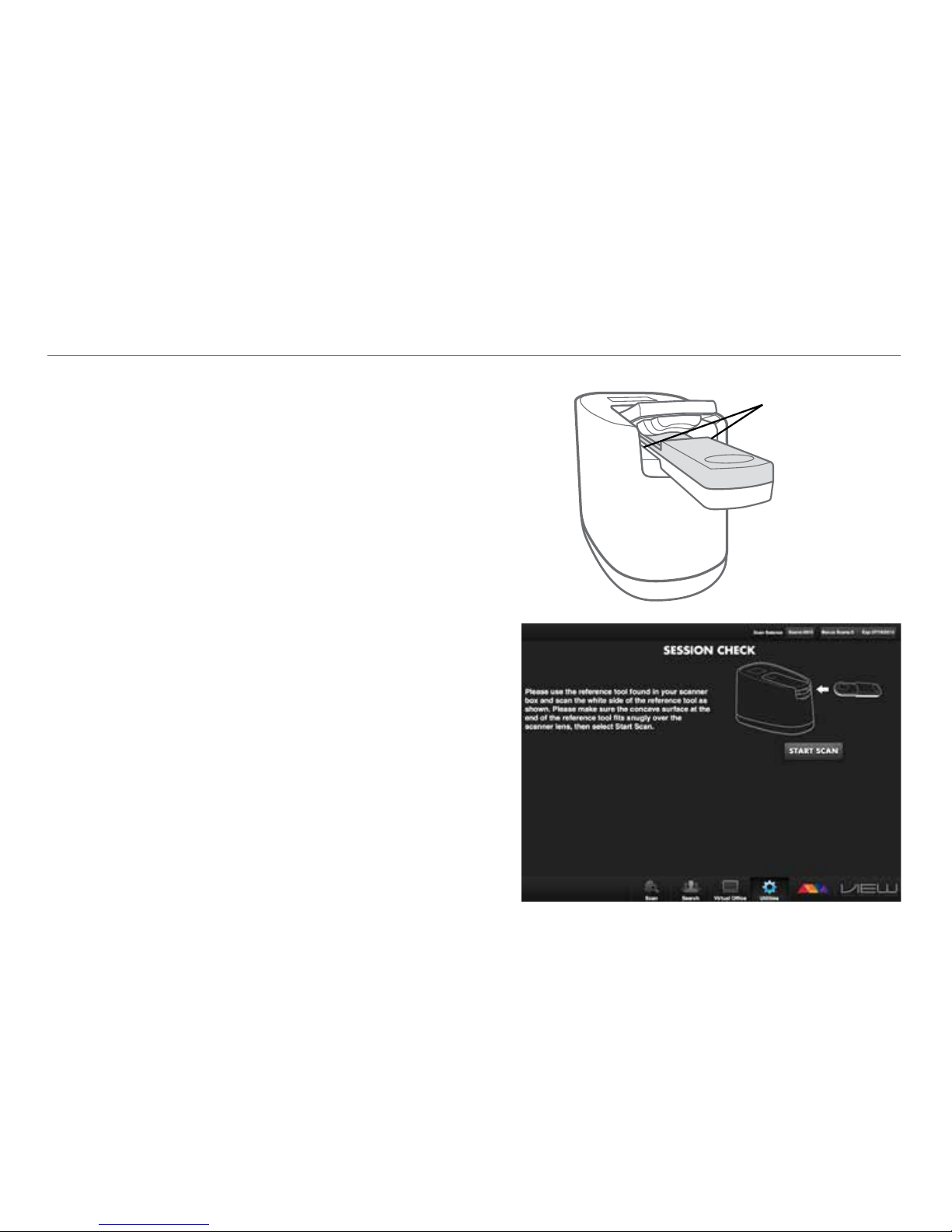
4. Examine the placement of the calibration standard by
checking to see that it is placed straight into the VIEW.
Make sure that no light is visible escaping the lens on either
side of the reference tool.
Proceed to conduct the session check as directed by the
VIEW application as follows:
5. Select or click “START SCAN” after correctly placing the
calibration standard on the lens of the scanner
*Images in this guide represent general functions of the VIEW
software app. Screen shots may vary depending on your device.
5
4
No light
escaping
either side
Page 26
EN US/CA Version 1.1
26
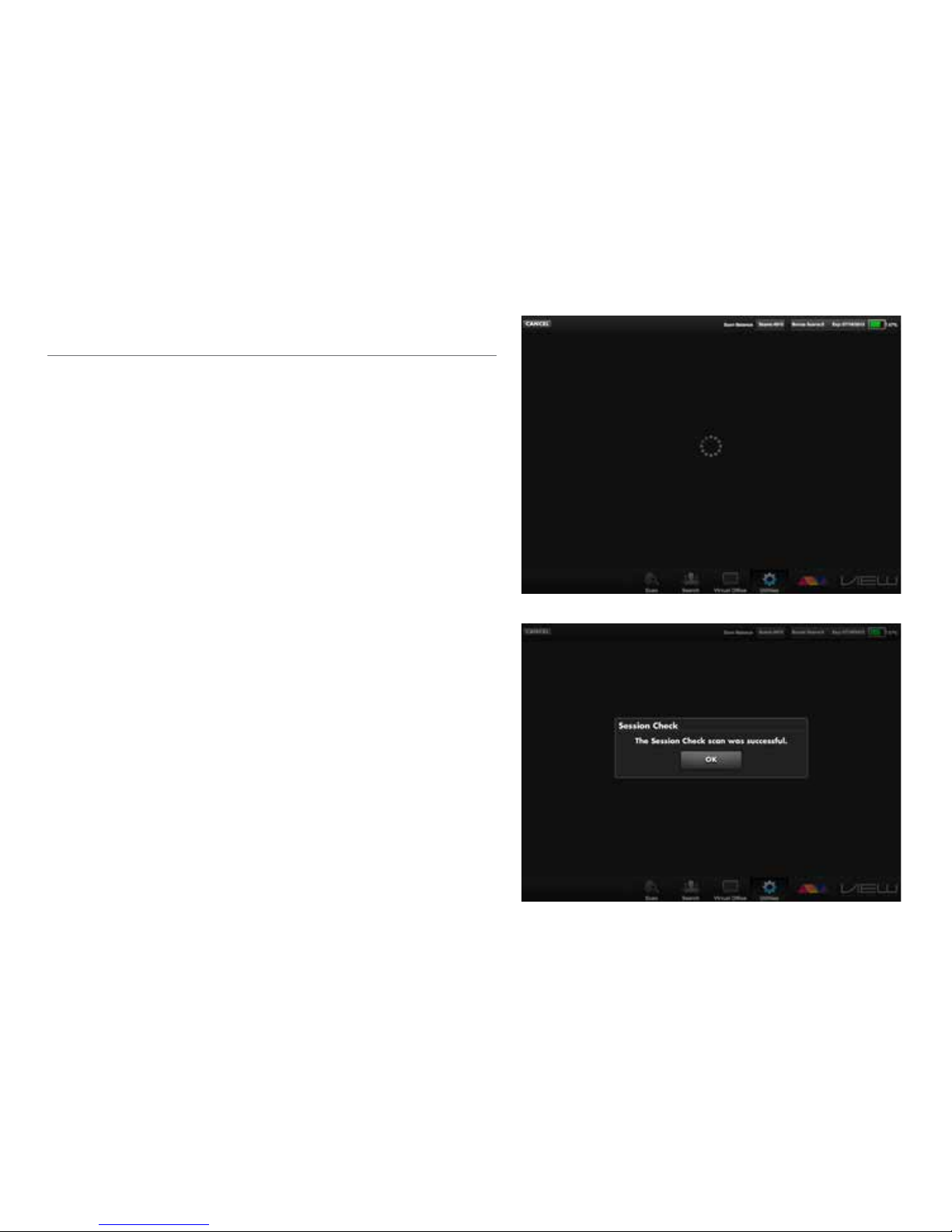
VIEW Session Check
6. You will see this screen while the app is performing the
session check.
7. You will see this screen when the session check is
completed successfully. Select or click “CONTINUE” to
begin using your scanner for Quick Scans or Life scan
scores.
*Images in this guide represent general functions of the VIEW
software app. Screen shots may vary depending on your device.
6
7
Page 27
©2013 MonaVie LLC
27
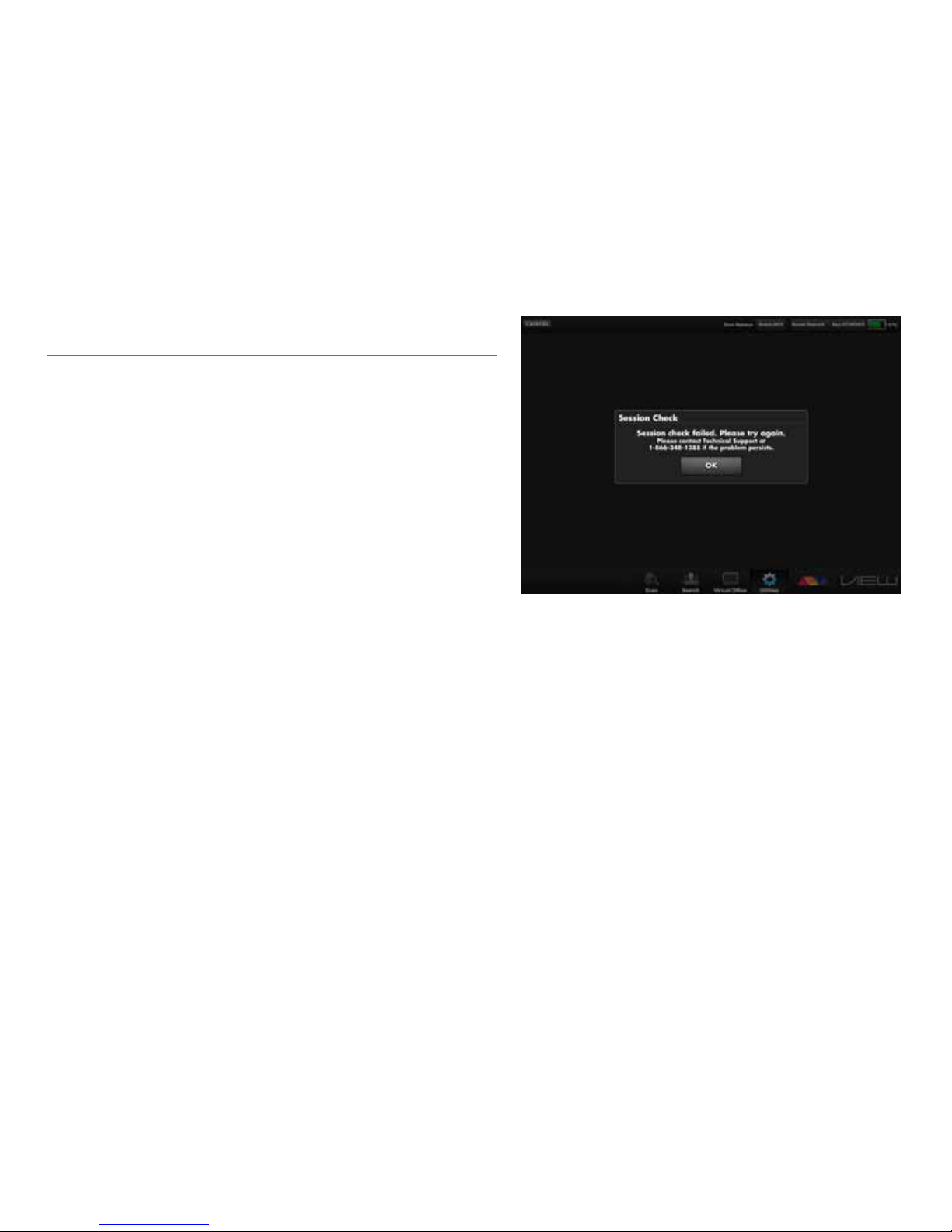
You will see this screen if the session check was not
completed successfully. Please repeat the session check
process as directed by the app.
*Images in this guide represent general functions of the VIEW
software app. Screen shots may vary depending on your device.
Page 28
EN US/CA Version 1.1
28
How the scanner works
The MonaVie VIEW Antioxidant Scanner scans for two types
of compounds in your body: carotenoids and avonoids.
Carotenoids are largely responsible for the red, yellow, or
orange unsaturated pigments that are found in foods such
as carrots, sweet potatoes, and leafy green vegetables
and act as antioxidants. Preliminary research shows that
avonoids may modify many elements that affect your body
including allergens, viruses, and carcinogens. The presence
of strong levels of avonoids is also a strong indicator of the
antioxidant levels within your body.
When light photons from the visible light spectrum are
directed by the VIEW scanner toward your nger tissue, a
small fraction of diffusively backscattered light is collected
and analyzed, resulting in a measurement of the carotenoid
and avonoid presence in your skin. Different types of light
are used to detect carotenoids vs. avonoids.
What does your scanner score mean?
Your scanner will provide you with an initial result on the
OLED screen with a color-coded icon that represents a
scan result range. A more detailed result that actually
provides you with a numerical score is displayed in the
app on your mobile device once you have successfully
completed a scan. But what does your score mean? Your
score is a measurement of your antioxidant levels, which is
an indicator of your overall health. The color/score chart
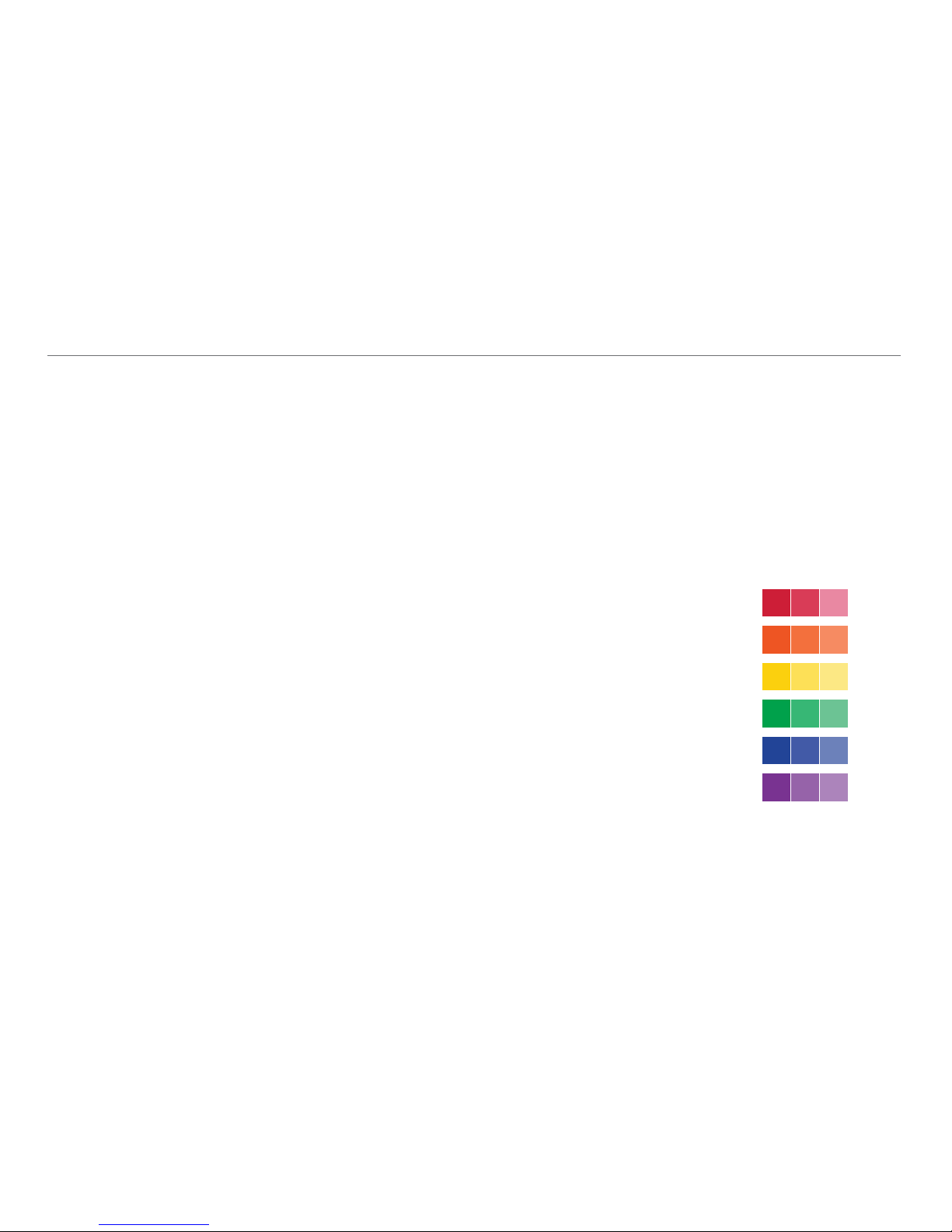
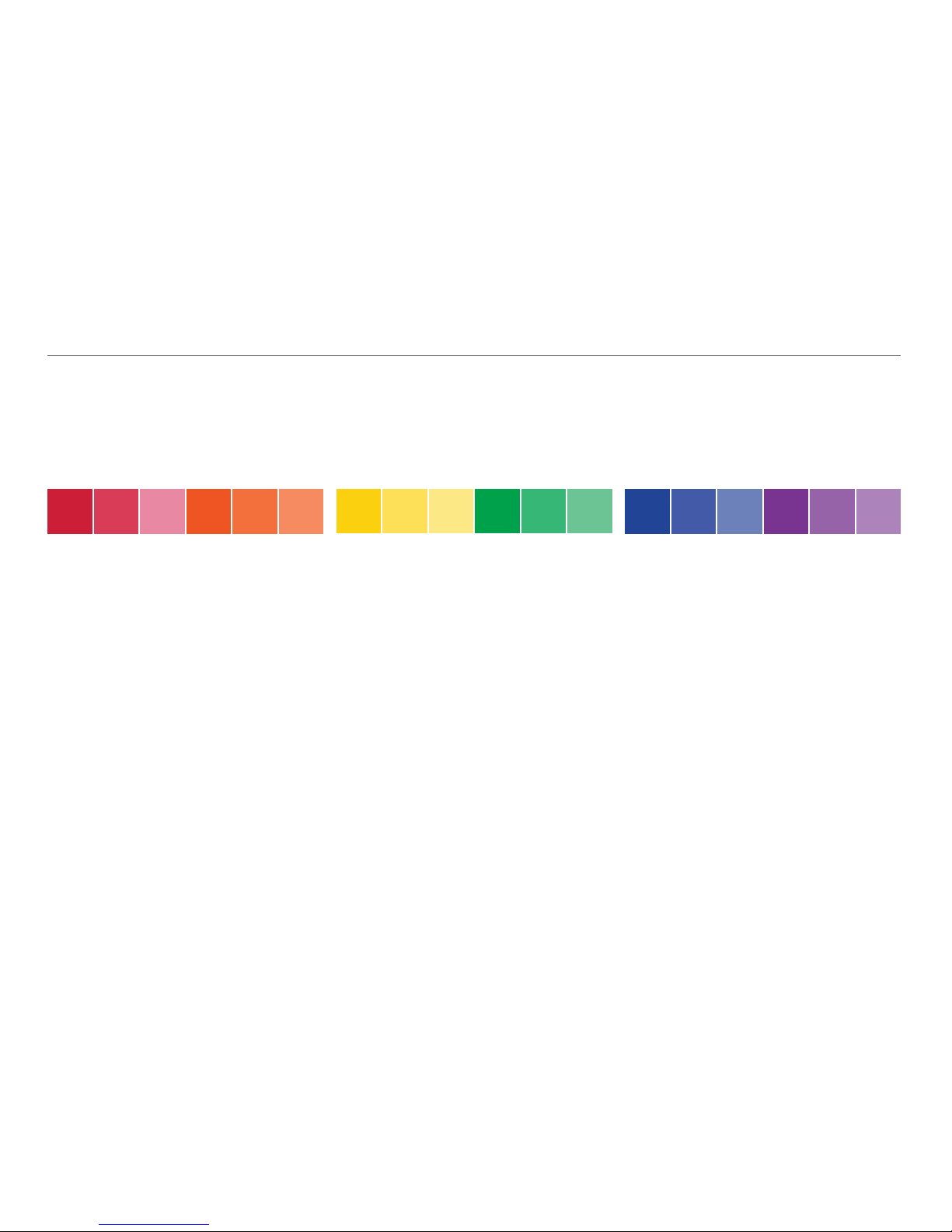
below is divided into six main score ranges:
Red: 10,000–25,000
Orange: 25,001–40,000
Yellow: 40,001–55,000
Green: 55,001–70,000
Blue: 70,001–85,000
Purple: 85,001–100,000
Scanning Overview
Page 29
©2013 MonaVie LLC
29
LOW
HIGH
With a high score, you…
•
Consume a high amount of fruits
and vegetables.
•
Manage stress levels or have low stress.
•
Have low exposure to sunlight
and pollutants.
•
Are using a supplement that is being
successfully absorbed by your body.
Chances are you…
•
Consume a moderate amount of fruits and
vegetables.
•
Have some stress.
•
Are exposed to pollutants and sunlight
at a moderate level.
•
Are taking a supplement that is being
somewhat absorbed by your body.
Most likely, you…
•
Do not consume enough fruits and
vegetables.
•
Have a high stress level.
•
May have high exposure to sunlight
and pollutants.
•
May either be a smoker or are regularly
exposed to second-hand smoke.
•
Are taking a supplement that is not
being absorbed by your body.
LOW SCORES
MEDIUM SCORE
HIGH SCORE
Your individual results may vary according to your dietary habits, supplementation, lifestyle choices, and genetic differences. The
following information provides general guidelines to the meaning of your scan.
Page 30
EN US/CA Version 1.1
30
Quick Scan vs. Life Scan Score
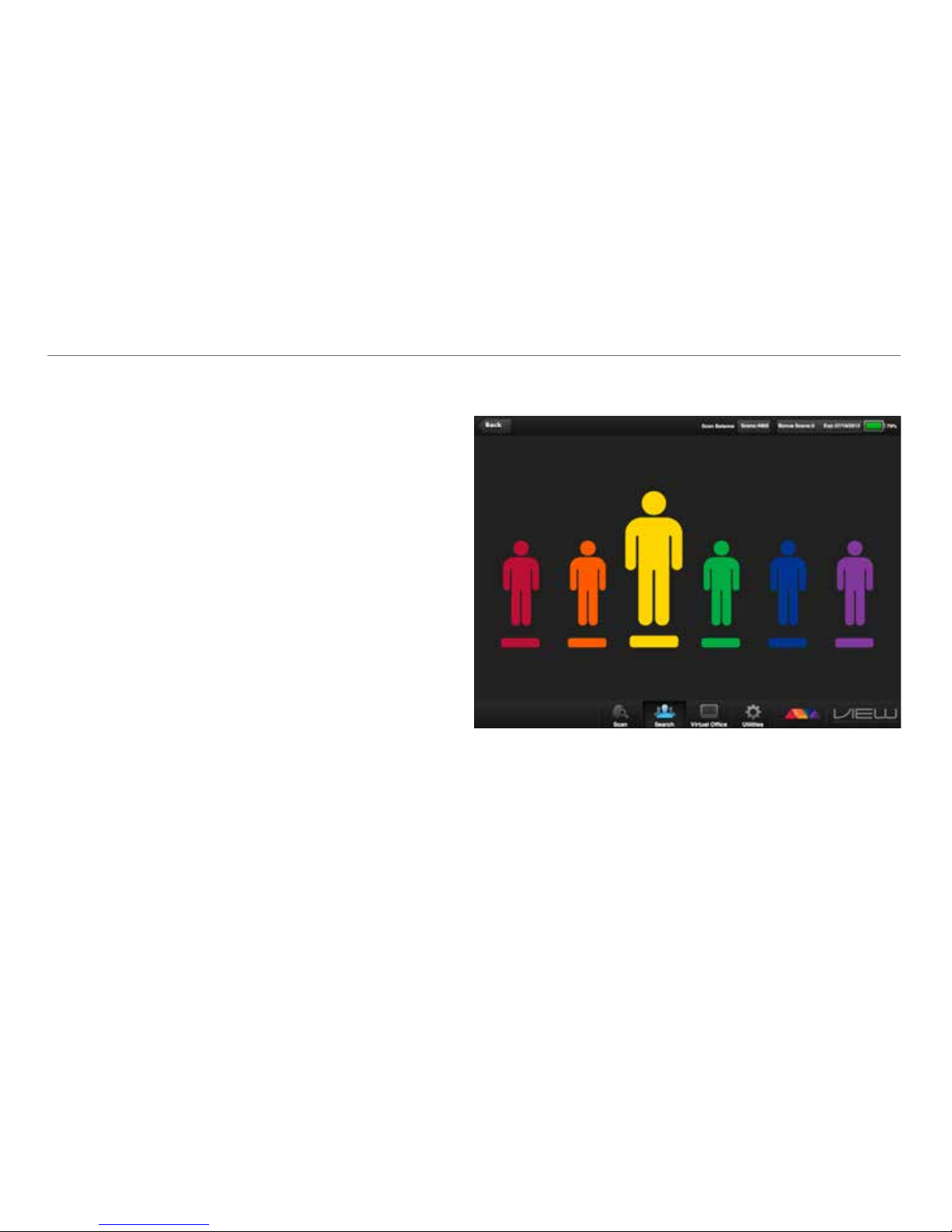
Quick Scan
Quick Scans are an optional feature that is an effective
prospecting tool. A Quick Scan is a fast (ve seconds) scan
that may be quickly set up and used on several people at
once, such as at a home business review. To use Quick
Scans, you must pay a separate Quick Scan fee through the
Virtual Ofce. This monthly fee allows an unlimited number
of Quick Scans.
Quick Scans are typically set up to run in events. For
example, if you have a prospecting meeting coming up this
evening, you may set up an event and call it by a unique
name. When the event takes place, all of the Quick Scans
from all attendees will be associated with each other.
The results of the entire group may be shown together or
broken down by groups (e.g. distributor vs. non-distributor)
for comparison. The results are less detailed than a Life
Score, but are adequate to show potential customers and
distributors a snapshot of their antioxidant levels. Multiple
scanners may be used for one event for no additional
charge to allow many people to be scanned at once.
*Images in this guide represent general functions of the VIEW software
app. Screen shots may vary depending on your device.
Page 31
©2013 MonaVie LLC
31
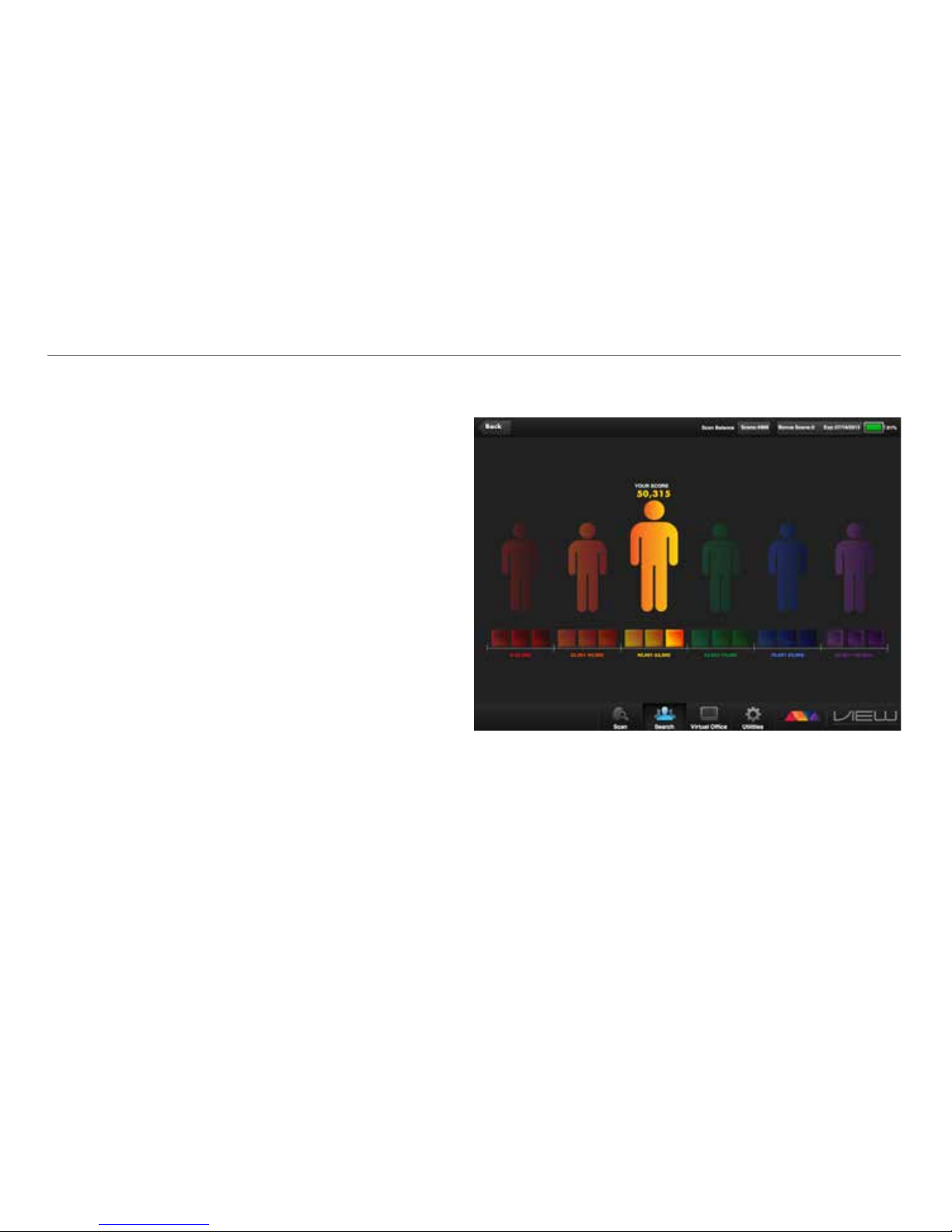
Life Scan Score
A Life Scan score is a complete scan (30 seconds) that is
tied to an individual to track their antioxidant levels over
time. This is the primary scan used to track and measure
customers and distributors and is the most accurate,
non-invasive antioxidant measurement available in the
marketplace today. This is a more intimate recruiting and
enrolling tool, unlike the Quick Scan, which is a broadstroke prospecting tool. Each Life Scan score a person does
is stored in MonaVie’s secure database with their personal
prole and may be accessed online at any time by the
distributor who conducted the scan.
*Images in this guide represent general functions of the VIEW software
app. Screen shots may vary depending on your device.
Page 32
EN US/CA Version 1.1
32
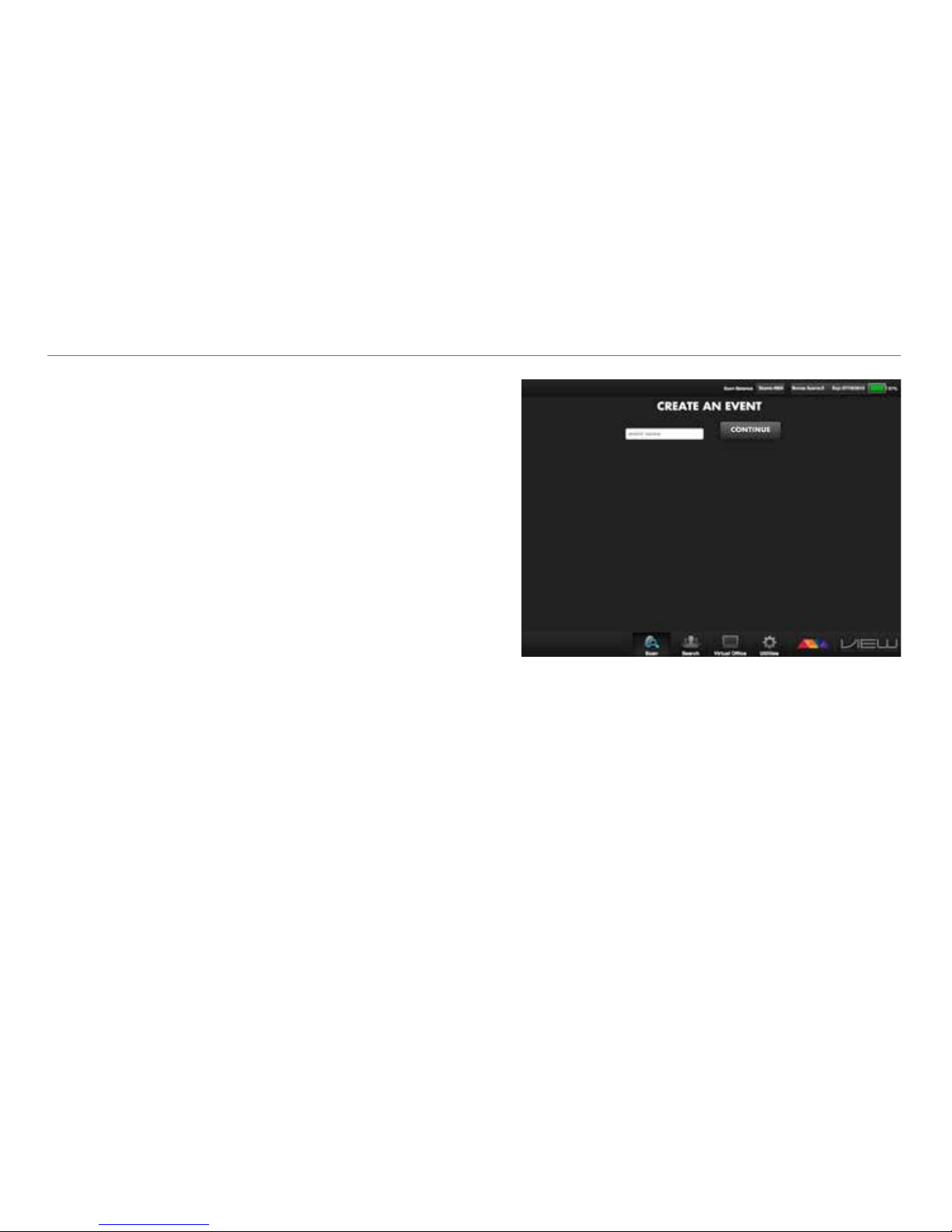
1. Set up an event
Quick Scans are designed to be used as a prospecting tool
where you have several people present in one location and
would like to do a quick, less involved scan of each person
to give them a snapshot of their antioxidant levels.
Here are the steps to set up an event:
a) Select “Create Event” from the VIEW app.
Note: If you have not purchased the Quick Scan option
in the Virtual Ofce, the Create Quick Scan Event
option will not appear in the menu.
b) Name the event you would like to create and press
Continue. The event is now created and tied to your
distributor ID number. Note: If you leave the event you
have created and wish to log back in later, you need
to enter your event again by clicking on the Join my
Quick Scan Event option and entering the name.
How to Set Up a Quick Scan Event
b
*Images in this guide represent general functions of the VIEW software
app. Screen shots may vary depending on your device.
Page 33
©2013 MonaVie LLC
33
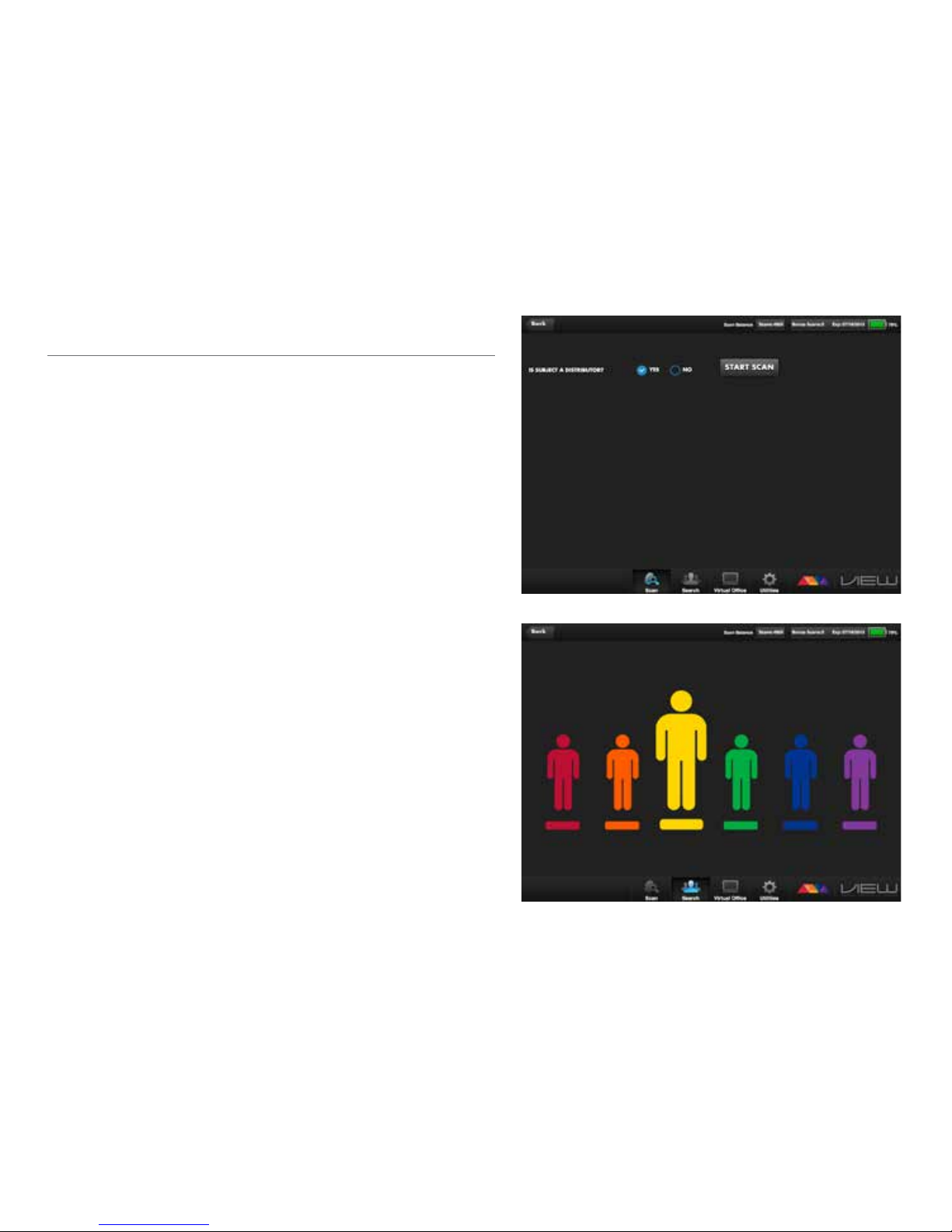
c) Perform a Quick Scan:
1) Select the Yes or No radio button in the message
dialog: Is Subject a Distributor?
2) Select Start Scan button
An event may only be set up 24 hours prior to the actual
event. Any event that has not been used within that time
period will be deleted.
*Images in this guide represent general functions of the VIEW software
app. Screen shots may vary depending on your device.
c1
c2
Page 34
EN US/CA Version 1.1
34
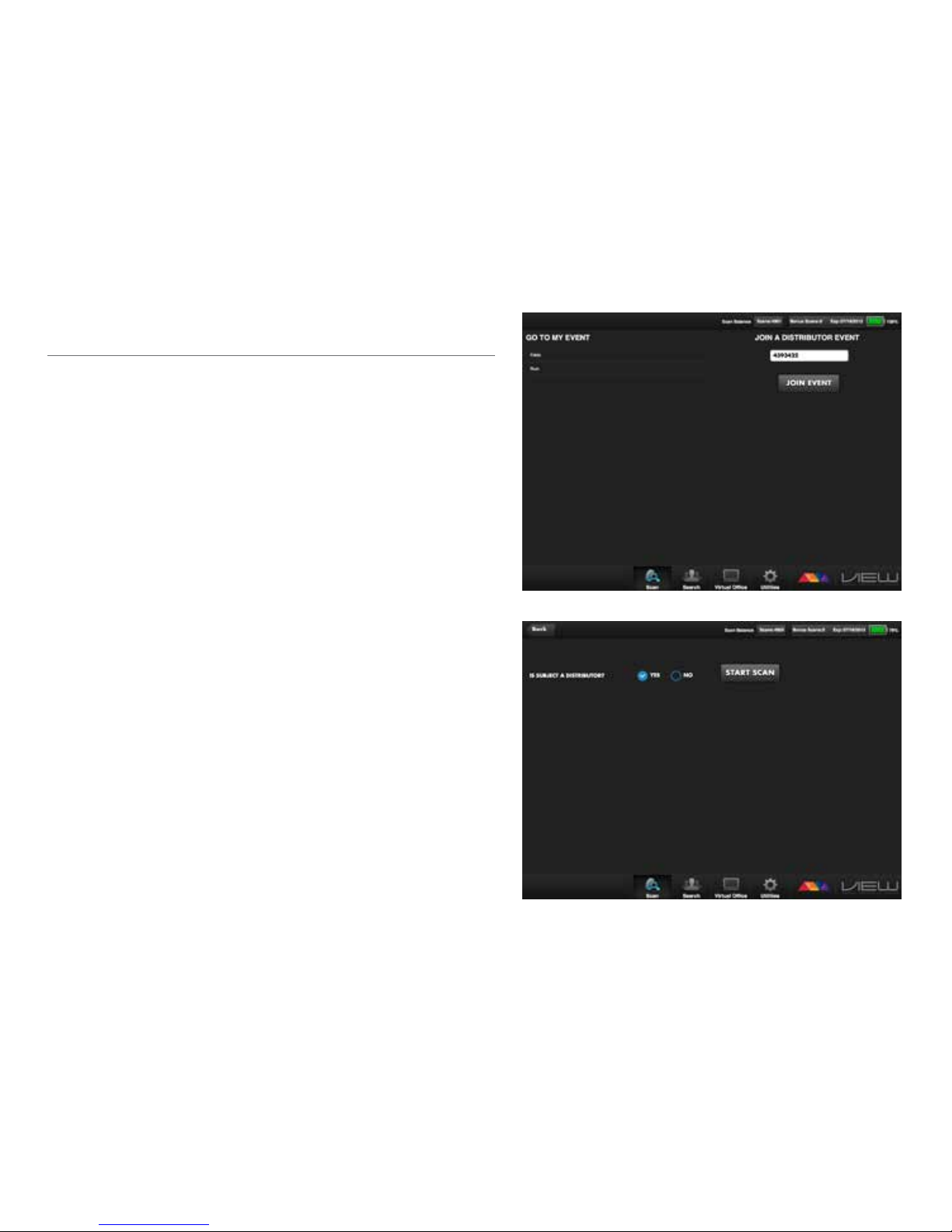
2. Join a Quick Scan event
Once a Quick Scan event has been created by you or
another distributor that has paid for the Quick Scan feature,
you may join that event and begin scanning potential
customers into the system even if you haven’t bought the
Quick Scans yourself. To enter an event:
a) Select “Join Event” option.
b) Enter the distributor ID of the person that created the event and
the event name and press “Join Event” on the right hand side.
If you created the event, select the event name listed under the
heading “GO TO MY EVENT” on the left hand side.
c) Next, select whether the person you are about to scan is
a distributor or not.
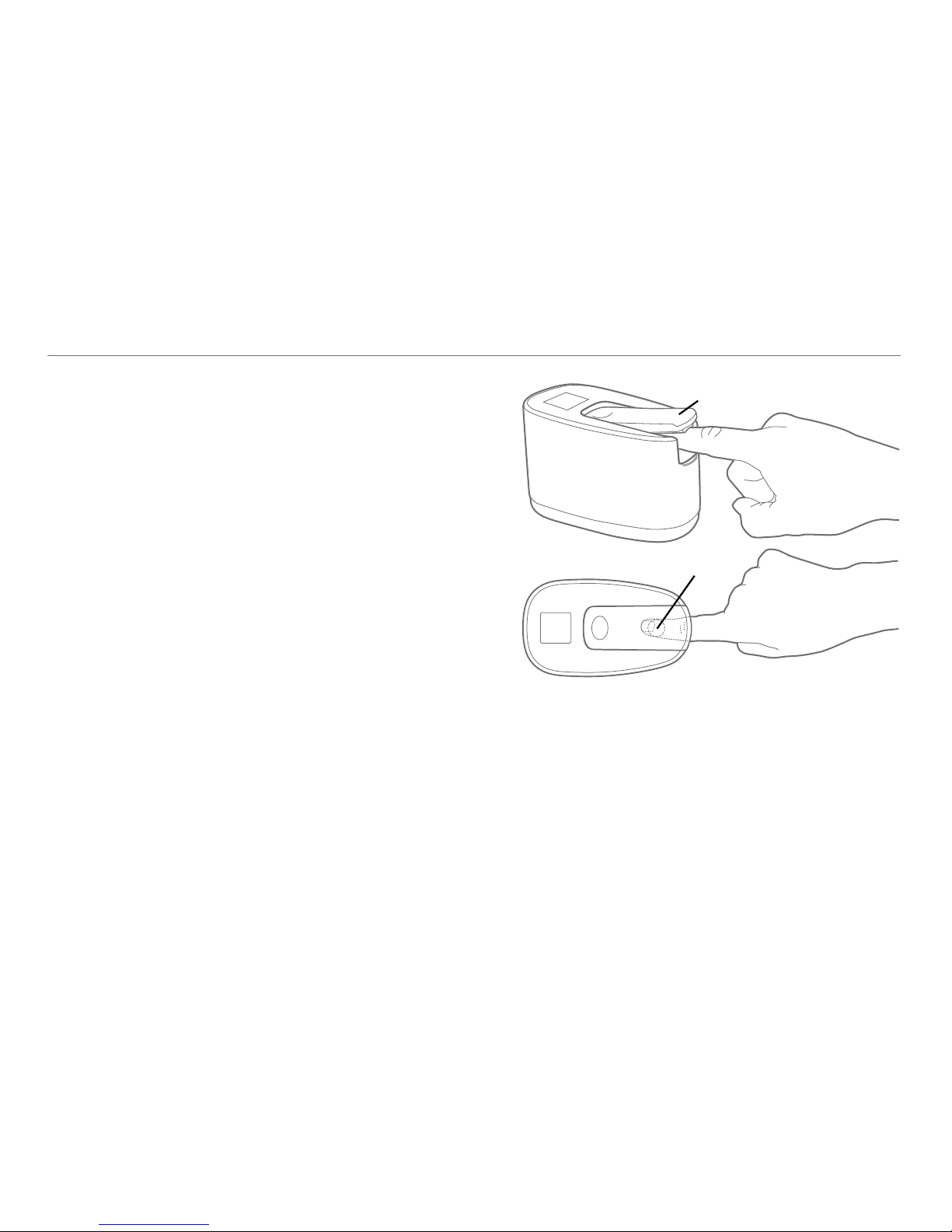
d) Have the person you are scanning place their nger in the
scanner. Please note that it is important to use the same
nger on subsequent scans in order to ensure an accurate
assessment of the person’s antioxidant levels. Placing a
person’s nger in the scanner is accomplished by raising the
clamp and having the person place their index nger of their
right hand into the scanning portal and onto the lens. Make
sure that the cradle ts comfortably and smoothly around
the edge of the ngertip so that the nger covers the lens
completely and no light is escaping from around the edge of
the nger tip.
How to Join a Quick Scan Event
c
b
Page 35
©2013 MonaVie LLC
35
e) Click on the “Start Scan” button. A typical Quick Scan
takes less than ten seconds to complete
f) Repeat for additional people you wish to scan.
3. Using more than one scanner in an event
Once a distributor creates an event, other distributors that
have scanners may join that event. This is very useful for
large events where many people need to be scanned
quickly. Only the person that creates the event needs to
have paid for the Quick Scan feature. There is no limit to
the number of scanners that may be used in a single event.
Each distributor that joins the event must use the distributor
ID of the event creator and unique event name they created
for the event. Again, an event must be created no more than
24 hours prior to the actual event.
d
Lens
Clamp
*Images in this guide represent general functions of the VIEW software
app. Screen shots may vary depending on your device.
Page 36
EN US/CA Version 1.1
36
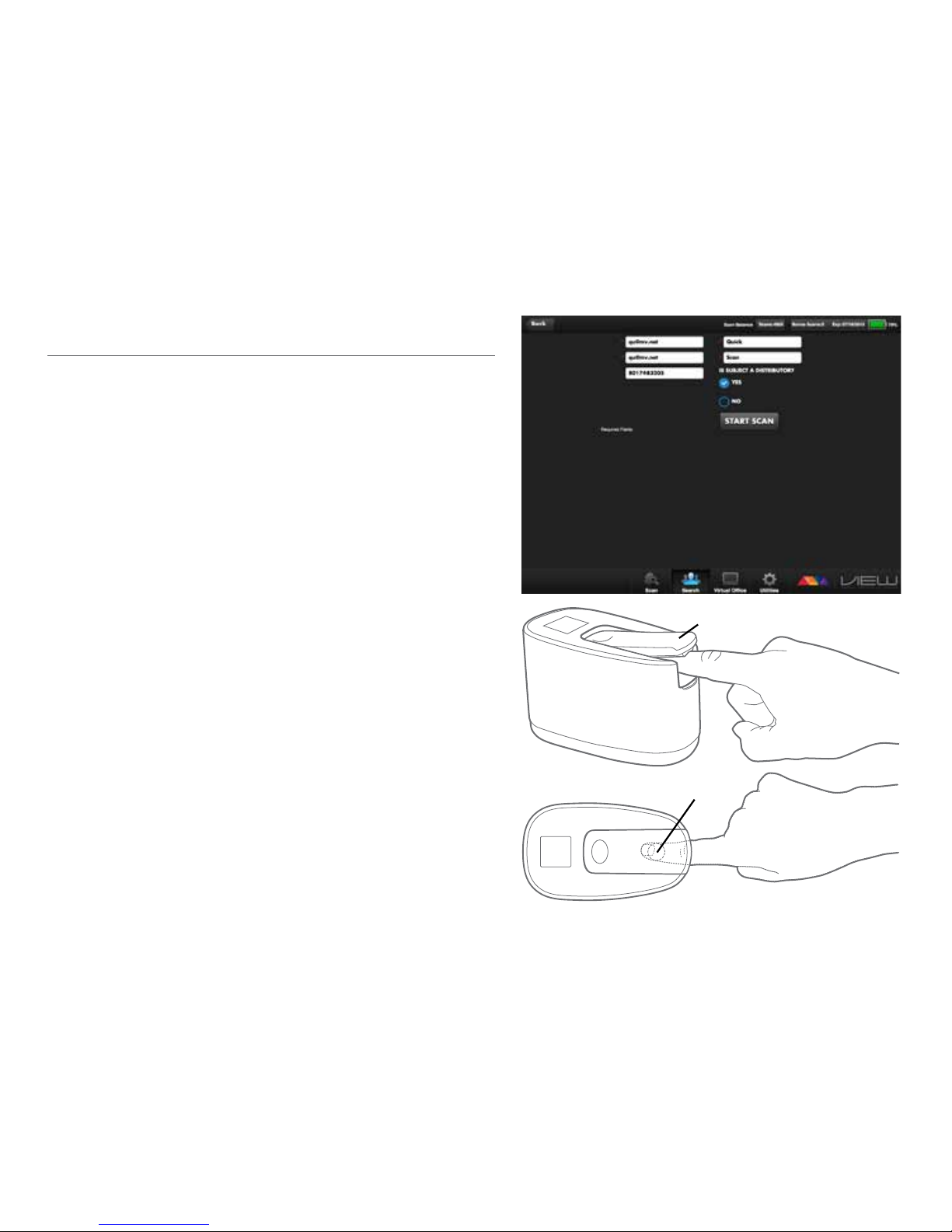
Quick Scans are designed to be used as a prospecting tool in
situations where you would like to do a quick, less-involved scan
to give people a snapshot of their antioxidant levels.
Here are the steps to perform a single quick scan:
a) Select “QUICK SCAN” from the View app.
Note: If you have not purchased the Quick Scan option in
the Virtual Ofce, the Create Quick Scan Event option will
not appear in the menu.
b) Enter the Email address, conrm email address, rst name,
and last name.
c) Select the radio button indicating whether the person is
a distributor.
d) Have the person you are scanning place their nger in the
scanner. Please note that it is important to use the same
nger on subsequent scans in order to ensure an accurate
assessment of the person’s antioxidant levels. Placing a
person’s nger in the scanner is accomplished by raising
the clamp and having the person place their index nger of
their right hand into the scanning portal and onto the lens.
Make sure that the cradle ts comfortably and smoothly
around the edge of the ngertip so that the nger covers the
lens completely and no light is escaping from around the
edge of the nger tip.
How to Conduct a Single Quick Scan
b
d
Lens
Clamp
Page 37
©2013 MonaVie LLC
37
g
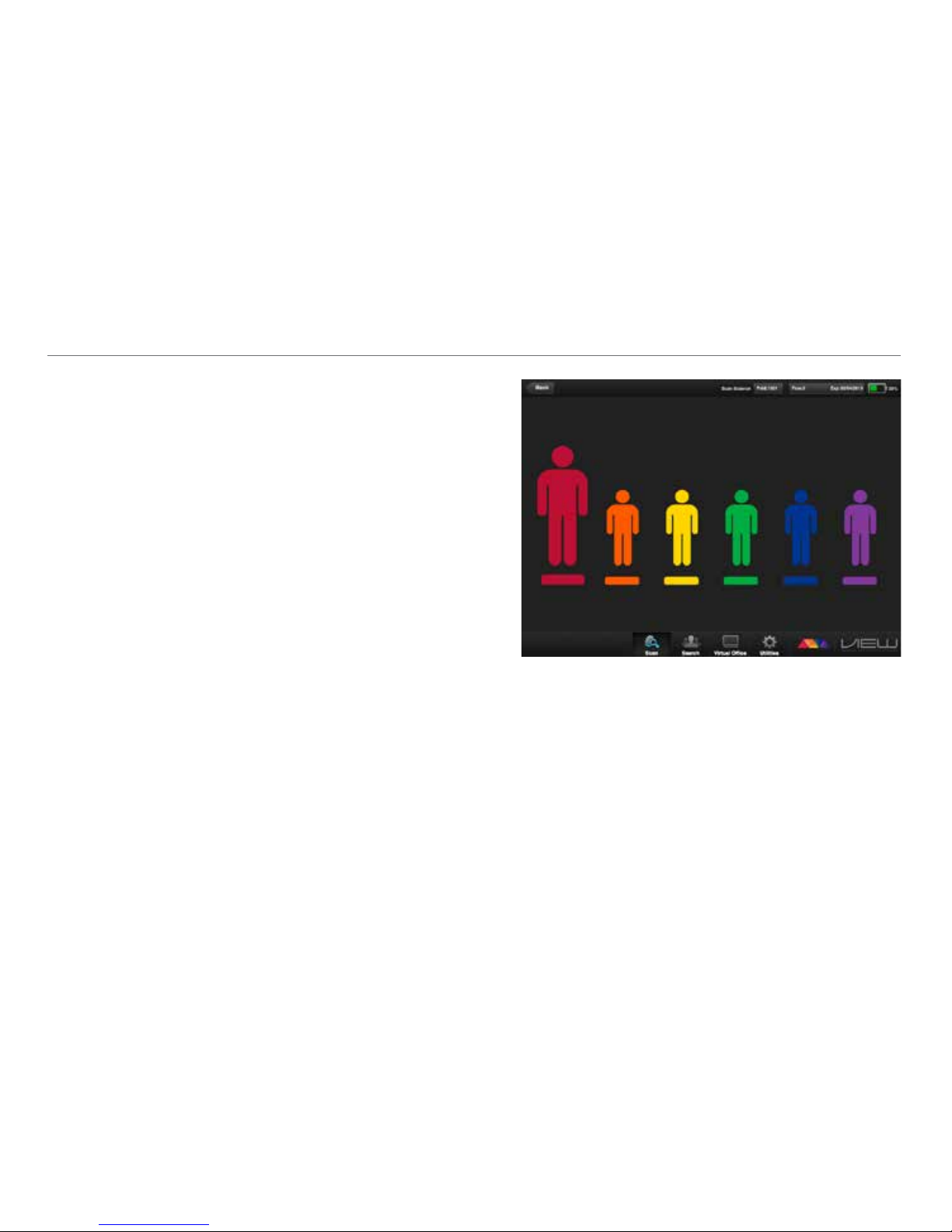
e) Click the “START SCAN” button.
f) The scanner will start working and the OLED display
will show a white circle building clockwise as the scan
progresses. While the scan is being conducted, it is
important to have the person being scanned keep his or
her nger still in the scanning portal.
g) When the scan is complete, the results will display on
your mobile device screen.
The raised color gure on the mobile app screen will give
you an overall indication of your antioxidant levels.
*Images in this guide represent general functions of the VIEW software
app. Screen shots may vary depending on your device.
Page 38
EN US/CA Version 1.1
38
How to Conduct a Life Scan Score
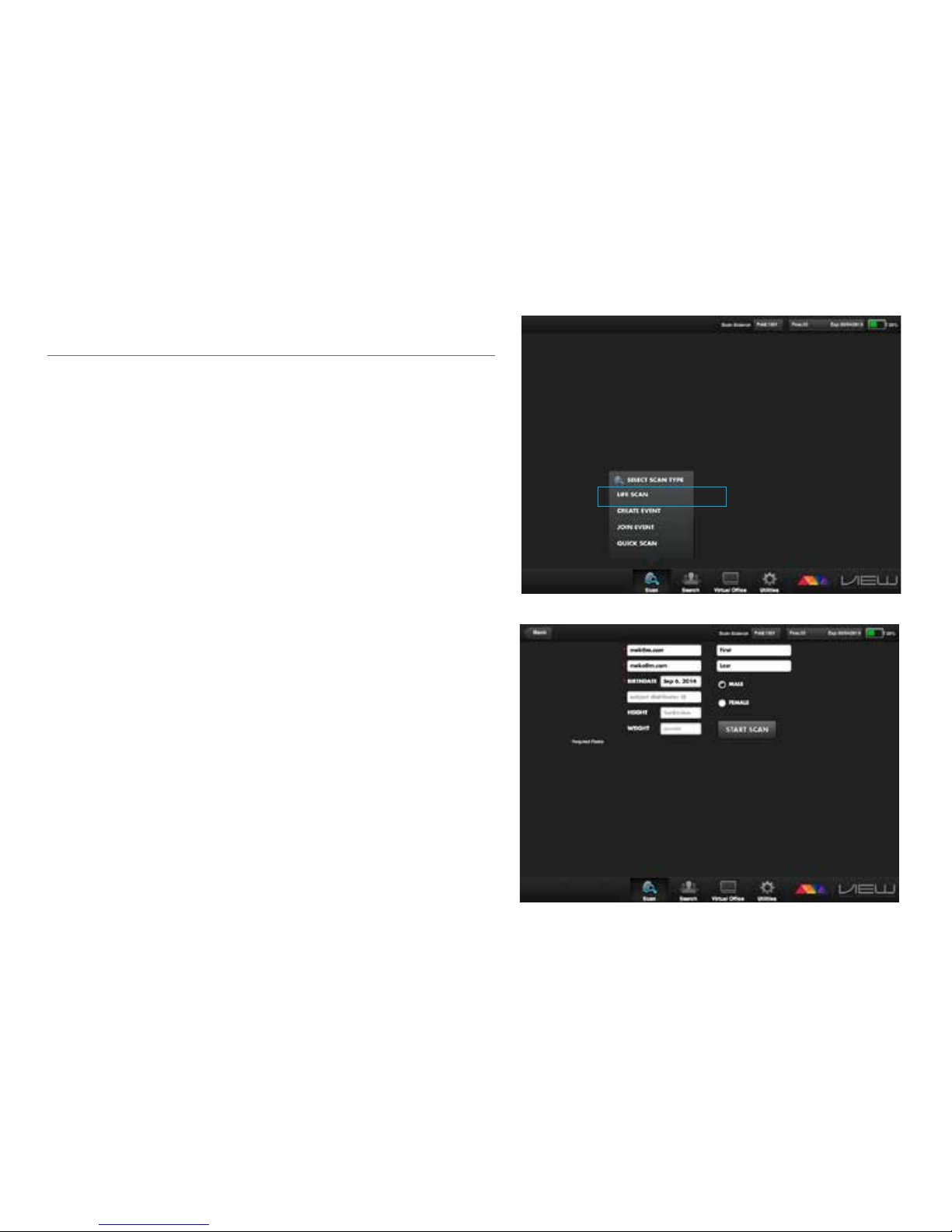
To conduct a Life Scan score, make sure you are paired and
linked with your scanner and follow these steps:
a) Open the VIEW app on your device.
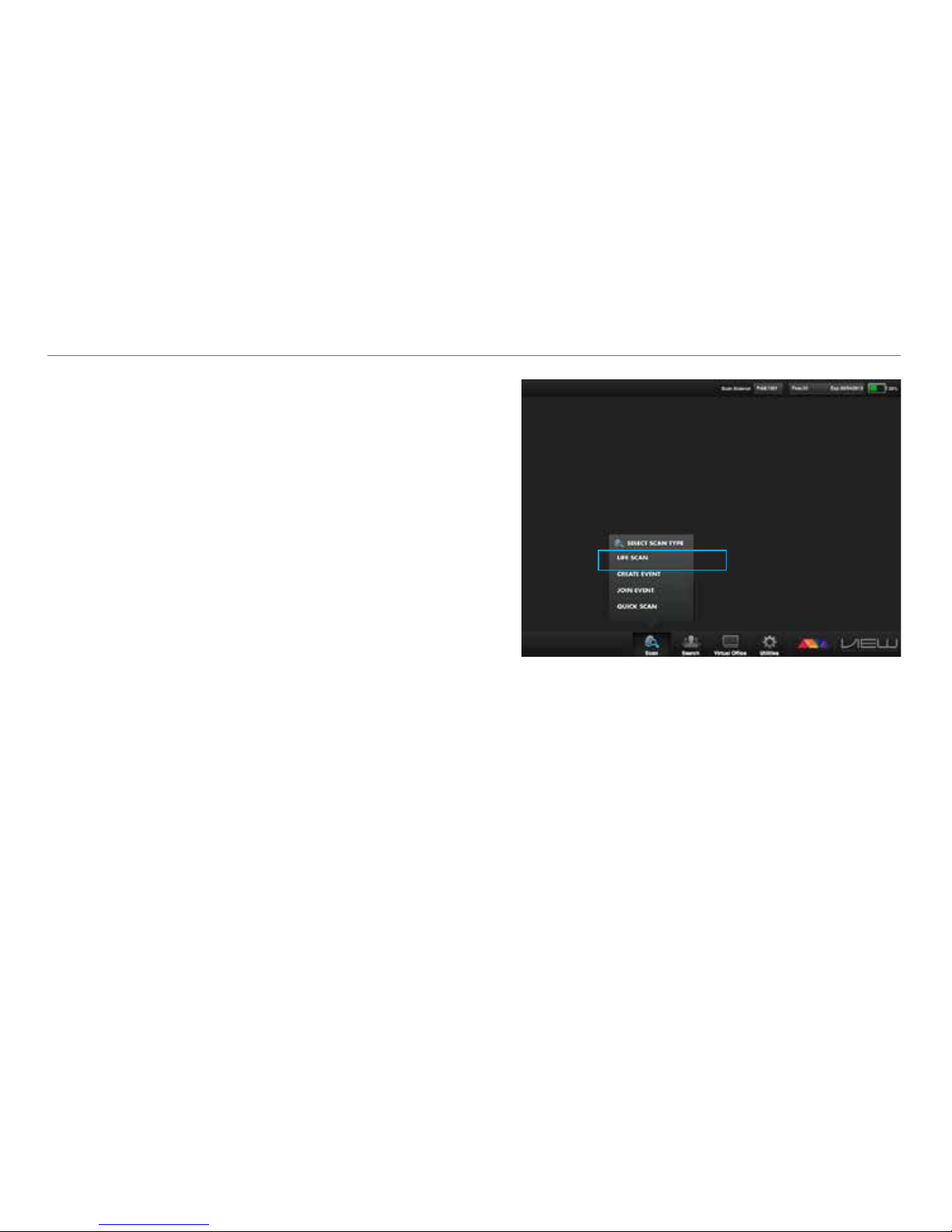
b) Select the Life Scan option from the menu. If you are
scanning a new person, click on “New Subject” and
enter all the information on the screen.
c) Click “Start Scan.”
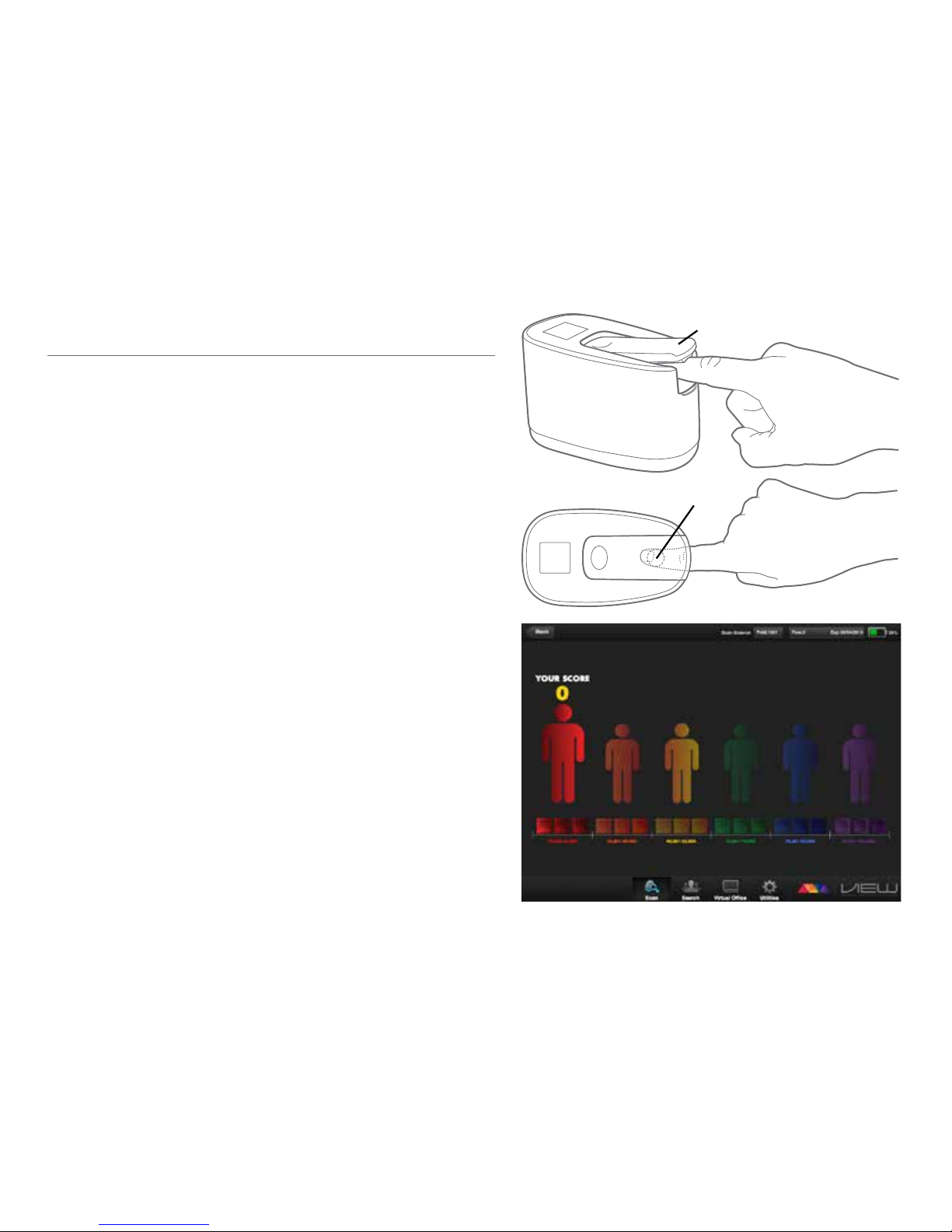
d) Once all the elds are complete, have the person
you are scanning place their nger in the scanner.
Please note that it is important to use the same nger
on subsequent scans in order to ensure an accurate
assessment of the person’s antioxidant levels. Placing a
person’s nger in the scanner is accomplished by raising
the clamp and having the person place their index
nger of their right hand into the scanning portal and
onto the lens. Make sure that the cradle ts comfortably
and smoothly around the edge of the ngertip so that
the nger covers the lens completely and no light is
escaping from around the edge of the nger tip.
e) Select “Yes” or “Cancel” on the message box: “Is
the subject ready to be scanned?” One scan will be
deducted from your account.
b
c
Page 39
©2013 MonaVie LLC
39
g
A Life Scan score takes around 30 seconds to complete.
While the scan is being conducted, it is important to
have the person being scanned keep their nger that is
in the scanning portal still.
As the scan is being conducted, the screen will show a
progress circle icon that will build clockwise as the scan
is progressing.
f) Select whether the person being scanned wants to enroll
in the MonaVie money back guarantee or not.
g) When the scan is complete, your results will display on
your mobile device screen.
The raised color gure will represent your score range. The
actual quantied score is displayed at the top of screen.
d
Lens
Clamp
*Images in this guide represent general functions of the VIEW
software app. Screen shots may vary depending on your device.
Page 40
EN US/CA Version 1.1
40
How to conduct a Life Scan score if the subject has been
scanned before
To conduct a Life Scan score, make sure you are paired and
linked with your scanner and follow these steps:
a) Open the VIEW app on your device.
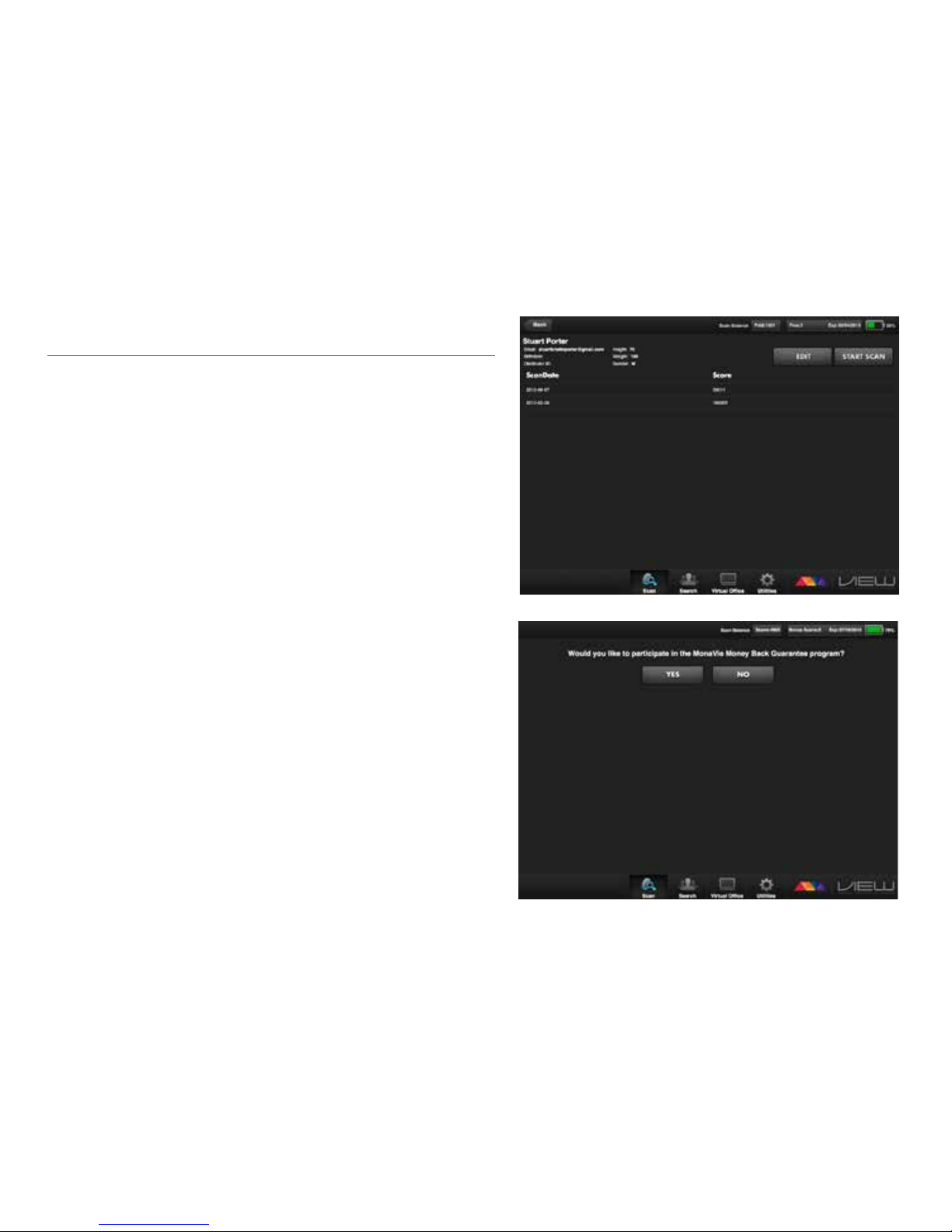
b) Select the “Life Scan” option from the menu. If it’s
someone you have already scanned, click on their name
and their data will be auto-populated.
c) Click “Start Scan”
d) Note: If you would like to edit the Subject’s information.
Click “Edit” and select “Save” button to update the
subject’s information.
A Life Scan score takes around 30 seconds to complete.
While the scan is being conducted, it is important to
have the person being scanned keep their nger that is
in the scanning portal still.
As the scan is being conducted, the screen will show a
progress circle icon that will build clockwise as the scan
is progressing.
How to Conduct a Life Scan Score
b
Page 41
©2013 MonaVie LLC
41
d
e) Select whether the person being scanned wants to enroll
in the MonaVie money back guarantee or not.
f) When the scan is complete, the results will display on
your mobile device screen.
The raised color gure will represent your score range. The
actual quantied score is displayed at the top of the screen.
*Images in this guide represent general functions of the VIEW
software app. Screen shots may vary depending on your device.
e
Page 42
EN US/CA Version 1.1
42
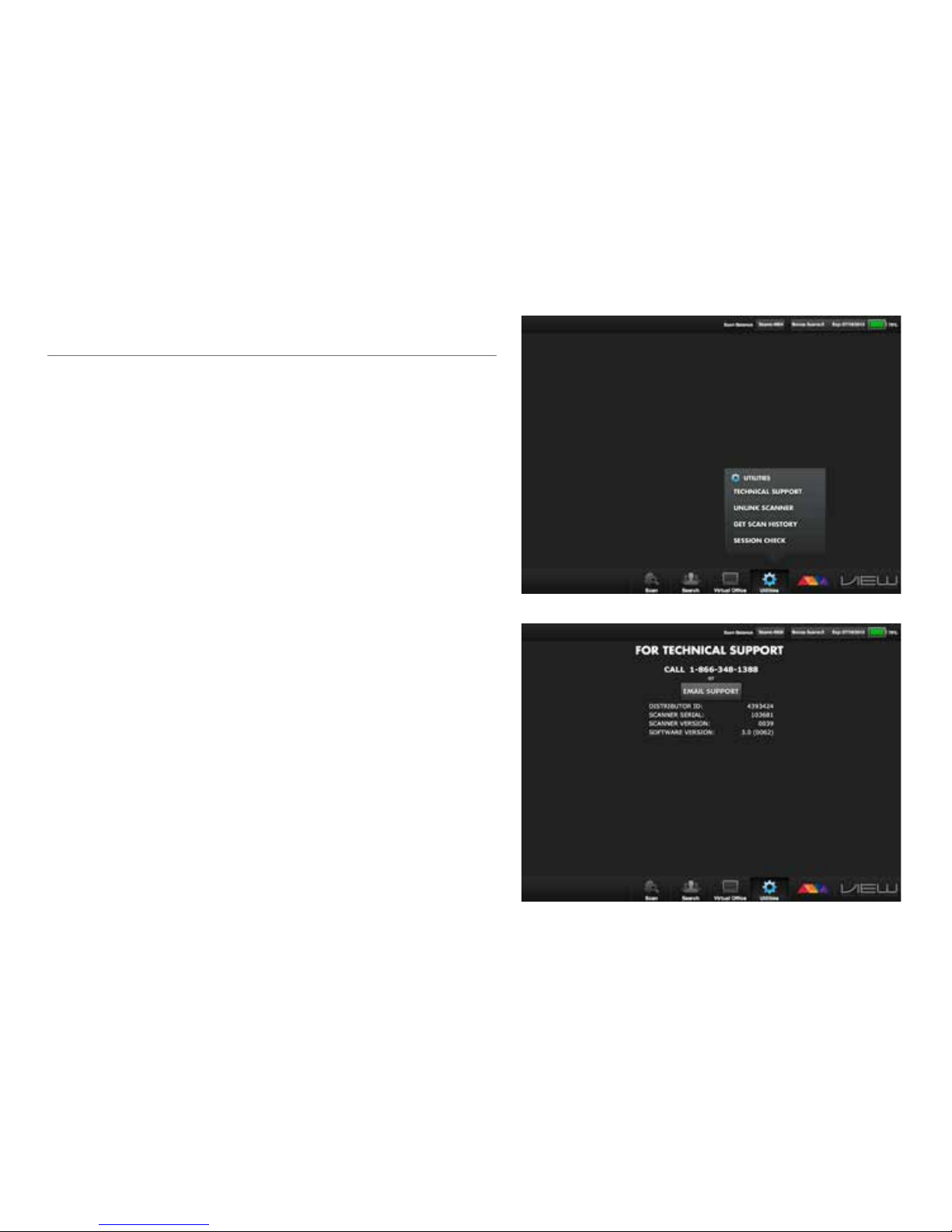
Technical Support
If you need assistance with your device, please contact
MonaVie customer support for help.
Email: [email protected]
Call: 1-866-348-1388
*Images in this guide represent general functions of the VIEW
software app. Screen shots may vary depending on your device.
Page 43

©2013 MonaVie LLC
43
Page 44
HOME OF THE WINNING SCORE
™
10855 South River Front Parkway, Suite 100, South Jordan, UT 84095
www.monavie.com •(866) 348-1388
©2013 MonaVie LLC, MonaVie is a trademark of MonaVie LLC,
registered in the U.S. and other countries.
EN US/CA Version 1.1
 Loading...