

Page 1

STEPWATCH ™ QUICK REFEENCE GUIDE
!
Trex™
Modus Trex™"
Activity Monitor &"
Docking Station"
Quick Reference Guide
Page 2
STEPWATCH ™ QUICK REFEENCE GUIDE
!
WEAR AND CARE
!
The StepWatch™ activity monitor is a precision instrument. Please handle it with
care.
•
The case is permanently sealed to prevent tampering. It should not be
opened. The StepWatch™ is water resistant but NOT waterproof. The dock
is not water resistant or waterproof.
•
You may clean the monitor and dock with mild soap and water or with 70%
isopropyl alcohol. Do not use any other solvents or cleansers.
•
WARNING! Do not autoclave. The StepWatch™ contains a battery that
may explode at high temperatures.
•
Recommended operating temperatures: 0° to 46°C / 32° to 115°F
•
The StepWatch™ is warrantied against
manufacturing defects for two years from
the date of sale.
•
Anticipated battery life is up to 7 years depending
on use.
!
!
!
!
!
!
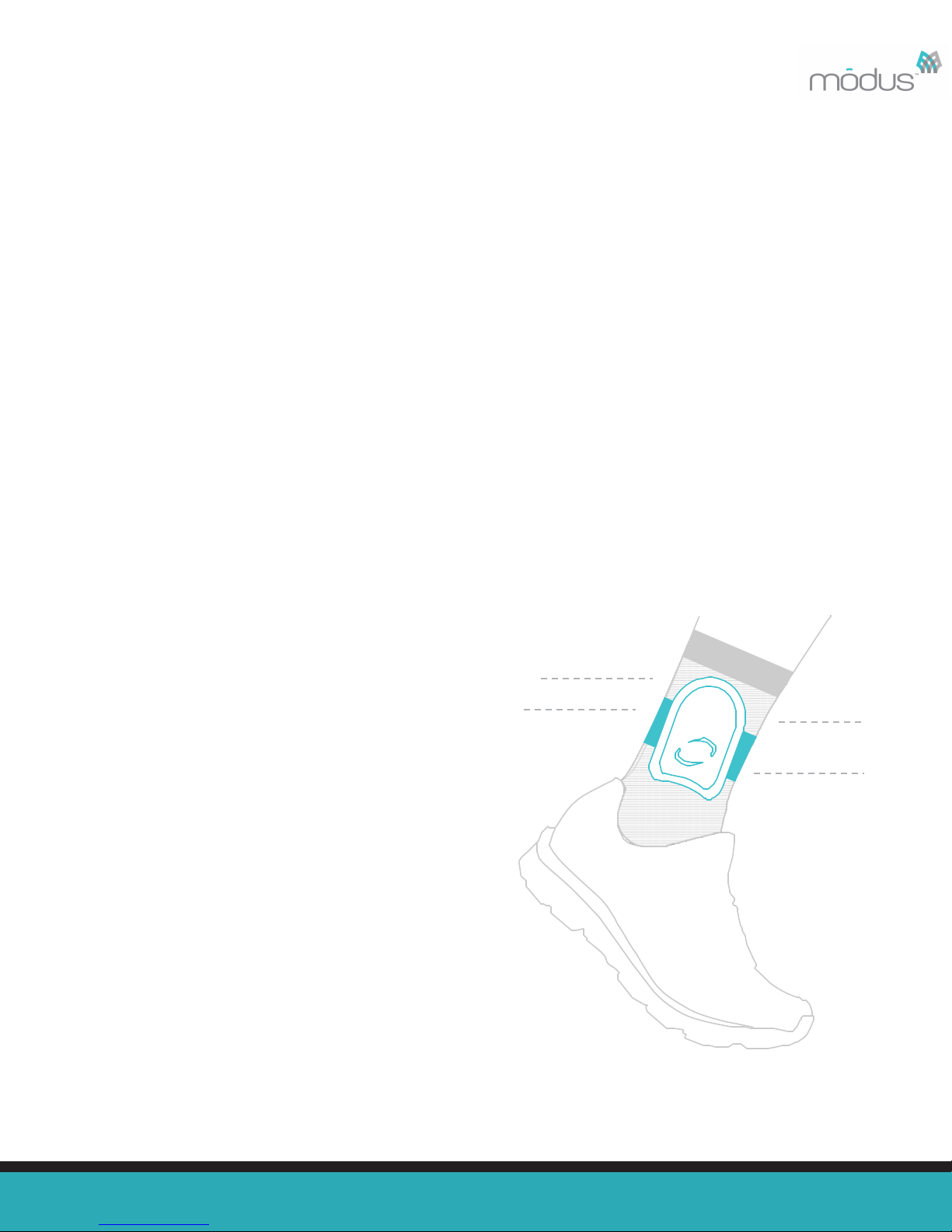
GET STARTED
NOT worn
directly on the
skin.
Worn on the
ankle, medial or lateral
side of either leg.
Attached by Velcro strap.
with Modus Trex™
Page 3
CONNECTING THE DOCK
Follow the instructions to install the StepWatch™ software. DO NOT connect the dock until AFTER
the software has been downloaded. Once the program is running, you may wish to review the
Preferences from either the “StepWatch” menu (OS X) or “Tools” menu (Windows). Consult the User
Manual for more details.
!
!
!
!
CONNECTING THE DOCK
Connect the dock to your computer AFTER downloading the software, but
BEFORE launching the software. The Modus Trex™ software should NOT
be running when you plug in or unplug the dock
- BLUE LIGHT: Dock is plugged in, but not communicating
with the software. If only the BLUE LIGHT is on, try
selecting the communications port labeled
“StepWatch Dock” in the software preferences on the
Communications tab.
- RED LIGHT: StepWatch™ is busy, DO NOT
REMOVE the StepWatch™.
- GREEN LIGHT: Dock is connected but StepWatch™
monitor can be safely removed.
!
!
!
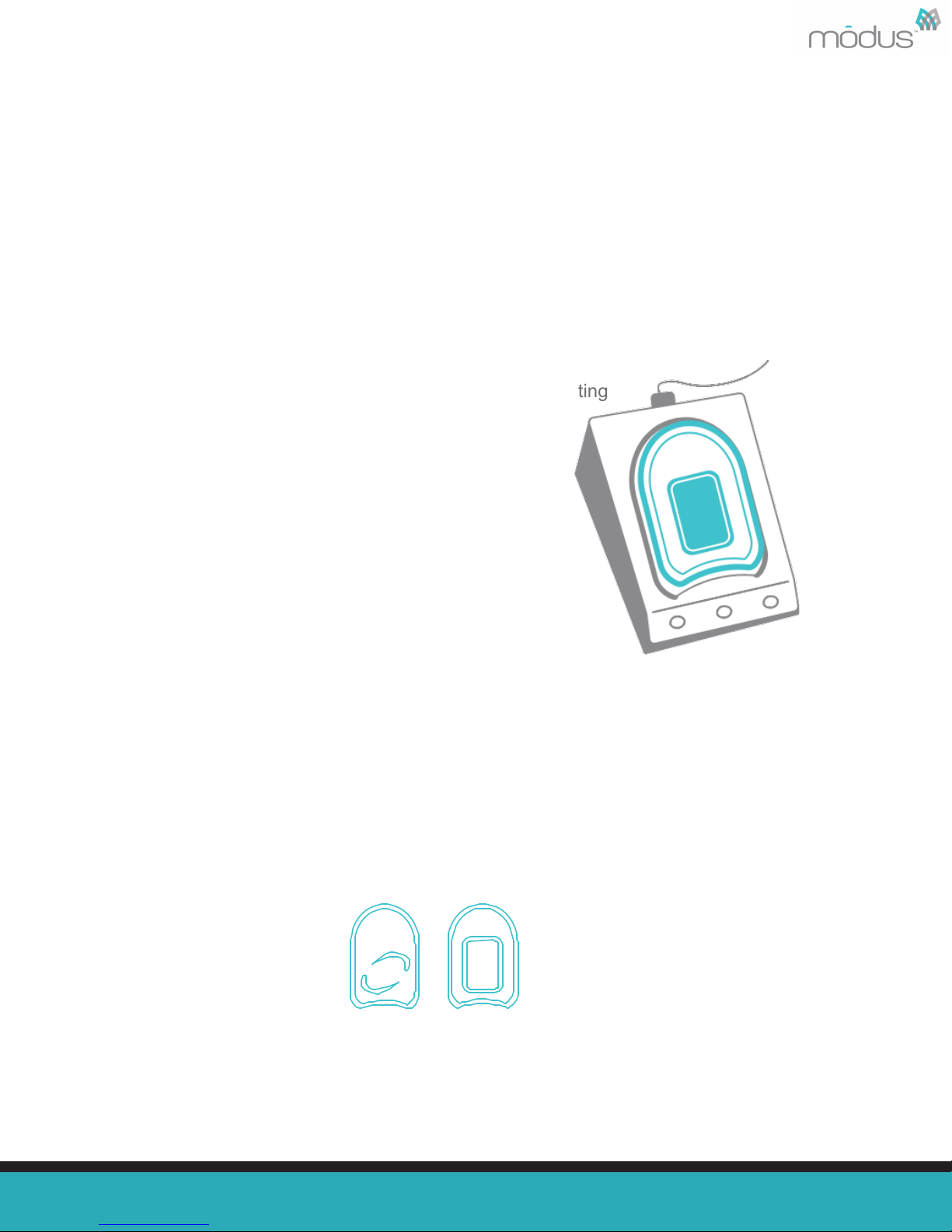
PLACE THE MONITOR ON THE DOC
Place the monitor face down into the depression on the dock. You do
not need to remove the strap.
!
!
!
!
!
!
!
STEPWATCH ™ QUICK REFEENCE GUIDE
✔
Page 4

GENERATE YOUR ACTIVITY REPORT
!
!
Your prosthetist or clinician initially starts your StepWatch™. After
collecting at least 5 days of activity with StepWatch™, you may
generate an activity report. We recommend generating a report each
month.
1. Connect the cable to your dock and
to the USB port of your computer
2. Open the Modus Trex™ program
3. Place the StepWatch™ face down
into the dock (Figure 1)
4. Click the “View Report and Restart
StepWatch” option (Figure 2)
5. To Save, click the “View Report and
Restart StepWatch” option (Figure
1)
6. To Print, click “Print” on report
!
!
Figure 1
!
!
!
!
!
!
!
!
!
!
!
!
!
!
!
!
Figure 2
!
!
!
Page 5

DOCK & SOFTWARE INSTALLATION
Windows XP SP3, Windows Vista, Windows 7, Windows
Read the instructions for your operating system completely before
using Modus Trex™. Do not plug in the StepWatch™ dock until
noted in the following instructions.
!
!
!
Attention: To download Modus Trex Software, please go to: www.modushealth.com/trexsupport
and choose the PC version.
!
Windows XP SP3 must be connected to the Internet to install Modus Trex™.
!
1. Double-click the Modus Trex Installer.exe from the download website
www.modushealth.com/trexsupport.
2. Click “Next” on the following three screens, adjusting the install location if desired:
!
!
3. Windows Vista+: If prompted by User Account Control to install
the software, choose “Yes”:
!
!
!
!
Windows XP SP3: If prompted by Software Installation that the
software has not passed Windows Logo testing, choose “Continue
Anyway” -- this may appear twice:
!
!
!
!
!
!
!
!
!
!
!
!
!
4. Click “Finish” on the final installation screen. Modus Trex™ is now installed. At this time, you
may plug in the StepWatch™ dock. Wait 30 seconds for the StepWatch™ dock to be detected
(the blue light will stop blinking and turn steady). You are now ready to launch Modus Trex™ -- a
shortcut has been created in the Windows Start menu and on your desktop.
Attention: Never plug in or unplug the dock while the Modus Trex™ software is running.
Always close the software before plugging in or unplugging the dock.!
Page 6

DOCK & SOFTWARE INSTALLATION
Apple OS X
Read the instructions for your operating system completely before
using Modus Trex™. Do not plug in the StepWatch™ dock until
noted in the following instructions.
STEPWATCH ™ QUICK REFEENCE GUIDE
!
!
!
!
!
Attention: To download Modus Trex Software, please go to: www.modushealth.com/
trexsupport and choose the Apple version.
!
1. An OS X driver package has been provided with the Modus Trex™ 3.4 software.
“StepWatchDockDriver_OSX_Intel_2218.zip”. Double-click this file to extract the driver
installation software “StepWatchDockDriver_OSX_Intel_2218.mpkg” into the same
directory.
2. Double-click the driver installation software
“StepWatchDockDriver_OSX_Intel_2218.mpkg” to run the installation. Follow the
installation routine until the driver has been installed.
3. Restart your computer.
4. Using the enclosed USB cable, plug the dock into a USB port on the computer. The
blue light on the dock will illuminate and then stop blinking and turn steady when
correctly detected by the computer.
!
!
Running the Modus Trex™ Software
!
The Modus Trex™ software is a “standalone application package.” Like all OS X apps, it
will run in any directory on the computer once downloaded from the
www.modushealth.com/trexsupport website. You are encouraged to copy the
ModusTrex.app package from the website or from the location where you’ve downloaded
it into the Applications directory on your computer. This is standard convention to “install”
apps on OS X.
!
1. Start the software by double clicking on ModusTrex.app.
Note: On some computers, you may receive a warning about running an
app from an unidentified developer. If you receive this warning, click “OK”
to close the warning. Then, right-click on ModusTrex.app and left-click on
“Open” (as opposed to double clicking on the icon to open it). This will
present a similar warning notifying you that the app is not from an
identified developer, but unlike the standard warning there is now an
“Open” button that will allow you to launch the app. OS X should
remember this approval going forward.
Attention: Never plug in or unplug the dock while the Modus Trex™ software is
running. Always close the software before plugging in or unplugging the dock.
!
!
!
!
!
!
!
Page 7

TROUBLESHOOTING
For more detailed instructions, please refer to the User Guide.
If you have any questions, please contact your clinician.!
!
!
!
!
!
!
!
!
!
!
!
!
!
!
!
!
!
!
!
!
!
!
!
!
!
!
!
!
!
!
!
!
!
!
!
!
!
!
!
!
Modus Trex Quick Reference Guide, Rev. A, 5/27/2015
 Loading...