

Page 1

USER GUIDE
1
USER GUIDE
Page 2

1
TABLE OF CONTENTS
GETTING STARTED 2
Included in the box 2
Compatible smartphones 2
Fixation accessory 2
Download Mobitee and PIQ application 2
GET STARTED WITH MOBITEE AND PIQ 3
Login or Create your Account 3
Pairing your PIQ 3
MOBITEE AND PIQ: PLAY GOLF 4
Distance To The Green 4
Shot Tracking 5
Edit Your Score 5
End Game 6
MY BAG 6
Configure Your Spare Tag 7
PIQ DRIVING RANGE 7
PIQplus 8
Swing Analysis: What Do We Measure? 8
PIQ Menu 9
GET TO KNOW YOUR PIQ 11
MOBITEE AND PIQ TIPS 11
GPS 11
Hole Detection 11
Auto mulligan 11
Shot track 12
Internet connection 12
Bluetooth connection 12
Pairing 12
Page 3
USER GUIDE
2
GETTING STARTED
Included in the box
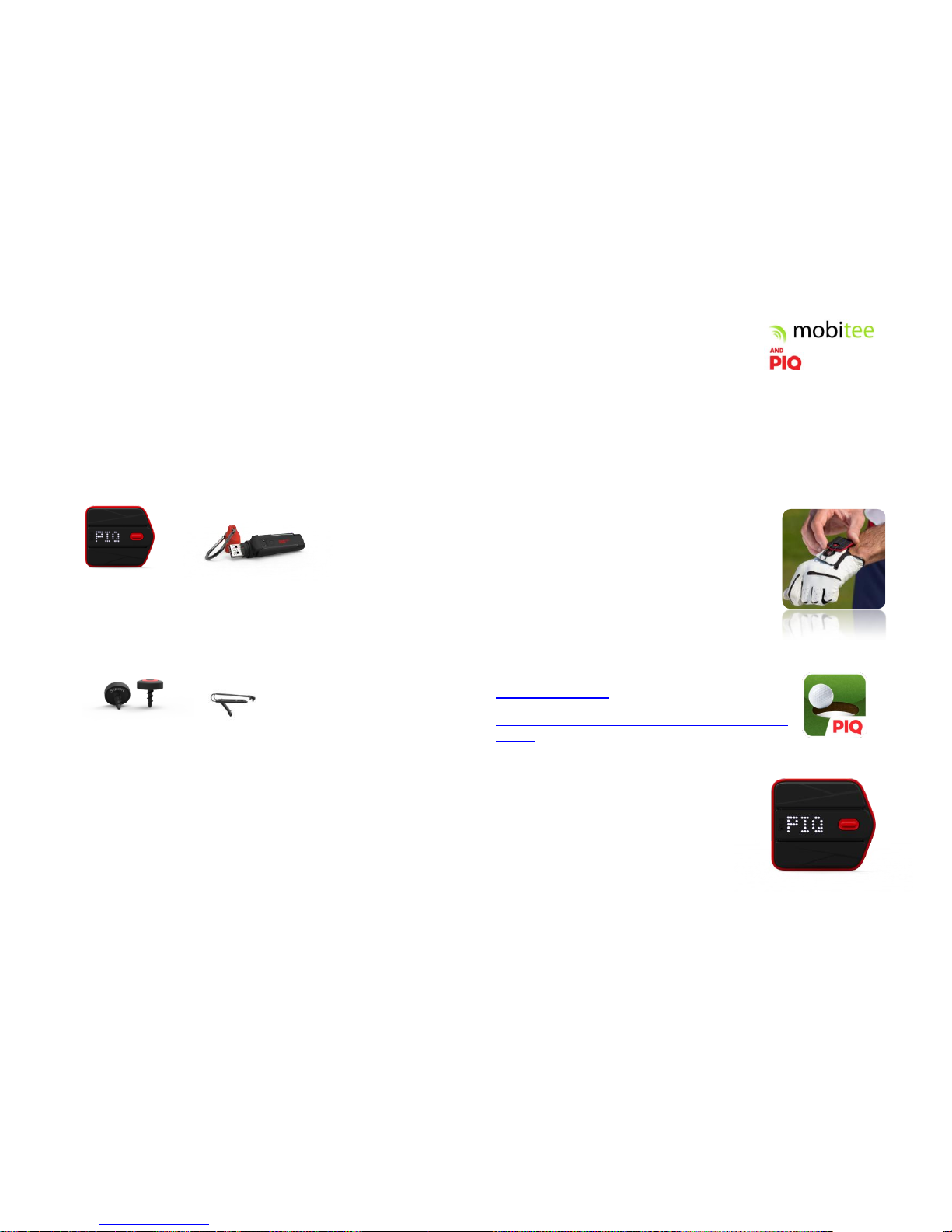
PIQ sensor & PIQ Fuel Battery Bank
Golf accessory (18 NFC tags + 1 glove clip)
Compatible smartphones:
Iphone 4S+, IPAD 2nd generation, operating system 7.0 or later for iOS
devices
Android – 4.3 or later
Fixation accessory
For GOLF, accessory package contains:
1. 18 NFC tags.
15 of them with a club name written below the tag and 3 of them
spare (no name) to replace any loss or to add specific club.
Screw one tag onto each of your clubs following the tag name. You
need to do it once for all tags.
2. A Glove clip
To be inserted and clipped on the top scratch
of your glove. Insert PIQ arrow head towards
your fingers. Now you’re ready to play!
Download Mobitee and PIQ application
https://itunes.apple.com/us/app/mobitee-andpiq/id1038414261?mt=8
https://play.google.com/store/apps/details?id=com.piq.mobite
e&hl=en
Turning on your PIQ
To turn it on, long press on the red button. When
the screen displays PIQ, sensor is ON.
To turn PIQ off, long press the button until you
see the animation ending
Page 4
USER GUIDE
3
Get Started with Mobitee and PIQ
Login or Create your Account
Follow these steps to create your Mobitee and PIQ account.
Click on sign up. When entering your phone number, we will ask you to validate
your account with the code you will receive by SMS. Provide your phone number
following the international format (without the local first digit).
Country code: +33
Number: X XX XX XX XX
If you’re an existing Mobitee user, please sign up and click on ‘import Mobitee
data’; this will prefill your account and ensure your data of past games is
imported. Fill in remaining field and save your account.
Pairing your PIQ
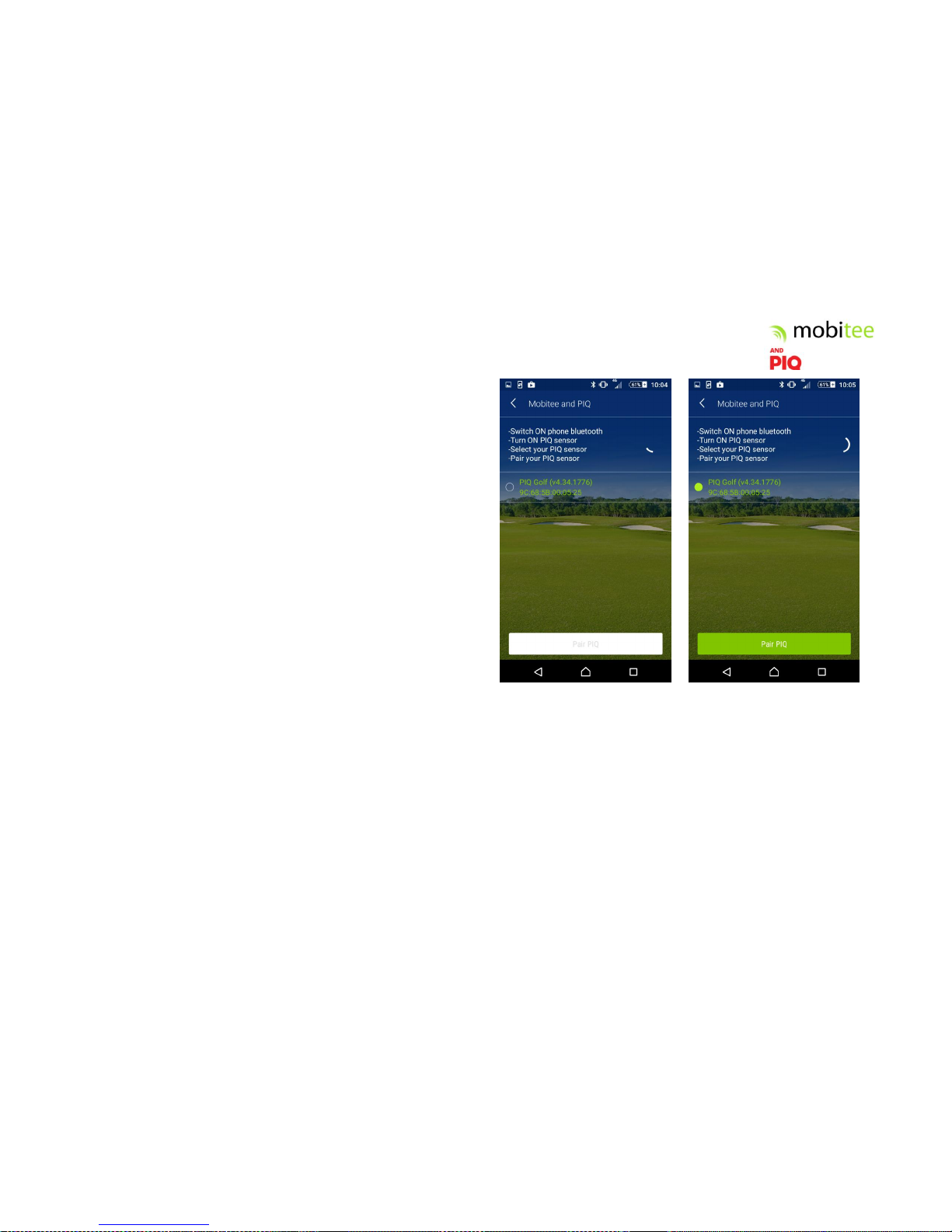
On pairing page, the application warns you to turn your Bluetooth ON if not
already done. Then it will scan devices around you. If the result is empty, ensure
that your PIQ is turned on and try again.
Your sensor will appear on the screen; select it and click ‘PAIR’. You do not need
to pair it using BT from the system and no code is required on your side.
This step is done once only, unless you pair your PIQ with another smartphone.
Beware, if you want to try to pair it with another device, you need first to
‘Unpair’ from Pair PIQ list.
Page 5
USER GUIDE
4
Mobitee and PIQ: Play Golf
To get the full offering of Mobitee and PIQ on the course, click on “Play
Golf”. By default, the app will detect on which course you are playing or
the nearest one. Select ‘stroke play game for 1 player’. You can also set
your round manually if you want to change those settings.
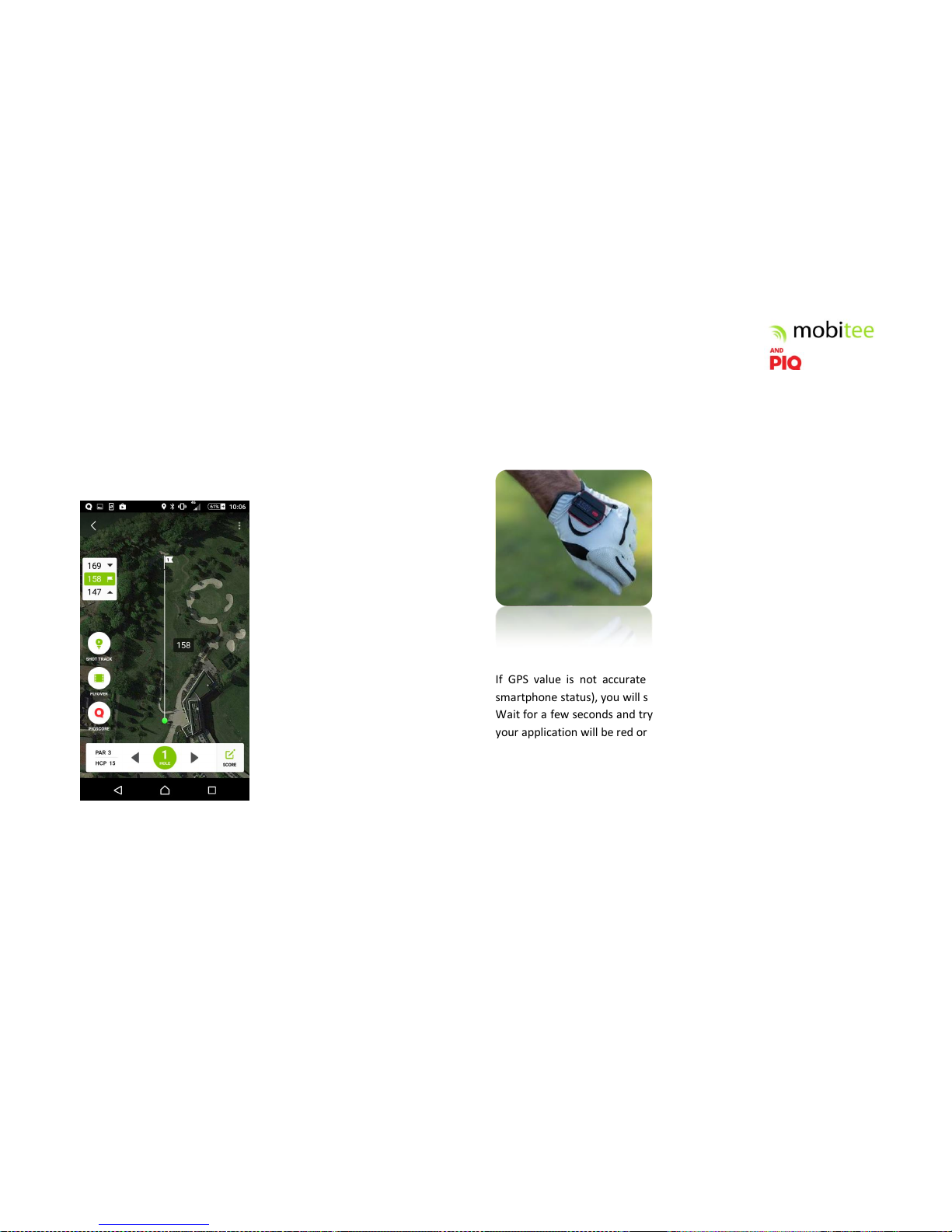
You will land on the first aerial view of
the course you have selected. When
you’re connected to PIQ, a red ‘Q’ is
visible at the bottom of the screen. If
the BLE connection is lost, Q will be
grey. Ensure you have turned ON PIQ,
bring it closer to your smartphone and
click on Q sign if connection still
doesn’t work.
On this view the star indicates your
best shot already completed on this
hole. You can try to overdrive it.
Use Shot Track to visualize holes already completed.
Score can be used to edit your score.
Distance To The Green
Once ready on first hole tee box, just
click on your sensor’s red button and
you will see the remaining distance to
the green displayed on your glove.
Keep your mobile phone in your pocket take it out only to get distances to
hazards, to change the distance setting
by selecting the front, middle or back of
the green on top left of the screen or to
manually modify the hole selection.
If GPS value is not accurate enough or not available (check your GPS
smartphone status), you will see message ‘waiting for GPS’ on PIQ sensor.
Wait for a few seconds and try again. In that case, distance highlighted in
your application will be red or orange instead of green.
If your PIQ is disconnected from your smartphone (we advise you to keep
your smartphone in your pocket to prevent any connection issue), you will
see a blue LED blinking on PIQ. Please check Bluetooth status on your
smartphone.
Page 6
USER GUIDE
5
Shot Tracking
To get automatic tracking of all your shots while playing on the course,
just tap your club tag on your PIQ screen - PIQ will display the club type.
Then, swing normally. If you perform any warm up swings before the real
swing, we will only save the last swing after the NFC tap. Your shot
position is then registered.
Advice: if you take a practice shot after hitting the ball, Mobitee will
register it as your real shot. It always takes the last shot.
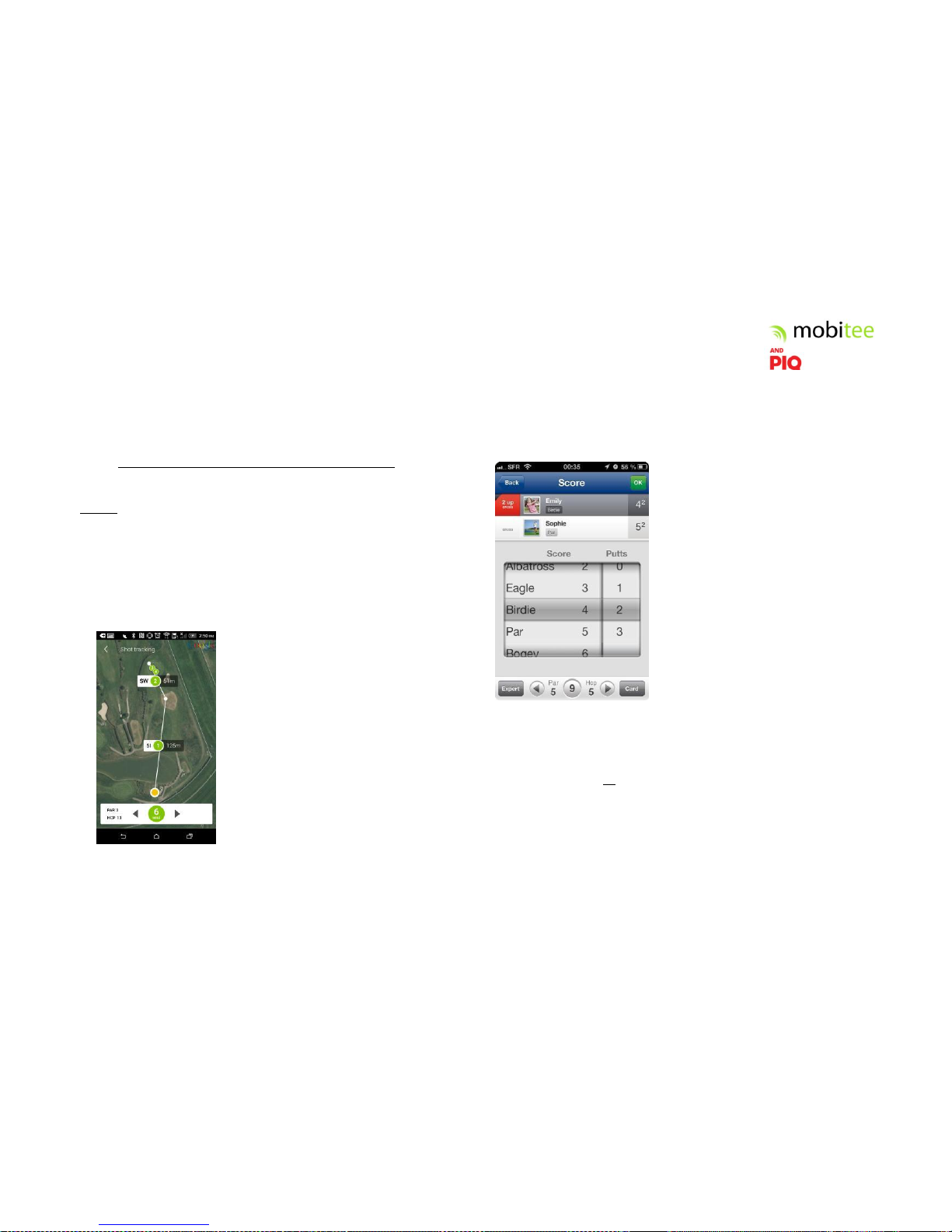
You can click on shot track button during the course to see your past
holes tracking results.
Shot tracking view will display all tracked
shots. You need to tap your second shot to
have first shot line drawn.
Clicking on ‘Shot Distance Covered’ will open
corresponding swing analysis of your shot if
available (refer to Swing analysis paragraph)
Edit Your Score
At the end of each hole, you can register your score and the ones of your
friends.
Click on the corresponding player or team and look at the gross score
achieved on this hole (number of total strokes) and the number of putts.
In case Par and 2 putts were made on this hole, click in the middle of the
«roller». The Par will be automatically be assigned to other players.
If you want to see the scorecard before the end of the game, you can click
on card button on the bottom right of the screen.
Page 7
USER GUIDE
6
End Game
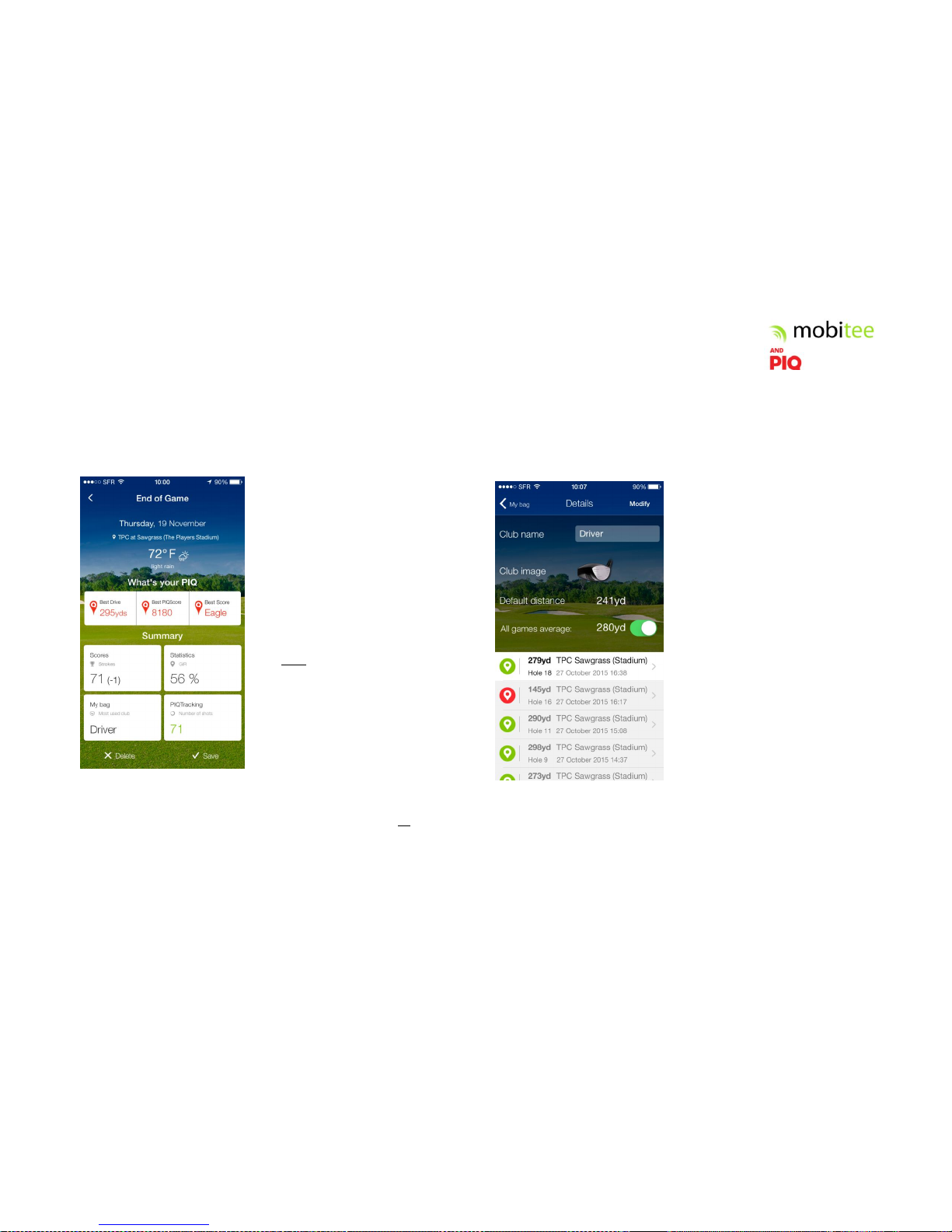
At the end of your round, click on the top left back arrow button to open
end of game overview:
You are able to
- open your scorecard to update
your scores
- see your statistics based on
your scoring
- open the bag of your game to
see each tracked club from this game
- replay your round by seeing
your shot tracked shots on each holes.
Click on “Save Your Game”. If you don’t have a good Internet connection,
you will see a ‘back-up failed’ notification; your game will be only be
saved locally. Re-open the game from ‘My Games’ to save it on your
account when you will get back to a good internet connection.
My Bag
All the shots from your golf courses are listed in ‘My Bag’ with real
distance tracked per club. You can choose to use default distance value or
calculated distance value when clicking on each club.
By selecting a club, see all
corresponding recorded shots; some
with green marker, some with red
marker
- green marker are shots used
for the calculated distance of your club
- red marker are not used,
because either they are too short and
not representative of your average
capability, or too long, and most
probably come from missing to track
the end of your shots.
You can change green/red state by
clicking on it.
Clicking on one shot opens corresponding shot track view of the hole to
visualize the distance of your shot
Page 8
USER GUIDE
7
Configure Your Spare Tag
In your Bag, you can see 3 types of clubs as ‘Spare’. Those are the 3 tags
written *, **, and *** on your tags.
To associate a club to this tag, go into My Bag, select ‘Spare’ and associate
a club to it. Any new club will then appear in your bag, any shots hit with
this spare will appear under this associated club.
If you select an existing club (driver for instance) to a spare, all shots done
hit with the spare will appear under the existing club name (here under
driver type of club).
Please note that you cannot rename a club as club names are linked to
tags.
PIQ Driving Range
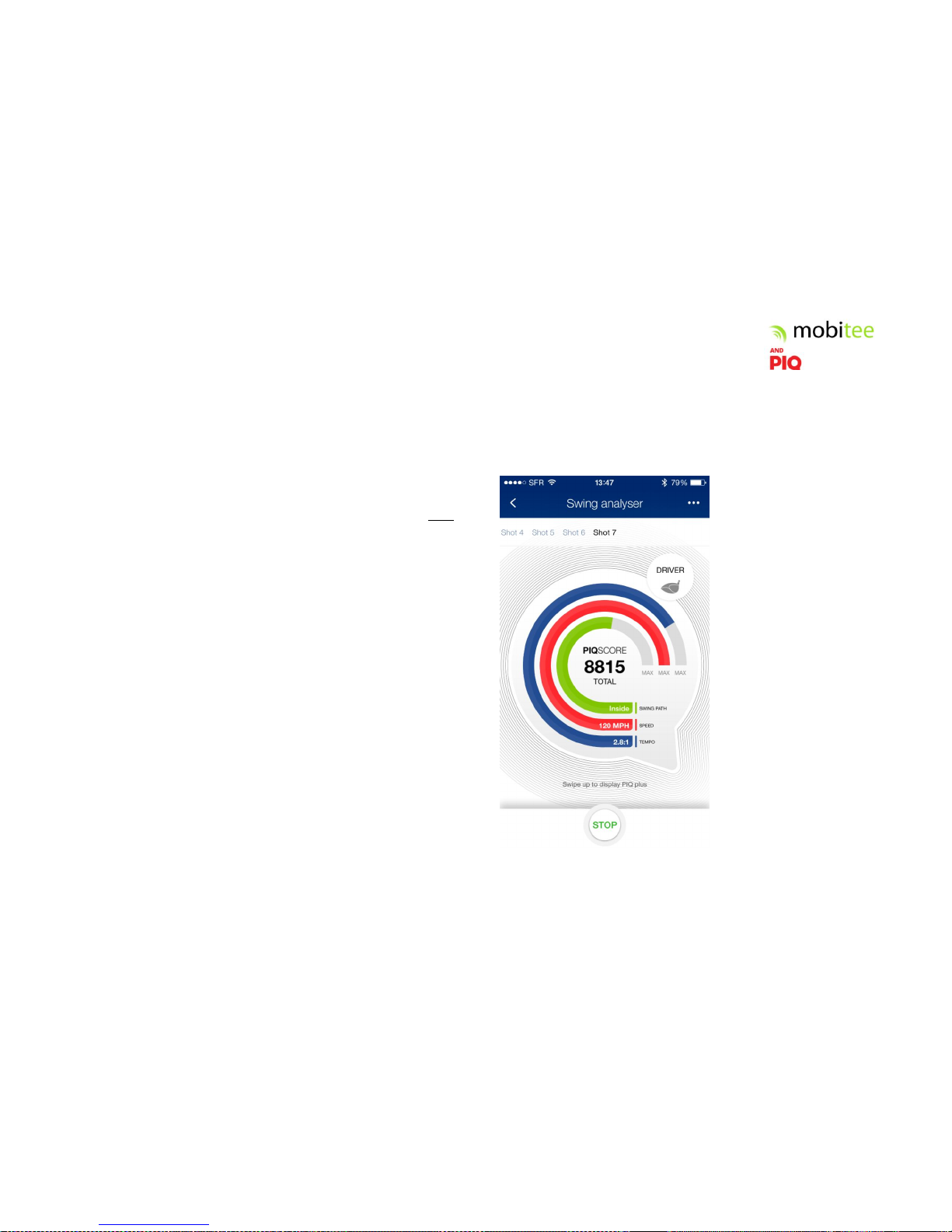
PIQ Driving Range opens a dedicated swing analyser view. You will land on
PIQScore page to start your game. To start a practice session, click on
‘Go’. PIQ screen will display GO to indicates that it’s ready to start
1. Tap the NFC tag of
your club on your PIQ screen.
2. Take your swing!
Each time you make a swing
the Mobitee and PIQ app will
show your swing analysis
within seconds. PIQ will
automatically detect all of
your swings. If you want to
use another club, just tap
again your NFC club tag to
PIQ
3. You can browse on
your swing history by clicking
the shot number on top of
screen.
4. Your last session will
be saved. Each new session
will overwrite the previous
one. Very soon, the
application will allow you to
save all of your sessions.
Page 9
USER GUIDE
8
PIQplus
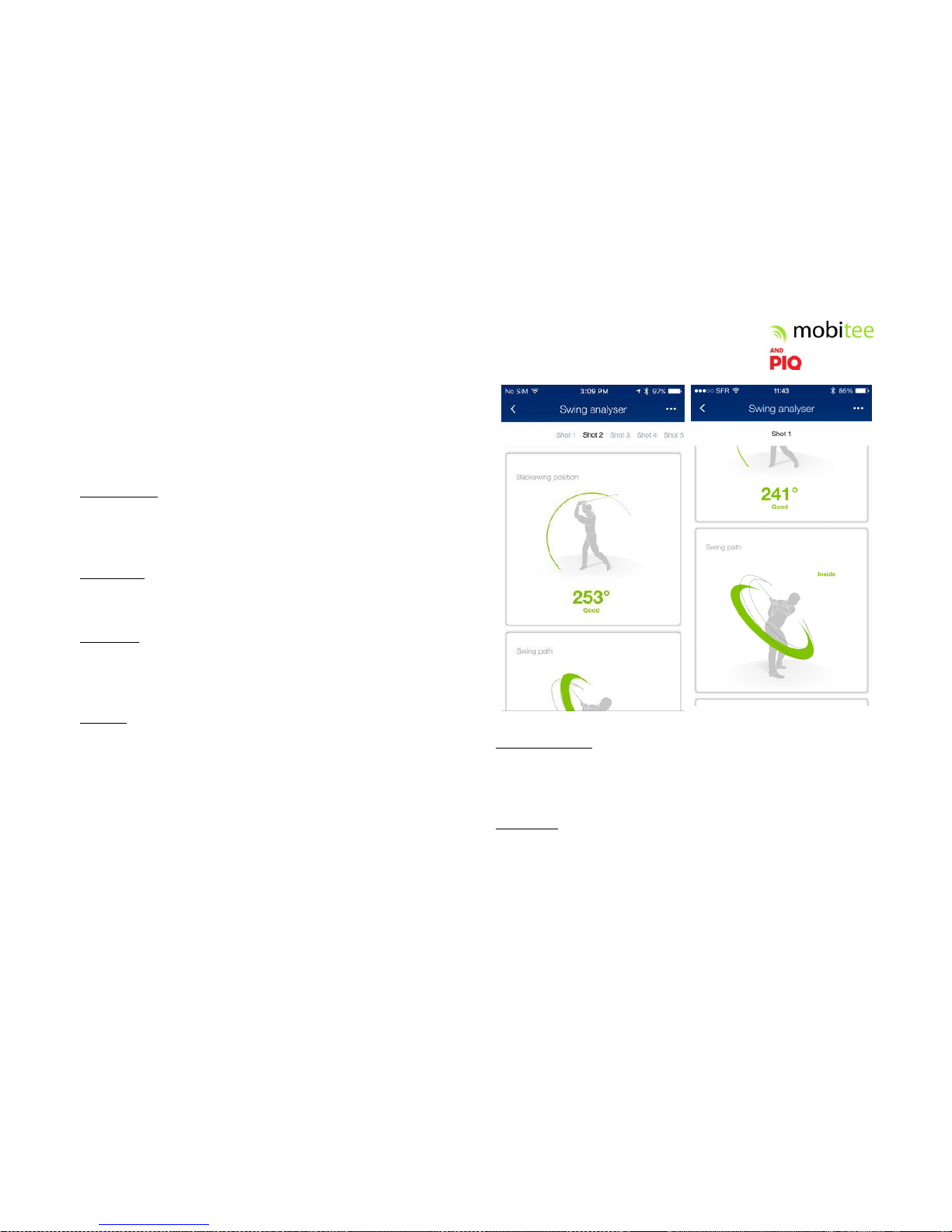
Get detailed information on PIQplus category to understand what is
correct/incorrect in your analysis.
Swing Analysis: What Do We Measure?
Tempo (ratio): The time ratio between your backswing duration and your
downswing duration (measured in seconds). Tempo is an important value
of your swing. You need to follow the correct rhythm for each of your
clubs and do it consistently. Best ratio for driver is 3:1.
Swing path: The position comparison between your swing path at
backswing and downswing. Your path can be square, in or out. Refer to
dedicated section in PIQplus to visualize your swing path.
Club speed: Measured in miles per hour how fast your club head is
traveling at the point it impacts golf ball. Value is calculated from hand
speed measure with standard club height (based on which club you are
using).
PIQScore: This is your swing score. PIQSwing is calculated on the 3 values
measured above and range from 0 to 10 000. 10 000 corresponds to a
professional performance and can be exceeded if you outperform! After
each swing at the driving range, your PIQScore is displayed on your PIQ
Screen.
PIQPlus gives you additional information on your swing:
Backswing position: Measurement of the angle of the club shaft between
address and the top of the backswing. It is measured by the change in
angle at address to angle at the top of the swing. At address, club is at
zero degrees - top of the swing should be 270 degrees.
Swing path :
Measures your swing path (Square, Inside or Outside)
Page 10
USER GUIDE
9
Speed: Recaps your club head speed including how you are positioned
compared with expected speed.
Tempo: Gives you all information needed on tempo - Your ratio with
duration of backswing versus downswing and your total tempo duration
(in seconds).
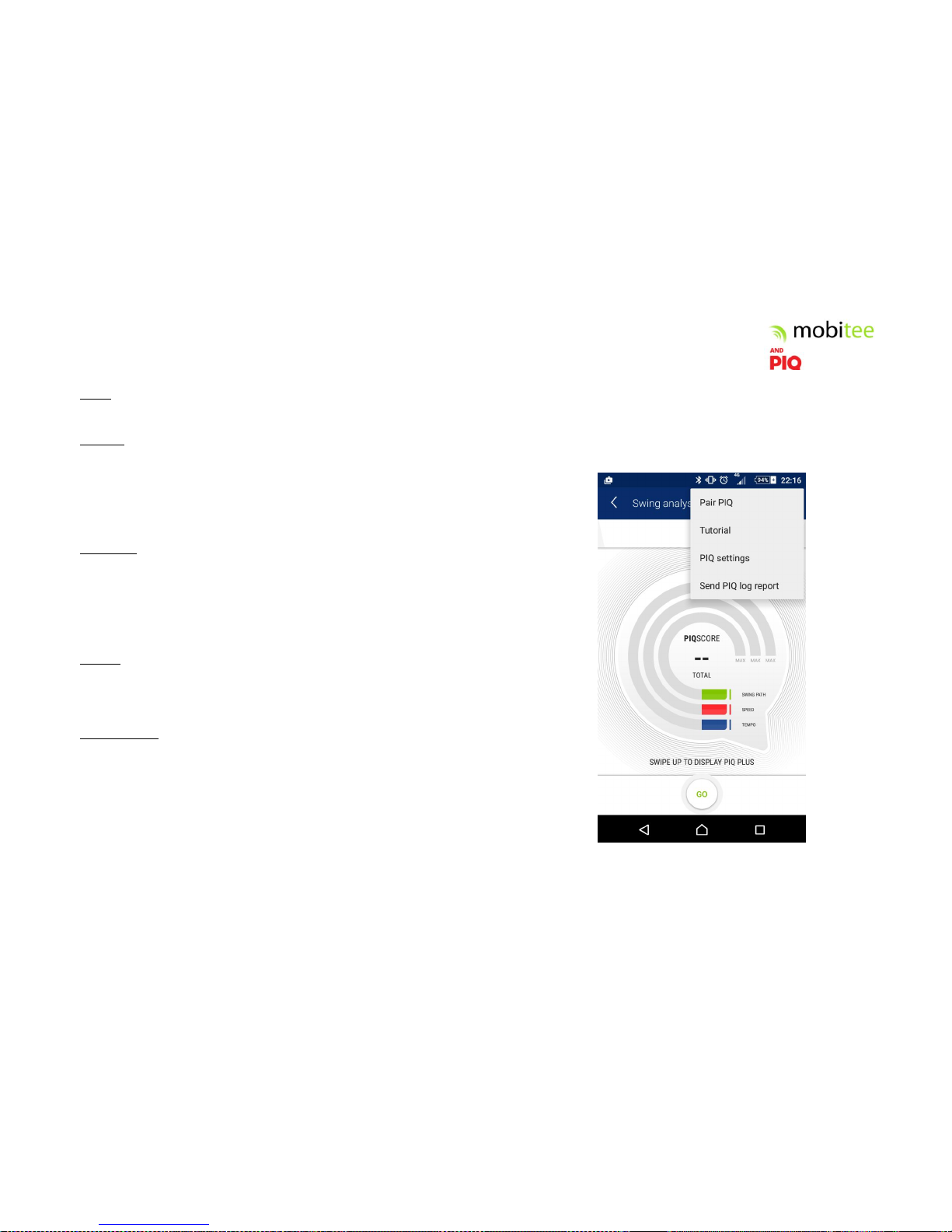
PIQ Menu
This menu is accessible in Driving range menu.
Pair sensor
If you encounter an issue connecting your PIQ, you can re-setup pairing by
clicking Pair sensor in this Menu. Pairing page will appear. If you’ve
already paired with your PIQ and you want to try another smartphone,
please click on ‘Unpair’ while your sensor is turned ON.
Tutorial
If you need to see tutorial again, clicking on Tutorial in Menu will open the
tutorial.
Sensor settings
In sensor settings, you can:
- Rename your PIQ so that when searching for device, you easily find it.
- Check for firmware updates: check to see if new firmware is available
to re flash your PIQ.
- Check memory status: in case of error message ‘memory full’ that
would be displayed on your PIQ, go in this category to clear memory.
All past data will be erased from your PIQ (but not from your
account).
- Check battery status: to always know how much battery you have
before starting your session.
Page 11
USER GUIDE
10
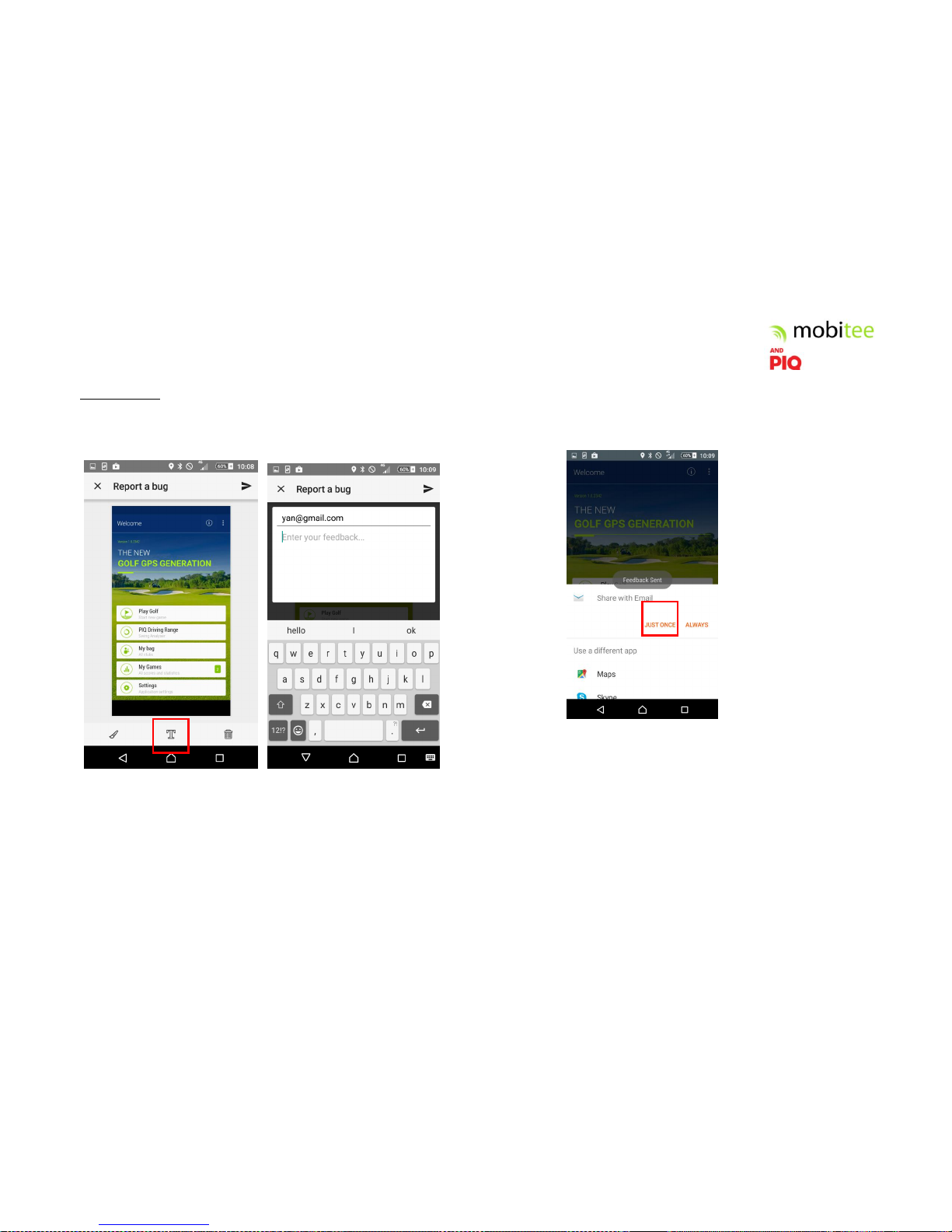
Report an issue
After experiencing an issue, when you are back to your application
“Home”, please hit the ‘I’ button and follow this step:
For Android only, you will be prompted to send an e-mail, please proceed
to send us full logs of your game.
Page 12

USER GUIDE
11
GET TO KNOW YOUR PIQ
Battery and PIQ Fuel charging
To charge your PIQ, insert it in the clip of the PIQFuel and connect PIQfuel
through USB on a PC or any USB charger. When PIQ is in charge mode, an
orange LED will appear on your PIQ. You need to charge it for two hours
to get it fully charged. When charging is complete, red LED on PIQ
becomes green.
When PIQ is fully charged, you can play for 6 hours with it.
Your PIQFuel contains an internal battery that is charged at the same time
as PIQ. When PIQFuel is fully charged, you can clip PIQ on it -it will charge
your PIQ with no USB connection (up to 3 full PIQ charges)
To know the sensor battery level without using the app, just switch it on
and then insert ii on the PIQFuel. You will see displayed the power % left
Firmware update
PIQ will periodically include firmware updates when updates to the app
are released. Updating the firmware will improve accuracy and PIQ
performance. To check if a firmware update is available, connect PIQ with
the app, select ‘Firmware Update’ in PIQ settings menu and follow the
steps in the app.
MOBITEE AND PIQ TIPS
GPS
To enjoy your Mobitee and PIQ features, you need to always have GPS
turned on.
You must check the GPS has been allowed with Mobitee from the phone
settings > Privacy > Location Services.
If you lose GPS connection, when clicking to get distance or tapping in
NFC to track your shot, message ‘waiting for GPS’ will appear on PIQ
screen. Wait a bit and try again. Your shot tracking will not work if the GPS
signal is not strong enough.
Hole Detection
Mobitee and PIQ provide auto detection of the hole you are playing. It has
been developed based on several rules (club used, green area, etc). This
information is always displayed when you click on sensor to get distance.
If you are not placed on correct hole, you can still switch the hole
manually from your smartphone. To do so, click on right or left around at
the bottom of the live view screen to go backward or forward.
Auto mulligan
We’re here to show you the best, and we do not track any unlucky shots.
As the distance per club need to represents what you are capable of, all
those unlucky shots are not registered if you’ve made a shot of less than
10m radius. Using a putter is the exception, all putters are counted.
Page 13

USER GUIDE
12
Shot track
Did you forget to tap you club before your shot? Tap your club near your
ball position to register the shot at any time. You will not get the swing
analysis corresponding to this shot, but shot track will be updated.
Internet connection
Internet connection - WiFi or 3G/4G is needed to download your golf
course and to save your game. You can back up your game later if you
don’t have available connection at the end of the game.
Bluetooth connection
To prevent any disconnect of PIQ from your sensor, please keep
smartphone in your pocket. If you still experience too many disconnects,
please turn off your WIFI when in game and place your smartphone in
your front pocket.
Pairing
Pairing is done only once, but your PIQ is paired only to your smartphone.
If you want to use PIQ with another smartphone, please go first in Pair
page (in PIQ Driving range menu), and select ‘Unpair’ on right side of your
sensor name - please do it while your sensor is turned on.
In case you get a message ‘wrong device id, please unpair it from other
smartphone’ and if you don’t have this smartphone with you, you can
perform 5 quick clicks on PIQ button to reset the device id from PIQ. Then
you can try to pair it with the targeted smartphone.
We welcome your feedback!
Please write us to [email protected] for any
remark, question or features that you would like
to see in coming months
 Loading...