

Page 1
1
TPC430 TABLET USER’S MANUAL
This device complies with part 15 of the FCC rules. Operation is subject
to the following tow conditions:( 1)this device may not cause harmful
interference, and(2) this device must accept any interference received
including that may cause undesired operation.
Page 2

2
ATTENTION .......................................................................................................................................... 3
1. APPEARANCE AND BUTTONS ..................................................................................................... 4
1.1 TOUCH PANEL .................................................................................................................................. 5
1.2 POWER ............................................................................................................................................ 5
1.3 BACK............................................................................................................................................... 5
1.4 MIC ................................................................................................................................................ 5
1.5 VOLUME+, VOLUME- ...................................................................................................................... 5
1.6 HEADPHONE JACK ........................................................................................................................... 5
1.7 MICRO SD CARD ............................................................................................................................. 5
1.8 MINI USB ....................................................................................................................................... 5
1.9 DC ADAPTER................................................................................................................................... 5
1.10 RESET ............................................................................................................................................ 5
2.1 BATTERY MANAGEMENT AND CHARGE ............................................................................................ 6
2.2 CONNECTION WITH PC .................................................................................................................... 6
3. EQUIPMENT OPERATION INTERFACE ..................................................................................... 7
3.1 MAIN INTERFACE DESCRIBE............................................................................................................. 7
3.2 STATUS BAR DESCRIBE ..................................................................................................................... 8
3.3 USE TOUCH PANEL ........................................................................................................................... 8
4. EQUIPMENT BASIC SET ................................................................................................................ 9
4.1 SILENT MODE, VOLUME, NOTIFICATION RINGTONE, AUDIBLE SELECTION, SCREEN LOCK SOUNDS
............................................................................................................................................................ 10
4.2 APPLICATION ................................................................................................................................. 12
4.3 BACKUP & RESET .......................................................................................................................... 14
4.4 STORAGE ....................................................................................................................................... 15
4.5 LANGUAGE & KEYBOARD ............................................................................................................. 16
4.6 DATA & TIME SETTING ................................................................................................................... 17
4.7 DEVELOPER OPTIONS ..................................................................................................................... 18
4.8 ABOUT TABLET .............................................................................................................................. 19
5. APPS INSTALL AND MANAGE .................................................................................................... 20
5.1 APP INSTALLER .............................................................................................................................. 20
6. PROBLEM SOLUTION .................................................................................................................. 20
6.1 DEVICE CAN’T TO OPEN ................................................................................................................. 20
6.2 WHILE USING THE PICTURE HAS BEEN APPEAR, THE DEVICE APPEAR SHUTDOWN.......................... 20
6.3 HEADSET CAN’T HEAR THE VOICE ................................................................................................. 20
6.4 CAN’T COPY FILE PLAY MUSIC AND SO ON...................................................................................... 20
7. BASIC FUNCTION .......................................................................................................................... 21
Page 3

3
Attention
This handbook contains important security measures and the correct use of the product
information, in order to avoid accidents. Please make use to reading the manual carefully before
use the device.
●Please don’t be in high temperature, moisture or very dust place.
●Please don’t be in high temperature, especially in summer don’t put the device in the car when
Windows closed.
●Avoid fall or violent collision of the device, don’t make the TFT display screen were violent
tremor, this could cause TFT display screen abnormal or damage.
●Please choose the appropriate volume, Use headphones shoulds not be too big volume
lower the volume or stop using it.
●Please charge in the following condition,
A、The battery power ICONS shows have no power
B、The system automatically shut off, startup after power off soon
C、Operation buttons no response
●When the device in the format or ongoing upload an download file, please don’t suddenly
disconnect. This could cause application error.
●For those who because of damage to the product, repair, or other causes of erased the memory,
the company shall not be liable for any responsibility, please follow the user manual for the
standardized operation to use the device.
●Don’t disassemble the product, don’t use alcohol, thinner or benzene to scrubbing products.
●Don’t use the device one of the where electronic equipment are prohibited (such as a plane).
●Please don’t using the Tablet PC when you in driving or walking down the street.
●USB cable is only bused for data transmission.
The company reserves the right to improve product, products specification and design have any
change, the information is subject to changes without prior notice.
(This tablet is no waterproof function)
【Remark】All pictures in this manual is just for your reference. Products specification and design
have any change. The information is subject to changes without prior notice.
Page 4
4
1. Appearance and Buttons
Page 5

5
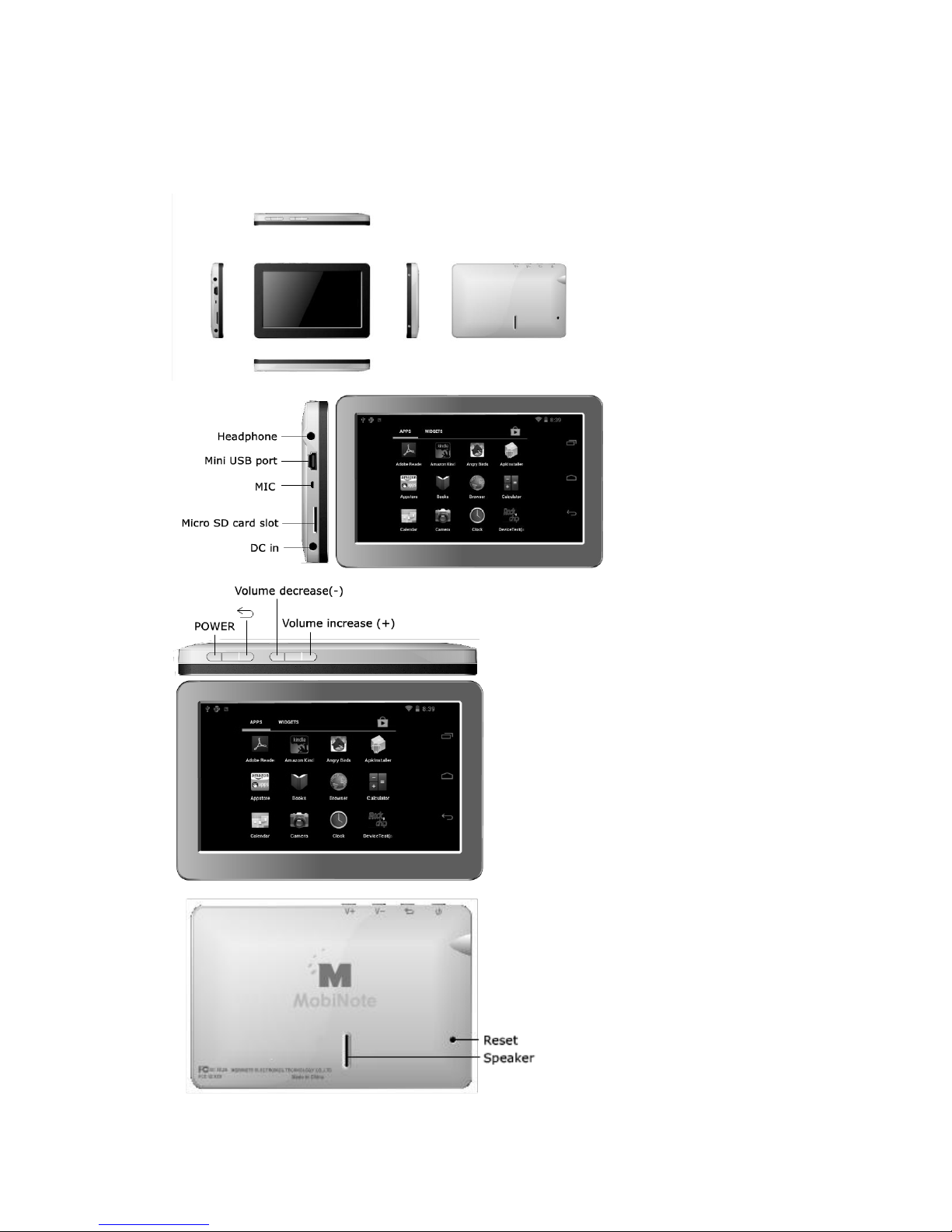
1.1 Touch panel
4.3” Capacitive touch panel: In the operation, to click, dragging on the touch panel.
1.2 Power
Startup: Long Press and hold the power button, the system will enter the main interface
Shutdown: In the main menu interface, Press the power button about 2 second to shutdown,
the system can hint “power off” option, Click “ok”. You can safely shut down.
Lock screen: Short press Power button to lock screen or unlock screen.
【Remark】1. When power is empty, system will shutdown automatically.
2. Incorrectly turning off the device will result in restarting with scan and restoration of the disk,
thus it may take longer time to enter into system.
1.3 Back
Short Press Return button will return the last interface.
1.4 MIC
Used for Voice Recording.
1.5 Volume+, Volume-
The buttons on top Volume+, Volume- achieve changes in the Volume.
1.6 Headphone jack
3.5mm standard headphone jack
1.7 Micro SD Card
Micro SD slot: external Micro SD card.
1.8 Mini USB
Mini USB jack: you can use it to connect the computer for data transmission, charging and
external connection USB flash drive.
1.9 DC Adapter
For charging your tablet battery
1.10 Reset
When the tablet under the condition of the crash or need for upgrade firmware.
Page 6

6
2. First use
2.1 Battery management and charge
Before first use, please set the device’s battery is fully charged. Just need to connect the adaptor,
then you can charge.
The first two times charging please keep about 6 hours, after that you just need 4 hours to
charge.
【Remark】 This tablet using Built-in type polymer battery, Charge must be to choose standard
adaptor (Input: AC110~240V 50/60Hz ; Output: DC 5.0~5.5V/2A) During the charging ,the
battery icon will scroll.
When finished charging, battery icon will become green and stop rolling in order to prolong the
service life of the machine, suggest use out battery power before charge it.
【Remark】1. If you stop using this Tablet after a period of time, in order to avoid power
consumption caused damage, please charge/play the battery once a month.
2. After low battery shut down, connect DC adaptor if the device will remind low battery.
Charging it for some time until the battery has enough power is necessary to enter into main menu.
3. Device charging should be in standby status for reach normal charging time, because with
device and screen consumption, it may cause longer charging time.
2.2 Connection with PC
Use USB cable to connect device to PC, device will pop up the USB connection window, click
Turn on USB storage to connect PC.
Into the load mode, you can copy or delete the file on the device and the file on the memory card.
Page 7
7
3. Equipment operation interface
3.1 Main interface describe
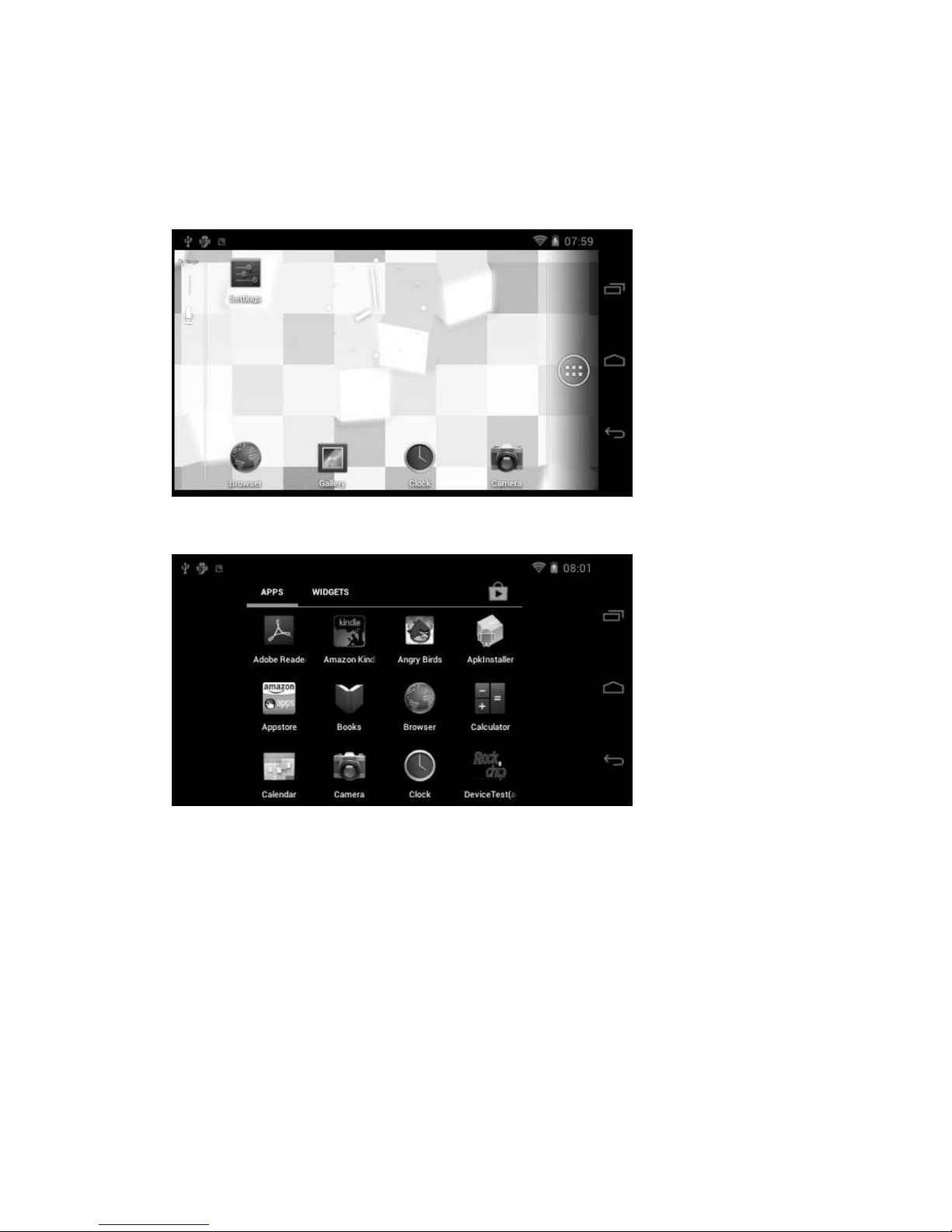
After startup will enter the main interface
In the main interface, you can :
Management main interface software ICONS: long press the icons 3 second, after the icons bigger,
then you can drag anywhere in the interface.
Delete icons: long press the icons 3 second, drag the icons to the Recycle bin icons, once it
become red, release you hand to delete icon.
Page 8
8
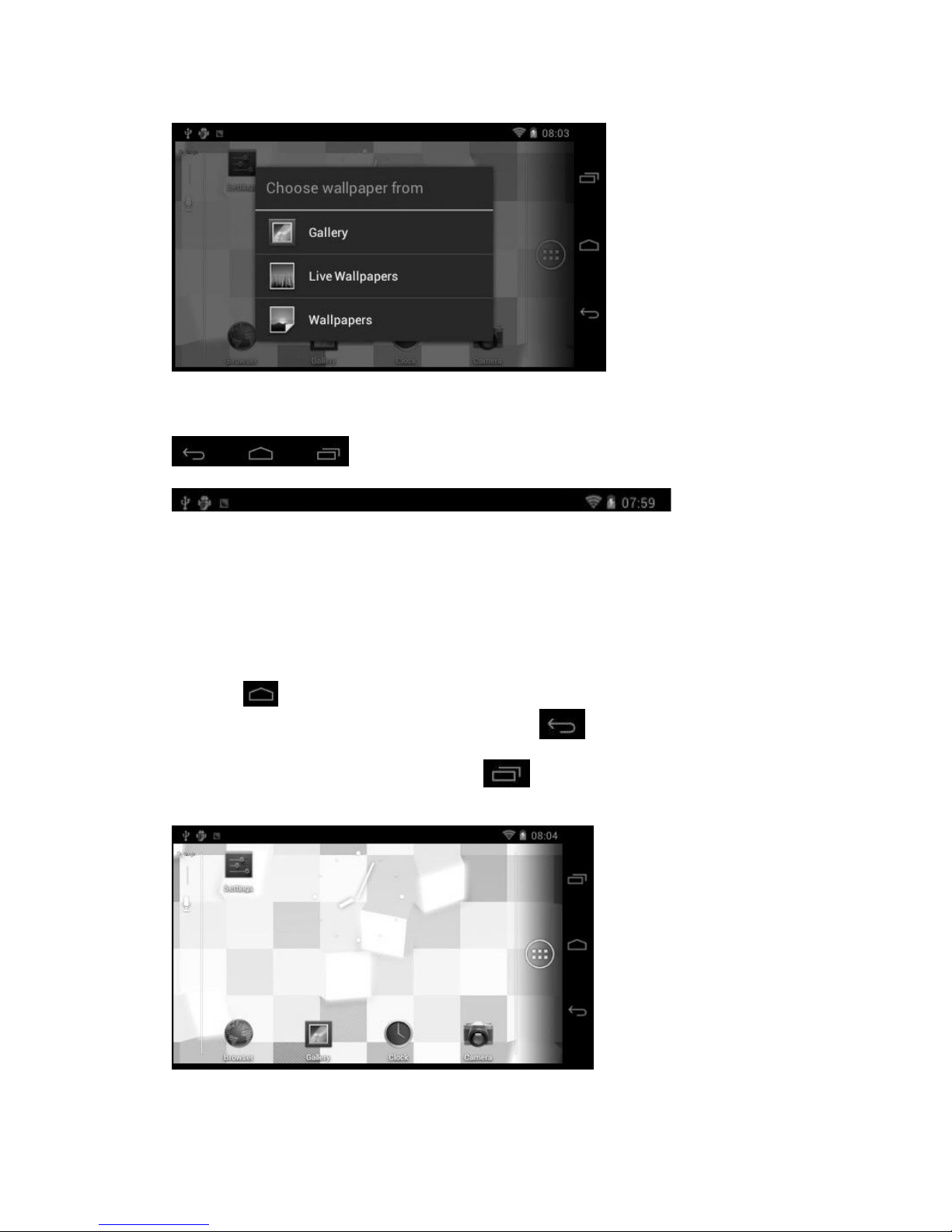
You touch the screen keep a time, appear the dialog box “Add you Home screen” as shown below:
3.2 Status bar describe
●The status bar above of the screen.
Top left display main interface software, micro SD card, USB connection status and so on.
Top right display the Wi-Fi signal, battery(or battery charge) icons, current time and so on.
3.3 Use touch panel
Device equipped with a 4.3” touch screen. Following the main touch screen area is described,
and describes some of the tips for how to use the touch screen.
No matter which interface you are on the screen, can go back to main screen through pressing
the soft key .
In different applications, by tapping the back soft key , you can return to its interface
on the up floor.
In different applications, by tapping the menu , the screen will appear operation setting
Interface.
In the main Interface, you can touch the icon to open the APPs.
In different browser (file, music, video, pictures), you shift and drag the scroll bar, so that the file
list can or down to roll.
Page 9
9
4. Equipment basic set
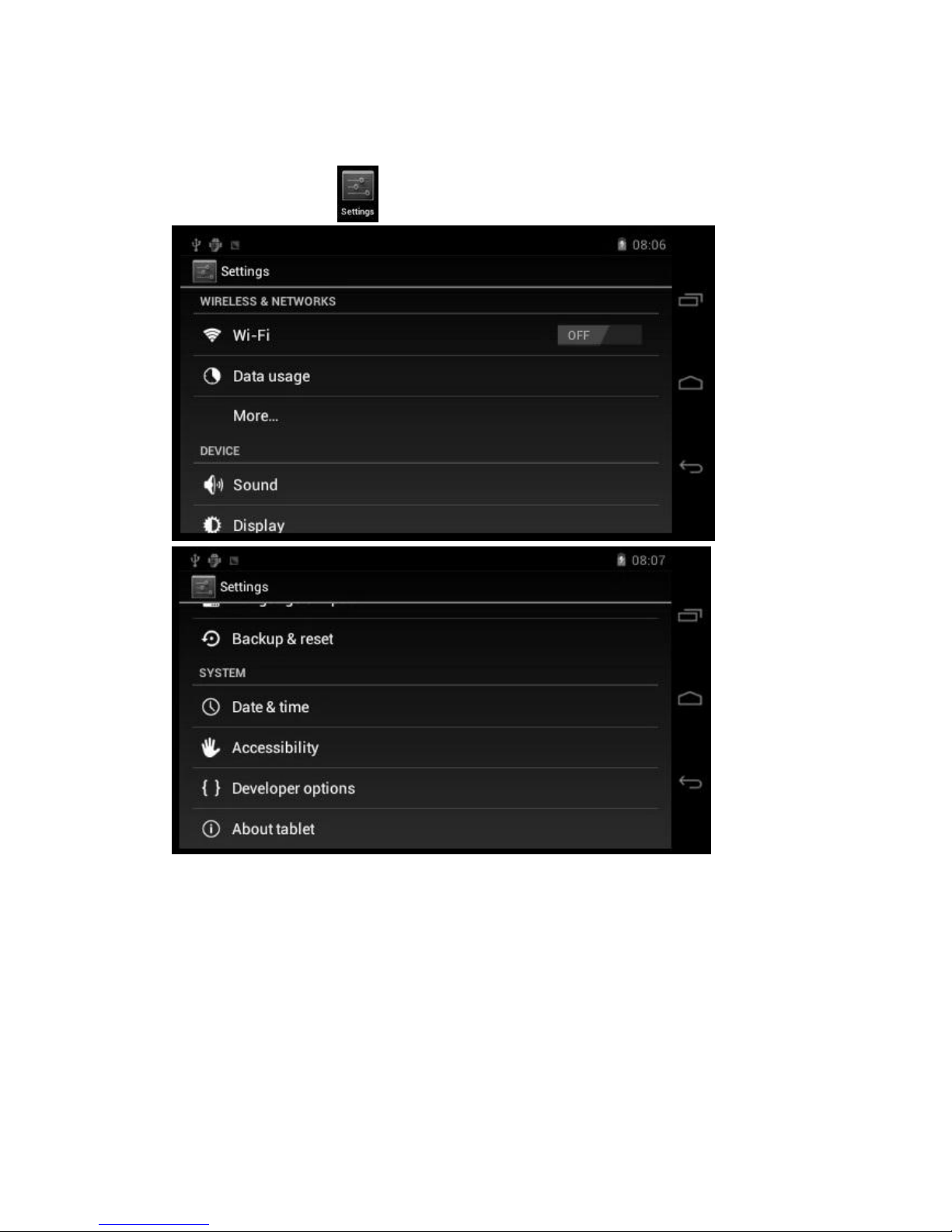
Setting: Click setting icons , enter setting interface:
Page 10
10
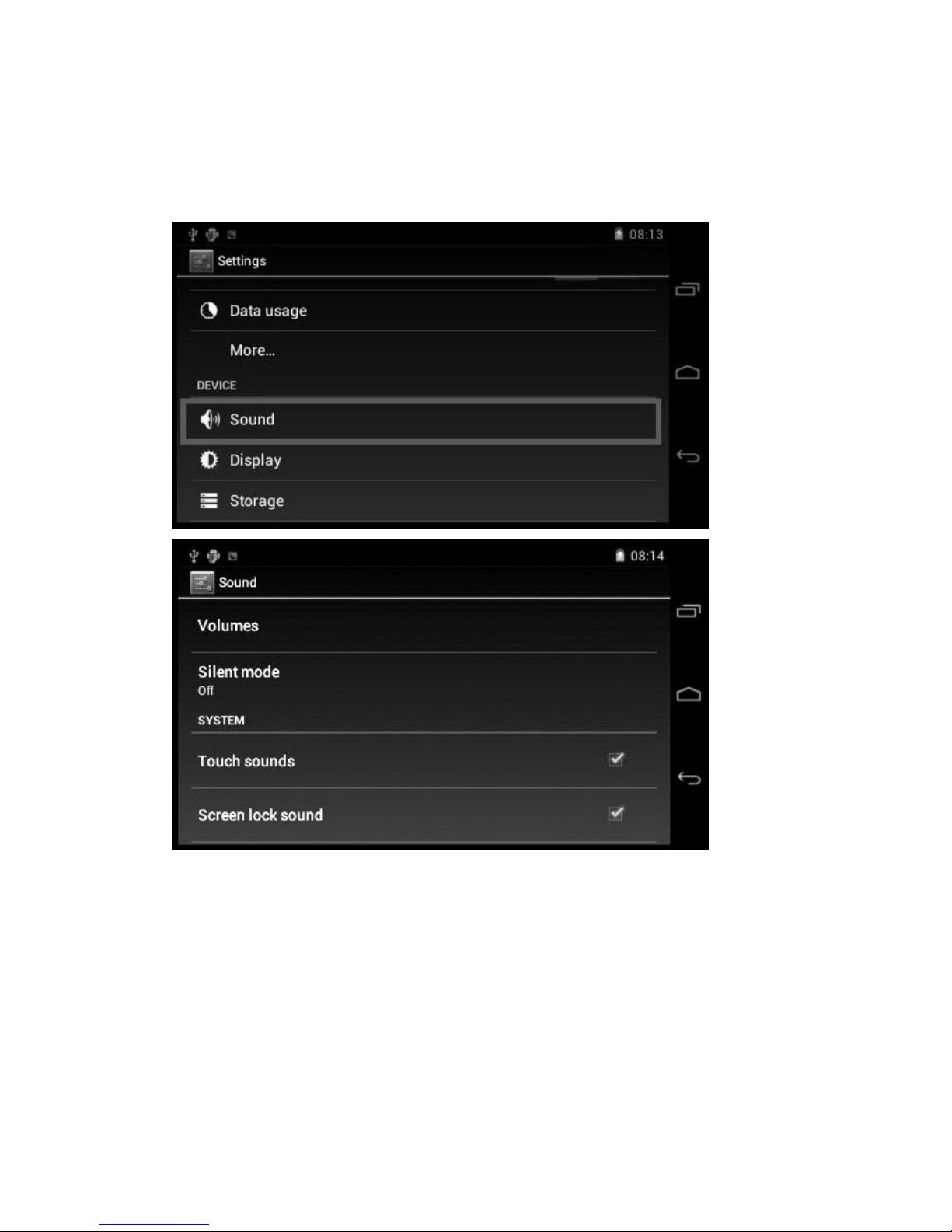
4.1 Silent mode, Volume, Notification ringtone,
Audible selection, Screen lock sounds
Page 11
11
Page 12
12
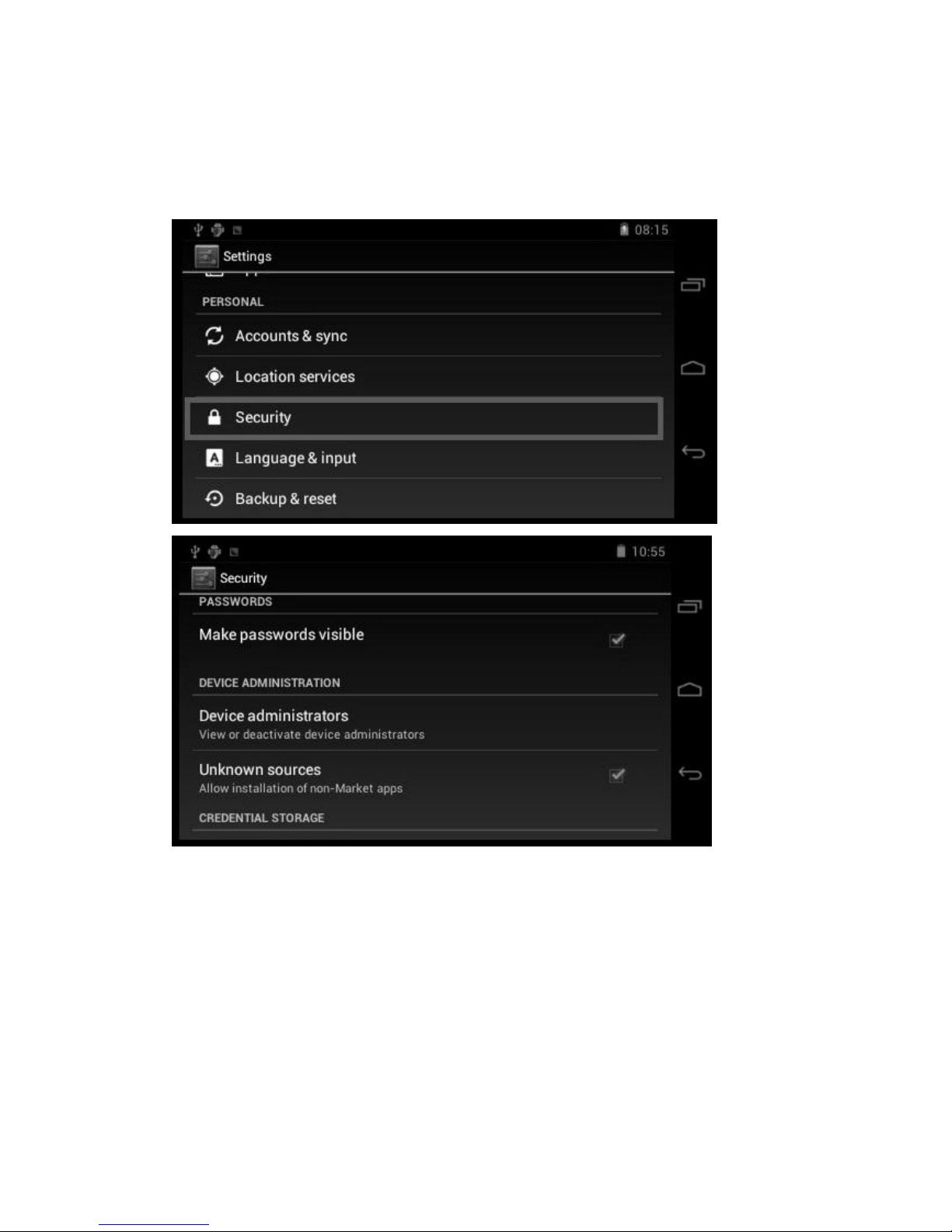
4.2 Application
Manage applications
Unknown sources: Click ”Unknown Sources”, then click“OK”
Manage application: manager and uninstall Application
【Remark】 When you Firmware Upgrade, please close the USB connect.
Page 13
13
How to uninstall?
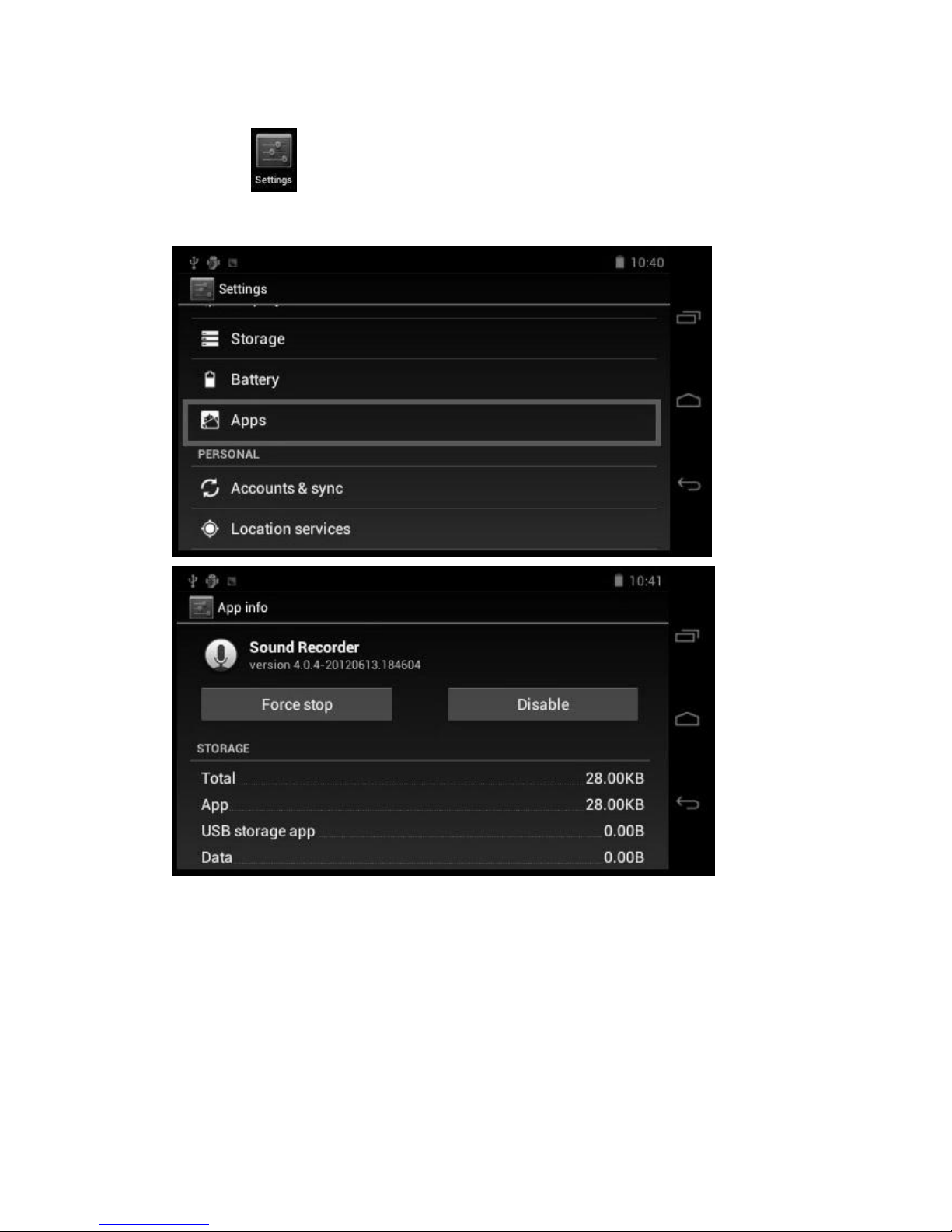
1. Enter “setting”>“Apps”> and you can see the program list.
2. Click you want to uninstall icons, will enter the following interface.
3. Click Uninstall, then you can delete the application.
Page 14
14
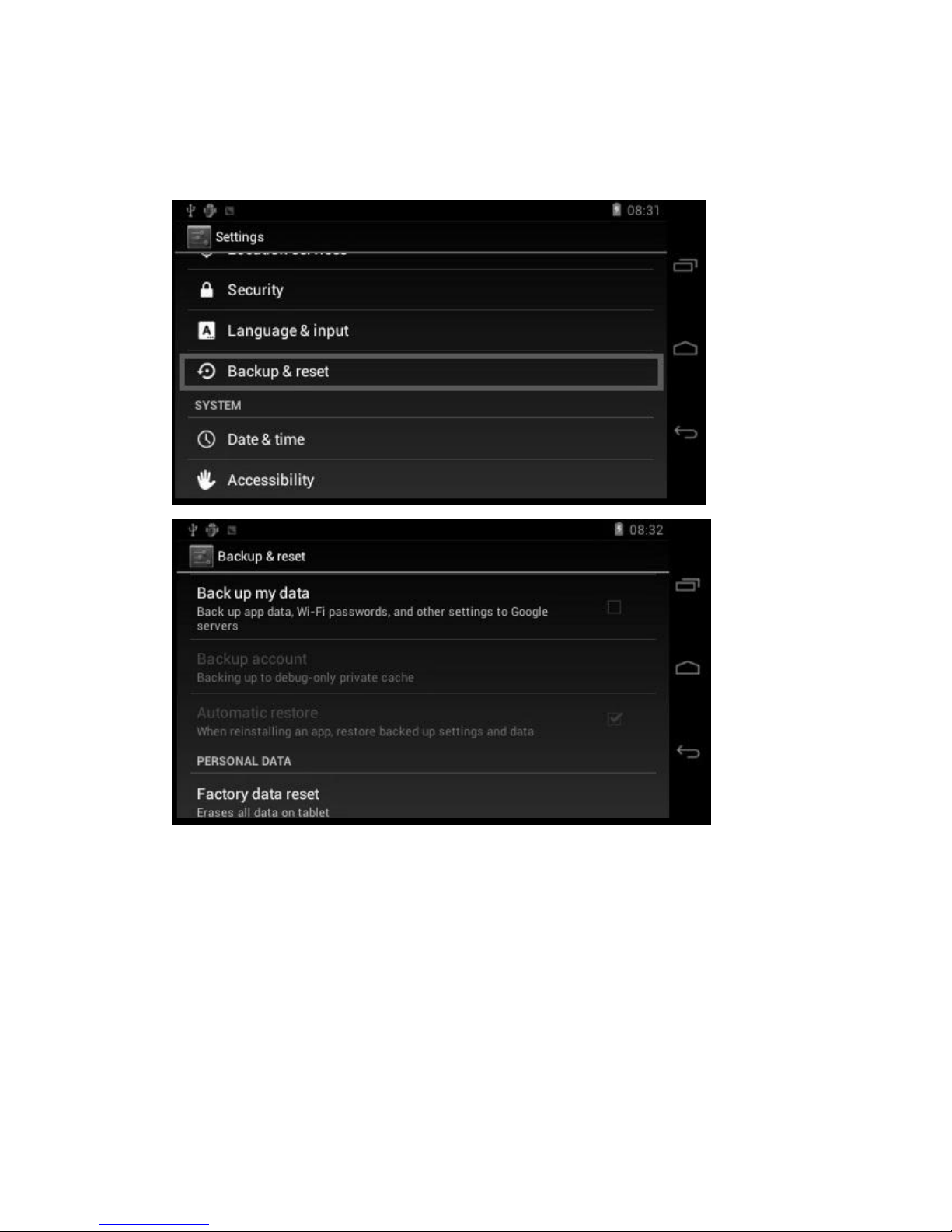
4.3 Backup & reset
Factory data reset
Page 15
15
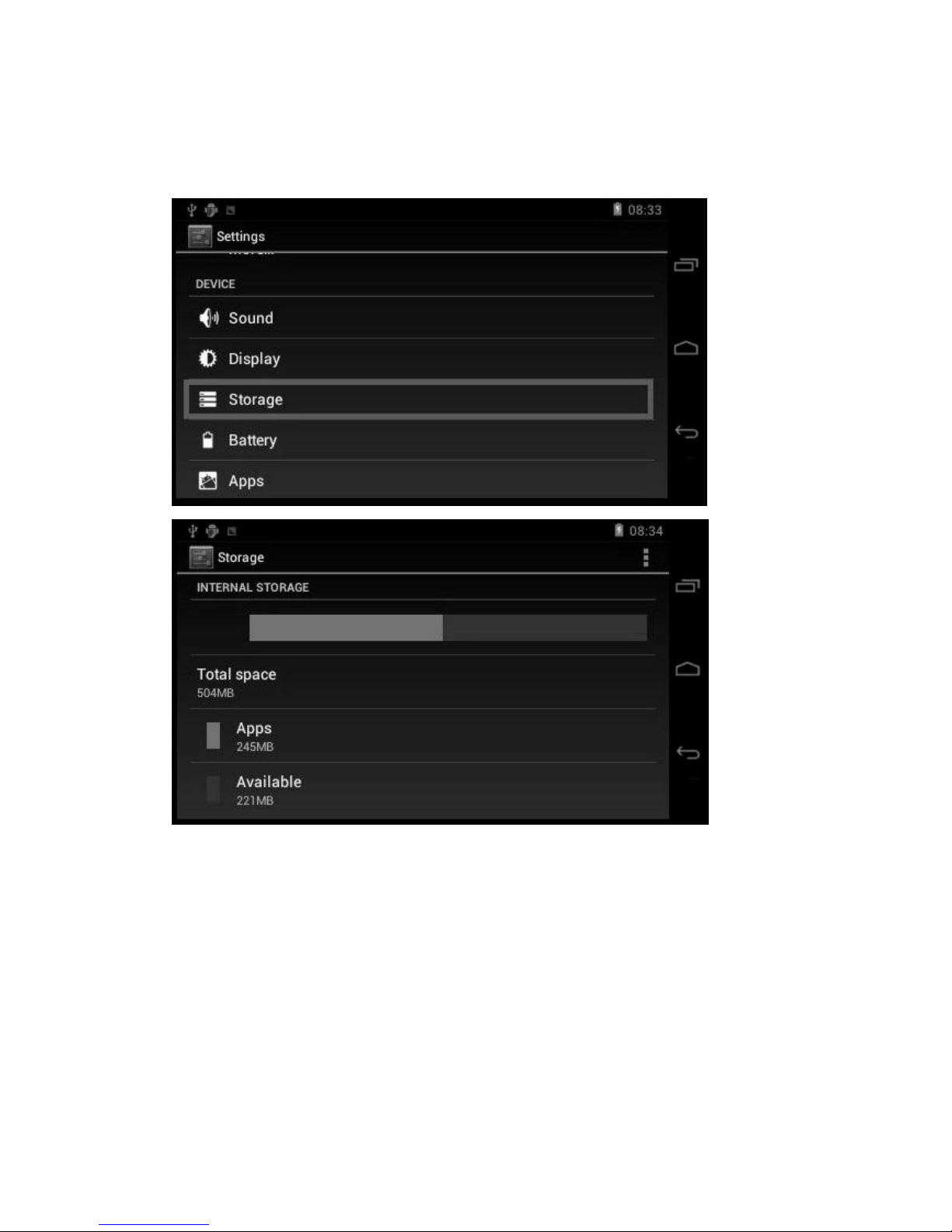
4.4 Storage
Remove Micro SD card, view of the available storage space.
Page 16
16
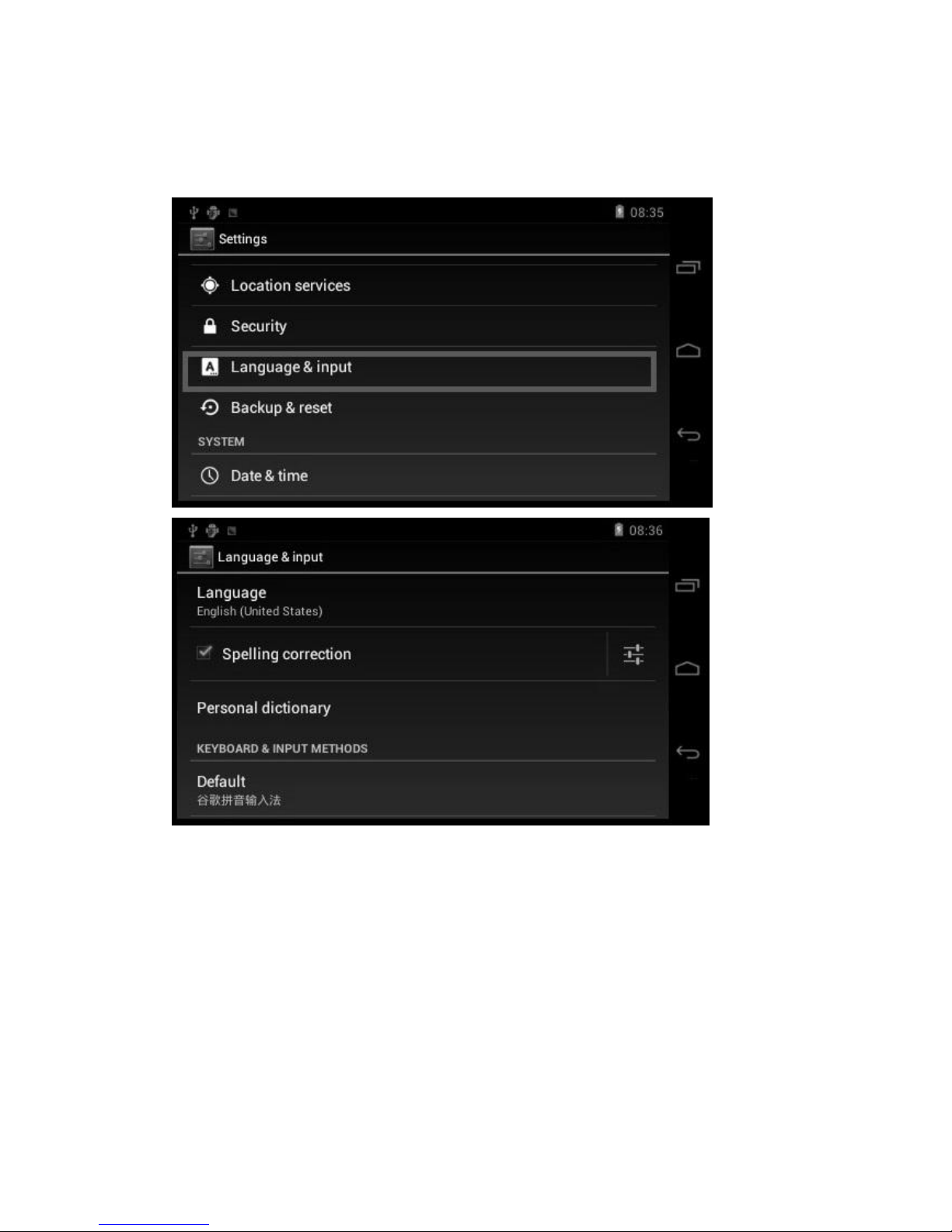
4.5 Language & keyboard
Setting (Language), text input and automatic error correction options:
Select Language: Over 20 kind of national languages are available
【Remark】 Android system can support over 20 kind of language, now menu interface just
support some language.
Android keyboard: Android keyboard setting.
Sound on hey-press.
Auto-capitalization.
Show suggestions: Display suggested words while typing.
Page 17
17
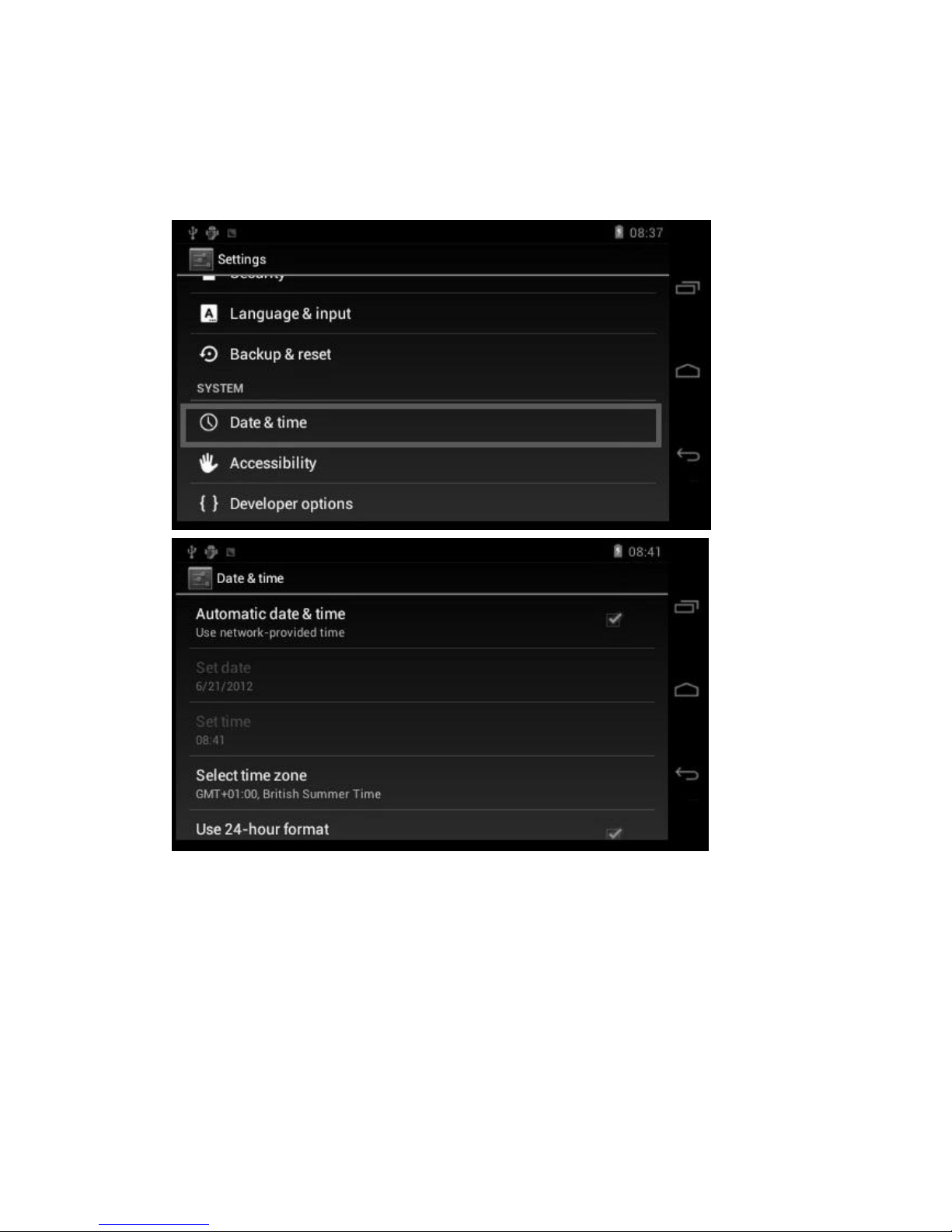
4.6 Data & time setting
Set data, set time, Select time zone and select data format
Page 18
18
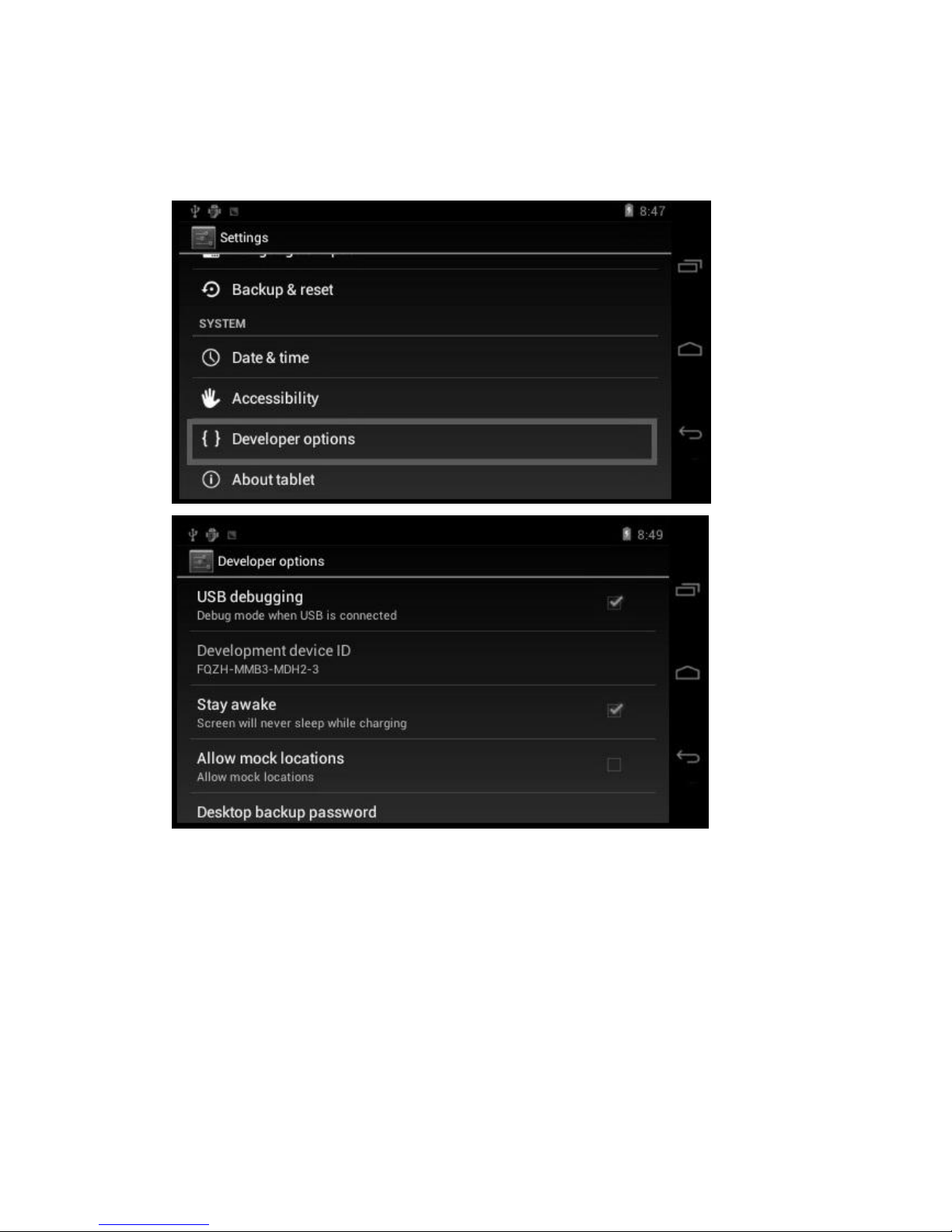
4.7 Developer options
Choose USB work pattern: OTG/HOST/SLAVE………
Page 19
19
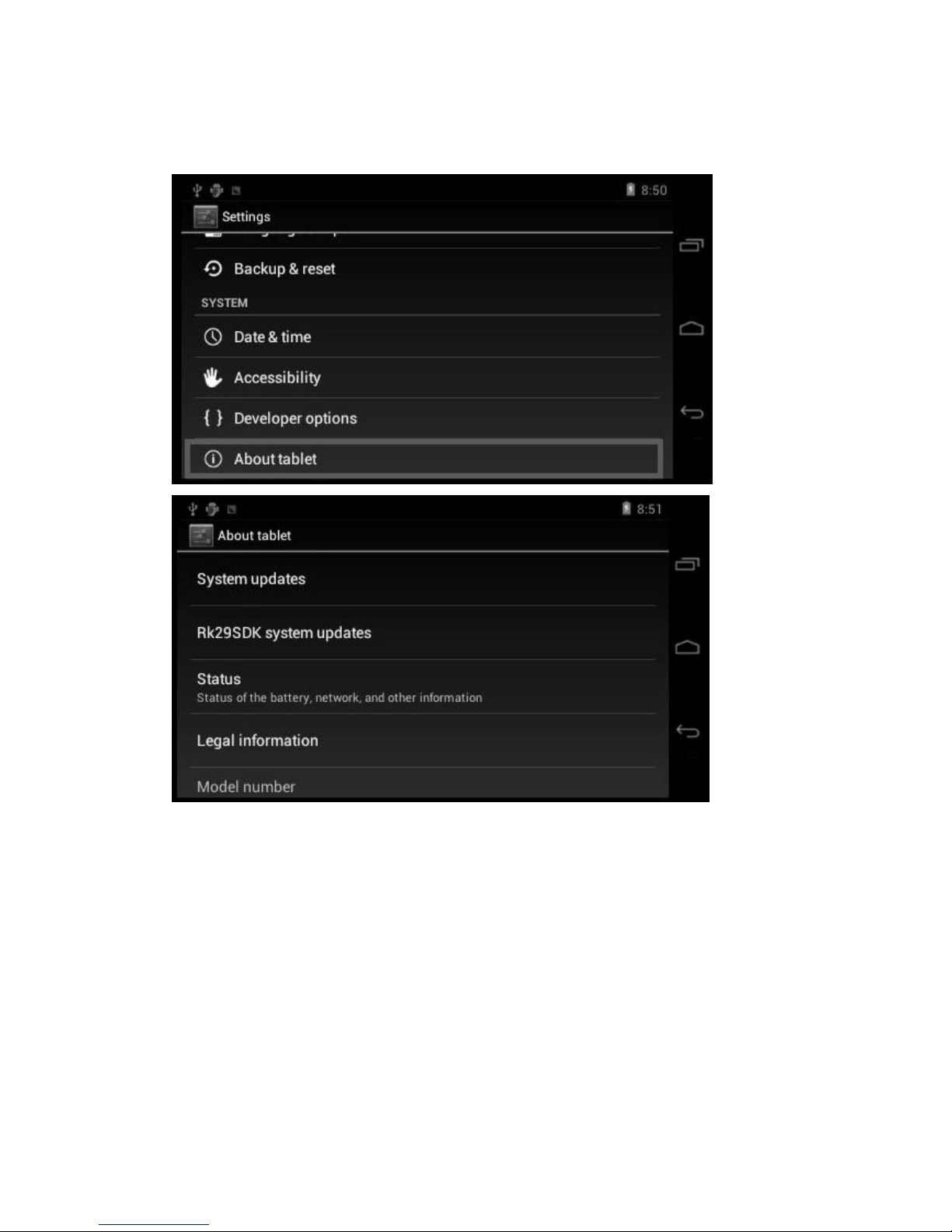
4.8 About tablet
Page 20

20
5. Apps Install and manage
5.1 App installer
This Tablet can support Android APP in market by third party, most Apps can install in the
network, can copy to NAND FLASH or SD card.
Click Apkinstaller icon, will appear Install, Manage, Exit options.
Install: Click install, enter Apk install interface.
Separately for internal memory disk and SD card disk.
Select the APK you would like to install, click it to install, go back to main menu, will display the
installed app just selected.
【Remark】some 3
rd
APP must install properly by memory card, downloaded 3rd party app may
not install properly on device.
Manage: Click manage, enter third party interface. Click install icon, will enter action interface.
6. Problem solution
6.1 Device can’t to open
1. Check the battery power.
2. Connect adaptor first, then check again.
3. If you can’t power on after charging, please contact with the supplier.
6.2 While using the picture has been appear, the device
appear shutdown
1. Power is not enough, please charge.
6.3 Headset can’t hear the voice
1. Please check the volume whether set to 0.
2. Check the music file whether damaged. Try playing other music, if the file have damaged
may lead to serious noise or hop sounds.
6.4 Can’t copy file play music and so on
1. Please check between computer and device is connect connection.
2. Check the memory storage space is already full.
3. Check the USB cable is good or not.
4. USB connection is disconnected.
Page 21

21
7. Basic function
OS
Android 4.0
CPU
ARM Cortex-A8 1GHz
RAM
512MB
Flash
NAND Flash 4GB ~ 16GB(Optional)
LCD
4.3”480*272 display
Touch panel
Capacitive Touch panel
Wi-Fi
wireless
Support 802.11b/g/n standard, highest transmission get to
300Mbps,support local WAPI wireless protocol standard
SD
expansion
External Micro SD slot, Max. 32GB
USB
USB high speed 2.0 can be connected to the computer to copy
files.
Gravity
make screen realize 360 degree rotation
Audio
AC 97 full-duplex codec, support AAC/AMR/MP3/WMA/WAV/MIDI and
so on.
Video
WMV/ASF/MP4/3GP/AVI/MKV/VC-1/DIVX/MPEG-2/MPEG-4/H.263/H.26
4 720P HD 1080I
Game
Support several of entertainment games based on Android
platform.
Web
Support many internet application like web, social, video,
chatting and so on
E-book
Assemble e-book tool to read based on Android platform
Photo Frame
Built-in photo player, and take it as a photo frame or calendar
Page 22
RF warning statement:
The device has been evaluated to meet general RF exposure requirement. The device can be
used in portable exposure condition without restriction.
Changes or modifications not expressly approved by the party responsible for compliance
could void the user's authority to operate the equipment.
NOTE: This equipment has been tested and found to comply with the limits for a
Class B digital device, pursuant to Part 15 of the FCC Rules. These limits are
designed to provide reasonable protection against harmful interference in a
residential installation. This equipment generates, uses and can radiate radio
frequency energy and, if not installed and used in accordance with the
instructions, may cause harmful interference to radio communications. However,
there is no guarantee that interference will not occur in a particular installation.
If this equipment does cause harmful interference to radio or television reception,
which can be determined by turning the equipment off and on, the user is
encouraged to try to correct the interference by one or more of the following
measures:
-- Reorient or relocate the receiving antenna.
-- Increase the separation between the equipment and receiver.
-- Connect the equipment into an outlet on a circuit different
from that to which the receiver is connected.
-- Consult the dealer or an experienced radio/TV technician for help.
FCC ID: OH8-TPC430
Trademark: MobiNote
Product: 4.3'' Tablet PC
Model: TPC430
Country of origin: China
This device complies with Part 15 of the FCC Rules. Operation is subject to the following
two conditions: (1) this device may not cause harmful interference, and (2) this device
must accept any interference received, including interference that may cause undesired
operation.
 Loading...