

Page 1

Basic Asset Terminal (BAT) User Guide
Ver.:SB1.0
Date: 8 Nov 2018
Page 2

Table of Contents
The BAT devices .......................................................................................................... 3
How to turn on the BAT? ........................................................................................... 3
Steps to insert SIM card ............................................................................................. 3
The BAT reporting profile (Current firmware: v2.0.0.B407) .................... 3
LED Indicators.............................................................................................................. 5
Fusion Platform .............................................................................................................. 6
How to log on the Fusion platform? ......................................................................... 6
How to use the Fusion platform? ............................................................................. 6
Document History ....................................................................................................... 7
Page 3
The BAT devices
How to turn on the BAT?
• If the battery is not empty, the BAT device will be always on and transmitting
messages to the cloud according to the intervals.
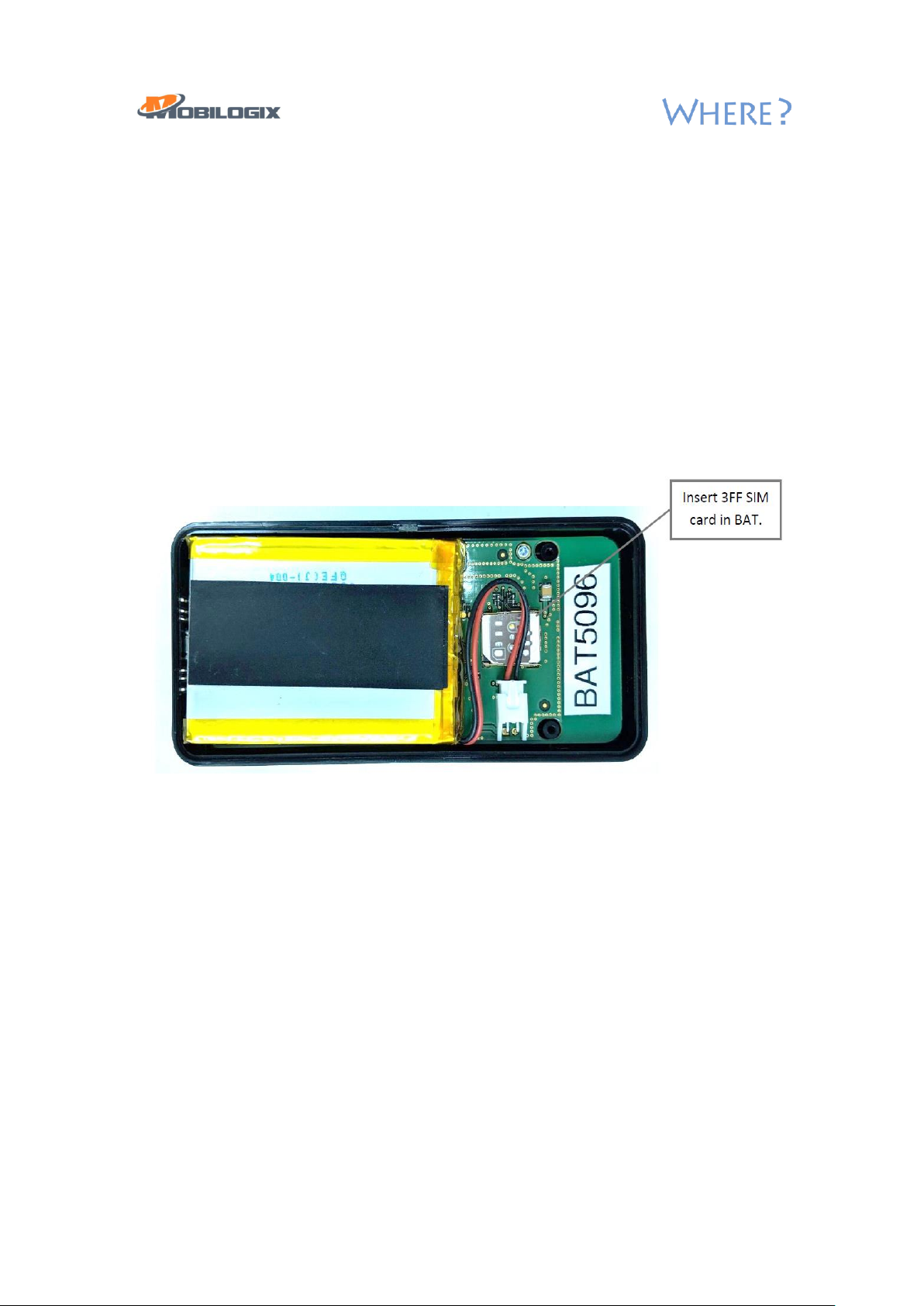
Steps to insert SIM card
• Unscrew the back cover of the BAT.
• Unplug the battery cable to open the SIM slot.
• Insert 3FF SIM cards into the device.
• Plug the battery cable back to the connector.
• Put the back cover to BAT.
The BAT reporting profile (Current firmware: v2.0.0.B407)
• The current firmware will take a reading of all sensors and then make a cellular
broadcast to the Fusion platform once every 12 hours.
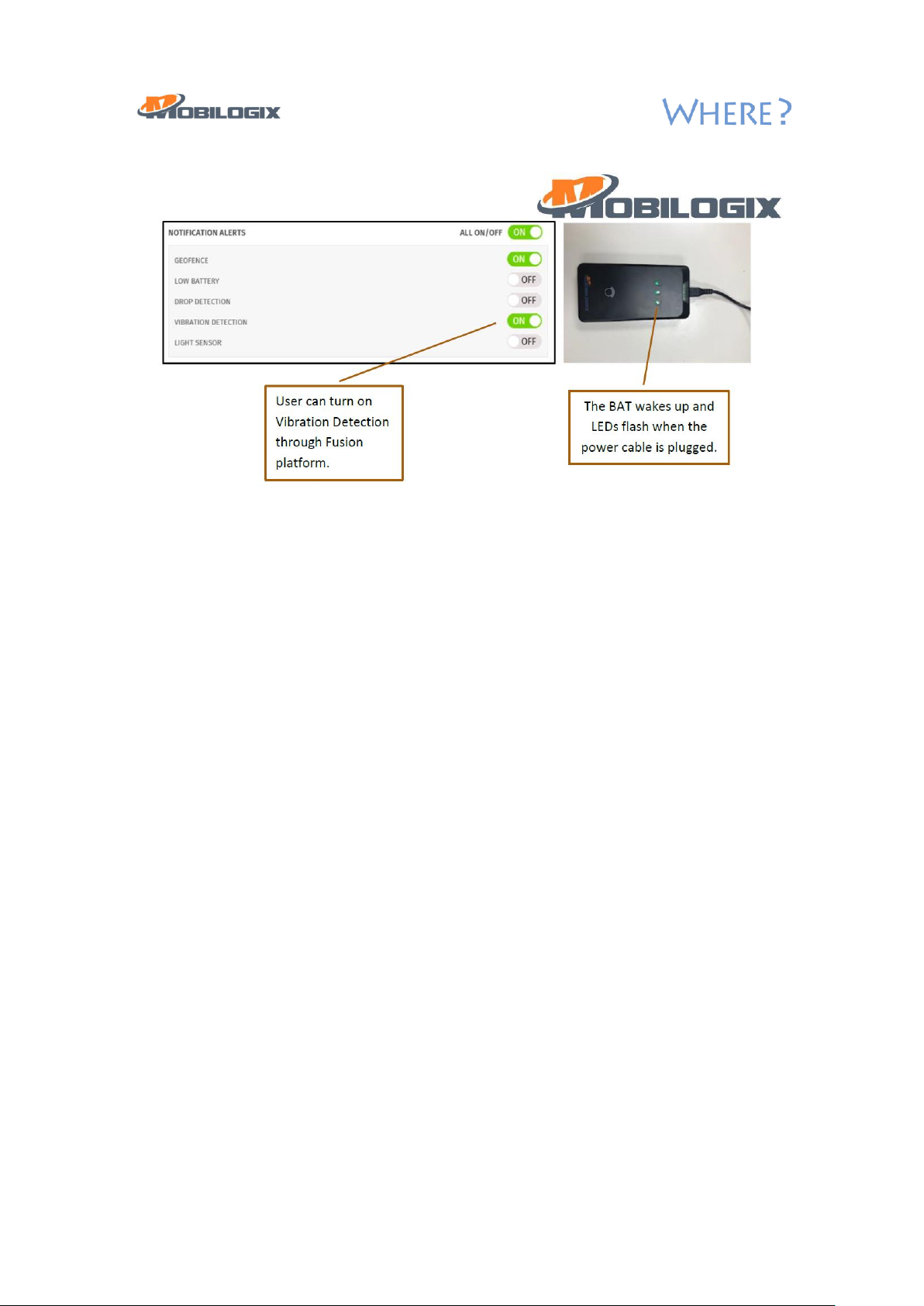
• User can turn on the Vibration detection on the Fusion platform (see below).
When the BAT is moving, the reporting interval will change to every 5 minutes.
If the BAT is not moving for another 15 minutes, the BAT will switch back to 12hour reporting interval.
• If the USB charging cable is plugged, the BAT will wake up. The BAT will not go
to the sleep mode while charging. This allows users to easily debug or change
settings.
Page 4
Page 5
LED Indicators
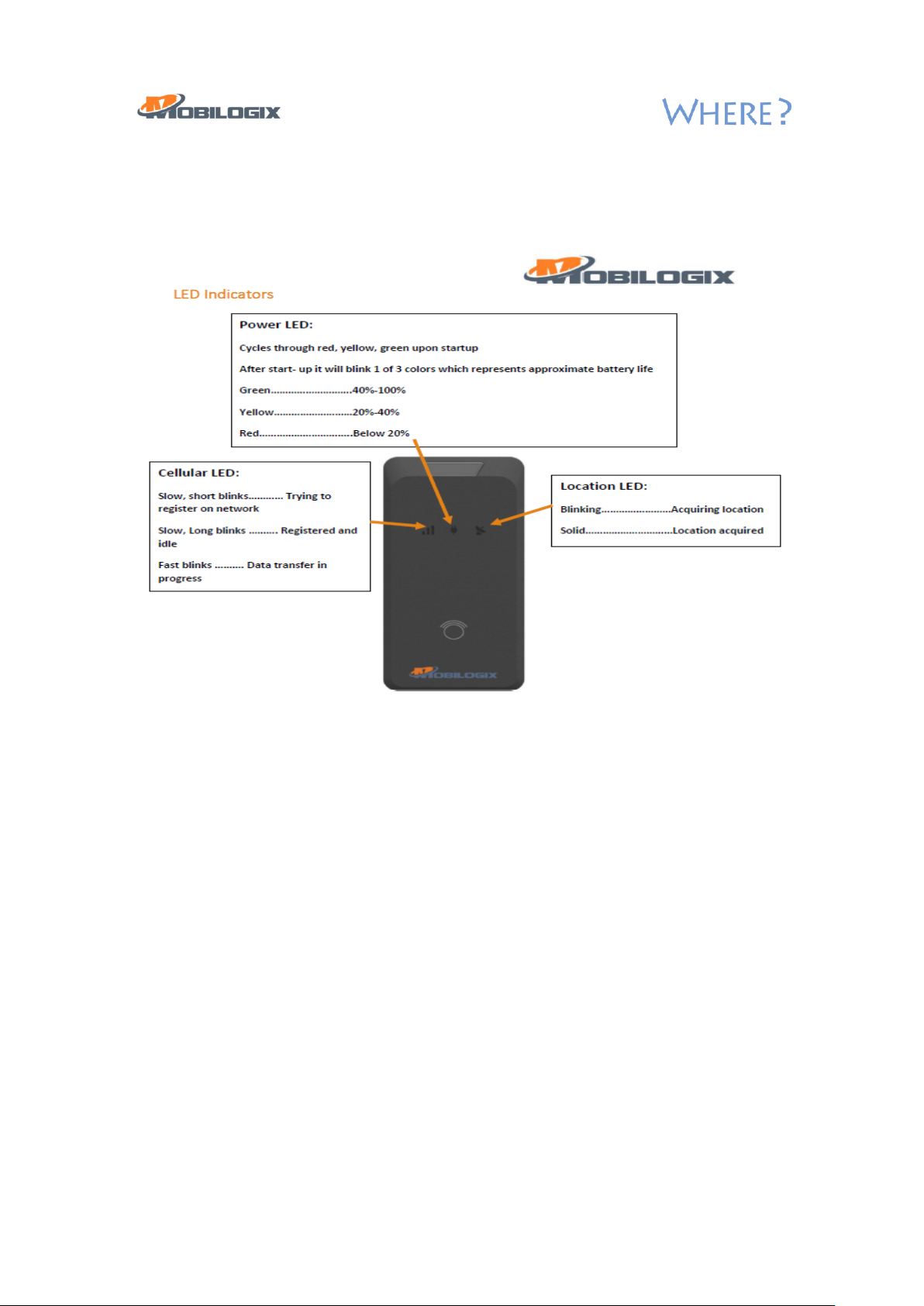
Three types of LED indicators are available: Power LED, cellular LED, location LED.
Page 6
Fusion Platform
How to log on the Fusion platform?
• Open the browser, enter the URL:
• Enter the user name and password on the login page
o User name:
o Password:
How to use the Fusion platform?
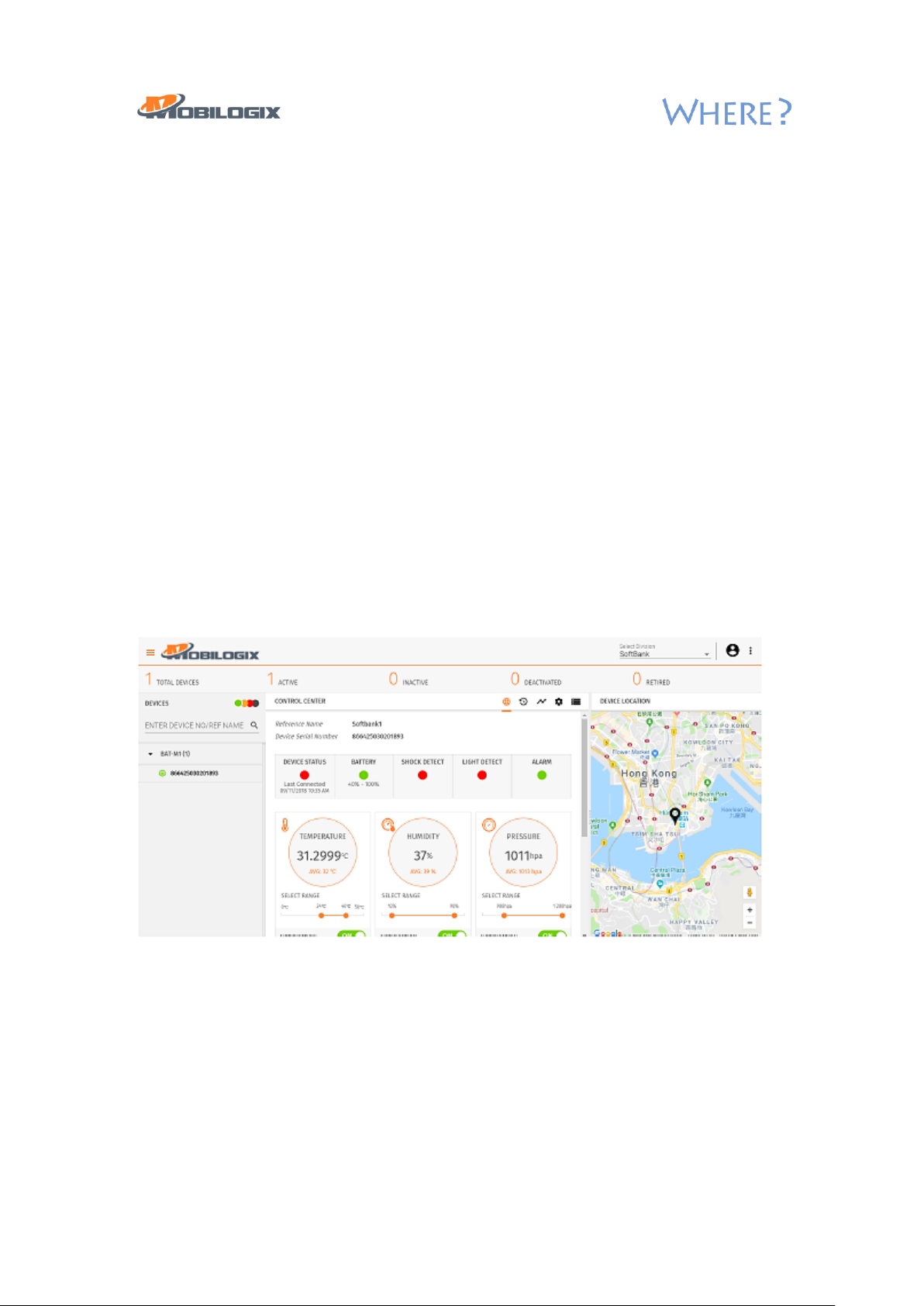
You can track and monitor the BAT device on the Fusion platform. There are three
main windows on the portal.
• Devices – All registered BAT will be shown on this column.
• Control Center – It shows the status of the BAT and the sensor data (temp,
humidity, pressure). Also, user can set the notification on this page.
• Device location – GPS location of the BAT is shown on the map.
Page 7

Document History
Version
Description
Created / modified by
1.0
First initial draft
Harris Ming
1.01
Modified draft
Peter Akpah
 Loading...