

Page 1
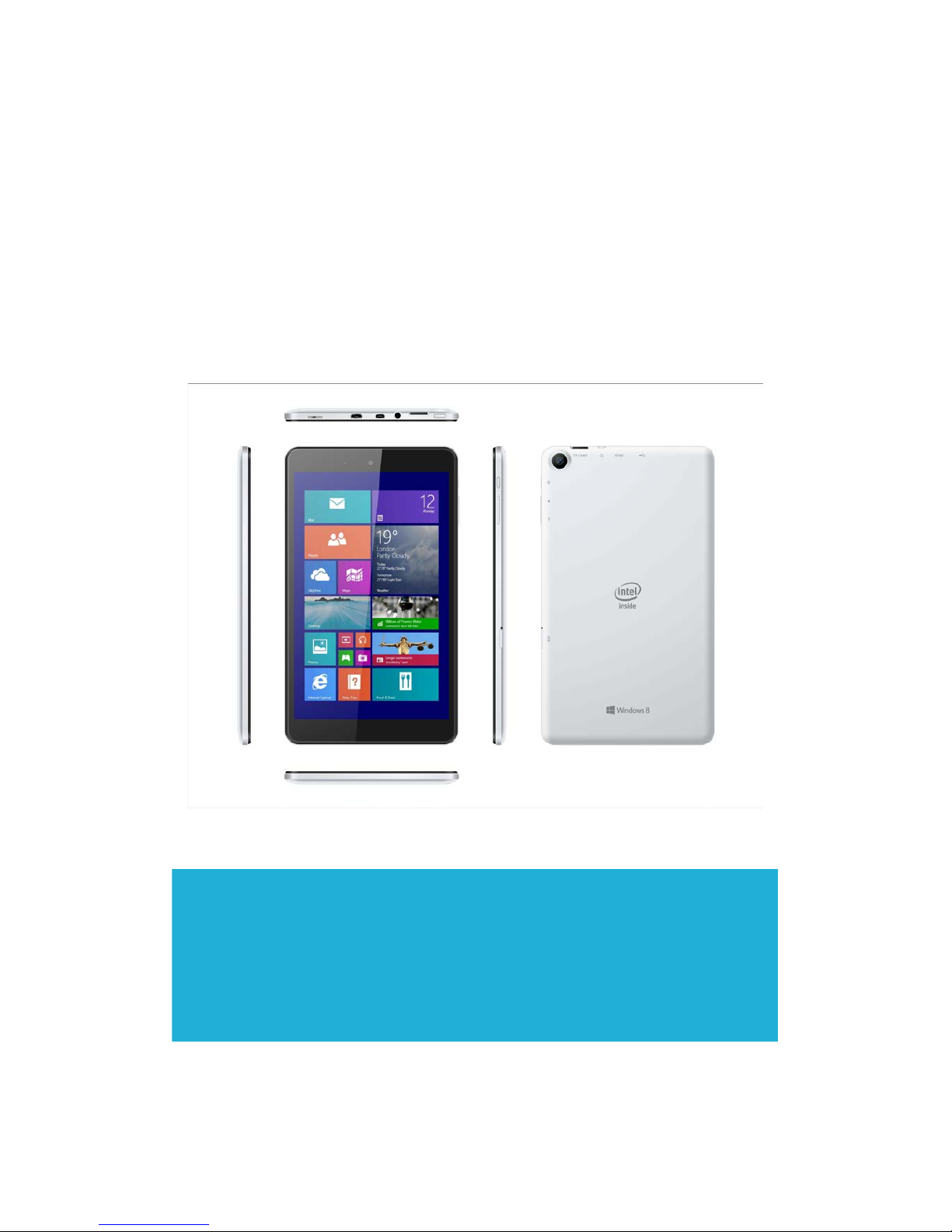
FLEX8A
Quick Start Guide
Page 2

Introduction
Thank you for your choosing the new Tablet PC.
This guide serves to enable users to get to know and familiar with our product as soon as
possible. Here we have made a brief introduction to the key layout and definitions in
figures and words.
Contents
Ⅰ. Precautions before Use 03
Ⅱ.Key Layout and Definitions 04
Ⅲ. Key Descriptions and Applications 05
Ⅳ. Introduction to Desktop 06
1. Windows8.1 Start Screen 06
2. Image Slide Application 06
3. apps Introduction 08
4. Charm Menu Column 09
5. Double Screen Application 11
Ⅴ. Basic Operations 12
1. Dormancy, Restart, and Power off 12
Page 3

Ⅰ. Precautions before U se
This production is suita ble for use in non-tropic areas below 2,000 meters, and the mark
in the nameplate indicates the product is suitable for use in non-tropic areas.
2. Prevent the Tablet PC from falling to the ground or being strongly impacted otherwise.
3. Do not use it in the long term in any environment where the air is too c old, too hot
(<35℃), too humid or with too much dus t . Do not expose the Tablet PC to sunlight.
4. Avoid using it in the strong magn et ic and strong static environment as much as
possible.
5. Once any water or ot he r liqui d splas hes onto t he Tablet PC, close it im med iately and do
not use it until it dries out.
6. Do not clean the Tablet PC with any detergent containing chemic al e le me nt or other
liquid to avoid causing damage due to corrosion and becom in g damp. If cleaning is really
necessary, clean it with dry soft cloth tissue paper.
7. Our company shall not bear any and all responsibilities for loss or deletion of material
inside the machine cause d due t o abnormal software and hardware operation,
maintenance or any other acci dent .
8. Please back up your import ant material at any time to avoid loss.
9. Please do not disass emble t he Tablet PC by y ourself; otherw ise you w ill lose t he right to
warranty.
10. Quick Use Guide and the relevant software shal l be updat ed at any time. For updated
software version, v isit
www.xxx.com for downloadin g by yourself, and no notice shall be
given otherwise. If any anything is found to be inconsistent w ith the Quick Use Guide, the
material object shall prev ail.
12. Replacement with incorrect type batt eries m ay cause explosion. Make sure to use
original batteries.
Page 4
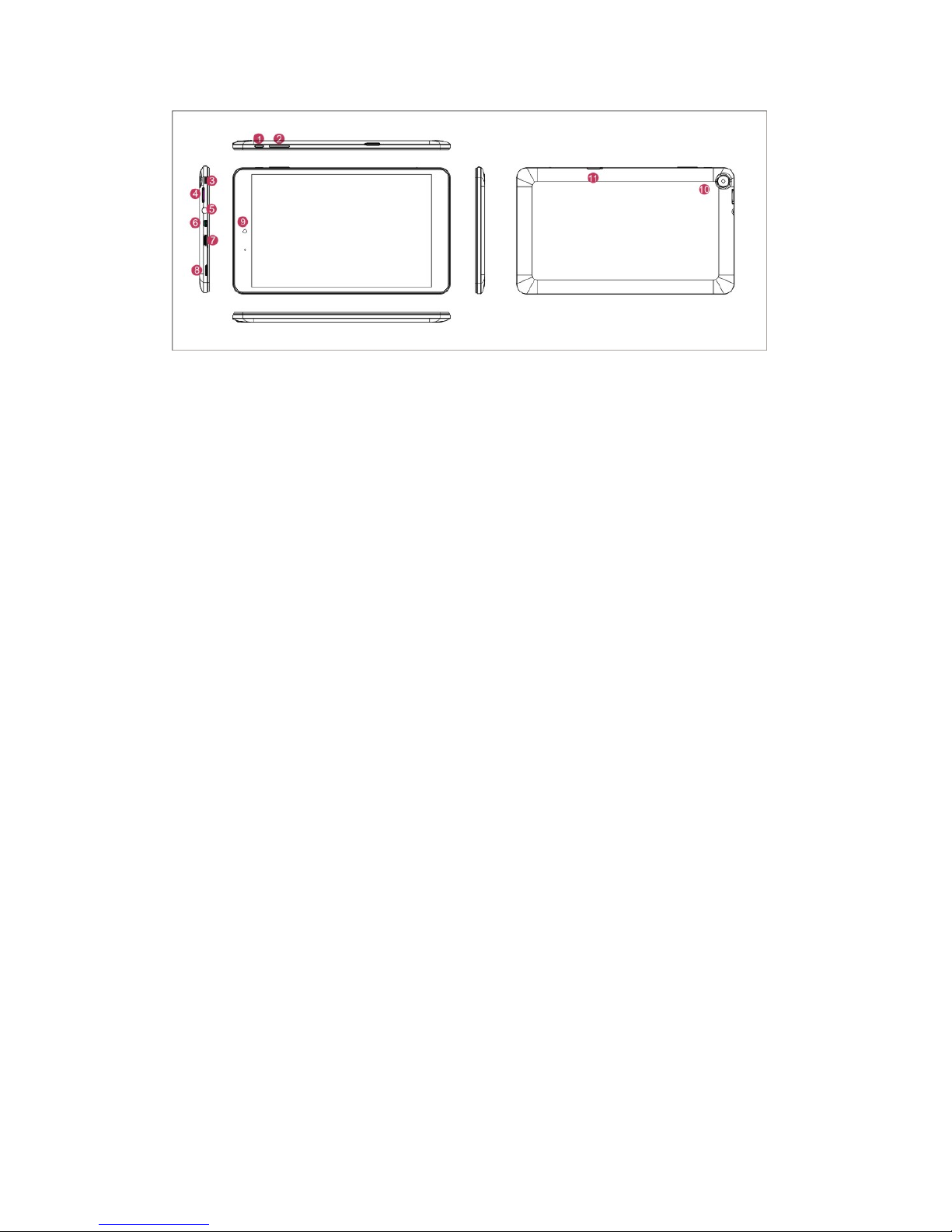
○
1
Power button: Press it do wn t o st art or close t he tou ch scr een panel. You can also let the
computer to enter dormancy through this button or wake fro m the dormancy mode.
○
2
Sound-/sound+: Lower/raise volume
○
3
Windows key: Press this button to return to the Start screen.
○
4
MicroSD& M ic roSDHC Mic ro SD card slot: The bu ilt-in storage card reader slot supports
MicroSD and MicroSDHC format.
○
5
Socket for earphone and microphone: This socket can transmit the audio sign als o f
Tablet PC to loudspeaker or earphone.
○
6
Micro HDMI Interface: High-Definition M ult i m edia Interface
○
7
Micro USB Interface: You can read the data through USB.
○
8
Loudspeaker: The built-in loudspea ker enables you to hear the sound without having to
linking additional device.
○
9
Front camera: take photos, and r ecord pictures
○
10
Back camera: take photos, and record pictures.
Page 5
Ⅵ. Introduction to Desktop
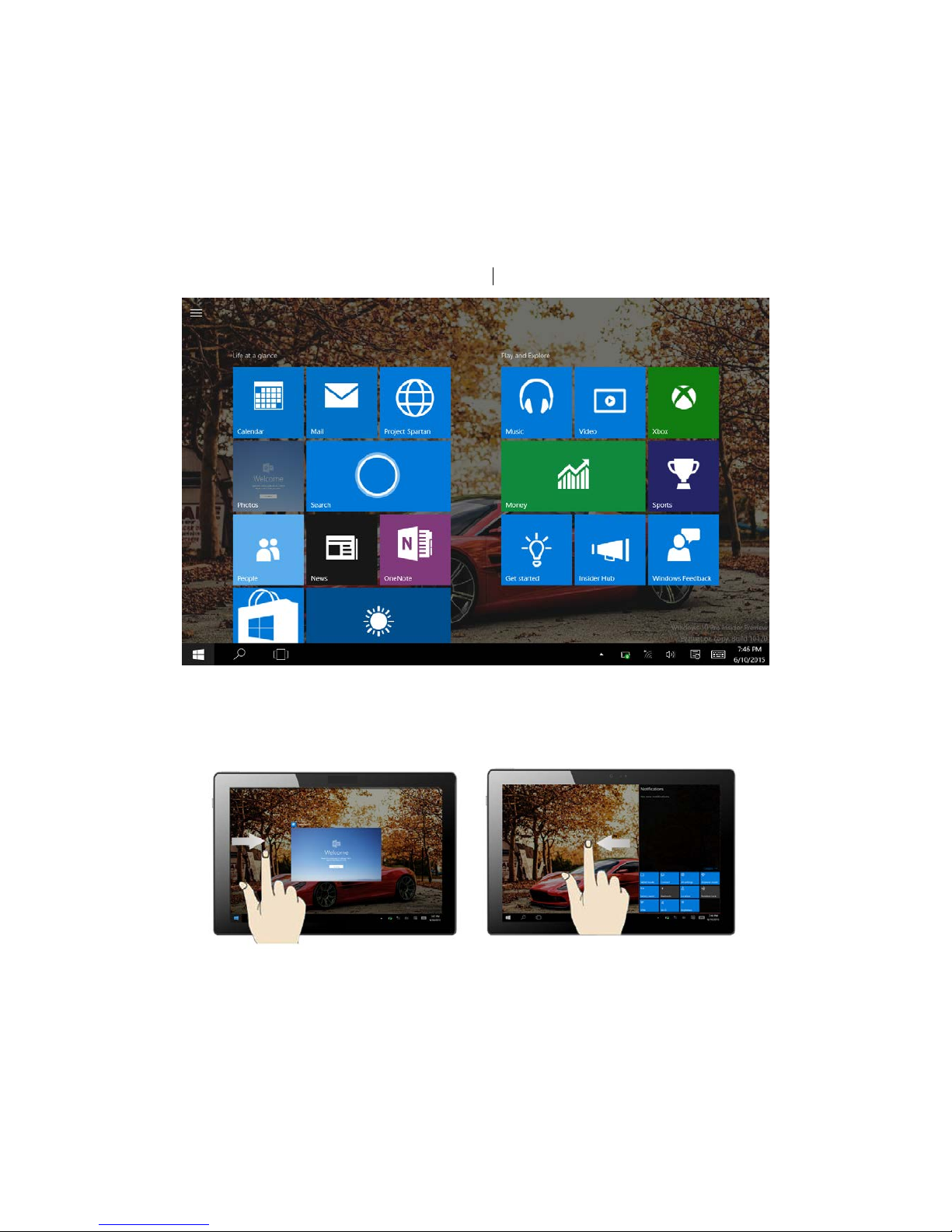
1. Windows 10 start image: On the start screen, you can see many programs fixed in
the image. These application programs are displayed in the form of “magnet”. As long as
you click them, you can easily visit them.
You need to log on your Microsoft account before the application program completely
runs.
2. Image slide applications
Slide to right Slide to left
Slide to the right from the left side Slide to the left from the right side of
the of the screen to scan the application screen to setting Charm menu column.
program in running.
Page 6
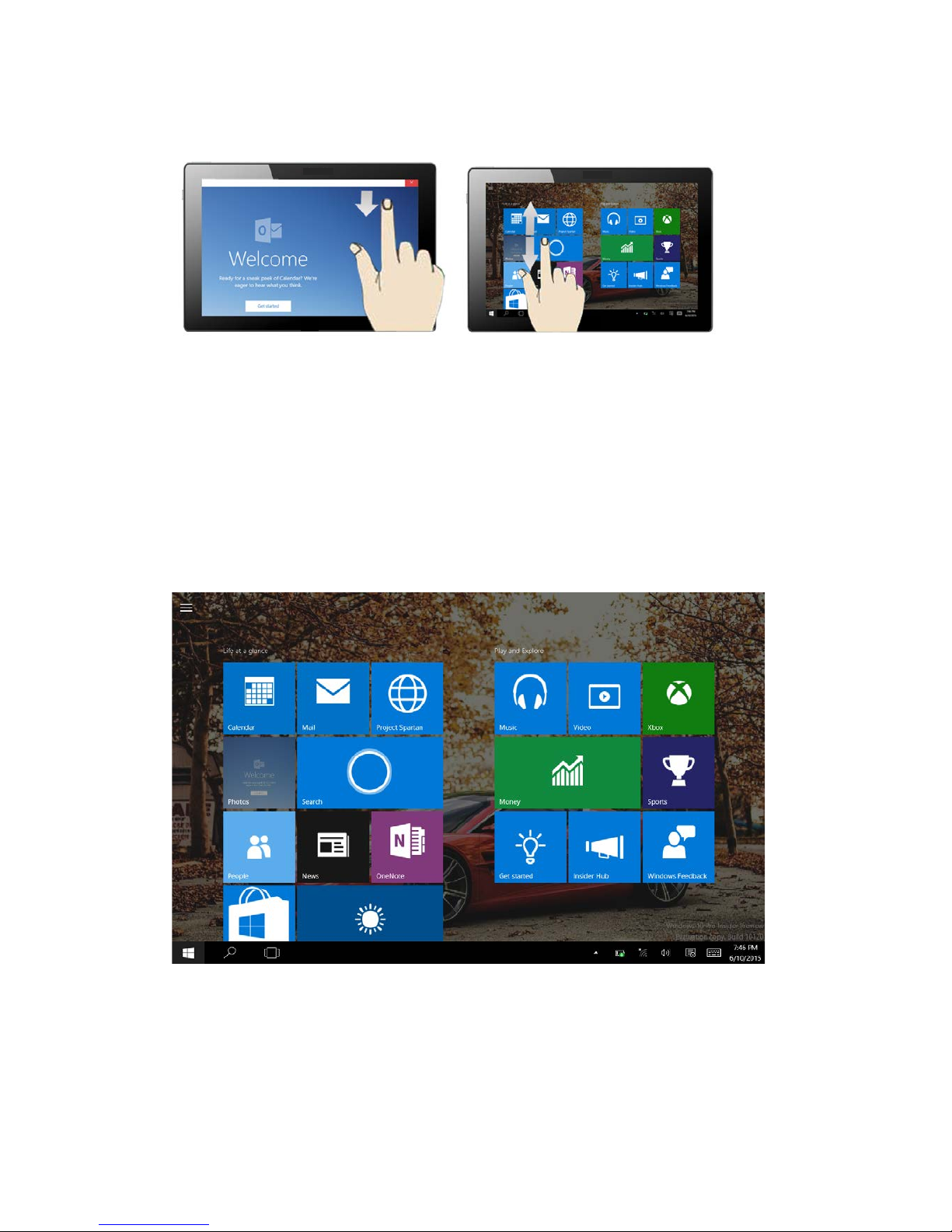
Slide downward Slide with finger
In start screen, slide from the top of the In start screen, slide finger up and down
screen to view application programs to move the ima ge.
3. Introduction to app Interface
Besides the application programs alre ady fixed on the start screen, you can also start
other application progra m s in al l ap plication programs, such as ot her software applicat ion
programs attached t o t he Tablet PC.
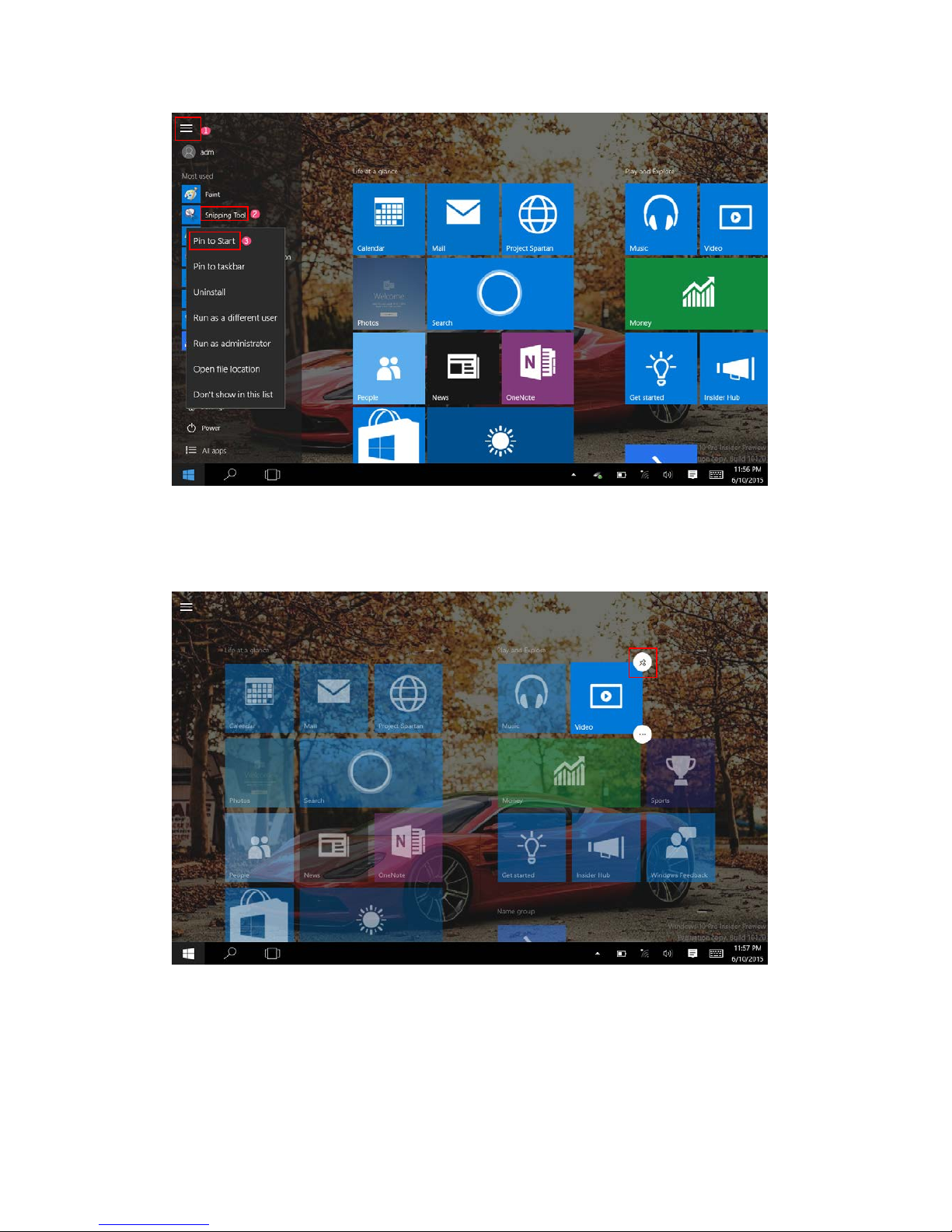
If you want to fix more applicat ion progr am s on the start interface, see the operation in the
figure below, (1) Click the properties icon(2) press and hold t he application program
magnet for about one second and then let go (3) Click the Pin to start
Page 7
Conversely, if you want to cancel or delete a certain application in the start screen, (1)
lightly touch, press and hold the application program magnet for about one second and
then let it go and run, and select
Page 8
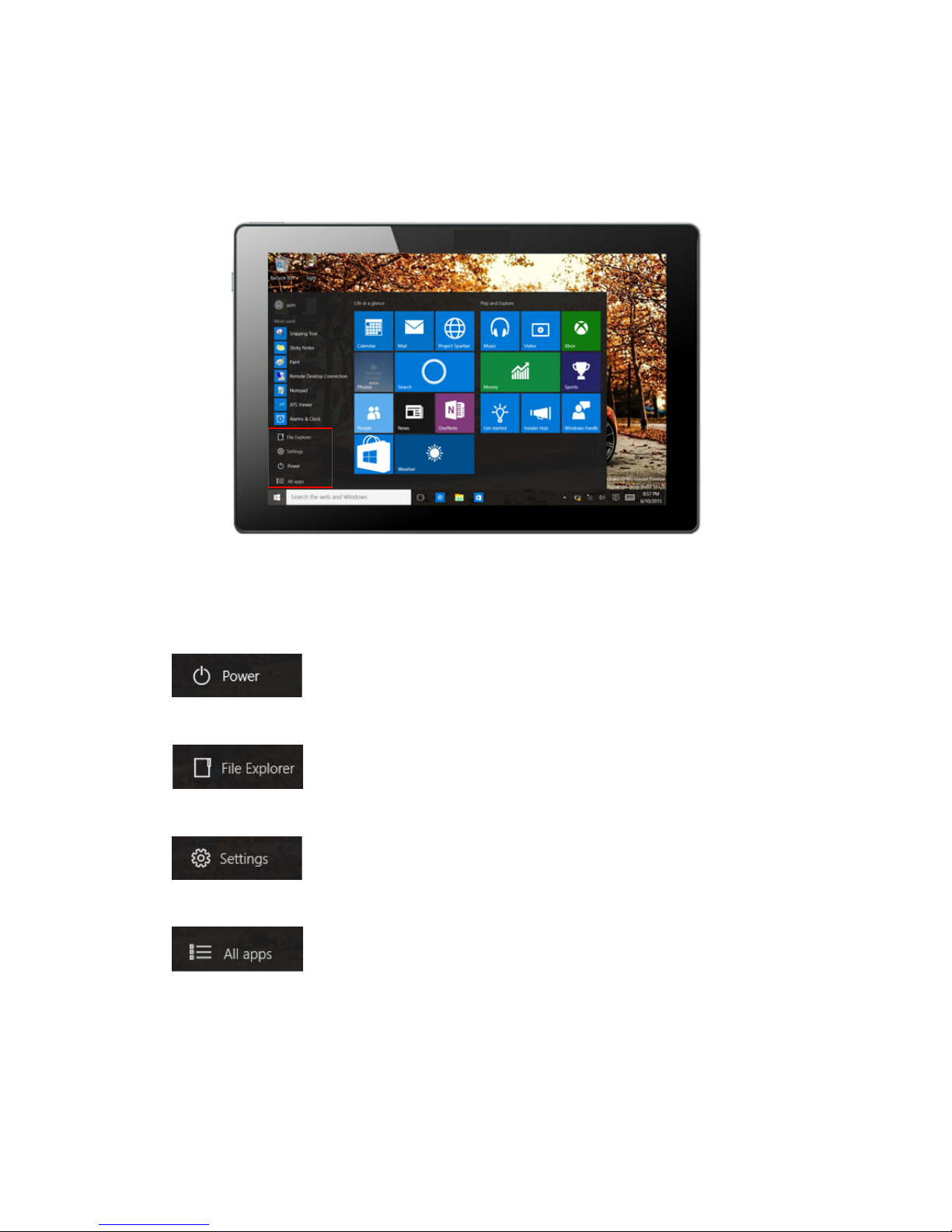
4. Charm menu column
Slide it to the left from the right side of the screen to start Charm menu column,
including: S tart, Device, Setup, Share, and Search Program.
Slide it to the left from the r ight side of the screen to start Charm menu column, Usually:
File Explorer,Settings,Power, and All apps
Can Sleep/Shut down/Restar t t he Tablet PC
Can let you search the files and ap pl ication programs in the Tablet PC.
Can let you set up the Table PC.
Can scan more apps
Page 9
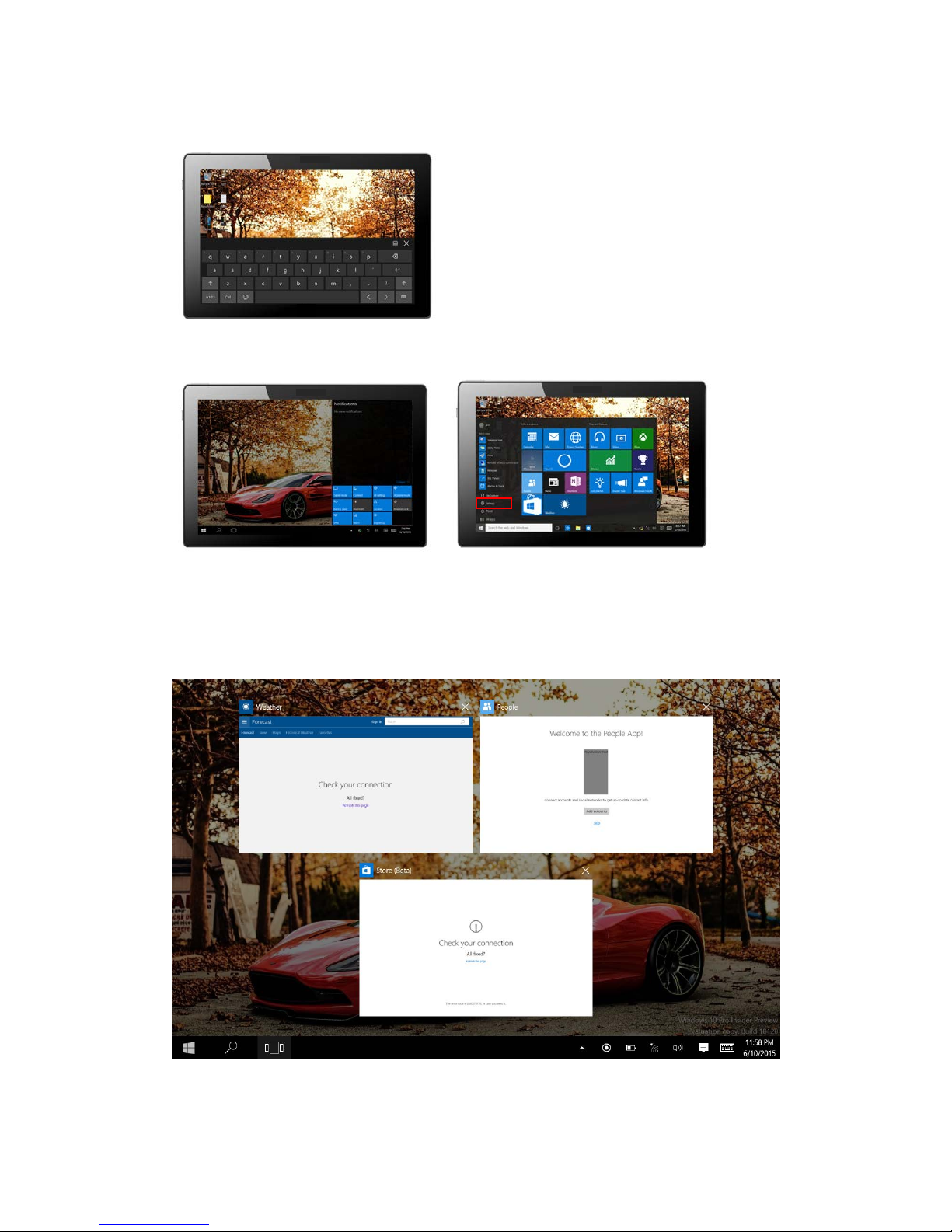
Search menu
Device Menu Set up Menu
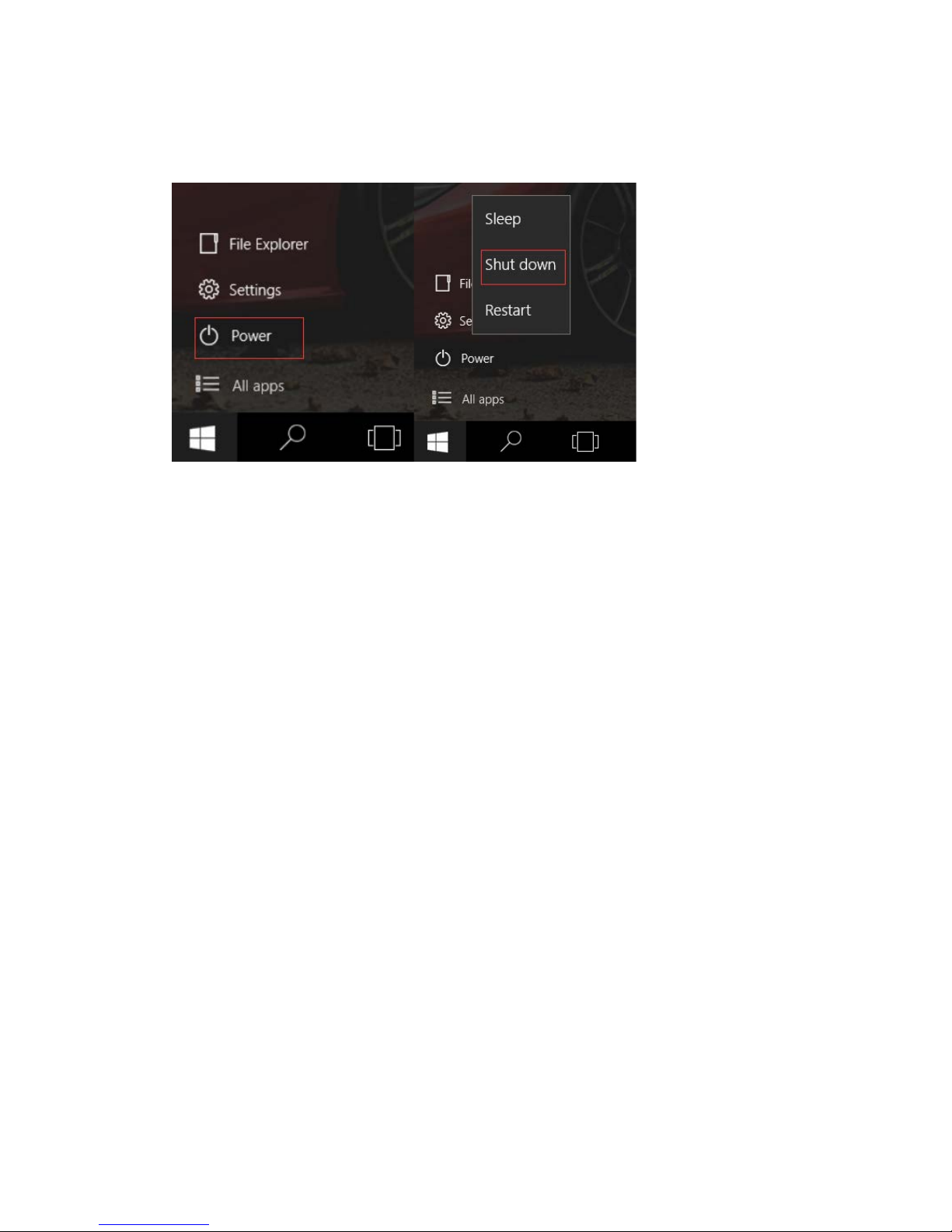
5. Multitasking operating interface
slide it right from the le ft side of the scr een, Let go w hen Can see the runn ing applicat ions.
We can enter the applic at ion, also can be deleted.
Page 10
Ⅴ. Basic Operations
1. Sleep, restart and power off
This device complies with part 15 of the FCC Rules. Operation is subject to the following two
conditions: (1) This device may not cause harmful interference, and (2) this device must
accept any interference received, including interference that may cause undesired operation.
Page 11

FCC Statement
This equipment has been tested and found to comply with the limits for a Class B digital device,
pursuant to Part 15 of the FCC Rules. These limits are designed to provide reasonable
protection against harmful interference in a residential installation. This equipment generates
uses and can radiate radio frequency energy and, if not installed and used in accordance with
the instructions, may cause harmful interference to radio communications. However, there is
no guarantee that interference will not occur in a particular installation. If this equipment does
cause harmful interference to radio or television reception, which can be determined by turning
the equipment off and on, the user is encouraged to try to correct the interference by one or
more of the following measures:
-- Reorient or relocate the receiving antenna.
-- Increase the separation between the equipment and receiver.
-- Connect the equipment into an outlet on a circuit different from that to which the receiver is
connected.
-- Consult the dealer or an experienced radio/TV technician for help.
Changes or modifications not expressly approved by the party responsible for compliance
could void the user's authority to operate the equipment.
IC STATEMENT
This device complies with Industry Canada’s licence-exempt RSSs. Operation is subject to the following
two conditions:
(1) This device may not cause interference; and
(2) This device must accept any interference, including interference that may cause undesired operation of
the device.
Cet appareil est conforme aux CNR exempts de licence d'Industrie Canada. Son fonctionnement est soumis
aux deux conditions suivantes :
( 1 ) Ce dispositif ne peut causer des interférences ; et
( 2 ) Ce dispositif doit accepter toute interférence , y compris les interférences qui peuvent causer un
mauvais fonctionnement de l'appareil.
 Loading...