

Page 1
MobileHelp | Complete User Guide
MHP8003-179E
Help at the touch of a button
Mobile Medical Alert Systems
Duo, Classic and Solo Systems
CBS4.0_Complete_UserGuide_MHP8003-179E_12mech.indd 1 8/16/2018 11:14:10 AM
Page 2
MobileHelp Customer Service 1-877-827-6207
2
MHP8003-179E
MobileHelp Complete User Guide
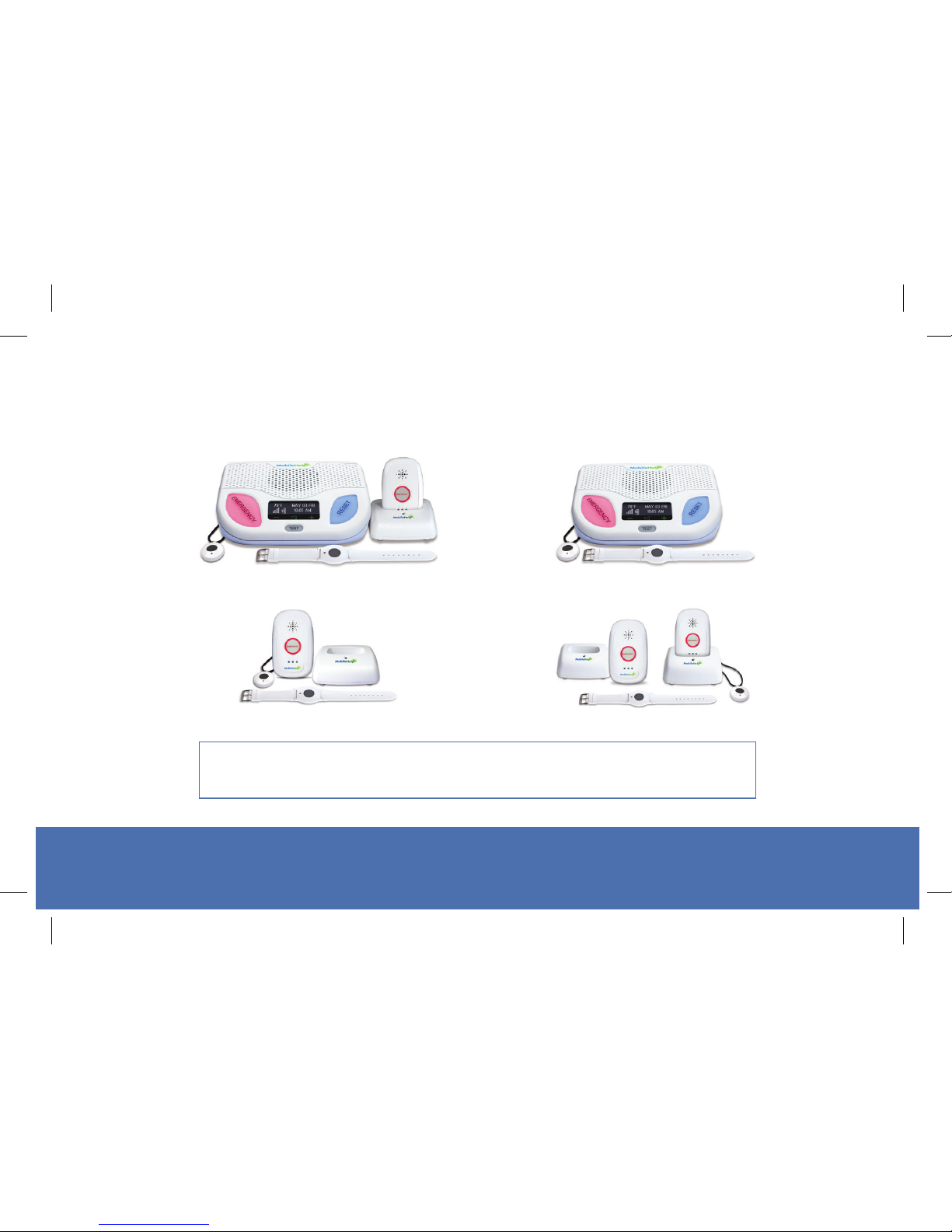
This User Guide includes information covering the 4 most popular MobileHelp Systems:
Note: Remember to always carry the Mobile Device with you
when going outside of your home.
Cellular Duo System Cellular Classic System
Solo System
Mobile Duo System
CBS4.0_Complete_UserGuide_MHP8003-179E_12mech.indd 2 8/16/2018 11:14:11 AM
Page 3
MobileHelp Complete User Guide
3
MHP8003-179E
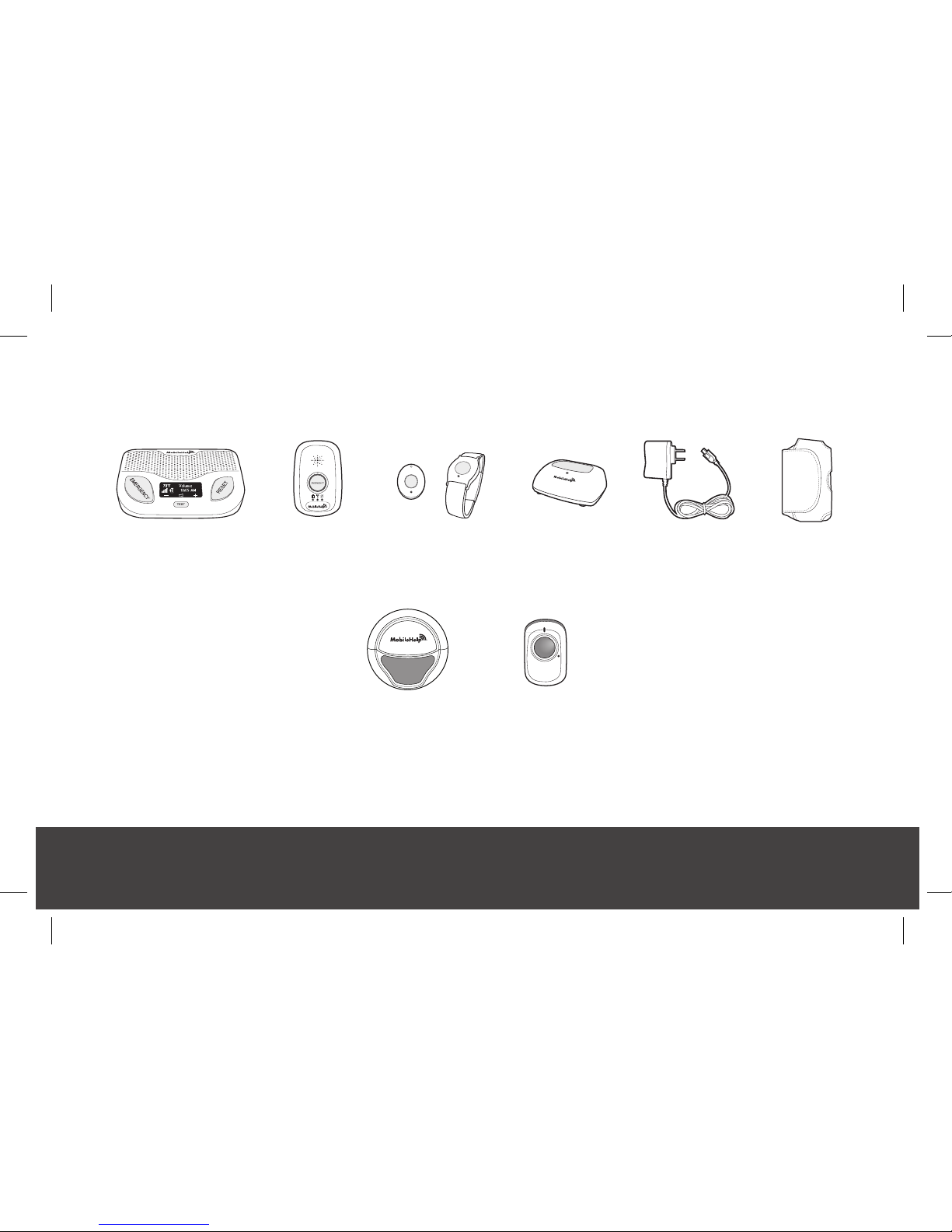
Cellular Duo System
What’s in the Box
Optional Accessories
The Fall Button™ and Wall button are optional and at an additional cost. The Fall Button™
has a separate user guide.
Cellular
Base Station
Mobile
Device
Mobile
Case
Power
Cord
Neck Pendant or
Wrist Button
Cradle
Charger
+ + + + +
Fall ButtonWall Button
PRESS
for
HELP
CBS4.0_Complete_UserGuide_MHP8003-179E_12mech.indd 3 8/16/2018 11:14:12 AM
Page 4
MobileHelp Customer Service 1-877-827-6207
4
MHP8003-179E
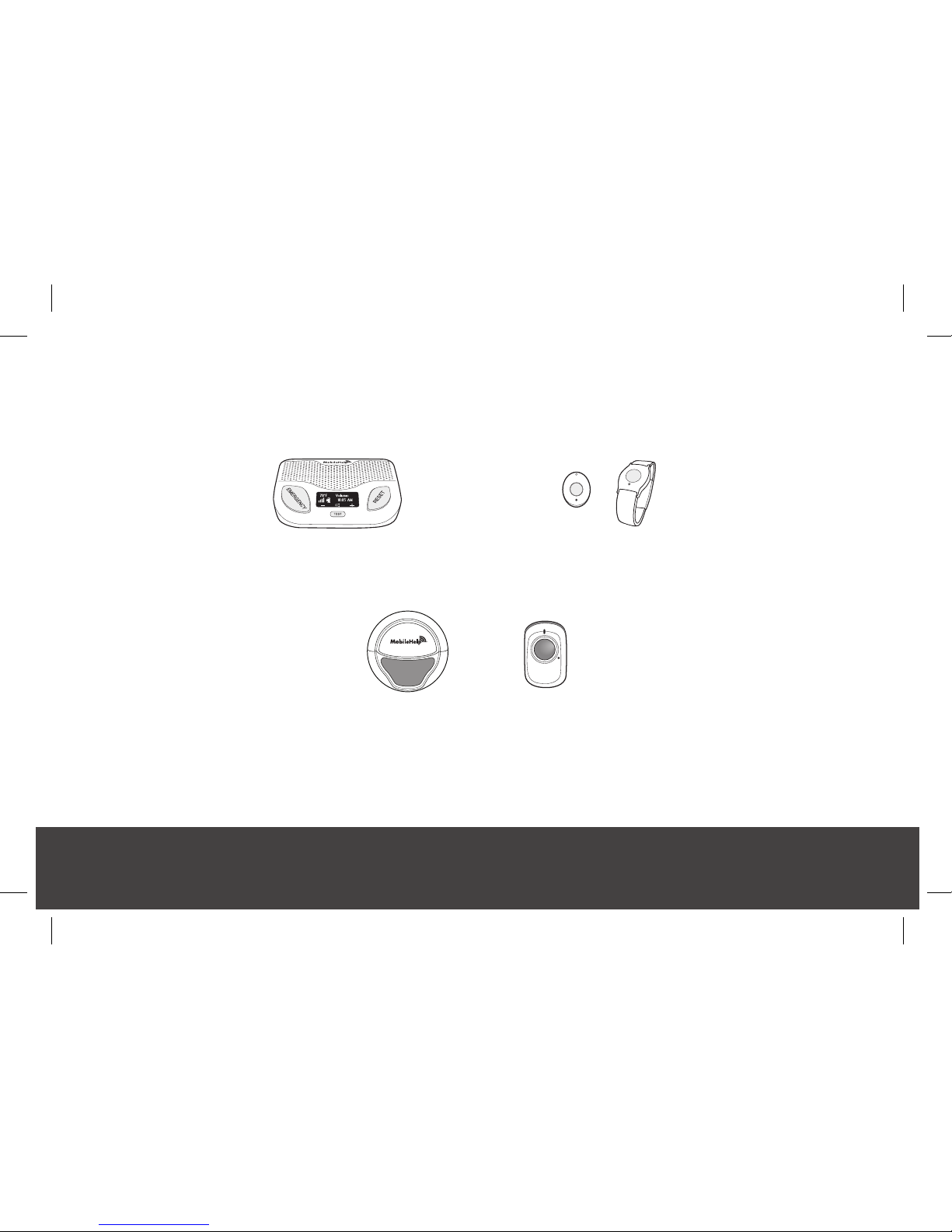
Cellular Classic System
What’s in the Box
Optional Accessories
The Fall Button™ and Wall button are optional and at an additional cost. The Fall Button™
has a separate user guide.
Cellular Base Station Neck Pendant or Wrist Button
+
Fall ButtonWall Button
PRESS
for
HELP
CBS4.0_Complete_UserGuide_MHP8003-179E_12mech.indd 4 8/16/2018 11:14:12 AM
Page 5
MobileHelp Complete User Guide
5
MHP8003-179E
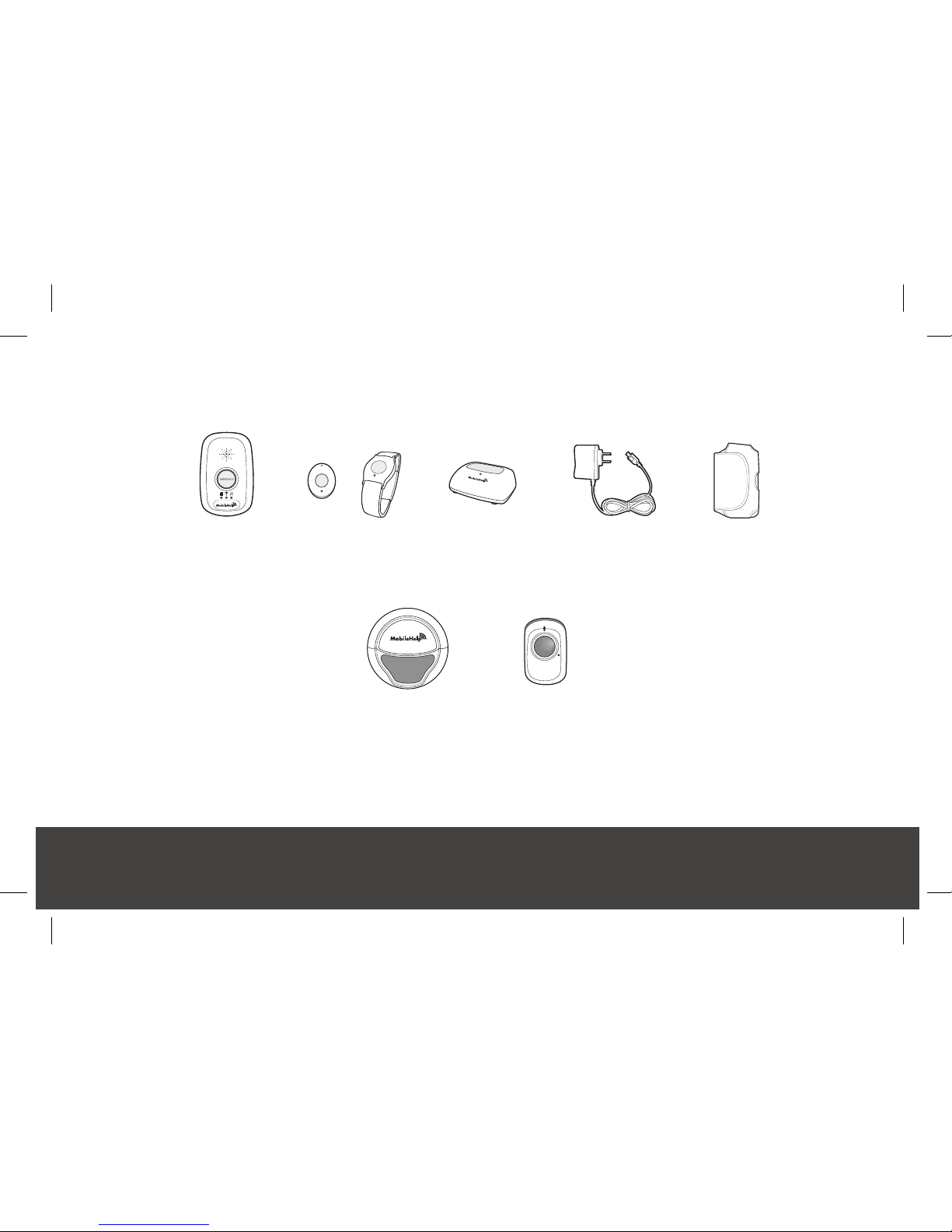
Solo System
What’s in the Box
Optional Accessories
The Fall Button™ and Wall button are optional and at an additional cost. The Fall Button
™
has a separate user guide. Products may vary based upon system type.
Mobile
Device
Mobile
Case
Power
Cord
Neck Pendant or
Wrist Button
Cradle
Charger
+ + + +
Fall ButtonWall Button
PRESS
for
HELP
CBS4.0_Complete_UserGuide_MHP8003-179E_12mech.indd 5 8/16/2018 11:14:12 AM
Page 6
MobileHelp Customer Service 1-877-827-6207
6
MHP8003-179E
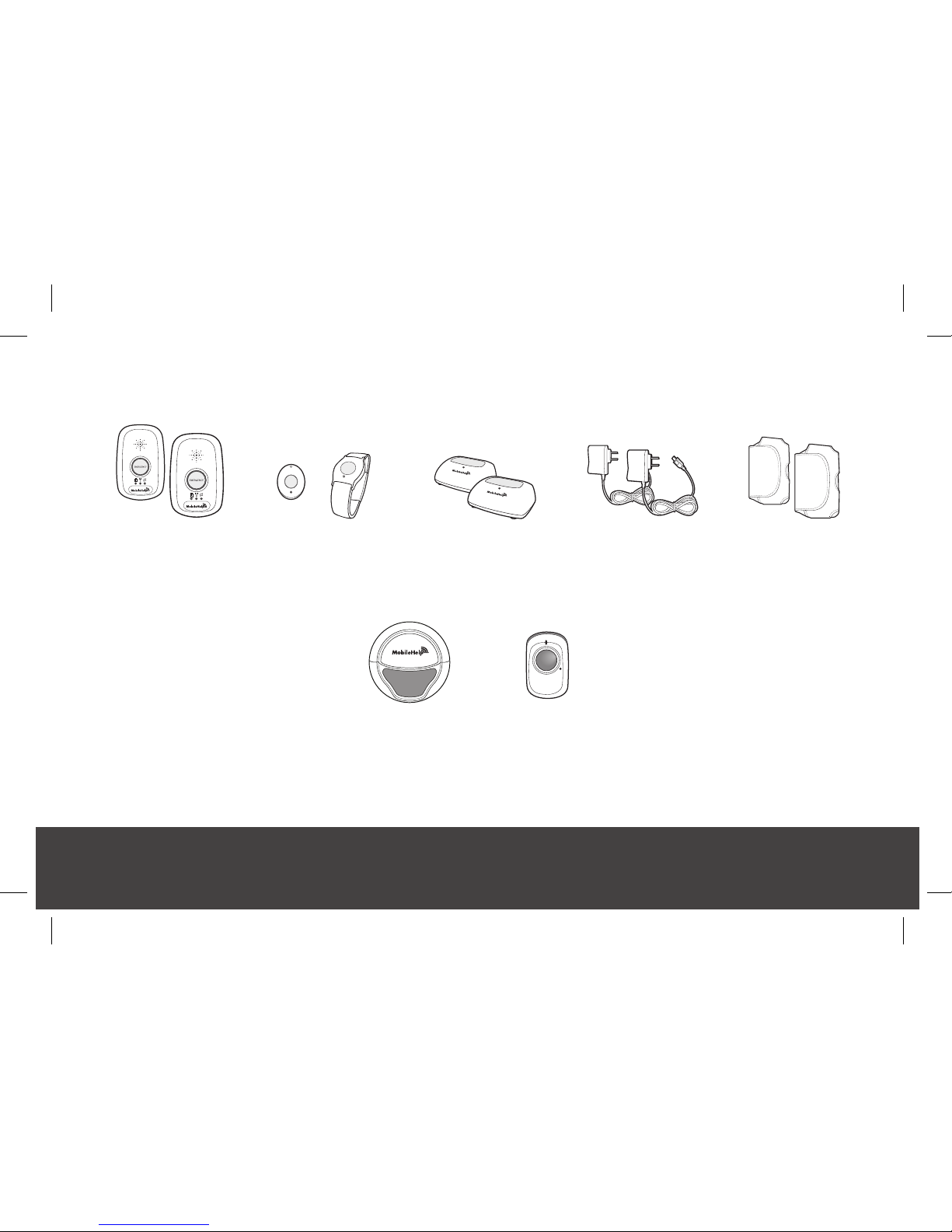
Mobile Duo System
What’s in the Box
Optional Accessories
The Fall Button™ and Wall button are optional and at an additional cost. The Fall Button
™
has a separate user guide. Products may vary based upon system type.
2 Mobile
Devices
2 Mobile
Cases
2 Power
Cords
Neck Pendant or
Wrist Button
(Choose 2)
2 Cradle
Chargers
+ + + +
Fall ButtonWall Button
PRESS
for
HELP
CBS4.0_Complete_UserGuide_MHP8003-179E_12mech.indd 6 8/16/2018 11:14:12 AM
Page 7
MobileHelp Complete User Guide
7
MHP8003-179E
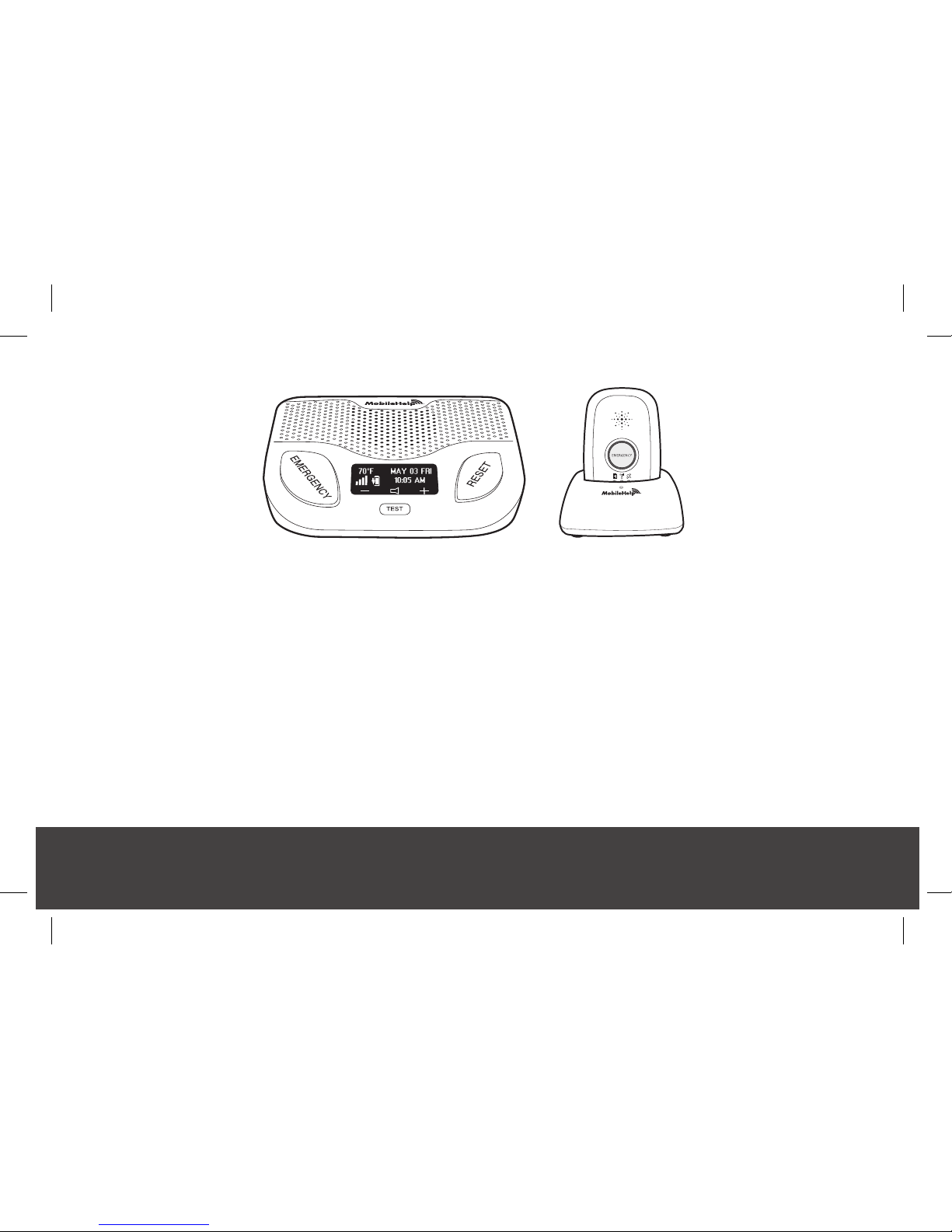
Setup Guide for the MobileHelp Medical Alert System
We thank you for choosing a MobileHelp Medical Alert System and welcome you to the
MobileHelp family. Congratulations on making a smart choice!
If you have any questions during the setup process, please call our support team at
1-877-827-6207 and select the Technical Support option. See last page for hours of
operation.
Figure 1
CBS4.0_Complete_UserGuide_MHP8003-179E_12mech.indd 7 8/16/2018 11:14:12 AM
Page 8
MobileHelp Customer Service 1-877-827-6207
8
MHP8003-179E
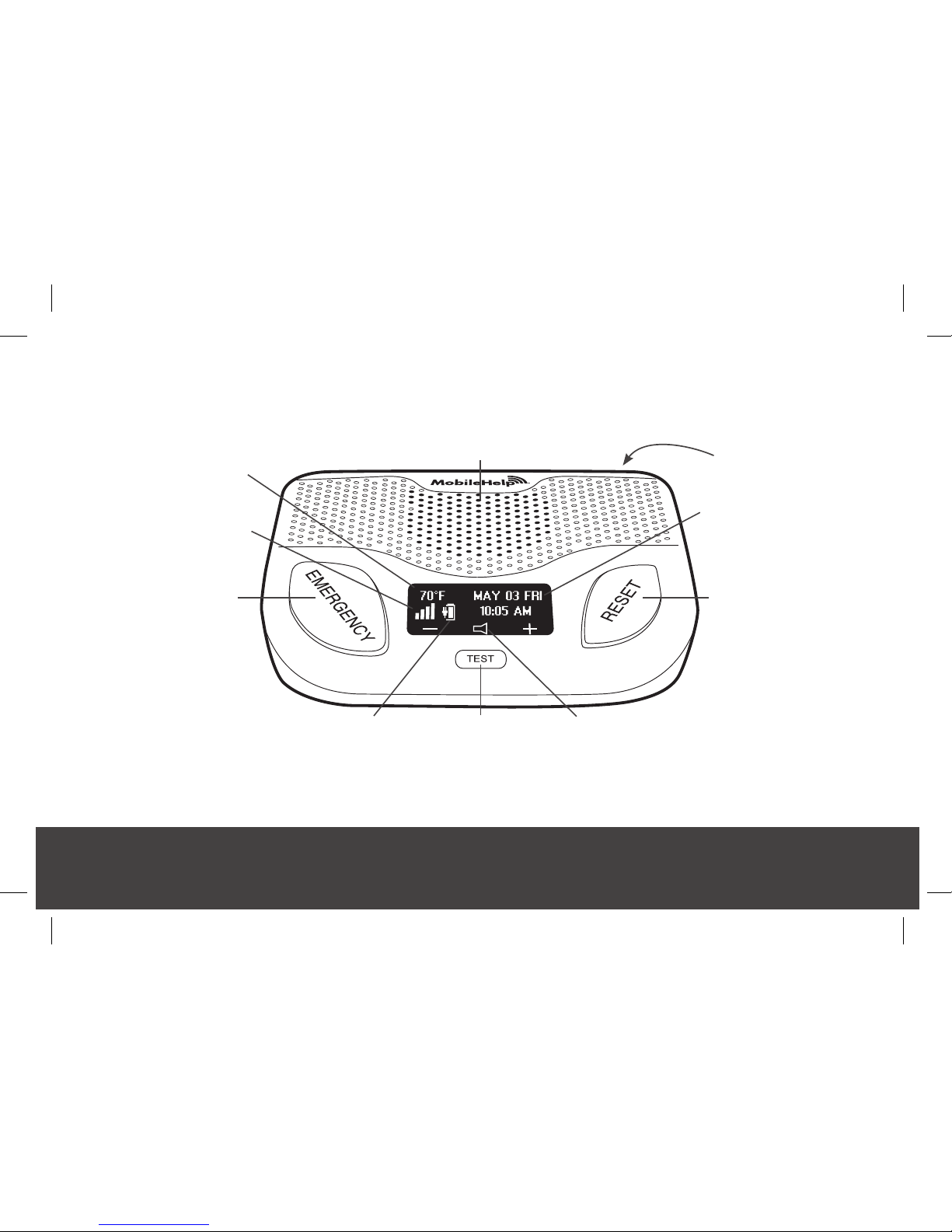
Cellular Base Station Features
(Front)
Figure 2
Emergency
Button
Speaker/Microphone
TEST
Button
Date & Time
ON/OFF
Switch (Back)
Volume
Signal Strength
Indicator
Temperature
Battery Charge
Indicator
Reset Button
CBS4.0_Complete_UserGuide_MHP8003-179E_12mech.indd 8 8/16/2018 11:14:12 AM
Page 9
MobileHelp Complete User Guide
9
MHP8003-179E
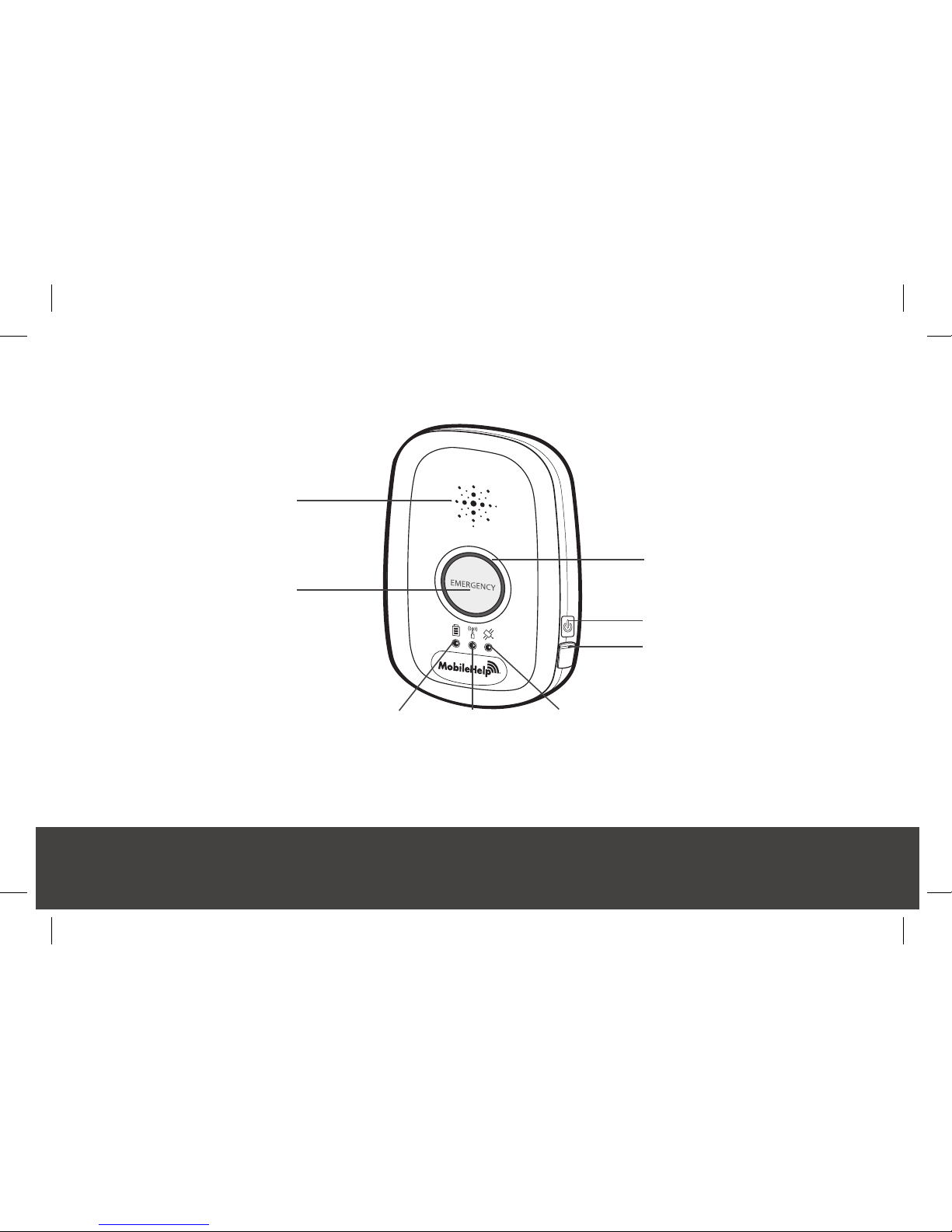
Mobile Device System Features
Emergency
Help Button
Low Battery
Indicator (red)
GPS Indicator
(yellow)
Cellular
Indicator (green)
USB Charging
Port
ON/OFF Button
Speaker
Emergency Light
(red ring)
Figure 3
CBS4.0_Complete_UserGuide_MHP8003-179E_12mech.indd 9 8/16/2018 11:14:12 AM
Page 10
MobileHelp Customer Service 1-877-827-6207
10
MHP8003-179E
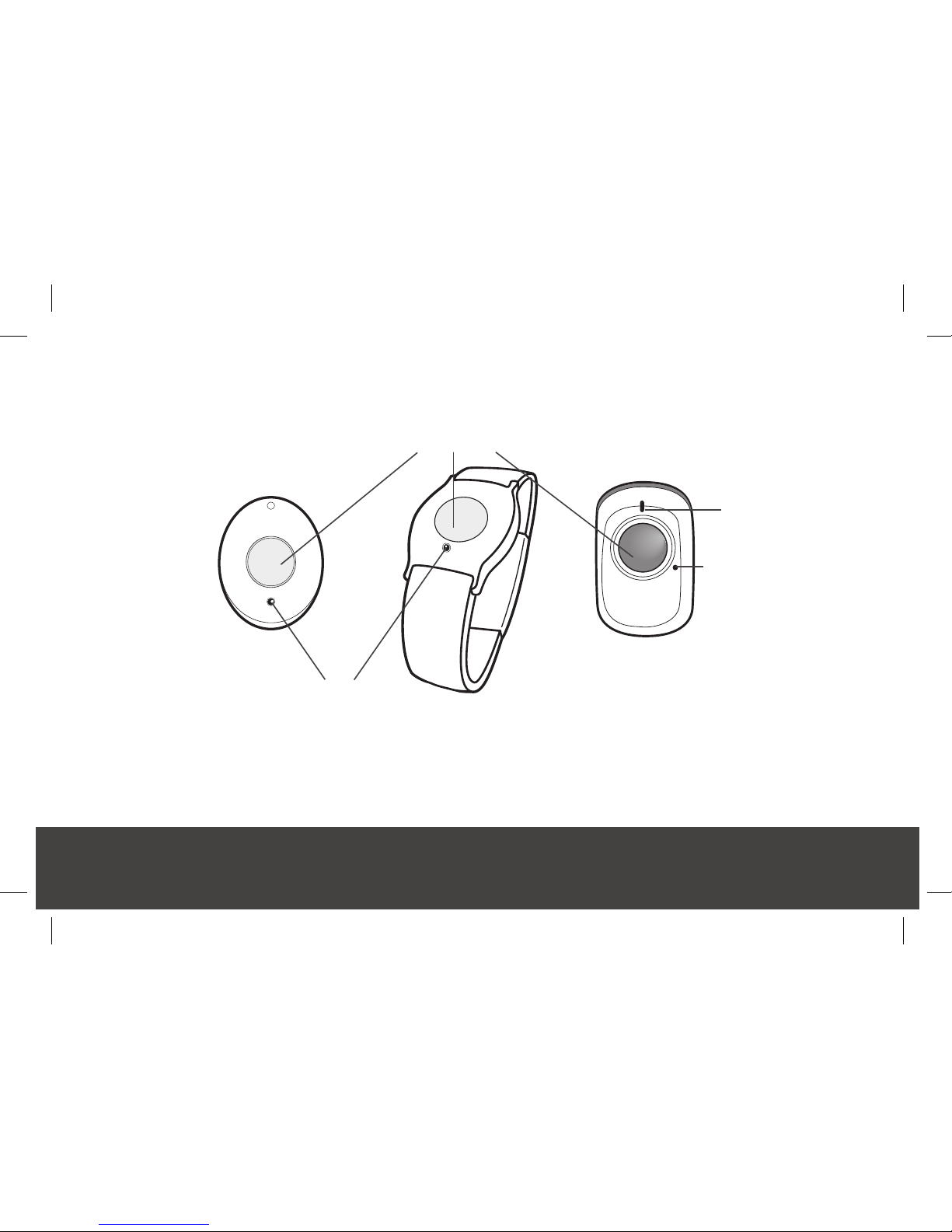
Waterproof Help Buttons
LED Light
LED Light
Technical Support
use only
Emergency
Help Button
Neck
Pendant
Wrist Button
Fall Button*
(optional accessory)
*Fall Button does not detect 100% of falls. If able, users should always push their Help Button when they
need assistance. Fall Button is not intended to replace a caregiver for users dealing with serious health issues.
CBS4.0_Complete_UserGuide_MHP8003-179E_12mech.indd 10 8/16/2018 11:14:12 AM
Page 11
MobileHelp Complete User Guide 11
MHP8003-179E
Please follow these simple steps to get your system set up and tested.
Connecting your Base Station
Step 1. Select a Location
We recommend you place the Base Station near the center of your home, such as your
living room, family room or kitchen area.
Place it near an electrical outlet.
Do not place any object in front of the Base Station.
Do not place near any appliances that make noise.
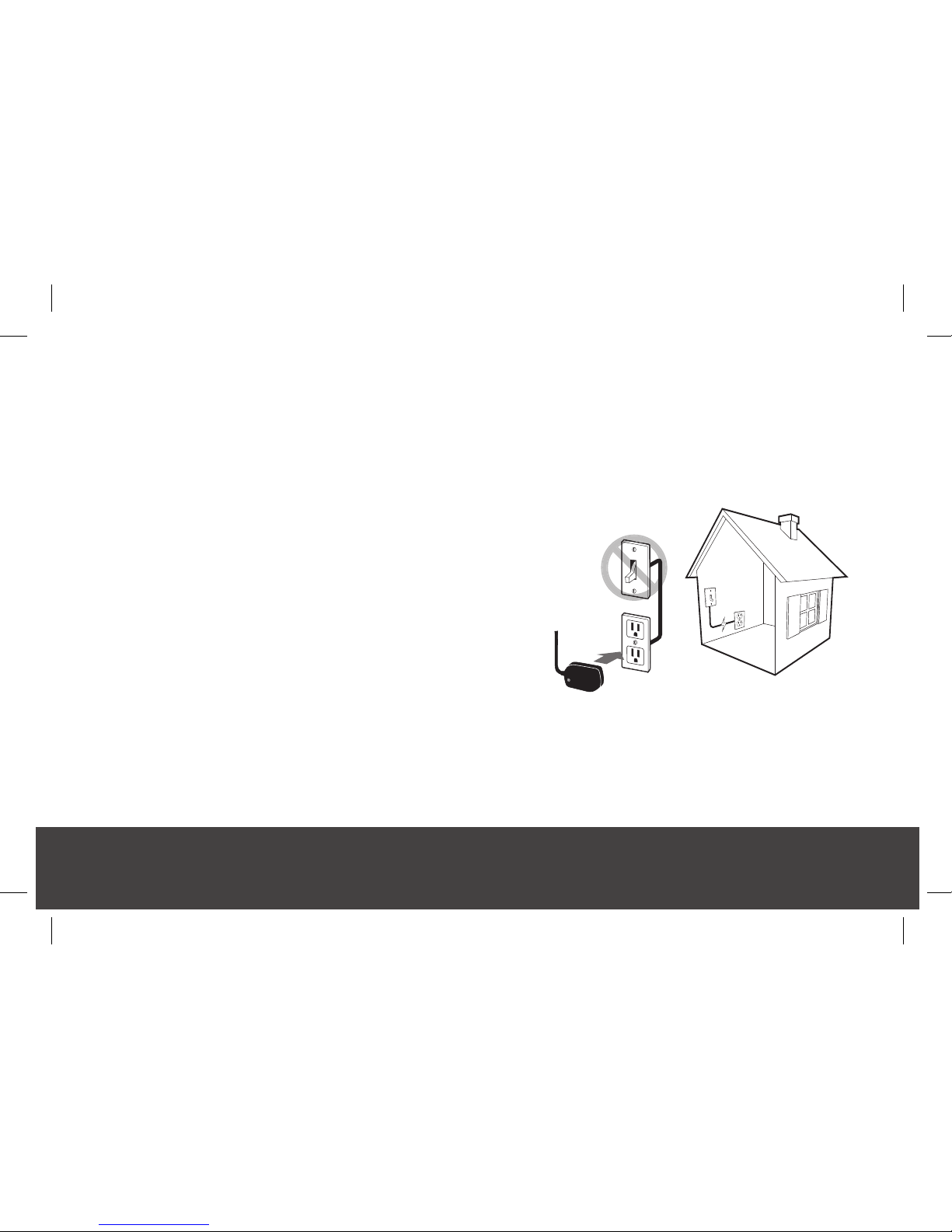
Step 2. Plug in the Power Cord
(Please refer to gure 4)
Plug the power cord that is attached to the back of
the Base Station into an electrical outlet.
To avoid accidentally turning off the Base Station, DO NOT plug it into an electrical
outlet that is controlled by a light switch.
Figure 4
CBS4.0_Complete_UserGuide_MHP8003-179E_12mech.indd 11 8/16/2018 11:14:13 AM
Page 12
MobileHelp Customer Service 1-877-827-6207
12
MHP8003-179E
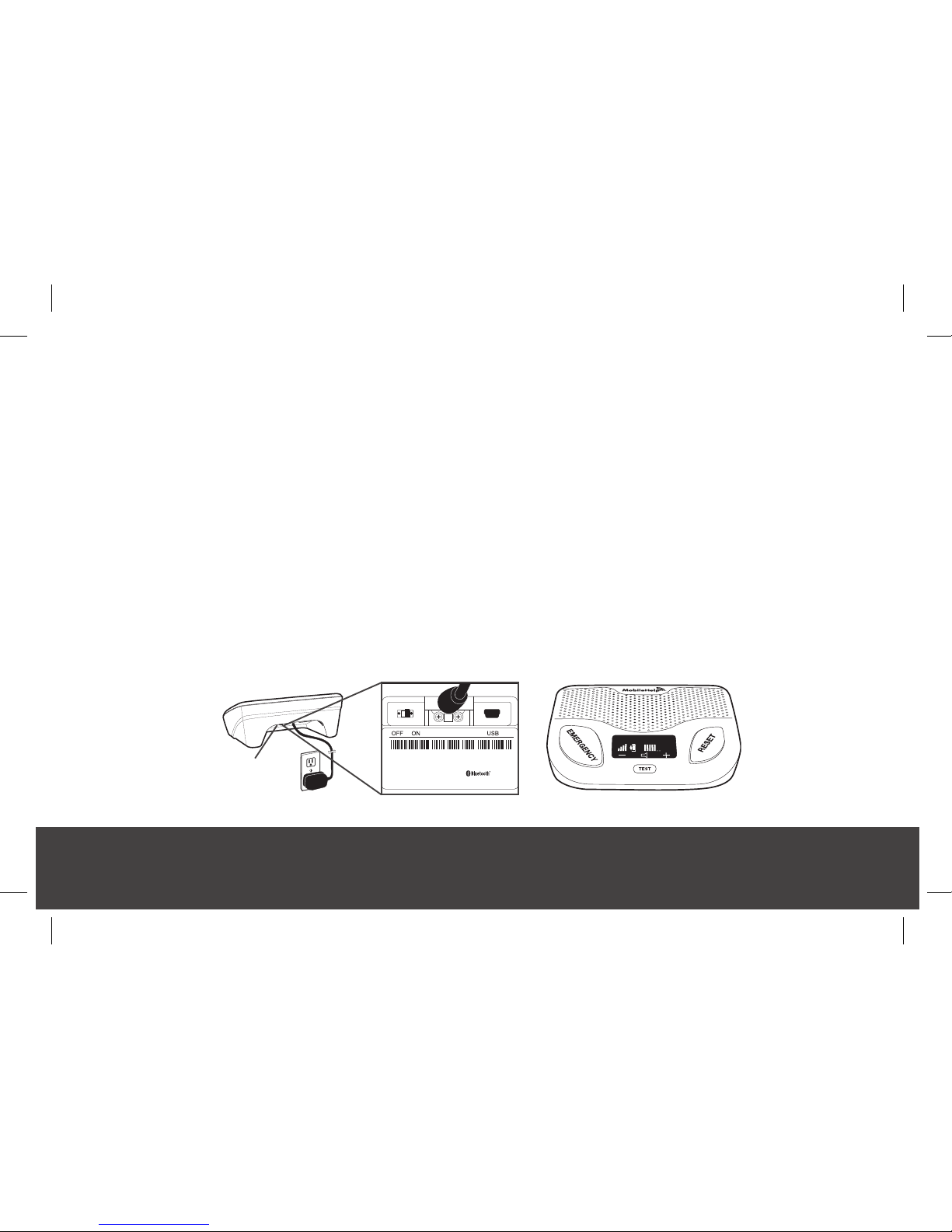
Step 3. Turning ON your Base Station
Turn on your Base Station using the ON/OFF switch located on the back.
(Please refer to gure 5)
The display screen will turn on. (Please refer to gure 6)
The Emergency and Reset Buttons will illuminate.
If the Base is setup correctly, the Base Station will say “system ready” within 60 seconds.
Make sure your Base Station is connected to the cellular network by checking for the
signal strength bars on the display screen.
You can use the volume control buttons on the front of the unit at the bottom of the display
screen, indicated by the “–” or “+” sign, to adjust if the voice is too loud or too soft.
Within a few minutes of turning on the system, the Cellular Base Station will obtain the
date and time from the cellular network and they will appear in the display area. You are
not able to set the date and time manually.
Figure 6
Volume:70°F
Figure 5
ON/OFF
Switch
Model Number: CBS4-01
Manufactured For MobileHelp
Made in Malaysia
FCC ID: PXTCBS4-01
IC ID: 10876A-CBS401
CAN ICES-3(B)/NMB-3(B)
This product contains;
Module FCC ID:XPY1EHQ24NN
Module IC ID: 8595A-1EHQ24NN
(01)00862262000453(11)170623(21)1234
CBS4.0_Complete_UserGuide_MHP8003-179E_12mech.indd 12 8/16/2018 11:14:13 AM
Page 13
MobileHelp Complete User Guide 13
MHP8003-179E
Setting up your Mobile Device
Step 1. Select a Location
We recommend you place your Mobile Device
in your bedroom or any other place around your
home where it can be easily accessible.
Place your Mobile Device’s cradle charger near
an electrical outlet.
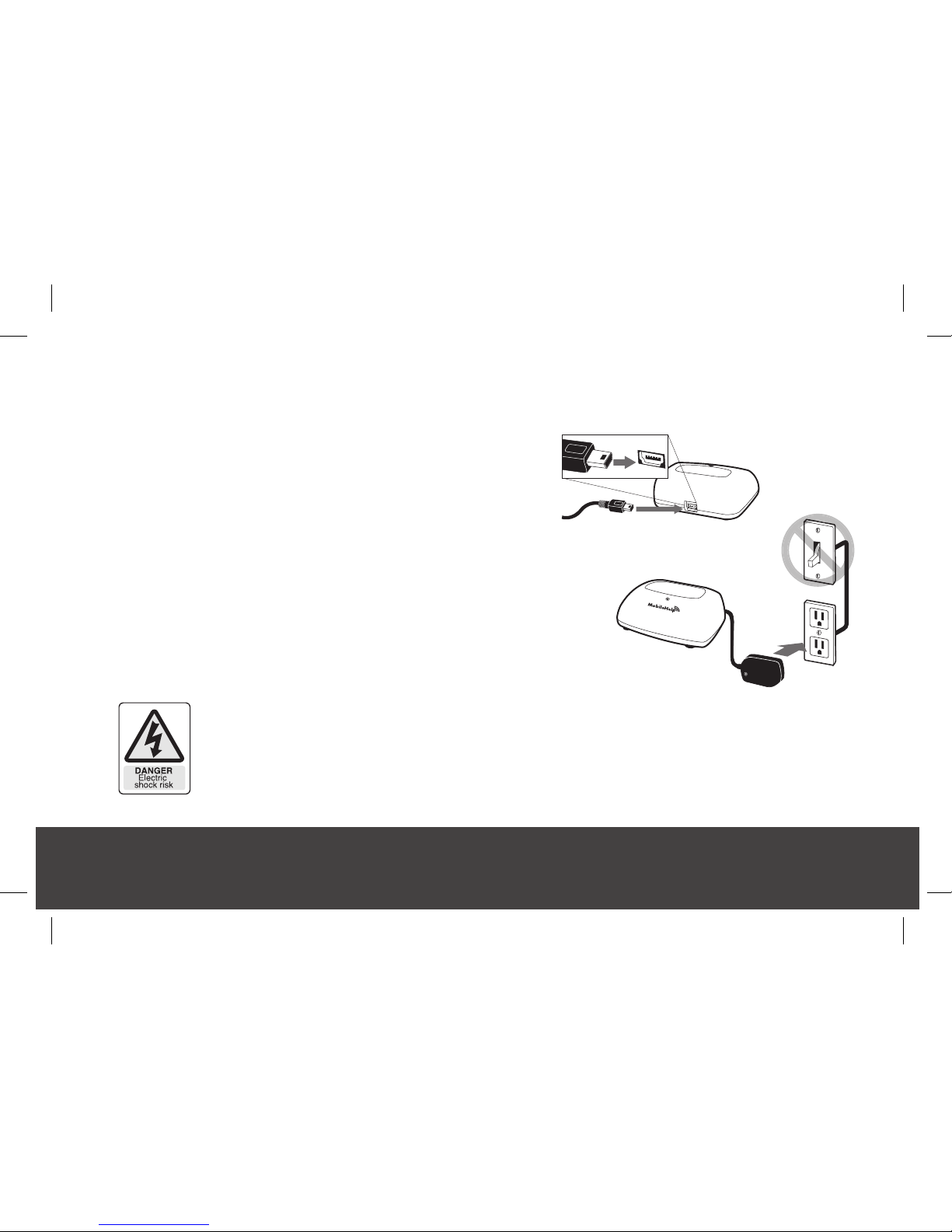
Step 2. Connect the Cradle Charger
(Please refer to gure 7)
Plug the power cord into the slot on the back of the Cradle
Charger, making sure that the narrow side is on the bottom.
Plug the other end of the power cord into an electrical
outlet that is not controlled by a light switch.
WARNING
To prevent electrical shock please keep the system away from wet locations.
AVERTISSEMENT
Pour éviter le choc électrique, SVP tenir le système éloigné des endroits humides.
Figure 7
CBS4.0_Complete_UserGuide_MHP8003-179E_12mech.indd 13 8/16/2018 11:14:13 AM
Page 14
MobileHelp Customer Service 1-877-827-6207
14
MHP8003-179E
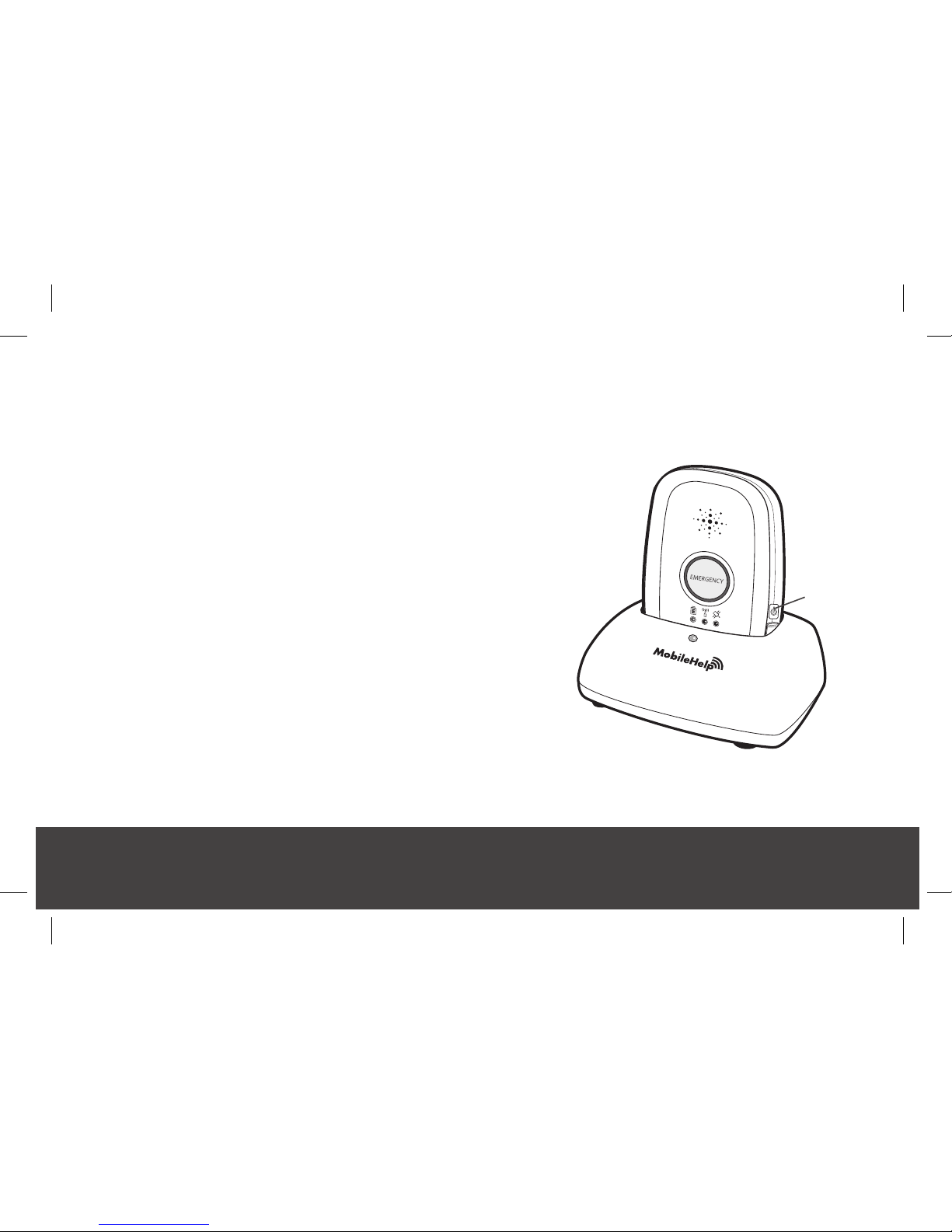
Step 3. Charge your Mobile Device
Place the Mobile Device in the cradle charger. (Please refer to gure 8)
The yellow light on the front of the cradle charger will
illuminate. If it does not, make sure you have placed the
Mobile Device correctly in the charger.
The Mobile Device will turn on within 10 seconds and
then it will take about 60 seconds for the Mobile Device
to register with the network.
The red battery light will come on, indicating that the
device still needs charging. When the device is fully
charged, the red light will turn off. It will take up to
3 hours for the device to be fully charged.
ON/OFF
Button
Figure 8
CBS4.0_Complete_UserGuide_MHP8003-179E_12mech.indd 14 8/16/2018 11:14:13 AM
Page 15

MobileHelp Complete User Guide
15
MHP8003-179E
Turning your Mobile Device ON or OFF
To turn on your Mobile Device:
Option 1: Press the ON/OFF button on the side of the Mobile Device and hold for
approximately ve seconds.
Option 2: Simply place the Mobile Device in the cradle charger, assuming the cradle
charger is plugged in.
All the lights will turn on and the green light will start blinking. This indicates the Mobile
Device was successfully turned on.
To turn off your Mobile Device:
Press the ON/OFF button and hold for approximately two seconds. All the lights will turn
off and you will hear a beep. This indicates your Mobile Device was successfully turned off.
CBS4.0_Complete_UserGuide_MHP8003-179E_12mech.indd 15 8/16/2018 11:14:13 AM
Page 16

MobileHelp Customer Service 1-877-827-6207
16
MHP8003-179E
Testing your Cellular Duo System
Please test your system on a weekly basis using the TEST button.
In order to test your system on battery backup, please unplug the power from the AC outlet.
Always have your Mobile Device nearby when testing your system. It is possible that the
Mobile Device will go to a live operator.
You can use the TEST button on your Cellular Base Station to conduct a test without
speaking to an Emergency Response Operator by following these steps:
- Press and hold the TEST button on Base Station until it illuminates green.
- You will hear an announcement over the Base Station that will instruct you to press the
Emergency Button or Pendant.
- Press the Neck Pendant or Wrist Button.
- The Base Station will announce “test call sent to Emergency Response Center” and
the Mobile Device will respond by either beeping several times or by playing the
announcement, depending upon the Mobile Device version.
- If your test was successful, you will hear “thank you for testing your device” from the
Base Station and Mobile Device.
CBS4.0_Complete_UserGuide_MHP8003-179E_12mech.indd 16 8/16/2018 11:14:13 AM
Page 17

MobileHelp Complete User Guide
17
MHP8003-179E
- If your test was not successful, the Base Station will announce “user auto-test failed.”
Please contact Technical Support.
- If you have both a Mobile Device and a Cellular Base Station, after pressing the Base
Station Test Button, both devices will be in auto-test mode.
- If the operator speaks to you, please state clearly that “THIS IS A TEST.” If you do
not explain to the operator that you are okay and that you are testing, EMS will
be contacted.
If you unplugged your Base Station for the test, once you have nished testing,
please remember to plug the power back into the AC outlet.
CBS4.0_Complete_UserGuide_MHP8003-179E_12mech.indd 17 8/16/2018 11:14:13 AM
Page 18

MobileHelp Customer Service 1-877-827-6207
18
MHP8003-179E
Testing your Cellular Classic System
Please test your system on a weekly basis using the TEST button.
In order to test your system on battery backup, please unplug the power from the AC outlet.
You can use the TEST button on your Cellular Base Station to conduct a test without speaking
to an Emergency Response Operator by following these steps:
- Press and hold the TEST button on Base Station until it illuminates green.
- You will hear an announcement over the Base Station that will instruct you to press the
Emergency Button or Pendant.
- Press the Neck Pendant or Wrist Button.
- The Base Station will announce “test call sent to Emergency Response Center.”
- If your test was successful, you will hear “thank you for testing your device” from the
Base Station speaker.
- If your test was not successful, the Base Station will announce “user auto-test failed.”
Please contact Technical Support.
If you unplugged your Base Station for the test, once you have nished testing,
please remember to plug the power back into the AC outlet.
CBS4.0_Complete_UserGuide_MHP8003-179E_12mech.indd 18 8/16/2018 11:14:13 AM
Page 19
MobileHelp Complete User Guide
19
MHP8003-179E
Cellular Base Station Voice Guidance
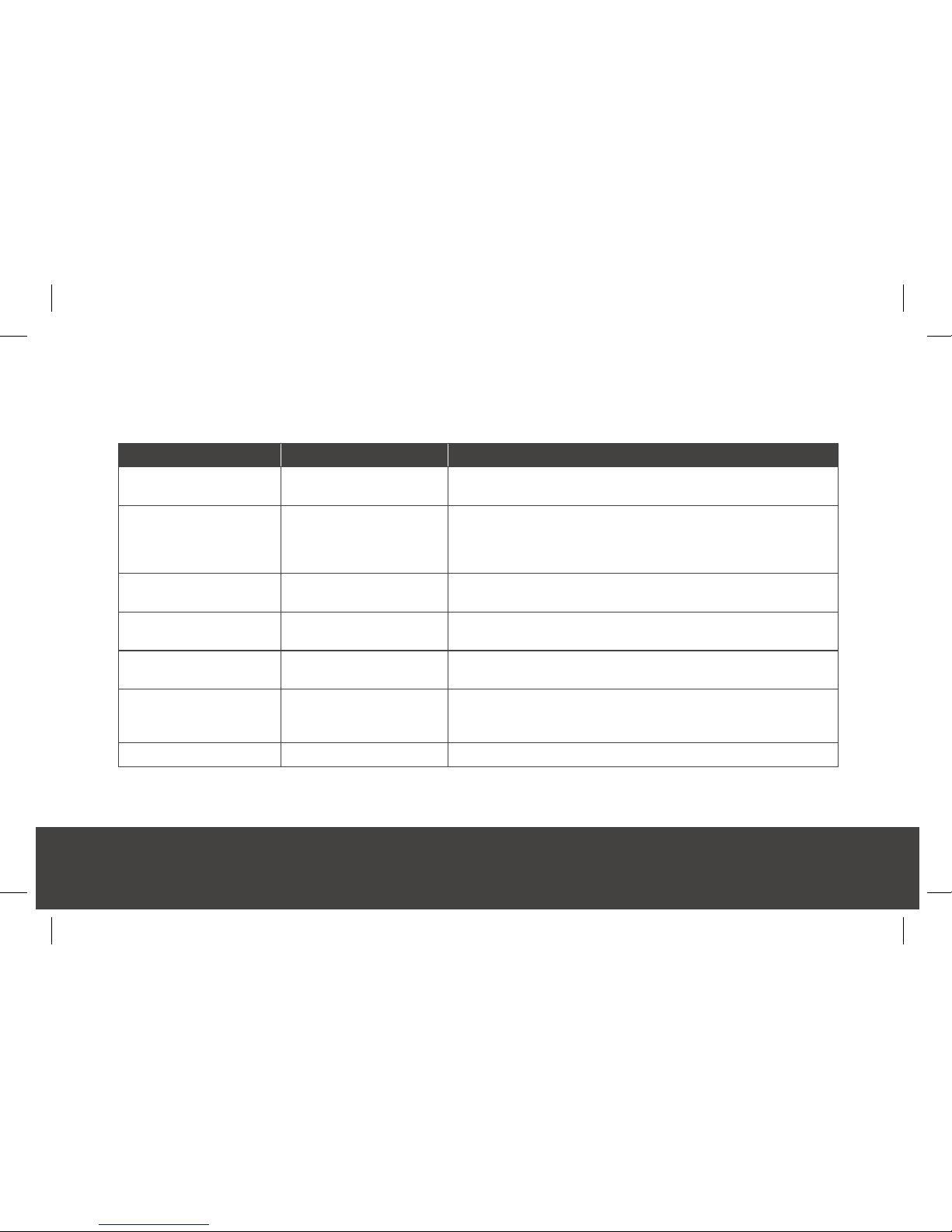
Your Base Station has voice announcements. Select announcements are listed below:
Event Voice Prompt Notes
The Cellular Base
Station is powered on
“System Ready”
Base Station ON/OFF switch has been turned on, be sure to
connect to electric outlet or it will run on battery backup.
Both red Emergency
and blue Reset Buttons
are ashing
“Power not detected” or
“Power detected” (when
electricity is reconnected)
Check that the Base Station is correctly plugged
into an electrical outlet.
The battery needs
charging
“Low Battery”
Check that the Base Station is correctly plugged into an
electrical outlet or it will run on battery backup.
The Emergency call is
initiated
“Call in progress” Alarm is being sent to the Emergency Response Center.
Call connected
“Please stand by for
operator”
Respond to the Emergency Operator’s call over
the device speaker.
Cellular Base Station
receives a Fall Signal
“Fall Detected - Press and
hold Button to Cancel”
This will occur for about 20 seconds and will allow you time to
cancel the alarm. During this time, you may press and hold the
button on the Fall Button for 5 seconds to cancel the signal.
Fall Alarm is canceled “Alarm Canceled” Alarm has been canceled.
CBS4.0_Complete_UserGuide_MHP8003-179E_12mech.indd 19 8/16/2018 11:14:13 AM
Page 20

MobileHelp Customer Service 1-877-827-6207
20
MHP8003-179E
Medication Reminders (optional service):
At the scheduled time for your Medication Reminder, your Cellular Base Station will
announce “Medication Reminder, please press reset to accept” and the blue Reset
Button will ash.
The name of the medication will be displayed on the Cellular Base Station screen, just
as it was entered in the MobileHelp Connect web portal.
The Base Station will make the announcement once a minute for 30 minutes or until
Reset Button is pressed.
If you press the Reset Button, the reminder will be recorded as accepted. If you do not
press the Reset Button within 30 minutes, the reminder will be recorded as ignored.
For complete instructions for Medication Reminders, please log in to MobileHelp
Connect and under the “Help” tab, click on “MobileHelp Connect User Guide.”
If you have any questions, please call 1-877-827-6207 and select Technical Support.
CBS4.0_Complete_UserGuide_MHP8003-179E_12mech.indd 20 8/16/2018 11:14:13 AM
Page 21
MobileHelp Complete User Guide
21
MHP8003-179E
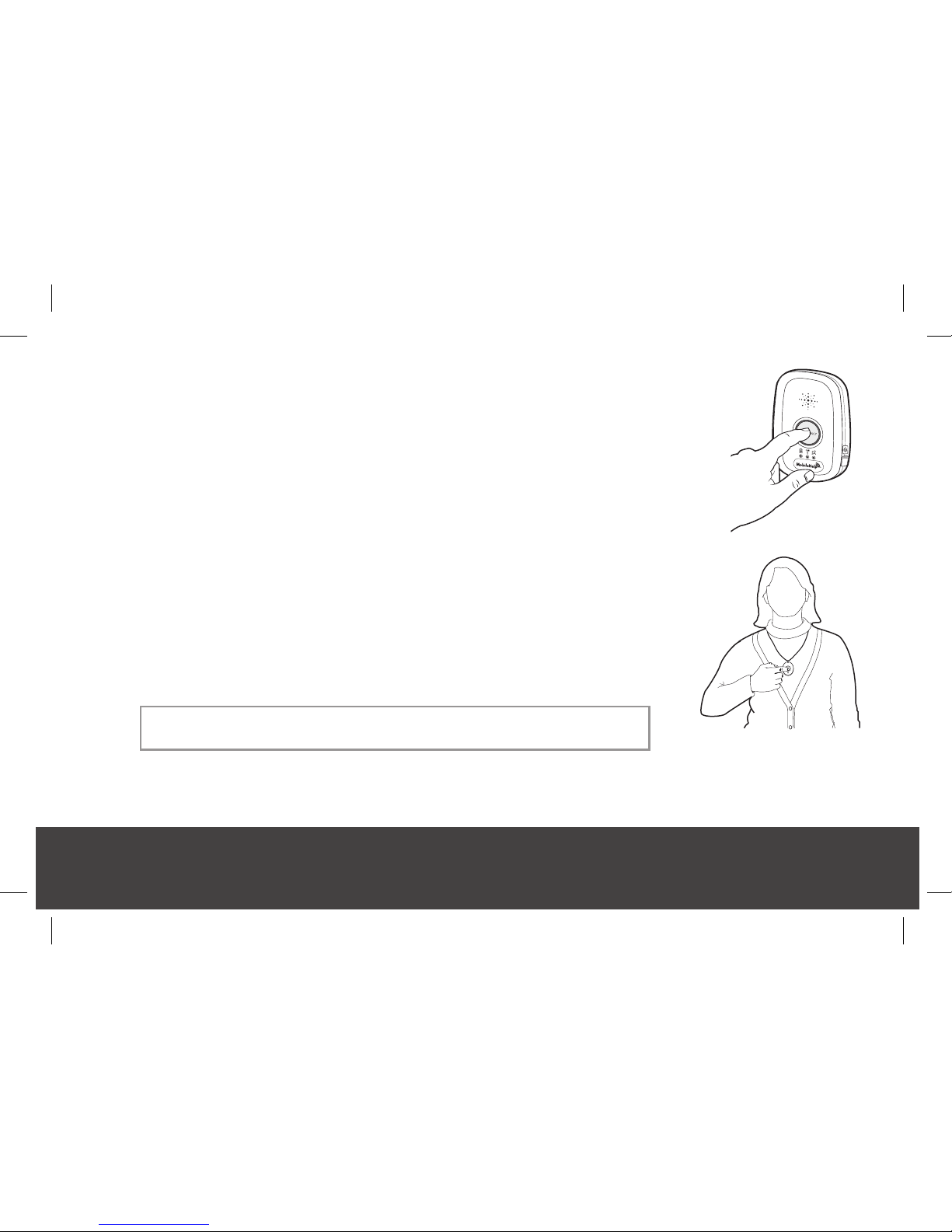
Figure 9
Testing your Solo System
For Mobile Device Light Indicator information, please see page 35.
Remove the Mobile Device from the cradle charger. Firmly press either your
Help Button or press and hold the Emergency Button on the Mobile Device for
approximately two seconds until the red light around the Emergency Button lights
up, then release. (Please refer to gures 9 and 10)
The Mobile Device will beep several times or announce “call in progress,”
depending on the Mobile Device version.
An Emergency Operator will communicate with you through the 2-way speaker on
the Mobile Device and ask you if you are okay.
Please state clearly to the operator that “THIS IS A TEST.” If you do not explain
to the operator that you are testing your unit, EMS will be contacted.
If the Help Button on your Mobile Device is not working properly or if the light
is blinking rapidly, please call 1-877-827-6207 and select Technical Support.
Please remember, it is important to test your SOLO system monthly.
Figure 10
Note: If you have a SOLO system, both your charging cradle
and your Mobile Device will beep after you call for help.
CBS4.0_Complete_UserGuide_MHP8003-179E_12mech.indd 21 8/16/2018 11:14:13 AM
Page 22
MobileHelp Customer Service 1-877-827-6207
22
MHP8003-179E
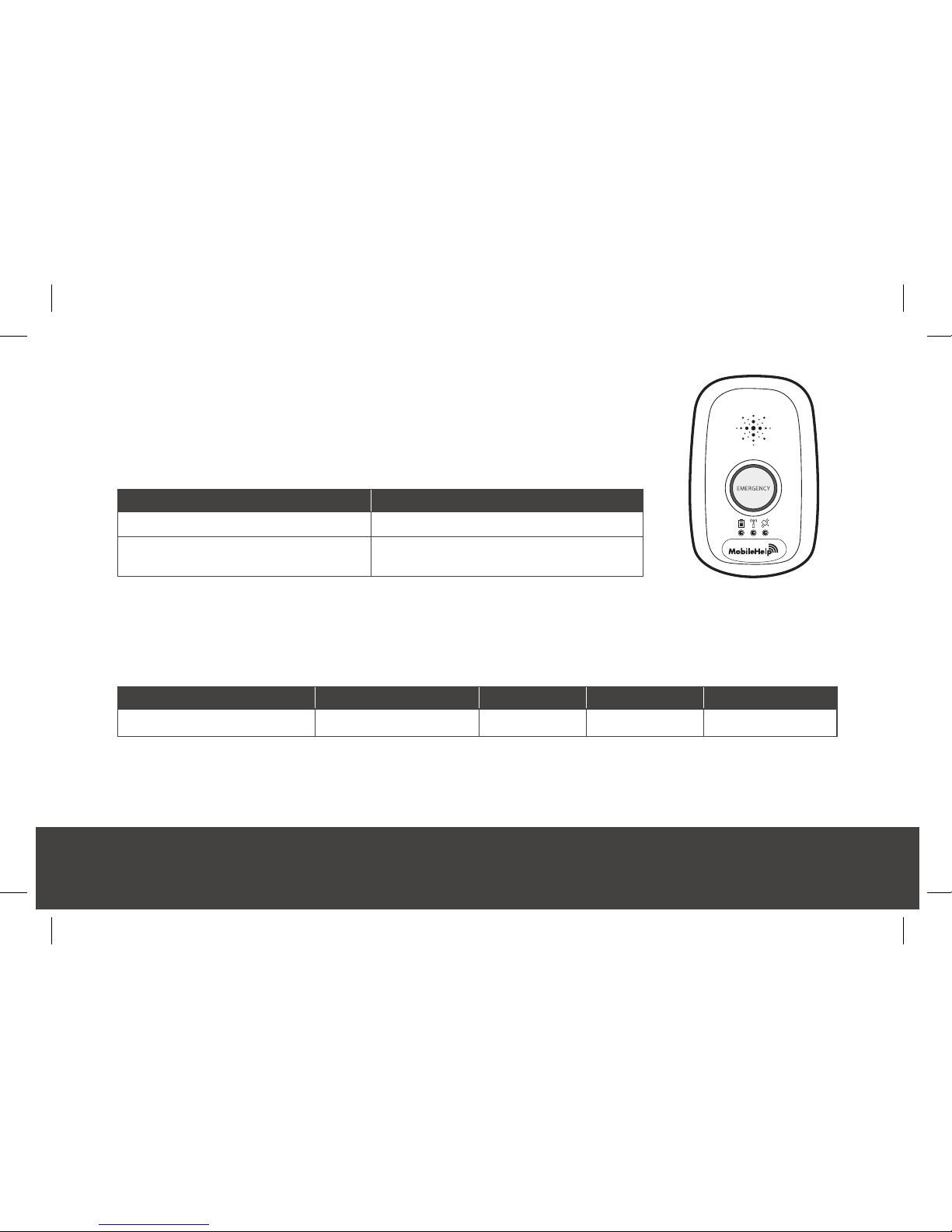
Mobile Device 3.0
Voice Guidance
The Mobile Device 3.0 provides voice announcements. Select
announcements are listed below:
Event Voice Prompt
The emergency call is initiated “Call in Progress”
The battery is low
“Your battery is low, please connect to a
power source.”
Note: There may be situations where the voice prompts don’t complete the entire phrase
when another voice event occurs. In this instance, the latter voice prompt event will cut in
and the current voice prompt may be terminated prematurely.
Technical Information
MobileHelp Model Number FCC Product Code Input Output Current Rating
MD3-01 FGS-MD3-3G-01 Internal 3.7 VDC 930 mAh
Radio Frequency
All devices frequency transmission = 433 MHz
CBS4.0_Complete_UserGuide_MHP8003-179E_12mech.indd 22 8/16/2018 11:14:13 AM
Page 23
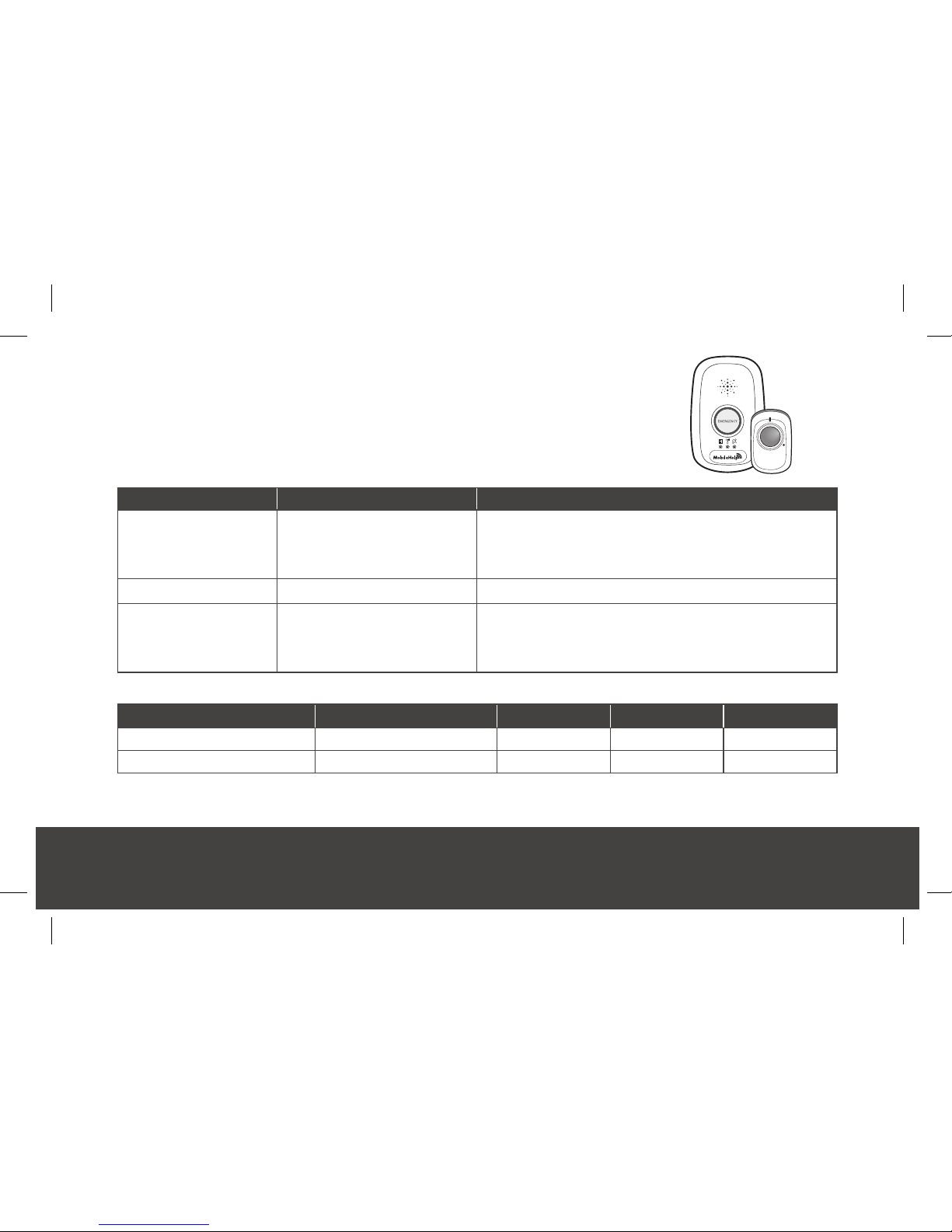
Fall Detection with Mobile Device 3.0
Voice Guidance
If your system includes the Mobile Device 3.0, your Mobile Device will
have voice announcements. Select announcements are listed below:
Event Voice Prompt Notes
Mobile Device receives
a Fall Signal
“Fall Detected - Press and
Hold Button to Cancel”
This will occur for about 20 seconds and will allow you
time to cancel the alarm. During this time, you may
press and hold the button on the Fall Button for 5
seconds to cancel the signal.
Fall Alarm is canceled “Alarm Canceled” Alarm has been cancelled
20-second window for
cancellation has ended
“Fall Detected - Contacting
Emergency Response Center”
The signal will then be sent to the Monitoring Center
and an operator will call your Mobile Device and/or
the Base Station to assess your situation and dispatch
the appropriate help to you.
Technical Information
MobileHelp Model Number FCC Product Code Input Output Current Rating
MD3-01 FGS-MD3-3G-01 Internal 3.7 VDC 930 mAh
IGPFD-01 PXTPFD-01 Internal 3.6 VDC 1200 mAh
Radio Frequency All devices frequency transmission = 433 MHz
MobileHelp Complete User Guide 23
MHP8003-179E
Optional
Fall Button
CBS4.0_Complete_UserGuide_MHP8003-179E_12mech.indd 23 8/16/2018 11:14:13 AM
Page 24

MobileHelp Customer Service 1-877-827-6207
24
MHP8003-179E
Important Safety Information For All Systems
You must always carry the Mobile Device with you when going outside of your home.
Keep electrical cords away from heat sources and sharp edges.
Keep electrical cords away from areas where someone could trip over them.
Use caution when handling electrical cords.
Never install electrical cords during a lightning storm.
Do not use any attachment or accessory that is not intended for use with this system.
Test your system using the TEST button when possible, as instructed in this User Guide.
Do not block the Base Station’s microphone. This will affect your ability to communicate with
the Emergency Response Center.
During a power outage, the Base Station’s battery backup will last 24 hours after it has been
charged for 3 hours.
The Wrist Button and/or Neck Pendant are designed to work at an approximate range of 350
feet from the Mobile Device or 600 feet from the Base Station, depending on the size and
construction of your home.
The Mobile Device is not waterproof. Do not expose to water, rain, extreme humidity, sweat,
or other moisture.
CBS4.0_Complete_UserGuide_MHP8003-179E_12mech.indd 24 8/16/2018 11:14:13 AM
Page 25

MobileHelp Complete User Guide
25
MHP8003-179E
The Mobile Device contains sensitive hardware, take care when handling and avoid dropping it.
Do not expose the Mobile Device to dust, dirt, sand or food.
The Mobile Device’s battery is designed to last over 24 hours after it has been charged for
3 hours.
The Mobile Device has a GPS receiver that works best when it has an unobstructed view to
the sky.
Wear your waterproof Help Button at all times.
The Help Buttons (Neck Pendant, Wrist Button and Fall Detection Button) are waterproof
and can be taken with you in the shower.
Do not put the Neck Pendant or Wrist Button through the clothes washer or dryer. Do not
attempt to dry your button out in the microwave or oven.
If the LED on your pendant ashes amber, the battery is low. Please contact MobileHelp
immediately to provide you with a replacement pendant.
WARNING
Strangulation and choking hazard. The Neck Pendant button lanyard has been designed
to break away when tugged. However, the user can still suffer serious personal injury or
death if the cord becomes entangled or stuck on objects.
AVERTISSEMENT
Risque de suffocation ou d’étranglement. La lanière pour bouton pendentif est conçue
pour se détacher lorsqu’elle est tirée, cependant, l’utilisateur peut subir une blessure ou
la mort si la lanière se mêle ou s’accroche à d’autres objets.
CBS4.0_Complete_UserGuide_MHP8003-179E_12mech.indd 25 8/16/2018 11:14:13 AM
Page 26

MobileHelp Customer Service 1-877-827-6207
26
MHP8003-179E
Frequently Asked Questions
How do I call for help?
Press your Neck Pendant, Wrist Button, or red Emergency Button on your Base Station or
Mobile Device.
Do I need my Mobile Device when I leave my home?
Yes. Always take your Mobile Device with you when leaving your home. Wear your Neck
Pendant or Wrist Button at all times, both at home and away, so help is never out of reach.
What happens if I push the button but I can’t speak?
If you are unable to speak or be heard, we will assume it is an emergency and notify
Emergency Response on your behalf. We will also notify the personal contacts listed on
your prole.
If I accidentally set off the alarm, what do I do?
If you accidentally set off the alarm, simply notify the Emergency Operator when they
respond that “THIS IS A FALSE ALARM.” The operator will disconnect and no further
action will be taken.
How will an Emergency Response team get into my home?
Rescue personnel follow different procedures. In most cases, emergency personnel are
authorized to break into your home to help you and cannot be held responsible for any
damages caused as a result of gaining entry.
CBS4.0_Complete_UserGuide_MHP8003-179E_12mech.indd 26 8/16/2018 11:14:13 AM
Page 27

MobileHelp Complete User Guide
27
MHP8003-179E
We recommend that you purchase a MobileHelp “lock box” to safely store your house key.
Your lock box code will be stored on your account and given to emergency personnel
in order to gain entry to your home without causing damage. If you have your own
lock box (not purchased from MobileHelp), please call MobileHelp Customer Service at
1-877-827-6207 to ensure your code is noted on your account.
How far away from the Base Station will my Help Buttons work?
Your Help Buttons are designed to work at an approximate range of 600 feet from the
Base Station, depending on the size and construction of your home.
What happens if I push my Help Button but cannot get to the Base Station?
If you push your Help Button, stay where you are. An Emergency Operator will communicate
with you through your Base Station or Mobile Device.
Why is the Emergency Operator having trouble understanding me?
The microphones in the Base Station and Mobile Device are very sensitive, and will pick
up surrounding noises from your television, radio, wind from ceiling fans, and the like.
To increase the quality of the call, look for a quieter area to set up your Base Station or go
to a quieter area with your Mobile Device.
CBS4.0_Complete_UserGuide_MHP8003-179E_12mech.indd 27 8/16/2018 11:14:13 AM
Page 28

MobileHelp Customer Service 1-877-827-6207
28
MHP8003-179E
Why is my Help Button not activating my Base Station/Mobile Device?
Be sure to press the Help Button once rmly in the center to activate your Base Station
and/or Mobile Device. A small red light below the Neck Pendant or Wrist Button will ash.
If the Base Station and/or Mobile Device does not respond, check to ensure that the Help
Button is in range of the Base Station and/or Mobile Device. If you still have issues with your
system, please call 1-877-827-6207 and select Technical Support.
Is the Mobile Device waterproof?
No, the Mobile Device is not waterproof. However, your Help Buttons (Neck Pendant and
Wrist Button) are waterproof and can be taken with you in the shower.
What if I move to a different home, or my personal information has changed?
Please contact Customer Service at 1-877-827-6207 any time there are any changes to your
personal information, including changes to your address and phone number. Just give us a call
one week before you move to determine whether the service will be available in your area.
What if I spend part of the year in another home?
We can transfer your service to your new location. Just give us a call at 1-877-827-6207
and speak with Customer Service one week before you go to determine whether the
service will be available at your other home.
CBS4.0_Complete_UserGuide_MHP8003-179E_12mech.indd 28 8/16/2018 11:14:13 AM
Page 29

MobileHelp Complete User Guide
29
MHP8003-179E
I am going to travel. How should I prepare?
Your Mobile Device will work nationwide anywhere there is AT&T cellular coverage. We
recommend you call Customer Service at least 2 to 3 days prior to leaving, so we can
update our systems with your new location address, emergency contacts, and lock box
location. This ensures that if we have to alert Emergency Responders, they will have
all relevant information to assist you without delays. Please remember to bring the
following items: Neck Pendant and/or Wrist Button, Mobile Device, Car Charger (if you
purchased this additional accessory), Power Cord, and Charger.
How do I prepare my device for air travel?
Your Mobile Device will need to be turned OFF. Simply hold the ON/OFF button for
approximately two seconds until all the lights are turned OFF.
Is the lanyard adjustable?
There are xed length magnetic lanyards and adjustable length lanyards.
Adjustable lanyard: There are two connectors on the lanyard. One that is cone shaped
and one that is pear shaped. There are 2 parts of the lanyard coming out the left side of
the cones. Use one hand to hold the cone shaped part. Use the other to pull the top string
to shorten the lanyard. Do the reverse to tighten the lanyard.
Magnetic lanyard: These lanyards are not adjustable and are only available upon request.
CBS4.0_Complete_UserGuide_MHP8003-179E_12mech.indd 29 8/16/2018 11:14:13 AM
Page 30

MobileHelp Customer Service 1-877-827-6207
30
MHP8003-179E
Can a magnetic lanyard cause interference with a pacemaker or other
medical device?
If you have a pacemaker or any medical device, consult your manufacturer for information
on any possible risk of magnetic interference with the device. Our Help Buttons do not
interfere with pacemakers.
Can I replace the Neck Pendant cord?
Yes, the Neck Pendant will work with just about any chain or cord, so you are able to use
any one of your personal chains or necklaces. However, the risk of choking may increase if
you do not use the lanyard provided by MobileHelp.
Can I replace the Wrist Button band?
Yes, you may replace the Wrist Button band with a standard watch band of your choice.
Can I speak into my Help Button?
No, you can only communicate with the monitoring center through your Base Station and/
or Mobile Device only. Your Help Buttons do not have a speaker or microphone.
Does the Wrist Button strap contain any latex?
No, the strap MobileHelp uses is silicon based with no latex content.
CBS4.0_Complete_UserGuide_MHP8003-179E_12mech.indd 30 8/16/2018 11:14:13 AM
Page 31
MobileHelp Complete User Guide
31
MHP8003-179E
FDA Statement
MobileHelp is an FDA Registered Company. MobileHelp quality system complies with
regulation 21CFR 820 of the FDA Current Good Manufacturing Practice. The FDA is the
ofcial regulatory agency of all food, dietary supplements, medical devices, cosmetics and
veterinary products in the United States.
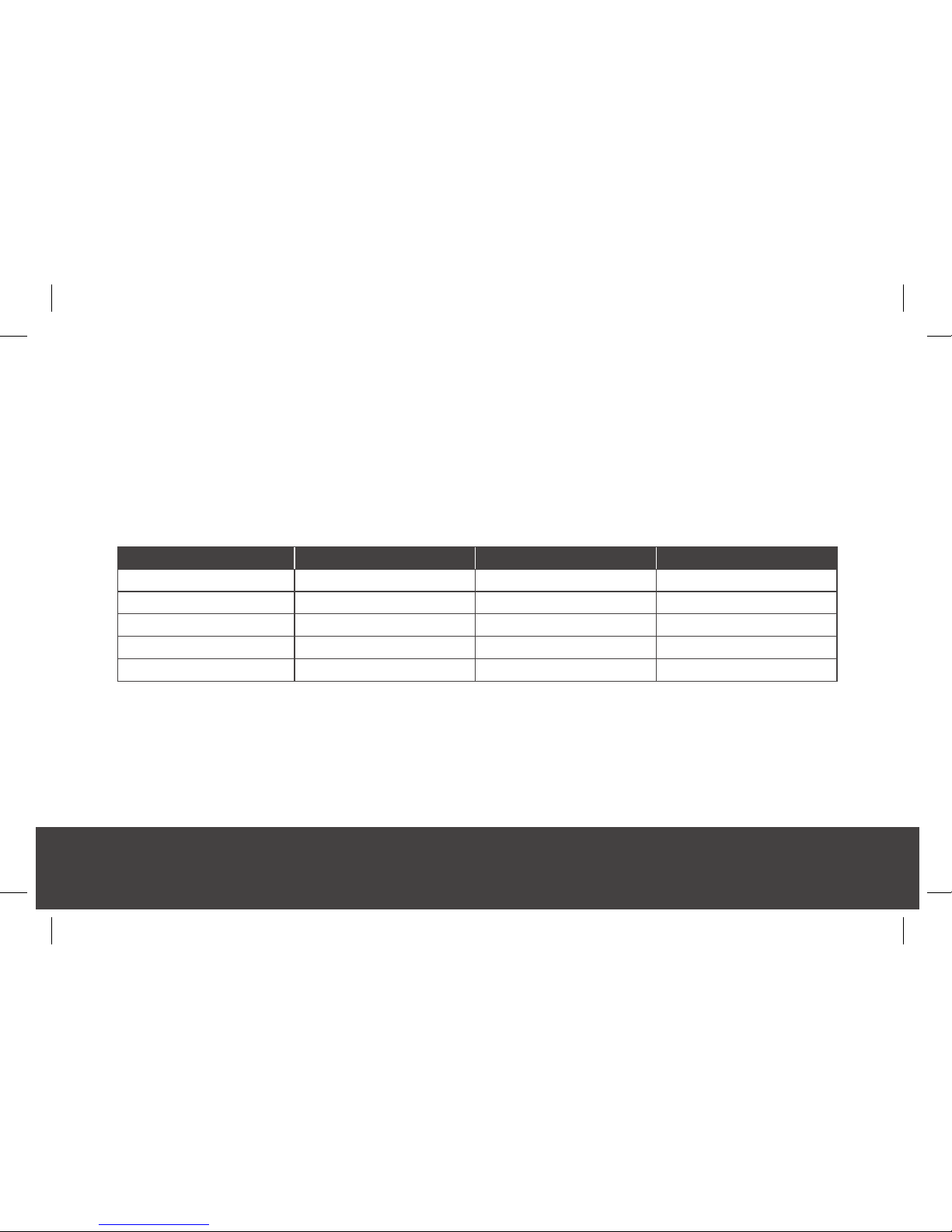
FCC Statement
Product Base Pendant Wrist Button
FCC ID PXTCBS2-01 VDQIGP-01 VDQIGP-02
FCC ID PXTCBS4-01 VDQIGP-01 VDQIGP-02
FCC ID PXTIGM-02 VDQIGP-01 VDQIGP-02
FCC ID PXTMD3-01 VDQIGP-01 VDQIGP-02
FCC ID PXTCBS4-02 VDQIGP-01 VDQIGP-02
This device complies with Part 15 of the FCC Rules. Operation is subject to the following
two conditions:
(1) This device may not cause harmful interference, and (2) This device must accept any
interference received, including interference that may cause undesired operation.
CBS4.0_Complete_UserGuide_MHP8003-179E_12mech.indd 31 8/16/2018 11:14:13 AM
Page 32

MobileHelp Customer Service 1-877-827-6207
32
MHP8003-179E
15.105(b)
This equipment has been tested and found to comply with the limits for a Class B digital device, pursuant to part
15 of the FCC rules. These limits are designed to provide reasonable protection against harmful interference
in a residential installation. This equipment generates, uses and can radiate radio frequency energy and, if not
installed and used in accordance with the instructions, may cause harmful interference to radio communications.
However, there is no guarantee that interference will not occur in a particular installation. If this equipment does
cause harmful interference to radio or television reception, which can be determined by turning the equipment
off and on, the user is encouraged to try to correct the interference by one or more of the following measures:
Reorient or relocate the receiving antenna.
Increase the separation between the equipment and receiver.
Connect the equipment into an outlet on a circuit different from that to which the receiver is connected.
Consult the dealer or an experienced radio/TV technician for help.
15.21
You are cautioned that changes or modications not expressly approved by the party responsible for
compliance could void the user’s authority to operate the equipment.
RF Exposure Information
This device meets the government’s requirements for exposure to radio waves. This device is designed and
manufactured not to exceed the emission limits for exposure to radio frequency (RF) Energy set by the Federal
Communication Commission of the U.S. Government. This device complies with FCC radiation exposure limits
set forth for an uncontrolled environment.
CBS4.0_Complete_UserGuide_MHP8003-179E_12mech.indd 32 8/16/2018 11:14:13 AM
Page 33

MobileHelp Complete User Guide
33
MHP8003-179E
Cellular Base Station 2.0 and 4.0
Bluetooth Modem 2400 Mhz to 2483 Mhz
This equipment complies with IC RSS-102 RF exposure limits set forth for an uncontrolled environment.
This equipment should be installed and operated with minimum distance 20cm between the radiator
and your body.
Déclaration d’exposition aux radiations:
Cet équipement est conforme aux limites d’exposition aux rayonnements IC établies pour un environnement non contrôlé. Cet
équipement doit être installé et utilisé avec un minimum de 20 cm de distance entre la source de rayonnement et votre corps.
1. Canadian Compliance Statement
This device complies with Industry Canada license-exempt RSSs. Operation is subject to the following two conditions:
1) This device may not cause interference, and
2) This device must accept any interference, including interference that may cause undesired operation of the device.
Le présent appareil est conforme aux CNR d’Industrie Canada applicables aux appareils radio exempts de licence. L’exploitation
est autorisée aux deux conditions suivantes :
1) l’appareil ne doit pas produire de brouillage;
2) l’utilisateur de l’appareil doit accepter tout brouillage radioélectrique subi, même si le brouillage est susceptible d’en
compromettre le fonctionnement.
2. This product meets the applicable Innovation, Science and Economic Development Canada technical specications.
Ce produit répond aux spécications techniques applicables à l’innovation, Science et Développement économique Canada.
CBS4.0_Complete_UserGuide_MHP8003-179E_12mech.indd 33 8/16/2018 11:14:13 AM
Page 34
MobileHelp Customer Service 1-877-827-6207
34
MHP8003-179E
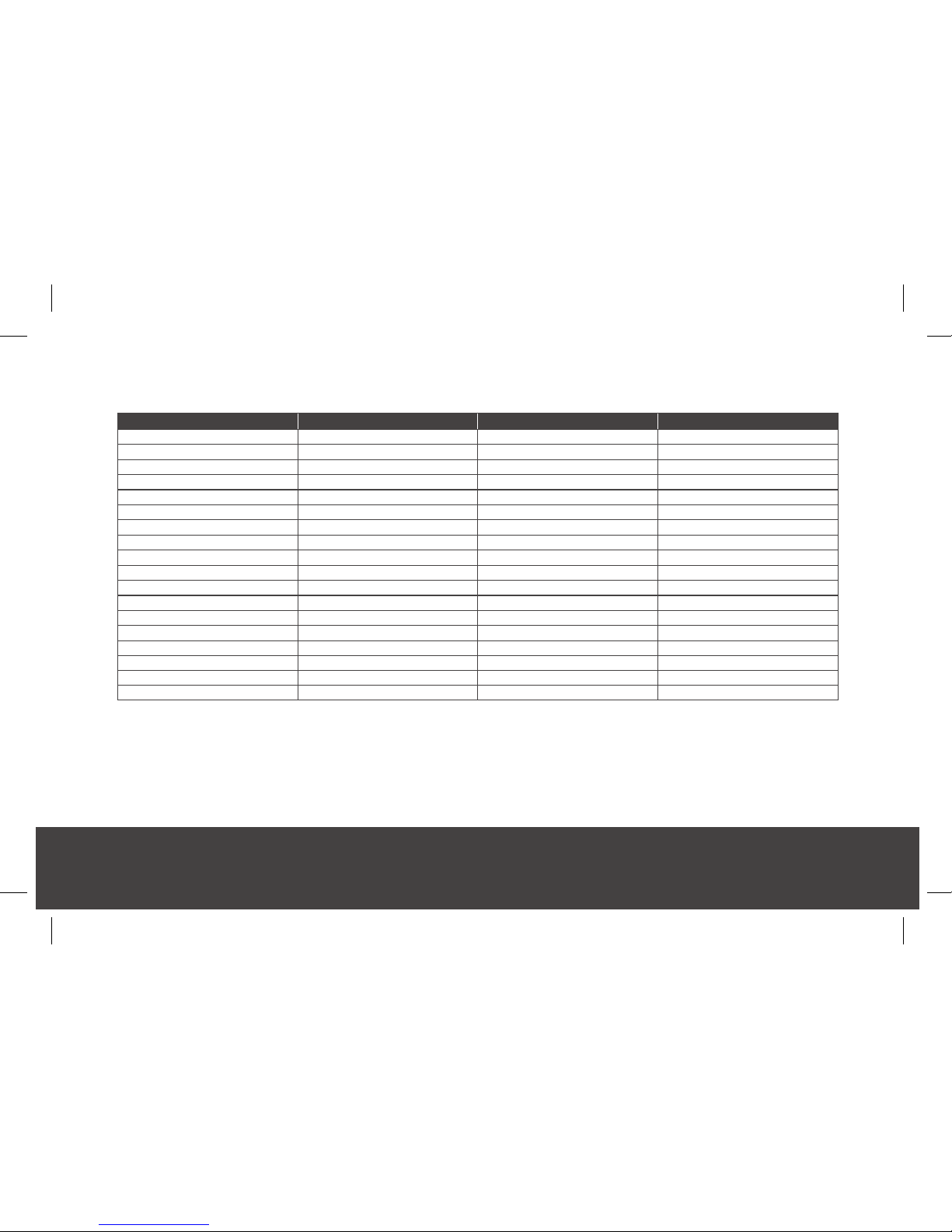
Technical Information
Models Input Output Current Rating
IGM-02 Internal 3.7 VDC 930 mAh
IGBW-01 115 V 5 VDC 3000 mA
IGBW-01 Battery Backup 4.2 VDC 3000 mAh
IGPFD-01 Internal 3.6 VDC 1200 mAh
IGPWC-01 115 V 5 VDC 1000 mA
IGMCA-01 12 V 5 VDC 1000 mA
MCC-02 115 VAC 5 VDC 1000 mA
IGP-02 Internal 3 VDC 230 mAh
IGPWS-02B Internal 3 VDC 230 mAh
IGPWS-02W Internal 3 VDC 230 mAh
WMP-01 Internal 3 VDC 230 mAh
CBS2-01 115 V 5 VDC 3000 mA
CBS2-01 Battery Backup 4.2 VDC 3000 mAh
CBS4-01 115 V 5 VDC 3000 mA
CBS4-01 Battery Backup 4.2 VDC 3000 mAh
MD3-01 Internal 3.7 VDC 930 mAh
CBS4-02 115 V 5 VDC 3000 mA
CBS4-02 Battery Backup 4.2 VDC 3000 mAh
Radio Frequency (RF)
All devices frequency transmission = 433MHZ
CBS4.0_Complete_UserGuide_MHP8003-179E_12mech.indd 34 8/16/2018 11:14:13 AM
Page 35
MobileHelp Complete User Guide
35
MHP8003-179E
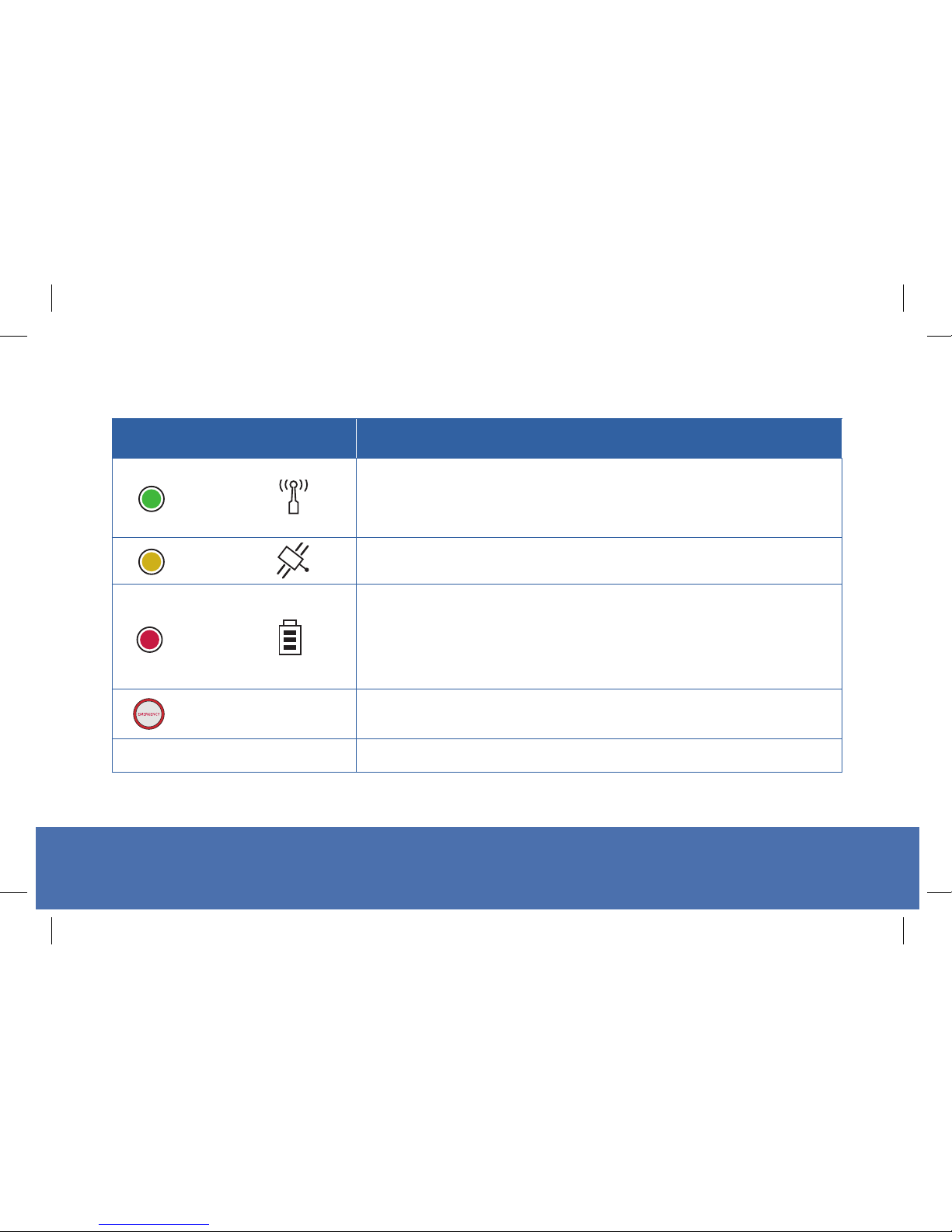
Mobile Device Light Indicator
Light Indicator What it Means
GREEN
Blinking slowly: Device is connected to wireless network.
Blinking rapidly: Device is NOT connected to wireless
network.
YELLOW
Blinking: Indicates device is communicating to the GPS
satellite.
RED
Blinking slowly (off charger): Battery is low - you have about
one hour of battery left.
On while charging: Battery is charging.
Off while charging: Battery is fully charged.
EMERGENCY LIGHT
On: Indicates you successfully pushed your button and
sent an alert to the monitoring center.
All lights off Device is turned off.
CBS4.0_Complete_UserGuide_MHP8003-179E_12mech.indd 35 8/16/2018 11:14:14 AM
Page 36
MobileHelp®
Corporate Headquarters
3701 FAU Blvd., Suite 300
Boca Raton, FL 33431
phone: 561-347-6255
fax: 561-347-6288
web: www.mobilehelp.com
Sales
phone: 1-800-800-1710
email: [email protected]
Emergency Support
Available 24/7 via MobileHelp System
Technical Support
phone: 1-877-827-6207
Monday - Friday 8am to 8pm EST
Saturday and Sunday 9am to 6pm EST
Excluding Holidays
email: [email protected]
Customer Service
phone: 1-877-827-6207
Monday - Friday 8am to 8pm EST
Saturday 9am to 6pm EST
Excluding Holidays
email: [email protected]
Copyright ©2018 MobileHelp LLC. All Rights Reserved.
MHP8003-179E
CBS4.0_Complete_UserGuide_MHP8003-179E_12mech.indd 36 8/16/2018 11:14:14 AM
 Loading...