

Page 1
MiFi 800 Mobile Hotspot
Reference Guide
About Your MiFi 8000
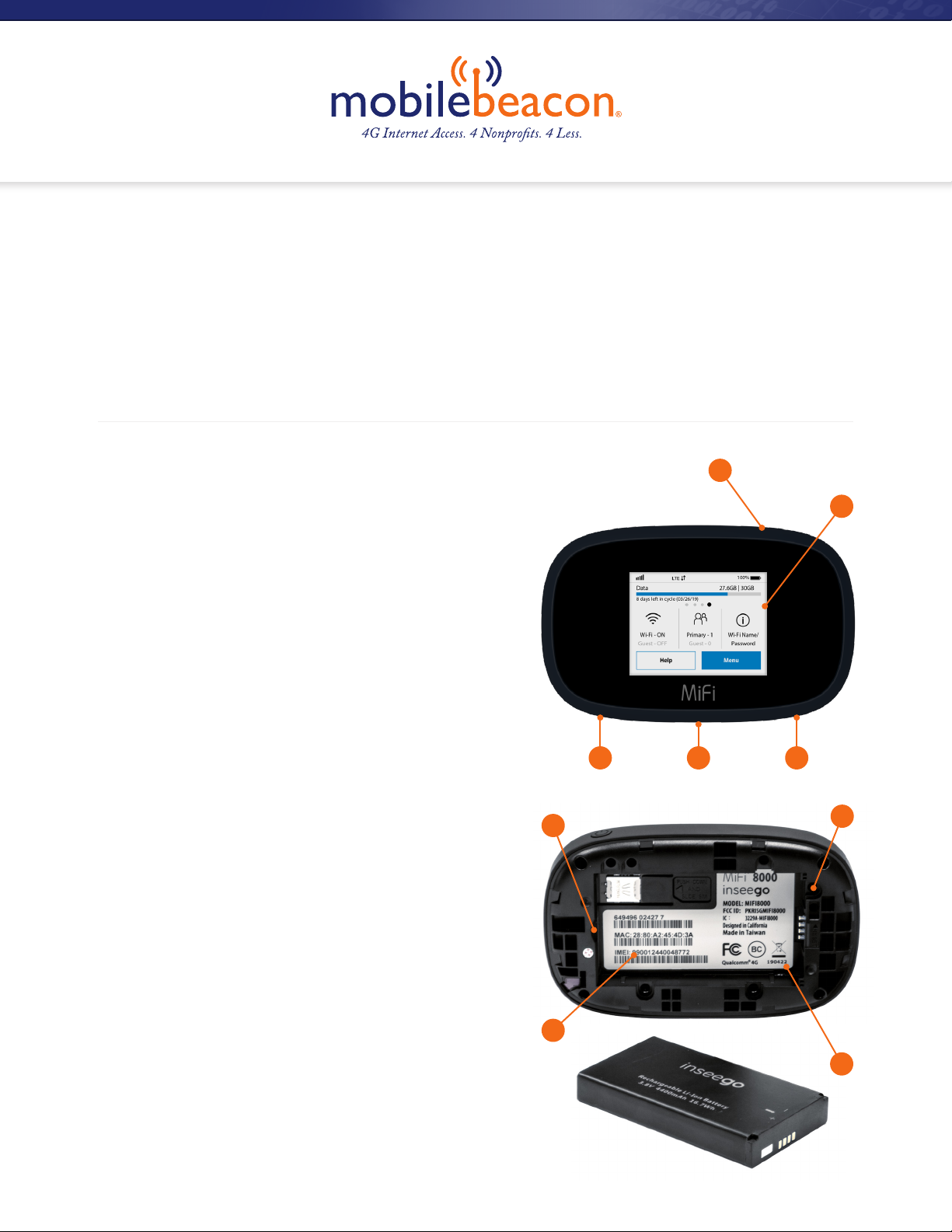
1. Power Button: Powers the MiFi 8000
on and off.
2. Color Touchscreen (2.4 in): Displays device
status, data usage, and number of users
connected. Swipe left/right/up or down
to access available menu options.
1
2
3. Test Port
4. USB-C Port: Use to connect the
QuickCharge charger, Internet over USB-C,
to charge one additional wireless device,
and MiFi Share le sharing via mass storage.
5. Test Port
6. Master Reset Hole: Use to reset MiFi 8000
back to original factory settings.
7. Battery Compartment: The battery
is pre-installed.
8. Battery Removal Divot: Insert a ngernail
here and lift to remove the battery.
9. IMEI (Serial Number)
8
9
345
6
7
www.mobilebeacon.org 1
Page 2
Using Your MiFi 8000’s Touchscreen
MiFi 8000 Home Screen
, unread Inseego system messages , roaming , and battery .
The Home Screen
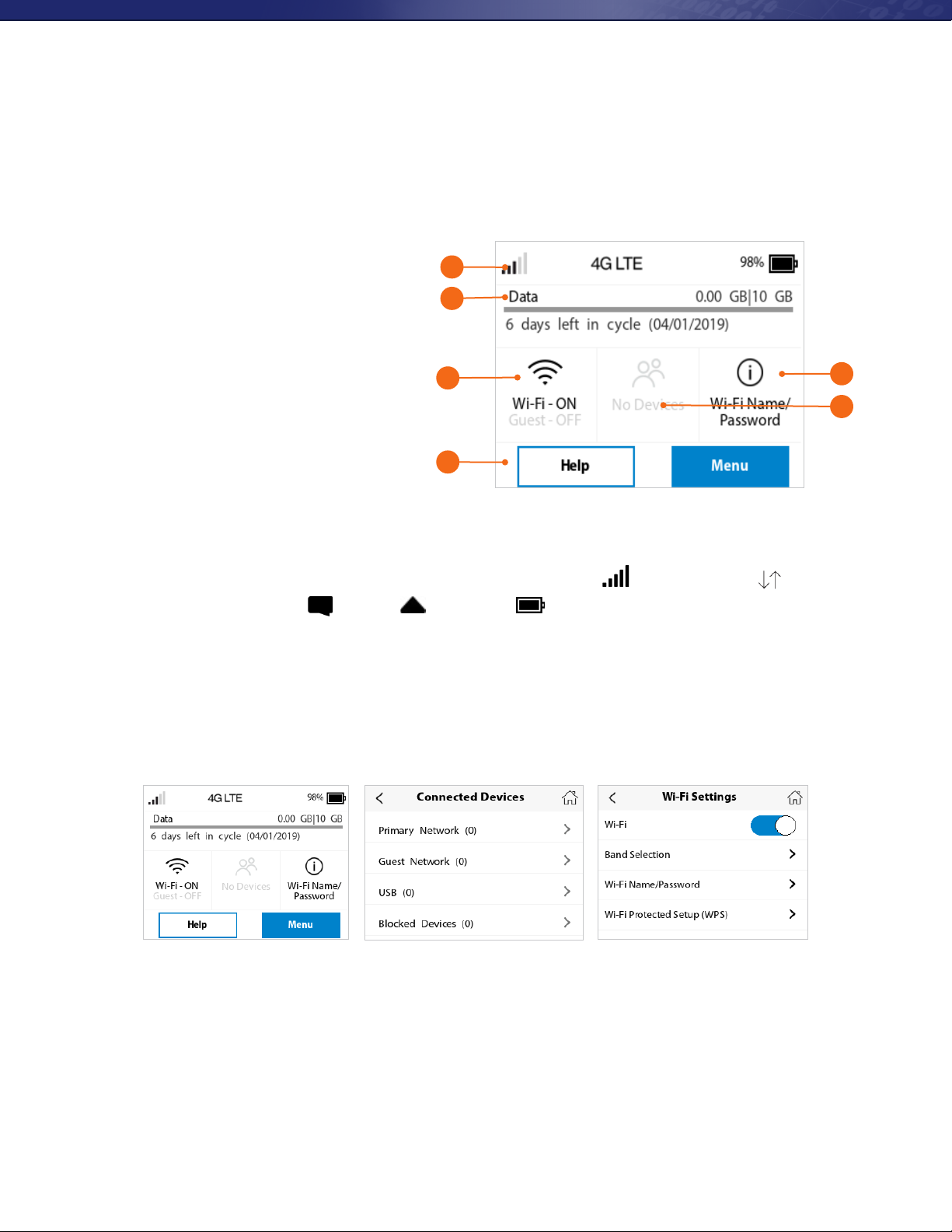
The Home screen lets you see what
your MiFi 8000 is doing at a glance.
1
2
1. Signal Strength
2. Data Usage
3. Wi-Fi On/Off
3
4. Menu
5. Wi-Fi Name/Password
4
6. Number of Wi-Fi devices
connected to your MiFi 8000
At the top of the screen, you’ll see status indicators for network signal strength , data trafc activity ,
unread Inseego system messages , roaming , and battery .
The middle of the screen shows you if Wi-Fi is on or off, and how many devices are connected to your MiFi 8000’s
Wi-Fi network.
Your Wi-Fi Name and Password are next. For information on changing your Wi-Fi Name and Password, see
(See Managing MiFi 8000 Settings.).
MiFi 8000 Home Screen
5
6
Tap Menu to Open Menu Options Swipe Up/Down to Desired Option Tap to View Desired Option
www.mobilebeacon.org 2
Page 3
Managing Wi-Fi
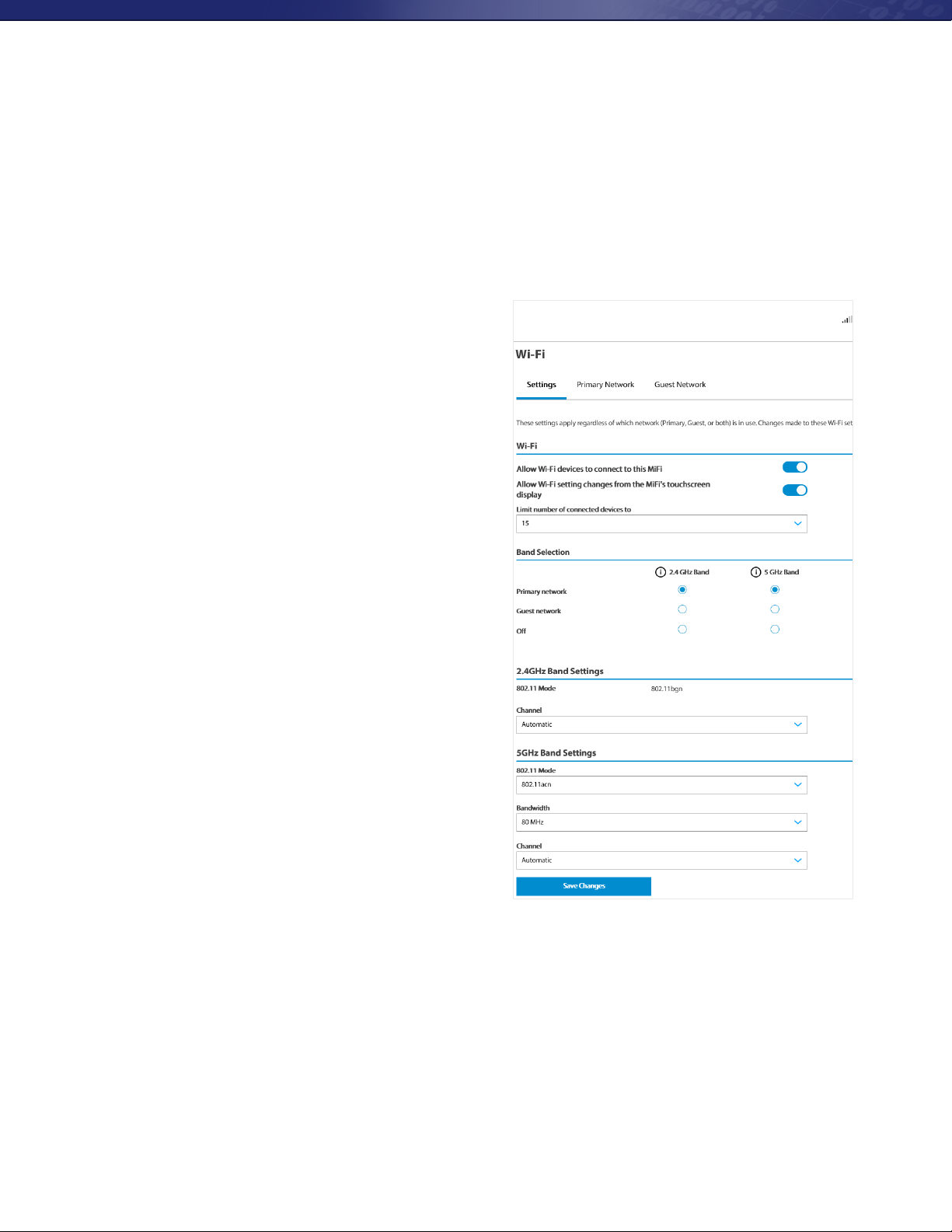
The Wi-Fi page lets you manage your MiFi 8000’s Wi-Fi settings. This page is divided into 3 tabs:
SETTINGS • PRIMARY NETWORK • GUEST NETWORK
Settings
From the Settings tab, you can turn your MiFi 8000’s Wi-Fi
ON/OFF, change Network and Wi-Fi ON/OFF, change
Network and Wi-Fi Connections Settings, and customize
Band Settings.
• To turn Wi-Fi ON/OFF, use the switch and then click
Save Changes at the bottom of the screen.
• To select or turn off Band Selections for the Primary
and Guest networks, mark the buttons for 2.4 GHz
Band and 5 GHz Band. Choose Off, Primary network, or
Guest network.
• To change the maximum number of
Wi-Fi devices that can connect to the MiFi 8000 (the
default is set to 15), make your selection from the Limit
connected devices to dropdown menu.
• To customize the Band Settings:
1. Click on the 2.4 GHz Band Settings or 5 GHz Band
Settings link to display the available Band Settings
options.
2. Make your Mode, Channel, and
Bandwidth selections from the
dropdown menus and then click
Save Changes.
www.mobilebeacon.org 3
Page 4
Managing Wi-Fi (continued)
Primary Network
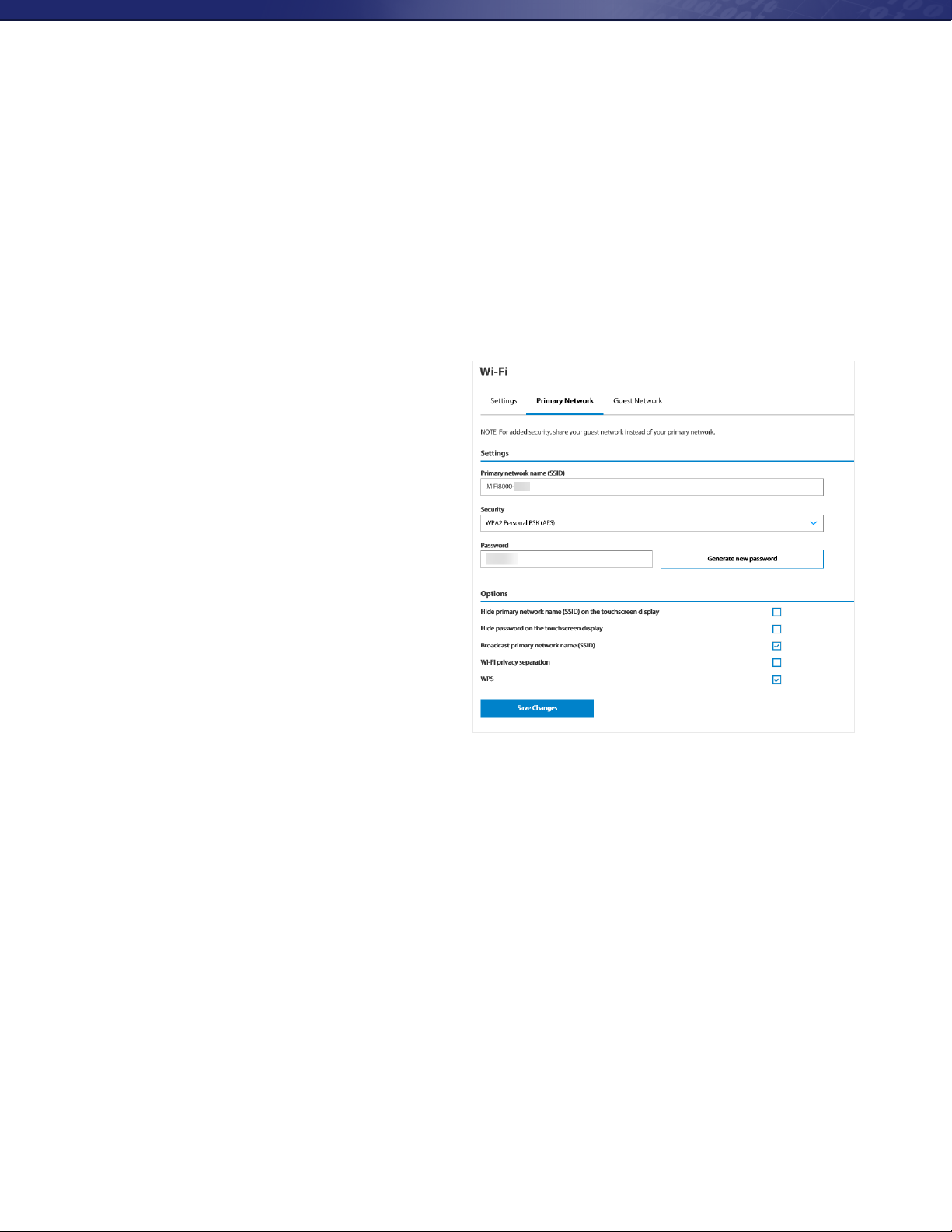
From the Primary Network tab, you can change your Wi-Fi Name (SSID) and Password (Key), select the type of
security, and turn Options ON/OFF for your primary network.
• To change the Primary Network Wi-Fi Password (SSID) enter the new Wi-Fi name into the eld.
• To change the type of Wi-Fi security for the
Primary Network, choose an option from the
Security dropdown menu.
• To change the Primary Network Wi-Fi
Password (Key), enter the new password
into the eld or click Generate New Key.
Then click Save Changes.
• To turn Options, such as Broadcast Wi-Fi
Name (SSID) and WPS, ON/OFF for the
Primary Network:
1. Click the Options link to display available
options. Options currently turned ON
will display with a checkmark in a red box.
2. Click the checkboxes to turn options ON
or OFF and then click Save Changes.
Guest Network
The same settings described above for the Primary Network are available for the Guest Network.
www.mobilebeacon.org 4
 Loading...