

Page 1

Mitsumi USB FDD
Page 2
INSTALLATION MANUAL
1. Product Outline
This product is USB 3.5 inch external Floppy Disk Drive for USB equipped Macintosh
and Windows PCs.
This Drive is USB I/F and is able to connect and disconnect at any time.
This Drive is designed to be bus-powered and does not require any outside power
supply.
With Macintosh "PC Exchange" enabled, Windows (DOS) formatted floppy disk can be
used with your Macintosh PC.
2. Installation: Maci ntosh
You must install the device driver and restart your Macintosh before connecting your
MITSUMI USB Floppy drive. By connecting your MITSUMI USB Floppy drive after
restarting your Macintosh, y ou w ill be able to use the drive.
Insert the attached CD into your CD-ROM drive. A CD-ROM icon will appear on your
display. Double-click the CD-ROM icon, then double-click the "Mitsumi USB FD DRIVER"
icon. Installation will begin.
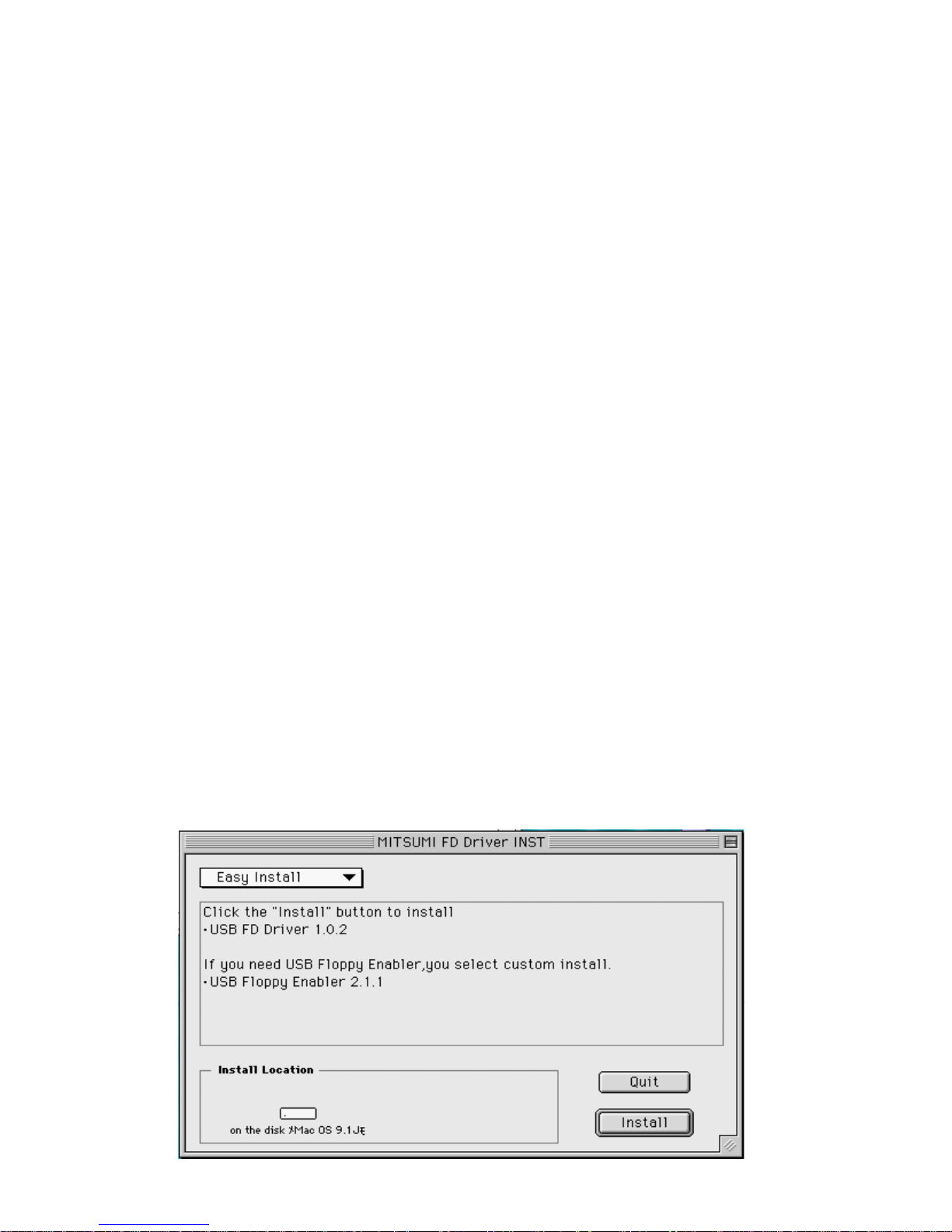
1. Double-click the “Mitsumi USB FD DRIVER” icon. The following message will appear.
“Easy Install” is selected as a default.
Page 3
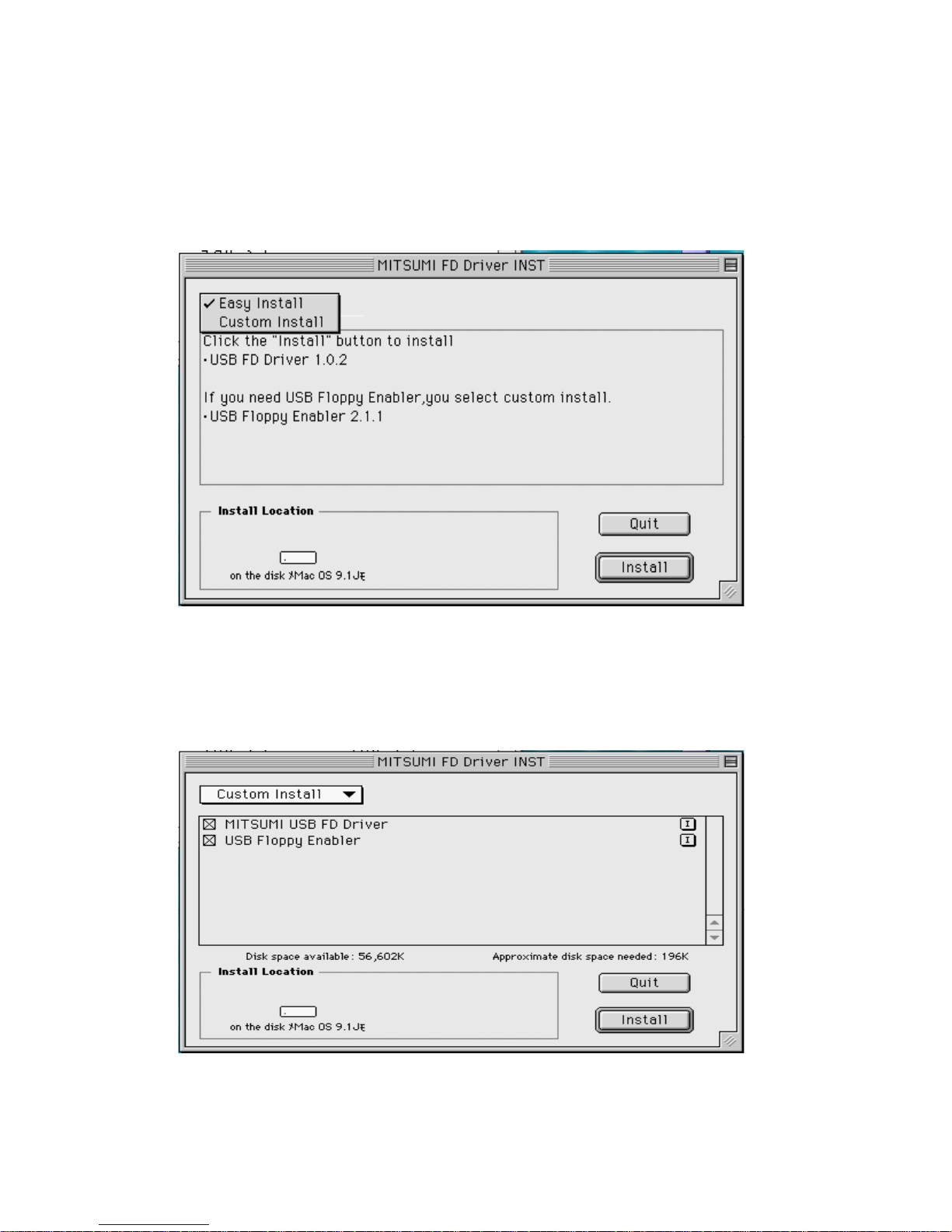
2. Select “Easy Install” or “Custom Install”.
With the “Easy install”, only the “Mitsumi USB FD Dr iver 1.0.2” will be installed.
Click the "Install" button and the installation will begin.
3. "Custom Install" will install t he file of your choice. With “Custom Install, ” you can select
“Mitsumi USB FD Driver 1.0.2” or “USB Floppy Enabler 2.1.1”. After selecting the
installation file, click the “Install” button. This will start the installation.
*Use “USB Floppy Enabler” only for Copy Protected Software. If not, click off “USB Floppy
Enabler.”
Page 4
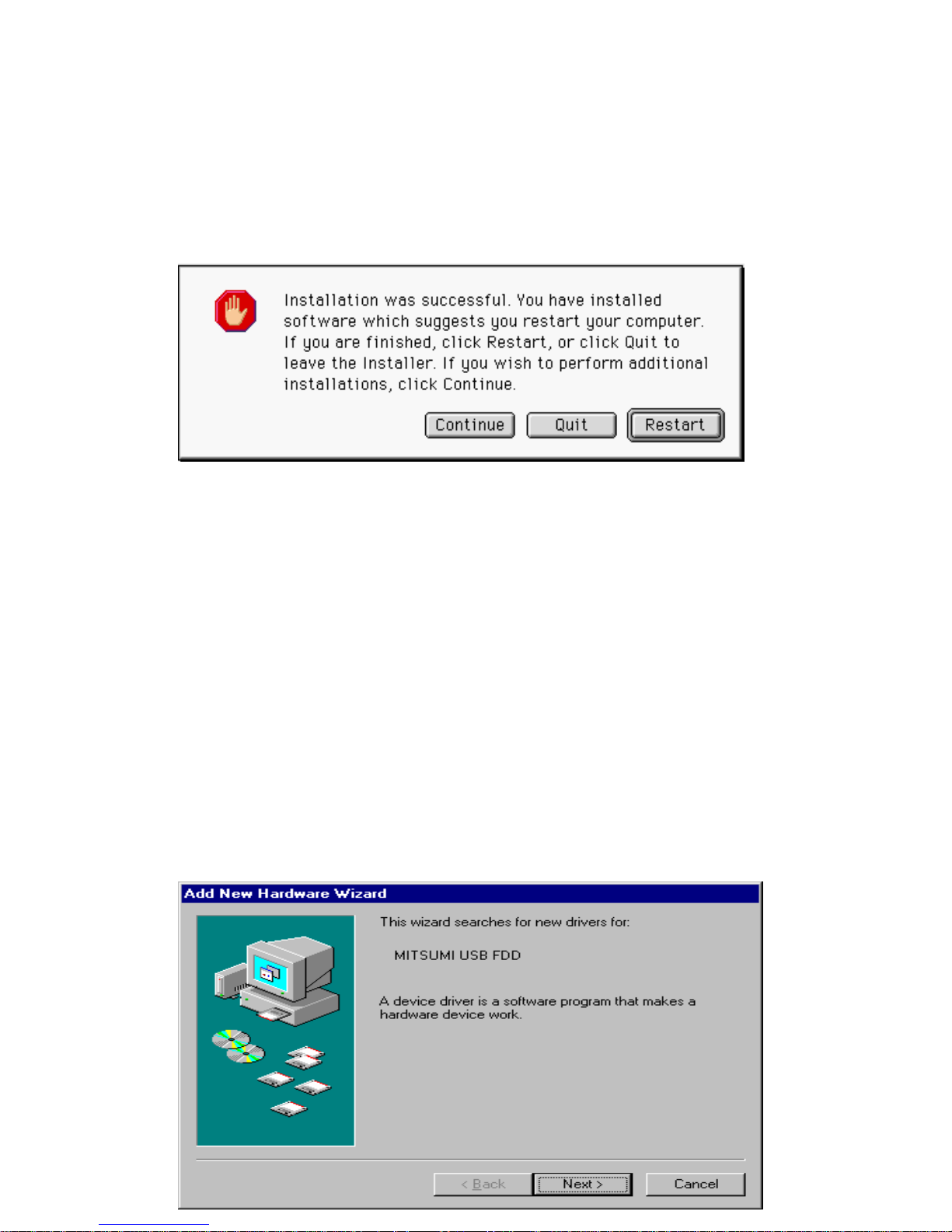
4. When the installation is complete, the following message will appear on your screen.
To restart your PC immediately, click the "Restart" button.
To restart your PC later, click the "Quit" button.
**Information
* Our USB FDD does not support Flash Path.
3. Installation: Windows 98 / Windows 98 Second Edition
(Do not need to install the Device Driver for Window s M E and 2000)
Turn on your computer and start Windows.
Insert the attached CD to your CD-ROM drive. Connect your MITSUMI USB Floppy drive
to your computer. "MITSUMI USB FDD" will be detected as a new device. Install the
device driver according to the following instructions.
1. After the MITSUMI USB FDD is detected , "New devic e detected. S earch for n eeded
software" message will appear on the screen. After a few seconds, "Add New
Hardware Wizard" will start and "MITSUMI USB FDD Search screen” will appear.
Click on the "Next>" button.
Page 5
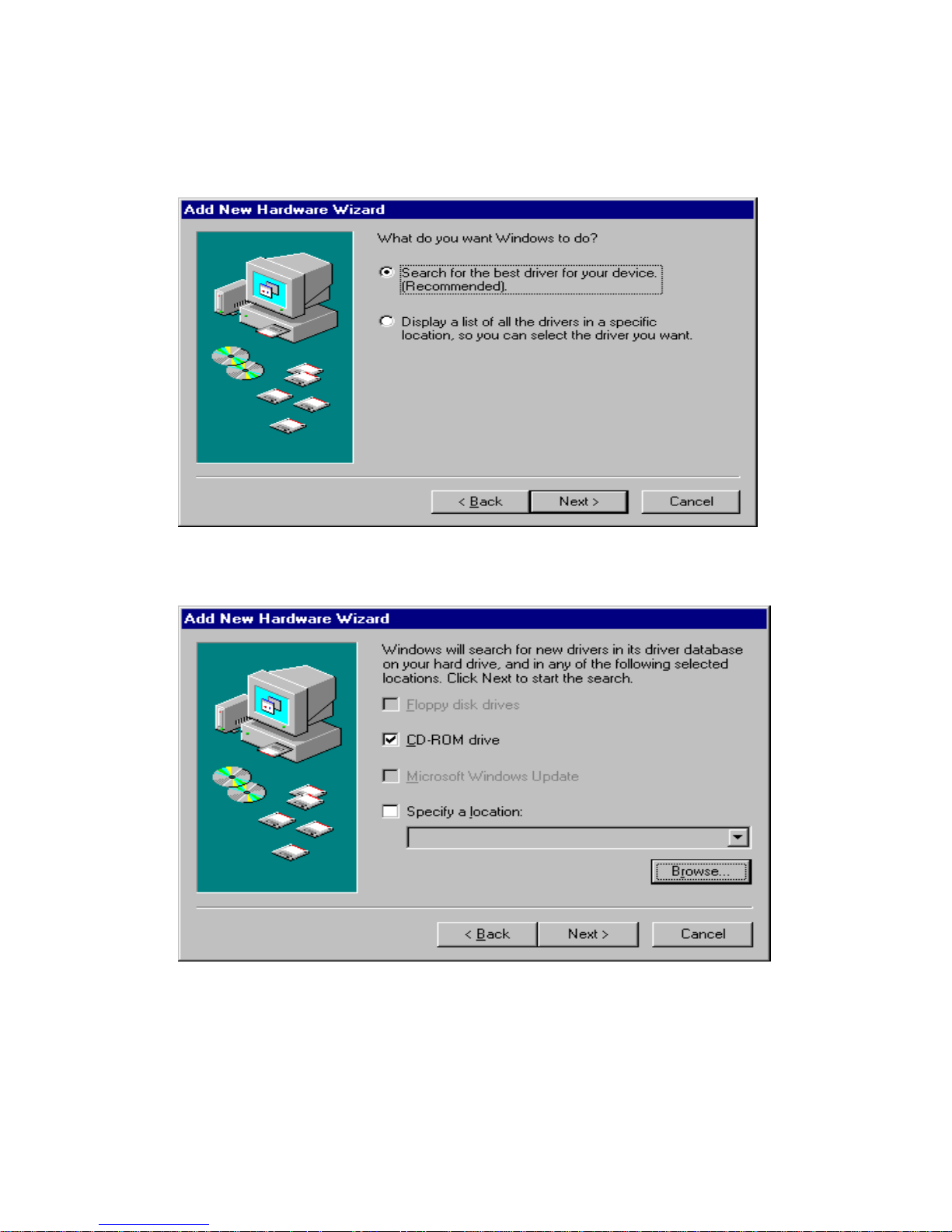
2. W hen the following message appears on the screen, select "Search for the best driver
for your device" and click the "Next>" button.
3. When the following message appears on the screen, select "CD-ROM drive" and click
the "Next>" button.
* Remove all other check marks other than “CD-ROM drive.”
Page 6
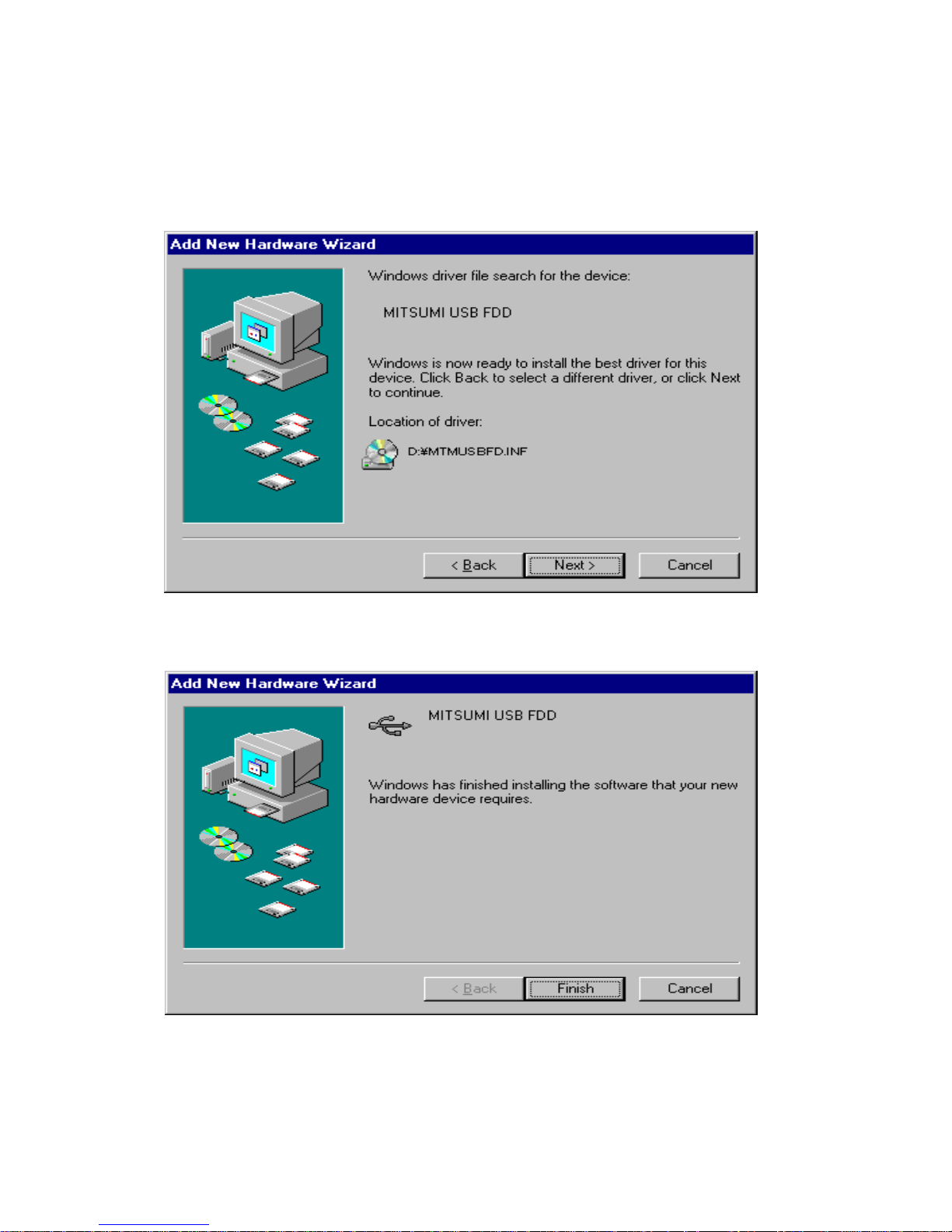
4. When the following message appears on the screen, click the "Next>" button. The
program will start installing the driver.
* In the following example, the location of the drive is D.
5. When the installation of the device driver is complete, the following message will
appear on the screen. Click the “Finish” button.
Page 7
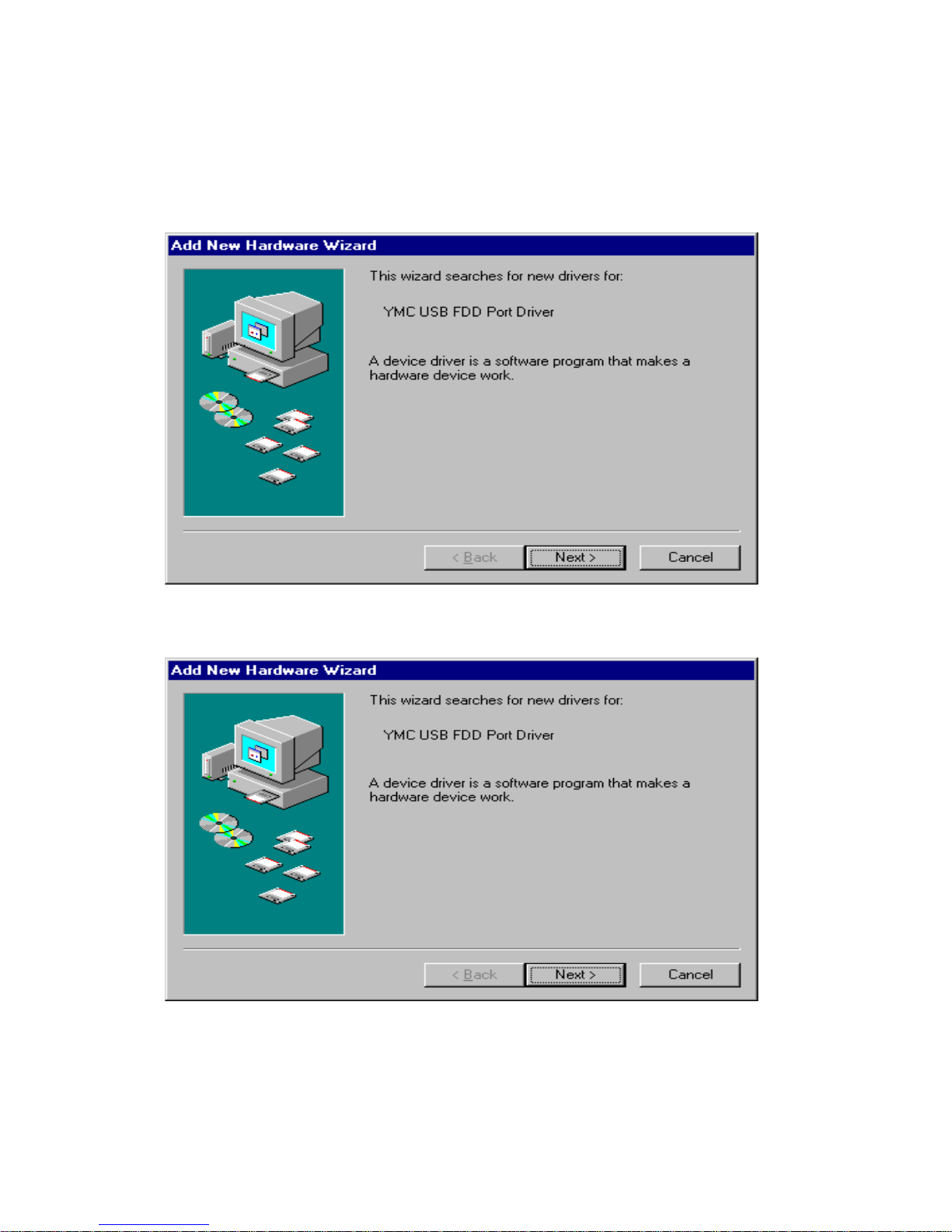
6. "New device detected. Search for needed software" message will appear on the screen
again. After a few seconds, "Add New Hardware Wizard" will start and "MITSUMI USB
FDD search screen" will appear. Click the "Next >" button.
7. W hen the following message appears on the screen, select "Search for the best driver
for your device" and click the "Next >" button.
Page 8
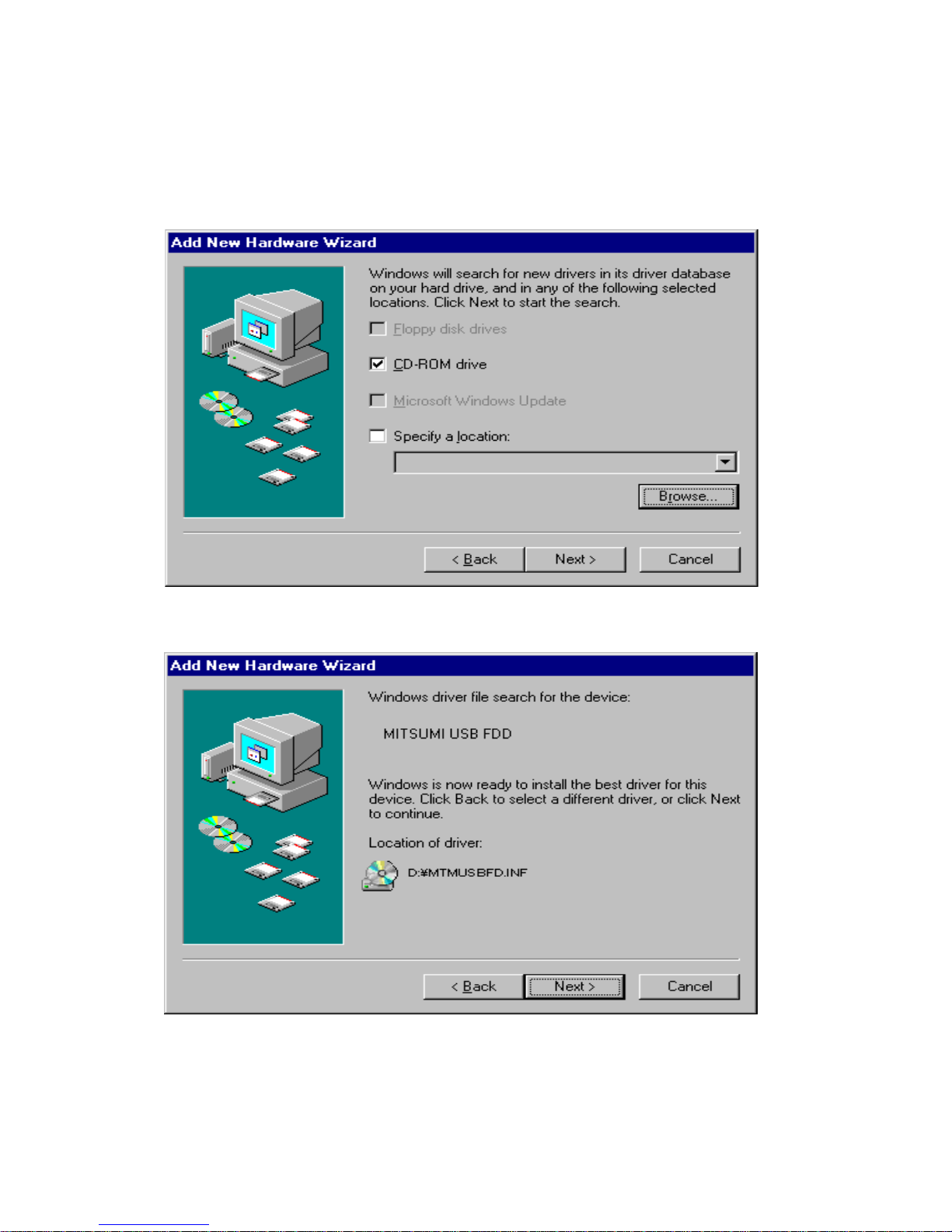
8. W hen the following message appears on the screen, select "CD-ROM" and click the
"Next >" button.
* Remove all other check marks other than “CD-ROM drive.”
9. When the following message appears on the screen, click the "Next>" button.
* In the following example, the location of the drive is D.
Page 9
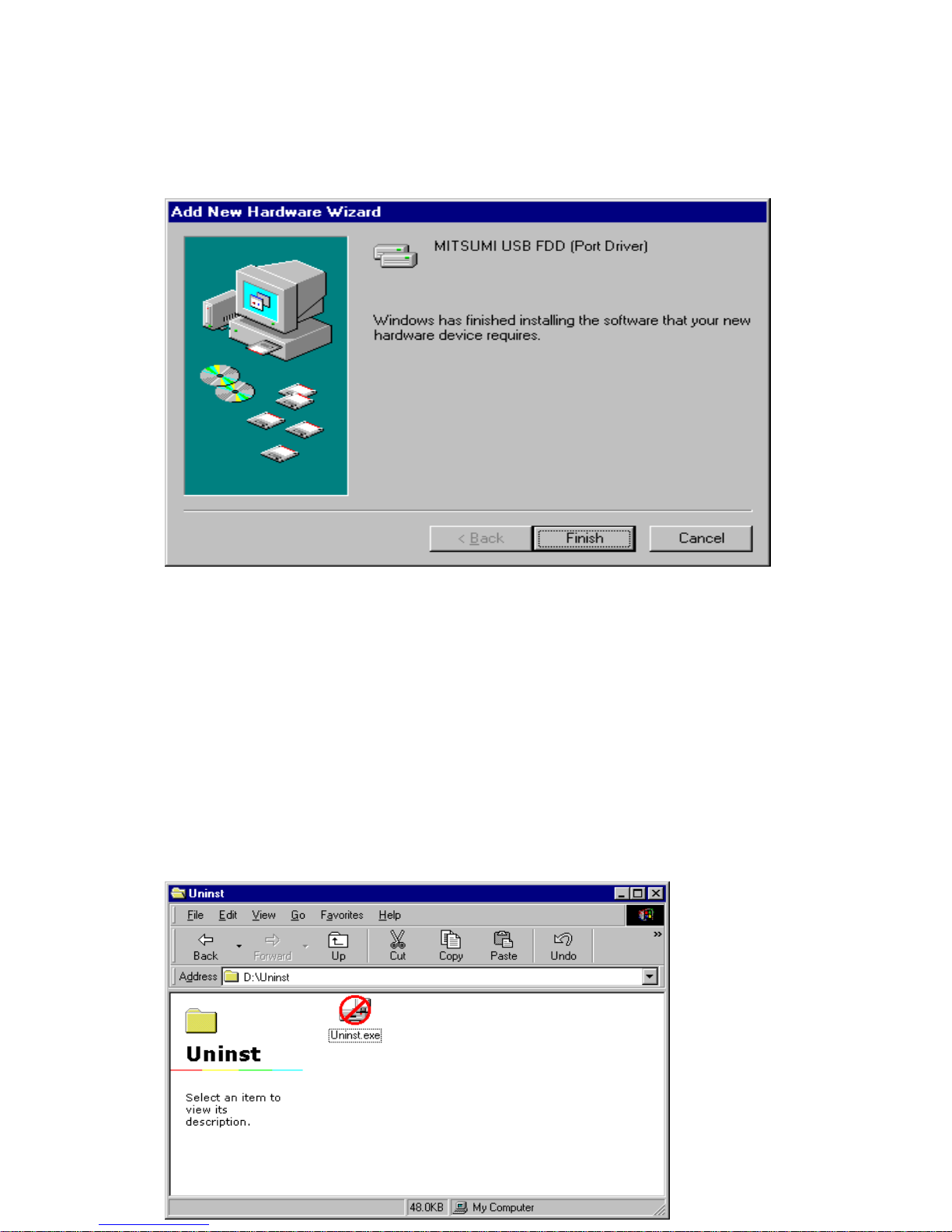
10. W hen installation of the device driver is complete, the following message will appear
on the screen. Click the "Finish" button.
11. Installation of the device driver is complete. Please check by using [My computer] or
[Explorer] whether "3.5 inch FDD" has been added to your PC. Assigned drive is
different according to your system.
4. Uninstalling the device driver
1. About the program
This program is in the Uninst directory of the attached CD. This program is used to
uninstall the device driver installed in Windows 98 or Windows 98 Second Edition. This
program cannot be used for Windows Millennium Edition or Windows 2000.
In the following example, the location of the CD-ROM drive is D.
Page 10
2. How to uninstall the device driver
You must do the following procedures before uninstalling the device driv er.
1) Please close all application.
2) Please do not connect the USB FDD. If the drive is connected, remove the USB FDD
from the USB terminal.
Insert the attached CD into the CD-ROM drive. After the CD is recognized, move to the
Uninst directory in Explorer or My Computer, and uninstall the device driver according to
the following instruction.
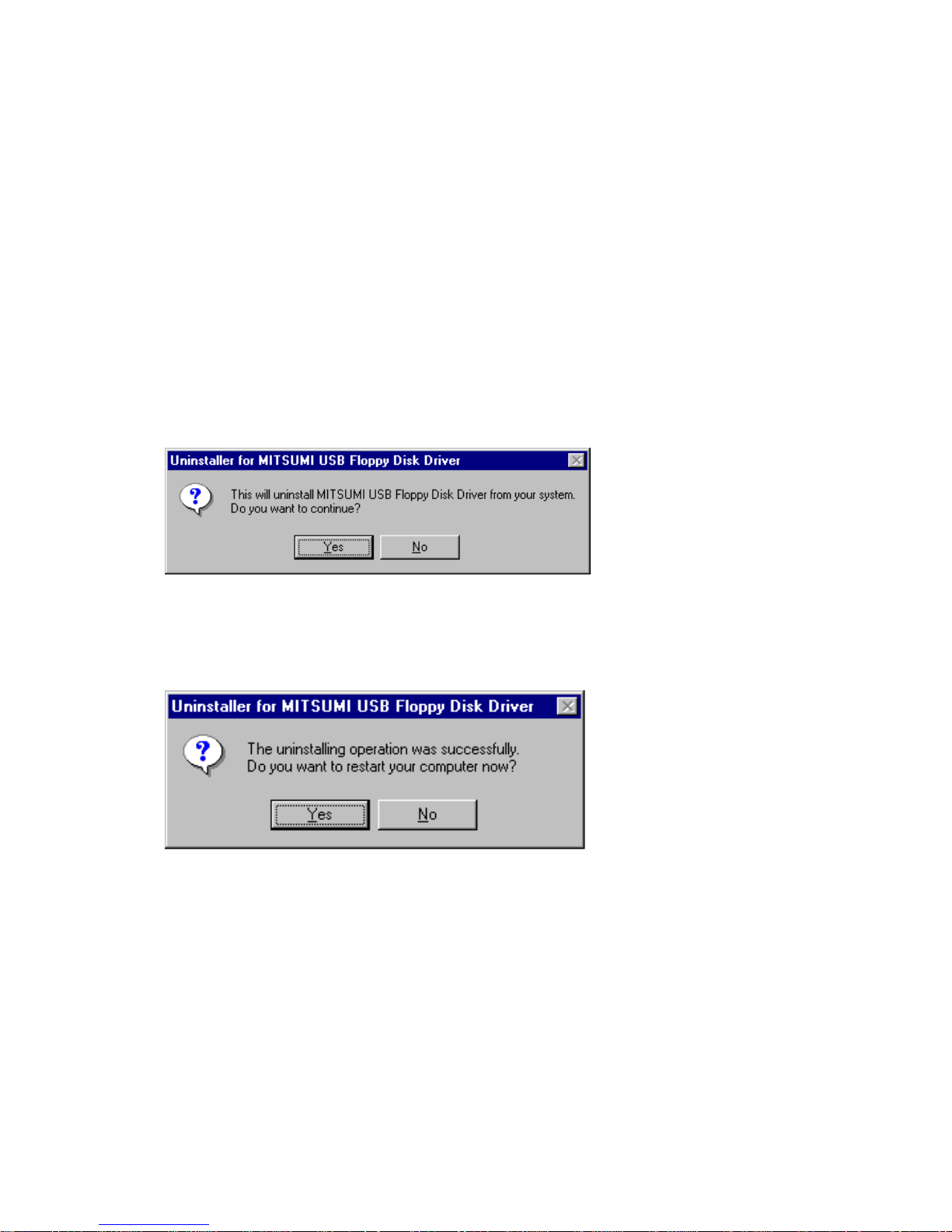
1) Double-click the “Uninst.exe.” The following message will appear.
Click "Yes" to continue the deletion process.
If you choose "No," the device driver will not be uninstalled and the program will close.
2) When the device driver is uninstalled, the following message w ill appear.
Click "Yes" to restart your comput er.
We recommend you restart your computer here. Especially, if you uninstalled the device
driver to update to a later version.
You have successfully uninstalled the device driver.
Page 11
5. Connection
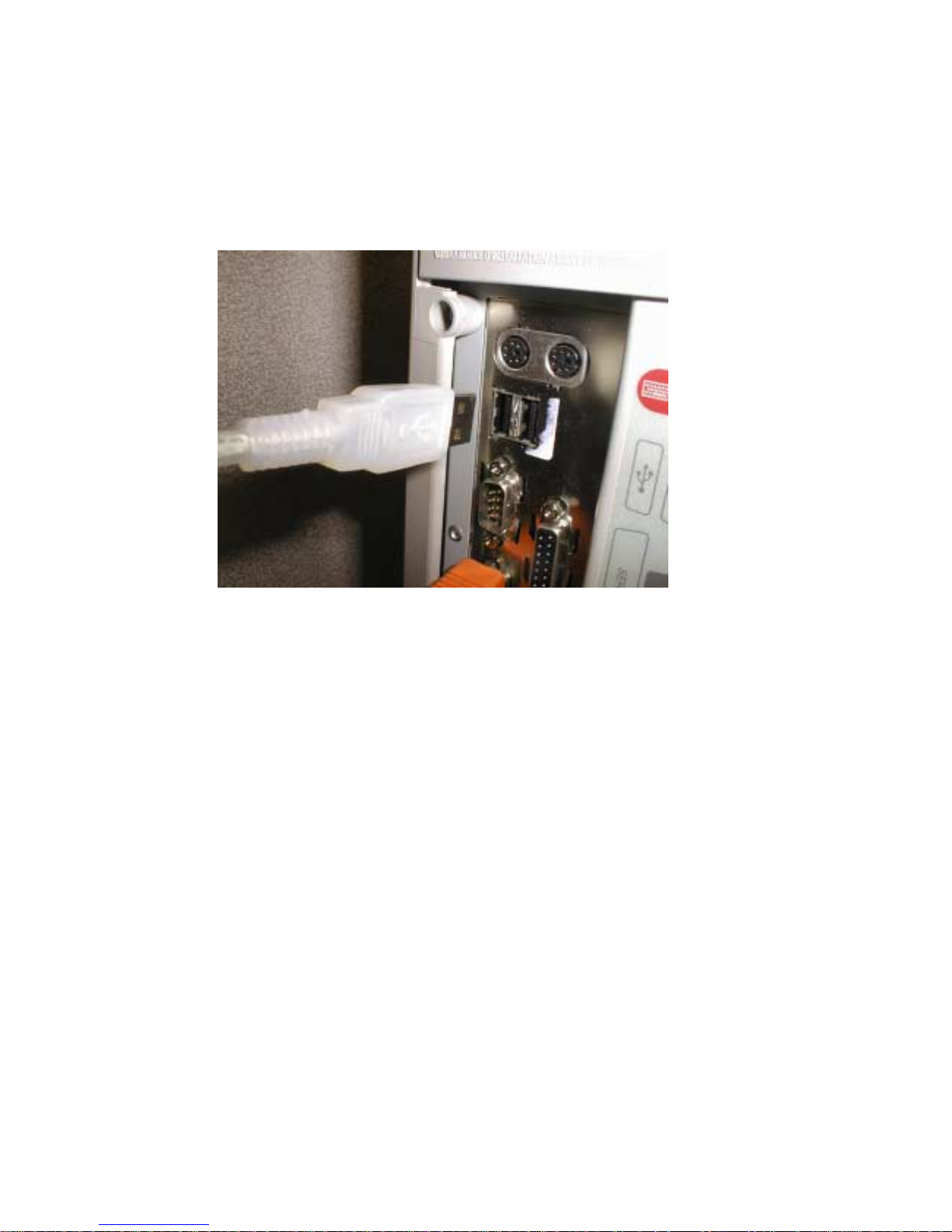
1. Connect the USB cable (series A) to the USB port of your computer, or to the USB
Hub.
Notice:
Connect this Drive to an available USB port on the PC, or t he USB Hub.
When connecting the USB FDD to the USB hub while in use, remember to connect the
AC adapter to the USB hub.
Do no connect this drive to keyboards with USB hubs.
Page 12

6. Safety Information
Follow all safety warnings and instructions printed in this manual and on the USB floppy
disk drive to avoid damaging your drive or harming yourself.
Never attempt to service the drive yourself. No user serviceable parts are inside the unit.
Opening or removing the cover can expose you to dangerous voltage levels and other
hazards. Do not attempt to open the unit.
Disclaimer
The vendor shall have no liability or responsibility to the purchaser or any other person for
any loss or damage or any special, incidental or consequential damages caused or alleged
to be caused directly or indirectly by the product, including, but not limited to, loss of
previously or currently written data, any interruption of service, loss of customer goodwill,
loss of business, anticipatory profits or consequential damages resulting from the use or
operation of the product.
7. Federal Communications Commission (FCC) Infor mation
This equipment has been tested and found to comply with the limits for a Class B digital
device, pursuant to Part 15 of the FCC Rules. These limits are designed to provide
reasonable protection against harmful interference in a residential installation. This
equipment generates, uses and can radiate radio frequency energy and, if not installed and
used in accordance with the instructions, may cause harmful interference to radio
communications. However, there is no guarantee that interference will not occur in a
particular installation. If this equipment does cause harmful interference to radio or
television reception, which can be determined by turning the equipment off and on, the user
is encouraged to try to correct the interference by one or more of the following measures:
- Reorient or relocate the receiving antenna.
- Increase the separation between the equipment and receiver.
- Connect the equipment into an outlet on a circuit different from that to which the
receiver is connected.
- Consult the dealer or an experienced radio/TV technician for help.
Changes or modifications not expressly approved by the manufacturer for compliance
could void the user’s authority to operate the equipment.
Page 13

8. FCC Declaration of Conformity
The device complies with part 15 of the FCC (U.S.A.) rules. Operation is subject to the
following two conditions: (1) This device may not cause harmful interference, and (2) this
device must accept any interference received, including interference that may cause
undesired operation.
MITSUMI Electronics Corp.
5808 West Campus Circle Dr.
Irving, TX. 75063
Tel. (972) 550-7300
Page 14

9. Specifications: System Requirements
*This Drive does not support sleep mode.
PC
― ― ― ― ― ― ― ― ― ― ― ― ― ― ― ― ― ― ― ― ― ― ― ― ― ― ―
Macintosh Macintosh series OC with standard installed USB port.
(iMac, Power Macintosh G3 (B&W), PowerBookG3*,
Power Macintosh G4, iBook)
Windows Windows 98, ME or 2000 pre-installed PC with standard installed USB port.
OS
― ― ― ― ― ― ― ― ― ― ― ― ― ― ― ― ― ― ― ― ― ― ― ― ― ― ―
Macintosh MacOS8.5, 8.5.1, 8.6, 9.0, 9.1 (USB manager 1.1 or higher)
(Does not support MacOS 8.1, 9.0.2, 9.0.3)
Windows Windows98, 98SE, ME or Windows2000.
(Do not need to install the Device Driver for Windows ME and 2000)
10. Formatting Floppy Disks
Diskette Format Read/Write Initialize
― ― ― ― ― ― ― ― ― ― ― ― ― ― ― ― ― ― ― ― ― ― ― ― ― ― ―
2HD 1.44MB Macintosh OK OK
2HD 1.44MB Windows, DOS OK OK
2DD 720KB Windows, DOS OK OK
2HD 1.25MB Windows, DOS OK OK
2DD 640KB Windows, DOS OK N/A
― ― ― ― ― ― ― ― ― ― ― ― ― ― ― ― ― ― ― ― ― ― ― ― ― ― ―
This Drive does not support the auto eject of Floppy Disk (Macintosh) .
This Drive does not support the flash path.
Notice: Some floppy disk based applications may be incompatible with this drive.
In this case, contact the software manufacturer for additional support.
Page 15

Notice: In order to use Windows (DOS) formatted disks with the Macintosh OS, “File
Exchange” will need to be loaded. If not, “Format Disk” window will appear when a
Windows
(DOS) formatted disk is inserted into this Drive.
― ― ― ― ― ― ― ― ― ― ― ― ― ― ― ― ― ― ― ― ― ― ― ― ― ― ―
Product classification
USB 3.5 inch Floppy Disk Drive
Interface
USB (Rev1.1)
Connector
USB series Type A connector
Transfer rate
12Mb/s (Max.)
Consumption
500mA (max.)
Environmental Conditi on
*
During storage
Ambient temperature: -20 degree C – 60 degree C
Relative humidity: 10% - 90%
During operation
Ambient temperature: 5 degree C – 52 degree C
Relative humidity: 20% - 80%
Dimensions
104.0(W) 144.6(D) 17.8(H)
Weight
300g (MAX) not including cable
― ― ― ― ― ― ― ― ― ― ― ― ― ― ― ― ― ― ― ― ― ― ― ― ― ― ―
*excluding condensation
Licenses and Trademarks: Product names mentioned in this manual are trademarks or
registered trademarks of their respective companies and are hereby acknowledged.
Information in this manual is subject to change without notice and does not represent a
commitment on the part of the vendor .
 Loading...