

Page 1
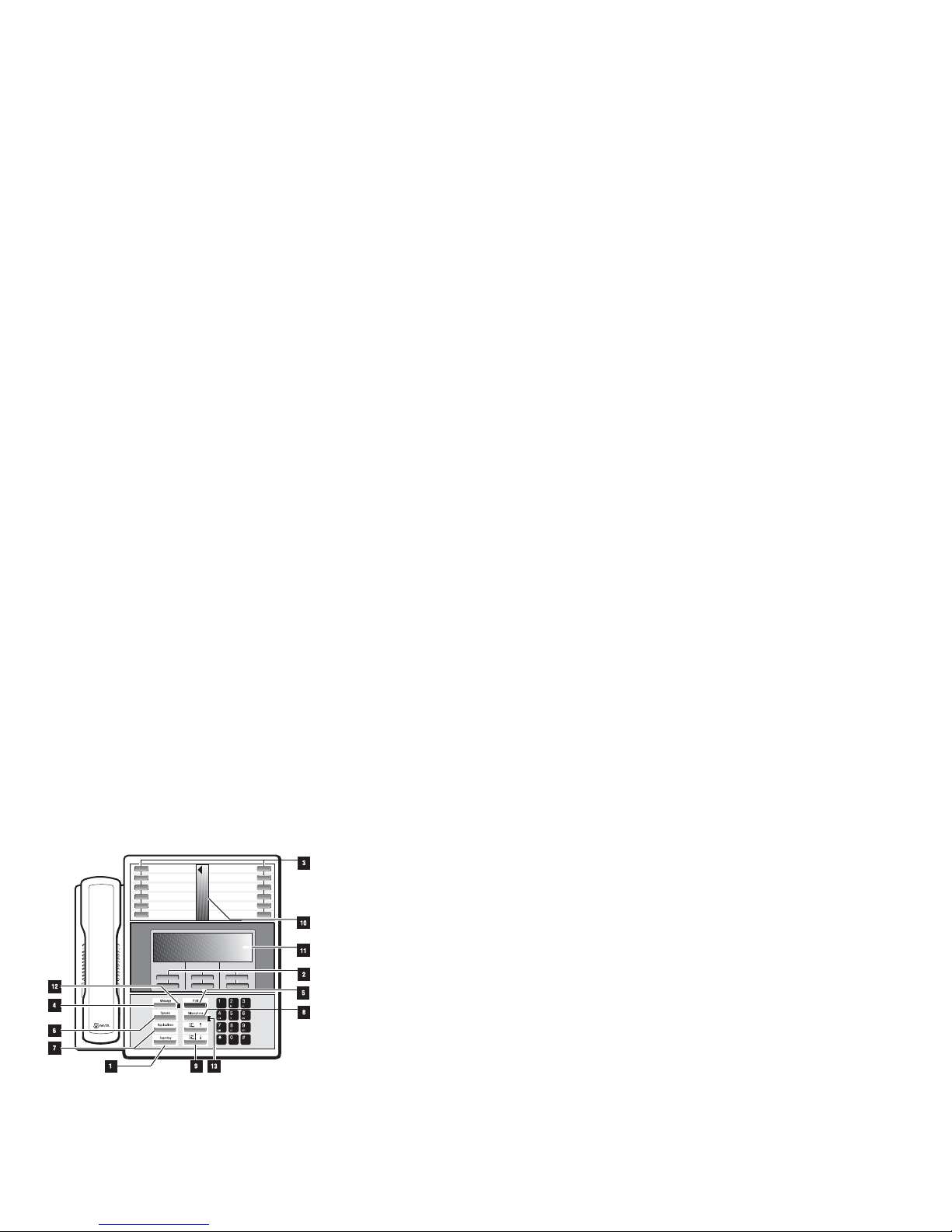
How to Use This Guide
This guide provides brief instructions for the
commonly used features available with the
SUPERSET 430 telephone. Some of these features
are accessed by using the function keys on your
telephone. In the instructions in this guide, the
function keys are represented by upper case words
(e.g., MESSAGE ) .
The six blue Softkeys on your telephone set allow
you to access many more telephone features. These
keys are unlabeled because their functions can
change. The SUPERKEY function key allows you to
access the many functions available on the softkeys.
In the instructions in this guide, the softkey labels that
appear in the Main Display are presented in italic text
(e.g., Messaging).
Keys, Indicators and Displays
1. SUPERKEY: for programming Personal Keys
as Speed Call Keys, accessing most set
features, and displaying set information.
2. Softkeys (blue keys under the Main Display):
for performing the commands shown in the Main
Display.
3. Personal Keys: used as line select keys, and
may also be programmed as speed dial or
feature access keys.
4. MESSAGE Key: for sending and responding to
messages.
5. HOLD Key (red key): for placing calls on hold.
6. SPEAKER Key: for turning the set speaker on
and off during onhook operation.
7. APPLICATION Key: Presently not active.
8. MICROPHONE Key: for turning the microphone
on or off (a privacy feature) during an onhook
call.
9. VOLUME TONE CONTRAST ∧ Key and
VOLUME TONE CONTRAST ∨ Key: for
changing the volume of the handset receiver, the
volume and pitch of the ringer, and adjusting the
contrast of the Main Display.
10. Line Status Display: shows which Personal
Keys are active and their status.
11. Main Display: shows SuperKey instructions
and Softkey labels, time and date, call status,
messaging and system error information.
12. Message Lamp: When flashing, it indicates
that a message is waiting.
13. Microphone Lamp: When lit, it indicates that
the microphone is on.
Line Appearances
Your SUPERSET 430 telephone can accommodate
up to 12 lines, including your prime line (your listed
number). A Personal Key can be programmed as a
Line Select Key to access a telephone line, in which
case you will have an “appearance” of the line,
located in the Line Status Display directly across from
each Line Select Key.
Y ou can access another line just by pressing the Line
Select Key for it. The Line Appearance indicators
show you the status of the lines which you have
programmed on your set.
When a line is ... the line appearance is ...
Idle off
Busy solid on
Ringing flashing slowly
On hold at your set flashing rapidly
On hold at another set flashing in a slow on, fast off cycle
on your set’s Line Appearance
A Personal Key can also be programmed as a
Feature Key by your Communications Department,
for quick access to an often used feature. When that
key is pressed to turn on the feature, the Line
Appearance for that key will turn on.
Features Not Available
There may be procedures in this guide which you
cannot perform on your telephone set. This is
because your company has specially selected your
features and calling privileges. See your
Communications Department if you have any
questions.
Making Calls
Dialing from your SUPERSET 430 is exactly the
same as dialing from any other telephone. Just use
the dialpad to dial the number, including any outside
access code (usually the number “9”), if required.
Page 2

Correcting a Dialing Er r or
As long as the arrow (
←) softkey appears in your
display, you can correct a dialing error. Simply press
← to erase the incorrect digit(s); then enter the
correct digits from the dialpad in the normal fashion.
Onhook Operation
Y ou can make and answer calls without lifting the
handset. T o make a onhook call, dial the telephone
number without raising the handset. When your party
answers, you can speak to them using the
microphone, which turns on automatically, or you can
lift the handset for privacy. To answer a call, press
SPEAKER. For privacy, you can lift the handset.
Press SPEAKER during a call to switch to onhook
operation. The microphone goes on automatically.
For best results during onhook operation:
● direct your voice toward the telephone
● speak at a reasonable distance (arm’s length)
from the telephone, and speak louder when
further away
● position the telephone away from noise sources.
Throughout this guide instructions will assume that
you have already lifted the handset, or pressed
SPEAKER for onhook dialing. In some cases, an
operation must be performed either using the
handset or in onhook mode, and you will be instructed
accordingly
Idle vs Active Display
When your telephone is idle, the current date and
time of day are displayed continuously. But as soon
as you make or receive a call, the display now shows
information about that call, such as which line or trunk
is being used, and the duration of the call. This is
especially useful when you are charging the cost of
a call to a customer or an account number.
CONFERENCE
Set Up a 3-party Conference
● Call the first person .
● Press Trans/Conf.
You hear transfer dial tone, and the first person is put on
hold.
● Call the next person.
● Press Conference.
Display shows “3 Party Conference”. The conference is
active.
Add Another Party
● Press Trans/Conf.
You hear transfer dial tone, and the conference is put on
hold.
● Call the next person.
● Press Conference
to include everyone called so far.
If a called number is busy or not answered, press
Back to Held to return to the conference.
OR
● Press Add Held
if you have a call on hold on another line at your
extension.
● Press the flas hing Line Select Key
to add the held call to the conference.
OR
● Press Rel Privacy.
A line appearance on your set can be included in the call.
● Press Make Private
to release the line appearance from the conference.
Note: These softkeys only appear if another extension has
been programmed as a Key System line appearance on
your set.
Split a Conference
● Press Split
to talk privately to one party.
● Press Trade Calls
any time that you want to switch and talk privately to the
other.
● Press Conference
to return to the full conference.
Leave a Conference
● Replace handset, or press New Call.
The conference continues without you.
Page 3

CONFERENCE CALL TRANSFER CALLBACK CALL WAITING
CALL TRANSFER
Transfer a Call
● Press Trans/Conf.
You hear transfer dial tone, and the original caller
is put on hold.
● Dial the destination number.
● Replace the handset.
The call is transferred to the destination number.
OR
● Introduce the caller.
Press Release Me. The call is transferred.
Cancel a Call Transfer
If the destination number is busy or not
answered, you can cancel the transfer.
● Press Back to Held
to return to the original caller.
OR
● Press New Call
to dial another destination number.
CALLBACK
Do You Want to be Called Back
You can set up an “Automatic Callback” if you
reach a busy extension, or if there is no answer.
If the line is busy, the telephone system
monitors the line and rings you when the line
becomes free. If there was no answer, you are
notified (your telephone rings) when the user
returns and next uses the telephone. When you
lift the handset, the previously unanswered
extension rings.
You can also use Automatic Callback if you
receive a busy signal when trying to access an
outside line. When the outside line becomes
free, your telephone rings. When you pick up
the handset, the outside number is dialed
automatically.
Do You Want to Leave a Message
You can leave a message if you reach a busy
extension, or there is no answer, by pressing
MESSAGE or the Leave a Msg softkey. This
prompt only appears on your display if the
extension you have called is capable of
receiving messages.
Leave a Message or Callback
● Press MESSAGE or Leav e a Msg
to set a message-waiting indicator on the other
extension.
OR
● Press Call Me Back
to set up an Automatic Callback. When the
extension user hangs up, your telephone rings.
Display Callbacks
You can display any Automatic Callbacks that
you have set from your extension.
● Press SUPERKEY.
● Press More....
● Press Callbacks
to see name, ex t e nsi o n a nd ti me of a cal lb ac k th at
you set.
● Press Next or Previous
to move through your callback list.
● Press Cancel
to cancel the displayed callback.
● Press Call Again
to retry a callback number.
● Press SUPERKEY to exit.
Wa it On a Busy Line
● Press I Will Wait.
The busy user that you are calling will hear CampOn tone on their extension, and/or see a display
indicating that you are waiting.
Intrude On a Busy Line
● Press Intrude.
Both parties will hear you.
CALL WAITING
When a Telephone is Always Busy
If you reach a busy extension and want to speak
with the person right away, you can signal that
you are waiting. The busy extension user hears
a single or double beep, indicating that a call is
waiting. When the busy extension user hangs
up, his telephone rings. When the user
answers, you are connected.
Page 4

Do you have a Waiting Caller
While in a call, you may hear a Camp-On tone,
indicating that someone is waiting to speak with
you. You can hang up and take the other call,
or, after warning your current caller , follow one
of the options described here.
Select Call Waiting Option
● Press Call Waiting
to access options for handling a waiting call.
Swap to a Waiting Call
● Press Trade Calls
to put your current call on hold and speak to the
waiting caller.
OR
Call Forward Waiting Call
● Press Fwd Wa itin g
to forward the waiting caller to a “Forward on
Busy” destination.
OR
If Waiting Call is a Display Phone User
If another display telephone user is waiting, you
can choose to:
● Press I Will Call.
The message “I Will Call You” appears on the
waiting caller’s display, and a message indicator is
set on your telephone.
OR
● Press Call Later.
The message “Please Call Later” appears on the
waiting caller’s display.
MESSAGING
Do You Have a Message Waiting
If someone has left a message for you, a
message indicator appears on your Main
Display. You can read your message by
following the instructions displayed when you
press MESSAGE or the Messaging softkey.
Messaging on Your Display Set
There are 2 kinds of messages on the
SUPERSET 430 telephone:
● Callback Messages: messages that you
can send to other users when you cannot
reach them.
● Advisory Messages: messages that you
activate at your telephone for other users to
see - at their telephone - when they call you;
such as, “IN A MEETIN G ” o r “ ON
VACATION”.
Respond to a Message Waiting
● Press Messaging or MESSAGE.
The number of messages is shown in the display.
● Press Read Msg.
If you have any messages, the number and type is
shown in the display.
● Press Call Me Back
to see the name, number and time of any callback
messages set against your extension.
● Press Next Msg or Previous Msg
to move through a list of Callback messages.
● Press Call
to return the call automatically. The Message
Lamp turns off.
OR
● Press Erase Msg
to acknowledge the message and cancel, without
returning the call. The Message Lamp turns off.
● Press Backup or SUPERKEY to exit.
ADVISORY MESSAGES
Set Advisory Message
● Press Messaging or MESSAGE.
● Press Advisory.
● Press Next Msg or Previous Msg
to move through the list of advisory messages.
OR
● Press Show Msg No. and enter
number
to move directly to the desired message.
● Press Enter
to confirm message choice.
● Press Turn Msg On
to select the message for display.
Whenever a user with a display telephone calls
your number, your advisory message will be
displayed on their set.
Page 5

MESSAGING ADVISORY MESSAGES CALL FORWARD
CALL FORWARD
Forwarding Your Calls
You can forward your calls to another extension
(or to an external number) when your line is busy
or when you are away from your desk. There are
various types of Call Forwarding that can be
activated on your SUPERSET 430.
Y ou can forward internal calls to one number, and
external calls to another (e.g., internal calls to ext.
2103; external calls to ext. 4671), or you can
forward all calls to a single number. Y ou can also
program Call Forwarding to take effect under
different circumstances. you may want all your
calls to be forwarded, or you may only want calls
to be forwarded when your extension is busy. The
options available to you are listed here.
1. Always
All your incoming calls are forwarded.
2. Busy
Your calls are forwarded when your
telephone is busy.
3. No Answer
Your calls are forwarded when your
telephone is unanswered.
4. To Me
You can forward your calls from someone
else’s desk.
When you are setting up Call Forwarding from a
SUPERSET 430 t elephone other than your own,
select “To Me” to have calls from your own
telephone directed to your new location.
Set Up Call Forwarding
● Press SUPERKEY.
● Press More...
● Press Forwarding.
The status of current Call Forward programming
appears in the display.
● Select type of Forwarding.
Choices available are: Busy, No Answer, Always,
and To Me.
● Press Internal, External or Both
to program Call Forwarding for internal, external or
all calls.
OR
If you have selected To Me forwarding:
Enter your own extension number
to have calls at your extension forwarded to your
new location.
● Enter new destination number.
● Press Save/On
to save and activate the Call Forwarding instructions
that you have programmed.
OR
● Press Save/Off
to save the instructions that you have programmed,
without activating Call Forwarding at this time.
OR
● Press Backup or SUPERKEY
to exit without changing existing Call Forward
programming.
These steps can be used to change Call Forward
instructions already programmed.
Turn Call Forwarding On or Off
Once Call Forwarding has been set up, a
Forwarding softkey label appears in your idle set
display. You can turn Call Forwarding on and off
by pressing that softkey.
● Press Forwarding
The first Call Forwarding option programmed
appears in the display, including the status (On/Off)
and destination number(s).
● Press Next or Previous
until the desired Call Forwarding option is displayed.
Display Current Forwarding
● Press SUPERKEY.
● Press More...
● Press Forwarding.
The status of current Call Forward programming
appears in the display.
● Press one of Busy, No Answer, or
Always.
to select the Call Forwarding option you want to
display. The s tatus (On/Off) and destination
number(s) for the selected option are displayed.
● Press Backup or SUPERKEY to exit.
OR
● Press Forwarding.
The first Call Forwarding option programmed
appears in the display, including the status (On/Off)
and destination number(s).
● Press Next or Previous
to see any other Call Forwarding options that have
been programmed.
● Press Backup or SUPERKEY to exit.
Page 6

AUTO ANSWER
When this feature is activated, all incoming calls
to your telephone will be answered automatically.
On an incoming call, you will hear one short ring
and will then be automatically connected to the
call. Only your prime line can be programmed for
automatic answer.
Set Automatic Answer
Y ou will need a Personal Key programmed as an
Auto Answer feature key in order to access the
Auto Answer feature.
● Press the Auto Answer feature key.
The Line Status indicator for that key turns on and
Automatic Answer is activated.
Cancel Automatic Answer
● Press the Auto Answer feature key.
The Line Status indicator for that key turns off and
Automatic Answer is disabled.
CALCULATOR
Use Built-In Calculator
● Press SUPERKEY.
● Press Calculator.
● Perform calculations
using the dialpad to enter numbers, and softkeys to
perform functions as marked.
Press the
“*” button for decimal point.
● Press SUPERKEY to exit.
DO NOT DISTURB
Do Not Disturb allows you to program your
telephone not to ring when someone calls. The
caller will hear reorder tone.
Set Do Not Disturb
● Press SPEAKER.
● Enter the Do Not Disturb feature
access code.
● Press SPEAKER again.
Do Not Disturb is set for your telephone.
OR
● Press the Do Not Disturb feature key.
The Line Status indicator for that key turns on.
Cancel Do Not Disturb
● Press SPEAKER.
● Enter the Cancel Do Not Disturb
feature access code.
● Press SPEAKER again.
Do Not Disturb is set for your telephone.
OR
● Press the Do Not Disturb feature key.
The Line Status indicator for that key turns off.
Page 7

AUTO ANSWER CALCULATOR DO NOT DISTRUB CALL PICKUP REMINDER ACCOUNT CODE
CALL PICKUP
What is a Pickup Group
Y our telephone can be programmed into a pickup
group. Anyone in the group can answer, or “pick
up”, a call to any other extension in the group. To
pick up calls to your group, you press a softkey or
dial a short code. This feature ensures that all calls
are answered.
Answer a Call For Your Pickup Group
● Press Pickup Call.
The call is connected.
Answer a Call For Another Pickup Gro u p
● Dial the Directed Call Pickup feature
access code.
● Dial the extension number of the
ringing telephone.
The call is connected.
Display Your Pickup Group Members
● Press SUPERKEY.
● Press More....
● Press More... again.
● Press Pickup Group
to see the extension number of the first member.
● Press Next or Previous
to move through the list of group members.
REMINDER
What is a Timed Reminder
Y ou can set up a timed reminder that will ring your
telephone at a prearranged time. You hear a short
burst of ringing, and “REMINDER EXPIRED”
appears in the Main Display of your SUPERSET
430. This is useful when you want a reminder to
go to a meeting, make a call, and so on.
Set a Timed Reminder
● Press SUPERKEY.
● Press Reminder.
● Enter 4-digit time in 24-hour format
(e.g., 1430 for 2:30 p.m.)
Press
← to erase errors.
● Press Save.
When the Reminder Rings
● Press Acknowledge
when your telephone is idle.
Cancel a Reminder
● Press SUPERKEY.
● Press Reminder.
● Press Cancel.
ACCOUNT CODE
What is an Account Code
Account Codes are used in situations where it is
necessary to charge the cost of a call to a specific
account, or client, or project, etc. In some cases,
it may be necessary to enter an account code
when making external calls.
Enter an Account Code During a Call
● Press Account Code.
“ENTER ACCOUNT CODE:” appears in the Main
Display.
● Enter the Account Code.
Press the ← softkey to erase errors.
● Press Save or Verify/Save.
Page 8

SPEED CALL
What is a Speed Call Number
Telephone numbers that you dial frequently can
be saved on “speed call” keys for single button
access, to avoid having to dial the entire number
every time. Any of the 12 Personal Keys not being
used as Feature or Line Select Keys can be
programmed as Speed Call Keys.
Program a Speed Call Key
● Press SUPERKEY.
● Press More...
● Press Speed Call.
● Press an unused Personal Key.
The Speed Call will be programmed on this key.
● Enter number to be saved
including any access or area codes.
Press
← to erase errors.
OR
● Press Redial
to save the number currently in Redial memory.
OR
● Press Cancel No.
to erase a speed call number currently programmed
on that key.
● Press Make Private
if you do not want the number to display when you
use the Personal Key.
● Press Save.
● Select and program another Speed
Call key if desired.
● Press Backup or SUPERKEY
when finished.
Use a Speed Call Key
● Press the Personal Key for the
desired Speed Call number.
Your call is dialed automatically.
DISPLAYS
Display Saved Information
The Main Display allows you to view saved
information such as Call Forward settings, last
number redialed, speed call numbers,
programmed name, timed reminder settings, and
line select key designations.
To display any of the information listed above,
press SUPERKEY , followed by a softkey to select
the feature information that you wish to view.
Check Personal Key Programming
The first Personal Key (lower right—hand key) is
your Prime Line. It cannot be programmed as a
Speed Call or Feature key. Your telephone may
have other line appearances as well (Line Select
keys).
Y our Communications Department is responsible
for programming Line Select and Feature keys on
your extension. Keys that are not programmed as
Line Select or Feature keys can be programmed
as Speed Call keys.
● Press SUPERKEY.
● Press More...
● Press More... again.
● Press Display Keys.
● Press a Personal Key
to display that key’s programming.
● Press another Personal Key
to display that key’s programming
OR
● Press SUPERKEY to exit.
Display in French or Ital ia n
● Press SUPERKEY.
● Press More...
● Press More... again.
● Press Language.
● Press Francais or Italiano.
The display changes to French or Italian.
Page 9

SPEED CALL DISPLAYS PHONEBOOK FEATURE ACCESS CODES
PHONEBOOK
Y ou can access your Corporate Directory to look up
another person’s extension number, simply by
pressing the Phone B ook softkey on your
SUPERSET 430. You use the dialpad to enter the
person’s name, and the system will search for their
extension number and display it on your set.
Use the Phonebook Facil it y
● Press Phone Book.
● Enter the desired name
by spelling it out on the dialpad.
Use the
← arrow key to correct errors, and the →
arrow key to move to the next letter in the name.
● Press Lookup
to see all of the names and extension numbers that
correspond to the letters that you entered.
OR
● Press Call
to place a call to that person.
OR
● Press Options.
You can search for a name or extension number by
entering their name, extension number, department or
location on the dialpad
● Press Next Field
to move to the next information heading on the display.
● Press Lookup
to see all of the names and extension numbers that
correspond to the information that you entered.
OR
● Press Call
to place a call to that person.
FEATURE ACCESS CODES
What are Feature Keys
Personal Keys on your set can be programmed as
Feature Keys. A Feature Key allows you to turn a
feature on and off just by pressing that key. Contact
your Communications Department to find out which
features are available as Feature Keys on your
telephone set.
What are Feature Access Codes
Certain telephone features are activated or disabled
by Feature Access Codes, when no Feature Key is
programmed for that feature. To activate a feature,
you lift the handset (or press SPEAKER) and then
dial the Feature Access Code for that feature.
Feature Access Codes are set by your
Communications Department. At the end of this
guide is a table listing some features that may require
feature access codes, with space for you to fill in the
appropriate access code. Contact your
Communications Department for the Feature Access
Codes available on your telephone system.
List of Feature Access Codes
Feature access codes can be used to activate
system features on the SUPERSET 430 telephone.
You can use this table to record the feature access
codes you are most likely to need on your telephone
set.
Feature Access Code
Account Code Access
ADL Call
Directed Call Pickup
Do Not Disturb
Cancel Do Not Disturb
External Line Access
Override (Intrude)
Paging
Remote Call Hold Retrieve
 Loading...