

Page 1
MINLEON’s
PARTS AND CONNECTION
MULTIFUNCTION MINI-CONTROLLER v3
QUICK REFERENCE GUIDE
PRECAUTIONS & INSTALLATION REQUIREMENTS
1. If using outside then ensure that the controller is mounted from the mounting eye piece with the
power & USB sockets facing downwards. Put caps in place on the USB port if not used.
2. If the controller is beyond 20 feet from the first light, Minleon’s Sender-Receiver accessory is
needed. This will allow up to 300 feet between the controller and first light.
3. Never disconnect and connect lights when the controller is powered, as this may cause permanent
damage to the lights and/or controller.
4. Do not place lights or controller in areas where there is extreme heat or cold.
5. Do not strain the cables of the lights as damage may occur to the wiring.
6. Always keep the plug cap on at the end of the light string when not used.
7. Firmly tighten all plugs, do not over-tighten.
8. Do not drop controller, remote or lighting on hard surfaces.
9. Do not use if there is any damage to the controller, wiring or lighting.
10. Do not use detergents on the controller, remote or lights as this may cause permanent damage. Use a
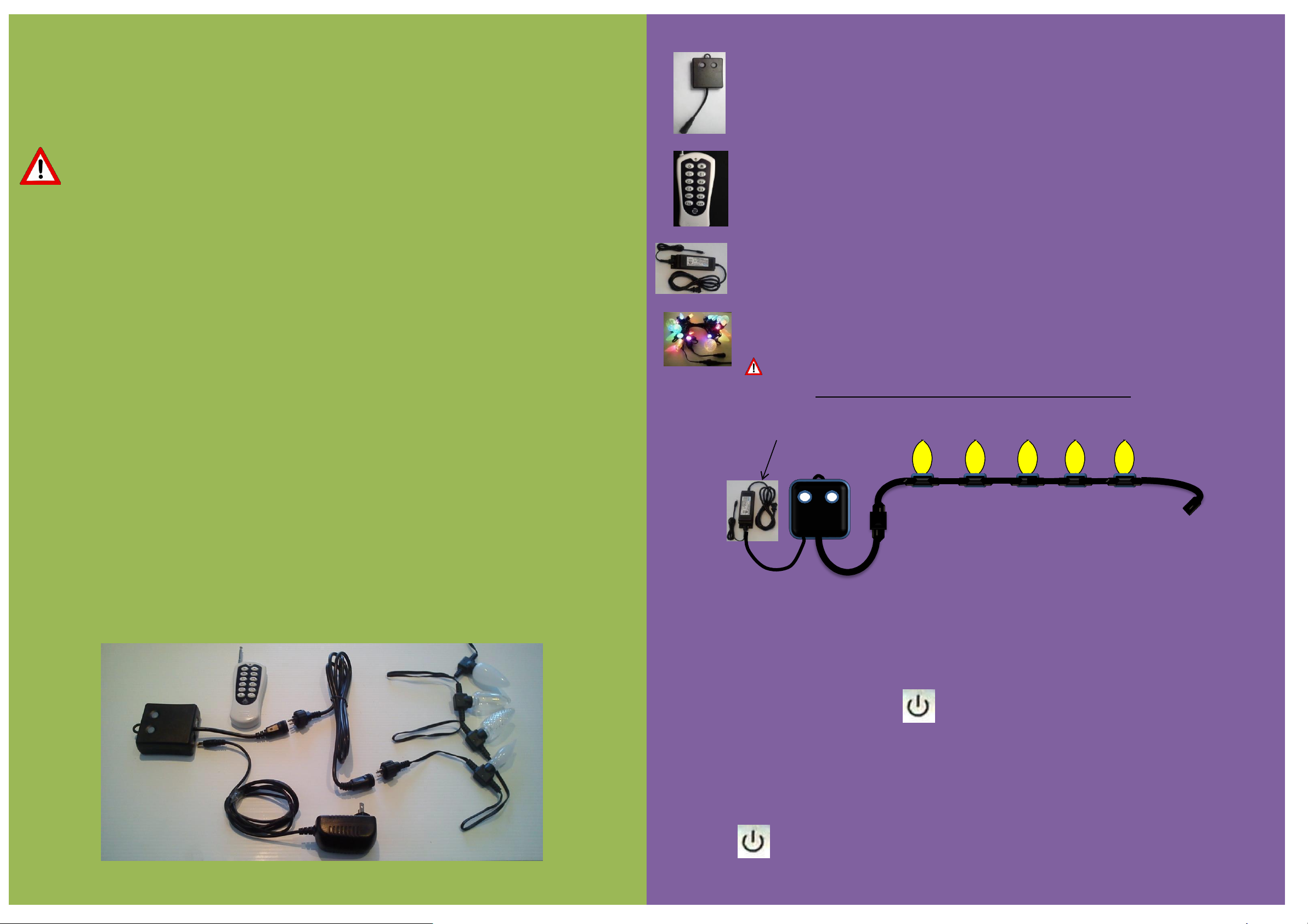
1: Multifunction Mini-Controller
The Minleon Multifunction Mini Controller has multiple functions in a small package.
2: Mini-Controller Remote
The Mini-Controller remote control expands the user’s control of the RGB lights in
multiple ways.
3: 12VDC Power Supply
12VDC, 5-amp power supply powers up to 125 Minleon RGB lights with the
controller.
4: Minleon RGB Lights
A variety of different lights, tubes and strip lighting are available from Minleon
Always power off the controller before connecting and disconnecting lights
Diagram for connecting the power supply and lights
soft clean rag to clean the controller, remote and lights.
INTRODUCTION
The Minleon Multifunction Mini-Controller is an entry level controller capable of controlling up to 500 lights
on a single string, but can operate many thousands of lights wired in parallel using Minleon accessories.
Comes with multiple effects built in that can run at different speeds and colors.
The USB port allows live control via PC and is controlled using Minleon's LightShow Pro software.
There is a wide variety of accessories available for the Mini-Controller that will extend the capabilities of
the Minleon RGB system.
5-amp power supply
Maximum of 125 Minleon RGB
Lights with 5-amp power supply
Adding additional lights
The Minleon Multifunction Mini-Controller can control up to 500 Minleon lights (additional power considerations
are required). Connect additional light strings using Minleon accessories (Copy T’s, Power T’s), power supplies and
lights.
Setting the number of lights connected to the Controller
Turn the lights on, then hold the button for more than 1 second. All active lights
will turn on red with the last active light flashing blue.
Press Fx↓ to decrease the number of lights connected.
Press Fx↑ to increase the number of lights connected.
Press to return to normal operation.
Page 2
! - on/off
C1 - select color #1 (press-and-hold to scroll thru the color wheel) [a]
C2 - select color #2 (press-and-hold to scroll thru the color wheel) [a]
C3 - select color #3 (press-and-hold to scroll thru the color wheel) [a]
E1 - select effect #1 (solid)
E2 - select effect #2 (twinkle)
E3 - select effect #3 (fading-in-and-out)
E4 - select effect #4 (chasing)
E5 - select effect #5 ('lightshow', using all the colors (this selection overrides
the above color selections)
S - select speed (slow, medium, fast)
B - select brightness (bright, dim, dimmer)
M - save to memory favourite sequence (long hold retains/short press recalls)
SELECTING EFFECT COLORS
[a] select up to 3 alternating colors (for example, red-white-blue)
Press and hold key ‘C1’, then release when you see red in bulb #1 as you scroll thru the color wheel, repeat for keys
‘C2’ (bulb #2) for white, and ‘C3’ (bulb #3) for blue, when done the light string with be alternating red, white, and
blue. Select from near limitless combinations of colors.
if only a single color is needed then select the ‘bulb off’ position as you scroll thru the color wheel for the 2
nd
(C2
key) and 3
rd
(C3 key) bulb
If only two colors are need, then select the ‘bulb off’ position as you scroll thru the color wheel for the 3
rd
bulb
[b] Selecting the additional 23 inbuilt controller effects
If you want a larger variety of effects, instead of using the remotes 5 color programmed effects (E1-E5), then use
the play button on the mini controller to access 20 more additional effects.
To save one of the 20 built in effects to memory, press the play button on the mini controller to select
USING THE CONTROLLER FUNCTIONS
--
OONN // OOFFF
F
SSEETT IINNTTEENNSSIITTYY // BBRRIIGGHHTTNNEESSSS
CC11 -- SSEELLEECCTT CCOOLLOORR ##11 ((PPRREESSSS--AANNDD--HHOOLLDD TTOO SSCCRROOLLLL TTHHRROOUUGGHH TTHHEE CCOOLLOORR WWHHEEEELL))
CC22 –– SSEELLEECCTT CCOOLLOORR ##22
CC33 -- SSEELLEECCTT CCOOLLOORR ##33
EE11 –– FFAAVVOORRIITTEE EEFFFFEECCTT ##11 (
(
LLOONNGG HHOOLLDD RREETTAAIINNSS//SSHHOORRTT PPRREESSSS RREECCAALLLLSS)
)
EE22 –– FFAAVVOORRIITTEE EEFFFFEECCTT ##22
EE33 –– FFAAVVOORRIITTEE EEFFFFEECCTT ##33
EE44 –– FFAAVVOORRIITTEE EEFFFFEECCTT ##44
SSPPDD -- SSEETT SSPPEEEEDD ((1100 VVAARRIIAATTIIOONNSS))
FFxx↓↓ -- GGOO TTOO PPRREEVVIIOOUUSS EEFFFFEECCTT
FFxx↑
↑
GGOO TTOO NNEEXXTT EEFFFFEECCT
T
No.
Effect Name
Effect Description
No.
Effect Name
Effect Description
FIXED-COLOR EFFECTS*
FLEX-COLOR EFFECTS
User defines colors via remote
1
Test Pattern
Test mode: red-green-blue white
14
Solid Color
Displays the colors selected by the user (C1, C2, C3)
2
Show Mode
Cycles through all effects randomly
15
Comets
Lights burst & trail off down the string
3
Color Wheel
Lights cycle through color wheel
16
Color Chaser
Colors move along the string
4
Rainbow
Rainbow of color
17
Mirror
End of the string reflects the beginning of the string
5
Wide Rainbow
Wide rainbow of color
18
Single-Color Glow
Single color glow & fade
6
Christmas Lights
Colors fade in and out individually
19
Single-Color Wave
Single-color wave along string
7
Color Change
All lights fade into a new color
20
Gradient Blend
Fixed bulbs morph from one chosen color to the next
across the string
8
Two Color Change
Alternate lights morph into two new colors
21
Twinkle
Twinkling, flashing colors
9
Moving Blend
Pulsing, moving bands of color
22
Flash
Shimmering lights of color
10
Ping Pong
Colors bounce back and forth
the first effect; sixth bulb for the sixth effect & so on.
11
Expander
Colors expand from center
12
Exploder
Lights intensify from center
13
RGB Flash
Red-green-blue flasher
* The first bulb will flicker before displaying Test Pattern; the sixth bulb will flicker before displaying Christmas Lights, and so on.
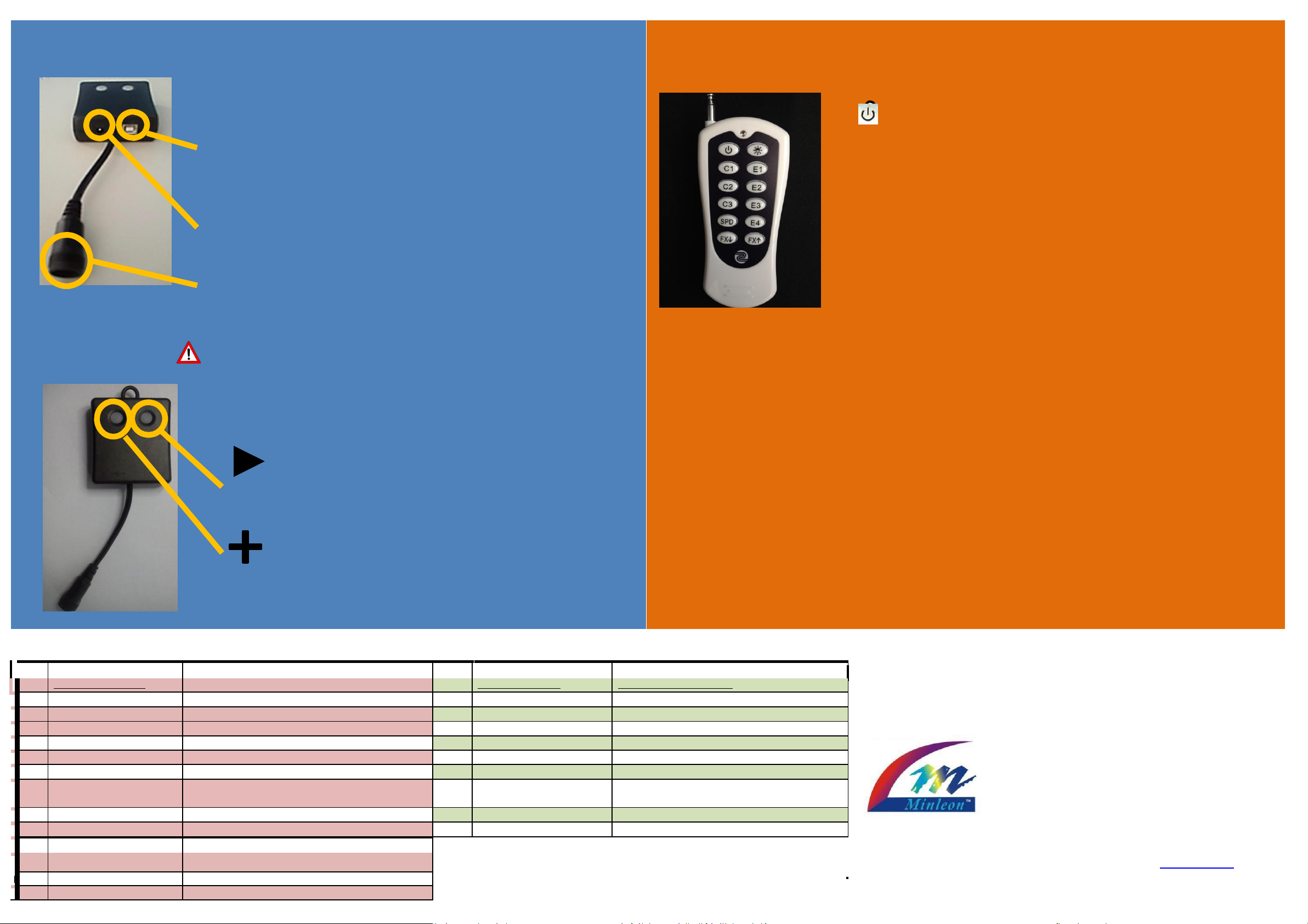
Multifunction Mini-Controller
The Minleon Multifunction Mini-Controller has several basic and advanced
functions that allow the user to take full control of the connected lights
USB Port
The USB port allows the Mini-Controller to be connected to a computer
for direct control via Minleon’s LightShow Pro Software
12Volt DC Power Socket
Connect the 12VDC power supply here
Light Plug
Connect the lights to this 3 pin plug. Ensure the pins line up and do not force
in the plug. IMPORTANT - DO NOT CONNECT & DISCONNECT LIGHTS WHEN
CONTROLLER IS PLUGGED IN.
Mini-Controller Control
The Multifunction Mini-Controller has a basic two-button functionality.
Play Button
Plays next effect - If held down, turns power off and saves
effect for next power up. Press to turn lights back on.
Variation Button
Modifies the current effect (speed, color, etc. depending on
effect).
Mini Controller Various Effects
USING THE REMOTE CONTROL FUNCTIONS
¤-
–
-
SELECTING EFFECT COLORS
Select up to 3 alternating colors (for example, red-white-blue)
Press-and-hold key ‘C1’, then release when you see red in bulb #1 as you scroll through the color wheel. Repeat for keys
‘C2’ (bulb #2) for white, and ‘C3’ (bulb #3) for blue. When done, the light string’s bulbs will alternate the colors red, white
and blue. Select any combinations of colors.
If only a single color is needed, then select the ‘bulb off’ position as you scroll through the color wheel for the 2nd
(C2 key) and 3rd (C3 key) bulb
If only two colors are desired, then select the ‘bulb off’ position as you scroll through the color wheel for the 3
bulb
Selecting the 22 built-in controller effects
To access the effects listed below, press Fx↑ & Fx↓ on the remote control or use the ‘Play’ button on the Mini-
Controller. A bulb will flicker to show the user which effect is displayed.*
To save one of the built-in effects to memory, display your desired effect, then press-and-hold button E1, E2, E3
or E4 on the remote for more than 1 second. To recall this effect press-and-release the same E button.
rd
Important Notice
It is the sole responsibility of the reader to ensure that all safety
precautions are taken, Minleon and/or any involved parties relinquishes
any responsibility and liabilities for any content within this Quick Guide
that may cause the reader any injury or loss of property due to incorrect
use. By reading this guide you take sole responsibility for all actions taken.
Ensure all local and state electrical laws are taken into consideration when
using this product. Minleon does not take responsibility for any use
outside of state and local laws and regulations. Minleon reserves the right
to make product changes from time to time which may differ from this
guide.
© Copyright 2014 Minleon USA
www.minleonusa.com
 Loading...