

Page 1
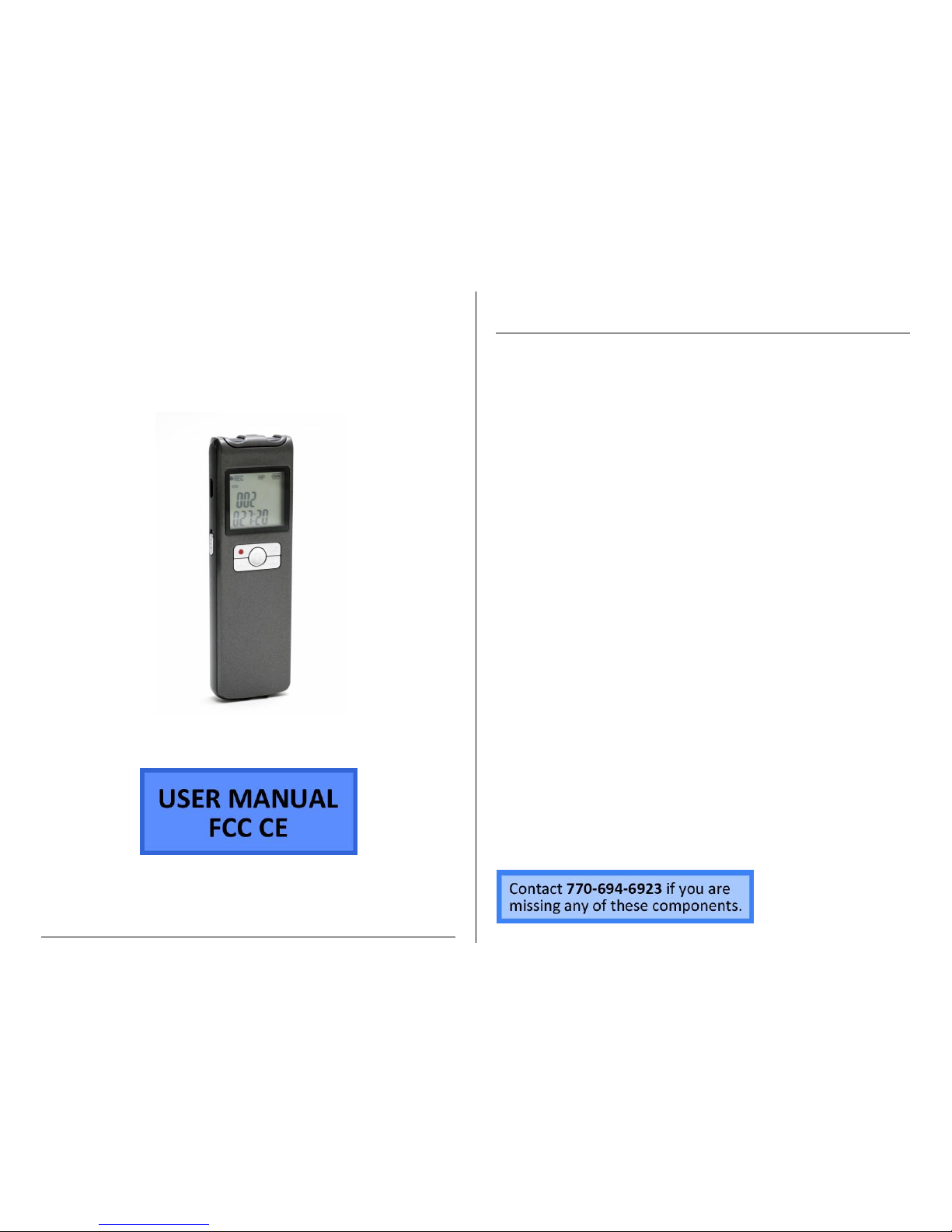
VRSLT: Long Duration Voice
Recorder
VRSLT
THANK YOU FOR PURCHASING THE VRSLT: LONG
DURATION VOICE RECORDER
Please read this manual before operating the VRSLT: Long Duration
Voice Recorder and keep it handy.
The VRSLT is our newest and longest lasting voice recorder! With a
battery life of up to 15 days in voice activation mode, this recorder
can be left anywhere for extended periods of time and still capture
just what you need. Not only does it have great standby time, the
battery in this device will last for over 6 full days of continuous
recording, and the 8GB of internal storage allows you to keep up to
23 days of audio at any one time, so you never have to worry about
files being overwritten because space ran out.
The VRSLT comes with simple one button recording, 3 adjustable
quality settings, built in microphone and speaker, built in
rechargeable battery, and voice activation.
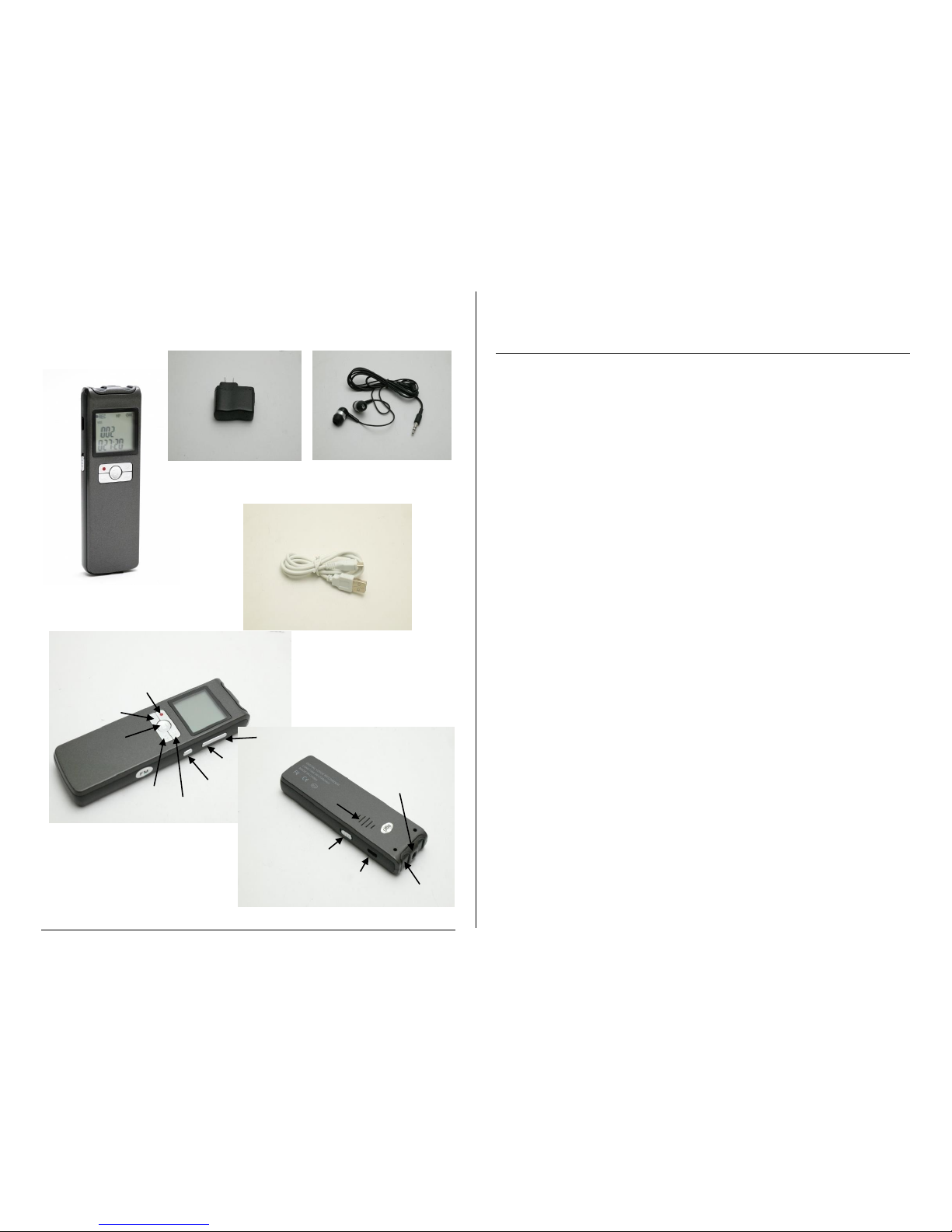
Your purchase should include:
1 x VRSLT Voice Recorder
1 x AC 5v Power Adapter
1 x Set of Ear buds
1 x microUSB cable
1 x Instruction Booklet
Page 2
GET FAMILIAR WITH YOUR VRSLT: LONG DURATION VOICE
RECORDER
OPERATING THE VRSLT: LONG DURATION VOICE
RECORDER
IMPORTANT NOTICE: Allow the device to charge 4 – 6 hours before
using.
HOW TO CHARGE YOUR VRSLT: LONG DURATION VOICE
RECORDER
1. Insert the microUSB Cable into the AC Power Adaptor
2. Insert the opposite end of the microUSB cable into the VRSLT
Voice Recorder
3. Plug the AC Power Adaptor into a wall outlet
HOW TO TURN ON THE VRSLT: LONG DURATION VOICE
RECORDER
1. Slide the power switch down. The screen will light up as soon
as the recorder is turned on.
HOW TO TURN OFF THE VRSLT: LONG DURATION VOICE
RECORDER
1. Slide the power switch up. The screen will darken when the
recorder is turned off.
HOW TO RECORD ON THE VRSLT: LONG DURATION VOICE
RECORDER
1. Select the Recording Mode that you would like;
LP: Long-Time recording
SP: Standard Recording
HP: High Quality Recording
2. One button recording
Press the “Recording Button” if the device is paused or
stopped to start recording
VRSLT Voice Recorder
AV Adaptor
Ear buds
MicroUSB Cable
Backward
Recording
Menu
Forward
Play/Stop
Delete
Volume (-)
Volume (+)
Speaker
Turn On/Off
USB
Microphone
Earphone Jack
Page 3

3. Recording Pause/Save/Exit
Press the “Play/Stop” button to pause the recording.
Press the “Play Stop” button again to continue.
Press the “Recording Button” to stop and save the
recording data.
Press the “Menu” button to return to the main menu.
4. Voice Activated Recording
After the recording has stopped, press the “Backward
or Forward” button to choose the proper level of voice
activated recording (from 0 – 10, default 0).
Press the “Recording” button again to go to the next
recording.
When it starts working, the VOS icon will flash and the time will
stop. When it stops the VOS icon will disappear and the recorder will
return to its normal state.
HOW TO USE VOICE MODE ON THE VRSLT: LONG DURATION
VOICE RECORDER
1. Press the “Backward or Forward” button from the main menu
2. Press the “Play/Stop” button to enter Voice Mode.
3. One Button Playing
When the VRSLT Voice Recorder is stopped press the
“Play/Stop” button to play recording voice.
4. Play/Pause
Press the “Play/Stop” button to play the recording.
Press the “Play/Stop” button again to pause.
Press the “Menu” button to go to the main menu.
5. Selection, Fast Forward/Rewind
Press the “Backward or Forward” button for 1 second
to select the files.
Press the “Backward or Forward” button for several
seconds to rewind or fast forward.
6. A-B Repeat
When the recorder is playing press the “Recording”
button to create the starting point “A”.
Press the “Recording” button again to create the
finishing point “B”.
Delete
When the VRSLT Voice Recorder is stopped or paused
press the “Delete” button for 3 seconds
Press the “Play/Stop” button to confirm deletion.
HOW TO USE MUSIC MODE ON THE VRSLT: LONG DURATION
VOICE RECORDER
1. Select the Music Mode by pressing the “Backward or Forward”
button until you see the music note.
2. Press the “Play/Stop” button to enter Music Mode.
All of the other operations are the same as Voice Mode.
HOW TO USE THE FM RADIO ON THE VRSLT: LONG DURATION
VOICE RECORDER
1. Select the Radio Mode by pressing the “Backward or Forward”
button until you see FM on the screen.
2. Press the “Play/Stop” button to enter Radio Mode.
3. Scan/Save Channel
Press the “Backward or Forward” button once to
search through the channels one by one manually.
Hold down the “Backward or Forward” button for 3
seconds to scan the channels automatically.
The VRSLT Voice Recorder will automatically save the
channel.
You can change the channel by pressing the “Play/Stop” button.
4. Delete Saved Channel
Go to the channel that you would like to delete.
Hold the “Delete” button for 3 seconds to delete that
channel.
5. Play on loudspeaker
Hold the “Delete” button for 2 seconds to play the
radio through the loudspeaker
Page 4
HOW TO SET THE TIME ON THE VRSLT: LONG DURATION
VOICE RECORDER
1. Select Time Setting Mode by going to the Main Menu
2. Press the “Backward or Forward” button until you see the
clock.
3. Press the “Play/Stop” button to enter Time Setting Mode.
4. Press the “Backward or Forward” button to select the section
that you would want to set.
The section that you are on will be flashing.
5. Press the “Volume (+ or -)” button to adjust the time.
After the adjustments press the “Play/Stop” button to
save and return to the Main Menu.
RETRIEVE THE FILES TO YOUR PC
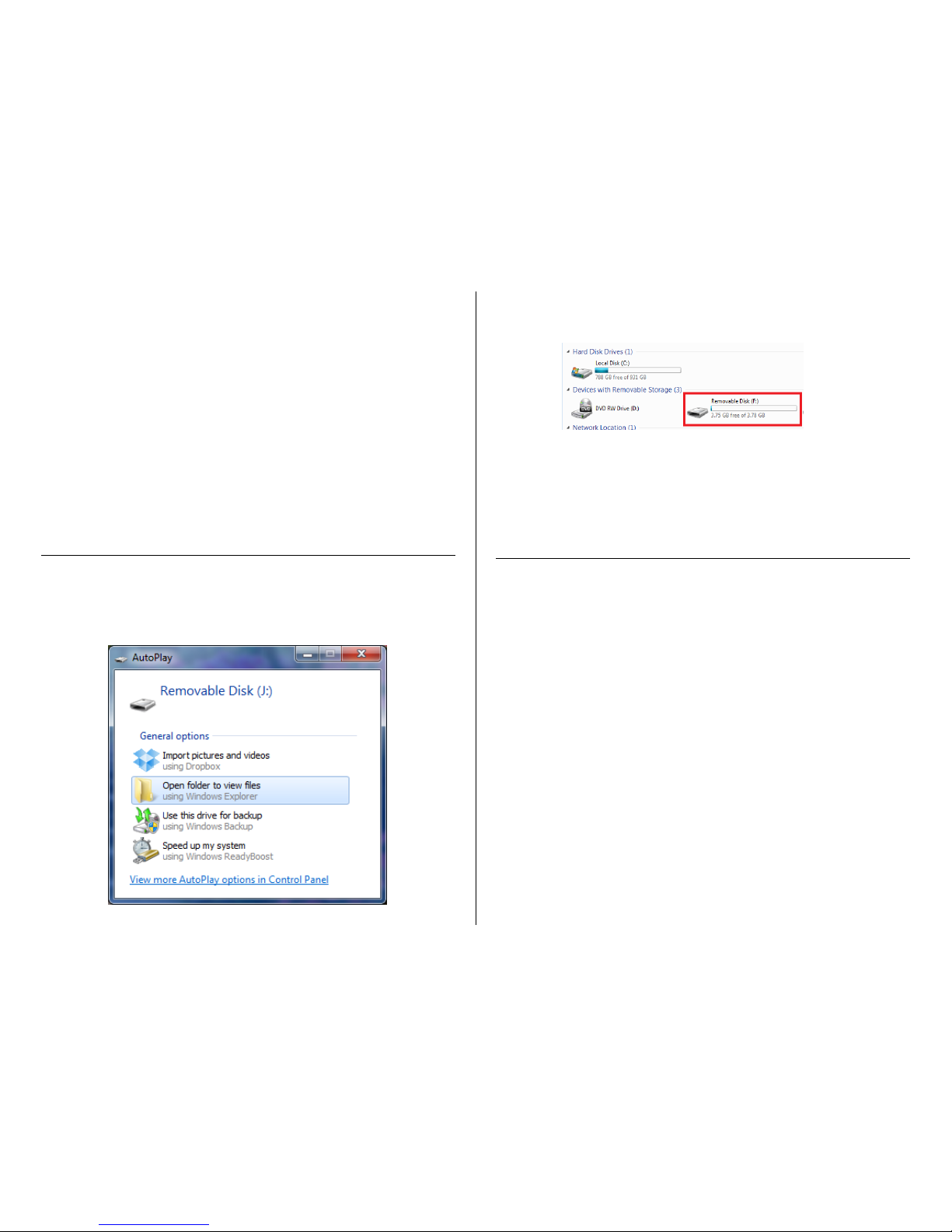
1. Plug the device into your PC using the USB cable
2. Locate “Removable Disk” inside the (My) Computer folder
AutoPlay Removable Disk > Open folder to view files
Or…
Go to Start > Computer > Removable Disk
3. Open the Removable Disk drive
4. Open the [folder name] folder
5. Double click the file you want to view
VLC Player is recommended for watching videos
TROUBLESHOOTING
THE DEVICE WON’T TURN ON
Charge the device for at least 4 hours before the first use
Make sure the charging cable is securely inserted into the
device and into the power source
THE DEVICE ISN’T CHARGING
Replace the battery or charging cable
If you are charging via a wall power source, you may need to
charge via your PC. The AC adapter may be no working
THE DEVICE HAS CRASHED
You need to reset the device
MY COMPUTER DOESN’T RECOGNIZE THE DEVICE
Unplug the device from your PC and reboot the device
Unplug the device from your PC and reboot your PC
Try using a different USB slot on your PC
Replace the USB cable
Page 5

THE SOUND OR VIDEO IS UNCLEAR
The device needs charging
OTHER PROBLEMS
Call our technical support at 770–694–6923
SPECIFICATIONS
Video Resolution
Video Format
Frames per Second
Recording Time
Vision Angle
Motion Detection
Photo Resolution
Photo Format
Audio Quality
Audio Format
Water Resistant
Battery Life
Type of Memory
Memory Capacity
Recording Capacity
2GB ≈ 1 hour
4GB ≈ 2 hours
8GB ≈ 4 hours
16GB ≈ 8 hours
32GB ≈ 16 hours
USB Interface
2.0 USB
Player Software
VLC recommended
Operating Systems
Windows 2000
Windows Me
Windows XP
Windows Vista
Windows 7
Windows 8
Mac OSX
Linux
 Loading...