

Page 1
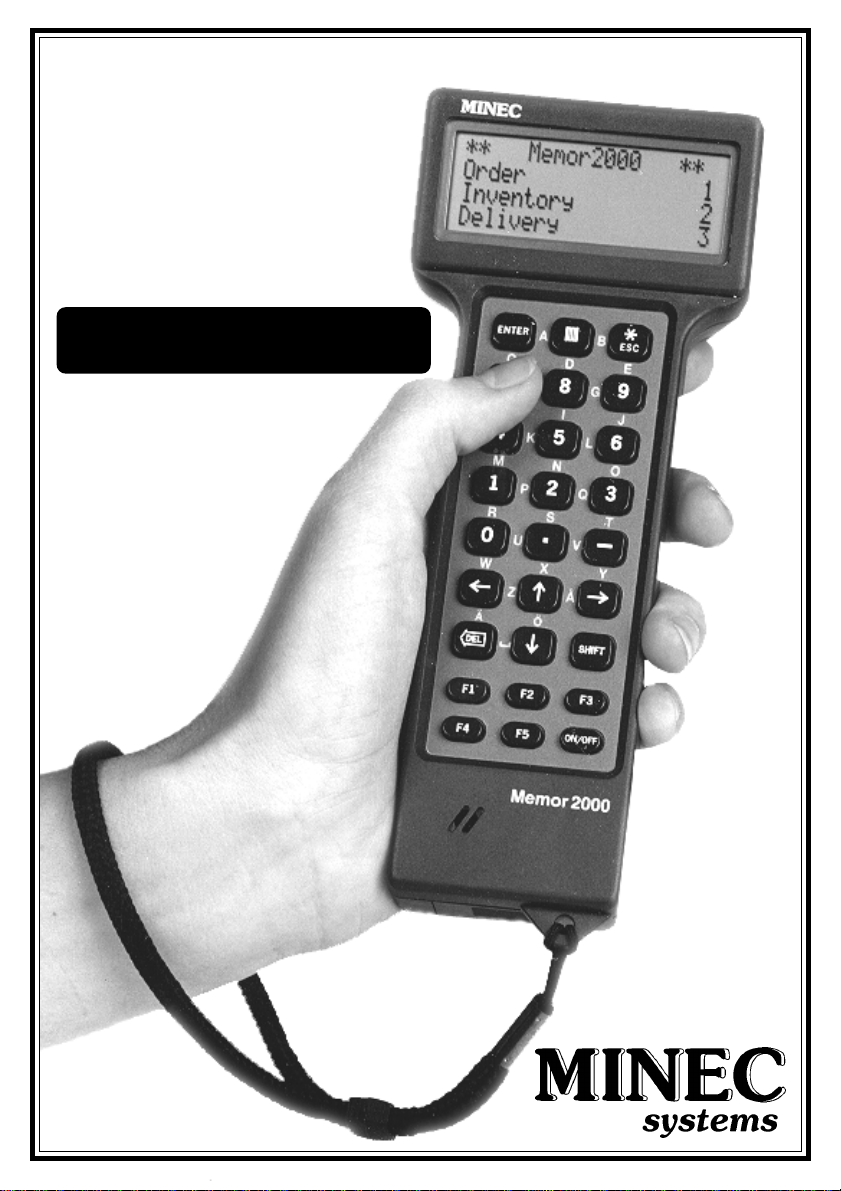
Memor2000
User Handbook
Page 2

User Handbook Memor2000
Welcome as a Memor2000 user!
The Memor2000, a Swedish-developed hand-held computer, incorporates the
latest semiconductor technology . The Memor2000 is functional, compact and
ergonomically designed, and sufficiently robust to withstand a wide variety of
environments and working conditions.
This handbook provides a general description of your new hand-held computer.
We recommend that you read it carefully . In addition to this handbook you will
normally have a separate description of your particular application program*.
We are certain you will find your new hand-held computer extremely useful.
* Application program and other terms are explained in the glossary at the end of this
handbook.
Produced by
Minec Systems AB
Box 7278
187 14 TÄBY
SWEDEN
Tel: +46 8 630 92 92
Fax: +46 8 630 05 07
E-mail: [email protected]
Internet: http://www.minec.se
Copyright © Minec Systems AB 1997 Microsoft Corporation.
2
MS-DOS is a trademark registered by
Page 3

User Handbook Memor2000
Contents Page
1. General information about the Memor2000 ... 4-7
2. Battery replacement.............................................8
3. Accessories..........................................................9
4. Care and maintenance..................................... 10
5. Troubleshooting ................................................. 11
6. Technical specification ................................ 12-13
7. Glossary of terms .............................................. 1 4
8. Appendix ........................................................... 1 5
9. New menu functions......................................... 16
NOTE: This equipment has been tested and found to comply with the limits for a Class B digital device, pursuant to part 15 of the FCC
Rules. These limits are designed to provide reasonable protection against harmfull interference in a residential installation. This equipment
generates, uses and can radiate radio frequency energy and, if not installed and used in accordance with the instructions, may cause
harmful interference to radio communications. However, there is no guarantee that interference will not occur in a particular installation.
If this equipment does cause harmful interference to radio or television reception, which can be determined by turning the equipment off
and on, the user is encouraged to try to correct the interference by one more of the following measures:
– Reorient or relocate the receiving antenna.
– Increase the separation between the equipment and receiver.
– Connect the equipment into an outlet on a circuit different from that to which the receiver is connected.
– Consult the dealer or an experienced radio/TV technician for help.
3
Page 4
User Handbook Memor2000
1. General information about the Memor2000
On delivery
The Memor2000 is supplied complete with batteries and is ready to use. Once
you have taken the computer out of its box, check immediately that there are
no visible signs of transport damage.
Getting started
Start by becoming familiar with the various parts of the hand-held computer.
The Memor2000 has an LCD Supertwist display , which means you never have
to set the contrast. The characters on the screen can be clearly read in all light
conditions and from all angles. The display is fully graphic, which means figures
and symbols can also be shown. There is space to display four lines of twenty
normal-size characters per line.
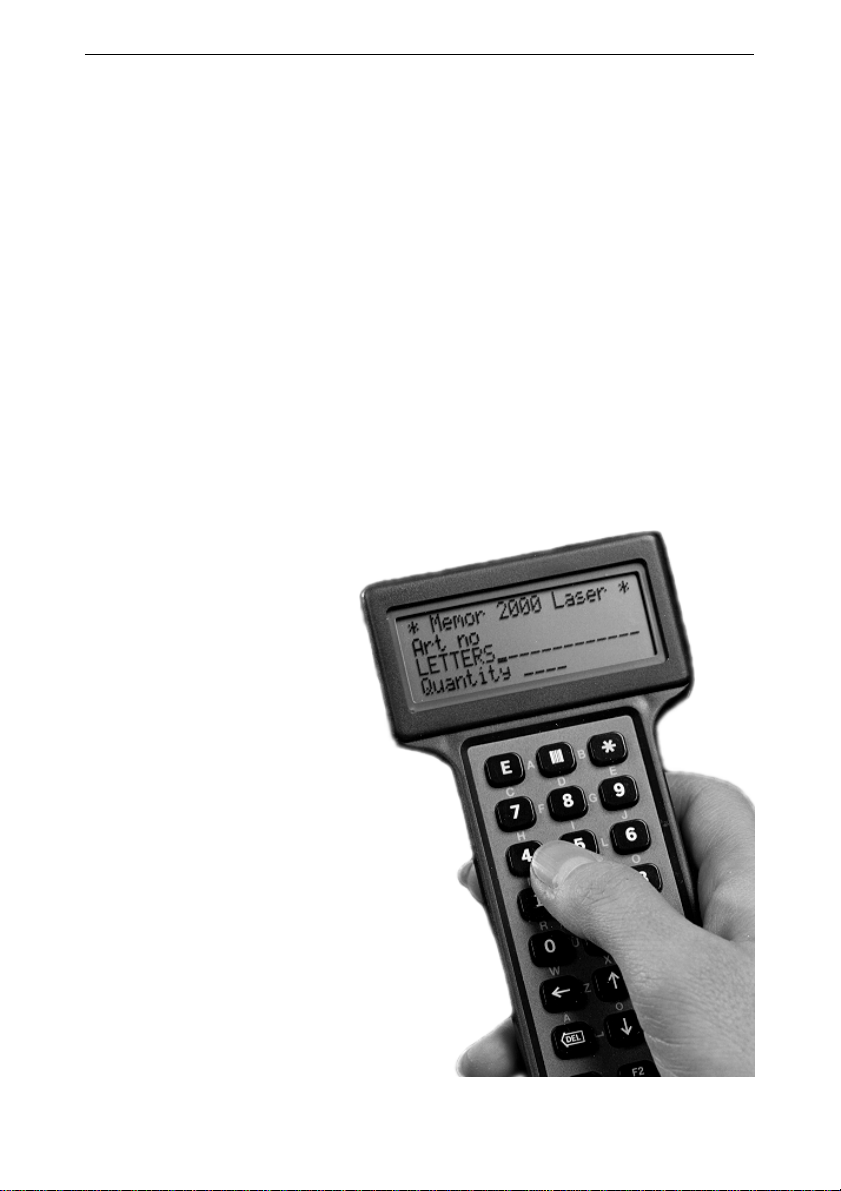
The Memor2000 is held and operated by
the same hand. Place the
computer (still switched off) in
the palm of one hand and pratice
pressing the number keys with
your thumb.
4
Page 5
User Handbook Memor2000
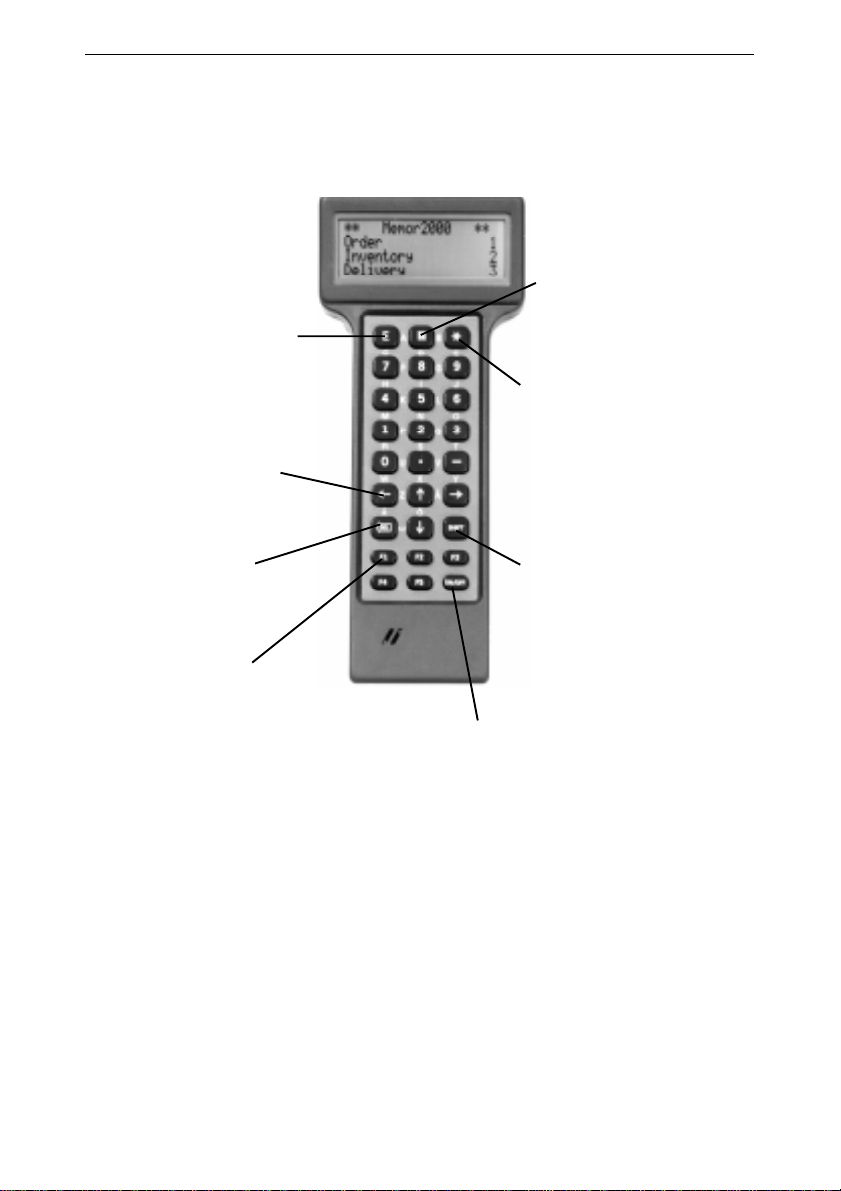
The keyboard is presented below. Any special
features are described in your application
program documentation.
E
This is the equivalent of the
ENTER key on an ordinary PC,
and is normally used to
confirm data or to scroll to the
next menu choice.
Arrow keys
Used to scroll forwards and
backwards in menus and
entered data.
DEL
The equivalent of the
Backspace-key on an
ordinary PC. Erases the
previous character.
F1-F5
Function keys that provide
different functions depending
on the application program.
Letter entering
The method used to enter letters is both
simple and unique (patent pending). The
required letter is obtained by pressing
two adjacent keys at the same time with
your thumb. For example, if you wish to
enter the letter ”K”, you will find this letter
between key ”4” and key ”5”. You simply
press the letter ”K”. When you do this,
adjacent keys ”4” and ”5” are both pressed, which results in entry of the desired
letter.
I
The key for activating the
laser scanner or RFID reader
(see Application Modules).
*
This is the equivalent of the
Escape-key on an ordinary PC,
and is used to discontinue data
entry or to return to the previous
menu. Simplified you could say
that the E-key means ”yes” and
the *-key means ”no”.
SHIFT
The shift-key is used to increase
the number of functions
available. By holding down the
shift-key while pressing another
key, another function can be
obtained.
ON/OFF
Press the ON/OFF key to switch the
Memor2000 on or off. If no other key is pressed in the space of two minutes, the handheld computer switches itself off automatically
to save power. After automatic switch-off the
computer is switched on again by using the
ON/OFF key. Note: The Memor2000 cannot be
switched off while undertaking certain
sensitive calculations. In this event wait until
the calculation has been completed, after
which it will be possible to switch off the handheld computer again as normal. See also ”New
features...” on page 6.
5
Page 6
User Handbook Memor2000
General information
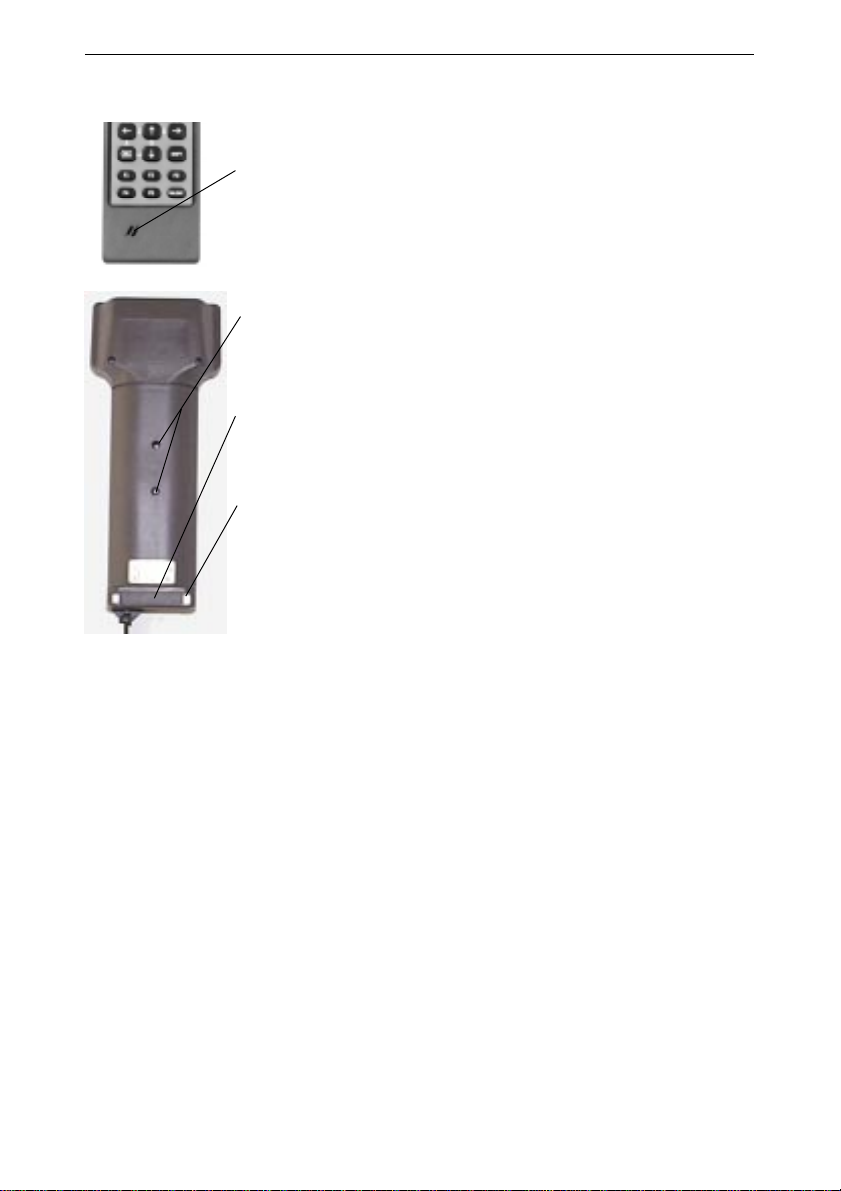
There are two angled holes below the keyboard. These let
out sound from the built-in sounder and should therefore not
be covered by the hand.
There are two small black discs on the back of the
Memor2000. These are infrared (IR) sensors used to transfer data to and from the docking station (DS-S) which is
available as an accessory .
There is a battery compartment cover at the bottom of the
hand-held computer’s ”handle”. Section two describes how
batteries are replaced.
Charging terminals to be used with rechargeable NiMh
batteries may be fitted. Never recharge standard alkalines
batteries, chemicals leakage and damage to your computer
may result.
An exchangeable peripheral module is fitted at the top of the
handle behind the display. This special feature of the
Memor2000 is described on the next page.
New features in program update 2.21
CPU update 2.0 with M2DOS 2.21 contains the following new features:
– *The computer can be switched on by pressing any key (except the ”Shift”
key).
– *The computer can be started up at any time pre-set on the real-time clock.
– The battery warning level is selectable from the menu.
– The computer’s software decides, with the aid of the Memor2000’s serial
number, if the CPU-card is version 2.0 or earlier . Serial numbers starting with
3 are interpreted as a CPU-card older than 2.0. All other numbers are regarded
as defining CPU-cards with update 2.0. Make sure that the correct serial
number has been stored in your Memor2000.
* Does not apply to Memor2000 models with serial numbers beginning with 3.
6
Page 7
User Handbook Memor2000
Peripheral modules
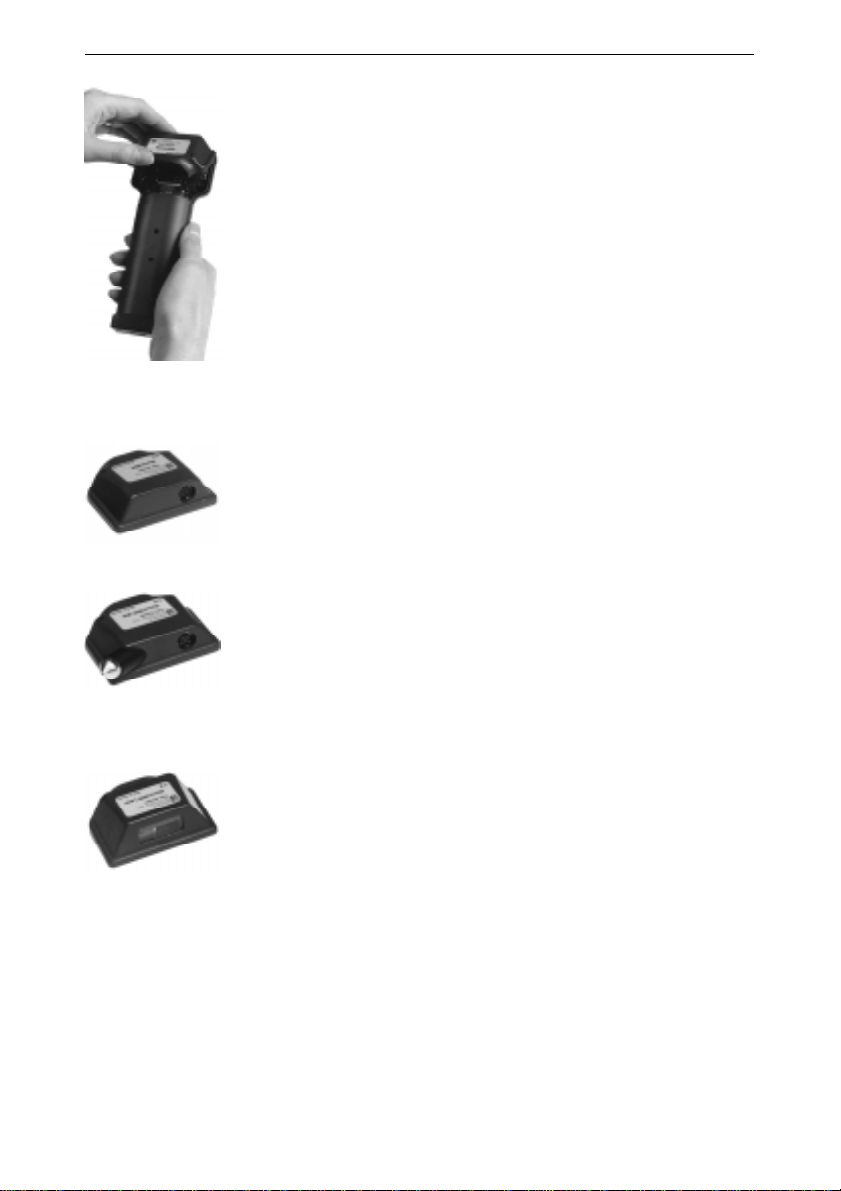
As the Memor2000 is a hand-held computer with many different uses, it is designed to be fitted with a number of different
exchangeable peripheral modules. On delivery the Memor2000
is fitted with the module that has been ordered. Should your
requirements change, the existing module can replaced by
another.
The four most common peripheral modules are:
COM-module
Abbreviation of Communication. This module has a port for
connection, via a cable, to a PC-computer, printer, barcode
readers, modem etc.
IBW-module
Abbreviation of Integrated Barcode Wand. An extension of
the COM-module. In addition to the port, this module has a
built-in pen for reading barcodes. There is a red diode on the
side of the module that flashes every time a barcode has
been successfully read.
LASER-module
A module with a built-in laser scanner that enables you to
read barcodes from a distance.
The application description gives detailed instructions on
how to use your particular module.
RFID-module
Two different RFID modules for Tag reading are available.
Most tag types can be read and written.
7
Page 8

User Handbook Memor2000
2. Battery replacement
The Memor2000 is powered by two standard 1.5 volt AA/LR6 batteries. Alkaline
or NiMH (rechargeable) batteries should be used. Alkalines give the longest
possible operation between battery replacements.
A warning is provided when batteries are low. There is a beep and the message
”LOW BA TTER Y” appears on the display. Y ou acknowledge the message by
pressing any key , after which you can continue working as normal. This message
indicates that you should replace batteries at the first suitable opportunity . The
length of time the batteries last after the warning depends entirely on the
application. However, you can expect about a day’ s further use.
The message is repeated every time you switch the Memor2000 on or off until
you replace the batteries. If you don’t replace the batteries it will finally be
impossible to switch on the hand-held computer. However , there is no risk that
data or programs will be lost. When the main batteries are flat, a built-in backup battery automatically ensures there is no loss of memory .
Battery replacement - step by step
1. Switch off the Memor2000.
2. Press off the battery compartment cover at the end of the Memor2000.
3. Remove the old batteries and replace with new. Make certain the new
batteries are inserted correctly according to the markings in the battery
compartment.
4. Press back the battery compartment cover.
Depending on how low the old batteries were, one of the following two things
will happen:
1. The Memor2000 remains off after you have replaced the batteries. When
the computer is switched on again you will automatically come to the
menu that was on the display when you last switched off.
2. The Memor2000 starts up automatically when you close the battery
compartment. Y our application program goes automatically to the main
menu.
Regardless of which alternative occurs, you simply continue working with
the computer as usual. Rechargeable batteries are available as an option.
8
Page 9
User Handbook Memor2000
3. Accessories
You may have ordered some of the following accessories together with your
Memor2000.
PC-connection cable
This is used to connect the Memor2000 to an ordinary PC. If you have a
Memor2000 fitted with a COM-module you should connect the cable to this
module. If you have a Docking station you can connect the cable to the Docking
station. Y our application description tells you how to make the connection, and
which port on the PC should be connected.
Modem cable. Printer cable.
This is used in the same way as the PC connection cable, but connects the
hand-held computer to a modem or a printer.
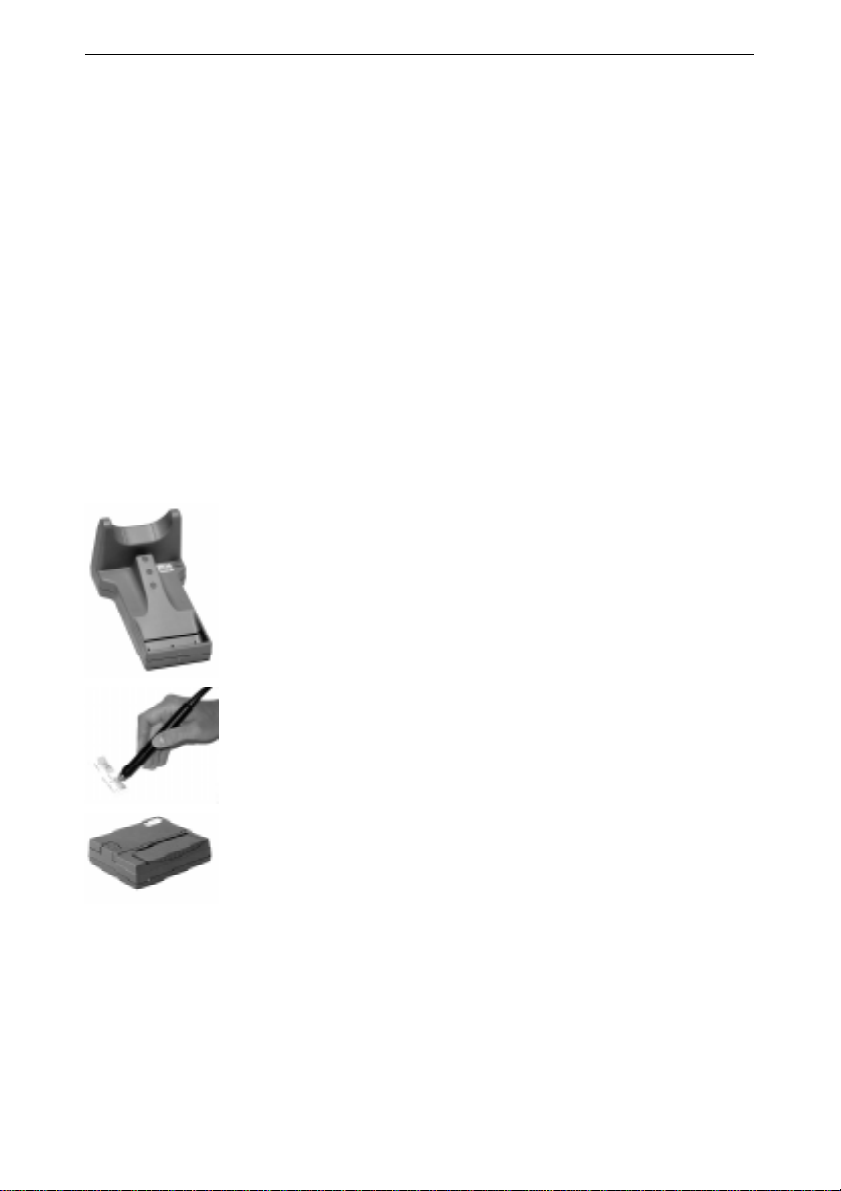
Docking Station - (DS-S)
The DS-S eliminates the need to connect and disconnect a
cable every time communication takes place. The DS-S is
permanently connected to a PC (or modem or printer) via a
cable, and the Memor2000 is simply placed in the DS-S when
a connection is required.
Barcode readers
A number of external barcode readers can be connected to
the COM-module socket, including the Cipherlab 1021 contact
scanner and WA6101 barcode wand.
Printers
A number of printers such as the Kyoline MTP640, Extech or
PENPLUS are available as accessories.
9
Page 10

User Handbook Memor2000
4. Care and maintenance
The Memor2000 is a top-quality product and normally requires no special
maintenance. On the other hand the Memor2000, in common with all other
electronic products, should be handled with a certain care.
If you keep the following handling instructions in mind it will be easier to meet
guarantee requirements, and at the same time your Memor2000 will give any
years’ of trouble-free use.
- Don’t store the Memor2000 under conditions that are too hot or too cold
(limits are +55°C and -20°C). High temperatures can damage the
electronics or battery , or deform plastic parts. Low temperatures cause
condensation when the hand-held computer warms up to normal temperature, which in turn can damage the electronics.
- Don’t attempt to take the Memor2000 apart. Leave all service to qualified
service personnel.
- Don’t expose the Memor2000 to rain, liquids or damp. The salts in liquids
can damage the electric circuits inside the Memor2000. If you suspect
that damp has entered the Memor2000 you should remove the batteries
and contact a service centre.
- Don’t expose the Memor2000 to shocks. Harsh handling can result in
damage to internal circuits.
- Never use solvents or similar liquids to clean the Memor2000. Use a
slightly damp cloth instead, with a mild soap solution if necessary , to
clean the keyboard and display .
10
Page 11

5. Troubleshooting
User Handbook Memor2000
Problem
The application program has
frozen or is behaving strangely .
It is impossible to switch on
the hand-held computer.
Communication via the DS-S
doesn’t work.
Action
Restart the program by opening
and then closing the battery
comparment cover.
Check that the batteries are new
and correctly inserted.
Check that the Memor2000 is
correctly placed in the DS-S, i.e.
that the computer rests against the
stops in the DS-S.
11
Page 12

User Handbook Memor2000
6. Technical Specification
PHYSICAL CHARACTERISTICS
Display
4 lines with 20 characters per line at default
cell size. LCD supertwist.
Active viewing area 56.35 mm x 20.75 mm.
Dot size 0.42 mm x 0.60 mm.
Dot pixels 120 dots x 32 dots.
Cell size 8 x 6 pixels, at default cell size.
Full graphic capability.
Keyboard
With 27 coated rubber keys.
Alpha characters entered by pressing two
adjacent keys.
Size and Weight
L: 186 mm H: 27 mm (H: 31 mm display)
W: 52 mm (W: 77 mm display)
200 grams incl batteries
Operating temperature
-10°C to +45°C
Storage temperature
-20°C to +55°C
Other
Withstands a drop from 1 meter onto
concrete. Conforms to EN 50 081-1 and EN
50 082-1.
CE marked
OPERATING CHARACTERISTICS
CPU
NEC V25 at 8 Mhz (instruction compatible
with Intel´s 8088)
Operating System
M/2-DOS or ROM-DOS
Memory
SRAM 256KB--1MB containing disk and
executing area.
3-year battery back-up on all RAM.
FLASH 128 KB--256 KB containing disk and
operating system. FLASH can be erased and
programmed in system.
Power supply
2 AA/R6 Alkaline battery (rechargeable
batteries as an option). 3 to 4 weeks
operation in normal use. Power consumption
in operation is approx 15 mA (without
barcode reading device). Battery is field
replaceable without loss of data. Multi stage
"battery low" warning system.
Sound
Internal sounder, programmable frequency
and duration.
Clock
Real time clock with alarm feature.
Input/Output
Built in IR-link, serial channel COM1:, normally
19.200 BPS, for connection to Docking
Station. MiniDIN 8 pin connector (option)
COM2:, normally 19.200 BPS, for connection
to modem, external barcode reading device,
printer and PC. Input RS232 levels. Output 05 V CMOS levels.
Barcode reading
Built in barcode wand (option) for left or right
hand operation. Built in laser scanner
(option).
RFID T ag reading
Peripherals
Docking Station (DS-S) with double RS232
connections. Cordless IR-connection with
the handheld computer. Standard printers
and modems can be connected either
directly or via the DS-S. Barcode reading
devices such as wands, CCD scanners or
laser scanners can be connected via the
MiniDIN connector.
SOFTWARE
Software development
By using a Borland C/C++ compiler, application programs can be fully developed and
tested on an ordinary PC. The resulting
program is downloaded to the Memor2000
where it can be stored on the RAM-disk or
on the FLASH-disk.
Application generator
An application generator (WIN-MAG) is
available for the non programmer. With this
tool users can easily develop application
programs just by defining display pictures
and keyboard functions. The WIN-MAG runs
on a PC.
Communication
Communication solutions are available for all
types of systems, for example well-proven
communication programs like EasyLink,
MemorLink2 and MemorLink10.
Barcode
Memor2000 offers decoding routines for all
common types of barcodes.
12
Page 13
Technical Specification
User Handbook Memor2000
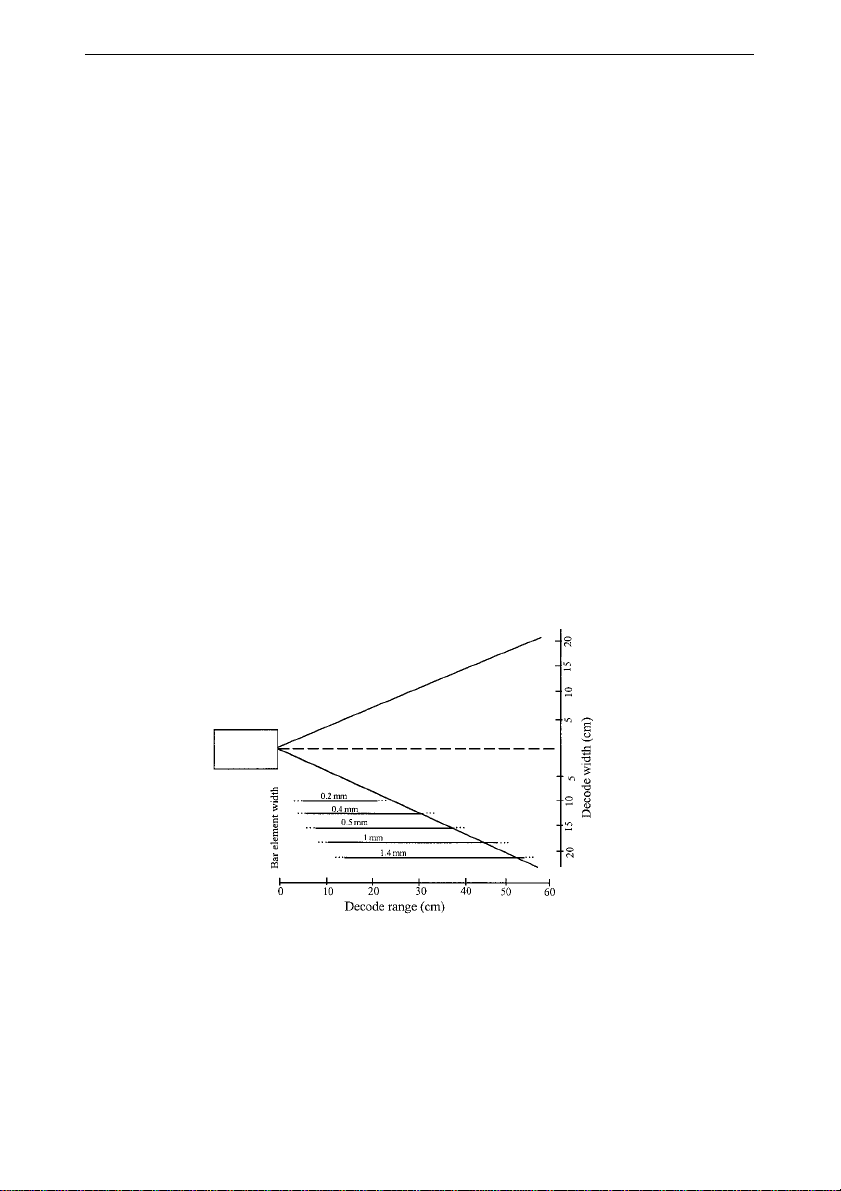
Memor2000 Laser
Light Source
Visible laser diode, 670 +/-10 nm
Optical Resolution
Element width minimum 0.154 mm
Ambient Light
Artificial: 1600 lux
Sunlight: 86000 lux via indirect
exposure
Scan Rate
36 +/-3 scans/sec
Minimum Print Contrast
25% absolute dark/light reflectance
at 670 nm
Orientational Tolerance
Pitch +/-55° minimum
Skew +/- 65° minimum
Specular Dead Zone +/- 2°
Size and Weight
L: 186 mm H: 27 mm (H: 38 mm display)
W: 52 mm (W:77 mm display)
260 grams incl batteries
Memor2000 IBW
Optical Resolution
0.19 mm
Light Source
655 nm (red)
Ambient Light
Maximum 100.000 lux
Depth of field
1.0 mm
Tilt angle
Maximum +/- 40°
Preferred 10° to 30°
Size and weight
L: 186 mm H: 27 mm (H: 31 mm display)
W:52 mm (W: 77 mm display)
230 grams incl batteries
Other resolutions and ranges available.
13
Page 14

User Handbook Memor2000
7. Glossary
Application program
The Memor2000 is a computer, just like a PC. A computer program is written
for each specific application (called the application program). This
program, or software, determines what happens to the data that is entered,
how communication takes place, etc.
Display
This is the rectangular window above the Memor2000 keyboard which shows
the menus.
Exchangeable peripheral module
An exchangeable peripheral module is fitted behind the Memor2000 display .
This module contains electronics that vary depending on the particular
application. The appearance of the module also varies. See section 1,
Application Modules.
Infrared (IR) communication
Communication where data is transferred as short pulses of infrared light.
Infrared light is invisible but completely safe.
LCD
Liquid Crystal Display . This is a modern display that contains a liquid
that darkens when a voltage is applied. Small dark dots (pixels) are used to
build up characters.
Modem
Abbreviation of MOdulator/DEModulator. This unit converts (modulates) data
into sound signals that can then be transferred via the ordinary telephone
network.
PC
Abbreviation of Personal Computer. A general term for all computers that
follow the IBM computer standard.
Semiconductor technology
The technology used in the electronics industry to produce modern
electronic components.
14
Page 15
User Handbook Memor2000
8. Appendix
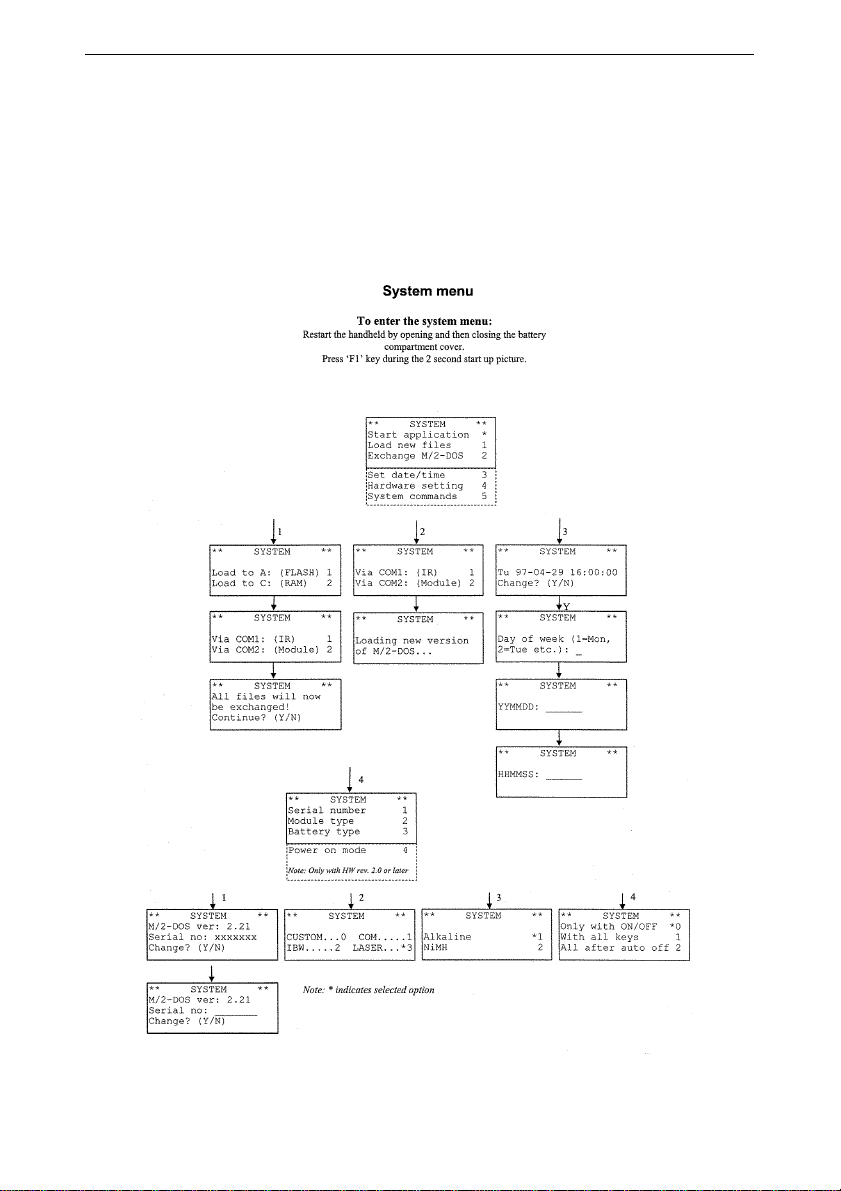
BIOS Menu
This is where you get access to the system settings. These functions
should be operated by the system manager. To enter the system
menu: Restart the computer by opening and then closing the battery
compartment cover. Press the F1 key once during the 2 second start
up picture.
15
Page 16

User Handbook Memor2000
9. New menu functions
Under **System** hardware settings:
– The serial number is used to determine if a CPU-card with update 2.0 is
fitted. In menus with selections, the symbol * denotes which alternative is
applicable.
– The module selection ”None” has been replaced by ”Custom”. In this
position the DTR, RTS, DCD and DSR can be freely controlled from the
application software.
– Battery type. Either ”Alkaline” or ”NiMH” can be selected. If ”NiMH” has
been selected, the battery-low warning is given at a lower voltage.
– *Power-on mode (4). There are three alternative ways to switch on the
Memor2000:
”Only with ON/OFF”. The Memor2000 can only be switched on by
pressing the ON/OFF key .
”With all keys”. The Memor2000 can be switched on by pressing any
key except SHIFT.
”All after auto off”. The Memor2000 can be switched on by pressing
any key , but only following automatic switch-off after time-out.
* Does not apply to Memor2000 models with serial numbers beginning with 3.
16
Page 17
User Handbook Memor2000
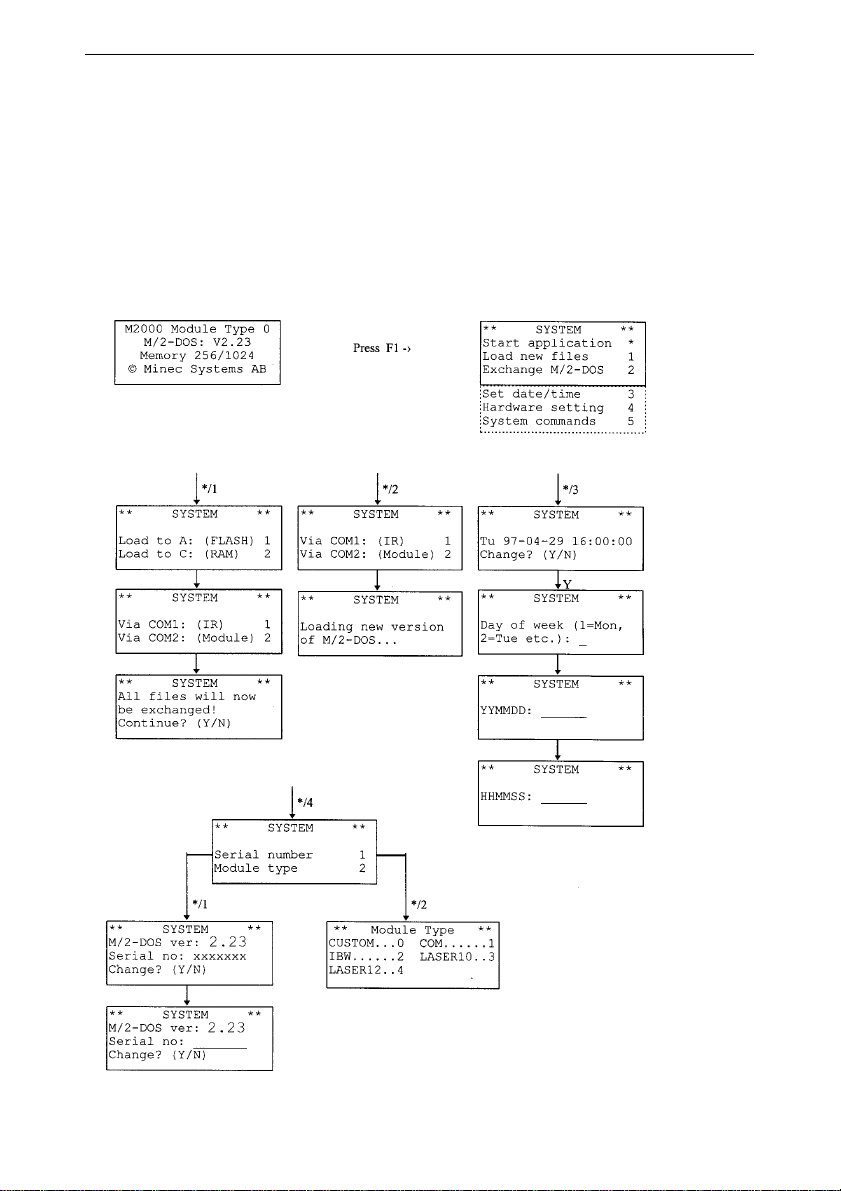
BIOS M/2-DOS version 2.23
M/2-DOS version 2.23 has been developed so the SE1223 laser scanner can be
used. Texts in the system menu have been changed slightly to facilitate settings
that depend on the type of module fitted. The label on each module indicates the
setting to select. Module type 4 is the setting for laser scanner SE1223, for example.
Select from the ”Module Type” menu as shown below .
To access the system menu, open and close the battery cover, then press F1
within 2 seconds.
17
Page 18

User Handbook Memor2000
IrDA Communication
The Memor2000 can be equipped with a module containing an IrDA interface. This
interface enables the Memor2000 to communicate cordlessly (using infrared
light) with other equipment fitted with an equivalent interface, such as a PC, printer
or cellular mobile phone. For communication via IrDA to function correctly , the
application program in the Memor2000 must be suited to the IrDA module.
There are a number of IrDA standards. The Memor2000 fulfils:
• Hardware (range, angles etc.) conforms to IrFYS (IrSIR max 38,400 bps).
• Software supports IrLAP 1.1, IrLMP 1.1, TinyTP 1.1 and IrCOM 1.0.
The Ir-interface fitted as standard to the Memor2000 does not conform to the
IrDA standard.
Using IrDA
As an IrDA connection employs infrared light, an unobstructed line of sight is
required between the Ir-windows of the different units. Ir-windows also have a
limited angle of vision, about 30°, so it’s important to site the units correctly. Best
results are achieved at a distance of 5 to 20 cm between units, and the smallest
possible angle of deviation, although communication is possible up to a distance
of 1 metre.
The drawing gives an idea of the IrDA operating angle from the Memor2000. Note
that the Ir-window in the module is angled slightly downwards.
Troubleshooting
If the IrDA link doesn’t work, the reason may be among the following:
• Bright ambient light (sunlight, fluorescent light etc.) can sometimes
dazzle the IrDA receiver.
• The beam of IrDA light is interrupted by some object.
• The distance between the Ir-windows is too great.
• The angle between the Ir-windows is incorrect.
• The Ir-windows are dirty , scratched or damaged.
• Interference from another Ir-source (TV remote-controller etc.).
• Software in the two units is not compatible.
18
 Loading...