

Page 1
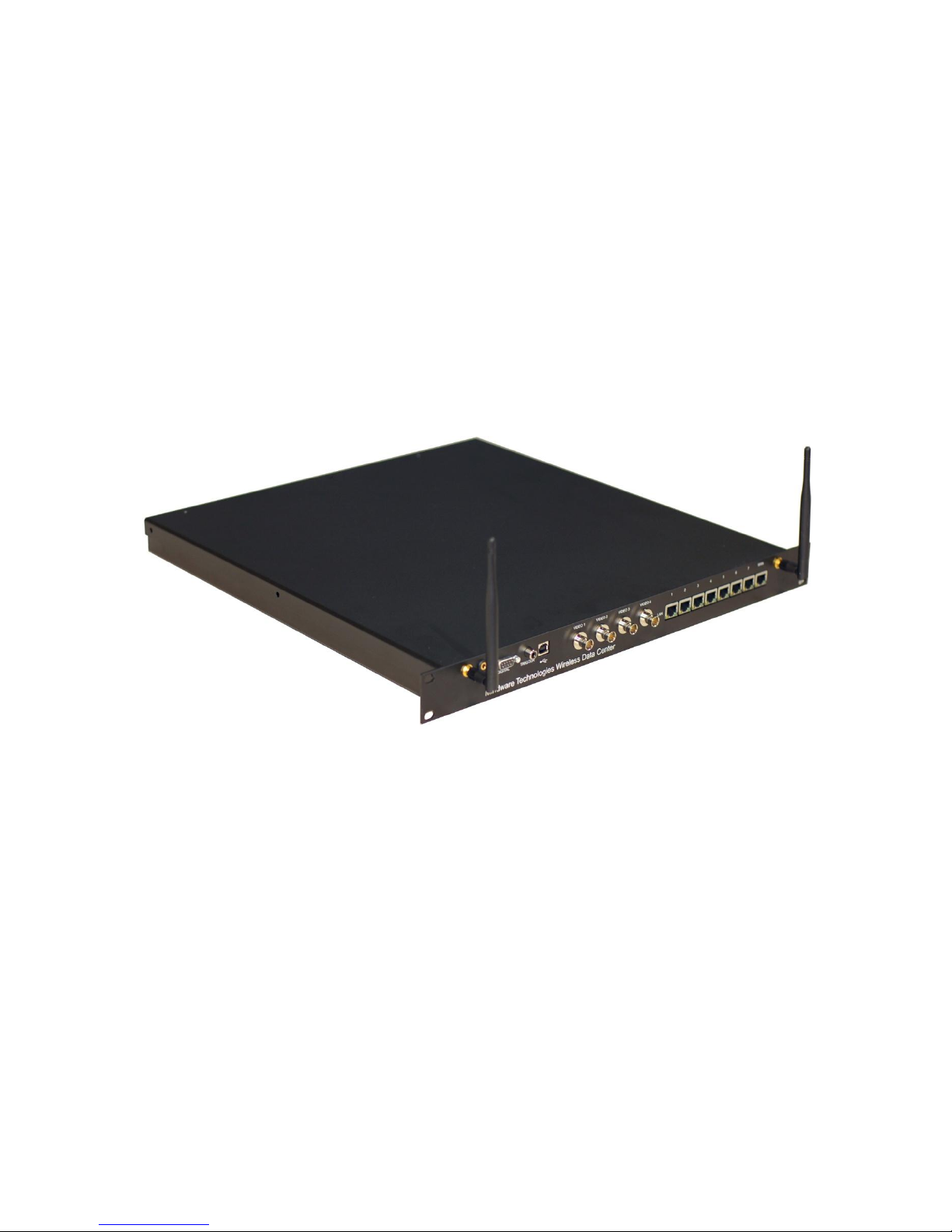
MindWare Wireless Data Center Hardware
50-6030-00
User Reference Guide
Copyright 2015 © by MindWare Technologies LTD. All Rights Reserved.
Page 2

MindWare Wireless Data Center Hardware User Reference Guide
1020F Taylor Station Rd. Gahanna, OH 43230
2
Internet Support
E-mail: [email protected]
Web Address: www.mindwaretech.com
Phone
Ph: (614) 626-4888
Fax: (614) 626-4915
MindWare Technologies LTD.
1020F Taylor Station Rd. Gahanna, Oh 43230
Copyright 2015 © by MindWare Technologies LTD. All Rights Reserved.
Page 3

Ph: 614-626-4888 * Fax: 614-626-4915 * www.mindwaretech.com
3
Safety
Warning Regarding Medical and Clinical Use of MindWare
Technologies LTD Products.
MindWare Technologies LTD products are not designed with
components and testing for a level of reliability suitable for use in
treatment and diagnosis of humans or as critical components in any life
support systems whose failure to perform can reasonably be expected
to cause significant injury to a human. Applications of MindWare
Technologies LTD products involving medical or clinical treatment can
create a potential for death or bodily injury caused by product failure, or
by errors on the part of the user or application designer. Any use or
application of MindWare Technologies LTD products for or involving
medical or clinical treatment must be performed by properly trained
and qualified medical personnel, and all traditional medical safeguards,
equipment, and procedures that are appropriate in the particular
situation to prevent serious injury or death should always continue to
be used when MindWare Technologies LTD products are being used.
MindWare Technologies LTD products are NOT intended to be a
substitute for any form of established process, procedure, or equipment
used to monitor or safeguard human health and safety in medical or
clinical treatment.
Page 4

MindWare Wireless Data Center Hardware User Reference Guide
1020F Taylor Station Rd. Gahanna, OH 43230
4
Table of Contents
Section 1: Technical Specifications ................................................................................................. 5
Section 2: Instructions For Use......................................................................................................... 7
Warnings ........................................................................................................................................... 7
Hardware Setup ............................................................................................................................. 7
Identification of Operating Controls ...................................................................................... 7
Accessories and Consumables .................................................................................................. 8
Section 3: Rear Panel ............................................................................................................................ 9
Rear Panel ........................................................................................................................................ 9
Front Panel .................................................................................................................................... 10
Section 4: Cleaning Instructions ................................................................................................... 12
Page 5

Ph: 614-626-4888 * Fax: 614-626-4915 * www.mindwaretech.com
5
Section 1: Technical Specifications
Range of environmental conditions for which the unit is designed:
- Indoor use
- Altitude to 2000 m
- Temperature for safe operation: 5°C to 40°C
- Maximum relative humidity: 80% for temperature up to 31°C decreasing linearly to
50% at 40°C
- Power supply voltage fluctuations not to exceed ±10% of the nominal voltage
- Over voltage category II
- Pollution degree 2
Input Voltage Range:
- AC Input: 100-240VAC, 50-60Hz, 1A @ 115VAC
Fuse Characteristics:
- 2A T 250V 5X20mm
Analog Inputs:
- 2 Channels
- 12-Bit
- 10 kS/s
- +/- 10V
Digital Inputs:
- 4 Asynchronous Inputs
- ~500 S/s +/- 10%
- 0.8V Input Low Voltage
- 2.0V Input High Voltage
Trigger
- 1 Trigger Input
- 0.8V Input Low Voltage
- 2.0V Input High Voltage
Page 6

MindWare Wireless Data Center Hardware User Reference Guide
1020F Taylor Station Rd. Gahanna, OH 43230
6
Ethernet
- Optimized for MindWare Mobile WiFi data
- 9 RJ45 Ethernet Ports
- 10/100 Auto MDI/X
- 7 Front LAN + 1 Rear LAN
- DHCP enabled
- 1 Front WAN
- NAT + DHCP Client
Wireless
- 802.11g - 2.4GHz
- Automatic channel selection
- Bridged to LAN
Audio and Video
- Up to 4 A/V channels
- 75ohm BNC video
- 30fps NTSC, 25fps PAL
- Stereo RCA line level audio
Page 7
Ph: 614-626-4888 * Fax: 614-626-4915 * www.mindwaretech.com
7
Section 2: Instructions For Use
Warnings
Review the following safety precautions to avoid injury and prevent damage to the Wireless Data
Center hardware and any products connected to it. To avoid potential hazards, use this equipment
only as specified.
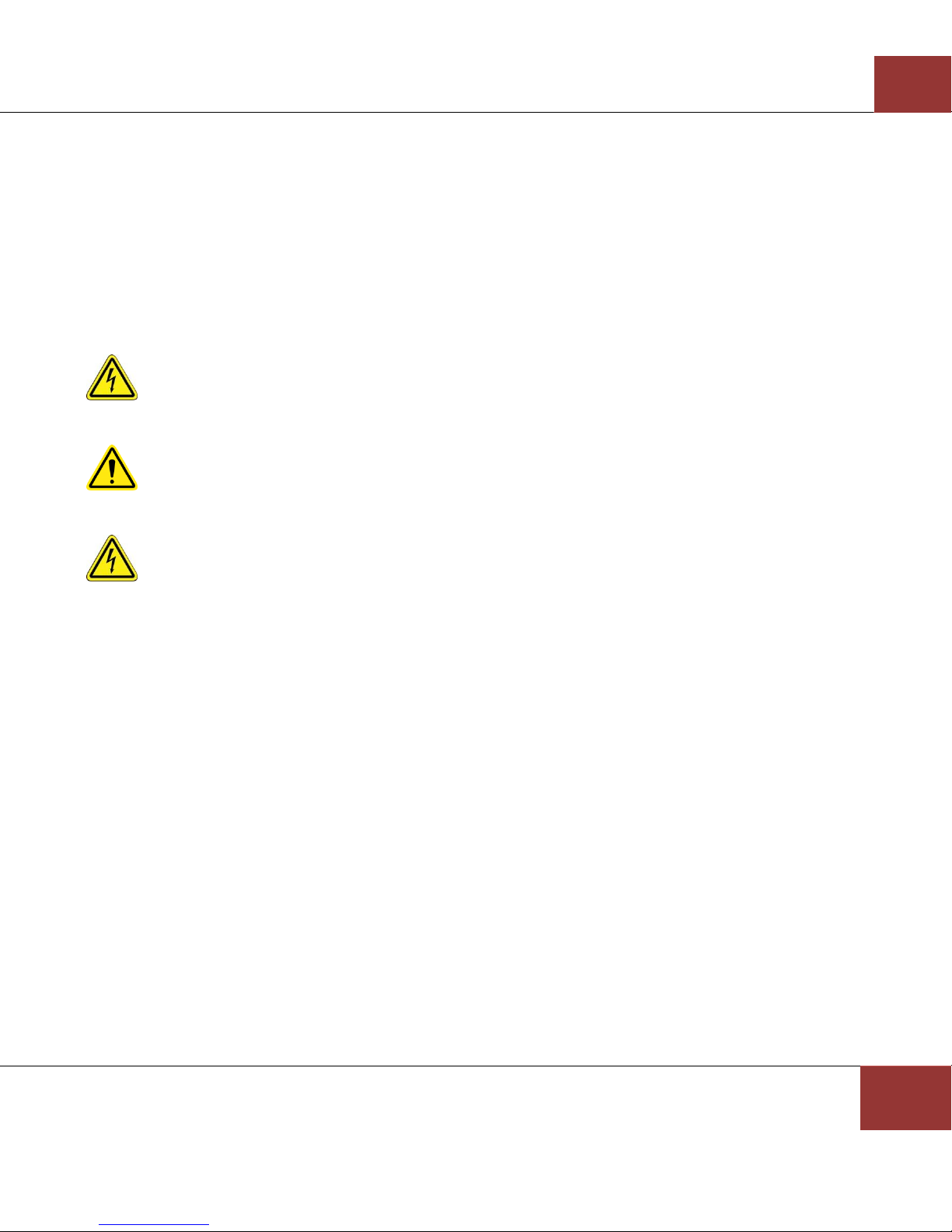
This symbol indicates the equipment is to be serviced by trained personnel only. Failure to
comply risks electric shock.
WARNING: This symbol on the equipment indicates that more detailed information will be
found in the instruction manual.
WARNING: The ground pin on the Power Cable must remain intact. Failure to comply risks
electric shock.
If any equipment is used in a manner not specified by the manufacturer the protection provided
by the equipment may be impaired.
Hardware Setup
Connect the provided Ethernet cable to any of the numbered ports on the Wireless Data
Center and the Ethernet port on the PC. Connect the provided USB cable between the USB
port on the Wireless Data Center and a USB 2.0 port on the PC. Attach the provided power
cord to the Wireless Data Center and a surge protected outlet. Power on the Wireless Data
Center and open the BioLab software on the PC to begin software configuration.
Identification of Operating Controls
The operating controls for this hardware are located in the BioLab software. See the BioLab
manual for configuration options and operation and the manuals associated with your wireless
data acquisition devices.
Page 8
MindWare Wireless Data Center Hardware User Reference Guide
1020F Taylor Station Rd. Gahanna, OH 43230
8
Accessories and Consumables
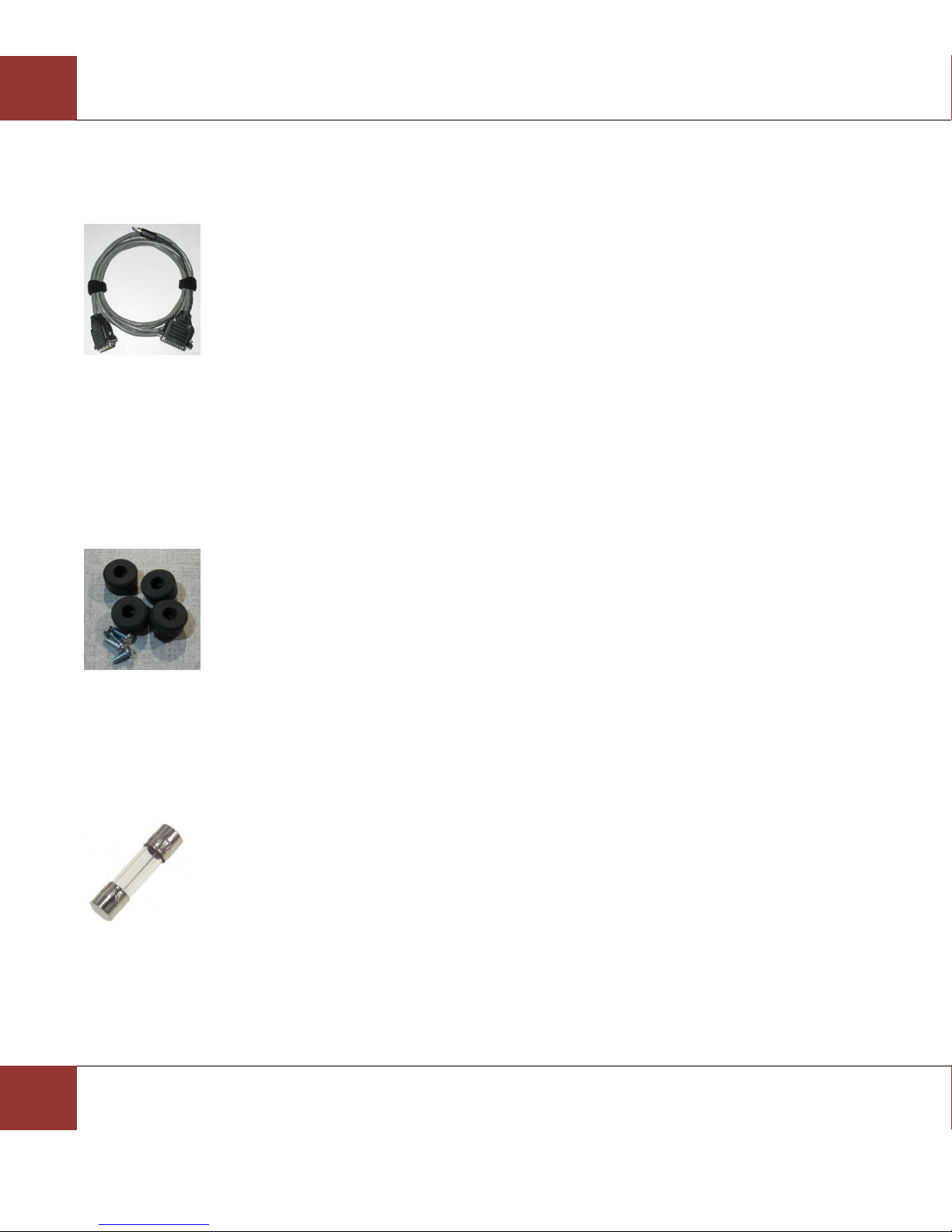
2-Slot E-Prime Trigger Cable
Part #45-0030-00
Instructions:
- Turn power to the Wireless Datacenter hardware off
- Connect the DB9 with the pigtail RCA connector to the
Digital port
- Connect the RCA connector to the Trigger jack
- With a small slotted screwdriver, gently screw the DB9
connector into place
- Connect the DB25 connector to the parallel port of the
computer with E-Prime installed
Desktop Kit
Part #50-6032-00
Instructions:
- Turn power to the Wireless Datacenter hardware off
- Unplug the power cable from the Wireless Datacenter
- Attach feet to embedded nuts on bottom of unit using provided screws. Do not
over-tighten
2A T 250 V 5X20 mm Slow Blow Fuse
Part #55-0834-00
Instructions:
- Turn power to the Wireless Datacenter hardware off
- Unplug the power cable from the Wireless Datacenter
- With a slotted screwdriver, turn the fuse holder and
remove the fuse from the chassis
- Replace fuse and re-insert the fuse in to the fuse holder
Page 9
Ph: 614-626-4888 * Fax: 614-626-4915 * www.mindwaretech.com
9
Section 3: Rear Panel
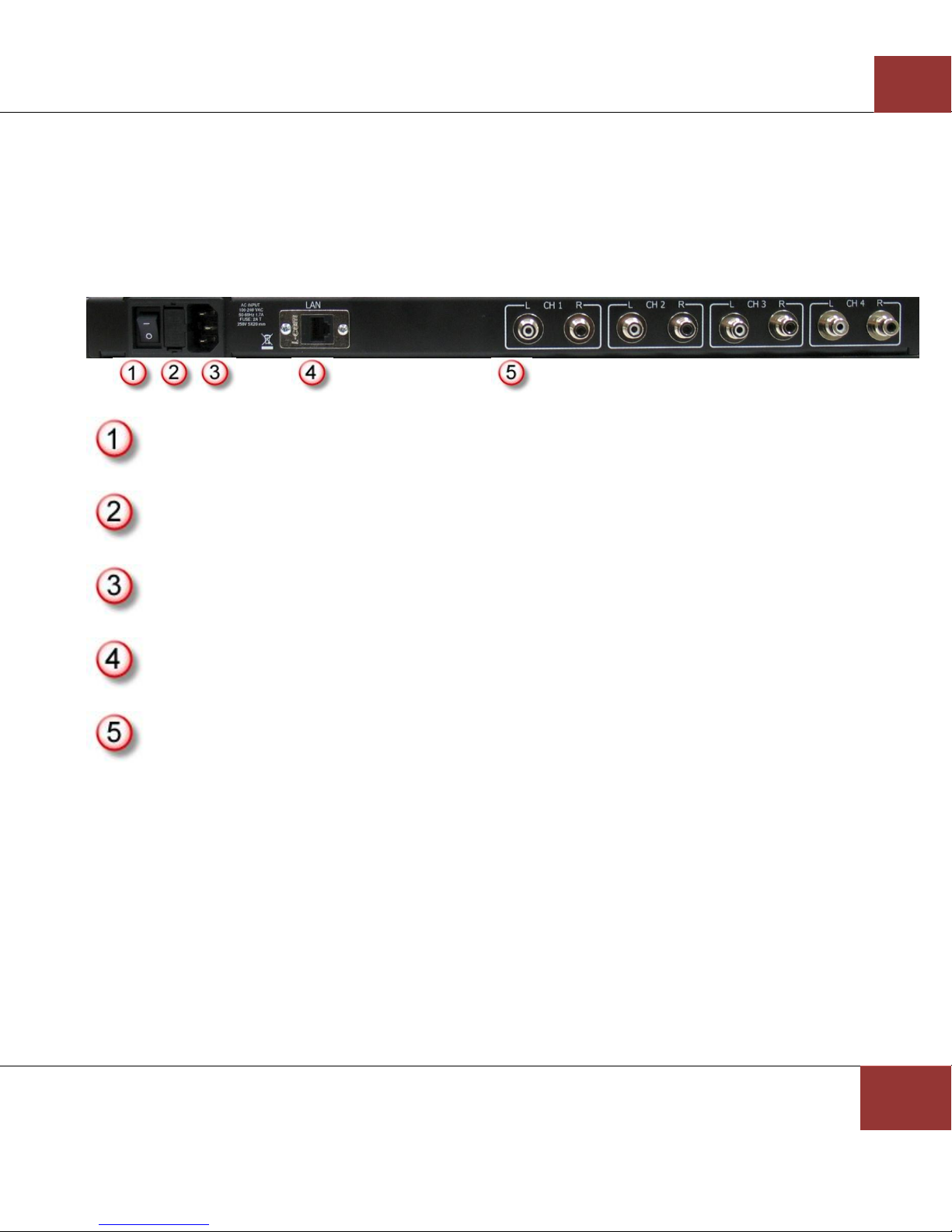
Rear Panel
Power Switch
Fuseholder
AC Input
Rear LAN Interface
Stereo Audio Channels 1-4
Page 10
MindWare Wireless Data Center Hardware User Reference Guide
1020F Taylor Station Rd. Gahanna, OH 43230
10
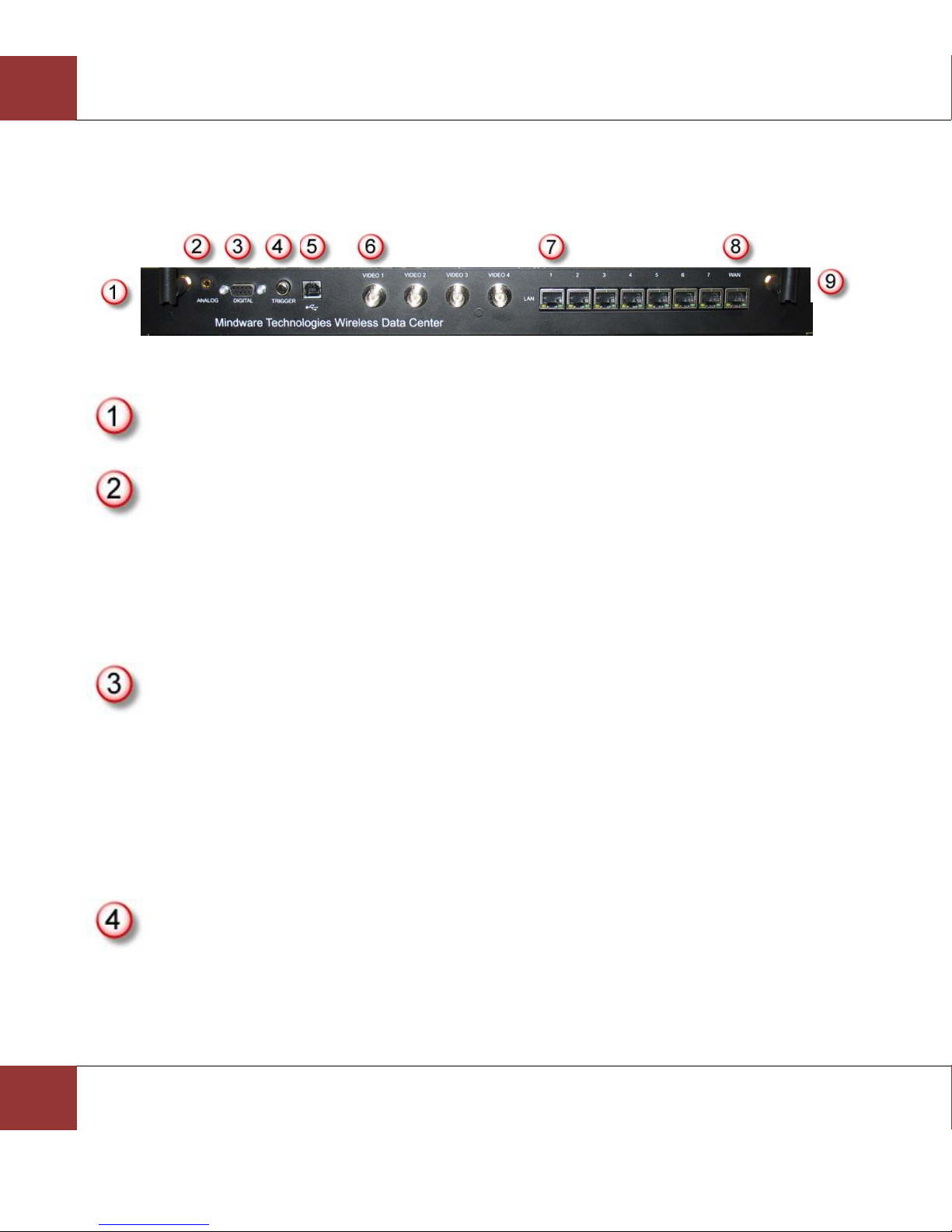
Front Panel
Antenna
Analog Input – 3.5mm
- Tip: Channel 1
- Shaft: Channel 2
- Base: Ground
Digital – DB9
- Pins 1-4: Digital Channels 1-4
- Pins 5-7: Unconnected
- Pin 8: +5V 100mA max output
- Pin 9: Ground
Trigger – RCA
- 0-5V range
- Software configured behavior
Page 11
Ph: 614-626-4888 * Fax: 614-626-4915 * www.mindwaretech.com
11
USB 2.0
- Data collection computer interface
Video 1-4 – BNC
- 75 Ohm, NTSC or PAL
LAN 1-7 – RJ45
- Data collection computer and network camera interface
- 100Mbit Auto MDI/X Ethernet
- DHCP enabled
WAN – RJ45
- Connection to external network
- 100Mbit Auto MDI/X Ethernet
- DHCP client
- NAT connection to LAN
- WARNING: Excess network traffic can interfere with research data collection. Not
recommended for use during data collection.
Antenna
Page 12

MindWare Wireless Data Center Hardware User Reference Guide
1020F Taylor Station Rd. Gahanna, OH 43230
12
Section 4: Cleaning Instructions
To remove scratches on surfaces:
- With an eraser gently rub across the scratch
- Clean off any debris before using
Cleaning Hardware:
- Turn the power to the Wireless Data Center off
- Disconnect the power and all other cables connected to the device
- With a slightly damp cloth, wipe off hardware
- Avoid getting moisture in exposed connectors
- Allow to dry thoroughly before reconnecting power
Page 13

Ph: 614-626-4888 * Fax: 614-626-4915 * www.mindwaretech.com
13
1020-F Taylor Station Road
Gahanna, OH 43230
(614) 626- 4888
www.mindwaretech.com
Copyright 2015 © MindWare Technologies LTD.
 Loading...