

Page 1
Use this guide to quickly setup and use your mimio Xi
interactively with a projector.
For Windows 98SE/Me/2000 and XP
Setup Guide for
Page 2
1
1
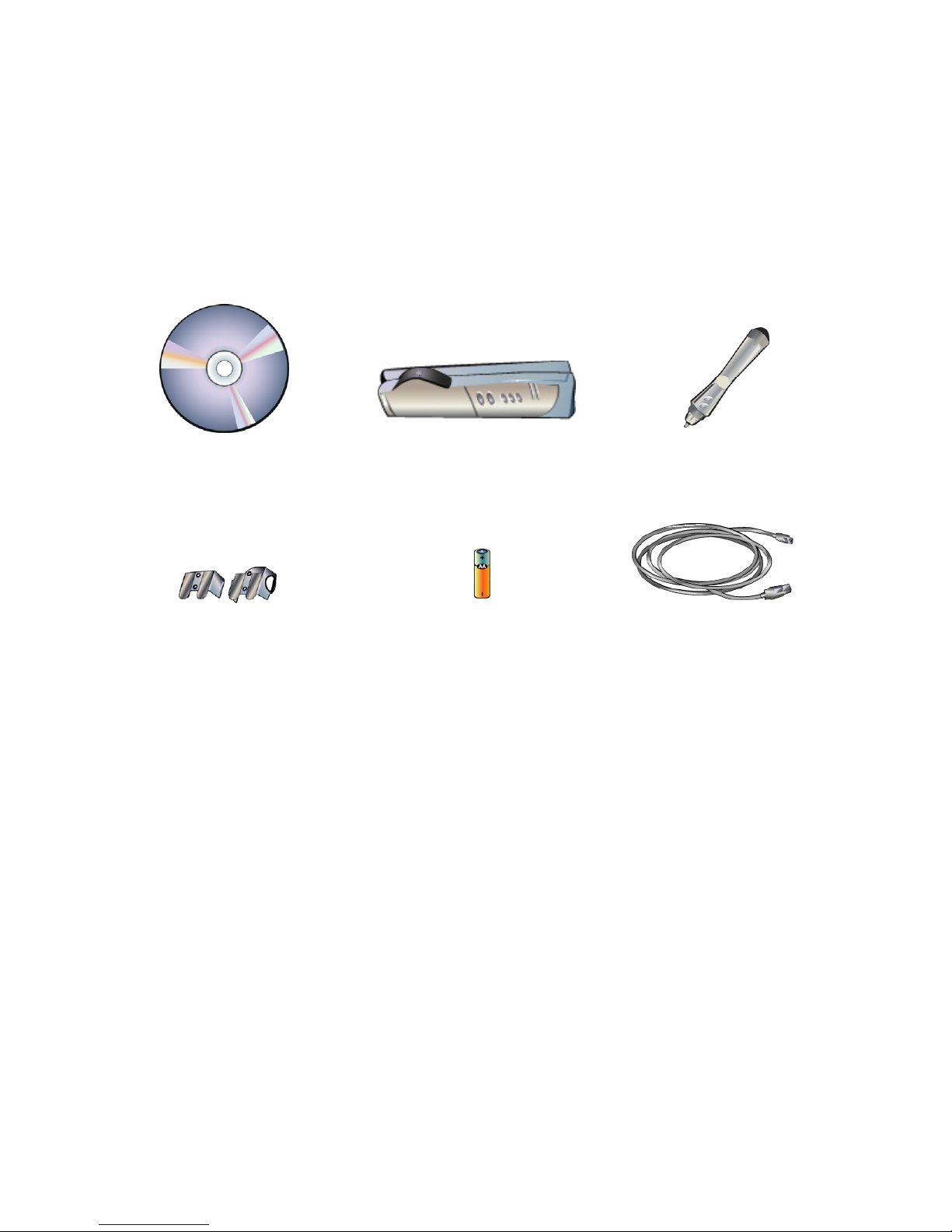
Check your contents
Your mimio Interactive contains the following components:
mimioStudioCD
mimioMouse
mimioXi
x1AABatteries
MountingBrackets
USBCable
1
Page 3
2
2
Install mimio Studio
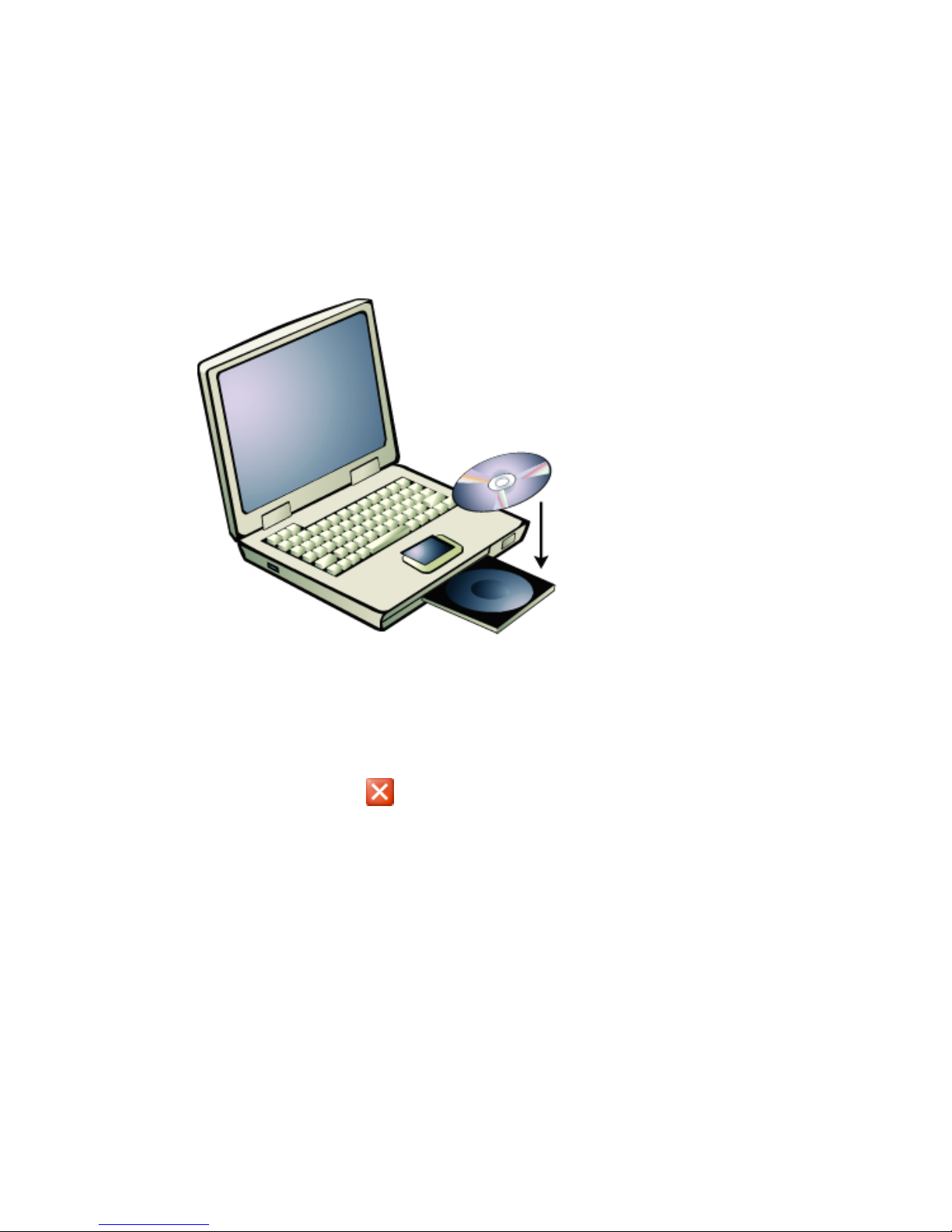
1. Insert the mimio Studio CD into your CD ROM drive.
The mimio Studio CD will auto launch.
2. Select Install Software from the top menu.
3. Select mimio Studio. An installation application will
launch. Follow the onscreen instructions.
4. Click the Close
button at top of the window to exit.
2
Page 4
3
3
Setup your mimio Xi
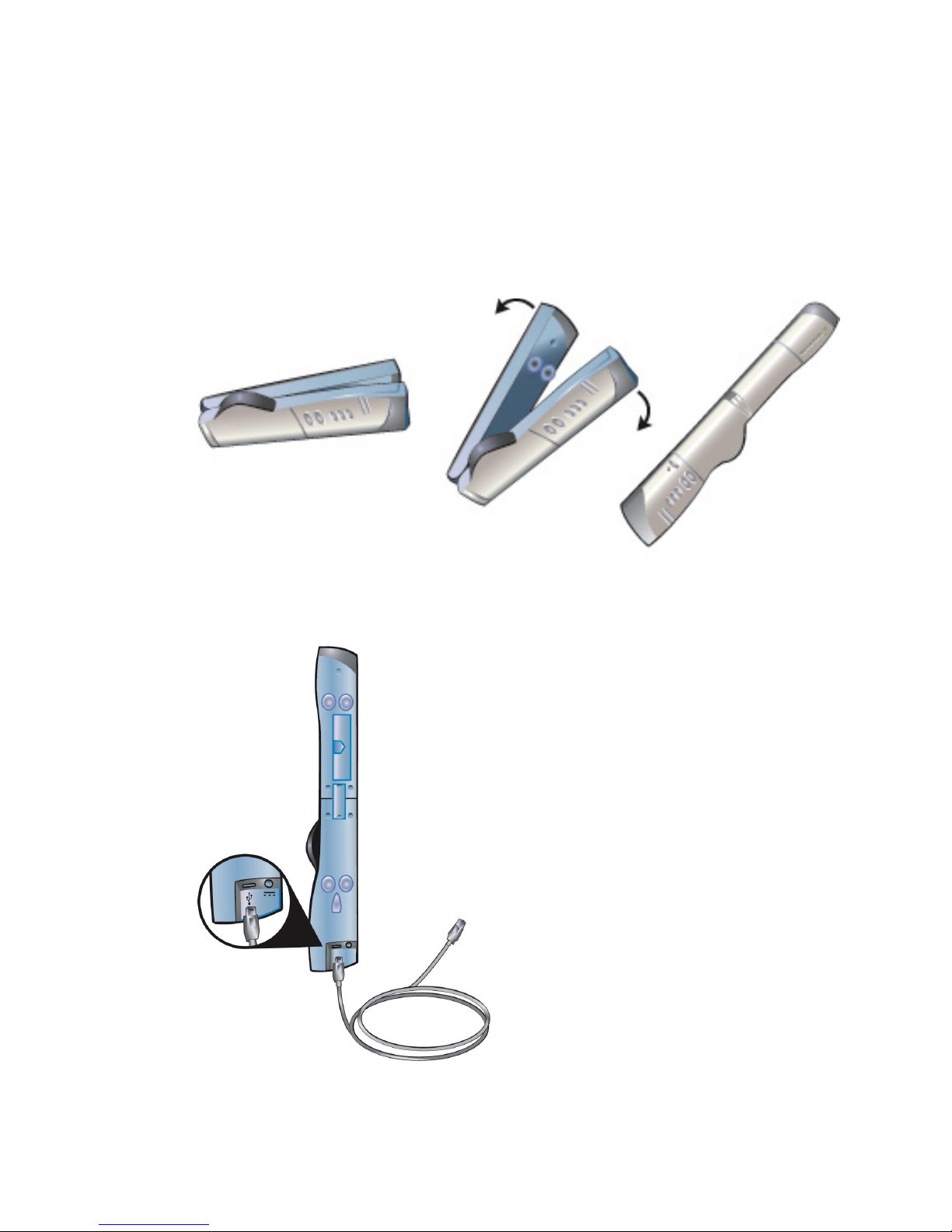
1. Unfold the mimio Xi.
2. Plug the included mini-USB cable into the socket on the
bottom recessed end of the mimio Xi.
3
Page 5
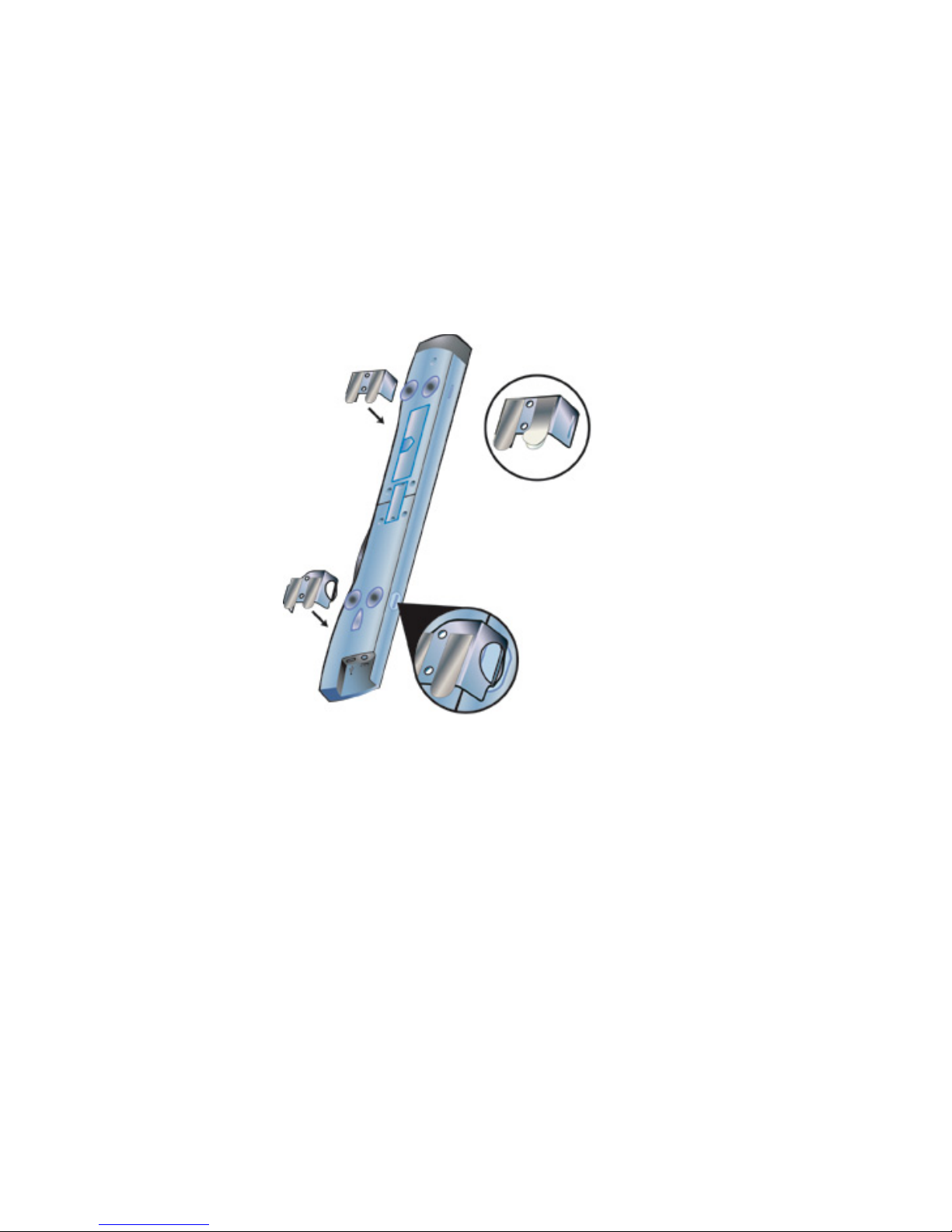
3. Attach the mimio Xi to your whiteboard, using one of
the following:
• For periods of extended use or repeated use in any
location, attach the mimio Xi using the mounting
brackets:
a. Snap the mounting brackets over the suction
cups, making sure they clip into the recesses on
the edges of the mimio Xi.
b. Carefully peel the backing from the adhesive
strips.
4
Page 6
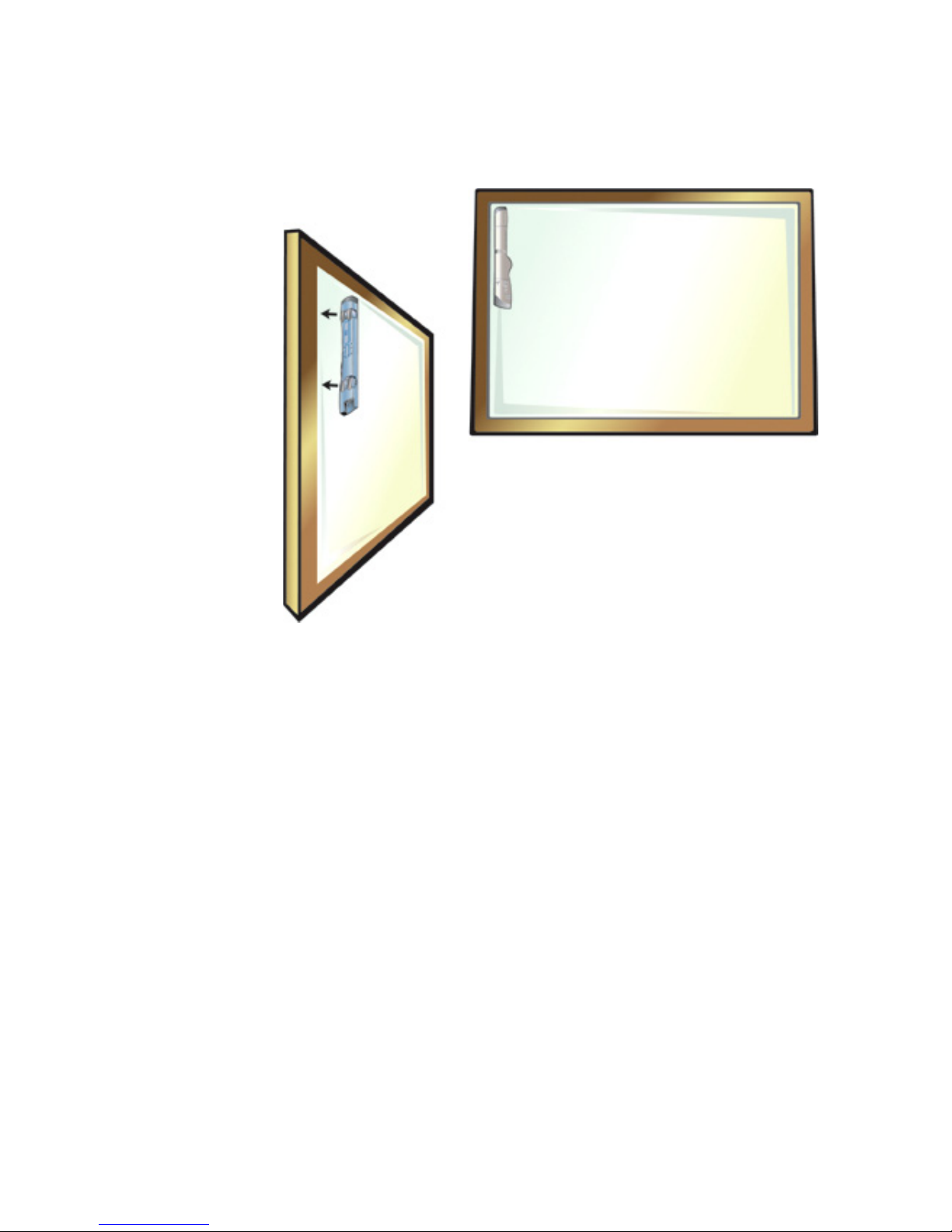
c. Mount the mimio Xi by pressing the bar, with
mounting bracket in place, in the upper lefthand corner of your whiteboard.
• For short periods of use, attach the mimio Xi using
the suction cups.
a. Clean the surface of the whiteboard with a
damp cloth.
5
Page 7
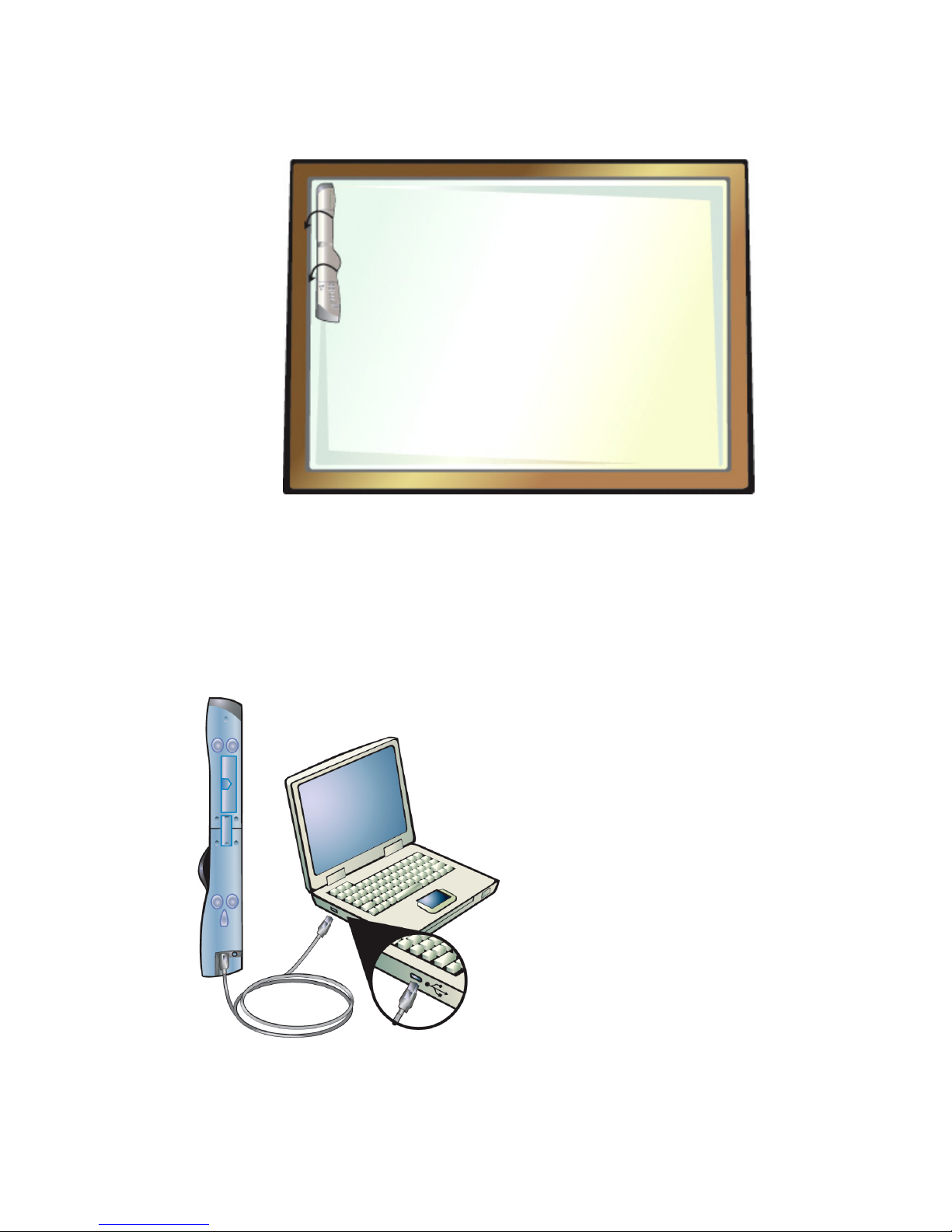
b. Press the mimio Xi in the upper left-hand corner
of your whiteboard.
4. Plug the other end of the USB cable into your PC USB
port. The capture bar should be automatically detected
by the PC and the mimio Studio software. Refer to your
system documentation if you are unable to find the USB
port, or if your capture bar is not automatically
detected.
6
Page 8
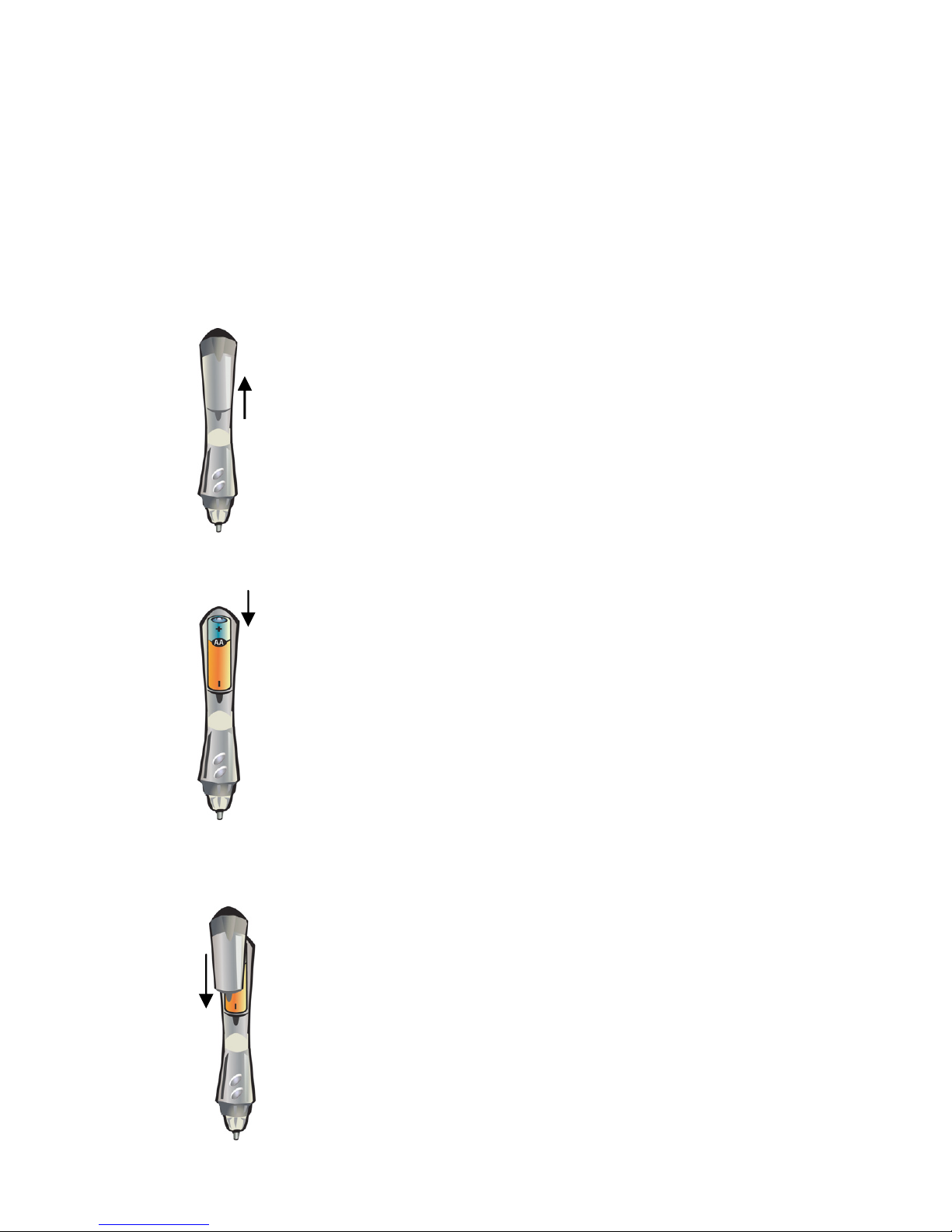
4
3. Put the battery cover back on by gliding the cover back
into place.
4
Setup your mimio Mouse
1. Remove the battery cover by lightly pressing down and
pushing the cover back away from the mimio Mouse tip.
2. Insert AA battery.
7
Page 9
5
5
Calibrate with a projector
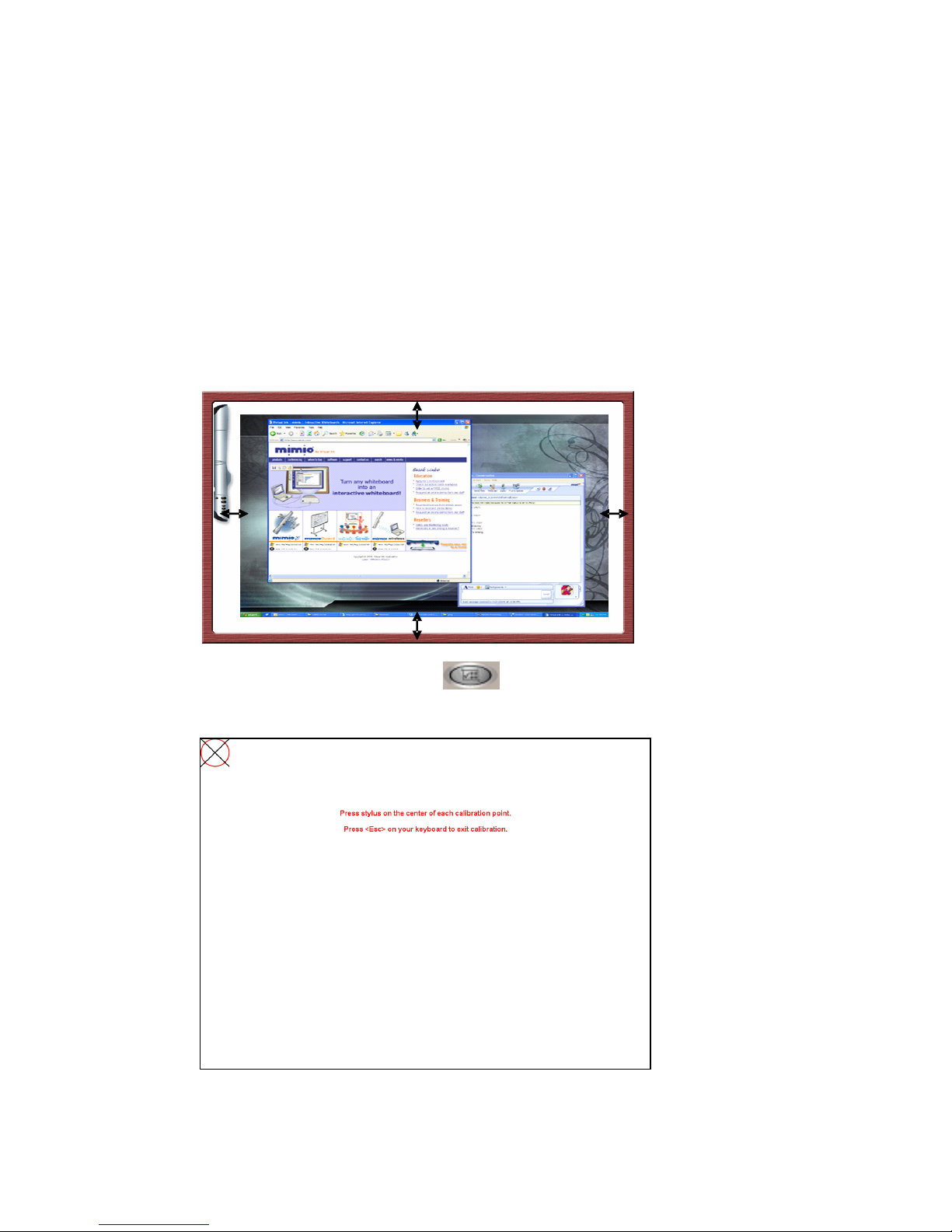
1. Project your Desktop image onto your whiteboard.
Make sure there is a 2-3” buffer between the projected
image and:
• The edges of the whiteboard
• The mimio device
2. Press the Interactive
button on your mimio
device.
3. Follow the onscreen instructions.
8
Page 10

6
•
teract with applications.
•
6
Using the Interactive Mode
Use the mimio Mouse as a mouse to control your
Desktop or in
Press the Hover
(front) button, to hover the
Desktop or application.
•
mimio Mouse over your
Press the Right-click
(back) button, to execute a
right-click at the current mimio Mouse location.
• Use the mimio Tools to annotate over any application.
1. Double-Click the mimio Tools shortcut on the
Desktop.
2. Click Screen Markup
to “freeze” whatever
screen or application you are in.
3. Annotate the frozen screen with the mimio Tools.
All object drawing and manipulation features in the
ailable tion. mimio Tools are av during screen annota
4. Click Mouse
to “unfreeze” the screen. All
annotations are automatically archived for later use
in the mimio Markups.
• Use the mimio Notebook to create content and
present content.
1. Double-Click the mimio Notebook shortcut on the
Desktop.
2. Use the mimio Tools to create or edit content.
For more information about using the Interactive Mode
check out the comprehensive mimio Studio User’s Guide on
the mimio Studio CD.
9
Page 11
7
7
Accessories and Add-ins
Visit the mimio Store at http://www.mimio.com/buy/store
(for eseller to
acc
or mimio
the
B cable is long enough to reach your
ti se the
en notes into typed text.
io Recorder
udio, recording a presentation or training video
pture
a live desktop, synchronized with audio, as a
ed
USA customers) or contact your local r
purchase add-ons and essories.
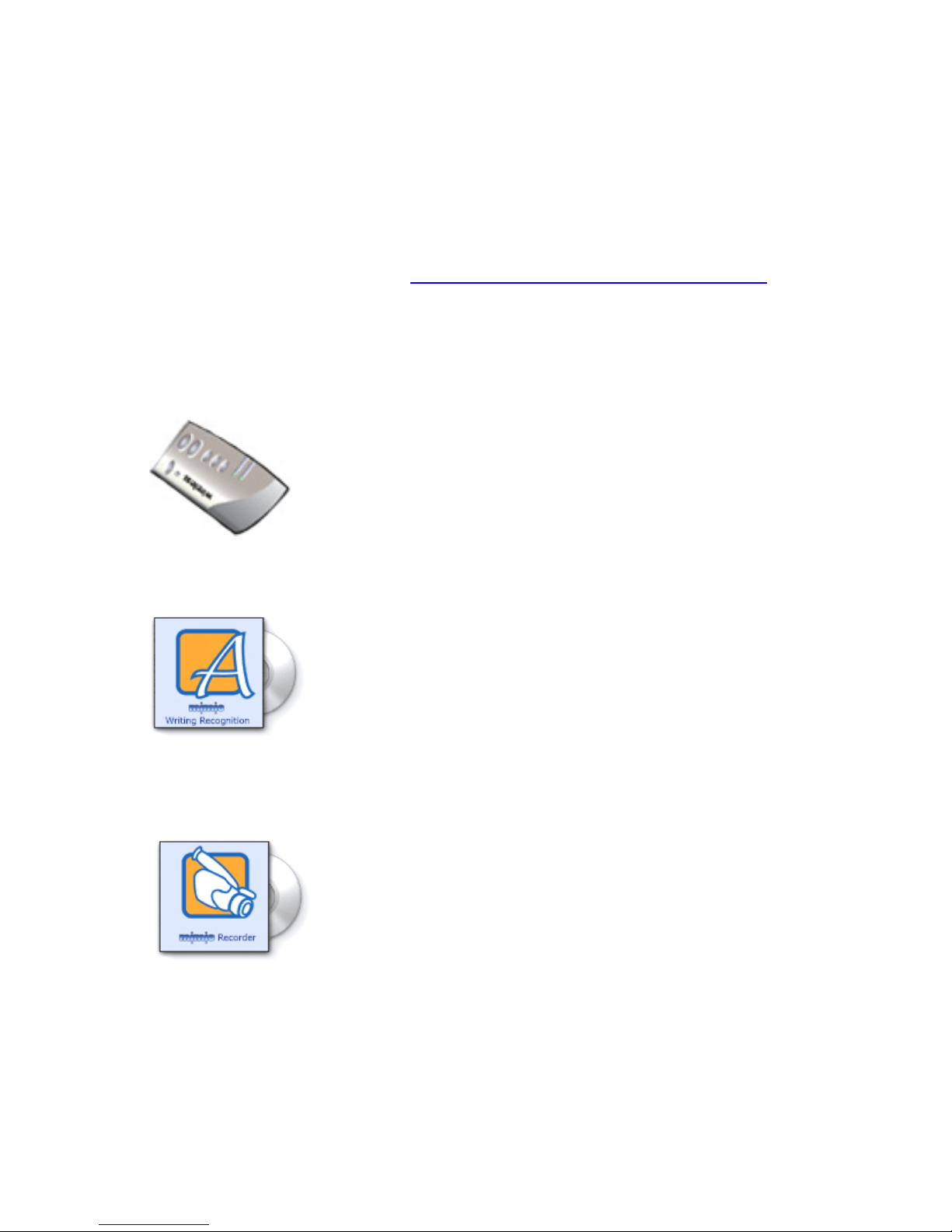
mimio wireless
mimio Wireless is an upgrade available f
Xi. With mimio wireless you no longer need to
worry about tripping over cables or whether
US
computer.
mimio Writing Recognition
With the mimio Writing Recognition Add-in for
mimio Studio, recognizing handwritten notes has
never been easier. Instantly insert text into any
applica on using the mimio Text Tool or u
recognition feature in the mimio Notebook to
convert handwritt
mim
With the mimio Recorder Add-in for mimio
St
is only a click away. mimio Recorder can ca
video file. The recorded desktop can be play
back in most media players.
10
Page 12

Virtual Ink Corporation
Drive
0
Toll-free in US: (877) my-mimio (696-4646)
E-mail:
150 CambridgePark
Cambridge, MA 0214
USA
Support telephone: (877) 846-3721
Support E-mail: [email protected]
Virtual Ink Euro
© 2006 Virtual Ink Corporation. All rights reserved. mimio is a registered
trademark and mimio Xi is a trademark of Virtual Ink Corporation.
Windows is aregistered trademark of Microsoft, Inc. All rights reserved.
7 Berkshire Business
Berkshire Drive
Thatcham, Berkshire
RG19 4EW
UK
pe Ltd
Centre
Telephone: +44 870 458 3344
Fax: +44 870 458 3355
E-mail:
Support Telephone: +44 (0)870 458 3366
Support E-mail: [email protected]
 Loading...