

Page 1

MILAN VORTEX WIRELESS SIREN
USER MANUAL
Page 2

SLEN01
Milan Vortex Wireless Siren
User Manual
Promoting Secure Living
Offered by
www.milanity.com
Page 3

Table of contents
1. Introduction
2. Product Description
3. Features and Specifications
4. Installation
5. Warranty Policy
Page 4

1. Introduction
Features
Specifications
The Siren will alert home occupants or neighbors if intrusions
The Siren can also be directly
triggered from the Milan DLE app to
Thank you for purchasing Milanity’s digital living products. We have designed and developed our
products with emphasis on ease-of-use and cost-effectiveness. This manual contains information on
the features and specifications of this product and its installation procedures. When this product is
installed and used in the intended manner, you will be able to enjoy the vast benefits that Milan
Digital Living Experience (DLE) has to offer.
2. Product Description
The Milan Vortex Wireless Siren will sound an alarm if the security sensors are triggered (such as
when a door is opened or when motion is sensed) when the Milan Infoway is in an “Armed” or
“Activated” state. This product needs to be paired with a Milan Infoway using a web-based
configuration tool called Milan Infomap (see separate instructions for using this software).
3. Features and Specifications
The following are the key features and specifications of this product:
Easy to install and Integrate with Milan Infoway Z-Wave enabled wireless device
happen when the security sensors are in “Active” mode Audible Alarm > 105dB @1m
alert others in case of emergencies Low battery Detection
LED Status Indicator
Frequency: RF
Frequency: 868.4 MHz (Europe)
30 feet line-of-sight
Battery: AA battery x 4
Page 5
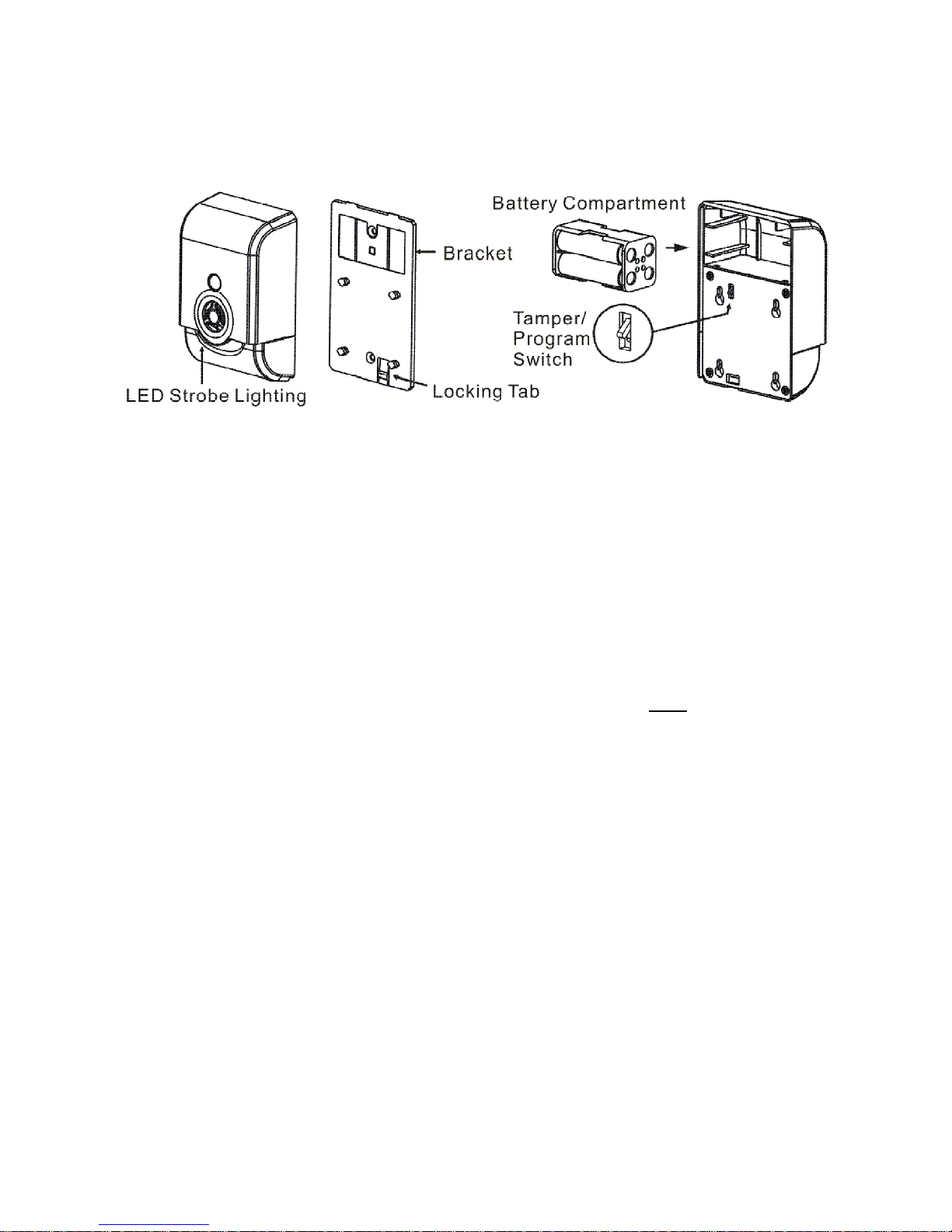
4. Installation
It is easy to install the Milan Vortex Wireless Siren.
Figure 1: Milan Vortex Wireless Siren
Step 1: Release the cover tab to open the cover by pressing the locking tab and insert the batteries in its
compartment. Now the LED will now begin to flash slowly
Step 2: Integrate the Milan Vortex Wireless Siren with a Milan Infoway
a. Ensure that the Milan Infoway is functional
b. Open Milan Infomap configuration tool in a web browser (see separate instructions for using
this software)
c. Click on the “Security” tab from the Milan Infomap menu
d. Click on the “Wireless Security” tab from the Milan Infomap menu
e. Click the “Add” button
f. Press the Program Switch (see Figure 1) at the back of the device twice in quick succession
g. Check if this device has been added to the list of wireless devices in Milan Infomap (when
successfully added you will see the Product Name, Manufacturer, Product Type and the
Node ID)
h. If the device has not been added to Milan Infomap, please repeat steps f and g above
ensuring that the Milan Infomap is still in the Add mode in the Wireless tab
i. Should you ever need to remove this device from your Milan DLE, please follow the same
steps as above except select the “Remove” button in step e above
Step 3: Install Milan Vortex Wireless Siren in the desired place with adhesive tape or with screws on the
wall. You can now experience the benefits of Milan DLE offered by this product.
Page 6

5. Warranty Policy
This Limited Warranty offered to the original purchaser only applies to products purchased directly
from a Milanity authorized partner by the original purchaser. Milanity warrants this product for one
(1) year from the date of purchase with respect to defects arising from materials or workmanship,
with the exceptions as stated below.
This Limited Warranty does not cover damages resulting from misuse, accident, modifications or
alterations to the hardware or software, tampering, using the product in an unsuitable environment,
improper maintenance or failure to use the product as specified in the instructions.
All Rights Reserved. © 2015 Milanity. All non-Milan DLE brands and product names are trademarks or
registered trademarks of their respective companies. Product appearance and/or specifications are
subject to change without notice.
Page 7

 Loading...