

Page 1
MT510 User Manual V2.0
http://www.mictrack.com
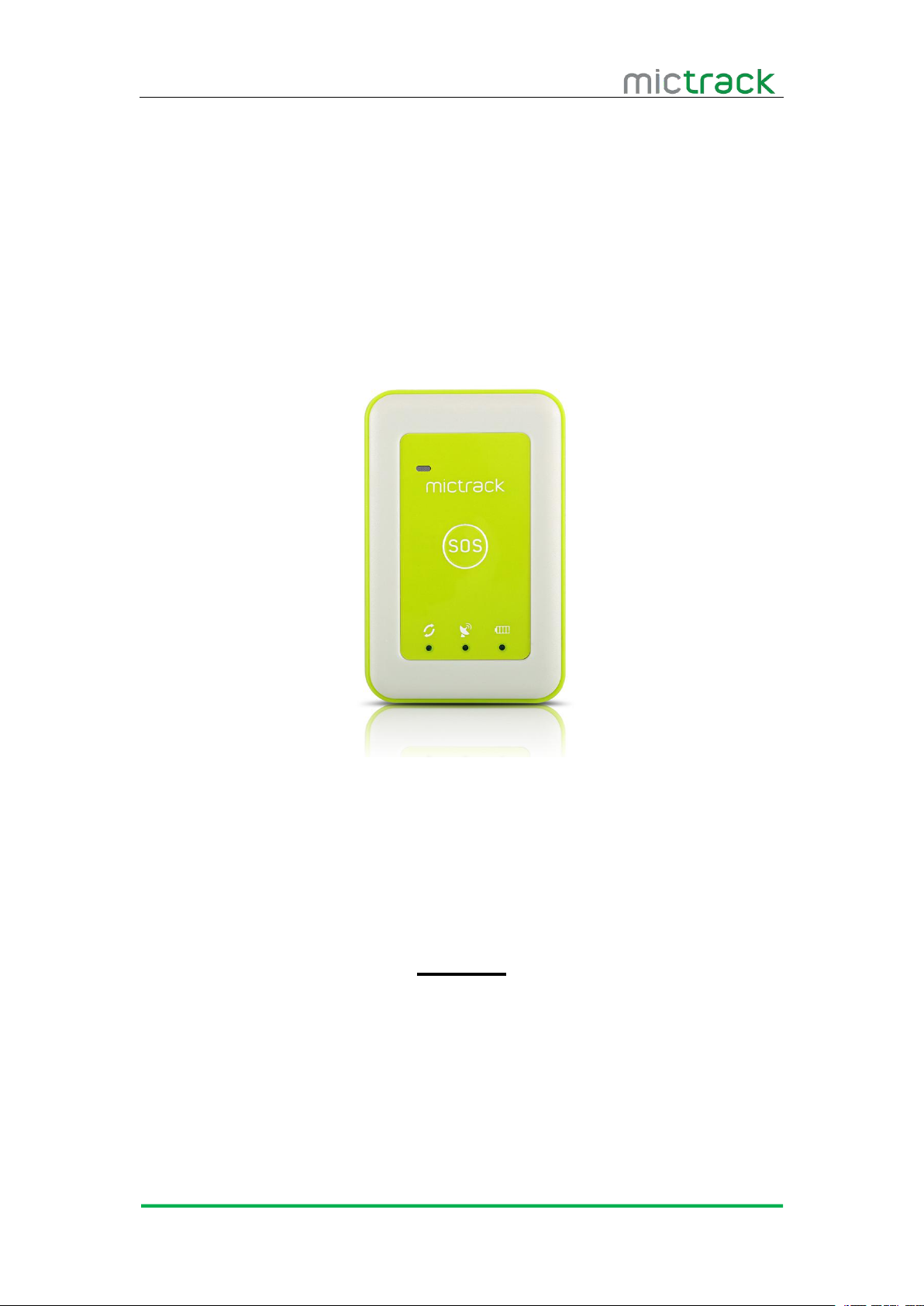
MT510 3G Personal Tracker
User Manual V2.0
Preface
Thank you for choosing the 3G Personal GPS tracker.This manual shows how to
operate the device smoothly and correctly.Make sure to read this manual carefully before
using this product. Please note that specification and information are subject to changes
without prior notice in this manual. Any change will be integrated in the latest release.The
manufacturer assumes no responsibility for any errors or omissions in this document.
Page 2

MT510 User Manual V2.0
http://www.mictrack.com
Contents
1. Overview
2. Application................................................................................................................................... 1
3. Specifications.............................................................................................................................. 1
4. Hardware description................................................................................................................. 2
4.1 Appearance
5. First use
5.1 SIM Card installation
5.2 Indications......................................................................................................................... 3
5.3 Device Button Instruction
6. Main Operation and Application
6.1 Set Authorization Phone Number.................................................................................. 4
6.2 Delete authorization number.......................................................................................... 4
6.3 Change the password..................................................................................................... 4
6.4 Single Locating
6.5 Calling Switch
6.6 SMS Response ON/OFF
6.7 Call Restriction Switch.....................................................................................................5
6.8 Phone positioning function............................................................................................. 5
6.9 SOS Alarm........................................................................................................................ 5
6.10 Voice Monitor
6.11 Round Geo-fence
6.12 Square Geo-fence......................................................................................................... 6
6.13 Low battery Alarm
6.14 Over-speed alarm
6.15 Set time zone.................................................................................................................. 6
6.16 Set GPRS user name....................................................................................................7
6.17 Set APN(Access Point Name)..................................................................................... 7
6.18 Set Server IP and PORT
6.19 Set GPRS Upload Interval Time
6.20 Power Saving Mode
6.21 Invalid GPS Data Upload..............................................................................................8
......................................................................................................................................
.......................................................................................................................
........................................................................................................................................
.......................................................................................................
5.2.1 3G Indicator (Blue)............................................................................................... 3
5.2.2 GPS Indicator (GREEN)...................................................................................... 3
5.2.3 Charge Indicator (YELLOW/RED)
................................................................................................
...............................................................................................
.................................................................................................................
...................................................................................................................
................................................................................................
..................................................................................................................
...........................................................................................................
6.11.1 Enable the Geo-fence
6.11.2 Disable the Geo-fence....................................................................................... 6
6.12.1 Enable the Geo-fence....................................................................................... 6
6.12.2 Disable the Geo-fence
..........................................................................................................
..........................................................................................................
......................................................................................................
6.20.1 Power Saving Mode ON & Device Stop interval time.................................. 7
6.20.2 Power save mode ON&device Move interval time....................................... 8
........................................................................................
.......................................................................................
..............................................................................................
..................................................................................
.....................................................................
1
2
3
3
3
3
4
4
4
5
5
5
6
6
6
6
7
7
7
Page 3

MT510 User Manual V2.0
http://www.mictrack.com
6.22 Mileage report
6.22.1 Set report interval time
6.22.2 Clear the Mileage
6.22.3 Check the current mileage................................................................................8
.................................................................................................................
......................................................................................
...............................................................................................
8
8
8
Page 4
MT510 User Manual V2.0
http://www.mictrack.com
1
1. Overview
MT510 is the latest 3G Personal tracker support WCDMA/UMTS.This device can locate
2. Application
3G WCDMA/UMTS support
Real-time position inquire
Two way voice communication
Voice monitoring
Personal trip history on web
SOS alarm
Over-speed alarm
Motion report
Geo-fence alarm
Backup battery low power alarm
Power saving mode
Mileage report
3. Specifications
Item
Specifications
Dimension
89(L)*57(W)*20(H)mm
Weight
89g
Charging Voltage
Micro USB interface DC 5V
Backup battery
1600mAh/3.7V
Power consumption
60mA standby current
3G Frequency bands
MT510-E
900/2100MHz@UMTS
900/1800MHz@GSM\
MT510-A
850/1900MHz@UMTS
850/900/1800/1900MHz@GSM
MT510-T
850/2100MHz@UMTS
850/900/1800/1900MHz@GSM
and monitor any remote targets by SMS/PC/APP.
The unit features excellent and stable work performance.It used for personal,vehicle and
pets.
Page 5
MT510 User Manual V2.0
http://www.mictrack.com
2
Item
Specifications
GPS Chip
U-BLOX7
GPS Sensitivity
-162dBm
Channel
56 Channel
Positioning Accuracy
10m
Hot start
1s on average
Warm start
15s on average
Cold start
30s on average
Working temperature
-20°C to 55°C
Humidity
5%~95% non-concretion
Antenna
Built-in 3G/GPS antenna
Sensor
3D acceleration sensor
LED
3G/GPS/CHG
SIM Card interface
Standard SIM Card
4. Hardware description
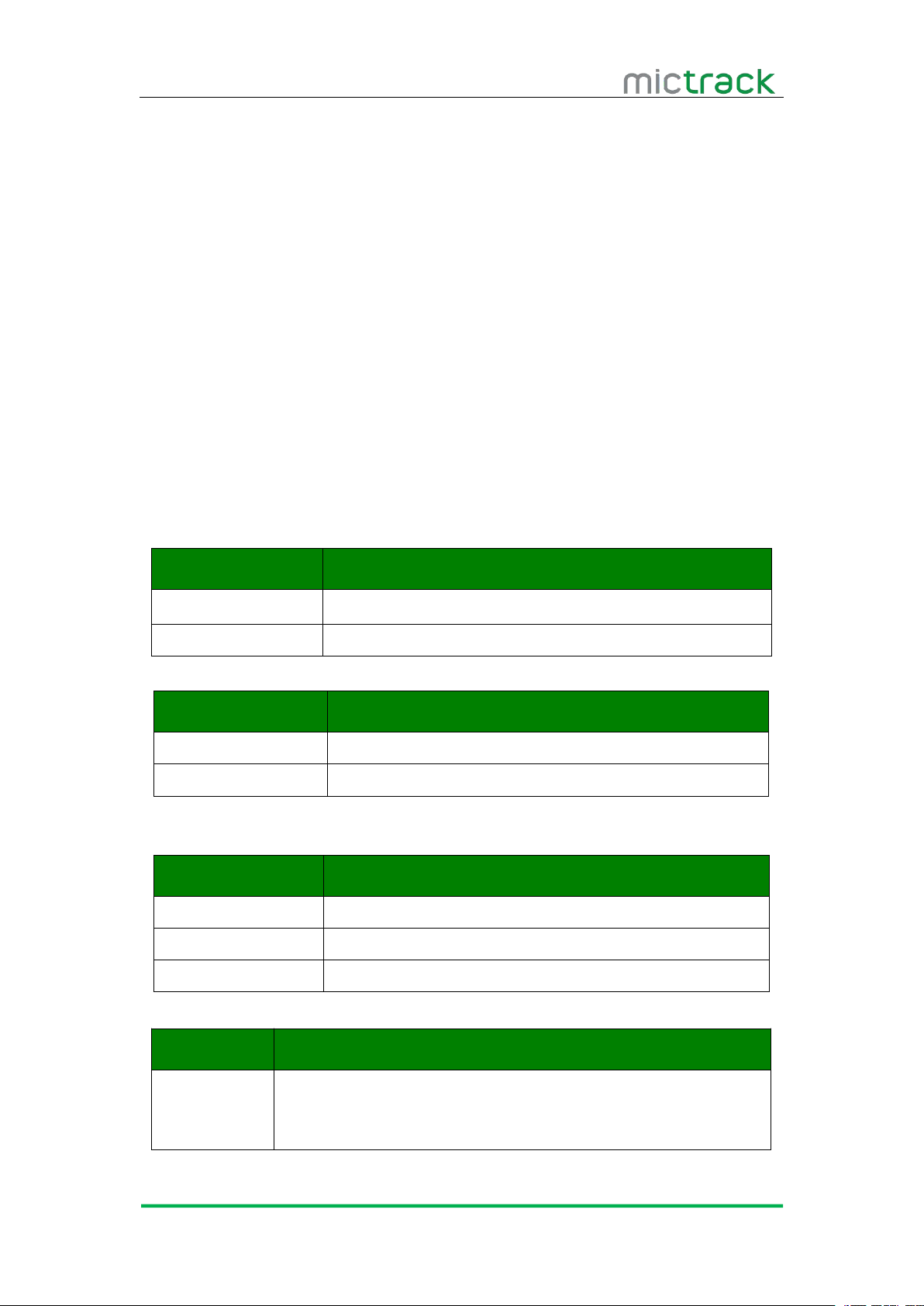
4.1 Appearance
Page 6
MT510 User Manual V2.0
http://www.mictrack.com
3
5. First use
5.1 SIM Card installation
Pay attention to the following items before installing the SIM card:
Ensure the SIM card have enough balance
Ensure the SIM card enable caller ID and GPRS function
Ensure the SIM card disable PIN password and call forwarding function.
Get ready a Standard SIM Card
Insert the SIM Card to the slot
Pay Attention:
Device will POWER ON automatically after insert the SIM card
5.2 Indications
5.2.1 3G Indicator (Blue)
5.2.2 GPS Indicator (GREEN)
Status
Description
Always OFF
GPS unavailable
Quick flash (1s/time)
GPS available
5.2.3 Charge Indicator (YELLOW/RED)
5.3 Device Button Instruction
Button
Description
Power Button
Insert the SIM card to POWER ON, take out SIM card to
POWER OFF.
Status
Description
Always ON
No SIM Card or no network
Slow flash (8s/time)
Work mode
Status
Description
Always ON(Yellow)
Under charging
Light bright(Yellow)
Changing completed
Slow lash(Red)
Low battery
Install the SIM card
Page 7

MT510 User Manual V2.0
http://www.mictrack.com
4
SOS Button
Press and hold button for 3 seconds(vibrate twice), the unit will
call the authorized phone numbers by sequences and send
position to authorized phone numbers and upload data to
server.
Short press button for 1 second(vibrate one time) to hang
up/Answer or the call(incoming or Speaking)
6. Main Operation and Application
6.1 Set Authorization Phone Number
Instruction format: *cell phone number *password*serial number(1-3)**
The defaulted password is 0000
It can authorize up to 3 phone numbers.
6.2 Delete authorization number
6.3 Change the password
6.4 Single Locating
6.5 Calling Switch
For example:*13424392330*0000*1**
Reply:SET USER NUMBER 1 OK.
Note:
Instruction format:**password*number(1-3)**
For example:**0000*1**
Reply:DELETE USER NUMBER 1 OK.
Instruction format:777+new password+old password
For example:77712340000
Reply:SET USER PASSWORD OK.
Instruction format:666+password
For example:6660000
Description:Send this SMS command to unit,it will reply SMS as follow:
ID:865662000409210
Date:05:36:59 15/08/2015
Fix:A State:SMS
http://maps.google.com/maps?q=+22.63146%2c1+114.03701
Calling OFF:150+password
For example:1500000
Reply:SET VOICE CALL:OFF
Calling on:151+password
For example:1510000
Page 8

MT510 User Manual V2.0
http://www.mictrack.com
5
Reply:SET VOICE CALL: ON
6.6 SMS Response ON/OFF
If you do not want to get the SMS alert, send 1600000 to disable it.
6.7 Call Restriction Switch
170 mode,it can only receive incoming call from 3 authorization numbers.
171 mode the device can answer incoming call from any cell phone.
6.8 Phone positioning function
6.9 SOS Alarm
6.10 Voice Monitor
6.11 Round Geo-fence
Note: if you do not want to get the Calling alert, send 1500000 to disable it.
SMS OFF:160+ user password
For example:1600000
Reply:SET SEND SMS:OFF.
SMS ON:161+ user password
For example:1610000
Reply:SET SEND SMS:ON.
Note:
Call restriction OFF:170+password
For example:1700000
Reply:SET INCOMING CALLS:OFF.
Call restriction ON:171+password
For example:1710000
Reply: SET INCOMING CALLS : ON
Note:
If incoming call is from one of the 3 authorized numbers and it is hung up after
ringing for 2-5 times, the device will send location to authorized phone number and
then upload data to server and the status is :CALL.
Press SOS button for 3 seconds(vibrate twice),device will call the authorized phone
numbers and then send location to authorized phone number and upload data to
server,the state is: SOS.
Disable the monitor : 000+password
For example: 0000000
Reply: SET VOICE MONITOR:OFF.
Enable the monitor :001+password
For example:0010000
Reply:SET VOICE MONITOR:ON.
Note: Default is MONITOR OFF
Instruction format:005+password+R+X
For example:0050000R1.0
Page 9

MT510 User Manual V2.0
http://www.mictrack.com
6
Reply:SET ROUND GEO-FENCE:ON
6.11.1 Enable the Geo-fence
6.11.2 Disable the Geo-fence
6.12 Square Geo-fence
6.12.1 Enable the Geo-fence
6.12.2 Disable the Geo-fence
6.13 Low battery Alarm
6.14 Over-speed alarm
6.15 Set time zone
Note: X define[0.1-999.9]KM
Instruction format:211+password
For example:2110000
Reply:SET ROUND GEO-FENCE: ON.
Instruction format:210+password
For example:2100000
Reply:SET ROUND GEO-FENCE: OFF.
Instruction format:006+password+G1,IO/I/O,E/W longitude upper limit+N/S latitude
upper limit,E/W longitude lower limit+N/S latitude lower limit.
For example:0060000G1,IO,E114.04540N22.59034,E114.05978N22.59797
Reply:SET SQUARE GEO-FENCE1(IO)OK.
Instruction format:311+password
For example:3110000
Reply:SET SQUARE GEO-FENCE: ON.
Instruction format:310+password
For example:3100000
Reply:SET SQUARE GEO-FENCE: OFF.
When the backup battery is low power,it will send SMS to authorized phone number
and upload data to server, the state is:BLP.
Command:#122#user password#X##
Example:#122#0000#100##
Reply:SET SPEED LIMIT:ON
Close command: #122#0000#0##
SET SPEED LIMIT:OFF.
Note: X is speed value, unit is KM/H definition is [0, 999].
Instruction format:896+password+ +/-HH:MM
For example:8960000+08:00
Reply: SET TIME ZONE:+08:00
Note: The default is Greenwich time(UTC).
Page 10

MT510 User Manual V2.0
http://www.mictrack.com
7
6.16 Set GPRS user name
Instruction format: #801#password#user name##
6.17 Set APN(Access Point Name)
6.18 Set Server IP and PORT
6.19 Set GPRS Upload Interval Time
6.20 Power Saving Mode
6.20.1 Power Saving Mode ON & Device Stop interval time
Interval time define is [2,1440] minuets,If interval time is 0, it will stop upload and
If you enable power saving mode(1000000) and device is stop, the device will
Upload status is AUTOLOW
For example: #801#0000#MT500##
Reply: SET SERVER USER NAME OK.
Instruction format 1:#803#user password#APN##
For example: #803#0000#CMNET##
Instruction format 2:#803#password#APN#APN user name# APN password##
For example: #803#0000#CMNET#INTERNET#INTERNET##
Reply: SET GPRS APN OK.
Note: please contact your local mobile operator to get the correct APN.
Instruction format:#804#password#IP address(or domain) #port##
Example:
Reply:SET SERVER IP AND PORT OK.
Instruction format:#805#password#interval time#X##
For example:#805#0000#10#1##
Reply:SET GPS PERIODIC UPLOAD ON.
#804#0000#112.95.164.248#7780##(or) #804#0000#e.trackits.com#7700##
Note: interval time define is[10,65535]seconds, X define is[0,1], If X=0,it will stop
upload and reply: SET GPS PERIODIC UPLOAD OFF.
Enable power save mode : 100+password
For example: 1000000
Reply: SET POWER SAVE MODE:ON.
Disable power save mode :101+password
For example:1010000
Reply:SET POWER SAVE MODE:OFF.
Note: Default is OFF
Instruction format:#807#password#interval time##
For example:#807#0000#2##
Reply:SET GPS POWER SAVING UPLOAD ON.
Note:
reply: SET GPS POWER SAVING UPLOAD OFF.
upload will as 807 command interval.
Page 11

MT510 User Manual V2.0
http://www.mictrack.com
8
6.20.2 Power save mode ON&device Move interval time
Instruction format:#809#password#interval time#X##
Interval time define is[10,65535]seconds, X define is[0,1], If X=0,it will stop
If you enable power saving mode(1000000) and device is move, the device will
Upload status is TOWED
6.21 Invalid GPS Data Upload
6.22 Mileage report
6.22.1 Set report interval time
6.22.2 Clear the Mileage
6.22.3 Check the current mileage
For example:#809#0000#10#1##
Reply:SET GPS TOWED UPLOAD ON.
Note:
upload and reply: SET GPS TOWED UPLOAD OFF.
upload will as 809 command.
Invalid data upload ON:081+users password
For example:0810000
Reply:INVALID DATA UPLOAD:ON
Invalid data upload OFF:080+user password
For example:0800000
Reply:INVALID DATA UPLOAD:OFF
Format:#141#password#X#Y##
For example: #141#0000#10#1##
Reply:SET GPS MILEAGE STATISTICS:ON/OFF
Note: X is the mileages and define is [0,1000]KM;
Y is alert mode and define is[0,1],Y=0 disable the alert, Y=1 enable alert.
Format:#142#password#T##
For example: #142#0000#1##
Reply:SET GPS MILEAGE STATISTICS:CLEAR CURRENT/ALL
Note:T is [0,1].T=0,clear current mileage;T=1,clear total mileage.
Format:#143#password##
For example:#143#0000##
Reply: TOTAL GPS MILEAGE:X.X Km
CURRENT GPS MILEAGE:X.X Km
Note: mileage unit is KM
Page 12

MT510 User Manual V2.0
http://www.mictrack.com
9
Tips:
How to setup APN: https://www.mictrack.com/apn-settings-for-mictrack-gps-trackers
How to use Mictrack Server: https://www.mictrack.com/how-to-use-mictrack-server
Global Frequency bands check: https://www.mictrack.com/4g-lte-frequency-bands-list
Note: Please remember to monitor the credit balance of your SIM card, to
avoid confusion or delays in setting up your new unit. This can be a common issue,
especially when initially setting up a new unit, and the unit fails to reply to a correct
SMS command sequence.
If you have any questions please do not hesitate to contact us [email protected].
 Loading...