

Page 1
MP90-NB User Manual V1.0
http://www.mictrack.com
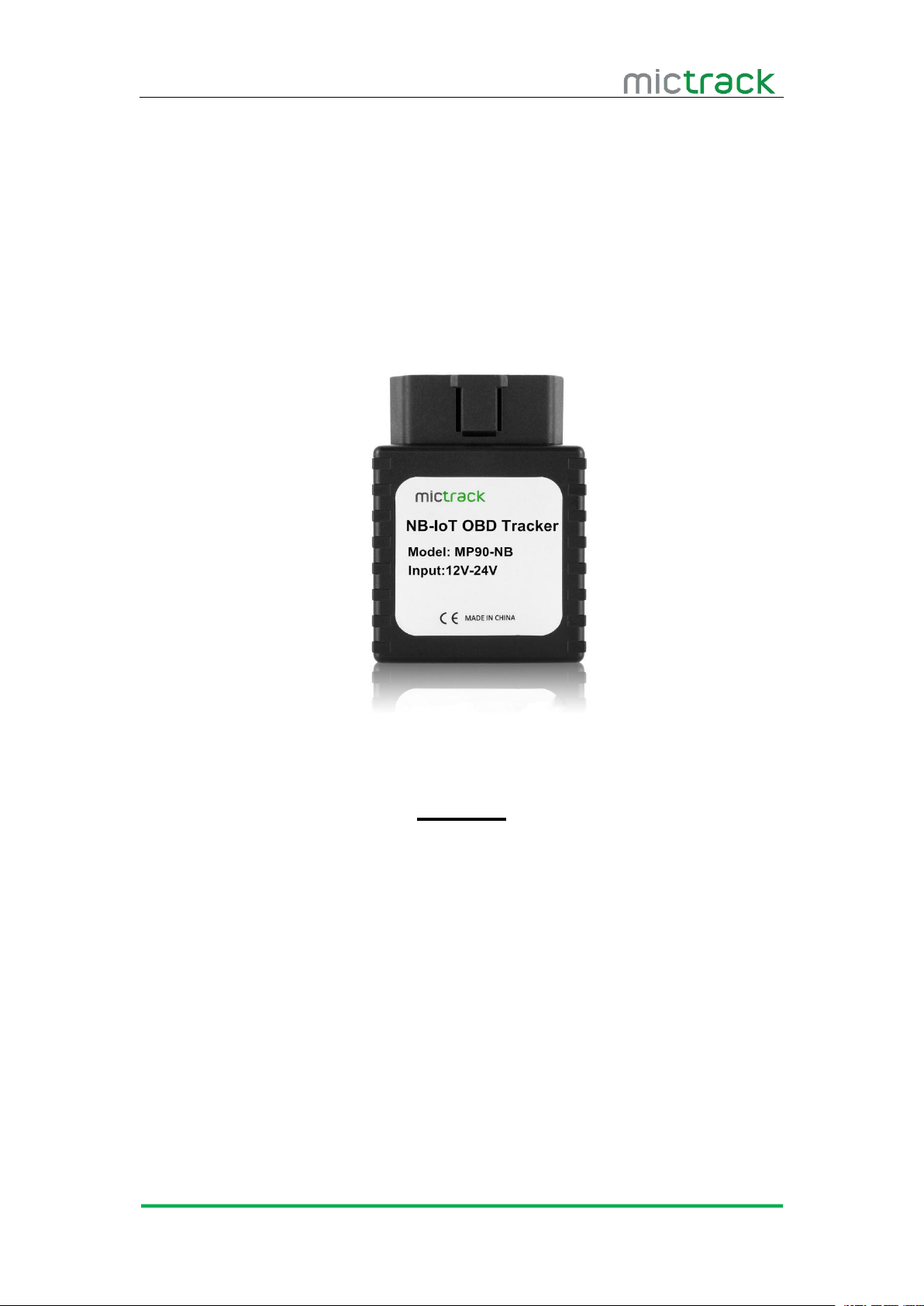
NB-IoT OBD Tracker
User Manual V1.0
Preface
Congratulations on choosing Mictrack MP90-NB NB-IoT OBD GPS tracker. This
manual shows how to easily program and setup the tracker for best results. Make
sure to read this manual carefully before using this product, so as to avoid delays or
confusion with it’s operation. Please note that specifications and instructions are
subject to change without notice to facilitate product improvement. Updates and
changes will be integrated into the latest release. The manufacturer assumes no
responsibility for any errors or omissions in outdated documents.
Page 2

MP90-NB User Manual V1.0
http://www.mictrack.com
Contents
1. Overview
2. Application
3. Specifications............................................................................................................................. 1
4. MP90-NB and Accessories..................................................................................................... 2
5. Installation................................................................................................................................... 3
5.1 SIM Card installation
5.2 Install the Device
5.3 LED Indications
5.3.1 SYS-System indicator (RED)............................................................................................ 4
5.3.2 GPS-GPS indicator (BLUE).............................................................................................. 4
6. Configuration & Functions...................................................................................................... 4
6.1 Un-plug alarm
6.2 Low battery Alarm (internal backup battery)
6.3 Low battery Alarm (Vehicle Battery)
6.4 High Temperature Alarm....................................................................................................... 5
7. Appendix...................................................................................................................................... 6
.....................................................................................................................................
...................................................................................................................................
.............................................................................................................
....................................................................................................................
.......................................................................................................................
..........................................................................................................................
...................................................................
..................................................................................
1
1
3
4
4
4
5
5
Page 3
MP90-NB User Manual V1.0
http://www.mictrack.com
1
1. Overview
The MP90-NB is a plug-and-play NB-IoT OBD tracker without wiring. Easy install to any
2. Application
LTE CAT M1/NB1/EGPRS network support
OBD II connector easy to install (Plug and Play)
Real-time position acquiring
Vehicle trip history and mileage data on web tracking platform
SOS alarm button and real time reporting (optional)
Geo-Fence alarm and reporting
Vehicle towing / Movement alarm
Over-Speed alarm and reporting
Remove and disconnect alarm
Backup battery low power alarm
Car battery low power alarm
High temperature alarm
Power saving / sleep mode
Mileage report
3. Specifications
Item
Specifications
Dimension
67(L)*50(W)*25(H)mm
Weight
80g
Input Voltage
12V-24V
Backup battery
130mAh/3.7v
Frequency bands
FDD LTE: B1/ B2/ B3/ B4/ B5/ B8/ B12/ B13/ B18/
B19/B20/ B26/ B28
TDD LTE: B39 (for Cat.M1 only)
GSM: 850/900/1800/1900Mhz
Power consumption
60mA standby current
GPS Chip
U-BLOX7
GPS Sensitivity
-162dBm
Channel
56 Channel
vehicle with a standard OBD II connector. It can be used locate, track and monitor the vehicle
via SMS, PC Computer or Mobile APP. It is commonly used to track and locate individual
vehicles, the user also can real time tracking and check the historical route travelled.
Page 4
MP90-NB User Manual V1.0
http://www.mictrack.com
2
Item
Specifications
Positioning Accuracy
10m
Hot start
1s on average
Warm start
15s on average
Cold start
30s on average
Working temperature
-20°C to 60°C
Humidity
5%~95% non-concretion
Antenna
Internal LTE CAT M1/NB1 & GPS antennas
Sensor
3D acceleration/movement sensor/ temperature sensor
LED indicator
SYS/GPS
SIM Card interface
Micro Size SIM
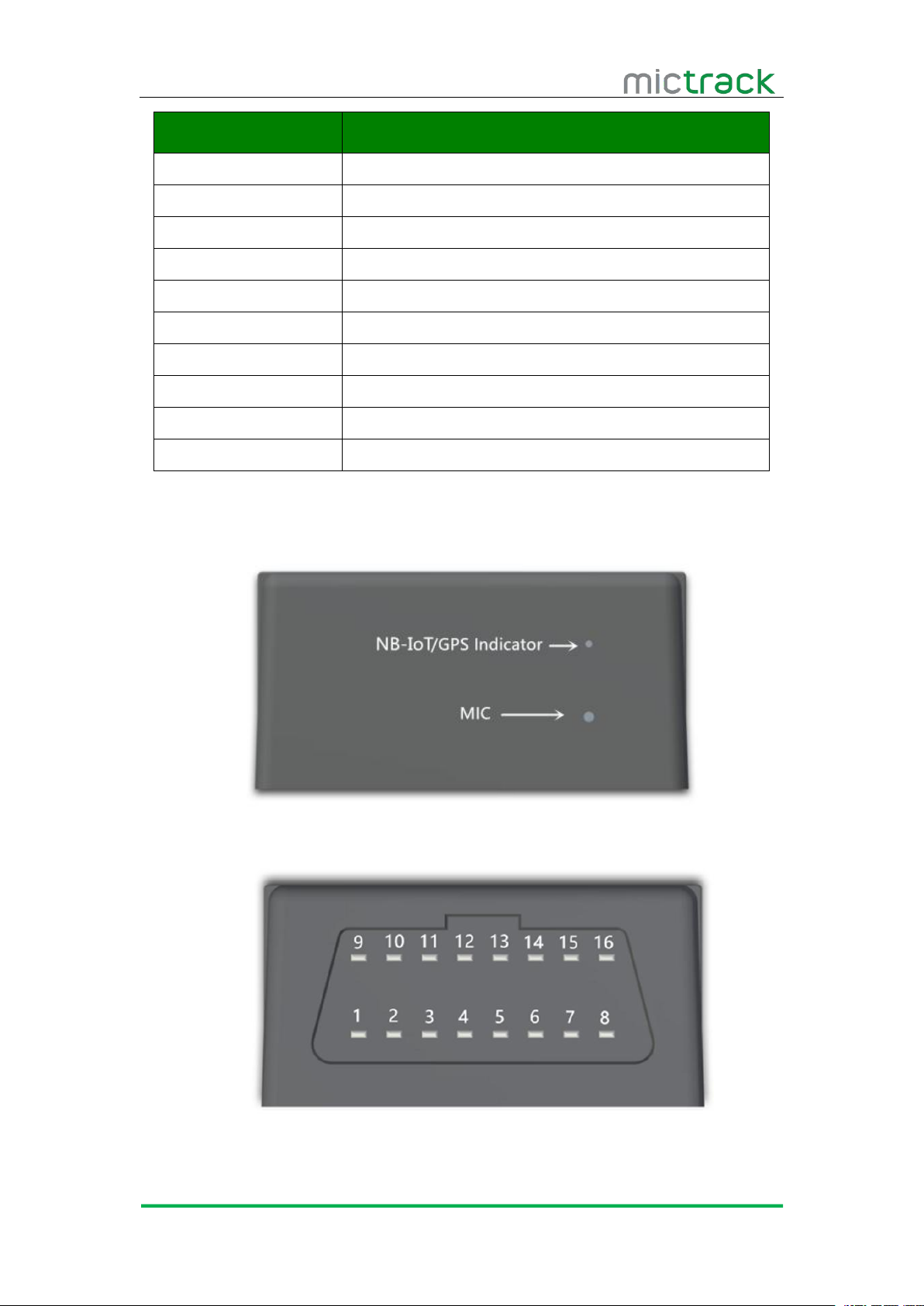
4. MP90-NB and Accessories
Page 5
MP90-NB User Manual V1.0
http://www.mictrack.com
3
5. Installation
5.1 SIM Card installation
Please read the following before installing the SIM card:
Ensure the SIM card has minimum balance
Ensure the SIM card has caller ID and HSPA functions enabled
Ensure the SIM card PIN is disabled, and call forwarding not active
Send a test SMS to and from the SIM card using a mobile phone
Power off the device before installing the SIM card
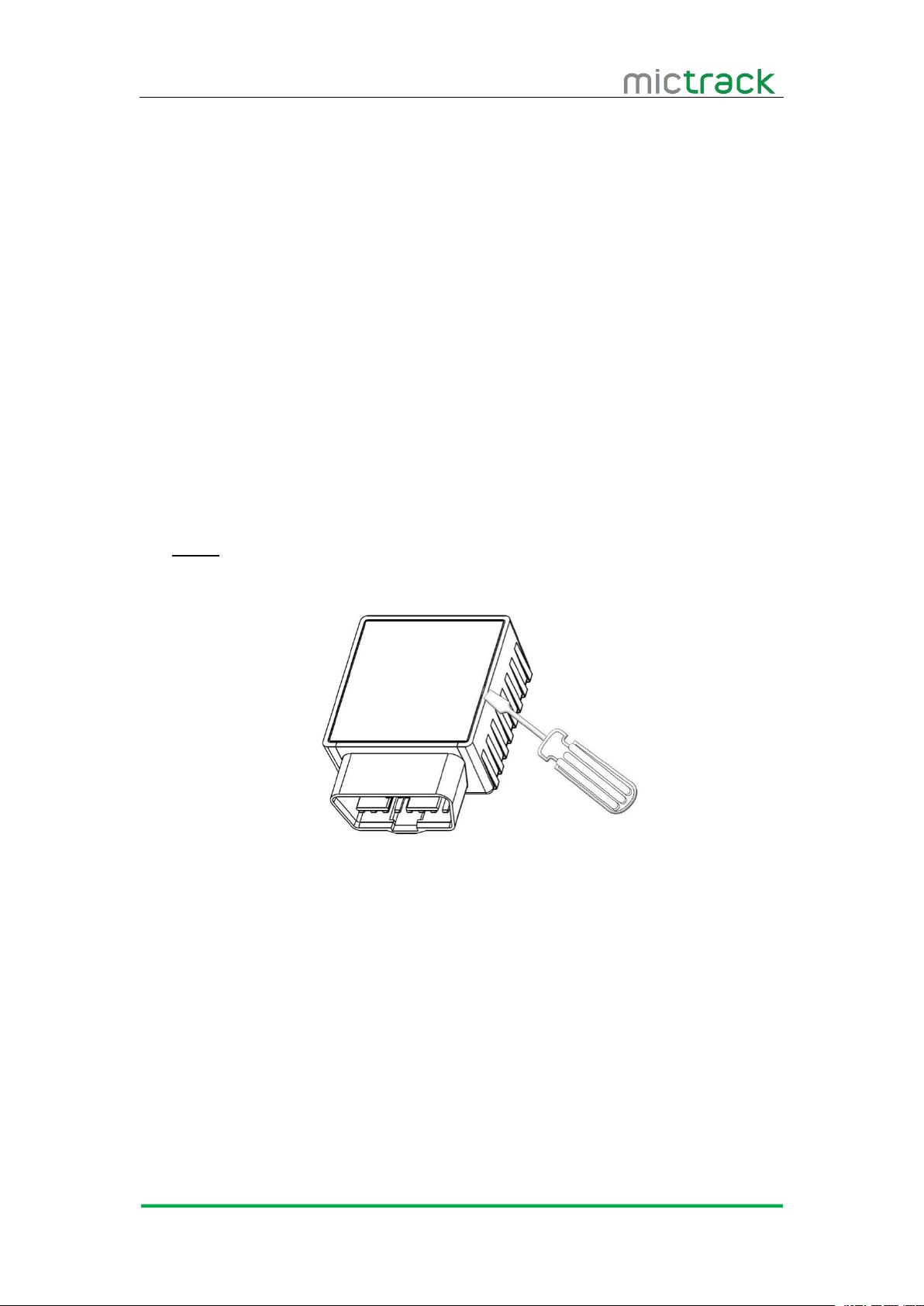
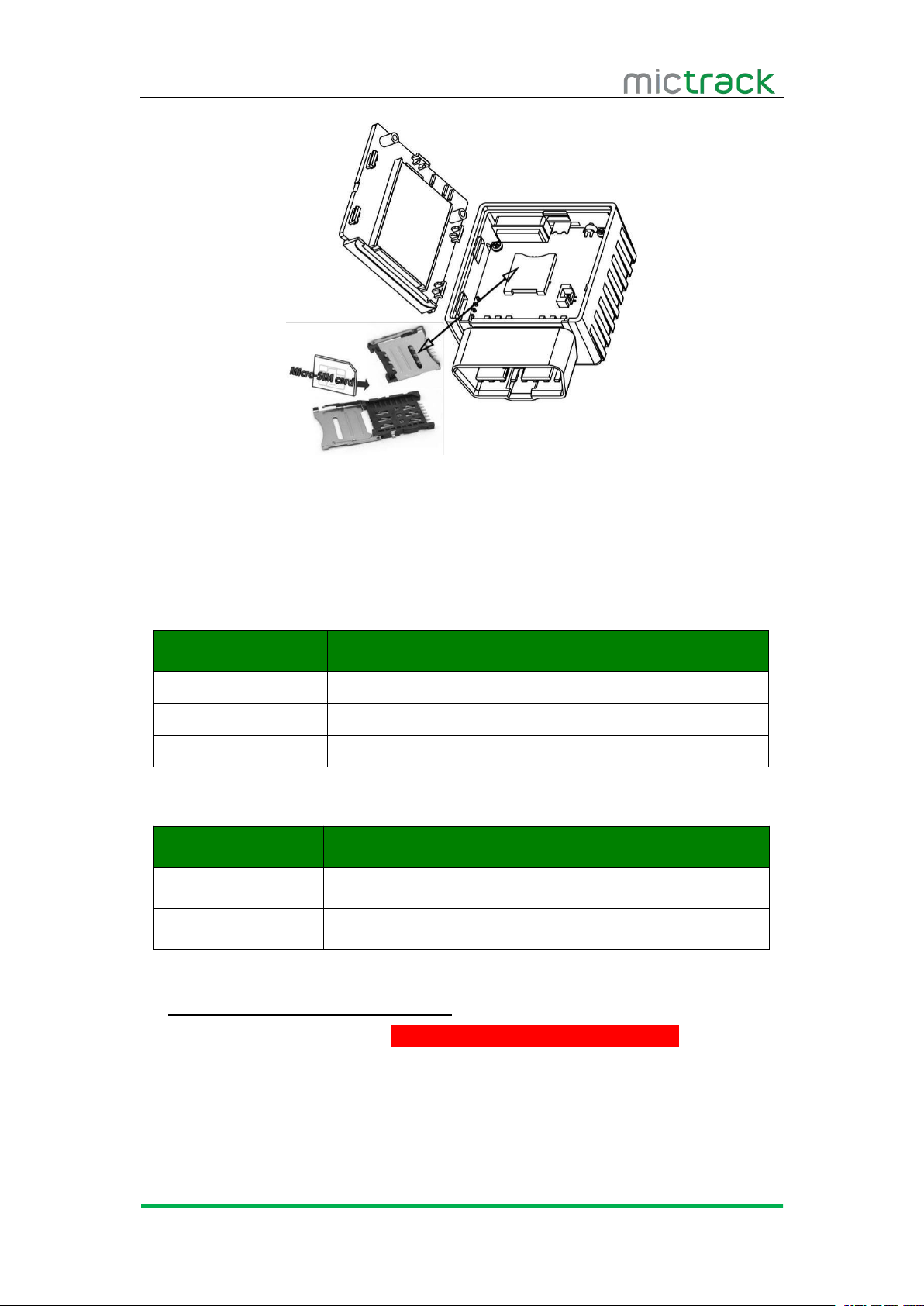
Gently open the back case using screwdrivers((Diagram #1).
Take out the over and Insert SIM card to the SIM card slot(Diagram #2)
Insert battery wire to connector
Attach back housing cover
Device is ready
The device only supports Micro Size SIM card;
The SIM Car MUST be support NB-IoT Network
To install the SIM card, perform the following operations:
Note:
(Diagram #1)
Page 6
MP90-NB User Manual V1.0
http://www.mictrack.com
4
(Diagram #2)
5.2 Install the Device
Directly insert the ODB tracker to vehicle’s OBD2 interface
5.3 LED Indications
5.3.1 SYS-System indicator (RED)
Status
Description
Constant ON
No SIM Card (or) No Network Reception
OFF
Vehicle Parked
Quick flash
Normal Working Mode
5.3.2 GPS-GPS indicator (BLUE)
6. Configuration & Functions
6.1 Un-plug alarm
Status
Description
OFF
GPS / Satellites Unavailable – Out of Range
Quick flash
GPS/Satellite Locked – Normal Mode
The LTE CAT M1/NB1 device DO not support SMS and voice function. It only can be
config by USB Cable.All the USB configuration instruction please refer to Appendix
If the MP90-NB was remove from the OBD connector, it will call the authorized phone
numbers, and then send location data to the authorized phone number and upload
location data to the Web Tracking Platform server along with the status description “DEF”
Page 7

MP90-NB User Manual V1.0
http://www.mictrack.com
5
6.2 Low battery Alarm (internal backup battery)
When the unit’s internal backup battery is low, it will SMS the authorized phone
6.3 Low battery Alarm (Vehicle Battery)
6.4 High Temperature Alarm
number, and upload location data to the Web Tracking Platform server along with the
status description “BLP”
When the vehicle battery is low, it will SMS the authorized phone number, and upload
location data to the Web Tracking Platform server along with the status description “CLP”
When the devices internal temperature is high [preset value] it will SMS the
authorized phone number, and upload location data to the Web Tracking Platform server
along with the status description “HT”
Page 8
MP90-NB User Manual V1.0
http://www.mictrack.com
6
7. Appendix
Mictrack Config Tool
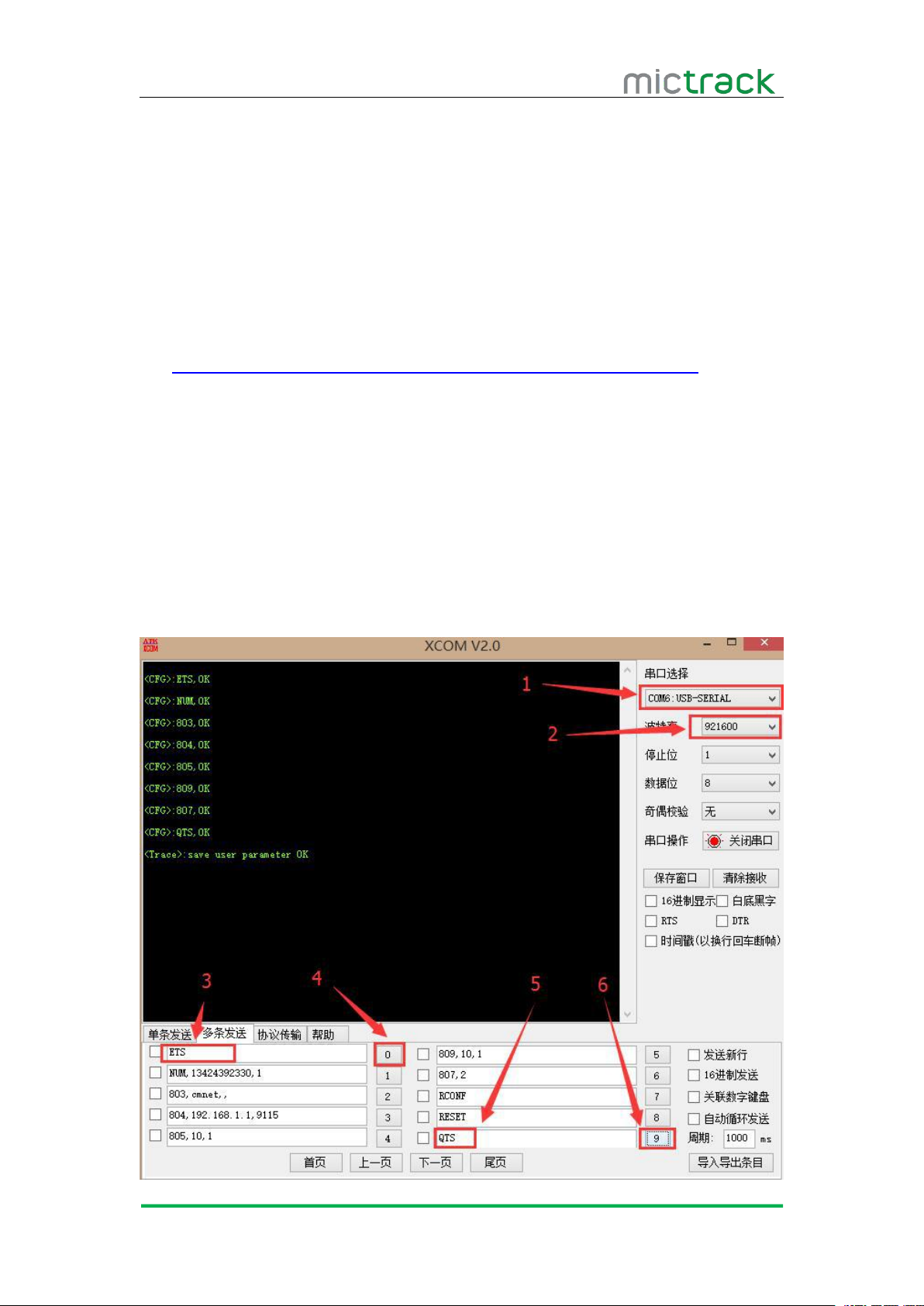
1. Download the Config Tools and USB Driver:
2. Install the USB Driver ” PL-2303 Vista_Win7 Driver Installer”;
3. Connect the “USB CABLE” between PC and Tracker;
4. Open the Tool” XCOM V2.0” and operate it as follow:
5. Select the correct COM PORT (step 1 in follow picture);
6. Select the correct Baud rate as” 921600” (Step 2 in picture);
7. Ensure Tracker “ POWER ON”;
8. Input” ETS” (step 3 in picture) and then click ”0”(step 4 in picture) to Start the Config;
9. Input any other commands and then click the number on the right(1-8).
10. Input “QTS”(step 5 in picture) and then click “9” (step 6 in picture) to Save the
User Guide V2.0
The guide is only show how to to Config the Mictrack devices with the tools, the process are:
https://drive.google.com/drive/folders/0B32J3VHnO7UOcHRHbm1LU3p2RlE
configuration and Exit.
Page 9
MP90-NB User Manual V1.0
http://www.mictrack.com
7
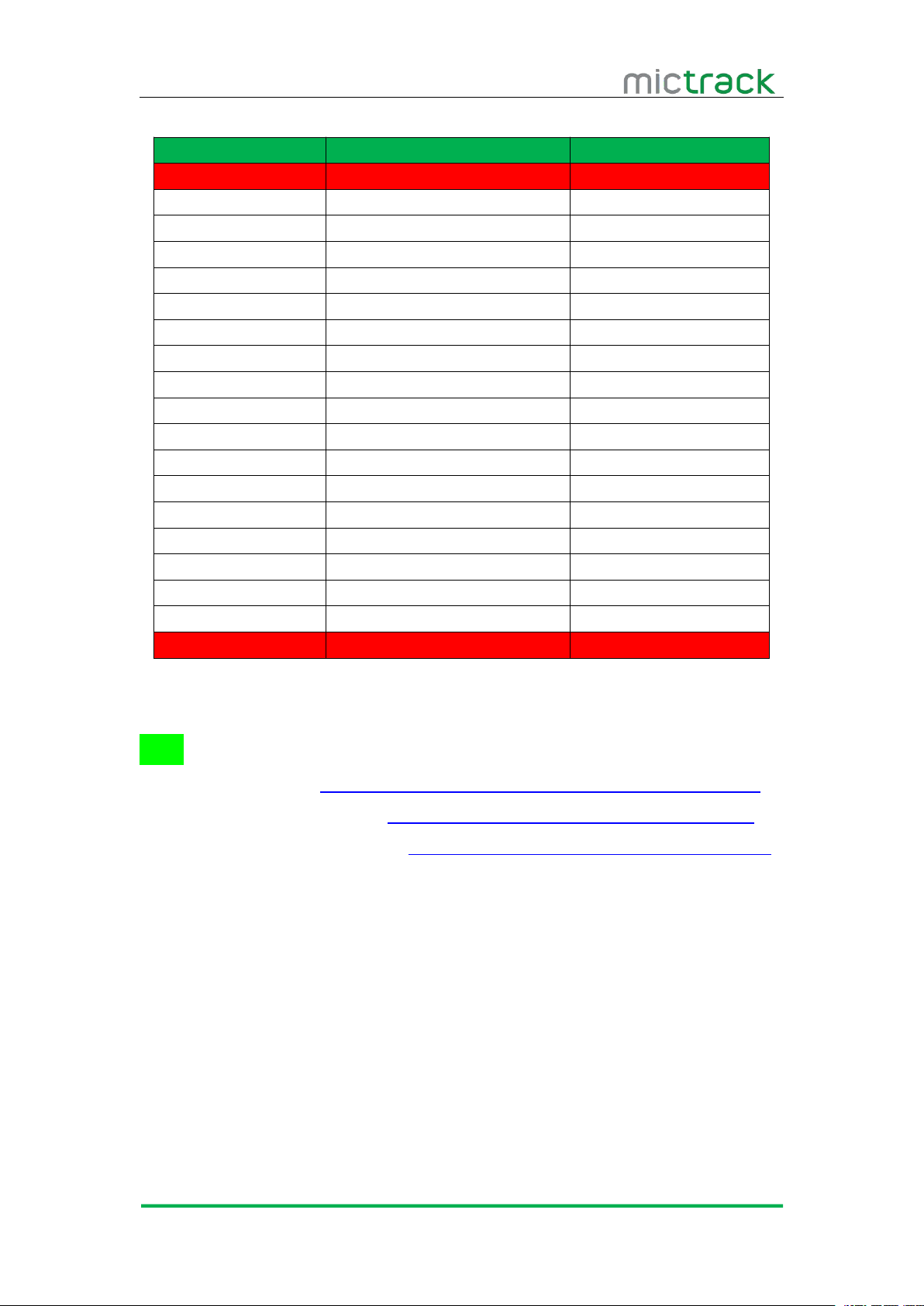
Commands list:
Item
Command format
Example
Start
ETS
ETS
Pre-set number
NUM,cell number,1~3
NUM,13424392330,1
Delete pre-set number
NUM,,1~3
NUM,,1
Change password
777,new password
777,1234
Call OFF
150
150
Call ON
151
151
SMS OFF
160
160
SMS ON
161
161
Invalid upload OFF
080
080
Invalid upload ON
081
081
GPRS user name
801,gprs user name
801,mictrack
GPRS user password
802, gprs user password
802,2017
APN
803,apn,apn user, apn password
803,telstra.internet,,
804
804,IP,Port
804,112.95.164.248,7700
805
805,interval time, 1,
805,10,1
809
809,interval time,1
809,1800,1
Read Config
RCONF
RCONF
RESET
RESET
RESET
Save and Exit
QTS
QTS
Tips:
How to setup APN: https://www.mictrack.com/apn-settings-for-mictrack-gps-trackers
How to use Mictrack Server: https://www.mictrack.com/how-to-use-mictrack-server
Global Frequency bands check: https://www.mictrack.com/4g-lte-frequency-bands-list
Note: Please remember to monitor the credit balance of your SIM card, to
avoid confusion or delays in setting up your new unit. This can be a common issue,
especially when initially setting up a new unit, and the unit fails to reply to a correct
SMS command sequence.
If you have any questions please do not hesitate to contact us [email protected].
 Loading...