

Page 1
rev. 2.0
QUICK USER GUIDE
Page 2

INDEX
Keys Function in the user interface
Acknowledgements
4
Start/ power off
10
Lock screen
11
Language settings
12
Monitoring and battery charge
Computer connectivity and data transfer
13
Menu App Launcher
15
System settings
20
Package contents
5
Overview
6
Warnings
7
Keys description
8
Wireless & Networking
Lock screen with smile
14
Page 3

23
Bluetooth settings
24
Account
25
Apps
26
Localization and Security
27
Internet
Language and input
Date and time
28
Technical datasheet
Account management
Backup and recovery
Device info
Multi Window
Display settings
Connecting to a network
21
Sound settings
22
3G settings
Page 4

4
Thank you for purchasing e-tab.
Congratulations on the purchase of our e-tab-Style.
It is a modern and powerful tablet with quad-core SoC
and ARM Cortex A17 architecture, 2 GB 64-bit DDR3
RAM and a storage capacity of 16 GB.
The tablet comes with a screen protected by a highstrength tempered glass, a particularly strong back
cover with anti-slip grip and an extremely compact
polycarbonate frame.
Microtech has developed this product with passion,
commitment and attention to detail. Microtech wishes you
to be able to make full use and be satised with it.
Thank you for choosing a product designed in Italy.
Microtech team
ACNOWLEDGMENTS
Trademark protection
e-tab Style and e-tab Style logo are registered trademarks
of Microtech.
All trademarks and copyrights belong to their rightful
owners.
Page 5
Microtech S.r.l
e-tab Style
5
PACKAGE CONTENT
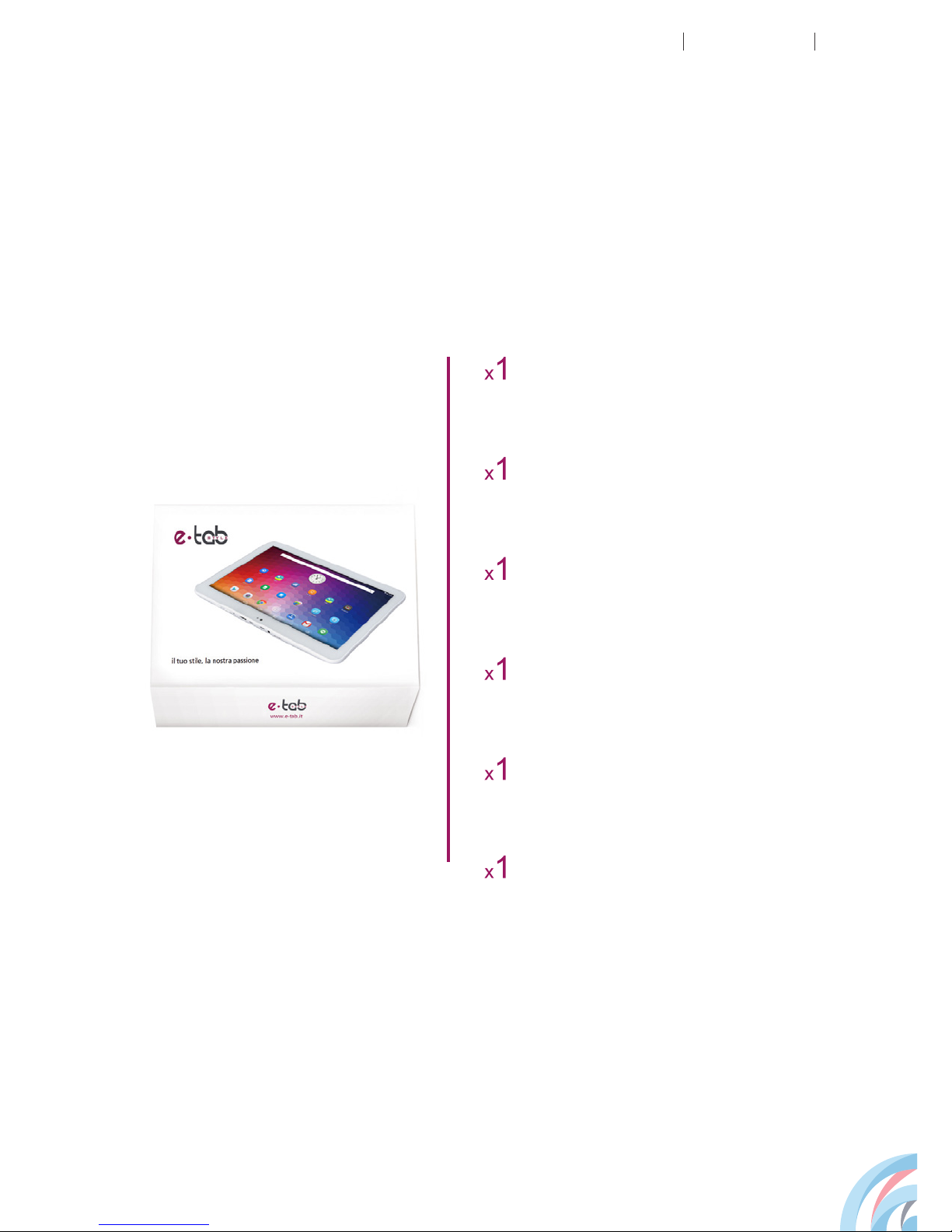
e-tab Style
AC network adapter
USB-OTG adapter
User manual
Stereo earphones
USB cable for PC
connection
Page 6
6
OVERVIEW
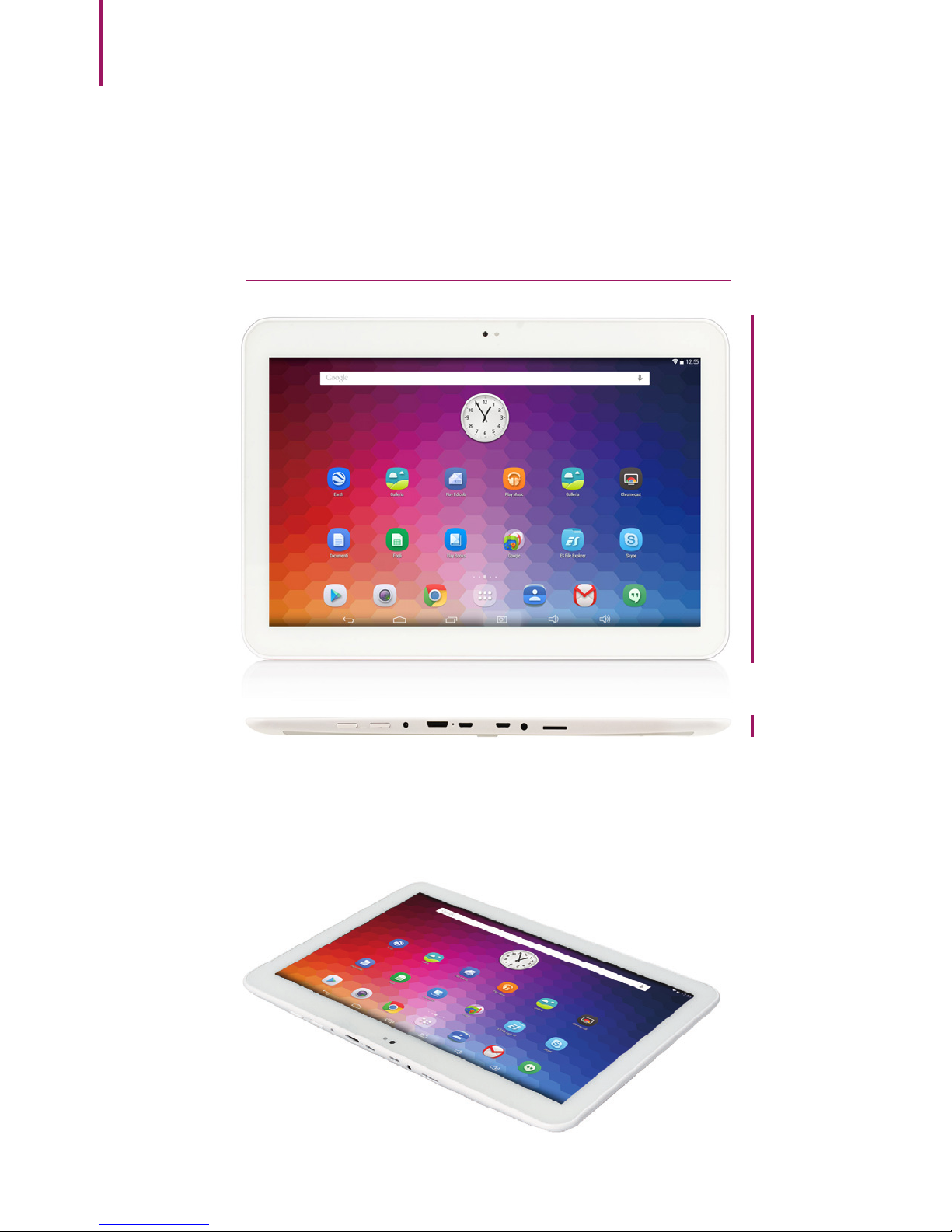
248 mm
173 mm
10 mm
Page 7
Microtech S.r.l
e-tab Style
7
WARNINGS
This user manual contains important safety instructions
and information for the proper use of the device.
Please follow the instructions found in this manual
carefully.
If you wish to purchase additional accessories you can
nd them on our website www.e-tab.it
To prevent hearing damage, do not listen to high volume
audio for a long time.
Never abruptly disconnect the tablet from the PC while it is
exchanging data. It could cause errors and malfunctions.
Avoid shocks and do not drop the device as it may be
damaged.
Do not use alcohol, thinner or gasoline to clean the
display. Only use a dry cloth.
Stand-by duration can vary according to different
environmental inuences.
Page 8
8
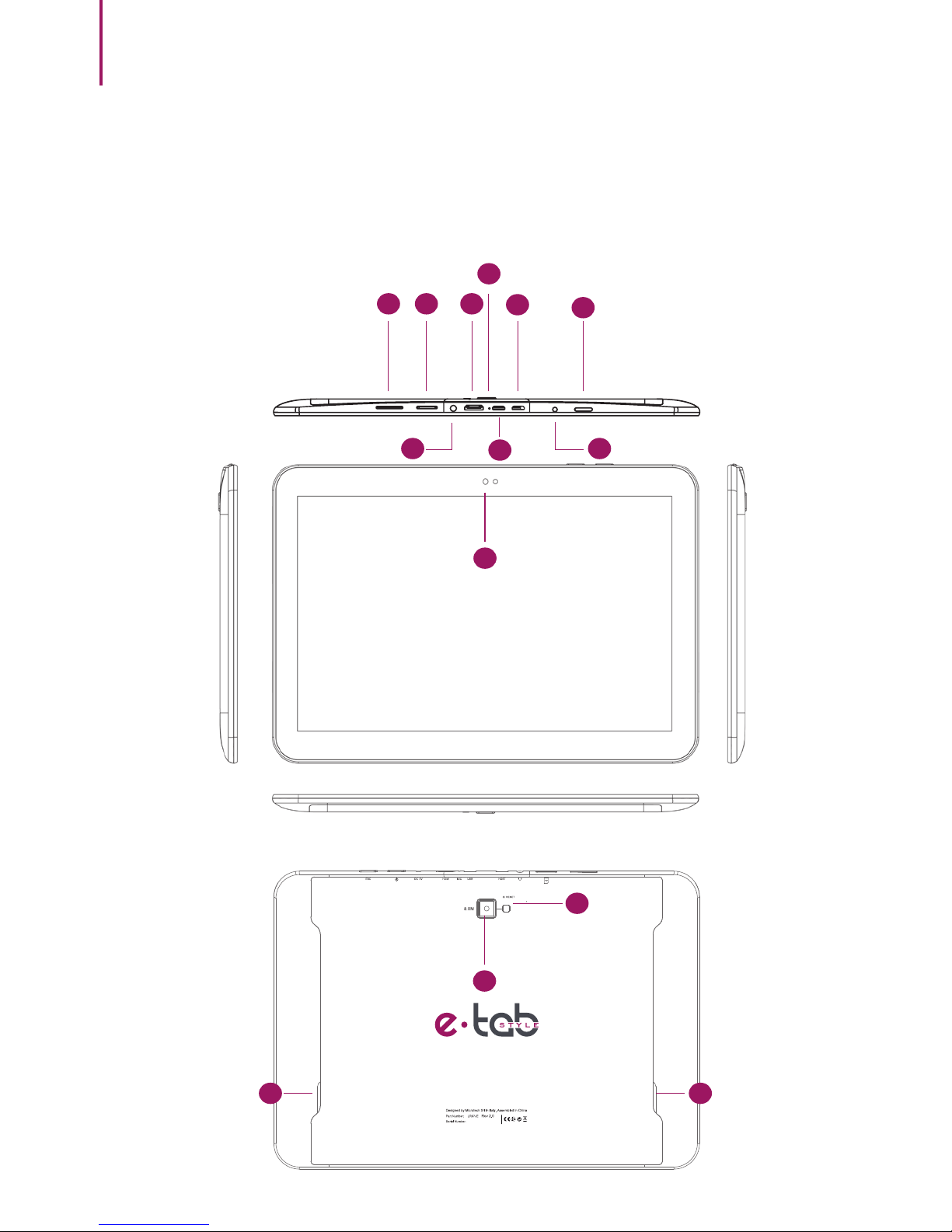
KEYS DESCRIPTION
1
2 4
5
7
3
9
10
6
8
13
12
11
14
Page 9
Microtech S.r.l
e-tab Style
9
1. ESC
Press to return to the previous screen
application.
Press and hold to start e-tab. Touch for short
periods to lock or unlock the screen.
2. Power and
lock
Used to charge the battery via the included power
supply.
3-Jack
charge
To connect the TV via HDMI cable (optional).
4-HDMI
Microphone
5-MIC
Used for data trafc to and from your computer (e.g.,
music, videos, photos).
6- USB-data
Used for USB OTG, mouse, keyboard, USB stick with
special converter.
7-USB HOST
Used to connect headphones.
8-Headphone
Jack
Insert here your Micro SD (maximum capacity 32 GB).
9-TF card slot
2 MPixels.
10- Front
camera
It improves the brightness of the screen depending on the
environmental conditions.
11- Light sensor
8Mpixels with LED ash and autofocus
12- Rear
camera
AAC Speaker
13- Left speaker
AAC Speaker
14- Right speaker
Page 10
10
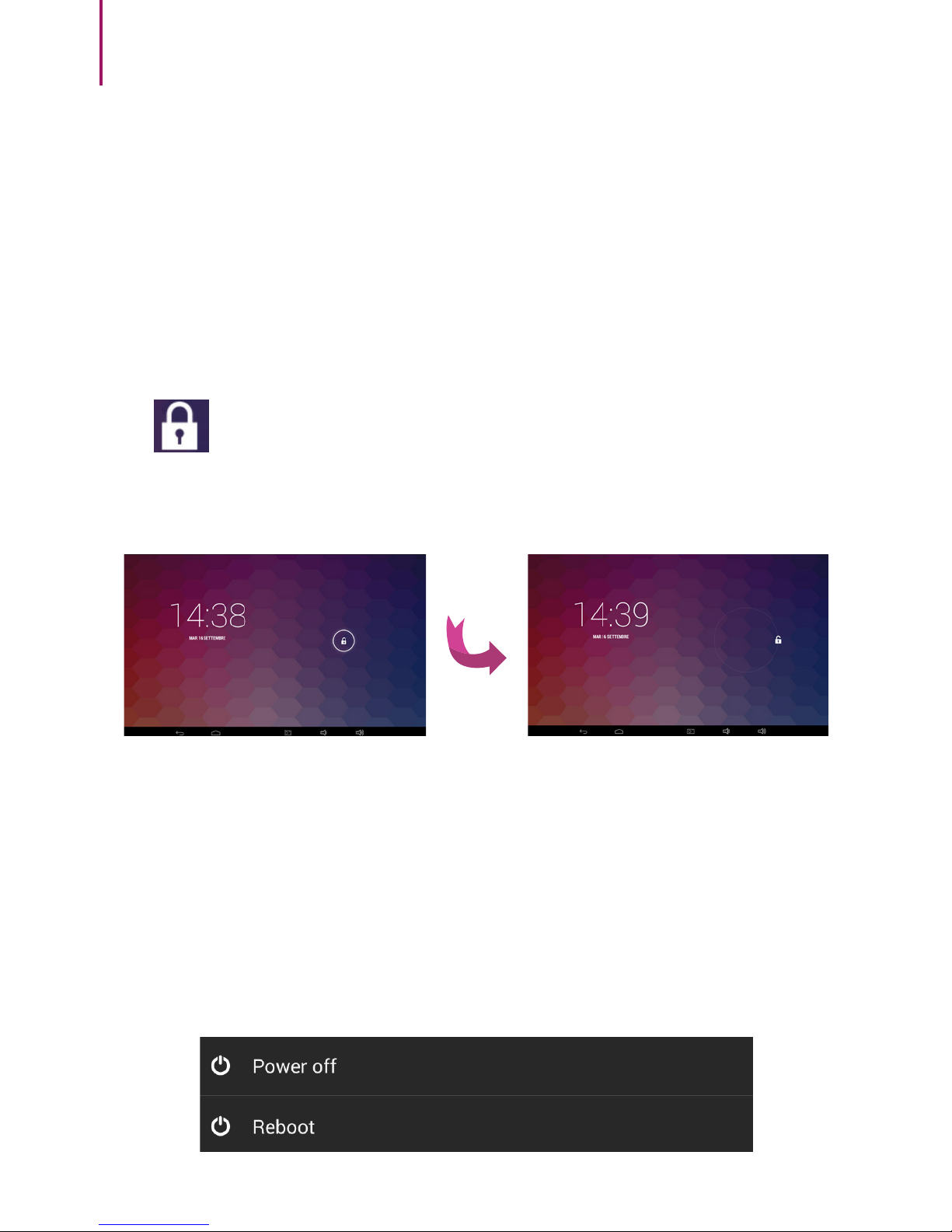
To start your e-Tab Style press and hold the power button.
Once the screen is active, move your nger on the lock
icon next to the circle that will appear on the
screen to unlock it.
START/POWER OFF
To turn off the tablet press and hold the start button until
you see a window that asks you if you want to turn it off.
To lock the tablet switch in stand-by mode, press and
immediately release the power button.
Page 11
Microtech S.r.l
e-tab Style
11
If the device is not used for the specied time period or
the power button is pressed briey, the screen turns off
and display lock is activated.
Pressing for a short time the power button will reactivate
the screen.
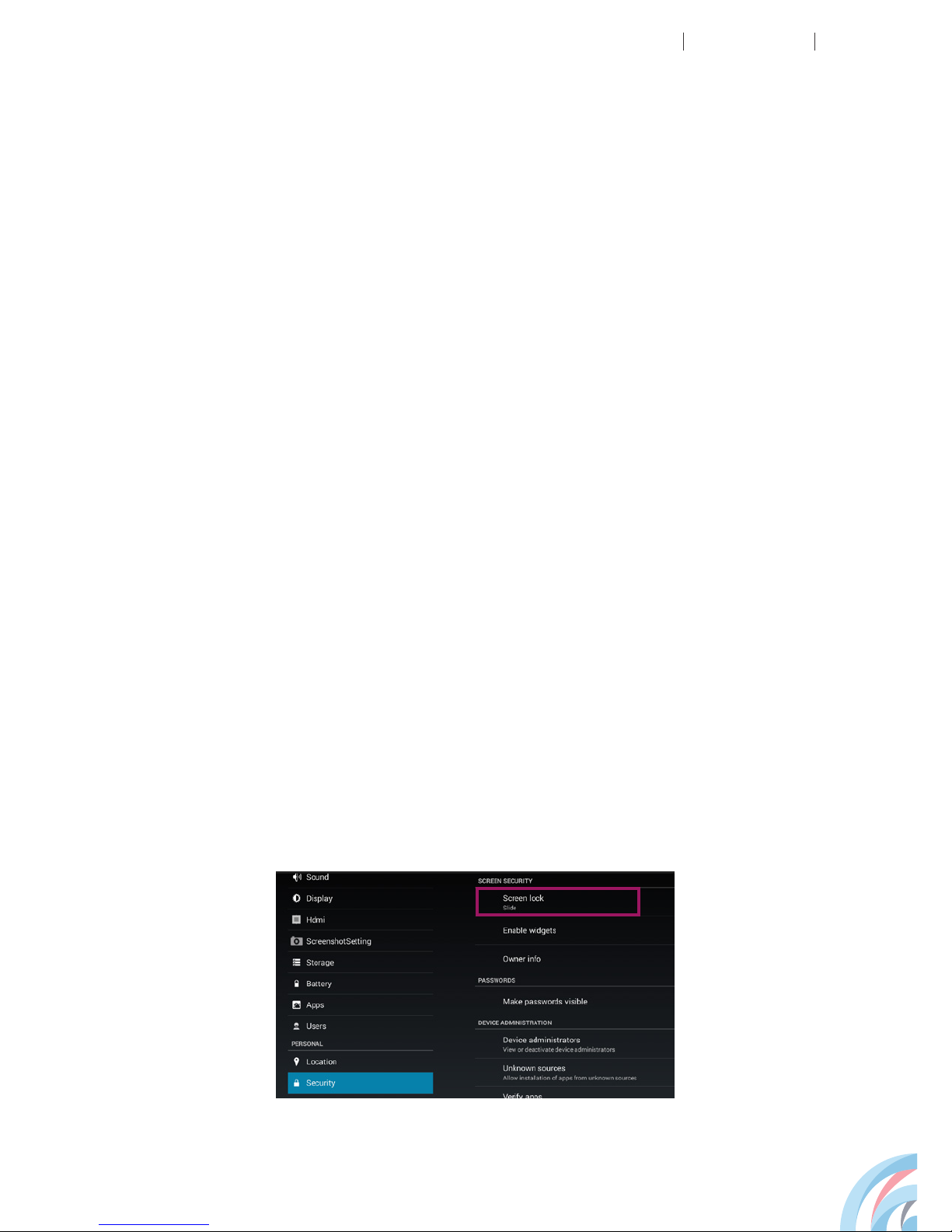
LOCK SCREEN
LOCK SCREEN WITH SMILE
You can unlock the device automatically using face
recognition.
To enable this feature you need to configure the system
to recognize your face and associate a sequence or a pin.
Page 12
12
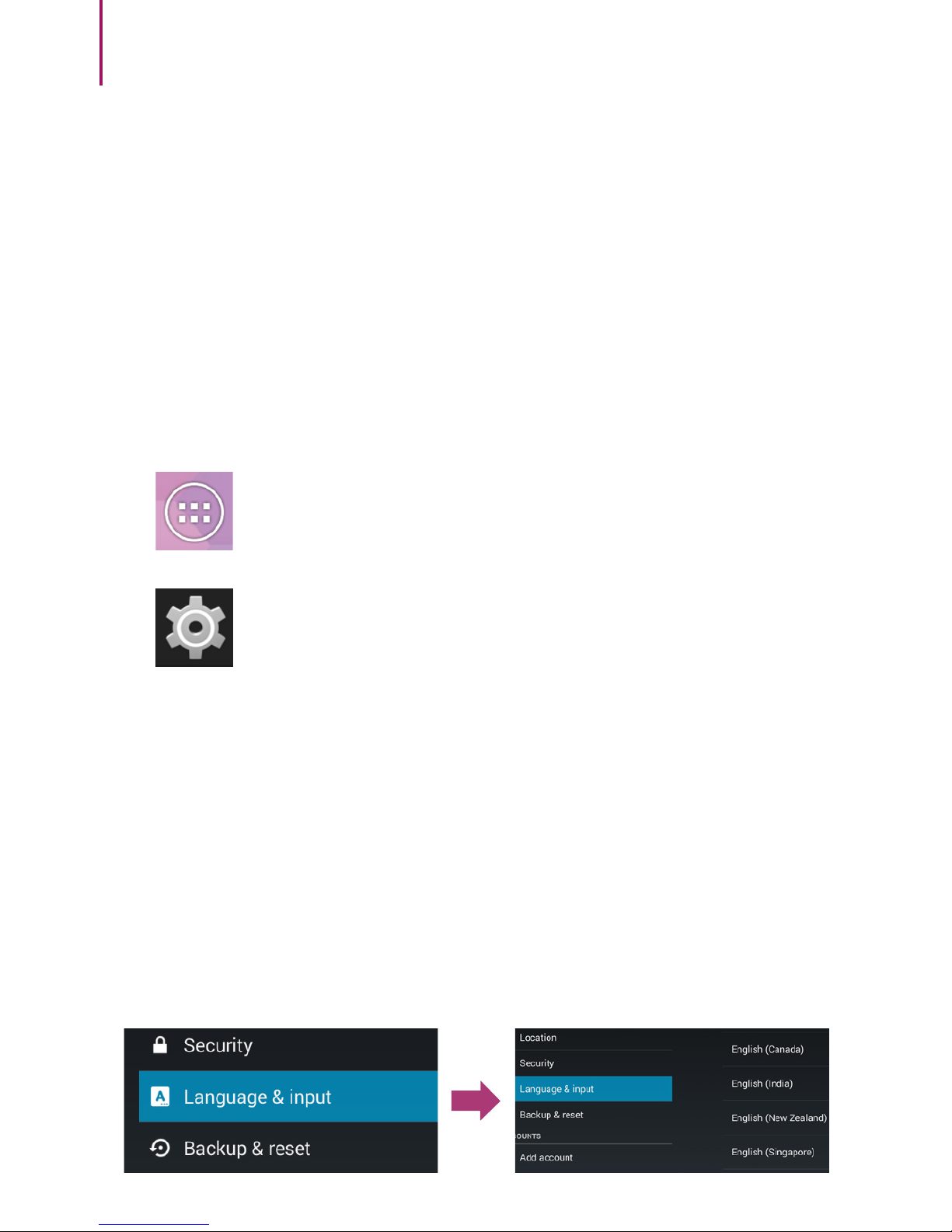
LANGUAGE SETTINGS
The device is delivered in Italian.
To change the language settings, follow the instructions
below:
Press on the menu symbol in the lower part
of the device.
Select Settings.
Scroll down the left side until the end of the
list.
Select Language input.
On the right side, select Language.
Choose your preferred language.
Press the Home button to go back.
Page 13

Microtech S.r.l
e-tab Style
13
The device has a 2.0 High-Speed USB.
After connecting the device to your computer, the
message Preparing SD card will appear in the upper left
corner.
At this point, it will be necessary locate the device
connected and explore the information with a touch of ES
File Explorer.
When using the device for data transfer, you cannot
access the MicroSD card from your PC!
CONNECTION TO THE COMPUTER AND DATA
TRANSFER
The recharge symbol in the lower right taskbar indicates
the charging status of the battery.
If the charge is low, the device automatically turns off.
If you see that the charge is low, use the power supply or
connect the device to a computer via USB.
It takes about 5 hours to charge the device completely.
MONITORING AND BATTERY CHARGE
Page 14
14
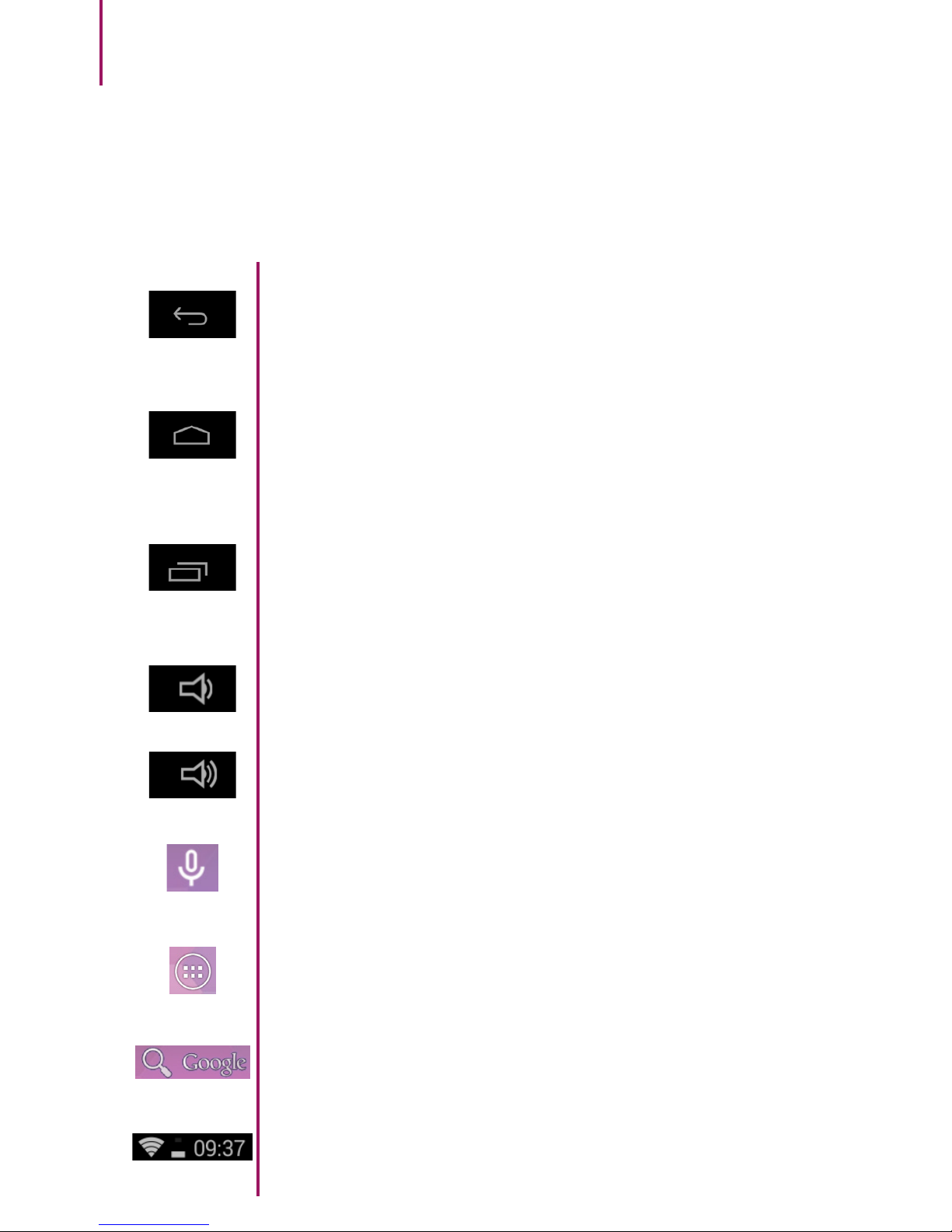
KEYS FUNCTION IN USER INTERFACE
Back key
You return to the previous screen from any
program.
Home key
It takes you back to the home screen.
Windows key
It lets you visualize the windows of previous
panels.
Microphone key
Press to launch Voice Search.
A window showing the installed apps.
Press to launch Google Search.
A small panel showing the status of the
network, the system clock and the battery
It decreases the volume.
It increases the volume.
Page 15
Microtech S.r.l
e-tab Style
15
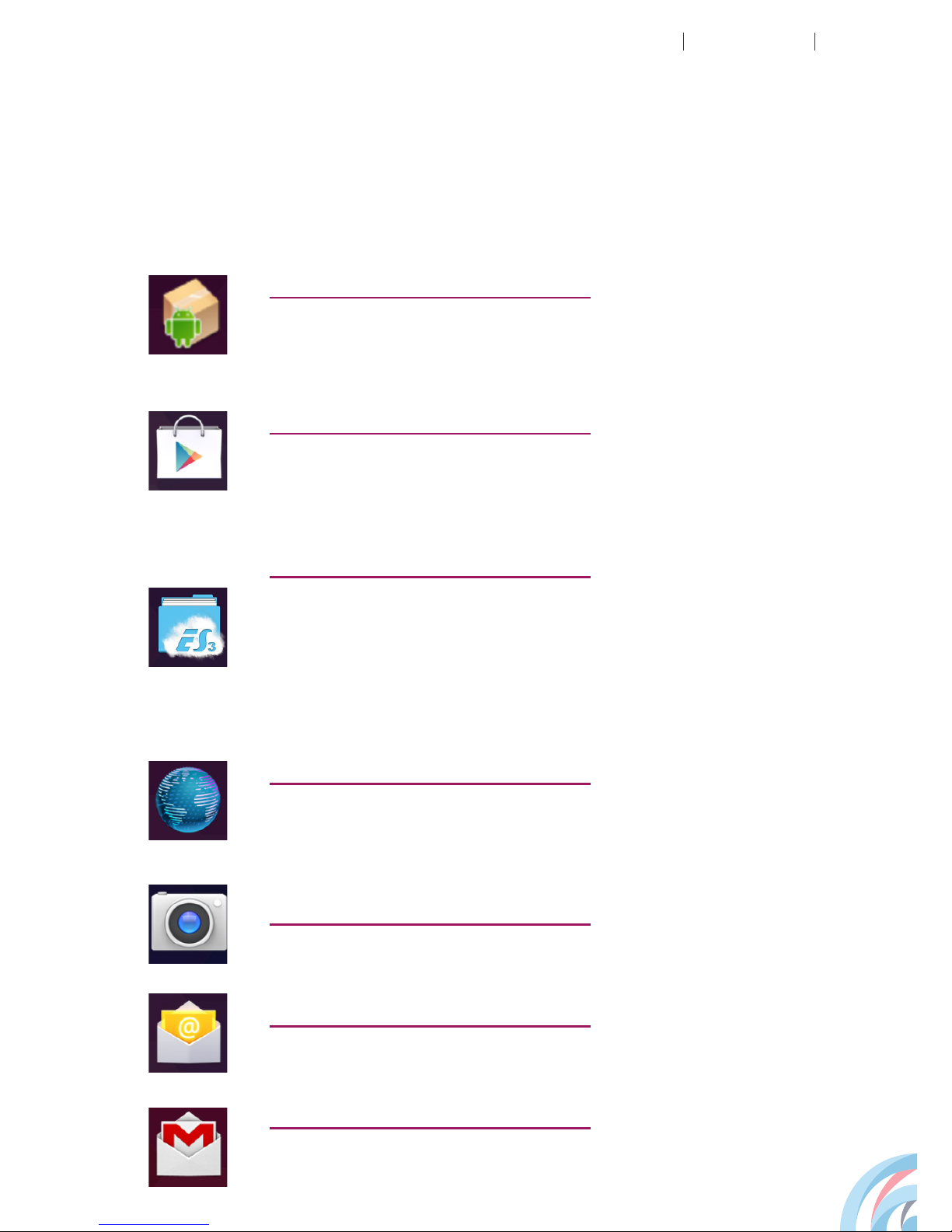
MENÚ APP LAUNCHER
Email management program.
Email management program with a Google
Account.
Internet Browser
Android program allowing the display of web
pages.
Program that allows you to install applications
not available in the Android Market.
Apk
Program allowing the installation of Android
applications. Most of them are free.
Play Store
A files and applications manager that can be
interfaced with the main cloud services, FTP
and Samba servers, Windows and Linux
operating systems and OS X.
ES File Explorer
Both front and rear cameras
Camera
E-mail
G-mail
Page 16
16
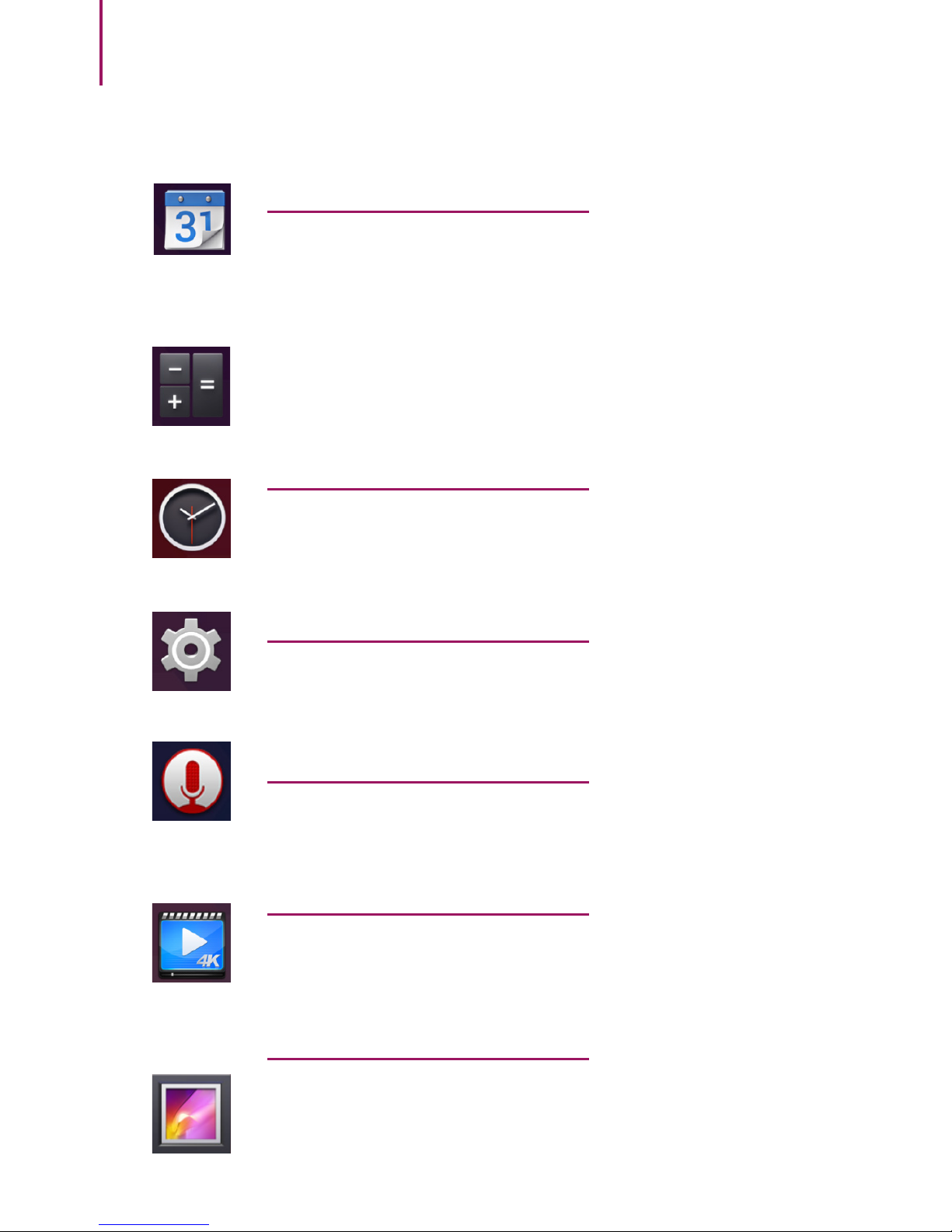
Pocket calculator
Time display and alarm settings.
Changes in the basic settings.
Dictation function
Application that allows you to play videos in
4K / 2160P (Quad HD).
Management and display of images and
video.
It can also be synchronized with the albums
on Picasa Web.
Android program for the management of
appointments that can be automatically
synchronized with a Google account.
Calendar
Photos
4K Video
Sounds Recorder
Settings
Time
Page 17
Microtech S.r.l
e-tab Style
17
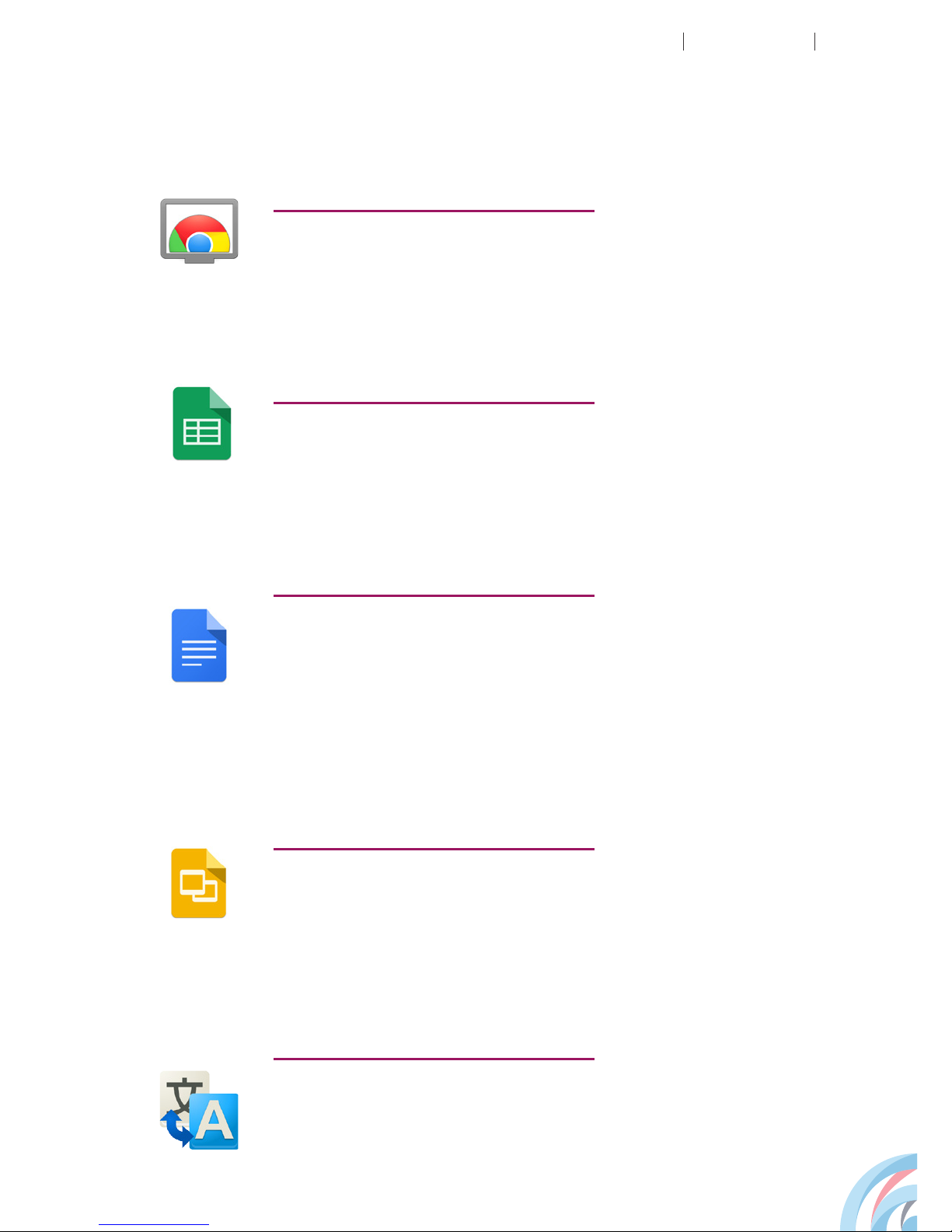
Google translator
It is an automatic translation service provided
by Google Inc. to translate a section of text
or an entire web page into another language.
Google docs
It is an application that allows you to create
documents with clever editing and style
tools that help you to easily format text and
paragraphs.
Google Presentations
You can make presentations, with a variety of
topics, thousands of fonts, embedded videos,
animations and more.
Google sheets
Word processing and worksheets application
Google ChromeCast
ChromeCast is a multimedia streaming
device.
Page 18
18
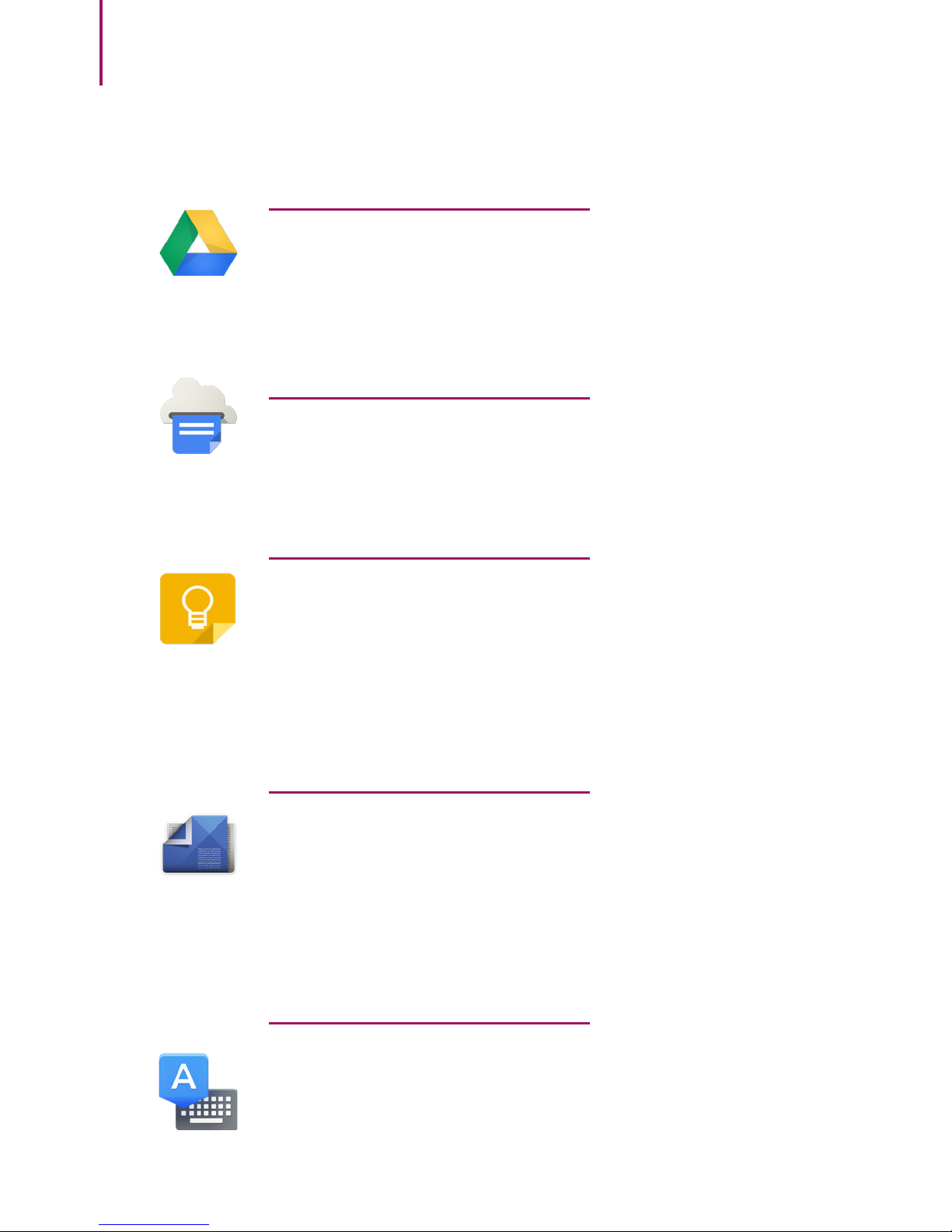
Google Drive
It is a web service of online storage and
synchronization, which allows file hosting,
file sharing and collaborative editing of
documents.
Google Cloud Print
Google Cloud Print is a new technology that
connects compatible printers to the web.
Google Keep
It is a tool for taking notes, available on the
Play Store for Android devices and on the
Chrome Store for Google Chrome.
Google Play Newsstand
It is a virtual newsstand where you can
choose on payment and free magazine from
all sectors placed in special shelves and
divided by category.
Google Keyboard
Google keyboard makes text input easy and
intelligent. You can scroll your finger across
the letters to activate gestural typing or create
notes with voice typing.
Page 19
Microtech S.r.l
e-tab Style
19
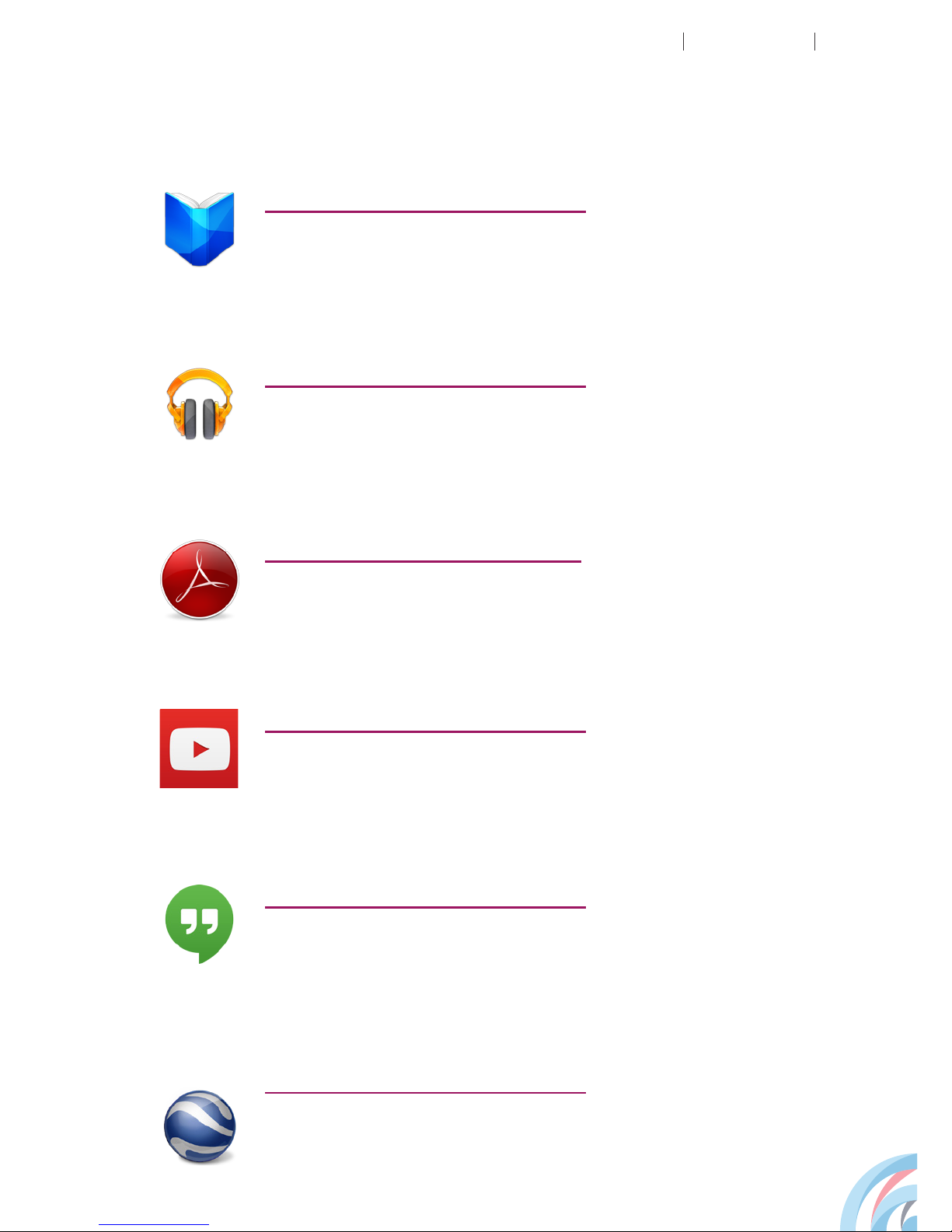
Adobe Reader
Program to visualize PDF documents.
Hangout
Instant messaging and VoIP software
developed by Google.
Youtube
Platform that allows sharing and watching
videos.
Google Play Music
Virtual store where you can listen and buy
music.
Google Earth
It is an application showing three-dimensional
graphics and aerial photographs of the Earth.
Google Play Books
Service that allows you to read books and
access Google’s online store.
Page 20
20
Touch the setup icon to open the system settings menu:
The device will automatically search for available WLAN.
SYSTEM SETTINGS
WIRELESS AND NETWORKS
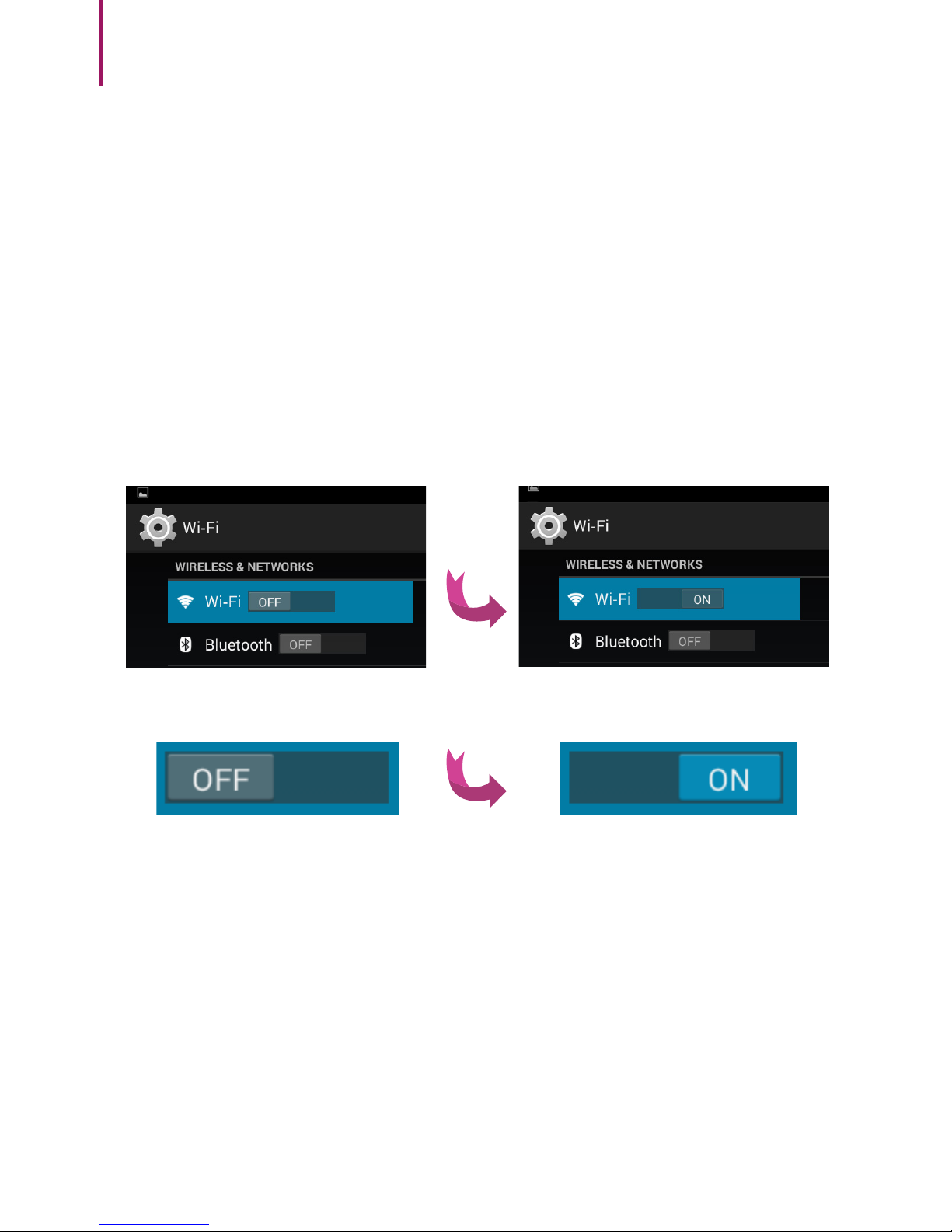
Tap the Wi-Fi key to switch to the ON position.
WLAN Settings: Select your network here.
You may need to enter a WLAN password.
Page 21
Microtech S.r.l
e-tab Style
21
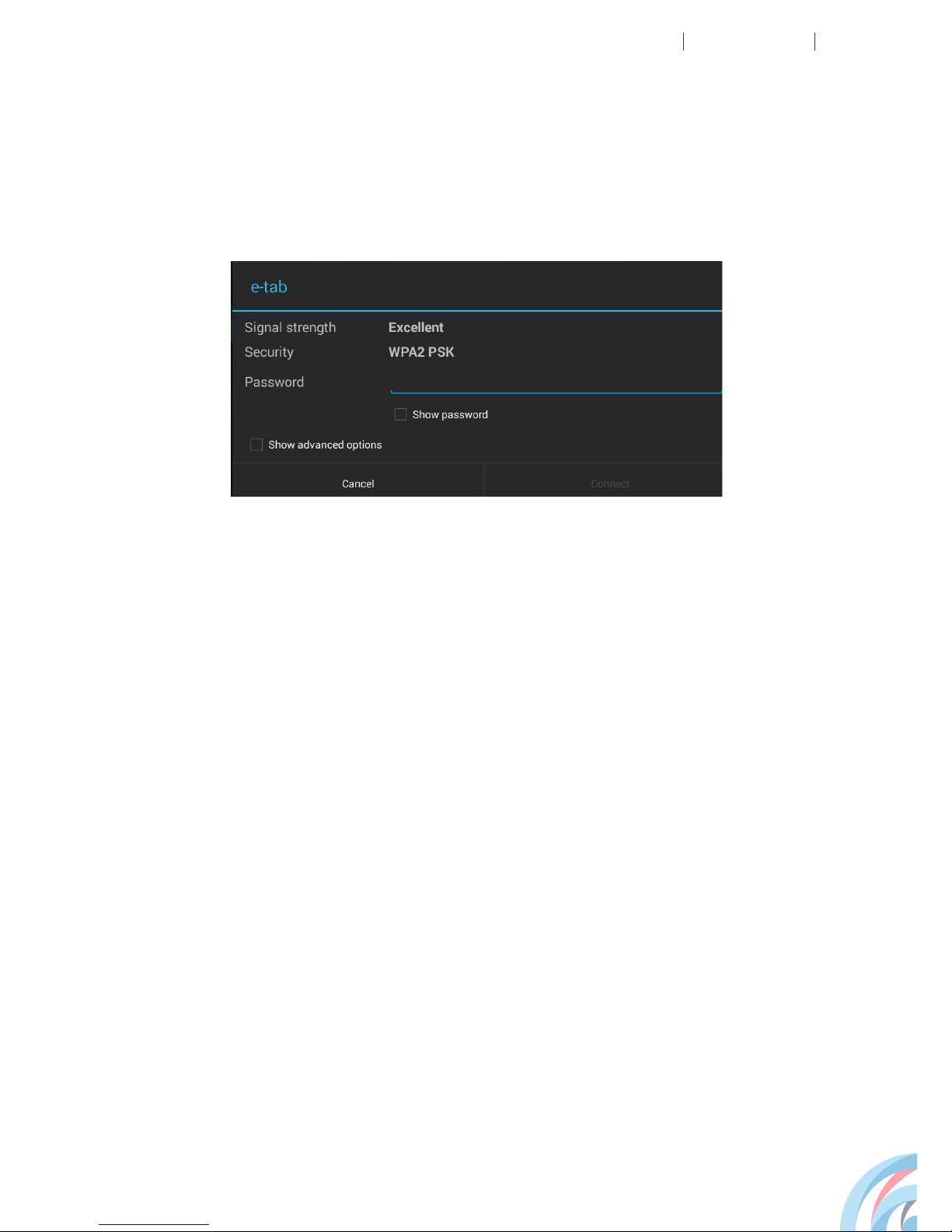
Tap the name of the network you wish to connect to. A
window requesting the password will automatically pop
up. Enter the password and tap Connect.
CONNECTING TO A NETWORK
The tablet, though not equipped with SIM connectivity, is
able to support 3G connection via USB dongle connected
to the USB Host slot.
The USB HOST is included in the tablet, the USB dongle
and SIM are not included in the package.
At the design stage we made sure that the tablet would
be compatible with most of the keys on the market; being
hardware devices evolution very fast (a few months), we
strongly suggest to go to the shop and give it a try before
purchasing a 3G key to the tablet
3G CONNECTION SETTINGS
Page 22
22
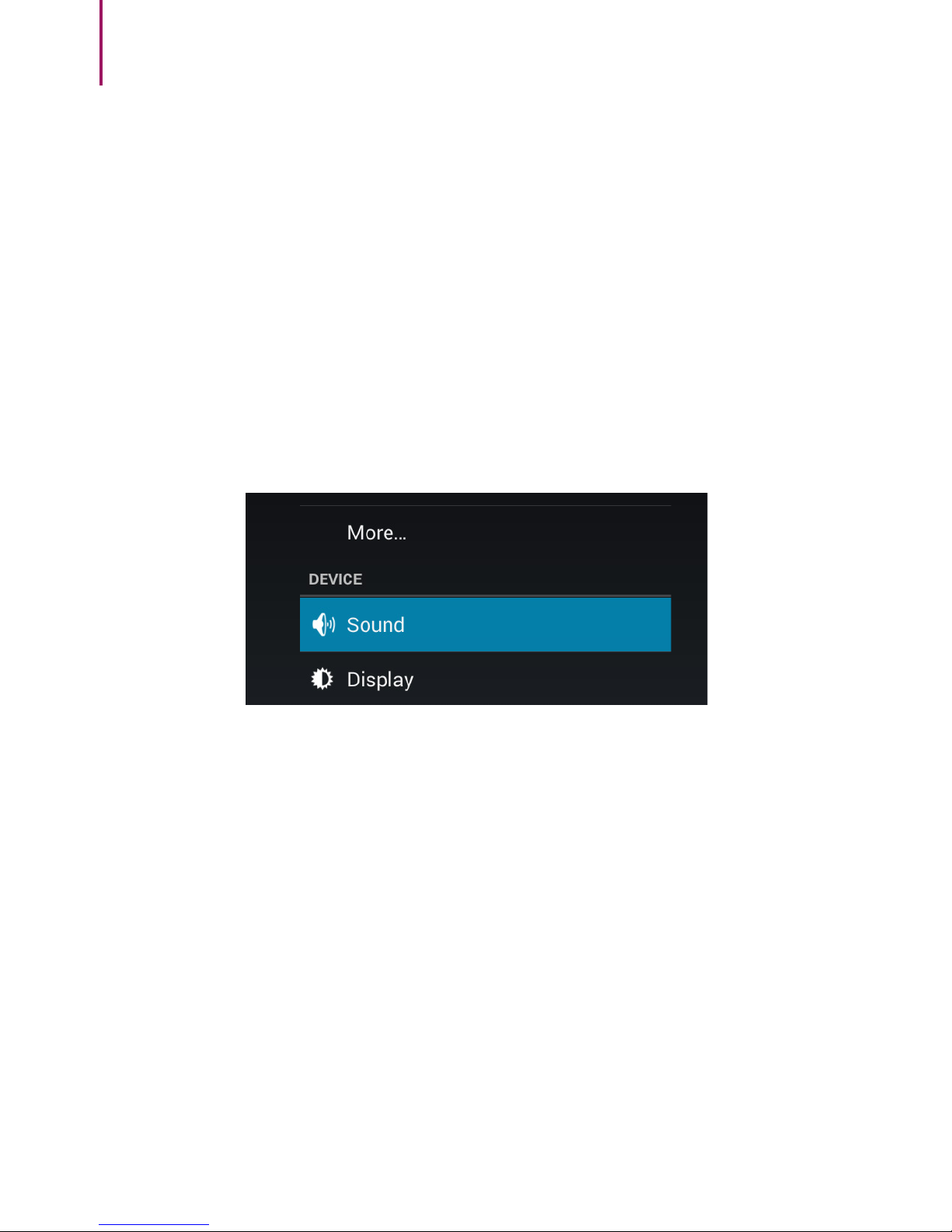
SOUND SETTINGS
It includes brightness, background setting, hibernation
after 15sec, 30sec, 1min, 2min, 5min, 10min or 30min,
screen saver, font size and the ability to transmit the tablet
screen in wireless mode to another compatible device.
The setting includes sound volume control, the selection
of the notications sound, the sound system, the Micro
SD card / TF audio signals and the USB audio signal.
DISPLAY SETTINGS
Page 23
Microtech S.r.l
e-tab Style
23
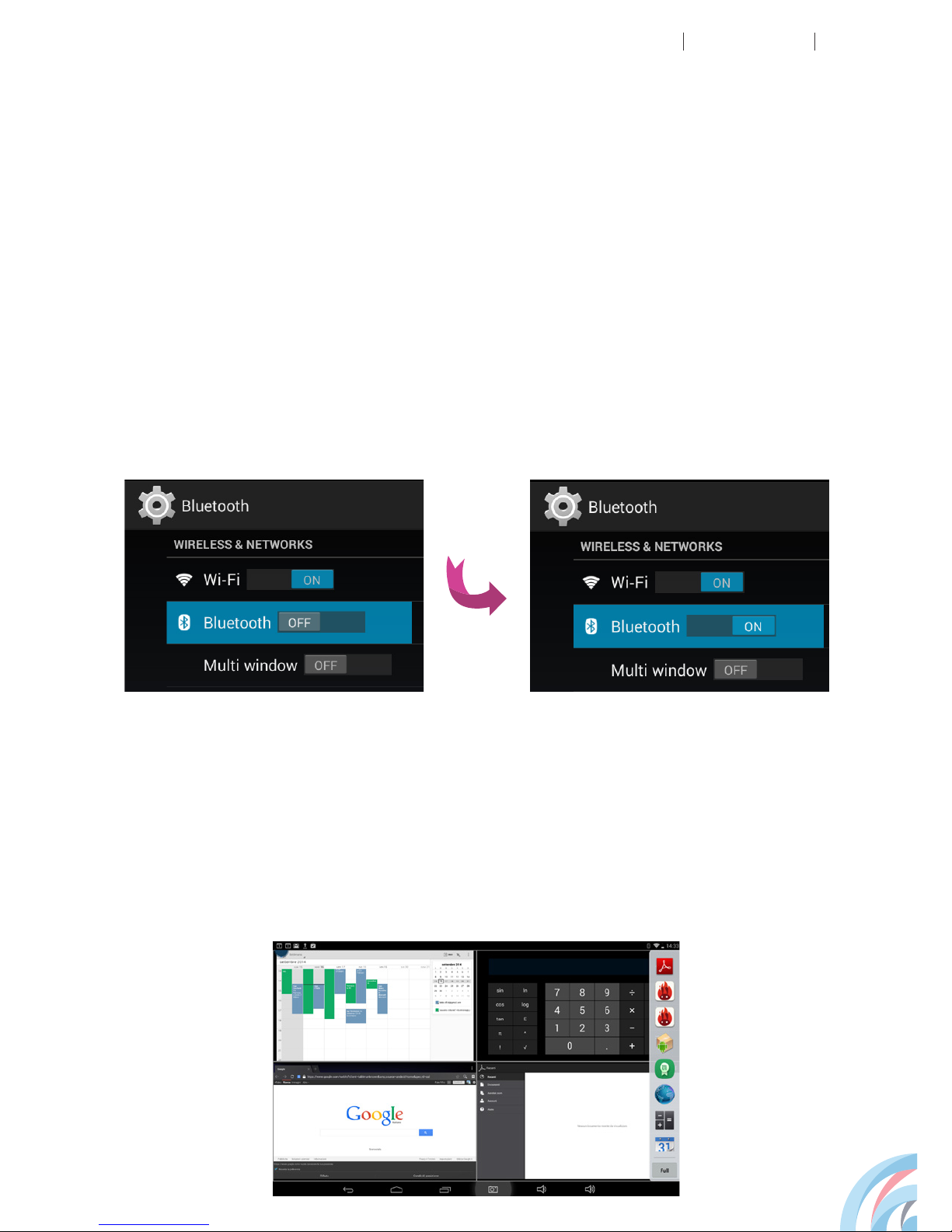
BLUETOOTH SETTINGS
MULTI WINDOW
Go to Settings, Wireless & networks, Bluetooth. Switch
the badge to the ON position and your e-tab will recognize
other nearby active devices.
Select the device you are interested in and it will connect.
This function allows the opening of many windows
simultaneously on your screen.
Page 24
24
It allows you to add an email account (Google, Skype
etc.). You can also manage preferences for synchronizing
those accounts.
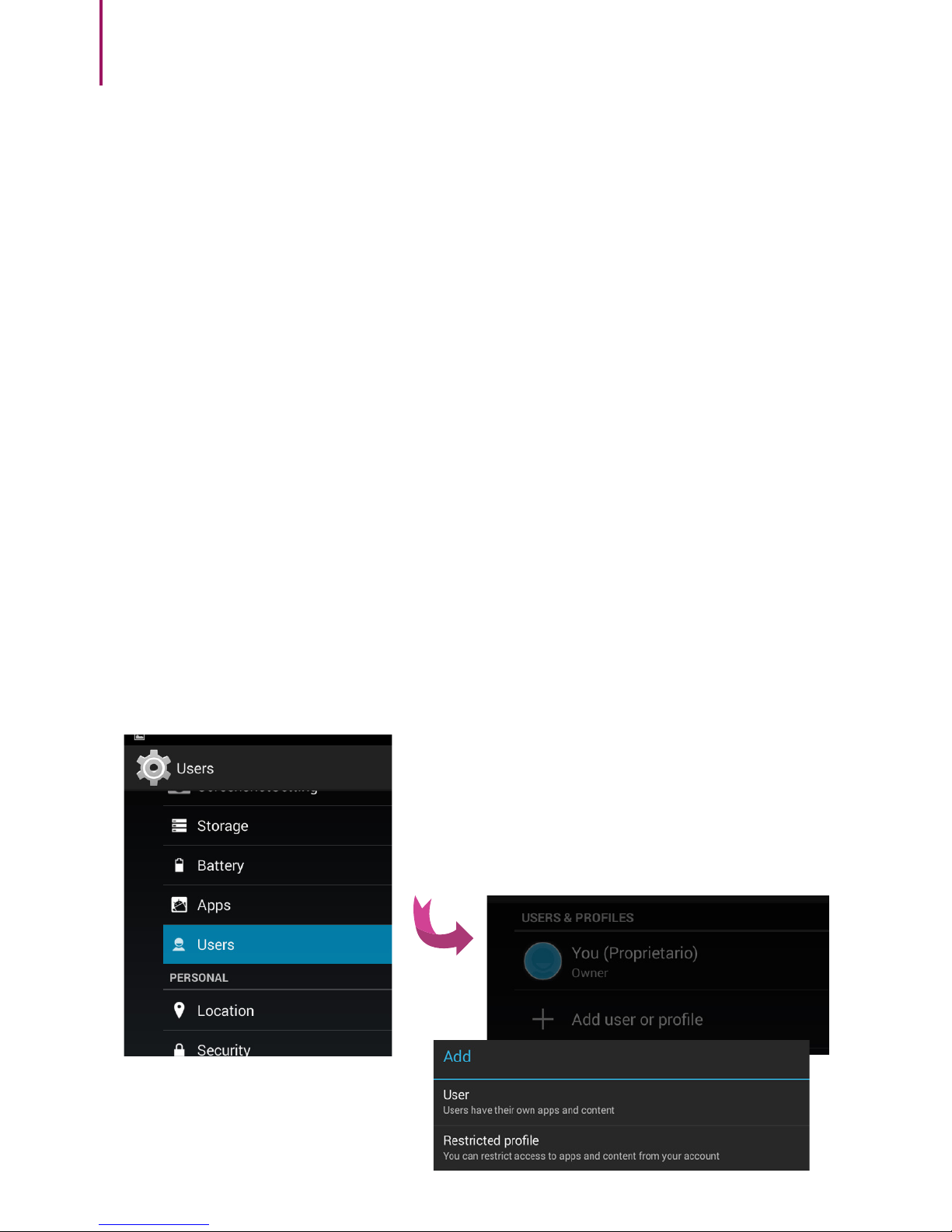
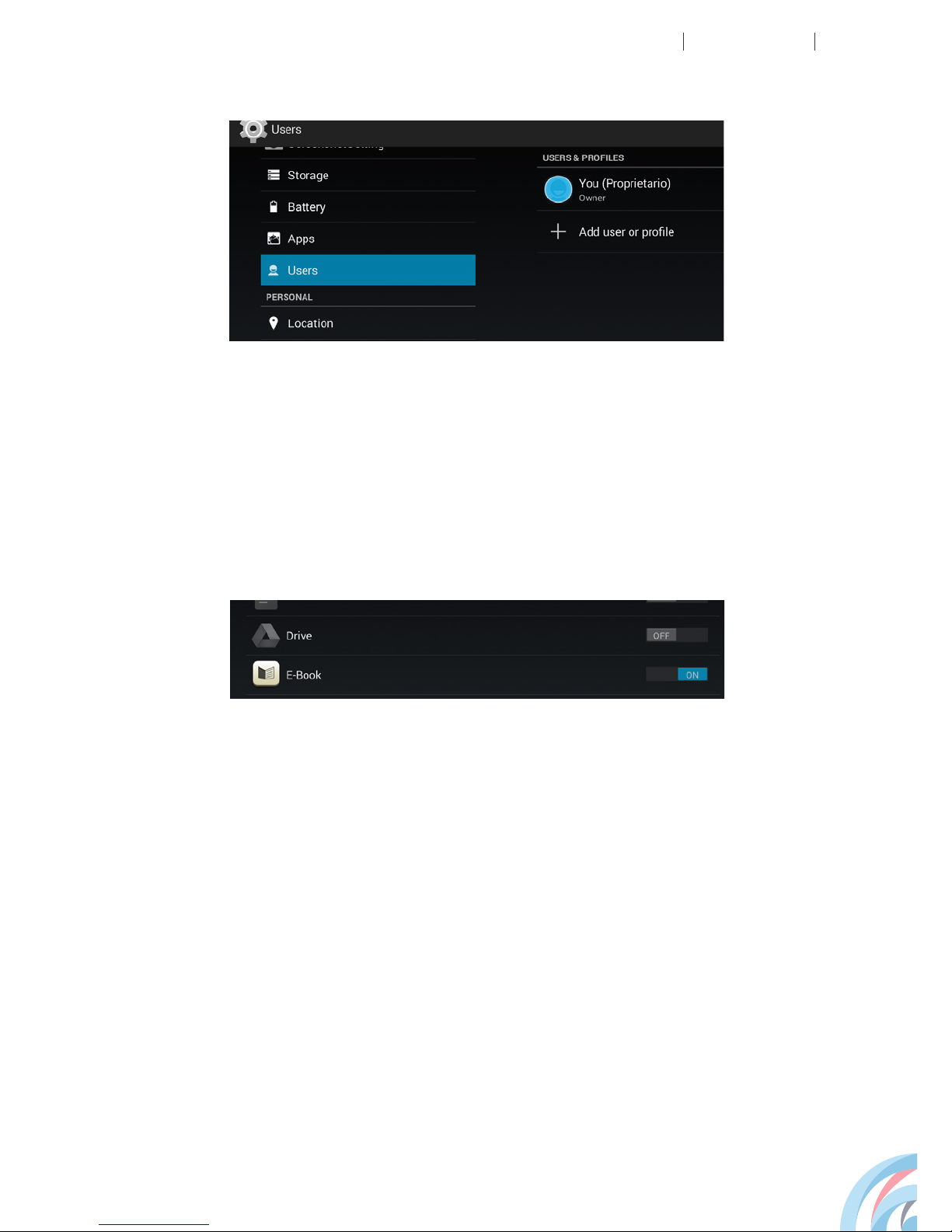
You can manage multiple user accounts: You can add
users and / or proles with limitations, such as professors
and students. Click on Add user or prole and choose
between User and Prole with limitations.
ACCOUNT
ACCOUNT MANAGEMENT
Page 25
Microtech S.r.l
e-tab Style
25
Here you can manage your apps and choose if those
from other sources different from Google Play Store can
be installed.
By creating a user prole with limitations, you can identify
Apps that can and cannot appear in the user’s prole.
APPS
You can make the backup of data, apps, Wi-Fi passwords
and other settings on Google servers. You can also
restore the factory data, erasing all the data on the tablet.
BACK UP AND RECOVERY
Page 26

26
You can set an automatic recognition of your position.
LOCALISATION AND SAFETY
Here you can see the internal values, as the operating
system current version, the battery status, the signal
strength of the mobile network and so on.
DEVICE INFO
LANGUAGE AND INPUT
You can set the system default language by choosing
among 25 available languages. You can also select the
default keyboard.
DATE AND TIME
If your network does not support automatic time setting,
you can set the time, the local time and date manually,
after disabling the automatic setting.
Page 27
Microtech S.r.l
e-tab Style
27
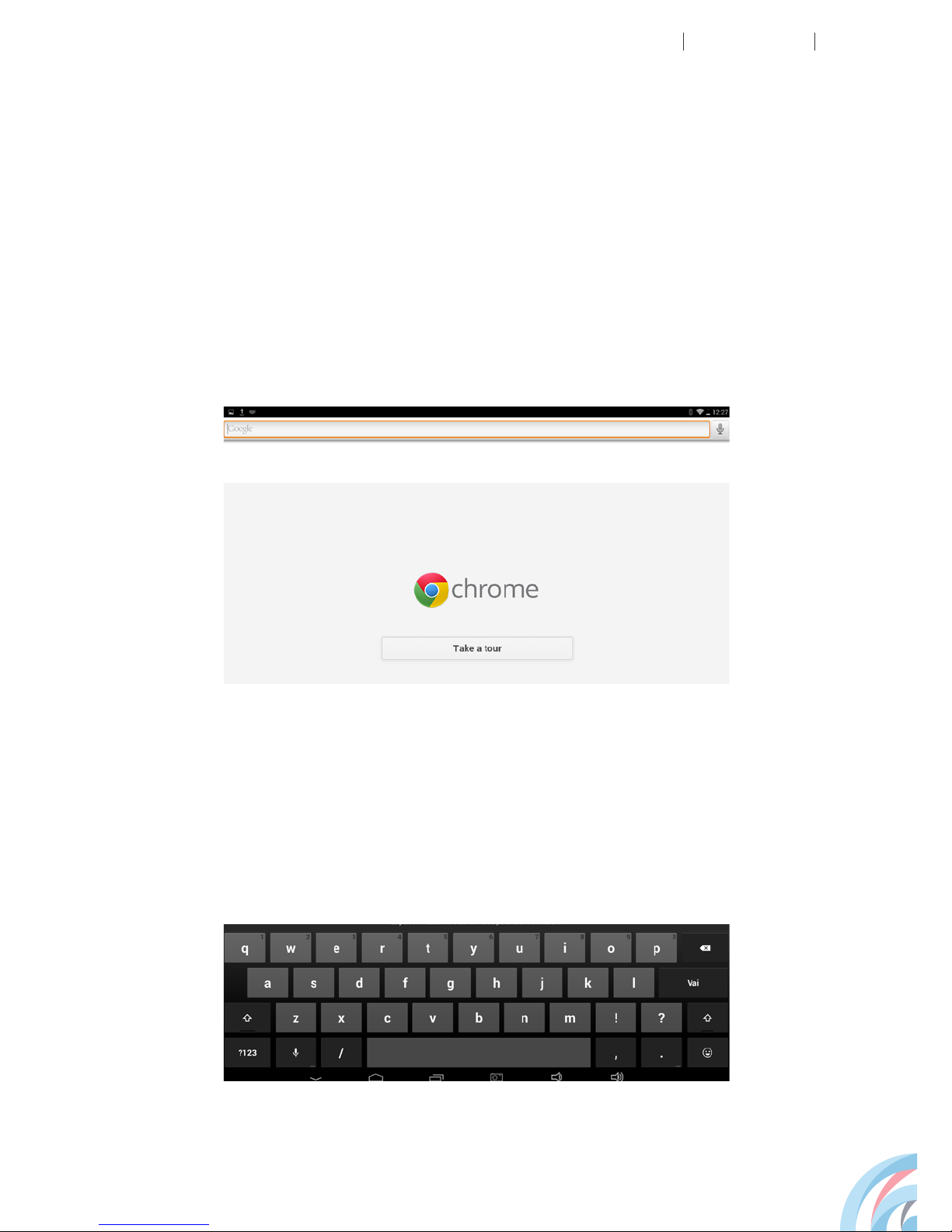
Touch this icon to browse the Internet: Google is the
default start page. Touch the input eld of the keyboard:
Enter the address of the website you want to connect to
and touch Go to.
INTERNET
Page 28
28
Dimensions
and weight
Chip
Graphics
Display
Touch
Screen
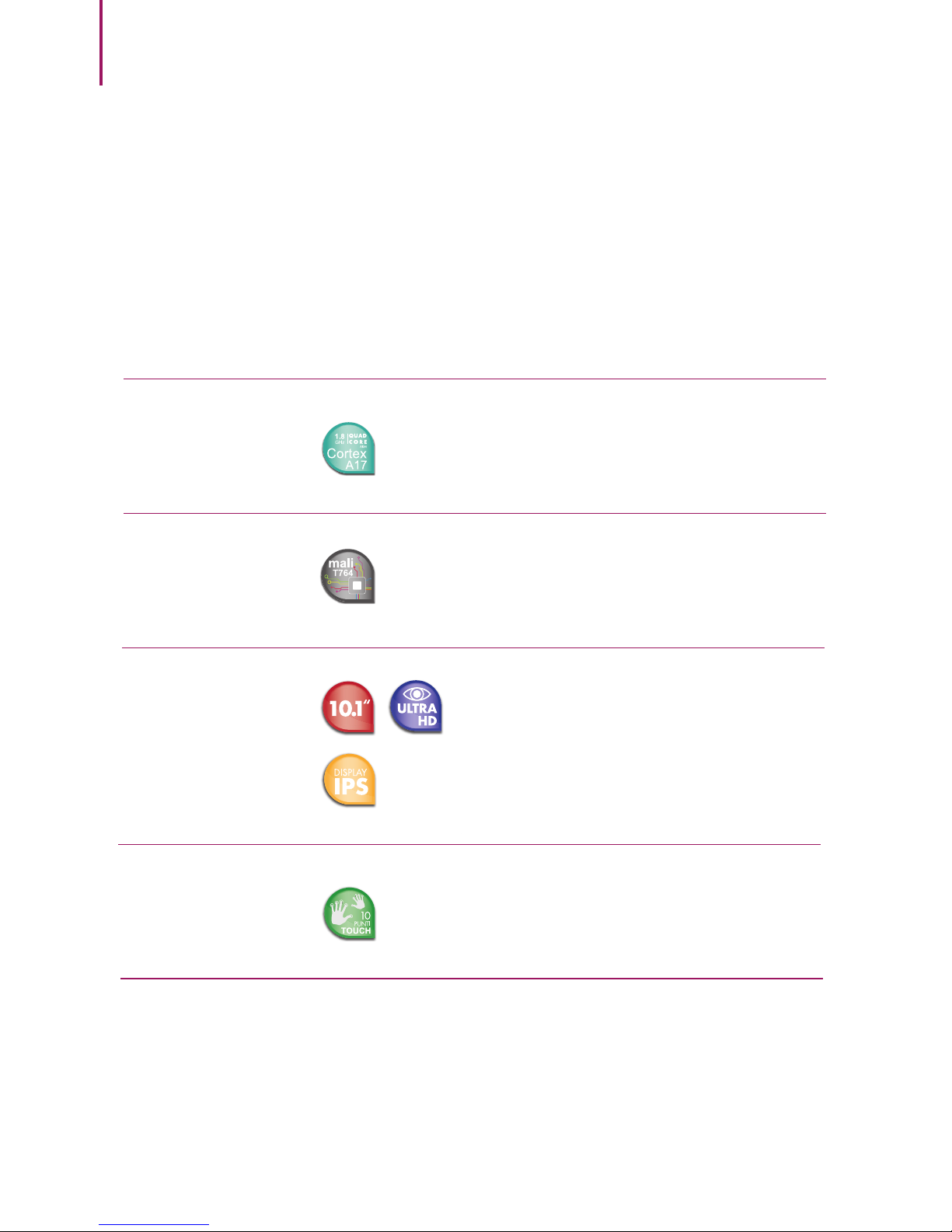
RockChip 3288 Quad Core 28nm
ARM Cortex A17 a 1.8 GHz with
decode H.265 support
10.1” Display Ultra High denition
1920x1200 IPS 16:10
224 PPI 178° viewing angle
10 points Capacitive
width: 248 mm
height: 173mm
depth: 10mm
weight: 580g
Mali T764 graphics processor
Quad Core with 2D / 3D Graphics
Support and OpenGL
TECHNICAL DATASHEET
Page 29
Microtech S.r.l
e-tab Style
29
Battery
Keys
Inputs and
outputs
Memory
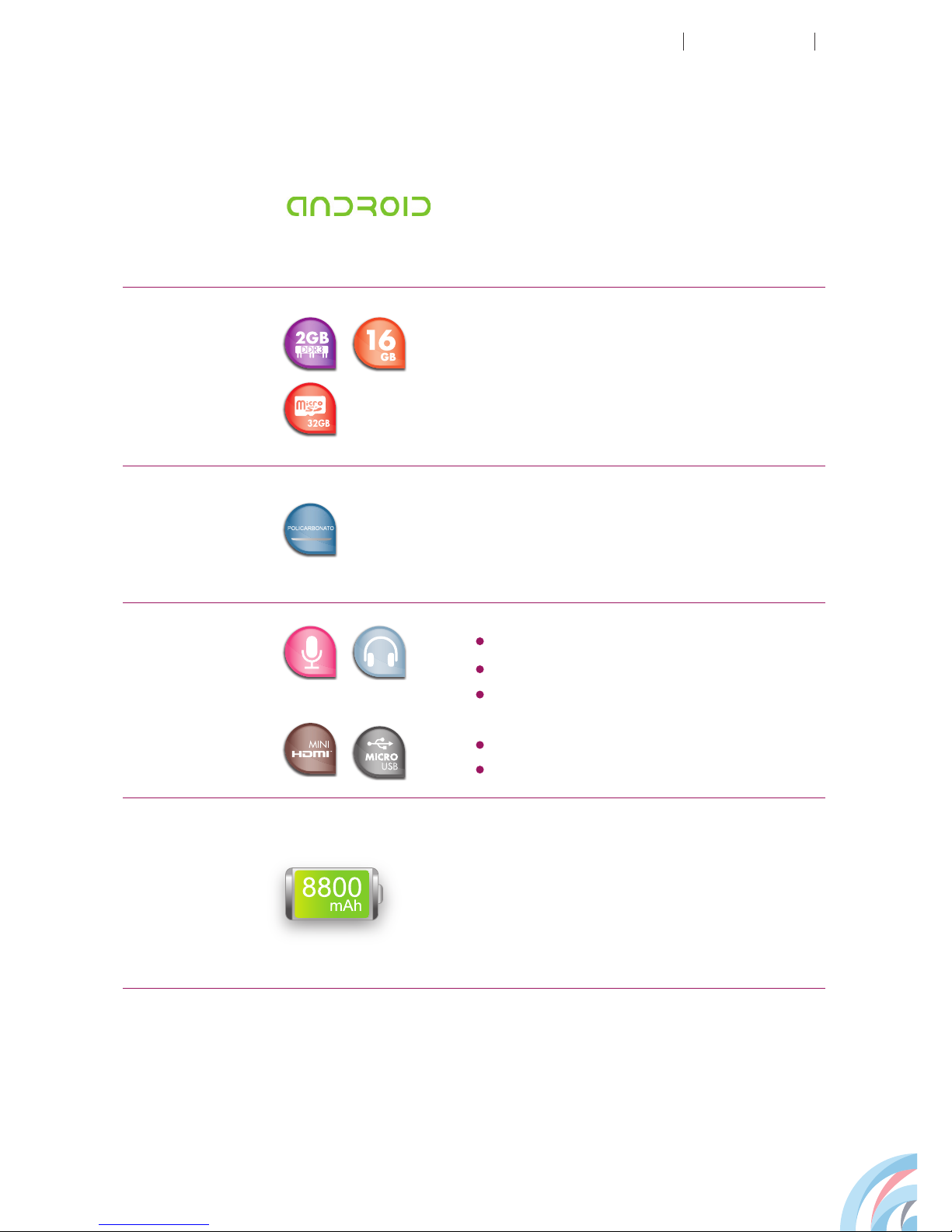
2GB DDR3 RAM, storage capacity
of 16 GB, expansion via Micro SD
card up to 32 GB
Lithium Polymer Battery: 3.8 V - 8800
mAh / 33.44 Wh
Maximum battery life in use: 7-9 hours
Maximum standby duration: 7 days
Power on,
Esc
Case
Ultra-resistant polycarbonate
Audio port for headphones and input,
built-in microphone,
2x Micro-USB 2.0 port (1 + 1 with Host
function),
Slot for Micro SD Card
Mini HDMI port
Operating
system
Android
Page 30
30
Features
Certications
CE / Rohs
Wi-Fi 802.11 b / g / n operating on
2.4 GHz frequency band
Bluetooth 4.0
Multi-user management
Audio: HD Audio, AAC audio
speakers,
Video: Full HD 1080p
Camera: 8MP BSI rear with ash
and 2 MP front
Accelerometer, Gyroscope, light
sensor, proximity sensor, gravity
sensor, pressure sensor, compass
Page 31
 Loading...