

Page 1

ENG 01/2016 Rev 1.1
www.e-tab.it
QUICK USER GUIDE
Page 2

2
QUICK USER GUIDE
English version
Page 3

Microtech
e-tab 3
INDEX
Acknowledgements
39
Package contents
40
Overview
Recharge your e-tab
Safety precautions for power supply and
battery
41
43
44
Warnings
45
Updates management
Android L
How to use a memory card
Windows 10
Remix OS
Dual Boot
48
51
49
52
53
57
Page 4

4
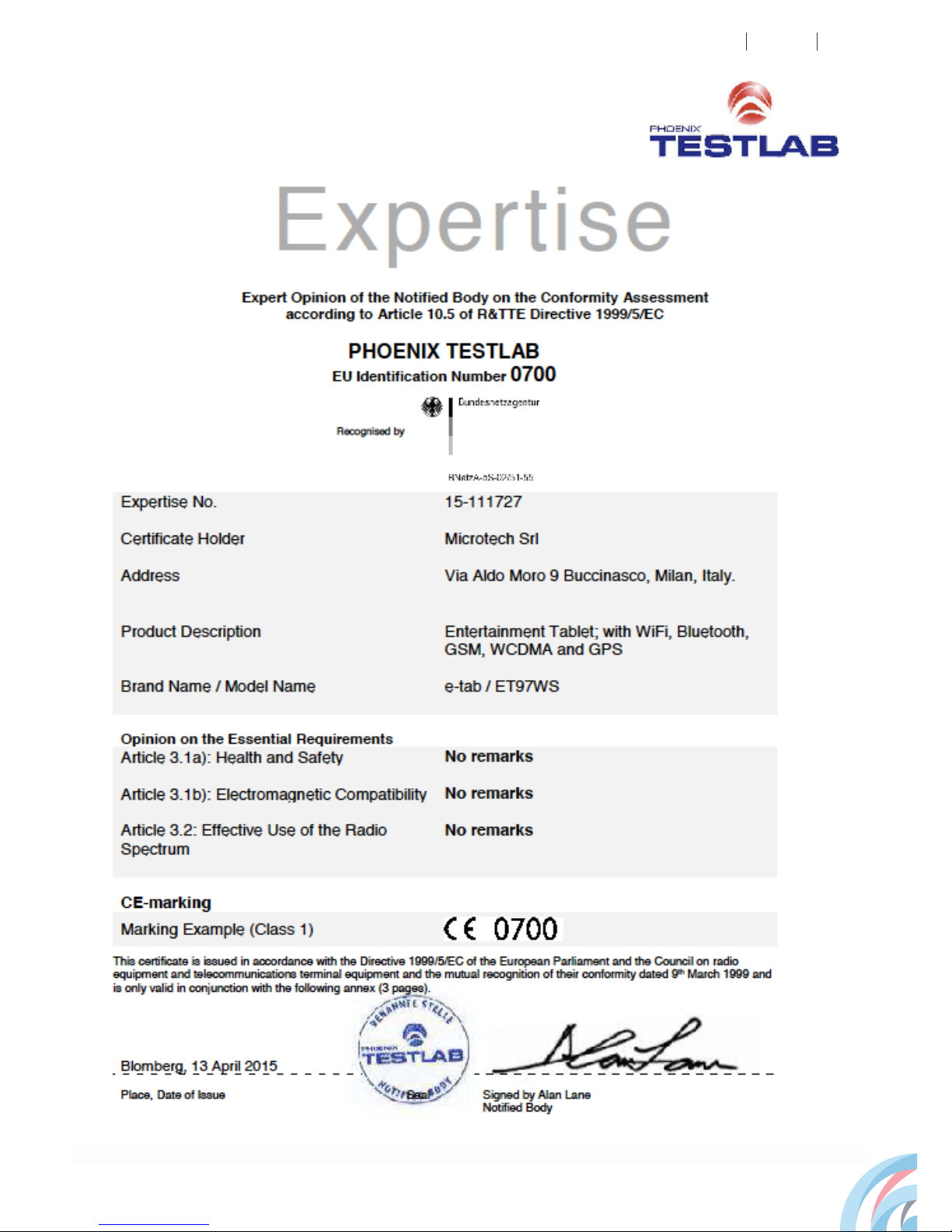
CE mark
Environmental protection
Technical assistance and support
Technical datasheet
61
64
66
69
Features
59
Page 5

Microtech
e-tab 5
ACNOWLEDGMENTS
Thank you for purchasing e-tab.
This product was designed to take advantage of
the mobility and the direct interaction through the
touch screen, 3G connectivity, Wi-Fi and Bluetooth,
ensuring different user experiences, such as study,
entertainment, business and the ofce job.
Microtech team
Trademark protection
e-tab is a registered trademark of Microtech.
All registered trademarks and copyrights belong to their
rightful owners.
Page 6
6
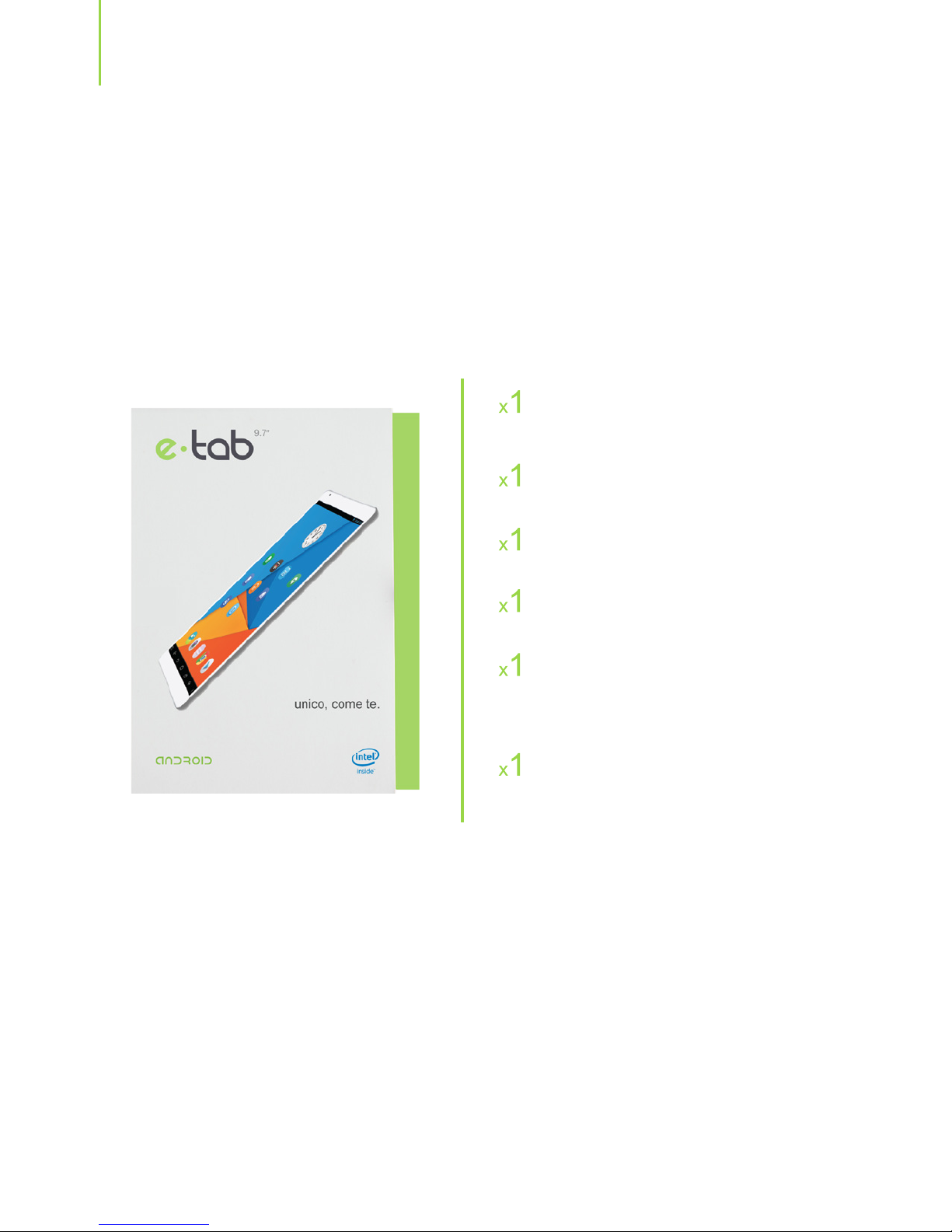
PACKAGE CONTENT
www.microtechsrl.com
If something is missing or damaged, please contact the
manufacturer and save the entire package for transport.
e-tab
Power supply
USB cable
OTG cable
User manual in Italian/
English
e-sound earphones
Page 7
Microtech
e-tab 7
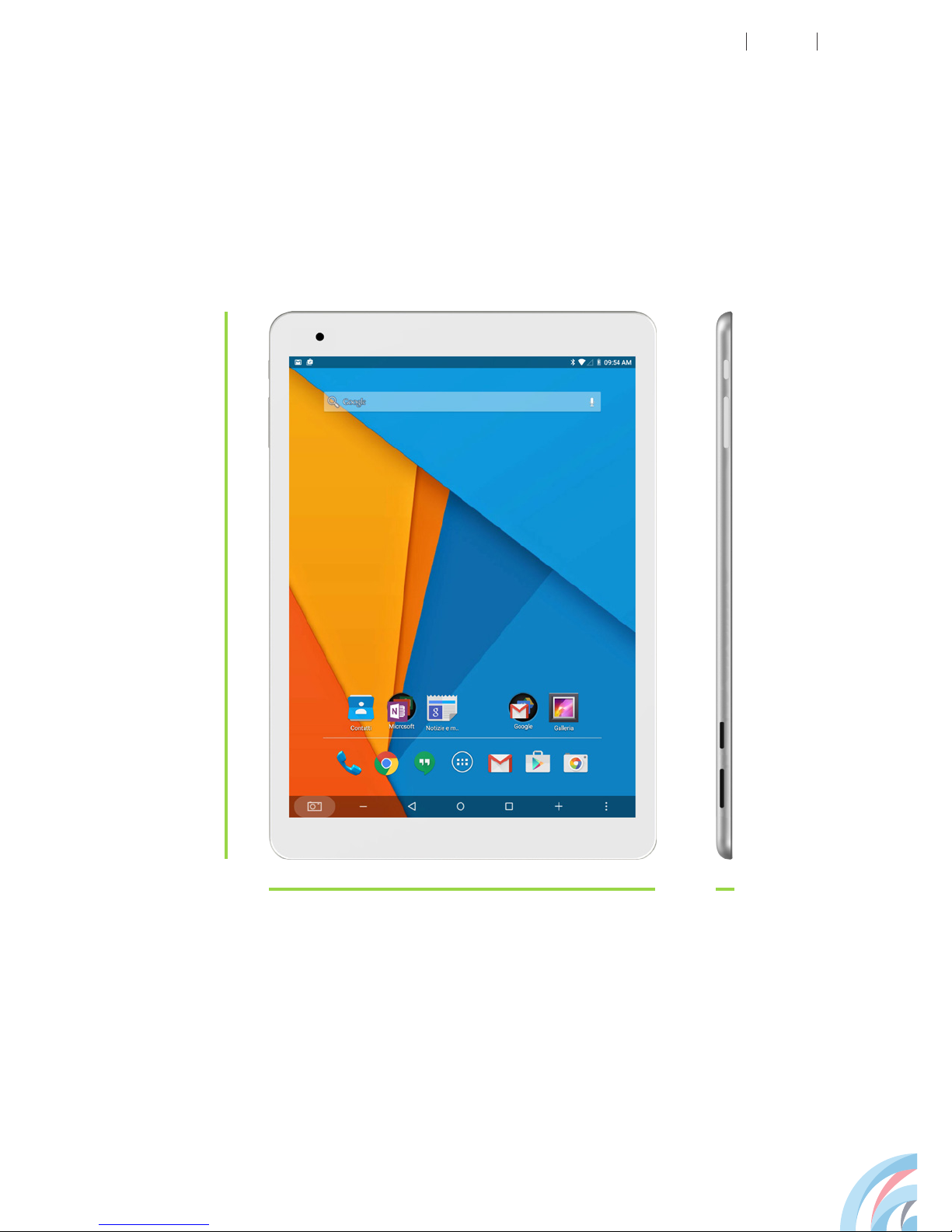
OVERVIEW
169,5 mm
240 mm
7,9 mm
Page 8
8
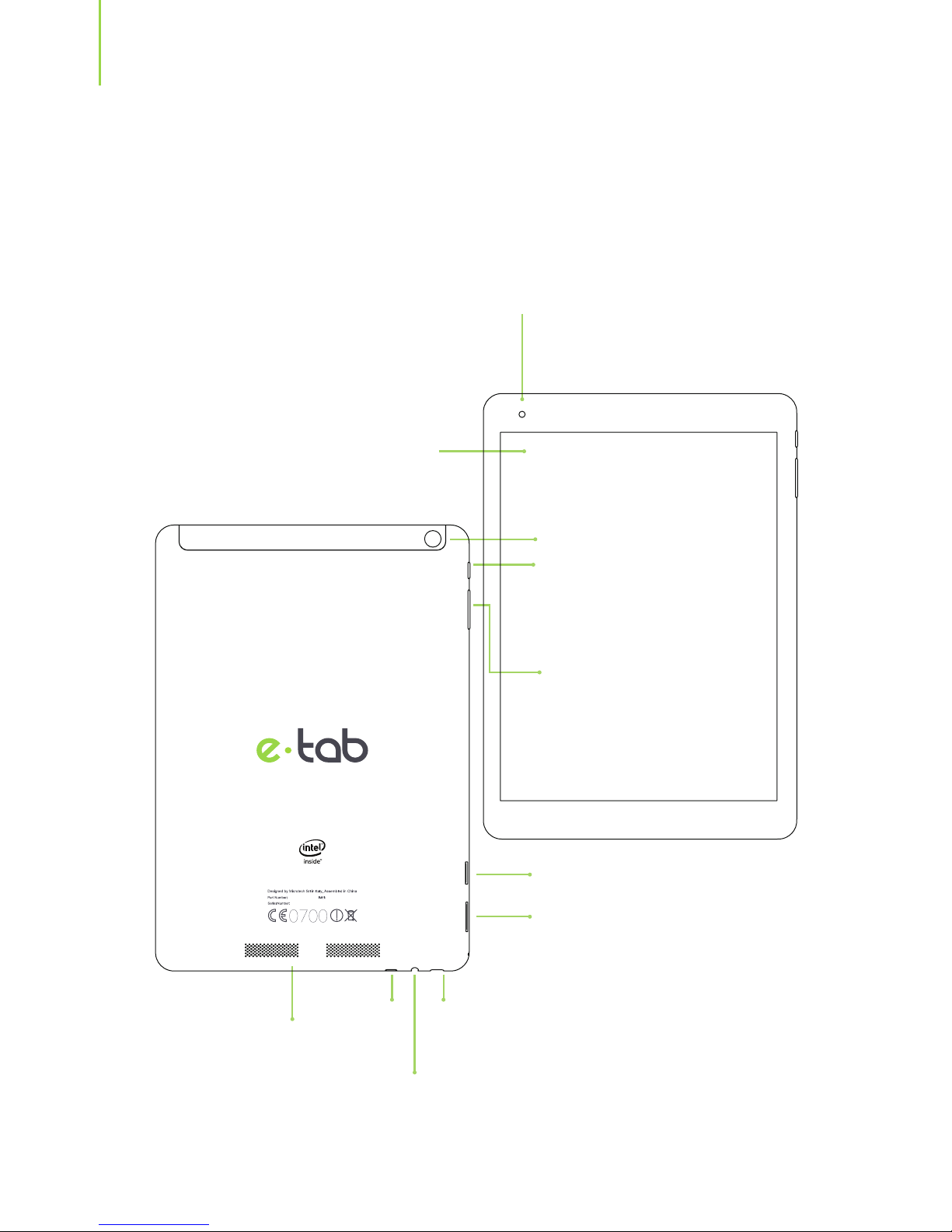
Your e-tab
Rear camera
Front camera
Touch screen panel
Speakers
Sim slot
USB port
Audio Jack port
Micro
HDMI
SD slot with charging and data
exchange function
Start and power
off key
Volume key
Page 9

Microtech
e-tab 9
Recharge your e-tab
Connect the at cable to the power supplier.
Insert the Micro-USB connector in the tablet.
Plug the power charger into a grounded power outlet.
Page 10

10
Safety precautions for power supply and battery
Use the correct external power source.
The power adapter of this product can only be used with
the type of power source indicated on the electrical ratings
label. If you are not sure of the type of power source
required please contact an authorized Microtech support
center.
Battery pack care
The product contains a lithium polymer battery. The
misuse of the battery pack can result in the risk of re or
burns. Do not attempt to open or x the battery pack.
Device charging
Make sure to fully charge your e-tab before using it in
battery mode for extended periods. Remember that the
power adapter charges the battery during the whole time
in which it is connected to an AC power source. Keep in
mind that it takes much longer to charge the battery when
e-tab is powered on.
Do not leave e-tab connected to the power source when
the battery is fully charged.
e-tab is designed to remain connected to an electrical
source for long periods of time.
Page 11

Microtech
e-tab 11
WARNINGS
Use only the power adapter and the included micro USB
cable to charge the battery of your e-tab. Using a different
power adapter could damage the tablet.
Make sure you plug the power adapter into the power
outlet with the correct input rating. The adapter output
voltage is DC 5.0V, 2.5A.
Your e-tab can be charged through the USB port of your
computer when it is in sleep mode (screen off) or powered
off.
Recharging the battery through the USB port of a
computer may take longer than normal.
If your computer does not provide enough power to charge
e-tab we suggest you load it via a grounded power outlet.
Page 12
12
Be careful not to drop the device or bump it against
objects, it may cause damages not covered by the
standard warranty.
Avoid using your device with wet hands in order to avoid
unexpected electrical discharges.
All wireless devices are susceptible to interference, which
could affect performance.
Do not use chemicals or detergents to clean the tablet,
they may corrode the surface.
The contact with water, sand or prolonged exposure to
high temperatures may cause an irreparable damage.
Do not expose your device to damp environments, rain or
extremely hot environments.
e-tab should be charged at least every 3 months
Keep your tablet away from high magnetic elds: they
may damage the device.
Page 13

Microtech
e-tab 13
It is recommended to keep the volume at a safe level to
preserve your health. Lasting exposure to high volume
sounds may cause hearing damage.
The use of original accessories is recommended, which
can be purchased through the website www.e-tab.it
Only qualied personnel authorized by Microtech can
repair the tablet.
Do not use the tablet in petrol stations or near fuels or
chemicals.
Page 14

14
During software updates or during download operations
do not remove the power supply, it may cause irreversible
data loss.
Any tampering with the software may generate additional
costs for recovery.
Updates management
Page 15

Microtech
e-tab 15
HOW TO USE A MEMORY CARD
Installing a memory card
Open the cover of the memory card slot.
Push the memory card into the slot until it locks in
place.
e-tab supports memory cards with a maximum capacity
of 128 GB. Depending on the memory card manufacturer
and type, some memory cards may not be compatible
with your device.
• Some memory cards may not be fully compatible with
the device. Using an incompatible card may damage the
device or the memory card, or corrupt the data stored in it.
• Beware to insert the memory card from the right side.
• The device supports the FAT and the exFAT le systems
for memory cards. When inserting a card formatted in
a different le system, the device asks to reformat the
memory card.
• Frequent writing and erasing of data shortens the
lifespan of memory cards
1
2
Page 16

16
Removing the memory card
Do not remove the memory card while the device is
transferring or accessing information. Doing so can cause
data to be lost or corrupted or can damage to the memory
card or device. Microtech is not responsible for losses
that result from the misuse of damaged memory cards,
including the loss of data.
Before removing the memory card, deactivate it for safe
removal.
Formatting the memory card
A memory card formatted on a computer may not be
compatible with the device. Format the memory card on
the device.
Before formatting the memory card, remember to make
backup copies of all important data stored in the device.
The manufacturer’s warranty does not cover loss of data
resulting from user actions.
Page 17

Microtech
e-tab 17
ANDROID LOLLIPOP
Press and release the power button on the top left of the
tablet
Power off
Lock the screen
Press the power button
Changing the Language of the System
Go to: Settings> Language & input> Language>
Select language
Hold for a few seconds the power button
> Select power off
Start
Page 18

18
WINDOWS 10
Press and release the power button on the top left of the
tablet
Power off / Reboot
Lock the screen
Press the power button
Cambio della lingua di sistema
Go to: Settings> Date/Time and language> Geographical
area and language
From the Start screen, press the power button
> Stand by / Power off/ Reboot
Start
Page 19

Microtech
e-tab 19
REMIX OS
Press and release the power button on the top left of the
tablet
Power off / Reboot
Lock the screen
Press the power button
Changing Language System
Go to: Settings> Language & input> Language>Select
language
Hold for a few seconds the power button
> Select power off
Start
Page 20
20
KEY ELEMENTS
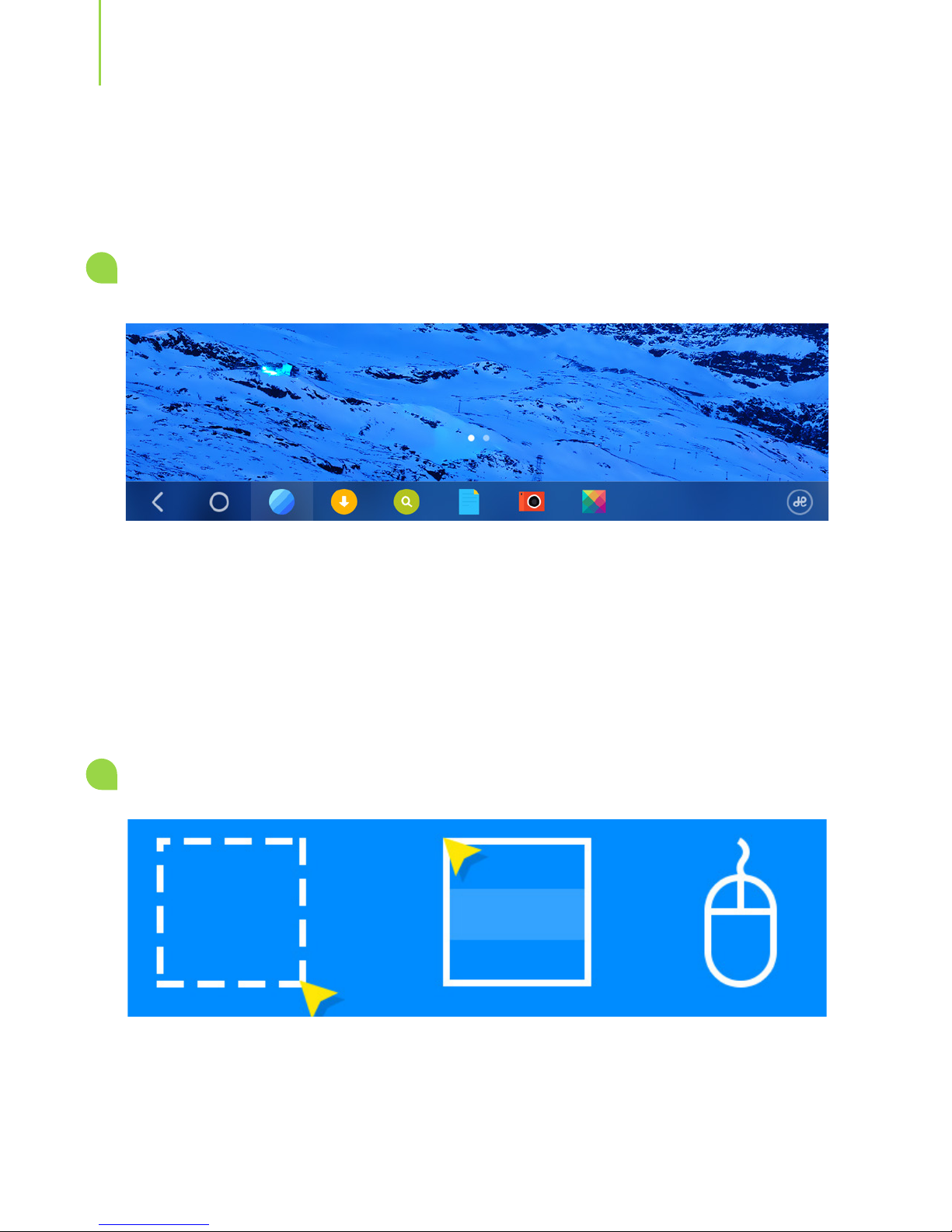
The system supports both the gestures that the interaction
with the mouse.
Taskbar
At the bottom of the screen, a taskbar allows you to launch
applications and switch from an application to another.
Mouse Support
Page 21
Microtech
e-tab 21
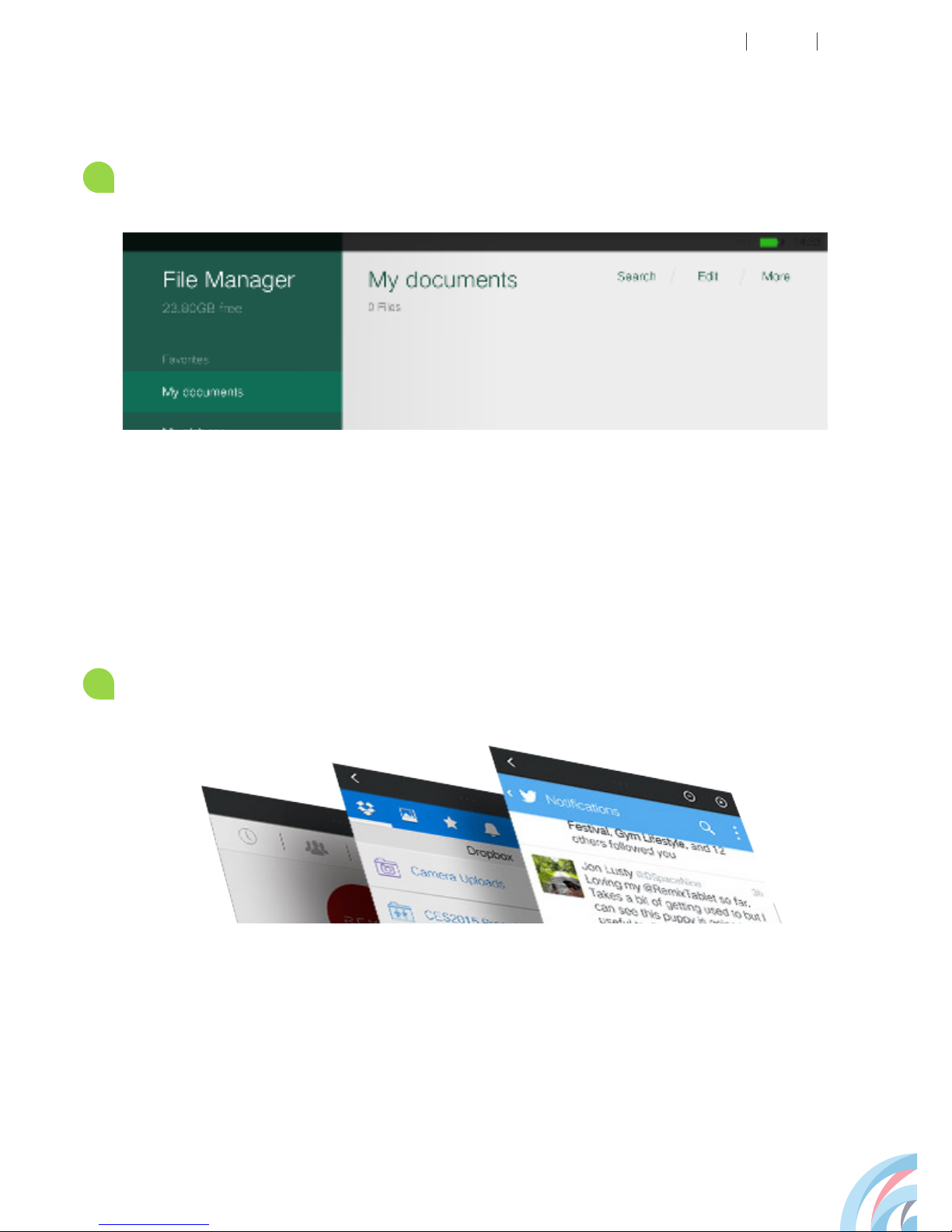
File Manager
File Manager is a program allowing you to manage easily
your les according to the category.
It allows you to run multiple programs simultaneously.
Multitasking
Page 22
22
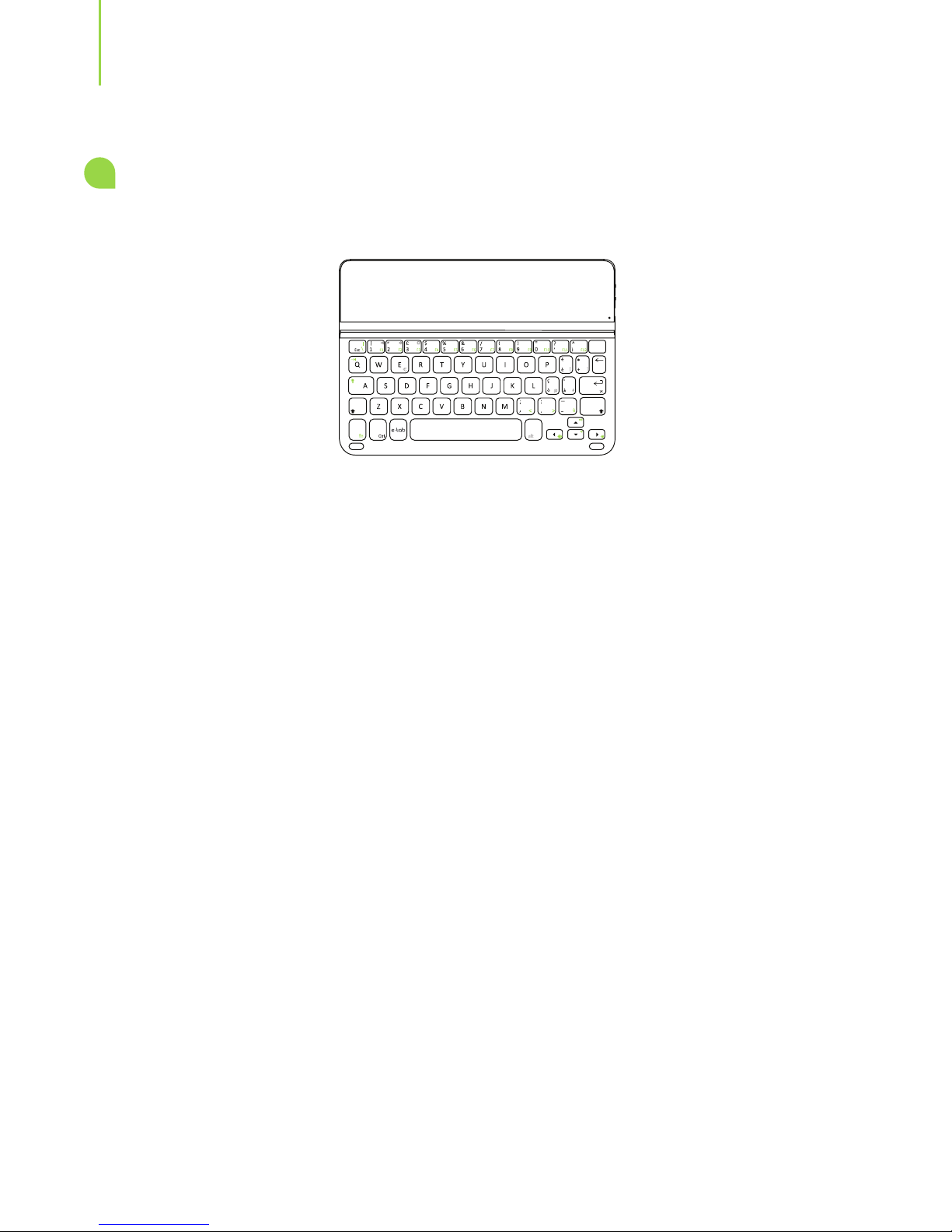
Keyboard support
Canc
Remix OS, combined with your e-tab Smart Keyboard,
supports keyboard shortcuts (such as Ctrl + c Ctrl + v, ctrl
+ x) and signicantly increases your productivity.
Page 23
Microtech
e-tab 23
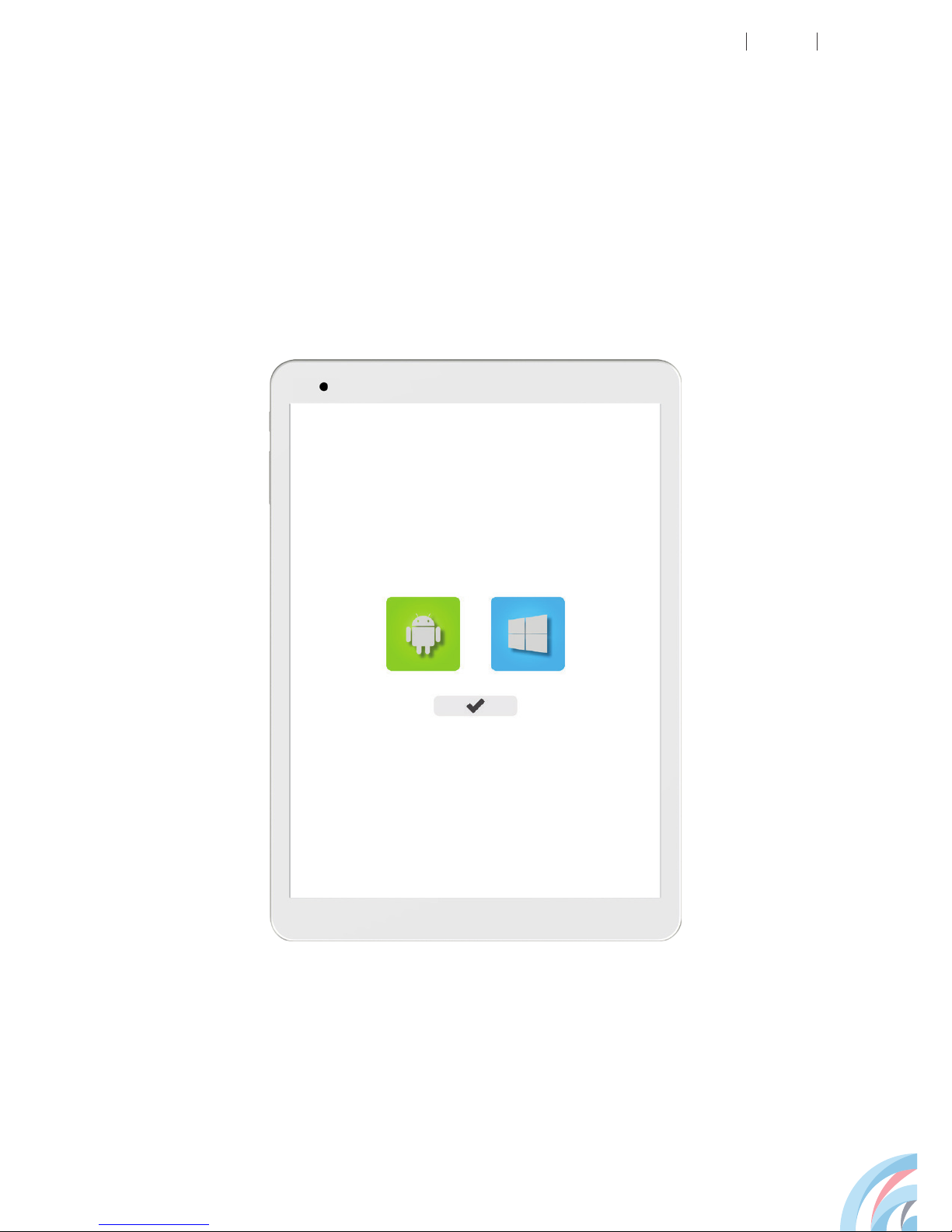
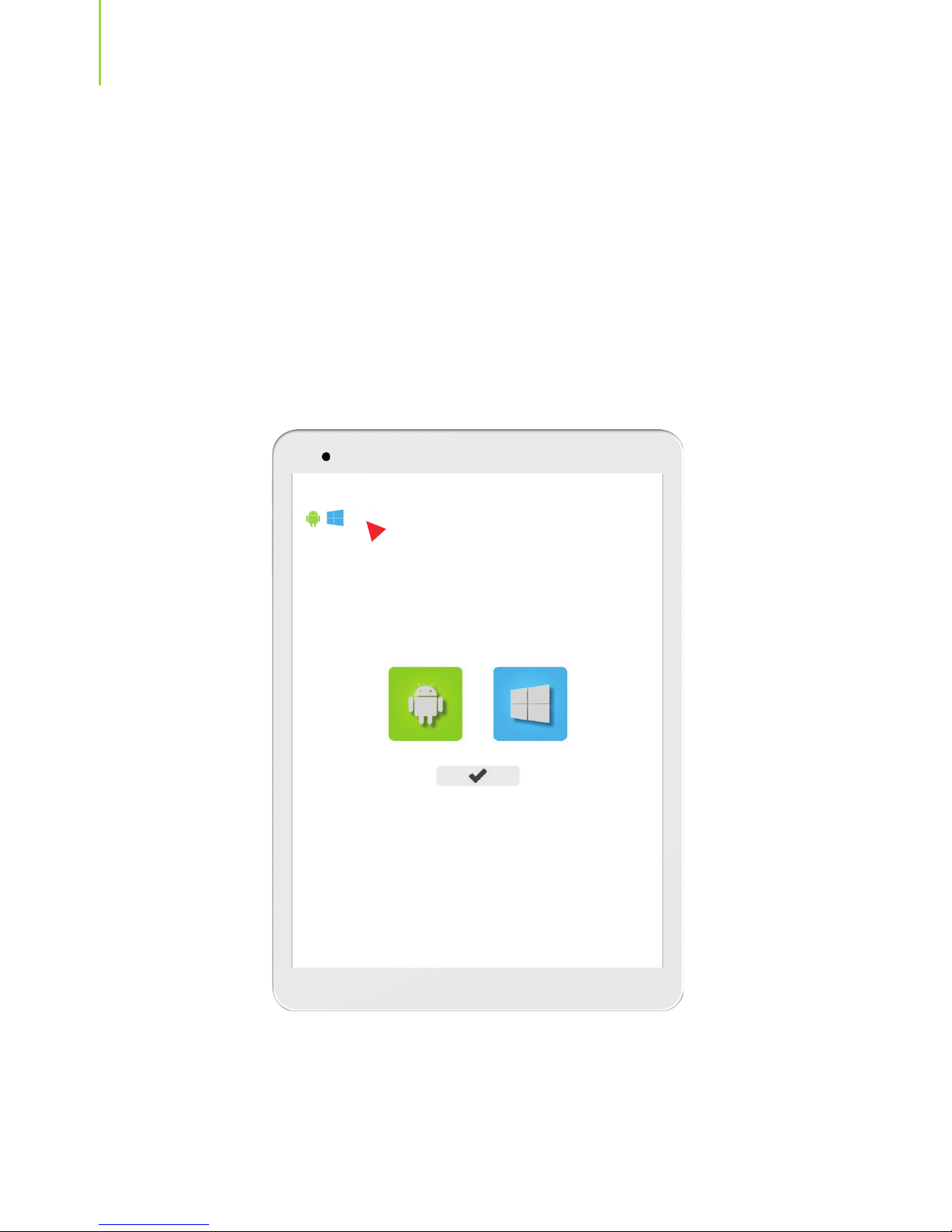
Select the operating system, click on the icon with the ag
to conrm.
How to select operating system
DUAL BOOT
Page 24
24
On e-tab 3G Dual Boot the selection screen of the
operating system can be disabled, even by mistake. To
restore it simply follow the steps below.
Hold the Vol + key while pressing the Power key, until OS
selection screen appears again.
Insert the ag in n the upper left to rehabilitate the screen.
Page 25

Microtech
e-tab 25
FEATURES
Takes pictures, records videos
Dual Camera
Use your ngers on the screen to control the system
Capacitive multi touch
Connect a micro HDMI cable to connect to multimedia
devices
Micro HDMI port: Connect the cable
Jack audio 3,5 mm
Microphone
Connect headphones or earphones through this input
Speakers
If yours voice and the sounds capture coming from the
surrounding environment
Offers a clear and optimal quality of sound
Page 26

26
+ Increases Volume
It enables the insertion of a SIM card to connect to the
Internet and make calls. It is possible to make calls
only in the Android version (trafc costs depend on the
operator chosen).
- Decreases Volume
Volume keys
SIM
WARNING! The tablet must be charged at least once
every 3 months to preserve battery life.
It supports up to 128 GB Micro SD
Micro SD slot
Page 27
Microtech
e-tab 27
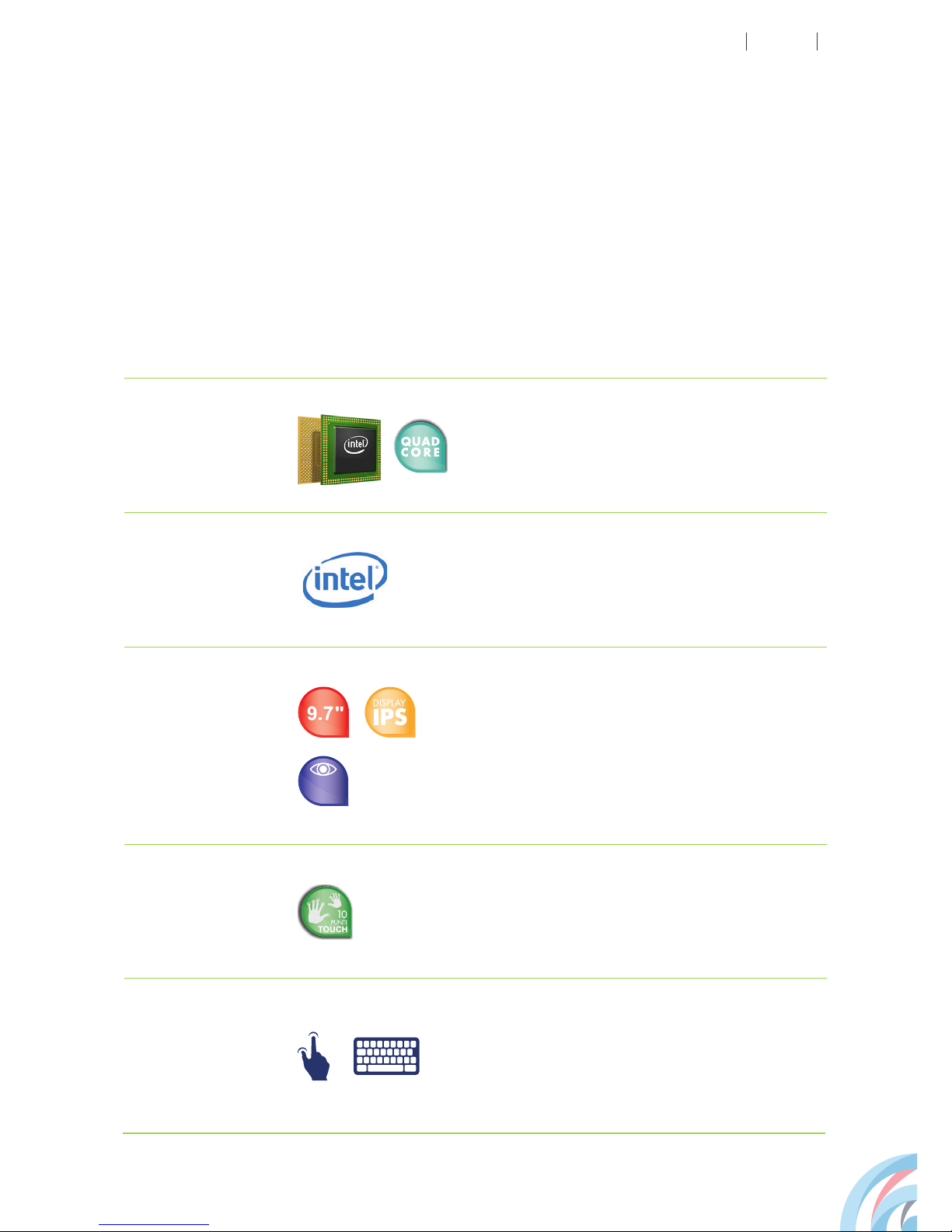
Dimensions
Chip
Graphics
Display
Touch
Screen
Input
method
INTEL Bay Trail Z3736F 64 Bit
Quad Core 22 mm operating at 1.33
GHz minimum
(Turbo Mode up to 2.16 GHz)
Display 9.7'' Ultra High Denition
Resolution2.048x1.536
viewing angle 178°
Capacitive 10 points
Multitouch, optional keyboard
Width: 169,5 mm
Height: 240 mm
Depth: 7,9 mm
INTEL integrated graphics processor
TECHNICAL DATASHEET
HD
ULTRA
Page 28
28
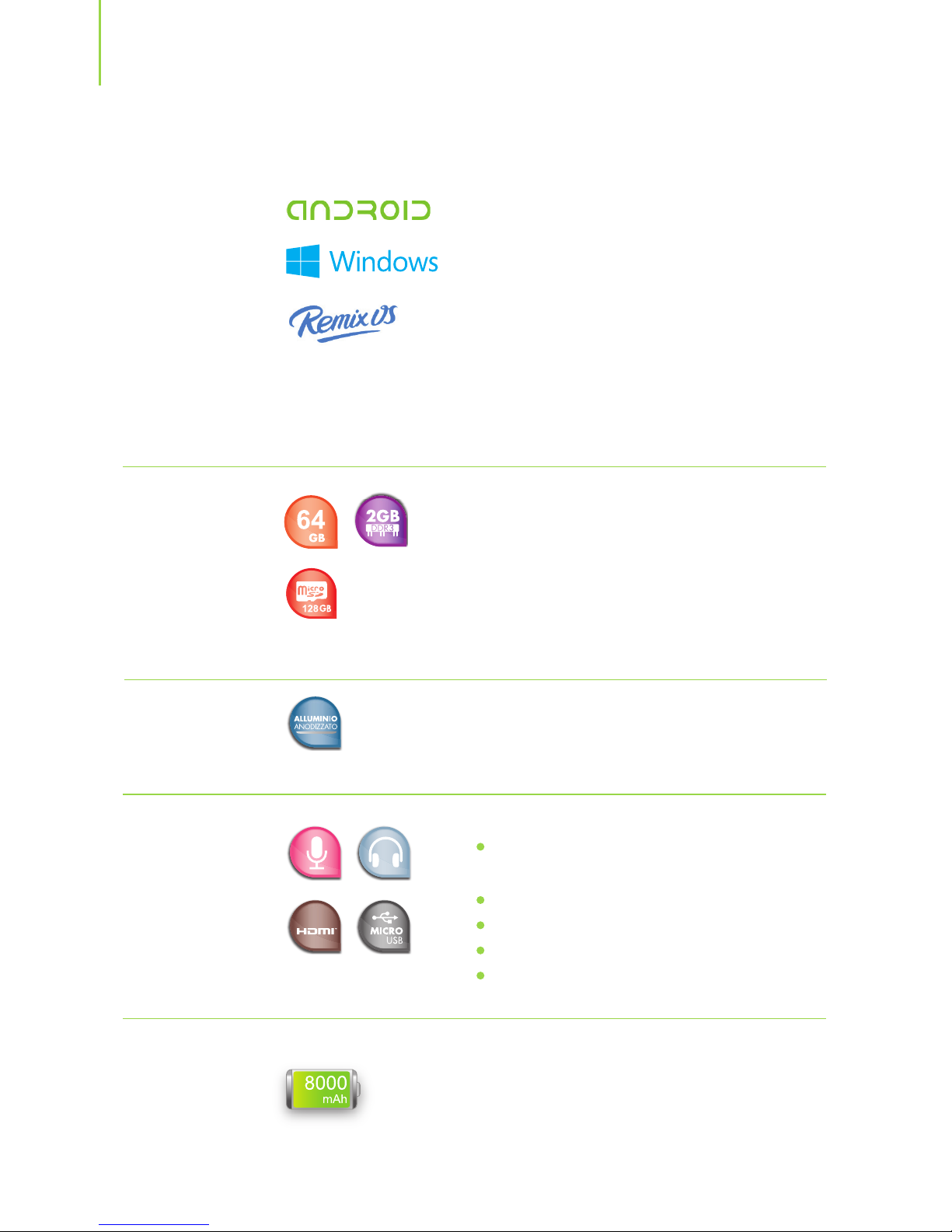
Battery
Inputs and
outputs
Memory
DUALBOOT
RAM 2GB DDR3L
Storage capacity of 64 GB
Up to 128 GB via Micro SD card
expansion
Lithium Polymer battery: 8000 mAh
Maximum battery life: 9 hours
Maximum duration in stand-by: 8
giorni
Case
Aluminum
Micro USB port with charging and data
exchange functions
Audio Input
SIM slot
Slot for Micro SD card up to 128 GB
Micro HDMI port
Operating
system
Google Android Lollipop
Windows 10
Remix OS
Windows 10 + Android L
Windows 10 + Remix OS
MICRO
Page 29
Microtech
e-tab 29
Features
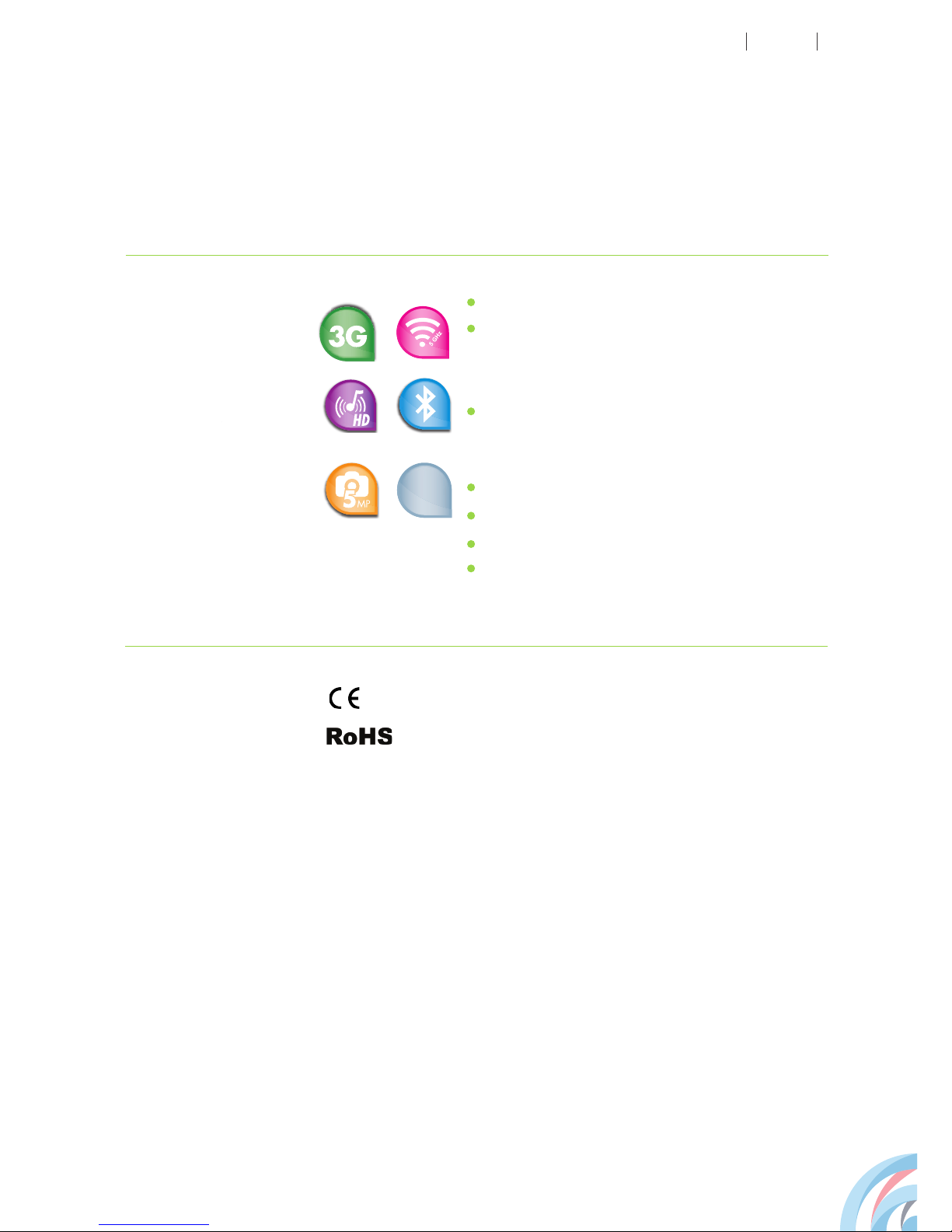
3G
Wi- 802.11 b/g/n operating on the
frequency bands 2.4 / 5 GHz *
*only in the Android and Remix OS version
Bluetooth 4.0
Audio AAC: HD Audio, a integrated
speakers
Video: Full HD 1080p
Camera: 2 MP Front, 5 MP Rear
Sensors: G-Sensor
Integrated GPS
4.0
GPS
Certications
CE
Rohs
Keys
Power on
Volume
Page 30

30
CE mark for devices equipped with WLAN / Bluetooth
CE 0700
This device complies with the requirements of 1999/5 /
EC directive of the European Council and Parliament
(9 March 1999) that regulates the radio equipment, the
telecommunications terminals and the mutual recognition
of their conformity. The highest SAR CE value for this
device is 0.5007 W / kg.
Page 31

Microtech
e-tab 31
This device is compatible with the EU requirements
(1999/519 / CE), which aim at limiting the exposure of
the population to electromagnetic elds and at protecting
health.
These restrictions are part of a larger set of
recommendations for the protection of the population. These
recommendations have been developed and checked by
independent scientic organizations through periodic and
thorough scientic studies. The unit of measurement for
the limit recommended by the European Council for mobile
devices is the “Specic Absorption Rate” (SAR). SAR limit
is an average of 2.0 W / kg over 10 grams of body tissue.
It meets the requirements of the International Commission
on Non-Ionizing Radiation Protection (ICNIRP).
This device has been tested and found compliant with
ICNRP guidelines on exposure and to European standards
EN 62311 and EN 62209-2 concerning procedures close to
the body. The Specic Absorption Rate (SAR) is measured
with the device in direct contact with the body, transmitting
at maximum certied power level and in all the frequency
bands of the mobile device.
RF (SAR) – CE exposure information
Page 32

32
Microtech is committed to delivering products and
packaging materials with no environmental impact to
safeguard the health of consumers and to respect the
environment. The decrease in the number of pages of
this manual is part of the policies to reduce emissions of
carbon dioxide.
For detailed information on the device visit e-tab support
website at: www.e-tab.it
ENVIRONMENTAL PROTECTION
Page 33
Microtech
e-tab 33
Page 34
34
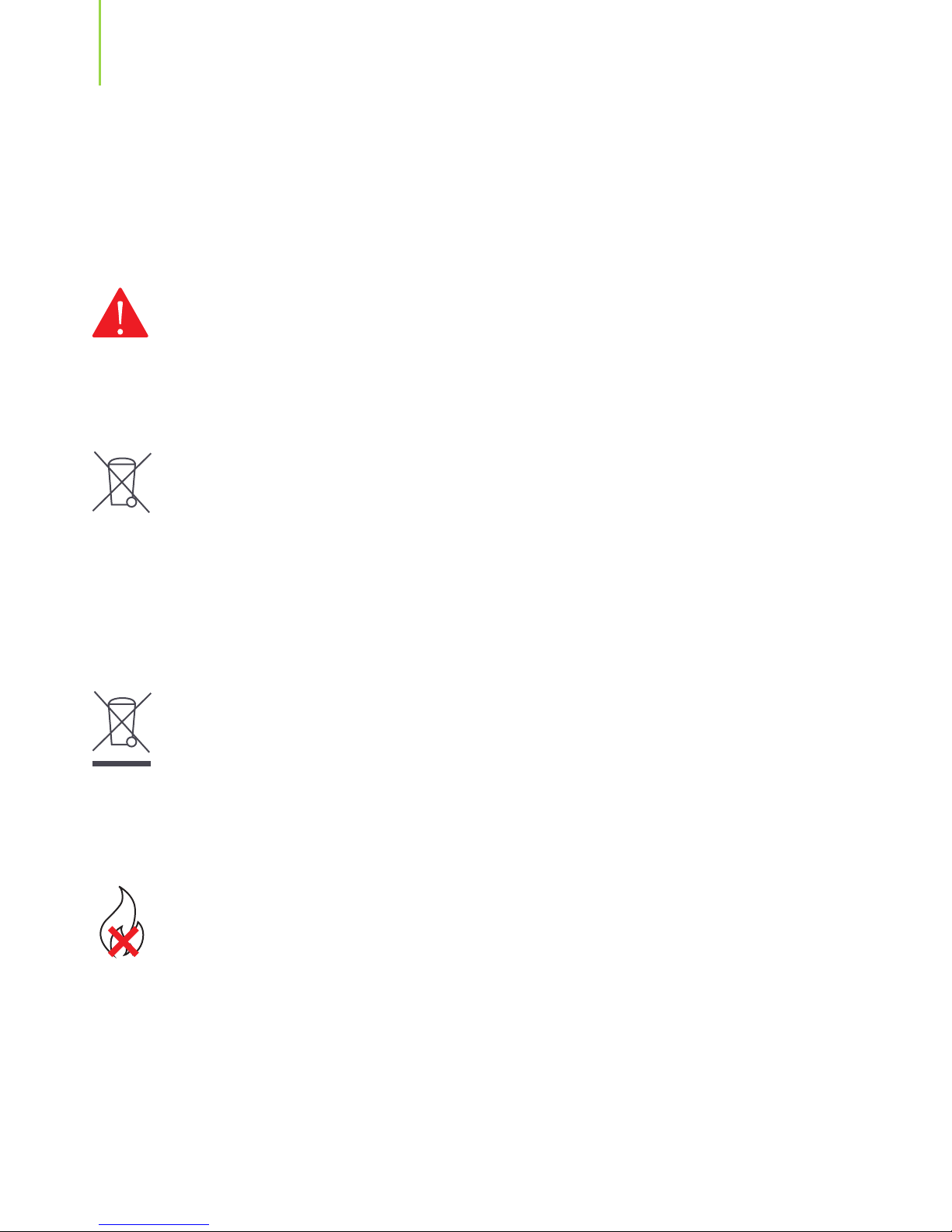
EXPLOSION HAZARD if the battery is replaced with
a not compliant model. Dispose of used batteries
according to the manufacturer’s instructions.
DO NOT THROW the battery in municipal waste bins.
The X symbol on the disposal bin indicates that the
battery should not be thrown in the bins of municipal
waste.
DO NOT THROW your e-tab in municipal waste
bins. This product has been designed to enable the
reuse of some parts and the recycling of other parts.
The X symbol on the disposal bin indicates that the
product (electrical, electronic, batteries containing
mercury) should not be thrown in the bins of municipal
waste. Check local regulations for proper disposal of
electronic products.
DO NOT THROW your e-tab in the re. DO NOT
create a short circuit between the contacts. DO NOT
disassemble your tablet.
CORRECT DISPOSAL
Page 35

Microtech
e-tab 35
SERVICE AND SUPPORT
Visit our website at:
http://www.e-tab.it/supporto-e-tab-3g-2/
Register your e-tab in Microtech Customer Area:
http://www.microtechsrl.com/microadmin/auth/
register_user?rma=1
After registration, you will receive an email containing the
access credentials to the Customer Area.
Within this area you can view information on your e-tab,
ask for technical support and for a repair.
All repair requests should be placed in the Customer Area
to be processed.
The answers to the frequently asked questions (FAQ) are
available at:
http://www.e-tab.it/faq-3g/
Model name: ET97WS
Page 36

36
Microtech S.r.l
Address: Via Aldo Moro, 9 Buccinasco, 20090 (MI)
Phone: 02-472663
Website: www.e-tab.it
Page 37

 Loading...