

Page 1
M
Getting Started
Microsoft
®
Remote Keyboard
for Windows
®
XP Media Center Edition
www.microsoft.com/hardware
0805 Part No. X11-45748
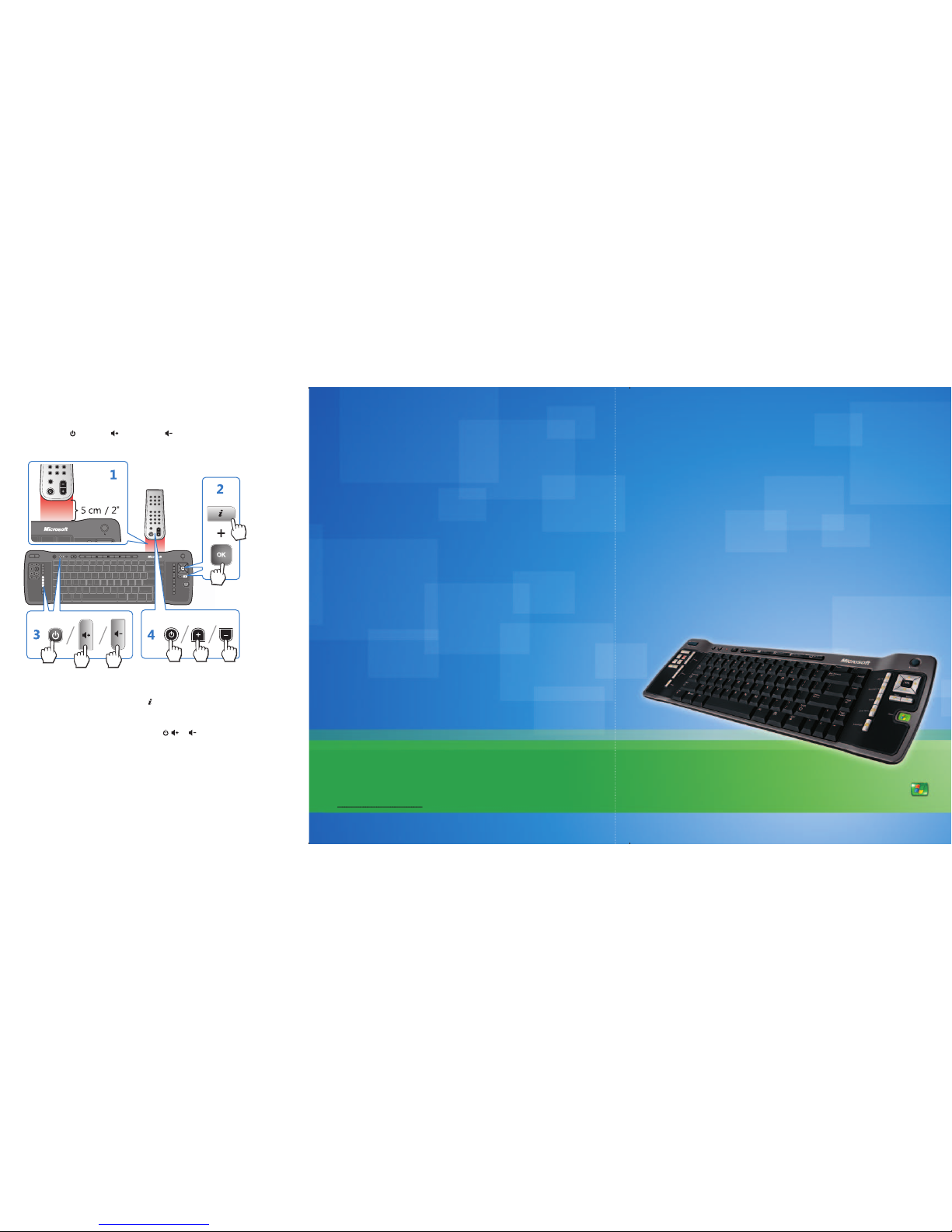
Program Keys by Using the Learning Feature
The TV power ( ), Volume + ( ), and Volume – ( ) keys on your Microsoft keyboard can
“learn” commands from remote controls. If you program these keys, you can use them to
control other devices, such as your TV or audio receiver.
1 Place the remote control head to head (1 to 2 inches apart, or 2.5 to 5 cm) with the
Microsoft keyboard infrared (IR) sens or.
2 On the Microsoft keyboard , press More ( )+OK (at the same time).
The status light on the top of the Microsoft keyboard blinks, indicating that it’s in
learning setup mode.
3 On the Microsoft keyboard , press and release , , or , depe nding on which key you
want to assign a command to.
The status light on the top of the Microsoft keyboard stops blinking, but stays on.
4 On the remote control, press and hold the but ton that you want the key on the
Microsoft keyboard to learn until the status light on the top of the Microsoft keyboard
blinks twice, indicating that the Microsoft keyboard has lear ned the command.
If the Microsoft keyboard didn’t learn the command, the status light on the top of the
Microsoft keyboard turns off. To try again, repeat steps 1 through 4.
Page 2
HEALTH WARNING
Use of a keyboard or mouse may be linke d to serious injuries or disorde rs.
When using a computer, as with many ac tivities, you may experie nce occasional discomfor t in your hands,
arms, shoulders , neck, or other parts of your bo dy. However, if you experience sympto ms such as persistent
or recurring discomfo rt, pain, throbbing, achin g, tingling, numbness, bur ning sensation, or stiff ness,
DO
NOT IGNORE THESE WARNING SIG NS. PROMPTLY SEE A QUALIFIED HEALTH PROFESSI ONAL, even
if symptoms occur when you ar e not working at your computer. Symptoms like the se can be associated
with painful and sometim es permanently disabling in juries or disorders of the ner ves, muscles, tendons , or
other parts of the body. The se musculoskeletal disor ders (MSDs) include carpa l tunnel syndrome, tendoni tis,
tenosynovitis , and other conditions.
While researchers ar e not yet able to answer many questions ab out MSDs, there is general agre ement that many
factors may be linked to the ir occurrence, including: ove rall health, stress and how one co pes with it, medical
and physical condition s, and how a person positions an d uses his or her body during work and oth er activities
(including use of a keyboar d or mouse). The amount of time a pers on performs an activit y may also be a factor.
Some guidelines that may he lp you work more comfortabl y with your computer and possibly re duce your risk
of experiencing an MSD can be f ound in the “Healthy Computing Guid e” installed with this device’s sof tware.
If this device did not come with sof tware, see the “Healthy Co mputing Guide” section of the “Ge tting Started”
manual. You can also access the “H ealthy Computing Guide” at ww w.microsoft.com/ hardware or (in the United
States only) by calling 1 (80 0) 360-7561 to request a CD at no charge.
If you have questions about h ow your own lifestyle, acti vities, or medical or physic al condition may be related to
MSDs, see a qualified heal th professional.
Warning
To protect against risk of fire, bo dily injury, electric shock or da mage to the equipment:
● Do not immerse any par t of this product in water or other liquid.
● Do not spray liquid on this prod uct or allow excess liquid to drip inside.
● Do not use this product if it ha s sustained any type of damage .
● Disconnect this pr oduct or remove its batteri es before cleaning.
Information in this docum ent, including URL and other Inte rnet Web site references , is subject to change without
notice. Unless other wise noted, the example co mpanies, organizatio ns, products, domain n ames, e-mail addresse s,
logos, people, pla ces, and events depicte d herein are fictitious, an d no association with any real com pany,
organization, pro duct, domain name, e-mai l address, logo, perso n, place, or event is intended or sh ould be
inferred. Complyi ng with all applicable copyri ght laws is the responsibilit y of the user. Without limiting the rig hts
under copyright, no par t of this document may be reprod uced, stored in or introduce d into a retrieval system, or
transmitted in any for m or by any means (electronic, m echanical, photocopyi ng, recording, or other wise), or for any
purpose, without th e express written perm ission of Microsoft Corp oration.
Microsoft may have pate nts, patent application s, trademarks, copy rights, or other intellec tual property righ ts
covering subject mat ter in this document. Excep t as expressly provided in any w ritten license agree ment from
Microsoft, the fur nishing of this document does no t give you any license to these patent s, trademarks, copy rights, or
other intellectua l property.
Microsoft Corpor ation grants the purchaser of thi s product the right to reprod uce one (1) copy of this user manual
for each Hardware Devic e you purchased in the package.
© 2005 Microsoft Corp oration. All rights rese rved.
Microsoft, Intell iEye, IntelliMouse, and Win dows are either register ed trademarks or tradem arks of Microsoft
Corporation in the Unite d States and/or other countrie s.
All other trademark s are property of their re spective owners.
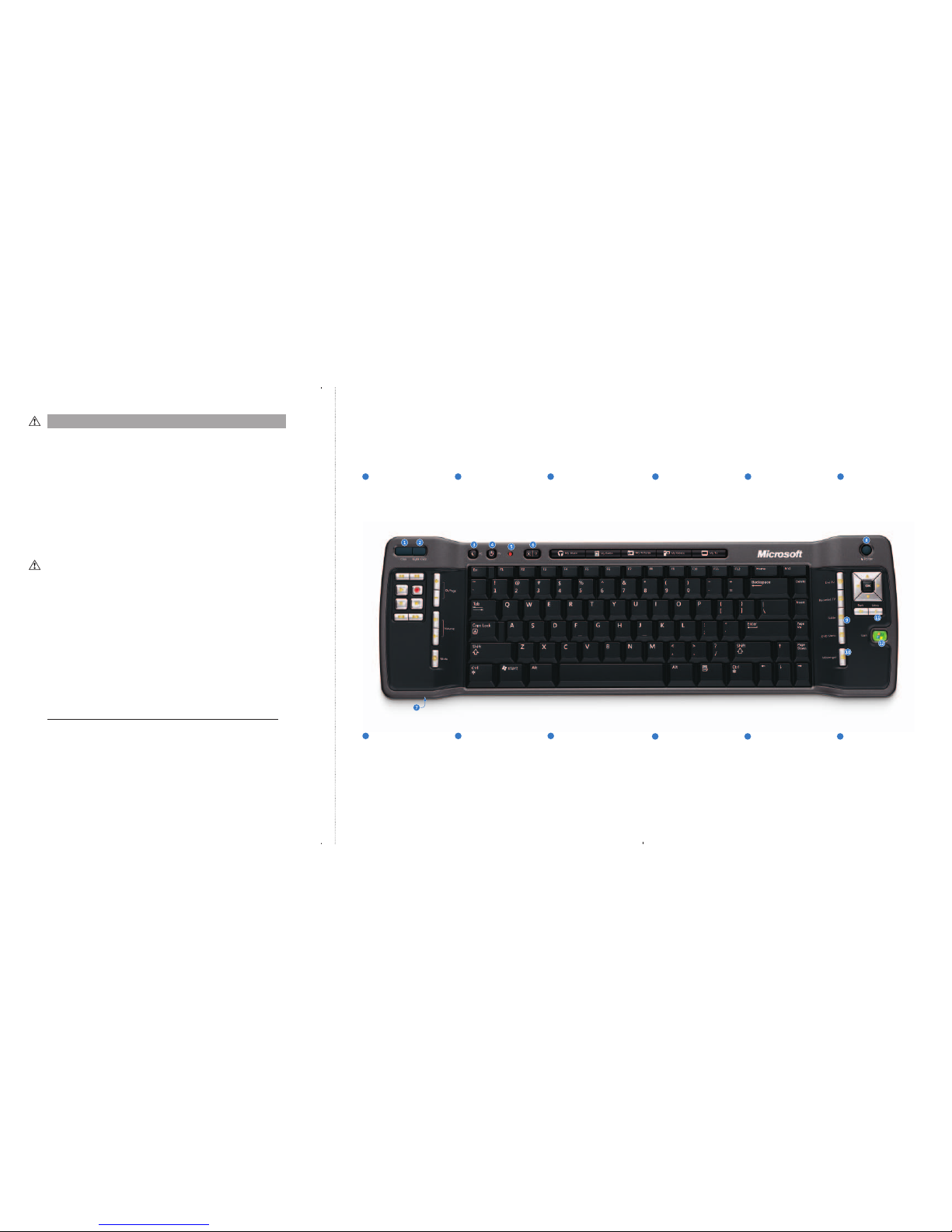
7
Keyboard lock switch
Lock keys to avoid accidental
key presses and conserve
battery power.
8
Pointer
Press down and move to control
the on-screen pointer.
9
Guide
Open the Electronic
Programming Guide.
1
Click
Click and double-click, just
like using the left button on a
mouse.
2
Right-Click
Display shortcut menus, jus t
like using the right button on a
mouse.
3
Sleep key
Put the computer into power
management mode, such as
standby.
4
TV power key
This key can “learn” to turn on
your TV.
5
Status light
Blinks to indicate learning and
general keyboard status .
6
Backlight
Turn the backlight functionality
on and off.
10
Messenger
Start Media Center Messeng er.
11
More
Show information about the
selected item.
12
Start
Start Media Center or go to the
Start menu if Media Center is
already running.
Quick Reference Guide
Microsoft® Remote Keyboard for Windows® XP Media Center® Edition
Page 3
1
0805 Part No. X11-45748
Welcome
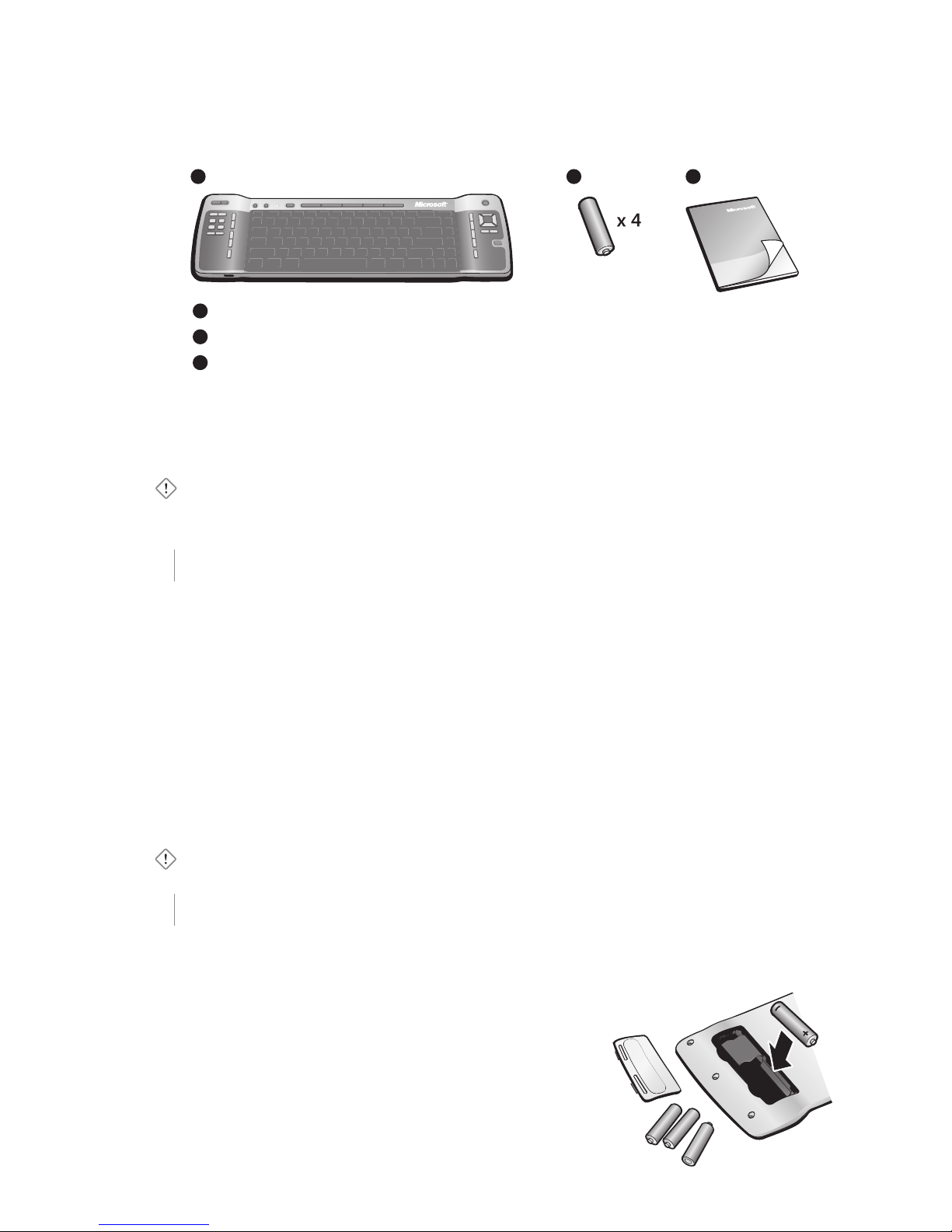
Congratulations on your purchase of a Microsoft® Remote Keyboard for Windows® XP
Media Center Edition, which includes:
1 2 3
1
Microsoft keyboard
2
Batteries for the keyboard
3
This Getting Started manual, to help you set up your keyboard and learn about its features
For the Microsoft keyboard to work, you must use the infrared (IR) receiver that
came with your Media Center PC. If the receiver isn’t built into your computer,
make sure that it’s connected to your computer. For setup details, see the product
documentation that came with the receiver.
Important Make sure that your computer meets the system requirements as
specified on the keyboard packaging.
1 Download the Media Center Update
If it is not already installed, you must download a free Windows XP Media Center
Edition update for the Microsoft keyboard to work (Internet access required).
To download the update
1 Go to the Microsoft Windows Update Web site at
http://windowsupdate.microsoft.com
2 Click Custom Install
.
3 Search for “Update Rollup 1 (or later) for eHome Infrared Receiver for Windows XP
Media Center Edition,” select it, and then click Go to install updates
.
4 Click Install
.
Important You must restart the computer for the keyboard to work properly.
2 Insert the Batteries
The keyboard requires four batteries, which are included in the package. Whenever
you insert batteries in the keyboard, always make sure that all four batteries are new.
Alkaline batteries provide maximum battery life.
To insert the batteries
1 Turn the keyboard upside-down, and then remove
the battery compartment cover.
2 Insert the new batteries, making sure to properly
orient the positive (+) and negative (–) ends as
specified by the battery compartment labels.
Page 4
2
3
3 Position the Keyboard
For optimum performance, make sure
that the distance between the keyboard
and the receiver device (or receiver built
into the computer) doesn’t exceed 30 feet
(10 m). Make sure that the front of the
keyboard is facing the receiver device and
that the keyboard isn’t tilted up or down
at an angle exceeding 30 degrees.
Important The keyboard’s range
(distance between the keyboard and the
receiver) may be less than 30 feet (10 m),
depending on the room and other environmental factors.
4 Test the Keyboard
Try using the keyboard to make sure that it’s working.
Tip To test the keyboard, press Start ( ). This starts Media Center, or goes to the
Start menu if Media Center is already running.
If the Microsoft keyboard doesn’t work as expec ted, make sure that the following
procedures were completed as specified earlier in these instructions:
● You have installed the free Windows XP Media Center Edition update.
● New batteries are inserted and positioned correctly.
● The keyboard is correctly positioned and there are no nearby items, such as
furniture, that might cause interference.
For more troubleshooting tips, see the “Troubleshooting” section later in this manual.
5 Use the Learning Feature to Program Keys
(optional)
The TV power ( ), Volume + ( ), and Volume – ( ) keys on the Remote Keyboard
for Windows XP Media Center Edition can “learn” commands from remote controls.
This lets you use these keys to control other devices, such as your TV or audio receiver.
For example, you can use
on your keyboard to turn on your TV and and
to adjust the volume on your TV or stereo. The
, , and keys can learn most
remote control commands. If you don’t want to use
to turn on your TV, you can
program it to do something else. For example, you can program it to mute the sound
on your stereo.
Notes
● By default,
and on the Microsoft keyboard control the volume on your
computer, and
has no command assigned to it until it “learns” one.
● The Microsoft keyboard saves the commands that you’ve programmed even if you
remove the keyboard batteries to inser t new ones.
● The learning feature might not support some remote controls or commands.
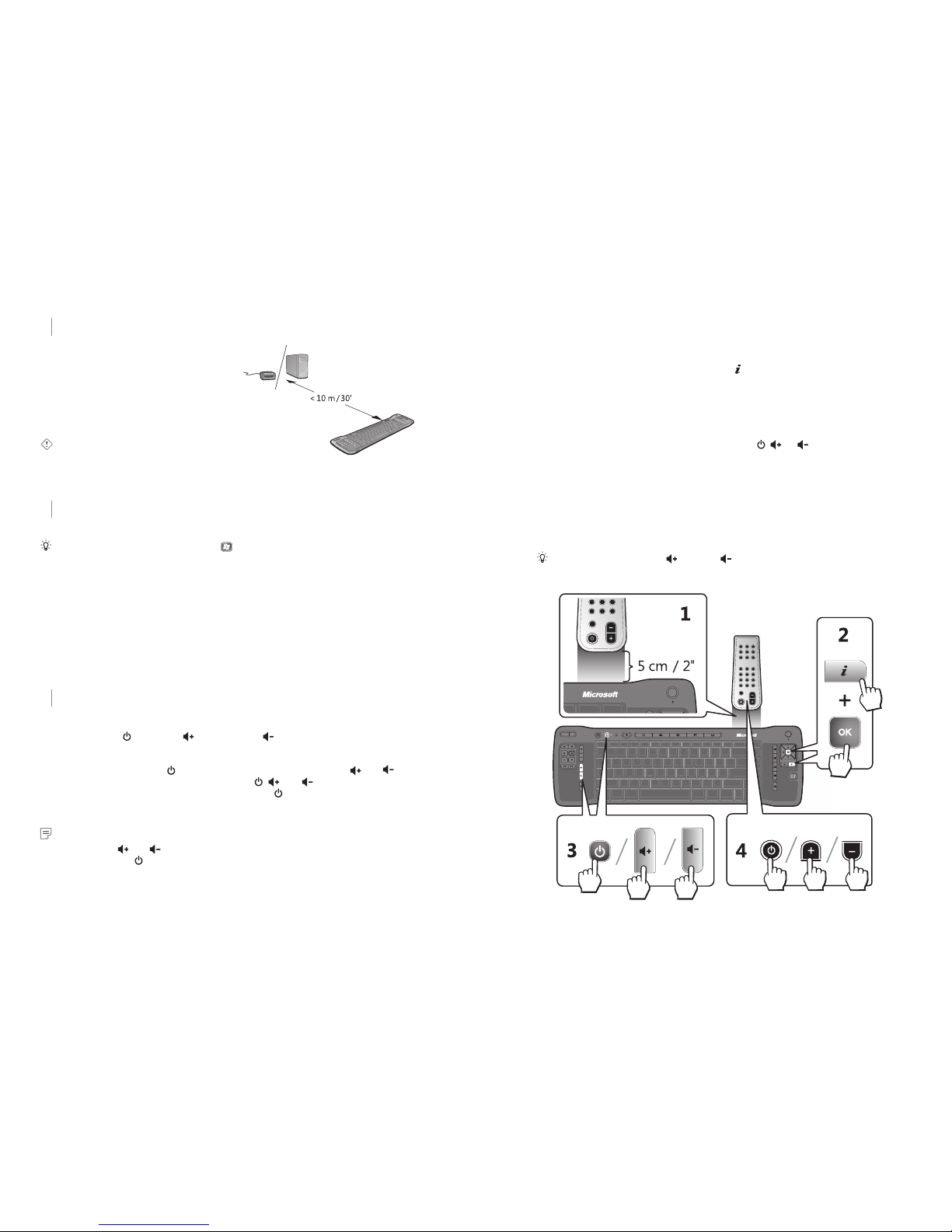
To program keys on the Microsoft keyboard
1 Place the remote control head to head (1 to 2 inches apart, or 2.5 to 5 cm) with the
Microsoft keyboard IR sensor.
2 On the Microsoft keyboard, press More (
)+OK (at the same time).
The status light on the top of the Microsoft keyboard blinks, indicating that it’s in
setup mode.
Note If you wait longer than 10 seconds to begin programming a key on the
Microsoft keyboard, the keyboard will exit setup mode.
3 On the Microsoft keyboard, press and release
, , or , depending on which
key you want to assign the command to.
The status light on the top of the Microsoft keyboard stops blinking, but stays on.
4 On the remote control, press and hold the button that you want the key on the
Microsoft keyboard to learn until the status light on the top of the Microsoft
keyboard blinks twice, indicating that the keyboard has learned the command.
If the Microsoft keyboard didn’t learn the command, the status light on the top of
the keyboard turns off. To try again, repeat steps 1 through 4.
Tip You can press SHIFT+ or SHIFT+ to bypass the learned commands and
adjust the volume of the Media Center PC.
Page 5
4
5
To restore the default TV, Volume +, and Volume – commands
1 Press +OK (at the same time).
The status light on the top of the Microsoft keyboard begins blinking.
2 Press the Back key (
).
The status light on the top of the Microsoft keyboard blinks twice to confirm that
the commands have been reset. The
key will have no command assigned to it
and
and will adjust the volume of the Media Center PC.
If the default commands weren’t restored, the status light turns off. To try again,
repeat steps 1 and 2.
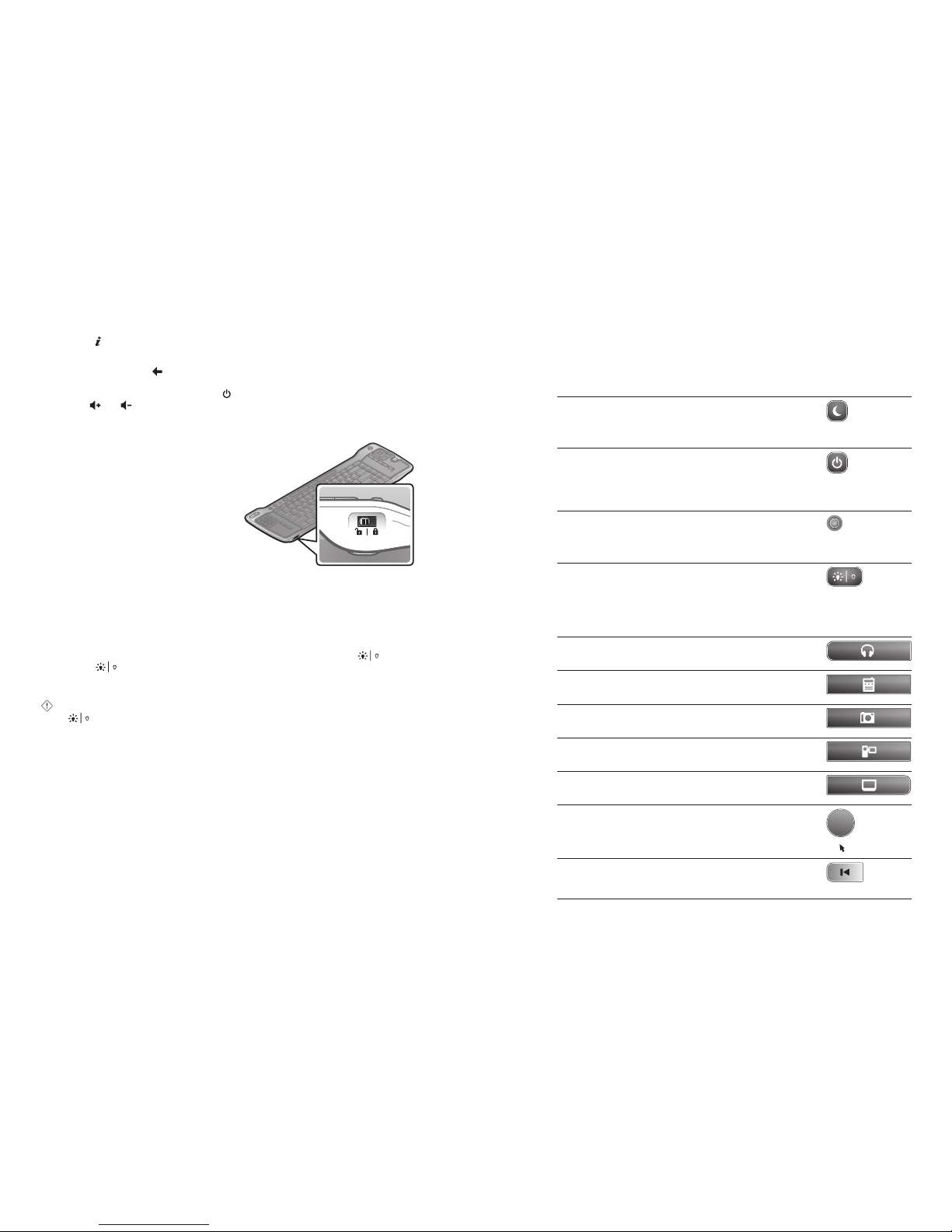
Using the Keyboard Lock Switch
You can use the keyboard lock switch to avoid
accidental key presses and conser ve battery
power when you aren’t using the keyboard.
To lock the keyboard
● Slide the keyboard lock switch into the
locked position.
About the Backlight
When you press a key on the left or right side of the keyboard, the keys on the left
and right sides of the keyboard are backlit for approximately two seconds. If you want
to conserve batter y power, you can turn off the backlight functionality.
To turn the backlight functionality off and on
● To turn off the backlight functionalit y, press the Backlight toggle key ( ).
Press
again to turn on the backlight functionalit y. The backlight will flash for
approximately two seconds to indicate it ’s turned on; the backlight will flash only
briefly when you turn it off.
Important If your keyboard battery power is low, the backlight won’t turn on, even
if
is turned on. To restore the backlight functionality, insert new batteries.
About the Integrated Pointing Device
The integrated pointing device is made up of the Pointer and the Click and Right-Click
keys that you can use to move between and select items on the screen. The Click and
Right-Click keys are located on the upper-left corner of the keyboard; the Pointer is
located on the upper-right corner of the keyboard.
Using the Click and Right-Click Keys
● Press the Click key to click and double-click.
● Press the Right-Click key to display shortcut menus or other program-specific
features, if available.
Using the Pointer
● Press down on the Pointer with your fingertip, and then move the Pointer in the
direction that you want the on-screen pointer to move.
Using the Keys
You can use many of the keys on the Microsoft keyboard to interact with Windows
XP Media Center Edition. No special software or setup procedure is required. Just
position the keyboard, and then press the appropriate key.
Task Control Key
Put the computer into power management mode
(such as standby, suspend, or hibernation) if the
computer supports power management and has
it enabled.
Sleep
By default, the TV power key has no command
assigned to it. This key can “learn” to turn on
the TV or another command that you choose.
For more information, see Step 5, earlier in this
manual.
TV power
Indicate command key press, as well as
learning and general keyboard status. For more
information about the learning feature, see
Step 5, earlier in this manual.
status light
Turn the backlight functionality on and off.
The backlight will flash for approximately two
seconds to indicate it’s turned on; the backlight
will flash only briefly when you turn it off. The
backlight turns on when you press a key on the
left or right side of the keyboard.
Backlight
Go to the Music page. My Music
Go to the Radio page if your system has this
feature.
My Radio
Go to the My Pictures page. My
Pictures
Go to the My Videos page. My Videos
Go to the TV Home page. My TV
Press down and move to control the on-screen
pointer.
Pointer
For TV, go back five seconds. For Album or
Playlist, play the previous song. For DVD, play
the previous chapter.
Replay
Page 6
6
7
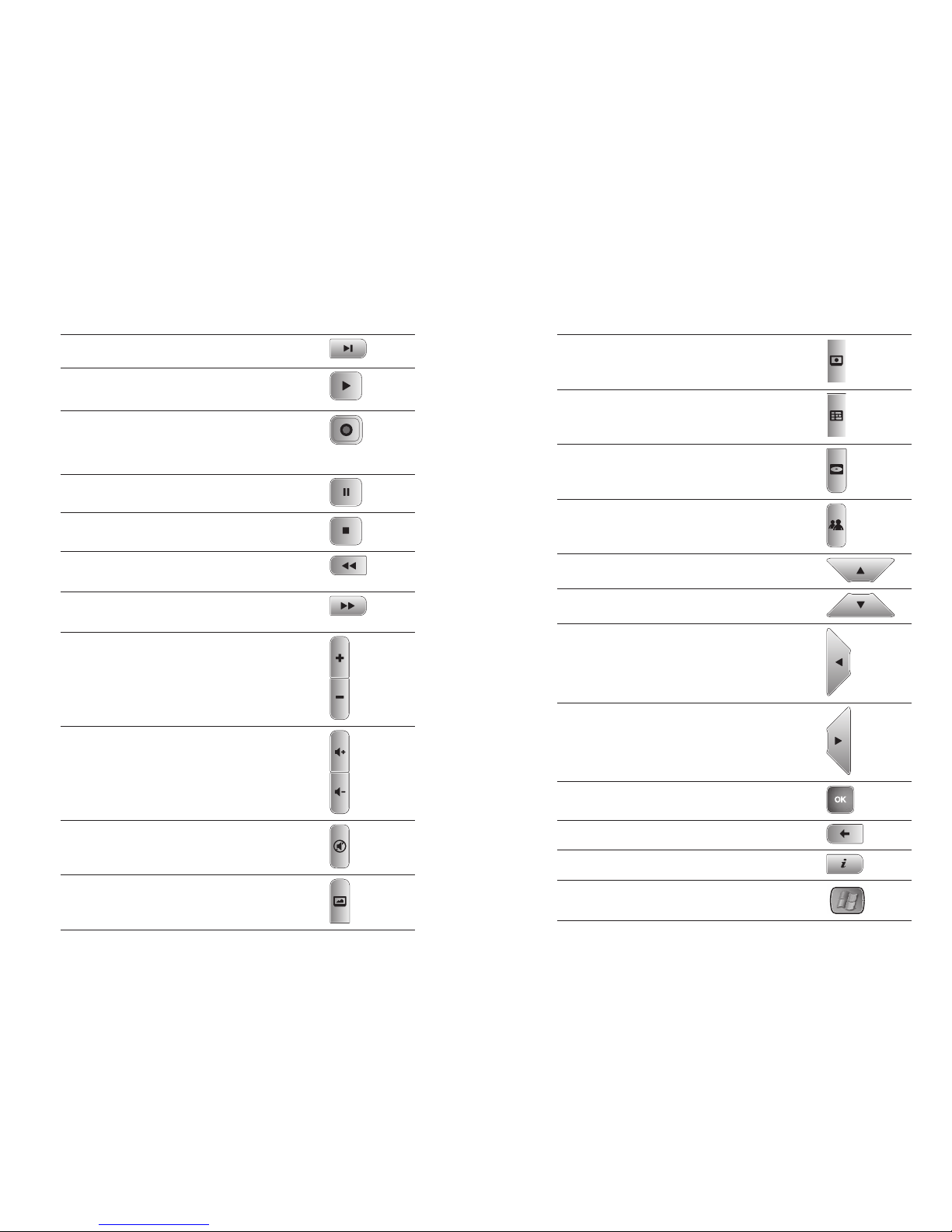
Task Control Key
Go to the Recorded TV page. Recorded
TV
Go to the Electronic Programming Guide. Guide
Display the DVD menu. DVD Menu
Start Media Center Messenger. Messenger
Move to the item above. Up
Move to the item below. Down
Move to the item on the left, or move to the
menu. If a slide show is playing, return to the
previous picture.
Left
Move to the item on the right, or move from
the menu to the folder items. If a slide show is
playing, skip to the next picture.
Right
Select the active item. OK
Go to the previous screen. Back
Show information about the selected item. More
Start Media Center, or go to the Start menu
if Media Center is already running.
Start
Task Control Key
For Album or Playlist, skip to the next song. For
Recorded TV, skip ahead 29 seconds.
Skip
Play the selected song, Album, Playlist, recorded
TV show, or video.
Play
Record the TV show to disk. If pressed once while
live TV is on, record the current show (if pressed
twice, record the series) . If pressed from the
Electronic Programming Guide, record a TV show
or TV series to disk.
Record
Pause the currently playing media. Press Pause
again to resume.
Pause
Stop the currently playing media. Press Play to
start the track again from the beginning.
Stop
Rewind the currently playing media; if pressed
repeatedly, cycles through three rewind speeds
from slowest to fastest.
Rew
Speed up the currently playing media; if pressed
repeatedly, cycles through three fast for ward
speeds from slowest to fastest.
Fwd
Change the channel or scroll up or down
the page.
Ch/Page
Adjust the volume. Volume
Mute the sound without stopping playback.
Press Mute again to turn the sound back on.
Mute
Switch to live TV if TV isn’t currently playing.
If the TV is paused, skip to live programming.
Live TV
Page 7

8
9
Troubleshooting
If you don’t find the solution you’re looking for in this section, see Media Center Help
for additional troubleshooting information.
When I press the keys on my keyboard, nothing happens. Make sure that the
following is true:
● You have installed the free Windows XP Media Center Edition update, as specified
in Step 1 earlier in this manual, and you have restarted your computer.
● The keyboard lock switch is switched to the unlocked position. For more
information, see “Using the Keyboard Lock Switch,” earlier in this manual.
● New batteries are inserted and positioned correctly.
● The Microsoft keyboard is facing the IR receiver device (or the IR receiver built into
the computer) and is positioned within 30 feet (10 m) of it.
● There isn’t an object, such as a piece of furniture, between the Microsoft keyboard
and the receiver device (or device built into the computer).
● The IR sensor on the receiver device (or receiver built into the computer) isn’t
covered up, and no natural or artificial light is shining directly on it.
No backlighting appears when I press the keys on the left and right sides of the
keyboard. Try the following:
● Press
, and then press a key on the left or right side of the keyboard. The
backlight functionality may have been turned off.
● Insert new batteries. The batter y power could be low or the batteries could be
inserted incorrec tly.
When I press a key on the left or right side of the keyboard, backlighting
appears but nothing happens. Make sure that the following is true:
● The keyboard is facing toward the receiver device (or receiver built into the
computer).
● The IR sensor on the receiver device (or receiver built into the computer) isn’t
covered up, and no natural or artificial light is shining directly on it.
● No object s block the direct path between the keyboard and the receiver device (or
device built into the computer).
● The keyboard is within 30 feet (10 m) of the receiver device (or receiver built into
the computer).
● You haven’t minimized or exited Media Center. To reactivate Media Center, press
. This starts Media Center, or goes to the Start menu if Media Center is already
running.
The keyboard Pointer isn’t working as expected. Try the following:
● Make sure to press down on the Pointer when moving it.
● Try adjusting the pointer settings. To do so, click Control Panel on the Windows
Start menu, double-click Mouse, and then select the Pointer Options tab. Try
different pointer settings to see which one works best.
My keyboard doesn’t turn my TV on or of f. Make sure that the following is true:
● You pressed
and not some other key.
● You followed the instructions in Step 5, “Use the Learning Feature to Program Keys.”
● The Power button on the T V remote control is working properly. If it isn’t, the
Microsoft keyboard might not receive the correct IR code.
My keyboard won’t learn a command from my remote control. Please note the
following:
● Make sure you don’t attempt to program commands in bright natural or artificial light.
● Although
, , and can learn most commands, the learning feature may not
support some commands on some remote controls.
● The learning feature may not support your remote control.
When I press the My Radio Hot Key, nothing happens. My Radio Hot Key only
works if your system has this feature installed.
Healthy Computing Guide
Introduction
This guide is designed to help you be more comfortable and productive
while using your computer. It may also help you reduce your risk of
experiencing painful and disabling injuries or disorders described in the
Health Warning earlier in this manual.
It only takes a moment to read, but the benefits can be lasting.
For information about arranging your workst ation and developing habits that may
help to reduce your risk of experiencing a musculoskeletal disorder (MSD), read
this “Healthy Computing Guide.” Because there are a variety of factors that may
contribute to MSDs, this guide cannot provide everything you need to know to
prevent an MSD or reduce your risk of experiencing one. For some people, following
the suggestions may reduce their risk of experiencing an MSD. For others, it may not.
However, many people experience greater comfort and productivity when following
these suggestions. Keep in mind that this guide is not a substitute for the advice of
a qualified health professional or an employer health polic y or program. If you have
questions about how your own lifestyle, activities, or medical or physical condition
may be related to MSDs, see a qualified health professional.
Position Yourself
Whether you are working or playing, it is important to avoid awkward postures and
position your body comfortably. Not only can this improve your overall productivity,
it may help you avoid MSDs. Keep in mind that changing your posture during
extended task s may also help you avoid discomfort and fatigue.
When working or playing at the computer, adapt your surroundings and arrange your
computing equipment to promote a comfortable and relaxed body posture. Setting
up your workstation to avoid discomfort depends on your unique body size and work
environment. However, the following suggestions may help to provide you with a
more comfortable environment.
Page 8
10
11
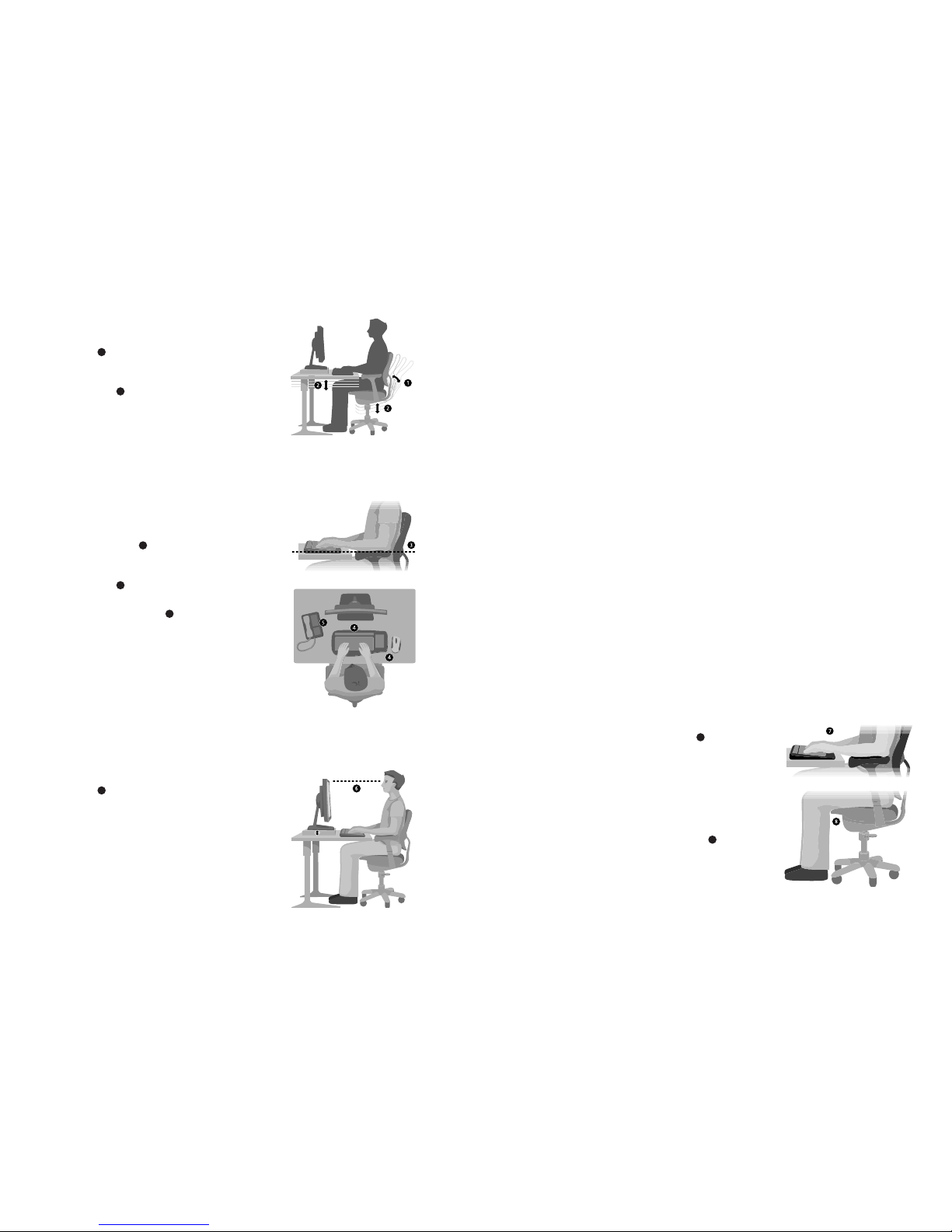
To support your back, tr y the following:
● Use a chair that supports your lower back (see
detail
1
).
● Adjust your work surface and chair height to
assume a comfortable and natural body posture
(see detail
2
).
To promote comfortable le g postures, tr y the
following:
● Clear away items from beneath your desk to allow
comfortable leg positioning and movement.
● Use a footrest if your feet do not rest comfortably on the floor.
To minimize reaching and to promote comfortable shoulder and arm postures,
try the following:
● Place your keyboard and mouse or trackball at
the same height; these should be at about elbow
level. Your upper arms should fall relaxed at your
sides (see detail
3
).
● When typing, center your keyboard in front of you
with your mouse or trackball located close to it
(see detail
4
).
● Place frequently used items comfortably within
arm’s reach (see detail
5
).
To promote proper wrist and finger postures, try
the following :
● Keep your wrists straight while typing and while
using a mouse or trackball. Avoid bending your
wrists up, down, or to the sides. If your keyboard
has legs, extend them if this helps you maintain a
comfortable and straight wrist position.
● Type with your hands and wrists floating above the
keyboard, so that you can use your whole arm to
reach for distant keys instead of stretching your fingers.
To minimize neck bending and twisting, try the following:
● Position the top of the screen near eye level (see
detail
6
). Bifocal wearers may need to lower the
screen or talk to a qualified health professional
about glasses customized for computer work .
● Center your monitor in front of you. If you refer
to your documents more frequently than your
monitor, consider placing your documents directly
in front of you and the monitor slightly to the side.
● Consider using a document holder to position your
documents near eye level.
To minimize eye strain, try the following:
● Position your monitor about an arm’s length away from you when seated
comfortably in front of it.
● Avoid glare by placing your monitor away from light sources that produce glare, or
use window blinds to control light levels.
● Remember to clean your screen. If you wear glasses, clean them also.
● Adjust your monitor’s brightness and contrast.
● Adjust onscreen font sizes to make viewing more comfortable for you, if your
computer program has this feature.
Go Lightly
Physical forces continuously interact with our bodies. We may think that only highimpact forces, such as car crashes, are likely to injure our bodies. However, low-impact
forces may also result in injuries, discomfort , and fatigue if they are repeated or
experienced over long periods of time.
Some types of low-impact forces include :
Dynamic force: A force that you exert through movement, such as pressing the keys
while typing or clicking the mouse buttons.
Static force: A force that you maintain for a period of time, such as holding your
mouse or cradling the phone.
Contact force : A force that occurs when you rest on an edge or hard surface, such as
resting your wrists on the edge of your desk.
To reduce the effects of low-impact forces on your body, try the following:
● Type with a light touch, keeping your hands and fingers relaxed, be cause it takes
little effort to activate keyboard keys.
● Use a light touch when clicking a mouse button or when using a joystick or other
gaming controller.
● Hold the mouse with a relaxed hand and do not grip the mouse tightly.
● Avoid resting your palms or wrists on any type of
surface while typing (see detail
7
). The palm rest,
if provided, should only be used during break s
from typing.
● Relax your arms and hands when you are not
typing or using your mouse. Do not rest your
arms and hands on edges, such as the edge of
your desk.
● Adjust your chair so the seat does not press into
the back of your knees (see detail
8
).
Page 9

12
13
Take Breaks
Taking breaks can help your body recover from any activit y and may help you avoid
MSDs. The length and frequenc y of breaks that are right for you depend on the type
of work you are doing. Stopping the activity and relaxing is one way to take a break,
but there are other ways, also. For example, just changing task s—perhaps from sit ting
while typing to standing while talking on the phone can help some muscles relax
while others remain productive.
To vary your daily activities and to work productively, try the following:
● Plan your work and play so that you are not doing the same thing for extended
periods of time (such as performing the same activity or using the same part of
your body).
● Use different input devices, such as your mouse and keyboard, to accomplish the
same task. For example, to perform a scrolling task, you can use the wheel on the
mouse and the arrow keys on the keyboard.
● Work more efficiently by using software and hardware features to reduce your
effort and increase your productivity. For example, you can press the Windows
logo key to open the Windows Start menu.
● Learn about sof tware and hardware features by reading the information that
accompanied these products. For example, if you frequently highlight text, activate
the mouse ClickLock feature.
Be Healthy
A healthy lifestyle can help you per form and enjoy your everyday activities , including
the time spent at your computer. Also, learning more about your health is an
important step in staying comfortable and productive while using your computer.
To help maintain good health, try the following :
● Eat a balanced diet and get adequate rest.
● Exercise for overall fitness and to improve the strength and flexibility of your
body. Consult a qualified health professional to help you choose the stretches and
exercises that are right for you.
● Learn to manage stress. One way to reduce stress at work is to plan your work area
and schedule so that noise and distractions are kept to a minimum.
● See a qualified health professional if you have questions about how your medical
and physical conditions may be related to MSDs. While researchers are not yet
able to answer many questions about MSDs, there is general agreement that many
factors may be linked to their occurrence, including previous injuries, diabetes,
hormonal changes (such as pregnancy), and rheumatoid arthritis.
Conclusion
Learning more about working comfor tably and productively, as well as your overall
health, are important ways to help you enjoy your computing experience.
Microsoft Product Support Services
If you have a question about your Microsoft hardware device, do the following:
● Check the system requirements for your device (located on the packaging) to make
sure your system is compatible.
● Read through this manual.
● For additional produc t information, go to the Microsoft Hardware Web site at:
www.microsoft.com/hardware
● For up-to-date help about using or troubleshooting your device, go to the
Microsoft Product Suppor t Services Web site at:
http://support.microsoft.com
● See the technical support options in this section to find the appropriate suppor t
option.
Customer Support Options
Product Name: Remote Keyboard for Windows XP Media Center Edition
OEM If this product came with a new computer or device, the hardware
Distributed : manufacturer provides technical support. Please contact your
manufacturer directly for support.
Self-Help Search our Knowledge Base, watch videos for solving common
Support : problems, and download available updates by visiting
http://support.microsoft.com
Chat & E-mail Chat immediately, or send an e-mail message to a Microsoft Support
Support : Professional by visiting http://support.microsoft.com
Note that e-mail response may be delayed by several hours.
Phone Support : In the United States, call (866) 833-7088.
In Canada, call (800) 876-8533
For all other regions, see the International Technical Support
Numbers later in this section.
TTY Users : In the United States, call (800) 892-5234.
In Canada, call (905) 568-9641.
For all other regions, see the International Technical Support
Numbers later in this section.
Conditions: Microsof t support services are subject to then-current prices,
terms, and conditions, which are subject to change without notice.
Toll charges may apply to all non-toll-free numbers listed.
International Technical Support Numbers (partial list only) :
Note For regional support policy details and more, visit
http://support.microsoft.com/international.aspx and select your country or region
from the list. If there is no Microsoft subsidiar y office in your country or region, please
contact the establishment from which you obtained your Microsoft product.
Page 10

14
15
Perú
Atención al Cliente - Microsoft:
(511) 215-5002
Soporte Técnico: (511) 215-5005
InfoEmpresa: (511) 215-5006
Información sobre Eventos:
(511) 215-5010
Fax: (511) 215-5004
Puerto Rico
Soporte Técnico: (787)-268-8528,
1-877-672-3842
Correo Electrónico para sopor te
técnico: [email protected]
Centro de Servicios: (8 00) 297 5982
para códigos de áreas 787 & 809
solamente
Correo Electrónico para Atención a
Usuarios: [email protected]
South Africa
Phone: (27) (11) 257 0000 or
0860225567 (inside South Africa)
Technical Support Fax:
(27) (11) 257-0424
United Kingdom
Tel: 0870 60 10 100
Customers phoning from Ireland :
+353 1 706 5353.
Uruguay
Soporte Técnico (598) 2-908-0998/1998
Atención a Clientes: (598) 2-916-4445
Atención a Canal: (598) 2-916-4446
Venezuela
Teléfono: (582) 276-0500
Fax: (582) 276-0600
Soporte Técnico: (58)(212)0500MICROSOFT (0500-6427676)
Correo Electronico para Atención al
Cliente: msven@microsof t.com.ve
Correo Electronico para Sopor te Técnico:
[email protected]
Atencion al Canal: (58)(212)0800MSCANAL (080 0-6722625)
Correo Electronico para Atencion al
Canal: [email protected]
Registro de Eventos: (58)(212) 0500MSEVENTOS (0500-6738368)
Argentina
Servicios al Cliente:
(5411) 4316-4600
Fax: (5411) 4316-4698
Soporte Técnico: (5411) 4316-4664
Australia
Technical Support Phone: 13 20 58
Technical Support Fax:
(61) (2) 9023 5021
Bolivia
Atencion al Cliente: 0800-2029
Soporte Técnico: 0800-3443
Brasil
Teléfono: (55) (11) 5504-2155
Fax: (55) (11) 5504-2227 / 5504-2228
Teléfono de Soporte Técnico:
(55)(11) 3444-68 44
Caribe
Teléfono: (787) 268-8528
Fax: (787) 273-3636
Soporte Técnico: 1-877-672-3842
Correo Electrónico para sopor te
técnico: [email protected]
Centro de Servicios: (8 00) 297-5982,
para códigos de áreas 787 & 809
solamente, 506-298-2000
(para otras áreas)
Correo Electrónico para Atención a
Usuarios: [email protected]
Centroamérica
Soporte Técnico: (506) 298-2020
Correo Electrónico para sopor te
técnico: [email protected]
Customer Service/Centro de
Servicios: (506) 298-2000
Customer Service E-mail/Correo
Electrónico para Atención a
Usuarios: [email protected]
Chile
Teléfono: 800-330-6000
Colombia
Teléfono: (571) 524-0404
Para llamadas desde fuera de
Bogotá:
9800-5-10595, 9800-9-10595
Fax: (571) 524- 0405
Ecuador
Teléfono: (593) (2) 258 025
PBX: (593) (2) 263-820
Fax: (593) (2) 262-894
France
(33) (0) 825 827 829, followed by 0 and
code 10 20 #
Telex: MSPARIS 604322F
Germany
Standard Support (Installation and
Handling): (01805) 67 22 55
General information about Microsof t
support in central Europe:
Telephone: (01805) 25-1199
Fax: (01805) 25-1191
Japan
Microsoft Support Contact Center
TEL: (81) (3) 5354-4700
FAX: (81) (3) 5388-8253
México
Aplicaciones y Sistemas Operativos
de Escritorio: (52) (5) 267-2199
[email protected]
Herramientas de Desarrollo y
Sistemas Avanzados: (52) (5) 267-2190
[email protected]
Atención a Clientes: (52) (5) 267-2191
[email protected]
Atención a Distribuidores: (52) (5) 2672110 [email protected]
Fax: (52) (5) 267-2119
New Zealand
Technical Support: (64) (9 ) 357-5575
Panamá
Soporte Técnico: (507) 298-2020
Correo Electrónico para sopor te técnico:
mscasup@microsof t.com
Centro de Servicios: (8 00) 506-0001
Correo Electrónico para Atención a
Usuarios: [email protected]
Paraguay
Microsoft Paraguay
Atención al Cliente: +595 (21) 498190
Soporte técnico: +595 (21) 495865
Patent Information
United States and /or international patents pe nding.
Important Battery Information
C aution Use and replace only wit h AA (LR6) Alkaline, Zinc- Carbon, or Zinc-Chlori de Batteries.
General Precautions
● Keep batteries out of reach of chil dren.
● Insert the batterie s in the proper direction as indica ted by the positive (+) and negative (-) markings on
the batter y and battery compartm ent.
● Do not mix old and new batteries or batteries of different types (for example, carbon and alkaline batteries).
● Always remove old, weak, or wo rn-out batteries prompt ly and recycle or dispose of them in accor dance
with Local and Nati onal Disposal Regulations .
● If a battery leaks, re move all batteries and recycl e or dispose of them in accordance with the bat tery
manufactur er’s instructions and Loca l and Nat ional Disposal Regulations . Before inserting new
batteries , thoroughly clean the batter y compartment with a damp pape r towel, or follow the battery
manufactur er’s recommendations for clean up. If fluid from the battery come s into cont act with skin or
clothes, flush sk in with water immediately.
● Remove the batteries if your de vice is to be stored for an extended p eriod of time without being used.
Special Precautions
The precautions below are to prevent the sudden release of electrolytes, which these prohibited actions can cause:
● Do not install the batterie s incorrectly. Carefully obs erve the positive (+) and negative (-) markin gs on
the batter y for proper installation.
● Do not open, puncture, or muti late the batteries.
● Do not heat batteries.
● Do not use a fire to dispose of batteri es.
Released bat tery electroly te is corrosive, can cause dam age to the eyes and skin, and may be toxic if swal lowed.
Page 11

16
17
Limited Warranty
IMPORTANT—PLE ASE READ THIS LIMITED WARRANT Y CAREFULLY TO UNDERSTAND YOUR RIGHTS AND
OBLIGATIONS! Th e term “Hardware Device” mean s the Microsoft hardware pro duct. The term “You” means
either an indivi dual or a single legal entity who will b e referred to in this Limited Warrant y as “You” and “Your”.
A. WARRANTIE S.
1. Express Warr anty. Subject to the terms and condi tions of this Limited Warranty and in li eu of any other (if
any) express warr anties, Microsoft warr ants that under normal use and ser vice, on the date of acquisition as
shown on Your receipt or simi lar proof of payment and for the peri od of time stated below for the appli cable
Hardware Dev ice (hereafter each define d as the “Warranty Period” ), that the Hardware Device wi ll substantially
conform with the acc ompanying Microsoft pack aging and documentation. A s to any defects discovered af ter
the Warranty Per iod, there is no warranty or condi tion of any kind.
Warranty Perio d:
For all Microsof t keyboard and mouse deskto p sets: Three (3) years
For all Microsof t keyboard devices: Three ( 3) years
For Microsof t mouse devices:
Comfort Opti cal Mouse 3000; Wire less Optical Mouse 1000 ; Basic Mouse; Basic Note book Optical Mouse;
Compact Optic al Mouse; Mobile Optical Mo use; Notebook Optical Mo use; Optical Mouse by Starck ; Standard
Wireless Op tical Mouse; Wheel Mouse ; Wheel Mouse Optical: Two (2) year s
Laser Mouse 6 000; Wireless Not ebook Laser Mouse 600 0; Wireless Notebo ok Optical Mouse 5000 ; Wireless
Notebook Opti cal Mouse 4000; Wir eless Optical Mouse 300 0; Wireless Notebo ok Optical Mouse 3000 ;
Notebook Opti cal Mouse 3000; Basi c Optical Mouse; Cordless W heel Mouse; IntelliMous e; IntelliMouse
Explorer ; IntelliMouse Trackball; Mous e 2.0; Optical Mouse; Trackball O ptical; Wireless Noteb ook Optical
Mouse; Wire less Optical Mouse; Wir eless Wheel Mouse: Thre e (3) years
Wireless L aser Mouse 6000; Wi reless Optical Mouse 500 0; IntelliMouse Optic al; IntelliMouse Pro; Intell iMouse
with IntelliEye ; Trackba ll Explorer; Wireles s IntelliMouse Explorer ; IntelliMouse Explore r for Bluetooth; Wireless
IntelliMouse E xplorer with Fingerprin t Reader: Five (5) years
For other Microso ft devices:
Microsoft Fin gerprint Reader: Thre e (3) years
This Limited Warra nty does not cover, and no warranty of any k ind is provided with respec t to any subjective or
aesthetic as pects of the Hardware Devic e. The express warranty st ated above is the only express war ranty made
to You and is provided in lieu of all ot her express or implied warran ties and conditions (except for any no ndisclaimable imp lied warranties that exist) , including any created by any other docu mentation or packaging.
No information or su ggestions (oral or in a record) gi ven by Microsoft, its agent s, affiliates or supplier s or its or
their employee s or agents, shall create a warrant y or condition or expand the scop e of this Limited Warranty.
2. Limitation on Dur ation of Implied Warranties. If you ar e a consumer, You may also have an implied warrant y
and/or conditio n under the laws of some jurisdicti ons, which is hereby limited to the dur ation of the Warranty
Period. Some jur isdictions do not allow limitat ions on how long an implied warrant y or condition lasts, so the
foregoing limi tation may not apply to You.
B. EXCLUSIVE REMEDY. Subjec t to applicable law and the followin g, and provided that You return the Hard ware
Device to Your place of acquis ition (or, if that place will not accept the ret urn, to Microsoft) with a copy of Your
receipt or other b ona fide proof of payment during the Warr anty Period, Microsoft w ill, at its option and as Your
exclusive reme dy for breach of this Limited Warrant y and any implied warranties:
repair or replac e the defective Hardware Dev ice; or
make payment to You for the allow able damages that You incurred in reas onable reliance, but only up to the
amount You paid (if any) for the Ha rdware Device less reason able depreciation based on ac tual use.
The above remed y is subject to the following:
Any repaired or re placed Hardware Device will b e new or refurbished or ser viceably used, comparabl e in
function and p erformance to the original Ha rdware Device, and may include thi rd party items;
Any Hardware Dev ice repaired or replaced und er this Limited Warranty will be warr anted for the remainder of
the original Warran ty Period or 30 days from the date of shipm ent of the item back to You, whichever is longer.
Except as other wise required by legisla tion in Your jurisdiction, costs as sociated with transport ( including
packaging) for wa rranty service shall b e at Your expe nse; and
Microsoft , its agents, affiliates an d suppliers do not provide any warr anties regarding any other ser vices
provided unde r this Limited Warranty and discla im all duties (if any) of workmanlike eff ort or of lack of
negligence re garding such services .
Regulatory Information
Tested to comply with FCC (U. S. Federal Communicatio ns Commission) Standards . For home or office use. Not
intended for us e in machinery, medical or industr ial applications. Any chang es or modifications not expres sly
approved by Micro soft could void the user’s author ity to operate this device.
This product is fo r use with NRTL Listed (UL, CSA , ETL, etc.), and/or IEC /EN 60950 compliant (CE marked)
Information Technol ogy equipment. No serv iceable parts included .
This device is rate d as a commercial product for oper ation at +41ºF (+5ºC) to +95º F (+35ºC).
This Class B digital ap paratus complies with Part 15 of the U. S. Federal Communication s Commission (FCC) rules,
Canadian ICES- 003 and RSS-210. Operation is subje ct to the following two conditio ns: (1) this device may not
cause inter ference, and (2) this device mus t accept any interference re ceived, including interf erence that may
cause undesir ed operation.
Cet appareil numé rique de la classe B est conforme au x normes NMB-003 et CNR-210 du Canada. So n
fonctionne ment est assujetti aux deu x conditions suivantes : (1) Cet appare il ne peut pas provoquer
d’interfé rences nuisibles et (2) cet appar eil doit accepter toute inter férence reçue, y compris les inte rférences
pouvant entraî ner un fonctionnement non dé siré.
Microsoft Co rporation; One Microsof t Way;
Redmond, WA 98052-6 399; U.S.A.
United States : (800) 426-9400 Cana da: (800) 933-4750
Information About LED Devices
This product ha s been evaluated to comply with Int ernational
Class 1 LED product
Standard IEC 608 25-1:1993/A 2:2001
This product us es LEDs that are inherently Class 1 .
Radio and TV Interference Regulations
The Microsof t hardware device(s) can ra diate radio frequency (R F) energy. If not installed and us ed in strict
accordance with th e instructions given in the pri nted documentation and/or o nscreen help files, the devic e may
cause harmfu l interference with other ra dio-communications dev ices (for example AM/FM radios , televisions,
baby monitors , cordless phones, etc. ). There is, however, no guarantee tha t RF interference will not occur in a
particular in stallation.
To determine if your hardwa re device is causing interfe rence to other radio-commun ications devices,
disconnec t the device from your computer or rem ove the device’s batteries (for a bat tery operated devic e). If
the interfer ence stops, it was probably ca used by the device. If the interf erence continues after you dis connect
the hardware dev ice or remove the batteries , turn the computer off and then on agai n. If the interference
stopped whe n the computer was off, check to see if one of the in put/output (I/O) dev ices or one of the
computer’s inte rnal accessory board s is causing the problem. Discon nect the I/O devices one at a time and s ee
if the interfer ence stops.
If this hardware dev ice does cause interfere nce, try the following meas ures to correct it:
● Relocate the antenna of the other r adio-communications devi ce (for example AM/FM Radios,
television s, baby monitors, cordless ph ones, etc) until the interferen ce stops.
● Move the hardware device far ther away from the radio or TV, or move it to one side or the oth er of the
radio or TV.
● Plug the computer into a differe nt power outlet so that the hardware dev ice and radio or TV are on
different cir cuits controlled by differe nt circuit breakers or fuses.
● If necessary, ask your comput er dealer or an experienced radi o-TV te chnician for more suggestions . For
more informatio n about interference issue s, go to the FCC Web site at:
http://w ww.fcc.gov/cgb/consumer facts/interfer ence.html
You can also call the FCC at 1-888-C ALL FCC to request Interfere nce and Tele phone Interference fac t
sheets.
Product Disposal Information
Dispose of this pro duct in accordance with local an d national disposal regulati ons (if any), including
those governin g the recovery and recyclin g of waste electrical and ele ctronic equipment (WEEE ).
Page 12

18
C. NO OTHER WARRANTIES. The express warranty stated above is the only express warranty made to
You and is provided in lieu of all other express or implied warranties and conditions (if any) including
any created by any other documentation or packaging. No other warranties or conditions are made
with respect to the Hardware Device or the warranty services by any person, including but not limited
to Microsoft, its agents, affiliates and suppliers. No information (oral or written) or suggestions given by
Microsoft, its agents or suppliers or its or their employees, shall create a warranty or condition or expand
the scope of this Limited Warranty. Also, there is no warranty or condition of title, quiet enjoyment, or
noninfringement in the Hardware Device. You may have greater rights existing under legislation in your
jurisdiction.
D. EXCLUSION OF OTHER DAMAGES.
TO THE FULL EXTENT ALLOWED BY LAW, MICROSOFT AND ITS AGENTS, AFFILIATES AND SUPPLIERS ARE
NOT LIABLE FOR ANY:
(i) CONSEQUENTIAL OR INCIDENTAL DAMAGES;
(ii) DAMAGES OR LOSS OF ANY NATURE WHATSOEVER RELATING TO LOST PROFITS, BUSINESS
INTERRUPTION, LOSS OF DATA OR PRIVACY OR CONFIDENTIALIT Y, ANY INABILITY TO USE ALL OR PART
OF THE HARDWARE DEVICE, PERSONAL INJURY, OR ANY FAILURE TO MEET ANY DUTY (INCLUDING BUT
NOT LIMITED TO ANY DUTY OF NEGLIGENCE, GOOD FAITH OR OF WORKMANLIKE EFFORT); OR
(iii) INDIRECT, SPECIAL, OR PUNITIVE DAMAGES ARISING OUT OF OR RELATING IN ANY WAY TO
THE HARDWARE DEVICE. THE FOREGOING APPLIES EVEN IF MICROSOFT OR ANY AGENT, AFFILIATE
OR SUPPLIER HAS BEEN ADVISED OF THE POSSIBILITY OF SUCH LOSSES OR DAMAGES; AND
EVEN IN THE EVENT OF FAULT, TORT (INCLUDING NEGLIGENCE), STRICT OR PRODUCT LIABILITY,
MISREPRESENTATION OR OTHER REASON.
Some jurisdictions do not allow the exclusion or limitation of incidental or consequential damages, so the
above limitation or exclusions may not apply to You.
E. EXCLUSIONS FROM COVERAGE. This Limited Warranty shall not apply and Microsoft, its agents,
affiliates and suppliers have no liability under this Limited Warranty if the Hardware Device:
- is used for commercial purposes (including rental or lease);
- is modified or tampered with;
- is damaged by Acts of God, power surge, misuse, abuse, negligence, accident, wear and tear,
mishandling, misapplication, or other causes unrelated to defects in the Hardware Device;
- is damaged by programs, data, viruses, or files, or during shipments;
- is not used in accordance with the accompanying documentation and use instructions; or
- is repaired, modified or altered by other than a Microsoft authorized repair center and the unauthorized
center causes or contributes to any defect or damage.
F. REGISTRATION. You need not register Your acquisition of the Hardware Device for the Limited
Warranty to be effective.
G. BENEFICIARY. To the extent allowed by applicable law, the Limited Warranty is only made to You, the
first purchaser of the Hardware Device, and there are no third party beneficiaries of the Limited Warranty.
It is not intended for and does not apply to anyone else (except as required by law), including anyone to
whom You make any transfer of the Hardware Device.
H. GOVERNING LAW; EXCLUSIVE FORUM. If You acquired the Hardware Device in the United States
of America, all parts of this Limited Warranty shall be construed under and controlled by the laws of
the State of Washington, U.S.A., and You irrevocably consent to exclusive jurisdiction and venue in the
federal courts sitting in King County, WA unless no federal subject matter jurisdiction exists, in which case
You irrevocably consent to exclusive jurisdiction and venue in the Superior Court of King County, WA. If
You acquired the Hardware Device in Canada, except where expressly prohibited by local laws, the laws
in force in the Province of Ontario, Canada apply and each of the parties hereto irrevocably attorns to
the jurisdiction of the courts of the Province of Ontario and further agrees to commence any litigation
which may arise hereunder in the courts located in the Judicial District of York, Province of Ontario. If You
acquired this Hardware Device outside of the countries listed above, then local laws may apply.
I. FURTHER INFORMATION. Microsoft is the warrantor under this Limited Warranty. To receive
instructions for obtaining performance of this Limited Warranty You must either contact the Microsoft
subsidiary ser ving your country, or write to: Microsoft Sales Information Center, One Microsoft Way,
Redmond, WA 98052-6399, USA, or visit Microsoft on the World Wide Web at http://www.microsof t.com.
You must also:
1. Submit proof of payment in the form of a bona fide, dated receipt, or invoice (or a copy) evidencing
that You are the beneficiary of this Limited Warranty and that Your request for a remedy is made within
the Warranty Period;
2. Follow Microsoft’s shipping and other instructions if it determines that all or part of your Hardware
Device requires return. To obtain the Limited Warranty performance, you must take or deliver the item
in either its original packaging or packaging that provides an equal degree of protection to the location
specified by Microsoft. Except as other wise required by legislation in your jurisdiction, costs associated
with transport (including packaging) for warranty service shall be at Your expense.
Failure to follow the above instructions may result in delays, cause you to incur additional charges, or
may void your warranty.
 Loading...