

Page 1
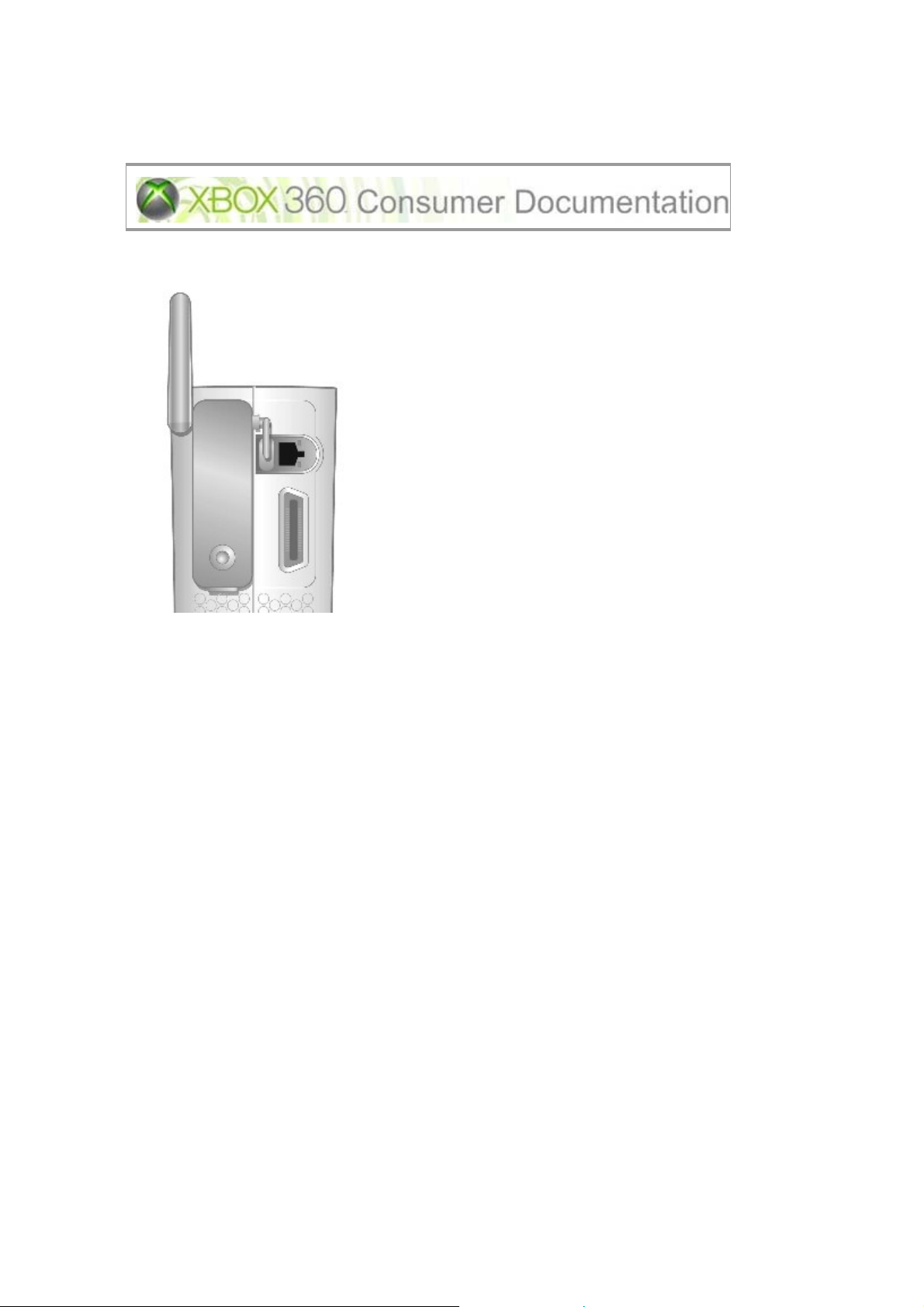
Xbox 360 Wireless Networking Adapter
The Xbox 360 Wireless Networking Adapter lets you play head-to-head wirelessly—on Xbox Live, or
on your home network. It is for use exclusively with the Xbox 360™ video game and entertainment
system. Your Xbox 360 Wireless Networking Adapter features:
• Dual band 5-GHz and 2.4-GHz signal.
• 802.11a/b/g wireless home network compatibility.
• Radio collaboration with Xbox 360 wireless controllers for worry-free integration.
To use the Xbox 360 Wireless Networking Adapter with X box Live®, you must have a high-speed
Internet connection (cable or DSL).
Note
Not all Internet service providers (ISPs) allow you to share a broadband connection between
multiple devices. Make sure you check with your ISP first.
Important Information
The limited warranty covering this peripheral is contained in the Xbox 360 Instruction Manual.
Before using this pro duct, read the Xbox 360 Instruction Manual for important safety information
and health warnings. Keep all manuals for future reference.
Dispose of this product in accordance with local and national disposal regulations (if any), in cluding
those governing the recovery and recycling of waste electrical and electronic equipment (WEEE).
Attach the Adapter to Your Console
Page 2
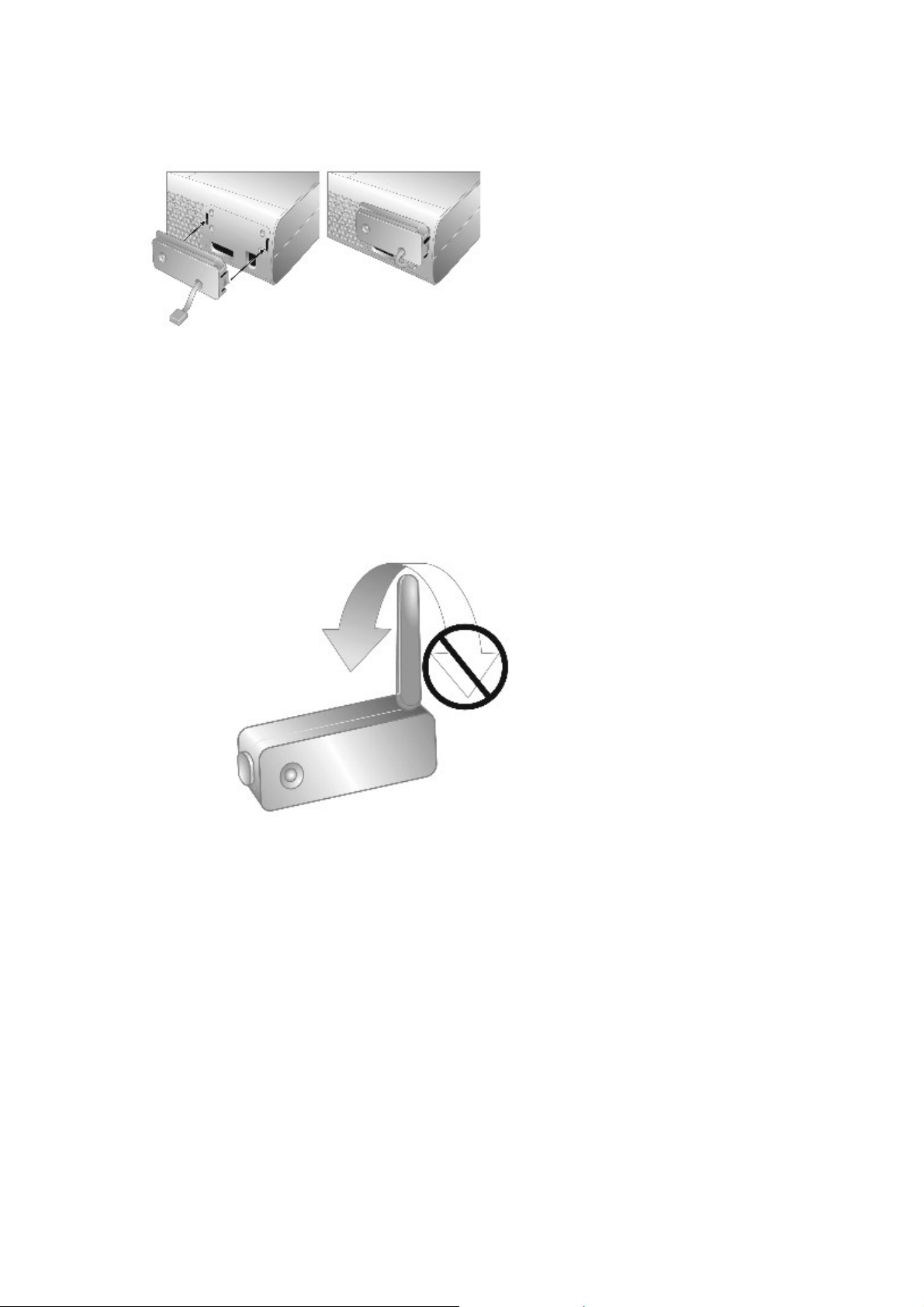
Your wireless networking adapter is designed to attach directly to the back of your console.
To attach your adapter:
1. Press the tabs on the adapter into the two slots on the back of the console.
2. Connect the USB connecter into the USB port next to the adapter.
3. Flip up the antenna.
Note
The antenna is designed to swivel on o nly one axis. Do not swivel the antenna in any
direction other than parallel with the adapter.
Set Up a New Wireless Home Network
Page 3
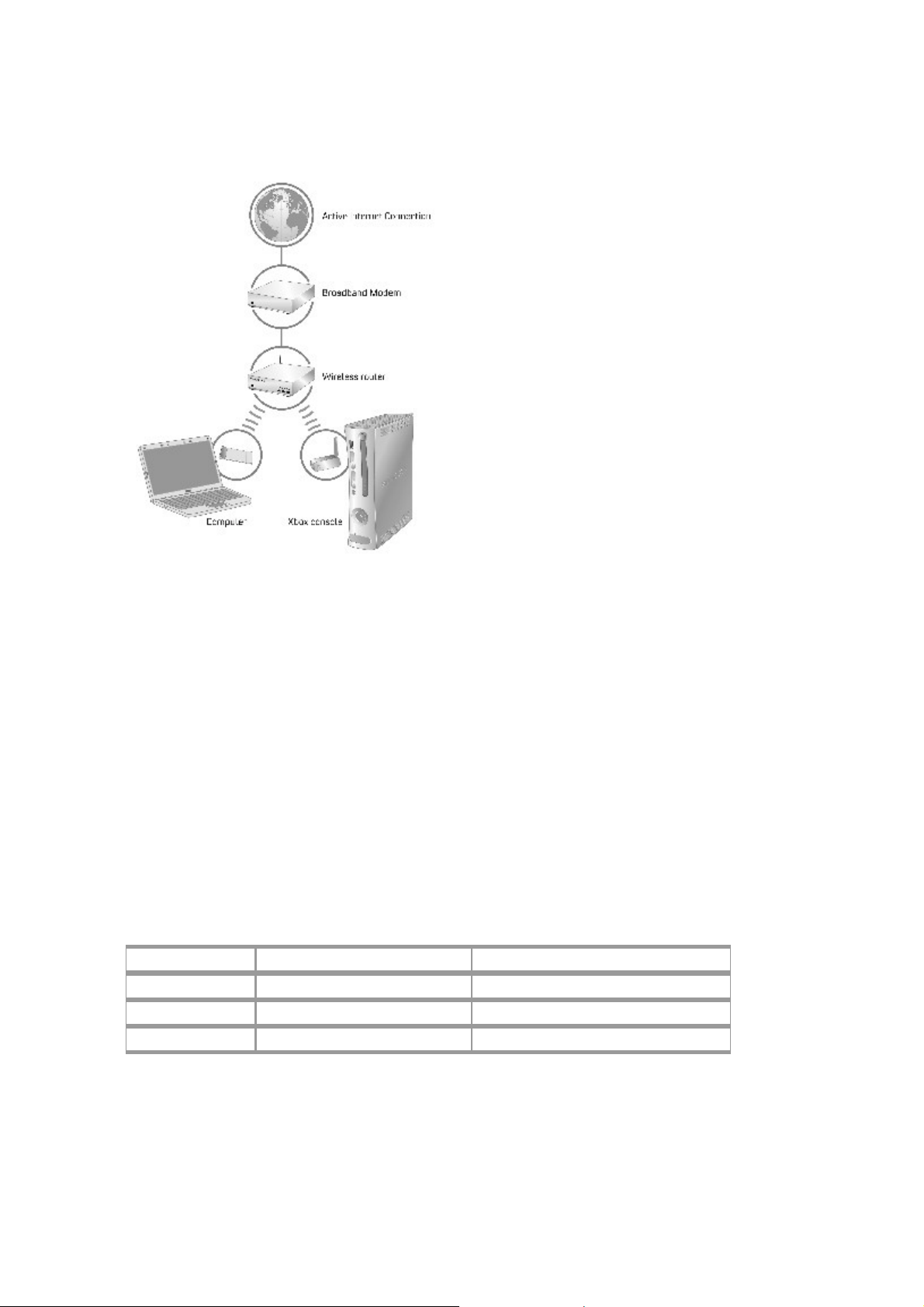
Home wireless networks are also called infrastructure networks. In an infrastructure network, a
wireless access point, wireless gateway, or wireless router distributes your Internet connection to
your wireless home computer and devices. With a wireless networking adapter, your console
becomes one of the wireless devices on your home network.
If you don't have an existing home wireless network yet, you'll want to make a few decisions before
you get started. Specifica lly, you'll need to decide on the wireless standard you'll use, the network
hardware you'll need, and your network security.
Wireless Network Basics
Your wireless networking adapter communicates by radio transmission. Radio waves travel in all
directions , and can be transmitted throug h walls and floo rs . The radio sig nal weakens rapidly as it
travels through structures, especially masonry, such as stone and brick. Metal objects, such as
refrigerators and mirrors, reflect radio signals, preventing straight path communication. The layout
of your home can be a factor in what wireless network standard you choose.
Choose a Wireless Network Standard
The Xbox 360 Wireless Networking Adapter conforms to all three current wireless network standards
(802.11a, 802.11b, and 802.11g), and so works with networking devices that support any of these
standards. (802.11 is a series of radio communication standards developed by the Institute of
Electrical and Electronics Engineers (IEEE) for wireless local area networks.) The main features that
distinguish these standards are connection speed and radio frequency.
Standard Connection speed Radio frequency band
802.11a Up to 54 Mbps 5 GHz
802.11b Up to 11 Mbps 2.4 GHz
802.11g Up to 54 Mbps 2.4 GHz
Note
Connection speeds are quoted only in reference to IEEE standards. The speeds quoted are the
maximum attainable under ideal environmental conditions and at close distances. In addition, the
Page 4

standards specify usable payload data rates that are less than half of the connection speed. Your
usable connection speed will be significantly lower than the IEEE standards quote.
When selecting your wireless networ k, keep a few guidelines in mind:
1. The 802.11a standard offers the same speed as 802.11g. A 5-GHz band (802.11a) is also
less susceptible to interference from common devices, such as 2.4-GHz cordless
telephones, cell phones, and microwave ovens. Further, in areas where neighboring
wireless networks can be detected, interference can be a problem. Because of the limited
number of channels and the popularity of 2.4-GHz networks, a 5-GHz network is likely to
experience less interference from a neighboring wireless network than a 2.4-GHz network
and provide a better overall wireless connection.
2. An 802.11g wireless network is compatible with both 802.11g and 802.11b devices.
However, any 802.11b devices oper a t ing on your 802.11g network will slow it down. If
you have a dual-band router (with both 802.11a and 802.11g bands), try using your Xbox
360 console and wireless network adapter on the 802.11a band and your other devices on
the 802.11g and 802.11b bands. The Xbox 360 console in this configuration will have the
maximum bandwidth while remaining networked with other devices on 802.11g or
802.11b.
3. If you use wireless controllers, you may get better performance using 802.11a (5-GHz band)
for your network connection, since the wireless controllers operate on the 2.4-GHz band.
Choose Your Network Hardware
Consider the following gu idelines when purchasing network hardware:
• Use an Xbox 360 compatible access point or router (802.11 A+G recommended). For more
information about approved Xbox compatible access points or routers, go to
www.xbox.com/connect
.
• Some Xbox compatible routers are dual-band A+G (dual-band 2.4-GHz/5-GHz, 802.11a +
802.11g/b). Us ing a dual-band router lets you configure your console to achieve maximum
bandwidth and the best possible connection. This is particularly important if you are using
Microsoft® Windows® XP Media Center or Windows Media Connect with your console for
activities like watching TV. For more information, go to www.xbox.com/pcsetup
.
• When using a dual A+G access point or router, make sure the 802.11a and 802.11g
networks have unique network names (SSIDs).
Make Your Wireless Network Secure
Because wireless networks use radio signals, it is possible for other wireless network devices outside
your immediate area to pick up the signals and eith e r con nect to your network or capture the
network traffic. To help prevent unauthorized connections and reduce the possibility of
eavesdroppers listening in on your network traffic:
• Locate your router or access point toward the center of your home. This decreases the
strength of the signal outside your home.
• Enable wireless security on your router or access point. Your wireless networking adapter
supports WPA-2, WPA, and WEP security. When you enable wireless security, you establish
a key that “encrypts” the data being wirelessly transmitted so that it is decipherable only by
computers with the same key. Further, WPA and WPA-2 automatically change keys on a
frequent basis, making your system more secure.
Connect to Your New Wireless Network or an Existing Wireless Network
Connecting your Xbox 360 console to a new or existing wireless network is easy as long as you
know what your wireless network settings are. Use the spaces provided under "Your Network
Settings" to write down these settings before you begin.
Note
Page 5
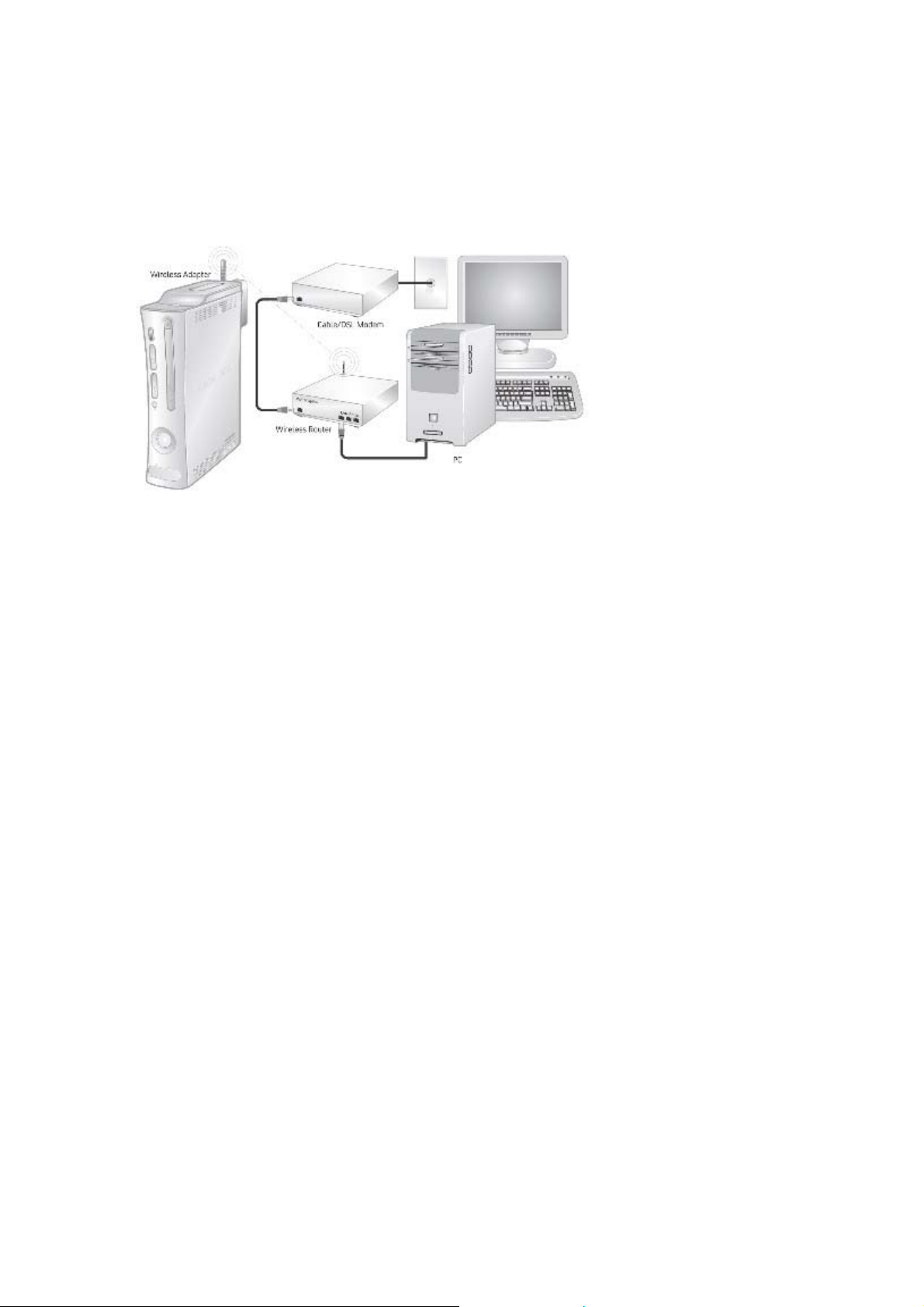
You can access most of your wireless network settings on the set-up screens for your wireless
access point. Check your device's documentation for instructions about how to reach the device's
set-up screen. If your network was set up by someone else, you will need to contact the installer for
a user name and password to access the set-up screens of your wireless access point.
To connect your console to a wireless network:
1. Turn on your console and any wireless networking devices (such as an access point or
router).
2. Attach the wireless networking adapter to the back of your console (see "Attach the
Adapter to Your Console").
3. Go to the System area to enter your network settings.
4. If all settings are correct, exit the System area. Your console should now be connected to
your wireless network.
Your Network Settings
Use this section to record your network settings. All computers and devices accessing the network
with a wireless connection need to use the same wireless network settings.
Workgroup name: ________________________________________________________
802.11g/b Network
Wireless network name (SSID): _____________________________________________
Wireless security setting: ___________________________________________________________
Wireless channel (system link networks only): _____________________________________
802.11a Network
Wireless network name (SSID): _____________________________________________
Wireless security setting: ___________________________________________________________
Wireless channel (system link networks only): _____________________________________
Connect Your Console to Another Console
Console-to-console system link wireless networks are also known as ad-h oc networks. In ad-hoc
networks, a wireless adapter on one device connects directly to a wireless adapter on another
device. An Internet connection isn't shared with this type of network, and the console-to-console
system link connection is typically temporary.
Page 6
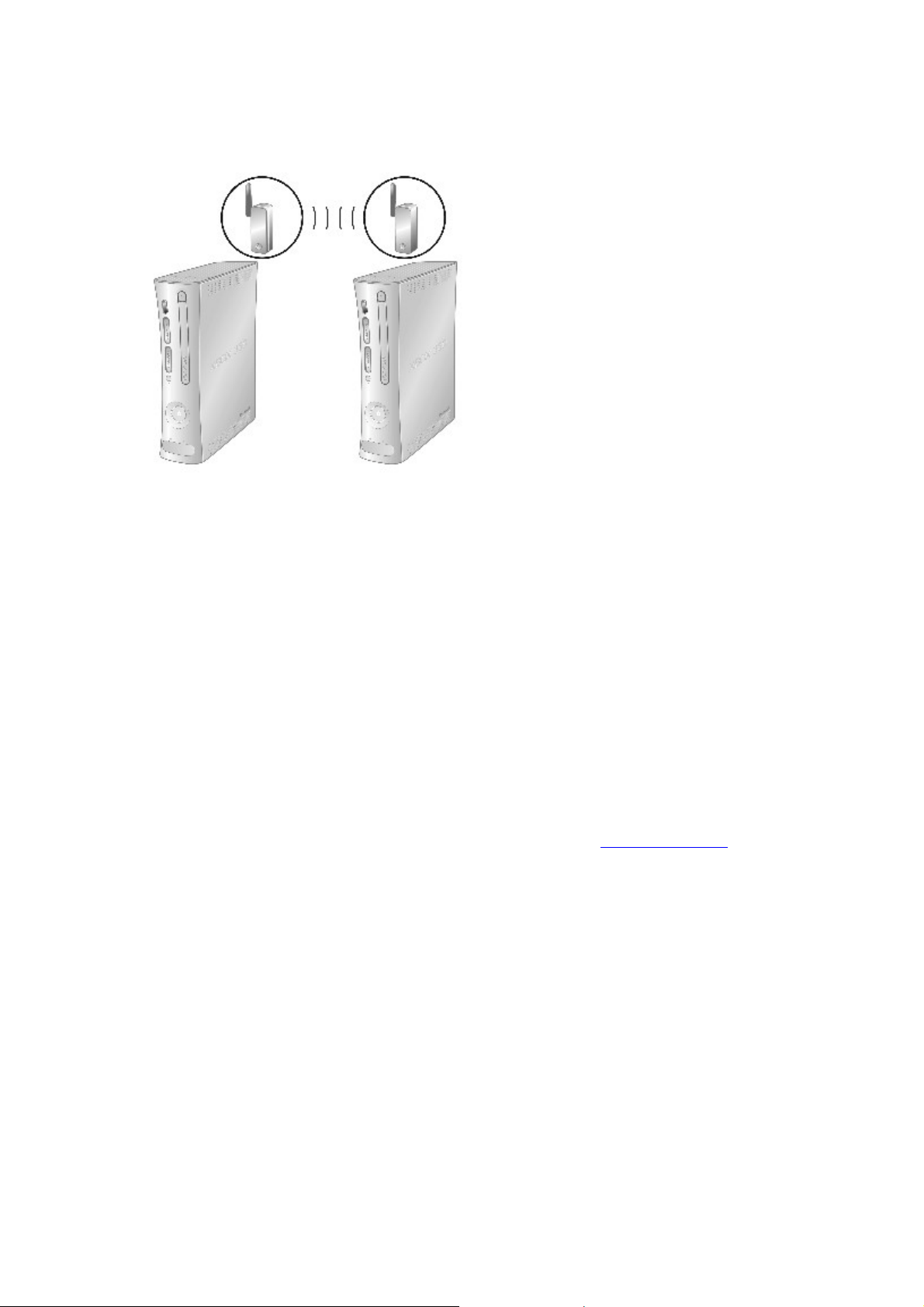
For console-to-console system link play, you need:
• Two Xbox 360 consoles.
• Two Xbox 360 Wireless Networking Adapter s .
• An Xbox 360 game that supports system link play.
To wirelessly connect your console to another console:
1. Attach a wireless networking adapter to the back of each console (see "Attach the Adapter
to Your Console").
2. On each console, go to the System area to enter your network settings. (They will be the
same for each console.)
3. If all settings are correct, exit the System area. The consoles should now be wirelessly
connected to each other.
Troubleshooting
If you encounter problems, try the possible solutions provided below.
For help with a game that supports console-to-console system link play, see the game’s Web site or
documentation. For help signing up or connecting to Xbox Live®, go to www.xbox.com/live
Console Doesn't Detect Wireless Network
You might be out of range of your wireless network. Place your Xbox 360 console in the same room
as your wireless router or second Xbox 360 console and try again.
.
Make sure that your router is broadcasting a wireless network name (SSID). The wireless router’s
broadcast of the SSID might be disabled. See your router documentation for information about
enabling SSID broadcast.
Console Doesn't Recognize Wireless Networking Adapter
Make sure the power light on the adapter is on. If it isn’t, check the USB connect ion. Try
disconnecting the adapter cable and connecting it again.
Signal Is Intermittent
Some wireless devices using the 2.4-GHz radio frequency band (including the wireless adapter (MN-
740) designed for the original Xbox console, most 2.4-GHz phones, some cell phones, and
Page 7

microwave ovens) may cause interference with your wireless networking adapter. If you experience
network performance issues, try moving your 2.4-GHz device(s) away from your console (or vice
versa). Or upgrade your wireless network for 802.11a/g operation and set your adapter to operate
on 802.11a, where less interference and improved throughput is available.
Before relocating your console or wireless access point:
• Imagine a straight line between your Xbox 360 console and the access point.
• Locate your console and access point or router so that as few obstructions as possible exist
along the straight line.
• Allow no more than two walls or two floors between the wireless adapter and the central
access point.
TV Pauses When Us ed with Console and Windows XP Media Center
When connecting a Windows XP Media Center PC to an 802.11 A+G access point or router, use
802.11a for the Windows XP Media Center PC and 802.11g for your other wireless devices, such as
laptop computers.
Unable to Save Network Settings or Password
Restore the factory defaults on the wireless networking adapter. When you go to the System area
to restore the factory defaults, the adapter status light will blink green and red, and then turn solid
red to indicate that the defaults have been restored.
Note
Restoring factory defaults on the adapter will override your current adapter settings.
Wireless Security Settings Rejected
When entering your wireless security settings, remember that WEP keys must be in hexadecimal
(0–9, A–F) format and WPA passphrases may be alphanumeric (consisting of both letters and
numbers).
Status Light Indications
The status lights on the Xbox 360 Wireless Networking Adapter indicate the following:
• Green steady: Adapter is on and connected to a wireless access point (infrastructure) or
another wireless device (ad-hoc).
• Red steady: Adapter is ready to be connected to a wireless network.
• Red blinking: Hardware failure.
If You Need More Help
Do not attempt to take apart, service, or modify the Xbox 360 console, power supply, or its
peripherals in any way. Doing so could present the risk of serious injury or death from electric shock
or fire, and it will void your warranty. Do not take your Xbox 360 console or it s pe ripherals to your
retailer for repair or service unless instructed to do so by an Xbox Customer Support representative.
Note
Any changes or modifications made on the system not expressly approved by the manufacturer
could void the user’s authority to operate the equipment.
Please see www.xbox.com/support
or call the Xbox Customer Support number:
1-800-4MY-XBOX (1-800-469-9269)
TTY users: 1-866-740-XBOX (1-866-740-92 69)
Page 8
For Customers in the United States
Note
This equipment has been tested and found to comply with the limits for a Class B digital device,
pursuant to Part 15 of the FCC rules. These limits are designed to provide reasonable protection
against harmful interference in a residential installation. This equipment generates , uses, and can
radiate radio frequency energy and, if not installed and used in accordance with the instructions,
may cause harmful interference to radio communications. However, there is no guarantee that
interference will not occur in a particular installation. If this equipment does cause harmful
interference to radio or television reception, which can be determined by turning the equipment off
and on, the user is encouraged to try to correct the interference by one or more of the following
measures:
• Reorient or relocate the receiving antenna.
• Increase the separation between the equipment and receiver.
• Connect the equipment into an outlet on a circuit different from that to which the receiver is
connected.
• Consult the dealer or an experienced radio/TV technician for help.
This device complies with Part 15 of the FCC Rules. Operation is subject to the following two
conditions:
(1) This device may not cause harmful interference, and
(2) This device must accept any interference received, including interference that may cause
undesired operation.
Trade Name: Microsoft Corp.
Responsible Party: Microsoft Cor poration
Address: One Microsoft Way Redmond, WA 98052 U.S.A.
Telephone No.: (800) 4MY-XBOX
Caution
Exposure to radio frequency radiation.
To comply with FCC RF exposure compliance requirements, a separation distance of at least 20 cm
must be maintained between the antenna of this device and all persons. This device must not be colocated or operating in conjunction with any other antenna or transmitter.
For Customers in Canada
This device complies with RSS 210 of Industry Canada (IC).
Operation is subject to the follow ing two conditions: (1) this device may not cause interference, and
(2) this device must accept any interference, including interference that may cause undesired
operation of this device.
L’ utilisation de ce dispositif est autorisée seulement aux conditions suivantes : (1) il ne doit pas
produire de brouillage et (2) l’ utilisateur du dispositif doit étre prêt à accepter tout brouillage
radioélectrique reçu, même si ce brouillage est susceptible de compromettre le fonctionnement du
dispositif.
Caution
Exposure to radio frequency radiation.
The installer of this radio equip ment must ensure that the antenna is located or poin ted such that it
does not emit RF field in excess of Health Canada limits for the general population; consult Safety
Code 6, obtainable from Health Canada’s website at www.hc-sc.gc.ca/rpb
.
Page 9

Copyright
Information in this document, including URL and other Internet Web site references, is subject to
change without notice. Unless otherwise noted, the example companies, organizations, products,
domain names, e-mail addresses, logos, people, places and events depicted herein are fictitious,
and no association with any real company, organization, product, domain name, e-mail address,
logo, person, place or event is intended or should b e inferred. Complying with al l applicable
copyright laws is the responsibility of the user. Without limiting the rights under copyright, no part
of this document may be reproduc ed, stored in or introduced into a r e trieval system, or transmitted
in any form or by any means (electronic, mechanical, photocopying, recording, or otherwise), or for
any purpose, without the express written permission of Microsoft Corporation.
Microsoft may have patents, patent applications, trademarks, copyrights, or other intellectua l
property rights covering subject matter in this document. Except as expressly provided in any
written license agreement from Microsoft, the furnishing of this document does not give you any
license to these patents, trademarks, copyrights, or other intellectual property.
© 2005 Microsoft Corporation. All rights reserved.
Microsoft, Xbox, Xbox Live®, Xbox 360, and the Xbox, Xbox Live®, and Xbox 360 logos are either
registered trademarks or trademarks of Microsoft Corporation in the United States and/or other
countries.
 Loading...