

Page 1

Surface Hub 2S A/V Integration Guide
Page 2

Surface Hub 2S coming soon; Pre-release products shown; products and features subject to regulatory certification/approval, may
change, and may vary by country/region. This documentation is an early release of the final documentation, which may be changed
prior to final commercial release and is confidential and proprietary information of Microsoft Corporation. This document is provided
for internal and/or partner use, for informational purposes only. Microsoft makes no warranties, either express or implied, in this
document.
© 2019. Microsoft Corporation. All rights reserve
Page 3

Contents
Ports and keypad overview ......................................................................................................................................... 1
Connecting devices to Surface Hub 2S ................................................................................................................... 4
Connecting external PCs and related devices .................................................................................................................. 4
Recommended configurations for connecting to Surface Hub 2S .................................................................. 4
Connecting video-in to Surface Hub 2S ..................................................................................................................... 6
Mirroring Surface Hub 2S display on another device.................................................................................................... 6
Selecting cables .................................................................................................................................................................... 6
Connecting peripherals to Surface Hub 2S ....................................................................................................................... 7
Bluetooth accessories ........................................................................................................................................................ 7
Tested devices ............................................................................................................................................................................... 7
Conference cameras ........................................................................................................................................................... 7
Conference phone ............................................................................................................................................................... 8
Room systems ....................................................................................................................................................................... 9
Learn more ......................................................................................................................................................................... 9
Page 4
1
Surface Hub 2S A/V Integration Guide
With Surface Hub 2S you can connect external devices such as a PC; mirror the display on
Surface Hub 2S to another device; and connect a wide variety of third-party peripherals
including video conference cameras, conference phones, and room system devices. This
document describes the ports, physical buttons, and configuration information essential for
connecting to Surface Hub 2S whether via wired, Wi-Fi, or Bluetooth methods. It also includes
best practice recommendations for key connectivity scenarios.
Ports and keypad overview
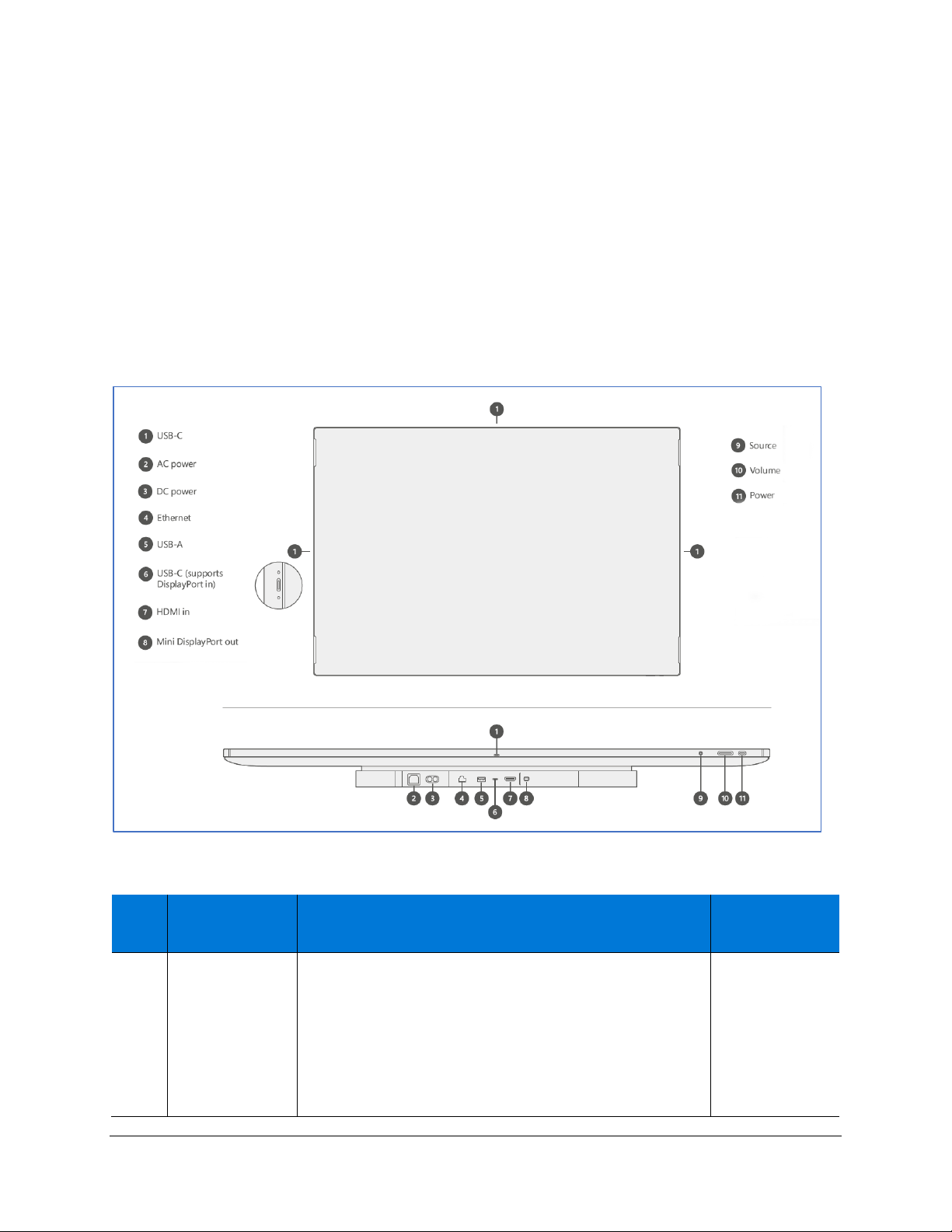
Figure 1 shows the location ports and physical buttons located on a keypad attached to the
underside of the device. Table 1 includes detailed descriptions of each element.
Figure 1. Front facing and underside view of I/O connections and physical buttons
Table 1. Surface Hub 2S port and keypad component reference
Key
Component
Description
Key
parameters
①
USB C
USB 3.0 Port
thumb-drives. Guest ports are located on each side of the
device (4).
NOTE: This is the recommended port for connecting an
external camera. Additional camera mount features are
Type C
(5V/3A)
Page 5

2
Surface Hub 2S A/V Integration Guide
Key
Component
Description
Key
parameters
incorporated into the design to help support retention of
attached cameras.
these ports.
②
AC power
100-240V input
Connect to standard AC power and Surface Hub 2S will
auto switch to the local power standard such as110 volts
in the US and Canada or 220 volts in the UK or other
countries.
NOTE: When the AC cord is plugged in, the system
remains in an off state in which only the system
management controller (SMC), real time clock (RTC), and
keypad are running.
IEC 60320 C14
③
DC power
24V DC input port
Use for connecting to mobile battery.
Xbox1 Dual
barrel to
Anderson
connector
④
Ethernet
1000/100/10 BaseT
Use for providing a continuous connection in a corporate
environment and related scenarios requiring maximum
stability or capacity.
RJ45
⑤
USB-A
USB 3.0 Port
Use as a walk-up port for plugging in peripherals such as
thumb-drives.
Type A
7.5 W Port
(5V/1.5A)
⑥
USB-C
USB 3.0 Port
Use as a walk-up port for connecting external PCs and
related devices or plugging in peripherals such as thumbdrives.
NOTE: This is the recommended video input port,
supporting both TouchBack and InkBack.
Type C
18 W Port
(5V/3A, 9V/2A)
⑦
HDMI in
HDMI 2.0, HDCP 2.2 /1.4
Use for multiple scenarios including HDMI-to-HDMI
guest input.
Standard HDMI
⑧
Mini
DisplayPort out
DisplayPort 1.2 output
Use for video-out scenarios such as mirroring the Surface
Hub 2S display to a larger projector.
Mini
DisplayPort
Page 6
3
Surface Hub 2S A/V Integration Guide
Key
Component
Description
Key
parameters
⑨
Source
Use to toggle among connected ingest sources —
external PC, HDMI, and DisplayPort modes.
n/a
⑩
Volume
Use +/- to adjust audio locally on the device.
NOTE: When navigating to the brightness control, use
+/- on the volume slider to control display brightness.
n/a
⑪
Power
Power device on/off.
Use also to navigate display menus and select items.
n/a
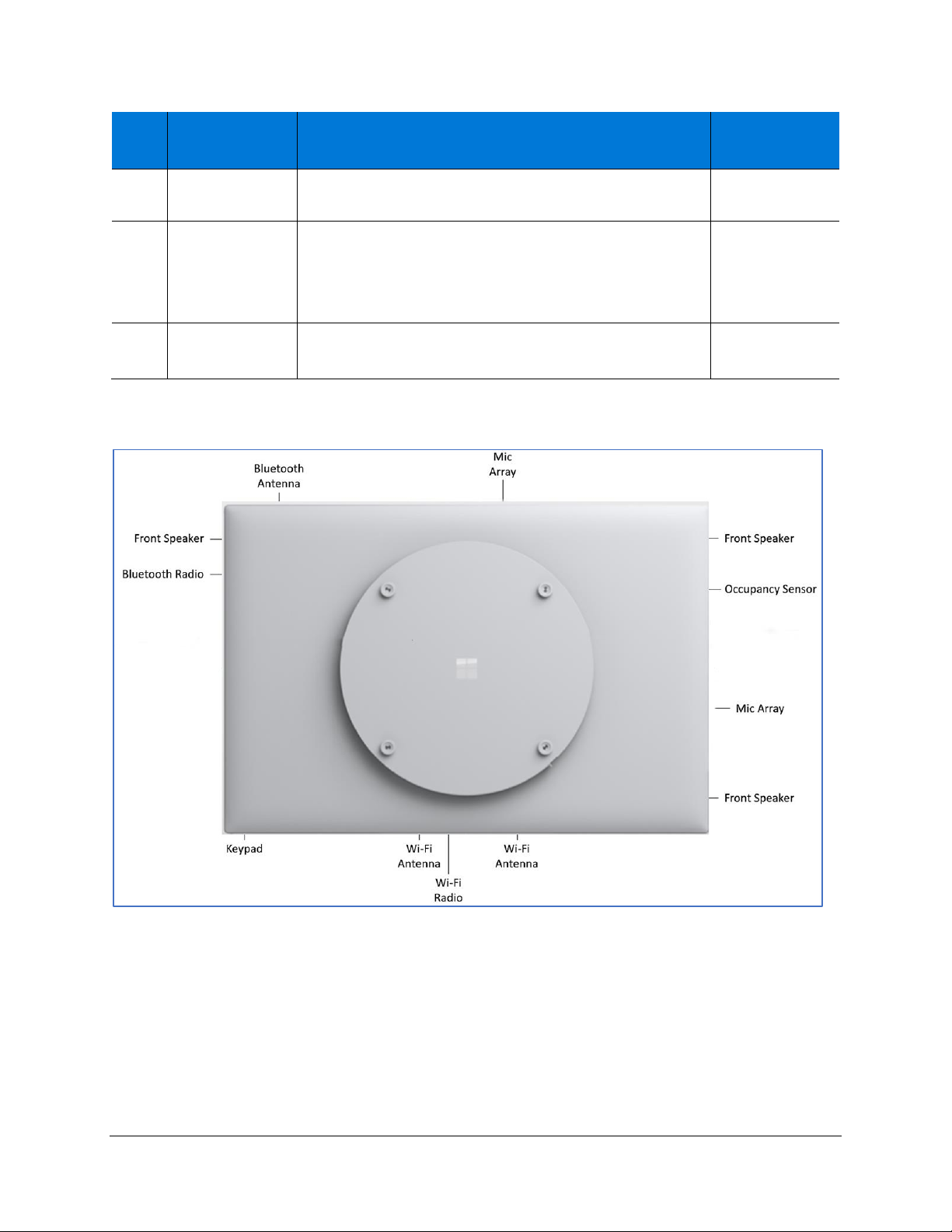
Figure 2. Rear facing view of wireless, audio, & related components
Page 7
4
Surface Hub 2S A/V Integration Guide
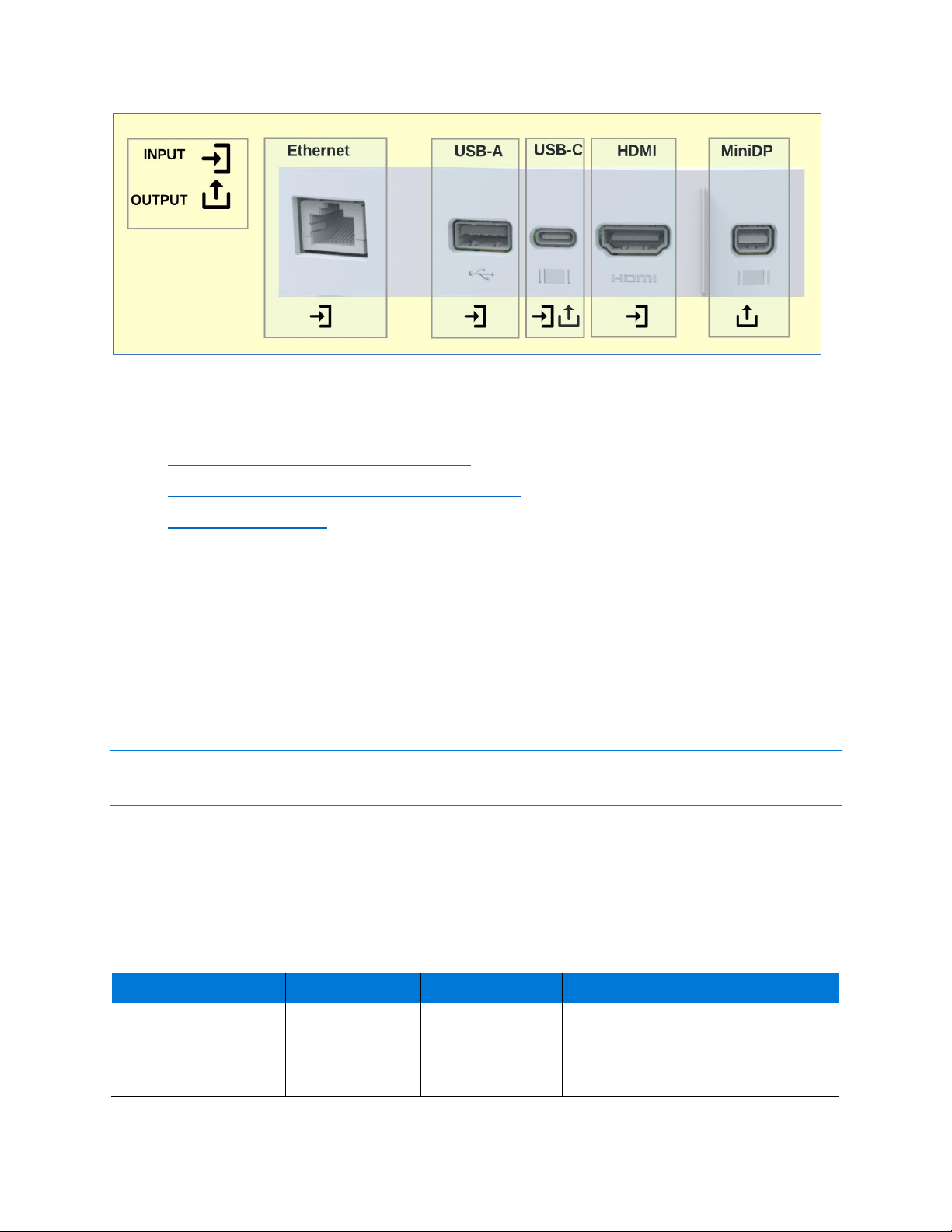
Figure 3. Wired port connections on Surface Hub-2S
Connecting devices to Surface Hub 2S
• Connecting external PCs and related devices
• Mirroring Surface Hub 2S display on another device
• Connecting peripherals
Connecting external PCs and related devices
You can display content from your devices to Surface Hub 2S. If the source device is Windowsbased, that device can also provide TouchBack and InkBack, which takes video and audio from
the connected device and presents them on Surface Hub 2S. If Surface Hub 2S encounters a
High-Bandwidth Digital Content Protection (HDCP) signal, the source will be displayed as a black
image. To display your content without violating HDCP requirements, use the keypad of Surface
Hub 2S to directly choose the external source via a wired connection such as USB-C or HDMI.
NOTE: Surface Hub-2S will use the video input that you select until a new connection is made, the existing
connection is disrupted, or the Connect App is closed.
Recommended configurations for connecting to Surface Hub 2S
In general, it’s recommended to use native connections whenever possible such as USB-C to
USB-C or HDMI to HDMI. Other combinations such as MiniDP to HDMI or MiniDP to USB-C
will also work.
Table 2. Connecting external devices
Mode
Connection
Functionality
Comments
Wired “Connect”
Application
USB-C (via
underside
compute
module)
Video, audio,
TouchBack
Provides display port video, audio,
and TouchBack/InkBack on a single
cable.
Page 8

5
Surface Hub 2S A/V Integration Guide
Mode
Connection
Functionality
Comments
HDMI + USB-C
HDMI for
Audio/Video
USB-C for
TouchBack
USB-C supports TouchBack for HDMI
A/V connection
Use USB-C to USB-A to connect to
legacy computers
NOTE: For best results, connect HDMI
before connecting USB-C cable. If the
computer you are using for HDMI is
not compatible with TouchBack and
InkBack, you won't need a USB-C
cable.
“Source” selection
experience
(bypasses the OS, no
windows, requires
source selection with
keypad button)
USB-C (port in
compute
module)
Video, Audio
• Single cable needed for A/V
• Touchback not supported
• HDCP enabled
HDMI (in port)
Video, Audio
• Single cable needed for A/V
• TouchBack not supported
• HDCP enabled
When you connect a guest computer to Surface Hub 2S via the wired connect USB-C port,
several USB devices are discovered and configured. These peripheral devices are created for
TouchBack and InkBack. As shown in Table 3, the peripheral devices can be viewed in Device
Manager, which will show duplicate names for some devices.
Table 3. Viewing peripherals in Device Manager
Peripheral
Listing in Device Manager
Human interface devices
HID-compliant consumer control device
HID-compliant pen
HID-compliant pen (duplicate item)
HID-compliant pen (duplicate item)
HID-compliant touch screen
USB Input Device
USB Input Device (duplicate item)
Keyboards
Standard PS/2 keyboard
Mice and other pointing devices
HID-compliant mouse
Page 9
6
Surface Hub 2S A/V Integration Guide
Peripheral
Listing in Device Manager
USB controllers
Generic USB hub
USB composite device
Connecting video-in to Surface Hub 2S
Your choice of video cable will be determined by what is available from your source input.
Surface Hub 2S has two choices of video input: USB-C and HDMI. See the following chart for
available resolutions.
Table 4. Display parameters
Signal Type
Resolution
Frame rate
HDMI
USB-C
PC
640 x 480
59.94/60
X X PC
720 x 480
59.94/60
X X PC
1024 x 768
60 X X
PC
1920 x 1080
60 X X
PC
3840x2560
60 X X
HDTV
720p
59.94/60
X X HDTV
1080p
59.94/60
X X UHD
3840x2560
60 X X
Mirroring Surface Hub 2S display on another device
Surface Hub 2S includes a Video Out port for mirroring visual content from Surface Hub 2S
to another display.
Table 5. Mirroring Surface Hub 2S via video out mode
MODE
Connection
Functionality
Comments
Display out
MiniDP output port
Display and
audio out
(support for
duplicate
mode only)
• Requires external keyboard,
• Win+P and select Duplicate
mode
• Supports audio out
(configurable via settings)
Selecting cables
DisplayPort cables are certified for to 3 meters in length. If a long cable is necessary, HDMI is
recommended due to the wide availability of cost-effective, long-haul cables with the added
benefit of installing repeaters if needed.
NOTE: Most DisplayPort sources will automatically switch to HDMI signaling if HDMI is detected.
Page 10

7
Surface Hub 2S A/V Integration Guide
Connecting peripherals to Surface Hub 2S
Bluetooth accessories
You can connect the following accessories to Surface Hub-2S using
Bluetooth:
• Mice
• Keyboards
• Headsets
• Speakers
NOTE: After you connect a Bluetooth headset or speaker, you might need to change the default
microphone and speaker settings. For more information, refer to Local management for Surface Hub
settings
Tested devices
The following third-party peripherals have been tested to connect to Surface Hub 2S as
indicated below. Some manual configuration of settings may be required; for example, you
may need to go to Calling and Audio settings and select the speaker for media playback.
NOTE: In general, any device that connects via standard Windows USB-A drives should also work on Hub
2S.
Conference cameras
Device
Connect: Device – Surface Hub
2S
Room use
More
information
PanaCast 2 Camera
System
USB-A to USB-C
Huddle (1-3)
Small (4-6)
Product site
Logitech Meetup
Camera/Microphone
USB C to USB-C
Huddle (1-3)
Small (4-6)
Medium (7-10)
Product site
Aver CAM 340 – Video
and Mic
USB-C to USB-C
Huddle (1-3)
Small (4-6)
Medium (7-10)
Large (10+)
Product site
Eagle Eye Director II
HMDI to USB-A to USB-C
Huddle (1-3)
Small (4-6)
Medium (7-10)
Large (10+)
Product site
Page 11

8
Surface Hub 2S A/V Integration Guide
Device
Connect: Device – Surface Hub
2S
Room use
More
information
Logitech C920
USB A to USB A
Huddle (1-3)
Small (4-6)
Medium (7-10)
Large (10+)
Product site
Logitech C930
USB A to USB A
Huddle (1-3)
Small (4-6)
Medium (7-10)
Large (10+)
Product site
Conference phone
Device
Connect: Device – Surface Hub 2S
Room use
More info
Jabra Speak 710
Bluetooth or USB A to Surface
Hub USB A
Huddle (1-3)
Small (4-6)
Medium (7-10)
Product site
Biamp Devio – Audio
USB A to USB A
Huddle (1-3)
Small (4-6)
Product site
Biamp Tesira Forte
Cat –6 connection from Tesira
AVB Bus to USB/POE extension
USB-B output to USB-A input
Typically installed in a rack
Huddle (1-3)
Small (4-6)
Medium (7-10)
Product site
Plantronics P620
Bluetooth
Huddle (1-3)
Small (4-6)
Medium (7-10)
Product site
Polycom Trio 8800
USB mini to USB A
Huddle (1-3)
Small (4-6)
Medium (7-10)
Large (10+)
Product site
Page 12

9
Surface Hub 2S A/V Integration Guide
Room systems
NOTE: You may need to manually adjust media playback settings to obtain volume control.
Device
Connect: Device – Surface Hub
2S
Room use
More info
Shure P310/300 - audio
USB-A to USB-A
Huddle (1-3)
Small (4-6)
Medium (7-10)
Large (10+)
Product
site
Solstice Pods
USB-A to USB-A
Huddle (1-3)
Small (4-6)
Medium (7-10)
Large (10+)
Product
site
Learn more
For more information about Surface Hub, visit the Microsoft Docs site.
 Loading...