

Page 1

Nokia 306 User Guide
Cyan
Magenta
Yellow
Black
Cyan
xxxxxxx
Magenta
Issue 1
Yellow
Black
Page 2

2Contents
Cyan
Magenta
Yellow
Black
Contents
Safety 4
Get started 6
Keys and parts 6
Insert a SIM card and battery 7
Insert or remove a memory card 9
Charge the battery 10
Charge the battery over USB 11
Switch the phone on or off 11
GSM antenna 12
Connect a headset 12
Attach a strap 13
Basic use 13
Your touch screen phone 13
Support 16
Access codes 17
Lock the keys and screen 17
Copy contacts and other stuff from
your old phone 18
Use your phone without a SIM card 18
Calls 19
Make a call 19
Divert calls to your voice mailbox or
another phone number 19
Make a conference call 19
Contacts 20
Save a name and phone number 20
Use speed dial 21
Send your contact info 21
Messaging 21
Send a message 21
Read a received message 22
Write text 23
Write text using the on-screen keypad 23
Use the on-screen keyboard 24
Use predictive text 25
Connectivity 25
Bluetooth 25
USB data cable 27
Wi-Fi connections 28
Clock and calendar 28
Change the time and date 28
Set an alarm 29
Browse your calendar in different
views 29
Add a calendar entry 29
Photos and videos 29
Take a photo 29
Record a video 30
Send a photo or video 30
Organise files 31
Music and audio 31
Play a song 31
FM radio 31
Phone management 33
Update phone software using your
phone 33
Update phone software using your PC 34
Restore original settings 35
Back up your photos and other content
to a memory card 35
Web 35
About the web browser 35
Browse the web 36
Clear your browsing history 36
2 www.nokia.com/support
Cyan
Magenta
Yellow
Black
Page 3

Maps 36
Cyan
Magenta
Yellow
Black
About Maps 36
Search for a place 37
Product and safety information 37
Contents 3
www.nokia.com/support 3
Cyan
Magenta
Yellow
Black
Page 4

4Safety
Cyan
Magenta
Yellow
Black
Safety
Read these simple guidelines. Not following them may be dangerous or illegal. For
further information, read the complete user guide.
SWITCH OFF IN RESTRICTED AREAS
Switch the device off when mobile phone use is not allowed or when it may
cause interference or danger, for example, in aircraft, in hospitals or near
medical equipment, fuel, chemicals, or blasting areas. Obey all instructions
in restricted areas.
ROAD SAFETY COMES FIRST
Obey all local laws. Always keep your hands free to operate the vehicle while
driving. Your first consideration while driving should be road safety.
INTERFERENCE
All wireless devices may be susceptible to interference, which could affect
performance.
QUALIFIED SERVICE
Only qualified personnel may install or repair this product.
BATTERIES, CHARGERS, AND OTHER ACCESSORIES
Use only batteries, chargers, and other accessories approved by Nokia for use
with this device. Do not connect incompatible products.
KEEP YOUR DEVICE DRY
Your device is not water-resistant. Keep it dry.
4 www.nokia.com/support
Cyan
Magenta
Yellow
Black
Page 5

PROTECT YOUR HEARING
Cyan
Magenta
Yellow
Black
Listen to a headset at a moderate level, and do not hold the device near your
ear when the loudspeaker is in use.
Safety 5
www.nokia.com/support 5
Cyan
Magenta
Yellow
Black
Page 6

6Get started
Cyan
Magenta
Yellow
Black
Get started
Keys and parts
1 Earpiece
2 Screen
3 Call key
4 Microphone
5 Charger connector
6 Micro-USB connector
7 Headset connector (Nokia AV connector 3.5 mm)
8 Volume up/Zoom in key
9 Volume down/Zoom out key
10 Lock key
11 End/Power key
12 Camera lens. Before using the camera, remove the protective tape from the lens.
13 Memory card slot
6 www.nokia.com/support
Cyan
Magenta
Yellow
Black
Page 7

Get started 7
Cyan
Magenta
Yellow
Black
14 Loudspeaker
Insert a SIM card and battery
Note: Switch the device off and disconnect the charger and any other device before
removing any covers. Avoid touching electronic components while changing any covers.
Always store and use the device with any covers attached.
Important: This device is designed to be used with a standard SIM card (see figure)
only. Use of incompatible SIM cards may damage the card or the device, and may corrupt
data stored on the card. Please consult your mobile operator for the use of a SIM card
that has a mini-UICC cutout.
Important: To prevent damage to the SIM card, always remove the battery before
you insert or remove the card.
This phone is intended for use with a BL-4U battery. Always use original Nokia batteries.
The SIM and its contacts can be easily damaged by scratches or bending, so be careful
when handling, inserting, or removing the card.
1 Put your fingernail in the gap on the right edge of the phone, then carefully lift and
remove the back cover (1).
2 If the battery is in the phone, lift it out (2).
www.nokia.com/support 7
Cyan
Magenta
Yellow
Black
Page 8

8Get started
Cyan
Magenta
Yellow
Black
3 Slide the SIM under the metal tab (3). Make sure the contact area of the card is face
down and the tab holds the SIM in place (4).
4 Line up the battery contacts, push the battery in (5), then replace the back cover
(6).
8 www.nokia.com/support
Cyan
Magenta
Yellow
Black
Page 9

Get started 9
Cyan
Magenta
Yellow
Black
Insert or remove a memory card
Use only compatible microSD cards approved by Nokia for use with this device.
Incompatible cards may damage the card and the device and corrupt data stored on the
card.
Your phone supports memory cards with a capacity of up to 32 GB.
You can insert or remove the memory card without switching the phone off.
Insert a memory card
1 Use your fingernail to open the cover of the memory card slot.
2 Push the memory card in with the contact area face up until it locks into place.
3 Close the cover of the memory card slot.
www.nokia.com/support 9
Cyan
Magenta
Yellow
Black
Page 10

10 Get started
Cyan
Magenta
Yellow
Black
Remove the memory card
Important: Do not remove the memory card when an application is using it. Doing
so may damage the memory card and the device and corrupt data stored on the card.
1 Open the memory card slot cover.
2 Push the card in until it's free, then pull it out.
3 Close the cover.
Charge the battery
Your battery has been partially charged at the factory, but you may need to recharge it
before you can switch on your phone for the first time. If the phone indicates a low
charge, do the following:
1 Connect the charger to a wall outlet.
2 Connect the charger to the phone.
3 When the phone indicates a full charge, disconnect the charger from the phone,
then from the wall outlet.
You do not need to charge the battery for a specific length of time, and you can use the
phone while it is charging.
10 www.nokia.com/support
Cyan
Magenta
Yellow
Black
Page 11

Get started 11
Cyan
Magenta
Yellow
Black
If the battery is completely discharged, it may take several minutes before the charging
indicator is displayed or before any calls can be made.
If the battery has not been used for a long time, to begin charging, you may need to
connect the charger, then disconnect and reconnect it.
Charge the battery over USB
Battery low, but you don't have a charger with you? You can use a compatible USB cable
to connect to a compatible device, such as a computer.
To avoid breaking the charger connector, be careful when connecting or disconnecting
the charger cable.
You can use USB charging when a wall outlet is not available. Data can be transferred
while charging the device. The efficiency of USB charging power varies significantly, and
it may take a long time for charging to start and the device to start functioning.
Switch the phone on or off
Press and hold the power key
until the phone vibrates.
You may be prompted to get the configuration settings from your network service
provider. For more information on this network service, contact your network service
provider.
www.nokia.com/support 11
Cyan
Magenta
Yellow
Black
Page 12

12 Get started
Cyan
Magenta
Yellow
Black
GSM antenna
The figure shows the GSM antenna area marked in grey.
Avoid touching the antenna area while the antenna is in use. Contact with antennas
affects the communication quality and may reduce battery life due to higher power level
during operation.
Connect a headset
Do not connect products that create an output signal, as this may damage the device.
Do not connect any voltage source to the Nokia AV connector. If you connect an external
device or headset, other than those approved by Nokia for use with this device, to the
Nokia AV connector, pay special attention to volume levels.
12 www.nokia.com/support
Cyan
Magenta
Yellow
Black
Page 13

Basic use 13
Cyan
Magenta
Yellow
Black
Attach a strap
Straps may be available separately.
Basic use
Your touch screen phone
Change settings quickly
Rather than going into the phone menus, in most views, you can quickly change some
settings by swiping down from the top of the screen.
You can:
• See if you have missed calls or unread messages
• Change the profile, for example, to silence your phone
• Open the music player, for example, to pause the currently playing song
• Open or close mobile data internet connections
• Check for Wi-Fi networks, and connect to them
• Switch Bluetooth on or off
www.nokia.com/support 13
Cyan
Magenta
Yellow
Black
Page 14
14 Basic use
Cyan
Magenta
Yellow
Black
Use the touch screen
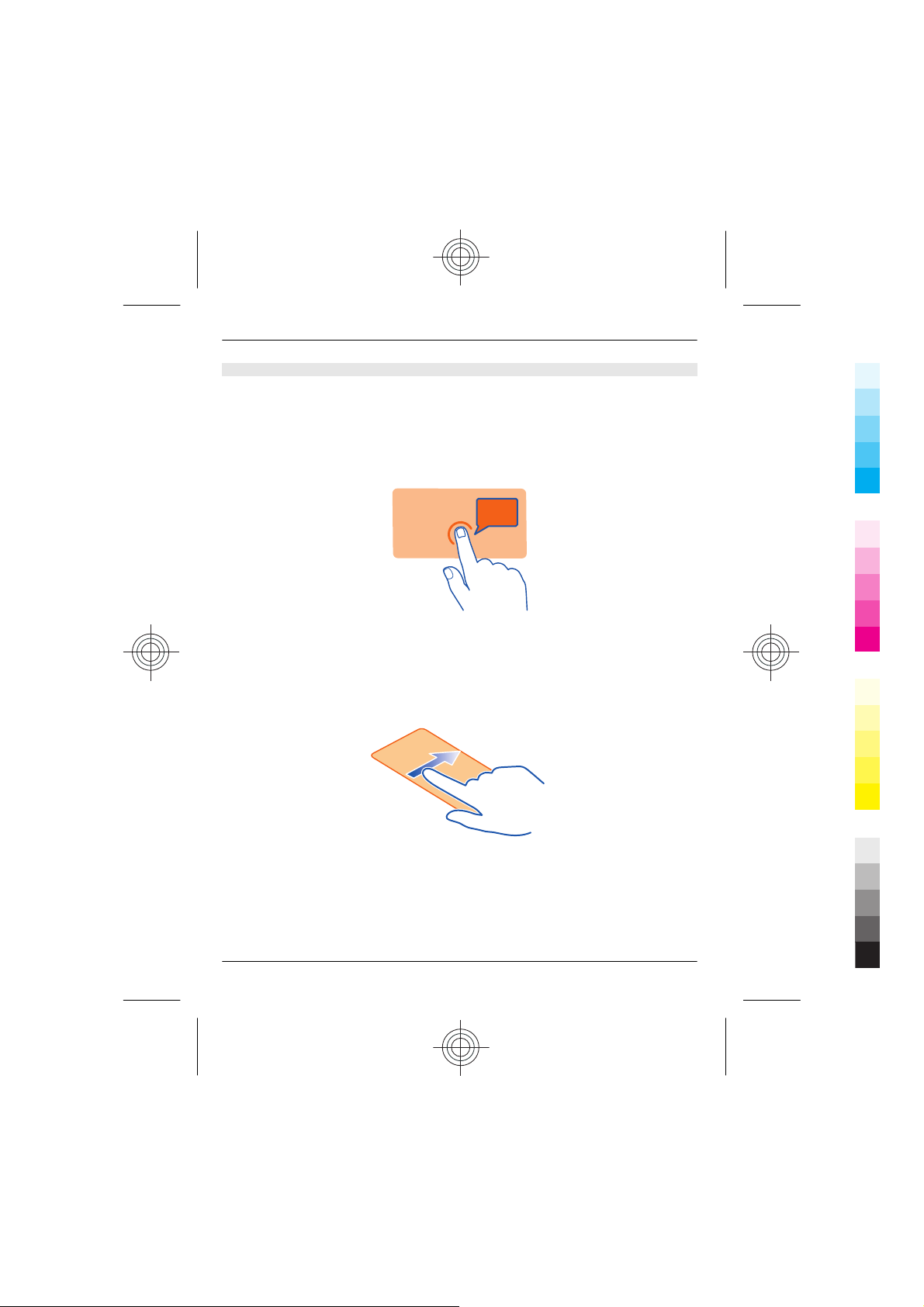
To use your phone, tap or tap and hold the touch screen.
Open an app or item
Tap the app or item.
Tap and hold to see more options
Place your finger on an item until the menu opens.
Example: To edit or delete a calendar appointment, tap and hold the appointment, then
select the option you want.
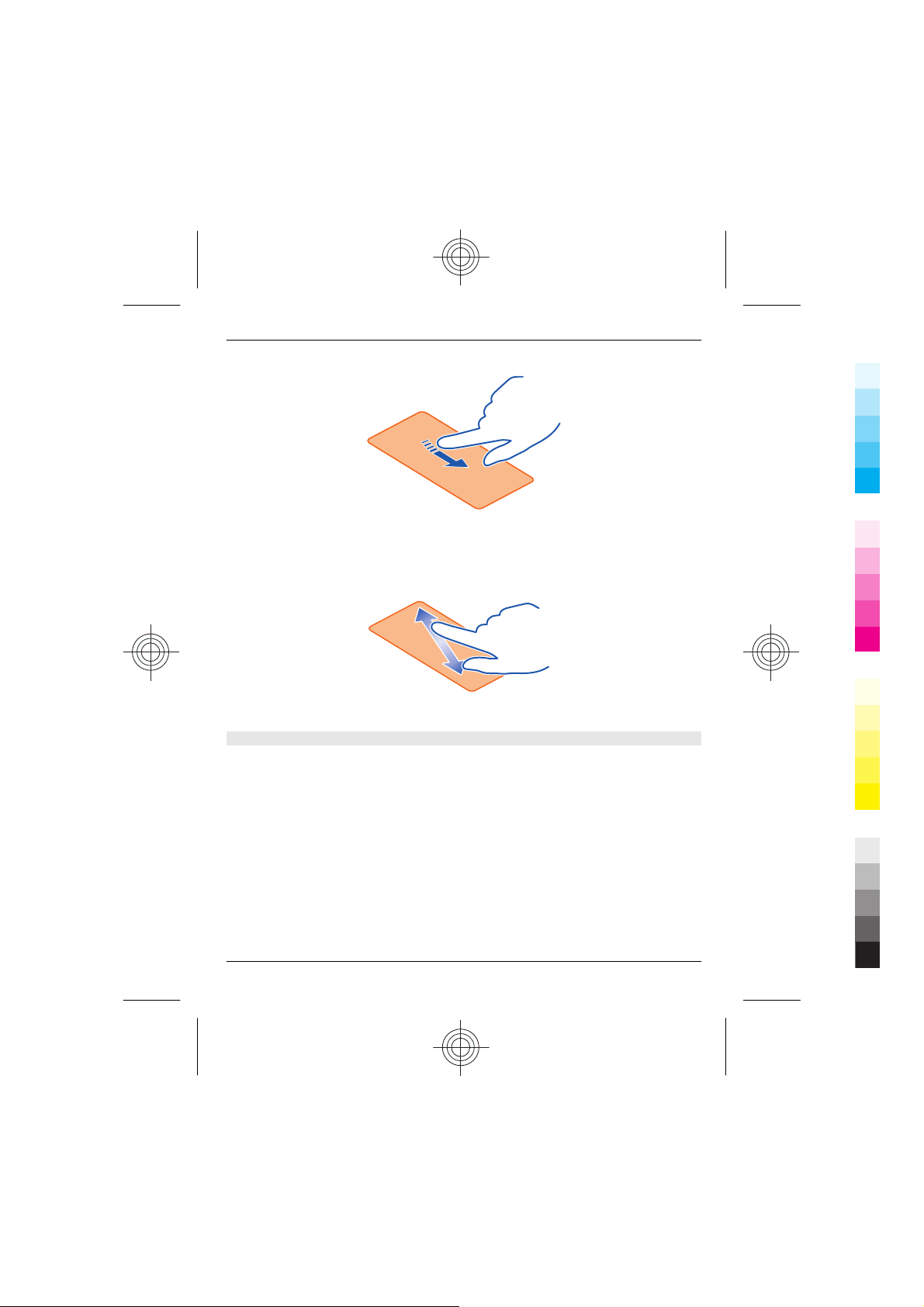
Swipe
Place your finger on the screen, then slide it in the direction you want.
Example: Swipe left or right between the home screens, or when browsing photos. To
quickly scroll through a long list or menu, slide your finger quickly up or down the screen,
then lift your finger. To stop the scrolling, tap the screen.
14 www.nokia.com/support
Cyan
Magenta
Yellow
Black
Page 15
Basic use 15
Cyan
Magenta
Yellow
Black
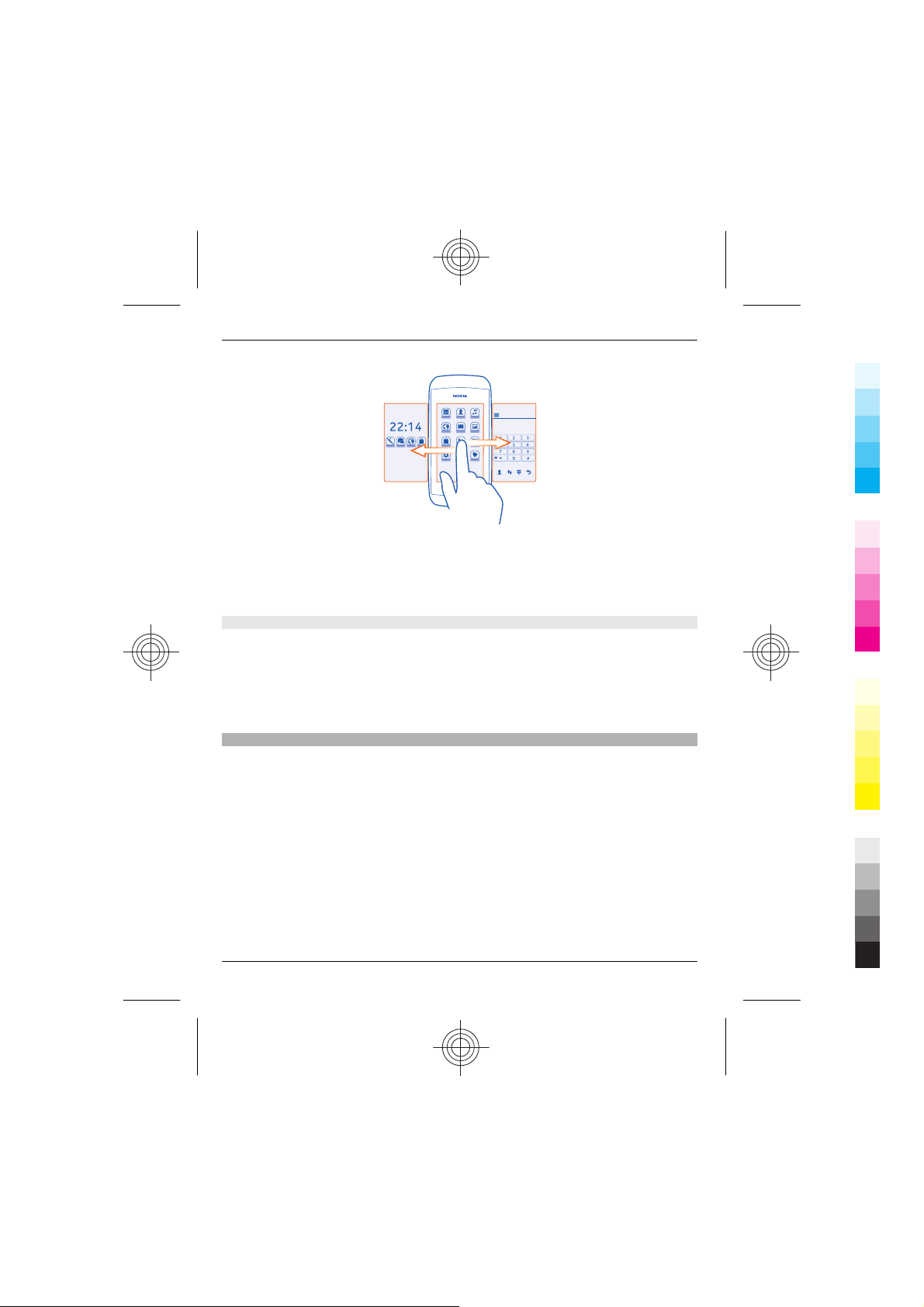
Zoom in or out
Place two fingers on an item, such as a map, photo, or web page, and slide your fingers
apart or together.
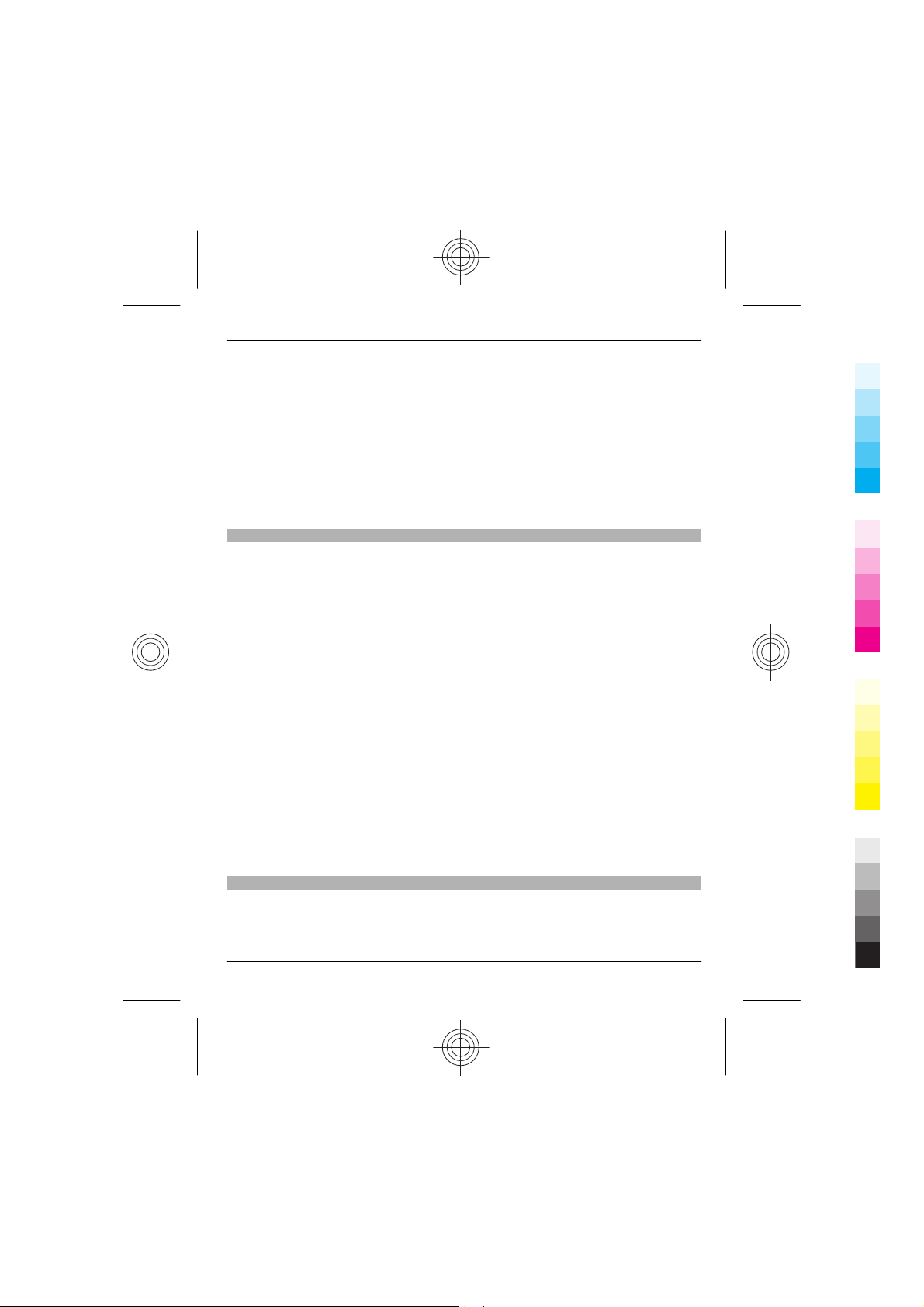
Switch between screens
Your phone has three home screens: one for apps, one for your favourite shortcuts, and
one for your most used app, such as the dialler.
Swipe left or right.
www.nokia.com/support 15
Cyan
Magenta
Yellow
Black
Page 16
16 Basic use
Cyan
Magenta
Yellow
Black
• My screen is the place where you can add your favourite contacts and shortcuts.
• On the apps screen, you can open apps, and organise them to your liking.
• On the dialler screen, you can make calls. In place of the dialler, you can also have
the music player or radio.
Personalise the dialler screen
If you don't need the dialler that often, you can personalise the dialler screen, and have
the music player or radio there instead.
1 Tap and hold either my screen or the apps screen.
2 Swipe to the dialler screen.
3 Select the app you want.
Support
When you want to learn more about how to use your phone, or if you're unsure how
your phone should work, go to www.nokia.com/support.
Your questions may have been asked before. On the support web pages, select
Frequently asked questions.
You can also find news on applications, downloads, and other useful info, such as:
• User guides
• Software update info
• Further details about features and technologies, and the compatibility of devices
and accessories
If you have an issue, do the following:
16 www.nokia.com/support
Cyan
Magenta
Yellow
Black
Page 17
Basic use 17
Cyan
Magenta
Yellow
Black
• Reboot your phone. Switch off the phone, and remove the battery. After about a
minute, replace the battery, and switch on the phone.
• Update your phone software
• Restore the original factory settings
If your issue remains unsolved, contact Nokia for repair options. Before sending your
phone for repair, always back up your data, as all personal data in your phone may be
deleted.
For additional product support information, see the warranty and reference leaflet
included with your Nokia device.
Access codes
The security code helps to protect your phone against unauthorised use. You can create
and change the code, and set the phone to request the code. Keep the code secret and
in a safe place separate from your phone. If you forget the code and your phone is locked,
your phone will require service. Additional charges may apply, and all the personal data
in your phone may be deleted. For more information, contact a Nokia Care point or your
phone dealer.
The PIN code supplied with the SIM card protects the card against unauthorised use.
The PIN2 code supplied with some SIM cards is required to access certain services. If you
enter the PIN or PIN2 code incorrectly three times in succession, you are asked for the
PUK or PUK2 code. If you do not have them, contact your service provider.
The module PIN is required to access the information in the security module of your SIM
card. The signing PIN may be required for the digital signature. The barring password
is required when using the call barring service.
To set how your phone uses the access codes and security settings, select settings >
security.
The personal unblocking key (PUK) code and the universal personal unblocking key
(UPUK) code (8 digits) are required to change a blocked PIN code and UPIN code,
respectively. The PUK2 code (8 digits) is required to change a blocked PIN2 code. These
codes are not supplied with the SIM card. Contact your local service provider for the
codes.
Lock the keys and screen
To avoid accidentally making a call when your phone is in your pocket or bag, lock the
keys and screen of your phone.
Press the lock key.
www.nokia.com/support 17
Cyan
Magenta
Yellow
Black
Page 18
18 Basic use
Cyan
Magenta
Yellow
Black
Unlock the keys and screen
Press the lock key, then swipe the screen left or right.
Tip: You can answer or reject a call with the call or end key even if you have locked the
keys and screen.
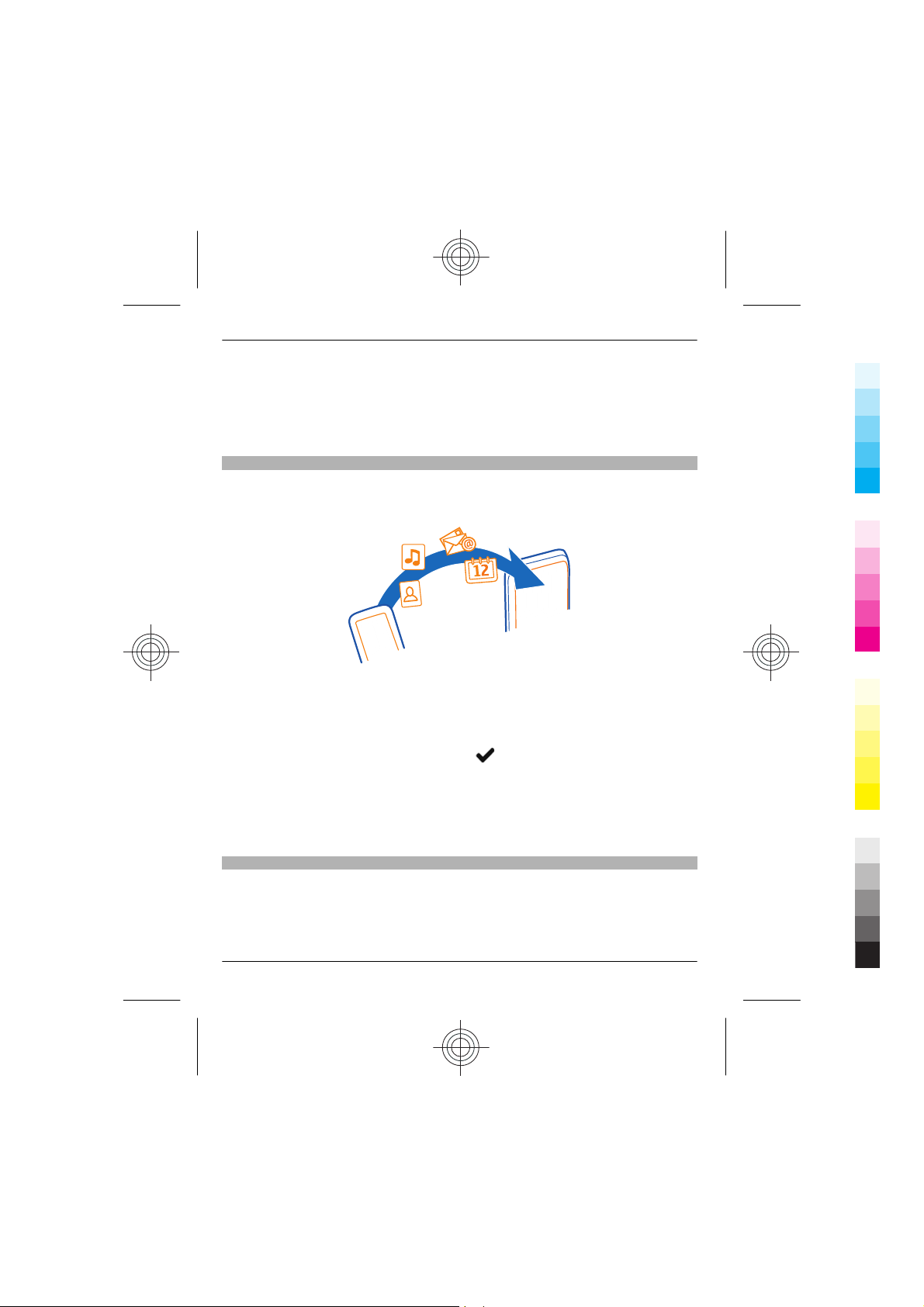
Copy contacts and other stuff from your old phone
Want to copy your contacts, calendar, and other stuff from your old compatible Nokia
phone, so you can start using your new phone without missing a beat? You can do that,
free of charge.
1 Switch Bluetooth on in both phones.
Select settings > connectivity > Bluetooth.
2 Select settings > sync & backup.
3 Select phone switch > copy to this.
4 Select what you want to copy, then select
5 Select your old phone from the list.
6 If needed, make up a passcode for this connection, and type it into both phones. In
some phones, the code may be fixed. For details, see the user guide of your old
phone.
7 If asked, allow connection and copying requests.
.
Use your phone without a SIM card
Do your children want to play with your phone, but you don't want them to accidentally
make a call? Some features of your phone, such as games and the calendar, may be used
without inserting a SIM card. Features that are dimmed in the menus cannot be used.
18 www.nokia.com/support
Cyan
Magenta
Yellow
Black
Page 19
Calls 19
Cyan
Magenta
Yellow
Black
Calls
Make a call
1 Select phone, or swipe left to open the dialler
2 Type in the phone number.
The + character may not work in all regions. In this case, type in the international
access code directly.
3Press
4 To end the call, press
Divert calls to your voice mailbox or another phone number
When you cannot answer, you can divert your calls.
Call divert is a network service.
1 Select settings > calls > call forwarding.
2 Select when to divert the incoming calls:
3 Select activate > to voice mailbox or to other number.
4If if not answered or if not available is selected, set the length of time after which
.
.
all voice calls — Divert all incoming voice calls.
if busy — Divert voice calls when busy.
if not answered — Divert voice calls only when not answered.
if out of reach — Divert voice calls when the phone is switched off or out of network
coverage for a certain period.
if not available — Divert voice calls when not answered, or the phone is busy, or
switched off, or out of network coverage.
a call is forwarded.
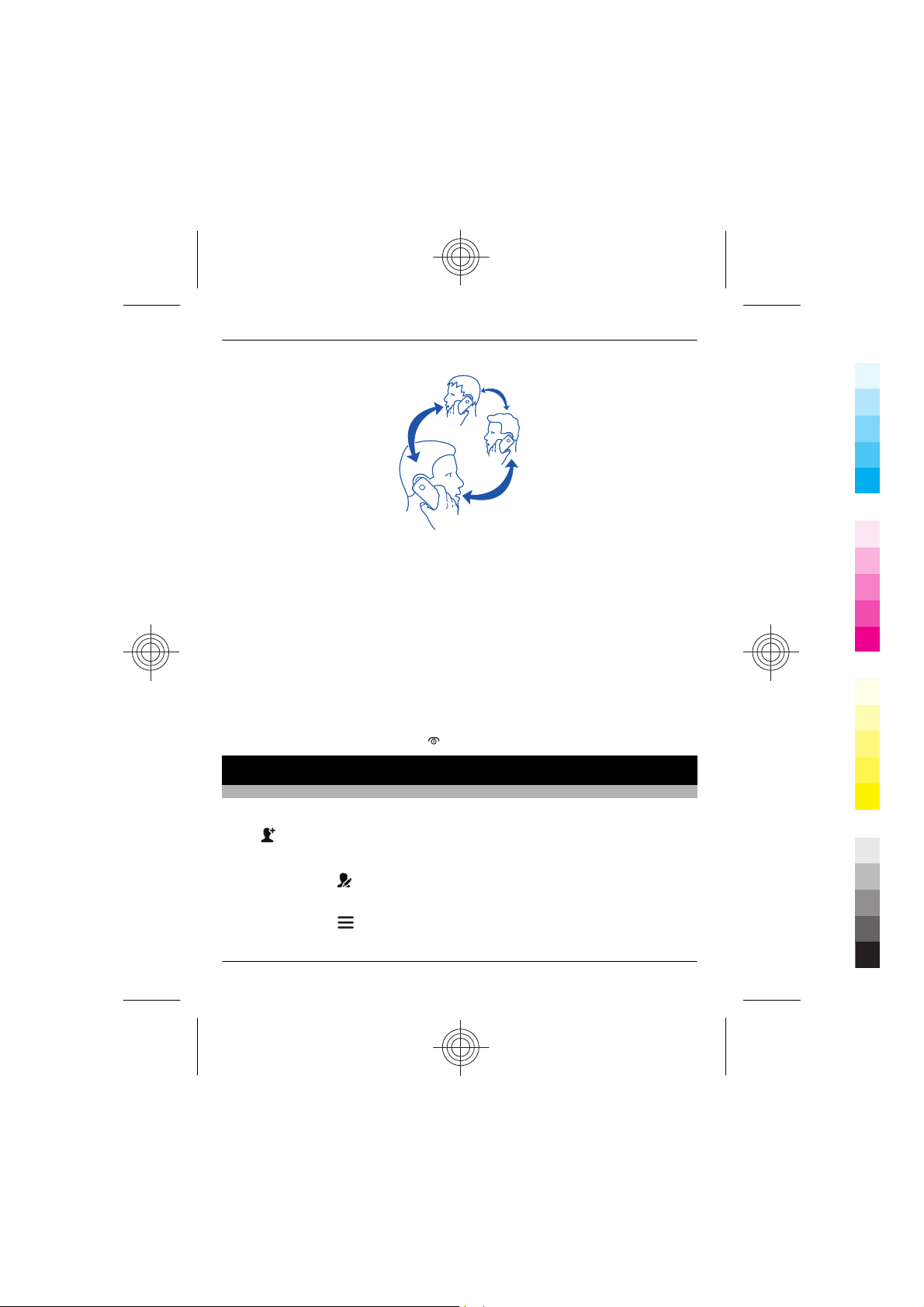
Make a conference call
Want to tell your great news to all your friends? With a conference call, you can easily
call several people at the same time, saving you the trouble of calling each one
separately.
www.nokia.com/support 19
Cyan
Magenta
Yellow
Black
Page 20
20 Contacts
Cyan
Magenta
Yellow
Black
Conference call is a network service. For availability, contact your network service
provider.
1 Make the first call.
2 While in the call, select options > new call.
3 Type in the phone number, then select CALL, or select SEARCH and a contact. The
first call is put on hold until you connect the conference call.
4 When you're able to talk to the second caller, select options > conference. You can
add more calls to the conference.
Tip: To speak privately with a caller in the middle of the conference call, select
options > private call and a number. The conference call is put on hold. To return
to the conference call, select options > conference.
5 To end the conference call, press
.
Contacts
Save a name and phone number
Select contacts.
Select
Edit the details of a contact
Select a contact and
Add more details
Select a contact and
20 www.nokia.com/support
, then write the name, number, and other details.
, then edit the details.
> add detail, then select a detail.
Cyan
Magenta
Yellow
Black
Page 21
Messaging 21
Cyan
Magenta
Yellow
Black
Use speed dial
Reach your friends and family quickly – assign your most-used phone numbers to the
number keys of your phone.
Select phone and
Assign a phone number to a number key
1 Select a number key. 1 is reserved for the voice mailbox.
2 To search for a contact, select SEARCH. You can also type in the number.
Make a call
In the dialler, press and hold a number key.
Send your contact info
Want to send your phone number or mail address to a person you just met? Add your
own contact info to your contacts list, and send a business card to the person.
1 Select contacts.
2 Select the contact card containing your own info.
3 Select send contact card, and how you want to send the card.
Save a received business card
Open the business card, then select
> speed dials.
.
Messaging
Send a message
Keep in touch with your family and friends through text and multimedia messages.
1 Select messaging and
2 To add a contact as a recipient, select
3 Write your message in the text box.
Tip: To include an attachment, such as a photo or video, select
content.
4 Select
www.nokia.com/support 21
.
Cyan
.
Magenta
. You can also type in a phone number.
> insert
Yellow
Black
Page 22
22 Messaging
Cyan
Magenta
Yellow
Black
Sending a message with an attachment, such as a photo or video, may be more
expensive than sending a normal text message. For more info, contact your network
service provider.
You can send text messages that are longer than the character limit for a single message.
Longer messages are sent as two or more messages. Your service provider may charge
accordingly.
Characters with accents, other marks, or some language options, take more space,
limiting the number of characters that can be sent in a single message.
If the item you insert in a multimedia message is too large for the network, the device
may automatically reduce the size.
Only compatible devices can receive and display multimedia messages. Messages may
look different in different devices.
Read a received message
When someone sends you a message, a notification is shown on the lock screen. Swipe
left or right over the notification to see the message.
Messages are combined into conversations, containing all the messages to and from a
contact in a single view. To read a conversation, select it from the list in the
conversations view.
Reply to the message
1 In the conversation, select Tap to reply.
2 Write your reply, then select
Forward the message
1 In the conversation, select the message.
2 Select
3 To add a contact as a recipient, select
4 Edit the message if you want, then select
> forward.
.
. You can also type in a phone number.
.
Save an attached photo or other file
1 In the conversation, select the message that contains the file.
2 Select the file and
their respective apps, such as Gallery.
22 www.nokia.com/support
> save, then select where to save the file. Files are saved to
Cyan
Magenta
Yellow
Black
Page 23
Write text 23
Cyan
Magenta
Yellow
Black
Read your messages later
Select messaging and a conversation.
Write text
Write text using the on-screen keypad
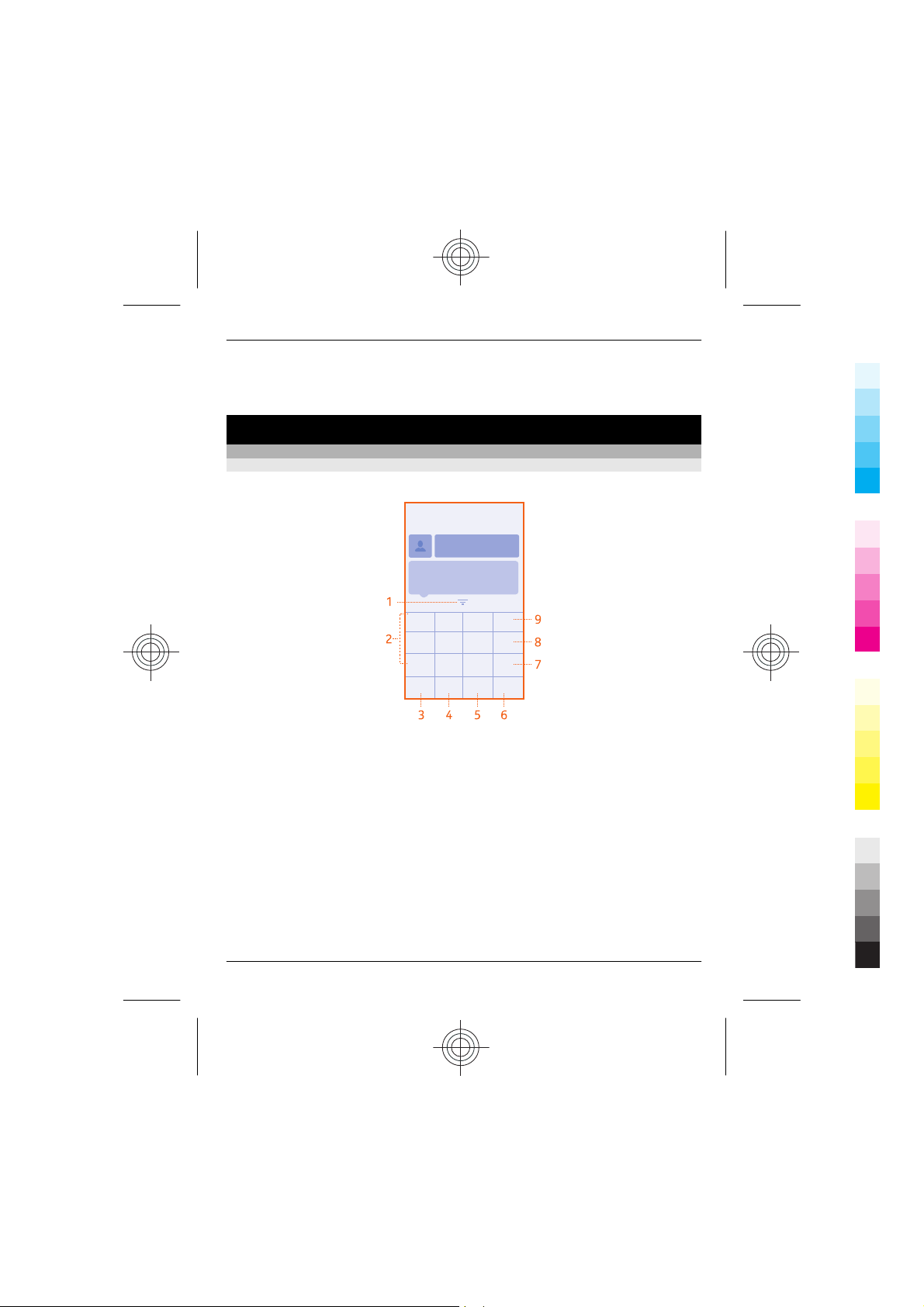
Use the on-screen keypad
To open the traditional alphanumeric keypad, turn the phone to portrait mode.
1 Close key
2 Character keys
3 Smiley key - This may not be available in all languages.
4 Space key
5 Shift key - Change the character case. This may not be available in all languages.
6 Input options key - Switch predictive text input on or off, change the writing
language, or switch to the on-screen keyboard.
7 Symbol key - Type in a special character.
8 Character/number mode key - Switch between characters and numbers.
9 Backspace key - Delete a character.
Close the keypad
Swipe down on the keypad. You can also select and hold the close key.
www.nokia.com/support 23
Cyan
Magenta
Yellow
Black
Page 24
24 Write text
Cyan
Magenta
Yellow
Black
Switch back to using the keyboard
Turn the phone to landscape mode.
Use the on-screen keypad
To open the on-screen keypad when writing text, turn the phone to portrait mode.
Type in a character
1 Select a character key repeatedly until the character is shown. There are more
characters available than are shown on the key.
2 If the next letter is on the same key, wait until the cursor is shown, then select the
key again.
Type in a space
Select
Move the cursor to the next line
When predictive text is off, select
Type in a number
Select
Type in a special character
Select the sym key, then select the special character.
Use the on-screen keyboard
When holding the phone in landscape mode, select a text box.
.
three times.
, then select the number.
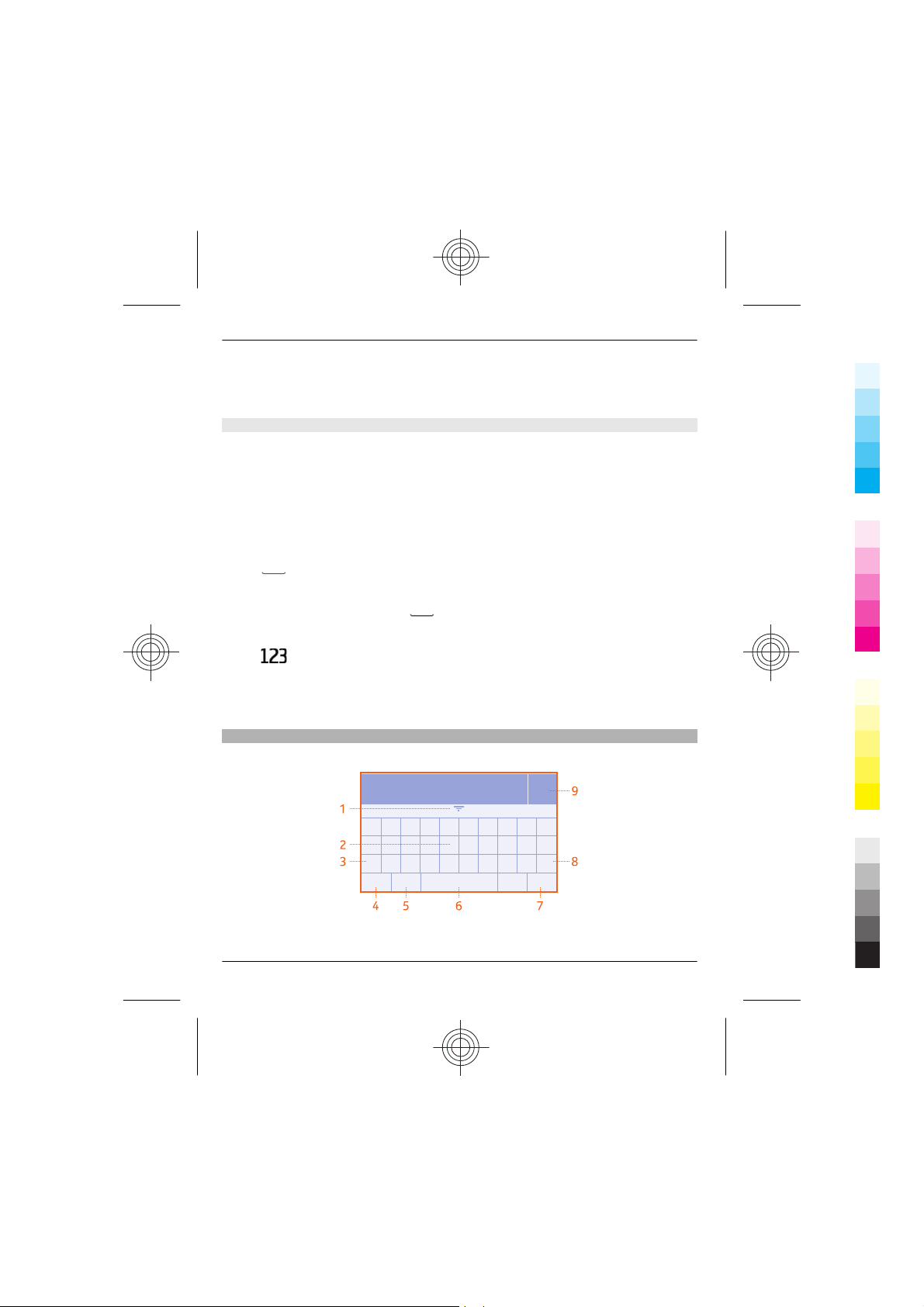
1 Close key
24 www.nokia.com/support
Cyan
Magenta
Yellow
Black
Page 25
Connectivity 25
Cyan
Magenta
Yellow
Black
2 Character keys
3 Shift and caps lock key - To type in an upper case character when writing in lower
case, or vice versa, select the key before typing in the character. To switch to caps
lock mode, select the key twice. In some languages, this key opens a new set of
characters.
4 Symbol key - Type in special characters or numbers.
5 Input options key - Switch predictive text input on or off, change the writing
language, or switch to the on-screen keypad.
6 Space key
7 Enter key - Move the cursor to the next row.
8 Backspace key - Delete a character.
9 Done key
Close the keyboard
Swipe down on the keyboard. You can also select and hold the close key.
Use predictive text
Predictive text is not available in all languages.
1 Select
2 Start writing a word. Your phone suggests possible words as you write. When the
correct word is shown, select the word.
3 If the word is not in the dictionary, select the pop-up and
to the dictionary.
When using predictive text, you can set your phone to complete and type in words for
you automatically.
Use word completion
Select
> prediction > .
, and add the new word
> word completion > .
Connectivity
Bluetooth
About Bluetooth
Select settings > connectivity > Bluetooth.
You can connect wirelessly to other compatible devices, such as phones, computers,
headsets, and car kits.
www.nokia.com/support 25
Cyan
Magenta
Yellow
Black
Page 26
26 Connectivity
Cyan
Magenta
Yellow
Black
You can use the connection to send items from your phone and copy files from your
compatible PC.
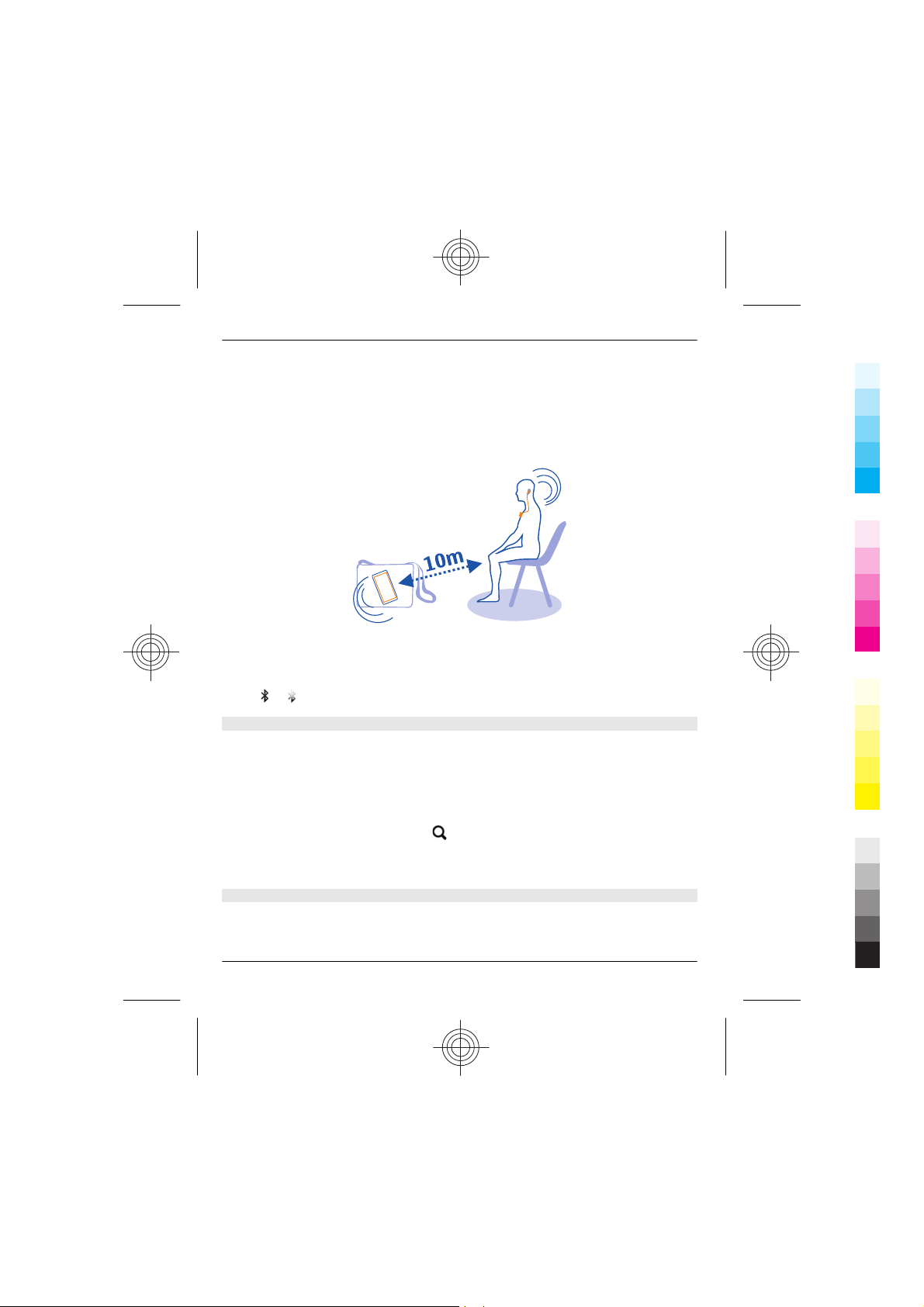
Since devices with Bluetooth wireless technology communicate using radio waves, they
do not need to be in direct line-of-sight. However, they must be within 10 metres (33
feet) of each other, although the connection may be subject to interference from
obstructions such as walls or from other electronic devices.
When your phone is locked, it is only possible to connect to a paired device that has
been set to auto-connect.
Tip: To quickly switch Bluetooth on or off, swipe down from the top of the screen, then
or .
select
Connect to a wireless headset
Want to keep working at your computer during a call? Use a wireless headset. You can
also answer a call, even if your phone is not directly at hand.
1 Select settings > connectivity > Bluetooth.
2Make sure Bluetooth is on.
3 Switch the headset on.
4 To search for your headset, select
5 Select the headset.
6 You may need to type in a passcode (such as 1234).
.
Send a photo or other content using Bluetooth
Use Bluetooth to send photos, videos, and other content created by you to your
computer or a friend's phone.
26 www.nokia.com/support
Cyan
Magenta
Yellow
Black
Page 27
Connectivity 27
Cyan
Magenta
Yellow
Black
1 Select and hold the item to send.
2 Select send > via Bluetooth.
3 Select the compatible device to connect to. If you can't see the device, to search for
it, select
4 If asked, type in the passcode.
Tip: You can also use Bluetooth to send business cards.
Protect your phone
Do you want to control who can find and connect to your phone when Bluetooth is on?
Select settings > connectivity > Bluetooth.
Prevent others from finding your phone
Select my phone visibility > hidden.
When your phone is hidden, others can't find it. However, paired devices can still connect
to your phone.
Switch Bluetooth off
Select Bluetooth > off.
Tip: To quickly switch Bluetooth off, swipe down from the top of the screen, then select
.
Do not pair with or accept connection requests from an unknown device. This helps
protect your phone from harmful content.
USB data cable
Copy content between your phone and a computer
You can use a USB cable to copy your photos and other content between your phone
and a computer.
1 Connect your phone to a compatible computer with a USB cable.
2 Select a mode:
Nokia Suite — Use this mode if Nokia Suite is installed on your computer.
media transfer — Use this mode if Nokia Suite is not installed on your computer.
You can also use this mode if you want to connect to a home entertainment system.
. Bluetooth devices that are close by are listed.
www.nokia.com/support 27
Cyan
Magenta
Yellow
Black
Page 28
28 Clock and calendar
Cyan
Magenta
Yellow
Black
mass storage — Use this mode if Nokia Suite is not installed on your computer.
The phone is shown as a portable device on your computer. Make sure a memory
card is in your phone.
You can also use this mode if you want to connect your phone to other devices, such
as a home or car stereo.
3 To copy the content, use Nokia Suite or the file manager of the computer.
Wi-Fi connections
About Wi-Fi connections
Select settings > connectivity > WLAN.
Connect to a Wi-Fi network and manage your Wi-Fi connections.
Tip: To quickly access the Wi-Fi settings, swipe down from the top of the screen, then
select
encryption reduces the risk of others accessing your data.
Connect to a Wi-Fi network
To help save data costs, you can use a Wi-Fi network to connect to the internet, whether
you're at home or at a library or internet café.
Select settings > connectivity > WLAN.
1Make sure WLAN is on.
2 To connect, select the network and connect.
3 If the connection is secured
.
Important: Use encryption to increase the security of your Wi-Fi connection. Using
, type in the password.
Connect to a hidden Wi-Fi network
You can connect to a hidden Wi-Fi network if you know the name (SSID) and password.
1 Select settings > connectivity > WLAN.
2 Select (hidden network).
3 Type in the name (SSID) and the password.
Clock and calendar
Change the time and date
Select settings and date and time.
28 www.nokia.com/support
Cyan
Magenta
Yellow
Black
Page 29
Photos and videos 29
Cyan
Magenta
Yellow
Black
Change the time zone when travelling
1 Select settings > time zone:.
2 Select the time zone of your location.
3 Select
The time and date on your phone are set according to the time zone.
For example, GMT -5 is the time zone for New York (USA), 5 hours west of Greenwich,
London (UK).
Set an alarm
Use your phone as an alarm clock.
Select alarm.
1 Set the alarm time, then select SAVE.
2 To set the alarm to go off at the same time on certain days, select
repeat and the days.
Browse your calendar in different views
Want to see all your calendar entries for a particular day? You can browse your calendar
entries in different views.
1 Select calendar.
2 To see the entries for a day or month, select
3 To see your notes or to-do list, select
Add a calendar entry
1 Select calendar.
2 Select
3 Select an entry type.
4 Fill in the fields, then select
.
> alarm
or .
or .
.
.
Photos and videos
To use the camera, you must have a compatible memory card in your phone.
Take a photo
1 To open the camera, select camera.
www.nokia.com/support 29
Cyan
Magenta
Yellow
Black
Page 30
30 Photos and videos
Cyan
Magenta
Yellow
Black
2 To zoom in or out, use the volume keys.
3 Select
Photos are saved in gallery.
Close the camera
Select
Record a video
Besides taking photos with your phone, you can also capture your special moments as
videos.
To open the camera, select video.
.
.
1 To start recording, select
2 To zoom in or out, use the volume keys.
3 To stop recording, select
Videos are saved in gallery.
Close the camera
Select
Send a photo or video
Want to share your photos and videos with friends and family? You can send photos
and videos in a multimedia message or mail, or using Bluetooth.
Select gallery.
1 Open the tab where the photo or video is.
2 Select and hold the photo or video, then select send and how you want to send it.
Send several photos or videos at the same time
1 Open the tab where the photos or videos are.
2 Select
3 Select
30 www.nokia.com/support
.
, then mark what you want to send.
and how you want to send them.
.
.
Cyan
Magenta
Yellow
Black
Page 31
Music and audio 31
Cyan
Magenta
Yellow
Black
Organise files
You can create new folders in your phone memory or on the memory card. This can
make it easier for you to find your files. Within folders, you can copy, move, or delete
files and subfolders.
Select files.
Create a new folder
In the folder where you want to create a subfolder, select
Copy or move a file to a folder
1 Select and hold the file, then select an option.
2 Select where you want to copy or move the file.
> add folder.
Music and audio
Play a song
Listen to your favourite music on your phone.
Select music.
1 Select
2 To pause or resume playing, select
Skip to the next or previous song
Select
Fast-forward or rewind
Select and hold
Tip: To listen to songs in a random order, select
FM radio
About the FM radio
Select radio.
You can listen to FM radio stations using your phone - just connect a headset, and select
a station.
www.nokia.com/support 31
and the song or album you want to play.
or .
or .
or .
> shuffle.
Cyan
Magenta
Yellow
Black
Page 32
32 Music and audio
Cyan
Magenta
Yellow
Black
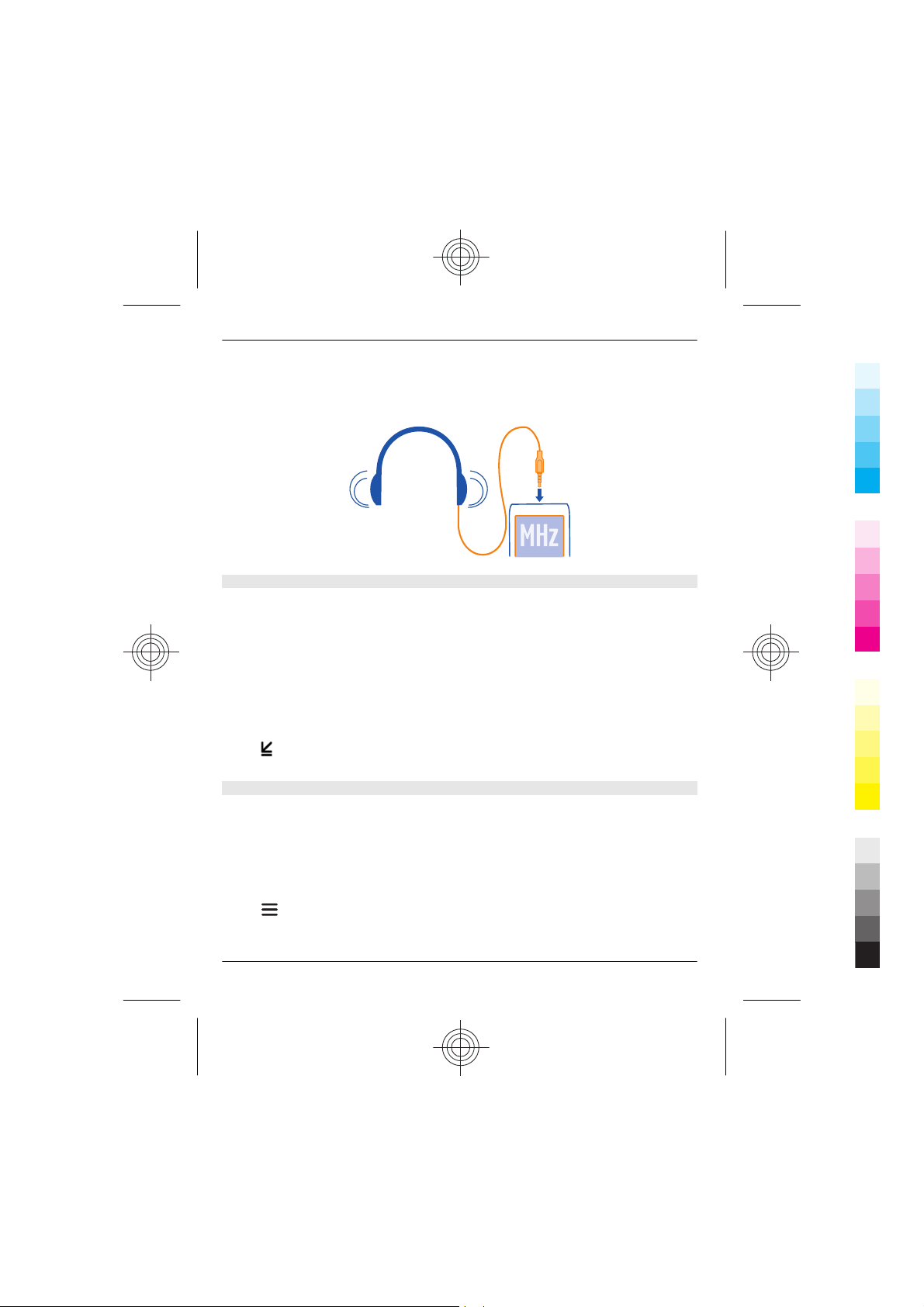
To listen to the radio, you need to connect a compatible headset to the device. The
headset acts as an antenna.
It is not possible to listen to the radio through a Bluetooth headset.
Listen to the radio
Connect a compatible headset to your phone. The headset acts as an antenna.
Select radio.
Change the volume
Use the volume keys.
Stop the radio
Press the end key.
Set the radio to play in the background
.
Select
Find and save radio stations
Search for your favourite radio stations, and save them, so you can easily listen to them
later.
Select radio.
Connect a compatible headset to your phone. The headset acts as an antenna.
Search for all available stations
Select
32 www.nokia.com/support
> search all stations.
Cyan
Magenta
Yellow
Black
Page 33
Phone management 33
Cyan
Magenta
Yellow
Black
Set a frequency manually
Tap the frequency, then scroll to a frequency.
Save a station
Select
Go to the next or previous saved station
Select
Automatically switch to a frequency with better reception
1 Select
2 Select auto-frequency > on.
.
or .
> RDS > on.
Phone management
Update phone software using your phone
Want to improve the performance of your phone and get application updates and great
new features? Update the software regularly to get the most out of your phone. You
can also set your phone to automatically check for updates.
Warning:
If you install a software update, you cannot use the device, even to make emergency
calls, until the installation is completed and the device is restarted.
Using services or downloading content may cause transfer of large amounts of data,
which may result in data traffic costs.
Before starting the update, connect a charger or make sure the device battery has
enough power.
Select settings.
www.nokia.com/support 33
Cyan
Magenta
Yellow
Black
Page 34
34 Phone management
Cyan
Magenta
Yellow
Black
1 Select phone > device updates.
2 To display the current software version and check whether an update is available,
select current sw details.
3 To download and install a software update, select downl. phone sw. Follow the
displayed instructions.
4 If the installation was cancelled after the download, select install sw update.
The software update may take several minutes. If there are problems with the
installation, contact your network service provider.
Check for software updates automatically
Select auto SW update, and define how often to check for new software updates.
Your network service provider may send phone software updates over the air directly
to your phone. For more information on this network service, contact your network
service provider.
Update phone software using your PC
You can use the Nokia Suite PC app to update your phone software. You need a
compatible PC, a high-speed internet connection, and a compatible USB cable to connect
your phone to the PC.
34 www.nokia.com/support
Cyan
Magenta
Yellow
Black
Page 35
Web 35
Cyan
Magenta
Yellow
Black
To get more info and to download the Nokia Suite app, go to www.nokia.com/
support.
Restore original settings
If your phone is not working properly, you can reset some settings to their original
values.
1 End all calls and connections.
2 Select settings and restore factory sett. > settings only.
3 Type in the security code.
This does not affect documents or files stored on your phone.
After restoring the original settings, your phone switches off and then on again. This
may take longer than usual.
Back up your photos and other content to a memory card
Want to make sure you will not lose any important files? You can back up your phone
memory to a compatible memory card.
Select settings > sync & backup.
1 Select create backup.
2 Select what you want to back up, then select
Restore a backup
1 Select restore backup.
2 Select what you want to restore, then select
.
.
Web
About the web browser
Select internet.
Catch up on the news, and visit your favourite websites. You can use the web browser
to view web pages on the internet.
The web browser compresses and optimises web content for your phone, so you can
browse the web more quickly and save on data costs.
To browse the web, you must be connected to the internet.
www.nokia.com/support 35
Cyan
Magenta
Yellow
Black
Page 36
36 Maps
Cyan
Magenta
Yellow
Black
For availability, pricing, and instructions, contact your network service provider.
You may receive the configuration settings required for browsing as a configuration
message from your network service provider.
Browse the web
Select internet.
Tip: If you don't have a flat-rate data plan from your network service provider, to save
data costs in your phone bill, you can use a Wi-Fi network to connect to the internet.
Go to a website
Write the web address in the address bar.
Move on the web page
Drag the page with your finger.
Search the internet
Write a search word in the address bar. If asked, select your default search engine.
Go back to a previously visited web page
Select
Websites may ask to access your current location info to, for example, personalise the
info they show you. If you allow a website to use your location info, your location may
be visible to others, depending on the website. Read the privacy policy of the website.
Clear your browsing history
Select internet.
Select
Clear stored cookies or text saved in web forms
Select
> history and the web page.
> > clear history.
> > settings > clear cookies or clear auto-fill.
Maps
About Maps
Select maps.
36 www.nokia.com/support
Cyan
Magenta
Yellow
Black
Page 37
Product and safety information 37
Cyan
Magenta
Yellow
Black
Maps shows you what is nearby and helps you plan your route, free of charge. You can:
• See where you are on a map
• Plan a route to a nearby place
• Search for a place or an address, and save it
• Send your location or a place to a friend in a text message
Your phone may have a memory card with preloaded maps for your country. Make sure
the memory card is in your phone before using Maps.
Using services or downloading content may cause transfer of large amounts of data,
which may result in data traffic costs.
Contents of digital maps may sometimes be inaccurate and incomplete. Never rely solely
on the content or the service for essential communications, such as in emergencies.
Search for a place
1 Select maps.
2 Select
to see the toolbar, then select .
3 Write the name of the place or the address.
Product and safety information
Network services and costs
Your device is approved for use on the GSM 850 and 1900 MHz networks. To use the device, you need a subscription with a
service provider.
Using network services and downloading content to your device requires a network connection and may result in data traffic
costs. Some product features require support from the network, and you may need to subscribe to them.
Take care of your device
Handle your device, battery, charger and accessories with care. The following suggestions help you protect your warranty
coverage.
• Keep the device dry. Precipitation, humidity, and all types of liquids or moisture can contain minerals that corrode
electronic circuits. If your device gets wet, remo ve the battery, and allow the device to dry.
• Do not use or store the device in dusty or dirty areas. Moving parts and electronic components can be damaged.
• Do not store the device in high temperatures. High temperatures can shorten the life of the device, damage the battery,
and warp or melt plastics.
• Do not store the device in cold temperatures. When the device warms to its normal temperature, moisture can form inside
the device and damage electronic circuits.
• Do not attempt to open the device other than as instructed in the user guide.
• Unauthorised modifications may damage the device and violate regulations governing radio devices.
• Do not drop, knock, or shake the device. Rough handling can break internal circuit boards and mechanics.
www.nokia.com/support 37
Cyan
Magenta
Yellow
Black
Page 38
38 Product and safety information
Cyan
Magenta
Yellow
Black
• Only use a soft, clean, dry cloth to clean the surface of the device.
• Do not paint the device. Paint can clog moving parts and prevent proper operation.
• Switch off the device and remove the battery from time to time for optimum performance.
• Keep your device away from magnets or magnetic fields.
• To keep your imp ortant data safe, store i t in at least two separate places, such as your device, memory card, or computer,
or write down important information.
Recycle
Always return your used electronic products, batteries, and packaging materials to dedicated collection points. This way you
help prevent uncontrolled waste disposal and promote the recycling of materials. Check how to recycle your Nokia products at
www.nokia.com/recycling.
About Digital Rights Management
When using this device, obey all laws and respect local customs, privacy and legitimate rights of others, including copyrights.
Copyright protection may prevent you from copying, modifying, or transferring pictures, music, and other content.
Content owners may use different types of digital rights management (DRM) technologies to protect their intellectual property,
including copyrights. This device uses various types of DRM software to access DRM-protected content. With this device you can
access content protected with OMA DRM 2.0. If certain DRM software fails to protect the content, content owners may ask that
such DRM software's ability to access new DRM-protected content be revoked. Revocation may also prevent renewal of such
DRM-protected content already in your device. Revocation of such DRM software does not affect the use of content protected
with other types of DRM or the use of non-DRM-protected content.
Digital rights management (DRM) protected content comes with an associated licence that defines your rights to use the content.
Batteries and chargers
Battery and charger information
Your device is intended for use with a BL-4U rechargeable battery. Nokia may make additional battery models available for this
device. Always use original Nokia batteries.
This device is intended for use when supplied with power from the following chargers: AC-11. The exact Nokia charger model
number may vary depending on the plug type, identified by E, X, AR, U, A, C, K, B, or N.
The battery can be charged and discharged hundreds of times, but it will eventually wear out. When the talk and standby times
are noticeably shorter than normal, replace the battery.
Battery safety
Always switch the device off and disconnect the charger before removing the battery. When you unplug a charger or an
accessory, hold and pull the plug, not the cord.
When your charger is not in use, unplug it from the electrical plug and the device. Do not leave a fully charged battery connected
to a charger, as overcharging may shorten the battery’s lifetime. If left unused, a fully charged battery will lose its charge over
time.
Always keep the battery between 15°C and 25°C (59°F and 77°F). Extreme temperatures reduce the capacity and lifetime of the
battery. A device with a hot or cold battery may not work temporarily.
Accidental short-circuiting can happen when a metallic object touches the metal strips on the battery, for example, if you carry
a spare battery in your pocket. Short-circuiting may damage the battery or the connecting object.
38 www.nokia.com/support
Cyan
Magenta
Yellow
Black
Page 39
Product and safety information 39
Cyan
Magenta
Yellow
Black
Do not dispose of batteries in a fire as they may explode. Dispose of batteries according to local regulations. Recycle when
possible. Do not dispose as household waste.
Do not dismantle, cut, open, crush, bend, puncture, or shred cells or batteries. If a battery leaks, do not let battery liquid touch
skin or eyes. If this happens, immediately flush the affected areas with water, or seek medical help.
Do not modify, remanufacture, attempt to insert foreign objects into the battery, or immerse or expose it to water or other
liquids. Batteries may explode if damaged.
Use the battery and charger for their intended purposes only. Improper use, or use of unapproved batteries or incompatible
chargers may present a risk of fire, explosion, or other hazard, and may invalidate any approval or warranty. If you believe the
battery or charger is dama ged, take it to a service centre for inspection before continuing to use it. Never use a damaged battery
or charger. Only use the charger indoors.
Additional safety information
Make an emergency call
1 Make sure the phone is switched on.
2 Check for adequate signal strength. You may also need to do the following:
• Insert a SIM.
• Deactivate call restrictions you have activated for your phone, such as call barring, fixed di alling, or closed user
group.
• Make sure the flight profile is not activated.
• If the screen and keys are locked, unlock them.
3 To open the dialler, select phone.
4 Type in the official emergency number for your present location. Emergency call numbers vary by location.
5 Press the call key.
6 Give the necessary info as accurately as possible. Do not end the call until given permission to do so.
When you switch your phone on for the first time, you are asked to create your Nokia account. To make an emergency call
during the account setup, press the call key.
Important: Activate both cellular and internet calls, if your device supports internet calls. The device may attempt to make
emergency calls both through cellular networks and through your internet call service provider. Connections in all conditions
cannot be guaranteed. Never rely solely on any wireless device for essential communications like medical emergencies.
Small children
Your device and its accessories are not toys. They may contain small parts. Keep them out of the reach of small children.
Medical devices
Operation of radio transmitting equipment, including wireless phones, may interfere with the function of inadequately
protected medical devices. Consult a physician or the manufacturer of the medical device to determine whether they are
adequately shielded from external radio frequency energy.
Implanted medical devices
Manufacturers of medical devices recommend a minimum separation of 15.3 centimetres (6 inches) between a wireless device
and an implanted medical device, such as a pacemaker or implanted cardioverter defibrillator, to avoid potential interference
with the medical device. Persons who have such de vices should:
• Always keep the wireless device more than 15.3 centimetres (6 inches) from the medical device.
www.nokia.com/support 39
Cyan
Magenta
Yellow
Black
Page 40
40 Product and safety information
Cyan
Magenta
Yellow
Black
• Not carry the wireless device in a breast pocket.
• Hold the wireless devic e to the ear opposite the medical device.
• Turn the wireless device off if there is any reason to suspect that interference is taking place.
• Follow the manufacturer directions for the implanted medical device.
If you have any questions about using your wireless device with an implanted medical device, consult your health care provider.
Accessibility solutions
Nokia is committed to ma king mobile phones easy to use for all individuals , including those with dis abilities. For more
information, visit the Nokia website at www.nokiaaccessibility.com.
Hearing
Warning:
When you use the headset, your ability to hear outside sounds may be affected. Do not use the headset where it can endanger
your safety.
Some wireless devices may interfere with some hearing aids.
Operating environment
This device meets radio frequency exposure guidelines in the normal use position at the ear or at least 1.5 centimetres (5/8 inch)
away from the body. Any carry case, belt clip, or holder for body-worn operation should not contain metal and should position
the device the above-stated distance from your body.
To send data files or messages requires a quality connection to the network. Data files or messages may be delayed until such
a connection is available. Follow the separation distance instructions until the transmission is completed.
Parts of the device are magnetic. Metallic materials may be attracted to the device. Do not place credit cards or other magnetic
storage media near the device, because information stored on them may be erased.
Vehicles
Radio signals may affect improperly installed or inadequately shielded electronic systems in motor vehicles such as electronic
fuel injection, electronic antilock braking, electronic speed control, and air bag systems. For more information, check with the
manufacturer of your vehicle or its equipment.
Only qualified personnel should install the device in a vehicle. Faulty installation or service may be dangerous and may invalidate
your warranty. Check regularly that all wireless device equipment in your vehicle is mounted and operating properly. Do not
store or carry flammable liquids, gases, or explosive materials in the same compartment as the device, its parts, or accessories.
Remember that air bags inflate with great force. Do not place your device or accessories in the air bag deployment area.
Potentially explosive environments
Switch off your device in any area with a potentially explosive atmosphere, for example near gas pumps at service stations.
Sparks in such areas could cause an explosion or fire resulting in bodily injury or death. Observe restrictions in fuel service
stations, storage, and distribution areas; chemical plants; or where blasting operations are in progress. Areas with a potentially
explosive atmosphere are often, but not always, clearly marked. They include areas where you would be advised to turn off
your vehicle engine, below deck on boats, chemical transfer or storage facilities and where the air contains chemicals or particles
such as grain, dust, or metal powders. You should check with the manufacturers of vehicles using liquefied petroleum gas (such
as propane or butane) to determine if this device can be safely used in their vicinity.
40 www.nokia.com/support
Cyan
Magenta
Yellow
Black
Page 41
Copyright and other notices 41
Cyan
Magenta
Yellow
Black
Certification information (SAR)
This mobile device meets guidelines for exposure to radio waves.
Your mobile device is a radio transmitter and receiver. It is designed not to exceed the limits for exposure to radio waves
recommended by international guidelines. These guidelines were developed by the independent scientific organisation ICNIRP
and include safety m argins designed to assure the protection of all persons, regardless of age and health.
The exposure guidelines for mobile devices employ a unit of measurement known as the Specific Absorption Rate or SAR. The
SAR limit stated in the ICNIRP guidelines is 2.0 watts/kilogram (W/kg) averaged over 10 grams of tissue. Tests for SAR are
conducted using standard operating positions with the device transmitting at its highest certified power level in all tested
frequency bands. The actual SAR level of an operating device can be below the maximum value because the device is designed
to use only the power requir ed to reach the network. Th at amount changes depending on a number of factors such as how
close you are to a network base station.
The highest SAR value under the ICNIRP guidelines for use of the device at the ear is 0.69 W/kg.
Use of device accessories may result in different SAR values. SAR values may vary depending on national reporting and testing
requirements and the network band. Additional SAR information may be provided under product information at
www.nokia.com.
Your mobile device is also designed to meet the requirements for exposure to radio waves established by the Federal
Communications Commission (USA) and Industry Canada. These requirements set a SAR limit of 1.6 W/kg averaged over one
gram of tissue. The highest SAR value reported under this standard during product certification for use at the ear is 1.06 W/kg
and when properly worn on the body is 0.80 W/kg.
Copyright and other notices
© 2012 Nokia. All rights reserved.
Nokia, Nokia Connecting People, and Navi are trademarks or registered trademarks of Nokia Corporation. Nokia tune is a sound
mark of Nokia Corporation. Other product and company names mentioned herein may be trademarks or tradenames of their
respective owners.
Reproduction, transfer, di stribution, or storage of part or all of the contents in this document in any form witho ut the prior
written permission of Nokia is prohib ited. Nokia operates a policy of continuous development. Nokia reserves the right to make
changes and improvements to any of the products described in this document without prior notice.
Includes RSA BSAFE cryptographic or securit y protocol software from RSA Security.
The Bluetooth word mark and logos are owned by the Bluetooth SIG, Inc. and any use of such mark s by Nokia is under license.
Java is a trademark of Sun Microsystems, Inc.
www.nokia.com/support 41
Cyan
Magenta
Yellow
Black
Page 42
42 Copyright and other notices
Cyan
Magenta
Yellow
Black
This product is licensed under the MPEG-4 Visual Patent Portfolio License (i) for personal and noncommercial use in connection
with information which has been encoded in compliance with the MPEG-4 Visual Standard by a consumer engaged in a personal
and noncommercial activity and (ii) for use in connection with MPEG-4 video provided by a licensed video provider. No license
is granted or shall be implied for any other use. Additional information, including that related to promotional, internal, and
commercial uses, may be obtained from MPEG LA, LLC. See http://www.mpegla.com.
To the maximum extent permitted by applicable law, under no circumstances shall Nokia or any of its licensors be responsible
for any loss of data or income or any special, incidental, consequential or indirect damages howsoever caused.
The contents of this document are provided "as is". Except as required by applicable law, no warranties of any kind, either
express or implied, including, but not limited to, the implied warranties of merchantability and fitness for a particular purpose,
are made in relation to the acc uracy, reliability or cont ents of this document. Noki a reserves the right to revise this document
or withdraw it at any time wi thout prior notice.
The availability of products, features, applications and services may vary by region. For more information, contact your Nokia
dealer or your service provider. This device may contain commodities, technology or software subject to export laws and
regulations from the US and other countries. Diversion contrary to law is prohibited.
Nokia does not provide a warranty for or take any responsibility for the functionality, content, or end-user support of thirdparty applications provided with your device. By using an application, you acknowledge that the application is provided as is.
Nokia does not make any representations, provide a warranty, or take any responsibility for the functionality, content, or enduser support of third-party applicat ions provided with your device.
FCC/INDUSTRY CANADA NOTICE
This dev ice complies wit h part 15 of the F CC rules and Indus try Canada licence-exempt RSS standard(s). Operation is subject to
the following two conditions: (1) This device may not cause harmful interference, and (2) this device must accept any
interference received, including interference that may cause undesired operation. Your device may cause TV or radio
interference (for example, when using a device in close proximity to receiving equipment). If you require assistance, contact
your local service facility.Any changes or modifications not expressly approved by Nokia could void the user's authority to
operate this equipment.
xxxxxxx/Issue 1 EN
42 www.nokia.com/support
Cyan
Magenta
Yellow
Black
 Loading...