

Page 1

MicroJack Mobile DVR User’s Manual
Digital Video Recorder
User’s Manual
Mobile
Page 2
MicroJack Mobile DVR User’s Manual
Copyright Notice
Information in this document is subject to change without notice. MicroJack
Incorporated may make improvements or changes in this manual and in the Digital
Recorder at any time. The software, which includes the information contained
described in this document is furnished under a license agreement and may be used
or copied only in accordance with the terms of the agreement. It is against the law to
copy the software except as specifically allowed in the license agreement. No part of
this manual may be reproduced or transmitted in any form or by any means,
including photocopying and recording, for any purpose without prior written
permission of MicroJack Incorporated.
© MicroJack Incorporated
This device complies with Part 15 FCC Rules. Operation is subject to the following two
conditions:
(1) This device may not cause harmful interference.
(2) This device must accept any interference received including interference that may cause
undesired operation.
Page 3

MicroJack Mobile DVR User’s Manual
Features
• Fanless design; power consumption < 9W
• 12 V./24 V. Mains input
• 4 CH Video Inputs; 1 Monitor Output, Up to 120pps REC rate
• GPS integration
• G-Force Detection
• IR Operation
• Vibration & Shock Proof (according to Truck standard)
• Intelligent Power Management Design
• Temperature Management Control
• Aluminum Enclosure, IP54 enclosure
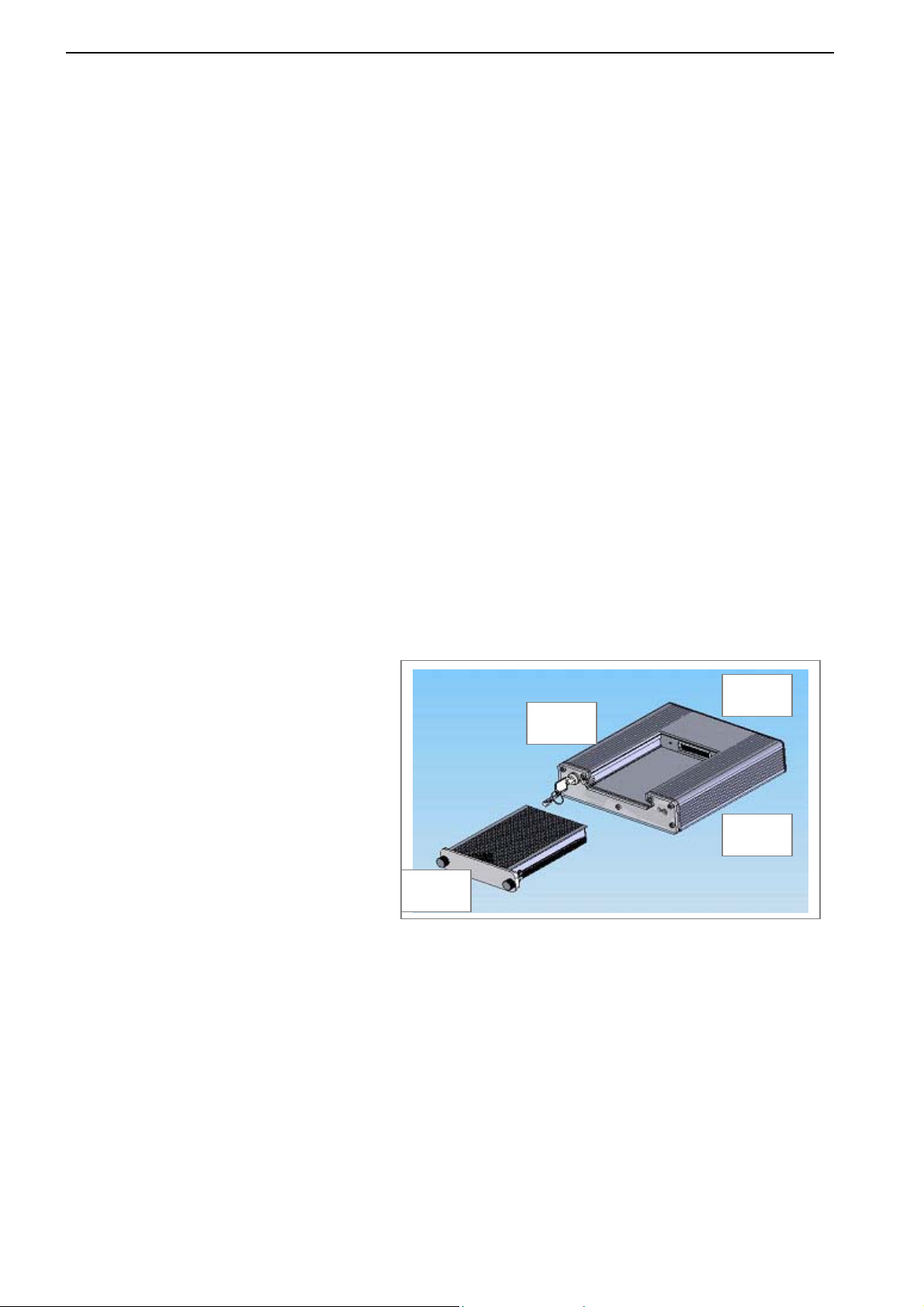
• Removable 2.5" HDD Design + Off-line Player
• CE, FCC, E-mark approval
• Embedded OS, Wavelet Codec
• Dimension: 1 DIN (dash-mount size)
• Power to camera control
Introduction
The MICROJACK MOBILE DVR Embedded/Mobile digital system provides the vehicle security
market a perfect solution for application in harsh environment. The MICROJACK MOBILE DVR
is the smallest DIN designed Vehicle DVR that supports 4 camera inputs. GPS integrated option
and vehicle route tracking; available file export of video and e-map (e.g. Google Map) make it
rugged and perfect all the way with its fanless, international anti-vibration and anti-shock proof.
Page: 3
Page 4

MicroJack Mobile DVR User’s Manual
Operation Manual
Over view
The MicroJack Mobile DVR is an digital recorder for four camera.
The MicroJack Mobile DVR is operationally ruggedised to suit the transport environment.
Video Inputs
4 composite video inputs. 1 volt peak to peak software controlled termination at
75 ohms.
Audio Inputs
Two audio inputs are provided which can individually configured for line put levels or
microphone level inputs. The MicroJack can be configured to operate with either dynamic or
the powered electret type of microphone.
Power Management
Automatic “power on” of unit when detecting ignition voltage.
Software controlled power down of unit after a specified time on detection of user set low
voltage threshold.
GPS
NMEA data recording with optional GPS module
Vehicle Route Tracking
Supports E-map, such as Papa go & Google map
Input Voltage
12 or 24 volt operation supported
Digital Storage
2.5 inch Hard Disk Drive
G Force Detection
On-board detection of inline and lateral G forces
Vehicle Route Tracking
Supports E-map, such as Papa go & Google map
Data Output Format
AVI or JPG
Page: 4
Page 5
MicroJack Mobile DVR User’s Manual
Superior Advantages Setting
-
Day time saving Setting 0, +1
- G-Force setting OFF, High, Middle, Low
- Lowest Temp REC 5C, 0C, ..., -20C~41F~-4F
- Highest Temp REC (fixed) 65C / 149F
GMT Offset Yes
-
Event Log Type Panic, Start, Stop, Alarm, G-Force
-
-
Aft Ignition REC 0~60 mins; if Aft Ignition REC is set to “10”, panic
function also record “10” minutes. If Aft Ignition
REC is set to “0”, panic button when pressing
still can record “1” minute.
-DVR Direction Front, Rear, Right , Left; When installing the unit on
vehicle, DVR direction should be adjusted to define
G-Force.
EX: when driver faces to front side of unit, he should
Adjust direction to “Front”. If driver faces to rear side of
Unit, he should adjust direction to “Rear”.
Left
Rear
Right
Front
-Power management Voltage protection; if vehicle power is 12v, the DVR will
not be turned on when power is detected under 7.86v.
It means power management will keep the lowest
Power for vehicle no matter 12v or 24v.
Page: 5
Page 6

MicroJack Mobile DVR User’s Manual
Table of Contents
Features……………………………………………………………………………………….. 3
Introduction…………………………………………………………………………………….. 4
Overview……………………………………………………………………………………….. 5
Hardware Introduction
8
Remote Controller……………………………………………………………………………… 8
OSD Setup………………………………………………………………………………………. 9
Display Live/Record…………………………………………………………………………….. 10
Way Of Video Output………………………………………………………………………………
12
Off-Line Player…………………………………………………………………………………. 12
Installation And Operation ……………………………………………………………………. 14
Display of Off-Line View……………………………………………………………………….. 15
Control Bar of Off-Line View………………………………….……………………………….. 16
AVI Video Output……………………………………………………………………………….. 17
Image Printing…………………………………………………………………………………… 19
Google E-Map Printing……………..………………………………………………………….. 20
Image Zooming…………………………………………………………………………………. 21
Alarm History Manu…………………………………………………………………………….. 22
Date/Time Search Playback…………………………………………………………………… 22
Page: 6
Page 7
MicroJack Mobile DVR User’s Manual
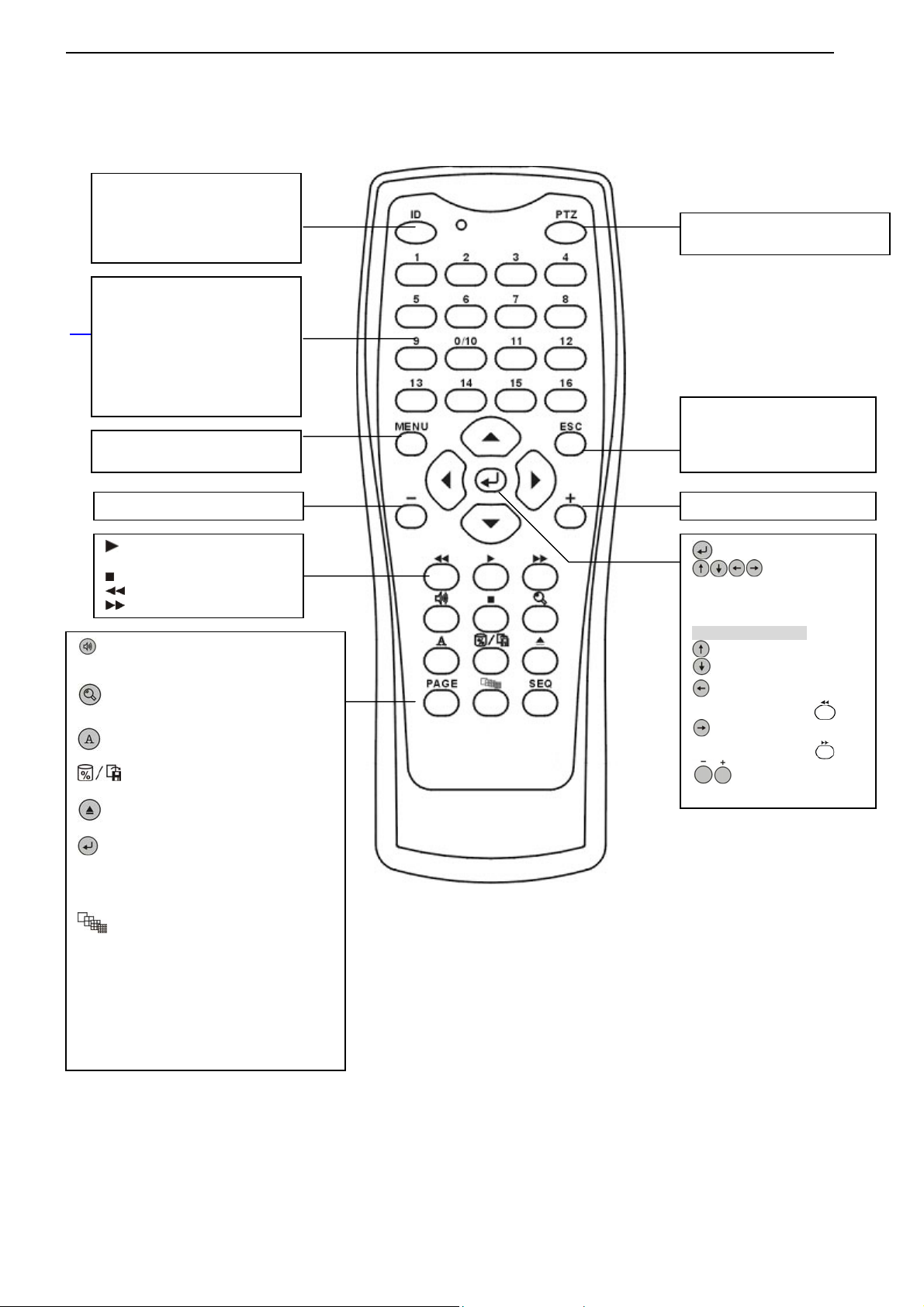
Hardware Introduction
Remote Controller
ID
Switch different Stand Alone DVR
(Press ID+DVR number; press
DVR # before LED being turned
off)
PTZ (N/A for Vehicle 168 DVR)
Enable PTZ Setting
CH buttons and ID insert keys
-Full Screen Display of the
Selected Channel
Back to Contents
-Spot Screen Display of the
Selected Channel (8ch only)
-Alarm Confirmation under Live
Mode
Menu
-On Screen Display (OSD) Setup
Decrease (-) Playback Speed Increase (+) Playback Speed
-Enter Playback Mode
-Play
Stop Playback
Rewind During Playback
-FF During Playback
Audio Output
(Audio1/Audio2/Off/ Audio1,2)
Time Search Function in Playback mode
Enable/Disable the display title
Hard disk usage indicator/Export file
Remove Hard Drive
Enter confirm
PAGE
Switch page of display screen
Change Screen Display
SEQ
Enable Sequence Channel
ESC
-Back to the Previous Page
-Back to Live/REC Mode
-Disable Sequence
Enter
- Up、Down、Left、Right
- Motion area setup
For PTZ Models only:
Up
Down
-Left
-Pan Left (Press )
-Right
-Pan Right (Press
Zoom out/in
.
)
Page: 7
Page 8
MicroJack Mobile DVR User’s Manual
Page: 8
Page 9
MicroJack Mobile DVR User’s Manual
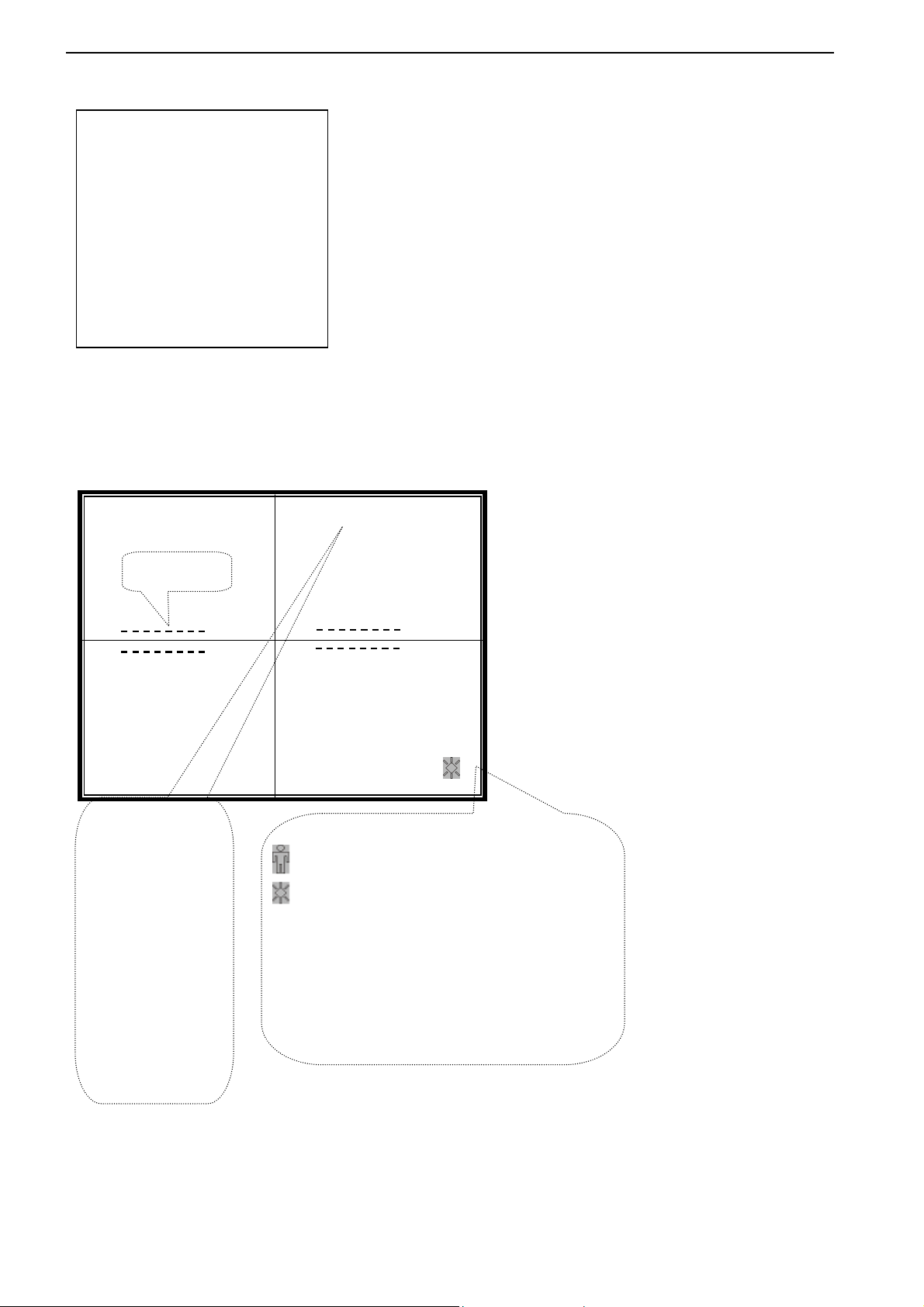
(FAT32 format REC)
WA IT A MOMENT
INTERNATIONAL 1998 – 2006
MicroJack DVR
COPYRIGHT© MicroJack
CAR 1.07E
8BD3
Remote Control
Vehicle DVR 4CH
2004/01/13 13:58:03
Camera Title
120 REC
4 CH REC Rate
(PPS)
NTSC PAL
120 100
60 50
30 25
16 12
8 8
Alarm
Video Loss (WHITE color)
Page: 9
Page 10
MicroJack Mobile DVR User’s Manual
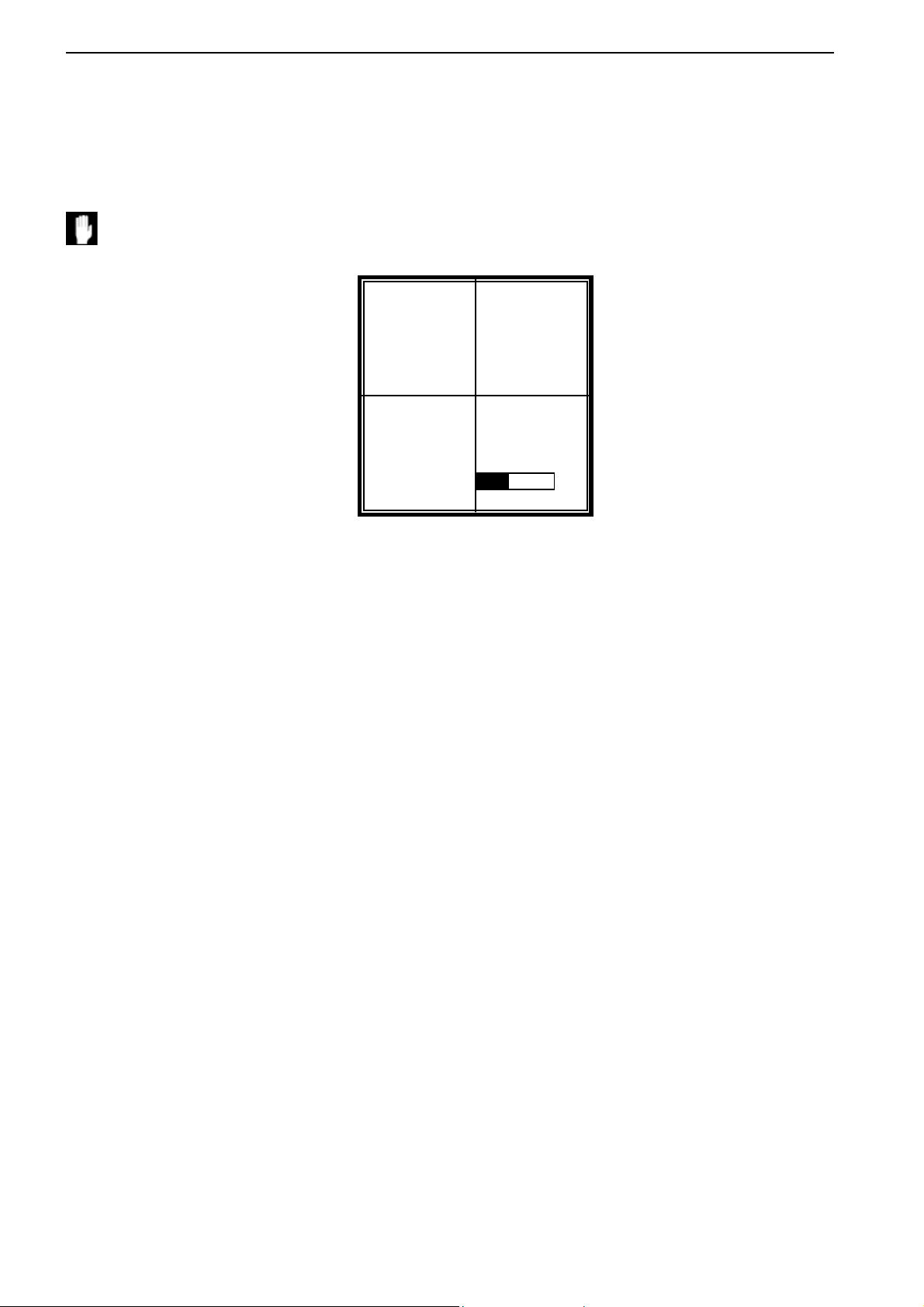
Display of Live/Record
4ch DVR (Remote Control)
Note: If your HDD is full, the HDD will go to “recycle” mode and record continually.
HDD USAGE 41%
(Hard disk usage indicator)
Page: 10
Page 11
MicroJack Mobile DVR User’s Manual
Way of Video Output
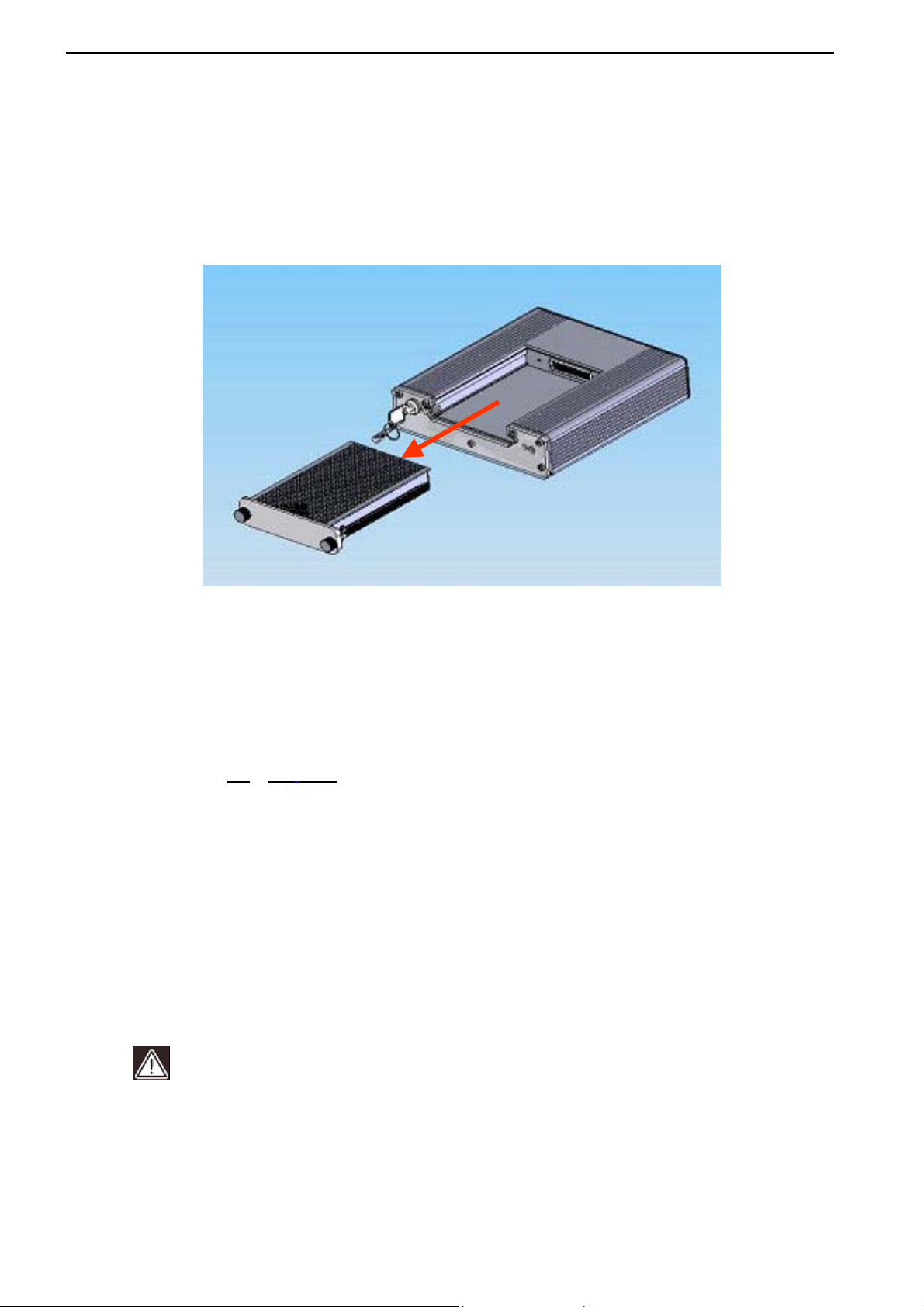
Off-Line playback
1. Via built-in USB 2.0 interface
Take out the hard disk from the MicroJack Mobile DVR and connect to PC via USB 2.0
line.
2. Install the Off-Line viewer into your PC
Recommended PC requirement for OFF-LINE viewer software
Your PC should have the following specifications to use the off-line player software.
CPU:
P3 1.0 GHz or above (preferred P4)
RAM: 256MB or above
Hard drive space: 100MB or more
Operating System: Windows Me and Windows 2000 with Microsoft DirectX9.0
or later,Windows XP with Microsoft DirectX 8.1 or later
IMPORTANT:
For NTSC and PAL the screen resolution should set to 1024x768 pixels or above and
the color quality set to 24Bit or 32Bit for playback on a PC
Page: 11
Page 12

MicroJack Mobile DVR User’s Manual
Data Transfer Rate Table of Different Interface Port
Interface Port Data Transfer Rate Recommended
(Yes/ No)
1 IDE ATA66 66 MB/s Yes
2 IDE ATA 100 100 MB/s Yes
3 IDE ATA 133 133 MB/s Yes
4 USB 2.0 60 MB/s (480M bps) Yes
5 USB 1.1 1.5 MB/s (12Mbps) No
Note:
MB/s = 8 Mbps, e.g.
The first time required for the player to read the files structure and image in the hard
drive.
- USB 1.1: takes 5 to 10 minutes
- USB 2.0: takes 30 seconds
- IDE ATA 100: takes 15 seconds
It is
NOT recommended to use the USB1.1 interface because of its slow transfer rate.
You could upgrade your PC from USB1.1 to USB2.0 by adding “IDE/USB2.0 card” for
desktop or/ PCMCIA/USB2.0 card for notebook PC.
Page: 12
Page 13
MicroJack Mobile DVR User’s Manual
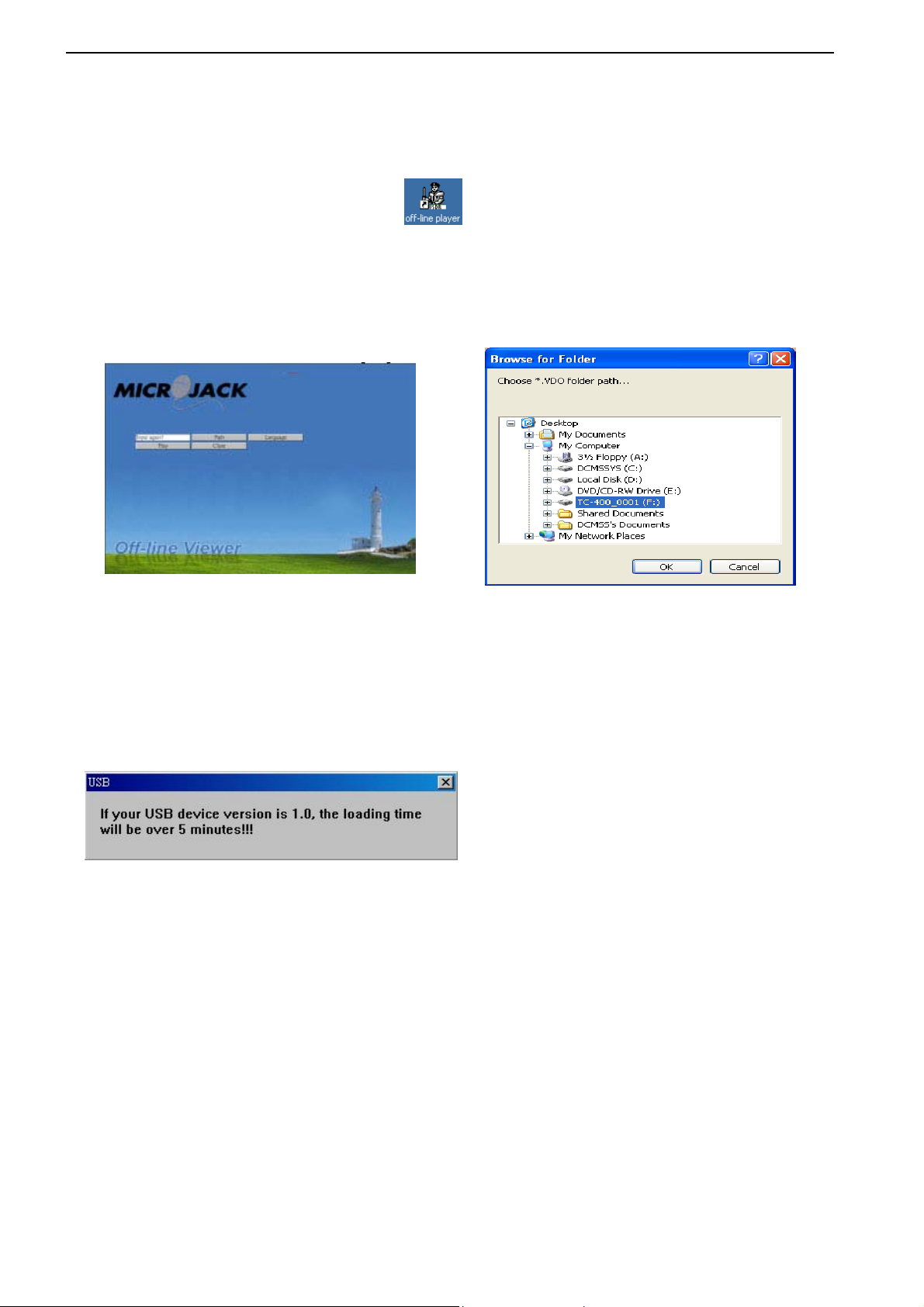
Install the Off-Line software
Insert the supplied manual CD into CD-ROM, and installation program will start
automatically.
After setup is completed, a shortcut
is created on the desktop.
Note: The default E-Map is Google.
Run OFF-LINE viewer software
(double-click the shortcut, and select language on the pop-up window or on the main menu)
Click “Path” the browse for folder shown:
Select the path where the recorded files are located and click on “Play”. (Recorded files
should be in hard drive with label TC-400_0001)
Click “OK”.
Click “Play” a loading dialog box will be shown on screen, and USB message box will be
displayed as below:
Playback screen will be shown after loading is completed.
Page: 13
Page 14
MicroJack Mobile DVR User’s Manual
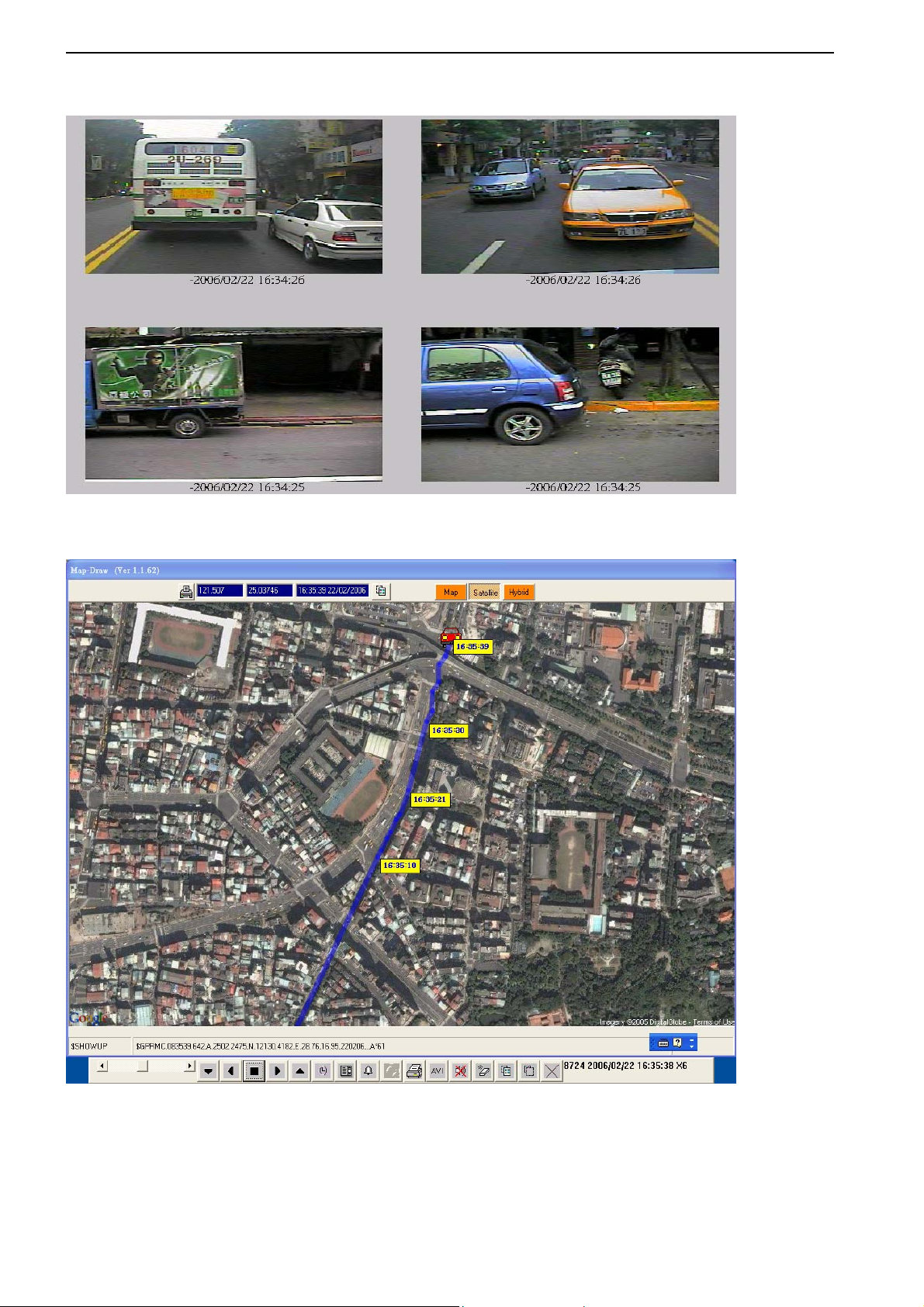
Display of Off-Line View
4CH Recorded video
Google E-Map
Page: 14
Page 15
MicroJack Mobile DVR User’s Manual
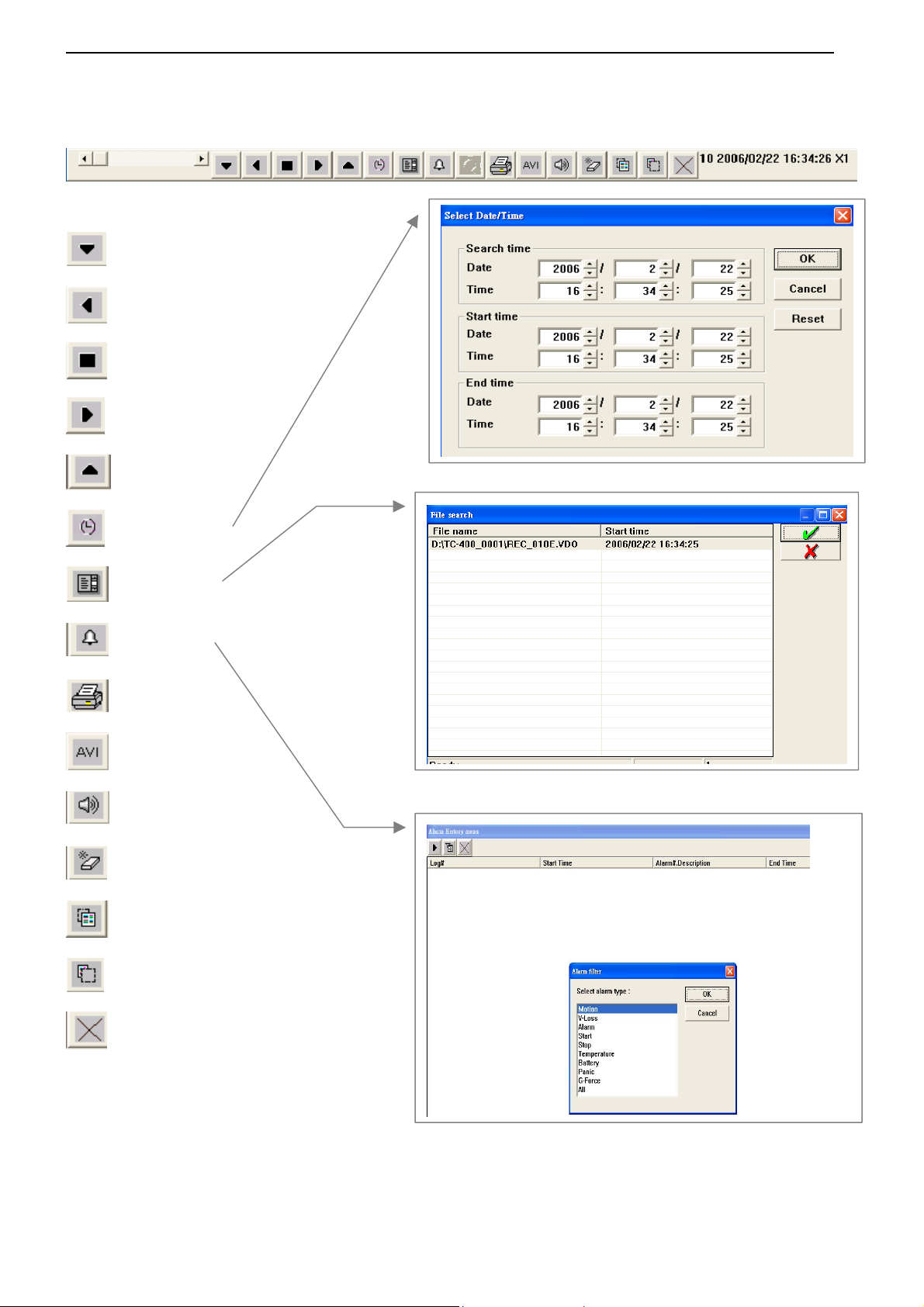
Control Bar of Off-Line View
Speed Down;(Down to 1x)
Rewind
Stop
Play
Speed Up ;(Up to 16x)
Time Search
File Search
Alarm
Print ( print out 4ch images)
AVI Export
Mute(audio1, 2, mute, 1&2)
Clear The Route
Show Up (show E-Map)
Show Down (show 4ch )
Exit
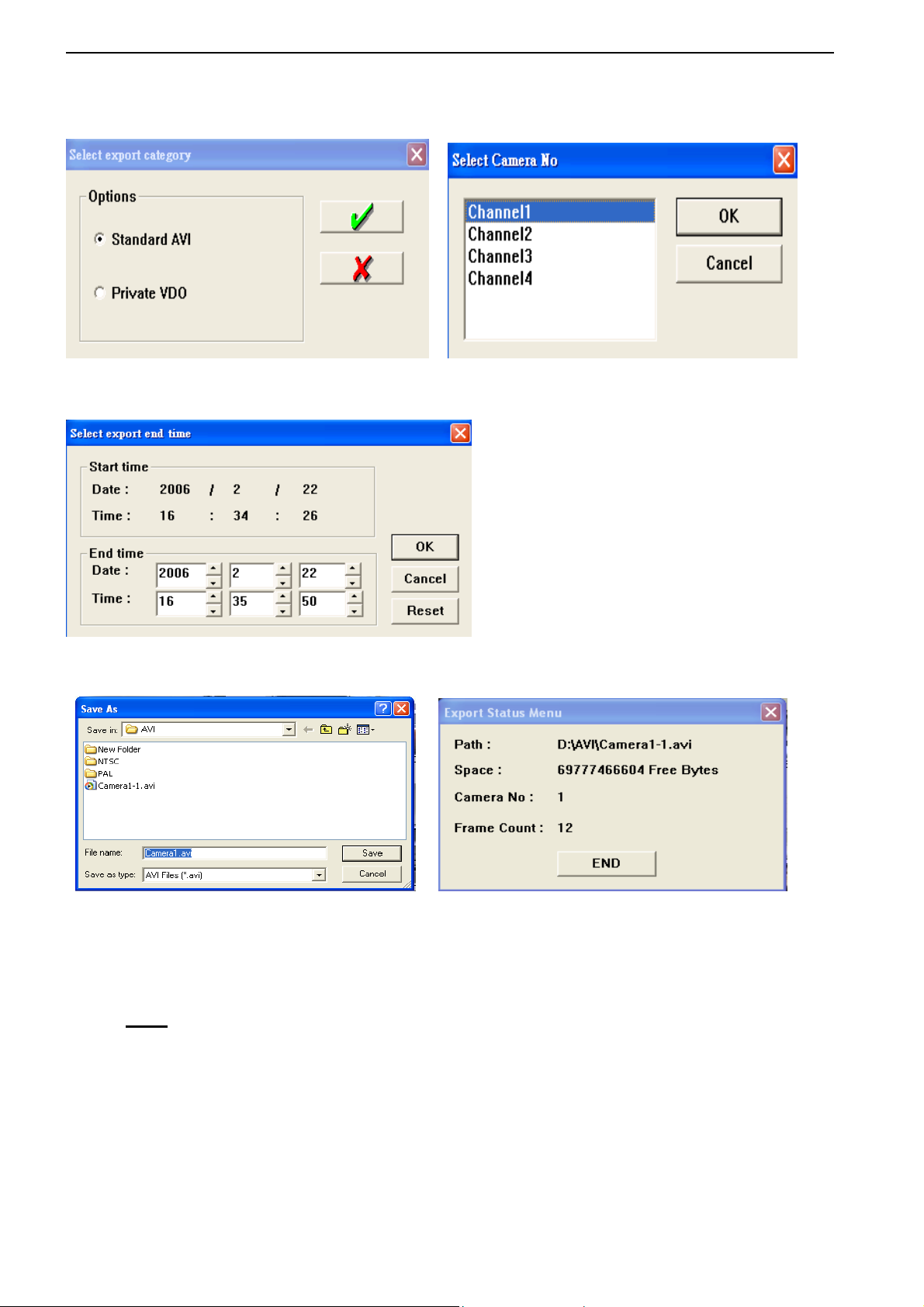
AVI Video output
1. Standard AVI
“Select Camera No.” will be shown when pressing “Standard AVI” button
Choose the record time scale and then press “OK”
Page: 15
Page 16
MicroJack Mobile DVR User’s Manual
1.1 1.2
1.3
1.4 1.5
After pressing “Save” button, the files would be transformed to AVI format automatically
-Play AVI file under Windows Media Player:
Note:
Only Windows XP Media Player can adjust play speed
Windows XP Media Player Play speed settings: Click “View “> “Enhancements” > “Play Speed
Settings”. (As below)
Page: 16
Page 17
MicroJack Mobile DVR User’s Manual
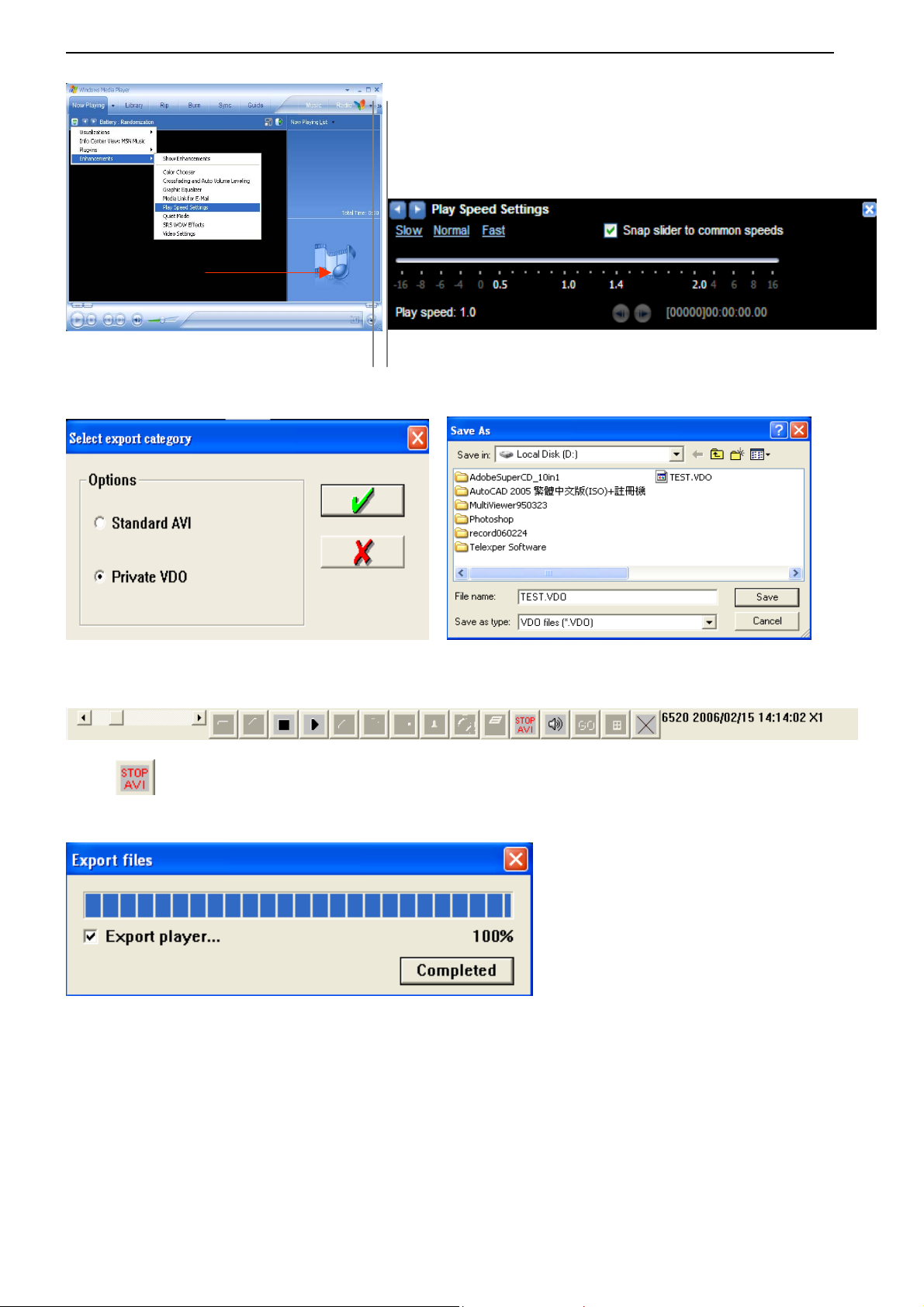
2. Private VDO
2.1 2.2
2.3
Click to export the video you saw
2.4
Note: VDO file can be played in Off-Line view only, Windows XP Media Player doesn’t
support it.
Page: 17
Page 18
MicroJack Mobile DVR User’s Manual
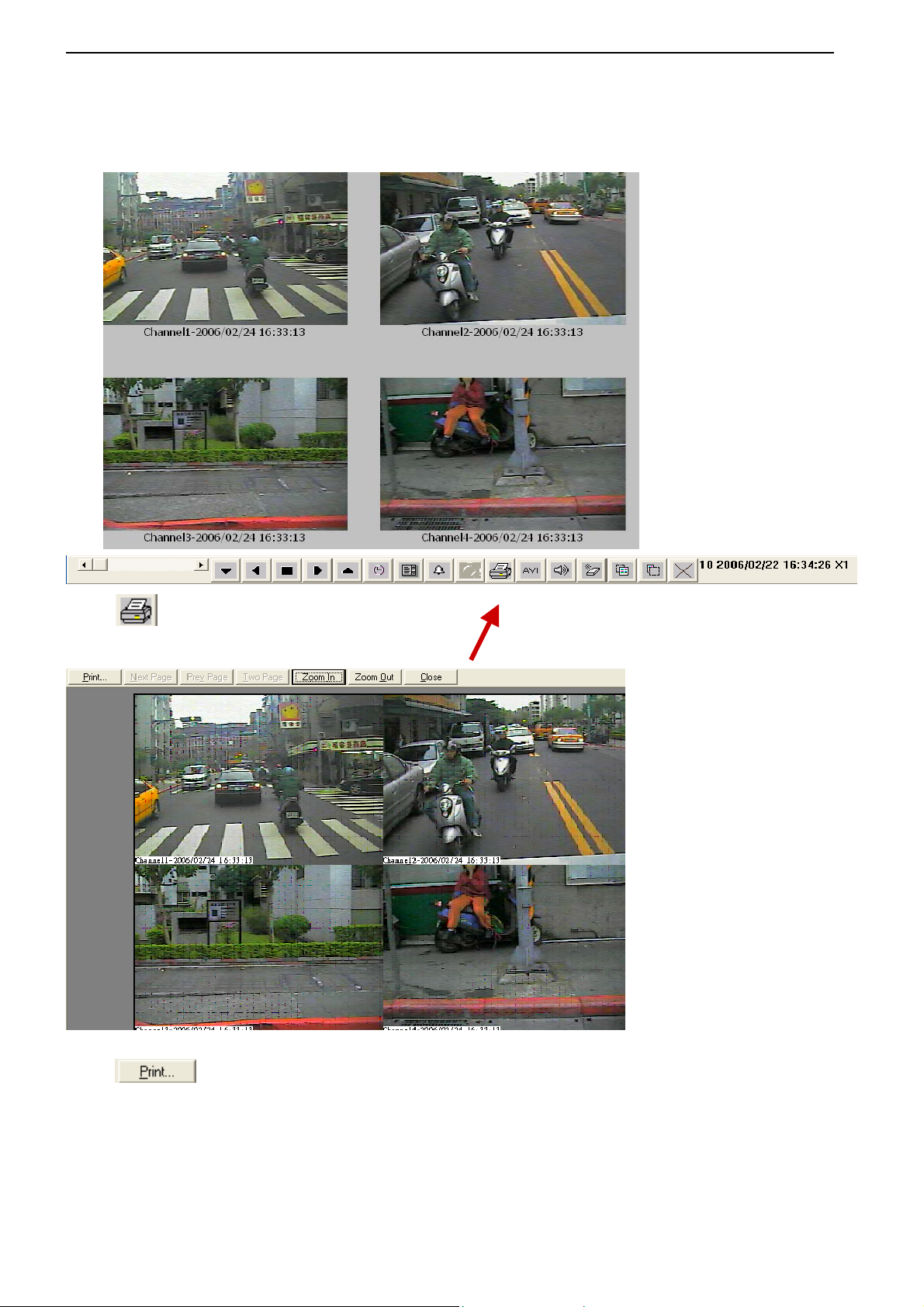
Images Printing
Please make sure your computer has been connected to a functional printer
I.
Click
II.
to go to next step
Click
to print the image
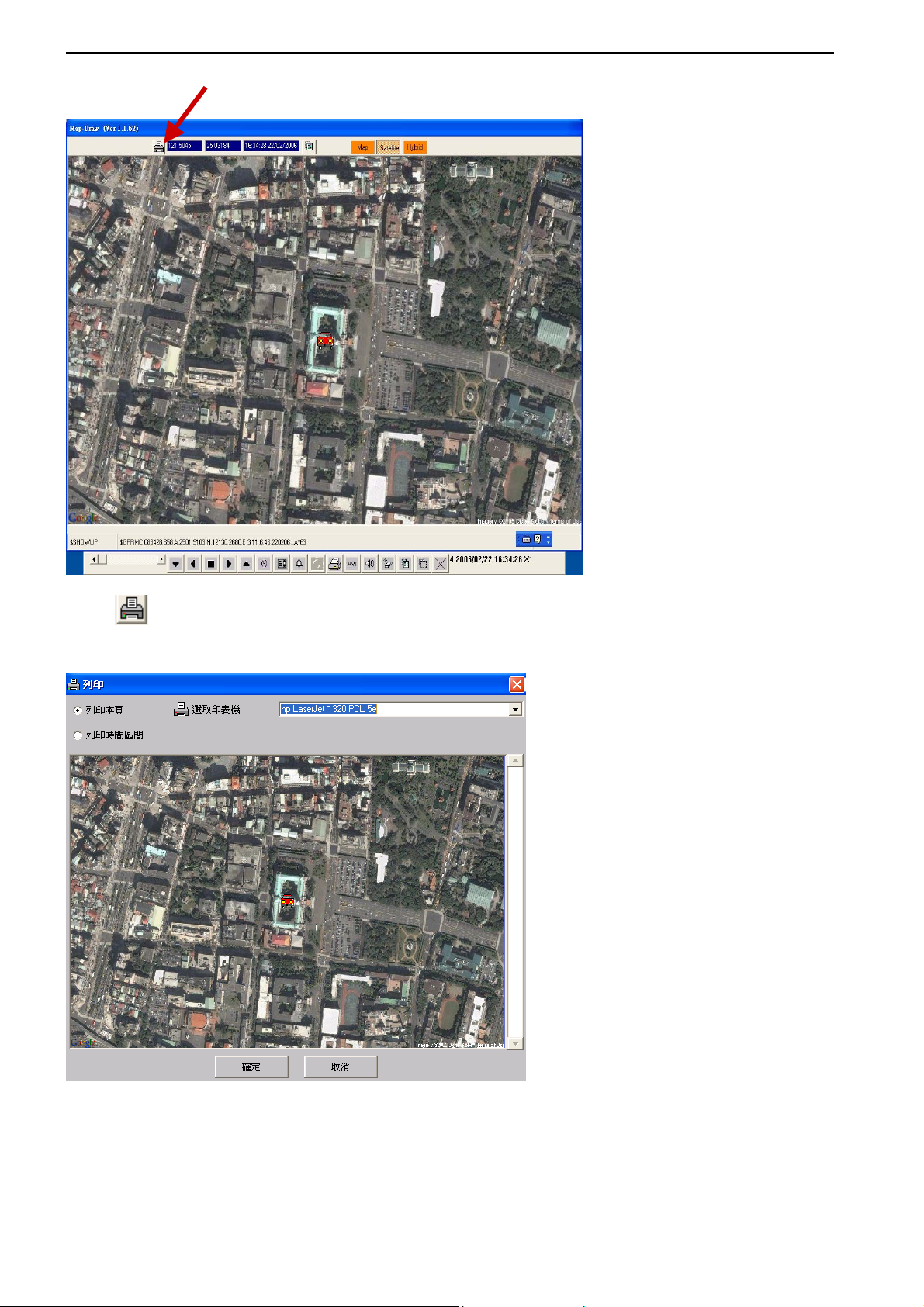
Google E-Map Printing
Page: 18
Page 19
MicroJack Mobile DVR User’s Manual
I.
Click
II.
to go to next step
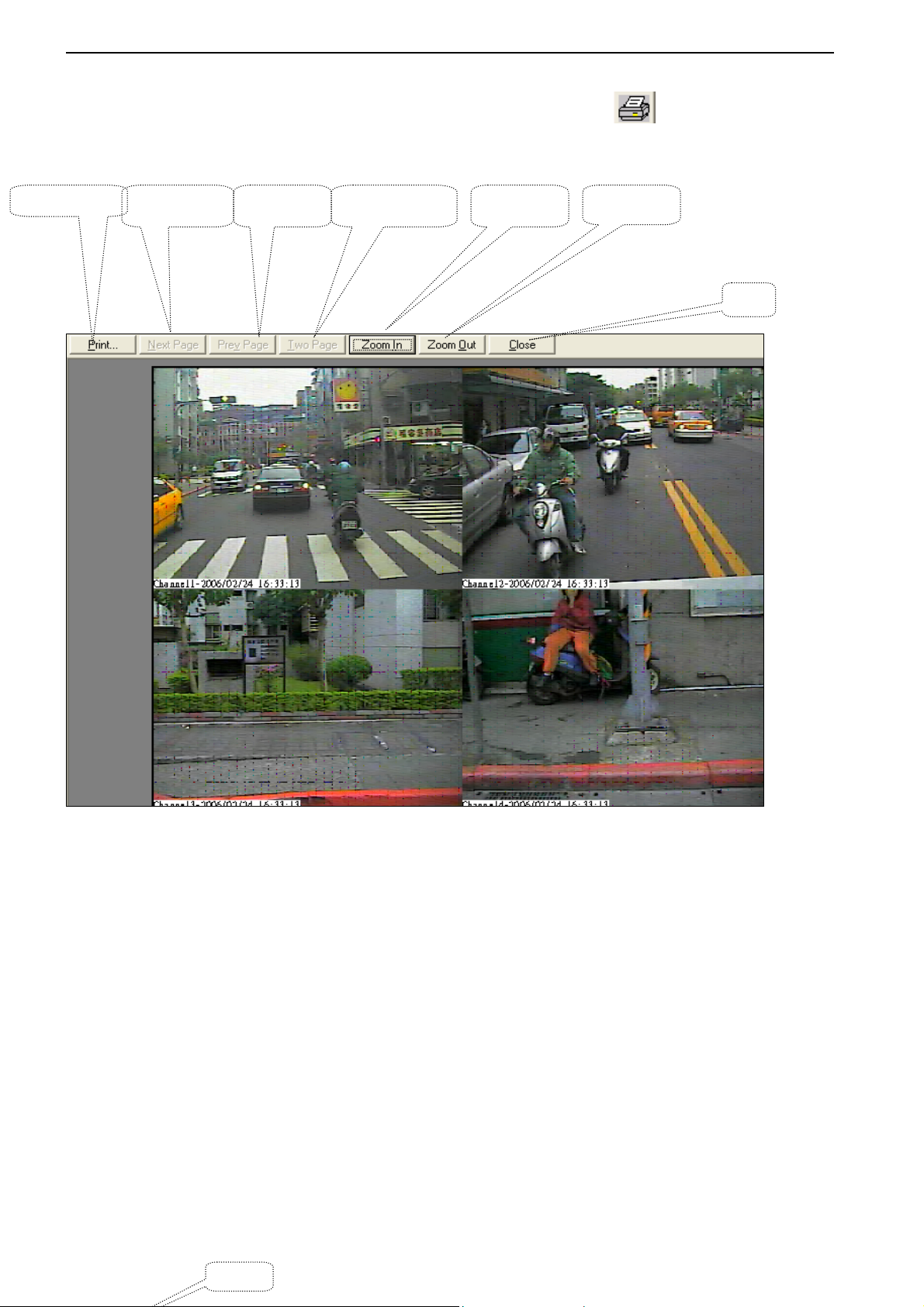
Image Zooming
Page: 19
Page 20
MicroJack Mobile DVR User’s Manual
t
To zoom an image or picture, select the image you want and click on control bar, it will be
displayed as following:
Print Out
Next Page
Pre Page Zoom In Two Page
Zoom Ou
Exit
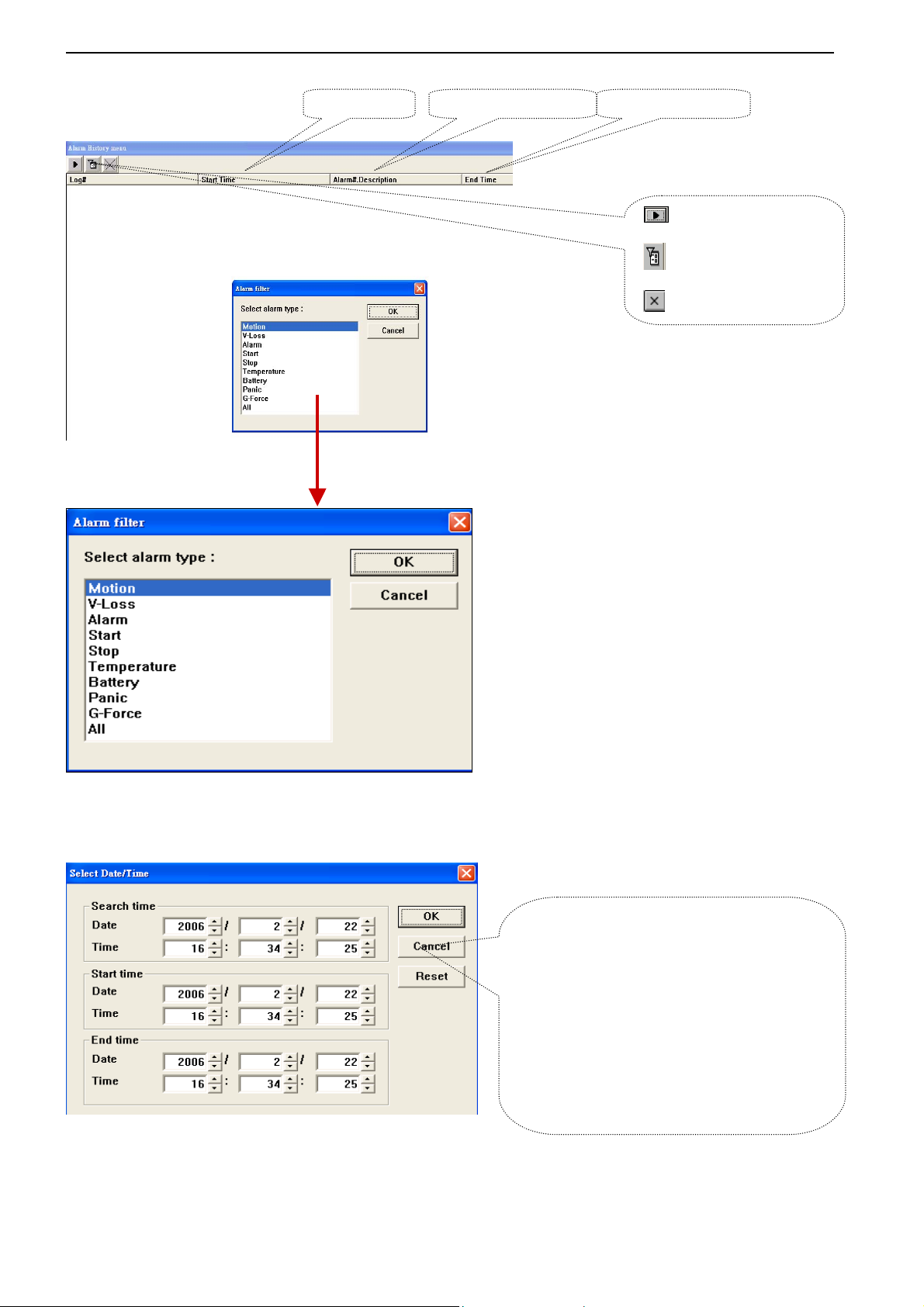
Alarm History Manu
Log #
Page: 20
Page 21
MicroJack Mobile DVR User’s Manual
A
t
Start Time
larm#Description
Ending Time
Alarm Playback
Alarm Filter
Exit
Date/ time Search Playback
Search Time:
The time and date in this section always fall
within the Start Time and End Time
parameters. Enter the time and date press
OK button to search.
Start Time:
Start Time shows the starting time of the
first record file on hard disk.
End Time
End Time shows the starting time of the las
record file on hard disk.
Page: 21
 Loading...