

Page 1
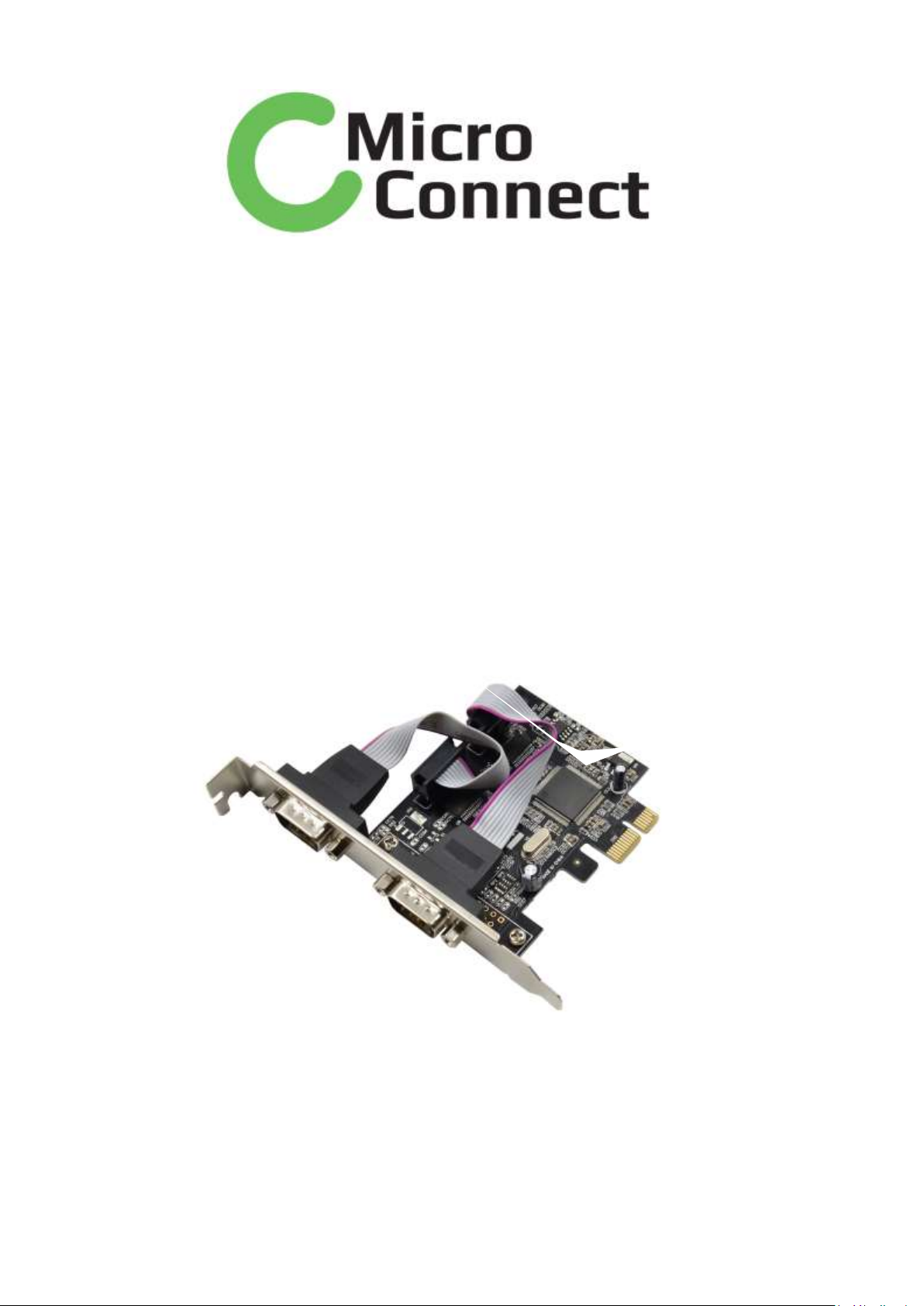
PCI Express MCS9901 2S DB9 Serial RS232-Port
Partnumber: MC-PCIE-MCS2S
Page 2

Product Introduction
This PCI Express card expands your PC by two external serial, also one
external parallel Ports. You can connect devices like scanner, printer,
mouse etc. to the card.
Specification
• 2 x Pin header, with rear bracket with two DB9 RS-232 ports
• 1 x parallel DB25 Port
• Data transfer rate: serial up to 230.4 Kbps, parallel up to 1.5 Mbps
• SPP, PS2, EPP, ECP compatible to IEEE 1284
• compatible with 16C550 UART
• FIFO: 16 byte
• PCI Express x1 Standard
• Supports PCI Express 1.0a Specification
• for Windows DOS.Linux.98/2000/XP/Vista/Win7/Win8/Win8.1,MAC
OS
System requirements
• PC with one free PCI Express Slot and one rear slot
• Windows DOS.Linux.98/2000/XP/Vista/Win7/Win8/Win8.1
Page 3

Package content
• PCI Express card + rear bracket
• Driver CD
• User manual
Hardware Installation
Follow the general instructions for installation of the card. If necessary,
read the manual of your computer, or ask a specialist for help.
1. Turn off your PC, and unplug the power cord.
2. Open the housing.
3. Remove the slot holder from the available PCI Express slot and the
rear slot for the 2 serial ports.
4. Before you can insert the Card into the PCI Express slot, please
connect the 2 ports of the serial rear bracket to the PCI Express card.
5. Insert the card straight and carefully into the free PCI Express slot,
until it is well seated.
6. Use a screw to attach the card to the housing.
7. Fix the rear bracket with a screw also on the housing.
8. Reattach the housing, and connect the power cord to the AC adapter.
9. Switch on your computer.
Page 4

Driver Installation
Windows XP, 2003
1. After installation of the device, and after start of Windows the
Hardware wizard appears.
2. Put the driver CD in the CD ROM drive and click on "next".
3. When driver is located, click “Continue installation or Yes”.
6. Click on "next". Click on "finish".
7. Restart your PC.
8. After restart you can start using the device immediately.
Windows 2000
1. After installation of the device, and after start of Windows the
Hardware wizard appears.
2. Put the driver CD in the CD ROM drive and click on "next".
3. Please choose “Search for a suitable device driver” and click on
"Next".
4. Select the “CD-ROM” option and click on "next".
5. After the driver is located, click on "next". Click on "finish".
6. Restart your PC.
7. After restart you can start using the device immediately.
 Loading...