

Page 1

DVD Premium Pro Series
NET Users Manual
www.microboards.com Version 2.01 NET
Page 2

DVD Premium Pro Series MICROBOARDS TECHNOLOGY, LLC
2
Page 3

DVD Premium Pro Series MICROBOARDS TECHNOLOGY, LLC
TABLE OF CONTENTS
System Overview..................................................................................................5
Unpacking your system.........................................................................................5
Microboards Statement Regarding Improper Duplication .....................................5
Installation Requirements .....................................................................................6
Power Supply Requirements ................................................................................6
Connecting Master and Slave Towers ..................................................................7
Microboards NET Configuration............................................................................8
Configuration Options ...................................................................................8
Basic Configuration.......................................................................................8
Advanced Configuration................................................................................9
Stand-Alone Operation .................................................................................9
Loading media ......................................................................................................9
Main Menu ..........................................................................................................10
Copy Disc to Disc................................................................................................11
Registering Data to the Hard Drive (HDD) ..........................................................11
Copy Hard Drive (HDD) to Disc ..........................................................................12
Clearing the Hard Drive (HDD) ...........................................................................12
Simulation Disc to Disc .......................................................................................13
Erasing RW media ..............................................................................................13
Track Extraction (for CD ONLY)..........................................................................14
Error status in Track Extraction:..................................................................15
Setup Menu ........................................................................................................16
Mode Select................................................................................................17
DVD WR Speed..........................................................................................17
CD WR Speed ............................................................................................17
ISRC Check ................................................................................................17
Auto Run.....................................................................................................17
Copy Quantity .............................................................................................17
Session Mode .............................................................................................17
Reader Select .............................................................................................17
Drive Inquiry................................................................................................17
F/W Version ................................................................................................17
F/W Update.................................................................................................17
NET Reboot ................................................................................................17
Log..............................................................................................................17
Error Codes ........................................................................................................18
Specifications...................................................................................................... 22
Supported Formats .............................................................................................22
Firmware Updates...............................................................................................22
Technical Support ...............................................................................................23
3
Page 4

DVD Premium Pro Series MICROBOARDS TECHNOLOGY, LLC
4
Page 5

DVD Premium Pro Series MICROBOARDS TECHNOLOGY, LLC
System Overview
The DVD Premium Pro NET Series employs 10 General Purpose DVD-+R/DL recorders in each
tower, with the ability to have all connected drives duplicating from a single master. The hard
drive comes standard with each tower and allows for DVD/CD image archival and CD track
extraction for CD audio compilations.
An intuitive, menu driven
display and 5-button control
interface provide one-touch
operation for the novice user
while providing advanced
features for the professional.
Advanced Features:
• 20-drive simultaneous burn from one master in NET mode
• Stand-Alone DVD-+R/RW/DL / CD-R duplicator
• One Touch duplication
• Auto Run option
• Speed selectable (1x to 16x for DVD-+R and 4x to 48x for CD-R)
• Supports writing to DVD-+R/RW/DL, CD-R/RW
• Copy and Verify
• Hard drive comes standard for standalone DVD/CD image archival and CD track
• Store multiple hard drive images
• Counter feature allows the user to input how many discs need to be copied and
• Automatically detects DVD or CD masters
• Simulation mode to ensure recording stability
• Easy-to-read, two-line display for status and error reporting
• Updates easily installed through DVD/CD reader
extraction for audio compilation CDs
the keeps track of the total discs completed.
COPY START
(DISC to DISC)
Unpacking your system
When unpacking your duplicator, confirm the following items are included:
• DVD Premium Pro Series duplicators (minimum of 2)
• Power cable
• NET connection cabling with each Slave tower
• Microboards Starter Kit, Connection and Configuration Guides, and Documentation CD
If any of these items are missing, please contact or Microboards Technology Technical Support at
952-556-1639.
IMPORTANT: Please keep all the packing for your DVD Premium Pro Series duplicator. If your
unit ever needs to be sent in for service, it must be returned in the original packing or the
warranty will be voided.
Microboards Statement Regarding Improper Duplication
Microboards Technology fully supports the right of any business, organization, group, or
individual to protect their property from unlicensed, unauthorized, or illegal duplication.
As a user of our equipment, we expect you to support that right as well.
Microboards Technology is neither responsible nor liable for the infringement of any laws
regarding the illegal duplication of property. Microboards Technology products are in no way
intended to encourage or condone such duplication.
5
Page 6

DVD Premium Pro Series MICROBOARDS TECHNOLOGY, LLC
Installation Requirements
System Setup
• Connect the power cable to the DVD Premium Pro Series tower and plug in to a
protected power outlet strip or UPS power supply.
• Connect the 2 towers using the NET cable provided (see page 7 for more information).
o The left port on the back is the IN port, and the right is the OUT port; the Master
tower should have the NET cable plugged into the OUT port, and the Slave
should have the cable plugged into the IN port.
o If more than 2 towers are being connected, connect the OUT port in the first
Slave to the IN port of the next. In the final chain of towers, the Master wil have
only the OUT port used, while the final tower will have only the IN port used.
• Turn on power to the towers. The system is now ready to be configured (see page 8).
Install your DVD Premium Pro Series duplicator in the following environment:
• On a level and stable surface
• In a well ventilated location
• Temperature and humidity
• Temperature: 5-40°
• Humidity: 20-80%RH (no dew formation)
Do not install it in the following places:
Under direct sunlight (If the machine is exposed to sunlight, the light should be blocked
by a curtain or blind.)
A dusty location
A place where there is a lot of vibration
Near open flame
A place where the temperature and humidity change drastically
Near a heating device such as a heater or furnace
A location where air from an air conditioner blows directly onto the unit
Near a container filled with water
In winter during times of low humidity or in a location where static electricity is
generated, use an anti-static-electricity mat or humidifier to prevent static electricity.
Power Supply Requirements
Each tower can draw up to 3 amps of current during normal operation. It is highly
recommended that your towers operate on a dedicated circuit with a maximum of 4
towers for each 15 amps of current. Overloading a circuit will cause failures.
Use house current as the power source for the unit.
Do not use an outlet near a motor driven appliance (i.e. air conditioner, copying
machine).
Use an outlet with stable power supply voltages.
Do not overload an outlet. Do not use a service outlet from a PCs or other office
machine.
Wire the power cord properly.
Do not touch the power cord with a wet hand.
Be careful not to damage the power cord.
Inspect the power cord periodically.
In the event that the power cord is damaged, replace the power cord.
Be sure to use a tool such as the screwdriver to change the 115/230V Switch.
Do not use your finger.
6
Page 7
DVD Premium Pro Series MICROBOARDS TECHNOLOGY, LLC
Connecting Master and Slave Towers
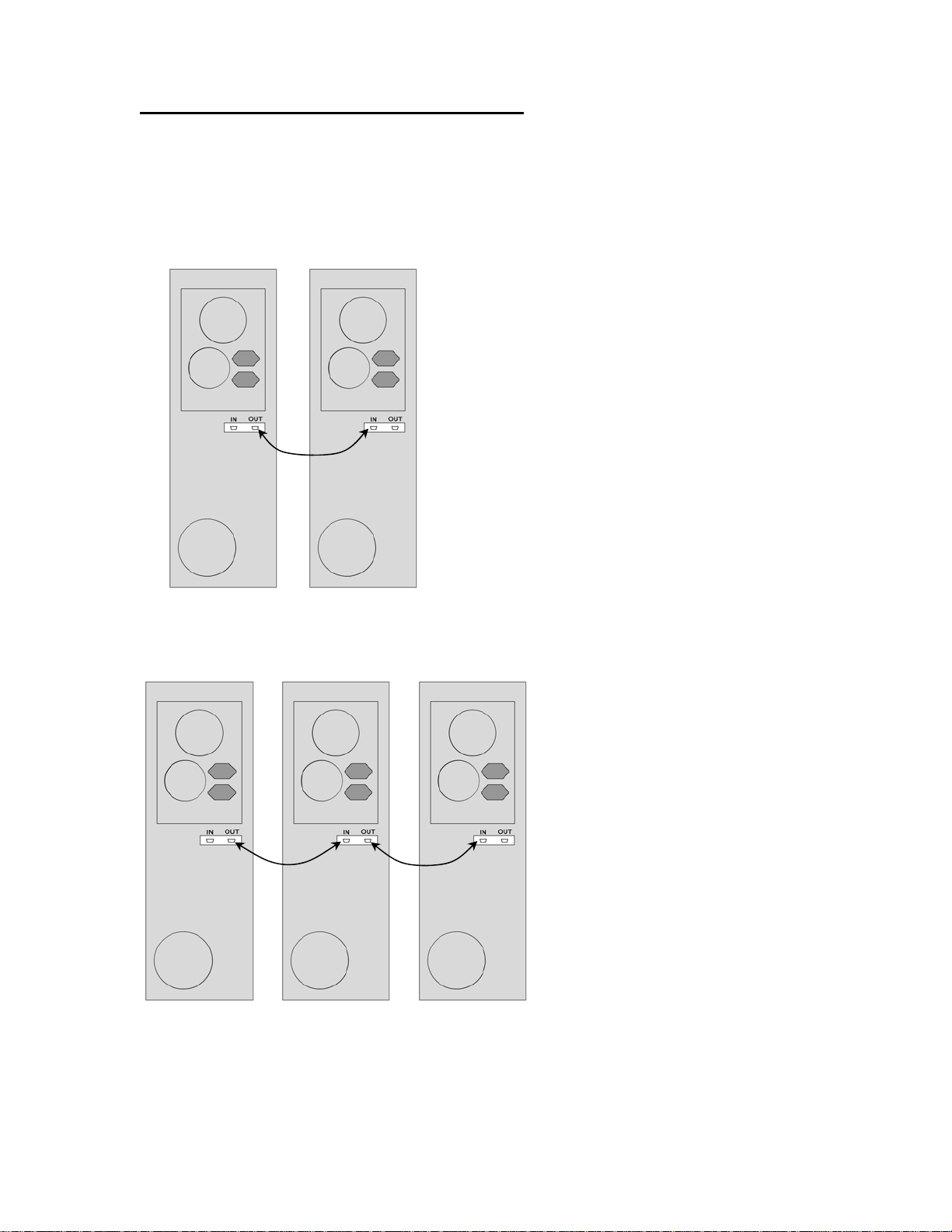
The Microboards DVD Premium Pro NET tower line requires a physical connection between the
towers. A tower will be designated as a Master or as a Slave tower initially based solely on the
configuration of the connection.
The directions below give 2 connection scenarios: a 2-tower configuration, and a Multi-Tower
configuration. Please use the appropriate instructions based on the number of towers you have.
The diagrams below show the backs of the towers.
For the 2-Tower configuration, connect the OUT port of
one tower to the IN port of the other using the provided
cabling. Whichever tower is connected by the OUT
port will become the Master tower. The tower that is
connected by the IN port other will become the Slave
tower.
Once the towers are turned on and initialized, press
Master
Tower
Slave
Tower
2-Tower Configuration
Master
Tower
Multi-Tower Configuration
Slave
Tower
One
YES on the Master tower to enter NET mode.
For Stand-alone operation, press NO on both the
Master and Slave when the configuration display is
showing. Each tower will then operate as an
independent tower.
To return to NET mode, you will need to restart both
towers.
For Multi-Tower configuration (3 towers
are shown here), select one tower as
the Master and connect one end of one
of the provided cables to the OUT port
on the Master tower and the other end
to the IN port on Slave Tower One.
Plug the next cable to the OUT port of
Slave Tower One and to the IN port of
Slave Tower Two.
If you have more than 3 towers,
Slave
Tower
Two
continue to connect the remaining
towers in the same fashion. The last
tower will only have a cable connected
to the IN port.
Once the Master and Slave towers
have initialized, the displays will give
you the configuration options.
7
Page 8

DVD Premium Pro Series MICROBOARDS TECHNOLOGY, LLC
2
5
Microboards NET Configuration
The Microboards NET configuration allows you to connect multiple 10-drive tower duplicators.
They can function together as a single duplicator with 10 drives per tower for ultra high-quantity
production, or can operate independently as stand-alone duplicators, each copying from a
different master.
It does not matter which tower is set as the Master; the only restriction is that one tower of the
chain must have the NET cable connected to the Out port only. The last tower in the chain will
only use the In port.
Configuration Options
To set the Multi-Tower configuration, turn on power
to all of the connected towers and wait for the
configuration options to be displayed, as shown to
the right.
The exact display message and configuration
options on each tower will depend on the location of
that tower in the chain.
Once the configuration has been selected, you must
either power cycle all towers or run the Net Reboot
on all Master towers to change the configuration.
The display of any Master or Stand-Alone tower will initially read COPY
START when it is ready for duplication. The control panel on Slave towers
is disabled.
NET MASTER
YES: SET MASTER
Master Displ ay alternates
between these messages
NET SLAVE 1
YES: SET
MASTER
First Slave Display, additional Slave
towers show Slave number sequentially
NET MASTER
NO: STANDALONE
NET SLAVE 1
NO: STANDALONE
NET SLAVE X
NO: STANDALONE
Final tower in chain
Basic Configuration
The most basic configuration would be to set the first tower as the Master with the remaining
towers as Slaves. For this configuration, you would only need to press the YES button on the
Master tower when the configuration options are showing.
NET
Master
The result with a six-tower configuration is shown above. Only the reader and hard drive on the
NET Master will be available as source drives.
Net Reboot and Basic Configuration
To run the Net Reboot, press either the ▲or ▼ button until the display reads SETUP. Press the
YES button, then press either the ▲or ▼ button until the display reads NET REBOOT. Press
YES and all towers will reboot.
NET
Slave 1
NET
Slave
NET
Slave 3
NET
Slave 4
NET
Slave
8
Page 9

DVD Premium Pro Series MICROBOARDS TECHNOLOGY, LLC
2
2
Advanced Configuration
If, however, you wish to operate them as two 3-tower Master/Slave groups, simply press the YES
button on the tower on which the Configuration Options display reads NET SLAVE 3. This will
cause all towers following this tower to be slaved to that tower. The YES button on the first tower
must also be pressed to slave towers 2 and 3 to the first tower. The reader and hard drive in the
NET Master towers of both groups can be used for duplication to the connected Slave towers.
The resulting Master/Slave configuration is shown below.
NET
Master
NET
Slave 1
NET
Slave
NET
Master
NET
Slave 1
NET
Slave
Group A Group B
This can be done in any combination of towers. However, you must set the Master/Slave
configurations starting with the last master you want to set, following the tower chain from the end
to the beginning.
You do not need to disconnect any towers to change the Master/Slave configuration.
Net Reboot and Advanced Configuration
To run the Net Reboot, press either the ▲or ▼ button until the display reads SETUP. Press the
YES button, then press either the ▲or ▼ button until the display reads NET REBOOT. Press
YES and all towers slaved to that Master will reboot. In the example above, the Net Reboot
would need to be run on both the Group A Master tower and the Group B Master tower for all 8
towers to reboot.
Stand-Alone Operation
For all towers in the chain to operate in Stand-Alone mode, the NO button must be pressed on
each tower to select Stand-Alone mode. The order in which this is done does not matter.
You can combine Stand-Alone and Advanced Configurations. After start-up in the example
above, pressing YES on NET SLAVE 4, NO on NET SLAVE 3, and YES on the NET MASTER
tower would create 3 groups: Group A with 3 towers, Group B as a single Stand-Alone tower, and
Group C with 2 towers.
Net Reboot and Stand-Alone Operation
When in Stand-Alone Operation, the Net Reboot option does not appear in the Setup menu.
Each tower will need to be power cycled manually.
Loading media
To automatically eject all empty recorder drives in all connected towers, simply load your master
disc and press the YES button when the display reads COPY START. This will eject all drives
that have not had media loaded. When all drives are loaded and the drive LEDs turn off,
duplication will automatically begin.
If you do not need to burn a copy in each recorder drive, load the number of drives necessary,
close those drives, and wait for the drive LEDs to turn off. Press the YES button, and any open
trays will automatically close but be considered empty.
9
Page 10

DVD Premium Pro Series MICROBOARDS TECHNOLOGY, LLC
Main Menu
The Arrow buttons (▼▲)allow you to move forward or backward in the menu without selecting
the current menu item. The NO button will move you to the next menu item. YES will select the
current menu item.
COPY START?
MASTER SELECT?
(DISCtoDISC)
SIMULATION?
(DISCtoDISC)
ESC
DISC ERASE?
(REWRITABLE)
ESC
Trk EXTRACTION?
(DISCtoHDD1)
ESC
SETUP?
(MODE CHANGE)
ESC
NO,▼
NO,▼
NO,▼
NO,▼
NO,▼
NO/ESC
YES
INSERT
MASTER DISC TARGET DISC (DISCtoDISC)
YES
>READER?
(DISCtoDISC)
NO,▼
>HDD1? CD-DA
(HDDtoDISC)
NO,▼
>HDD2?
(DISCtoHDD/DISC)
NO,▼
>HDDX? CD-DA
(HDDtoDISC)
NO,▼
>MASTER CLEAR?
NO,▼
>EXIT?
NO,▼
YES
INSERT
MASTER DISC
YES
>QUICK ERASE?
NO,▼
>QUICK ERASE?
NO,▼
>EXIT?
NO,▼
YES
EXTRACTION OK?
NO,▼
YES
SETUP MENU
(see pg 14)
INSERT ANALYZING MASTER
MASTER DISC
INSERT ANALYZING MASTER
>HDD1? 15:26
(HDDtoDISC)
YES
REGIST 15:26
CD-DA 20%
>HHDX? 15:26
(HDDtoDISC)
YES
>>HDD1 CLEAR?
NO,▼
>>HDDX CLEAR?
NO,▼
>>EXIT?
INSERT
TARGET DISC
SURE ? DISC ERASE
YES
YES
SURE ? DISC ERASE
YES
COPY START?
COPY START?
COPY START?
YES
>HDD1?
YES
>HDDX?
ANALYZING MASTER
YES
Please wait...
YES
Please wait...
EXTRACT THE Trk?
TRK 01/12
EXTRACT THE Trk?
TRK 12/12
END EXTRACTION?
COPY TO HDD OK?
NO
(HDD2toDISC)
YES,NO,▼,▲
YES,NO,▼,▲
(HDD1toDISC)
(HDDXtoDISC)
(HDDtoDISC)
(HDDtoDISC)
YES
COPY 15:26
CD-DA 20%
INSERT
TARGET DISC
INSERT
TARGET DISC
INSERT
TARGET DISC
SIMULATION 15:26
CD-DA 20%
YES = execute the selected track
NO,▼,▲ = skip track
NO,▼
YES
REGIST 15:26
CD-DA 20%
COPY 15:26
CD-DA 20%
COPY 15:26
CD-DA 20%
COPY 15:26
CD-DA 20%
NEXT MASTER
NO
COPY START
(HDD1toDISC)
YES
COPY
MENU
10
Page 11

DVD Premium Pro Series MICROBOARDS TECHNOLOGY, LLC
Copy Disc to Disc
1. Place the Master Disc into the Reader drive.
Place the blank disc(s) into the Recorder drive(s) and wait 10 seconds for the light(s) on
the front of the Recorder(s) to stop blinking. Note that the blanks must be of the same
media type as the master; you cannot copy a CD master to DVD’s, for instance.
2. The display reads COPY START? (DISC to DISC).
Copy Start?
(DISC to DISC)
3. Press YES. If you have the Auto Run feature set to ON, the duplication will begin when
the master is loaded and all drives are loaded with blank media.
4. The drive trays will open on any recorder without blank discs installed. If you do not want
to make a copy in those drives, close the tray(s), wait for the drive light to go out, and
then press the YES button to start the copy job.
5. The display will now show the progress of the Copy Job.
COPY 4.0GB
DVD 25%
6. The Recorder(s) will eject the recordable discs when the job is complete.
Registering Data to the Hard Drive (HDD)
When registering data to a partition on the internal hard drive, you do have the option of
recording to the blank media as well. In the SETUP menu, go to “Copy DISC to HD/DISC”
and change the setting from OFF to ON. This will allow the data from the master disc to be
copied to the internal hard drive, as well as any blank discs you have in the recorders. See
page 14 for a description of the SETUP menu.
1. At the COPY START? (DISC to DISC) menu, press the NO or ▼ button until the display
shows MASTER SELECT? (DISC TO DISC)
MASTER SELECT?
(DISC to DISC)
2. Place the Master disc into the Reader drive.
3. Press the YES button.
4. The display will show:
READER?
(DISC to DISC)
5. Press the NO or ▼ button
6. The display will now show:
HDD1?
(DISC to HDD)
7. If you wish to copy the data to the 1
8. If you wish to select another partition, press the NO or ▼ button.
HDD1?
(DISC to HDD)
9. By continuing to press the NO or ▼ button, you will scroll through the different HDD
partitions. Once you are at the partition you wish to use, press the YES button.
10. The display will now show the progress of the data being transferred to the hard drive:
REGISTER 4.0GB
DVD 25%
st
partition, press the YES button.
11
Page 12

DVD Premium Pro Series MICROBOARDS TECHNOLOGY, LLC
11. Once the Master disc has been copied to the HDD, the Reader drive will eject the disc.
When you go back into the MASTER SELECT? Menu, and select a partition with data
stored on it, the display will show the type of data (ROM or Video) and the capacity of
that data. Proceed to COPY HDD TO DVD section.
Copy Hard Drive (HDD) to Disc
1. Follow the instructions on page 10 to register the Master to the HDD.
2. Press to NO or ▼ button until the screen displays
MASTER SELECT?
(DISC)
3. Press the YES button.
4. The display will show READER.
5. Press the NO or ▼ button and the display will show HDD1. If this is the hard drive
partition you wish to copy, press the YES button.
6. The screen will display COPY START? (HDD1 to DISC)
COPY START?
(HDD1 to DISC)
7. If you wish to select a different hard drive partition, press the NO or ▼ button in step 5,
unit the display shows the partition you wish to copy.
8. Place the blank disc(s) into the Recorder(s) and wait 10 seconds for the light(s) on the
front of the Recorder(s) to stop blinking.
9. Press the YES button. If you have the Auto Run feature set to ON, the duplication will
begin when all drives are loaded with blank media.
10. The drive trays will open on any recorder without blank discs installed. If you do not want
to make a copy in those drives, close the tray(s), wait for the drive light to go out, and
then press the YES button to start the copy job.
11. The display will now show the progress of the copy job from the HDD to the Recorder(s):
COPY 4.0GB
DVD 25%
12. After the Copy job is complete, the disc(s) will be ejected from the Recorder(s).
Clearing the Hard Drive (HDD)
The Master Clear option will not appear if there is no information stored on any of the hard drive
partitions.
1. At the COPY START? (HDD1 to DISC) menu, press the NO or ▼ button until the display
shows MASTER SELECT? (HDD1 to DISC).
2. Press the YES button.
3. The display will show:
READER?
(DISC to DISC)
4. Press the NO or ▼ button until you the screen displays MASTER CLEAR? (HDD):
MASTER CLEAR?
(HDD)
5. Press the YES button
6. You can now select which hard drive partition to erase. Pressing the NO or ▼ button will
scroll you though the partition selections.
12
Page 13

DVD Premium Pro Series MICROBOARDS TECHNOLOGY, LLC
7. Press the YES button if you are sure you want to clear the HDD.
8. The hard drive will now be cleared and you will be asked if you want to register another
master to the HDD.
>HDD1?
(DISC to HDD)
9. Press YES and the Reader drive will eject and you can insert another master to register
to the HDD.
REGISTER 4.0GB
DVD 25%
10. Press NO and to exit this menu without registering data to the hard drive partition.
Simulation Disc to Disc
Important: Simulation is not allowed when using DVD+R/RW media.
1. At the COPY START? (DISC to DISC) menu, press the NO or ▼ button until the display
shows SIMULATION? (DISC to DISC).
SIMULATION??
(DISC to DISC)
2. Place the Master Disc into the Reader drive
3. Place the blank disc(s) into the Recorder drive(s) and wait 10 seconds for the light(s) on
the front of the Recorder(s) to stop blinking.
4. Press YES.
5. The drive trays will open on any recorder without blank discs installed. If you do not want
to make a copy in those drives, close the tray(s), wait for the drive light to go out, and
then press the YES button to start the copy job.
6. The display will now show the progress of the Simulation Copy Job
SIMULATION 4.0GB
DVD 25%
7. The Recorder(s) will eject the DVD-R discs when the job is complete.
Note: DVD-R media will NOT be recorded to in Simulation Mode.
Erasing RW media
1. At the COPY START? (DISC to DISC) menu, press the NO or ▼ button until the display
shows DISC ERASE? (REWRITABLE):
DISC ERASE?
(REWRITABLE)
2. Load the Recorder(s) with the CD-RW or DVD-+RW media you wish to erase. You can
erase one disc at a time or fill all the Recorders to erase multiple discs at once. All discs
loaded must be of the same type.
3. Press the YES button
4. The next screen asks if you want to perform a Quick
Erase.
If you wish to perform a Full Erase, press the NO
button.
QUICK ERASE?
FULL ERASE?
13
Page 14

DVD Premium Pro Series MICROBOARDS TECHNOLOGY, LLC
Pressing the YES button at either of these selections will show the following screen:
SURE?
Press the YES button if you are sure you want to erase the DVD-+RW disc. If you do not
wish to erase the disc, press the NO button and you will go back to the DISC ERASE
screen (step 1).
5. The screen will now show:
DISC ERASE
6. Once the erasing is complete, the Recorder(s) will eject the disc(s).
Track Extraction (for CD ONLY)
When extracting tracks to the internal hard drive, the DVD Premium Pro Series always uses the
first HDD partition. If there is information already stored on HDD partition 1, the system will ask if
you want to overwrite this information. This partition cannot be changed from HDD partition one.
1. At the COPY START? Menu, press the NO or ▼ button until the display reads:
Trk EXTRACTION?
(CDtoHDD)
Press the YES button.
2. Press YES again in the following screen.
EXTRACTION OK?
If any master data is already registered in HDD, the DVD Premium Pro Series asks you
whether you want to overwrite data.
Press YES to overwrite, NO to cancel.
3. Insert a master audio disc into the reader drive. DVD Premium Pro Series will analyze the
master disc.
INSERT
MASTER DISC
4. After it completes analyzing the master disc, it displays Selected Track Number / Total Track
Number.
EXTRACT THE Trk?
TRK 01/12
5. If you skip forward all tracks, it asks if you want to end extraction for the master data.
END EXTRACTION?
Press YES to finish extraction and register selected tracks in HDD.
Press NO or ▼ to add more tracks from this master data.
6. If you press YES in step 5, the DVD Premium Pro Series asks you to register the extracted
tracks in HDD.
ANALYZING MASTER
This master data has total 12 tracks.
Press NO or ▼ to skip forward a track.
Press YES to select the track you want to extract.
COPY TO HDD OK?
Press YES to start registration.
14
Page 15

DVD Premium Pro Series MICROBOARDS TECHNOLOGY, LLC
7. After registration completes, the DVD Premium Pro Series asks you if you want to extract
more tracks from other master audio discs.
NEXT MASTER
Press YES to extract more tracks from other master audio discs.
Press NO to complete extraction.
8. If you press NO, the DVD Premium Pro Series moves back to COPY menu so that you can
copy the extracted tracks in HDD to blank CD-R media.
COPY START
(HDD to DISC)
Error status in Track Extraction:
In the following situation in TRACK EXTRACTION, the DVD Premium Pro Series shows an error
status on the LCD.
1. If you try to extract a track which is not CD-DA, the
track number does not display properly, showing “—“.
Pressing the YES button will not add the track.
2. If the total time of extracted audio tracks is over 80
minutes or 99 tracks have already been selected, the
DVD Premium Pro Series displays OVER. Pressing
the YES button will not add the track.
EXTRACT THE Trk?
--/12
EXTRACT THE Trk?
06/12 OVER
15
Page 16

DVD Premium Pro Series MICROBOARDS TECHNOLOGY, LLC
Setup Menu
SETUP
Yes
MODE SELECT?
(COPY MODE)
Yes
COPY?
(DISC to DISC)
VERIFY?
(DISC to DISC)
COPY + V?
(DISC to DISC)
EXIT?
COPY?
DVD WR
SPEED?
CD WR SPEED?
(MAX)
ISRC CHECK?
(OFF)
Auto Run?
(OFF)
COPY QUANTITY?
(xxxx/xxxx)
SESSION MODE?
(AUTO)
READER SELECT?
(DRIVExx)
Yes
Yes
Yes
Yes
Yes
Yes
Yes
MAX?
MAX?
ISRC ON?
ON?
COPY QUANTITY?
0---
AUTO?
DRIVE01
READER
DRIVE02
RECORDER
DRIVExx
RECORDER
12X? 1X? EX IT?
40X? EXIT?
4X?
ISRC OFF?
EXIT?
ISRC ON?
OFF?
CLOSE? OPEN? EXIT?
THE DISPLAY WILL CYCLE
THROUGH THE MAKE, MODEL,
AND FIRMWARE OF THE
SELECTED DRIVE UNTIL YOU
PRESS A BUTTON.
MAX?
MAX?
AUTO?
DRIVE INQUIRY?
F/W VERSION
F/W UPDATE
NET REBOOT?
(with NET option only)
LOG?
EXIT?
Yes
Yes
Yes
Yes
Yes
EXIT?
HDD
HDD
DRIVE01
READER
DRIVExx
RECORDER
EXIT?
Premium Pro 1020
VER A.BC
INSERT
PROGRAM DISC
REBOOTS MASTER
AND SLAVE TOWERS
OK xxxxxxx
NG xxxxxxx
DRIVE01
READER
THE DISPLAY WILL CYCLE
THROUGH THE MAKE, MODEL,
AND FIRMWARE OF THE
SELECTED DRIVE UNTIL YOU
PRESS A BUTTON.
HDD
HDD
H/W INFO
12ΦπρΨ
Checking Updating
KEY
EXIT?
UPDATE?
VER a.bc -> b.cd
Yes
Caption indicates button to press
No caption indicates display seq uence
▲ (Back), NO, or ▼ (Forward)
YES (Accept) or ESC (Return to Menu)
Premium Pro 1020
VER A.BC
Complete
16
Page 17

DVD Premium Pro Series MICROBOARDS TECHNOLOGY, LLC
Setup Menu
1. At the COPY START? (DISC to DISC) menu, press
the NO or ▼ button until the display shows SETUP?
(MODE CHANGE)
2. Press the YES button
3. The first setup option is Mode Select, followed by Copy DISC to HD/DISC, Write Speed,
ISRC Check, Copy Quantity, Session Mode, Drive Inquiry, Firmware Version and Exit.
4. Pressing the NO or ▼ button will allow you to move from menu to menu.
5. Pressing the YES button will allow you to view or change the configuration of the system.
Here is a description of each setup menu item:
Mode Select
COPY - Duplication from master disc to blank disc, or HDD to blank disc if master data is
registered.
VERIFY - It compares a copied disc with the master disc.
COPY+V - Copying in the COPY+VERIFY mode
DVD WR Speed
Available speeds range from 16x down to 1x.
CD WR Speed
Available speeds range from 48x down to 4x.
ISRC Check
Default setting is ON. This feature will copy the ISRC codes from the Master audio disc to the
blank discs.
Auto Run
Default setting is OFF. When set to ON, this allows the duplicator to start the duplication process
when all recorders are loaded with blank media. If you are copying Disc-to-Disc, the master must
be loaded before duplication will begin.
Copy Quantity
Set up the number of disc you want to copy.
Use the ▼▲buttons to change the number in the current column up or down. YES will move you
one column to the right, NO will move you 1 column to the left. Press YES when in the right
column to save the number of copies entered. The example above shows that 750 copies have
been entered with the cursor currently in the right column (underlined).
Session Mode (CD only. Invalid for DVD)
Select either from AUTO, CLOSE, or OPEN.
AUTO: Make the session of copied disc as same as the master.
CLOSE: Close the session of copied disc.
OPEN: Leave the session of copied disc open.
Reader Select
Changes which drive is selected as the reader. This setting should not be changed.
Drive Inquiry
Displays an inquiry of each drive connected, showing drive model and firmware.
F/W Version
Shows DVD Premium Pro Series firmware version and H/W information.
F/W Update
Used when updating the firmware of the DVD Premium Pro Series duplicator.
NET Reboot
Will reboot the Master tower and any towers Slaved to the Master when running using the NET
option. This menu item is not available when running in Stand Alone mode.
Log
Displays the number of successful and unsuccessful discs over the entire life of the duplicator.
SETUP?
(MODE CHANGE)
>>COPY QUANTITY
0750
17
Page 18

DVD Premium Pro Series MICROBOARDS TECHNOLOGY, LLC
Error Codes
Read Errors
ASC ASCQ Description
00 00 NO ADDITIONAL SENSE INFORMATION
00 06 I/O PROCESS TERMINATED, PLAY OPERATION ABORTED
00 11 AUDIO PLAY OPERATION IN PROGRESS
00 12 AUDIO PLAY OPERATION PAUSE
00 13 AUDIO PLAY OPERATION SUCCESSFULLY COMPLETED
00 14 AUDIO PLAY OPERATION STOPPED DUE TO ERROR
00 15 NO CURRENT AUDIO STATUS TO RETURN
00 17 CLEANINF REQUESTED
01 00
02 00 NO SEEK COMPLETE
04 00 LOGICAL UNIT NOT READY, CAUSE NOT REPORTABLE
04 01 LOGICAL UNIT IS IN PROCESS OF BECOMING READY
04 02 LOGICAL UNIT NOT READY, INITIALIZING CMD. REQUESTED
04 03 LOGICAL UNIT NOT READY, MANUAL INTERVENTION REQUIRED
04 07 LOGICAL UNIT NOT READY, OPERATION IN PROGRESS
05 00 LOGICAL UNIT DOES NOT RESPOND TO SELECTION
06 00 NO REFERENCE POSITION FOUND (medium may be upside down)
08 00 LOGICAL UNIT COMMUNICATION FAILURE
08 01 LOGICAL UNIT COMUUNICATION TIME-OUT
08 02 LOGICAL UNIT COMMUNICATION PARITY ERROR
08 03 LOGICAL UNIT COMMUNICATION CRC ERROR (ULTRA-DMA/32)
09 00 TRACK FOLLOWING ERROR
09 01 TRACKING SERVO FAILURE
09 02 FOCUS SERVO FAILURE
09 03 SPINDLE SERVO FAILURE
0A 00 ERROR LOG OVERFLOW
0B 00 WARNING
0B 01 WARNING-SPECIFIED TEMPERATURE EXCEEDED
0B 02 WARNING-ENCLOSURE DEGRADED
10 00 ID CRC OR ECC ERROR
11 01 UNRECOVERED READ ERROR
11 02 ERROR TOO LONG TO CORRECT
11 05 L-EC UNCORRECTABLE ERROR
11 06 CIRC UNRECOVERED ERROR
11 0F ERROR READING UPC/EAN NUMBER
11 10 ERROR – LOSS PF STREAMING
12 00 ADDRESS MARK NOT FOUND FOR ID FIELD
13 00 ADDRESS MARK NOT FOUND FOR DATA FIELD
14 01 RECORD NOT FOUND
14 05 RECORD NOT FOUND – RECOMMEND REASSIGNMENT
14 06 RECORD NOT FOUND – DATA AUTO – REALLOCATED
15 00 RANDOM POSITIONING ERROR
15 01 MECHANICAL POSITIONING ERROR
15 02 POSITIONING ERROR DETECTED BY READ OF MEDIUM
17 00 RECOVERED DATA WITH NO EEOR CORRECTION APPLIED
17 01 RECOVERED DATA WITH RETRIES
17 02 RECOVERED DATA WITH POSITIVE HEAD OFFSET
17 03 RECOVERED DATA WITH NEGATIVE HEAD OFFSET
17 04
17 05
18 00 RECOVERED DATA WITH ERROR CORRECTION APPLIED
18 01 RECOVERED DATA WITH ERROR CORP. & RETRIES APPLIED
18 03 RECOVERED DATA WITH CIRC
18 04 RECOVERED DATA WITH L-EC
1A 00 PARAMETER LIST LENGTH ERROR
1B 00 SYNCHRONOUS DATA TRANSFER ERROR
1E 00 RECOVERED ID WITH ECC CORRECTION
20 00 INVALID COMMAND OPERATION CODE
21 00 LOGICAL BLOCK ADDRESS OUT OF RANGE
24 00 INVALID FIELD IN CDB
25 00 LOGICAL UNIT NOT SUPPORTED
26 00 INVALID FIELD IN PARAMETER LIST
26 01 PARAMETER NOT SUPPORTED
26 02 PARAMETER VALUE INVALID
26 03 THRESHOLD PARAMETERS NOT SUPPORTED
26 04 INVALID RELEASE OF ACTIVE PERSISTENT RESERVATION
28 00 NOT READY TO READY CHANGE, MEDIUM MAY HAVE CHANGED
29 00 POWER ON, RESET, OR BUS DEVICE RESET OCCURRED
29 01 POWER ON OCCURRED
29 02 SCSI BUS RESET OCCURRED
29 03 BUS DEVICE RESET FUNCTION OCCURRED
29 04 DEVICE INTERNAL RESET
NO INDEX/SECTOR SIGNAL
RECOVERED DATA WITH RETIES AND/OR CIRC APPLIED
RECOVERED DATA USING PREVIOUS SECTOR ID
18
Page 19

DVD Premium Pro Series MICROBOARDS TECHNOLOGY, LLC
2A 00 PARAMETERS CHANGED
2A 01 MODE PARAMETERS CHANGED
2A 02 LOG PARAMETERS CHANGED
2A 03 RESERVATIONS PREEMPTED
2B 00 COPY CANNOT EXECUSE SINCE HOST CANNOT DISCONNECT
2C 00 COMMAND SEQUENCE ERROR
2C 05 PERSISTENT PREVENT CONFLICT
2F 00 COMMANDS CLEARED BY ANOTHER INITIATOR
30 00 INCOMPATIBLE MEDIUM INSTALLED
30 01 CANNOT READ MEDIUM - UNKNOWN FORMAT
30 02 CANNOT READ MEDIUM – INCOMPATIBLE FORMAT
30 03 CLEASNING CARTRIDGE INSTALLED
35 00 ENCLOSURE SERVICES FAILURE
35 01 UNSUPPORTED ENCLOSURE FUNCTION
35 02 ENCLOSURE SERVICES UNAVAILABLE
35 03 ENCLOSURE SERVICES TRANSFER FAILURE
35 04 ENCLOSURE SERVICES TRANSFER REFUSED
39 00 SAVING PARAMETERS NOT SUPPORTED
3A 00 MEDIUM NOT PRESENT
3A 01 MEDIUM NOT PRESENT-TRAY CLOSED
3A 02 MEDIUM NOT PRESENT-TRAY OPEN
3B 0F END OF MEDIUM REACHED
3B 11 MEDIUM MAGAZINE NOT ACCESSIBLE
3B 12 MEDIUM MAGAZINE REMOVED
3B 13 MEDIUM MAGAZINE INSERTED
3B 14 MEDIUM MAGAZINE LOCKED
3B 15 MEDIUM MAGAZINE UNLOCKED
3B 16 MECHANICAL POSITIONING OR CHANGER ERROR
3D 00 INVALID BITS IN IDENTIFY MESSAGE
3E 00 LOGICAL UNIT HAS NOT SELF-CONFIGURED YET
3E 01 LOGICAL UNIT FAILURE
3E 02 TIMEOUT ON LOGICAL UNIT
3F 00 TARGET OPERATING CONDITIONS HAVE CHANGED
3F 01 MICROCODE HAS BEEN CHANGED
3F 02 CHANGED OPERATING DEFINITION
3F 03 INQUIRY DATA HAS CHANGED
40 NN DIAGNOSTIC FAILURE ON COMPONENT NN (80H-FFH)
43 00 MESSAGE ERROR
44 00 INTERNAL TARGET FAILURE
45 00 SELECT OR RESELECT FAILURE
46 00 UNSUCCESSFUL SOFT RESET
47 00 SCSI PARITY ERROR
48 00 INITIATOR DETECTED ERROR MESSAGE RECEIVED
49 00 INVALID MESSAGE ERROR
4A 00 COMMAND PHASE ERROR
4B 00 DATA PHASE ERROR
4C 00 LOGICAL UNIT FAILED SELF-CONFIGURATION
4D NN TAGGED OVERLAPPED COMMANDS (NN=QUEUE TAG)
4E 00 OVAERLAPPED COMMANDS ATTEMPTED
53 00 MEDIA LOAD OR EJECTED FAILED
53 02 MEDIUM REMOVAL PREVENTED
55 00 SYSTEM RESOURCE FAILURE
57 00 UNABLE TO RECOVER TABLE-OF-CONTENTS
5A 00 OPERATOR REQUEST OR STATE CHANGE INPUT
5A 01 OPERATOR MEDIUM REMOVAL REQUEST
5B 00 LOG EXCEPTION
5B 01 THRESHOLD CONDITION MET
5B 02 LOG COUNTER AT MAXIMUM
5B 03 LOG LIST CODES EXHAUSTED
5D 00 FAILURE PREDICTION THRESHOLD EXCEEDED - Predicted Logical Unit Failure
5D 01 FAILURE PREDICTION THRESHOLD EXCEEDED - Predicted Media Failure
5D FF FAILURE PREDICTION THRESHOLD EXCEEDED (FALSE)
5E 00 LOW POWER CONDITION ON
5E 01 IDLE CONDITION ACTIVATED BY TIMER
5E 02 STANDBY CONDITION ACTIVATED BY COMMAND
5E 03 IDLE CONDITION ACTIVATED BY COMMAND
5E 04 STANDBY CONDITION ACTIVATED BY COMMAND
63 00 END OF USER AREA ENCOUNTERED ON THIS TRACK
63 01 PACKET DOES NOT FIT IN AVAILABLE SPACE
64 00 ILLEGAL MODE FOR THIS TRACK
65 00 VOLTAGE FAULT
73 00 CD CONTROL ERROR
80 xx VENDOR SPECIFIC
Write Errors
ASC ASCQ Description
00 00 NO ADDITIONAL SENSE INFORMATION
00 06 I/O PROCESS TERMINATED, PLAY OPERATION ABORTED
00 11 AUDIO PLAY OPERATION IN PROGRESS
19
Page 20

DVD Premium Pro Series MICROBOARDS TECHNOLOGY, LLC
00 12 AUDIO PLAY OPERATION PAUSED
00 13 AUDIO PLAY OPERATION SUCCESSFULLY
00 14 AUDIO PLAY OPERATION STOPPED DUE TO ERRPOR
00 15 NO CURRENT AUDIO STATUS TO RETURN
02 00 NO SEEK COMPLETE
04 00 LOGICAL UNIT NOT READY, CAUSE NOT REPORTABLE
04 01 LOGICAL UNIT IS IN PROCESS OF BECOMING READY
04 02 LOGICAL UNIT NOT READY, INITIALIZING CMD. REQUIRED
04 03 LOGICAL UNIT NOT READY, MANUAL INTERVENTION REQUIRED
04 04 LOGICAL UNIT NOT READY, FORMAT IN PROGRESS
04 07 LOGICAL UNIT NOT READY, OPERATION IN PROGRESS
04 08 LOGICAL UNIT NOT READY, LONG WRITE IN PROGRESS
05 00 LOGICAL UNIT DOES NOT RESPOND TO SELECTION
06 00 NO REFERENCE POSITION FOUND
08 00 LOGICAL UNIT COMMUNICATION FAILURE
08 01 LOGICAL UNIT COMUUNICATION TIME-OUT
08 02 LOGICAL UNIT COMMUNICATION PARITY ERROR
08 03 LOGICAL UNIT COMMUNICATION CRC ERROR (ULTRA-DMA/32)
09 00 TRACK FOLLOWING ERROR
09 01 TRACKING SERVO FAILURE
09 02 FOCUS SERVO FAILURE
09 03 SPINDLE SERVO FAILURE
0A 00 ERROR LOG OVERFLOW
0B 00 WARNING
0B 01 WARNING-SPECIFIED TEMPERATURE EXCEEDED
0B 02 WARNING-ENCLOSURE DEGRADED
0C 00 WRITE ERROR
0C 02 WRITE ERROR-RECOVERED WITH AUTO REALLOCATION
0C 03 WRITE ERROR-RECOMMEND REASSIGNMENT
0C 07 WRITE ERROR-RECOVERY NEEDED
0C 08 WRITE ERROR-RECOVERY FAILED
0C 09 WRITE ERROR-LOSS OF STREAMING
0C 0A WRITE ERROR-PADDING BLOCKS ADDED
11 00 UNRECOVERED READ ERROR
11 06 CIRC UNRECOVERED ERROR
15 00 RANDOM POSITIONING ERROR
15 01 MECHANICAL POSITIONING ERROR
15 02 POSITIONING ERROR DETECTED BY READ OF MEDIUM
16 00 DATA SYNCHRONIZATION MARK ERROR
16 01 DATA SYNC ERROR-DATA REWRITTEN
16 02 DATA SYNC ERROR-RECOMMEND REWRITE
16 03 DATA SYNC ERROR-DATA ATUO-REALLOCATED
16 04 DATA SYNC ERROR-RECOMMEND REASSIGNMENT
17 00 RECOVERED DATA WITH NO ERROR CORRECTION APPLIED
17 01 RECOVERED DATA WITH RETRIES
17 02 RECOVERED DATA WITH POSITIVE HEAD OFFSET
17 03 RECOVERED DATA WITH NEGATIVE HEAD OFFSET
17 04 RECOVERED DATA WITH RETRIES AND/OR CIRC APPLIED
17 05 RECOVERED DATA USING PREVIOUS SECTOR ID
17 06 RECOVERED DATA WITHOUT ECC - DATA AUTO-REALLOCATED
17 07 RECOVERED DATA WITHOUT ECC - RECOMMEND REASSIGNMENT
17 08 RECOVERED DATA WITHOUT ECC - RECOMMEND REWRITE
17 09 RECOVERED DATA WITHOUT ECC - DATA REWRITTEN
18 00 RECOVERED DATA WITH ERROR CORRECTION APPLIED
18 01 RECOVERED DATA WITH ERROR CORR. & RETRIES APPLIED
18 02 RECOVERED DATA - DATA AUTO-REALLOCATED
18 03 RECOVERED DATA WITH CIRC
18 04 RECOVERED DATA WITH L-EC
18 05 RECOVERED DATA - RECOMMEND REASSIGNMENT
18 06 RECOVERED DATA - RECOMMEND REWRITE
18 07 RECOVERED DATA WITH ECC - DATA REWRITTEN
19 00 DEFECT LIST NOT ERROR
19 01 DEFECT LIST NOT AVAILABLE
19 02 DEFECT LIST ERROR IN PRIMARY LIST
19 03 DEFECT LIST ERROR IN GROWN LIST
1A 00 PARAMETER LIST LENGTH ERROR
1B 00 SYNCHRONOUS DATA TRANSFER ERROR
1C 00 DEFECT LIST NOT FOUND
1C 01 PRIMARY DEFECT LIST NOT FOUND
1C 02 GROWN DEFECT LIST NOT FOUND
1D 00 MISCOMPARE DURING VERIFY OPERATION
20 00 INVALID COMMAND OPERATION CODE
21 00 LOGICAL BLOCK ADDRESS OUT OF RANGE
21 02 INVALID ADDRESS FOR WRITE
24 00 INVALID FIELD IN CDB
25 00 LOGICAL UNIT NOT SUPPORTED
26 00 INVALID FIELD IN PARAMETER LIST
26 01 PARAMETER NOT SUPPORTED
26 02 PARAMETER VALUE INVALID
20
Page 21

DVD Premium Pro Series MICROBOARDS TECHNOLOGY, LLC
26 03 THRESHOLD PARAMETERS NOT SUPPORTED
26 04 INVALID RELEASE OF ACTIVE PERSISTENT RESERVATION
27 00 WRITE PROTECTED
27 01 HARDWARE WRITE PROTECTED
27 02 LOGICAL UNIT SOFTWARE WRITE PROTECTED
27 03 ASSOCIATED WRITE PROTECT
27 04 PERSISTENT WRITE PROTECT
27 05 PERSISTENT WRITE PROTECT
27 06 CONDITIONAL WRITE PROTECT
28 00 NOT READY TO READY CHANGE, MEDIUM MAY HAVE CHANGED
29 00 POWER ON, RESET, OR BUS DEVICE RESET OCCURRED
29 01 POWER ON OCCURRED
29 02 SCSI BUS RESET OCCURRED
29 03 BUS DEVICE RESET FUNCTION OCCURRED
29 04 DEVICE INTERNAL RESET
2A 00 PARAMETERS CHANGED
2A 01 MODE PARAMETERS CHANGED
2A 02 LOG PARAMETERS CHANGED
2A 03 RESERVATIONS PREEMPTED
2B 00 COPY CANNOT EXECUSE SINCE HOST CANNOT DISCONNECT
2C 00 COMMAND SEQUENCE ERROR
28 00 NOT READY TO READY CHANGE, MEDIUM MAY HAVE CHANGED
29 00 POWER ON, RESET, OR BUS DEVICE RESET OCCURRED
2A 00 PARAMETERS CHANGED
2A 01 MODE PARAMETERS CHANGED
2C 00 COMMAND SEQUENCE ERROR
2C 03 CURRENT PROGRAM AREA IS NOT EMPTY
2C 04 CURRENT PROGRAM AREA IS EMPTY
2C 05 PERSISTENT PREVENT CONFLICT
2E 00 INSUFFICIENT TIME FOR OPERATION
2F 00 COMMANDS CLEARED BY ANOTHER INITIATOR
30 00 INCOMPATIBLE MEDIUM INSTALLED
30 01 CANNOT READ MEDIUM - UNKNOWN FORMAT
30 02 CANNOT READ MEDIUM - INCOMPATIBLE FORMAT
30 05 CANNOT WRITE MEDIUM - INCOMPATIBLE FORMAT
30 06 CANNOT FORMAT MEDIUM - INCOMPATIBLE MEDIUM
30 08 CANNOT WRITE - APPLICATION CODE MISMATCH
30 09 CURRENT SESSION NOT FIXATED FOR APPEND
31 00 MEDIUM FORMAT CORRUPTED
31 01 FORMAT COMMAND FAILED
32 00 NO DEFECT SPARE LOCATION AVAILABLE
32 01 DEFECT LIST UPDATE FAILURE
35 00 ENCLOSURE SERVICES FAILURE
35 01 UNSUPPORTED ENCLOSURE FUNCTION
35 02 ENCLOSURE SERVICES UNAVAILABLE
35 03 ENCLOSURE SERVICES TRANSFER FAILURE
35 04 ENCLOSURE SERVICES TRANSFER REFUSED
37 00 ROUNDED PARAMETER
39 00 SAVING PARAMETERS NOT SUPPORTED
3A 00 MEDIUM NOT PRESENT
3A 01 MEDIUM NOT PRESENT - TRAY CLOSED
3A 02 MEDIUM NOT PRESENT - TRAY OPEN
3D 00 INVALID BITS IN IDENTIFY MESSAGE
3E 00 LOGICAL UNIT HAS NOT SELF-CONFIGURED YET
3E 01 LOGICAL UNIT FAILURE
3E 02 TIMEOUT ON LOGICAL UNIT
3F 00 TARGET OPERATING CONDITIONS HAVE CHANGED
3F 01 MICROCODE HAS BEEN CHANGED
3F 02 CHANGED OPERATING DEFINITION
3F 03 INQUIRY DATA HAS CHANGED
40 NN DIAGNOSTIC FAILURE ON COMPONENT NN (80H-FFH)
43 00 MESSAGE ERROR
44 00 INTERNAL TARGET FAILURE
45 00 SELECT OR RESELECT FAILURE
46 00 UNSUCCESSFUL SOFT RESET
47 00 SCSI PARITY ERROR
48 00 INITIATOR DETECTED ERROR MESSAGE RECEIVED
49 00 INVALID MESSAGE ERROR
4A 00 COMMAND PHASE ERROR
4B 00 DATA PHASE ERROR
4C 00 LOGICAL UNIT FAILED SELF-CONFIGURATION
4D NN TAGGED OVERLAPPED COMMANDS (NN=QUEUE TAG)
4E 00 OVAERLAPPED COMMANDS ATTEMPTED
51 00 ERASE FAILURE
51 01 ERASE FAILURE - Incomplete erase operation detected
53 00 MEDIA LOAD OR EJECT FAILED
53 02 MEDIUM REMOVAL PREVENTED
55 00 SYSTEM RESOURCE FAILURE
57 00 UNABLE TO RECOVER TABLE-OF-CONTENTS
21
Page 22

DVD Premium Pro Series MICROBOARDS TECHNOLOGY, LLC
5A 00 OPERATOR REQUEST OR STATE CHANGE INPUT
5A 01 OPERATOR MEDIUM REMOVAL REQUEST
5A 02 OPERATOR SELECTED WRITE PROTECT
5A 03 OPERATOR SELECTED WRITE PERMIT
5B 00 LOG EXCEPTION
5B 01 THRESHOLD CONDITION MET
5B 02 LOG COUNTER AT MAXIMUM
5B 03 LOG LIST CODES EXHAUSTED
5D 00 FAILURE PREDICTION THRESHOLD EXCEEDED -
5D 01 FAILURE PREDICTION THRESHOLD EXCEEDED - Predicted Media Failure
5D 03 FAILURE PREDICTION THRESHOLD EXCEEDED - Predicted Spare Area Exhaustion
5D FF FAILURE PREDICTION THRESHOLD EXCEEDED (FALSE)
5E 00 LOW POWER CONDITION ON
5E 01 IDLE CONDITION ACTIVATED BY TIMER
5E 02 STANDBY CONDITION ACTIVATED BY COMMAND
5E 03 IDLE CONDITION ACTIVATED BY COMMAND
5E 04 STANDBY CONDITION ACTIVATED BY COMMAND
63 00 END OF USER AREA ENCOUNTERED ON THIS TRACK
64 00 ILLEGAL MODE FOR THIS TRACK
64 01 INVALID PACKET SIZE
65 00 VOLTAGE FAULT
72 00 SESSION FIXATION ERROR
72 01 SESSION FIXATION ERROR WRITING LEAD-IN
72 02 SESSION FIXATION ERROR WRITING LEAD-OUT
72 03 SESSION FIXATION ERROR - INCOMPATIBLE TRACK IN SESSION
72 04 EMPTY OR PARTIALLY WRITTEN RESERVED TRACK
72 05 NO MORE RZONE RESERVATIONS ARE ALLOWED
73 00 CD CONTROL ERROR
73 01 POWER CALIBRATIOIN AREA ALMOST FULL
73 02 POWER CALIBRATION AREA IS FULL
73 03 POWER CALIBRATION AREA ERROR
73 04 PROGRAM MEMORY AREA UPDATE FAILURE
73 05 PROGRAM MEMORY AREA/RMA IS FULL
73 06 PROGRAM MEMORY AREA/RMA IS (almost) FULL
B6 00 MEDIA LOAD/EJECT MECHANISM FAILED
B9 00 PLAY OPERATION ABORTED
80 FF VENDOR SPECIFIC
Specifications
DVD Recorder Drive: DVD-+R/RW/DL CD-R/RW Recorder
Power Source: 115V/230V 50-60Hz switchable power supply
Weight: 58 pounds (each)
Dimensions: 7.48” (W) x 16.75” (D) x 24.5” (H)
Power supply: 400W (each)
Environment: Temperature: 40°C (104°F) / 5°C (41°F)
Humidity: 20% - 80%
Supported Formats
CD-ROM Mode 1, CD-ROM XA Mode 2 (form 1, form 2),
Photo CD, CD-DA (Audio CD), CD-Extra, CD-R, CD-RW
Recording format
CD
DVD DVD-ROM, DVD-+R/RW/DL, DVD-VIDEO
CD 700MB
Recording capacity (nominal)
Applicable media
DVD
CD CD-R, CD-RW
DVD DVD-+R, DVD-+RW, DVD-+R DL
4.7GB for General DVD
8.3GB for Dual Layer
Firmware Updates
Occasionally it may be necessary to load updated firmware on to the DVD Premium Pro Series
duplicator. Only those firmware versions recommended and provided by Microboards Technical
Support for this specific product should be installed. Installation of an incorrect firmware on any
Microboards Technology product may result in any remaining warranty being voided.
22
Page 23

DVD Premium Pro Series MICROBOARDS TECHNOLOGY, LLC
Technical Support
For technical questions or support issues, contact Microboards Technology technical support:
United States
PH: 952-556-1639
FAX: 952-556-1628
support@microboards.com
www.microboards.com
PH: +44 (0) 845 230 7800
www.microboards.co.uk
Europe
www.microboards.co.jp
Please have the Model and Serial Number of your duplicator available when contacting Technical
Support.
Any unauthorized modification to this equipment may result in the revocation by the FCC of the user’s
authority to operate this equipment.
NOTE: This equipment has been tested and found to comply with the limits for a Class B digital device, pursuant to
Part 15 of the FCC Rules. These limits are designed to provide reasonable protection against harmful interference
in a residential installation. This equipment generates, uses, and can radiate radio frequency energy and, if not
installed and used in accordance with the instructions, may cause harmful interference to radio communications.
However, there is no guarantee that interference will not occur in a particular installation. If this equipment does
cause harmful interference to radio or television reception, which can be determined by turning the equipment off
and on, the user is encouraged to try to correct the interference by one or more of the following measures:
• Reorient or relocate the receiving antenna
• Increase the separation between the equipment and antenna
• Connect the equipment into an outlet on a circuit different than that to which the receiver is connected
• Consult the dealer or an experienced radio/TV technician for help
Japan
PH: 03-3561-2266
This product is in conformity with the EMC Directive (89/336/EEC) through compliance with the following European
standards: EN 55022, EN 55024. The CE mark has been affixed in accordance with the CE Marking Directive
93/68/EEC.
Canadian Department of Communications (DOC) Statement
This Class B digital apparatus complies with the Canadian ICES-003 Issue 4:2004. Cet appareil numerique de la classe B est conforme a
la norme NMB-003 du Canade.
23
 Loading...