

Page 1
MICON
USB VoIP Switch
User’s Guide
T20/T30
Page 2

DISCLAIMER
MICON T20/T30 USB VOIP/PSTN SWITCH AND THE ACCOMPANIED SOFTWARE AND THE THIRD
PARTY VOIP SERVICES ARE NOT INTENDED AS A SUBSTITUTE FOR YOUR PSTN PHONE
SERVICE. THEY ARE PROVIDED FOR YOU TO BETTER EXPERIENCE V
INTERNET AND DO NOT AND ARE NOT INTENDED TO SUPPORT OR CARRY EMERGENCY CALLS
TO ANY TYPE OF HOSPITALS, LAW ENFORCEMENT AGENCIES, MEDICAL CARE UNIT OR ANY
OTHER TYPE OF EMERGENCY SERVICES OF ANY KIND OVER THE INTERNET AND THAT MICON
, ITS AFFILIATES, PARENT COMPANIES, SUBSIDIARIES, OFFICERS, DIRECTORS,
EMPLOYEES, AGENTS AND NETWORKS SERVICE PROVIDERS ARE NOT NOR SHALL BE LIABLE
IN ANY MANNER FOR SUCH CALLS.
IP CALLS OVER THE
O
CAUTION
DO NOT UNPLUG THE USB CABLE WITHOUT STOPPING MICON SOFTWARE.
DO NOT EXIT MICON SOFTWARE OTHERWISE THE PHONE WILL NOT RING ON VOIP CALLS.
DO NOT EXPOSE MICON SWITCHES TO DIRECT SUNLIGHT OR DAMP OR HOT ENVIRONMENTS.
MICON IS NOT ASSOCIATED IN ANYWAY WITH SKYPETM
1. Introduction
1.1 Features
• Receive and make VoIP and PSTN (landline) calls on regular telephones
• Forward VoIP calls to any PSTN or mobile phones
• Support both corded and cordless phones
• DSP Noise cancellation technology
• Direct dial VoIP calls
• Terminating VoIP calls through phone’s keypad
• Compatible with Network PBX
• Powered by USB, no external power supply needed
Page 3
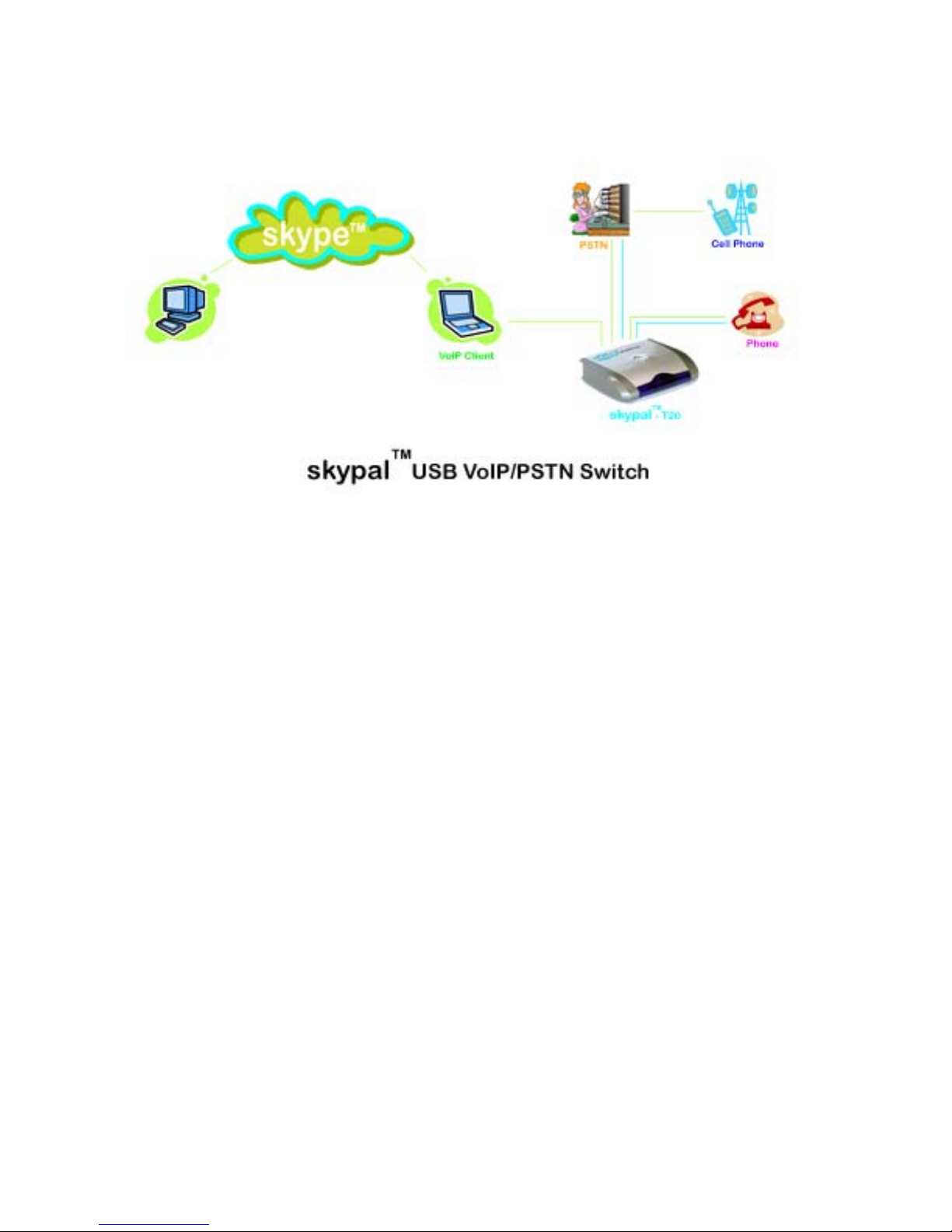
1.2 Technical Specifications
• USB port:1
• RJ11 port: 2
• LED: 3 (Power, In, OUT)
• Size: 138 x 45 x 25 MM
o
• Working temperature: 0- 60
• Working voltage: 5V
• power: 0.5W (sleeping),1.5W (working)
• Operating System: Windows’ 2000•XP
C
1.3 System Requirement
• PIII 450 and above
• 128MB RAM
• 20MB available storage space
• CDROM
• USB 1.1 or 2.0 port
• Internet Service
Local phone service
•
Layout
1.4
Page 4
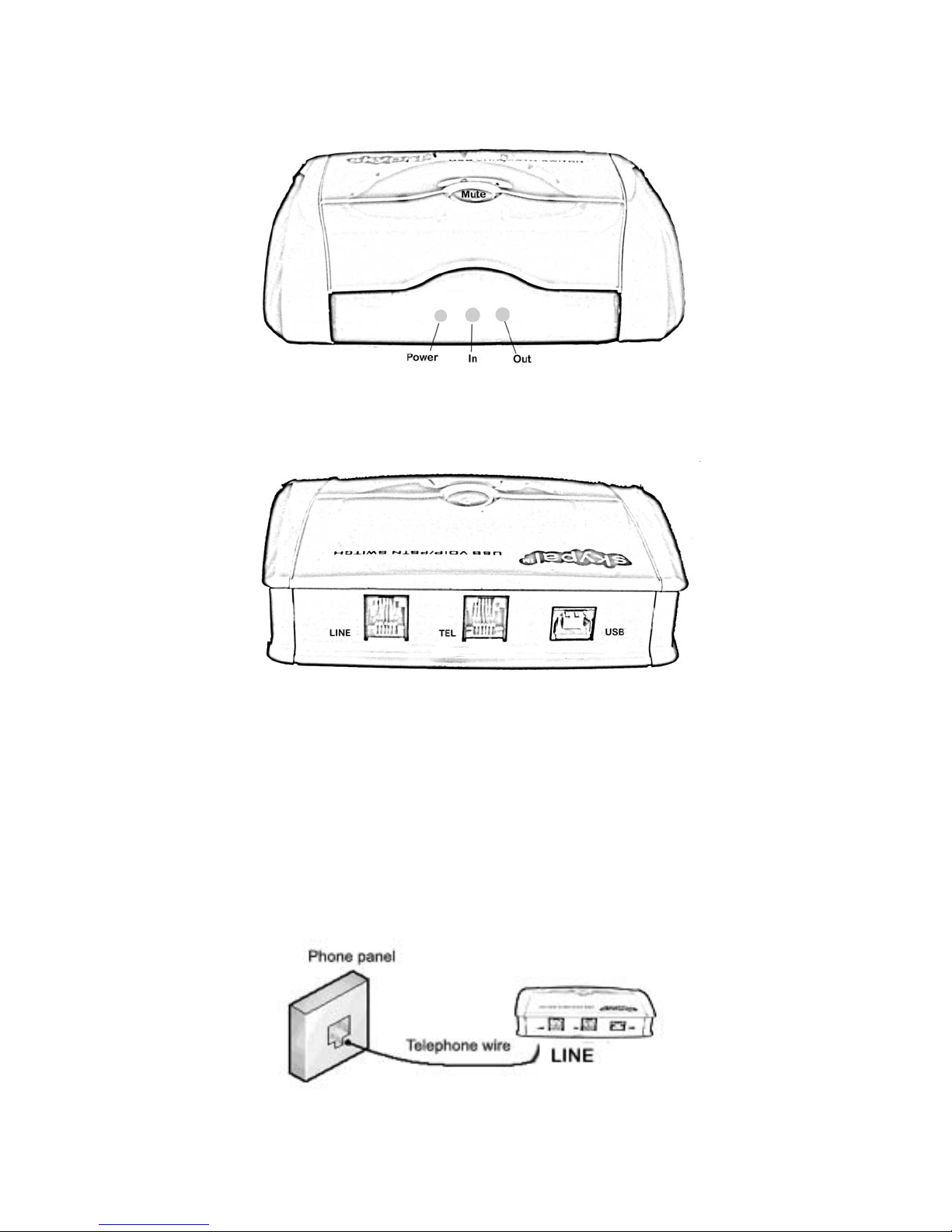
Fig A. Front View
Fig B. Back View
2. Hardware Installation
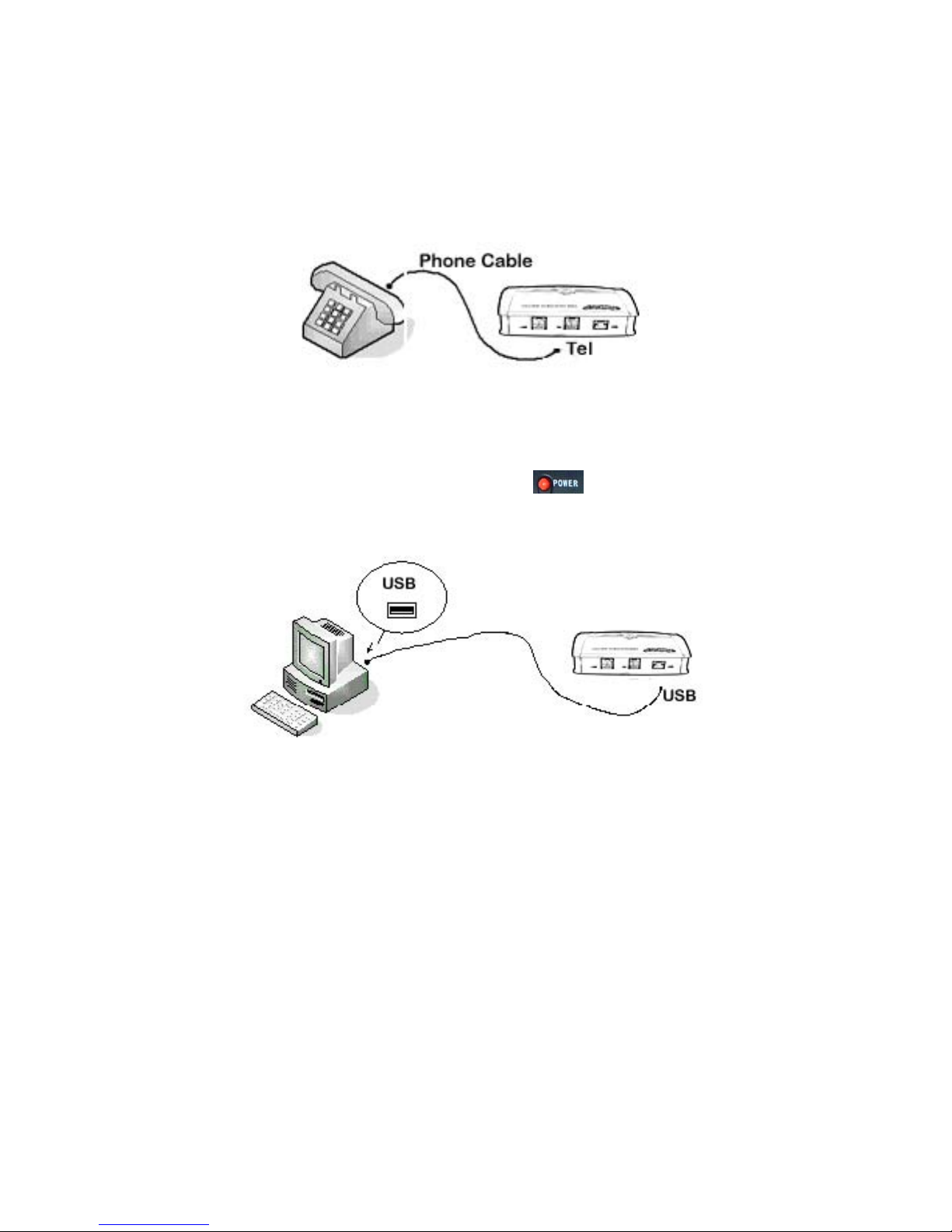
2.1 PSTN connection
Unplug your telephone cord from the wall jack. Using the supplied telephone wire, connect one end
to the “LINE” port of MICON T20/30, another to the wall jack as shown in Fig.1
Note: 1. PSTN service is required for VoIP call forwarding feature to function properly.
2. The MICON T20/30 has to be installed as the first device on your incoming telephone
line if you would like to utilize all household phones for making and receiving VoIP calls.
Fig.1 PSTN Connection
Page 5
2.2 Phone Connection
Connect the telephone cord that was just disconnected from the wall jack to the “TEL” port on the
MICON T20/30 as shown in Fig.2
Fig.2 Phone Connection
2.3 USB Connection
Plug the MICON T20/30 to the USB port on your PC with the included USB cable as shown in Fig.3.
The PC will load the necessary driver automatically*. The
T20/30 is connected properly.
Fig.3 USB Connection
Note: *Once installed, MICON T20/30 will be the default sound card for your PC. All sound will be
directed to the MICON T20/30 including Microsoft Media Player and any other MP3 players
such as iTunes. To use the PC’s built-in sound card, you will need to adjust the audio
property in the specific program, or stop the MICON T20/30 program and unplug the USB
cable to the MICON T20/30 .
CAUTION: DO NOT UNPLUG THE USB CABLE WITHOUT STOPPING MICON SOFTWARE FIRST.
3. Software Installation
LED will be on once MICON
3.1 SkypeTM Installation
Although MICON T20/30 is designed to work with any VoIP services, its full function can only be
TM
realized in conjunction with Skype
convenience, a FREE copy of the Skype
, a leading free VoIP service provider on the internet. For your
TM
software is included on the utility CD*. Please place the
Page 6
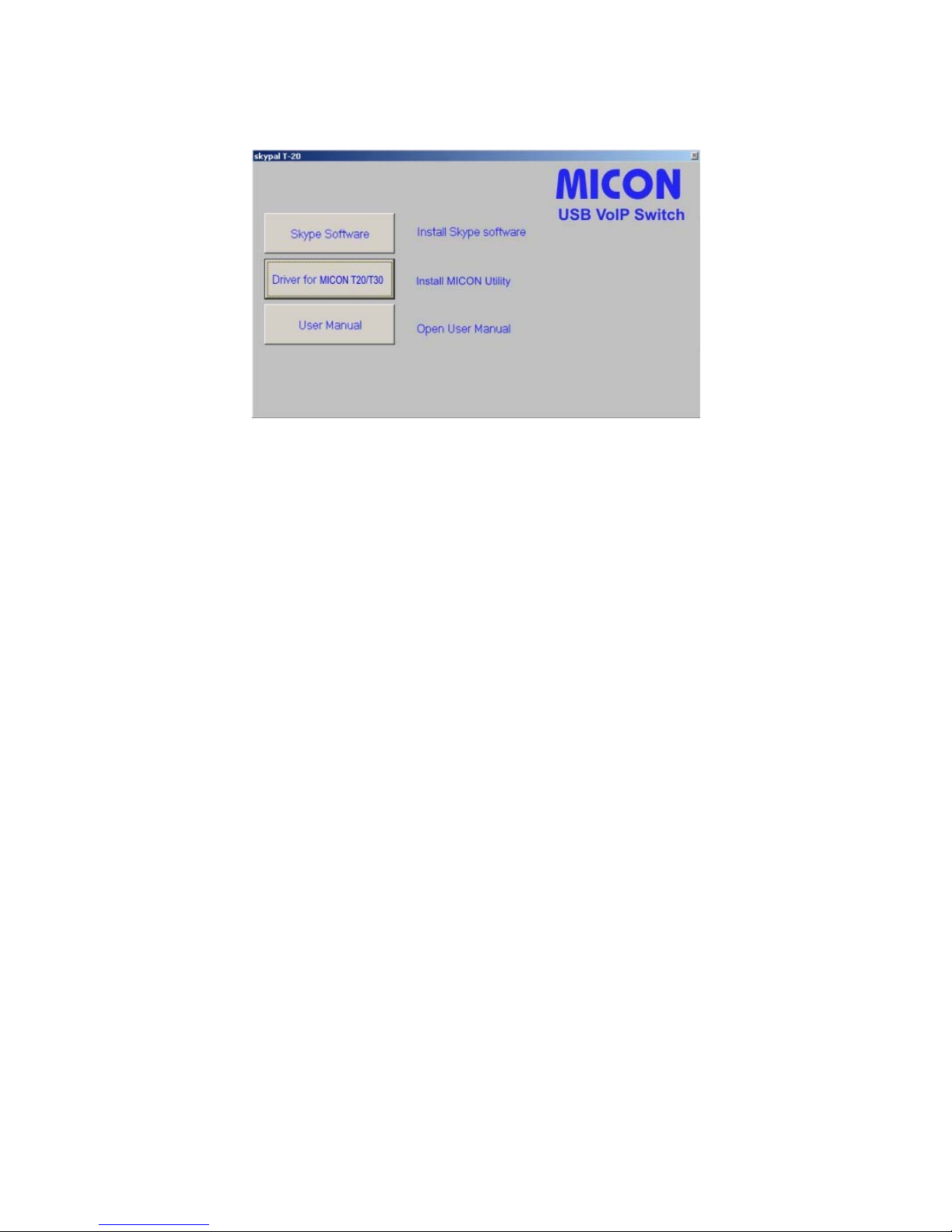
utility CD in the CDROM drive and follow the on screen instruction to install Skype**.
3.2 MICON VoIP Utility Installation
Double click on the button “Driver for MICON T20/30” to launch MICON VoIP Utility installation
program. Follow the on screen instruction to finish the installation.
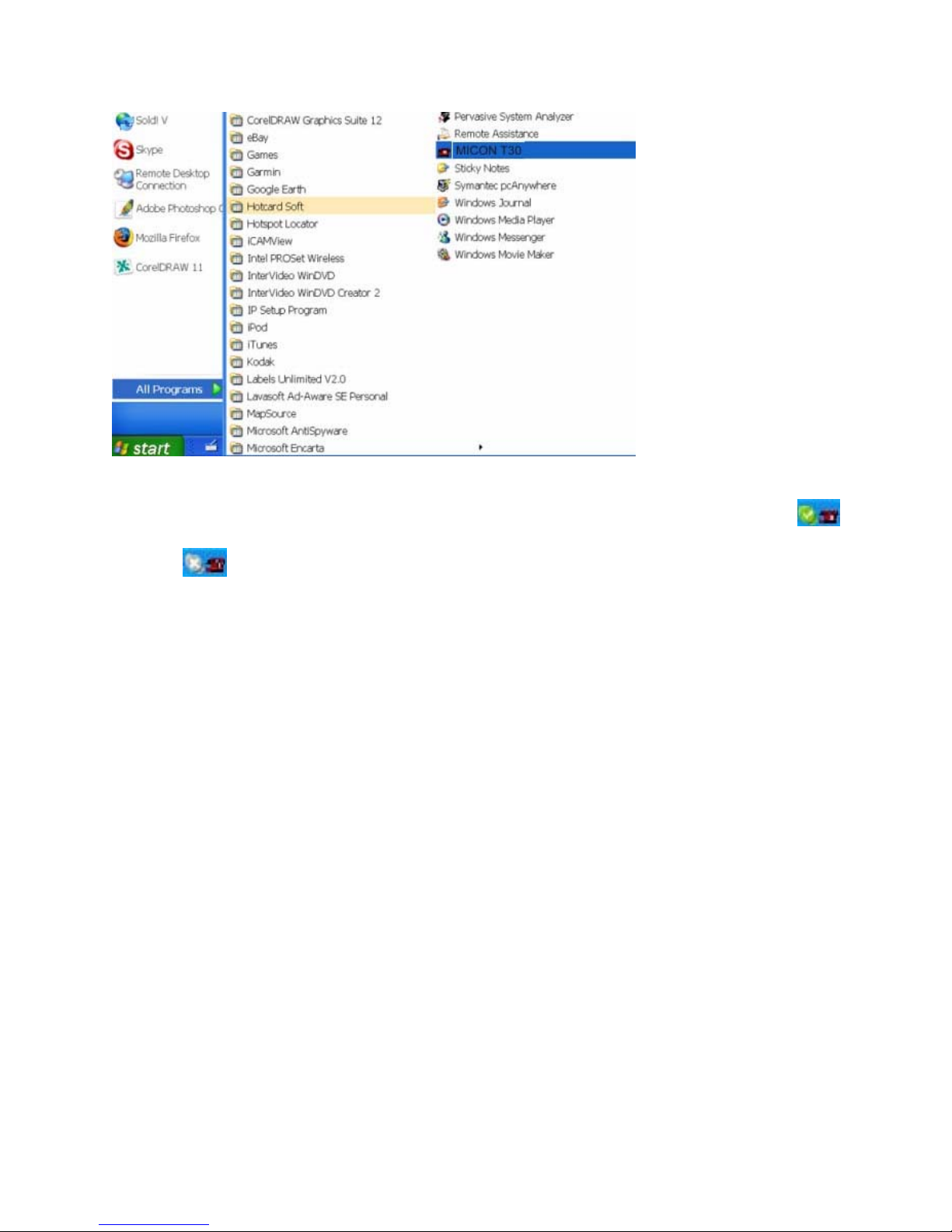
Once successfully installed, you can launch the SKYPAL software by clicking on the icon on the
desktop or through the “Start” button on the toolbar as shown in Fig.4. Skype will ask your
permission to allow SKYPAL to launch. Select “Allow this program to use Skype” and click “OK”.
Fig.4 Launch MICON T20/30 VoIP Software
Note: *Please check www.skype.com for latest updates.
TM
**Registration is required to receive free Skype
service.
***MICON VoIP Utility software is actually a Windows Service which runs in the
background. Once launched, there will be only an icon on the system tray at the bottom of
the display.
Page 7
4. How to Make, Receive, and Forward Calls
TM
Before you can make, receive, and forward any Skype
calls please make sure the SkypeTM client
software and SKYPAL utility have been launched and you are logged in successfully. The icon
on the system tray indicates that the Internet connection is OK, and the system is ready for calls.
The icon
means the Internet connection is down or there is a problem during the SkypeTM
login process. Please check your internet connection before proceeding to the next section.
4.1 Use MICON T20/30 to make a PSTN call
MICON T20/30 is programmed to use PSTN line by default if a PSTN line is connected. So you can
use your phone that is connected with MICON T20/30 to call a PSTN number or mobile phone
number as you would on any regular phone.
4.2 Use MICON T20/30 to make a SkypeTM call
Before you can use your phone to make a SkypeTM call, you will first need to add some contacts to
TM
your Skype
following•
1. Right click a contact and then select "Assign speed-dial" as shown in Fig.5.
contact list. Next you will need to assign speed-dial numbers to your contacts, as
Page 8
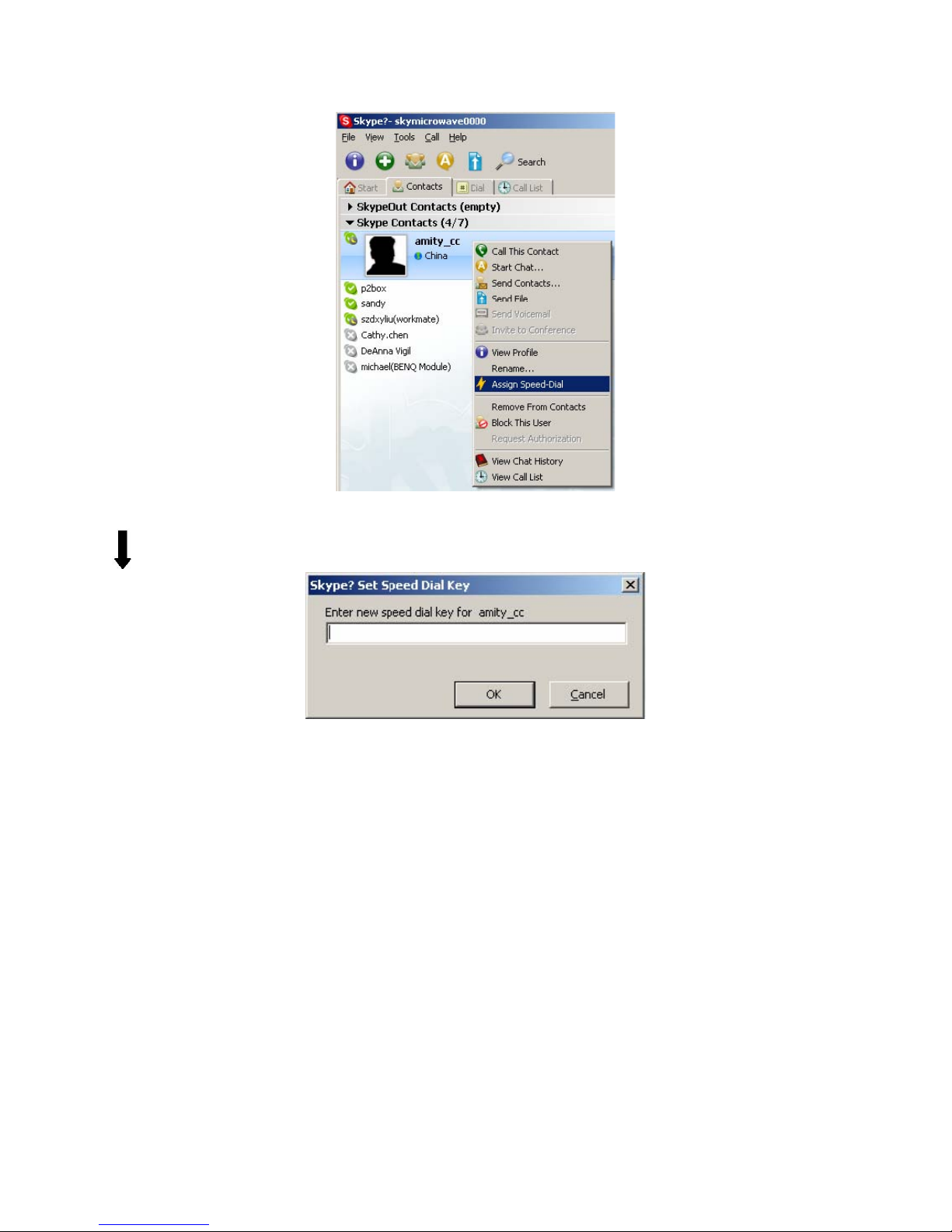
Fig.5 Assign Speed-dial number
2. Enter the speed-dial number* and click OK to save setting**.
Note: *
The speed-dial number ranges from 00 to 99.
** Special service numbers such as international access codes are prohibited to be
set into the speed-dial number.
3. Pick up the handset of the phone connected with MICON T20/30, press "
of the phone, and the speed-dial number set in the previous step, then "#". The call will
begin to connect (Fig.6).
" on the keypad
*
Page 9
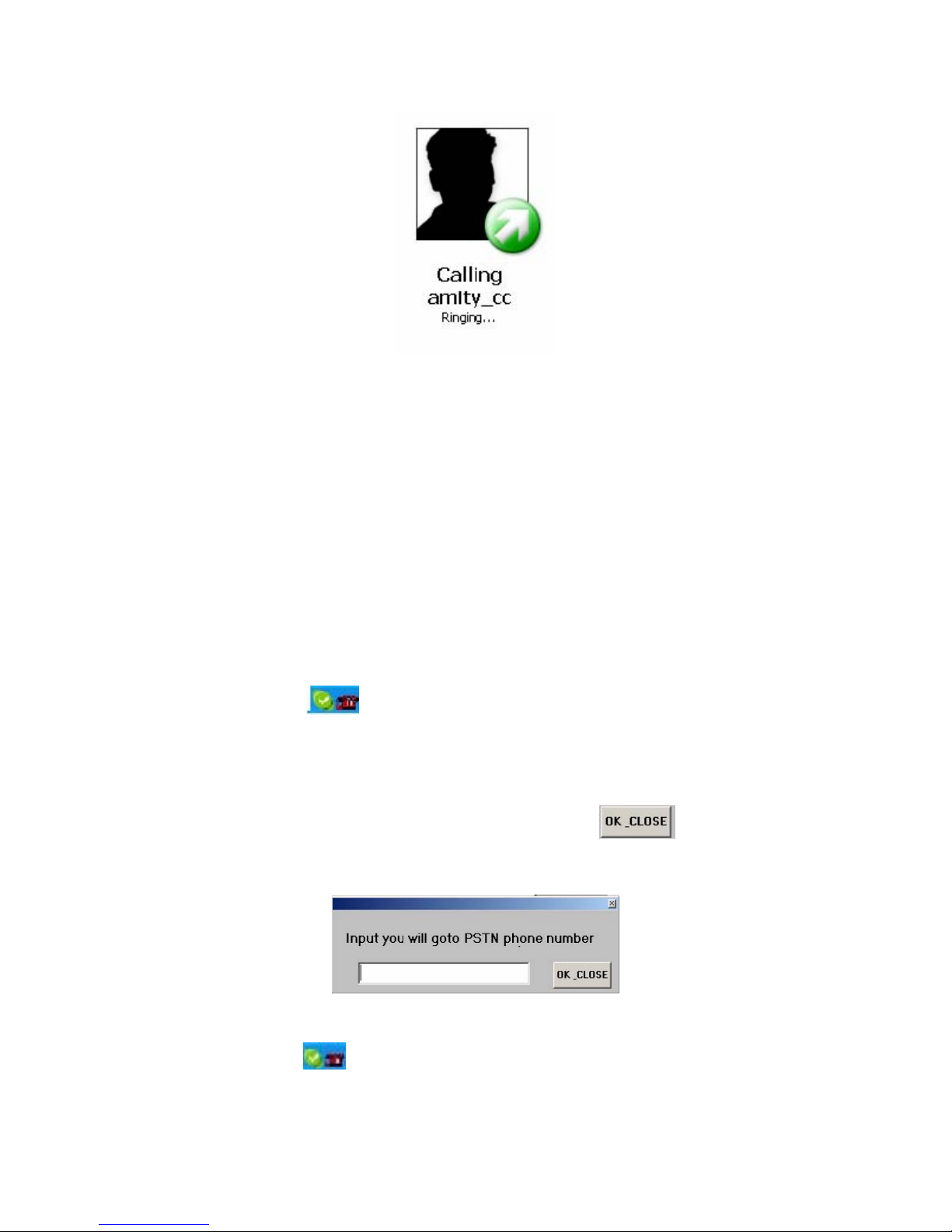
Fig.6 Skype Calls
Note
:
If MICON T20/30 is not connected with a PSTN line there is no need to dial “
You can directly dial the speed-dial number plus # (e.g. 22#).
” first.
*
4.3 How to receive calls
When somebody calls your SkypeTM or PSTN number, the phone connected to the MICON T20/30
will ring. Pick up the handset or press the hands-free button on your phone to receive the incoming
call as you would with a regular phone call. Hang up the phone or press the hands-free again to end
the call.
4.4 How to forward incoming Skype calls to your mobile phone
One of the key features of MICON T20/30 is its ability to forward incoming SkypeTM calls to your
mobile or landline phone automatically.
Right click the phone icon
FORWARDING NUMBER
Enter your mobile phone number or other PSTN number, then click
(Fig.8). You must enter the complete phone number, including 1+ area code if you are calling a
number outside of your area code.
Right click the phone icon
the function. Now your incoming Skype
”
on the system tray as shown in Fig.7, then Left click “
Fig.7 MICON VoIP Utility Setup Menu
to save the settings
Fig.8 Input Forwarding Number
again, then Left click “Enable Skype-PSTN Forwarding” to enable
TM
call will be automatically forwarded.
INPUT PSTN
Page 10
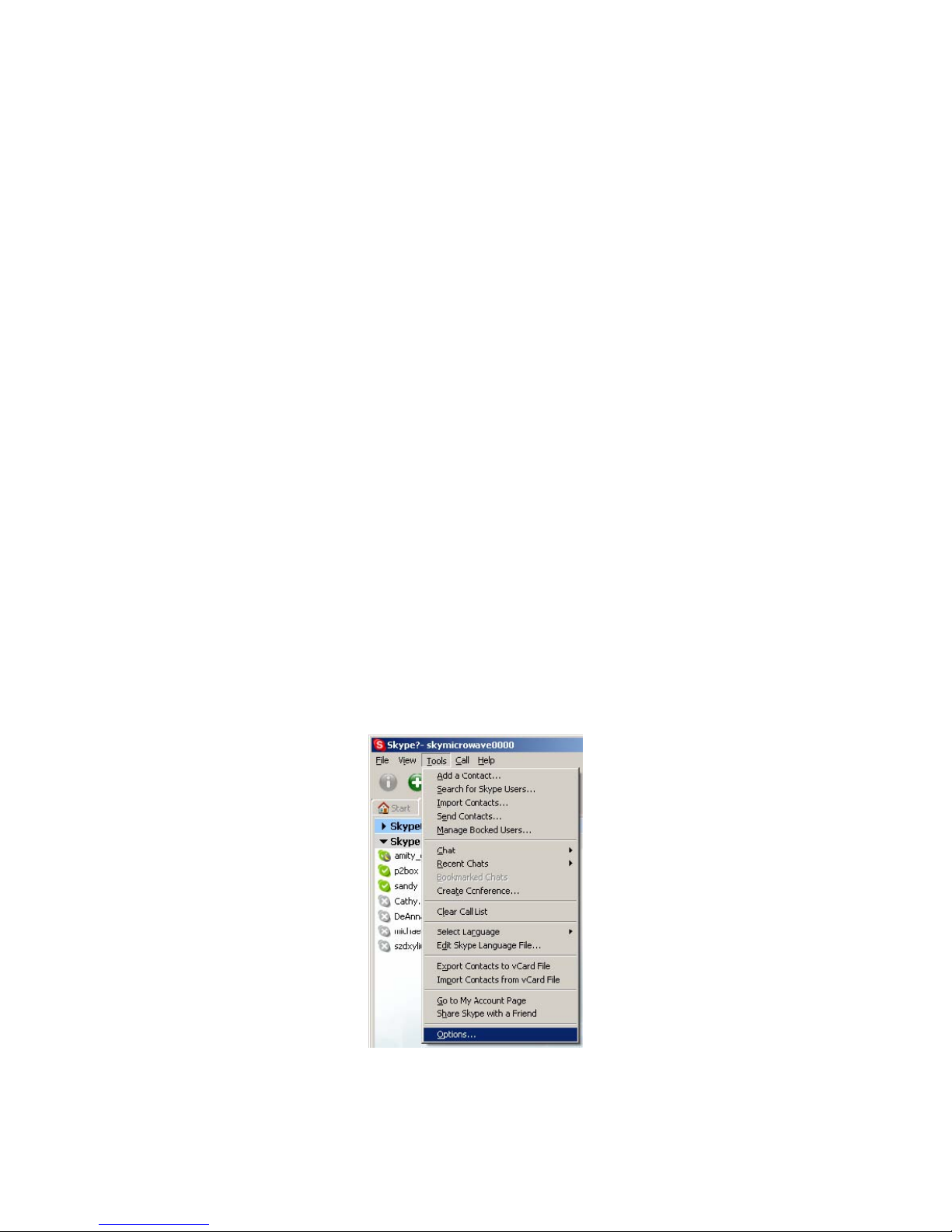
Fig.9 Enable Call Forwarding
In some cases, the phone connected to your MICON T20/30 will ring one time before the forwarding
process begins. It is important not to pick up the phone connected to your MICON T20/30.
TM
Otherwise, the call will not be forwarded. To avoid the Skype
up, you can disable the sound notification in the Skype
10b.
TM software, as shown below in Fig. 10a and
call from being accidentally picked
MICON T-30 VoIP Switch
Skype-PSTN Forwarding (“Skype-Out”)
Input PSTN Forwarding Number
√ Enable Skype-PSTN Forwarding (7342613828)
MICON T-30 VoIP Switch
Skype-PSTN Forwarding (“Skype-Out”)
Input PSTN Forwarding Number
Enable Skype-PSTN Forwarding (7342613828)
PSTN-Skype Forwarding (“Skype-In”)
Enable PSTN-Skype Forwarding (free dial)
Input Skype-Forwarding Speed Dial Number
Enable PSTN-Skype Forwarding (24)
Select a location
Testing
About
Exit
Page 11
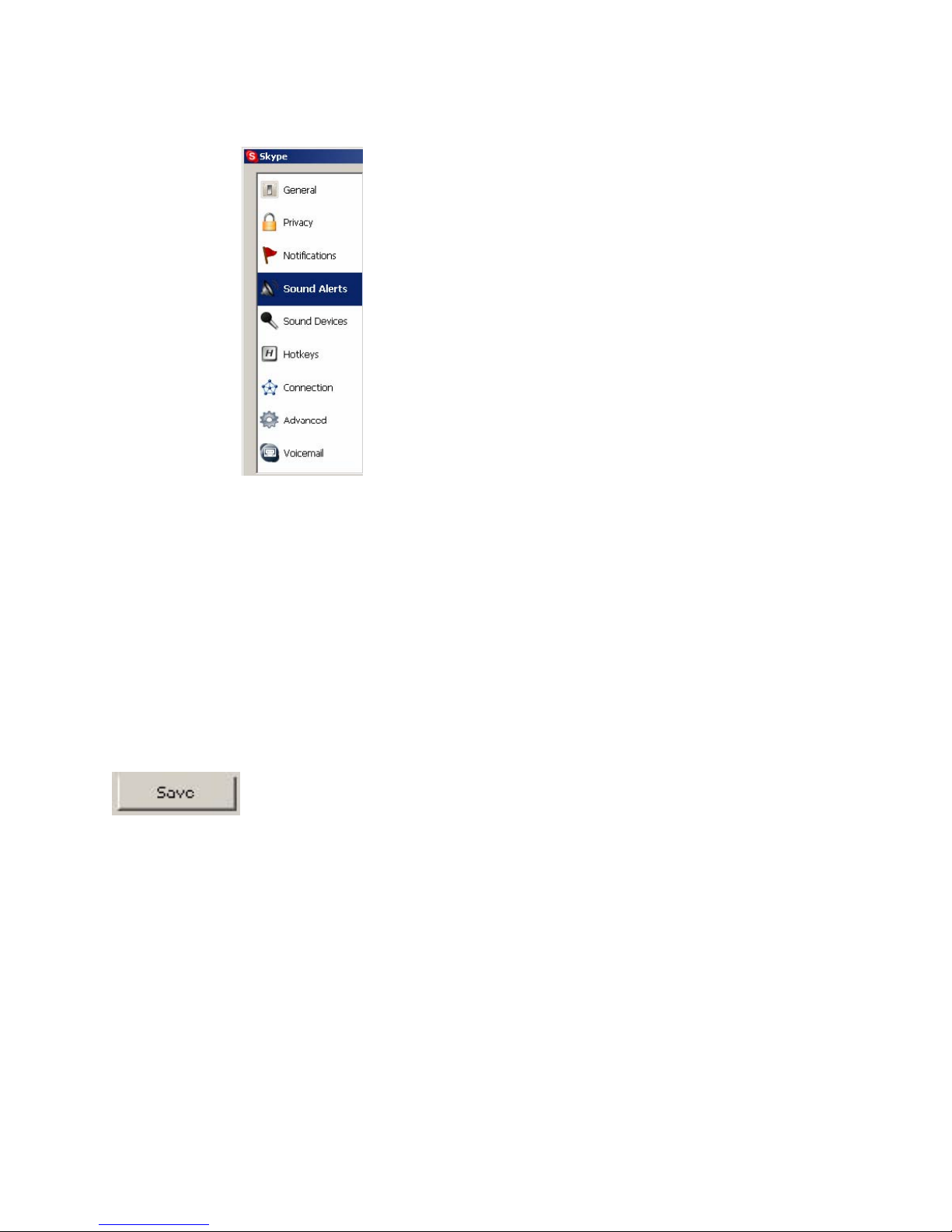
Fig.10a Disable Call Notification
Fig.10b Disable Call Notification
Note:
If the MICON T20/30 is connected with PBX as an extension, you will need to use a
special dialing format as following:
xP123456790
where the first “x” is the code to access an outside line, “P” is a special symbol
representing a pause of 2 seconds, and “1234567890” represents the area code and
forwarding telephone number (Fig.11).
Page 12
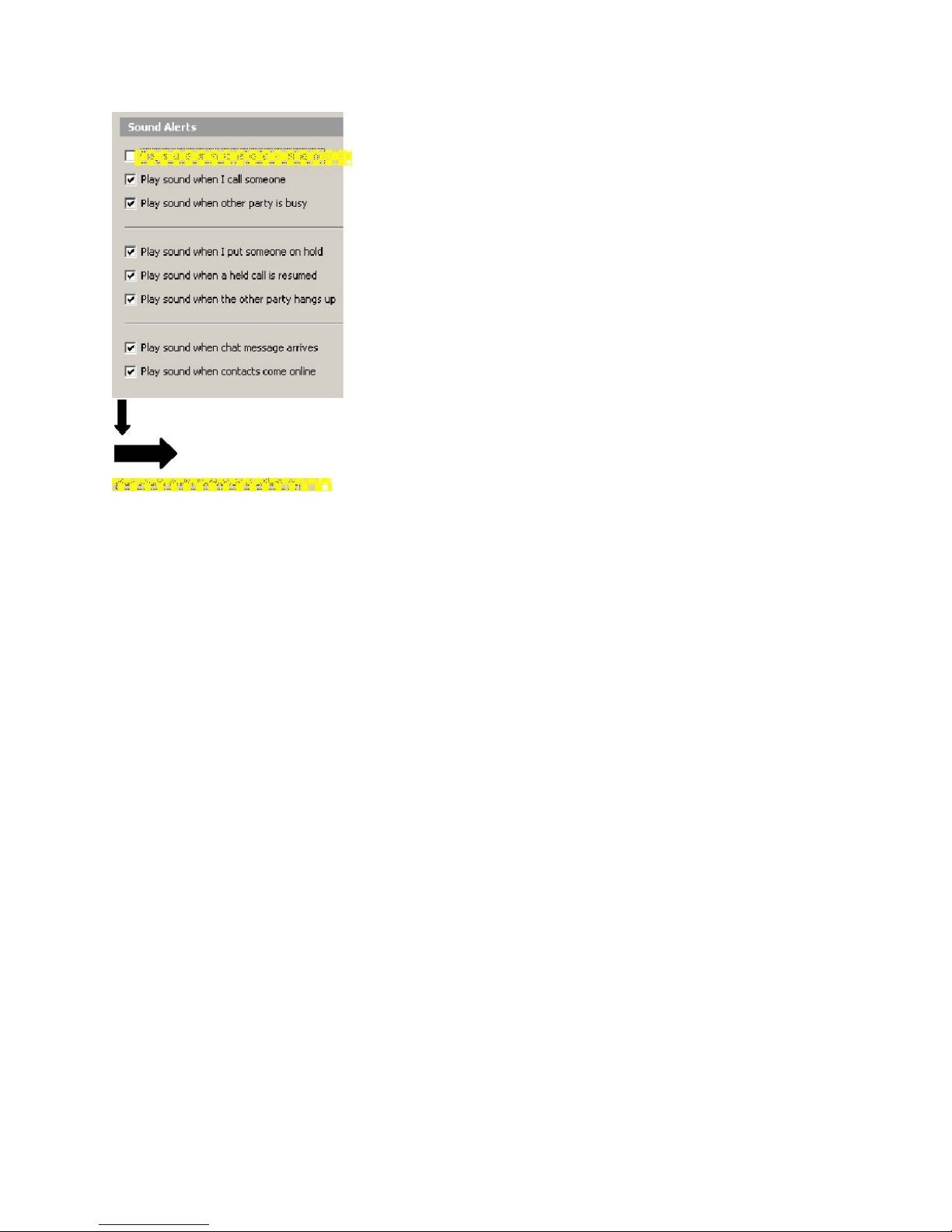
Fig.11 PBX Call Forwarding Setting
4.5 How to Make Skype calls from your mobile phones (MICON T30 Only*)
The only difference between the MICON T20 and T30 is that you can make Skype calls
from mobile phones or any other PSTN phones (Reverse Forwarding) on the T-30.
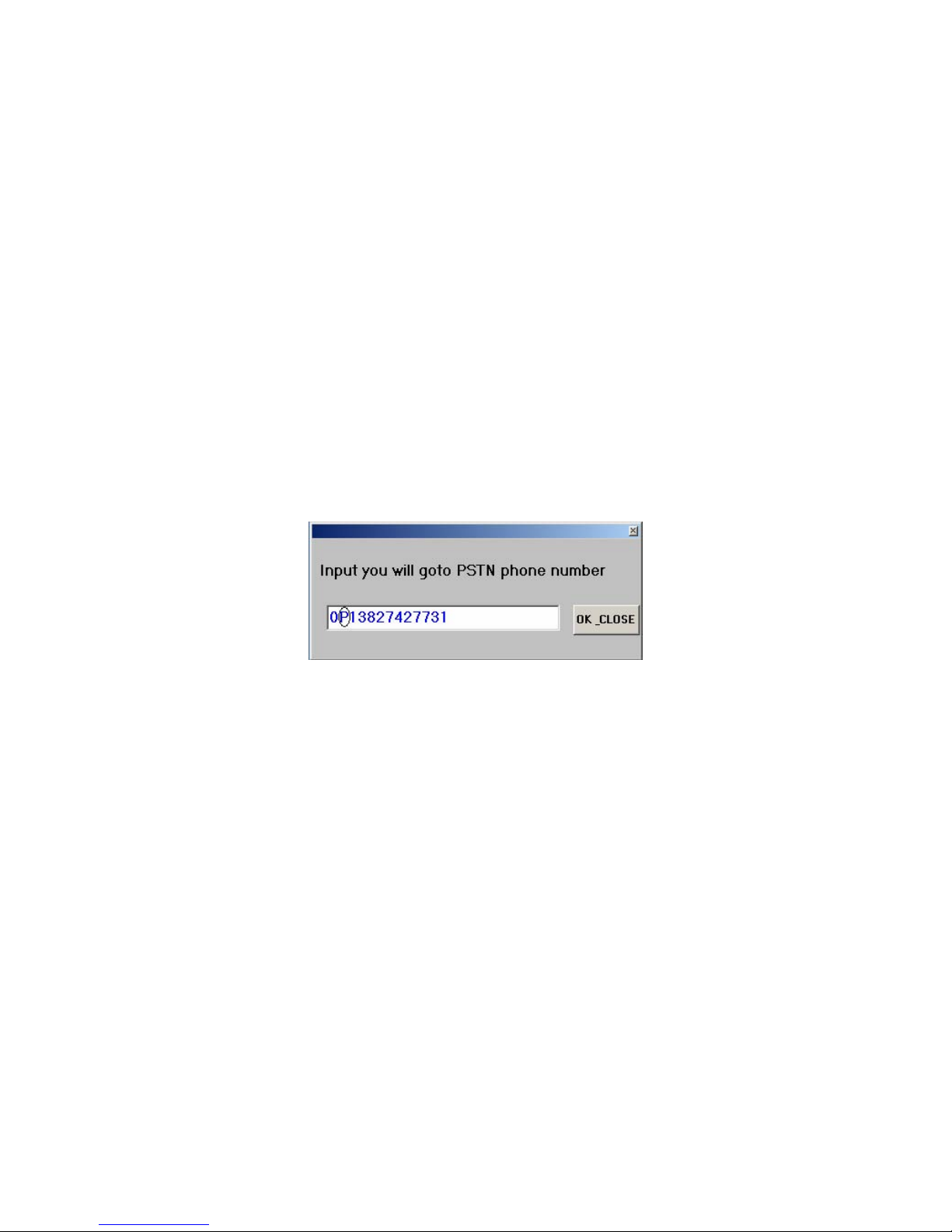
Following the same process as in the last section you can set up the MICON VoIP utility so
that it will automatically forward you call to a specific Skype contact or it will prompt you to
enter the speed dial # for the contact you want to call.
To make a Skype Call from your mobile phone, all you have to do is to call the PSTN
number that is connected to MICON T30 switch, the software will guide you through the
rest of the process.
Note *. The MICON T30 has to be connected with a landline for the reverse call forwarding to
function.
4.6 How to mute a call
You can place the call on hold by placing the mute button on top of the MICON
T20/T30.
Fig.12 Reverse Call Forwarding Setting
Page 13
MICON T-30 VoIP Switch
Skype-PSTN Forwarding (“Skype-Out”)
Input PSTN Forwarding Number
√ Enable Skype-PSTN Forwarding (7342613828)
PSTN-Skype Forwarding (“Skype-In”)
Enable PSTN-Skype Forwarding (free dial)
Input Skype-Forwarding Speed Dial Number
√ Enable PSTN-Skype Forwarding (24)
Select a location
Testing
About
Exit
5. Appendix: Q&A
► Question 1. After I install MICON T20/30, all speaker outputs, including my
favorite MP3 goes to MICON T20/30. How to re-direct all other output to my
original sound card?
A•Windows installer automatically set MICON T20/30 as the default windows audio device. To
correct this issue you can either change the setting in each audio program or reconfigure the
default audio setting for Windows as following:
“\ Start \ Settings \ Control Panel \ Sounds and Audio Devices \Audio \ Sound playback and
Sound Recording” to choose your original sound card as the playback or recording device.
If you choose the later route, you will need to configure Skype to use the MICON T20/30 as the
sound device by click on “Tools\Options\Sound Devices”
► Question 2. Do I need to connect an outside PSTN line to the “Line” port to use
MICON T20/30?
No. It is only optional. However PSTN line is required when you want to use the same phone for
A :
both Skype calls and PSTN calls and want to forward your skype calls to your mobile phone or
other PSTN phone (T20/T30) or when you want to make Skype calls from your mobile phones
(T30 only).
Page 14

► Question 3. What kind of Cordless phones can be used to connect to MICON
T20/30?
Any kind of cordless phone with standard RJ11 connector can be used. DECT, 46/49, 900 M,
A•
and 2.4 G are all applicable.
► Question 4. Does MICON T20/30 work with SkypeOut? How can I do that?
Yes. Simply press “*” + "00" + "country code" + "phone number" + “#” to call to any phone in the
A :
world. Note: SkypeOut is a paid service offered by Skype
► Question 5. Will my regular PSTN line work even if the host PC is powered-
down, MICON T20/30 is not running, or the USB port is not connected?
Yes, MICON T20/30 will switch to PSTN mode automatically when it loses the host PC
A :
connection. So, the PSTN line should continue to work as usual.
► Question 6. Can I use MICON T20/30 with MSN Messenger, Yahoo Messenger,
AOL Messenger, or NetMeeting, etc?
Yes, for sure. In essence, MICON T20/30 works as a standard USB audio device, converting a
A :
regular phone into a standard PC sound device for speaker output and microphone input, while
maintaining all the regular PSTN phone functions. MICON T20/30 supports all other Internet
Phone Software for keypad emulation, voice conversation and switching between PSTN mode
and Internet Phone mode. However its full function, including incoming phone ring, direct dial
and call forwarding can only be exercised with Skype.
► Question 7. Will MICON T20/30 work Skype’s new releases?
A : Most likely. Although MICON T20/30 utilizes some special features offered by the current version of
Skype, we do not expect Skype to change these features
distinguish Skype from other competing VoIP services on the market place,
can always support Skype as “Generic” Internet Phone audio device. So, your investment in
MICON T20/30 is protected.
the near future, since
in
Besides, MICON T20/30
these features
► Question 8. When I use the MICON T20/30, do I have to operate the keyboard or
mouse?
No. Actions of dialing on phone are simulated as the action of keyboard and mouse by MICON
A :
T20/30 utility software. So you can use any extension that is connected MICON T20/30 to make
internet calls without any operation on keyboard or mouse
► Question 9. How do I use MICON T20/30 with an answering machine?
We recommend you place the answering machine in front of MICON T20/30 so that it can
A :
answer PSTN calls when you are online making Skype calls.
► Question 10. How do I use MICON T20/30 with a 2-line phone?
Page 15

MICON T20/30 is designed as a single line device. To use it with a 2-line phone, a special line
A :
splitter is need to feed line 1 to the input of the MICON T20/30 and line 2 to the phone directly.
Please refer to owner’s manual of your specific phone for detail instruction.
► Question 11. Do I have to install MICON T20/30 as the first device on the
incoming line?
A : You don’t have to. But if you want to use all your phones in the house to make and
receive Skype calls, then you will need to.
► Question 12.How do I un-install MICON T20/30?
Click “\ Start \ Programs \ Skypal \Uninstall Skypal” to un-install MICON T20/30.
A :
► Question 13. What happens if I receive simultaneous calls ?
1.When a PSTN call is being made, the SkypeTM caller will hear a busy tone.
2.When a Skype call is being made, the PSTN caller will hear the ringing tone but
no answer.
3.When a call is being forwarded, both SkypeTM and PSTN callers will hear a
busy tone.
► Question 14. Why does the MICON T30 continue to dial my Skype contact or
stay on-line even after I hang up my cell phone?
A : Because the MICON T30 did not receive a busy tone, which is called for by
international standard when a call is terminated. The MICON T30 will eventually
hang up (around 60 sec) when an off-hook tone is received.
does not send a busy tone after a call is terminated you may want to remind the Skype contact to
terminate the call first before you hang up.
If you telephone company
 Loading...