

Page 1
Congratulations on purchasing the Micca Slim
digital media player! A copy of the user’s manual
is not included in this package as features and
functions may change due to firmware updates.
Please visit http://download.miccastore.com to
download the most up to date user’s manual.
micca
Quick Start Guide
This section is intended to get users quickly up and running with the basics of using this
versatile digital media player. Please refer to the full user’s manual for additional information for
detailed settings and features.
Install Internal HDD (Skip If Not Using Internal HDD)
While an internal HDD is not needed for the Micca Slim to function, it is strongly recommended.
Refer to the manual for the benefits of having an internal HDD.
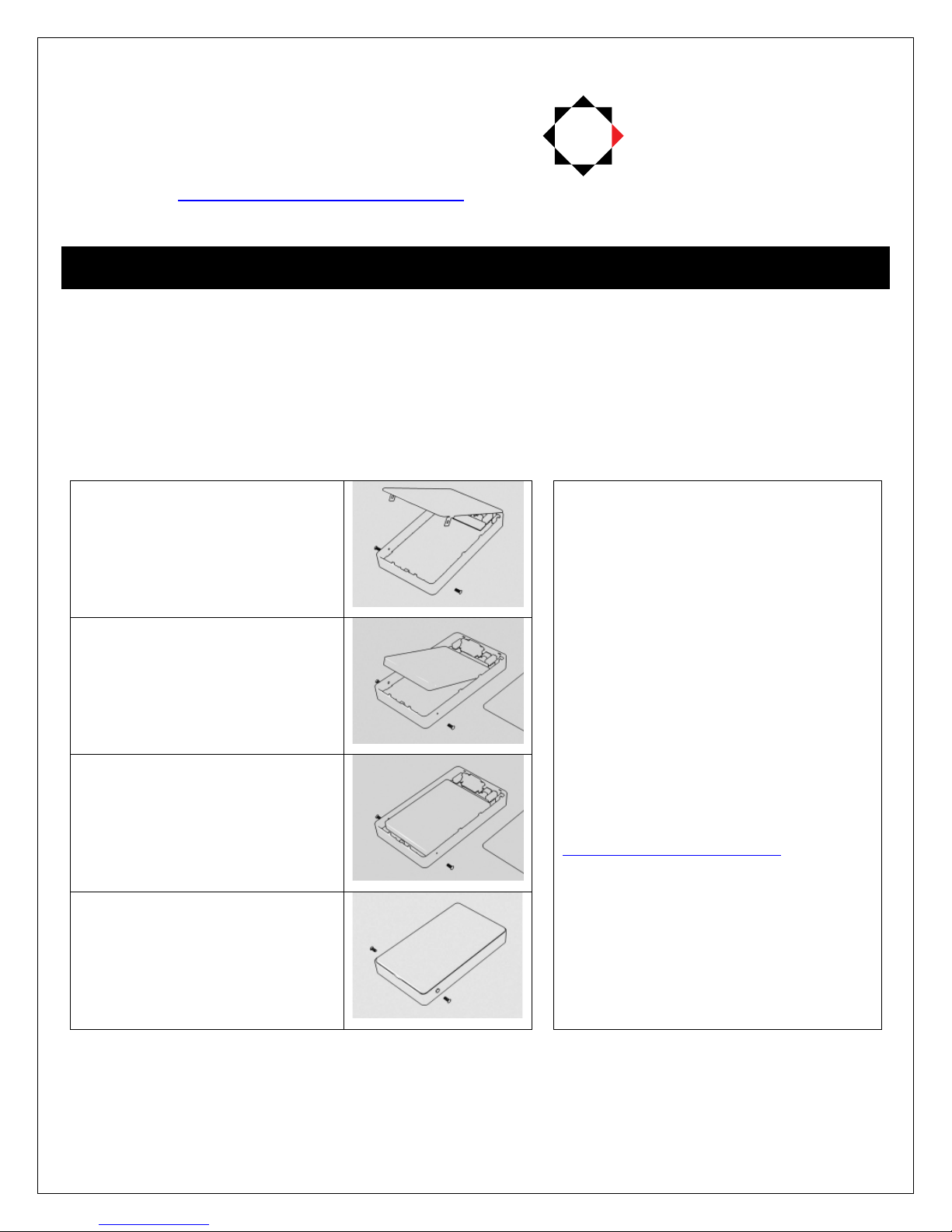
Step 1: Remove the two side
screws if present and carefully
pry open the bottom cover.
Step 2: Insert a 2.5-inch SATA
hard disk drive into the drive
bay. Lay the drive down flat
but do not yet engage the
SATA connector.
Step 3: With the hard disk
drive laying flat in the drive
bay, slide the hard drive
towards the SATA connector
to make the connection.
Hard Disk Drive Selection
Newer generation 5400RPM SATA hard disk
drives are strongly recommended over older
drives or 7200RPM drives. Modern
5400RPM SATA drives use far less power
and thus generate less heat and offer more
than enough performance for use with the
Micca Slim.
Note: If the HDD is new, it will need to be
initialized and formatted before it is
accessible as a drive on the computer.
Please refer to the Micca Slim HDD
Initialization Tutorial available at
http://download.miccastore.com
instructions.
for detailed
Step 4: Replace the bottom
cover and make sure that it is
completely seated. Install the
two side screws as the final
step of assembly.
After installing the HDD, connect the Micca Slim to a computer using the supplied USB cable.
No drivers are needed and the Micca Slim will be automatically recognized and show up as a
hard drive on the computer. Proceed to copy media files to the Micca Slim as desired. It is
recommended that the media files be stored in folders for easy organizing and searching.
The Micca Slim supports both NTFS and
FAT32 hard drive partitions, but NTFS is
strongly recommended for superior
performance, efficiency, and compatibility.
Page 2
Connections and Settings
The Micca Slim can be connected to TVs and home theater receivers through its HDMI or AV
Out connector. HDMI output provides high quality 720p pure digital output and will give the best
results. Use the AV Out connection when HDMI is not available. The supplied 3.5mm-to-RCA
AV Out cable is specific to the Micca Slim for correct signal polarity.
Once the Micca Slim has been connected via HDMI or AV Out, connect the AC adapter to the
Micca Slim. Make sure that the TV has been set to the correct input settings.
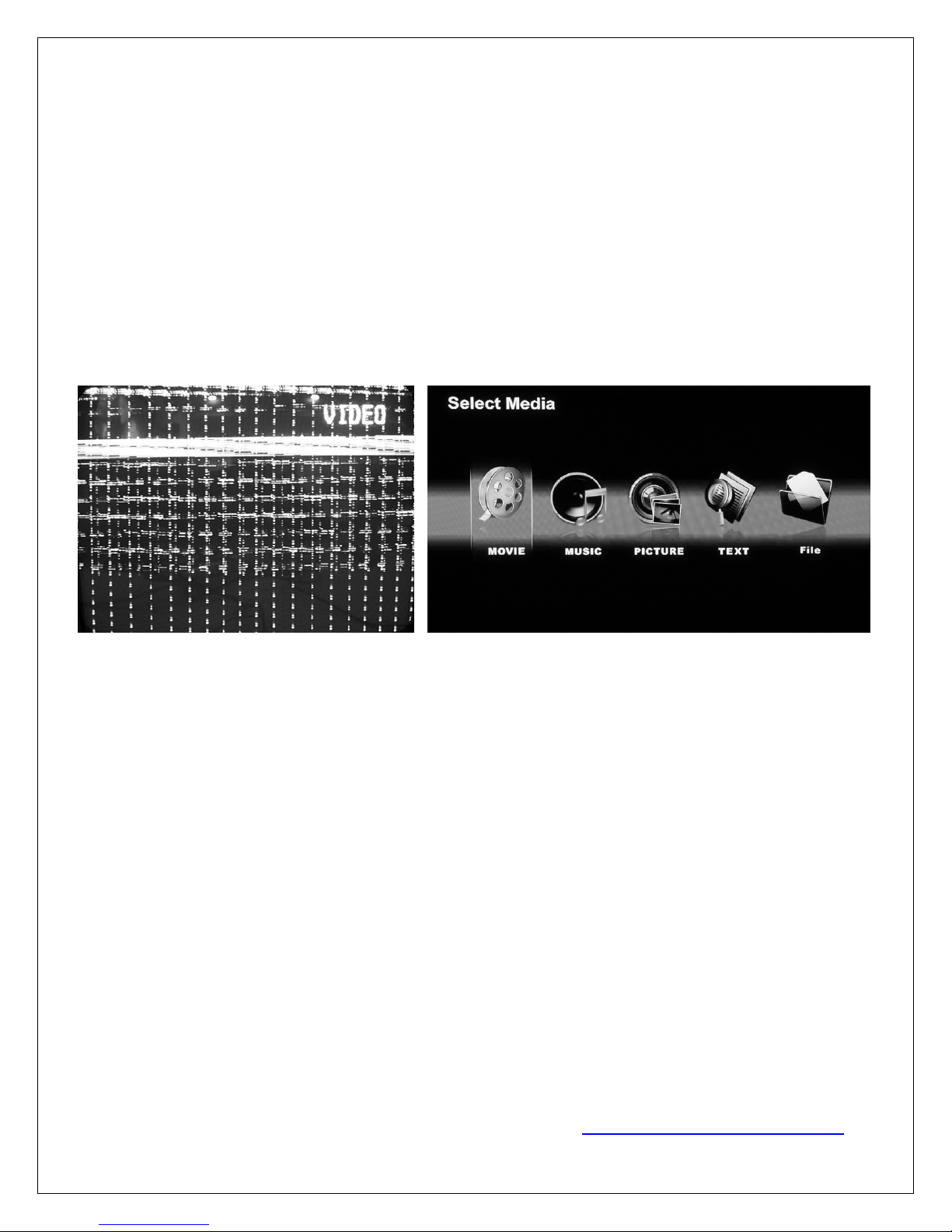
IMPORTANT – If the image on the TV looks discolored or distorted, this means the Micca
Slim has not been set to the correct TV System mode in the settings menu. For HDMI
output, set the TV System to HD Mode. For AV Out, set the TV System to NTSC Composite.
Wrong Output Mode Correct Output Mode
When the output mode is incorrect, the image might be too distorted to see the Settings menu.
In this case, press the <Setup> button on the remote, then press the <TV Mode> button
repeatedly to cycle the Micca Slim through its output modes until the correct mode is selected.
Playing Media Files
The Home screen on the Micca Slim will show a row of icons representing storage devices that
has been detected, including the internal HDD and any external USB flash drives or SD flash
cards. Copy your favorite video, music, or photo files to these storage devices and select them
for playback on the Micca Slim. The Micca Slim will play all files in a folder in alphabetical order
continuously until stopped or turned off. Multiple parts of the same movie can be played this way.
Turn off the Micca Slim while it is playing a movie and it will resume playing where it left off once
turned back on.
Media File Compatibility
The Micca Slim is able to play a wide range of media file formats. However, there are a few file
formats that it cannot play, such as MKV files or media files encoded in H.264/MPEG4-AVC
codec. However, it is easy to recode these files for playback on the Micca Slim with free
software tools. For more information regarding file compatibility and how to recode video files,
please download the Micca Slim Video Recode Tutorial from http://download.miccastore.com
.
Please refer to the full User’s Manual for additional detailed instructions.
 Loading...