

Page 1

www.meteorbarcode.it - info@meteorbarcode.it
MANUALE COMPACT 400 PLUS (R-400 PLUS)
MANUALE COMPACT 600 (R-600)
STAMPANTI DI CODICI A BARRE COMMERCIALI
Page 2
www.meteorbarcode.it - info@meteorbarcode.it
CONTENTS
Page
1.
Checking Your Box……………………………..
2. Power Supply……………………………………
3. Parts and Features……………………………...
4. Loading the Ribbon…………………………….
5. Loading the Media……………………………...
5.1 Standard Mode
5.2 Peel Off Mode
5.3 Cutter Mode
6. Operator Controls………………………………
6.1 Power Switch
6.2 Buttons
6.3 LED Indicators
7. Performing Calibration………………………...
8. Printing Configuration Report………………...
9. Returning to Factory Default Settings...………
10. Hooking up the Printer and the Computer…...
11. Communicate with the Printer………………...
11.1 Before installation
11.2 Installing Driver
11.3 Installing the USB Driver (Plug and Play)
11.4 Set Parameters
11.4.1 For Win 98
11.4.2 For Win 2000
11.4.3 For Win NT 4.0
11.4.4 For Win XP
12. Troubleshooting……………….………………..
12.1 Problems on media
12.2 Problems on ribbon
12.3 Miscellaneous
12.4 Recovery
1
2
3
5
10
20
23
24
26
27
28
51
13. Caring for Your Printer……………….……….
13.1 Cleaning the print head (THP)
13.2 Cleaning the roller
13.3 Cleaning the media compartment
14. Reference Technical Information……………...
14.1 General Specifications
14.2 Fonts, Bar Codes and Graphics Specification
14.2.1 Printer Programming Language A, PPLA
14.2.2 Printer Programming Language B, PPLB
14.2.3 Printer Programming Language Z, PPLZ
14.3 Interface Specifications
14.3.1 Introduction
14.3.2 Serial
14.3.3 USB
14.3.4 Connection with host
14.3.5 Parallel ( Centronics )
14.3.6 Auto Polling
14.4 ASCII TABLE
15. Appendix……………………………... ………...
15.1 Appendix A : Printer Status
15.2 Appendix B : Stand-Alone Operation
15.3 Appendix C : Dispenser Kit Installation
15.4 Appendix D : Cutter Installation
54
55
65
Page 3
1. Checking Your Box
www.meteorbarcode.it - info@meteorbarcode.it
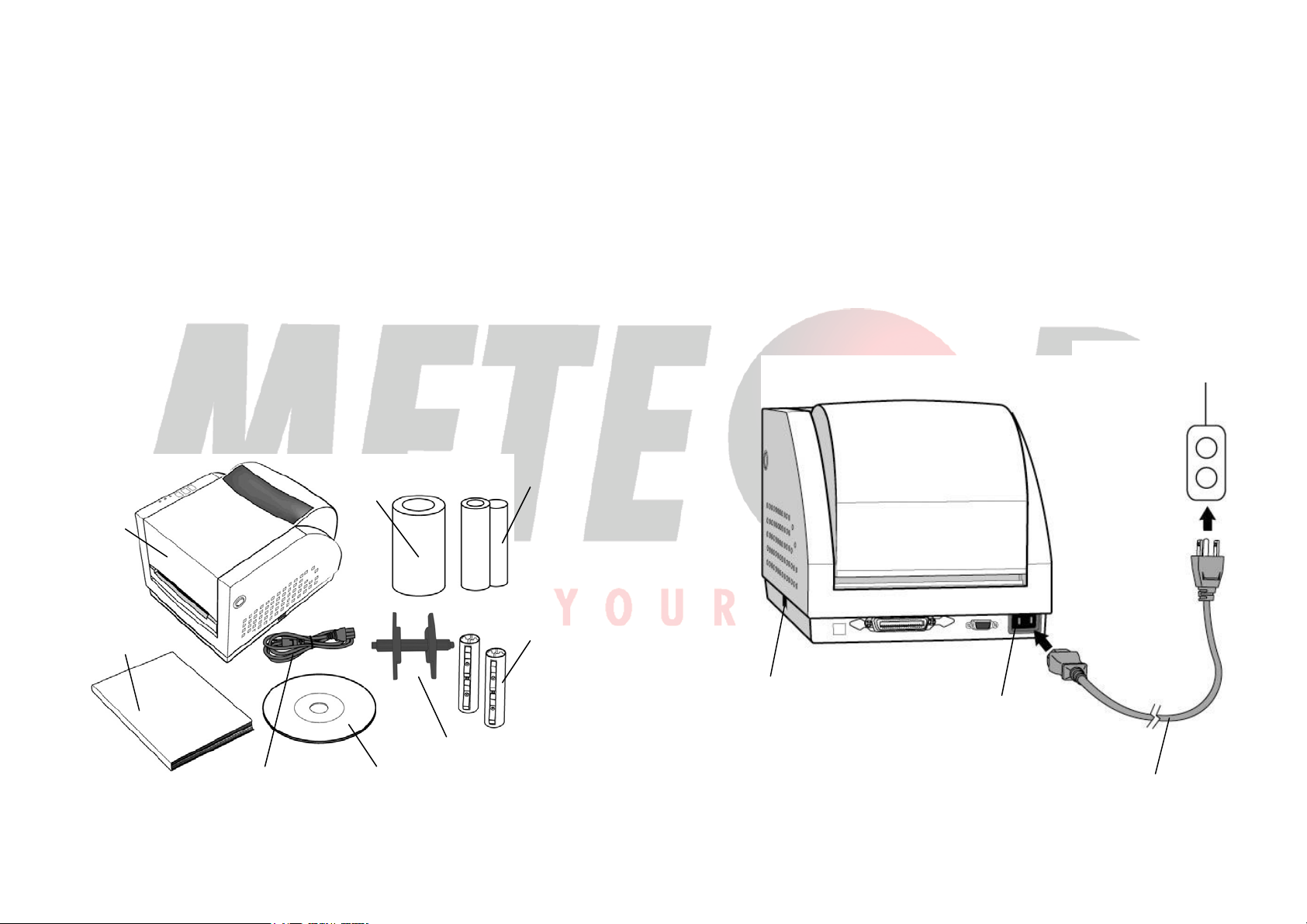
Receiving the box of your printer, you are advised to check first for
the possible shipping damage. There are two ways you can do it:
1.1 Inspect the outer appearances of both the box and the printer
for possible damage.
1.2 Raise the top cover of the printer to see if the media
compartments are in order.
If damages did occur, immediately file the claim to the shipping
company for settlement.
Having performed the primary inspections, next step, please check
whether you have received the following accessories together with the
printer. If there is any item missing, contact your local dealer to get it.
Printer
User's Manual
Power Cord
Sample Media
Media Hanger
CD ROM
Ribbon
Ribbon Core Adapter
2. Power Supply
WARNING:
NEVER OPERATE THE PRINTER AND POWER SUPPLY IN AN AREA
WHERE THEY CAN GET WET.
2.1 Leave the power switch at the “ O ” Position.
2.2 Connect the power supply plug to the power cord connecter and
the other end to your AC source.
Power Switch
Power Cord Connecter
AC Electrical Outlet
Power Cord
1
2
Page 4

3. Parts and Features
www.meteorbarcode.it - info@meteorbarcode.it
Media Hanger
Top Cover
Power Switch
Cover Lock
Release Levers
Ribbon Pick-up Holder
Thermal Printhead
Ribbon Supply Holder
Cover Lock
3
Platen
Roller
Power Switch
4
Page 5
4. Loading the Ribbon
www.meteorbarcode.it - info@meteorbarcode.it
Note:
This section is not applicable to the direct thermal printing.
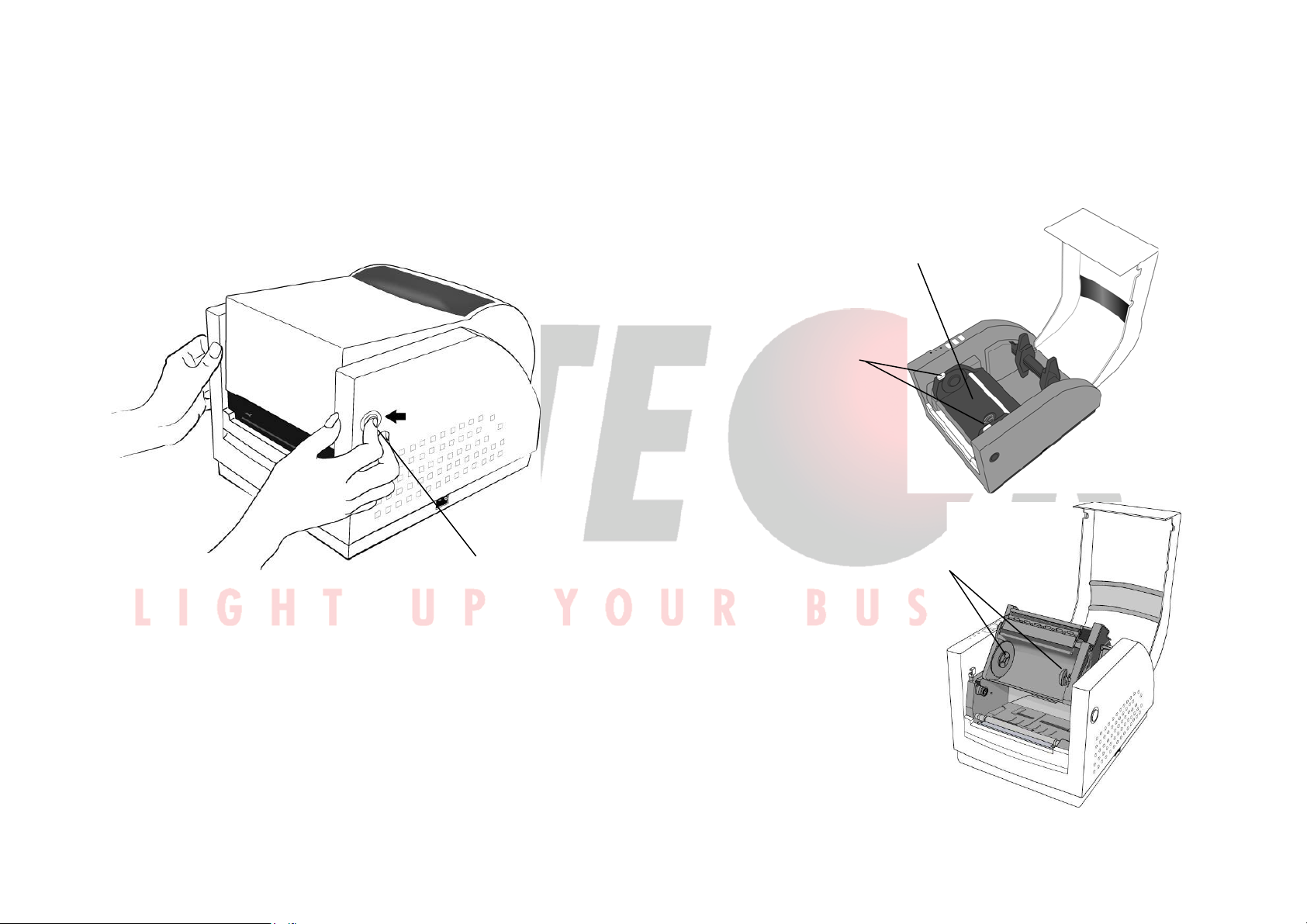
4.1 Press the cover locks on both sides to open the top cover
Cover Lock
4.2 Unlatch the print head module by pushing the two green
release levers on the sides toward the rear.
4.3 This allows print head module to rotate upward
Release Lever
automatically and expose the ribbon supply holder.
Print Head Module
Ribbon Supply Holder
5
6
Page 6

4.4 Unwrap the ribbon roll pack and separate the ribbon roll
www.meteorbarcode.it - info@meteorbarcode.it
and the bare core.
4.5 Attach the edge of the ribbon on the bare core and wind it
a little bit onto the core.
4.6 Insert the ribbon roll into the supply holder. (First snap in
the right side and then the left side.)
Ribbon Roll
Bare Core
Noted:
It is the inside-coated ribbon used in the figure for
R-400/R-400plus/R-600. For R-400K/R-400K plus models,
please use outside-coated ribbon.
4.7 Turn back the print head module and then insert the bare
core into the pick-up holder. (First snap in the right side,
then the left side.)
7
8
Page 7

4.8 Turn the wheel of the print head module to ensure the
www.meteorbarcode.it - info@meteorbarcode.it
ribbon is tightly wound.
4.9 Press down the print head module firmly on both sides till
you hear a snap.
Wheel
Print Head Module
Note:
1. R-400/R-600/R-400plus ribbons are face-in (inside
coating). R-400K/R-400K plus ribbons are face-out
(outside coating)
Optional ribbon core adapter is available once ribbon
2.
width is less than 4’’ width.
5. Loading the Media
R-Series printers can be operated in three different options:
standard, peel-off, or with a cutter.
- Standard mode allows you to collect each label freely.
- In peel-off mode, the backing material is being peeled away
from the label as it is printed. After the former label is
removed, the next one will be printed.
- In cutter mode, the printer automatically cuts the label after
it is printed.
9
10
Page 8

5.1 5.1 Standard Mode
r
www.meteorbarcode.it - info@meteorbarcode.it
5.1.1 Press the cover locks on both sides to swing the top
cover toward the rear and expose the media
compartment.
5.1.2 Load the media roll onto the media hanger.
5.1.3 Put the media roll on the hanger holder.
Media Roll
11
Media Hanger
5.1.4 Unlatch the print head module.
5.1.5 Hold the print head module upright with one hand to
allow the media pass under it. Lead the media
through the media guides with the other hand. The
media guides can be adjusted centrality to well fit with
different label width.
5.1.6 Route the media through the media sensor for media
detection.
5.1.7 Lead the media over the platen roller.
Senso
Print Head Module
Media Guides
Platen Roller
Media Guides
12
Page 9

5.1.8 Turn back the print head module and then press it
www.meteorbarcode.it - info@meteorbarcode.it
down firmly on both sides till you hear a snap.
5.1.9 Close the top cover and turn on the printer or press
feed button if the printer is already on.
Feed Button
Print Head Module
Note:
3” holder paper is available for 3” ID media roll.
13
14
Page 10
5.2 Peel Off Mode
www.meteorbarcode.it - info@meteorbarcode.it
(Installing the dispenser kit, please refer to the Appendix C.)
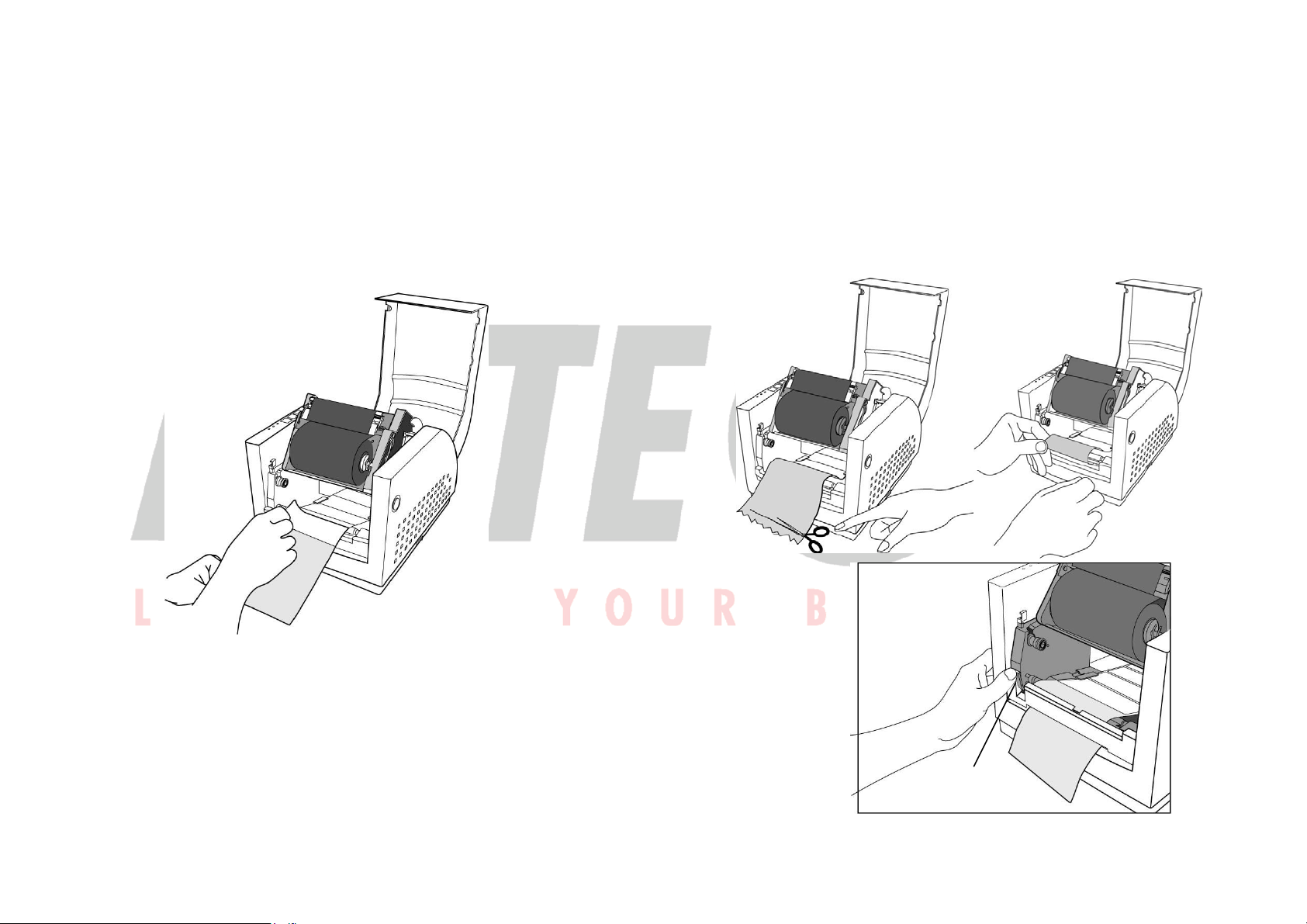
Follow the common procedure of "Loading the Media "of
Standard Mode from step 5.1.1 to step 5.1.9.
5.2.1 Remove approximate 6" long labels from the backing
paper.
15
5.2.2 Trim the edge of label backing paper with scissors or
knife.
5.2.3 Push down peeler-switch to ease the access packing
paper.
5.2.4 Lead the backing paper over the plate, then thread it back
into the slot, ensuring that it is inserted between white
plastic roller and plate.
5.2.5 Pull back the peeler-switch to secure backing paper.
Peeler-Switch
16
Page 11

5.2.6 Latch print head module.
www.meteorbarcode.it - info@meteorbarcode.it
5.2.7 Turn on the printer and press feed button.
5.2.8 Labels will be separated from backing paper and fed out
on H cover, while backing paper will come out from the
slot under the H cover, and label will be fed out.
5.2.9 Close the top cover.
Feed Button
Label
5.3 Cutter Mode
(Installing the cutter, please refer to Appendix D )
Follow the same procedure as "Loading the Media" from
step 5.1.1 to step 5.1.9.
5.3.1 Mount cutter on print head module by fastening with two
screws.
5.3.2 Thread the media over the platen roller, and then route
the media through the slot of the cutter module.
Screw
Cutter
Backing Paper
Note:
The "FEED" button will not drive the printer to peel. The
peeling work can be executed only when the software
setting is ready.
17
Screw
Note:
Cutter baby board must be installed prior to cutter
installation.
18
Page 12

www.meteorbarcode.it - info@meteorbarcode.it
5.3.3 Press down the print head module firmly.
Cutter
Note:
The "Feed" button will not drive the printer to cut.
The cutting work can be executed only when the software
setting is ready.
6. Operator Controls
6.1 Power Switch
Controls printer power
On-normal operation
Off-the power should be turned off before connect or disconnect
the communication cables and power cables
6.2 Buttons
There are three buttons, each has two basic functions.
BUTTON Pressed at normal status Pressed during power-on
FEED Feed a label. Perform a self-test for
configuration report.
PAUSE ■ Stop the printing process.
■ Resume the printing job
after press it again.
CANCEL ■ Interrupt and delete the
printing job.
■ Force the printer to
continue working after an
error had been recovered.
Perform the media
calibration.
Reset the settings at
2
PROM.
E
19
20
Page 13

www.meteorbarcode.it - info@meteorbarcode.it
6.3 LED Indicators
There are three LED indicators on the front panel, “READY”,
“MEDIA” and “RIBBON”. These indicators display the
operation status of the printer.
READY The READY indicator will remain lighted except if any
of the following conditions prevail.
- Receiving data from host.
- A fault condition.
MEDIA The MEDIA indicator will remain on for the normal
operation of the printer.
- The printer is at PAUSE state.
- Blinking – Media run out. (READY will be also
blinking.)
RIBBON ONI– under thermal transfer mode with ribbon installed.
OFF – under direct thermal mode. (No ribbon installed.)
Set by Windows driver or command.
Blinking – Ribbon run out. (READY will be also
blinking.)
Notes:
1. We suggest you make “ media calibration “.
- for the first time media installation
- after change different type or size of media
2. After calibration, the printer will save the related parameters
(reflection characteristics, label length, etc.) to E
Without calibration, the incorrect media/Gap detection may
occur, especially for small-size labels (less than 20mm in
height).
21
2
PROM.
3. Before calibration, the media and ribbon must be loaded
properly and move the label sensor to correct position.
4. After self-test, the printer is at dump mode, If you need
normal operation, you must press CANCEL to restart the
printer.
Top Cover
Cover Lock
Power Switch
22
Page 14

www.meteorbarcode.it - info@meteorbarcode.it
7. Performing Calibration
After the media loaded, it is necessary to do the calibration for
the label size detection.
7.1 Press and hold the pause button.
7.2 Turn on the power.
7.3 Media indicators will blink, at this point release PAUSE
button.
7.4 The printer will feed the labels for 6 inches.
7.5 Media indicators stop blinking and remain illuminated.
Note:
This procedure is very important and must always be carried out
after installation and every time the media type is changed.
Failure to do so will result in the gap and label-empty detection
being incorrect.
8. Printing Configuration Report
8.1 Performing the Self Test
8.1.1 Turn off the printer. Press and hold the feed button.
8.1.2 Turn on the power.
8.1.3 Ready indicator blinks, release feed button.
8.1.4 The printer will print out a configuration report.
8.1.5 Ready indicator stops blinking and lights up.
8.1.6 The following information will be printed on this report.
23
24
Page 15

Note:
www.meteorbarcode.it - info@meteorbarcode.it
1. After self-test the printer will enter character dump mode. For
normal operation press the cancel button to exit from dump
mode.
2. On the report:
PPLA – Present emulation type
R2A0-1.00 – Firmware version
052302 – Date code
Please provide the above information to Argox support team in
case your printer has a printing problem.
9. Resetting the Printer to Factory
Default Settings
If you would like to reset the printer to its factory defaults after
certain commands have been sent or settings changed:
9.1 Turn off the printer. Press and hold the CANCEL button.
9.2 Turn on the power.
9.3 Ribbon indicator blinks, release the button.
9.4 Ribbon indicator stops blinking and lights up.
9.5 The following parameters automatically reset.
- Label parameters
- Heat (Darkness)
- Speed
- Symbol set (language)
- Others for specific emulation
Notes :
1. All settings stored in non-volatile E
even by turning the printer off.
2. It is necessary to perform label sensitivity calibration after
resetting.
3. The printed label count can not be reset.
2
PROM cannot be destroyed
25
26
Page 16

10. Hooking up the Printer & Computer
www.meteorbarcode.it - info@meteorbarcode.it
10.1 Connecting the Printer to Your Host
10.1 You can connect the printer with any standard Centronics
cable to the parallel port of the host computer.
10.2 Alternatively you can connect the printer with a serial
cable to the RS232C port of your computer or terminal.
(for PC compatibles, the RS232C port is COM1, COM2
or COM3.)
Note :
Using Centronics allows for a much higher communication speed
than the use of a serial.
Parallel Port
Power Cord
Connecter
RS232 Serial Port
11. Communicate with the Printer
The bundled printer driver can be applied to all the applications
under Windows XP/2000/98/95, and Windows NT. Through this
driver you may run any popular software applications such as
MS-Word and print to this printer.
11.1 Before installation
11.1.1 Check the contents of the driver to ensure it is complete.
11.1.2 Make a backup copy of the driver.
11.2 Installing Driver
1. Double click the driver file (Label Dr. 200 or Label Dr. 300)
to execute in Windows.
2. Click “Next”.
27
28
Page 17

3. Select a driver for your
www.meteorbarcode.it - info@meteorbarcode.it
printer and click "Next".
For 203 dpi modes with 4
inches print width, you
should select Label
Dr.200 (4 inch model).
4. Select the port of the
printer and click "Next".
5. After the related files
are copied to your
system, click “Next”.
6. After the installation
is complete, click
“Finish”.
29
30
Page 18

Note:
www.meteorbarcode.it - info@meteorbarcode.it
1.
If you are updating the driver, previous driver files are
overwritten automatically.
2.
If you install new bar code application software such as
ArgoBar, LabelView or CodeSoft, you may activate the
Label Dr. 200 (or Label Dr. 300) driver and set it as the
current printer driver:
3.
If you install new bar code application software such as
Bartender Ultra Lite, you should activate the seagull
driver for Argox printer.
·ArgoBar
Æ
File
New Æ Select Printer Æ Label Dr. on LPT1Æ OK
·LabelView
Æ
File
Select Printer Æ Label Dr. on LPT1: Æ OK
·CodeSoft
Æ
File
Printer Æ Windows Æ Label Dr. on LPT1: Æ OK
·LabelMatrix
Æ
File
·Nicelabel
File→ Printer Setup →Label Dr. on LPT1: → OK
·Bartender
File→ Printer Setup →Label Dr. on LPT1: → OK
Printer Setup Æ Label Dr. on LPT1: Æ OK
11.3 Installing the USB Driver (Plug and Play)
Note:
The printer driver needs to install version 1.4.00 or later and
support “USB Plug and Play” for Windows XP, Windows 2003
and Windosw 2000.
1. Extract the PrinterDriver.exe to the fixed route. (“C:\Label Dr.
200”, for example)
2. Connect the label printer to a computer with a USB cable.
3. Turn on the printer’s power and the system detects the device
automatically.
4. Select “Install from a list or specific location (Advanced)”, click
“Next”.
31
32
Page 19

5. Select “Search for the best driver in these locations” and choose
www.meteorbarcode.it - info@meteorbarcode.it
“Include this location in the search”. Input the location of printer
driver, click “Next”.
33
6. Select “Continue Anyway”.
34
Page 20

7. Click “Finish”.
www.meteorbarcode.it - info@meteorbarcode.it
8. The Label Dr200 (4 inch model) printer is added in “Printers and
Faxes”.
9. Reboot the system.
10. The system assigns the USB port for Label Dr200 (4 inch model)
printer
35
36
Page 21

11.4 Setting Parameters
www.meteorbarcode.it - info@meteorbarcode.it
After installing the driver, follow the path below to set parameters:
Start → Settings→ Printers→ Label Dr.→ Properties
Parameters include:
Ports
Paper size
Orientation
Paper source
(Media type)
Media choice
(Darkness)
Copies
More options
(Accessories)
Device options
(Speed)
Select the IO port to link with the printer.
The port may be USB, parallel (LPT), serial
(COM), network port, or file.
Select the proper size. If there is no desired
size, select "Custom" to define paper size.
Set portrait or landscape.
T/T stands for thermal transfer (ribbon)
mode and D/T for direct thermal mode
(without ribbon).
Set the heat value or darkness from this
field. Darkness values range from 0 to 15.
This function designates the number of
printed copies of each page.
To use the cutter or peeler function, enter
More Options and select one of the items.
Set print speed. For the OS-214 plus, the
speed ranges from 1~ 3 ips.
11.4.1Parameters for Win 98
Ports
In the Properties menu:
→ Click "Details"
→ Select the IO port.
→ Click "OK"
Paper size
Orientation
Paper source
(Media type)
Media choice
(Darkness)
Copies
In the Properties menu:
→Click "Paper"
→Click items to select the
desired parameters
→Click "OK"
37
38
Page 22

www.meteorbarcode.it - info@meteorbarcode.it
Output bin
(Accessory setting)
In the Properties menu:
→ Click "Paper"
→ Click "More Options"
→ Select Enable w/o
cutter, peeler
→ Click "OK"
Print quality
(Speed)
In the Properties menu:
→ Click "Device Options"
→ Select parameters
→ Click "OK"
Create a custom size
In the Properties menu:
→ Click "Paper"
→ Select "Custom"
→ User-Defined Size
→ Set a custom size
→ Click "OK"
39
40
Page 23

11.4.2 Parameters for Win 2000
www.meteorbarcode.it - info@meteorbarcode.it
Ports
In the Properties menu:
→ Click "Ports"
→ Select the IO port
→ Click "OK"
Paper source
(Media type)
In the Printers menu:
→ Right click
→ Select "Printing
Preferences"
→ Click "Paper/Quality"
and select media type
→ Click "OK"
Orientation
Page order
In Printing Preferences:
→ Click "Layout"
→ Select "Portrait" or
"Landscape"
→ Click "Page order”"
→ Select "Front to Back"
or "Back to Front"
→ Click "OK"
Paper size
Copies
Print quality
(Speed)
Output bin
(Accessory setting)
In Printing Preferences:
→ Click "Layout"
→ Click "Advanced"
→ Click each item to select
parameters
→ Click "OK"
41
42
Page 24

Paper size setup
www.meteorbarcode.it - info@meteorbarcode.it
In Printing Preferences:
→ Click tag "Layout"
→ Click button "Advanced"
→ Click "button Customize”"
→ Select "paper size" or
add new paper size.
→ Click "OK"
43
Create a custom size
In the Printers menu:
→ Right click
→ Select "Server
Properties"
→ Enter a form name for
in "Form Description for"
→ Reset paper size in
"Measurements"
→ Click "OK"
44
Page 25

11.4.3 For NT 4.0
www.meteorbarcode.it - info@meteorbarcode.it
Ports
In the Properties menu:
→ Click "Ports"
→ Select IO port
→ Click "OK"
Paper size
Orientation
Paper source
(Media type)
Copies
Media choice
(Accessory setting)
In the Printer’s menu:
→ Right click
→ Select "Document
Defaults"
→ Click "Advanced"
→ Click items to select
desired parameters
45
Paper/Output
(Speed)
Print quality
(Darkness)
In Default Document:
→ Click "Advanced"
→ Click item to select
desired parameters
→ Click "OK"
Create a custom size
Please refer to Create a
custom size in Win 2000 above.
46
Page 26

11.4.4 For Win XP
www.meteorbarcode.it - info@meteorbarcode.it
Ports
In the Properties menu:
→ Click "Ports"
→ Select the IO port
→ Click "OK"
Paper source
(Media type)
In the Printers menu:
→ Label Dr
→ Right click
→ Select "Printing
Preferences"
→ Click "Paper Quality"
→ Select media type
→ Click "OK"
Orientation
Page order
In Printing Preferences:
→ Click "Layout"
→ Select "Portrait" or
"Landscape"
→ Click "Page order”"
→ Select "Front to Back"
or "Back to Front"
→ Click "OK"
Paper size
Copies
Print quality
(Speed)
Output bin
(Accessory setting)
In Printing Preferences:
→ Click "Layout"
→ Click "Advanced"
→ Click items to select
parameters
→ Click "OK"
47
48
Page 27

Paper size setup
www.meteorbarcode.it - info@meteorbarcode.it
In Printing Preferences:
→ Click tag "Layout"
→ Click button "Advanced"
→ Click button "Customize”"
→ Select "paper size" or
Add new paper size.
→ Click "OK"
Create a custom size
In the Printers menu:
→ Right click
→ Select "Server
Properties"
→ Enter a “Form name”
→ Reset paper size
in the "Form description"
→ Click "OK"
49
50
Page 28

12. Troubleshooting
www.meteorbarcode.it - info@meteorbarcode.it
Generally, when a malfunction or an abnormal condition occurs,
the “READY” LED will keep blinking and printing and
communication between the host and printer will stop.
To understand what the problem, please check
the LEDs.
12.1 Problems on media
Possible Problems Solutions Remarks
Missing gap . Check the media
path.
. Check the position of
label sensor.
Media out . Supply the media
roll.
Media not installed . Install the media roll.
Media jam . Recover the jam.
If everything is Okay try to mark the label sensor calibration (please
see page 25)
If you use continuous
media, check your
application software
and driver. You should
select continuous.
12.2 Problems on ribbon
Possible Problems Solutions Remarks
Ribbon has run out Supply the ribbon roll. Does not apply to direct
thermal. If you use
direct thermal, set bit 1
of DIP switch to OFF.
Ribbon jam Recover the jam. not for direct thermal.
Ribbon sensor error Replace the ribbon
sensor.
not for direct thermal.
12.3 Miscellaneous
12.3.1 The host shows “Printer Time out”.
1. Is the communication cable (parallel or serial)
connected securely to your parallel or serial port on
the PC and to the connector on the printer ?
2. Is the printer power turned on ?
If the power cord is connected, the power switch is
at position ‘׀’ and the power LED is still not
illuminated, call for service.
12.3.2 The data has been sent, but there is no output from the
printer. Check the active printer driver, it should be
Label Dr. for your Windows system and the label
printer..Check the emulation and the print (command)
file.
51
52
Page 29

12.3.3 Vertical streaks in the printout usually indicate a dirty
www.meteorbarcode.it - info@meteorbarcode.it
or faulty print head. Clean the print head first, if
they still persist, replace the print head.
12.3.4 Unstable ribbon roll rotation.
Check the label path and make sure the head latch is
securely closed.
12.3.5 Poor printout quality.
. The ribbon may be not qualified.
. The media may be not qualified.
. Adjust the Darkness (heat temperature).
. Slow down the print speed.
. Refer to the following paragraphs and clear the
related modules.
12.4 Recovery
In order to continue your print jobs after any abnormal
conditions have been recovered, simply press the CANCEL
button or restart the printer. Make sure that the LED indicator
is illuminated and not blinking and remember to resend your
files.
13. Caring for your Printer
Before maintenance be sure to turn off the printer power.
13.1 Cleaning the print head (TPH)
Turn off the printer, open the cover, print head module and
remove the ribbon. Rub the print head with a piece of cotton,
which has been moistened with alcohol. Check for any traces
of black coloring or adhesive on the cotton after cleaning.
Repeat if necessary until the cotton is clean after it is passed
over the head
Note:
The print head should be cleaned at least every time the
ribbon is replaced and more often depending on actual
usage and conditions.
13.2 Cleaning the roller
Using a cotton moistened with alcohol, clean the roll and rip
off the attached glue.
Note :
The roller should be cleaned whenever it has been in
contact with foreign materials such as dust or adhesives.
13.3 Cleaning the media compartment
Clean the media compartment with cotton, which has been
moistened with a mild detergent. Every time a media roll is
printed this compartment should be cleaned to reduce the
incidence dust.
.
53
54
Page 30

14. Reference Technical Information
www.meteorbarcode.it - info@meteorbarcode.it
14.1 General Specifications
Specifications R-400Zip R-400plus R-400 R-600
Printing method Direct thermal & Thermal Transfer
Printing resolution 203 dpi 300 dpi
Printing speed (ips) 2 ~ 6 2 ~ 4
Printing length (in.) 0.4 ~ 43 0.4 ~ 30
Printing width
(inch)
Memory
(DRAM/FROM)
CPU type
RISC
microprocessor
Media sensor Reflective (Movable)
Display LED indicators x 3
Operation interface Button x 3
Communication
interface
Fonts See details in
2D Barcodes See 14.2.3 Maxicode, PDF-417, Data
Graphic See 14.2.3 PCX bit map, GDI graphics
Software
Parallel, RS-232, USB
14.2.3
PPLZ PPLA/B/Z
Windows Driver (Win 98/2000/NT/XP)
Label editing software – ArgoBar, Printer Utility
2MB/
2MB
Max 4.25
Max 4.16
2MB/
1MB
32 bit
Parallel, RS-232
Int’l character sets standard
5 alpha-numeric fonts from
.049”~.23”H (1.25mm ~ 6.0mm)
Fonts are expandable to 24x24
4 direction 0°~270° rotation
Soft fonts are downloadable
Matrix (ECC-200 only)
PPLA/B
2MB/
1MB
Media Roll-feed, die-cut, continuous, fan-fold, tags, ticket in
thermal paper or plain paper and fabric label
Max width 4.3” (110 mm)
Min width 1” (15 mm)
Thickness .0025”~. 01” (.0635mm ~. 254mm)
Max roll capacity 6” (OD 152 mm)
Core size 1”~1.5” (25mm ~ 37mm)
(Core sized 3” ID can by applied by installing with extra
media core adapter)
Ribbon Wax, Wax/Resin, Resin (inside costing)
Ribbon width – 2”, 4”
Ribbon roll – max 2.67” (OD 68 mm)
Ribbon length – Max 360m
Core size - ID 1” core (25 mm)
Mechanism request Built-in Tear off bar, front-open cover, clear window, fan
fold paper back cover, face-in ribbon run way,
un-adjustable TPH carrier.
Dimension W 314 x H 231 x L 218 mm
Weight 9.3 lbs
Power source Internal Power Switch (90~250VAC)
Agency listing CE, UL, CUL, FCC class A, CCC
Operation
environment
Optional items Cutter, Dispenser kit, Real time clock card (PPLA/B only),
40ºF ~ 100ºF (4ºC~38ºC)
10~90% non condensing
ArgoNet print server, USB (R-400 Zip and R-400plus
only), Asian font card
Note:
R-400 /R-400plus/ R-600 are used with inside coating ribbons.
R-400K/ R-400K plus are used with outside coating ribbons.
Other specifications are same as R-400.
55
56
Page 31

14.2 Fonts, Bar Codes and Graphics
www.meteorbarcode.it - info@meteorbarcode.it
Specification
The specifications of fonts, bar codes and graphics depend on
the printer emulation. The emulation is a printer programming
language, through which the host can communicate with your
printer. There are printer PPLA / PPLB programming
languages for R-series.
14.2.1 Printer Programming Language A, PPLA
Specification Model R-400/R-400plus Model R-600
General fonts 7 alpha-numeric fonts, OCR A and OCR B
ASD smooth fonts 4, 6, 8, 10, 12, 14, and 18 points
Symbol sets for
smooth fonts
Courier fonts 8 symbol sets (PC, PC-A,
Soft fonts Downloadable PCL fonts
Font expandability 1x1 to 24x24
Bar code types Code 39, Code 93, Code 128/subset A,B,C,
Graphics PCX, BMP, IMG and HEX formats
Stand-alone
operation without
host
USASCII, UK, German, French, Italian, Spanish,
Swedish, and Danish/Norwegian
PC-B, EAMA-94, Roman ,
Legal, Greek and Russian)
Codabar, Interleave 2 of 5, UPC A/E/2 and 5
add-on, EAN-8/13, UCC/EAN-128, Postnet,
Plessey, HBIC, Telepen and FIM.
MaxiCode PDF417 and DataMatrix (ECC-200
only).
ArgoKee or scanners
r
14.2.2 Printer Programming Language B, PPLB
Specification R-400/ R-400plus / R-600
General fonts 5 fonts with different point sizes
Symbol sets
(Code pages)
Soft fonts Downloadable soft fonts
Font expandability 1x1 to 24x24
Bar code types Code 39 (checksum), Code 93, Code
Graphics PCX and binary raster
Stand-alone operation
without host
8 bits: code page 437, 850, 852, 860, 863 and
865.
7 bits: USA, British, German, French, Danish,
Italian, Spanish, Swedish and Swiss.
128/subset A,B,C, Codabar, Interleave 2 of
5(checksum), Matrix 25, UPC A/E 2 and 5
add-on, EAN-8/13, Code 128UCC,
UCC/EAN, Postnet, German Postcode.
MaxiCode and PDF417 (2D symbologies).
Connected with ArgoKee or scanners
14.2.3 Printer Programming Language Z, PPLZ
Specification Model R-400 Zip/R-400plus
General fonts 9 alpha-numeric bitmapped fonts and 1
scaleable font (CG Triumvirate Bold
Condensed)
Symbol sets Scaleable font: PC 850
Bitmapped font: USA, UK, Holland,
Germany, France, Denmark/Norway, Italy,
Span, Sweden/Finland, Japan and
miscellaneous
57
58
Page 32

Soft fonts Downloadable soft fonts
www.meteorbarcode.it - info@meteorbarcode.it
Font expandability 2 to 10 times
Bar code types Code 39 (checksum), Code 93, Code
128/subset A,B,C, Codabar, Interleave 2 of 5
(checksum), Industrial 2 of 5, Standard 2 of 5,
UPC A/E 2 and 5 add-on, EAN-8/13,
Postnet, Code 11, logmars, MSI code
MaxiCode and PDF417, QR code (2D
symbologies).
Graphics Bitmap graphic can be converted into PPLZ
via Argox print utility
Stand-alone operation
without host
Notes:
As the font board and flash modules use the same connector
they cannot function simultaneously.
Connected with ArgoKee (Quick Basic mode
only)
14.3 Interface Specifications
14.3.1 Introduction
This appendix presents the interface specifications of I/O ports for the
printer. These specifications include pin assignments, protocols and
detailed information about how to properly interface your printer with
your host or terminal.
14.3.2 Serial
The RS232 connector on the printer side is a female, DB-9.
Pin Direction Definition
1 In DSR
2 In RxData
3 Out TxData
5 - Ground
6 Out DTR
7 Out RTS
8 In CTS
9 Out +5V
Note:
Pin 9 is reserved for KDU (keyboard device unit) only; therefore
do not connect this pin if you are using a general host like a PC
.
59
60
Page 33

14.3.3 USB
www.meteorbarcode.it - info@meteorbarcode.it
12
12
3 4
3 4
USB series “B” Receptacle Interface
Pin Signal Name
1 VBUS
2 D 3 D+
4 GND
14.3.4 Connection with host:
Host 25S Printer 9P Host 9S Printer 9P
(PC or compatible) (PC or compatible)
DTR 20 …… 1 DSR DTR 4 …… 1 DSR
DSR 6 …… 6 DTR DSR 6 …… 6 DTR
TX 2 …… 2 RX TX 3 …… 2 RX
RX 3 …… 3 TX RX 2 …… 3 TX
CTS 5 …… 7 RTS CTS 8 …… 7 RTS
RTS 4 …… 8 CTR RTS 7 …… 8 CTS
GND 7 …… 5 GND GND 5 …… 5 GND
Connector Terminal Pin Assignment
Alternatively you can just connect the 3 wires in the following way.
Host 25S Printer 9P Host 9S Printer 9P
(PC or compatible) (PC or compatible)
TX 2 …… 2 RX TX 3 …… 2 RX
RX 3 …… 3 TX RX 2 …… 3 TX
GND 7 …… 5 GND GND 5 …… 5 GND
pin 4 pin 4
pin 5 pin 6
pin 6 pin 7
pin 20 pin 8
The most simple way to connect to other hosts (not PC compatible) or
terminals is:
Printer Terminal/Host
Pin 2- RxData ……… TxData
Pin 3- TxData ……… RxData
Pin 5- Ground ……… Ground
In general as long as the data quantity is not too large or you use
Xon/Xoff as flow control, there will be no problem at all.
Baud rate: 600, 1200, 2400, 4800, 9600, 19200 and 38400.
Data format: always 7 or 8 data bits; 1,2 stop bit.
Parity : note, even, odd parity.
Handshaking : XON/XOFF as well as CTS/RTS (hardware flow
control).
61
62
Page 34

www.meteorbarcode.it - info@meteorbarcode.it
If you run an application with the bundled printer driver under
Windows and use the serial port, you should check the above
parameters and set the flow control to “Xon/Xoff” or “hardware”.
14.3.5 Parallel (Centronics)
The parallel port is a standard 36-pin Centronics. Its pin
assignments are listed as following.
Pin Direction Definition Pin Direction Definition
1 In /STROBE 13 Out SELECT
2 In Data 1 14,15 NC
3 In Data 2 16 - Ground
4 In Data 3 17 - Ground
5 In Data 4 18 NC
6 In Data 5 19~30 - Ground
7 In Data 6 31 NC
8 In Data 7 32 Out /Fault
9 In Data 8 33~36 - NC
10 Out /ACK
11 Out BUSY
12 Out PE
14.3.6 Auto Polling
Both the serial and parallel ports are active at the same time on
this printer, i.e. data can be received on either one, however no
provision is made for port contention. If data is transmitted to
both ports simultaneously, it will cause the data in the received
buffer to be corrupted
.
14.4 ASCII TABLE
0 1 2 3 4 5 6 7
0 NUL 0 @ P ` p
1 SOH XON ! 1 A Q a q
2 STX “ 2 B R b r
3 XOFF # 3 C S c s
4 $ 4 D T d t
5 NAK % 5 E U e u
6 ACK & 6 F V f v
7 BEL ‘ 7 G W g w
8 BS ( 8 H X h x
9 ) 9 I Y i y
A LF * : J Z j z
B ESC + ; K [ k {
C FF , < L \ l |
D CR - = M ] m }
E SO RS . > N ^ n ~
F SI US / ? O _ o DEL
63
64
Page 35

15. Appendix
www.meteorbarcode.it - info@meteorbarcode.it
15.1 Appendix A: Printer Status
Blinking
LED
MEDIA The printer is at pause state. Press PAUSE or CANCEL
to return to normal state.
MEDIA
READY
RIBBON
READY
The media is uninstalled or used up. Load new media to
the printer.
The ribbon is uninstalled or end-of-ribbon occurred.
Load new ribbon to the printer. If you just use thermal
media set bit 1 of DIP switch to OFF position.
READY
The format or baud rate of the RS232 communication is
inconsistent between the printer and host.
The cutter can not cut off the media, check the media
and cutter.
The printer buffer is full caused by the loaded soft
fonts, graphics or forms. Check the format of these
data. Call for service.
Description
65
15.2 Appendix B: Stand-Alone Operation
Stand-Alone operation for keyboard and barcode reader
Apart from related hardware devices and PPLB emulation, in
order to use keyboards and barcode readers (scanner) you
should follow apply with ArgoKee.
15.3 Appendix C: Dispenser Kit installation
1. Turn off the power switch.
2. Remove the top cover and middle cover.
Top Cover
H Cover
Middle Cover
Chassis 2
Screw
66
Pull
Page 36

3. Remove gear (27) and (31).
r
www.meteorbarcode.it - info@meteorbarcode.it
4. Plug spring–peeler (83) into the right hole on chassis 2 and
lock screw (F) up.
5. Put shaft-peeler (86) and peeler-switch (88) into
shaft-peeler (87) and then insert it in hole on right side.
6. Guide peeler-switch (85) go through shaft-peeler (87).
7. Hook spring-peeler (83) on the circle notch of shaft-peeler
(87).
8. Put spring-peeler (84) into the left hole of chassis 2 and
lock screw (F) up.
9. Put peeler-switch (89) into shaft-peeler (87).
10. Hook spring-peeler (84) on the circle notch of shaft-peeler
(87).
Cable Connecto
67
11. Put back gear (27) and gear (31).
12.
Mount the cable into chassis 2 and plug the other side
into the label on the main board.
13. Close the middle cover.
Peeler-Cover
68
Page 37

15.4 Appendix D : Cutter Installation
www.meteorbarcode.it - info@meteorbarcode.it
1. Turn off the power switch.
2. Remove the top cover and middle cover
Top Cover
H Cover
Middle Cover
Chassis 2
Screw
1. Remove the E- ring(I), gear(27) and release the screw(F).
2. Remove the bracket-peeler(71) from the module.
.
Pull
3. Secure two attached screws (B) for the cable connector.
4. Add a baby board to JP29 on the main board.
5. Plug the cable connector into JP13, and make sure Jumper
(J1) position is “2-3”
6. Click back the middle cover.
7. Click back the top cover.
8. Secure two attached screws (M) for the cutter.
9. Plug cutter cable into “ External Connector”.
External Connector
Cutter Cable
69
70
Page 38

www.meteorbarcode.it - info@meteorbarcode.it
Environmentally sensible disposal of
electrical and electronic equipment
Electrical and electronic equipment
contains valuable materials that should be
supplied to recycling or recovery.
Please dispose of electrical and electronic
equipment at qualified collecting points
separate from municipal waste.
71
72
Page 39

www.meteorbarcode.it - info@meteorbarcode.it
73
 Loading...