

Page 1

User manual
mermaid ventura 150 TFT x4
www.mermaid.dk
Page 2

Page 3

mermaid ventura 150 TFT x4 - User manual Version 1.1
Table of Content:
Table of Content:
3
1. Preface 5
2. Important Information 5
3. Content of the Box 6
4. Unpacking, Placement and Set-up (PC) 6
5. OSD Key Functions 8
6. OSD Functions & Adjustments 9
7. Guarantee Terms 14
8. If you need to contact us! 14
9. Troubleshooting 15
Appendix A: Connector Specifications 16
Appendix B: Power Management Mode: VESA DPMS protocol applied 16
Appendix C. Technical Specifications 17
Appendix D: Video Mode Support 19
Appendix E: Optical Characteristics – ventura 150 TFT 20
Appendix F: Definition of viewing angle. 21
P/N: 20-1700-00456 Page 3 of 24
Page 4

mermaid ventura 150 TFT x4 - User manual Version 1.1
P/N: 20-1700-00456 Page 4 of 24
Page 5

mermaid ventura 150 TFT x4 - User manual Version 1.1
1. Preface
The mermaid ventura 150T x4 is a state of the art high-tech flat panel TFT monitor, including four high quality TFTLCD panels with maximum resolution of 1024x768 each, based on the newest TN technology, and high brightness 4lamp CCFL backlight units. The very fast response time (25 ms) provides excellent suitability for video and gaming
applications. The monitor enclosure is made of steel and hardened glass, which provides excellent stability and
strength. When supplied with raiser and foot, the integrated hinge means you are able to manoeuvre the monitor for
optimal viewing angle and comfort. Alternatively the monitor can be placed on a wall by means of the supplied wall
bracket. The monitor is fully DDC 2 compliant, which makes installation very easy.
Connections:
• Analogue VGA (D-Sub connectors via 2 meter integrated cables)
• S-video (Y/C) (Mini-DIN connectors via 2 meter integrated cables)
• Composite (CVBS) (RCA connectors via 2 meter integrated cables)
Features:
• Graphical based OSD menu controlling all the functions of the monitor.
• High display quality : High contrast ratio, wide-viewing angle and High-speed response time.
• High brightness with the 4-CCFL backlight lamps
• Intelligent Digital Image processor
• Wide Input Voltage Range +9 VDC - +15 VDC
• Accepts refresh rates of between 56 Hz and 75 Hz.
• VESA DPMS power saving compatible.
• DDC Ver.2 Compliant
• Low power Consumption
• Separate H/V sync, Composite H/V Sync or Sync-on-green (SOG)
• Fully PAL and NTSC compatible Video inputs
2. Important Information
When using the ventura 150TFT x4 with Windows NT, it is recommended that the refresh rate be set to 60 Hz before
connecting the monitor.
Please save the packaging. It has been designed to provide optimal support and protection for the monitor during
transportation.
P/N: 20-1700-00456 Page 5 of 24
Page 6
mermaid ventura 150 TFT x4 - User manual Version 1.1
3. Content of the Box
• ventura 150 TFT x4 (15” x 4)
Accessories box including:
• PSU (120 Watt)
• Powercord
• Wall bracket
• Users manual
• Glass cleaner & screen wiping cloth
4. Unpacking, Placement and Set-up (PC)
After the box has been opened, remove the accessories box.
Bend the cardboard flaps outward and get hold of the whole cabinet. Gently lift the monitor out of the cardboard box.
Most convenient is to be two persons. Remove the foam sidepieces and the plastic bag.
The monitor needs to be placed on a smooth and stable surface. This surface must be able to safely support 30 kg.
Wall solution: The wall must be able to safely support 20 kg.
Make sure both the computer and monitor are turned off before connecting the monitor.
• Connect the monitor to the computer by means of the supplied VGA cable. (Attached to the monitor)
• Connect the PSU to the monitor and AC outlet.
• Turn on the computer and monitor.
• mermaid ventura x4 15” consists of 4 identical mermaid ventura 150 AT screens.
• mermaid ventura 150 TFT is plug & play compatible via VESA DDC1/2B. Windows 98, ME and XP will
recognise this and self configure.
• mermaid ventura x4 can be connected to 4 separate video cards:
- installed in the same PC
- installed in up to 4 different PCs
- or you can use a multiscreen video card with up to 4 output terminals.
• When using the mermaid ventura 150 TFT x4 with Windows NT, the computer needs to be started in VGA
mode the first time. Log on as administrator and set the resolution to 1280x 1024 and refresh rate to 60 Hz.
The computer can then be started in normal mode.
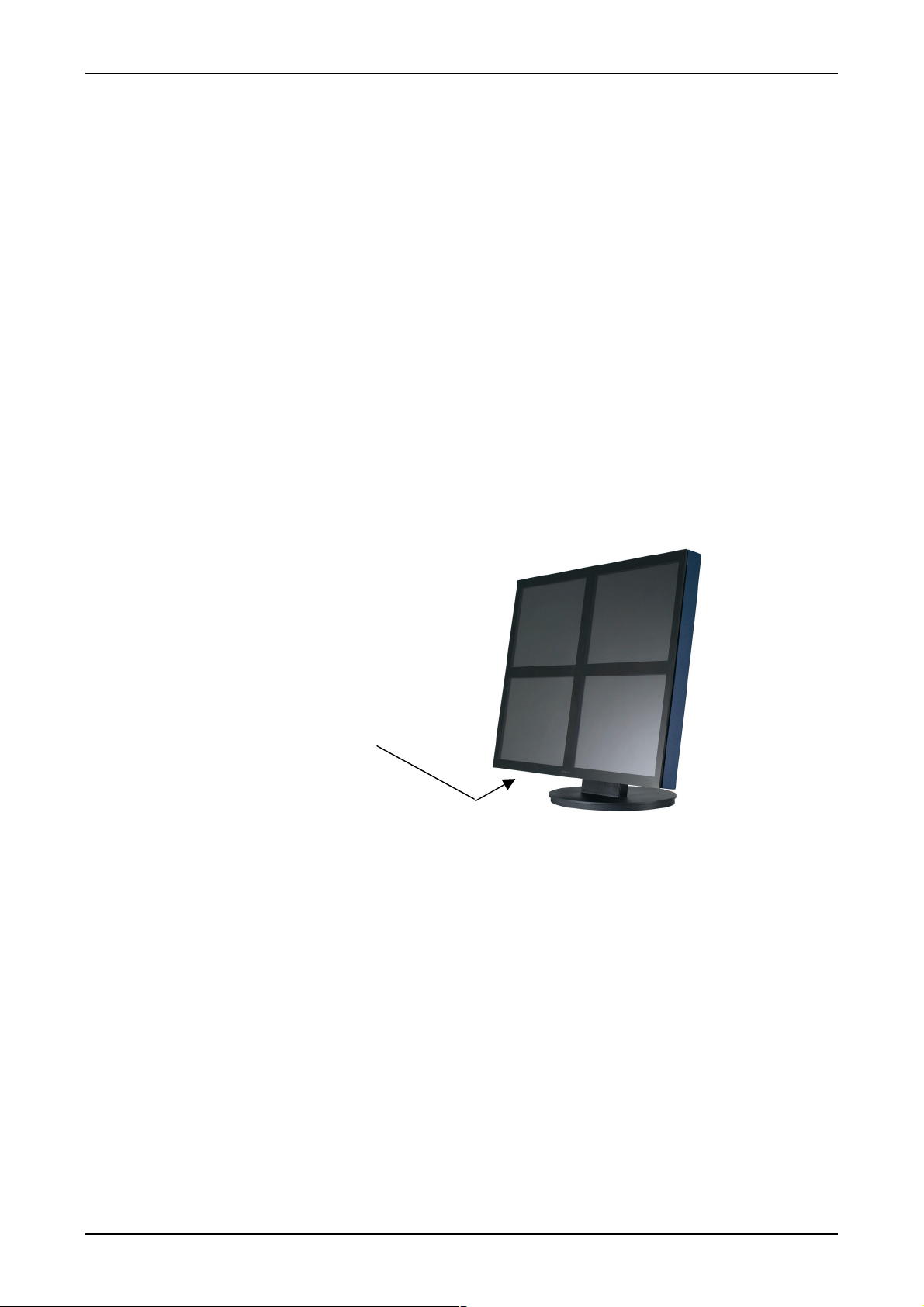
The four OSD panels are
located beneath the
monitor enclosure
P/N: 20-1700-00456 Page 6 of 24
Page 7
mermaid ventura 150 TFT x4 - User manual Version 1.1
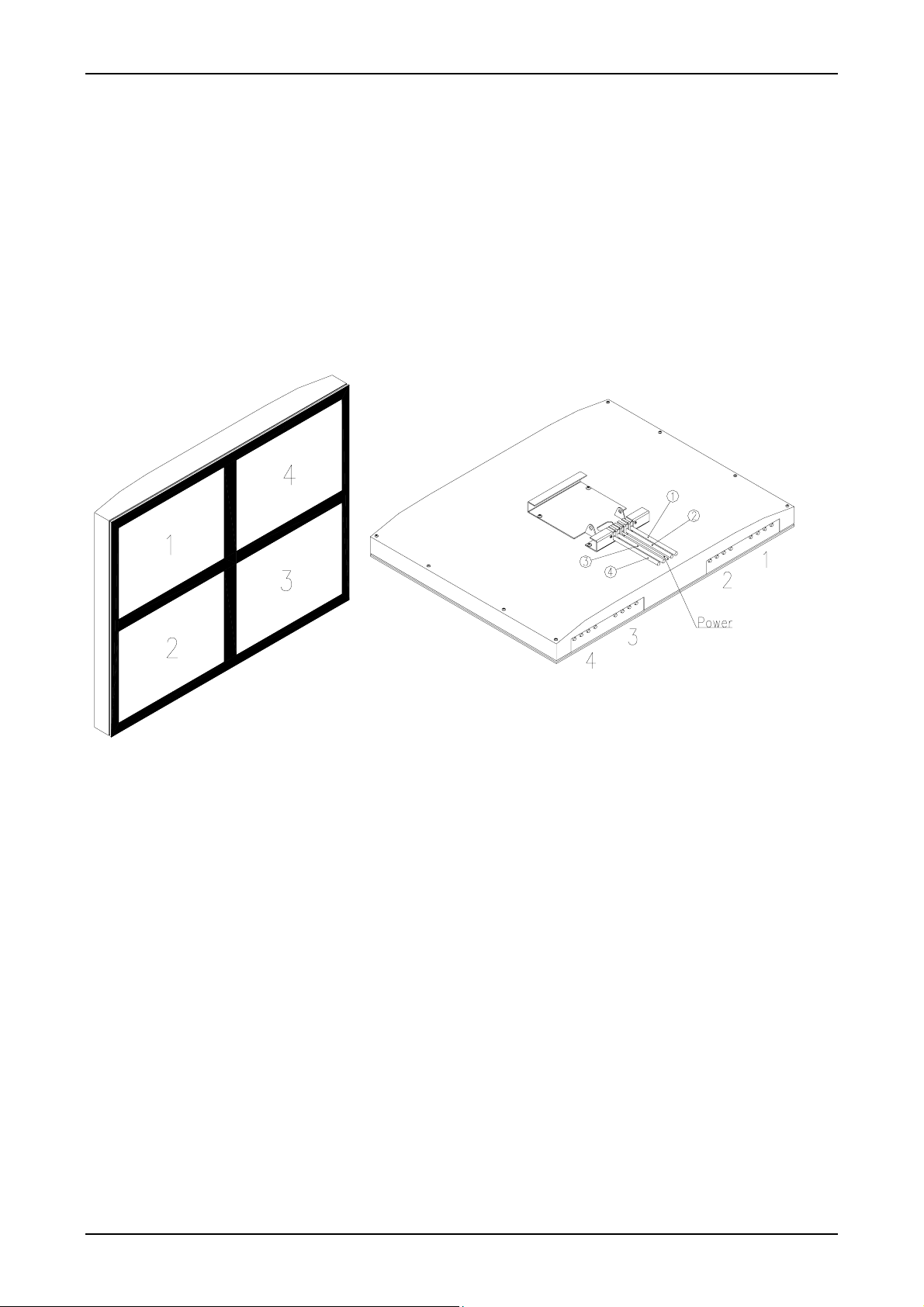
• The diagram below shows the interrelationship between the screen cable, the OSD key panel at the bottom of
the screen and the related TFT panel.
P/N: 20-1700-00456 Page 7 of 24
Page 8

mermaid ventura 150 TFT x4 - User manual Version 1.1
5. OSD Key Functions
Hot Key Menu Bright Bright Source Info
Normal Select Down
Left
Function Description
Menu (Hot Key) Activate the OSD
Bright (Hot Key) Activate brightness control OSD
Source info (Hot Key) Displays the resolution and frequencies of the chosen input**
Select Select the highlighted menu
Down/Left
Up/Right
Exit Exit from menu or sub-menus
Up
Right
Exit
Pre-Menu
Moves the selector right or left on the OSD Increase or decrease the value of the
selected item.
Exit from OSD menu
** When the Source info window is shown, the input source can be selected by use of the Down/Left or Up/Right
buttons.
P/N: 20-1700-00456 Page 8 of 24
Page 9
mermaid ventura 150 TFT x4 - User manual Version 1.1
6. OSD Functions & Adjustments
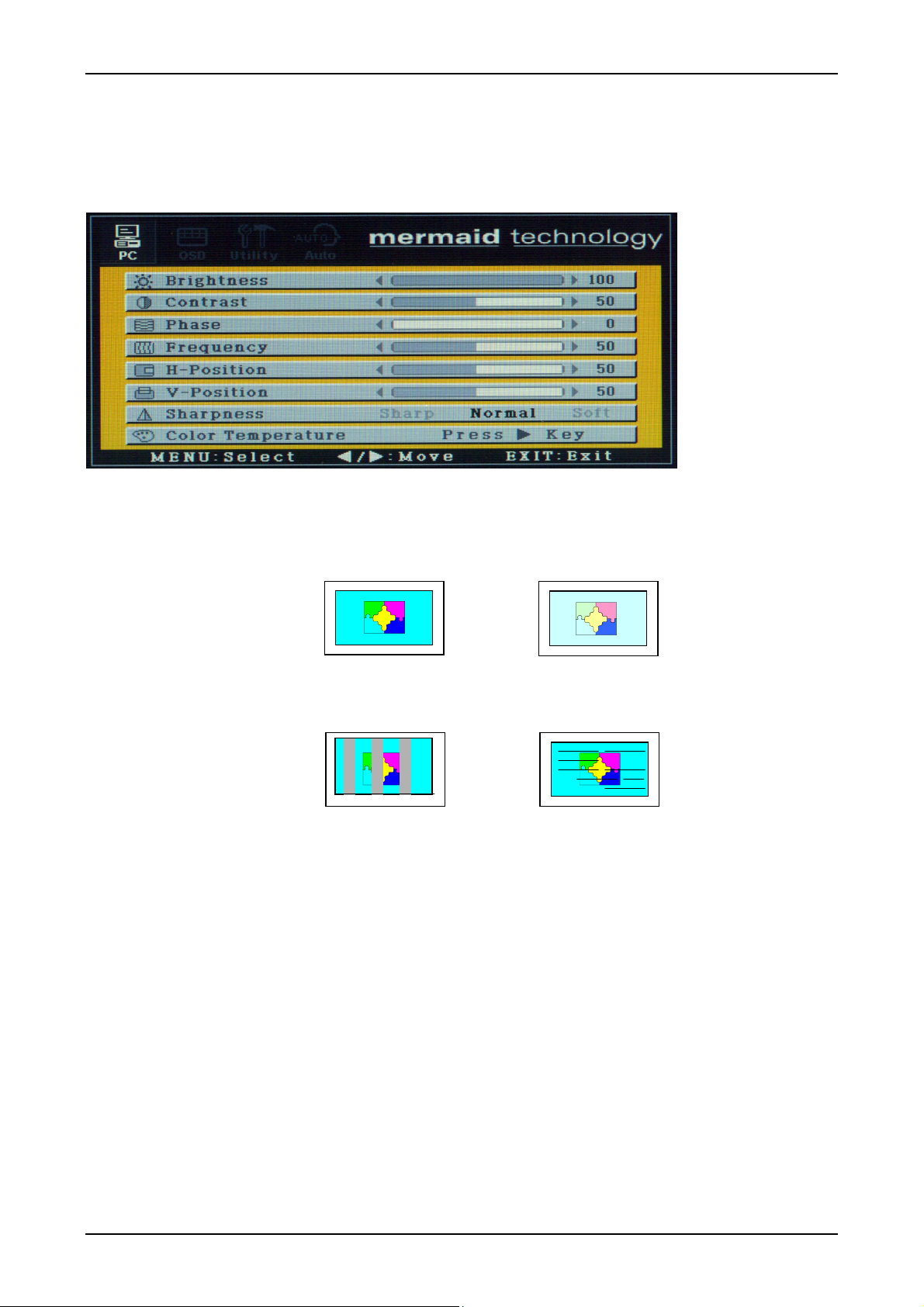
PC menu (Only available when the PC input source is active)
Function Description
1. Brightness Changes the overall brightness of the image.
2. Contrast Changes the ratio between white and black.
3. Phase
4. Frequency
5. H-Position
6. V-Position
7. Sharpness Modify the sharpness of the display.
8. Colour Temperature Changes the colour tone of the display.
¢¸ Distinct ¢º Vague
Fine tune vertical and horizontal noise in the display.
Mismatch of Horizontal
image size causes periodic
vertical bands in the display
Moves the vertical and horizontal location of the picture shown.
Sharp: Edges of image become sharp
Medium
Soft: Edges of image become soft
Mismatch of Phase causes
Horizontal line noise in the display
P/N: 20-1700-00456 Page 9 of 24
Page 10
mermaid ventura 150 TFT x4 - User manual Version 1.1
OSD Functions & Adjustments - continued
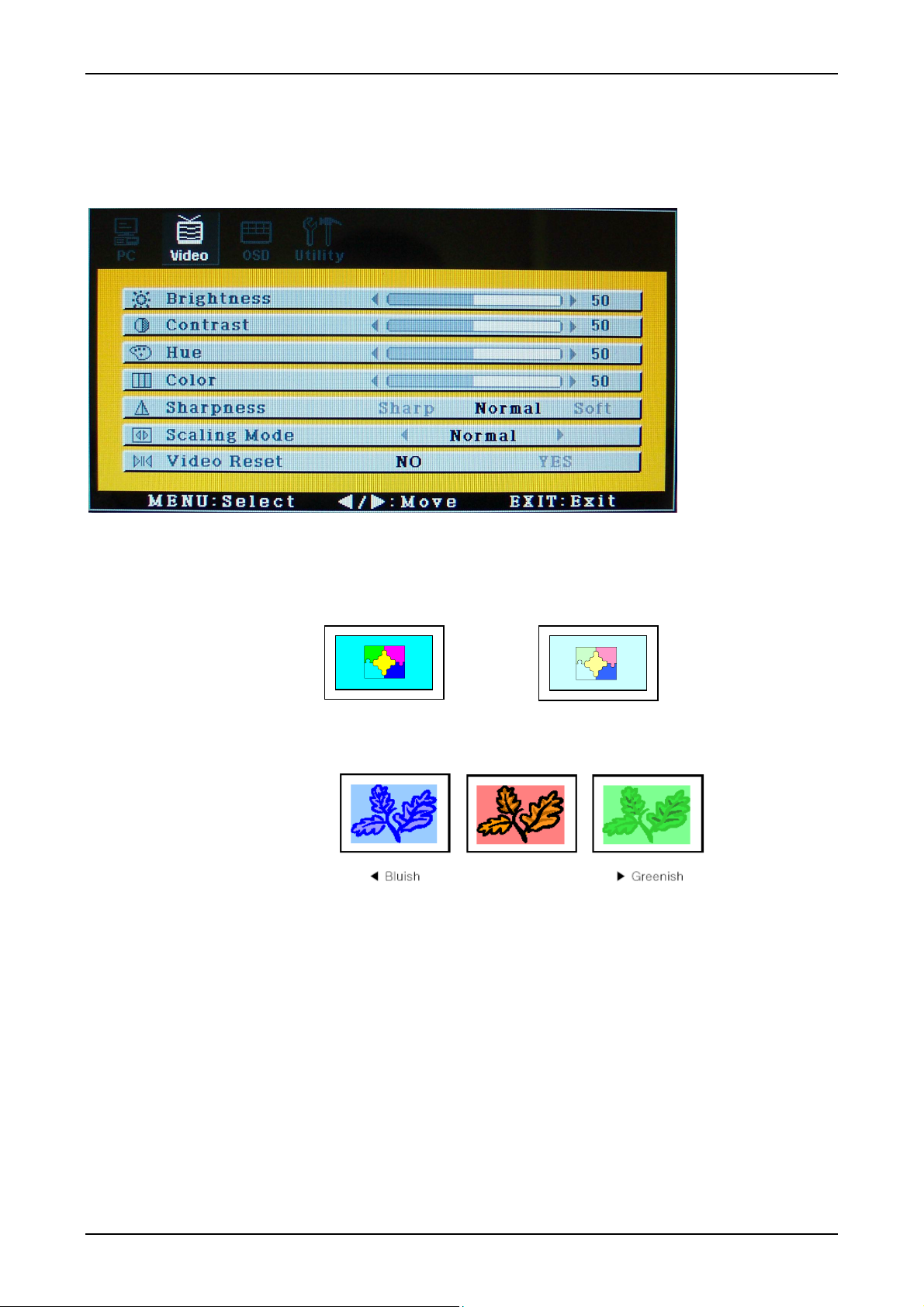
Video menu (Only available when Composite or S-video input source is active)
Function Description
1. Brightness Changes the overall brightness of the image.
2. Contrast Changes the ratio between white and black.
3. Hue
4. Colour
5. Sharpness Modify the sharpness of the display.
6. Scaling mode Changes Selects between different ways to scale the video input.
7. Video Reset Reset the values in the video menu to factory defaults.
¢¸ Distinct ¢º Vague
Changes the color balance in either bluish or greenish direction.
Changes the colour saturation of the image
Sharp: Edges of image become sharp
Medium
Soft: Edges of image become soft
P/N: 20-1700-00456 Page 10 of 24
Page 11
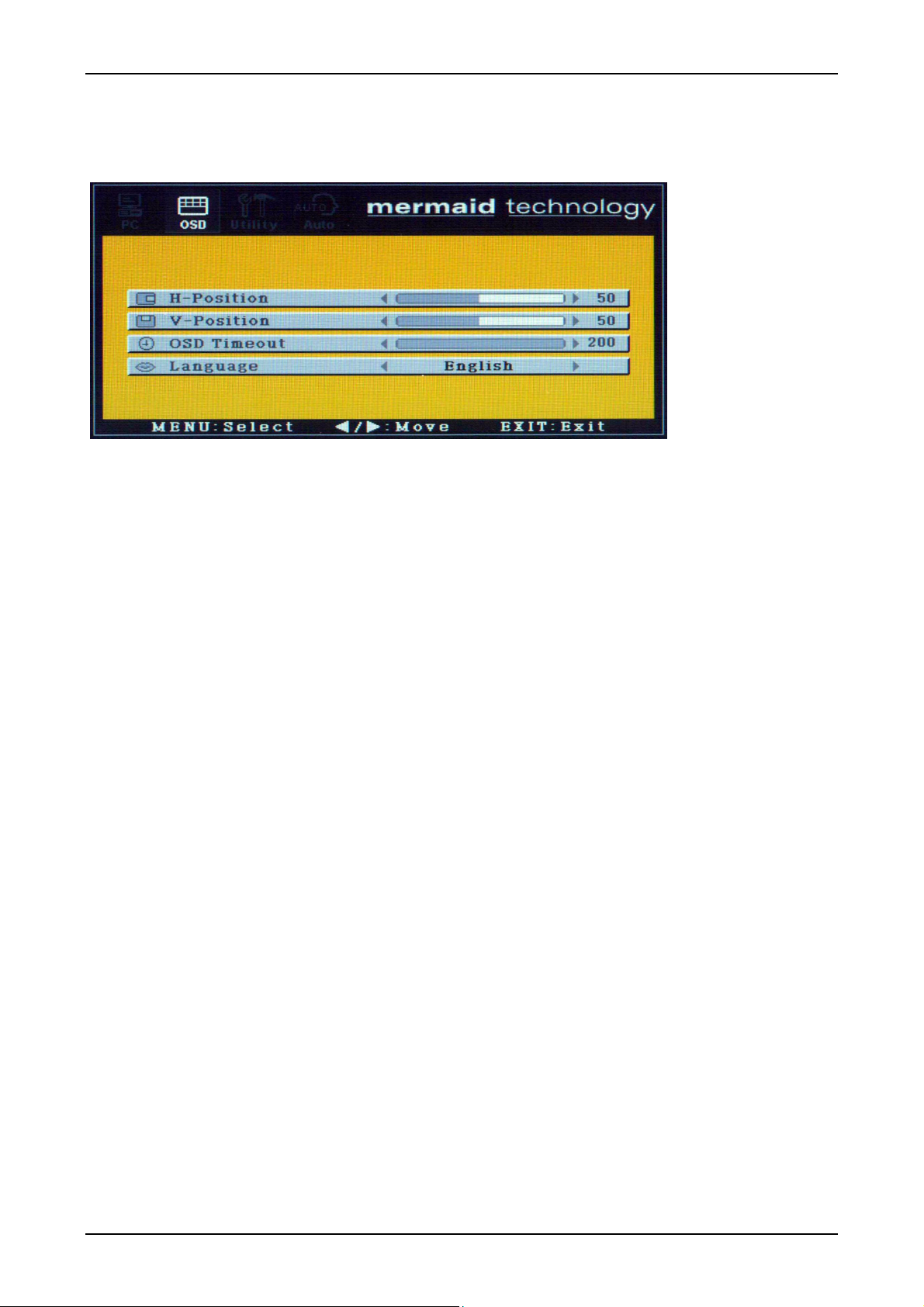
mermaid ventura 150 TFT x4 - User manual Version 1.1
OSD Functions & Adjustments - continued
Function Description
1. H-Position
2. V-Position
3. OSD Timeout
4. Language
Moves the location of the OSD menu.
Specifies the time span before the OSD menu disappears.
(20 - 200 seconds)
Specifies the OSD language.
Select between English – German – Korean and Japanese
P/N: 20-1700-00456 Page 11 of 24
Page 12
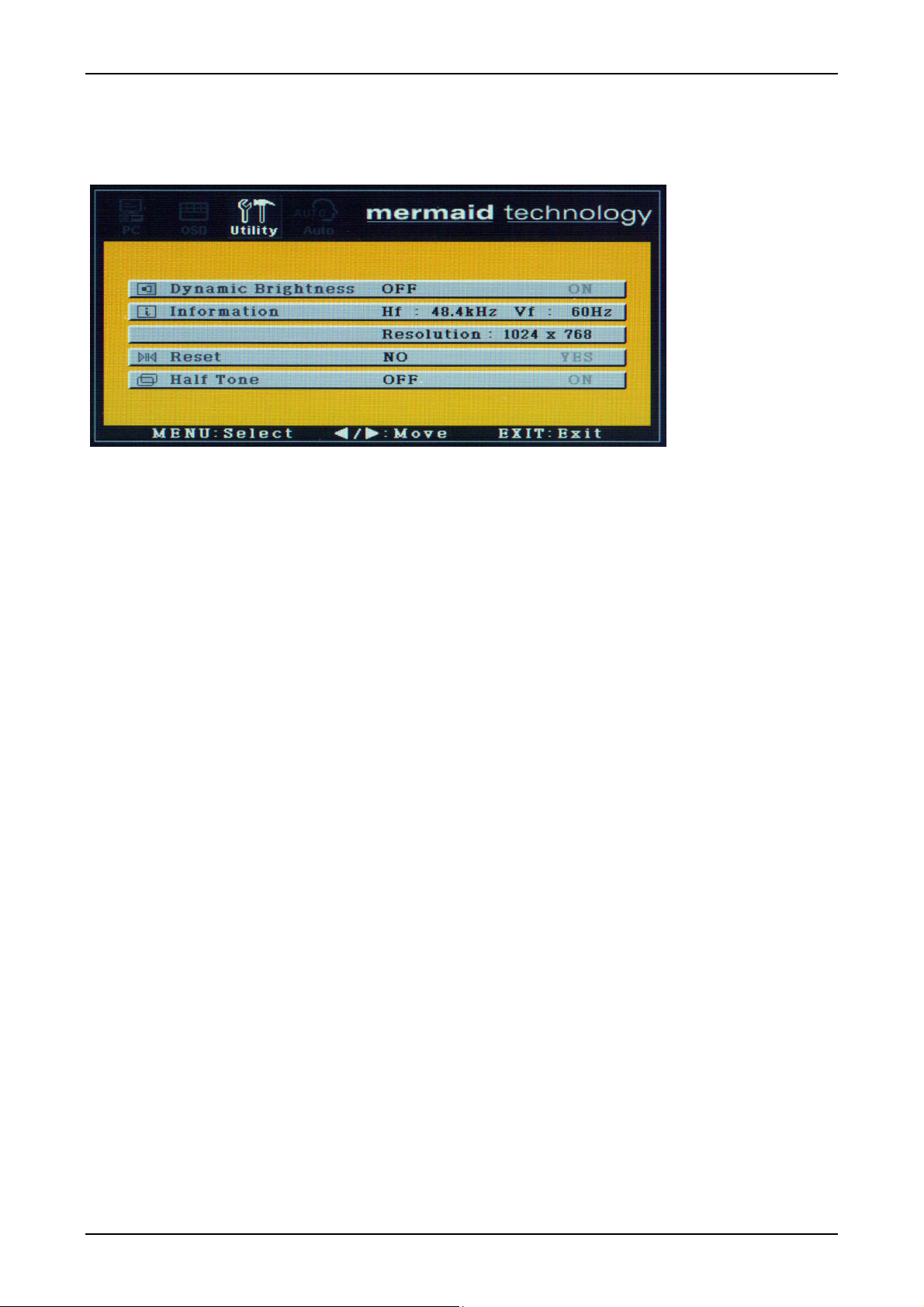
mermaid ventura 150 TFT x4 - User manual Version 1.1
OSD Functions & Adjustments - continued
Function
1. Dynamic Brightness
2. Information
3. Reset
4. Half Tone
Description
Smart Inverter Control.
This function allows the system to adjust the brightness of the backlight
automatically in conjunction with the quantity of the input data.
Displays the resolution and frequencies of the input.
Reset to factory default.
Changes the colour of the OSD menu.
P/N: 20-1700-00456 Page 12 of 24
Page 13
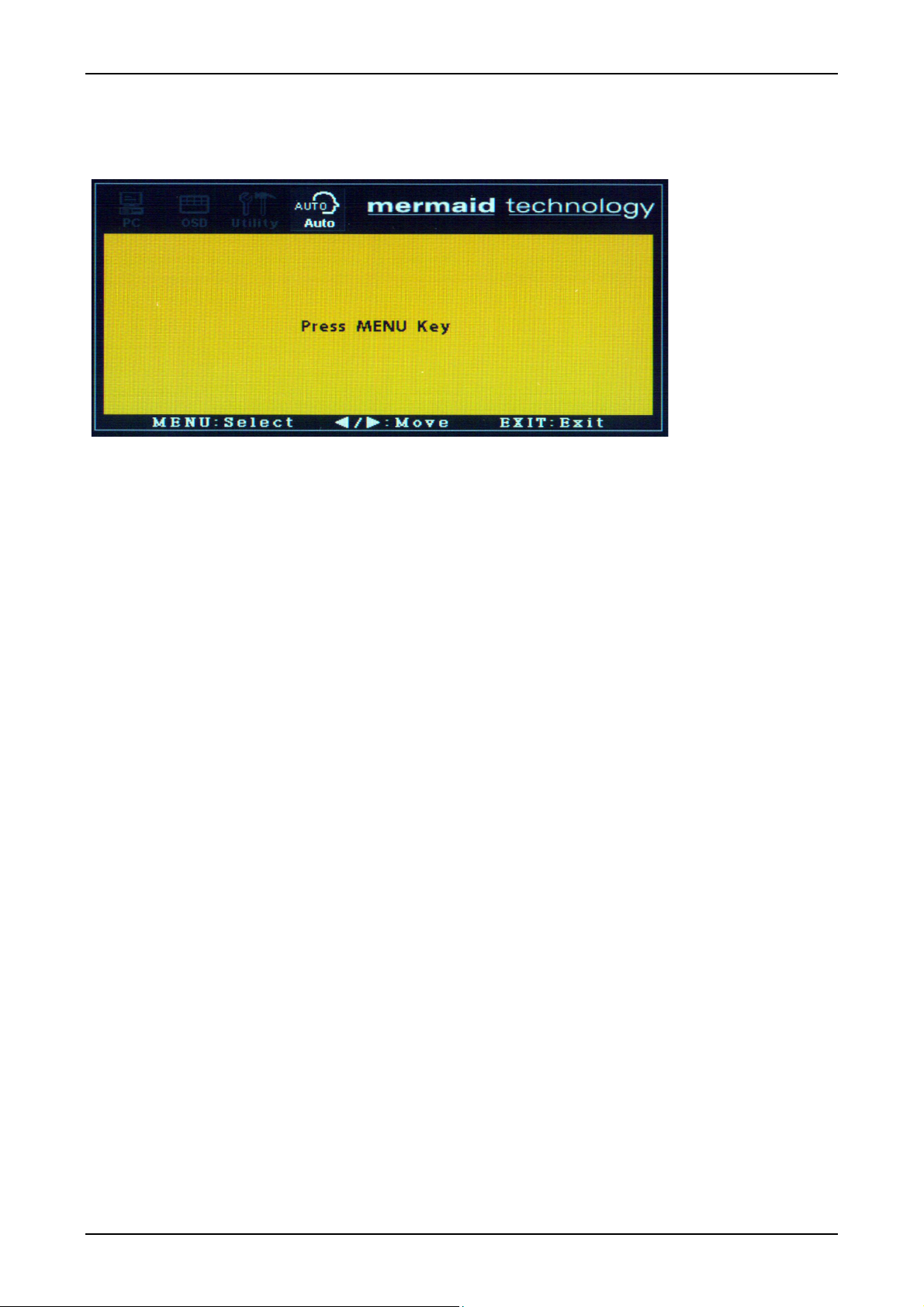
mermaid ventura 150 TFT x4 - User manual Version 1.1
OSD Functions & Adjustments - continued
Function Description
Auto Adjust The built-in microprocessor will optimize all display adjustment sets such as video
1) If the microprocessor does not optimize all settings successfully, please use the manual adjustment functions in the
OSD menu. (Phase – Frequency – V-position and H-position)
offset gain, position, phase and frequency automatically according to the preprogrammed auto adjustment program. 1)
P/N: 20-1700-00456 Page 13 of 24
Page 14

mermaid ventura 150 TFT x4 - User manual Version 1.1
7. Guarantee Terms
mermaid ventura 150 TFT x4 is covered by a 1-year send-in warranty.
Repair
If your mermaid ventura needs repairing, please visit www.mermaid.dk and fill-in the RMA-request. You will then
receive an RMA-number, which you must attach outside the monitor packing before you ship your product to mermaid.
We will return the product to you within 10 to 14 working days.
The guarantee terms set out above apply to Europe only.
8. If you need to contact us!
Contact mermaid customer support.
If you need to get in touch with mermaid technology, please contact us via phone or mail:
Phone
mermaid customer support opening hours are Monday to Friday 13.00-16.30.
By mail
mermaid technology a/s
Att.: Customer Support
Klingseyvej 15B
2730 Herlev
Denmark
Telephone
+45 44 52 92 00
Telefax
+45 44 52 92 65
E-mail
Internet
http://www.mermaid.dk
P/N: 20-1700-00456 Page 14 of 24
Page 15
mermaid ventura 150 TFT x4 - User manual Version 1.1
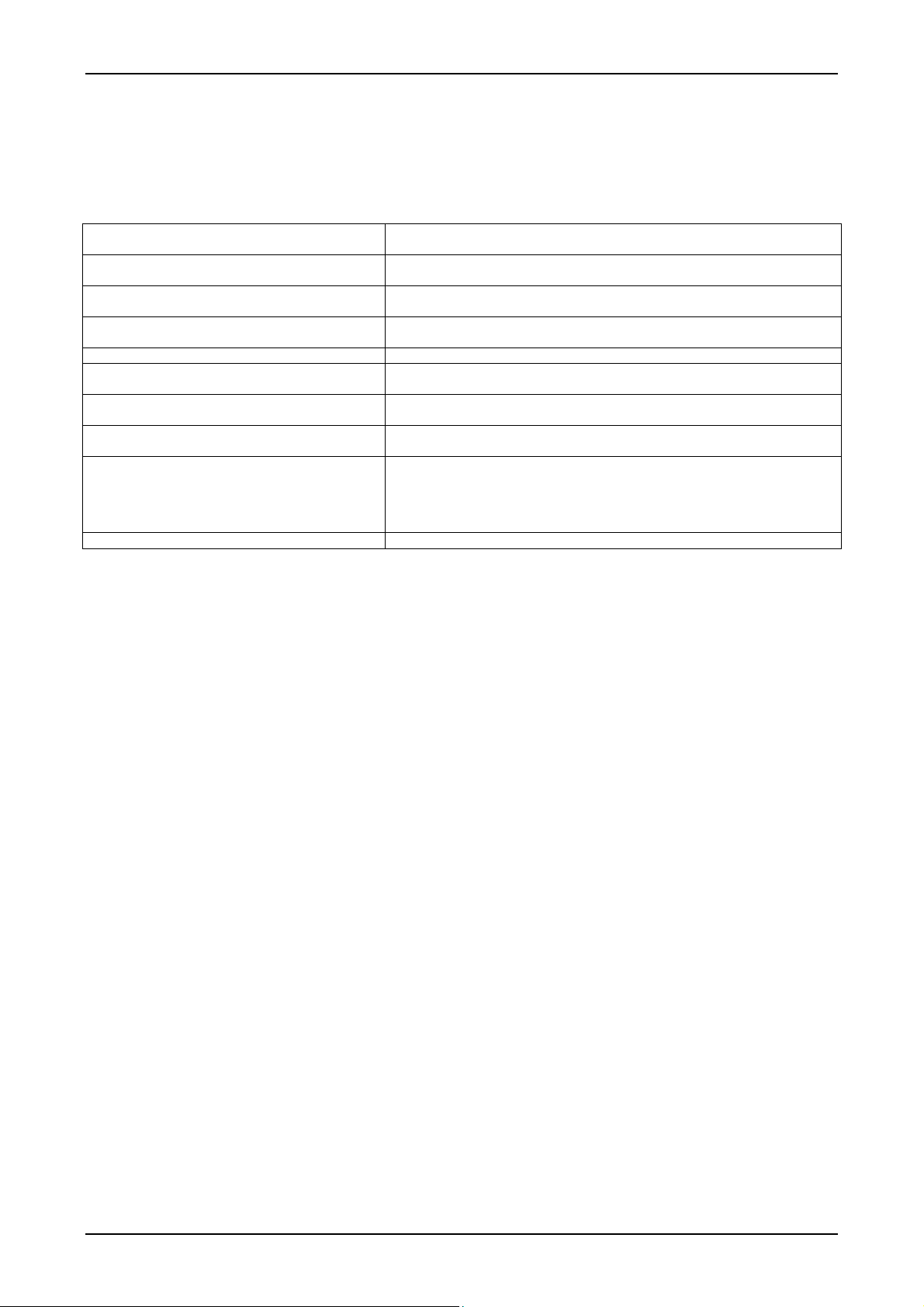
9. Troubleshooting
If you have troubles using this monitor, please refer to following suggestions for troubleshooting.
If you can not rectify the problem yourself, please contact your distributor or place of purchase.
Symptom Suggestions
Screen is blank Ensure that the power cord is connected and
“Check signal cable” message Ensure that the signal cable is connected firmly
“Sync out of range” message Check the maximum resolution and the
The image is too dark or bright Adjust the brightness and contrast.
Horizontal bars appear to flicker, jitter or
shimmer on the image
Vertical bars appear to flicker, jitter
or shimmer on the image
Screen is blank The system activates power management mode. Just press the PC
Image is not stable and may appear to vibrate Check the display resolution and frequency from your
Image is not centered on the screen Adjust the “Image Position / H-Position or V-Position”.
the monitor is on.
to the signal source. Ensure that the signal source is turned on.
frequency of the video adapter.
Adjust the “Phase”.
Select “Auto Adjust” in OSD menu
keyboard or move the PC mouse
PC or video board is within the available range of your monitor.
On your PC, check “Control Panel -> Display >Settings”.
If the setting is incorrect, you may change the setting using PC utility
program.
P/N: 20-1700-00456 Page 15 of 24
Page 16
mermaid ventura 150 TFT x4 - User manual Version 1.1
2
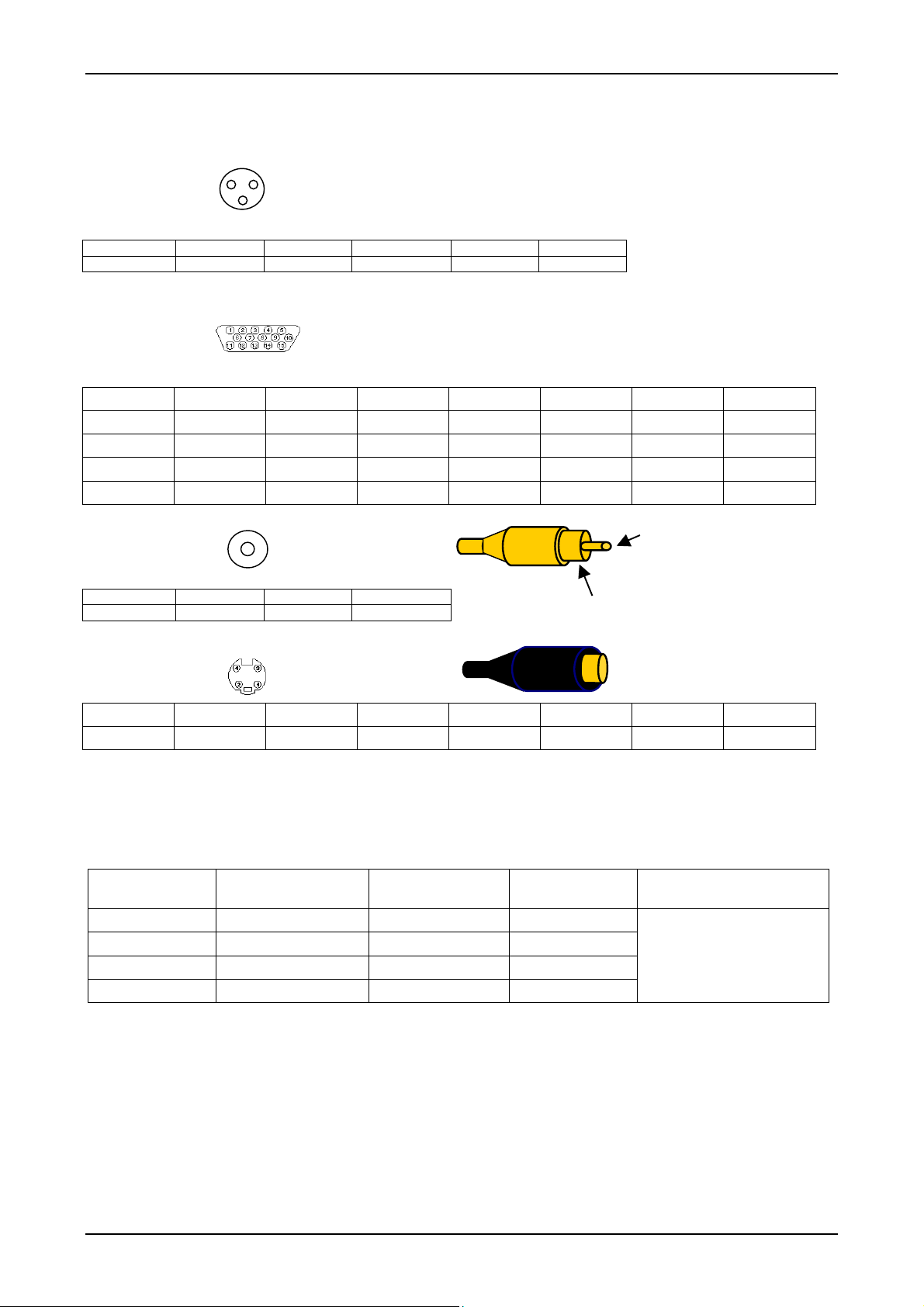
Appendix A: Connector Specifications
1
2
Power In
3
Pin no. Function Pin no. Function Pin no. Function
1 +12 Volt 2 Gnd 3 Not used
Analog RGB in
Pin no. Function Pin no. Function Pin no. Function Pin no. Function
1 Red 2 Green 3 Blue 4 NC
5 GND 6 R_GND 7 G_GND 8 B_GND
9 NC 10 GND 11 GND 12 SDA
13 H Sync 14 V. Sync 15 SCL
CVBS in
1
2
Pin no. Function Pin no. Function
1 CVBS 2 Gnd
S-Video in
Pin no. Function Pin no. Function Pin no. Function Pin no. Function
1 Gnd 2 Gnd 3 Luma 4 Chroma
Appendix B: Power Management Mode: VESA DPMS protocol applied
Mode Horizontal sync Vertical sync Video signal Power Consumption
On Active Active Active
Stand by Inactive Active Blanked
Suspend Active Inactive Blanked
Off Inactive Inactive Blanked
< 3 Watts
P/N: 20-1700-00456 Page 16 of 24
Page 17
mermaid ventura 150 TFT x4 - User manual Version 1.1
Appendix C. Technical Specifications
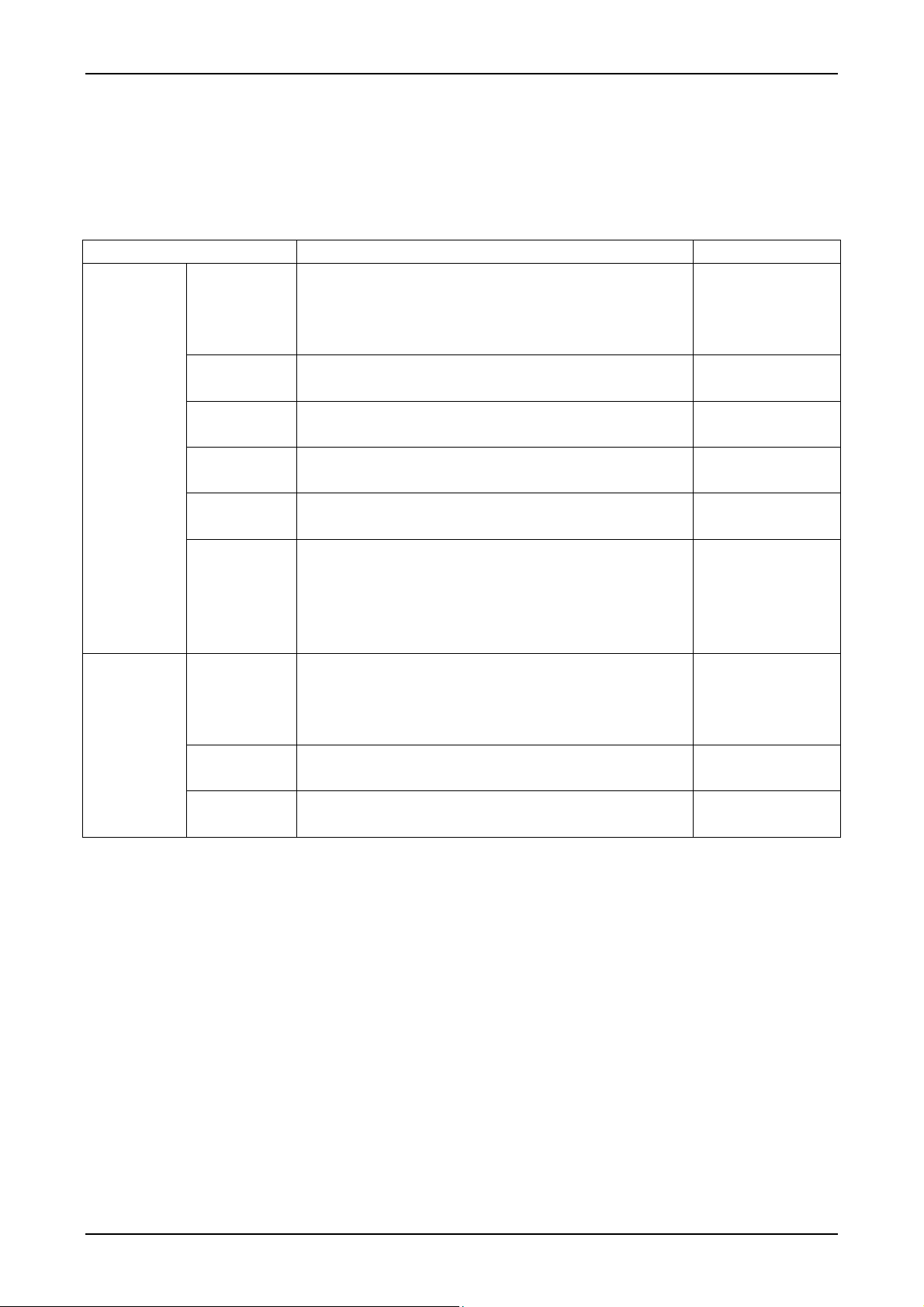
Input Video and sync signal
Item Description Notes
Video
Sync
Input
Resolution • Optimum: 1024x768@60Hz
Horizontal
Frequency
Vertical
Frequency
Applicable
Bandwidth
Sync
Signal
Input
Horizontal
Frequency
Vertical
Frequency
• Type: Analog RGB
• Level: 0.7Vp-p ±5%
• Polarity: Positive Bright
• Impedance: 75Ω±5% (Terminated)
• Maximum: 1280x1024@60Hz
• 30-61KHz (normal mode)
• 30-75KHz (Failure Safe mode)
• 55-75Hz (normal mode)
• 55-75Hz (Failure Safe mode)
• Typical: 95MHz (1024x768@85Hz)
• Max: 108MHz (1280x1024@60Hz)
• Type: Separate H/V sync, Composite H/V
Sync, Sync-on-green (SOG)
• Level: TTL level (V high ≤2.0V, V low ≤0.8V)
• Polarity: Positive or negative
• Termination resistance: more than 2KΩ
• Type: Separate H/V sync, Composite (SOG) Sync-on-
green
• Level: TTL level (V high ≤2.0V, V low ≤0.8V)
• Polarity: Positive or negative
• 30-61 KHz (normal mode)
• 30-69 KHz (Failure Safe mode)
• 55-75Hz (normal mode)
• 55-75Hz (Failure Safe mode)
VESA
Compliance
Down Scaling
mode
Depends on ADC
specification
P/N: 20-1700-00456 Page 17 of 24
Page 18
mermaid ventura 150 TFT x4 - User manual Version 1.1
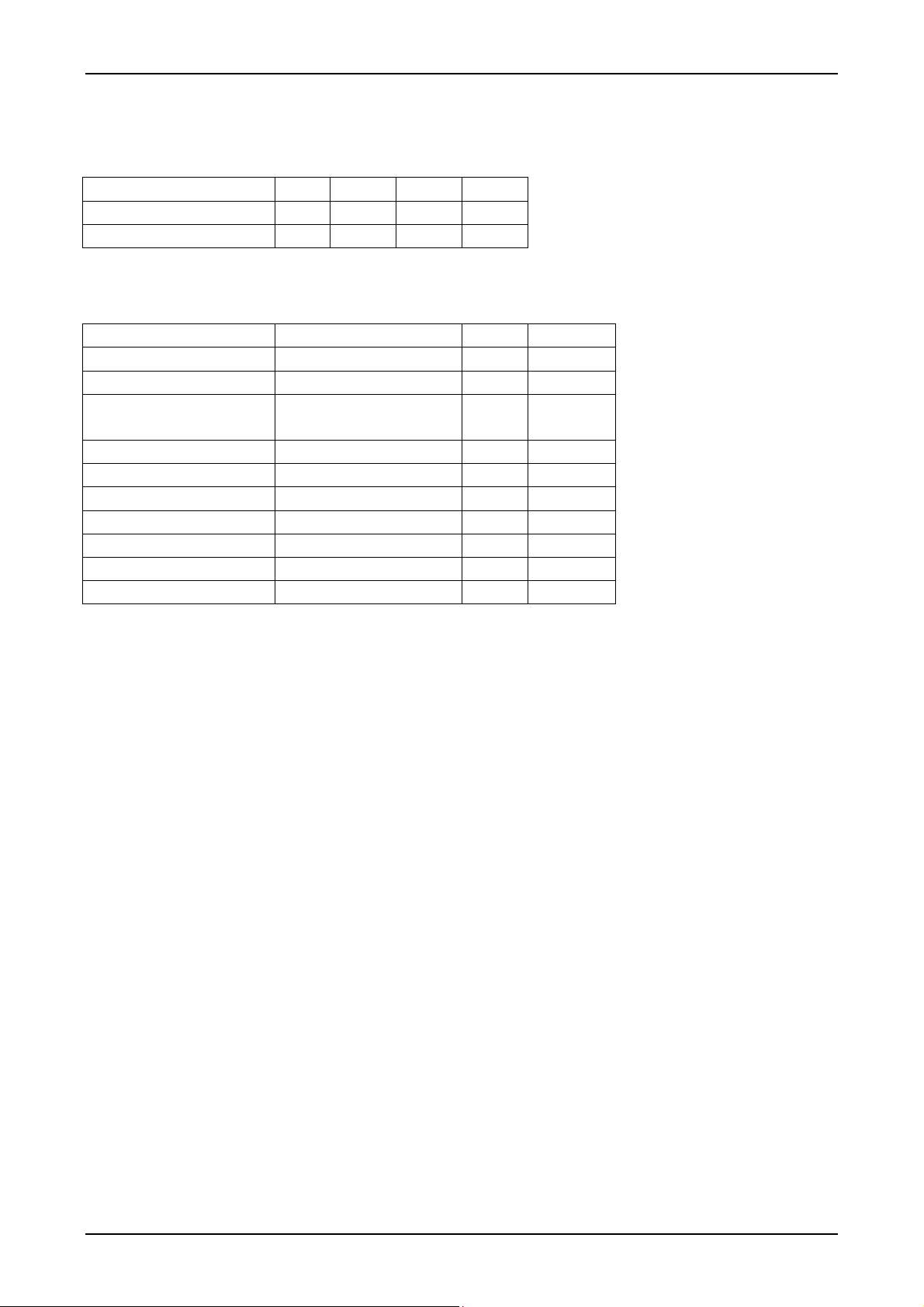
Electrical Parameters
Description Min Typ Max Unit
DC power supply 9 12 Volts
Supply Current 2.0 2.3 Amp.
Additional parameters
Description Value Unit
Driver Element a-Si TFT active matrix
Display Colours 16.7M (true) Colours
Display Area 304.1(H) x 228.1(V) mm 15.0 Inch
Number of Pixels 1024 x 768 Pixels
Pixel Arrangement RGB vertical stripe
Pixel Pitch 0.297(H) x 0.297(W) mm
Display Mode Normally White
Lamp 4-Lamp CCFL
Operating Temperature 0 ~50 °C
Storage Teemperature -25 ~60 °C
diagonal
P/N: 20-1700-00456 Page 18 of 24
Page 19
mermaid ventura 150 TFT x4 - User manual Version 1.1
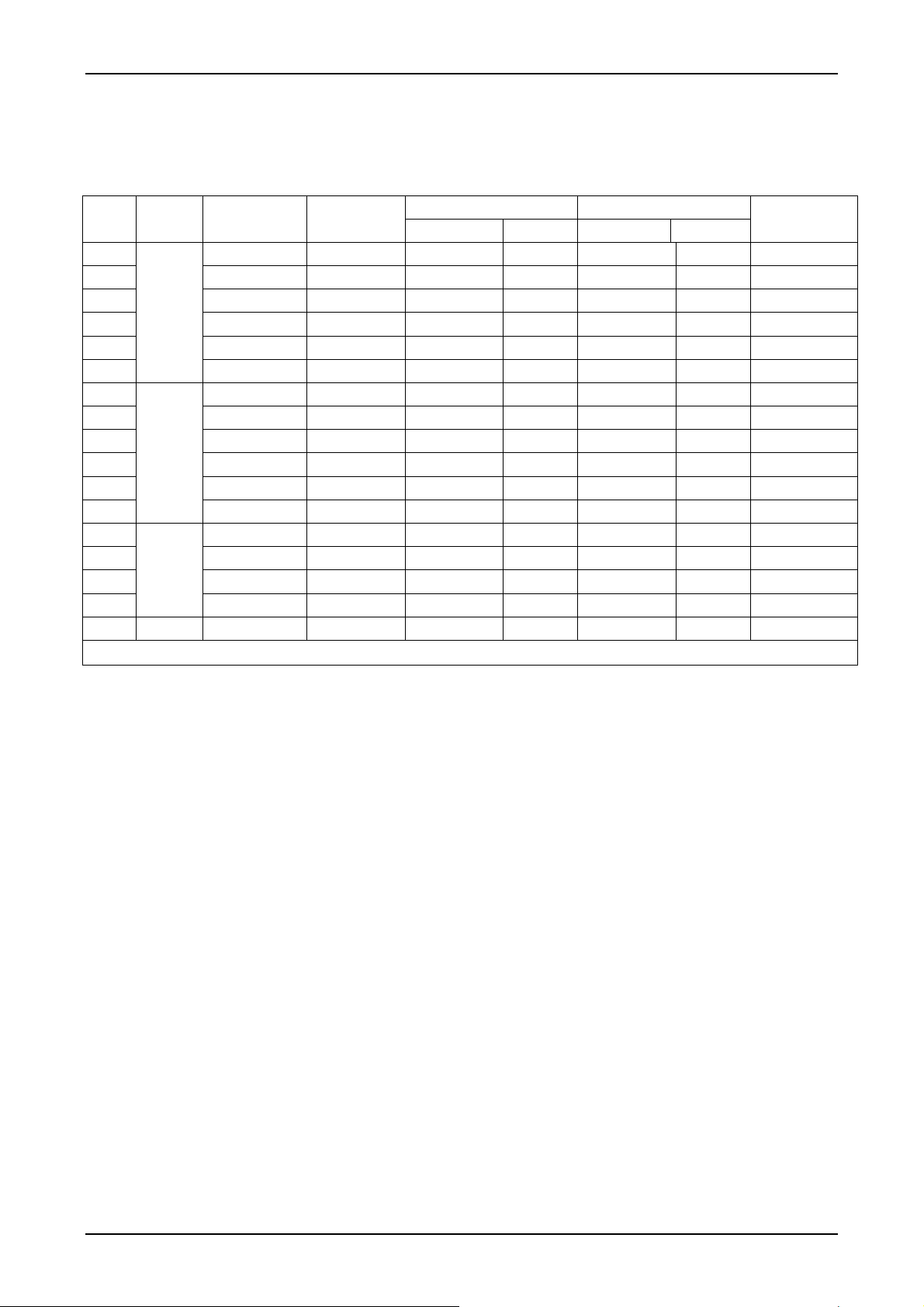
Appendix D: Video Mode Support
No Mode Resolution Total
1 720x400 900x449 31.47KHz N 70.0 Hz P 28.322MHz
2 640x480 800x525 31.47KHz N 60.0 Hz N 25.175MHz
3 640x480 864x525 35.00KHz N 66.7 Hz N 30.240MHz
4 640x480 832x520 37.86KHz N 72.8 Hz N 31.500MHz
5 640x480 840x500 37.50KHz N 75,0 Hz N 31.500MHz
6
7 800x600 1024x625 35.16KHz N/P 56.3 Hz N/P 36.000MHz
8 800x600 1056x628 37.88KHz P 60.3 Hz P 40.000MHz
9 800x600 1040x666 48.08KHz P 72.2 Hz P 50.000MHz
10 800x600 1056x625 47.87KHz P 75.0 Hz P 49.500MHz
11 800x600 1048x631 53.67KHz P 85.1 Hz P 56.250MHz
12
13 1024x768 1152x667 48.36KHz N 60.0 Hz N 65.000MHz
14 1024x768 1328x806 56.48KHz N 70.1 Hz N 75.000MHz
15 1024x768 1312x806 60.02KHz P 75.0 Hz P 78.750MHz
16
17 SXGA 1280x1024 1708x1056 64.00KHz N 60.0 Hz N 108.000Mhz
▀ 6, 11, 16, 17 mode is “Failure-safe Mode“
VGA
640x480 832x509 43.27KHz N 85.0 Hz N 36.000MHz
SVGA
832x624 1152x667 49.73KHz N 74.6 Hz N 57.284MHz
XGA
1024x768 1276x808 68.67KHz P 85.0 Hz P 94.500MHz
Horizontal Vertical
Frequency Polarity Frequency Polarity
Pixel Clock
P/N: 20-1700-00456 Page 19 of 24
Page 20
mermaid ventura 150 TFT x4 - User manual Version 1.1
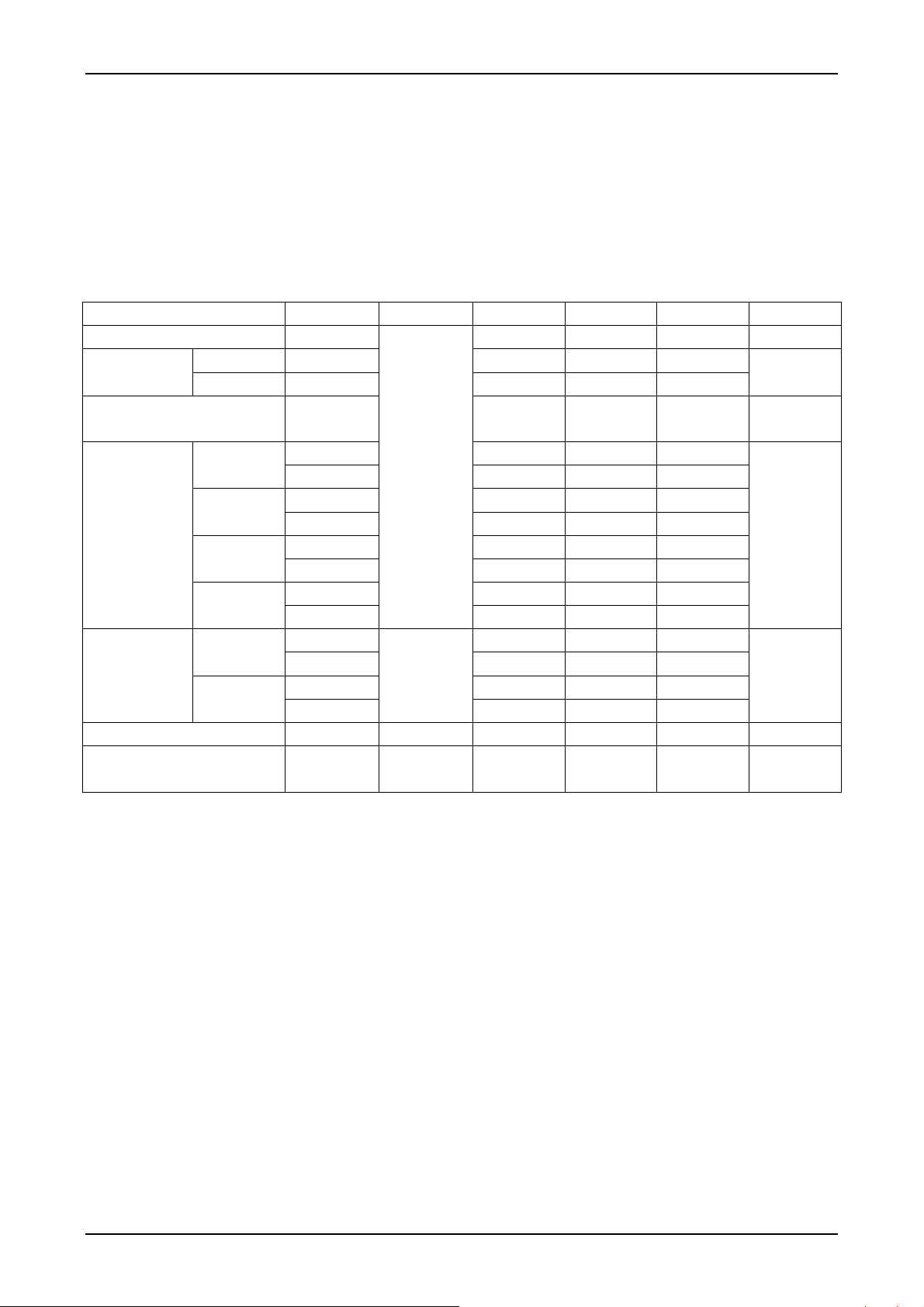
Appendix E: Optical Characteristics – ventura 150 TFT
The following items were measured under stable conditions. The optical characteristics should be measured in a dark
room or equivalent state.
* Measuring equipment: TOPCON MB-5A: Contrast Ratio, Luminance of White, Viewing Angle
TOPCON BM-7: Response time, Flicker
Photo Research PR650: Colour Chromaticity
* Ta = 25± 2
Time at Ta
Luminance of White
(Centre of Screen)
Colour
Chromaticity
(CIE 1931)
Viewing
Angle
Brightness Uniformity
• Measuring Condition: Maximum value of Brightness and Contrast in OSD menu.
• Flicker must be controlled internally.
0
C, VIN = +12Vm fv= 60Hz., IL = 6.0mA
Item Symbol Condition Min. Typ. Max. Unit
Contrast Ratio CR (200) 300 -
Rising T
Falling T
R
F
Y
L
Red
Green
RX (0.603) (0.628) (0.653)
(0.328) (0.353) (0.378)
R
Y
GX (0.265) (0.290) (0.315)
(0.570) (0.595) (0.620)
G
Y
BX (0.119) (0.144) (0.169)
Blue
White
Hor.
Ver.
(0.063) (0.088) (0.113)
B
Y
WX 0.279 0.304 0.329
W
Y
θ
L
θ
R
Θ
H
Θ
L
Φ=0,
Θ=0
Normal
Viewing
Angle
CR≥10
- 5 - Response
- 20 -
(200)
250
-
0.300 0.325 0.350
(65) - -
(65) - -
(50) - -
(60) - -
msec
2
cd/m
Degrees
Colour Gamut - (65) - %
(9 points)
B
UNI
-
-
(29)
%
P/N: 20-1700-00456 Page 20 of 24
Page 21
mermaid ventura 150 TFT x4 - User manual Version 1.1
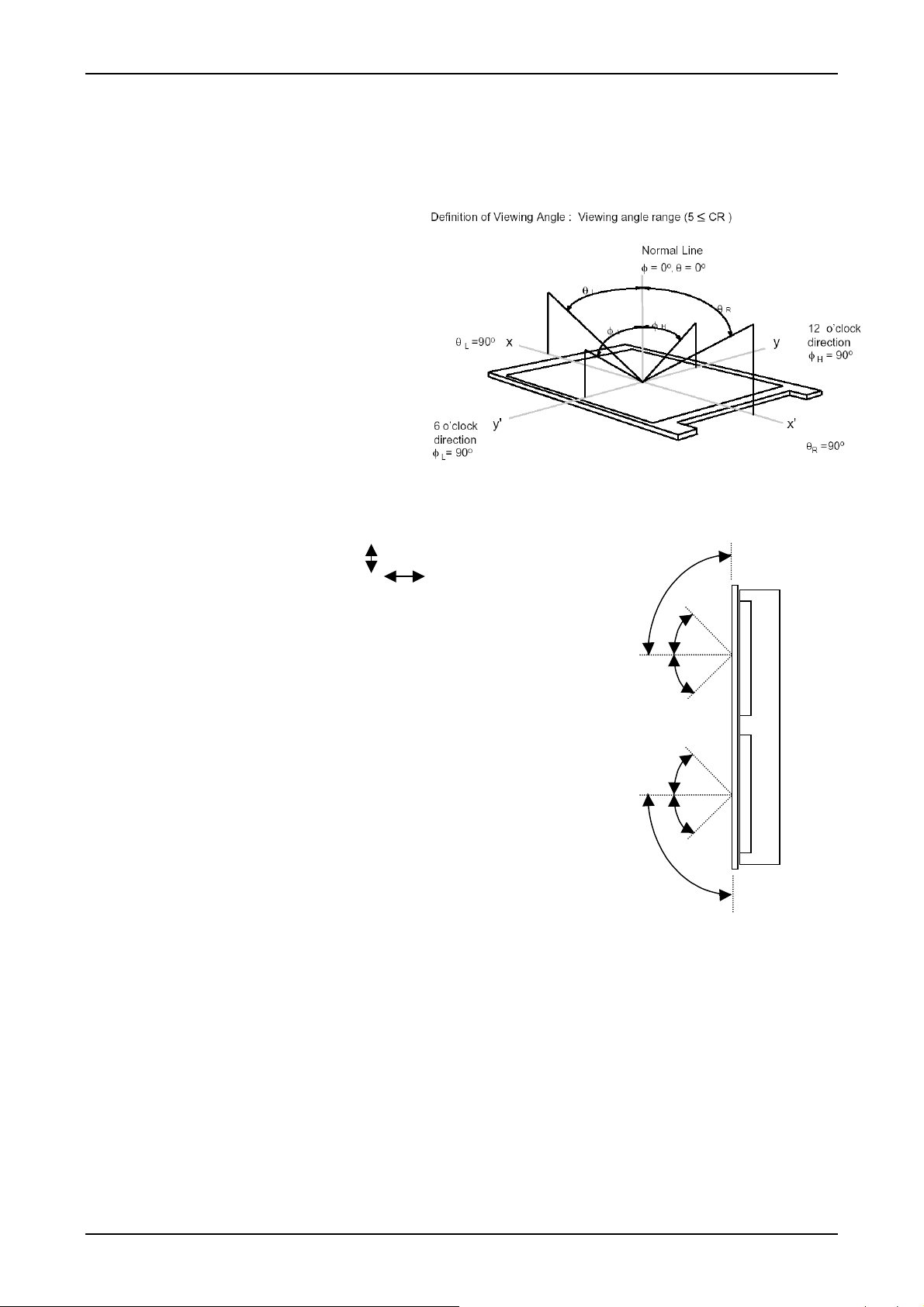
Appendix F: Definition of viewing angle.
• Viewing angle is defined as the range,
measured at a 90° angle from the display
surface plane in the centre of the display
panel to that angle, where the the
contrast value has dropped to 10:1 or
5:1. The exact value is defined by the
manufacturer of the panel. See drawing.
• Viewing angle is defined both vertically
and horizontally.
• The two sets of parameters are rarely
The panels in the mermaid ventura 150 x4 have the folloing data:
Because two panels are mounted on top of each other in pairs, it’s impossible to
experience the same contrast value on all 4 panels, when looking at them from
the same angle.
Please remember, thet even though the viewing angles are fairly high, the
contrast is allowed to drop from e.g. 300:1 to 5:1 within that range, which
equals to 60 times!
The user will typically experience this as colour differences and backlight
uniformity differences.
All 4 panels are taken from the same production batch, which ensures the best
panel homogeneity as possible.
common.
• Viewing angle Vertical +55°/-60°
• Viewing angle Horizontal: +/-70°
• Contrast: 300:1 (The difference between max. white and black)
• Brightness: 250 cd/m
2
(Backlight output)
0°
0°
90°
+55°
-60°
+55°
-60°
90°
Upper
panels
Lower
panels
mermaid
ventura 150x4
P/N: 20-1700-00456 Page 21 of 24
Page 22

mermaid ventura 150 TFT x4 - User manual Version 1.1
P/N: 20-1700-00456 Page 22 of 24
Page 23

mermaid ventura 150 TFT x4 - User manual Version 1.1
P/N: 20-1700-00456 Page 23 of 24
Page 24

Klingseyvej 15B
2730 Herlev
Denmark
Phone: +45 44 52 92 00
www.mermaid.dk
 Loading...