

Page 1
File Name MEITRACK MT90 User Guide Creator Cavana Cheung
Project MT90 Creation Date
Sub Project User Guide Page 1 of 18
Revision V1.4 Confidential External Documentation
Update Date
2011-05-16
2012-04-06
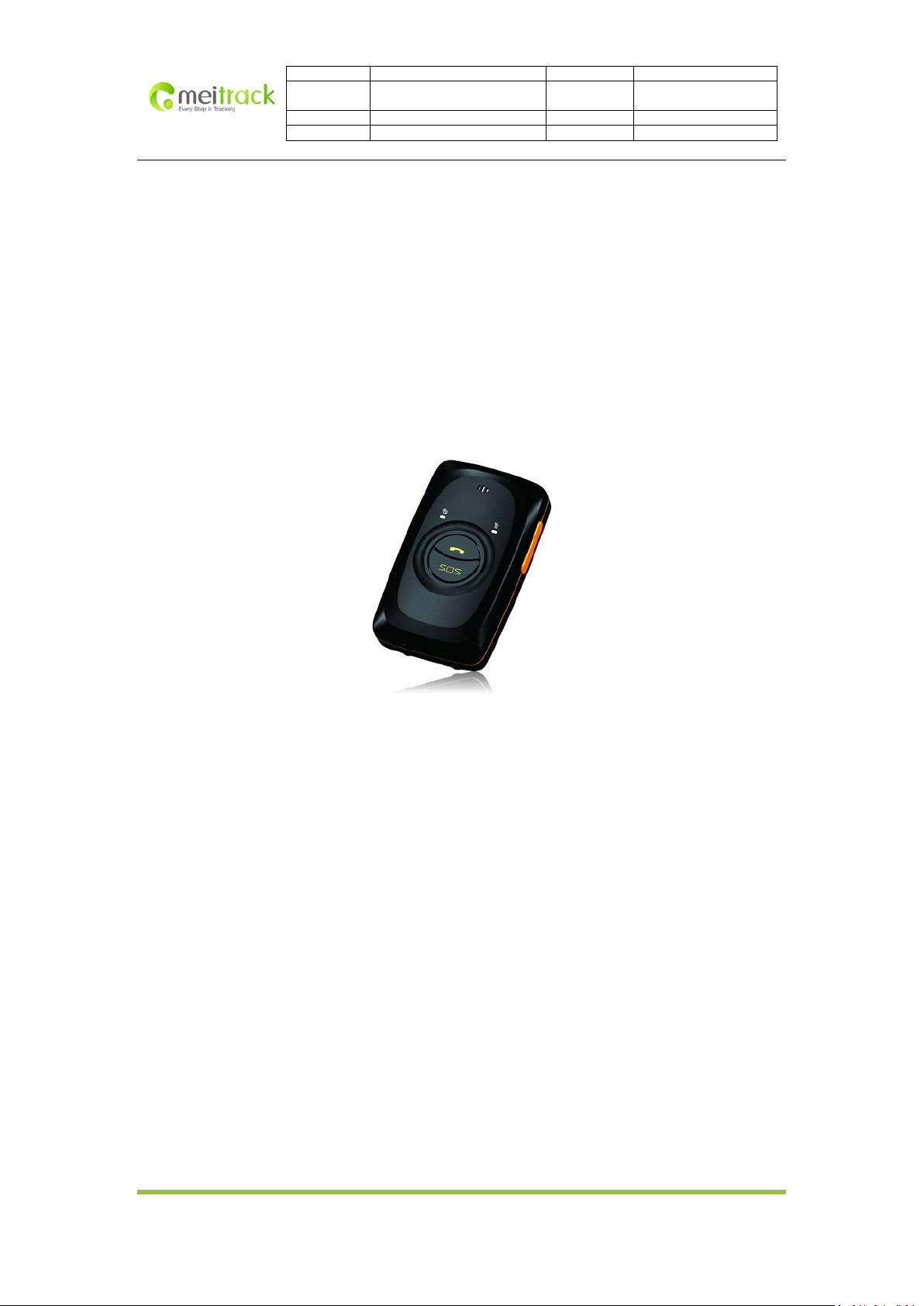
MEITRACK® Personal Tracker
User Guide V1.4
MT90
Copyright © 2012 Shenzhen Meiligao Electronics Co., Ltd. All rights reserved.
-1-
Page 2

File Name MEITRACK MT90 User Guide Creator Cavana Cheung
Project MT90 Creation Date
Sub Project User Guide Page 2 of 18
Revision V1.4 Confidential External Documentation
Update Date
2011-05-16
2012-04-06
Contents
1. Copyright and Disclaimer .................................................................................................................................. 3
2. Applications ...................................................................................................................................................... 3
3. Product Function and Specifications ................................................................................................................. 3
3.1 Product Function................................................................................................................................ 3
3.2 Specifications ..................................................................................................................................... 4
4. MT90 and Accessories ...................................................................................................................................... 4
5. View and Buttons ............................................................................................................................................. 5
6. First Use ............................................................................................................................................................ 7
7. Quick Operation Instruction ............................................................................................................................. 8
7.1 Real-time Location Tracking ............................................................................................................... 9
7.2 SOS – A71 ........................................................................................................................................... 9
7.3 Listening-in (Voice Monitoring) – A72 .............................................................................................. 10
7.4 Smart Sleep Mode – A73 ................................................................................................................. 10
7.5 Time Zone – B35 .............................................................................................................................. 11
7.6 Fast Open GPS Tracking – F12 .......................................................................................................... 11
7.7 More Settings ................................................................................................................................... 11
8. Configure by Computer ................................................................................................................................... 12
Run “Meitrack Manager.exe”, it will detect Comm port and read all MT90’s parameters automatically: ........ 13
8.1 SMS Tracking .................................................................................................................................... 14
8.2 GPRS Tracki ng................................................................................................................................... 16
9. Log on GPS Platform ....................................................................................................................................... 17
10. Safety and Usage Information ......................................................................................................................... 17
Copyright © 2012 Shenzhen Meiligao Electronics Co., Ltd. All rights reserved.
-2-
Page 3

File Name MEITRACK MT90 User Guide Creator Cavana Cheung
Project MT90 Creation Date
Sub Project User Guide Page 3 of 18
Revision V1.4 Confidential External Documentation
Update Date
2011-05-16
2012-04-06
1. Copyright and Disclaimer
Copyright © 2012 MEITRACK. All rights reserved.
MEITRACK and
.
The user manual may be changed without prior notification.
This user manual, or any part thereof, may not be reproduced for any purpose whatsoever without the written
authorization of Meiligao (MEITRACK), or transmitted in any form, either electronically or mechanically, including
photocopying and recording.
In no event shall Meiligao (MEITRACK) be liable for direct, indirect, special, incidental, or consequential damages
(including but not limited to economic loss, personal injury, and loss of asset and property) arising out of the use
or inability or illegality to use the product or documentation.
are trademarks that belong to Shenzhen Meiligao Electronics Co., Ltd.
2. Applications
Personal Tracking and Protection
Pet Tracki n g
Assets Tracking and Security
Vehicle Tracking
3. Product Function and Specifications
3.1 Product Function
SiRF IV GPS and Quad Band GSM 850/900/1800/1900Mhz
Small in size (77mm x 47mm x 20mm) and lightweight (65g)
Waterproof IP65
Low Power Consumption and Long Standby Time
GPS and GSM base station of bi-module positioning
Track by SMS/GPRS (MEITRACK Protocol)
Track on Demand
Track by Time Interval
Track by Distance Interval
Track on Mobile Phone
Listen-in (Voice Monitoring)
Internal 8MB Memory for Logging
Inbuilt Motion Sensor
Inbuilt Battery
SOS Alarm
Geo-fence Alarm
Copyright © 2012 Shenzhen Meiligao Electronics Co., Ltd. All rights reserved.
-3-
Page 4
File Name MEITRACK MT90 User Guide Creator Cavana Cheung
Project MT90 Creation Date
Sub Project User Guide Page 4 of 18
Revision V1.4 Confidential External Documentation
Update Date
2011-05-16
2012-04-06
GPS Fake Zone Alarm
Low Battery Alarm
Speeding Alarm
Mileage Report
3.2 Specifications
Items Specification
Dimension 77 x 47 x 20mm
Weight 65g
Charging Voltage Mini USB charging interface, DC4.2V~5.5V/400mA
Back-up Battery 1100mAh/3.7V rechargeable and replaceable lithium-ion battery(NokiaBL-5C compatible)
Power Consumption 65mA standby current
Operating
Temperature
Humidity 5%~95%
Work T ime 60 hours in power-saving mode and 16 hours in normal mode
LED 2 LED lights to show power, GPS, GSM and otherstatus
Button 5 buttons for making phone call and sending SMS
Microphone/Speaker Internal microphone and speaker
Memory 8MB Byte
Sensor Accelerometer
GSM Frequency GSM850/900/1800/1900MHz
GPS Chip Latest GPS SIRF-Star IV chipset
GPS Sensitivity -159dB
Positioning Accuracy 10 meters, 2D RMS
-20℃~55℃
4. MT90 and Accessories
MT90 device
Battery
USB data cable
Travel adapter (charger)
Mini screwdriver
Lanyard
User manual, warranty card and CD
Reminder: use only Meitrack-approved software. Pirated or illegal software may cause damage or
malfunctions that are not covered by Meitrack’s warranty. The supplied accessories perform best for your
device.
Copyright © 2012 Shenzhen Meiligao Electronics Co., Ltd. All rights reserved.
-4-
Page 5
Power On/Off
File Name MEITRACK MT90 User Guide Creator Cavana Cheung
Project MT90 Creation Date
Sub Project User Guide Page 5 of 18
Revision V1.4 Confidential External Documentation
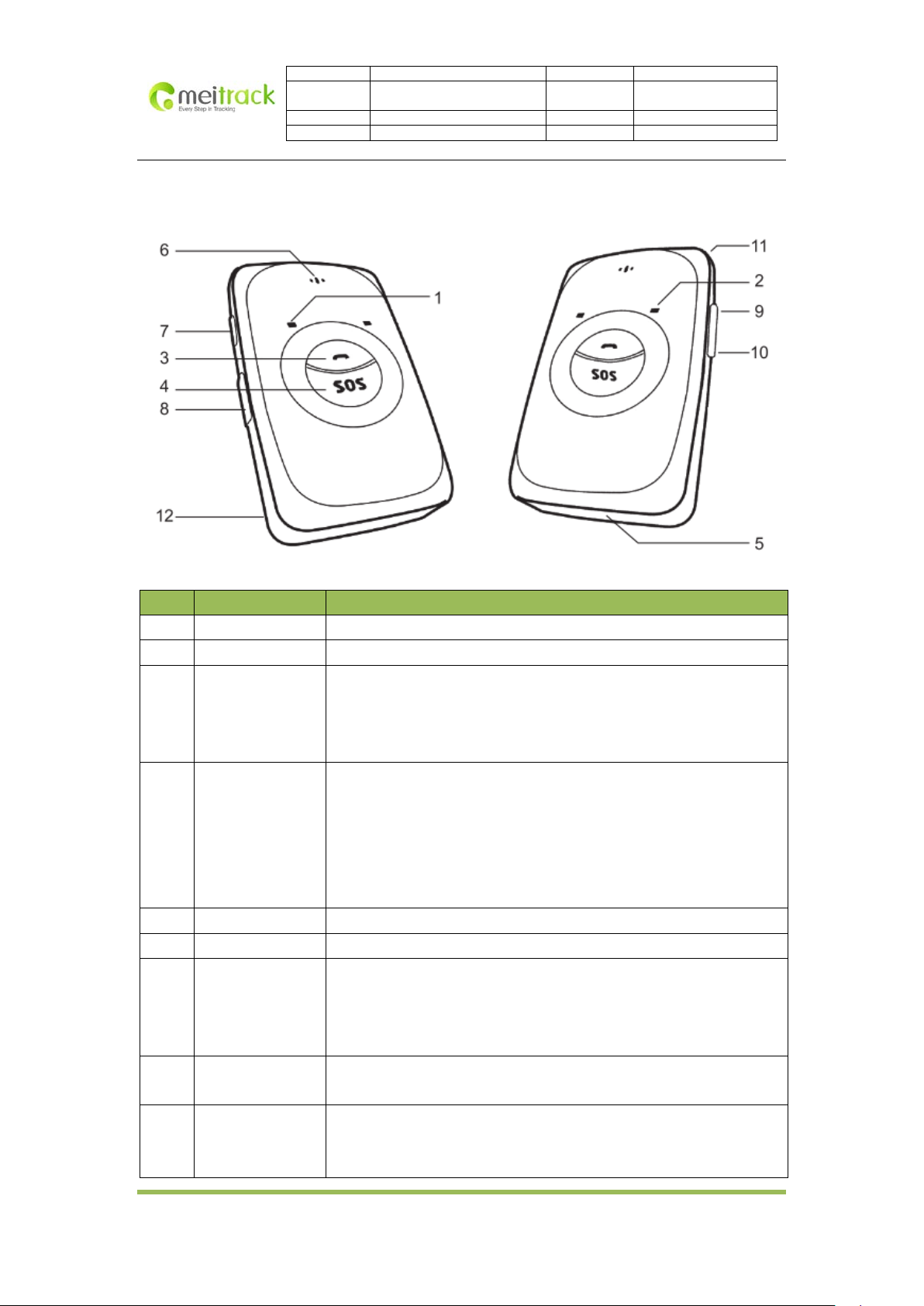
5. View and Buttons
Update Date
2011-05-16
2012-04-06
No. Item Description
1 GPS LED (Blue) Indicating GPS and battery status, please refer to below LED indications.
2 GSM LED (Green) Indicating GSM status, please refer to below LED indications.
3 Answer/Hand-up
Button
Press to receive an incoming call.
Press to complete a conversation.
Long press for 2 seconds to send GPRS message to the server when
no incoming call or conversation.
4 SOS Button Long press for 2 seconds, MT90 will dial 3 preauthorized phone
numbers in turn. It will stop dialing when one number answers.
Meanwhile, MT90 will send an SMS to the preauthorized phone
number and send GPRS message to the server if GPRS function is
enabled.
Press to wake up if MT90 is in sleep mode.
5 Microphone It will run automatically when using listen-in and call functions.
6 Speaker It will run automatically when using call function.
7
Button
Long press for 2 seconds to turn on MT90.
Long press for 2 seconds to turn off MT90.
Press to wake MT90 up from sleep mode, power LED will slowly
flash for 10 seconds.
8 Mini USB Mini USB is used for charging, connecting to computer for setting up
parameters, updating software and so on.
9 Volume+/Logger
Button
Long press to turn up the volume.
Long press for 2 seconds to start hands-free conversation.
In standby mode, long press for 2 seconds, when the buffer “BI” once, the
Copyright © 2012 Shenzhen Meiligao Electronics Co., Ltd. All rights reserved.
-5-
Page 6
File Name MEITRACK MT90 User Guide Creator Cavana Cheung
Project MT90 Creation Date
Sub Project User Guide Page 6 of 18
Revision V1.4 Confidential External Documentation
Update Date
2011-05-16
2012-04-06
logger will run automatically. (MT90 will log the route every 30 seconds
automatically. Route record can be exported with the computer.
Long press for 2 seconds again, when the buffer “BI” twice, and the
logger will stop automatically.
Note: you can make turn on/off function of logger (default: valid) invalid
through Meitrack Manager to avoid operating failure.
10 Volume-/GPRS
Button
Light press to turn down the volume.
In standby mode, long press for 2 seconds, when the buzzer “BI”
once, GPRS function will be enabled automatically. ( Precondition:
GPRS parameter must be set in advance, default GPRS message
interval is 10 minutes)
Long press for 2 seconds again, when the buzzer “BI” twice, GPRS
function will be disabled automatically.
Note: you can make turn on/off function of logger (default: valid) invalid
through Meitrack Manager to avoid operating failure.
11 Lanyard Loop For connecting lanyard.
12 Battery Cover Install the battery, SIM card and Micro SD card by removing the battery cover.
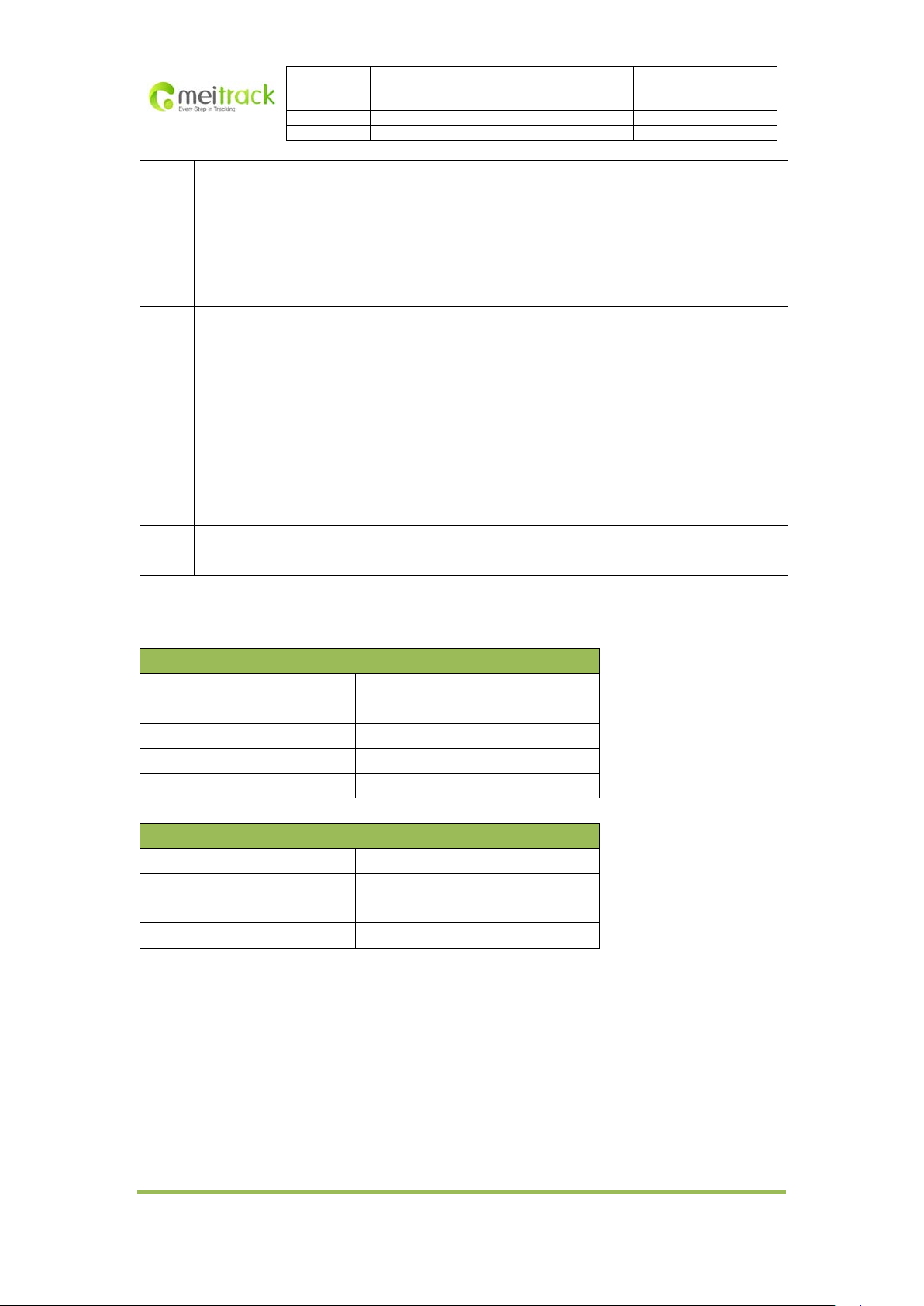
LED Indications
Long press the switch for 2 seconds to turn on/off MT90.
GPS LED (Blue)
On Charging
Flashing (every 5 secs.) Sleeping
Flash (1 sec on, 1 sec off) No GPS fix or initializing
Off GPS fix
Fast flash (0.3 sec on, 0.3 sec off) Low battery
GSM LED (Green)
On A call is coming in or busy
Flashing (every 5 secs.) Sleeping
Flash (1 sec on, 1 sec off) No GSM signal or initializing
Off MT90 is connected to GSM network
Copyright © 2012 Shenzhen Meiligao Electronics Co., Ltd. All rights reserved.
-6-
Page 7
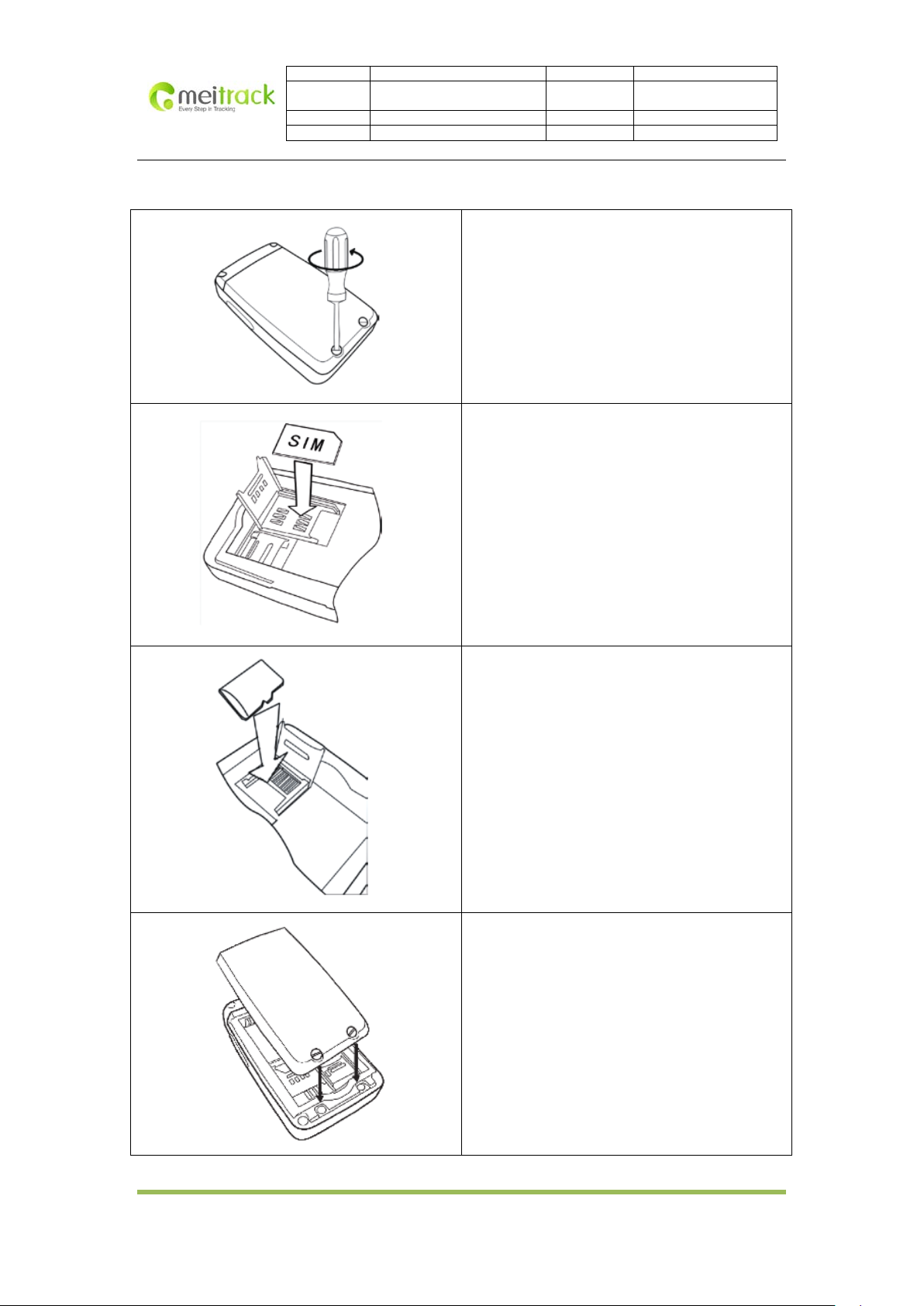
Place the SIM card into the device with the
6. First Use
File Name MEITRACK MT90 User Guide Creator Cavana Cheung
Project MT90 Creation Date
Sub Project User Guide Page 7 of 18
Revision V1.4 Confidential External Documentation
Update Date
2011-05-16
2012-04-06
1. Remove the Battery Cover
With the device turned off, place your MT90 with the
front facing down. Use the mini screwdriver to remove
the two screws to release the back cover. Lift up the
back cover from the notch at the bottom of the device.
2. Insert the SIM Card
gold-colored side facing down.
Note: make sure there is enough credit on the SIM
card. It is also important that the SIM card has Called ID
Display function. If you will use GPRS function, you
should pay attention to the current SIM card GPRS
charge.
3. Insert the Micro SD Card
Insert the Micro SD card into the slot with its gold
contacts facing down and push it until it clicks into
place.
4. Insert the Battery
Insert the contacts side of the battery first and then
gently push the battery cover into place.
Note: battery performance depends on many factors,
including signal strength, the temperature of the
environment in which you operate your phone, the
features and/or other program usage patterns.
Copyright © 2012 Shenzhen Meiligao Electronics Co., Ltd. All rights reserved.
-7-
Page 8
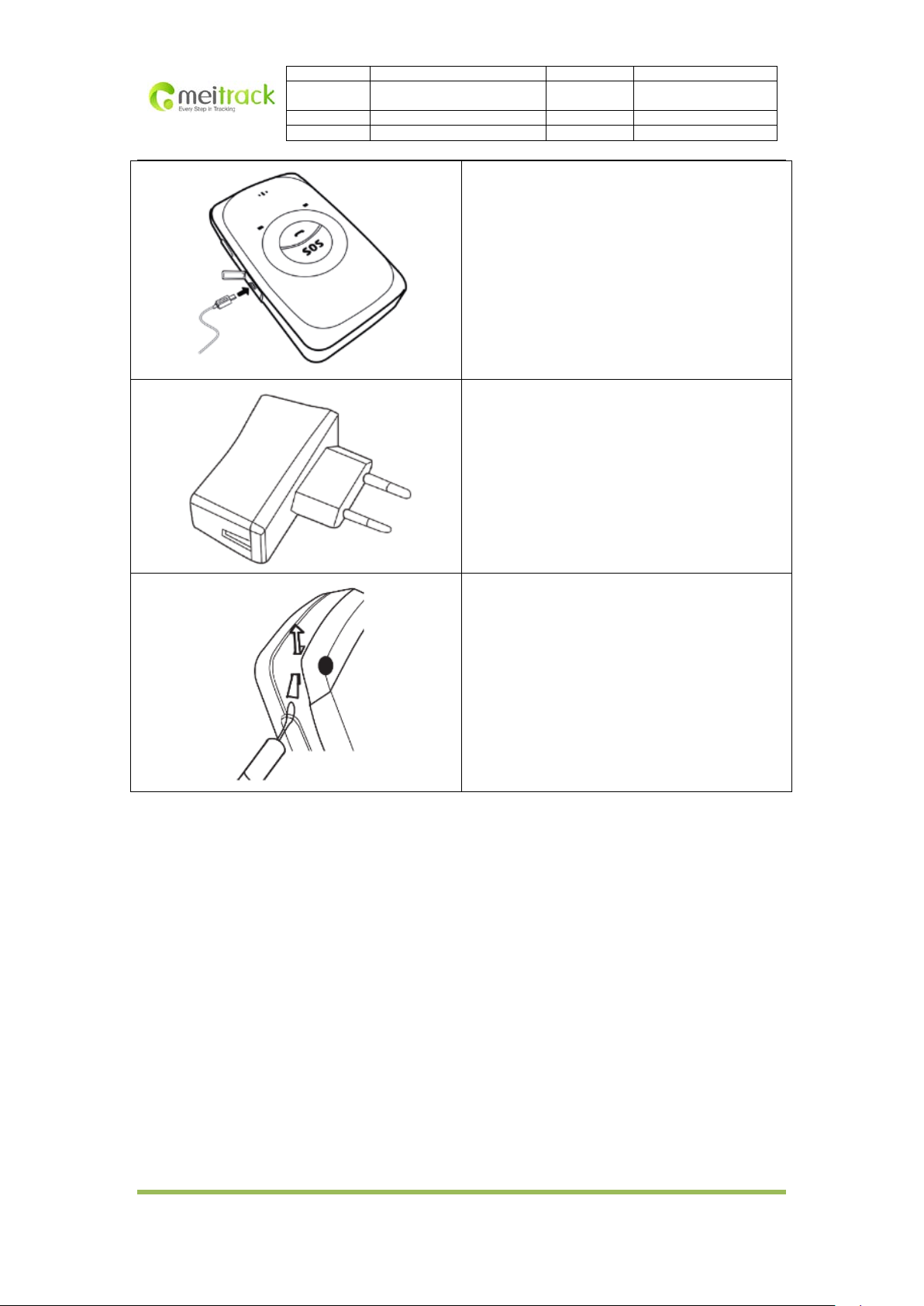
Plug the small end of the adapter into the
cause serious damage to the device. Any damage
File Name MEITRACK MT90 User Guide Creator Cavana Cheung
Project MT90 Creation Date
Sub Project User Guide Page 8 of 18
Revision V1.4 Confidential External Documentation
Update Date
2011-05-16
2012-04-06
5. Charge the Battery
The battery is partially charged when shipped. Before
using the device for the first time , it’s recommended
that you charge the battery for 8 hours. Connect one
end of the USB cable to the device, and the other end
of the USB cable to the USB port of the AC adapter.
Note: while charging, the device may heat up. This is
normal and should not affect your device’s lifespan or
performance
6. Charge with the Travel Adapter
Open the cover of the multifunction jack of the device.
multifunction jack. Then plug the larger end of the
travel adapter into a power outlet.
Note: improperly connecting the travel adapter can
caused by misuse is not covered by the warranty.
7. Attach A Lanyard
Slide the lanyard through the slot and hook it over the
small projection.
Once you’ve installed your battery, SIM card and Micro SD card, you can turn on your device and start using it.
When you turn on the device for the first time, you will be promoted to set your device. For more information on
how to set your device, please read the following instructions.
7. Quick Operation Instruction
Operation tips: to properly use the MT90, common parameters should be set in advance before initial use. This
can be done by using the parameter editor or by sending SMS commands to the device. Doing so will adapt the
tracker to local time, allowing you to better enjoy the GPS service of Meitrack.
Copyright © 2012 Shenzhen Meiligao Electronics Co., Ltd. All rights reserved.
-8-
Page 9
File Name MEITRACK MT90 User Guide Creator Cavana Cheung
Project MT90 Creation Date
Sub Project User Guide Page 9 of 18
Revision V1.4 Confidential External Documentation
Update Date
2011-05-16
2012-04-06
7.1 Real-time Location Tracking
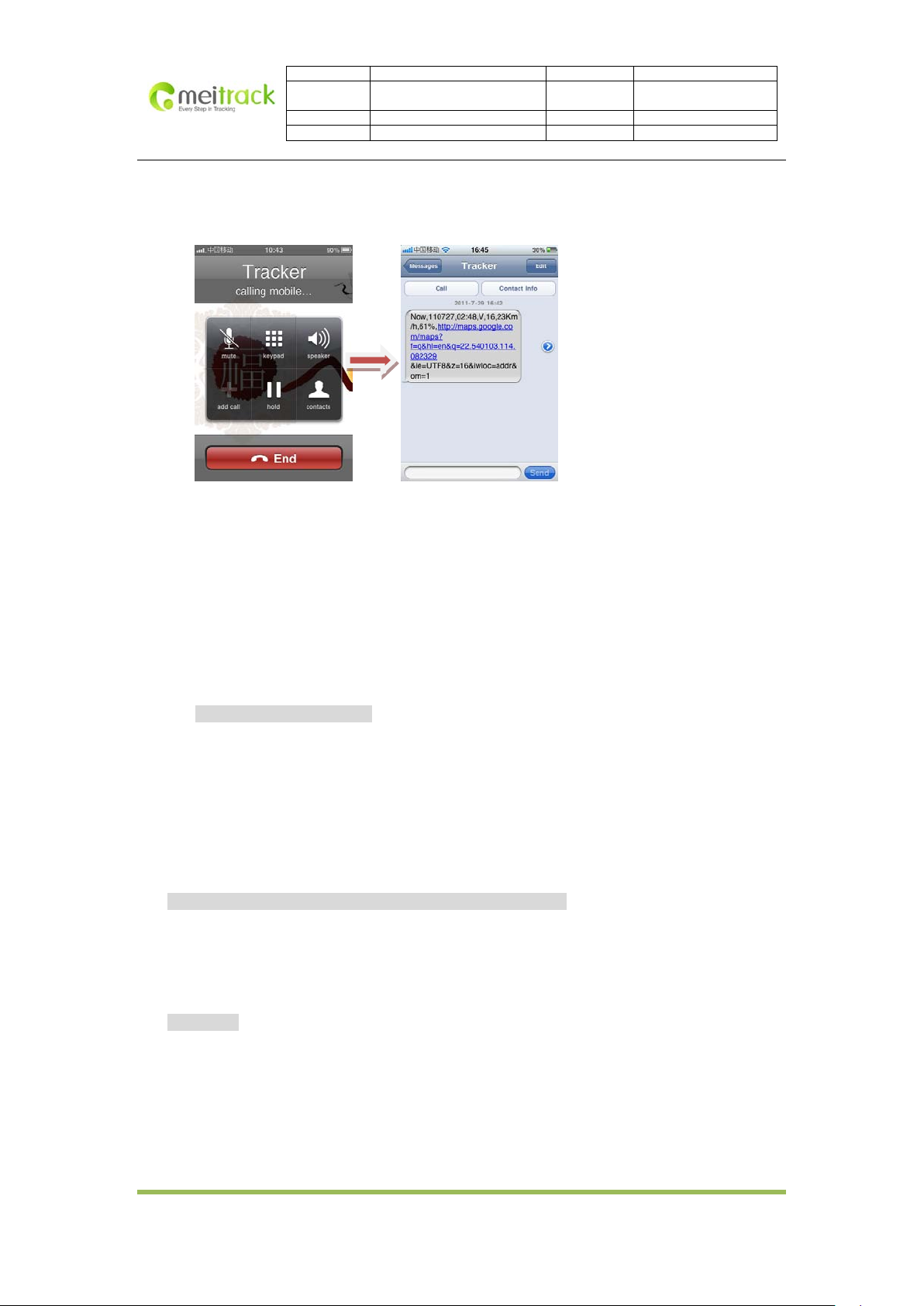
This location-tracking for knowing the current location of MT90, to ensure normal function of the GPS signal.
Call the SIM card number embedded in MT90, hang up till the dial sound 2-3 times, as follows:
If your phone does not support direct access, you can enter longitude and latitude to the URL to check
the location. maps.meiligao.com
In the SMS, the values after “lat” is the latitude, the values after “lng ” is the longitude.
*Meitrack Manager and SMS command. The default password is 0000, password can be revised through
Meitrack Manager and SMS command. MT90 will only accept commands from a user with the correct
password and report SMS report to the user. If preauthorized phone number was set, only this phone
number can receive SMS reports. The common format of SMS command is:
password,command,parameter
7.2 SOS – A71
This command is to set the SOS emergency communications number, call the phone number, inform the
location by SMS and other SMS additional features at the same time.
The content of Mobile Phone SMS:
0000,A71,Function Number 1, Function Number 2, Function Number 3
Sent to the embedded SIM card numbers.
(tips: “,” should be English comma and no space before and after the comma)
MT90 automatic reply SMS:
IMEI,A71,OK
Prompts successful, successfully set SOS emergency communications number.
When you press the SOS emergency button, MT90 will dial 3 preauthorized phone numbers. It will stop
dialing when one number answers.
Note: the default value is empty. The function numbers should be added “,” to avoid setting failure. The last
function number doesn’t need a “,”. For example:
Copyright © 2012 Shenzhen Meiligao Electronics Co., Ltd. All rights reserved.
-9-
Page 10

File Name MEITRACK MT90 User Guide Creator Cavana Cheung
Project MT90 Creation Date
Sub Project User Guide Page 10 of 18
Revision V1.4 Confidential External Documentation
Update Date
2011-05-16
2012-04-06
0000,A71,13500000000,,
0000,A71,13500000000,13600000000,
0000,A71.13500000000,13600000000,13700000000
To clear the combination of functions directly sending 0000,A71
(If this function can’t be achieved, please add your Country and Area Code before your phone number
when you set the preauthorized numbers, or you can also consult your local mobile operator.)
7.3 Listening-in (Voice Monitoring) – A72
This command enables users to listen-in to the surrounding environment. Configuring this feature will allow
the devices to confidentially and automatically answer and allow listening-in, one-way voice communication.
The Content of Mobil Phone SMS:
0000,A72,Monitor Number 1,Monitor Number 2
Sent to the embedded SIM card numbers.
IMEI,A72,OK
Successfully set monitor number.
When the preset monitor number calls the MT90, the device will answer automatically and enter into the
listening state. The device will not emit any sound.
Note: the default value is empty, if the function numbers are less than three while setting, it must be added
“,” to avoid setting failure. To clear the combination of monitor numbers directly sending 0000,A72
(If this function can’t be achieved, please add your Country and Area Code before your phone number
when you set the preauthorized numbers, or you can also consult your local mobile operator.)
7.4 Smart Sleep Mode – A73
This command enables the sleep mode function. In this mode, logging, timinga and location are all disabled.
The Content of Mobile Phone SMS:
0000,A73,sleep levels
Sent to the embedded SIM card numbers.
MT90 automatic reply SMS:
IMEI,A73,OK
Prompt successfully.
To restart the Log or regular position, you must first cancel the sleep mode.
Note:
X=0, turn off sleep mode (default)
X=1, normal sleep, the device can work 25% longer than no sleep mode. Note: this is not recommended for
Copyright © 2012 Shenzhen Meiligao Electronics Co., Ltd. All rights reserved.
-10-
Page 11

File Name MEITRACK MT90 User Guide Creator Cavana Cheung
Project MT90 Creation Date
Sub Project User Guide Page 11 of 18
Revision V1.4 Confidential External Documentation
Update Date
2011-05-16
2012-04-06
users who set “track by interval” or short time interval, because it will affect the completeness of tracking.
X=2, deep sleep, the tracker will enter this mode after it is inactive (or stationary) for 5 minutes. GPS module
stops working and GSM module enters sleep mode. The tracker remains in this mode until it is activated by
SMS message, SOS, incoming calls, and triggered by the button/input. After that, it will repeat above
processes. Once the sleep mode is canceled, the tracker will be back to normal working mode.
7.5 Time Zone – B35
This command modifies the SMS report to display the correct local time. Default Beijing time, GMT480.
Please follow below instructions for time zone modification.
The Content of Mobile Phone SMS:
0000,B35,480
Sent to the embedded SIM card numbers.
MT90 Automatic Reply SMS:
IMEI,B35,OK
Set the time zone successfully.
Note: this value is your MT90’s IMEI number. The device will send this data automatically and these
numbers don’t represent anything significant to the functionality of the tracker. Below the same applies.
7.6 Fast Open GPS Tracking – F12
This command is used to quickly open an embedded SIM card’s GPRS function, to ensure normal function of
the GPS signal.
The Content of Mobile Phone SMS:
0000,F12
Sent to the embedded SIM card numbers.
MT90 automatic reply SMS:
IMEI,F12,OK
Successfully launched GPRS function.
Note: please refer to Meitrack Manager if you want to change server location.
7.7 More Settings
You can configure MT90 by mobile phone or by computer using the Meitrack Manager to Setting Multiple
Software. For more details, please refer to “Configuration by Computer”/
For more details regarding SMS commands, please refer to MEITRACK SMS PROTOCOL.
Copyright © 2012 Shenzhen Meiligao Electronics Co., Ltd. All rights reserved.
-11-
Page 12
File Name MEITRACK MT90 User Guide Creator Cavana Cheung
Project MT90 Creation Date
Sub Project User Guide Page 12 of 18
Revision V1.4 Confidential External Documentation
Update Date
2011-05-16
2012-04-06
8. Configure by Computer
This part mainly shows you how to use the Meitrack Manager.
Please refer to the Meitrack Manager User Guide for more information regarding configuration and functions.
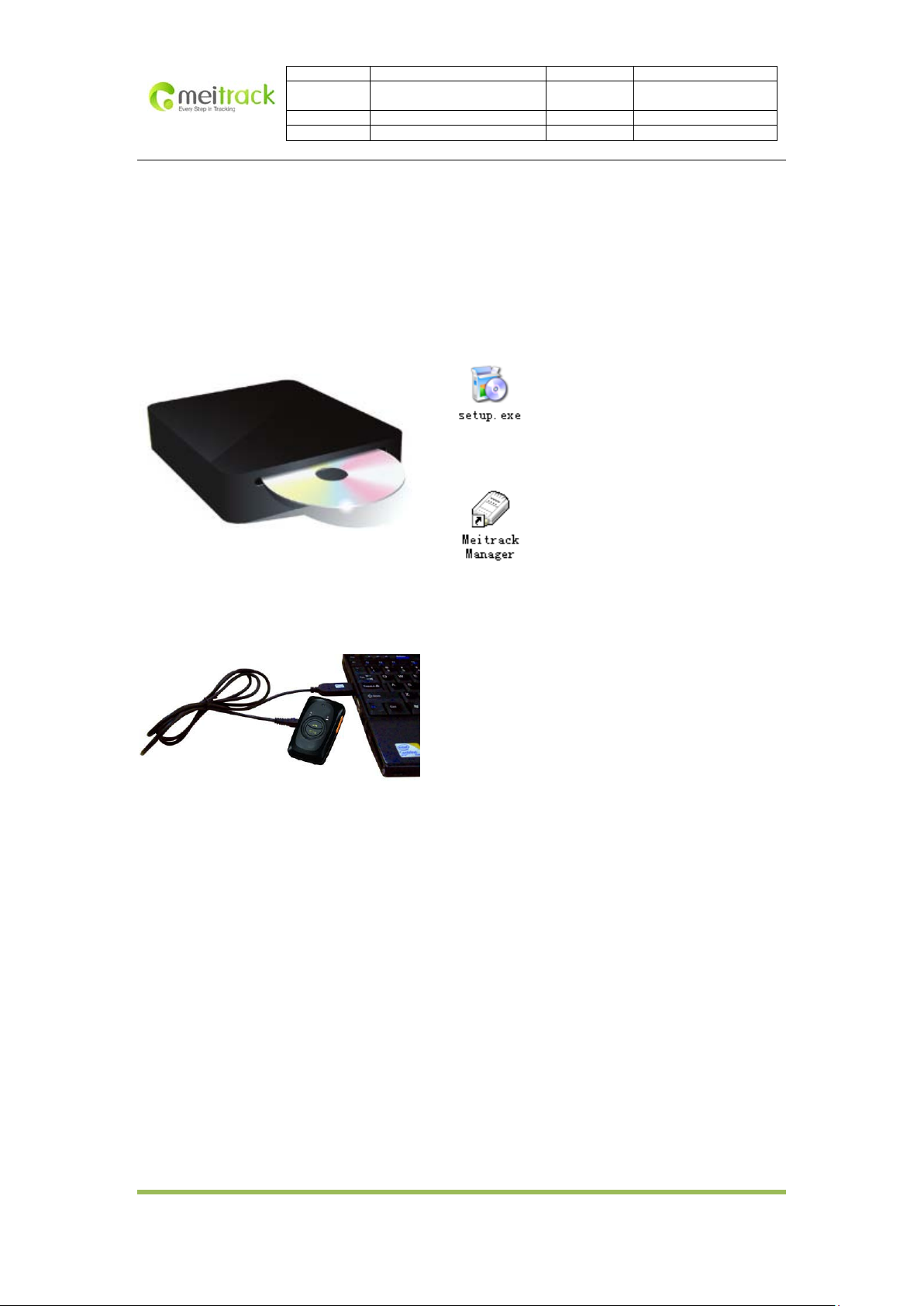
Install the MT90 software of Meitrack Manager
Find the software of Meitrack Manager from the CD.
Install it following the steps, and find the application icon of
Meitrack Manager.
Connect MT90 with computer, and sync the setting of Meitrack Manager.
Connect USB cable with the USB port in the computer,
and connect the other end to the MT90 device.
Copyright © 2012 Shenzhen Meiligao Electronics Co., Ltd. All rights reserved.
-12-
Page 13
File Name MEITRACK MT90 User Guide Creator Cavana Cheung
Project MT90 Creation Date
Sub Project User Guide Page 13 of 18
Revision V1.4 Confidential External Documentation
Update Date
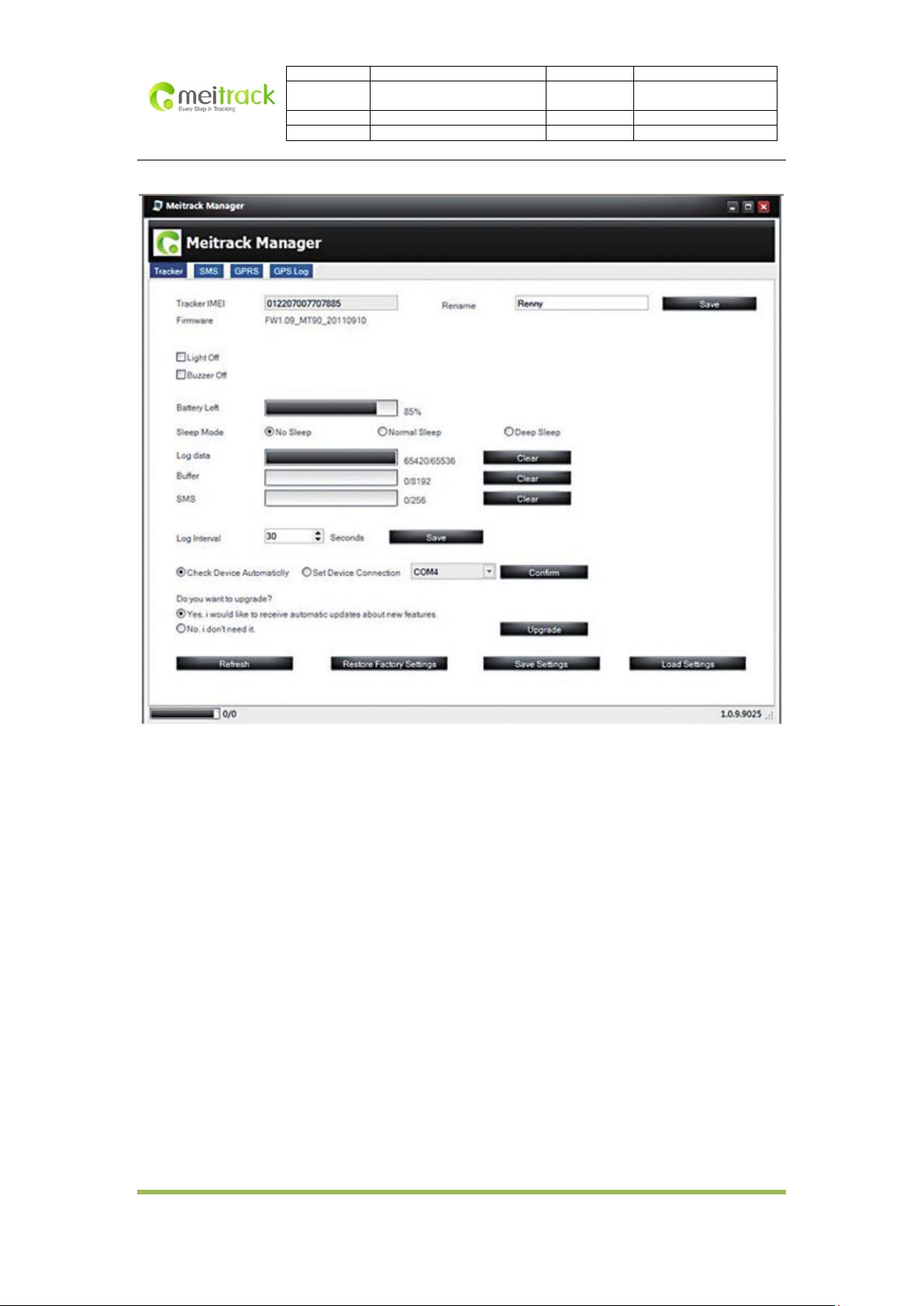
Run “Meitrack Manager.exe”, it will detect Comm port and read all MT90’s parameters automatically:
2011-05-16
2012-04-06
Copyright © 2012 Shenzhen Meiligao Electronics Co., Ltd. All rights reserved.
-13-
Page 14
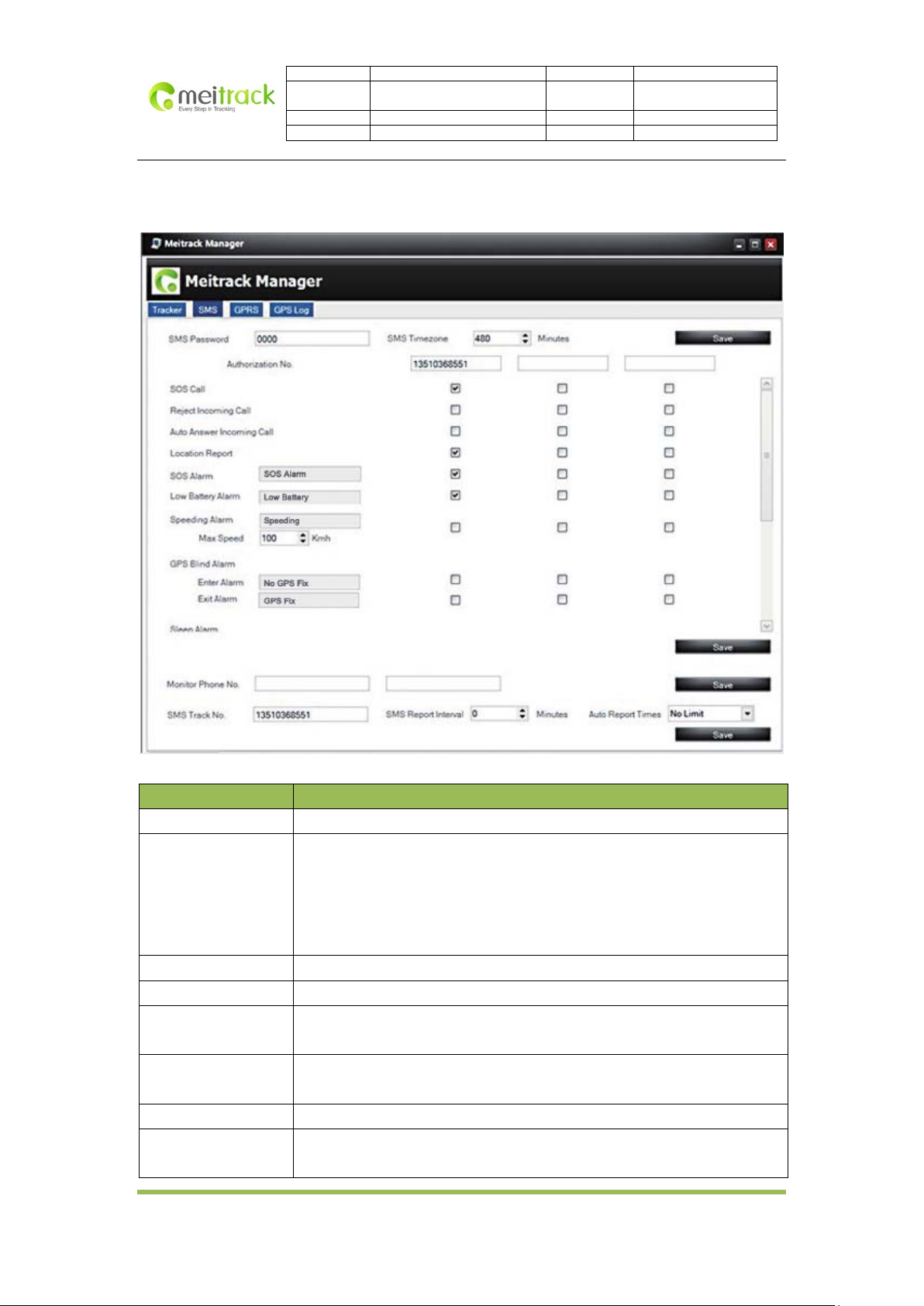
8.1 SMS Tracking
File Name MEITRACK MT90 User Guide Creator Cavana Cheung
Project MT90 Creation Date
Sub Project User Guide Page 14 of 18
Revision V1.4 Confidential External Documentation
Update Date
2011-05-16
2012-04-06
Items Descriptions
SMS Password The defaulted value 0000 of SMS password for sending SMS commands
SMS Time Zone Default time of the tracker is GMT0, you can use this to correct the trackers
time to your local time for SMS report.
Minute = 0, GMT0 (default)’
Minute = [-32768,32767], set time difference in minutes to GMT.
Time zone for SMS is the same as GPS log, but separate from GPRS packet.
Authorization No. A phone number to receive SMS reports, incoming call and selected event reports.
SOS Call Press SOS button and make a call to authorized phone no.
Reject Incoming Call Hang up automatically when an incoming call is received from correspondent
authorized phone no.
Auto Answer Incoming
Call
Auto answer incoming call from authorized phone numbers and enable two-way
audio.
Report SMS Location Report SMS location after receiving an incoming call.
SOS Alarm Report to authorized phone number when SOS button is pressed. SMS header
defaulted as “SOS”.
Copyright © 2012 Shenzhen Meiligao Electronics Co., Ltd. All rights reserved.
-14-
Page 15
File Name MEITRACK MT90 User Guide Creator Cavana Cheung
Project MT90 Creation Date
Sub Project User Guide Page 15 of 18
Revision V1.4 Confidential External Documentation
Update Date
2011-05-16
2012-04-06
Low Battery Alarm Report when MT90 speeds higher than the preset value. SMS header defaulted as
“Speeding ”.
GPS Blind Area Alarm Enter alarm: report when MT90 enters GPS blind area. SMS header defaulted
as “No Fix”.
Exit alarm: report when MT90 exits GPS blind area. SMS header defaulted as
“Fix”.
Sleep Alarm Enter alarm: report when MT90 enters sleep mode. SMS header defaulted as
“Enter Sleep”.
Exit alarm: report when MT90 exits sleep mode. SMS header defaulted as “Exit
Sl e e p”.
Distance Interval Alarm Report when MT90’s journey reaches preset distance. Distance is in meters. SMS
header defaulted as “Distanc e ”.
Reboot Report when MT90 reboots. SMS header defaulted as “Reboot”.
Geo-fence Alarm Geo-fence is circle with preset radius. Max 8 geo-fence waypoints can be set.
Enter alarm: report when MT90 enters geo-fence. SMS header defaulted as
“Enter GEO”.
Exit alarm: report when MT90 exits geo-fence. SMS header defaulted as “Exit
GEO ”.
Add new: set radius latitude and longitude, or draw geo-fence on map directly
in circle.
Monitor Phone No. Authorize a phone number to make a silent call to the tracker. The tracker will
answer the call automatically which allows the caller to listen to what is
happening around the tracker. There is no voice indication during the call.
Phone number: max 2, 16 characters.
If no preset phone number, it’s empty (default).
SMS Track No. Authorize a phone number to receive SMS report by time interval.
SMS report interval:
= 0, stop tracking by time interval (default);
= [1,65535], track by interval in minute.
Auto report times:
= no limit, unlimited times for report;
= [1,255], it will stop reporting when reaching preset times.
Save Save above settings to the tracker.
Copyright © 2012 Shenzhen Meiligao Electronics Co., Ltd. All rights reserved.
-15-
Page 16
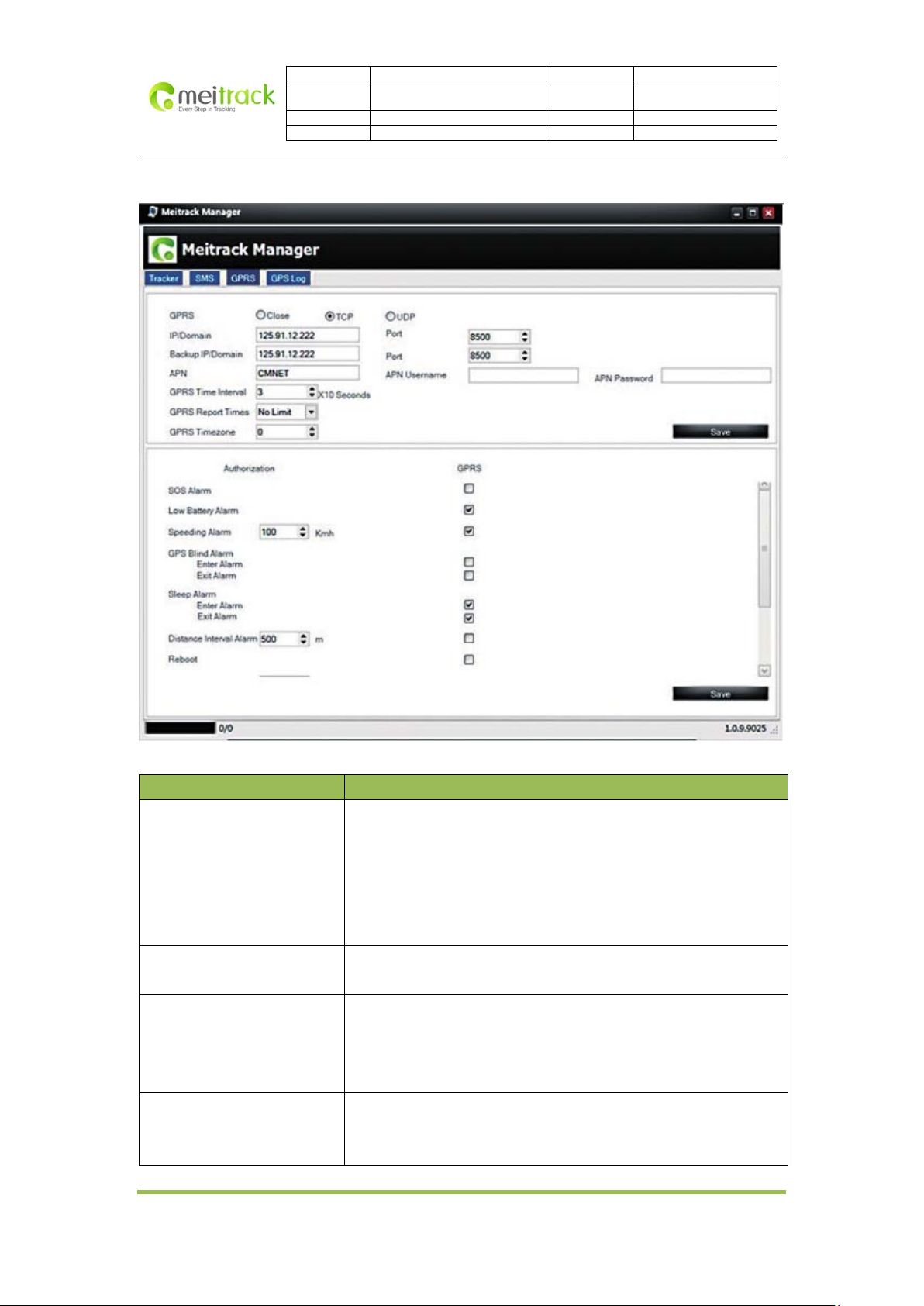
8.2 GPRS Tracking
File Name MEITRACK MT90 User Guide Creator Cavana Cheung
Project MT90 Creation Date
Sub Project User Guide Page 16 of 18
Revision V1.4 Confidential External Documentation
Update Date
2011-05-16
2012-04-06
Items Descriptions
GPRS Select TCP/UDP to enable GPRS communication.
Close: Close GPRS upload time.
TCP: TCP is a stable connection, it’s recommended to use this
model.
UDP: UDP can save traffic but less stable.
Note: GPRS connection is default as turn off.
IP/Domain and Port Input main server’s IP address and port number.
Note: main IP: 67.203.13.26, main port: 8800.
Backup IP/Domain and Port
Input backup server’s IP address and port number to avoid losing data
when main server is down. The backup server will receive data
automatically.
Note: backup IP: 67.203.13.26, backup port: 8801
APN
APN user name
APN, APN username, APN password: max 32 bytes.
If no username and password required, leave them blank.
APN password
Copyright © 2012 Shenzhen Meiligao Electronics Co., Ltd. All rights reserved.
-16-
Page 17

File Name MEITRACK MT90 User Guide Creator Cavana Cheung
Project MT90 Creation Date
Sub Project User Guide Page 17 of 18
Revision V1.4 Confidential External Documentation
Update Date
2011-05-16
2012-04-06
GPRS Time Interval Track by time interval via GPRS.
Set time interval for GPRS tracking.
Interval is in unit of 10 secs. (fill in “6” means 60 secs)
Interval = 0, stop tracking by time interval.
Max time interval = 65535 * 10 secs.
GPRS Report T imes = 0, no limit, unlimited times for report.
= [1,65535], set report times, MT90 will stop reporting when reaching the
preset times.
Note: GPRS upload interval is default as 60 seconds.
GPRS Time Zone Default time of the tracker is GMT0, you can use this to correct the
trackers time to your local time for SMS report.
Minute = 0, GMT0 (default)’
Minute = [-32768,32767], set time difference in minutes to GMT.
Save Save above settings to the tracker.
9. Log on GPS Platform
Please register and log onto our free GPS platform by: http://www.meigps.com
Login: IMEI No.
Password: 000000
The function on the GPS platform can be realized as follows:
Snail tracking
Geo-fence control
Receive and display alarms
Report and statistics
Online configuration
For more information about our GPS platform, please refer to Meitrack Meigps Platform User Guide.
10. Safety and Usage Information
Handle and dispose of batteries and chargers with care
Use only Meitrack-approved accessories specially designed for your device. Incompatible accessories can cause
serious injuries or damages to your device.
Never place batteries or devices on or in heating devices, such as microwave ovens, stoves, or radiators.
Batteries may explode when overheated.
Never crush or puncture the battery. Avoid exposing the battery to high external pressure, which can
Copyright © 2012 Shenzhen Meiligao Electronics Co., Ltd. All rights reserved.
-17-
 Loading...