

Page 1
1
MX1 Online Inkjet Printer
User Manual
Wuhan Xiantong Technology CO.,LTD
www.meenjet.net Toll:4006000205
Page 2

2
Contents
Safety Using Tips......................................................................................................................... 3
Product Warranty......................................................................................................................... 3
Below situation can not be free maintenance,.................................................................... 3
About MX1 printer........................................................................................................................ 3
Technical Specifications......................................................................................................... 4
Printer Menu............................................................................................................................. 6
Menu function introduction..................................................................................................... 6
Printer Care and Maintenance................................................................................................10
Troubleshooting for Printer.................................................................................................... 11
Ink Cartridge Installation..........................................................................................................12
Ink Cartridge Maintenance...................................................................................................... 12
Ink Cartridge Storage................................................................................................................13
Troubleshooting for Ink............................................................................................................14
www.meenjet.net Toll:4006000205
Page 3

3
Safety Using Tips
1. Before insert or plug ink cartridge, must cancel printing or closing machine, because
there is high voltage inside the machine in printing status.
2. Machine have lithium battery, should be far away from high temperature or high
pressure surrounding.
3. Don’t let machine working in dusty, high humidity environment.
4. Machine working temperature: 0℃ - 45℃
MX1 warranty time is 12 months after cargo delivery, consumable parts like ink
cartridge is not include in warranty list.
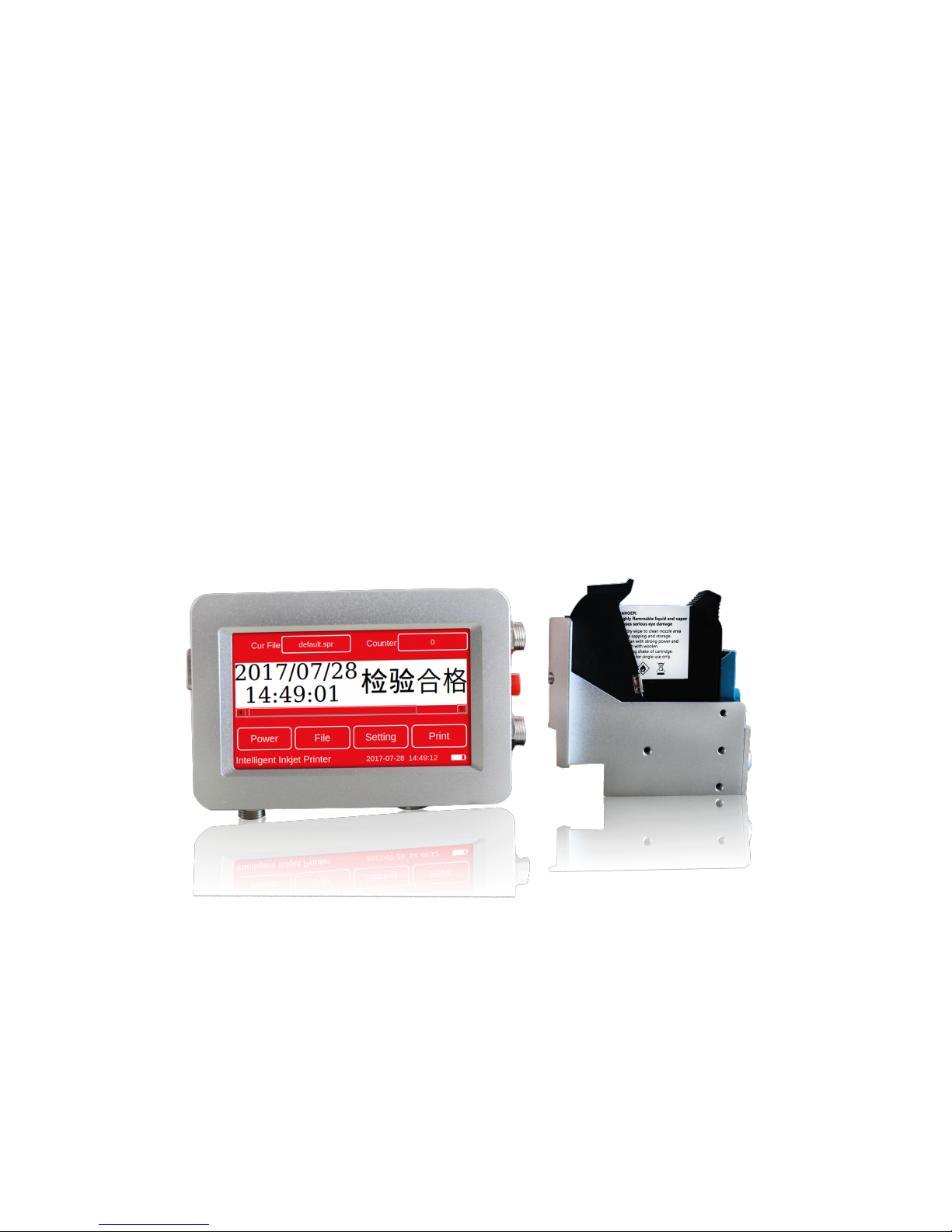
Thank you for buying MX1 thermal inkjet printer. This machine is using HP TIJ2.5 inkjet
technology and specially designed for packaging and printing.
Product Warranty
Below situation can not be free maintenance,
1. Using non-original accessory or OEM ink without approval.
2. Modify machine without the approval of Meenjet company.
3. Machine damaged due to the improper ink installation (like insert or plug ink before
cancel printing)
4. Can not be free maintenance if damage by natural calamities, storage or shipment,
discarded, sprinkled or sprayed by other liquids.
5. Using wrong power or unstable power, then make printer can not work.
About MX1 printer
MX1 can print text, numbers, serial number, dates, pictures, variable data QR code and
bar code, it is easy to operate. Using different ink can achieve the perfect printing effects
in materials of carton, plastic products(PP,PET,HDPE), pipe, cable, metal and so on.
www.meenjet.net Toll:4006000205
Page 4
4
MX1 can recognize water based and solvent ink automatically to match different ink
No.
Product description
Technical parameters
1
Model
MX1
2
Screen display
4.3 inch resistive touch screen
3
Encoder
1024 pulse
4
System language
Multiple choice
5
Printing distance
2~5mm is the best
6
Maximum Resolution
600*600DPI
7
Print speed
60m/min @ 300x300DPI
8
Print height
Max 12.7mm
9
Print content
Any content
10
Print line
Suggest 6 lines
11
Operate method
Touch screen, mouse, U drive,WIFI
12
size
220*114*130mm(H*W*D)
13
weight
0.82KG(include battery)
14
Adapter
AC:100-240 50/60Hz;DC:16.8A/2A
15
working temperature
0~45
℃
Remark: MX1 printer can be operated by inserting mouse.(Remark: Please close
machine before insert mouse)
parameters to ensure perfect printing effect.
Technical Specifications
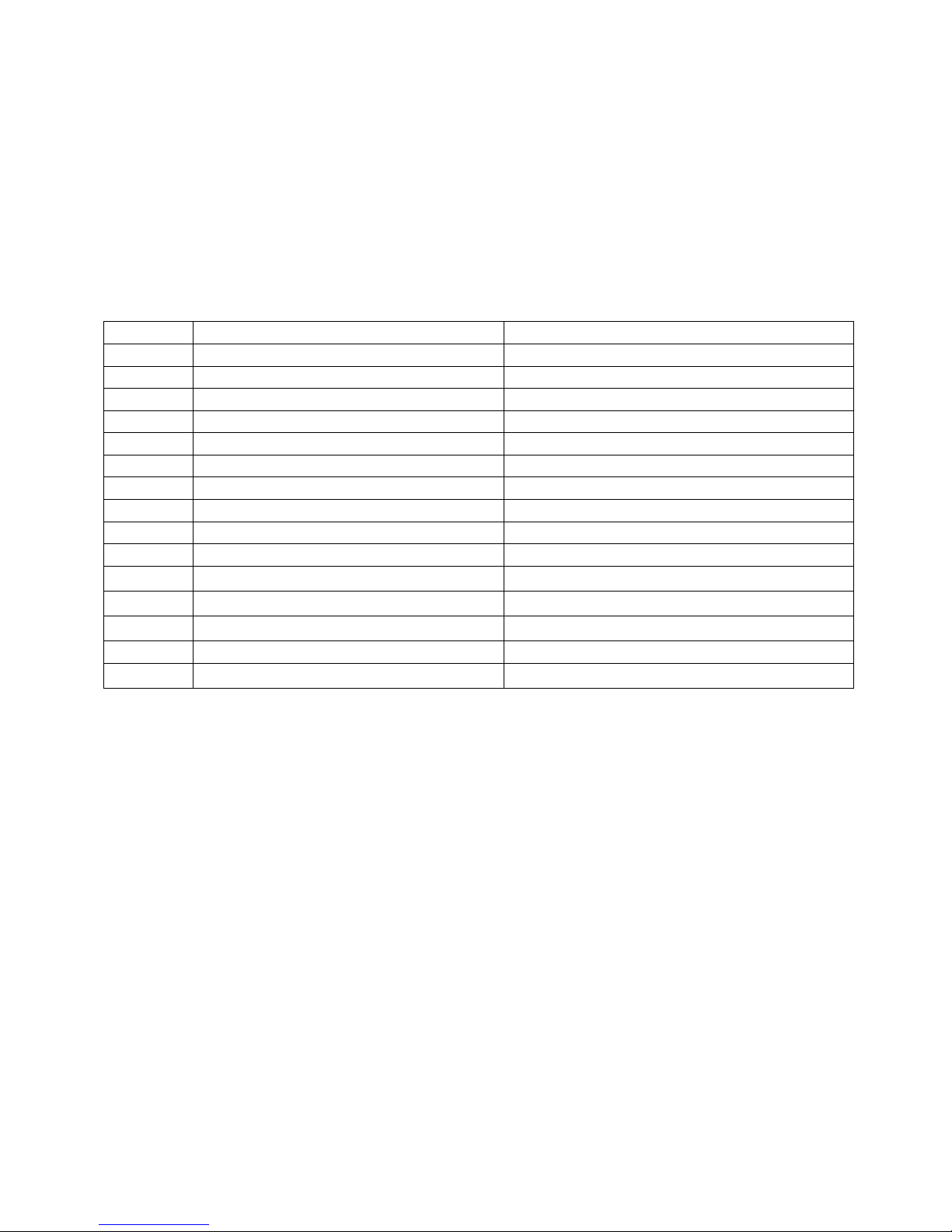
MX1 Online inkjet printer parameters
www.meenjet.net Toll:4006000205
Page 5
5
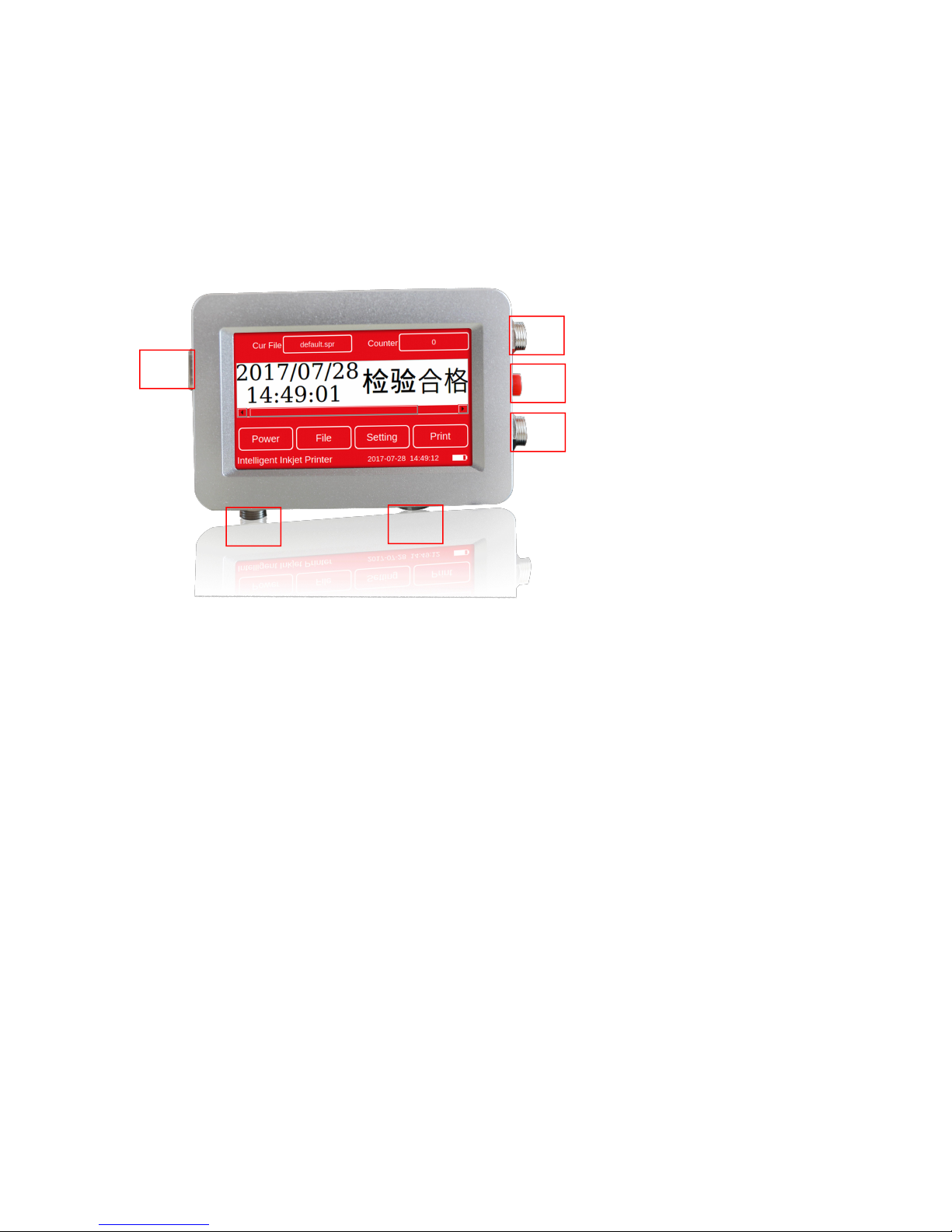
Printer interface:
4. Interface for connecting external encoder
5. Interface for connecting printhead
6. RS232
1
2
3
4 5
6
1. Power adapter interface
2. Machine switch button
3. Machine expansion interface
www.meenjet.net Toll:4006000205
Page 6
6
Printer Menu
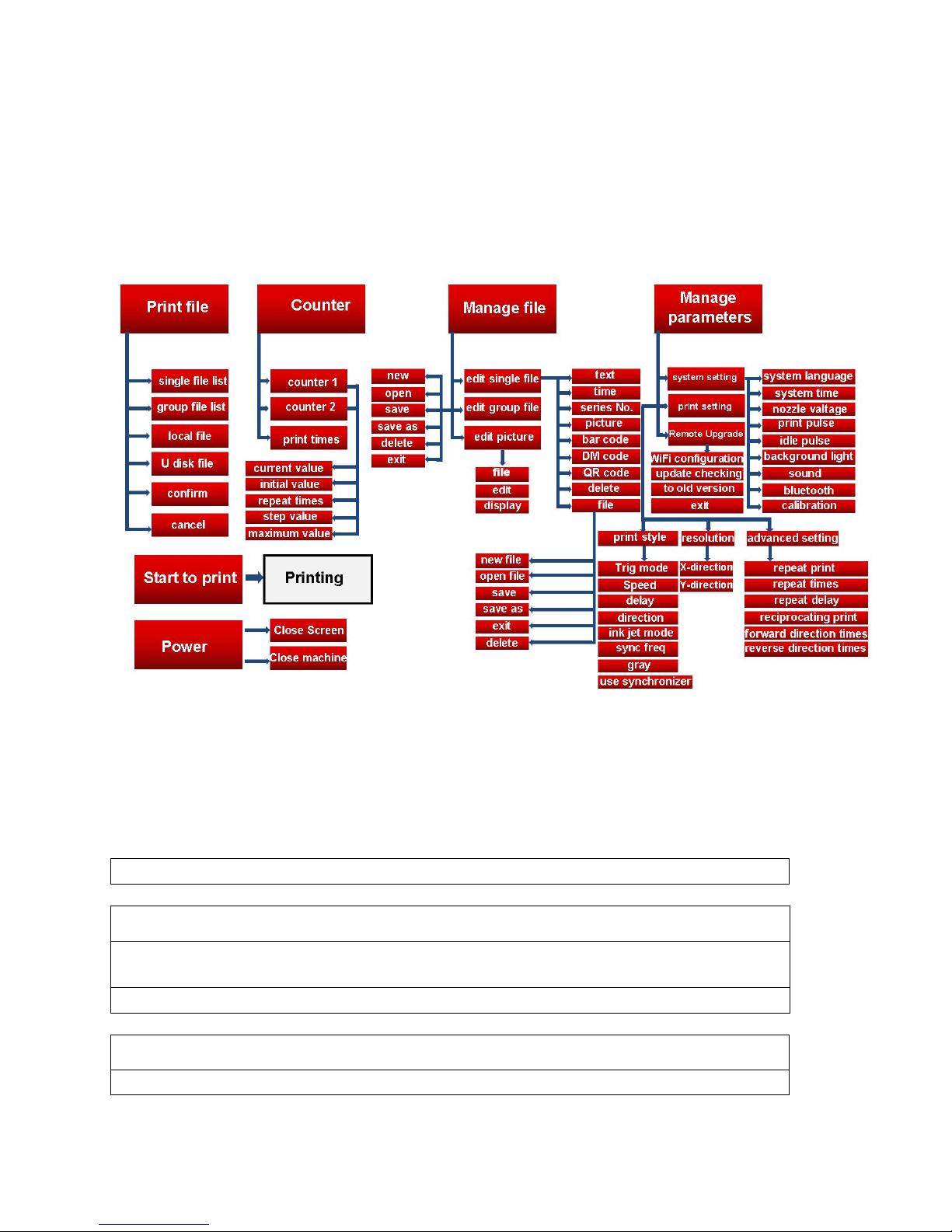
Print: click print menu, then will display “printing”
Power manage
Close screen: click it to enter stand by mode, tap any position on the screen back
to work status
Close machine:click it, then turn off the power menu.
Print file:
Single file list: list all single files inside machine and U drive
Note: this machine can operate on resistive touch screen directly, no need connect
computer.
Menu function introduction
www.meenjet.net Toll:4006000205
Page 7
7
Group file list:list all group files inside machine and U drive
Local file:display all files which storage in machine
U-drive file:display all files which storage in U-drive
Confirm: confirm the files that need to be print
Cancel:click cancel menu to back to last menu list
Counter
Counter 1:match with edit message serial Number1
Counter 2:match with edit message serial Number2
Print times: it means how many time does current file be printed
(
Counter)current value: Counter current value
(Counter)Initial value: the initial value of the counter
(
Counter)Times of repetitions: times of the counter number be repeat printing
(
Counter)Step value: value per step
(Counter)Maximum value: The maximum value of the counter
Document management
Edit single file: Click to edit single file
Edit group file: Click to enter the interface of group file editing, the group file is
composed of multiple single files
Edit pictures: enter to a simple graphic editing interface
(Edit single file) Text: edit numbers, letters, Chinese characters, symbols, etc.
fixed information
(Edit single file) Time: edit variable time information (synchronized with system
time), multiple formats are optional
(Edit single file) Serial number: edit 2pcs 8-bit number info
(Edit single file) Picture: BMP format pictures can be imported, the recommended
resolution is 300*300
(Edit single file) Bar code: edit info to generate a bar code, variety formats are
optional
(Edit single file) DM code: edit info to generate corresponding DM code
(Edit single file) QR: edit info to generate corresponding QR code
(Edit single file) Delete: choose info that be edited, then delete
(Edit single file) File: Click to expand secondary menu
(Edit single file) (File) New: Create a new file
(Edit single file) (File) Open: Open an existing file and modify it
www.meenjet.net Toll:4006000205
Page 8
8
(Edit single file) (File) Save: Save the current edited info as a file
(Edit single file) (File) Save As: Save current info as another file name
(Edit single file) (File) Exit: Exit the editing interface and return to the main page
(Edit single file) (File) Delete: Click to delete a single file that stored in the machine
(Edit Group File) New: Create a new group file
(Edit Group File) Open: Open an existing group file and modify it
(Edit Group File) Save: Save multiple single files as a group file
(Edit Group File) Save As: save current group file as another file name after
editing
(Edit Group File) Exit: exit the editing interface and return to the previous menu
(Edit Group File) Delete: Click to delete the stored group file on the machine
Parameter management
System Settings: Click to enter the system settings interface
Print Settings: Click to enter the print settings interface
Remote Upgrade: Click to enter the remote upgrade interface
(System setting) System language: Choose printer current menu language version,
the system will automatically restart after switching
(System Settings) System Time: Set the current time of the printer
(System Settings) Sprinkler Voltage: Set operating voltage of ink cartridge nozzle
(according to different ink cartridge)
(System Settings) Print Pulse: Sets print pulse of ink cartridge nozzle (according to
different ink cartridge)
(System Settings) Idle Pulse: Set idle pulse of ink cartridge nozzle (according to
different ink cartridge)
(System setting) Backlight brightness: Adjust screen brightness
(System setting) Sound: buzzer works, there is a sound tip after completion of printing
(System Settings) Bluetooth: Check to turn on Bluetooth (default is not open)
(System Settings) Screen Calibration: After the system is selected, the system restarts
and enters the touch screen 5-point calibration process (normally do not click)
(Print Settings) (Print Style) Trigger Mode: Select different print trigger modes, multiple
modes be provide
Key trigger: press the key to start printing, point selection start synchronization wheel
Internal electric eye: The sensor comes with the machine to start printing
External electric eye: Through the expansion interface, connect external electric eyes,
start printing
Automatic printing: no other trigger conditions, automatic printing
(Print Settings) (Print Style) Print Speed: The ink jet speed, 0 is the fastest
(Print Settings) (Print Style) Print Delay: The time when the trigger signal was received
www.meenjet.net Toll:4006000205
Page 9
9
and the ink was ejected. 0 is the minimum delay.
(Print setting) (Print style) Print direction: The direction in which the font is printed,
forward, reverse, forward, backward
(Print Settings) (Print Style) Spray mode: Left Spray, Right Spray
(Print Settings) (Print Style) Sync Multiplier: Check this box to enable the
synchronizer. The longer the printout is, the longer the printout will be.
(Print Settings) (Print Style) Gray: big value mean color will be deeper
(Print Settings) (Print Style) Enable Synchronous Wheel: Check the Enable
Synchronous Wheel, manual printing must be checked
(Print setting) (resolution) X direction: Various resolutions can be set
(Print setting) (Resolution) Y direction: Various resolutions can be set
(Print Settings) (Advanced Settings) Repeated Printing: Click to enable Repeat
Printing
(Print Settings) (Advanced Settings) Repeats: Sets the number of times to repeat
printing
(Print Settings) (Advanced Settings) Repeat Delay: Sets the repeat printing, delay
between two
(Print Settings) (Advanced Settings) Reciprocate Printing: Click to enable Repeat
Printing
(Print Settings) (Advanced Settings) Forward Count: Set the number of positive prints
when printing back and forth
(Print Settings) (Advanced Settings) Reverse Times: Set the number of reverse prints
when printing back and forth
(Remote Upgrade) Configuring WIFI: Select Connectable WIFI and Enter Password to
Connect
(Remote Upgrade) Check for Updates: Click to confirm if there is an updatable
software version
(remote upgrade) Restore the previous version: click to restore to the previous
firmware, the system will automatically restart after recovery
(Remote Upgrade) Exit: Click to exit to the previous menu
www.meenjet.net Toll:4006000205
Page 10

10
Printer Care and Maintenance
You may fully charge the battery but do not overcharge the battery. Please don’t
overcharge it for long time, and do not to use the battery in too cold or too hot condition.
Make sure to use and drain off the battery and recharge it at least once a week.
Make sure to check if the printer is loaded with ink cartridge and battery. Make sure to
check if the battery has drained off.
Keep touch screen clean. Do not hit touch screen sharply.
Keep machine surface and ports clean.
Check status bar upon machine startup, make sure status bar is normal and check if
there’s alarm of error. (In case of alarm of error, check troubleshooting for solution).
Depending on properties, some ink cartridge may require to be removed from printer
after use. Turn off the machine after use, and remove the cartridge from printer. Wipe
the printhead clean with Non-woven, cap the printhead with the designed cap for
prevention of the nozzles from clogging, and store the capped cartridge in safe
environment with printhead facing up. (Please refer to ink cartridge care and
maintenance for instructions).
Note: Standard battery cannot be substituted.
www.meenjet.net Toll:4006000205
Page 11

11
Troubleshooting for Printer
Problem
Cause
Solutions
Comment
Printer does not
print
1. Printing not started.
Click “printing” button to
start printing.
2. No data for printing.
Choose a file and click
“printing” button.
3. Printing delay value
too big.
Check if the printing
delay value is normal.
4. Cartridge not
installed.
Install a cartridge.
5. Cartridge installed
but used up or
damaged.
Check cartridge status,
is ink used up or ink
cartridge encryption
code is wrong?
If ink used up, or
encryption code wrong,
replace a new cartridge.
6. Photocell not
works.
Check if photocell
switch is normally
connected
Click for photocell signal
test interface, press
printing switch to test if
photocell works.
7. No signal output
from encoder.
Check if encoder
works, check encoder
status
Click for encoder signal
test interface, move
encoder to see if encoder
works.
www.meenjet.net Toll:4006000205
Page 12

12
Ink Cartridge Installation
Nozzle cleaning
Please check ink remaining if printing quality is not good
1. Please change ink cartridge if no ink use out.
2. If there is still ink in cartridge, print quality will be poor due to dust or paper fibers on
the surface of nozzle.
To promise high quality printing effect, need to clean ink cartridge nozzle,
1. Tools: clean and soft tissue, 95% industrial alcohol or deionized water.
2. Method: Make sure tissue is infiltrated in deionized water, then clean nozzle follow
axis of ink cartridge, there will be 2 ink lines appear after wiping.
Important tips:
Do not wipe nozzle with big force or dry abrasive tissue in case of abrasion scratches,
To avoid nozzle clogging, please use a clean tissue and make sure there are no
impurities and other suspended particles in the alcohol.
Do not shake ink cartridges forcefully because nozzles may be damaged by ink pressure.
If ink is not used for over 20 minutes, ink may dry out and cause a sticky clogging of print
nozzle.
The dried ink will cause lose its original direction and eventually cause the nozzle clog.
Need clean clogging nozzle if blank stripes appear when printing.
1. Please confirm cancel printing or turn off the printer, then start to install or remove ink
cartridge.
2. If don’t use solvent ink cartridges over 20 minutes, please turn off printer and remove
ink, then cover ink cartridge with cap.
Do not install the ink cartridges by forcibly pressing it, which will cause the metal contact
points on the bottom of the cartridge to be damaged and cause the cartridge to be
damaged permanently.
The ink cartridge is precision delicate product, please do not use it with a bad force
Ink Cartridge Maintenance
www.meenjet.net Toll:4006000205
Page 13
13
1. Clean surface residuary ink with a moist, lint-free tissue.
2. After that, print a few lines of text or high-resolution graphics, using more nozzles to
push out more ink.
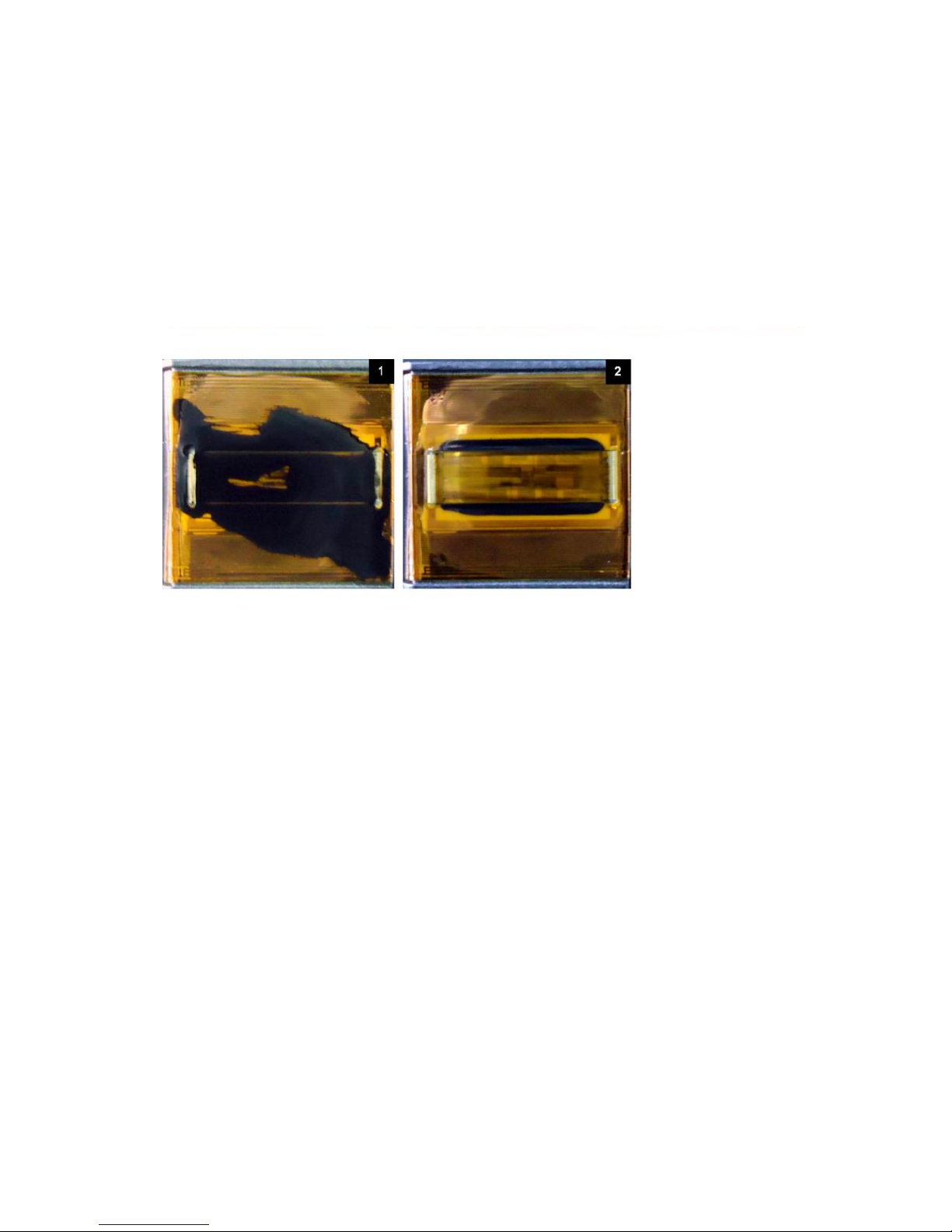
3. Finally, check printed image. Repeat this process several times if print quality cannot
be repaired. If it still does not work, replace ink cartridge. Below are pictures of before
cleaning ink cartridge [1] and after cleaning [2]
Ink Cartridge Storage
Water-based ink cartridges: After cleaning nozzle, tape the nozzles.
Solvent cartridges: After cleaning nozzle, cap it well and store in a sealed container.
www.meenjet.net Toll:4006000205
Page 14

14
Troubleshooting for Ink
Sr.#
Problem
Problem
Solutions
Comments
1
The print has
broken line or
white line.
1. Nozzle blockage
or damage.
A. See Ink Cartridge Care
and Maintenance section,
wipe and clean nozzle
plate with Non-woven;
B. Purge the nozzles with
correct method.
If the problem is still
unsolved:
Check if there’s any
spring-loaded connectors
depressed in Driver board;
Check if there’s
contamination on cartridge
contact plate.
2. Cartridge not in
good contact with
printer.
Remove the cartridge and
re-insert.
2
The print is
complete at
first, and then
becomes
incomplete
Ink starvation or air
bubbles blocking
nozzles.
A. Check if there’s alarm
of low ink.
B. Send back to our
company for test.
3
The print is
totally blank.
Ink used up or total
nozzle blockage.
Check ink status: is ink
used up?
4
Unable to
identify ink
cartridge.
1. Connectivity
problem on printer
(defect or damage)
Remove cartridge and re-
insert.
If problem is unsolved:
Check if there’s any
spring-loaded connectors
depressed in driver board.
Check if there’s
contamination on
cartridge. Check if there’s
contamination on ISM
card. Check if there’s any
connector depressed on
ISM card board.
2. Cartridge
encryption code
mistake.
Remove cartridge and re-
insert.
www.meenjet.net Toll:4006000205
 Loading...