

Page 1
QUICKSTART GUIDE
www.MEEaudio.com/T1M3
Bluetooth® Wireless
headphone system for tv
Includes Bluetooth Wireless Audio Transmitter
and Matrix3 Wireless HD Headphones
Visit
MEEaudio.com/ConnectHelp
for
easy-to-follow setup videos, full user manuals,
and the latest troubleshooting information.
CONNECT SUPPORT GUIDE
Page 2
Bluetooth® Wireless
headphone system for tv
FOR ADDITIONAL SUPPORT
View and download complete user manuals for
Connect transmitter and Matrix3 headphones at
MEEaudio.com/Support
View our Connect Support Guide at
MEEaudio.com/ConnectHelp for easy-to-follow
setup videos and troubleshooting information
Contact us at [email protected]
•
•
•
Page 3
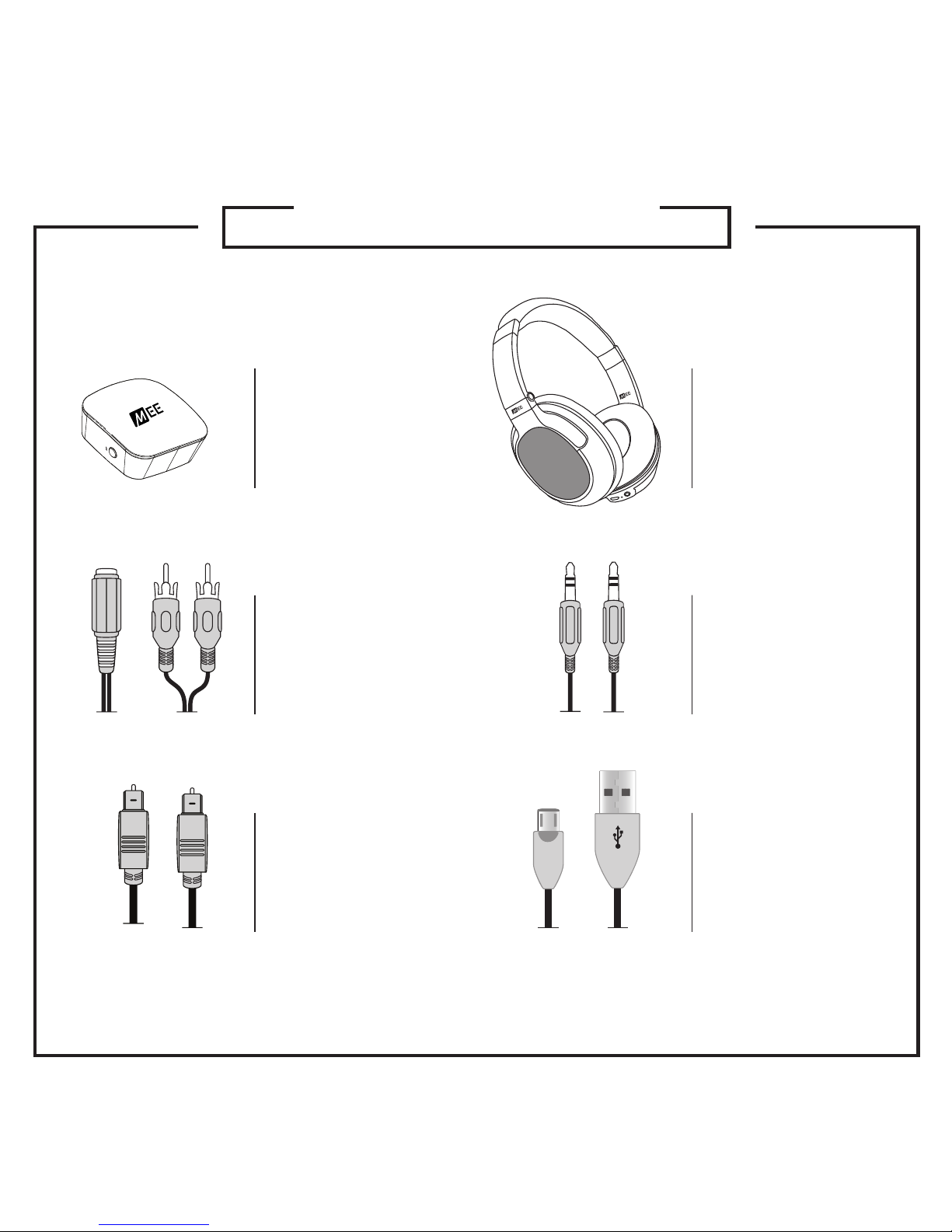
PACKAGE CONTENTS
CONNECT
Bluetooth
Transmitter
TOSLINK digital
optical S/PDIF
audio cable
3.5mm to
RCA
adapter
2 x Micro-USB
charging
cable
3.5mm
audio
cable
MATRIX3
Bluetooth
Stereo
Headphones
Page 4
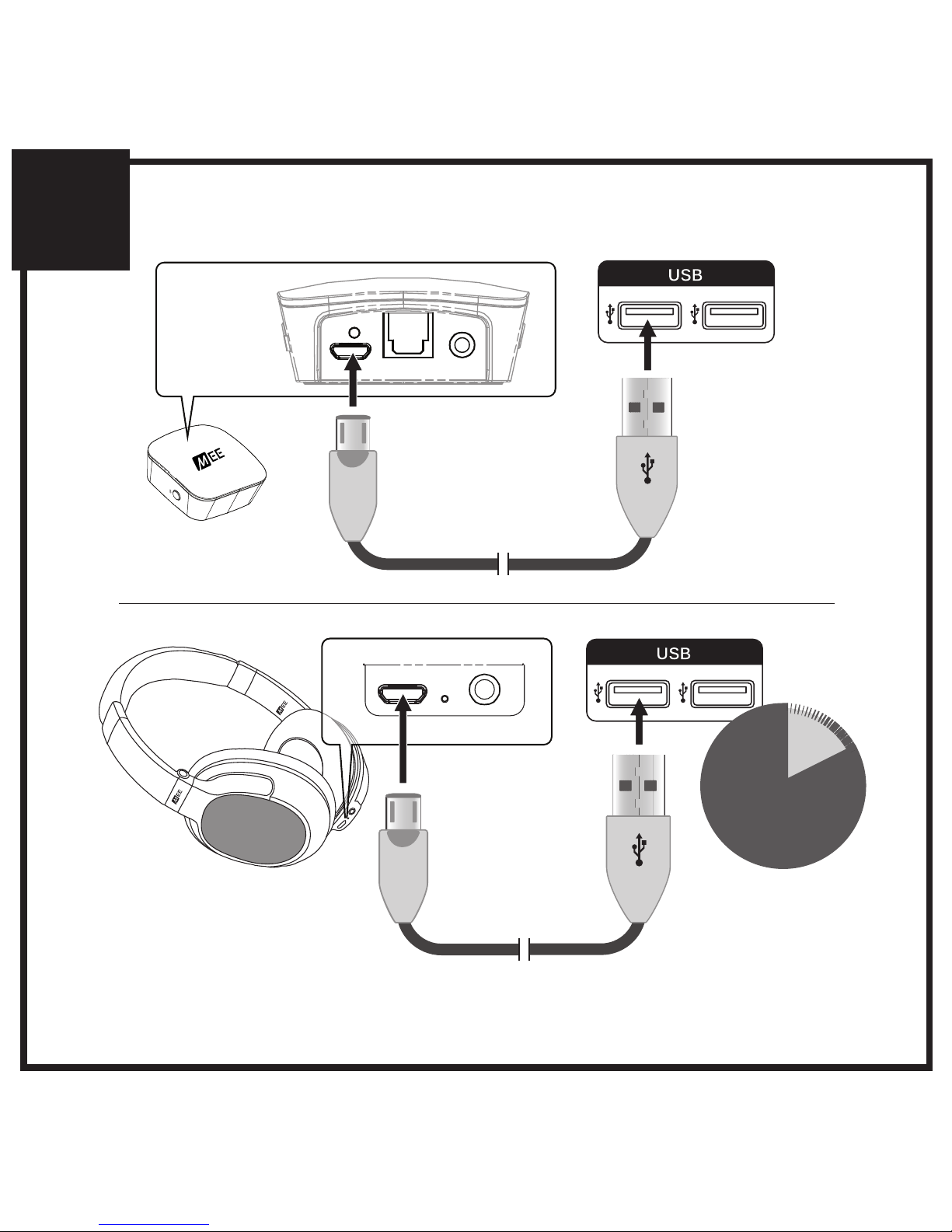
1
CONNECT
2
hrs
MATRIX3
CHARGE HEADPHONES
PLUG USB POWER CABLE INTO TRANSMITTER
plug into AC
adapter, TV,
or computer
USB port
Page 5
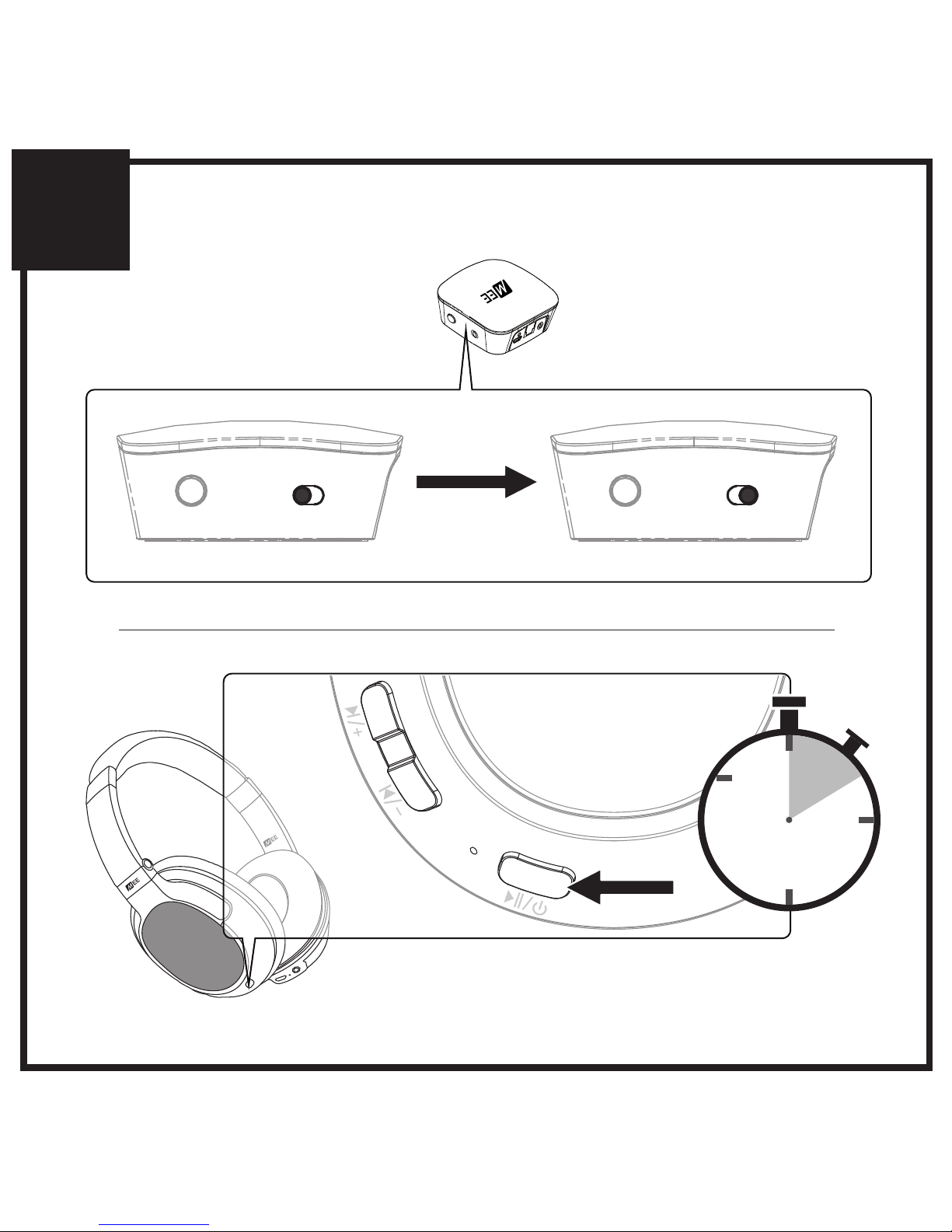
A OFF ON A OFF ON
2
POWER ON TRANSMITTER
POWER ON HEADPHONES
2
seconds
HOLD
A
OFF
ON
Page 6
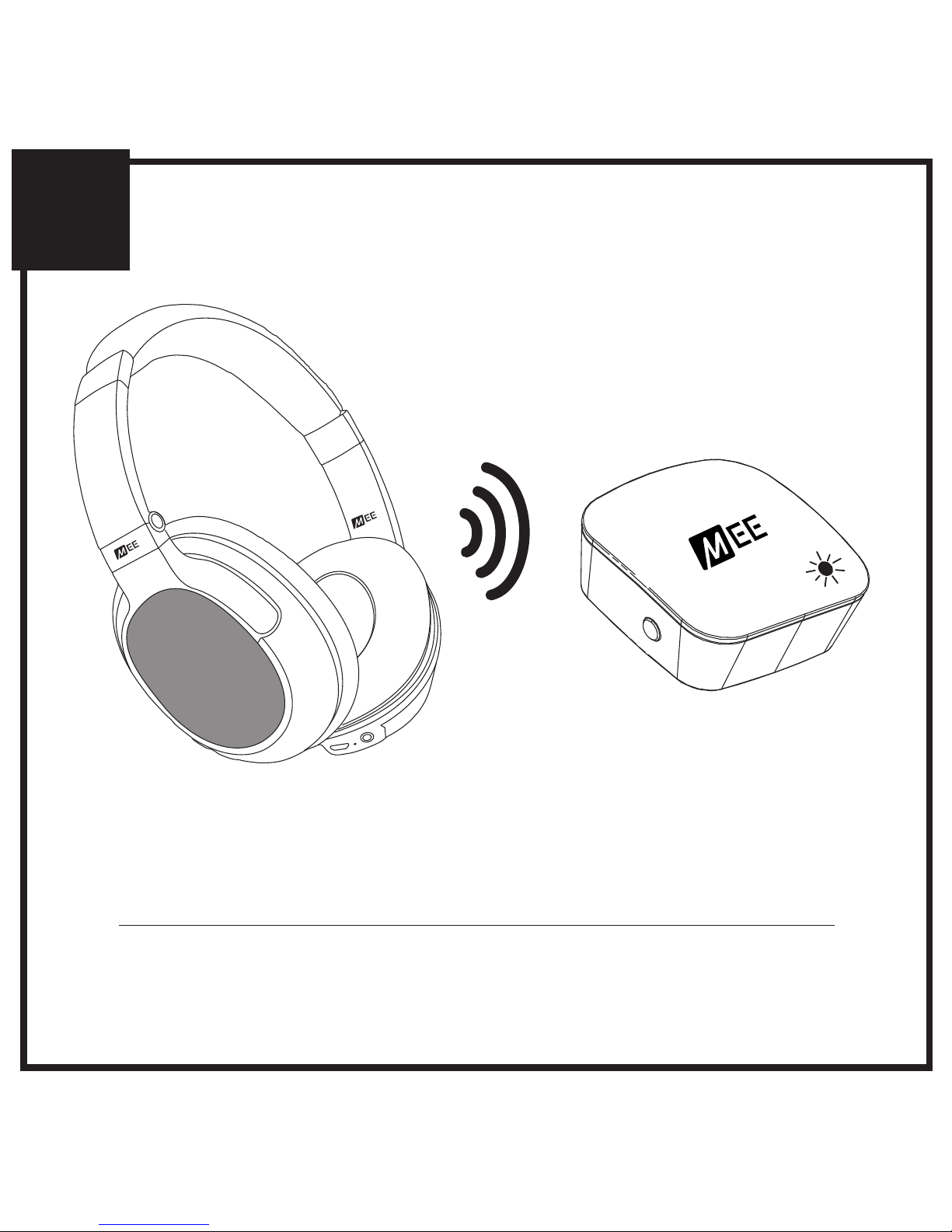
B
3
CONNECTION IS ESTABLISHED
solid blue light on transmitter
indicates connection
IF NO SOLID BLUE LIGHT, PERFORM PAIRING
PROCEDURE IN STEP 6
Page 7
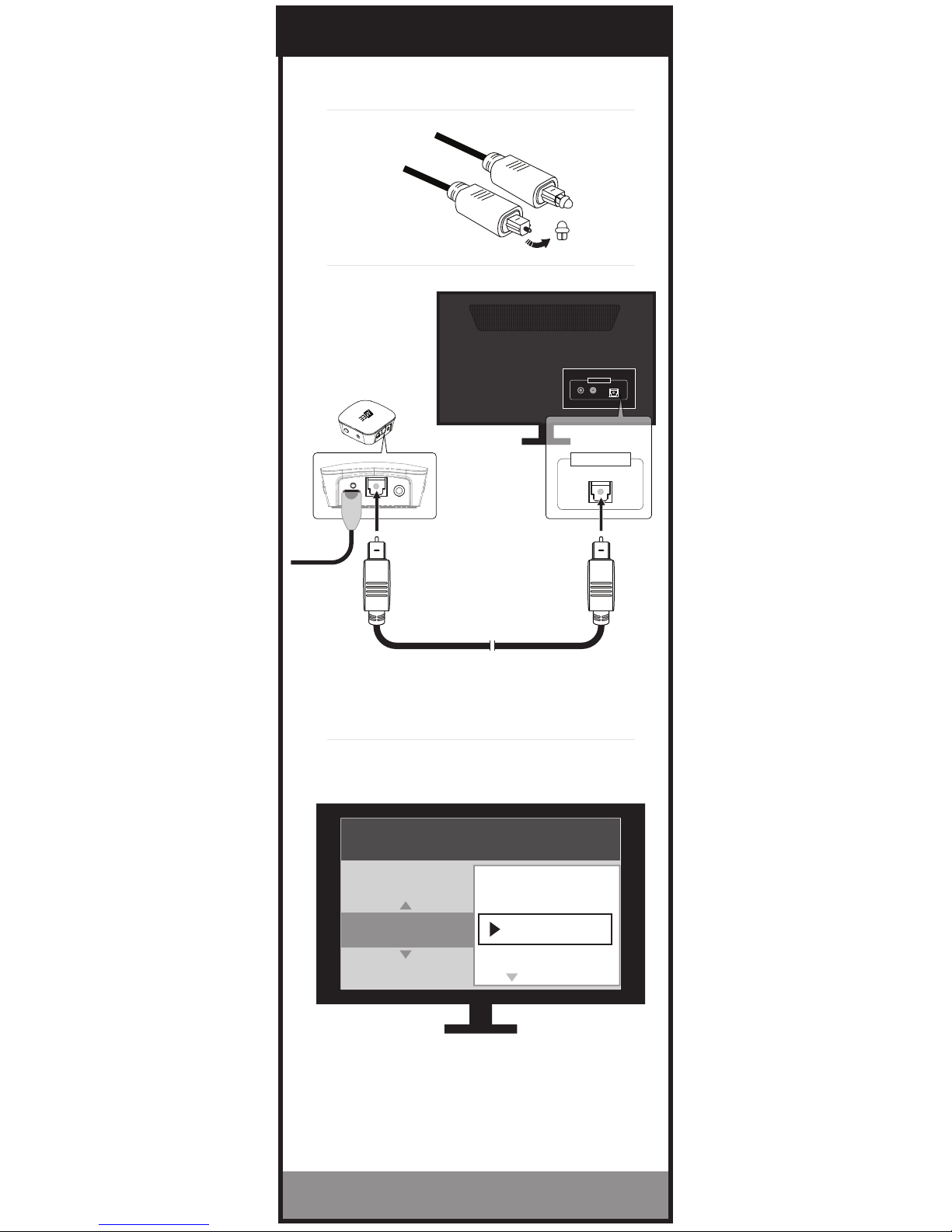
4. choose an audio cable supported by your tv
OPTICAL S/PDIF [DIGITAL]
A
OFF
ON
settings
Sound / Audio
digital Audio Output
auto
dolby digital
pcm / stereo
DTS
AUDIO OUPUT
R L
OPTICAL
IF TV AUDIO PLAYS FROM HEADPHONE,
SETUP IS COMPLETE. PROCEED TO STEP 5.
NO SOUND? CHECK TV SETTINGS MENU.
†
PROCEED TO STEP 5
remove
protective caps
select “PCM / Stereo” in the audio
output settings menu* of your TV
*
if sound is still not audible, select “PCM / Stereo” in the audio output
settings menu(s) of your video streaming app(s) and/or device(s)
AUDIO OUPUT
OPTICAL
plug the
optical cable
into TV’s digital
audio output
†
EXACT MENU AND ITEM NAMES MAY VARY BETWEEN TVS
Page 8
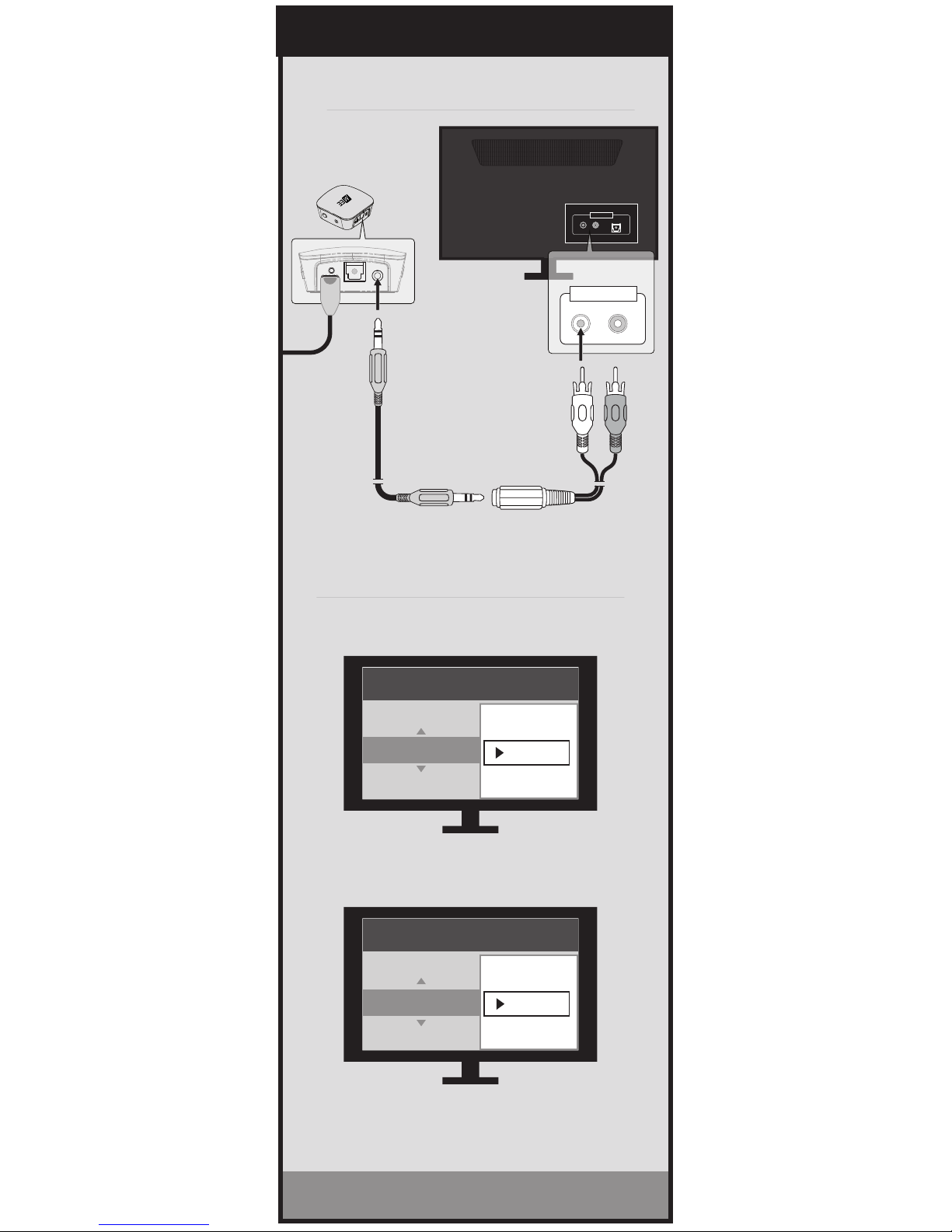
RCA
PROCEED TO STEP 5
set TV’s internal speakers to “OFF”
select “Variable” in the audio output
settings menu of your TV
A
OFF
ON
AUDIO OUPUT
R L
OPTICAL
IF TV AUDIO PLAYS FROM HEADPHONE,
SETUP IS COMPLETE. PROCEED TO STEP 5.
NO SOUND? CHECK TV SETTINGS MENU.
†
AUDIO OUTPUT
R L
plug the stereo
cable into RCA
adapter and
connect to TV’s
red/white RCA
jacks labeled
“AUDIO OUT”
settings
sound / audio
Analog audio out
fixed
variable
settings
sound / audio
tv speakers
on
off
4. choose an audio cable supported by your tv
†
EXACT MENU AND ITEM NAMES MAY VARY BETWEEN TVS
Page 9
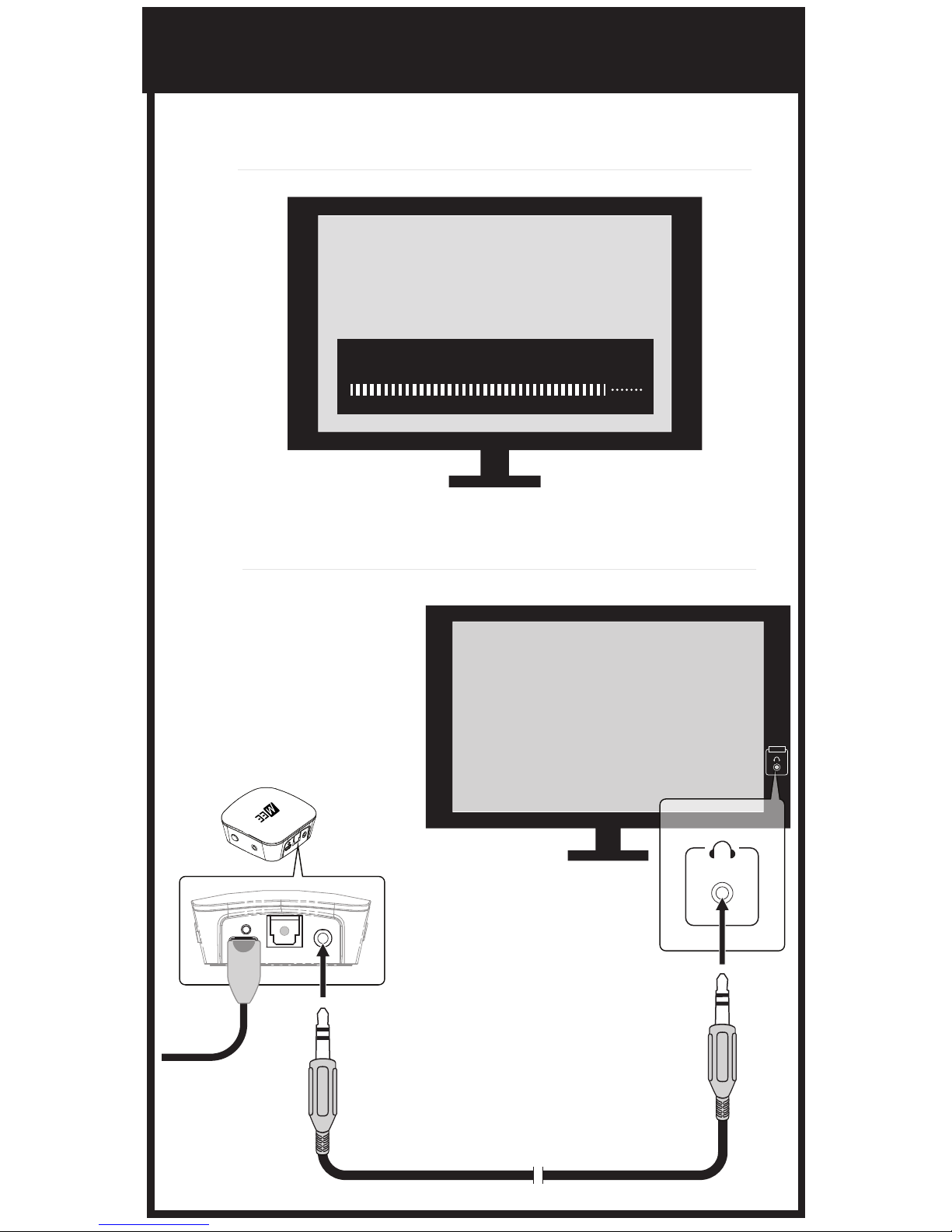
4. choose an audio cable supported by your tv
3.5MM [HEADPHONE JACK]
Volume max vol+
A
OFF
ON
plug the stereo
cable into TV’s
headphone
jack
headphone
jack may be
located on
front, side, or
rear of TV
AUDIO
maximize the volume on your TV
Page 10
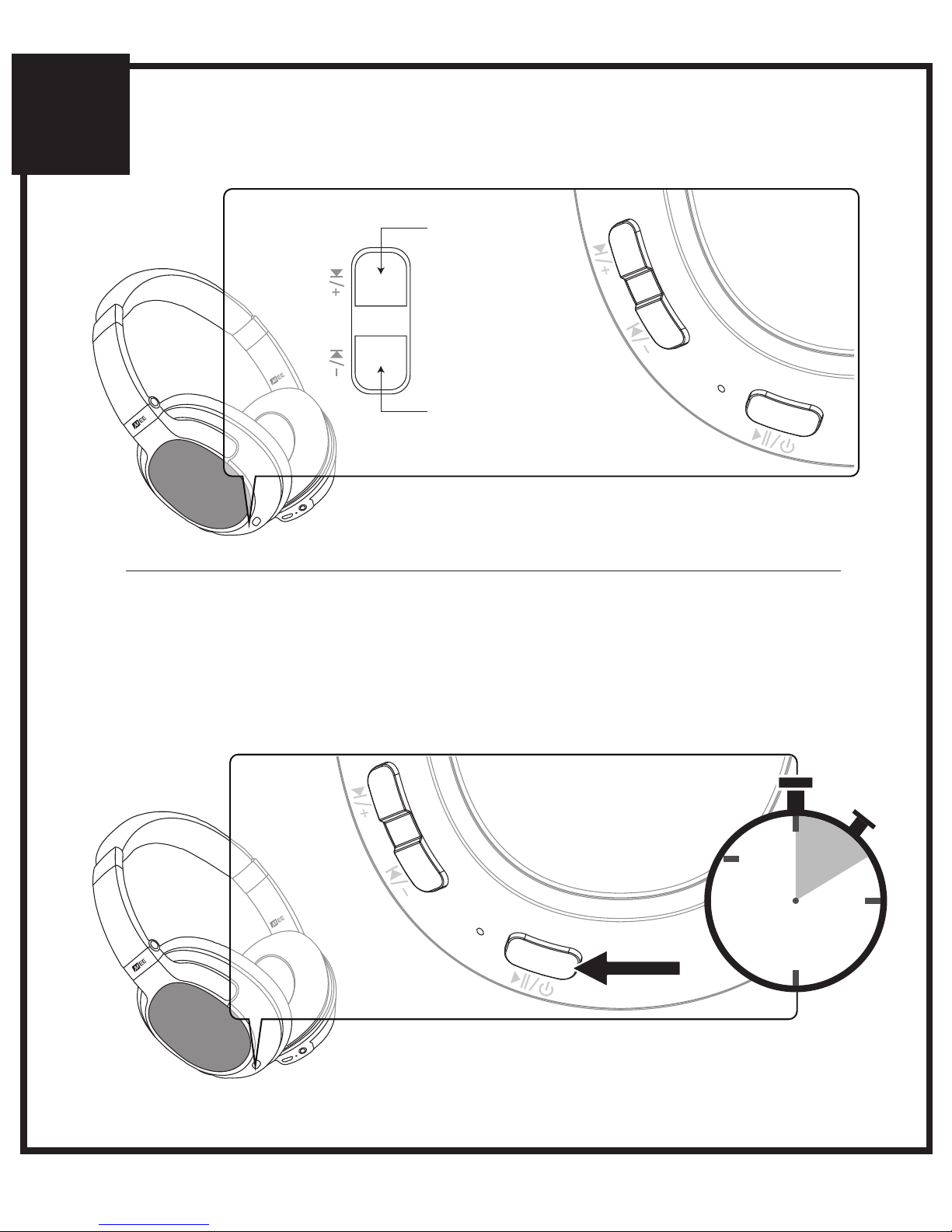
5
ADJUSTING HEADPHONE VOLUME
WHEN FINISHED, POWER OFF
HEADPHONES UNTIL NEXT USE
2
seconds
HOLD
TAP
to increase
volume
TAP
to decrease
volume
POWER OFF HEADPHONES
Page 11
ADDITIONAL INFORMATION
PAIRING A HEADPHONE
This procedure is used to pair an additional headphone
or speaker with the Connect, or to re-pair the Matrix3.
Make sure your Bluetooth headphone or speaker is
turned off. Put it in pairing mode. Consult the user
manual of the headphone or speaker if you are not sure
how to enter pairing mode.
Once the headphone or speaker is in pairing mode, click
pairing button “A” located on the side of the Connect (use
pairing button “B” when pairing a second headphone or
speaker). A blue light will blink rapidly on the top of the
unit to indicate that the Connect is ready to pair. Once
paired, the light will turn solid blue.
FACTORY RESET/CLEAR MEMORY
The Connect can be reset by holding pairing button “A”
for approximately 5 seconds, until the blue indicator light
stops blinking. All previously paired devices will be
cleared from memory and a new pairing will need to be
created by following the procedure in the previous step.
6
Page 12
ADDITIONAL INFORMATION
6
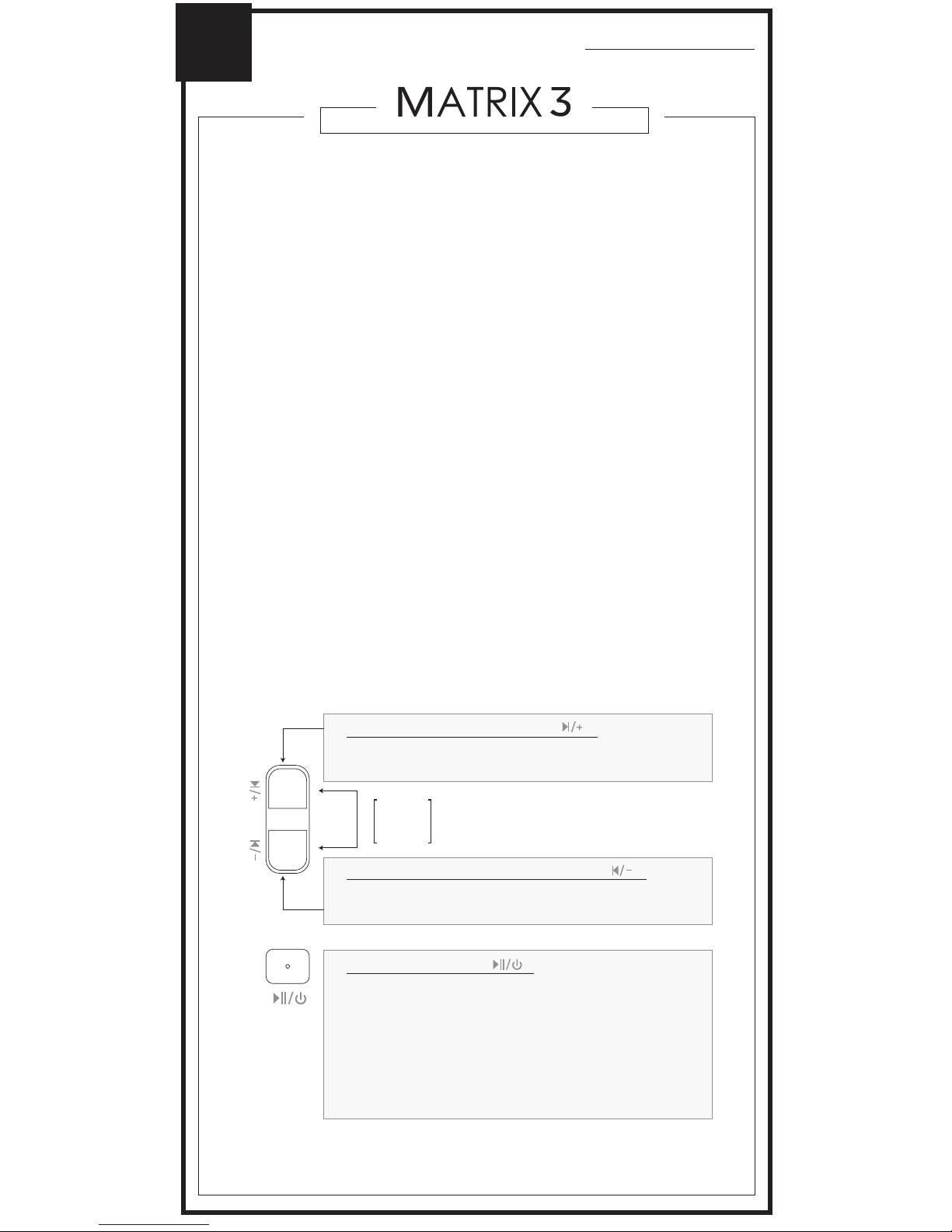
CONTROLS WITH PHONES AND TABLETS
The headphone controls on the Matrix3 are located on
the right earcup.
PAIRING WITH OTHER DEVICES
The Matrix3 can be used as a headset when connected
to phones and tablets. It will first need to be paired with
each device. To pair the Matrix3 with a new device, put
it in pairing mode by holding the Power / Multifunction
button for about 4 seconds until the status indicator
light begins to flash red and blue in an alternating
pattern and the headphone says “Ready to Pair”.
Open the Bluetooth Settings menu on your device and
turn on Bluetooth, Select “Search for Devices” or
“Refresh” if your phone or tablet does not automatically
search for new devices. Select “MEE audio Matrix3-LL”
on the screen of your device and follow any further
prompts to pair. Once connected, the status indicator
light on the Matrix3 will turn solid blue.
HOLD
BOTH
1 sec
- Mute call (during phone call)
[HOLD 4 sec]
[TAP]
[TAP]
[HOLD 2 sec]
[TAP]
[HOLD 1 sec]
[TAP twice]
- Power On / Off
- Play / pause (during media playback*)
- Answer Incoming Call
- Reject Incoming Call
- Hang up (during phone call)
- Siri / voice command / voice dialing**
- Redial**
Volume Down / Previous Track button
( )
Multifunction button
( )
[TAP]
[HOLD 3 sec]
- Increase volume
- Next track
Volume Up / Skip Track button
( )
*To start playing music, open a music app on your device and start playback.
**Not all devices support this functionality. For more information, refer to the user manual for your
device.
[TAP]
[HOLD 3 sec]
- Decrease volume
- Previous track
Page 13

Battery performance will be severely decreased when
stored in extreme temperatures: below -10°C/14°F or
above 45°C/113°F including direct sunlight.
The lifetime of the battery will be significantly reduced
if your device is not charged for a long time. It is
recommended to charge your device at least
once a month.
Clean with a soft, slightly damp cloth. Do not use
chemical cleaners.
There are no user replaceable/reparable parts in this
device. Disassembling it will void your warranty.
Do not expose the device to liquids. If the device
comes in contact with liquids, quickly wipe away.
If submersed in water, do not turn the device on until
completely dried.
Note: liquid submersion voids the warranty.
Do not use around flammable gasses as fire or
explosion may occur
•
•
•
•
•
•
SAFETY AND CARE
Page 14

MEE audio products purchased from
authorized resellers are covered by a
1-year manufacturer warranty.
For more information,
visit www.MEEaudio.com/Support
WARRANTY
Page 15

Using headphones at high to moderate
volumes for extended periods of time will result
in permanent hearing damage. It is advised you
keep volume levels moderate to low at all times
for your safety. Do not use while driving a car,
cycling, operating machinery, or performing
other activities that require hearing surrounding
sounds.
Keep the device and packaging out of reach of
children.
WARNING
Page 16
MEE audio and its logo are registered trademarks of
S2E, Inc. All rights reserved.
The Bluetooth
®
word mark and logos are registered
trademarks owned by Bluetooth SIG, Inc. and any use of
such marks by MEE audio is under license. Other
trademarks and trade names are those of their respective
owners.
Qualcomm® aptX™ is a product of Qualcomm
Technologies International, Ltd. Qualcomm is a trademark
of Qualcomm Incorporated, registered in the United States
and other countries, used with permission. aptX is a
trademark of Qualcomm Technologies International, Ltd.,
registered in the United States and other countries, used
with permission.
Page 17

QUESTIONS?
WE’RE HERE TO HELP!
Phone Support: 626-965-1008 x31
Monday ~ Friday 9am to 5:30pm PST
Email Support: [email protected]
All emails are responded to within 2 business days
 Loading...