

Page 1
Quick guide
IMPERIUS TAB 10 LT MT7010
IMPERIUS TAB 10 MT7011
9,7” DUAL CORE ANDROID 4.1 TABLET PC
Page 2
2
EN
Introduction
Thank you for buying this fully equipped tablet with Android 4.1, front and rear camera, HDMI output and comfortable touch screen. Please take a moment and read this manual before using the device.
Package contents
■ tablet
■ power adaptor
AC 220V
■ microUSB to USB
adaptor (OTG)
■ quick guide
Overview
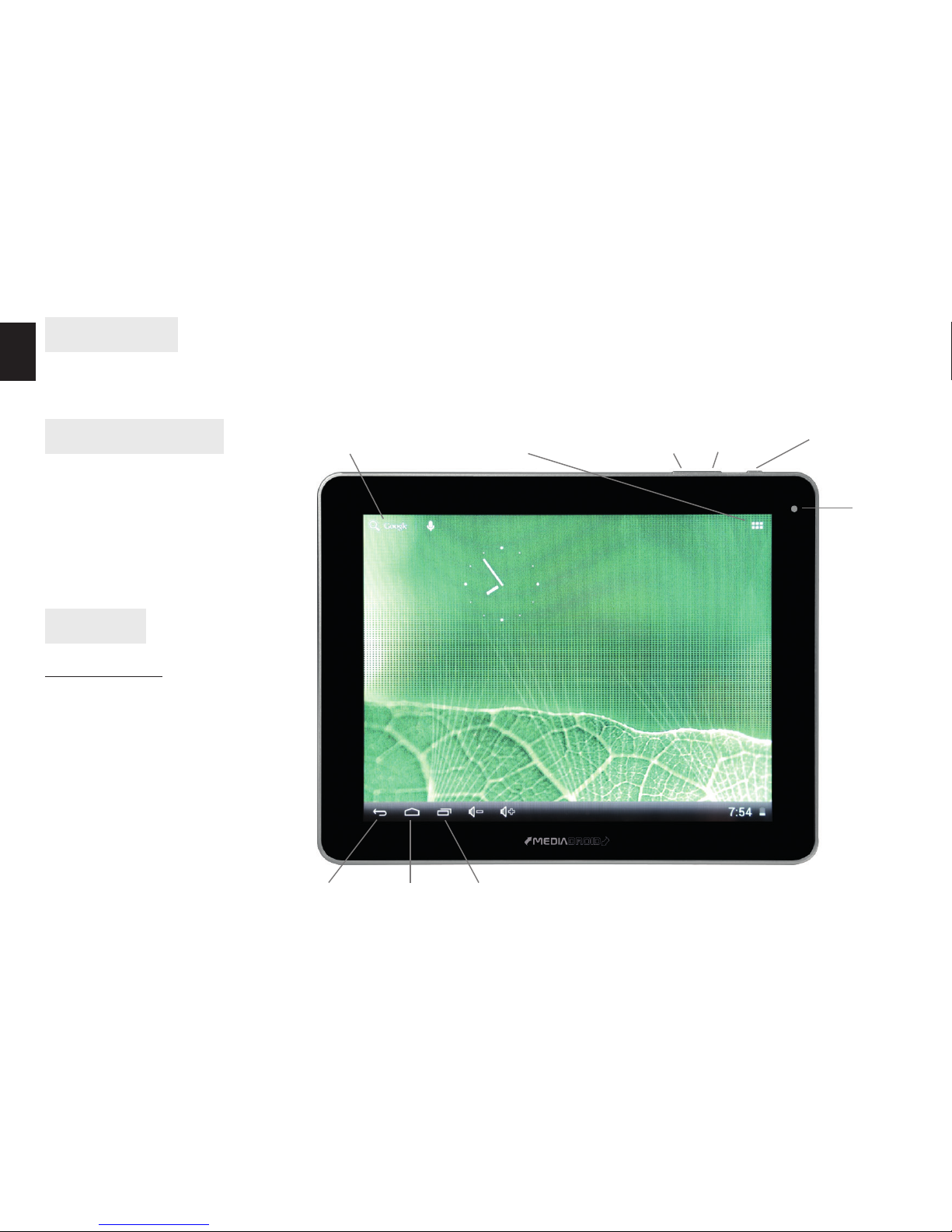
Front panel
Show applications BackVol- Vol+
Front
camera
Recently used applications HomeBack
Google Search
Page 3
3
EN
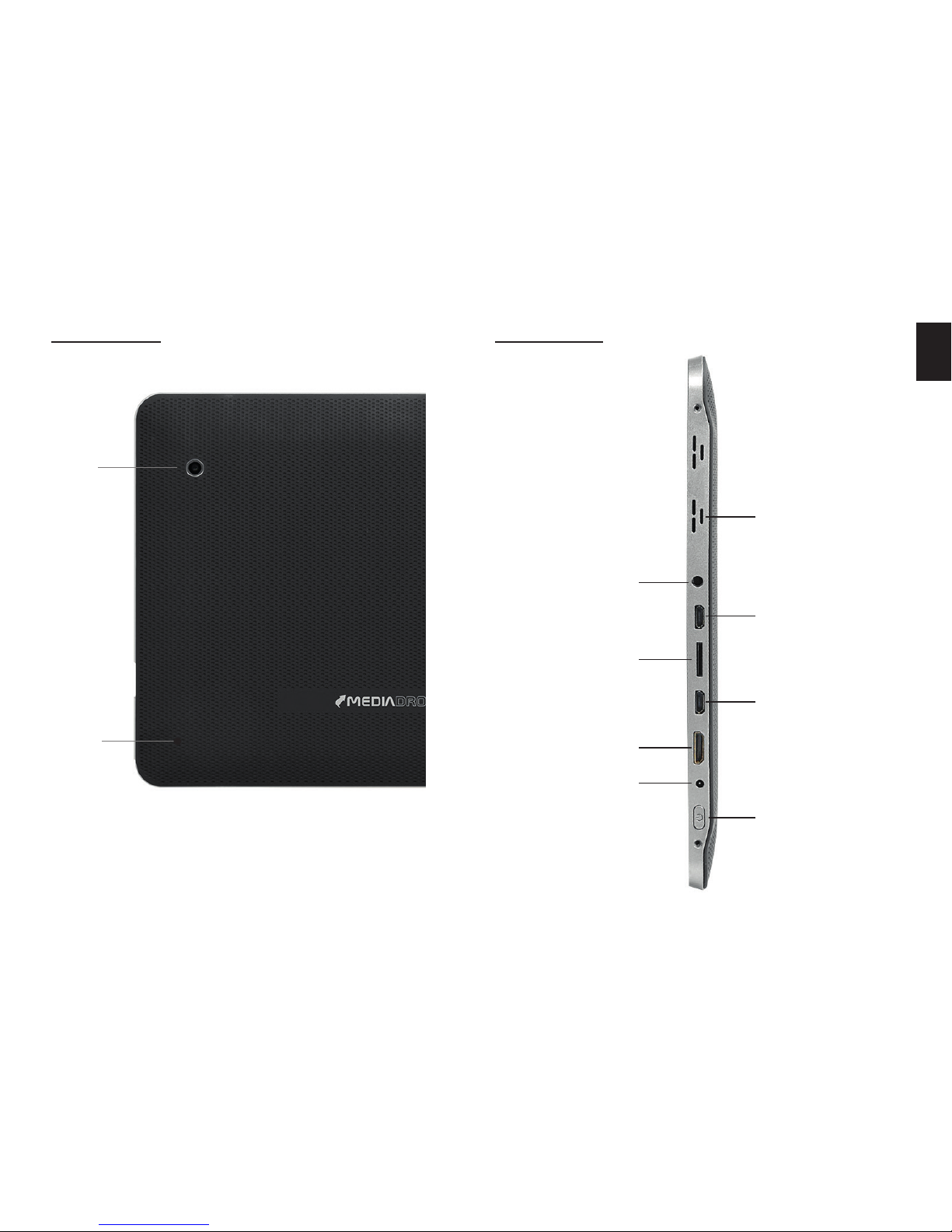
Rear panel Side panel
Main
camera
Reset
switch
Speaker
USB host socket (to
access storage via
PC computer)
OTG USB socket (for
pendrive, mouse or
keyboard and etc.)
Power button
Headphones
socket
microSD socket
HDMI output
DC input
Page 4
4
EN
Power On
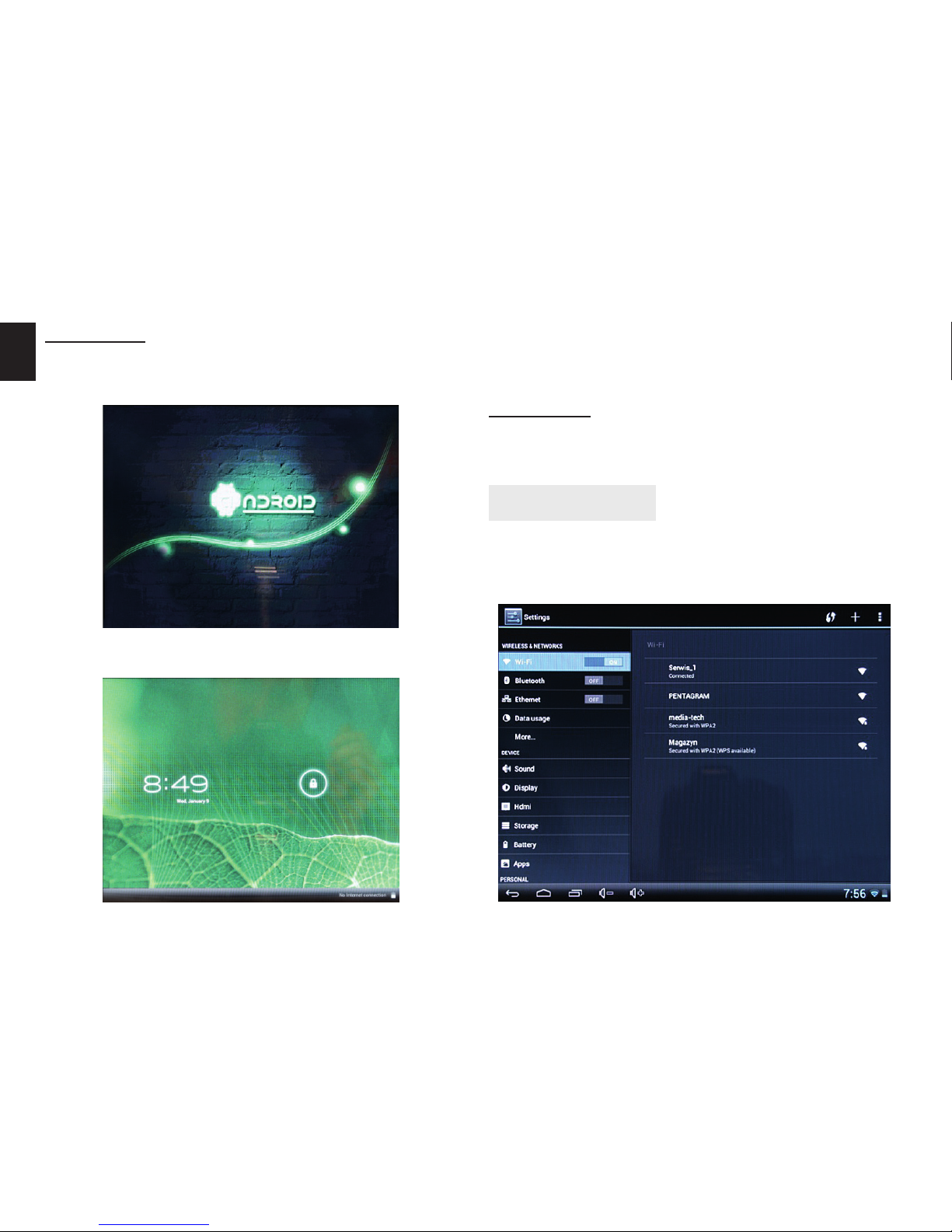
Press and hold power button until Android icon popup on the screen.
When system is loaded you will following screen:
Drag and drop lock icon into right to unlock touch
screen. To lock touch screen press shortly power button.
Power O
Press and hold power button for 2 seconds, click “power o” and then “OK”.
Using the device
We recommend setting up WiFi internet connection in
rst place. Next please set up google account in order
to access application from Google Play.
Page 5
5
EN
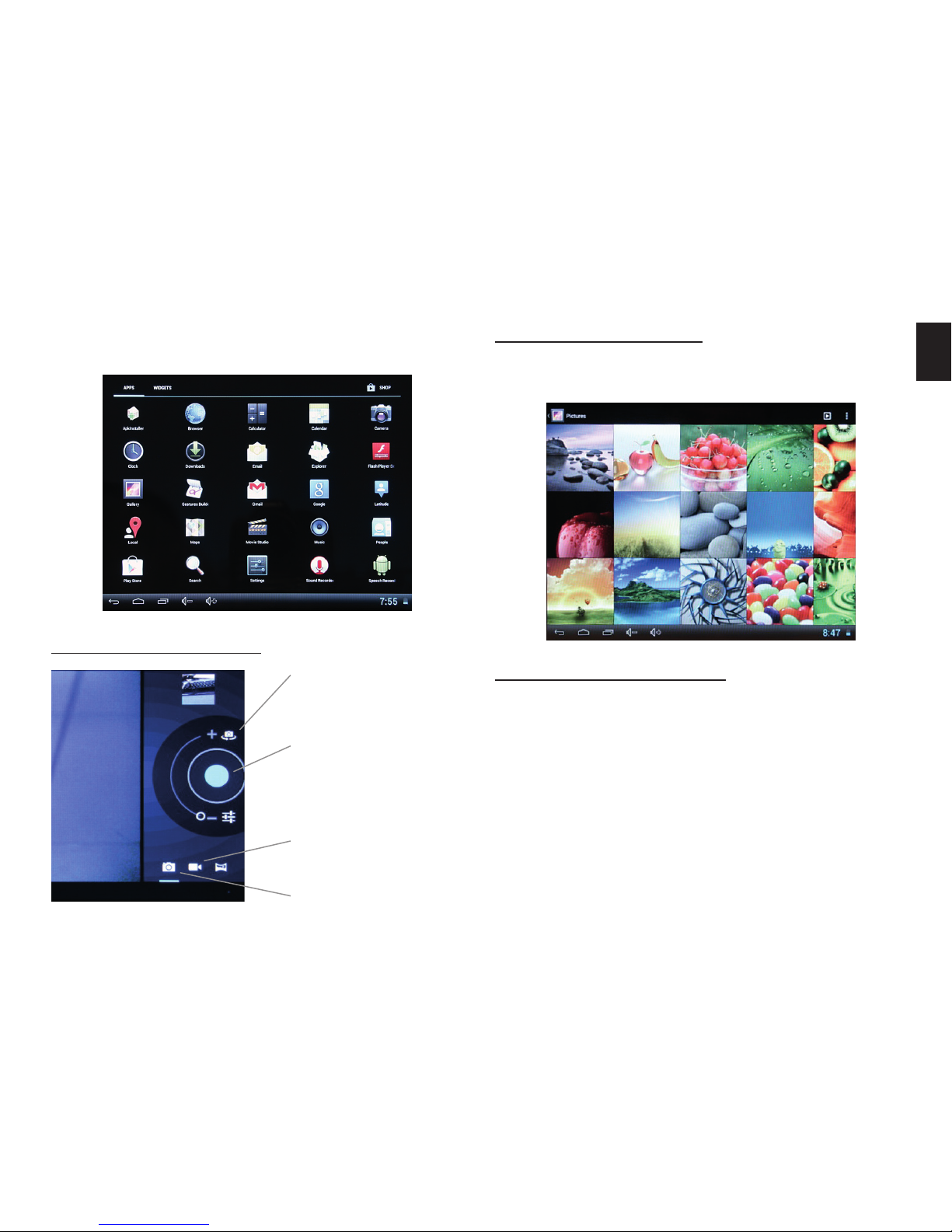
Press “Show applications” to pop-up screen with installed applications.
Functions and technical specication of device are subject to change without prior notice. For technical support
please visit www.media-tech.eu.
Using USB OTG function
Plug USB OTG cable rst, then plug USB device like
pendrive, mouse, keyboard and etc.
Browsing multimedia
You can use Explorer to open selected le, le will be
opened with appropriate application.
Using camera module
Switch front/rear
camera view
Press and hold to
autofoucs, release
to release shutter
Recording movies
Taking photos
Page 6

6
EN
 Loading...