

Page 1

©2005 by Mediacom Communications Corporation. All Rights Reserved. Mediacom Communications assumes no liability nor responsibility for the use
of any content, materials, or techniques included in this guide. Mediacom DVR is a service mark of Mediacom Communications Corporation.
Page 2

Table of Contents
Introduction . . . . . . . . . . . . . . . . . . . . . . . . . . . . . . . . . . . . . . . . . . . . . . . . . . . . . . . . . . . . . . . .1
Remote Control Features & Basic Navigation Tips . . . . . . . . . . . . . . . . . . . . . . . . . . . . .2
Quick Menu: Quick & Easy . . . . . . . . . . . . . . . . . . . . . . . . . . . . . . . . . . . . . . . . . . . . . . . . . . .3
Quick Access Menu Icons . . . . . . . . . . . . . . . . . . . . . . . . . . . . . . . . . . . . . . . . . . . . . . . . . . . .3
All Access with the Main Menu . . . . . . . . . . . . . . . . . . . . . . . . . . . . . . . . . . . . . . . . . . . . . .4
Enhanced Searching . . . . . . . . . . . . . . . . . . . . . . . . . . . . . . . . . . . . . . . . . . . . . . . . . . . . . . . . .5
Easy to Understand Listings . . . . . . . . . . . . . . . . . . . . . . . . . . . . . . . . . . . . . . . . . . . . . . . . .6
Smart Channel Surfing . . . . . . . . . . . . . . . . . . . . . . . . . . . . . . . . . . . . . . . . . . . . . . . . . . . . . .6
Action Icon Shortcuts . . . . . . . . . . . . . . . . . . . . . . . . . . . . . . . . . . . . . . . . . . . . . . . . . . . . . . .7
Action Icons . . . . . . . . . . . . . . . . . . . . . . . . . . . . . . . . . . . . . . . . . . . . . . . . . . . . . . . . . . . . . . . . .8
Program Information At Your Fingertips . . . . . . . . . . . . . . . . . . . . . . . . . . . . . . . . . . . . . .8
Parental Locks To Protect Your Family . . . . . . . . . . . . . . . . . . . . . . . . . . . . . . . . . . . . . . . .9
Go Ahead, Play Favorites . . . . . . . . . . . . . . . . . . . . . . . . . . . . . . . . . . . . . . . . . . . . . . . . . . . . .9
Pay Per View Made Easy . . . . . . . . . . . . . . . . . . . . . . . . . . . . . . . . . . . . . . . . . . . . . . . . . . . . .9
On Demand Brings the Video Store to You! . . . . . . . . . . . . . . . . . . . . . . . . . . . . . . . . . . .10
On Demand Action Icons . . . . . . . . . . . . . . . . . . . . . . . . . . . . . . . . . . . . . . . . . . . . . . . . . . . .11
Guide Setup . . . . . . . . . . . . . . . . . . . . . . . . . . . . . . . . . . . . . . . . . . . . . . . . . . . . . . . . . . . . . . . . .12
Cable Box Setup . . . . . . . . . . . . . . . . . . . . . . . . . . . . . . . . . . . . . . . . . . . . . . . . . . . . . . . . . . . . .12
Audio Setup . . . . . . . . . . . . . . . . . . . . . . . . . . . . . . . . . . . . . . . . . . . . . . . . . . . . . . . . . . . . . . . . .13
Screen Position Setup . . . . . . . . . . . . . . . . . . . . . . . . . . . . . . . . . . . . . . . . . . . . . . . . . . . . . . .13
Text Language Setup . . . . . . . . . . . . . . . . . . . . . . . . . . . . . . . . . . . . . . . . . . . . . . . . . . . . . . . .13
DVR: Digital Video Recorder . . . . . . . . . . . . . . . . . . . . . . . . . . . . . . . . . . . . . . . . . . . . . . . . .14
Record with Just One Touch . . . . . . . . . . . . . . . . . . . . . . . . . . . . . . . . . . . . . . . . . . . . . . . . .15
Manually Schedule a Recording . . . . . . . . . . . . . . . . . . . . . . . . . . . . . . . . . . . . . . . . . . . . . .15
Record Two Programs at Once . . . . . . . . . . . . . . . . . . . . . . . . . . . . . . . . . . . . . . . . . . . . . . .16
Record A Series . . . . . . . . . . . . . . . . . . . . . . . . . . . . . . . . . . . . . . . . . . . . . . . . . . . . . . . . . . . . .17
Modifying Recording Options . . . . . . . . . . . . . . . . . . . . . . . . . . . . . . . . . . . . . . . . . . . . . . .18
Watch Recorded Programs . . . . . . . . . . . . . . . . . . . . . . . . . . . . . . . . . . . . . . . . . . . . . . . . . . .19
Guide Symbols to Know: Recorded Program Information Screens . . . . . . . . . . . . .20
DVR Playback Controls
Status Bar . . . . . . . . . . . . . . . . . . . . . . . . . . . . . . . . . . . . . . . . . . . . . . . . . . . . . . . . . . . . . . . .20
Pause . . . . . . . . . . . . . . . . . . . . . . . . . . . . . . . . . . . . . . . . . . . . . . . . . . . . . . . . . . . . . . . . . . . .21
Rewind . . . . . . . . . . . . . . . . . . . . . . . . . . . . . . . . . . . . . . . . . . . . . . . . . . . . . . . . . . . . . . . . . . .21
Fast Forward . . . . . . . . . . . . . . . . . . . . . . . . . . . . . . . . . . . . . . . . . . . . . . . . . . . . . . . . . . . . .21
Slow Motion . . . . . . . . . . . . . . . . . . . . . . . . . . . . . . . . . . . . . . . . . . . . . . . . . . . . . . . . . . . . . .22
Instant Replay . . . . . . . . . . . . . . . . . . . . . . . . . . . . . . . . . . . . . . . . . . . . . . . . . . . . . . . . . . . .22
Return To Live TV . . . . . . . . . . . . . . . . . . . . . . . . . . . . . . . . . . . . . . . . . . . . . . . . . . . . . . . . .22
Swap . . . . . . . . . . . . . . . . . . . . . . . . . . . . . . . . . . . . . . . . . . . . . . . . . . . . . . . . . . . . . . . . . . . . .22
Mediacom Digital Referen#242C9B 5/23/05 2:15 PM Page 18
Page 3
Introduction
1
2
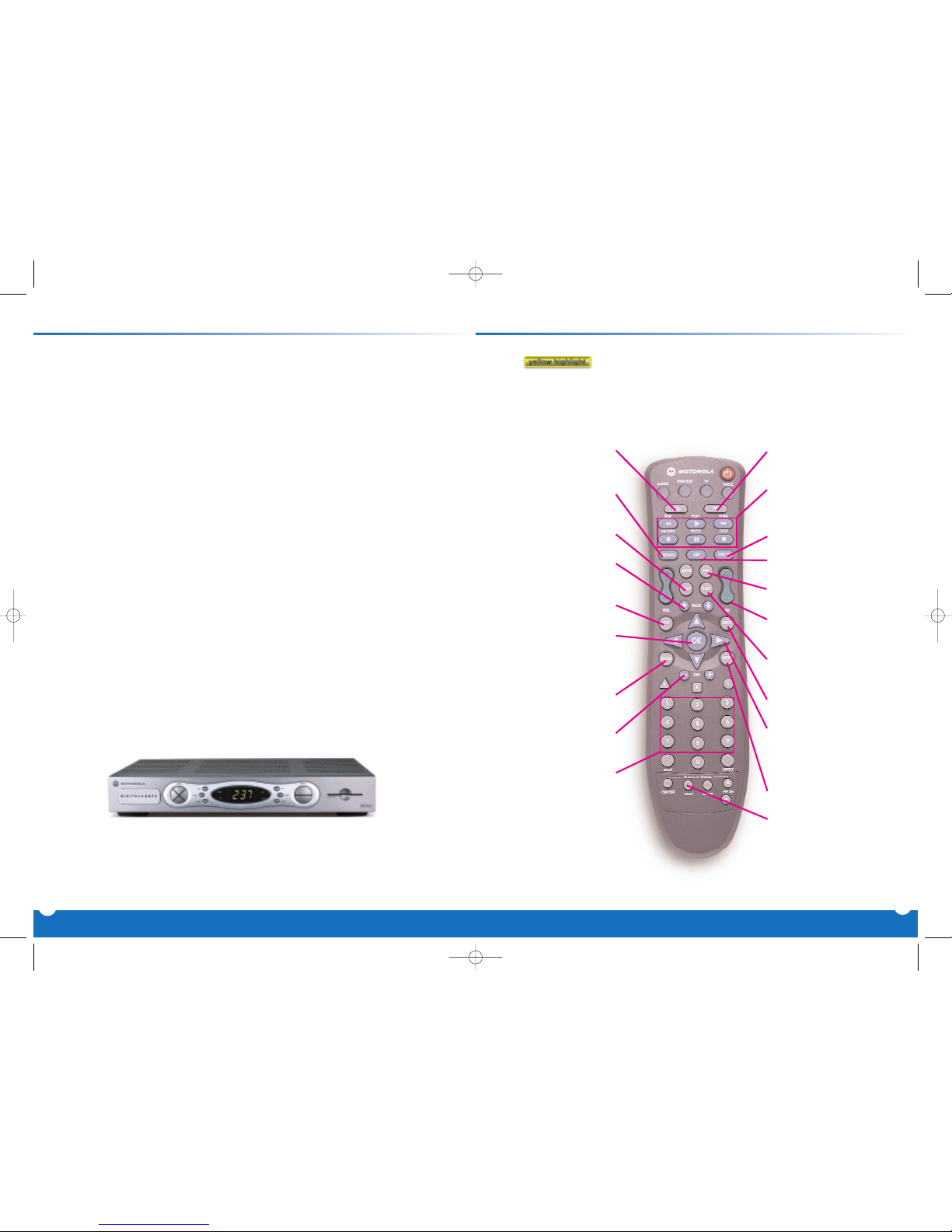
Remote Control Features & Basic Navigation Tips
Mediacom's Digital On Screen Program Guide from TV Guide is
improved to give you greater choice, convenience and control as
you watch television.
■
A sleek, new design
■
A convenient,time-saving Quick Menu
■
A friendlier display with a full 90 minutes of
programming listings
■
Enhanced searching
■
Increased speed
■
And Mini Guide, a whole new way to watch TV and channel
surf at the same time
This brochure will show you just how easy it is to Set Reminders,
Favorites, and Parental Locks. You'll learn how to use Mediacom's
new Mini Guide to find out what's on next while you continue
to watch your favorite shows.Plus,you'll have access to great
features like On Demand and Digital Video Recorder (DVR).*
*Services may not be available in all areas.
VOD
Direct Access to Video On
Demand(VOD), where available
Replay
Replays last 15 seconds
of program
Help
Learn more about a feature
Page
Scroll to the next or previous page
of listings
Exit
Return to watching television
OK
Select a highlighted item; or while
watching a program, press to
display or remove the
Flip Bar or
Mini Guide
Guide
See program listings for the
current time
Day*
See listings for the next
or previous day
Numbers
Press channel numbers,then
OK to tune to a channel
PPV
Direct Access to Pay-Per-View
(PPV), where available
VCR Controls
Controls VCR, ON DEMAND
and Digital Video Recording
(if available)
Live TV
Displays live TV programming
List
Displays recordings
FAV
Tune to your Favorite channels,
once you set them up
CHAN
Change channels and access
the
Flip Bar
Last
Return to the previous screen
or channel
Info
See program information
Arrows
Use to highlight guide features,
or while watching television, press
to begin browsing.Note: Arrows
control playback of recorded
programs with
DVR
Menu
Enter and exit the Main Menu
Swap
Swap between television tuners
■
A is your indicator as you use your remote to see what’s on TV.As
you navigate listings using your remote,the highlight appears on-screen to indicate your
current selection.
■
Press the buttons on your remote to move the highlight.
■
Press OK to make your selection.
■
Press the EXIT button on your remote to return to watching TV.
Note: Remote pictured may not reflect your actual remote.
Basic functions should be the same.
*Amount of programming data varies by system.
Mediacom Digital Referen#242C9B 5/23/05 2:15 PM Page 20
Page 4
3
4
Quick Menu: Quick & Easy All Access with the Main Menu
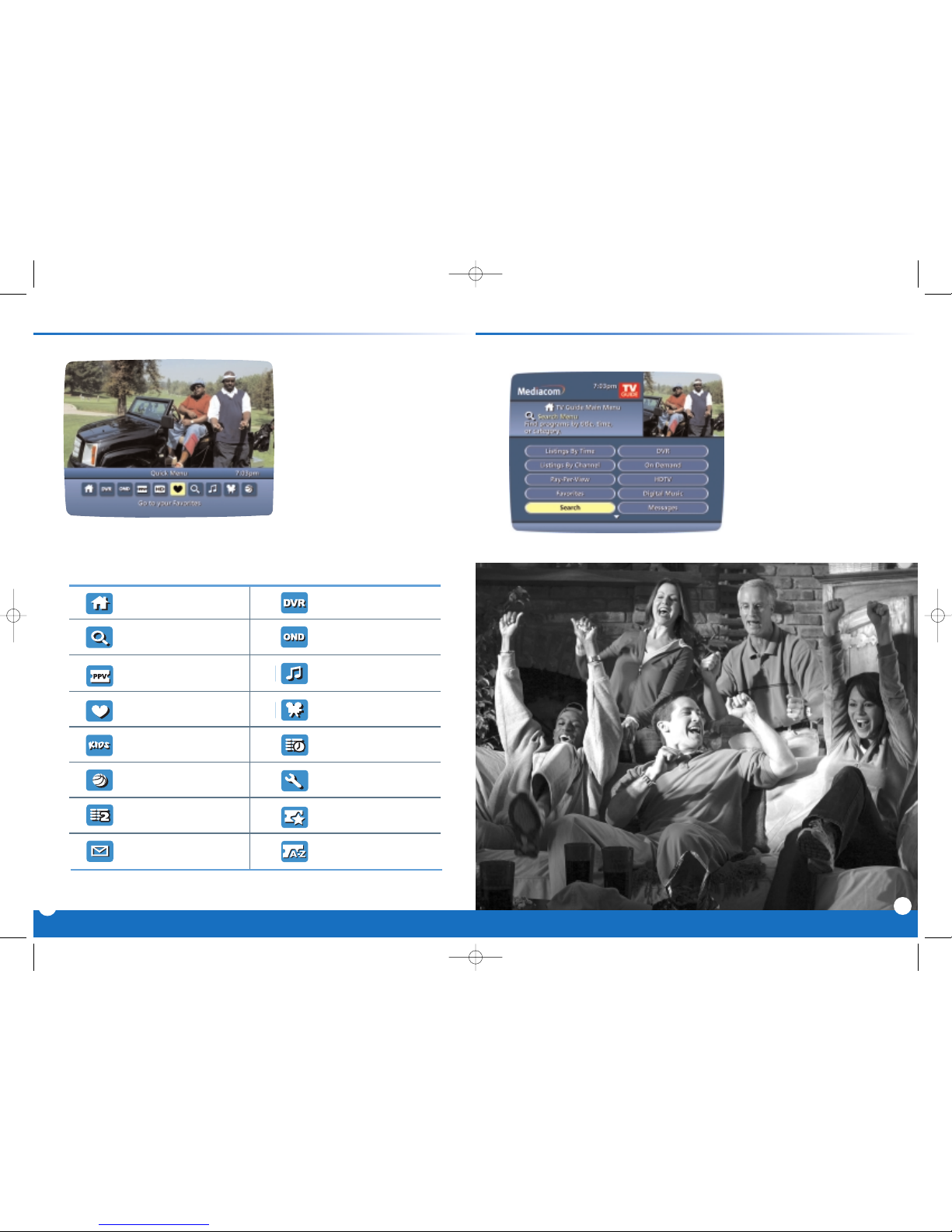
The Quick Menu offers shortcuts
to key interactive guide features.
Just press MENU from anywhere
in the guide– or even while
you're watching a program and you'll have access to features like Search, Favorites,
Digital Music and more.
Quick Menu Icons
Guide Main Menu Digital Recordings
Search Menu On Demand Menu
Pay-Per-View Listings Digital Music Listings
Favorites List Movies Search Menu
Kids Search Menu Listings By Time
Sports Search Menu Guide Setup Menu
Listings By Channel Pay-Per-View Events
Message Center Pay-Per-View by Title
*Menu selections vary depending on the services your cable provider offers.
Highlight and select any of these icons to immediately access the area indicated.
Main Menu gives you easy
access to all features.Simply
press
MENU twice, then select
from the options available,
including TV Listings By Time,
viewing options by category,
Parental Locks, Favorit es,Local
Weather and more.
Mediacom Digital Referen#242C9B 5/23/05 2:15 PM Page 22
Page 5
Smart Channel Surfing
The Flip Bar lets you see
program information as you
change channels.
The
Mini Guide lets you watch
television and view listings without
having to leave your program.To
access, press
OK or INFO then use
the
buttons to browse time
and use the
buttons to browse
channels.
TV Listings appear in a grid format with channel numbers and
network call letters down the left
side and times along the top.
Listings are color coded to help
you identify different types of
programs.
Blue - Regular programs
Purple - Movies
Green - Sports
Light Blue - Children's programs
5
6
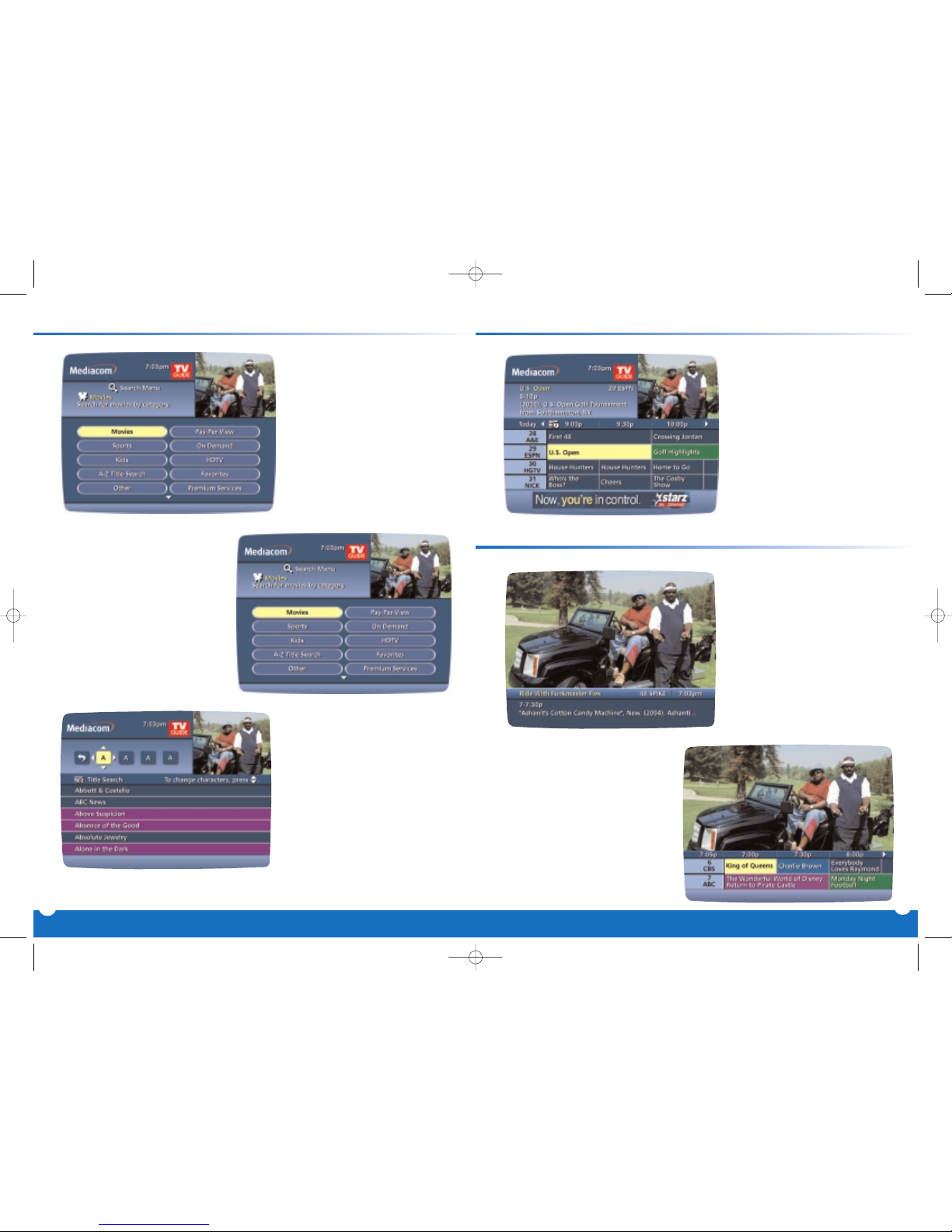
Enhanced Searching
With TV Guide’s Program
Guide, you can sort and view
program
Listings By Time,
Listings By Channel,or by
categories such as
Movies,
Sports, Children and more.
Select a category from the
Main Menu or Quick Menu
to display listings.
A-Z Title Search allows you
to find a specific program by
entering the first few letters
of the program name
Easy to Understand Listings
Subcategories let you focus
your search even further. For
example, you can search for
movies that fit your mood:
comedies, dramas, adventure
and more
Mediacom Digital Referen#242C9B 5/23/05 2:15 PM Page 24
Page 6
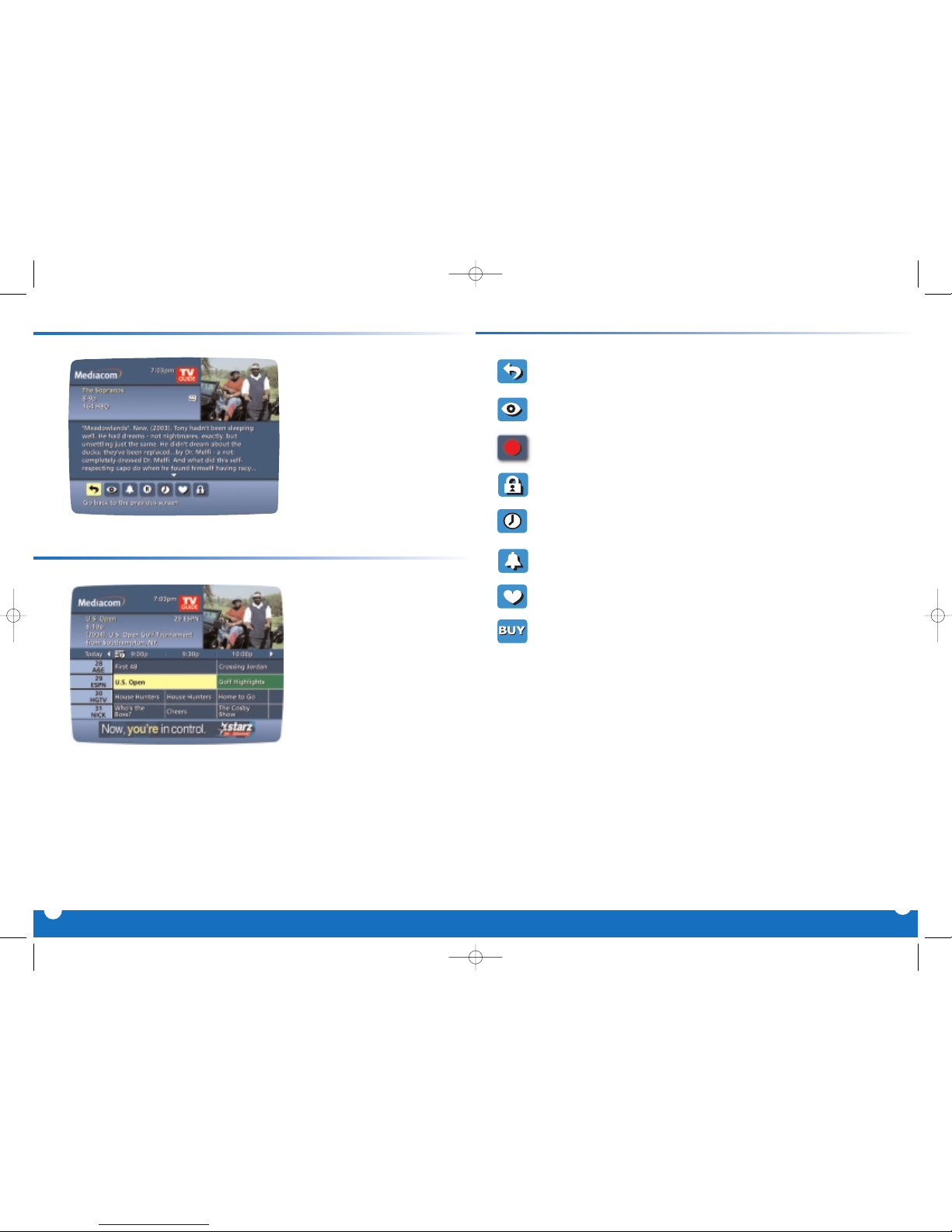
Your On Screen Guide provides
Instant Information while you
view program listings, including
program title,start/end time, program rating,a brief program
description and helpful indicators
that identify your settings, such as
Reminders, Recordings and
Favorites.
8
Program Information at your Fingertips
Action Icon Shortcuts
From the Program
Information screen, you can
use the
Action Icons at the
bottom of the screen to set a
Reminder, see other air
times and more.
7
Action Icons
Go back to the previous screen
Watch this program
Record/Change Record Options*
Place a Lock on the program to restrict viewing
Display all the Times the program will be airing
Set a Reminder for this program
Save the channel in your Favorites list
Order PPV and other pay services
Mediacom Digital Referen#242C9B 5/23/05 2:15 PM Page 26
Page 7
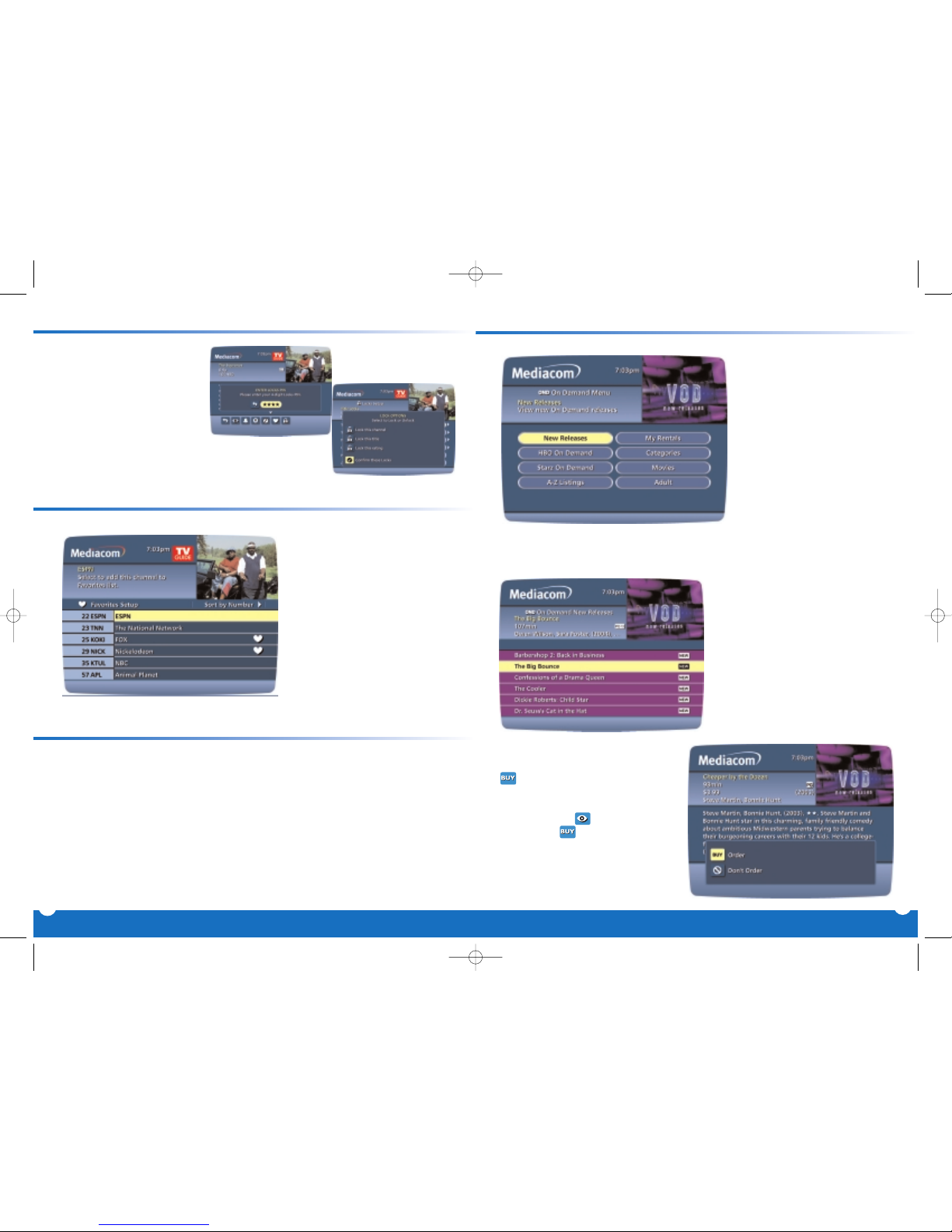
Go Ahead, Play Favorites
The Favorites feature lets you
quickly access the channels
you've designated as your
Favorites. Just select Favorites
from the Main Menu or from the
Quick Menu.
Ordering
PPV movies and events is easy. From the Main Menu or Quick Menu,
select any of the PPV options to see a list of available programs.Use your remote to
get detailed information and order.You can even cancel your selection.
If your PPV program is scheduled to air at a future time,a
Reminder is automatically
set to appear before your program begins.
Pay Per View Made Easy
10
9
On Demand Brings the Video Store to You!
Order an On Demand program
and you can watch it at your convenience,as many times as you
want within the rental period.
You can even pause, fast-forward
and rewind.
Access
On Demand from the
Main Menu, Quick Menu or
Channel 1 in the TV listings.
The On Demand Menu displays categories of programming.Use the ▲▼▲▲
buttons on your remote to select a category and access program listings for the
category or to access sub-category menus.**
▲
▲
Select a title to access detailed
information, including rental time,
cost, program rating and a program description.
To buy the program,highlight the
Action Icon, then follow the on-
screen prompts to complete your
order.If the program is available at
no cost+, a icon will appear
instead of .Your selection will
begin playing immediately and
you can watch as often as you
want during the rental period.
Parental Locks let you restrict
viewing and purchases of TV
programming based on your
preferences. Set a personalized
4-digit
PIN and you can place
locks on selected ratings,
channels and titles.You can
also hide adult titles from being
displayed on screen.
Parental Locks to Protect your Family
Mediacom Digital Referen#242C9B 5/23/05 2:16 PM Page 28
Page 8
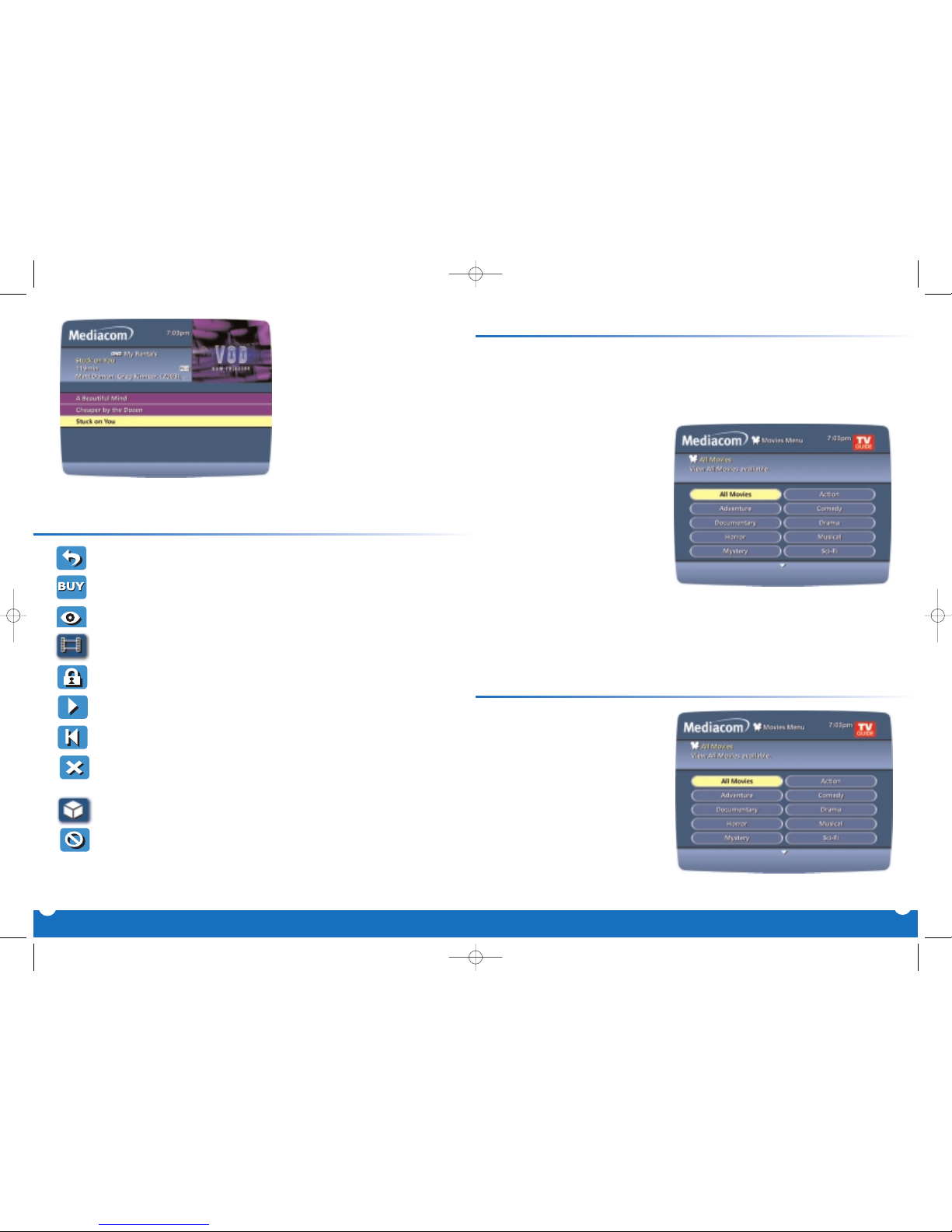
If you have stopped a program and
want to come back to it later,select
My Rentals* from the On Demand
Menu.
• Highlight and select a title and see
an information screen that displays
your remaining rental time and
other program details.
• Select to start watching where you
left off, or select to start the program
from the beginning.
• Watch as many times as you want
within the rental period.
On Demand Action Icons
* On Demand not available in all areas.On Demand programs may not be recorded with DVR (if available).
**Menu label and categories vary by cable provider.
+If available from your cable provider.
12
11
Guide Setup
You can activate and customize certain guide features such as the Flip Bar,Lock
options, Cable Box settings, Audio settings and Languages from the Setup Menu.
Use your remote to select Setup from the Main Menu, then use the ▲▼ buttons to
select from the following setup options:
• Flip Bar Position – The Flip Bar
can appear either at the top or
bottom of your screen.
• Flip Bar Timeout – Change the
amount of time in which the Flip
Bar will stay on your screen from 3
to 15 seconds.
Auto-Tune –
• Ye s – Automatically tunes after 2
seconds when you enter numbers
directly on your remote.
• No – Enter 3 digits or press OK
after entering numbers on the
remote.
• Message – Select On to make the message envelope appear when a new message
is received.
• Reminder Notice – Adjust the amount of time before the start of a program in
which the Reminder Notice will appear from 1–15 minutes.
• Listing Grid Height – You can adjust the listings to display single- or dual-height
grid display from the Guide Set-Up Menu.
Cable Box Setup
Time Display –
• Off - Displays the currently tuned
channel on the front of the terminal.
• On - Displays the current time on
the terminal.
AC Outlet –
• Switched - Determines that
power is available only when the
terminal is on.
• Unswitched - Means that power
is always available to the outlet on
the back of the terminal.
See Configuration –
• Choose Yes to show the configuration screen (includes information your cable
company may need in the event of a problem with your service).
- Go back to the previous screen
- Order the program, or cancel an ordered program
- Tune to a program (for some free and subscription programming)
- Preview
- Place a lock on the program to restrict viewing
- Resume play of the video (appears for purchased videos)
- Restart the video from the beginning (appears for purchased videos)
- Delete the title from your rented titles list (appears for
purchased videos)
- Indicates the program is available as a package
- Cancel Selection
Mediacom Digital Referen#242C9B 5/23/05 2:16 PM Page 30
Page 9
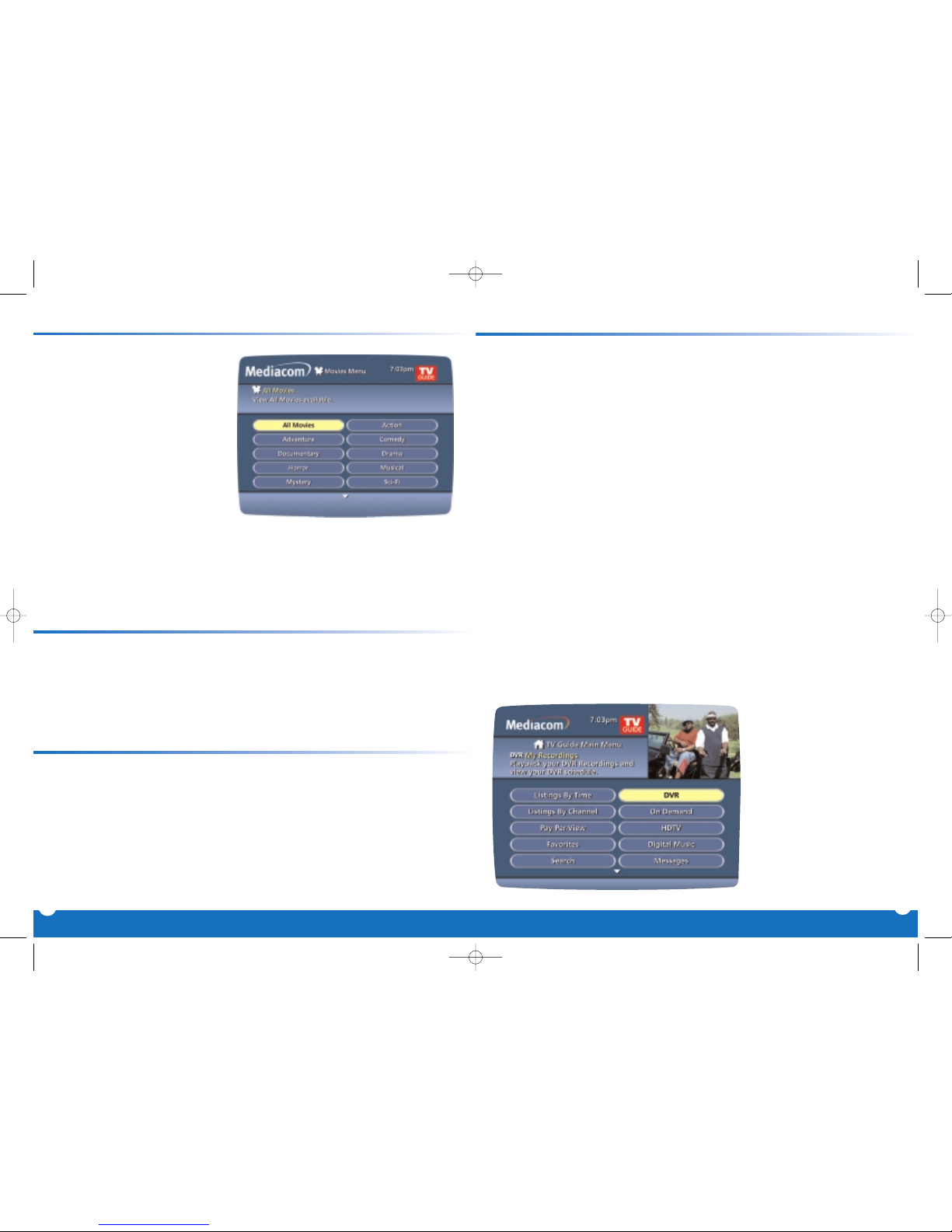
DVR: Digital Video Recorder
Any time you tune to a
channel, the
DVR starts a
temporary recording.So
you can PAUS E if the
phone rings,
REWIND the
scene you missed and
FAST FORWARD to skip
what you don't want to
watch.
Control Live TV
Pause live television.Rewind and replay programs.Record your
favorites all season long.With Digital Video Recorder (DVR)* from
Mediacom, you're in control. Your Dual Tuner DVR has made
recording and watching your favorite programs easier than ever.
Now you can:
■
Watch a program while recording another or record two programs
at once
■
Record up to 35 hours of analog programs,up to 80 hours of
digital programs,or up to 15 hours of High Definition programming**
■
Build your own personal video library,stored on your digital
set-top box, so you can watch them at your convenience.
Plus, you can even pause, fast forward and rewind LIVE TV to playback
the scenes you've missed.
*DVR not available in all areas. Requires digital set top with record capability. Remote control functions and menu selections vary by area.
** Recording capacity varies by video source.
Audio Setup
Default Audio Language – Change
secondary digital audio available
with certain networks and programs.
Press buttons to change the
default language to English, Spanish,
French or Portuguese.
Optimal Stereo Volume -
• No - Means the volume is
unchanged from the current setting.
•
Ye s - Means the volume is automat-
ically adjusted to the optimal level.
Dolby Digital –
•
ON – Turns Dolby Digital on (available only for cable boxes supporting Dolby
Digital).
• OFF – Turns Dolby Digital off.
Audio Output - Choose if the audio output comes from your TV or from your stereo
•
TV Speaker is the default setting.
• Select Advanced to change the settings for Compression and Stereo Output.
To alter your screen position.
• From the
Setup Menu, select Screen Position to display the Screen Position
Adjust screen.
• Use the
▲▼ buttons on your remote until the display arrows are centered on
the screen.
• Select English, Canadian English,Canadian French or Spanish to change the onscreen commands, selection bars and help screens within the Guide.
• From the Setup Menu, select Text Language Setup and use the buttons to select
the desired language.
To confirm,select
Ye s .
Note: Changing the language of the Guide can take several minutes.During this time, the Guide is not accessible.
Screen Position Setup
Text Language Setup
▲
▲
▲
▲
14
13
Mediacom Digital Referen#242C9B 5/23/05 2:16 PM Page 32
Page 10
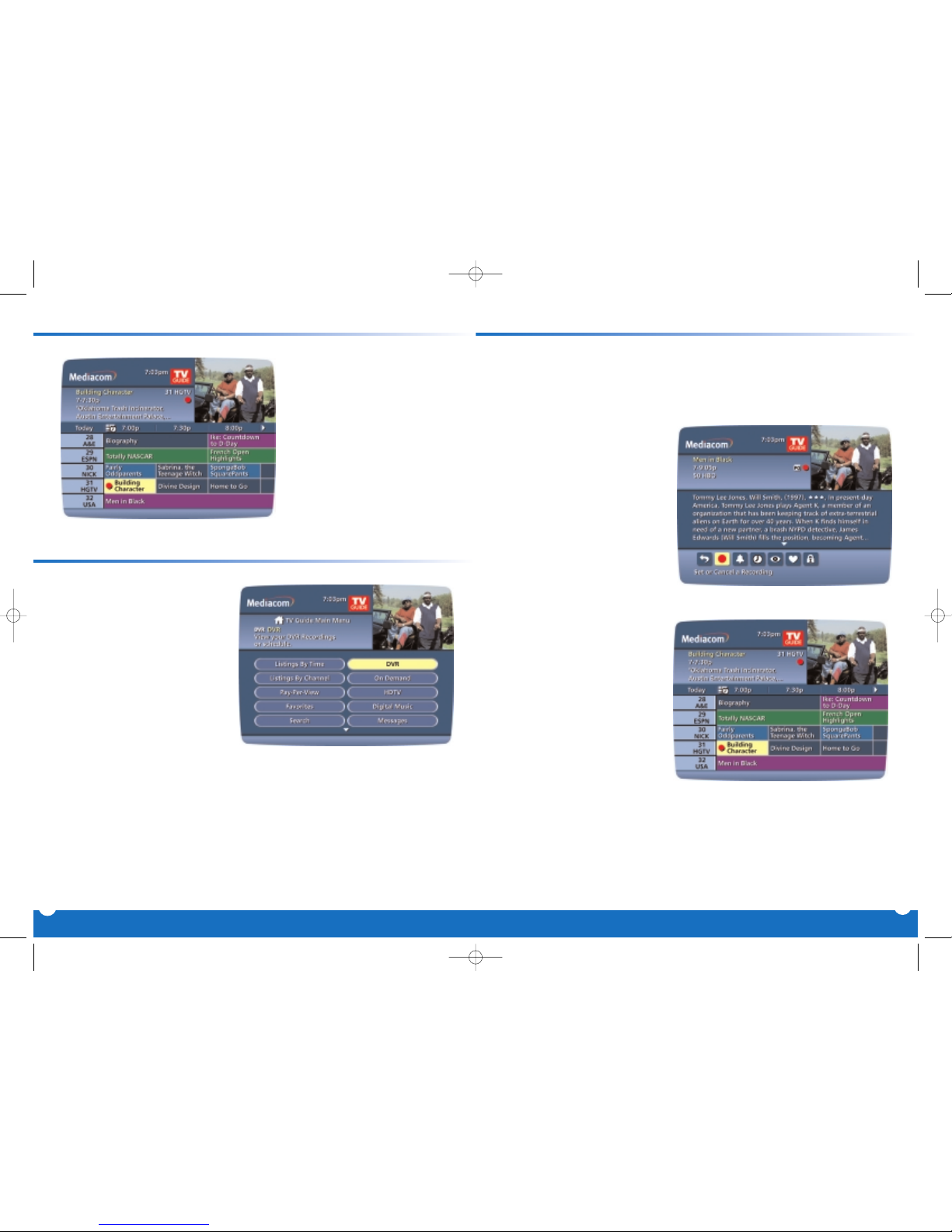
Record Two Programs at Once
Because your DVR has two tuners,it can buffer (temporarily record) two different
programs at the same time.While recording two programs,you can watch and
control either program up to the point of live TV by using the SWAP button on
your remote.
While Watching a Show:
■
Press RECORD to record the
program you are watching.
■
Press SWAP to switch to the
other tuner and find the second
program you want to record.
■
Press RECORD when you locate
the second program you want
to record.
From the Guide:
■
Highlight a program you want to
record from any listings screen.
■
Press RECORD to set up the first
recording
■
Highlight the second program.
■
Press RECORD to set up the
second recording.
Press RECORD on your remote
any time while watching TV or
while navigating through the
program listings. Recording
begins immediately at the
point you pressed
RECORD for
current programs or a recording
is automatically scheduled for
future programs.Recording
will start at the program's
scheduled start time.
You can set a Manual Recording
to automatically record a specific
time and channel.
Step 1: Select DVR from the
Main Menu, then select
Set a Recording.
Step 2: Select the start and end
times.
Step 3: Select the channel you
want.
Step 4: A “Create a New
Recording”Screen will
appear.Select Create a
Recording
to confirm
your settings or select the
Recording Options Icon
for additional Recording
options.
Record with Just One Touch
Manually Schedule a Recording
16
15
Mediacom Digital Referen#242C9B 5/23/05 2:16 PM Page 34
Page 11
Modifying Recording Options
Use the buttons on your
remote to change
Recording
Options
:
■
Change the frequency of the
recording,such as every day or
once a week.
■
Specify how many recordings
to save.
■
Set a Save Until parameter,
either until you delete or automatically when space is needed.
■
Change the start and end
times in order to catch every
minute of a program, even if it
runs over.
Your
DVR gives you flexibility to
manage your personal video
library.You can change your
Recording Options at any time,as
often as you like. From the
Main
Menu, select DVR, then select
Future Recordings to see a list of
your scheduled recordings.
Highlight a program title and
press
OK or INFO.
Select the from the program information screen. Select to change the
Recording Options, or select X to delete this program from your list of Future
Recordings.
Delete Programs
From the program information screen,select the to delete the recording,or
select to modify the Delete Priority. For example, you can tell the guide to
delete the recording when space is needed.
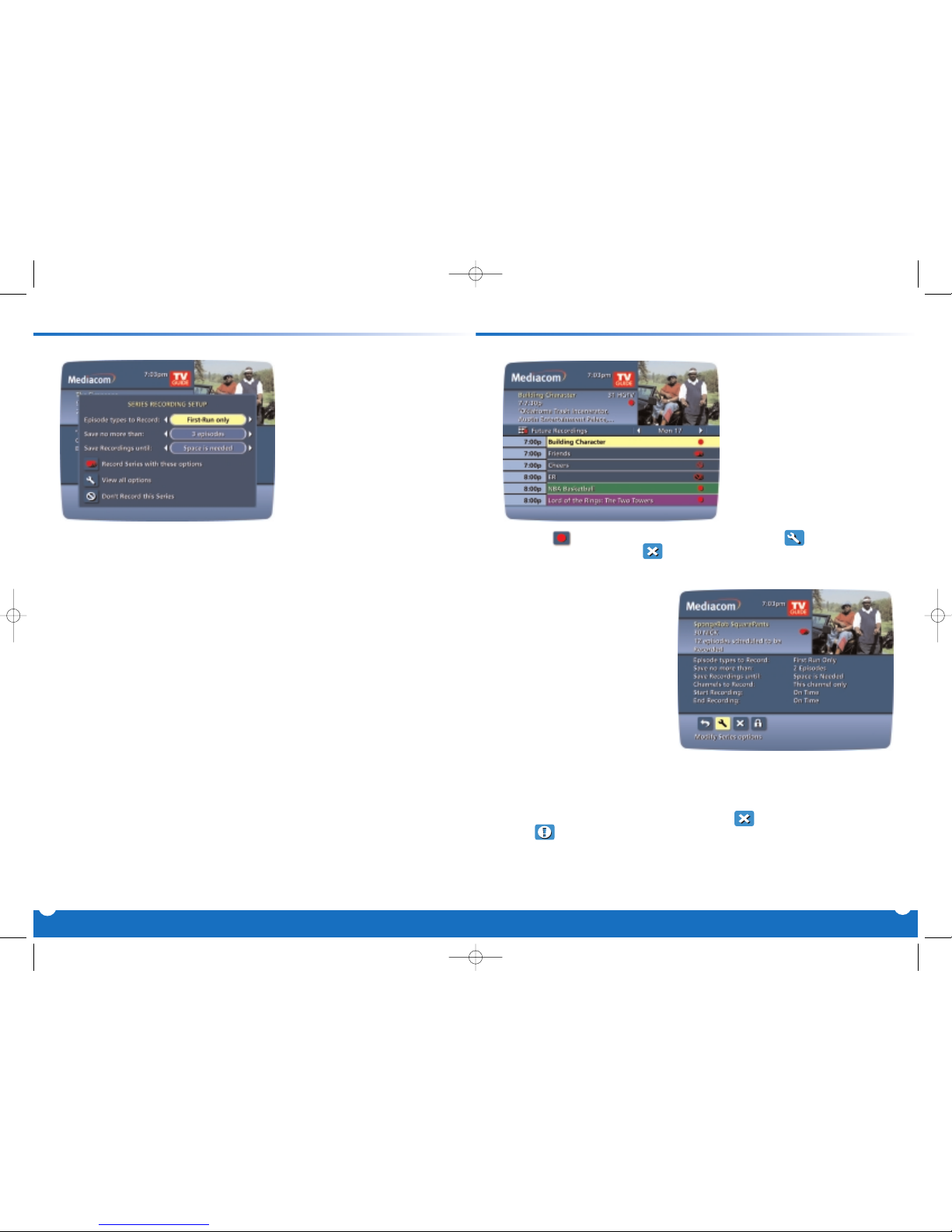
Record a Series
Your DVR lets you record multiple episodes of a program
according to your preferences.
You can set the DVR to record
only new (first run) episodes, first
run episodes and repeats or all
episodes.
When you set a recording from a
Series Program Information
screen, you’ll have an additional
icon on the preceding
Recordings Overlay. Choose this
Create a Series Recording Icon to specify your Series Recording Options.
■
Select the episode type to record, such as first run only, first run and repeats or
all episodes.
■
Specify how many recordings to save.
■
Specify how long to save the recording – until you erase it or until space is
needed.
■
To access advanced series setup features like add minutes to the start and end
times and specify which channels to record,select the Recording Options
Icon to review all options.
Your Series Recordings will appear in the
My Recordings list with the show title as
its label. Multiple recordings of the same show will have the same label and will be
listed beginning with the most recent recordings first as default.To change your
view,use the (arrow
buttons on your remote to View by Date,View by Channel
or View by Title.
You may also modify the priority assigned to a series using the Series Priority List.
18
17
Mediacom Digital Referen#242C9B 5/23/05 2:16 PM Page 36
Page 12
Page 13
 Loading...