

Page 1
t e s t i n g t o p e r f e c t i o n
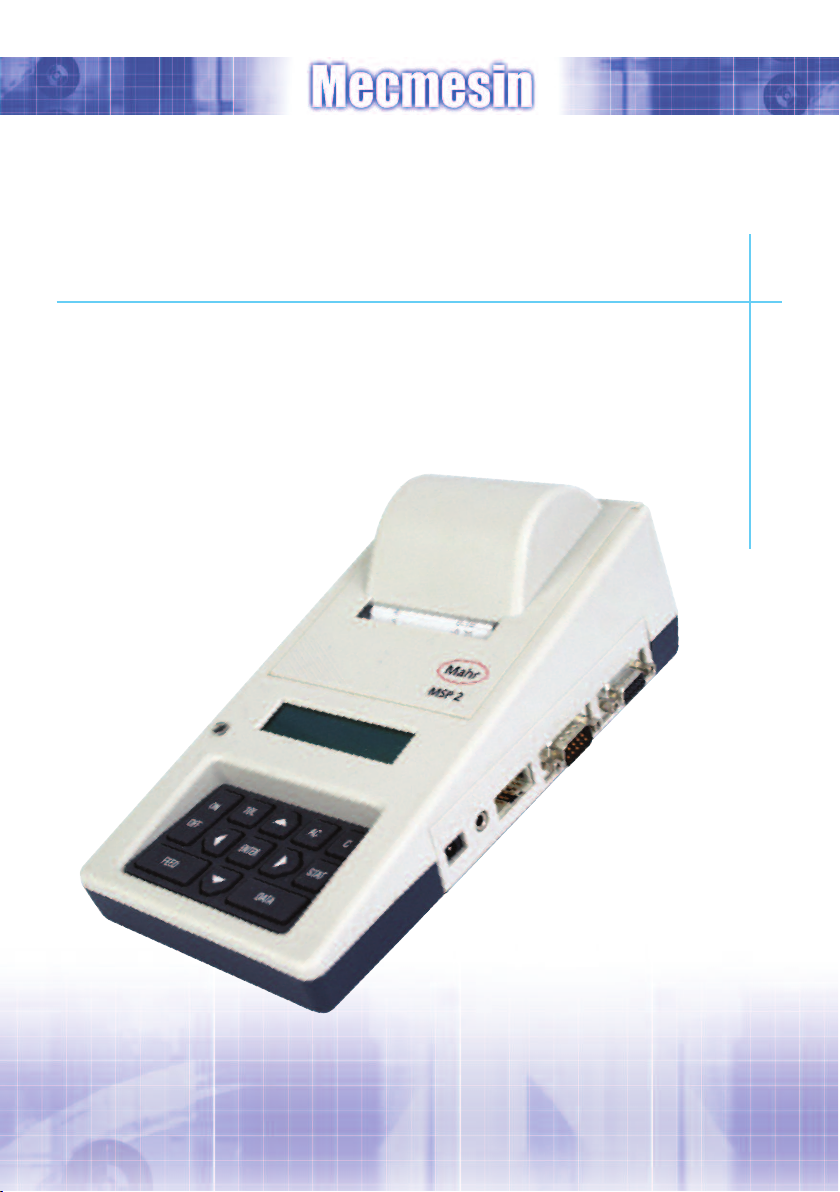
MAHR MSP2 Printer
Instructions for use with Mecmesin Products
Page 2

Contents
MAHR MSP2 Printer
Introduction 2
Use as a Statistical Printer 3
Selecting Digimatic Input Mode 3
Selecting RS232 Input Mode 3
Configuration of RS232 Input Mode 4
Use as an ASCII Serial Printer 7
Selecting ASCII Serial Printer Mode 7
Configuration of ASCII Serial Printer Setup Mode 7
Cables Required 9
page 1
Page 3

MAHR MSP2 Printer
Introduction
As a printer the MAHR MSP2 can be used in two formats:
1) Statistical Printer
2) ASCII Printer
Note: See page 9 for Cables Required section to see which mode are available for Mecmesin
instrument types.
page 2
Page 4

Use as a Statistical Printer
As a statistical printer the MAHR MSP2 can be operated in two modes with Mecmesin
instruments:
1) Digimatic Input Mode
2) RS232 Input Mode
Selecting Digimatic Input Mode
a) Press ENTER button to display menu option
b) Press or until Interface option is displayed
c) Press or until the following is displayed:
Interface
<Digimatic>
d) Press ENTER button to select this mode.
Selecting RS232 Input Mode
If first time using this mode see “Configuration of RS232 Input Mode” to setup first.
a) Press ENTER button to display menu option
b) Press or until Interface option is displayed
c) Press or until the following is displayed:
Interface
<Mecmesin RS232>
d) Press ENTER button to select this mode.
page 3
Page 5

Configuration of RS232 Input Mode
a) Press ENTER button to display menu option
b) Press or until Interface option is displayed
c) Press or until the following is displayed:
Interface
<PocketSurf>
d) Press STAT button to edit interface options
(cursor will start to flash when in edit mode)
e) Setup interface description as:
<MECMESIN RS232>
Use or buttons to select character to be changed
Use or buttons to change character selected
Use DATA button to change to different character set
Use C button to clear character selected
Use AC button to clear all text
(See MAHR MSP2 printer operating instructions section 7.1 for further details)
Press ENTER button to confirm the name.
f) Setup pin contact layout as:
TXD V+ V-
347
Use or buttons until above layout is selected
Press ENTER button to confirm pin contact layout.
page 4
Page 6

g) Setup Transmission parameters as:
Baud Dat Par Stp
9600 8N1
Use or buttons to change selected parameter
Use or buttons to select the next parameter
Note: Baud does not have to be 9600 but it should be setup to be the same as the
baud rate on the Mecmesin instrument
(See instrument operating manual for details)
Press ENTER button to confirm transmission parameters.
h) Setup Termination code as:
Termination
CR
Use or buttons to change termination code
Note: Termination code can also be LF or CRLF but should be setup to be the same
as on the Mecmesin Instrument
(See instrument operating manual for details)
Press ENTER button to confirm transmission parameters.
i) Setup Initialisation string as:
Initial. [>]
Note: this setting should be blank
Press AC button to clear all text
Press ENTER button to confirm Initialisation string.
page 5
Page 7

j) Setup Request String as:
Request [>]
?
Use DATA button to select character set [*]
Use or buttons to select character to be changed
Use or buttons to change character selected
Use C button to clear character selected
Use AC button to clear all text
(See MAHR MSP2 printer operating instructions section 7.1 for further details)
Press ENTER button to confirm request string.
k) Setup Request impulse as:
Req. pulse [1]
< > ms
Press AC button to clear all text
Press ENTER button to confirm request string.
l) Setup filter as:
Filter
0 Z
Use or buttons to select value to be changed
Use or buttons to change value selected
Press ENTER button to confirm filter.
m) Save settings
Save ?
yes
Use or buttons to change value selected
Press ENTER button to save all settings.
page 6
Page 8

Use as an ASCII Serial Printer
Selecting ASCII Serial Printer Mode
This mode will need to be selected every time the printer is switched on.
a) TURN ON
b) PRESS ENTER
c) PRESS RIGHT/LEFT ARROW KEY UNTIL ‘ASCII PRINTER’ IS DISPLAYED
d) PRESS DATA
Configuration of ASCII Serial Printer
Setup Mode
a) TURN ON
b) PRESS ENTER
c) PRESS RIGHT/LEFT ARROW KEY UNTIL ‘ASCII PRINTER’ IS DISPLAYED
d) PRESS STAT to enter edit mode
e) Setup pin contact layout as:
TxD V+ V-
347
Use or buttons until above layout is selected
Press ENTER button to confirm pin contact layout.
page 7
Page 9

f) Setup Transmission parameters as:
Baud Dat Par Stp
9600 8N1
Use or buttons to change selected parameter
Use or buttons to select the next parameter
Note: Baud does not have to be 9600 but it should be setup to be the same as the
baud rate on the Mecmesin Instrument
(See Instrument operating manual for details)
Press ENTER button to confirm transmission parameters.
g) Save settings
Save ?
yes
Use or buttons to change value selected to yes
Press ENTER button to save all settings.
page 8
Page 10

Cables Required
Printer Mode Statistical Printer Mode ASCII Printer Mode
Instrument Digimatic Input Mode RS232 Input Mode RS232 Input Mode
+
CFG N/A 351-077 351-077
BFG Mk4 351-055 351-054 351-054
AFG/AFTI Mk4 351-058 351-059 351-059
Tornado Mk2 351-058 351-059 351-059
Orbis Mk2 351-058 351-059 351-059
MultiTest-x N/A 351-051 351-051
page 9
Page 11

page 10
Page 12

t e s t i n g t o p e r f e c t i o n
Over 30 years experience in force & torque technology
ormed in 1977, Mecmesin Ltd is today widely regarded as a leader in force and
F
orque technology for quality control testing in design and production. The Mecmesin
t
brand stands for excellent levels of performance and reliability, guaranteeing high quality
results. Quality control managers, designers and engineers working on production lines
and in research laboratories worldwide rely upon Mecmesin force & torque measurement
systems for a range of quality control testing applications, which is almost limitless.
Visit us on the web at
wwwwww..mmeeccmmeessiinn..ccoomm
HHeeaadd OOffffiiccee
MMeeccmmeessiinn LLiimmiitteedd
NNeewwttoonn HHoouu ssee,,
SSpprriinngg CCooppssee BBuussiinneessss PPaarrkk,,
SSlliinnffoolldd,, WWeesstt SSuusssseexx,,
RRHH1133 00SSZZ,, UUnniitteedd KKiinnggddoomm..
ee:: ssaalleess@mmeeccmm eessiinn..ccoomm
tt:: ++ 4444 ((00)) 1144 0033 779999997799
ff:: ++4444 ((00)) 11440033 779999997755
CChhiinnaa
MMeeccmmeessiinn ((SShhaanngghhaaii)) PPttee LLttdd
RRoooomm 330022,, NNoo.. 117722,,
DDaaxxuuee LLuu -- UUnniivveerrssiitt yy AAvvee nnuuee,,
YYaannggppuu DDiissttrriicctt,, SShhaanngghhaaii,, 220000443333,,
PPeeooppllee''ss RReeppuubbll iicc ooff CChhiinnaa..
ee:: ssaalleess@mmeeccmm eessiinn--cchhiinnaa..ccoomm
tt:: ++8866 2211 55 556666 11003377 // 33337777 11773333
ff:: ++8866 2211 55556666 11005577
NNoorrtthh AAmmeerriiccaa
MMeeccmmeessiinn CCoorrppoorraattiioonn
4455992211 MMaarriieess RRooaadd,,
SSuuiittee 112200,, SStteerrlliinngg,,
VVii rrggiinniiaa 2200116666 ,,
UU..SS..AA..
ee:: iinn ffoo@mmeeccmmeessii nnccoorrpp..ccoomm
tt:: ++11 770033 443333 99224477
ff:: ++11 770033 444444 99886600
431-347-02
DISTRIBUTOR STAMP
AAssiiaa
MMeeccmmeessiinn AAssiiaa CCoo.. LLttdd
9911//11 CChhaaiiyyoo BBuuiillddii nngg,, 1111tthh FFlloooorr,,
RRoooomm 11110066,, RRaammaa 99 RRooaadd,, HHuuaayykkwwaanngg,,
BBaannggkkookk,, 1100331100,,
TThhaaiillaanndd..
ee:: ssaalleess@mmeeccmmeessiinnaassiiaa..ccoomm
tt:: ++6666 22 224477 4466 8811
ff:: ++6666 22 224477 4466 8822
 Loading...