

Page 1
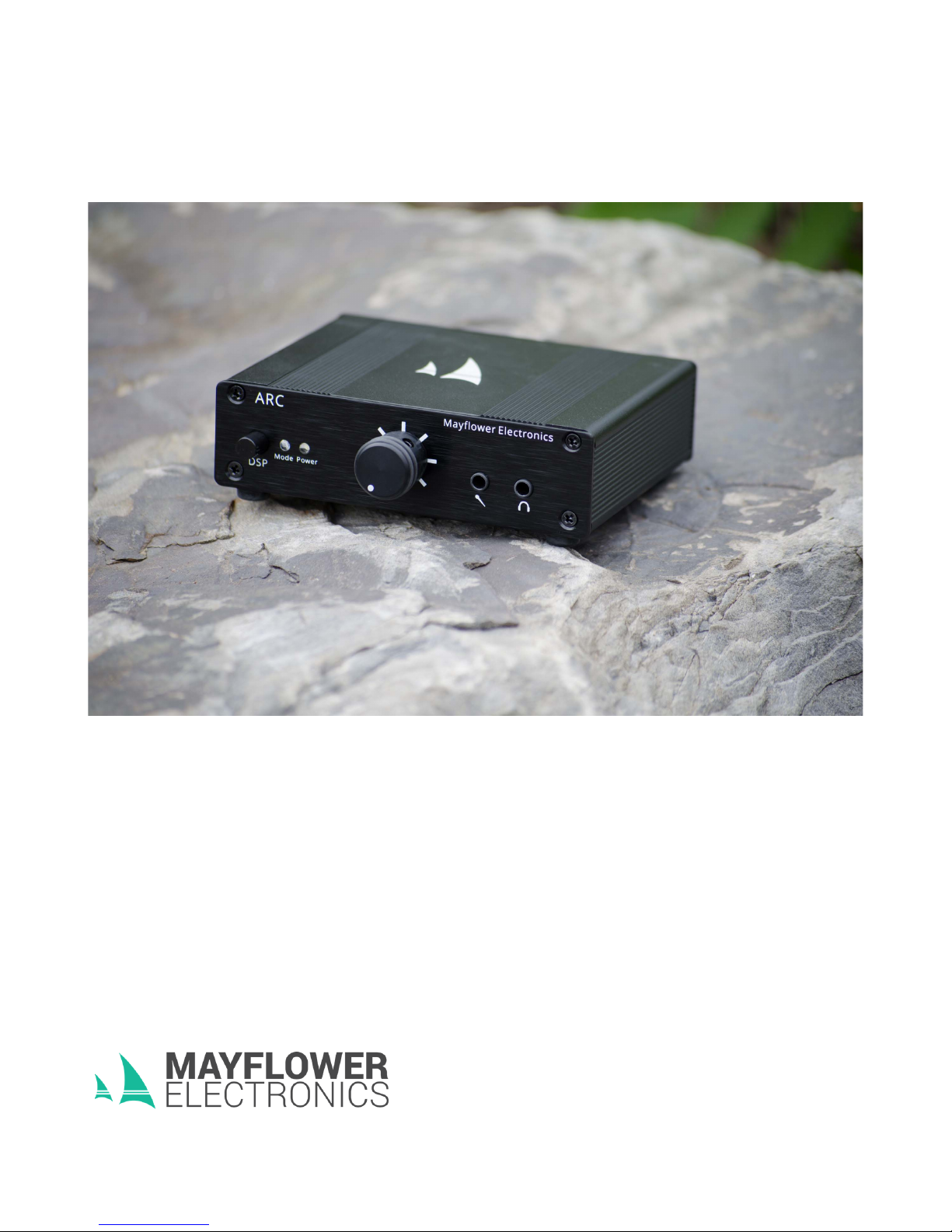
ARC, the Aural Resonance Cascade
Gaming DAC + Headphone Amplifier
Page 2
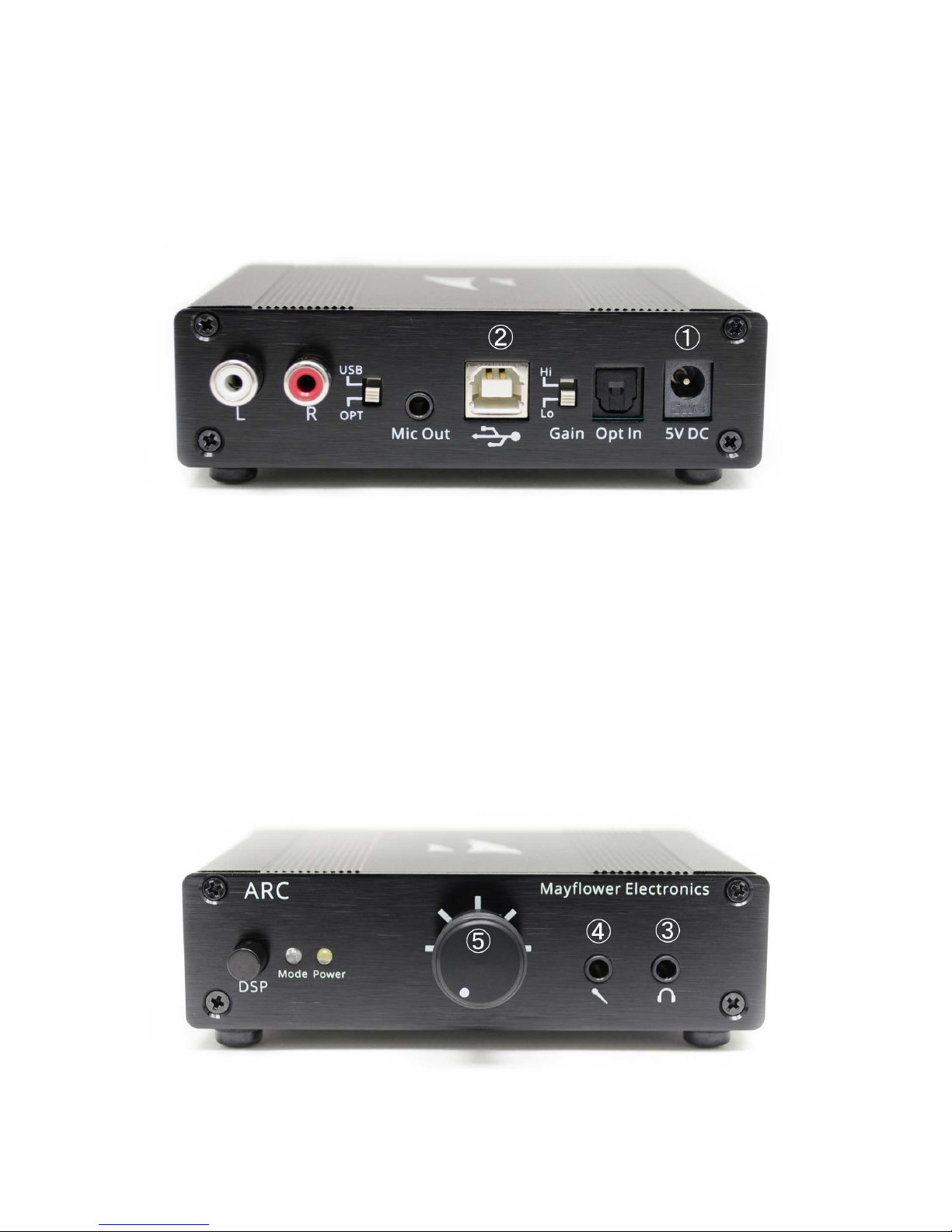
Quick Start
1. Connect power adapter to ①
2. Plug USB cable into PC, Mac, or PS4
and insert USB cable into ②
3. Plug headphones into ③
4. Optional: Plug microphone into ④
5. Turn on power and set volume ⑤
Pg. 2
Page 3

ARC Owner's Manual
Table of Contents
Introduction........................................4
Features .............................................4
Safety Precautions .............................5
Unpacking + Contents ...................…..5
Connections + Controls .....…..............6
Operation ..............................…..........7
Xbox One Settings……….…………………..9
PS4 Settings……………………………………..9
Troubleshooting ....................…........10
Specifications ...................................13
Warranty ..........................................13
Pg. 3
Page 4

Introduction
Thank you for choosing the Mayflower Electronics ARC. This combination DAC + Headphone Amplifier
is designed to enrich your gaming environment with high fidelity sound, advanced audio processing,
and integrated microphone amplifier with noise filter.
The ARC is fully compatible with the PS4 gaming console, Windows, Mac, and most Linux distributions.
In optical input mode it is also compatible with the Xbox.
The Digital-Analog Converter (DAC) in the ARC has been
developed based on customer response to our high quality
amplifier products. By bypassing your system's lower
• Combination DAC + Headphone Amp with
adjustable digital level control.
Features
quality internal DAC and keeping the audio stream digital
until the OP-amp, sound quality is enhanced and noise is
• USB and optical (TOSLINK) digital inputs.
minimized.
• RCA pre-outs for powered speaker systems.
Two digital input options are provided to ensure
• Microphone amp with noise filter and analog
output.
compatibility with your gaming system. A USB input
provides connectivity to most systems, while an SPDIF
optical input allows connection of equipment that is not
• Dynamic Bass and Gaming Surround DSP
modes.
able to recognize the ARC as an audio device, such as the
Xbox. The optical input can also be used to connect the
ARC to your home audio equipment. Because this product
• Automatic headphone switchover silences
speakers when headphones are connected.
is an integrated DAC + Amp, there is no analog input.
A microphone jack both amplifies and conditions the input signal to ensure the best communication
with your team. An analog microphone output can pass the microphone signal to your own mixing
equipment for custom audio feeds.
The ARC is made in the USA from US and global components.
Pg. 4
Page 5
Safety Precautions
• Listen to headphones at a comfortable level for moderate periods of time to avoid hearing
damage.
• Be aware of your surroundings when wearing headphones, as important external sounds may
be difficult to hear.
• Use a dry towel to clean. Do not allow the device to come into contact with liquids.
• The included AC adapter is designed for 100-240 volt AC service at 50-60hz, with a 5vDC
output. A plug adapter will be needed if using an outlet other than a North American outlet.
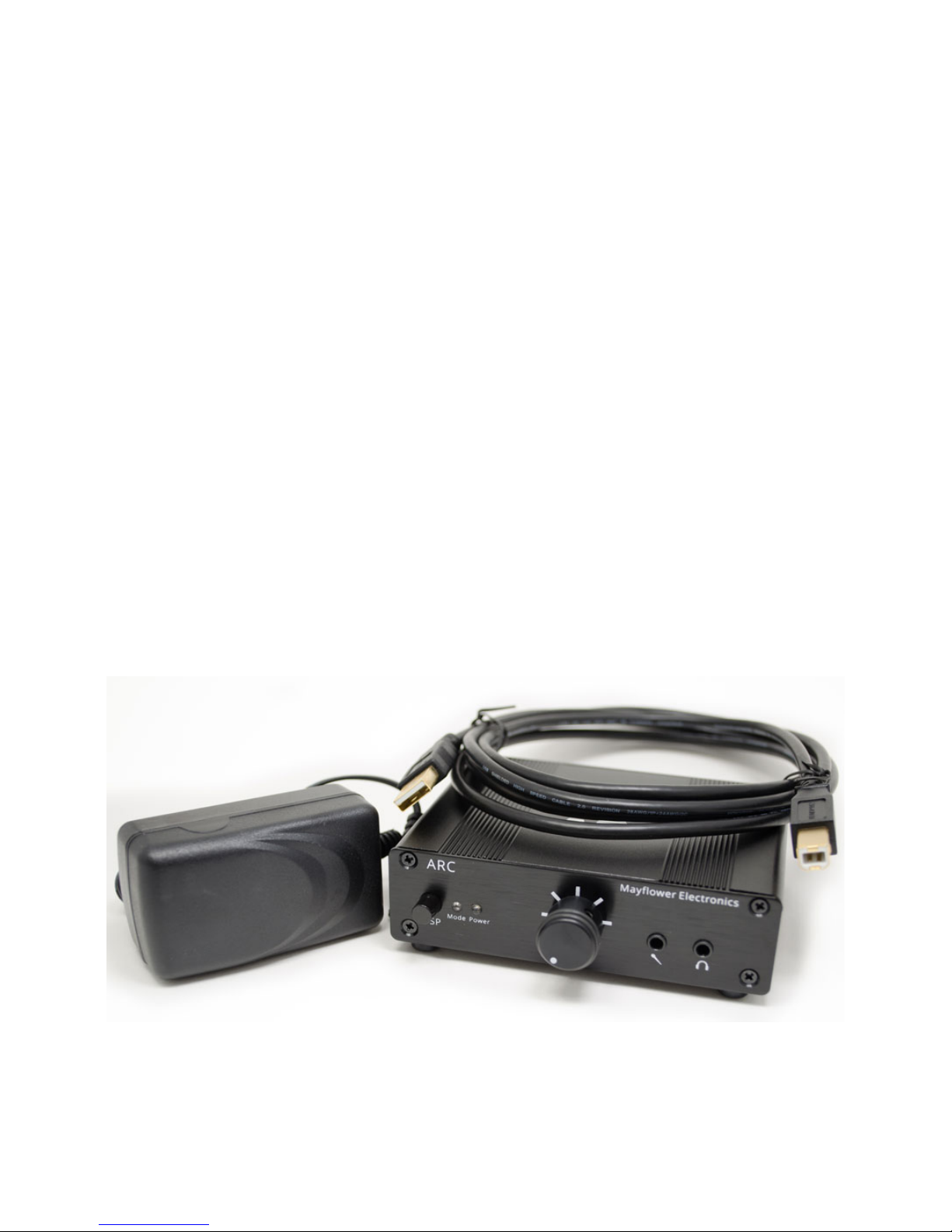
Unpacking + Contents
The ARC DAC + Headphone Amp
Power supply
USB cable
Pg. 5
Page 6
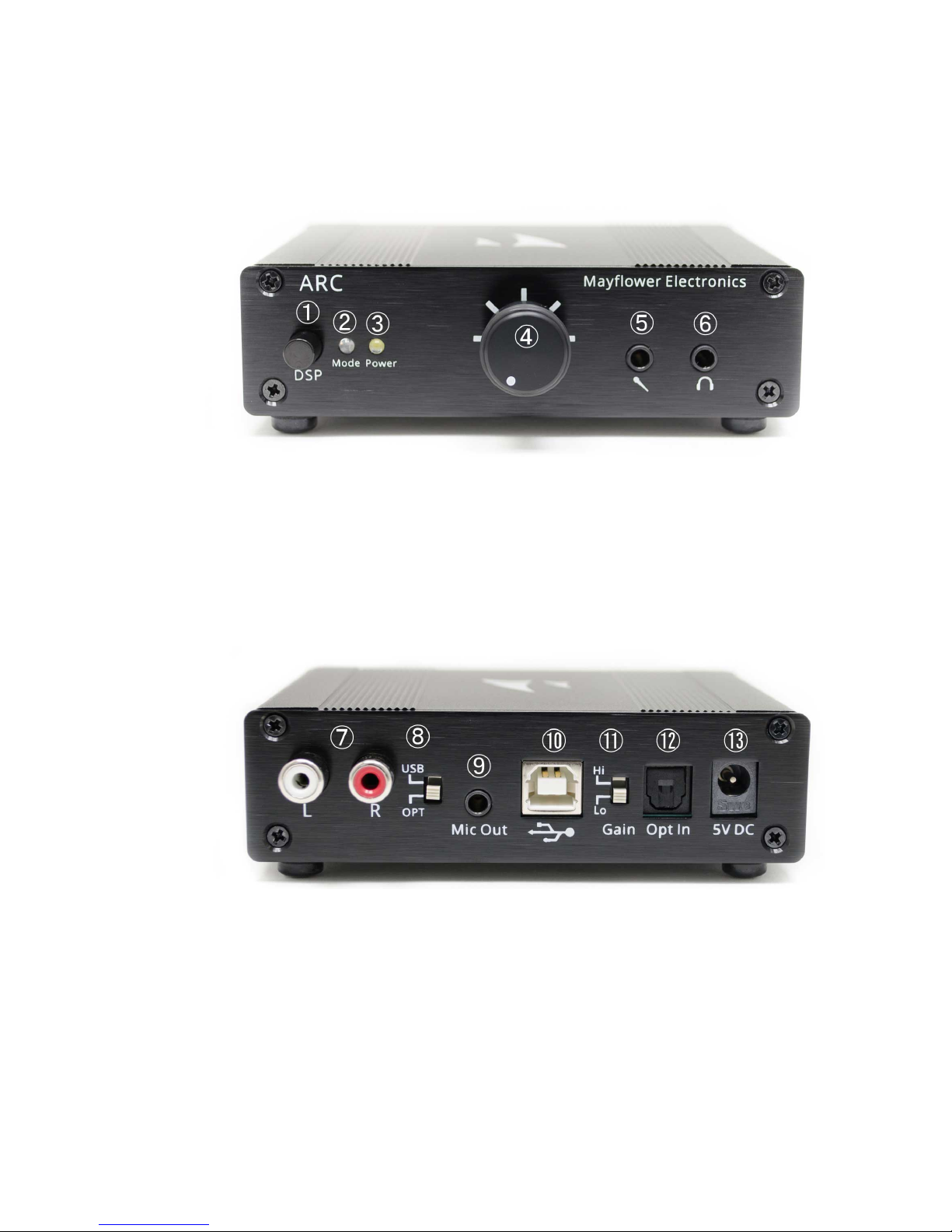
Front:
Connections + Controls
Back:
① DSP Mode Button
② DSP Mode LED
③ Power LED
⑦ RCA Speaker Pre-outs
④ Digital Volume Control + Power Switch
⑤ Microphone Input (3.5 mm)
⑥ Headphone Output (3.5mm)
⑪ Output Gain Selector
⑧ Input Selector Switch
⑨ Microphone Analog Output
⑩ Full-size USB Connector
⑫ TOSLINK Optical Connector
⑬ Power Supply Connector
Pg. 6
Page 7

Operation
In most circumstances, the ARC will only need to be connected to a power source and an available
USB port on your system. Refer to the illustrations in the Connections + Controls section to locate the
items described below:
1. Ensure that the volume + power knob ④ is in the Off position (all the way counter-clockwise).
2. Remove the twist tie from the power adapter and connect it to the ARC ⑬.
3. Plug the power adapter into a 100-240vAC, 50-60hz power source. A plug adapter will be
needed if using an outlet other than a North American outlet.
4. Remove the twist tie from the included USB cable and connect it between your system and the
ARC ⑩.
5. Connect your headphones to the headphone output jack ⑥.
6. Optional: Connect your microphone to the mic input jack ⑤.
7. Power the ARC on by turning the volume + power knob ④ clockwise past the point where a
click is felt.
Your system should recognize the ARC and begin sending all audio processing through the ARC,
bypassing the internal sound card. If your system does not recognize the ARC, see the Troubleshooting
section.
8. Put on your headphones and adjust the volume to a comfortable level. The volume knob
rotates nearly 360 degrees, and it is normal to turn the volume past 12 O’clock to achieve
typical listening levels. If the level is not sufficient, switch the output gain selector ⑪ to the Hi
position. For most headphones, the Lo gain setting is adequate.
9. Optional: Test your microphone and adjust the software microphone volume on your system to
an optimal level.
Connecting the ARC to your home audio system or Xbox:
Instead of using the USB input, connect the ARC's optical input ⑫ to your receiver, pre-amp, or Xbox
using a TOSLINK cable (not included). Move the input selector switch ⑧ to the optical position.
If you would like to use the microphone with your Xbox, you'll need to connect a standard 3.5mm to
3.5mm aux cable between ⑨ and the 3.5mm jack on the Xbox controller.
Pg. 7
Page 8

Sound mode options:
The Mode button ① allows for the selection of two DSP audio enhancement modes to complement
your gaming environment. When the ARC is first powered on, the default mode is selected, which
does not alter the sound and the mode LED is turned off.
Pressing the mode button will cycle through the DSP modes, changing the color of the mode LED ②.
Continue to press the button until the desired mode is selected:
When the mode LED is blue, Dynamic Bass mode is selected, which evenly and smoothly transitions to
a more powerful deep bass response. This mode may improve sound quality depending on your
preferences, your headphones, and the quality of the input source.
When the mode LED is red, the Gaming Surround mode is activated, which provides wider spatial
separation of the left and right channels. This can be useful in a gaming environment to help localize
sounds, making it easier to distinguish how far a particular sound is coming from the left or right.
Microphone Options:
The built-in microphone connection provides a sophisticated line filter to eliminates noise, distortion,
and clipping. If your teammates are having trouble hearing you, you may need to adjust the
microphone volume on your system.
An analog microphone output ⑨ has been provided for connection to custom mixing equipment.
This can be useful when capturing a game's video and audio for later viewing, or otherwise creating a
custom audio feed (such as a team music play list). Simply use a 3.5mm cable (not supplied) to
connect to your mixer or podcasting equipment.
Speaker Options:
A pair of RCA pre-outs ⑦ are supplied to connect powered speakers for use when headphones are
not connected. The ARC will automatically disable the speakers when headphones are connected.
When the RCA pre-outs are in use, volume is controlled using your speaker system’s volume
adjustment.
Pg. 8
Page 9

Xbox One Settings:
You may need to adjust your Xbox audio settings to use the ARC. After connecting an optical cable
between the Xbox and the ARC, and changing the input selector switch ⑧ to the optical position,
perform the following setup on your Xbox:
1. Open the guide (scroll left from Home)
2. Select “Settings”
3. Select “All Settings”
4. Select “Display & Sound”
5. Select “Audio Output”
6. Locate the Digital Audio settings and select “Optical audio”
7. Use the arrow to the right of “Optical Audio” to select “Bitstream out” or “stereo
uncompressed”
PS4 Settings:
You may need to adjust your PS4 audio settings to use the ARC. The ARC connects to the PS4 using the
included USB cable. Make sure the input selector switch ⑧ is set to the USB position, then perform
the following setup on your PS4:
1. Access the “Settings” menu
2. Select “Devices”
3. Select “Audio Devices”
4. Change the Input Device to the ARC if you are using the ARC’s microphone input
5. Change the output device to the ARC
6. Test and adjust the microphone level if using the ARC’s microphone input
Pg. 9
Page 10

Troubleshooting
• There is no sound output to the headphones or speakers:
Possible solutions:
1. The input selector switch ⑧ may be set to the wrong input source. Change the position of
the switch to see if normal output resumes.
2. Try disconnecting and reconnecting the power ⑬.
3. Disconnect and reconnect the USB cable to reinitialize the USB audio driver ⑩.
4. Check to see that the volume switch is turned on and set to a reasonable volume ④.
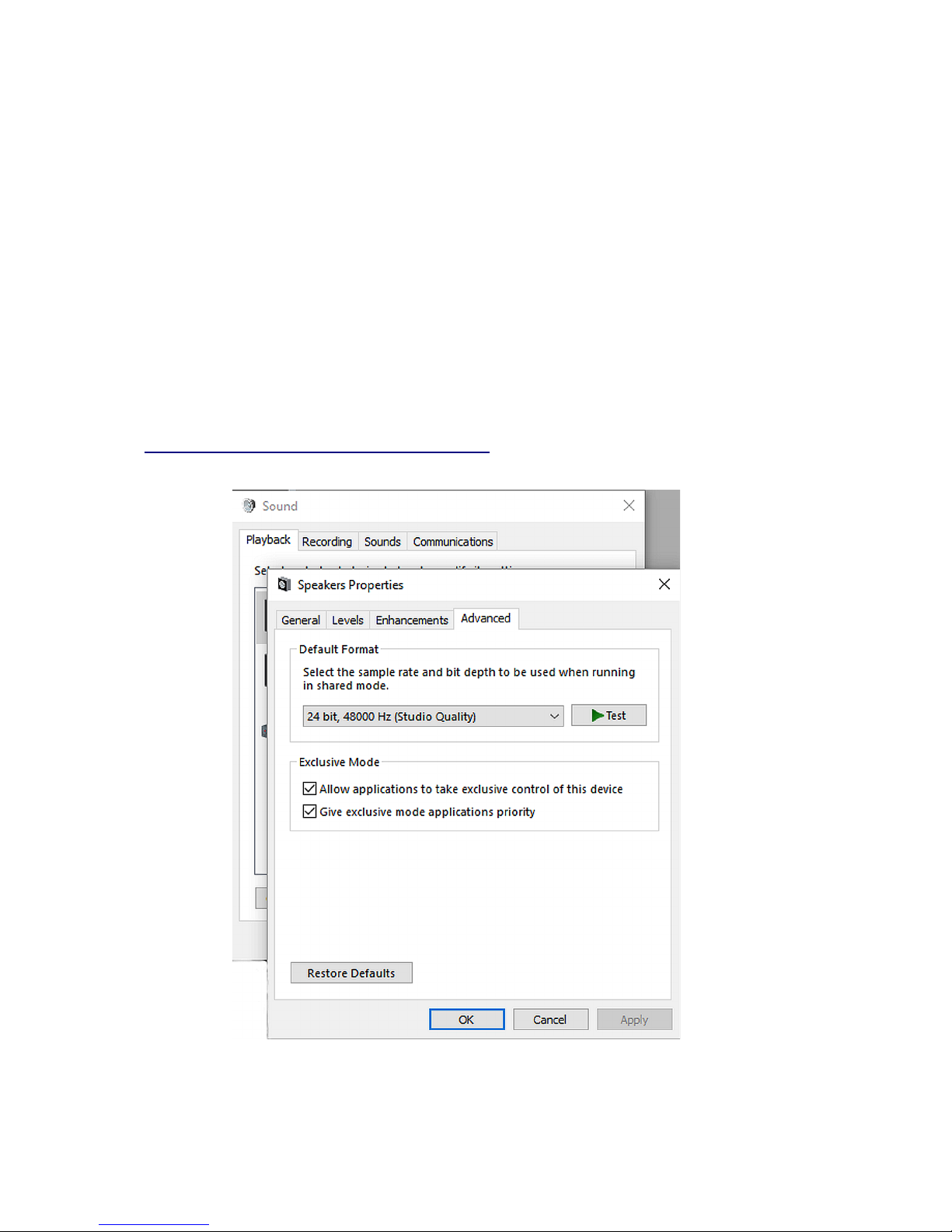
5. Your system’s audio format may be set to an incompatible format. Check your speaker
properties to set the format to either “24 bit, 48000 Hz” or “24 bit, 96000 Hz”. You may need
to restart your system after changing this setting (See Figure 1).
6. Your system may be set to use the built-in sound device instead of the ARC. Check your
device manager’s sound properties to ensure the ARC is set as the default audio device (See
Figure 2).
• The speakers do not produce any sound or the sound is barely audible:
The ARC only allows the connection of powered speakers. If your speakers are not selfpowered or the speaker power is turned off, you will not have sufficient volume. Use the
volume control on your speaker system to set the volume to an appropriate level.
• The ARC doesn't seem to work with my Xbox or other system:
It's possible that your system's USB connection is not able to recognize the ARC as an audio
device. In this case you will need to use the optical TOSLINK connection ⑫ instead. Be sure to
move the input selector switch ⑧ to the optical position if using the TOSLINK connection.
Pg. 10
Page 11
Troubleshooting (continued)
• The microphone volume is either too quiet or too loud:
The microphone’s volume may be adjusted using your system’s software (See Figure 3).
• Sound output is lost periodically during game play:
Your system may be set to output 5.1 channel audio rather than 2-channel audio. Try adjusting
your system’s audio output to 2-channel mode.
• If you encounter a problem not listed here, or are unable to solve your issue with the
information in this manual, please contact Mayflower Electronics at
[email protected] or via telephone at 518-866-4605.
Figure 1: Selecting a compatible format.
Pg. 11
Page 12
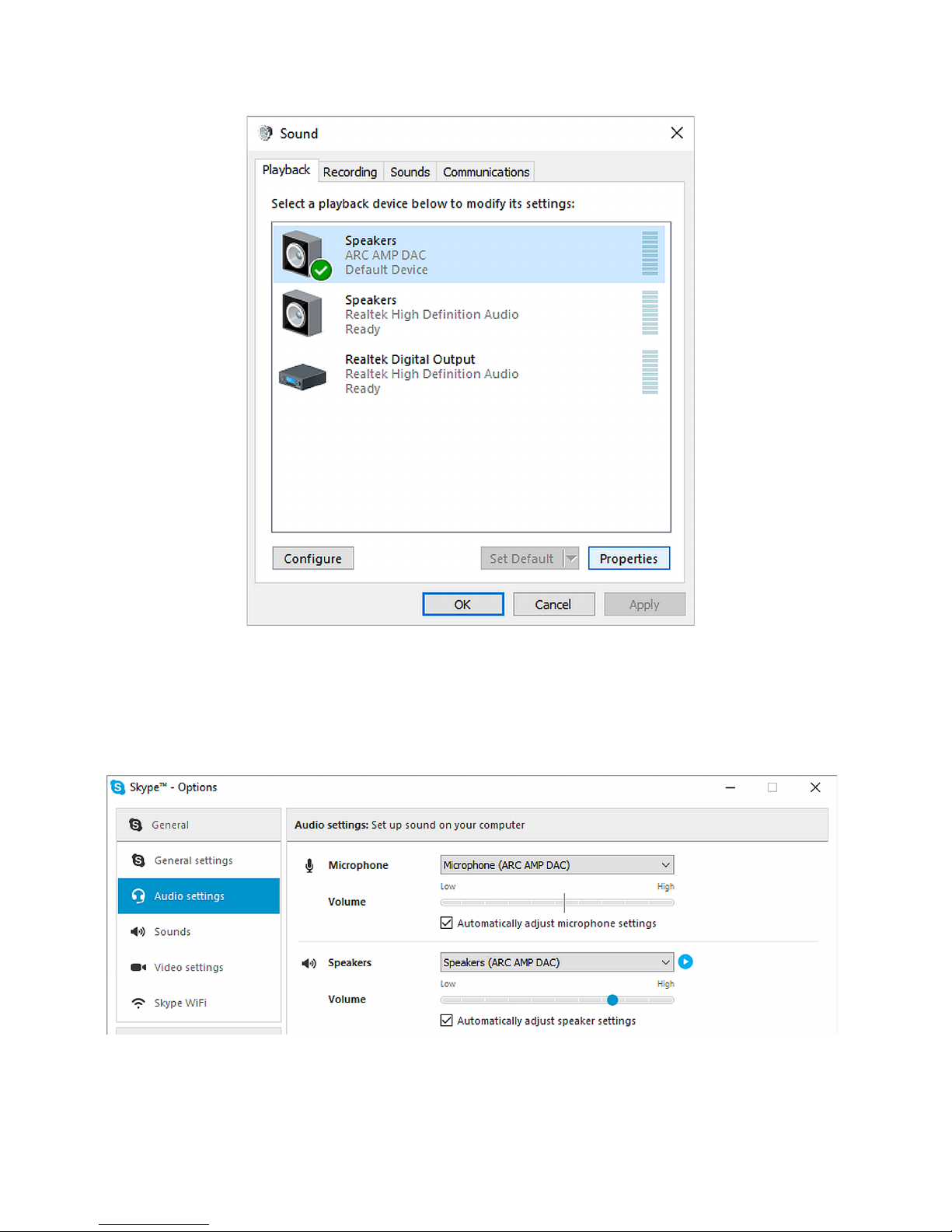
Figure 2: Setting the ARC as default audio device.
Figure 3: Typical software microphone adjustment.
Pg. 12
Page 13

Warranty
The ARC is warranted against material and
workmanship defects for a period of 10 years from
the date of purchase. Mayflower Electronics may
elect to repair or replace this product at their
option. Retain your invoice or order number as
proof of purchase and provide your order number
in any warranty communication to Mayflower
Electronics.
This warranty is only in effect if product is
purchased directly from Mayflower Electronics or
from an authorized retailer. Warranty is not valid if
serial number has been removed or otherwise
altered.
Cosmetic damage is not covered during the
warranty period. Opening the case or making
other modifications will also void the warranty.
Specifications
• Frequency Response: +/-0.05 dB (20Hz-20kHz)
• THD 1 Khz 150 Ohms: 0.0026%
• IMD CCIF 15 Ohms: 0.0007%
• IMD SMPTE: 0.001%
• Noise 24/96 (A Weighted): -109 dBu
• Max Output (32 Ohms) : 1W (THD+N < 0.003%)
• Max Output (150 Ohms): 365 mW (THD+N <
0.003%)
• Max Output (600 Ohms): 92 mW (THD+N <
0.003%)
• Output Impedance: 0.096 ohms
• Crosstalk (15 ohms) : -65 dB
• Channel Balance (50% volume): 0.2 dB
• Dynamic Range (A-Weighted): > 120 dB
• Linearity Error: -90 dBFS 24/96 -0.1 dB
• USB Jitter Components: 11025Hz -112dB
• RCA Line out: 1V RMS
Audio formats
• USB: 24/96, 24/48
• Optical: 24/192, 24/96, 24/48, 24/44.1,
16/192, 16/96, 16/48, 16/44.1
Dimensions
• 4.25” W x 3.25” L x 1.25” H
• Weight: 8.5 oz.
ARC Owner’s Manual rev 1.0
* specifications subject to change
based on manufacturing updates.
Mayflower Electronics
2413 Riverfront Center
Amsterdam, NY 12010
518-866-4605
 Loading...