

Page 1
Quick Start Guide
Please use this quick start guide in conjunction with the operating
manual following the recommended safety precautions.
Your FTA receiver is pre-programmed with channels from several different satellites.
The majority of UK channels are broadcast from the Astra 2 satellite. This guide will show you:
How to display only ASTRA 2 channels
Use your receiver to help position your satellite antenna
Scan for new T V and Radio channels
Change the menu language
Important
If your FTA Receiver is reset to the factory default setting the OSD
language reverts to German and channel list is modified.
If this occurs please follow the simple steps in this guide to revert back to UK Specifications
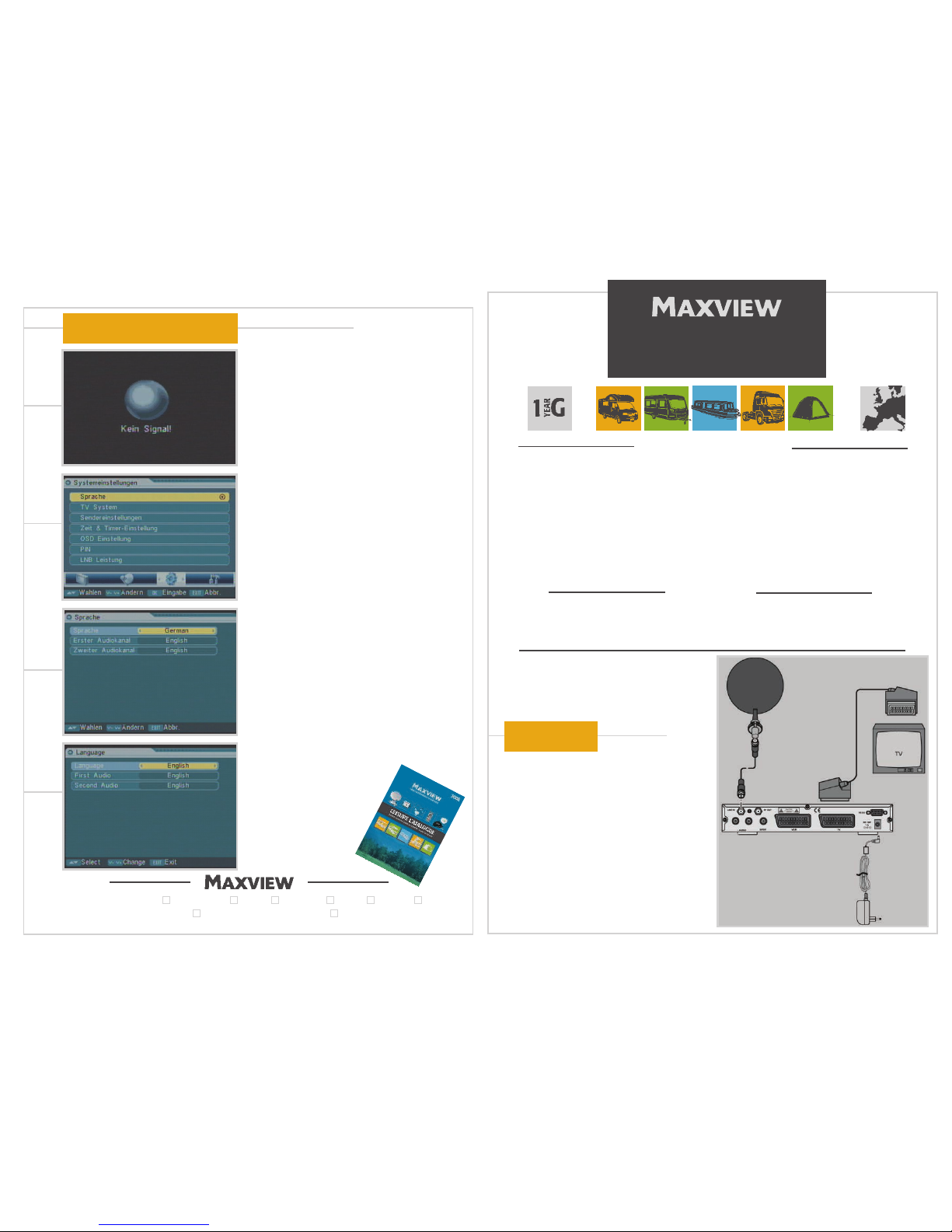
If your receiver has been reset to the factory default setting
and this screen is shown when the receiver is tuned on
you will need to change the language setting from
German to English
Press the MENU button on the remote.
Press the VOLUME UP/DOWN key until this screen is
shown.
Press the CHANNEL UP/DOWN key until the Sprache
box is highlighted.
Press the OK button to select.
Press the CHANNEL UP/DOWN keys until the
Sprache box is highlighted.
Use the VOLUME keys to scroll through the languages.
When English has been highlighted press EXIT.
1
2
3
4
MXL014
FOR USE IN THE UK
& CENTRAL EU ROPE
1 YEAR
GUARANTEE
For more information on our
vast range of leisure products,
please request a copy of our
leisure catalogue.
Maxview Limited (UK head office)
■
Common Lane■Setchey■King’s Lynn■Norfolk■PE33 0AT■England
Customer Helpline +44 (0)1553 811000
■
Maxview reserve the right to change specifications without prior notice.
MXL014L Iss 1
‘FREE TO AIR’ DIGITAL
SATELLITE RECEIVER
Change language
Set up diagram
This is a simple set-up example, please refer to the
user manual for more set-up examples and detailed
information about using this product in a safe manner.
Note: Ensure TV is set to the AV channel. Please refer
to your TV instruction manual for more information.
Page 2
Install your satellite antenna referring to the operating
manual supplied with it and install your FTA receiver as
shown previously. Follow these simple steps to find the
Astra 2 satellite.
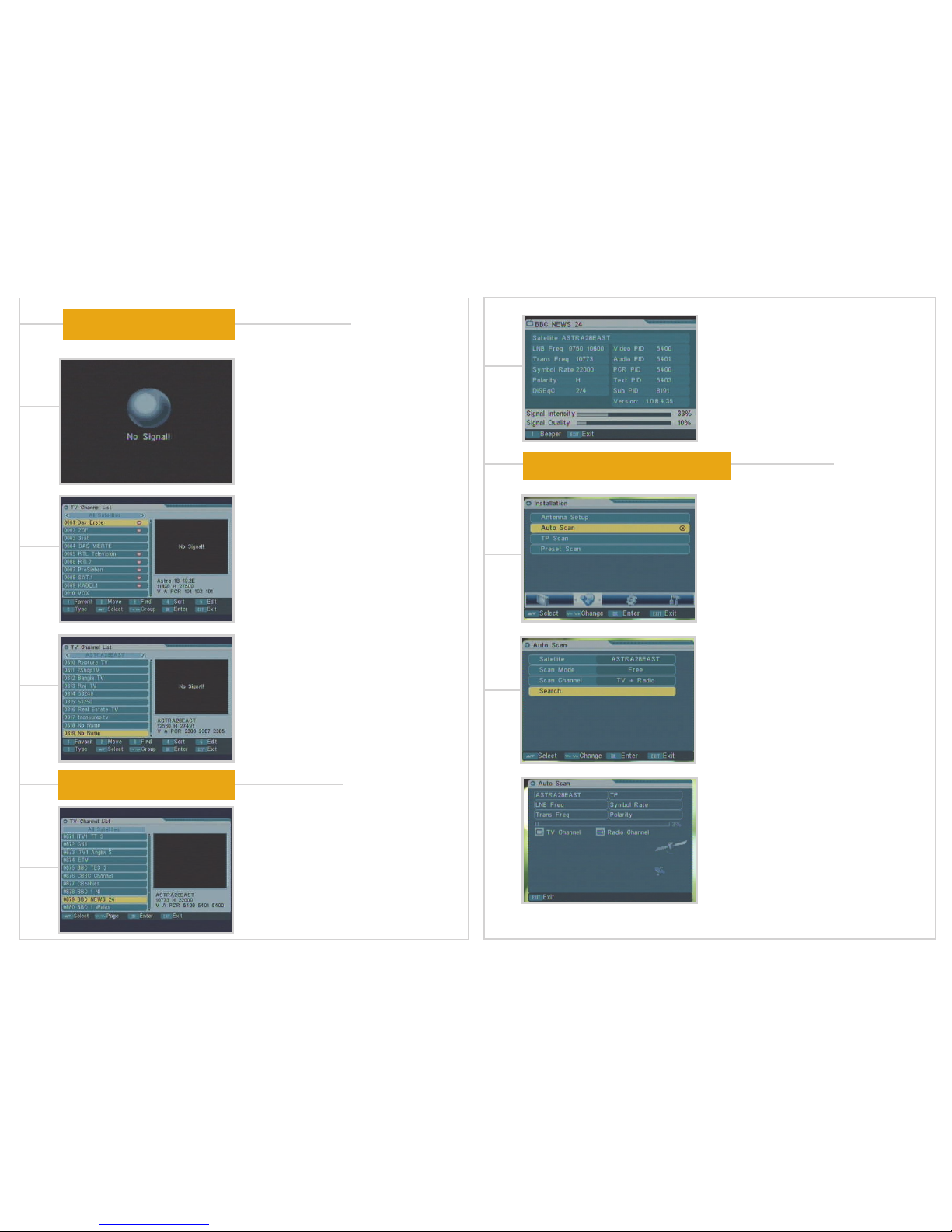
When you first turn your FTA receiver on this screen
will be shown.
Press the blue LIST button on the remote control to edit
the TV Channel List.
The default channel list includes channels from a wide
range of satellites. The majority of UK channels are
broadcast from the Astra 2 satellite.
This menu allows you to edit the TV Channel List so that
it displays channels from the Astra 2 satellite only.
Press the VOLUME UP/DOWN key to scroll through the
various satellites and groups until ASTRA 28 EAST is
displayed below the
TV Channel List title.
Press the EXIT button.
Note: You will only have to do this once. The receiver will
memorise the menu change even when the power has
been disconnected.
1
2
3
To select a channel, press the OK button on the remote
control to display the T V Channel List.
Scroll through the pages of channels using the
VOLUME UP/DOWN keys.
Use the CHANNEL UP/DOWN button to select your
channel and press OK.
To help with the alignment of your satellite dish press
the INFO button on the remote control.
Press 1 on the remote to turn on the built-in sat-finder.
The tone from the Sat-finder will rise in pitch when a
satellite signal is received.
Follow the operating instructions supplied with your dish
antenna when finding a satellite.
When you have found the Astra 2 satellite press EXIT.
When the antenna has been successfully positioned to
receive Astra 2 follow these steps to add the latest channels.
Press the MENU button on the remote control.
Select the Installation menu using the VOLUME UP/
DOWN key.
Highlight Auto Scan using the CHANNEL UP/DOWN key
and press OK.
Scroll down the Auto Scan menu using the
CHANNEL DOWN key.
Use VOLUME UP/DOWN keys to ensure:
Satellite is set on ASTRA 28 EAST
Scan mode is set on Free
Scan channel is set to TV + Radio
Then highlight Search and press OK
Searching for channels may take several minutes.
When complete press
EXIT.
Your receiver now contains the latest Free to View
channels from the Astra 2 satellite.
Note: We advise you scan for new channels periodically.
1
2
1
2
3
Scan for new TV and Radio channels
Display only Astra 2 channels
Aligning your satellite antenna
 Loading...