

Page 1
USER GUIDE
Wireless
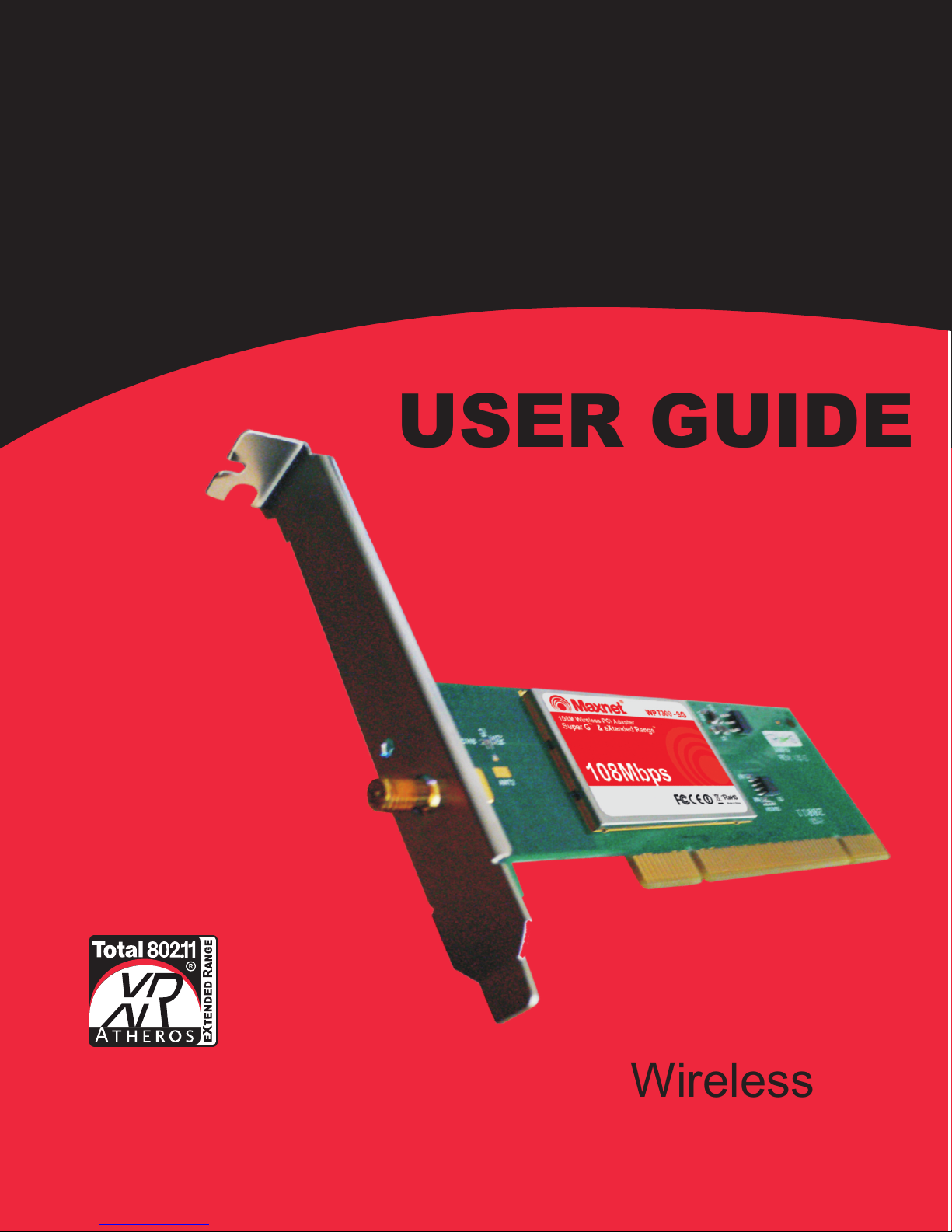
108M
WP7300-SG
Pci Adapter
Page 2

COPYRIGHT & TRADEMARKS
Specifications are subject to change without notice Maxnet.
Other brands and product names are trademarks or
holders.
No part of the specifications may be reproduced in any form or by any means or used to make any
derivative such as translation, transformation, or adaptation without permission from MAXNET.
All rights reserved.
http://www.maxnet.pe
is a registered trademark of
registered trademarks of t
heir respective
Page 3

FCC STATEMENT
This equipment has been tested and found to comply with the limits for a Class B digital device,
pursuant to part 15 of the FCC Rules. These limits are designed to provide reasonable protection
against harmful interference in a residential installation. This equipment generates, uses and can
radiate radio frequency energy and, if not installed and used in accordance with the instructions,
may cause harmful interference to radio communications. However, there is no guarantee that
interference will not occur in a particular installation. If this equipment does cause harmful
interference to radio or television reception, which can be determined by turning the equipment off
and on, the user is encouraged to try to correct the interference by one or more of the following
measures:
• Reorie n t or relocate the receiving antenna.
• Increase the separation betwe en the equipment and receiver.
• Connect the equipment into an outlet on a circuit different from that to which the receiver
is connected.
• Consult the dealer o r a n experienced radio/ TV technician for help.
This device complies with part 15 of the FCC Rules. Operation is subject to the following two
conditions:
1) This device may not ca u se harmful interference.
2) This device must accept any interfere nc e received, including interference that may
cause undesired operation.
Any changes or modifications not expressly approved by the party responsible for compliance
could void the user’s authority to operate the equipment.
FCC RF Radiation Exposure Statement: (WP7300-SG)
This equipment complies with FCC RF radiation exposure limits set forth for an uncontrolled
environment. This device and its antenna must not be co-located or operating in conjunction with
any other antenna or transmitter.
“To comply with FCC RF exposure compliance requirements, this grant is applicable to only
Mobile Configurations. The antennas used for this transmitter must be installed to provide a
separation distance of at least 20 cm from all persons and must not be co-located or operating in
conjunction with any other antenna or transmitter.”
Page 4

CE Mark Warning
For the following equipment: WP7300-SG
This is a class B product. In a domestic environment, this product may cause radio interference, in
which case the user may be required to take adequate measures.
National Restrictions
2400.0-2483.5 MHz
Country Restriction Reason/remark
Bulgaria
France
Italy
Luxembourg None
Norway Implemented
Russian Federation Only for indoor applications
General authorization required for outdoor use and
public service
Outdoor use limited to 10
mW e.i.r.p. within the band
2454-2483.5 MHz
If used outside of own premises, general authorization is
Military Radiolocation use. Refarming of the 2.4 GHz
band has been ongoing in recent years to allow current
relaxed regulation. Full implementation planned 2012
required
General authorization required for network and service
supply(not for spectrum)
This subsection does not apply for the geographical area
within a radius of 20 km from the centre of Ny-Ålesund
Note: Please don’t use the product outdoors in France.
Page 5

CONTENTS
Package contents..................................................................................................... 1
Chapter 1 Introduction............................................................................................ 2
1.1 Overview of the Product ..................................................................................... 2
1.2 Features ............................................................................................................. 2
1.3 LED Status ......................................................................................................... 3
Chapter 2 Installation Guide .................................................................................. 4
2.1 Hardware Installation.......................................................................................... 4
2.1.1 WP7300-SG Hardware Installation
.....................................................................4
2.2 Software Installation ........................................................................................... 4
2.2.1 Overview .............................................................................................................4
2.2.2 Installation for Windows 2000 .............................................................................5
2.2.3 Installation for Windows Vista .............................................................................9
Chapter 3 Configuration....................................................................................... 12
3.1 Current Status .................................................................................................. 12
3.2 Profile Management ......................................................................................... 14
3.2.1 Add or Modify a Configuration Profile ...............................................................14
3.2.2 Remove a profile ...............................................................................................18
3.2.3 Switch another Profile .......................................................................................18
3.2.4 Import a Profile..................................................................................................18
3.2.5 Export a Profile..................................................................................................18
3.2.6 Scan Available Networks...................................................................................19
3.2.7 Auto Profile Selection Management..................................................................19
3.3 Diagnostics....................................................................................................... 20
3.3.1 Check Driver Information ..................................................................................21
3.3.2 Check Receive and Transmit Statistical Information.........................................21
Chapter 4 Configuration for windows Vista........................................................ 23
Appendix A: Specifications ................................................................................... 26
Appendix B: Glossary............................................................................................ 27
Page 6

Package contents
The following contents should be found in your box:
One WP7300-SG 108M Wireless Adapter
Quick Installation Guide
One resource CD for WP7300-SG, including:
• MAXNET Wireless Client U t i lity (MWCU) and Drivers
• User Guide
• Other Help f u l Information
Note:
Make sure that the package contains the above items. If any of the listed items are damaged or
missing, please contact with your distributor.
1
Page 7

MAXNET WP7300-SG
108M Wireless Adapter User Guide
108M Wireless Access Point User Guide
Chapter 1 Introduction
Thank you for choosing the Maxnet WP7300-SG 108M Wireless Pci Adapter!
1.1 Overview of the Product
The adapter gives you the flexibility to install your PC or Notebook PC in the most convenient
location available, without the cost of running network cables.
The adapter's auto-sensing capability allows high packet transfer rate of up to 108Mbps for
limitations in an environment with a lot of electromagnetic interference. It can also interoperate
with all 11Mbps wireless (802.11b) products. Your wireless communications are protected by up
to 152-bit WEP and WPA encryption for high security.
gnitarepo ro ecnatsid ot eud sdeeps rewol ot gnitfihs egnar cimanyd ro ,tuphguorht mumixam
TM
It adopts 2x to 3x eXtended Range
WLAN transmission technology so that transmission
distance is 2-3 times of traditional 11g/b solutions, up to 855.36m tested in China. Transmission
range is extended to 4-9 times.
TM
It adopts 108M Super G
WLAN Transmission Technology, which offers the highest
throughput performance available on the market today, link rates of up to 108Mbps. In dynamic
TM
G repuS spbM801 dna g11.208 ,b11.208 hcatta nac ecived eht ,edom M801
devices at the
same time in an integrated environment.
1.2 Features
Complies with IEEE802.11g, IEEE802.11b standards
TM
Adopts 108M Super G
technologies
Supports WPA/WPA2 data security, IEEE802.1x authentication, TKIP/AES encryption,
64/128/152-bit WEP encryption
and 2x to 3x eXtended RangeTM wireless LAN transmission
Supports 108/54/48/36/24/18/12/9/6Mbps or 11/5.5/3/2/1Mbps wireless LAN data transfer
rates
Provides 32-bit PCI interface (WP7300-SG
Supports Ad-Hoc and Infrastructure modes
Supports roaming between access points when configured in Infrastructure mode
Eases to configure and provides monitoring information
)
2
Page 8
MAXNET WP7300-SG
108M Wireless Access Point User Guide
Supports Windows 98SE, Me, 2000, XP, Vista
Detachable reverse SMA connector antenna (WP7300-SG)
1.3 LEDS Status
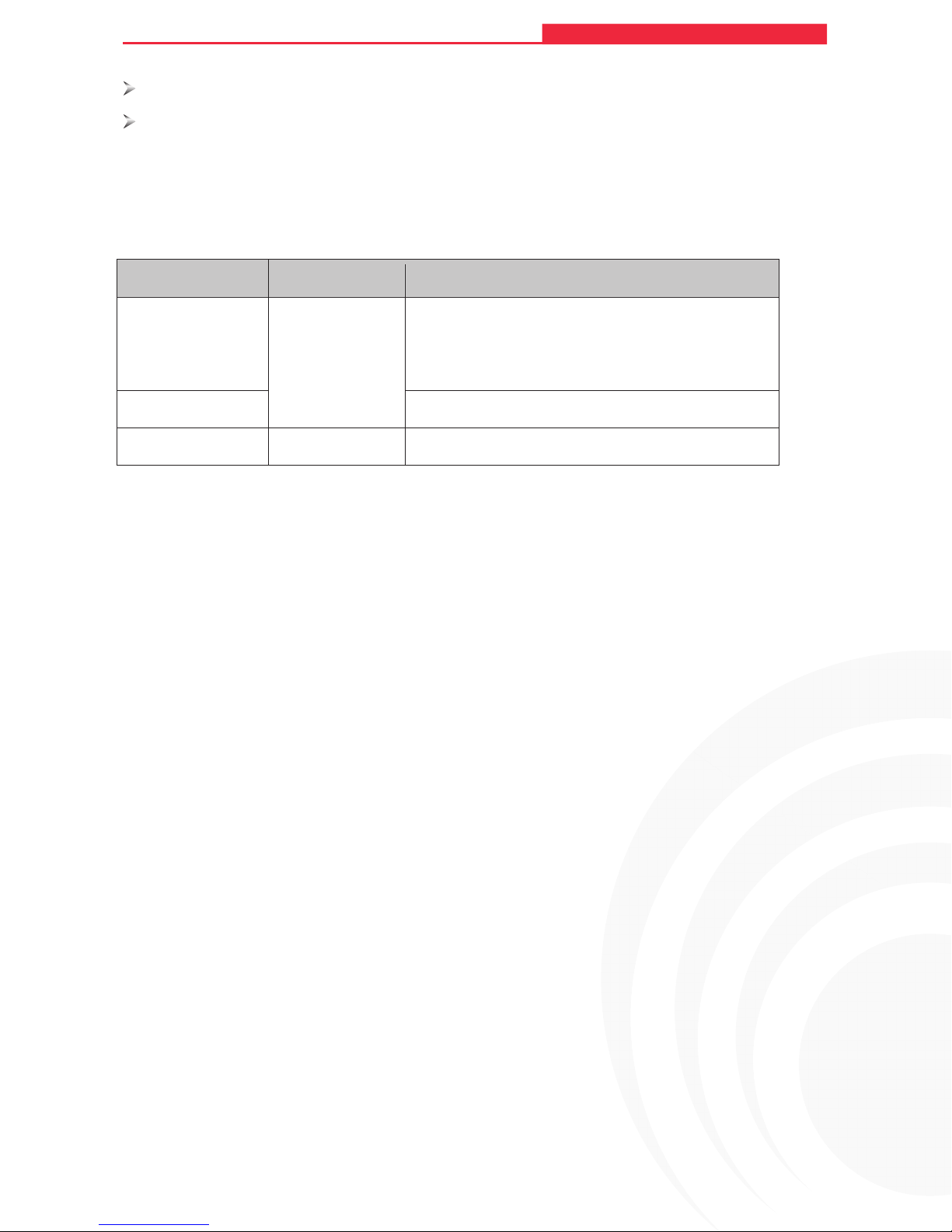
WP7300-SG LED Indications
LED Indications Status Working Status
The adapter is in an electricity saving status or
108M Wireless Adapter User Guide
Status Green Intermittently
the adapter is already connected but is not
transmitting or receiving data.
Status Green Light up The adapter is on wake up status.
Status Green Flashing The adapter is transmitting and receiving data.
3
Page 9

MAXNET WP7300-SG
108M Wireless Adapter User Guide
108M Wireless Access Point User Guide
Chapter 2 Installation Guide
2.1 Hardware Installation
2.1.1 WP7300-SG Hardware Installation
To install the adapter, follow these steps listed below:
1. Turn off yo u r desktop PC and disconnect the power.
2. Remove your PC case and locate an available PCI slot on the mainboard. Remove the metal
slot cover on the back of the PC. Check with y our computer manufacturer for instructions if
needed.
3. Slide the PC I Adapter into the PCI slot. Make sure that all of its pins are touching the slot's
contacts. Once the adapter is firmly in place, secure its fastening tab to your PC's chassis
with a mounting screw. Then, close your PC case.
4. Reconnect your PC’s power and turn on your desktop PC.
2.2 Software Instalation
2.2.1 Overview
The Adapter’s Setup Wizard will guide you through the Installati on procedure for Windows
98SE, ME, 2000, XP, Vista. The Setup Wizard will install the Maxnet Wireless Client Utility
(MWCU) and drivers.
When you install the hardware before installing the software, the system will prompt “Found
New Hardware Wizard” window, click Cancel, and run the Setup Wizard program on the
CD-ROM.
The Setup steps for Windows 98SE, Me, 2000 and XP are very similar. The following setup
steps are for Windows 2000 and the section 2.2.3 for Windows Vista.
4
Page 10
MAXNET WP7300-SG
108M Wireless Adapter User Guide
108M Wireless Access Point User Guide
2.2.2 Installation for Windows 2000
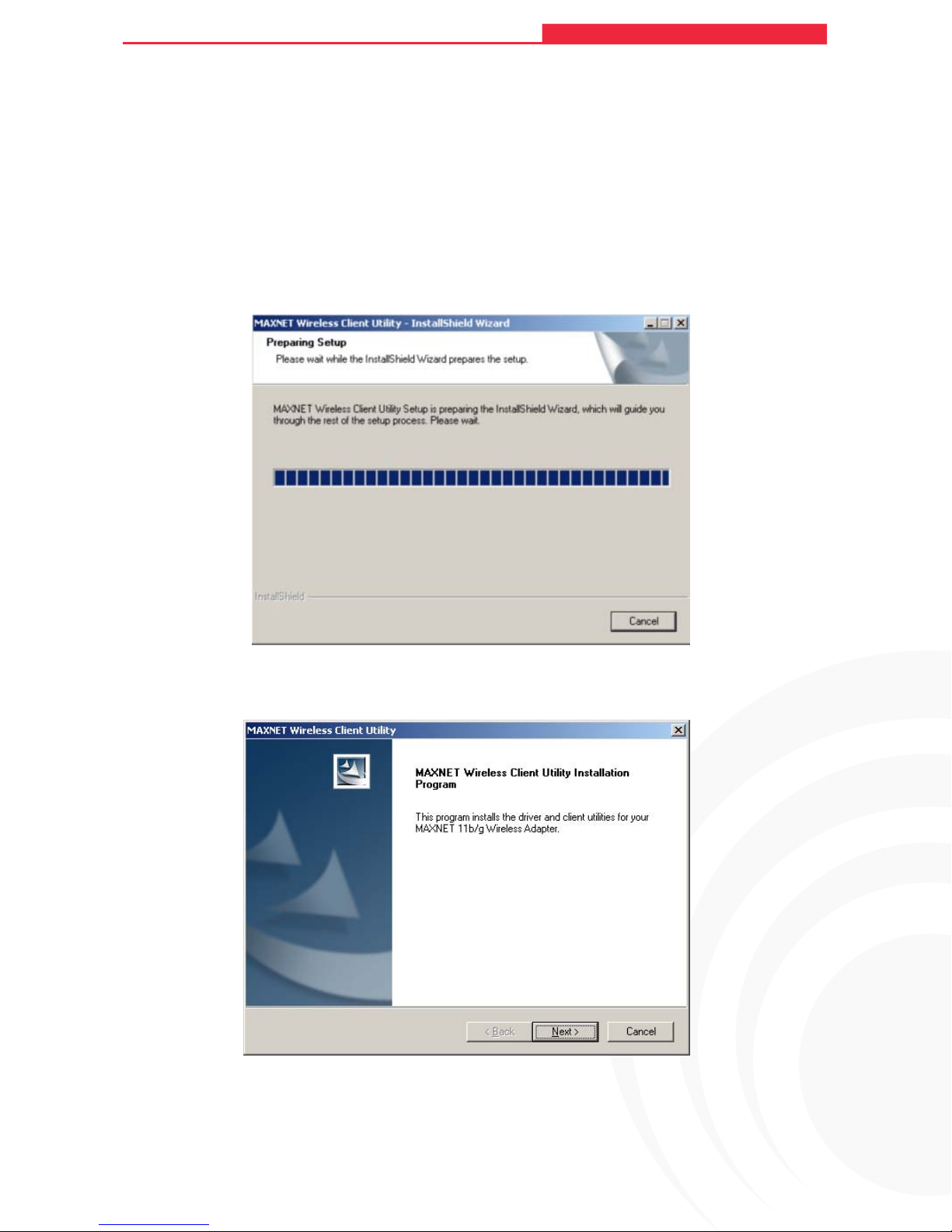
1. Insert the Res o urce CD into your CD-ROM drive, and open the folder with the same name
as your product. Then double-click Setup.exe in the proper folder according to your
operating system to start the installation. Figure 2-1 should then appear.
2. Yo u can click Cancel to end the installation on the Preparing Setup screen, Figure 2-1.
Otherwise, the Setup Wizard will display a screen similar to that shown in Figure 2-2 after a
moment.
Figure 2-1 Maxnet Wireless Client Utility – Install Shield Wizard
3. To continue,click Next on the screen, Figure 2-2. Click Cancel to end the Installation.
Figure 2-2 Maxnet Wireless Client Utility Installation Program
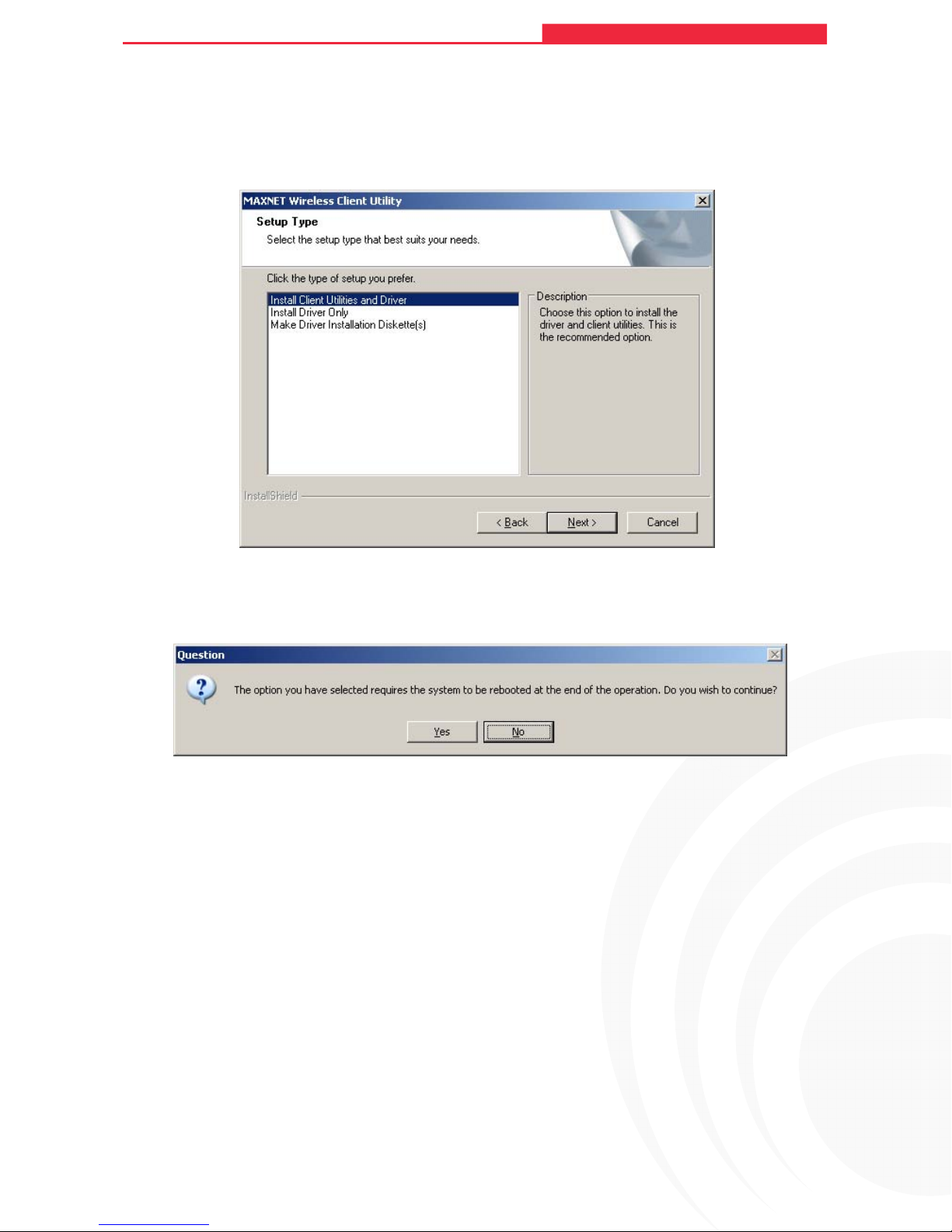
4. The Setup W izard will ask you to choose a Setup type in Figure 2-3 . It is recommended
that you select Install Client Utilities and Driver. Select Install Driver Only to install
5
Page 11
MAXNET WP7300-SG
108M Wireless Adapter User Guide
108M Wireless Access Point User Guide
driver only, select Make Driver Installation Diskette(s) to make the diskette(s) as the
installation driver. Select Install Client Utilities and Driver and click Next to continue the
Installation. Click Back to return to the previous page, or click Cancel to end the
Installation.
Figure 2-3 Select the setup type
5. Figure 2-4 should appe ar. Click Yes to continue the Installation, or click No to end the
Installation.
Figure 2-4 Question
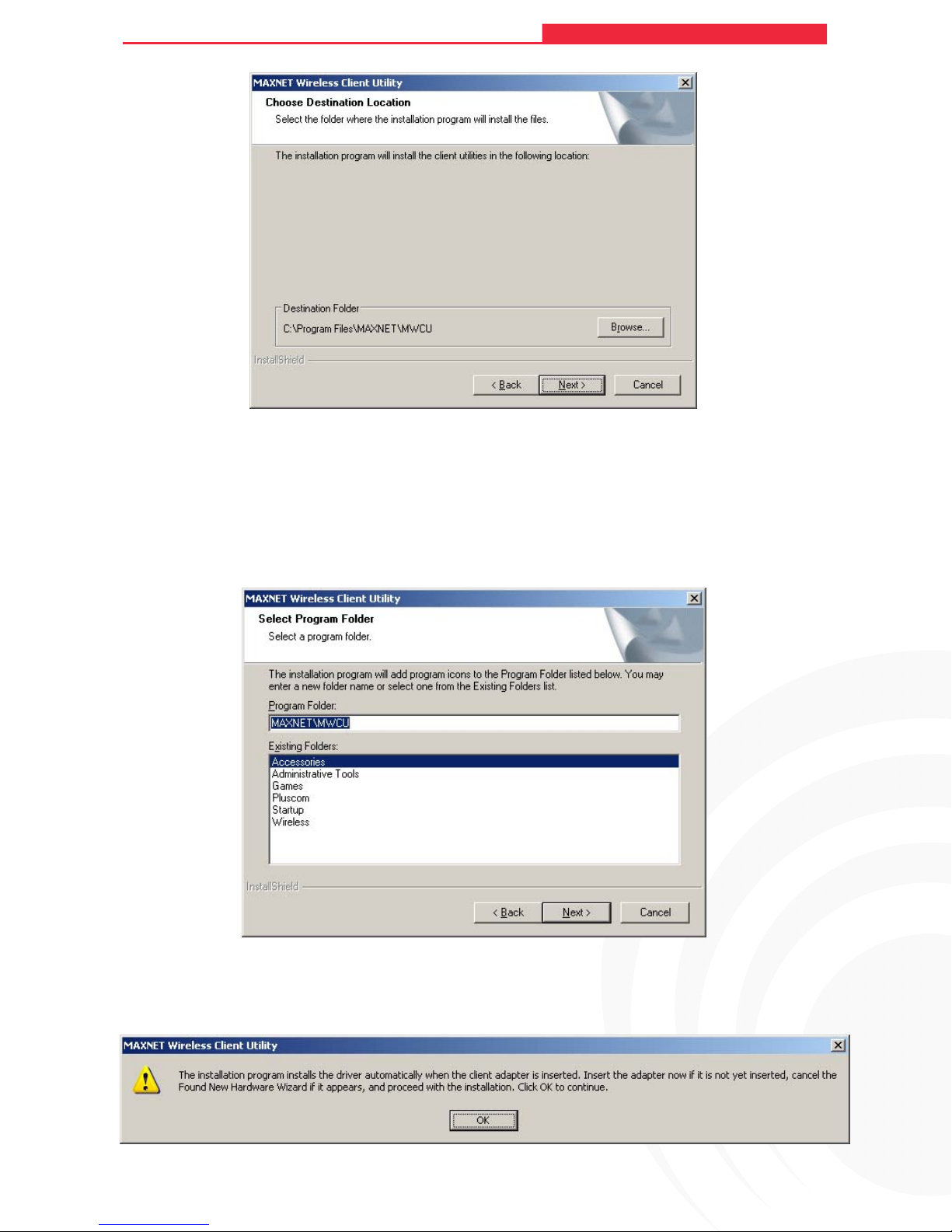
6. Click Browse to change the destination location for the software in Figure 2-5. Click Next
to continue the Installation. Click Back to return to the previous page, or click Cancel to
end the Installation.
6
Page 12
MAXNET WP7300-SG
108M Wireless Adapter User Guide
108M Wireless Access Point User Guide
Figure 2-5 Choose Destination Location
7. The Setup Wizard w ill ask you to create a new folder name or select one from the Existing
Folders list shown in Figure 2-6. It is recommended that you keep the default value. Click
Next to continue the Installation. Click Back to return to the previous page, or click Cancel
to end the Installation.
Figure 2-6 Select a Program Folder
8. The Setup W izard will notify you of how to proceed with the installation, shown in Figure
2-7. Click OK to continue the Installation.
Figure 2-7 Information prompt
7
Page 13
MAXNET WP7300-SG
108M Wireless Adapter User Guide
108M Wireless Access Point User Guide
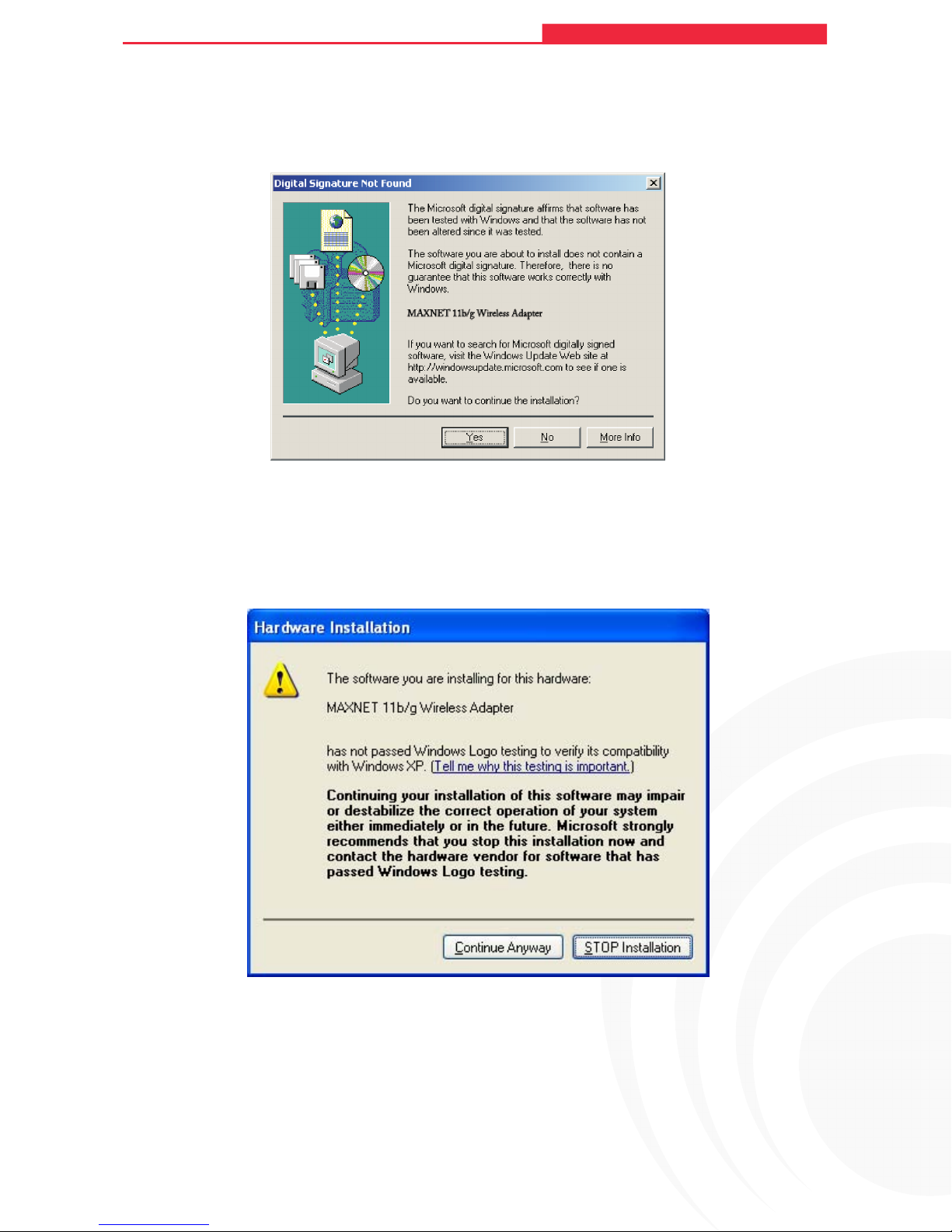
9. While files are copying, you will see a warning box, shown in Figure 2-8. Please select Yes
to continue installation. Our drivers have been tested thoroughly, and are able to work with
the operating system.
Figure 2-8 Widows 2000 Warning Box
Note:
In Windows XP, the warning box is similar to that shown Figure 2-9. Please select Continue
Anyway to continue installation.
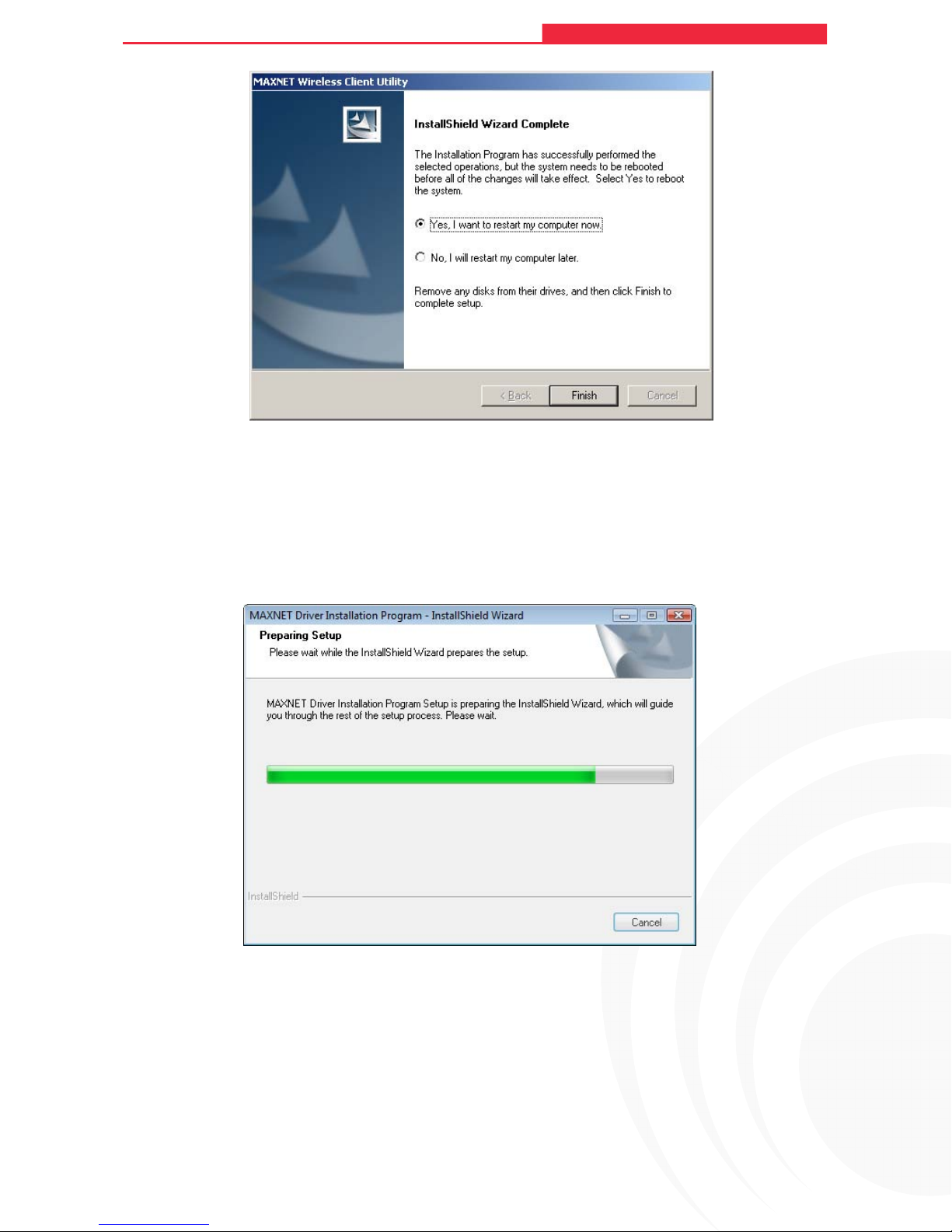
Finish
to reboot the system.
Figure 2-9 Windows XP Warning Box
kcilC .raeppa lliw 01-2 erugiF ni neercs eht ,deipoc yllufsseccus neeb evah selif eht reftA .01
8
Page 14
MAXNET WP7300-SG
Figure 2-10 Finish
2.2.3 Installation for Windows Vista
108M Wireless Adapter User Guide
108M Wireless Access Point User Guide
1. Insert the Res o urce CD into your CD-ROM drive, and open the folder with the same name
as your product. Then double-click Setup.exe in the proper folder according to your
operating system to start the installation. And then Figure 2-11 will appear; Click Cancel to
end the installation in the screen. Otherwise, the installation will continue.
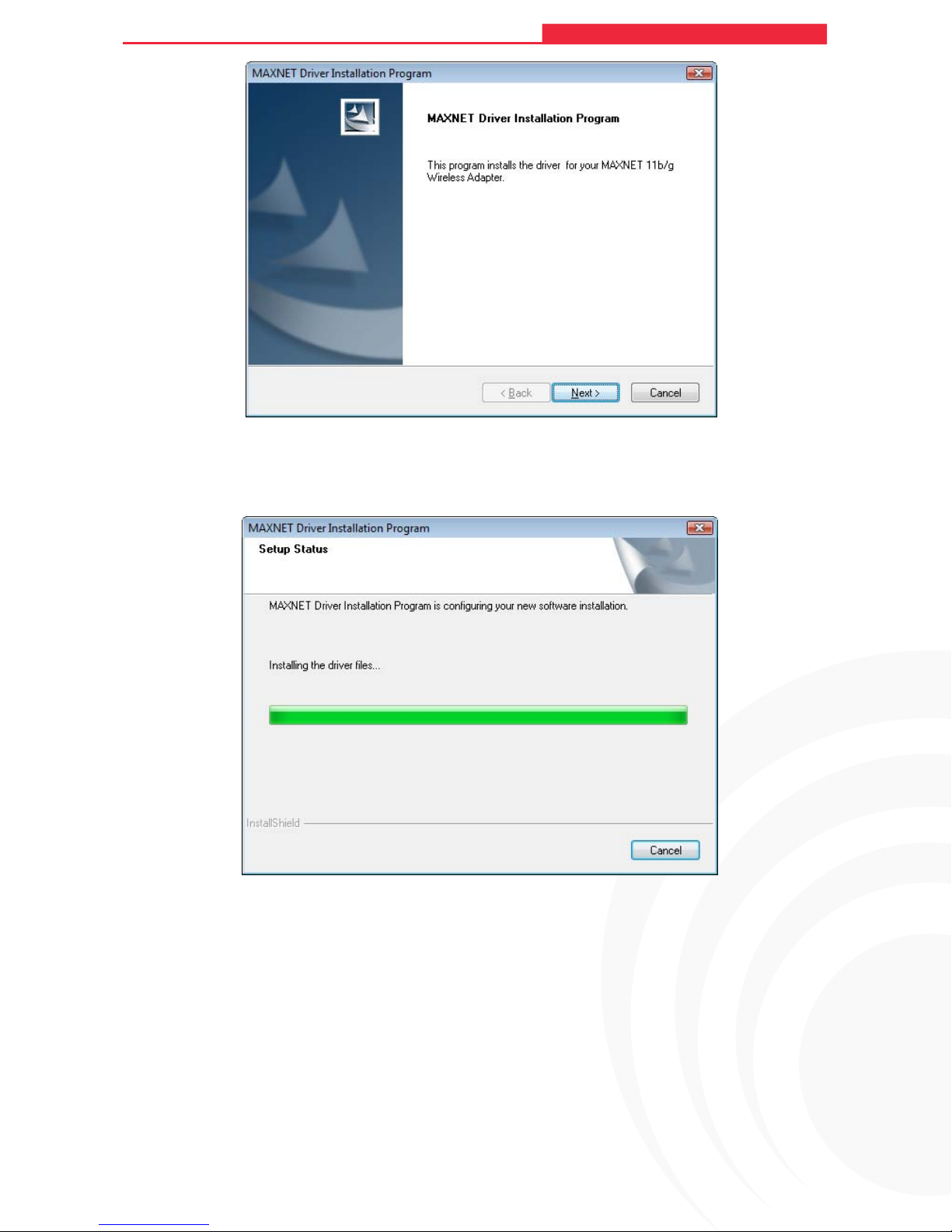
2. Click Next in the screen below (show n in Figure 2-12) to continue, you can click Cancel to
end the installation.
Figure 2-11
9
Page 15
MAXNET WP7300-SG
108M Wireless Adapter User Guide
Figure 2-12
3. After t h at, the files will be copied as the next screen shown (shown in Figure 2-13). To end
the Installation, click Cancel.
108M Wireless Access Point User Guide
Note:
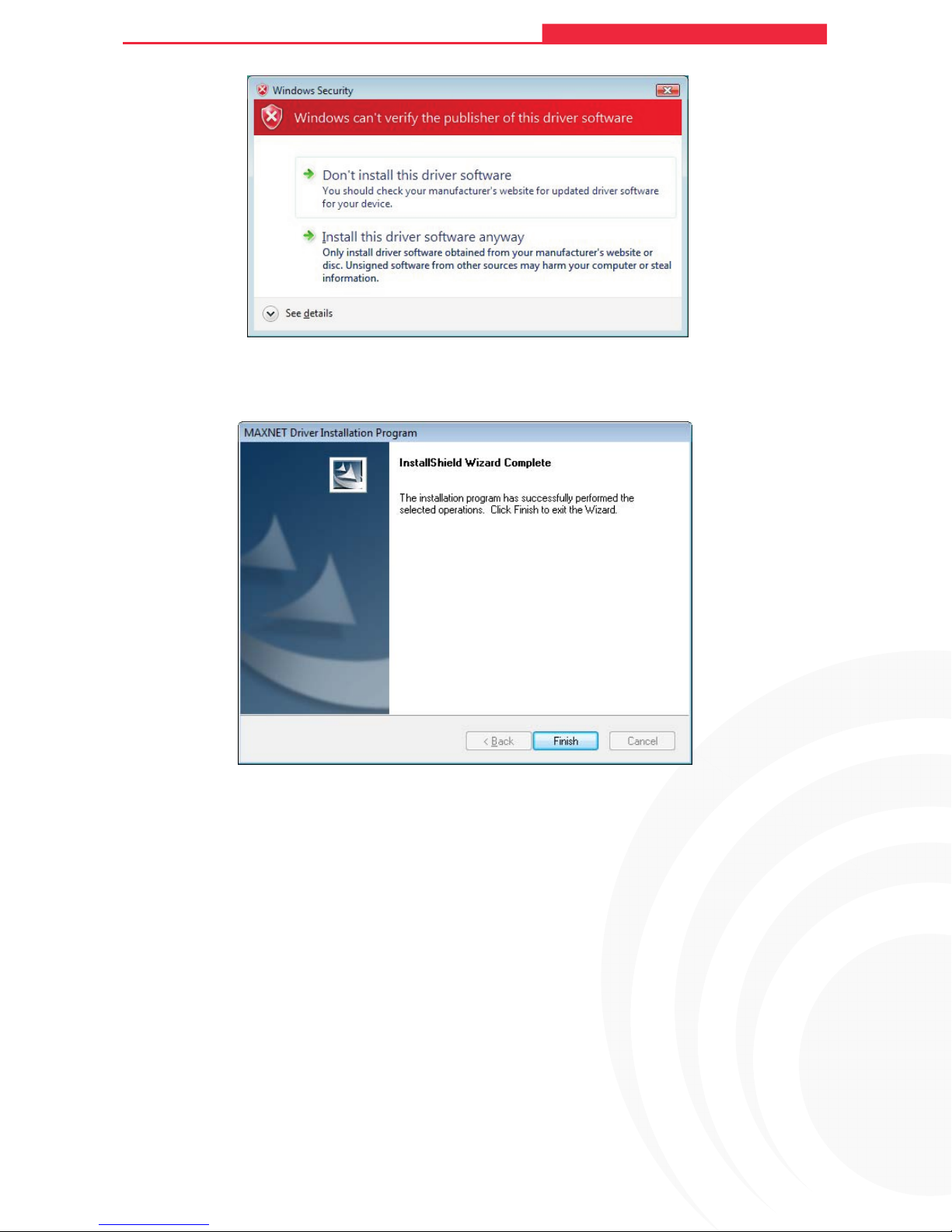
During the installation, the system will warn about Windows Security testing, please click “Install
this driver software anyway” to continue the installation.
Figure 2-13
10
Page 16
MAXNET WP7300-SG
4. Click t h e Finish button to complete.
Figure 2-14
108M Wireless Adapter User Guide
108M Wireless Access Point User Guide
Figure 2-15
11
Page 17

MAXNET WP7300-SG
Chapter 3 Configuration
108M Wireless Adapter User Guide
108M Wireless Access Point User Guide
MAXNET Wireless Adapter WP7300-SG can be configured by Maxnet
Utility (MWCU). This chapter
Wireless Adapter for wireless connectivity on your Wireless Local Area Network (WLAN) and
use the data security encryption features.
After Installing the Adapter, the Adapter’s tray icon
appears at the bottom of the screen, and shows the signal strength using color and the received
signal strength indication (RSSI).
the icon is gray, there is no connection.
If
If the icon is red, there is poor si
If the icon is yellow, there is poor sign al strength and the RSSI is between 5dB and 10dB.
If the icon is green, there is good signal strength and the RSSI
describes how to con
gnal strength and the RSSI is less than 5dB.
figure your MAXNET
will appear in your system tray. It
is between 10dB and 20dB.
Wireless Client
If the icon is green, there is excellent si gnal strength and the RSSI
Double-click the icon and the MWCU utility will run. You can also run the utility by clicking the
Start>Program>Maxnet >MWCU>Maxnet Wireless Client Utility. The MWCU utility provides a complete
and easy to use set of tools to:
Display current status information
Edit and add configuration profiles
Display current diagnostics information
The section below introduces these above capabilities.
is more than 20dB.
3.1 Current Status
The Current Status tab contains general information about the program and its operations. The
Current Status tab does not require any configurations.
12
Page 18
108M Wireless Adapter User Guide
MAXNET WP7300-SG
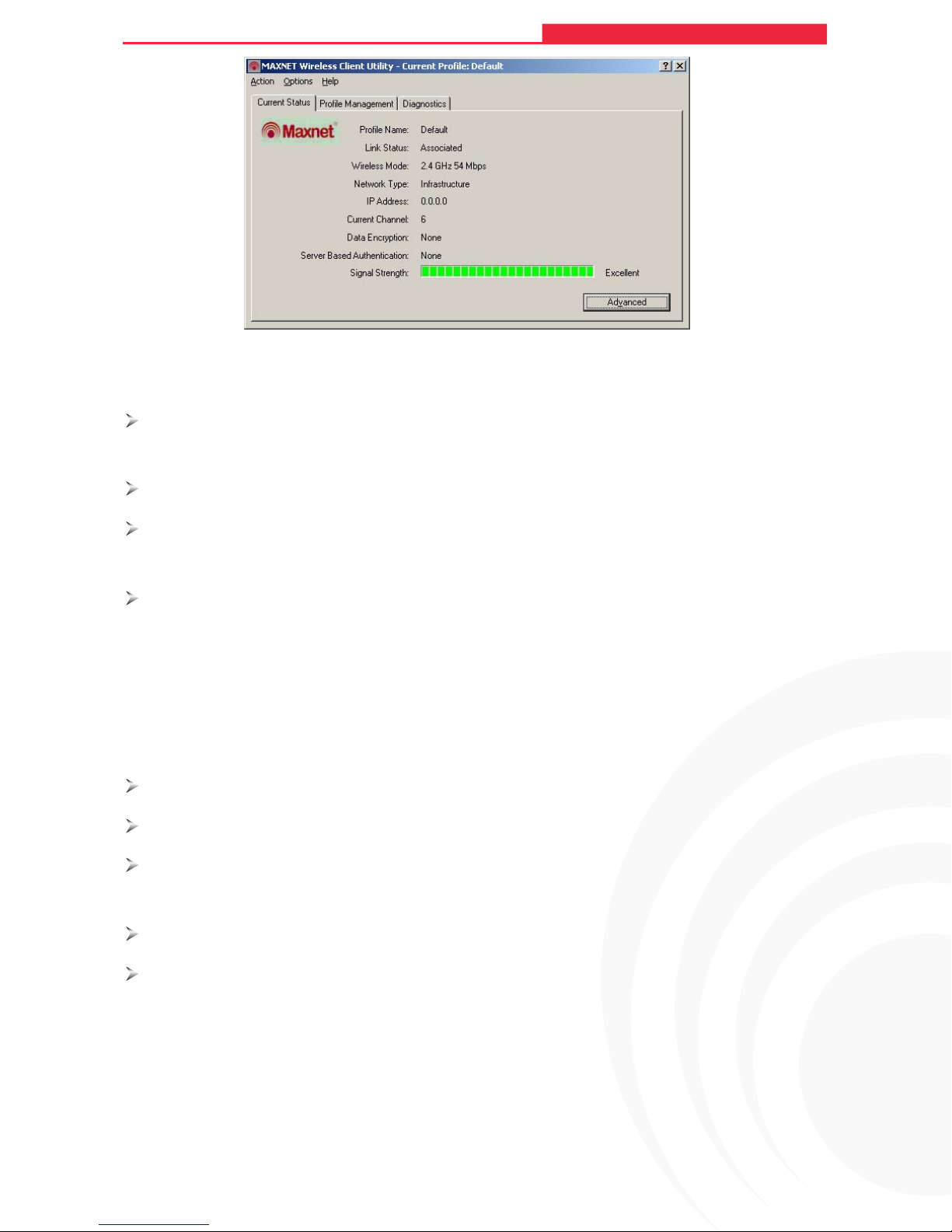
Figure 3-1 Current Status
The following table describes the items found on the Current Status screen.
Profile Name - The name of current selected configuration profile. Set up the configuration
name on the General tab of Profile Management.
108M Wireless Access Point User Guide
Link Status - Shows whether the station is associated to the wireless network.
Wireless Mode - Displays the wireless mode. C onfigure the wireless mode on the
Advanced tab of Profile Management.
Network Type - The type of network and the station currently connected. The options
include:
• Infrastructure (acce s s point)
• Ad Hoc
Configure the network type on the Advanced tab of Profile Management.
IP Address - Displays the computer’s IP address.
Current Channel - Shows the currently connected channel.
Data Encryption - Displays the encryption type the driver is using. Configure the
encryption type on the Security tab of Profile Management.
Server Based Authentication - Shows whether server based authentication is used.
Signal Strength - Shows the strength of the signal.
Note:
In the MWCU utility, access the General tab, Security tab and Advanced tab by clicking New or
Modify on the Profile Management tab.
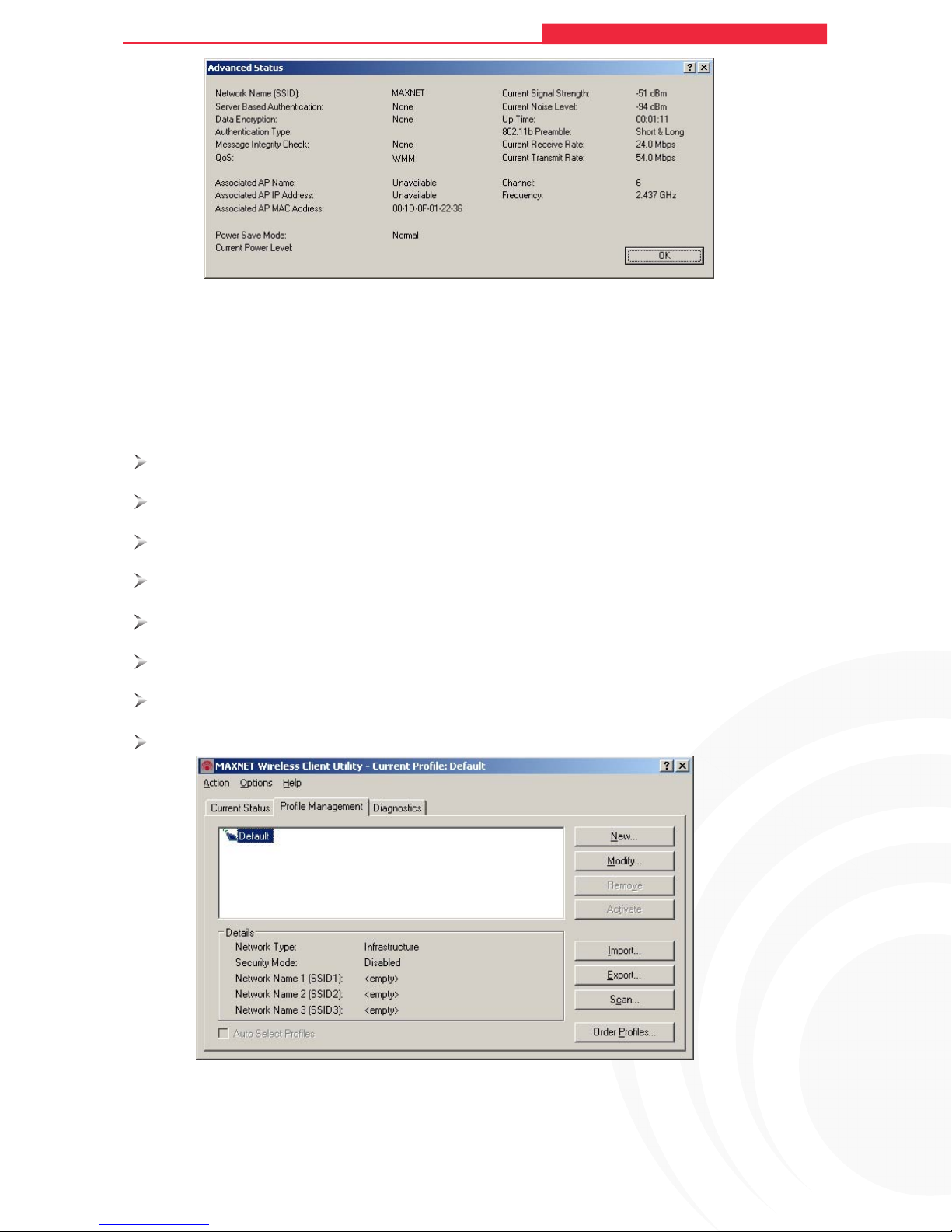
Click Advanced to see advanced information about the program and its operations. For more
information, please refer to the help file of the utility.
13
Page 19
108M Wireless Adapter User Guide
MAXNET WP7300-SG
108M Wireless Access Point User Guide
Figure 3-2 Advance Status
3.2 Profile Management
Click the Profile Management tab of the MWCU Utility and the Profile Management screen will
appear, Figure 3-3. The Profile Management screen provides tools to:
Add a profile
Edit a profile
Remove a profile
Switch to another Profile
Import a Profile
Export a Profile
Scan Available Networks
MAXNET Wireless Client Utility - Current Profile: Default
Order profiles
3.2.1 Add or Modify a Configuration Profile
To add a new configuration profile, click New on the Profile Management tab. To modify a
Figure 3-3 Profile Management t ab
14
Page 20
MAXNET WP7300-SG
108M Wireless Adapter User Guide
configuration profile, select the configuration from the Profile list and click Modify.
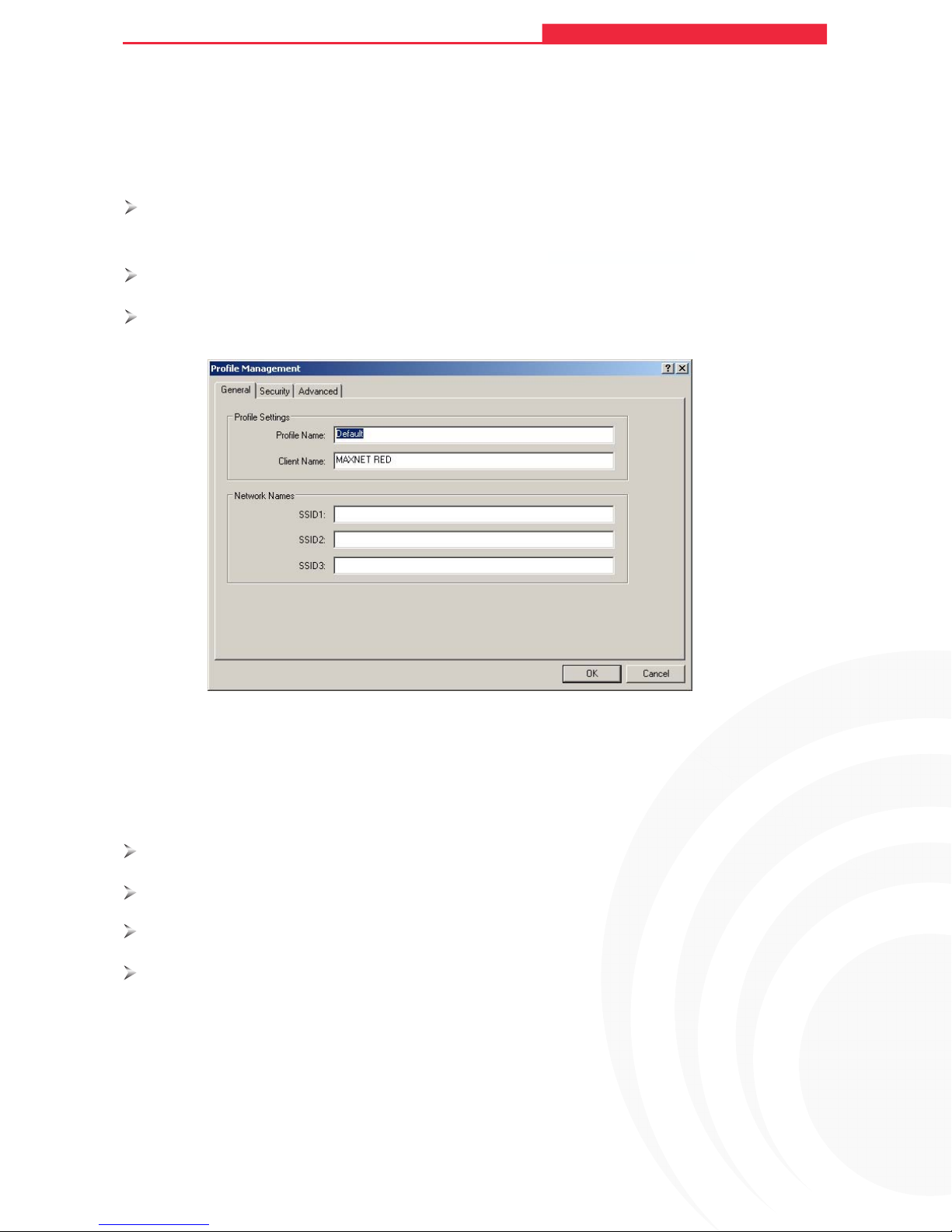
The Profile Management dialog box will display a screen similar to that shown in Figure 3-4.
1. Edit the General ta b
Profile Name - Identifies the configuration profile. This name must be unique. Profile
names are not case-sensitive.
Client Name - Identifies the client machine.
Network Names (SSIDs) - The IEEE 802.11 wireless network name. This field has a
maximum limit of 32 characters.
108M Wireless Access Point User Guide
Figure 3-4 Gener al Tab of Profile Management
2. Edit the Security ta b
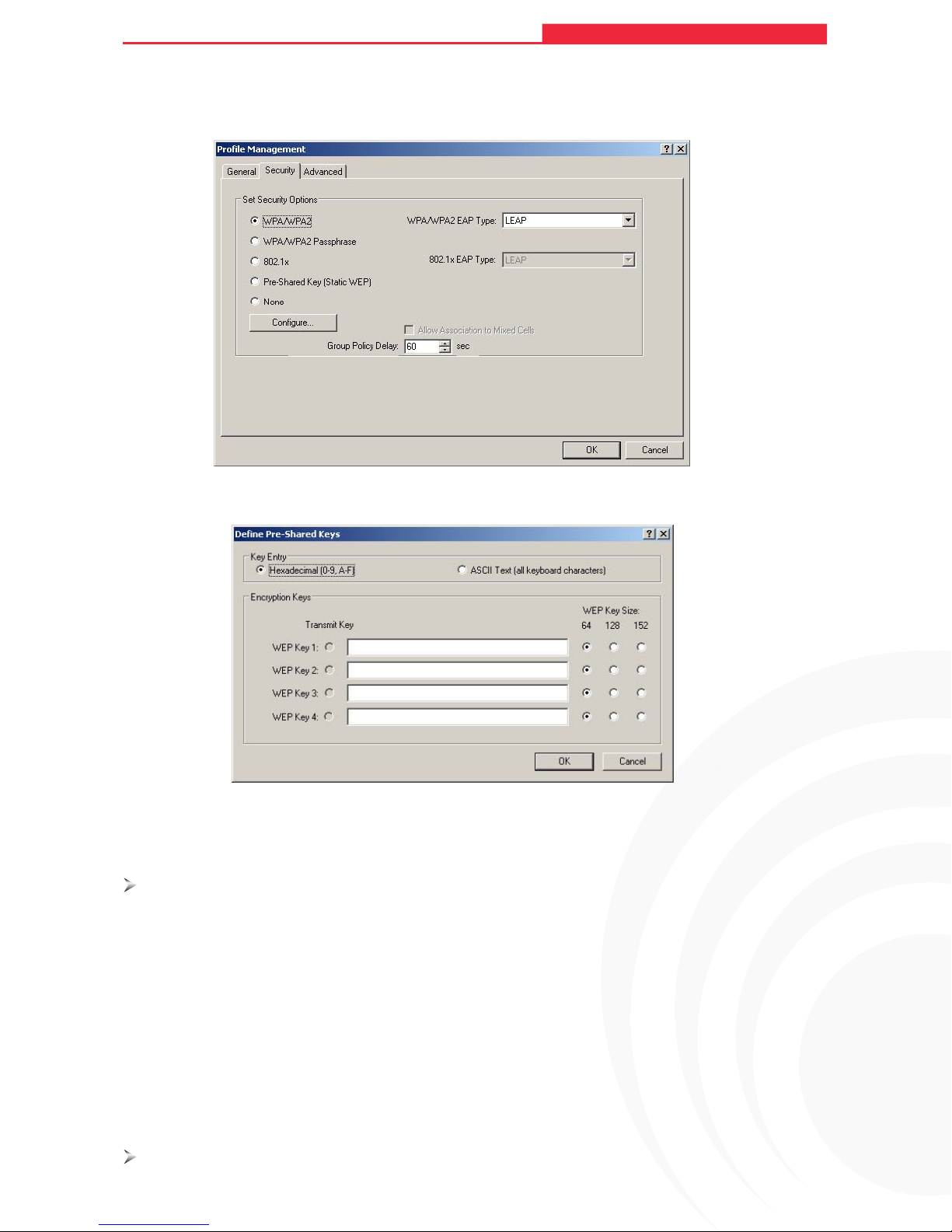
Edit the fields in the Security tab of Profile Management to configure the profile. To define the
security mode, select the radio button of the desired security mode.
WPA/WPA2 - Wi-Fi Protected Access.
WPA/WPA2 Passphrase - Wi-Fi Protected Access Passphrase.
802.1x - Enables 802.1x security.
Shared Key (Static WEP) - Enables the use of shared keys that are defined on both the
access point and the station. To define shared encryption keys, choose the Shared Key
radio button and click Configure to fill in the Define Shared Keys window.
None: No security (not recommended).
Note:
If the access point that the wireless adapter is associating to has WEP set to Optional and the
client has WEP enabled, make sure that Allow Association to Mixed Cells is checked on the
15
Page 21
MAXNET WP7300-SG
108M Wireless Adapter User Guide
108M Wireless Access Point User Guide
Security Tab to allow association. To complete WEP encryption configuration, you must select the
802.11 Authentication Mode as appropriate on the Advanced tab of this Profile Management
dialog.
Figure 3-5 Security t ab of Profile Management
3. Edit the A dvanced tab
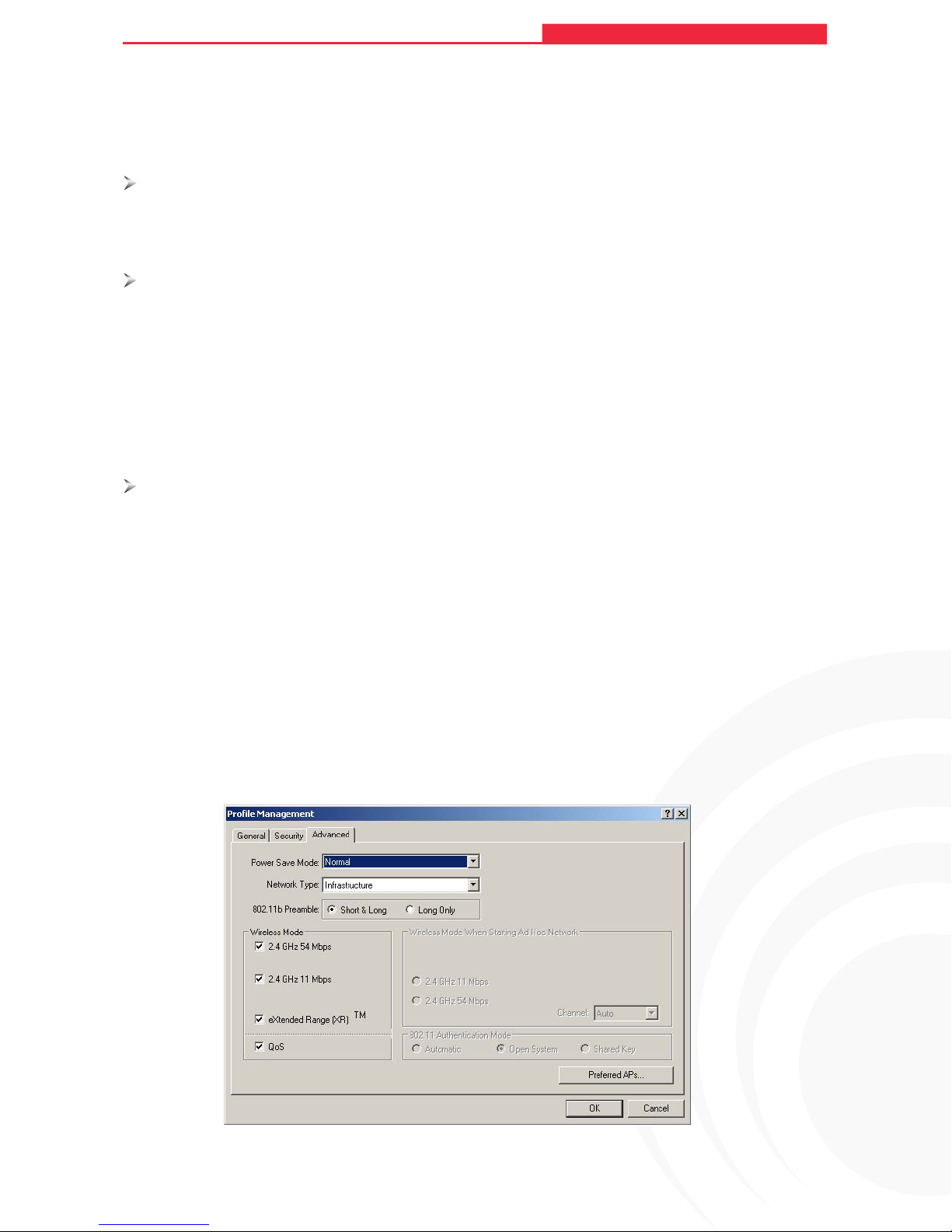
Power Save Mode -
• Maximum -
Selects maximum mode to let the access point buffer incoming messages
Figure 3-6 Define Share d Keys
for the wireless adapter. The adapter will detect the access point if any messages are
waiting periodically.
• Normal - In Normal mode, the adapter will be switched to maximum mode
automatically when no large packets are retrieved.
• Off - turns power saving off, thus powering up the wireless adapter continuously for a
short message response time.
802.11b Preamble - Specifies the preamble setting in
802.11b. The default setting is
16
Page 22
MAXNET WP7300-SG
108M Wireless Adapter User Guide
108M Wireless Access Point User Guide
Short & Long (access point mode), which allows both short and long headers in the
802.11b frames. The adapter can only use short radio headers if the access point supports
and uses them. Set to Long Only to override allowing short frames.
Wireless Mode - Specifies 2.4 GHz 54 Mbps, 2.4 GHz 11 Mbps, or Super G operation in
an access point network. The wireless adapter must match the wireless mode of the
access point with which it associates
Wireless Mode when Starting an Ad Hoc Network - Specifies Super G or 2.4 GHz 54/11
Mbps to start an Ad Hoc network if no matching network name is found after scanning all
available modes. This mode also allows the selection of the channel the wireless adapter
uses. The channels available depend on the regulatory domain. If the adapter finds no
other ad hoc adapters, the channel that the adapter starts the ad hoc network with will be
selected automatically. The wireless adapter must match the wireless mode and channel of
the clients it associates.
802.11 Authentication Mode - Select which mode the wireless adapter uses to
authenticate to an access point:
• Automatic causes the adapter to attempt authentication using shared, but switches it to open
authentication if shared fails.
• Open System enables an adapter to attempt authentication regardless of its WEP settings. It will
only associate with the access point if the WEP keys on both the adapter and the access point
match.
• Shared-key only allows the adapter to associate with access points that have the same WEP key.
For infrastructure (access point) networks, click Preferred APs… to specify up to four access
points to the client adapter that attempts to be associated to the access points.
Figure 3-7 Advanced tab of Profile Management
17
Page 23
108M Wireless Adapter User Guide
MAXNET WP7300-SG
108M Wireless Access Point User Guide
3.2.2 Remove a profile
1. Go to the Pro f ile Management tab.
2. Select the pro f ile name to remove in the Profiles List.
3. Click Remove.
3.2.3 Switch another Profile
1. Go to the Pro f ile Management tab.
2. Click on the p r ofile name in the Profiles List.
3. Click Activate.
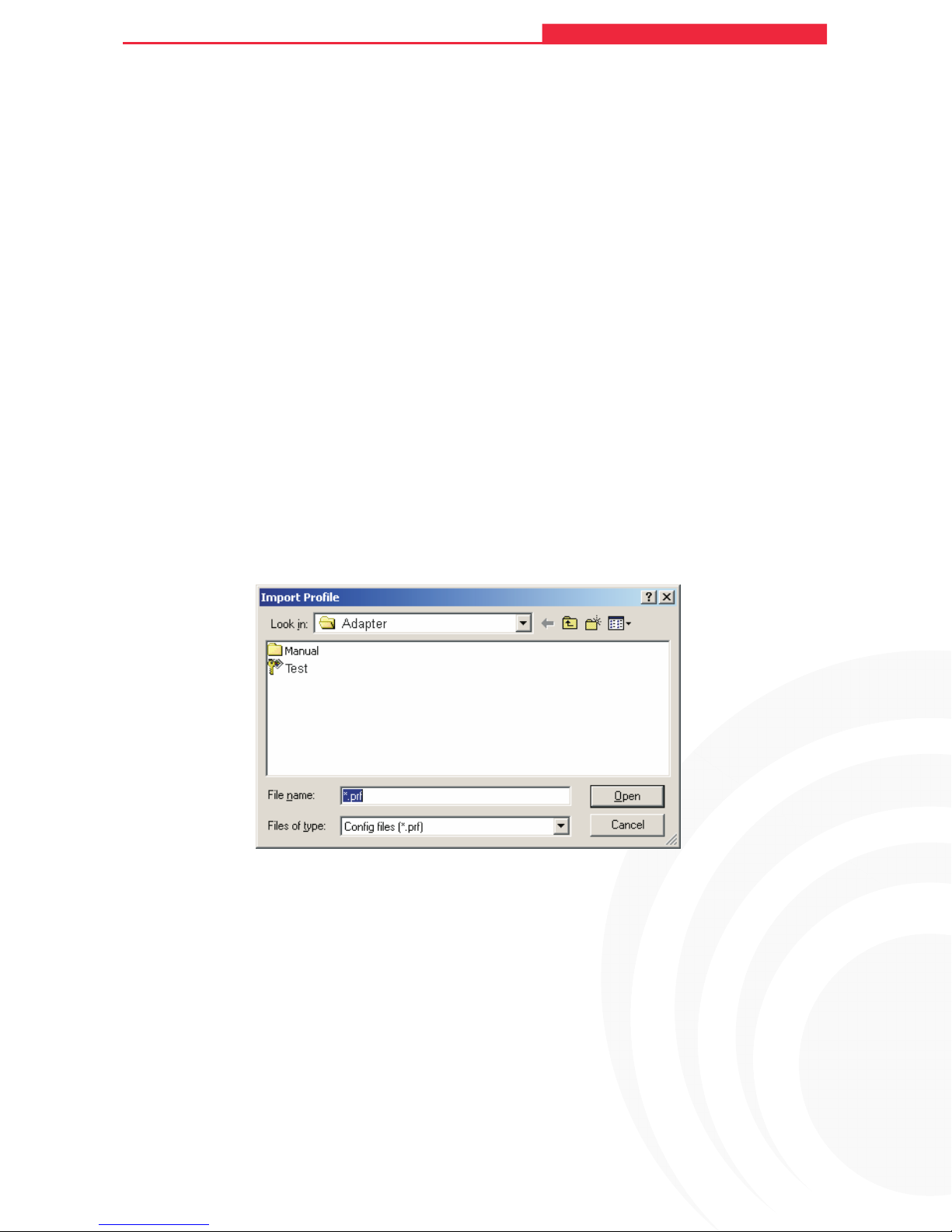
3.2.4 Import a Profile
1. From the Profile Manage m ent tab, click Import…. The Import Profile will then appear.
2. Browse to the directory where the profile is located.
3. Highlight the profile nam e.
4. Click Open, the imported profile will then appear in the Profiles List.
Figure 3-8 Import Profile Dialog
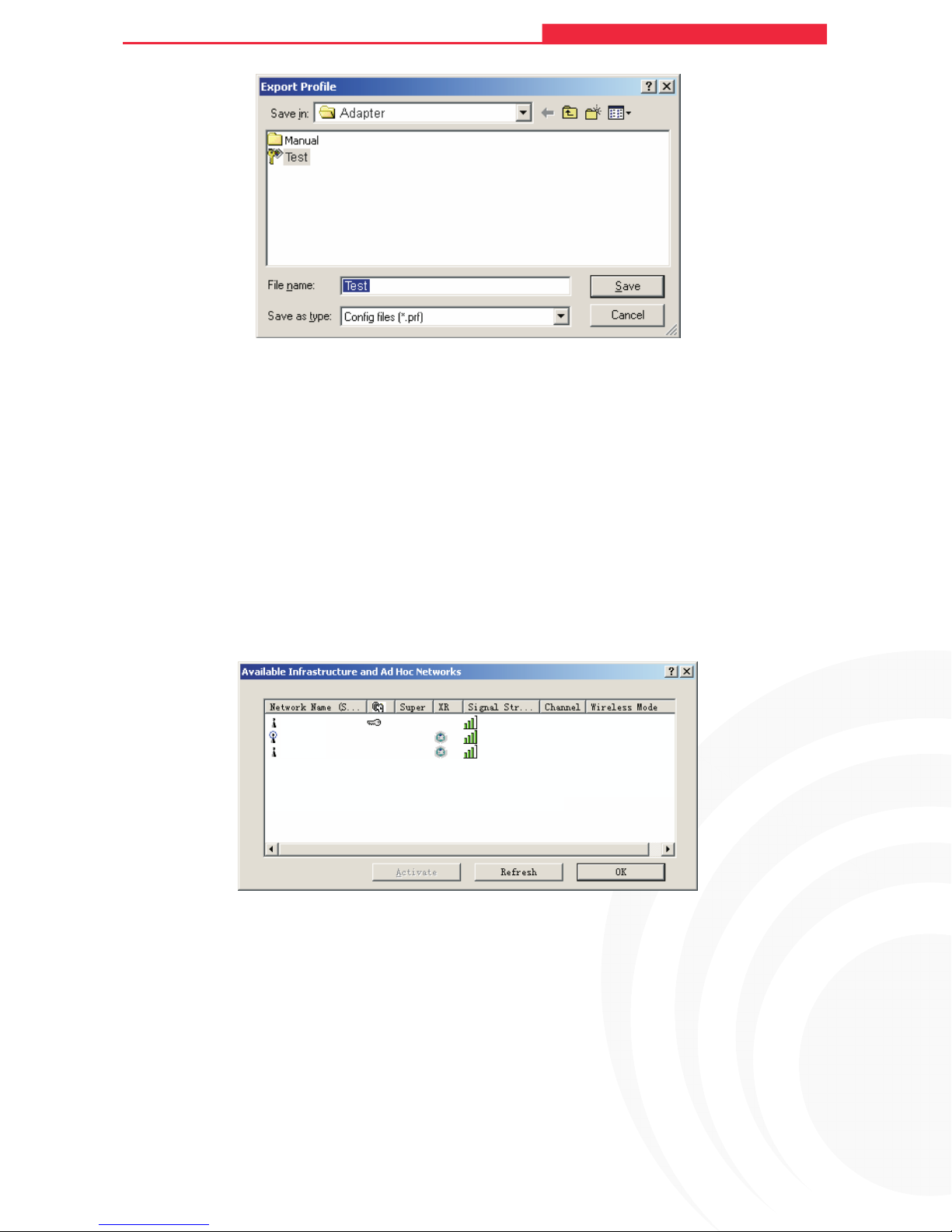
3.2.5 Export a Profile
1. From the Profile Managem ent tab, highlight the profile to export.
2. Click Export…, the Export Profile window will then appear.
3. Browse the directory to export the profile to.
4. Click Save. The profile should then be exported to the specified location.
18
Page 24
MAXNET WP7300-SG
108M Wireless Adapter User Guide
108M Wireless Access Point User Guide
Figure 3-9 Export Profile Dialog
3.2.6 Scan Available Networks
1. Click Scan on the Profile Management, the Available Infrastructure and Ad Hoc Networks
window will appear.
2. Click Refresh to refresh the list at any time.
3. Highlight an etwork name and click Activate to connect an available network. If no
configuration profile exists for that network, the Profile Management window will open the
General tab. Fill in the Profile name and click OK to create the configuration profile for that
network.
Atheros
Maxnet
Maxnet 1
15 dB 3 2.4 GHZ 108 Mbps
61 dB 6 2.4 GHZ 108 Mbps
10 dB 11 2.4 GHZ 108 Mbps
Figure 3-10 Scan Available Networks Dialog
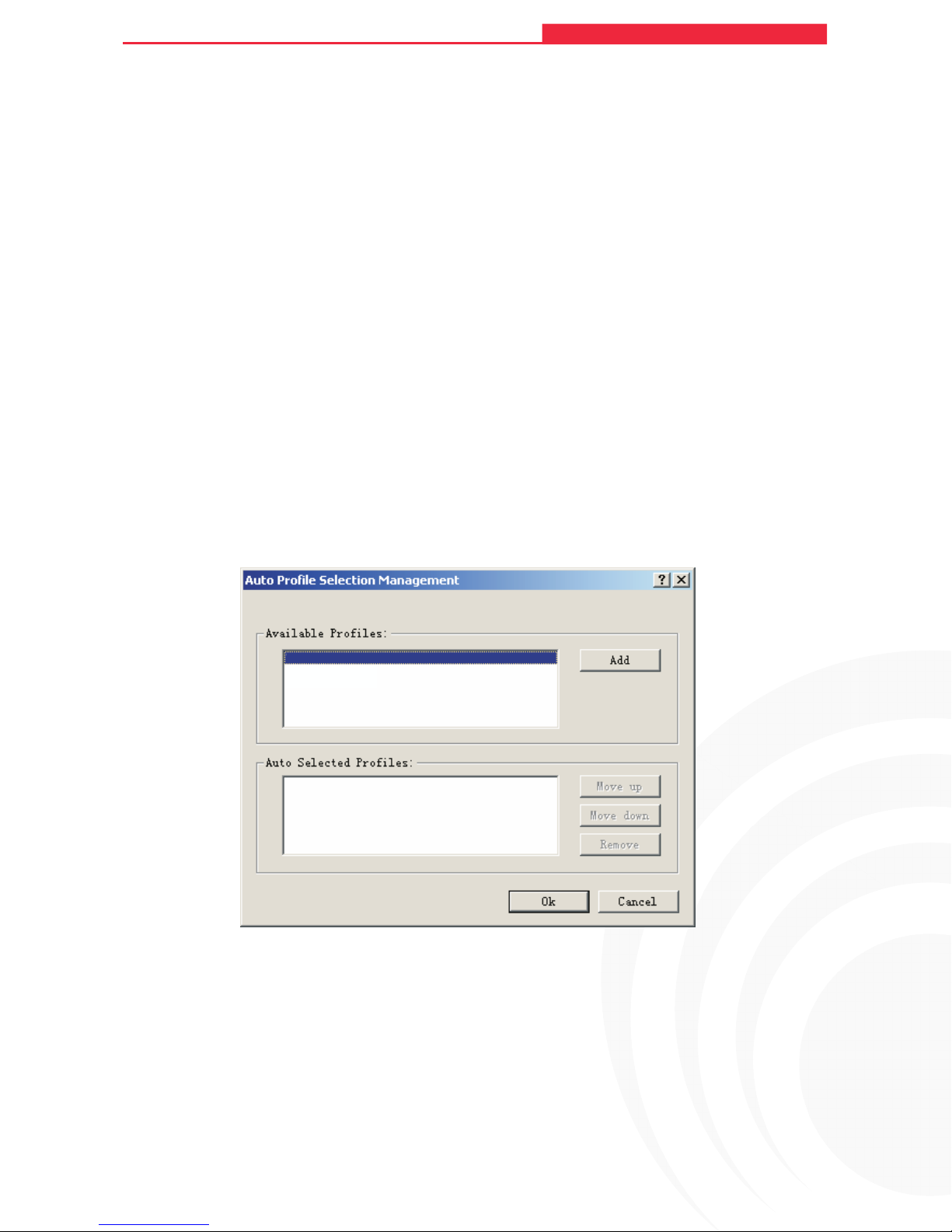
3.2.7 Auto Profile Selection Management
The auto selection feature allows the wireless adapter to automatically select a profile from the
list of profiles and use it to connect to the network. To add a new profile into the Auto Selected
Profiles list, please follow these steps.
1. On the Profile Managemen t tab, click Order Profiles….
2. The Auto Profiles Selection management window will appear, with a list of all created
profiles in the Available Profiles box.
19
Page 25
108M Wireless Adapter User Guide
MAXNET WP7300-SG
3. Highlight th e profiles to add to auto profile selection, and click Add . The profile will appear
in the Auto Selected Profiles box.
4. Highlight ar opfile in the Auto Selected Profiles box.
5. Click Move Up or Move Down as appropriate.
108M Wireless Access Point User Guide
Note:
The first profile in the Auto Selected Profiles box has highest priority, and the last profile has
lowest priority.
6. Click OK.
7. Check the Auto Select Profiles checkbox on the Profile Management tab.
Note:
When auto profile selection is enabled by checking Auto Select Profiles on the Profile
Management tab, the client adapter will scan for an available network. The profile with the
highest priority and the same SSID as one of the found networks will be used to connect to the
network. If the connection fails, the client adapter will try the next highest priority profile that
matches the SSID until an available network is found.
Maxnet - WP
Maxnet - WP
Figure 3-11 Auto Profile Selection Management Dialog
3.3 Diagnostics
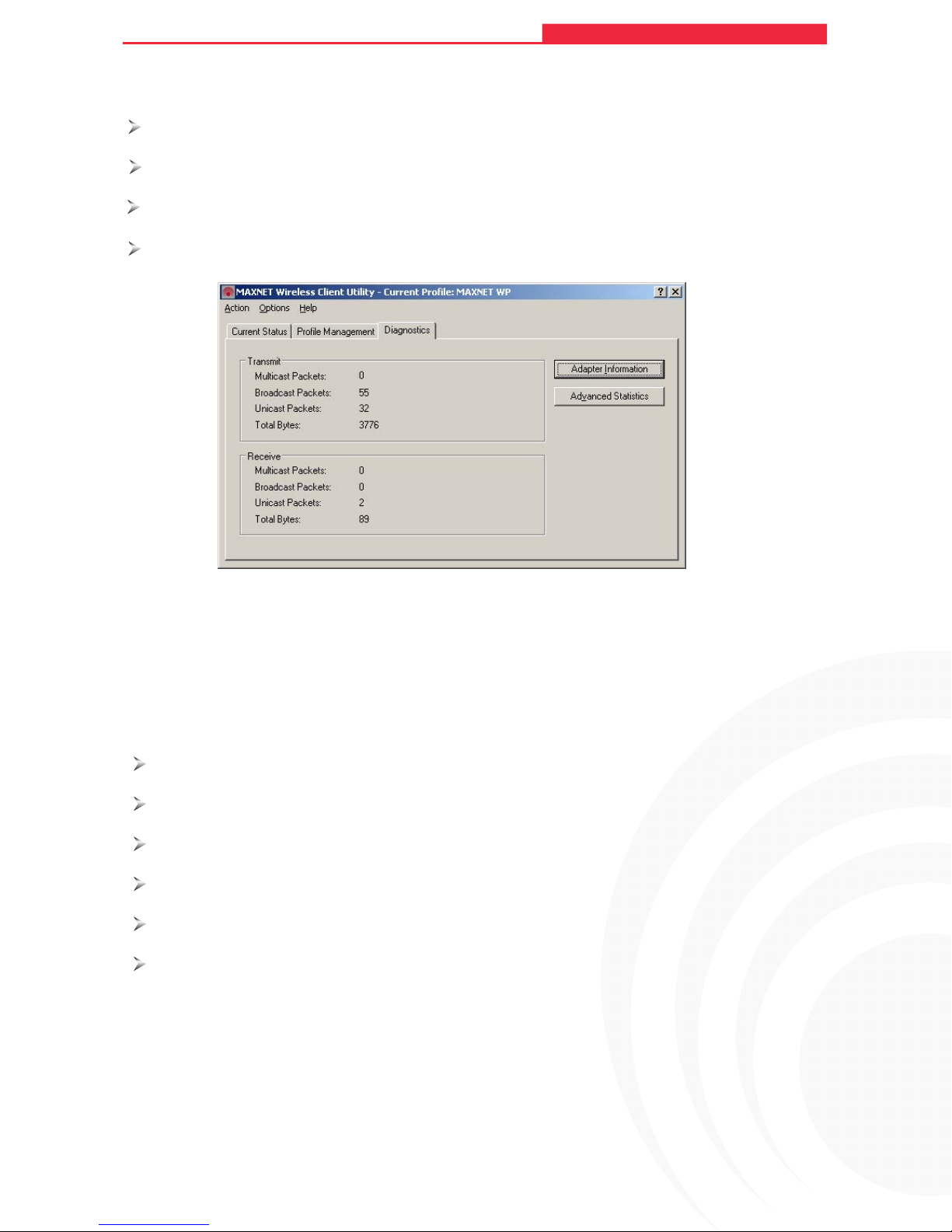
The Diagnostics tab of the MAXNET Wireless Client Utility (MWCU) provides buttons used to
retrieve receiving and transmitting statistics. The Diagnostics tab does not require any
configuration.
The Diagnostics tab lists the following receive and transmit diagnostics for frames received or
20
Page 26
MAXNET WP7300-SG
transmitted by the wireless network adapter:
Multicast frames transmitted and received
Broadcast frames transmitted and received
Unicast frames transmitted and received
Total bytes transmitted and received
MAXNET Wireless Client Utility - Current Profile: Default
108M Wireless Adapter User Guide
108M Wireless Access Point User Guide
Figure 3- 12 Diagnostics t ab
3.3.1 Check Driver Information
The Adapter Information contains general information about the wireless network adapter and
the Network Driver Interface Specification (NDIS) driver. Access the adapter information from
the Diagnostics tab.
Card Name - The name of the wireless network adapter.
MAC Address - The MAC address of the wireless network adapter.
Driver - The driver name and path of the wireless network adapter driver.
Driver Version - The version of the wireless network adapter driver.
Driver Date - The creation date of the wireless network adapter driver.
Client Name - The name of the client computer.
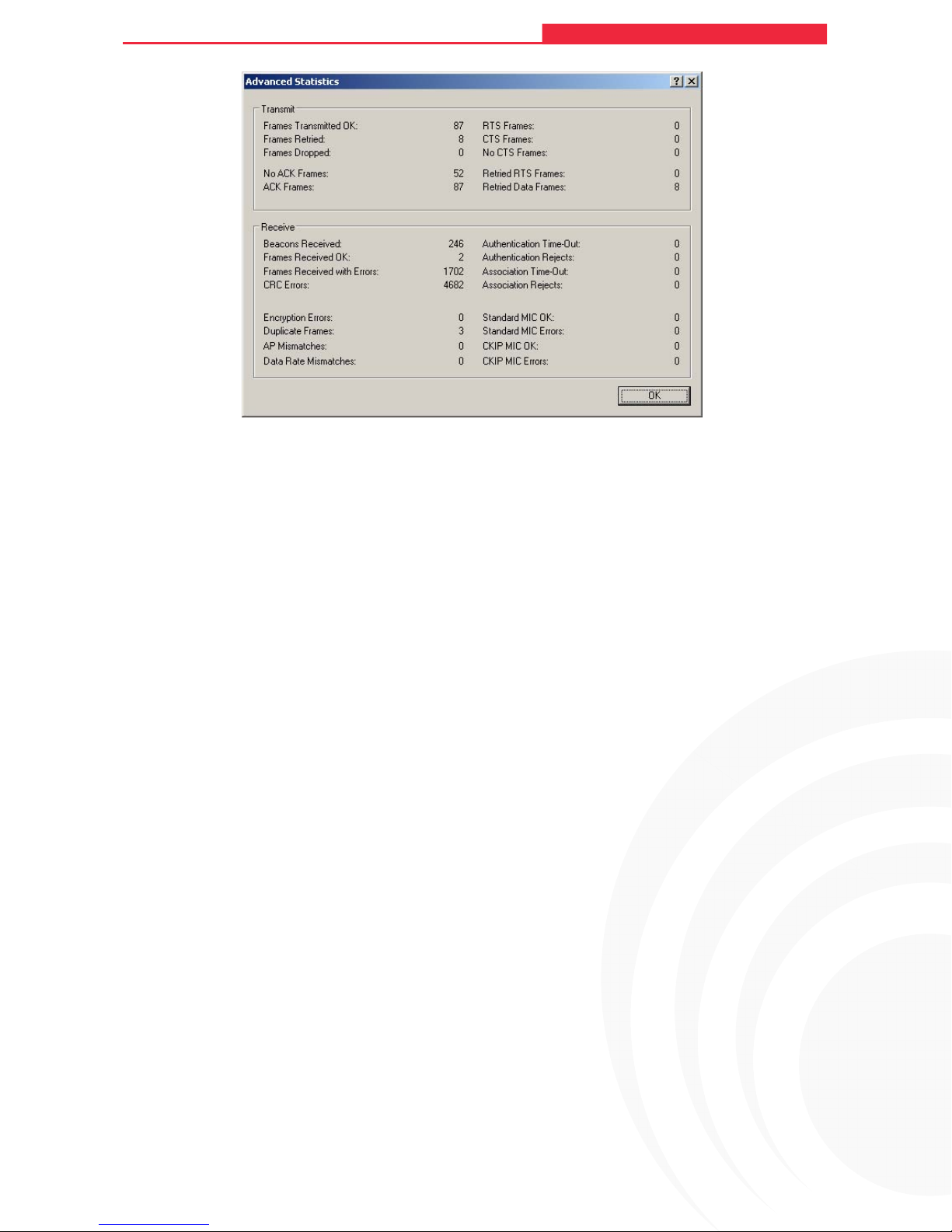
3.3.2 Check Receive and Transmit Statistical Information
The Advanced Statistics show receiving and transmitting statistical information for the
following receive and transmit diagnostics for frames received by or transmitted to the wireless
network adapter.
21
Page 27
MAXNET WP7300-SG
108M Wireless Adapter User Guide
108M Wireless Access Point User Guide
Figure 3- 13 Advanced S tatistics
22
Page 28
108M Wireless Adapter User Guide
MAXNET WP7300-SG
108M Wireless Access Point User Guide
Chapter 4 Configuration for windows Vista
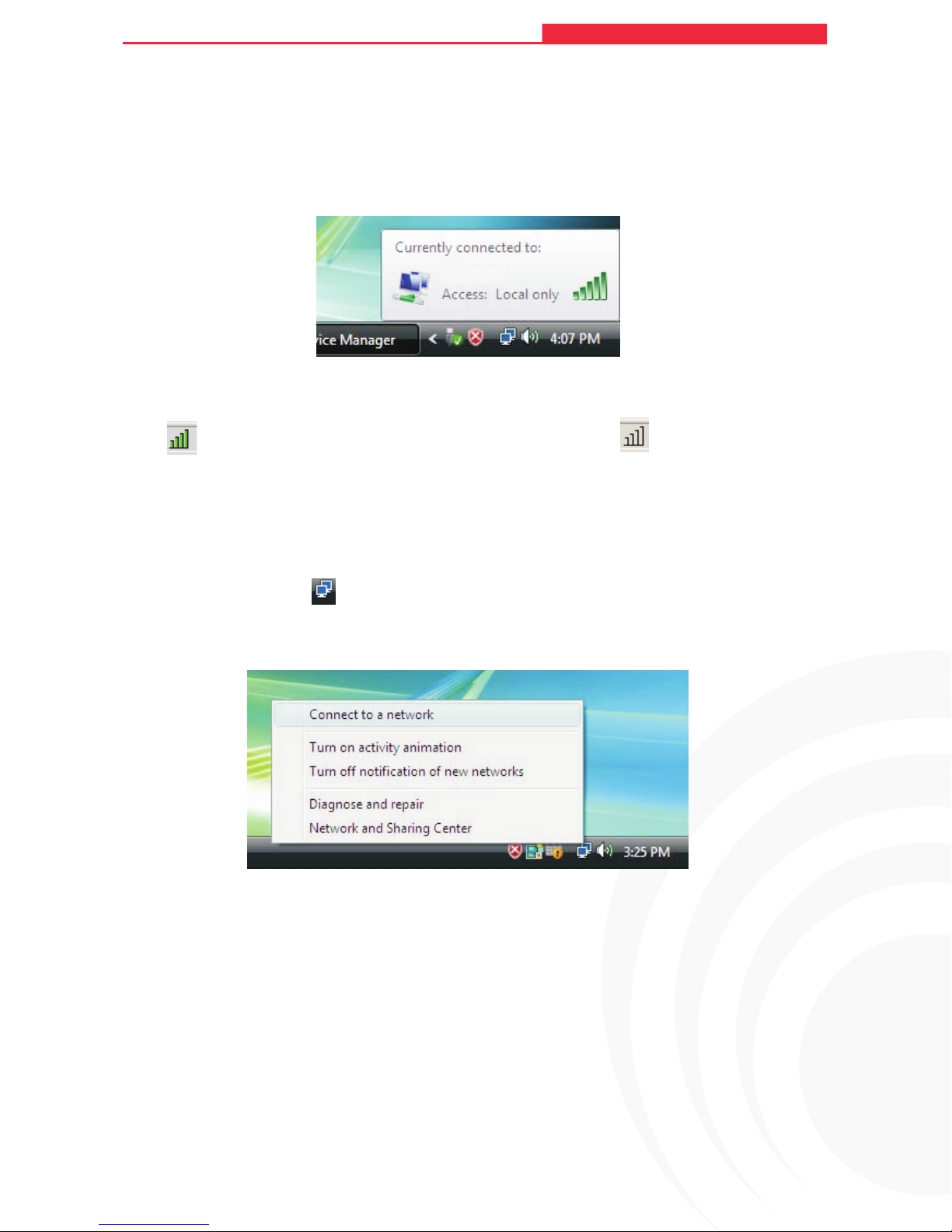
After the Adapter's driver has been installed, Windows Vista will display a wireless Network
Connection message like this one.
MAXNET
Figure 4-1
Icon
connection.
If the icon does not appear, please follow the steps below. If the icon still does not appear, the
driver may be installed incorrectly or the adapter is unplugged, please try again.
1. Right-click the icon
means the connection has been established. Icon means the re is no
in your system tray, then click Connect to a network .
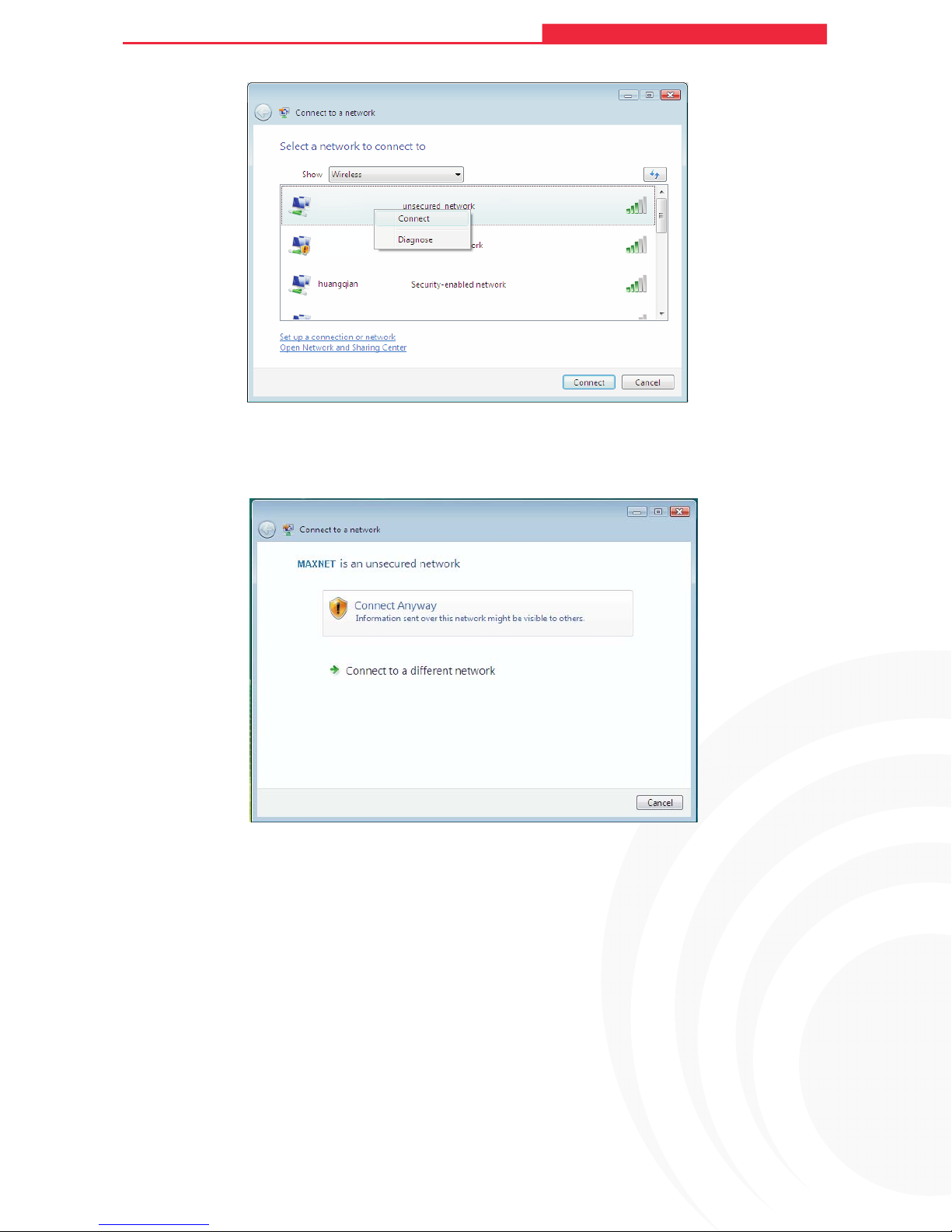
2. The screen t h at appears will show you many available wireless networks. Highlight the
network that you want, and then click Connect.
Figure 4-2
23
Page 29
108M Wireless Adapter User Guide
MAXNET WP7300-SG
MAXNET
MAXNET
108M Wireless Access Point User Guide
Figure 4-3
3. To continue,click Connect Anyway. Click the Cancel button to end the Installation.
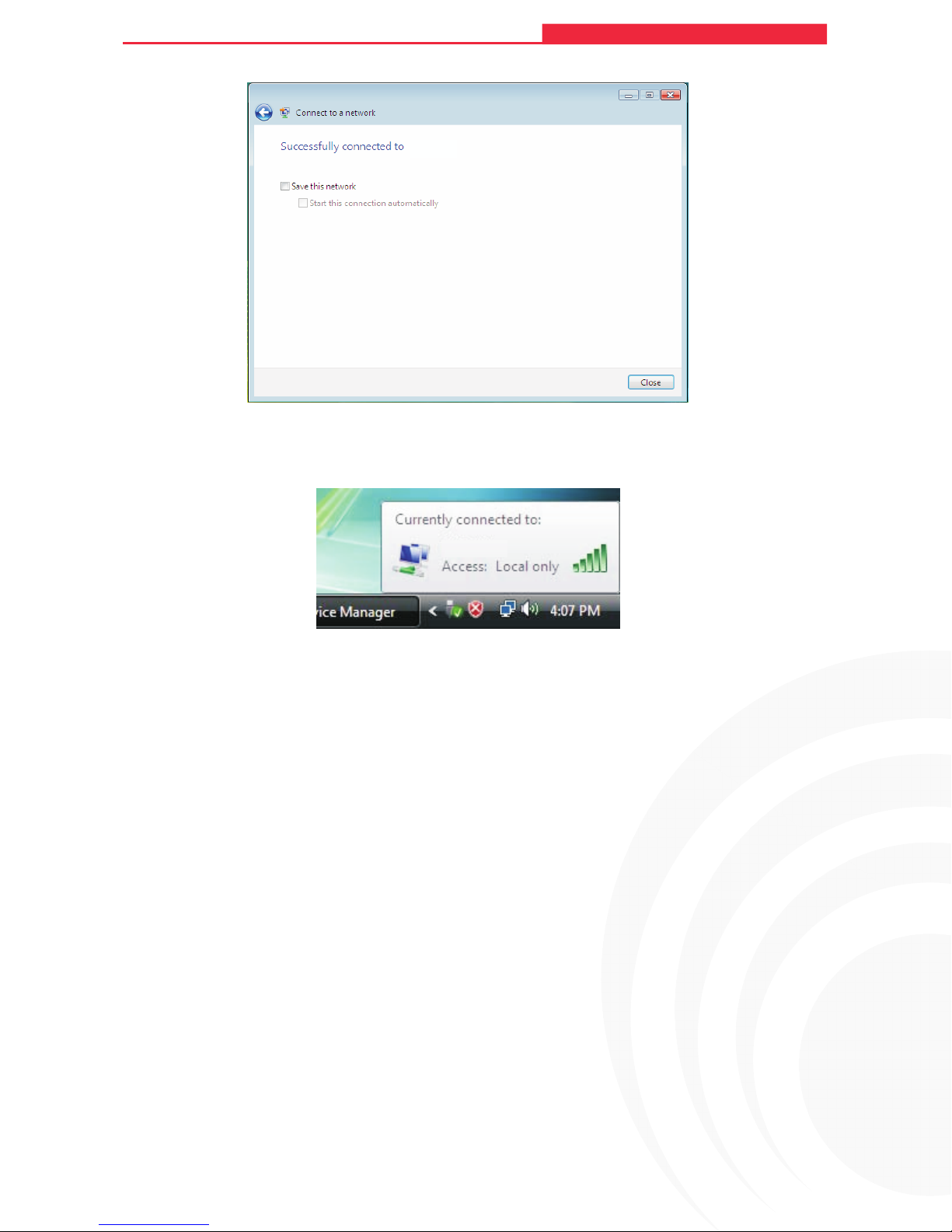
4. After t h at, the installation will proceed as shown below, click close.
Figure 4-4
24
Page 30
MAXNET WP7300-SG
108M Wireless Adapter User Guide
MAXNET
108M Wireless Access Point User Guide
Figure 4-5
5. The screen below will appear if the connection is successful.
MAXNET
Figure 4-6
25
Page 31
MAXNET WP7300-SG
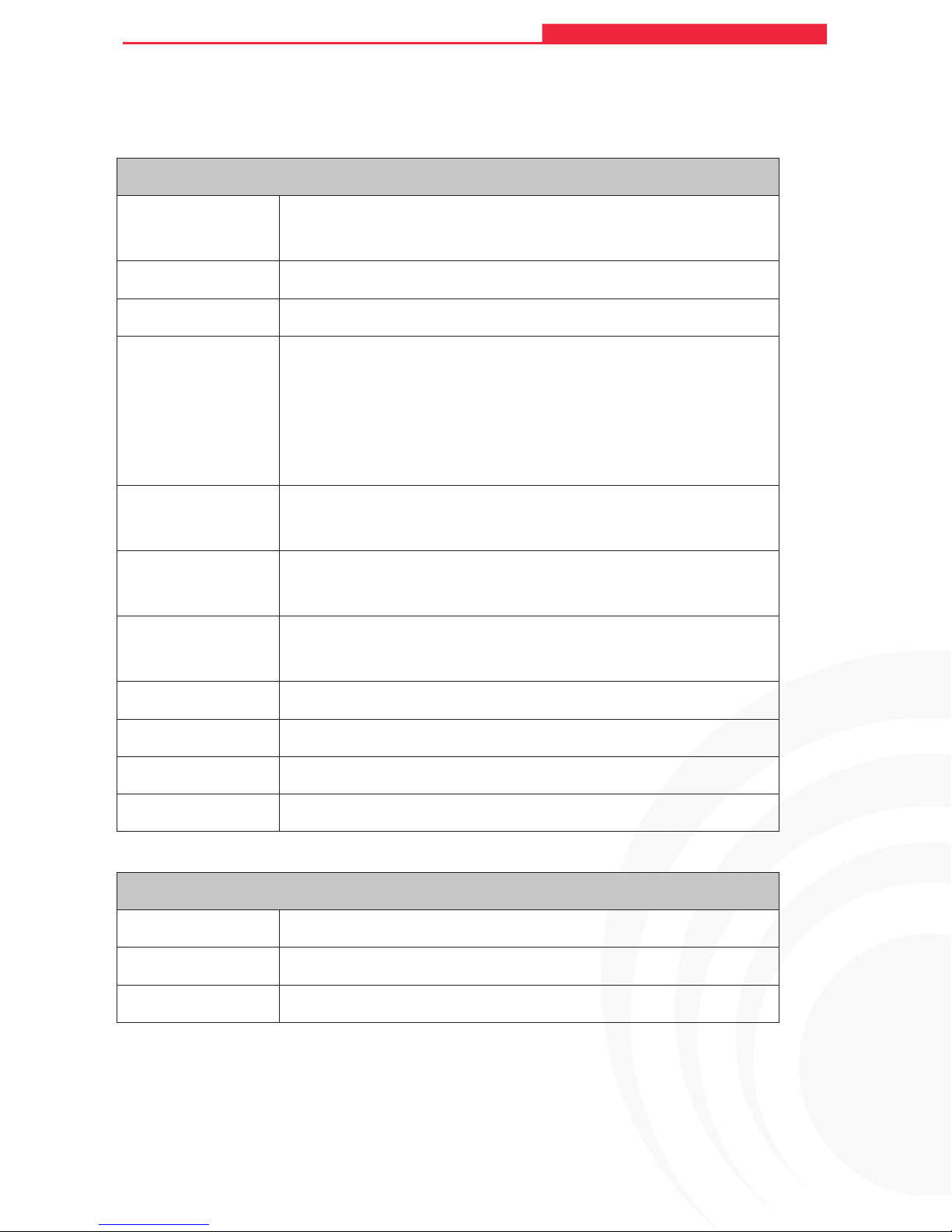
Appendix A: Specifications
Normal
108M Wireless Adapter User Guide
108M Wireless Access Point User Guide
Interface
Standards IEEE802.11b; IEEE802.11g
Operating System Windows 98SE, Me, 2000, XP, Vista
Transmission
Distance
Radio Data Rate
Modulation
Media Access
Protocol
WP7300-SG PCI ADAPTER WIRELESS
Indoor up to 100m, outdoor up to 300m (Standard transmission
distance, It is limited to the environment).
Indoor up to 200m, Outdoor up to 830m (Adopt 2x to 3x eXtended
TM
Range
environment)
108-54/48/36/24/18/12/9/6Mbps or 11/5.5/3/2/1Mbps
(Auto Rate Sensing)
1M DBPSK; 2M DQPSK; 5.5M, 11M CCK; 6M, 9M, 12M, 18M,
24M, 36M, 48M, 54M, 108M OFDM;
CSMA/CA with ACK
WLAN transmission technology, it is limited to the
Data Security WPA/WPA2; 64/128/152-bit WEP; TKIP/AES
Frequency 2.4 ~ 2.4835GHz
Spread Spectrum Direct Sequence Spread Spectrum (DSSS)
Safety & Emissions FCC, CE
Environmental and Physical
Operating Temp. 0 ~40 (32 ~104 )
Storage Temp. -40 ~ 70 (-40 ~158 )
Humidity 10% ~ 95% RH, Non-condensing
°C °C
°C °C
°F °F
°F °F
26
Page 32

MAXNET WP7300-SG
Appendix B: Glossary
108M Wireless Adapter User Guide
108M Wireless Access Point User Guide
108M Super GTM WLAN Transmission Technology -
108M Super GTM WLAN
Transmission Technology employs multiple performance-enhancing techniques including
packet bursting, fast frames, data compression, and dynamic turbo mode that combine to
improve the throughput and range of wireless networking products. Users can experience
link rates of up to 108Mbps, twice the industry-standard maximum data link rate of 54Mbps,
while preserving full compatibility with traditional 802.11g or 802.11b networks. 108M Super
GTM products offer the highest throughput performance available on the market today. In
dynamic 108M mode, the device can attach 802.11b, 802.11g and 108Mbps Super GTM
devices at the same time in an integrated environment.
TM
2x to 3x eXtended Range
2x to 3x eXtended Range
WLAN Transmission Technology - The WLAN device with
TM
WLAN transmission technology make its sensitivity up to 105 dB,
which gives users the ability to have robust, longer-range wireless connections. With this
TM
range-enhancing technology, a 2x to 3x eXtended Range
based client and access point can
maintain a connection at as much as three times the transmission distance of traditional 802.11b
and 802.11g products, for a coverage area that is up to nine times greater. A traditional 802.11b
and 802.11g product transmission distance is about 300m, A Maxnet 2x to 3x eXtended
TM
Range
based client and access point can maintain a connection transmission distance may be
up to 830m.
802.11b - The 802.11b standard specifies a wireless product networking at 11 Mbps using
direct-sequence spread-spectrum (DSSS) technology and operating in the unlicensed
radio spectrum at 2.4GHz, and WEP encryption for security. 802.11b networks are also
referred to as Wi-Fi networks.
802.11g - specification for wireless networking at 54 Mbps using direct-sequence
spread-spectrum (DSSS) technology, using OFDM modulation and operating in the
unlicensed radio spectrum at 2.4GHz, and backward compatibility with IEEE 802.11b
devices, and WEP encryption for security.
Ad-hoc Network - An ad-hoc network is a group of
computers, each with a wireless
adapter, connected as an independent 802.11 wireless LAN. Ad-hoc wireless computers
operate on a peer-to-peer basis, communicating directly with each other without the use of
an access point. Ad-hoc mode is also referred to as an Independent Basic Service Set
(IBSS) or as peer-to-peer mode, and is useful at a departmental scale or SOHO operation.
DSSS (Direct-Sequence Spread Spectrum) - DSSS generates a redundant bit pattern for
all data transmitted. This bit pattern is called a chip (or chipping code). Even if one or more
bits in the chip are damaged during transmission, statistical techniques embedded in the
receiver can recover the original data without the need for retransmission. To an
unintended receiver, DSSS appears as low power wideband noise and is rejected (ignored)
27
 Loading...