

Page 1
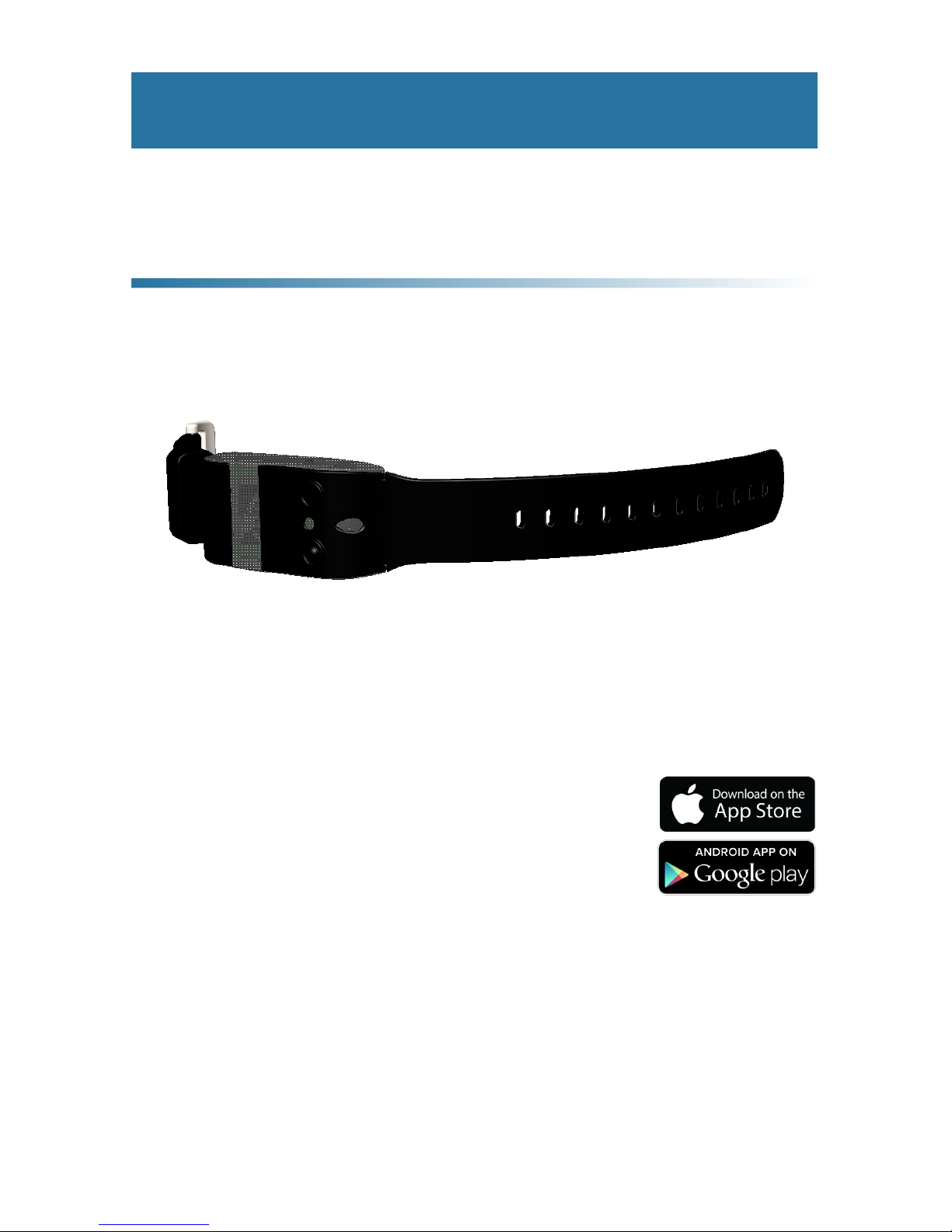
User’s Manual
5425 crossings boulevard
antioch, tn 37013 usa
p: 800.637.2980
f: 888.411.9027
Informational videos available at
www.max-mobility.com
max mobility, llc
®
Rev.
PushTracker
PT1-USM Rev. A
Wheelchair Activity Monitor
It is STRONGLY recommended to contact
MAX Mobility directly for service if you
live inside the U.S. and your device is still
under warranty!
To get the most out of your PushTracker, download the
PushTracker App from the Apple or Google Play Store.
Page 2

I max mobility
®
PushTracker User’s Manual II
Speci cation Sheet
Manufacturer: Max Mobility, LLC
Address:
Phone : (615) 953-5350 / Toll-Free (800) 637-2980
PushTracker Model: 1
Contained battery type: Lithium-Ion (Lithium-Ion Polymer)
Nominal operating voltage: 3.8 V
Electric charge: 90 mA-h
Wireless operating band: 2.4 GHz (2.4000 to 2.4835 GHz)
Wireless power transmission: 0 dBm to -23 dBm
Expected lifetime (except battery) / service life: 5 years
Expected battery lifetime:
2 years
Contains Bluetooth® LE: FCC ID QOQBT113
IC ID 5123A-BGTBLE113
Water resistance: IPX4 (Splash proof ) - Do not shower
with the device or submerge it in water.
Wrist circumference range: Small 4.5 to 6 in (114 to 152 mm)
Medium 6 to 7.25 in (152 to 184 mm)
Large 7.25 to 9 in (184 to 229 mm)
Band width: 0.70 in (18 mm)
Band material: ermoplastic Elastomer (TPE) - Latex-
Free and completely Biocompatible
Display: OLED (64 x 32 pixel)
PushTracker
Wheelchair Activity Monitor
www.max-mobility.com
5425 Crossings Blvd.
Antioch, TN 37013
USA
PT1-SPS Rev. A
Page 3
Table of Contents
1. Introduction 1
Intended Use of the PushTracker . . . . . . . . . . . . . . . .1
Warnings and Safety Precautions . . . . . . . . . . . . . . .1
Electromagnetic Interference (EMI) . . . . . . . . . . . . . .2
Bluetooth Wireless Communication . . . . . . . . . . . . . .2
List of Components . . . . . . . . . . . . . . . . . . . . . .3
2. Using Your PushTracker 3
Attaching Your PushTracker . . . . . . . . . . . . . . . . . .3
Button Function . . . . . . . . . . . . . . . . . . . . . . .4
Display Information . . . . . . . . . . . . . . . . . . . . .4
Power Assist Activated . . . . . . . . . . . . . . . . . . . .4
Sleep Mode . . . . . . . . . . . . . . . . . . . . . . . . .4
Connecting to the App . . . . . . . . . . . . . . . . . . . .5
3. Settings Menu 5
Settings Descriptions . . . . . . . . . . . . . . . . . . . . .5
SmartDrive Settings . . . . . . . . . . . . . . . . . . . . .6
4. Battery 6
Battery Information . . . . . . . . . . . . . . . . . . . . .6
PushTracker Battery Charging . . . . . . . . . . . . . . . . .7
5. Maintenance 7
Inspection . . . . . . . . . . . . . . . . . . . . . . . . . .7
Cleaning . . . . . . . . . . . . . . . . . . . . . . . . . .7
Other Maintenance. . . . . . . . . . . . . . . . . . . . . .8
Troubleshooting . . . . . . . . . . . . . . . . . . . . . . .8
6. Warranty 8
Manufacturer’s Contact Information . . . . . . . . . . . . . .8
7. EC Authorized Representative 8
Page 4

1 max mobility
®
PushTracker User’s Manual 2
Intended Use of the PushTracker
e PushTracker is intended to be used to operate the SmartDrive Wheelchair
Power Assist device and to monitor your wheelchair activity.
Warnings and Safety Precautions
Handling or use of the PushTracker or SmartDrive by anyone who has
not received proper instruction from this manual or the SmartDrive User’s
Manual may result in serious injury or death.
1. Introduction
Always inspect your PushTracker for missing parts / damage prior to each use [see
the “Maintenance” section for parts to pay attention to].
Make sure the PushTracker is charged before use.
When crossing major roads, intersection, railway crossings or highways as well as
when you drive steep, long slopes you should always consider having somebody
accompany you in the interest of your safety.
e PushTracker should ONLY be worn by the user sitting in the wheelchair with
the SmartDrive attached.
Always turn OFF the power assist (via PushTracker) when parked to prevent
accidental activation.
Always turn OFF the power assist (via PushTracker) before taking the
PushTracker o of your wrist.
Always use caution when transferring in or out of the wheelchair. Every precaution should be taken to reduce the transfer distance and be certain the wheel locks
are engaged to prevent the wheels from moving. Also always make sure the power
assist is OFF (via PushTracker) when transferring to and from your chair.
e PushTracker has passed industry climate testing, the same as power
wheelchairs, and is considered rain / splash proof. Complete submersion of either
may cause malfunction or damage and void the warranty.
Take the PushTracker o prior to bathing or showering.
Any modications to the PushTracker will void the warranty and may create a
safety hazard.
All warnings and safety precautions issued by one’s wheelchair
manufacturer must be heeded in addition to those stated in this
manual. Failure to do so could result in serious injury or death.
Page 5

NOTES:
PushTracker Serial Number: __________________________
Figures and diagrams of the PushTracker in this manual may vary slightly from
your device.
An electronic version of this User’s Manual along with informational videos are
available on our website [www.max-mobility.com / www.pushtracker.com] for
people with visual, reading or cognitive disabilities.
e Serial Number of your PushTracker is located on the bottom of the
PushTracker housing.
It is recommended that you save this User’s Manual and record the Serial Number
below for reference.
Electromagnetic Interference (EMI)
Refer to the SmartDrive User’s Manual for EMI specications.
USA / Canada
is device complies with Part 15 of the FCC rules. Operation is subject to the following two conditions: (1) is device may not cause harmful interference, and (2)
this device must accept any interference, including interference that may cause undesired operation. Any changes or modications not expressly approved by the party
responsible for compliance could void the user’s authority to operate the equipment.
Bluetooth® Wireless Communication
Bluetooth® wireless communication [2.4 GHz frequency band] is used by the
PushTracker to communicate to the SmartDrive when to activate/deactivate the
power assist, send and receive signals from a smartphone, etc. e PushTracker
must be within 25 ft (8 meters) of the SmartDrive / smartphone to connect
and communicate. e maximum output power of this technology is 10 mW,
and the operation of this device in close proximity to other wireless devices [i.e.
electromagnetic security systems, Bluetooth® headsets, etc.] could cause the device
to lose connection. Power assist is always deactivated whenever the motor is driving
and there is a loss of connection; the SmartDrive will beep and PushTracker will also
give indication when this happens. Worst case coexistence testing was performed
on the device to ensure its safety and eectiveness. Please contact Max Mobility
immediately for troubleshooting if continuous connection issues are experienced with
the device.
Page 6

3 max mobility
®
PushTracker User’s Manual 4
6
10
8
1
2
7
4
3
9
1. OLED Display
2. Power Assist Button
3. App Connection Button
4. Charging LED
5. Indication LED
6. Buckle Band (Black)
7. Clasp Assembly
8. Strap Band (3 Sizes / Black)
9. USB Charging Port
10. Strap Holder
List of Components
2. Using Your PushTracker
Attaching Your PushTracker
e PushTracker is designed to comfortably and securely attach to the top part of
wrists of all sizes. It has an embedded accelerometer to recognize when you push,
when you want to activate the power assist and also when you tap your hand against
the handrim to deactivate the power assist. Additionally, it is equipped with an
OLED screen, LEDs and vibration motor to indicate dierent information, states
and activations / deactivations that occur during everyday use.
e band on the PushTracker (see Specication Sheet for material) is designed for
most users; but if you have diculty securing the buckle / clasp, it doesn’t t right, or
you wish to have one of a dierent color / material, the band can be easily replaced
with essentially any 0.70 in (18 mm) wide o-the-shelf watch band of your choosing.
Press and release to
turn Power Assist
ON and OFF
5
It is recommended that the PushTracker be worn snug on your wrist to
get the most reliable recognition of your hand movement for SmartDrive
operation, propulsion activity tracking, etc.
Button Function
Page 7

Once the power assist is turned ON [OLED displays “SD ON”] and the PushTracker is connected to the SmartDrive, the Indication LED will ash blue. When the
SmartDrive motor is driving, the Indication LED will be solid blue. e Indication
LED will ash red when the PushTracker is trying to connect or has lost wireless
connection to the SmartDrive. Whenever there is a change of state to the SmartDrive, you will feel vibration as additional indication from the PushTracker.
Display Information
Slowly SINGLE tap the PushTracker Display to scroll through the dierent items.
It is recommended that you turn OFF the power assist before tapping the
display. Accidental power assist activation may occur if power assist is ON.
Time
Displays the current time in 12 or 24 hour format [see
the “Settings Menu” section for details on changing].
Pushes
Displays the current number of pushes performed
that day. is number resets each day at midnight.
Battery Level
Displays the current battery level of the PushTracker
and SmartDrive [from the last time they were
wirelessly connected].
Coast Time
Displays the average coast time in seconds for the
current day. is number resets each day at midnight.
Distance
Displays the distance traveled by the SmartDrive for
the current day in the units you have selected [see
the “Settings Menu” section for details on changing].
is number resets each day at midnight.
App Connection
Displays when the PushTracker is attempting to connect to
the App [see “Connecting to the App” section for details].
Power Assist Activated
When power assist is ON and the SmartDrive motor is driving, the PushTracker
will display your current speed in the units that you have selected [see the “Settings
Menu” section for details on changing]. e Indication LED will light up with various colors to notify you of the SmartDrive’s current state.
Sleep Mode
Press and hold the Power Assist Button for three (3) seconds to place your PushTracker
into sleep mode. is will help to conserve the battery when your PushTracker is not in use.
Page 8

5 max mobility
®
PushTracker User’s Manual 6
3. Settings Menu
Settings Descriptions
Press and hold the App Connection Button for three (3) seconds to enter the settings menu.
Settings Menu Displays when you are entering the Settings Menu.
SmartDrive Settings
Select this to go to the submenu to adjust
the way your SmartDrive works [see
“SmartDrive Settings” for menu options].
Time & Date
Set the date and time manually. For
most accurate results, connect to the
PushTracker App and it automatically
uses the time from your smartphone. Here
you can switch between 12 and 24 hr
display.
App Pairing
Initial pairing to the PushTracker App.
Make sure Bluetooth® is enabled and the
App is open on your smartphone when
doing this!
SmartDrive Pairing
Re-pairing or pairing a new PushTracker
to a SmartDrive. Make sure there aren’t
any other SmartDrives on in the vicinity
when doing this!
Units
Set either Imperial (mi and mph) or
Metric (km and km/h) units.
Exit Exit the Settings Menu.
Press and release
to attempt to
connect to the
App
Connecting to the App
e PushTracker must be paired with a phone prior to using the App [see the “Settings Description” section for pairing information].
Page 9

4. Batteries
Battery Information
e PushTracker houses a rechargeable Lithium Ion Polymer (LIP) battery used to
power it.
e battery is designed to last for an entire day of SmartDrive operation and
wheelchair propulsion activity monitoring. Low PushTracker battery is indicated by a
ashing battery symbol on the display.
It is encouraged to charge the battery every night to avoid running out of charge
during daily use. e life of the battery will not be deteriorated by charging when it is
partially drained.
Make sure the charging receptacle is completely dry and free from debris. Blow water
out of the receptacle if you suspect there being water in it.
Refer to the SmartDrive User’s Manual for its battery information.
SmartDrive Settings
See User’s Manual
Refer to this and the SmartDrive User’s
Manual prior to changing any settings.
Max Speed
Adjust the maximum drive speed of the
SmartDrive [refer to the SmartDrive
User’s Manual for more information].
Defaults to 70% or 4 mph (6 km/h).
Acceleration
Adjust the acceleration / speed ramp
rate of the SmartDrive for select Control
Modes [refer to the SmartDrive
User’s Manual for more information].
Defaults to 50% or 1.0 ft/s2, and the
lower the percentage is set the slower the
SmartDrive will accelerate.
Tap Sensitivity
Adjust the tap sensitivity of the PushTracker [refer to the SmartDrive User’s
Manual for more information]. Defaults
to 100%, and the lower the percentage is
set the HARDER you need to tap [LESS
sensitive it is].
Control Mode
Change the Control Mode of your
SmartDrive [refer to the SmartDrive
User’s Manual for more info].
Exit
Return back to Main Menu.
Page 10

7 max mobility
®
PushTracker User’s Manual 8
5. Maintenance
Inspection
Always inspect the PushTracker for missing parts / damage prior to each use. Cease
use and contact Max Mobility or your mobility equipment dealer if you notice any of
the following:
• Broken or cracked plastic
• Missing or loose screws
• Charging port damage
• Broken buckle or ripped bands
• Damaged Display
Cleaning
Cleaning of the PushTracker can be done by wiping all of the parts down with a
damp wash rag. is should be done as needed.
Do not throw away the PushTracker. Please properly
dispose of the battery by recycling at the end of its life or
send it back to Max Mobility.
PushTracker Battery Charging
Plug the provided wall adapter into a wall outlet and plug the USB cable [standard
USB type A] plug into the wall adapter [this can also be done prior to plugging
into the wall]. en plug the USB connector [standard USB type micro-B] into the
small port on the side of the PushTracker module making sure the it is powered o.
e charging LED indicator light on the PushTracker will be red while the unit is
charging, and will turn green once the battery is fully charged. e PushTracker can
be charged using any standard USB [type A] port found on a computer, car charger
with USB plug, etc. and any type A to micro-B cable. e estimated charge time for a
full recharge of the PushTracker battery is approximately 1.5 hours.
Always store and charge the PushTracker in a cool, dry area. Hot and damp
environments can damage or short the unit, requiring a costly replacement.
Make sure the charging receptacles are completely dry before plugging in the
charger, for this can cause a spark or short.
Also, never attempt to use the PushTracker while charging.
Do not shower or bathe with the PushTracker on.
Page 11

Other Maintenance
Contact Max Mobility or your mobility equipment dealer for any other maintenance
or replacements [i.e. PushTracker battery] that the device might need.
Troubleshooting
Contact Max Mobility or your mobility equipment dealer for any other issues that
you experience with the device.
6. Warranty
Max Mobility oers a 2 year warranty against manufacturing defects. Max Mobility’s
obligation under this warranty shall be limited to repairing or providing replacement
of part(s), which are found to be defective. Any part(s) of the system replaced by us
at our discretion shall be with a functionally operative part.
is warranty may be voided if: 1) the product is not used according to instructions given in this instruction manual, 2) defects were caused by improper use as
determined by the company personnel, 3) modication or alteration of any nature is
made in the electrical circuitry or physical construction, or 4) defects are due to cause
beyond control like lightning, abnormal voltage or while in transit at the purchaser’s
place of business.
Manufacturer’s Contact Information
Manufacturer: Max Mobility, LLC
Address: 5425 Crossings Blvd.
Antioch, TN 37013
USA
Phone: (615) 953-5350 / Toll-Free (800) 637-2980
Fax: (888) 411-9027
Website: www.max-mobility.com / www.pushtracker.com
Email: support@max-mobility.com
7. European Commission (EC)
Authorized Representative
Advena Ltd.
Pure Oces
Plato Close
Warwick CV34 6WE
United Kingdom
Page 12

 Loading...