

Page 1

MUC1004/2008/2016 Administrator guide
Http://www.maxincom.com 1 / 112
MUC1004/2008/2016
IP PBX
Administrator guide V1.1
Version 12.1.0.14
Xiamen Maxincom Technologies Co., Ltd.
Page 2

MUC1004/2008/2016 Administrator guide
Http://www.maxincom.com 2 / 112
Table of Contents
1. Introduction .............................................. 5
1.1 Overview ............................................................................................... 5
1.2 Product Features .................................................................................... 5
1.3 Product Appearance ................................................................................ 6
1.4 Scenario of Application ............................................................................ 9
2. Installation Guide .................................... 10
2.1 Installation Notice ................................................................................. 10
2.2 Installation Procedure ........................................................................... 10
2.2.1 Connect Drawing ......................................................................... 10
3. WEB Interface Configuration .................. 11
3.1 Access MUC2008 unit ............................................................................ 11
3.2 Parameters Configuration ...................................................................... 12
3.3 System Information .............................................................................. 13
3.3.1 System Information ..................................................................... 13
3.3.2 Extensions Status ........................................................................ 14
3.3.3 Trunk Status ............................................................................... 14
3.4 Network Configuration .......................................................................... 15
3.4.1 LAN Configuration ....................................................................... 15
3.4.2 VLAN Configuration ..................................................................... 17
3.4.3 ARP Configuration ....................................................................... 19
3.4.4 VPN Configuration ....................................................................... 20
3.4.5 DDNS Server............................................................................... 21
3.4.6 Static Route ................................................................................ 21
3.4.7 DHCP Server ............................................................................... 23
3.5 Trunks ................................................................................................. 24
3.5.1 Physical Trunks(PSTN and GSM Trunks) ........................................ 24
3.5.2 IP Trunk (Peer to Peer Mode) ....................................................... 28
Page 3

MUC1004/2008/2016 Administrator guide
Http://www.maxincom.com 3 / 112
3.5.3 VoIP Trunk ................................................................................. 30
3.6 PBX Basic ............................................................................................. 34
3.6.1 Extensions .................................................................................. 34
3.6.2 Feature Codes............................................................................. 45
3.6.3 Speed dial .................................................................................. 49
3.6.4 Outbound Routes ........................................................................ 50
3.6.5 Parking Lot ................................................................................. 54
3.6.6 Time Groups ............................................................................... 55
3.6.7 General Preferences .................................................................... 57
3.7 PBX Inbound Call Control ...................................................................... 59
3.7.1 Inbound Routes .......................................................................... 59
3.7.2 Blacklist ...................................................................................... 64
3.7.3 IVR ............................................................................................ 64
3.7.4 Queue ........................................................................................ 67
3.7.5 Ring Groups ................................................................................ 71
3.7.6 Conferences ............................................................................... 73
3.7.7 Callback ..................................................................................... 75
3.8 PBX Advanced Settings ......................................................................... 76
3.8.1 SIP settings ................................................................................ 76
3.8.2 IAX Setting ................................................................................. 82
3.8.3 PIN Sets ..................................................................................... 83
3.8.4 PIN Users ................................................................................... 84
3.8.5 DISA .......................................................................................... 85
3.8.6 Paging and Intercom ................................................................... 87
3.9 Voice Management ............................................................................... 88
3.9.1 System Recordings ...................................................................... 88
3.9.2 Music on Hold ............................................................................. 89
3.9.3 Voicemail Settings ....................................................................... 91
3.9.4 System Prompts Settings ............................................................. 92
3.10 System Preferences ............................................................................ 94
Page 4

MUC1004/2008/2016 Administrator guide
Http://www.maxincom.com 4 / 112
3.10.1 Firewall Rules ............................................................................ 94
3.10.2 Security Info ............................................................................. 96
3.10.3 Firmware update ....................................................................... 97
3.10.4 Data Backup ............................................................................. 99
3.10.5 Data Restore ............................................................................. 99
3.10.6 Password ................................................................................. 100
3.10.7 Time & Date ............................................................................ 100
3.10.8 Reset ...................................................................................... 101
3.10.9 Reboot .................................................................................... 101
3.11 Phone Provisioning............................................................................. 102
3.11.1 General Settings ....................................................................... 102
3.11.2 Phones .................................................................................... 103
3.12 Reports ............................................................................................. 104
3.12.1 CDR Report .............................................................................. 104
3.12.2 System Logs ............................................................................ 105
3.12.3 Firewall Logs ............................................................................ 106
3.12.4 Trace Logs ............................................................................... 106
3.13 System tools ..................................................................................... 108
3.13.1 SMTP Parameter ...................................................................... 108
3.13.2 AMI Settings ............................................................................ 109
3.13.3 Ping ........................................................................................ 110
3.13.4 Tracert .................................................................................... 110
3.13.5 Packet Capture ......................................................................... 111
3.13.6 Text to Wav ............................................................................. 112
3.13.7 Certificates .............................................................................. 112
Page 5

MUC1004/2008/2016 Administrator guide
Http://www.maxincom.com 5 / 112
1. Introduction
1.1 Overview
MUC Series PBX—IP PBX for Small Business/Home Office
MUC1004/2008/2016 IP PBX is a standalone embedded hybrid PBX for small
businesses and remote branch offices of larger organizations. It is designed to
bring enterprise-grade Unified Communications and Security Protection in an
easy-to-manage fashion.
1.2 Product Features
● Alert
● Firewalls
● Blacklist
● HTTPS
● Call Back
● Integrated built-in packet capture
tools
● Call Detail Records(CDR)
● Interactive Voice Response (IVR)
● Call Forward,Call Parking
● Intercom/Zone Prompt
● Call Pickup
● Music On Hold
● Call Recording
● Open VPN
● Call Routing
● Paging/Intercom
● Call transfer
● Phone Provisioning
● Call Waiting
● PIN Users
● Caller ID
● QoS
● Conference
● Queue
● DDNS
● Ring Group
● Define Office Time
● Speed Dial
● Direct Inward System Access
(DISA)
● Spy functions
● Distinctive Ringtone
● Static Route
● Do Not Disturb(DND)
● VLAN
● External Storage
● Voicemail
●T.30,T.38 Faxes
●Alert Settings
●IP Blacklist
●AMI Settings
●Extension CDR
Page 6
MUC1004/2008/2016 Administrator guide
Http://www.maxincom.com 6 / 112
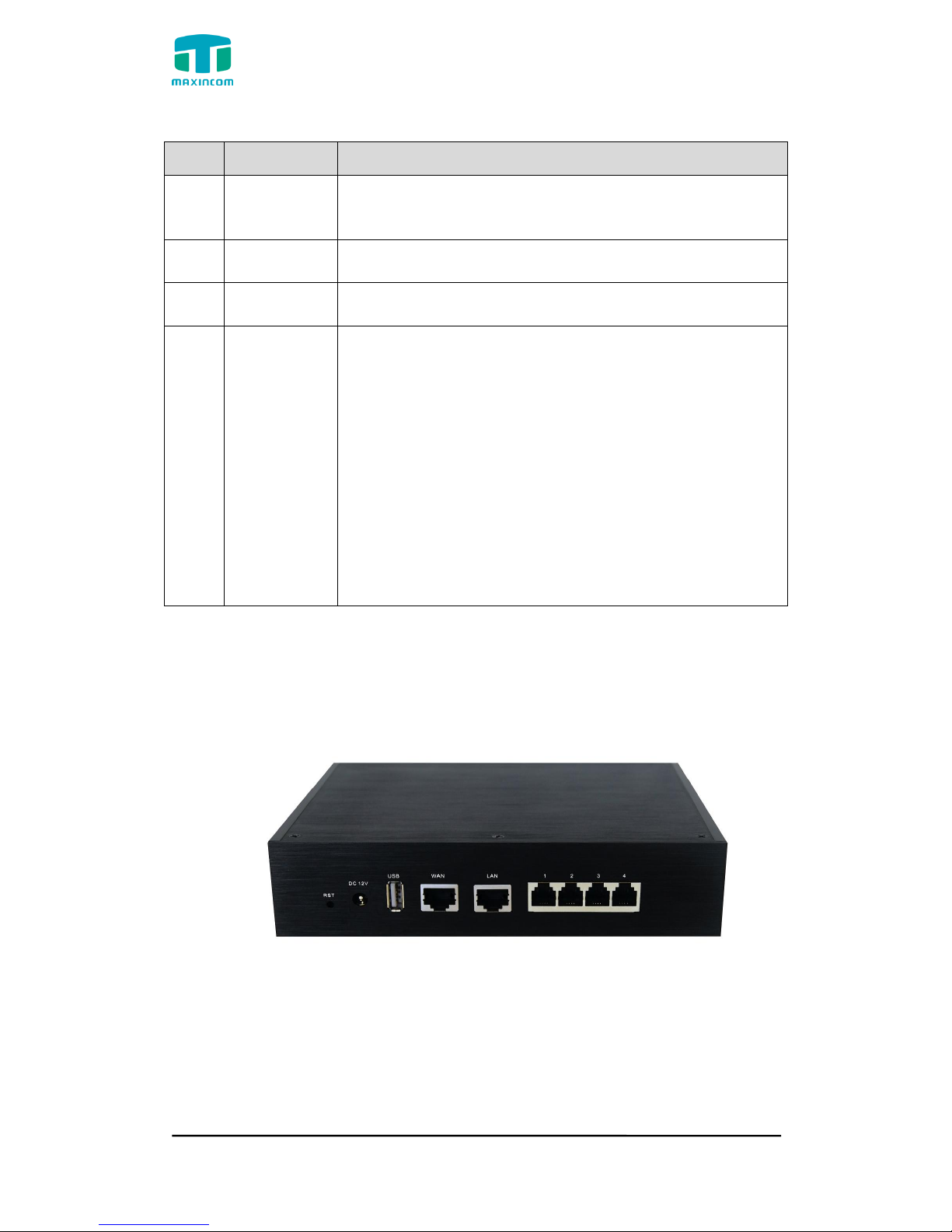
1.3 Product Appearance
The appearance of MUC1004/2008/2016 shows as follow
Figure 1-3-1 Front view of MUC1004
Figure 1-3-2 Front view of MUC2008
Figure 1-3-3 Front view of MUC2016
Page 7
MUC1004/2008/2016 Administrator guide
Http://www.maxincom.com 7 / 112
Table 1-3-1 Description of Front view
Index
Indicators
Description
1
RUN
On: Starting
Off: Abnormal
Blinking every 0.5s: Normal status
2
PWR
On: Power on
Off: Power off
3
WAN,LAN
Green LED: indicates the Internet interface is in Link .
Yellow LED: ON is indicates 100MBps Ethernet port.
4
1~4,(5~8),
(9~16)
Red LED stands for FXO port
Orange LED indicates presence of a BRI port.
Green LED stands for FXS port
Red LED blinks: FXO port isn‟t connected to PSTN line.
Alternately blinks Red and Green: FXO port has an
incoming call.
Alternately blinks Red and Green fast: FXO port is in a
call.
Alternately blinks Green and Red: FXS port is ringing.
Alternately blinks Green and Red fast: FXS port is in a
call.
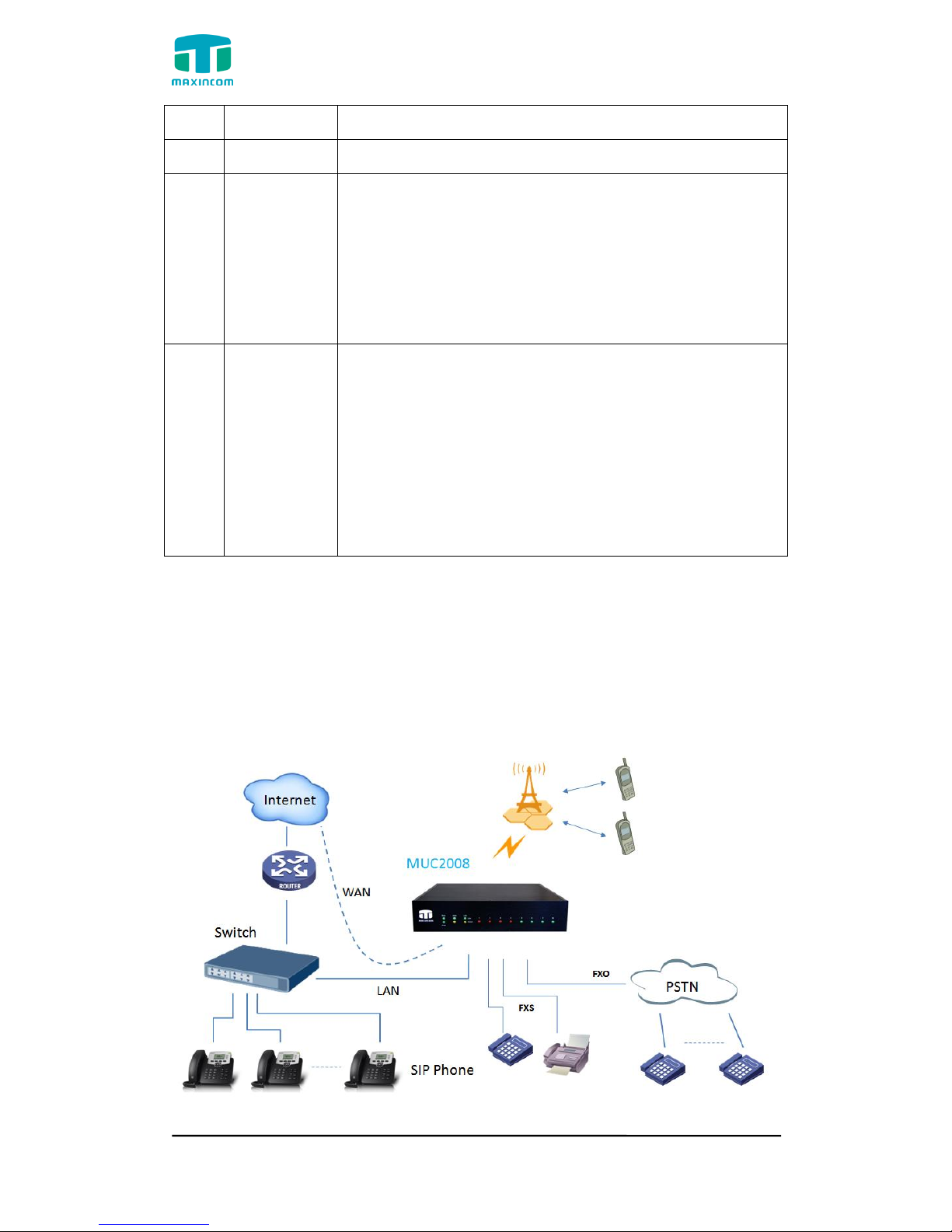
Figure 1-3-4 Rear view of MUC1004
Page 8

MUC1004/2008/2016 Administrator guide
Http://www.maxincom.com 8 / 112
Figure 1-3-5 Rear view of MUC2008
Figure 1-3-6 Rear view of MUC2016
Table 1-3-2 Description of Rear view
Index
Interface
Description
1
RST
Reset button to restore default IP and password or
restore factory setting.
Hold RST button 8 seconds, RUN LED being ON during
this time
2
DC 12V
Power connector of DC power. Input: DC12V 3A/DC12
Page 9
MUC1004/2008/2016 Administrator guide
Http://www.maxincom.com 9 / 112
1A(MUC1004 only)
3
USB
For the storage of call recording files
4
WAN,LAN
MUC2008 provides two 10/100 adaptive RJ45 Ethernet
ports, marked as LAN and WAN.
-LAN port :LAN port is for the connection to Local Area
Network
-WAN port:WAN port is the netword port for the
connection to internet. It supports “DHCP
server”,”PPPoE/dynamic DNS”,and”static IP”for IP
address assignment.
5
1~4,(5~8),
(9~16)
FXO port(red light):For the connection of PSTN lines or
FXS port of traditional PBX.MU2008 uers could make or
receive calls via FXO port.
FXS port(green light):For the connection of analog
phones.
BRI port(orange port):For the connection of ISDN BRI
lines. MU2008 uers could make or receive calls via BRI
port.
Note:The sequence number of the port corresponds to
that of the indicator lights in the front panel.
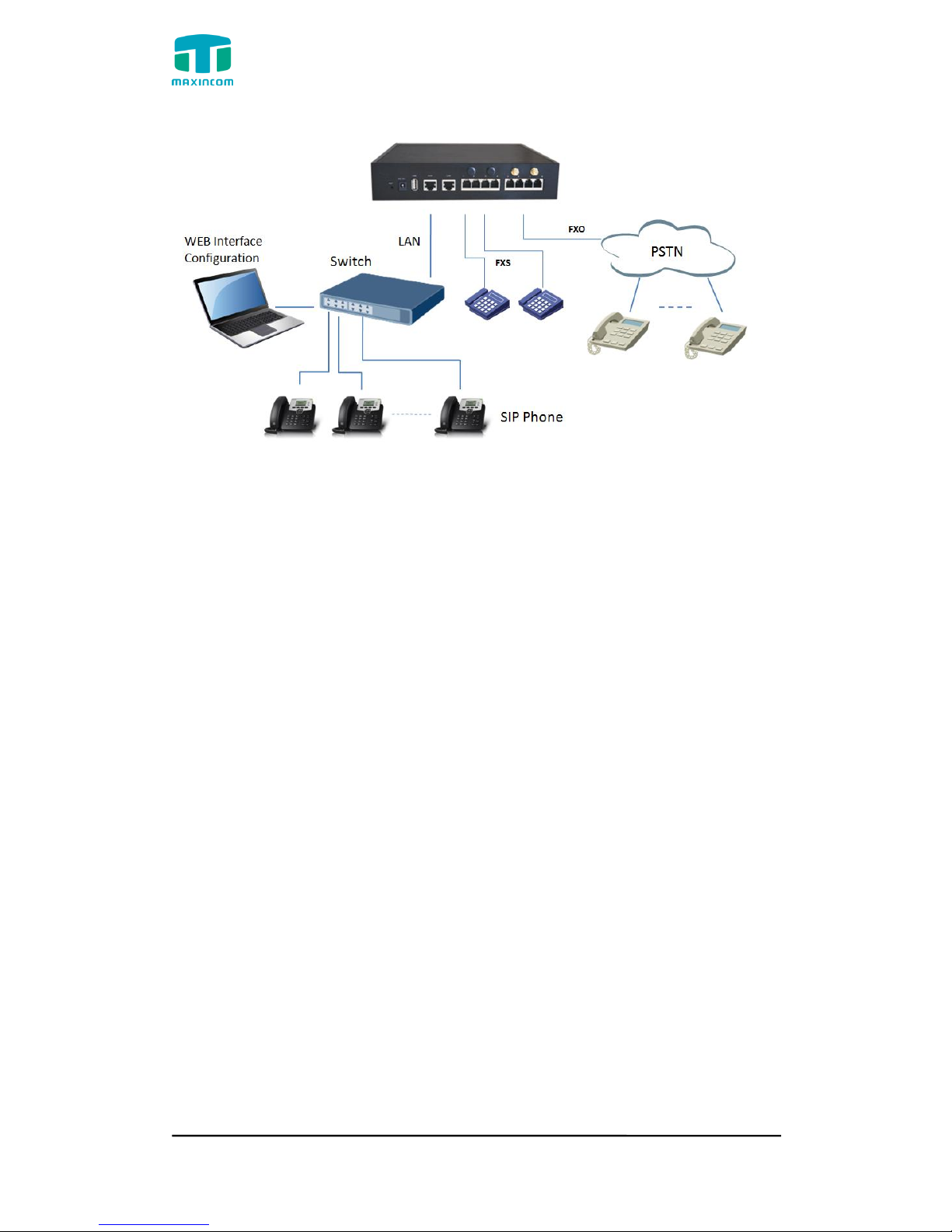
1.4 Scenario of Application
Application 1
Figure 1.4.1
Page 10

MUC1004/2008/2016 Administrator guide
Http://www.maxincom.com 10 / 112
Application 2
Figure 1.4.2
2. Installation Guide
2.1 Installation Notice
We use the MUC2008 device as an installation case as follows:
MUC2008 adapts 12VDC Power adapter, make sure AC power supply grounded
well to ensure the reliability and stability;
Notes: incorrect power connection may damage power adapter and device.
MUC2008 provides standard RJ45 with 10Mbps or 100Mbps interfaces.
2.2 Installation Procedure
2.2.1 Connect Drawing
Figure 2.2.1 Connect Drawing
Page 11
MUC1004/2008/2016 Administrator guide
Http://www.maxincom.com 11 / 112
3. WEB Interface Configuration
PBX IP PBX has the same web interface. This charpter describes web
configuration of PBX. The PBX contains an embedded web server to set
parameters by using the HTTP protocol. We are strongly recommend
to access device with Google Chrome or Firefox Browser.
We use the MUC2008 device as a configuration case as follows:
3.1 Access MUC2008 unit
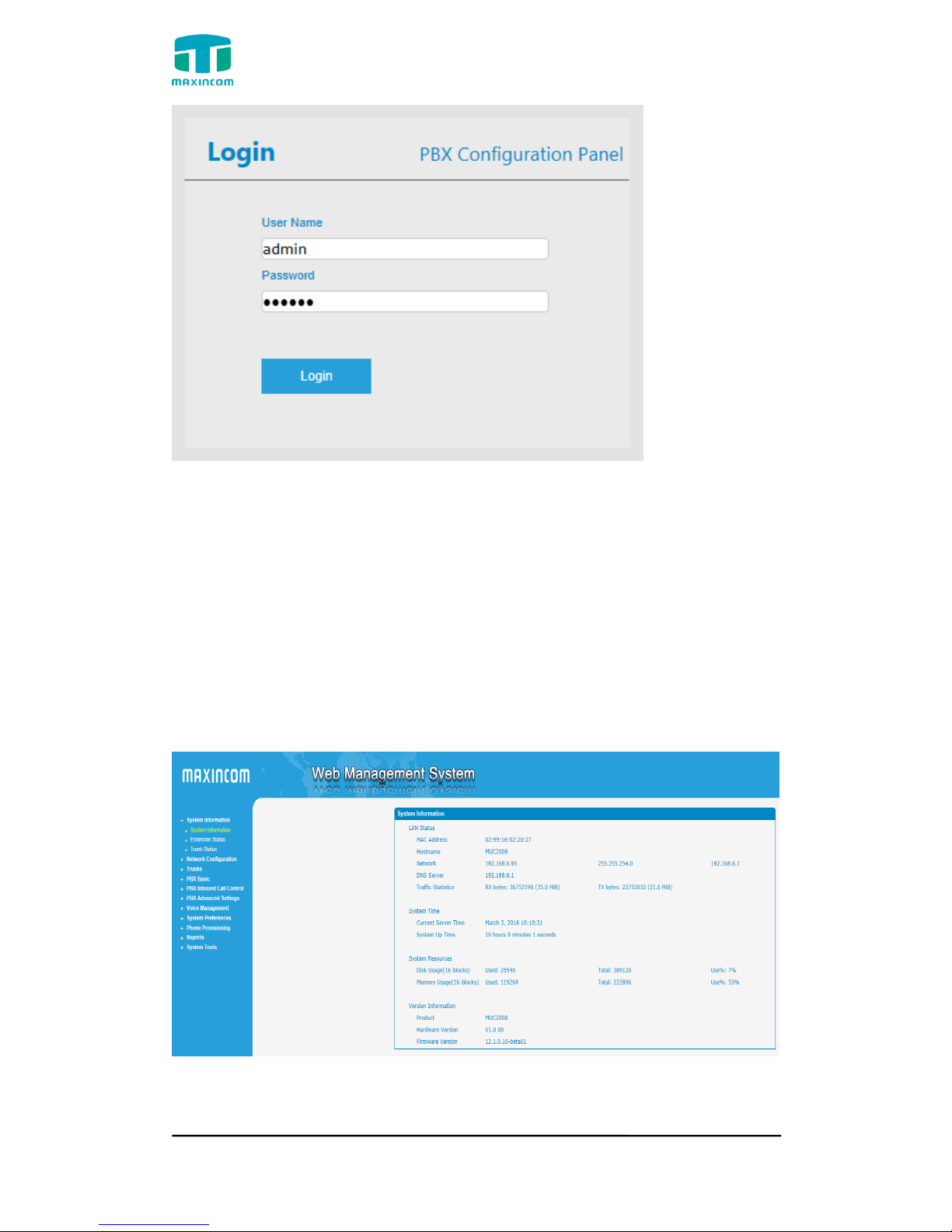
Enter IP address of MUC2008 in IE/Google Chrome/Firefox Browser. The
default IP of LAN port is 192.168.6.200. and the GUI shows as below:
In this example, the IP address is 192.168.6.91
Figure 3.1.1 WEB login interface
Page 12
MUC1004/2008/2016 Administrator guide
Http://www.maxincom.com 12 / 112
Enter username and password and then click “Login” in configuration interface.
The default username and password are “admin/admin”. It is strongly
recommended, change the default password to a new password for system
security .
3.2 Parameters Configuration
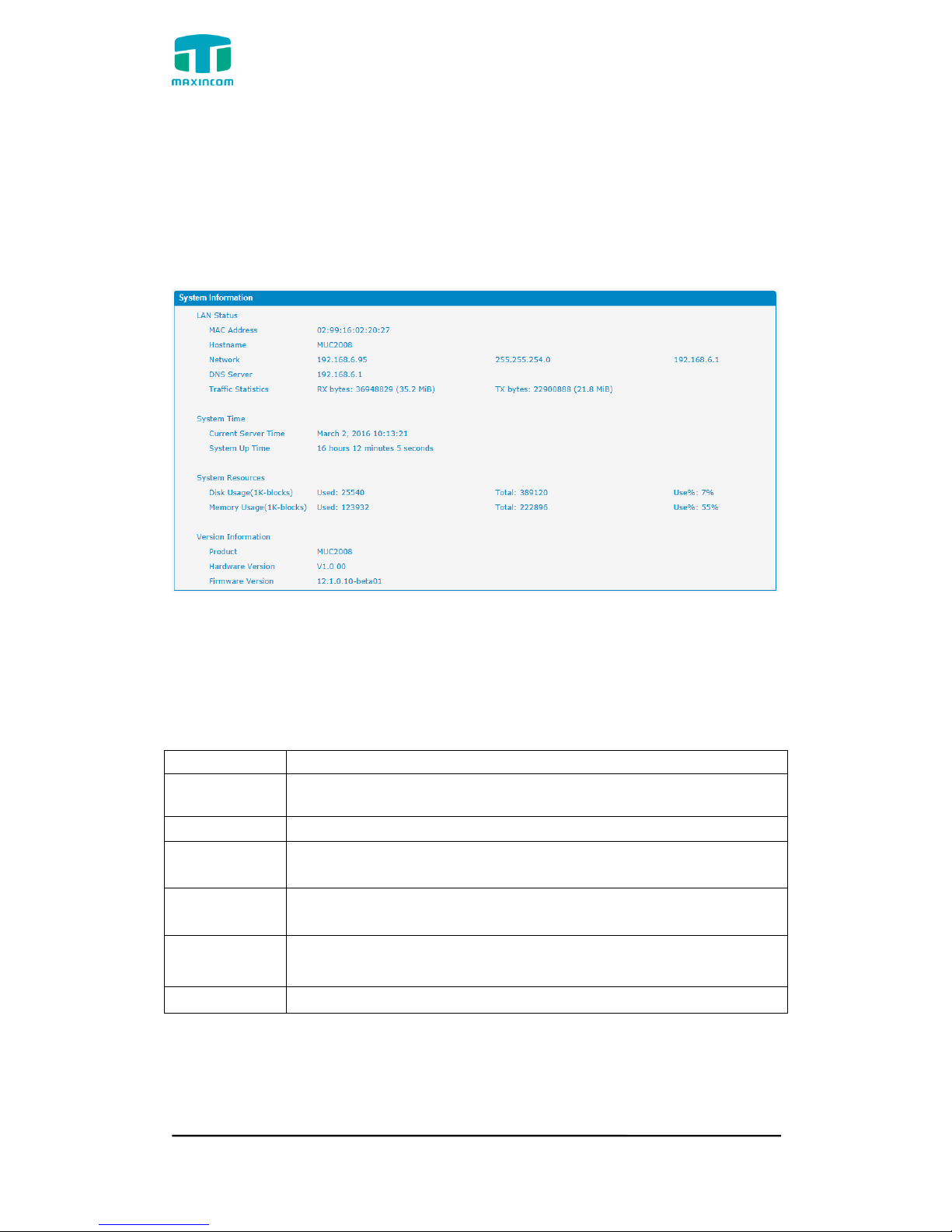
PBX WEB configuration interface consists of the navigation tree and the detail
configuration interfaces.
Figure 3.2.1 WEB introduction
Go through navigation tree, user can check, view, modify, and set the device
configuration on the right of configuration interface.
Page 13
MUC1004/2008/2016 Administrator guide
Http://www.maxincom.com 13 / 112
3.3 System Information
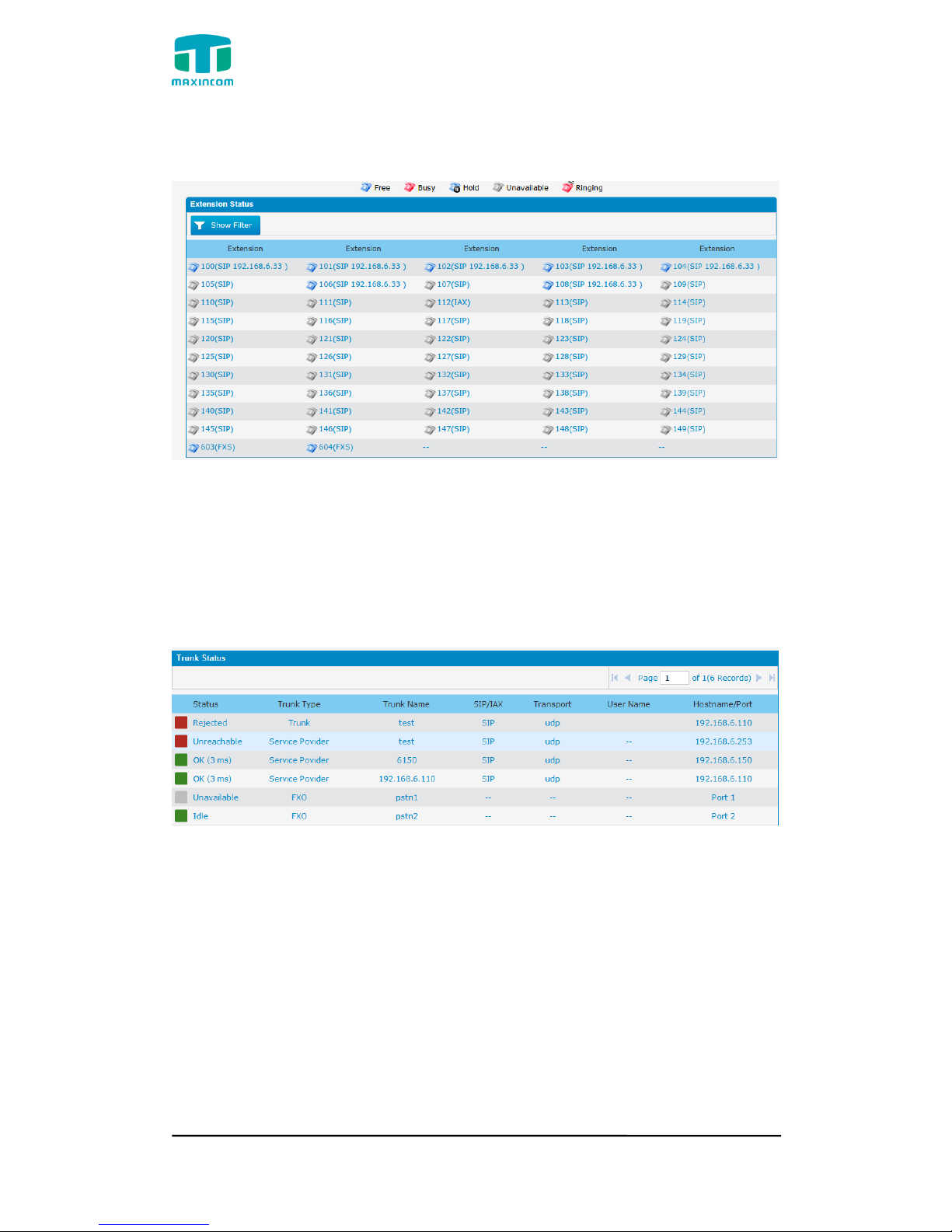
System information interface shows the basic information of status information,
mobile information and SIP information.
3.3.1 System Information
Figure 3.3.1 system Information
Table 3.3.1 System Information
Parameters
Description
MAC Address
Displays the current MAC of the gateway, for example:
70-B3-D5-1B-3D-02
Network
Current IP address and subnet mask of gateway
DNS Server
Displays DNS server IP address in the same network with the
gateway
System Up
Time
Shows the time period of the device running. For
example, :1h : 20m : 24s
Traffic
Statistics
Calculates the net flow, including the total bytes of message
received and sent。
Version info
Shows the current firmware version
Page 14
MUC1004/2008/2016 Administrator guide
Http://www.maxincom.com 14 / 112
3.3.2 Extensions Status
Figure 3.3.2 Extensions Status
3.3.3 Trunk Status
Figure 3.3.3 Trunk Stratus
Trunk Status Description:
VoIP Trunk:
Status
Rejected: Trunk registration failed.
Registered: Successful registration, trunk is ready for use.
Request Send: Registering.
Waiting: Waiting for authentication.
Service Provider:
Status
OK: Successful registration, trunk is ready for use.
Page 15

MUC1004/2008/2016 Administrator guide
Http://www.maxincom.com 15 / 112
Unreachable: The trunk is unreachable.
Failed: Trunk registration failed.
FXO Trunk:
Status
Idle: The port is idle.
Busy: The port is in use.
Unavailable: The port hasn‟t connected to the PSTN line.
More detail message, please refer to the LED indication of front panel.
Table 3.3.3 Trunk Status
Parameters
Description
Status
Shows the registration status of Trunk channel, including
registered and unregistered.
Trunk Type
Trunk mode will allow IP phone or IPPBX to register or trunk
mode to register to provider
Name
It describes this VoIP channel for the ease of identification. Its
value is character string
SIP/IAX
Choose the type of this trunk, SIP or IAX
Transfer
Protocol
This will be the transport method used by the trunk. The
options are UDP (default) or TCP or TLS.
User Name
The number for this VoIP channel
Hostname/IP
Address
Hostname or IP Address of this VoIP channel
3.4 Network Configuration
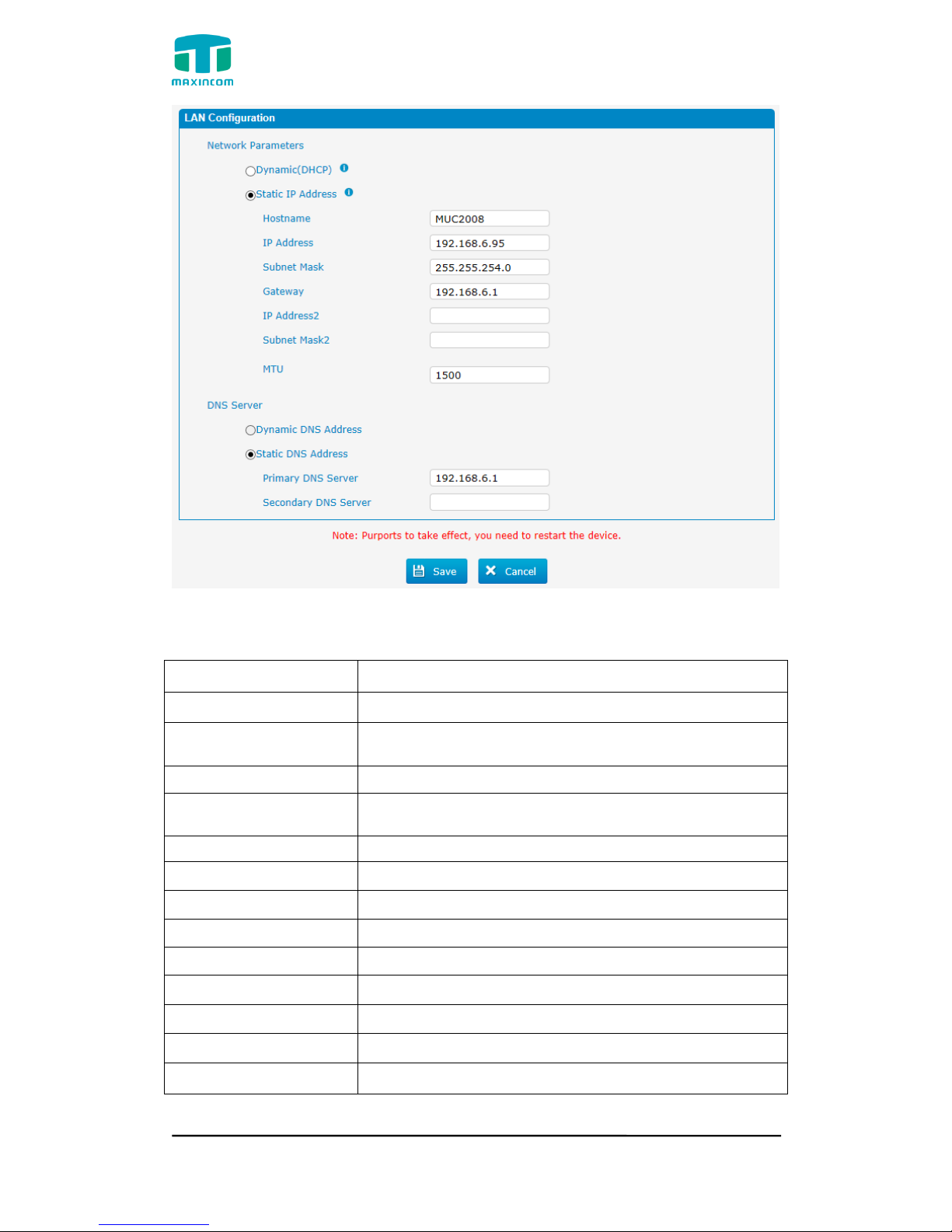
3.4.1 LAN Configuration
Figure 3.4.1 LAN Configuration
Page 16
MUC1004/2008/2016 Administrator guide
Http://www.maxincom.com 16 / 112
Table 3.4.1 Description of Local network
Parameter
Description
Dynamic (DHCP)
Enable the device obtain IP Address automatically
Static IP Address
Configure the "IP Address", "Subnet Mask" and
"Default Gateway" by manual
Hostname
Set the host name for PBX
IP Address
Set the IP Address for PBX, It is recommended to
configure a static IP address for PBX
Subnet Mask
Set the subnet mask for PBX
Gateway
Set the gateway for PBX
IP Address 2
Set the second IP Address for PBX
Subnet Mask2
Set the second subnet mask for PBX
MTU
Message transmit unit, default is 1500
Dynamic DNS Address
Obtain DNS Server Address Automatically
Static DNS Address
Obtain Primary DNS Server by manual
Primary DNS Server
Set the primary DNS Server for PBX.
Secondary DNS Server
Set the Secondary DNS Server for PBX.
Page 17
MUC1004/2008/2016 Administrator guide
Http://www.maxincom.com 17 / 112
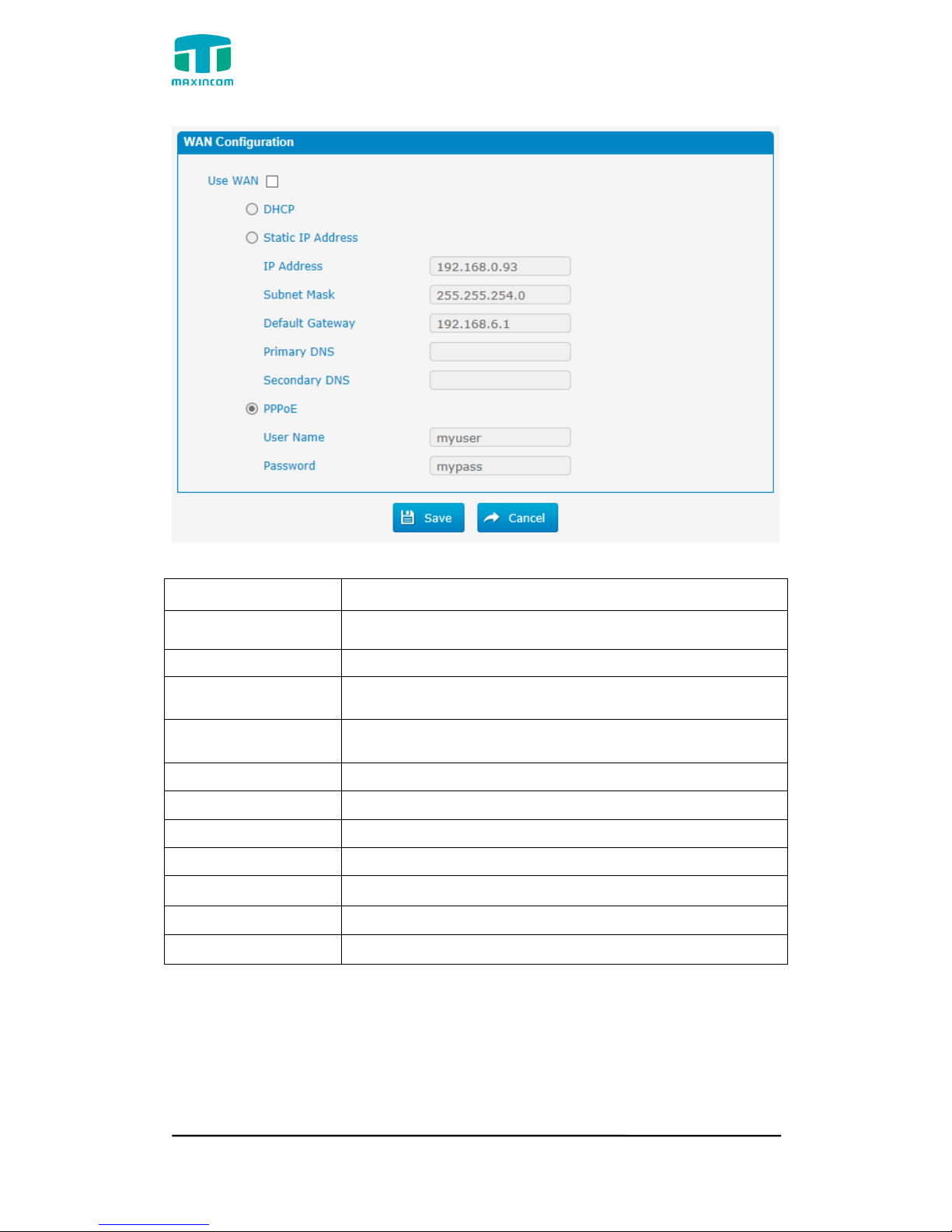
Figure 3.4.1.2 WAN Configuration
Table 3.4.1.2 Description of WAN Configuration
Parameter
Description
Use WAN
Enalbe use wan
Dynamic (DHCP)
Enable the device obtain IP Address automatically
Static IP Address
Configure the "IP Address", "Subnet Mask" and "Default
Gateway" by manual
IP Address
Set the IP Address for PBX, It is recommended to
configure a static IP address for PBX
Subnet Mask
Set the subnet mask for PBX
Default Gateway
Set the default gateway for PBX
Primary DNS
Set the primary DNS Server for PBX.
Secondary DNS
Set the Secondary DNS Server for PBX.
PPPoE
Use PPPoE to achieve IP address
User Name
PPPoE user name
Password
PPPoE password
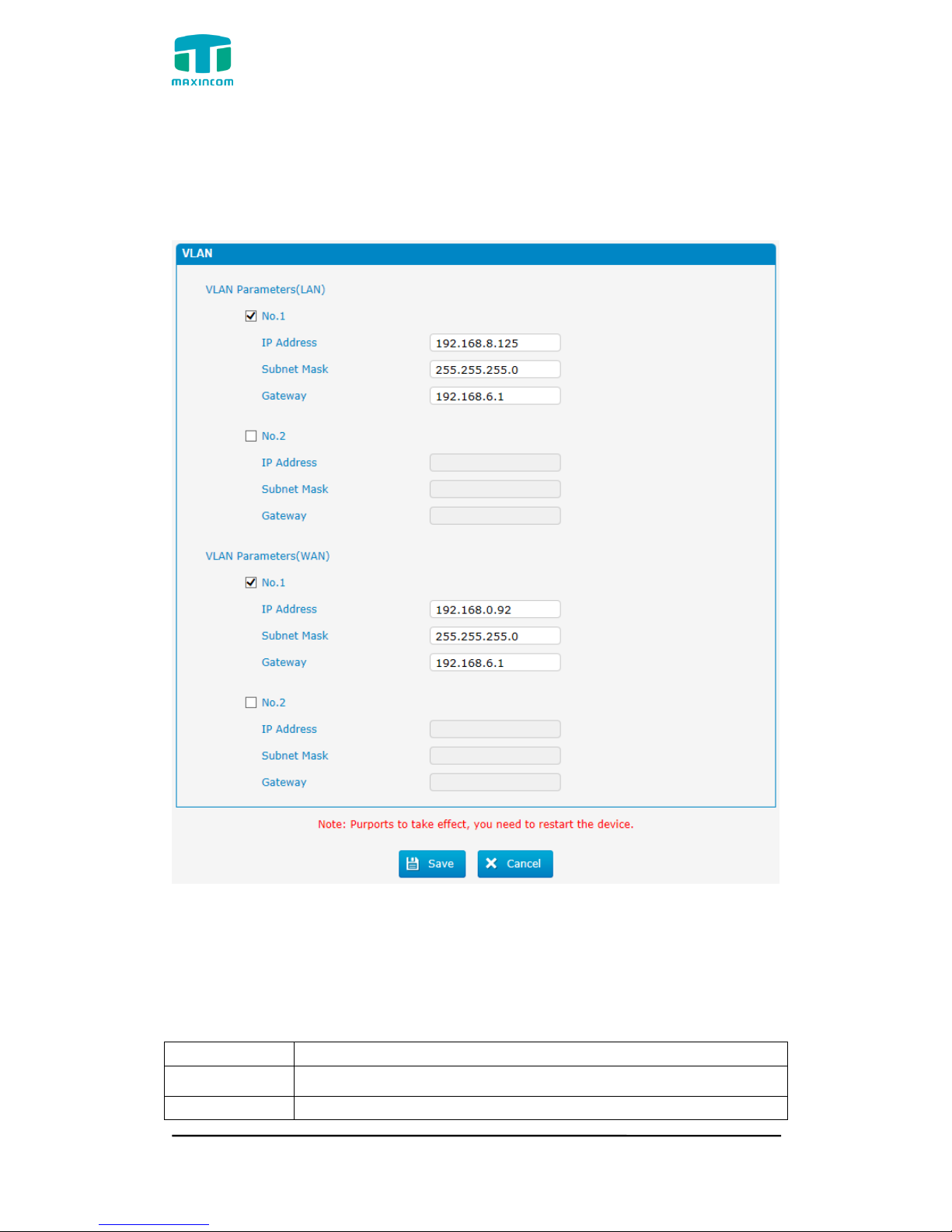
3.4.2 VLAN Configuration
A VLAN (Virtual LAN) is a logical local area network (or LAN) that extends
beyond a single traditional LAN to a group of LAN segments, given specific
configurations.
Page 18
MUC1004/2008/2016 Administrator guide
Http://www.maxincom.com 18 / 112
Note: PBX is not the VLAN server, a 3-layer switch is still needed, please
configure the VLAN information there first, then input the details in PBX, so that
the packages via PBX will be added the VLAN label before sending to that
switch.
Figure 3.4.2 VLAN Configuration
Table 3.4.2 Description of VLAN Configuration
Parameter
Description
NO.1
Click the NO.1 you can edit the first VLAN over LAN
IP Address
Set the IP Address for PBX VLAN over LAN.
Page 19
MUC1004/2008/2016 Administrator guide
Http://www.maxincom.com 19 / 112
Subnet Mask
Set the Subnet Mask for PBX VLAN over LAN.
Gateway
Set the Default Gateway for PBX VLAN over LAN
3.4.3 ARP Configuration
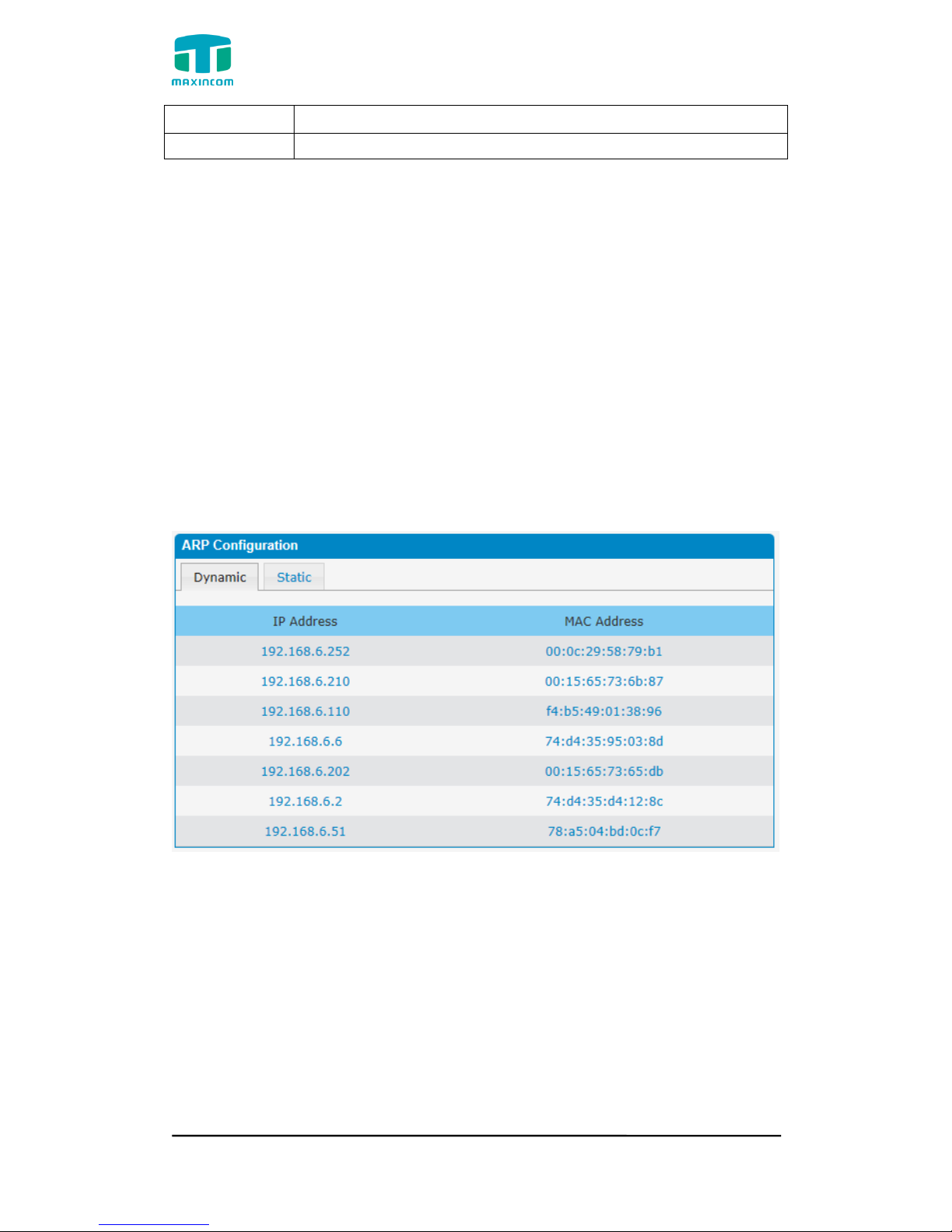
The ARP function is mainly used to query and add the map of IP and MAC.
There are static or dynamic ARP entries.
Like other routers, the gateway can automatically find the network device on
the same segment. But, sometimes you don't want to use this automatic
mapping, you'd rather have fixed (static) associations between an IP address
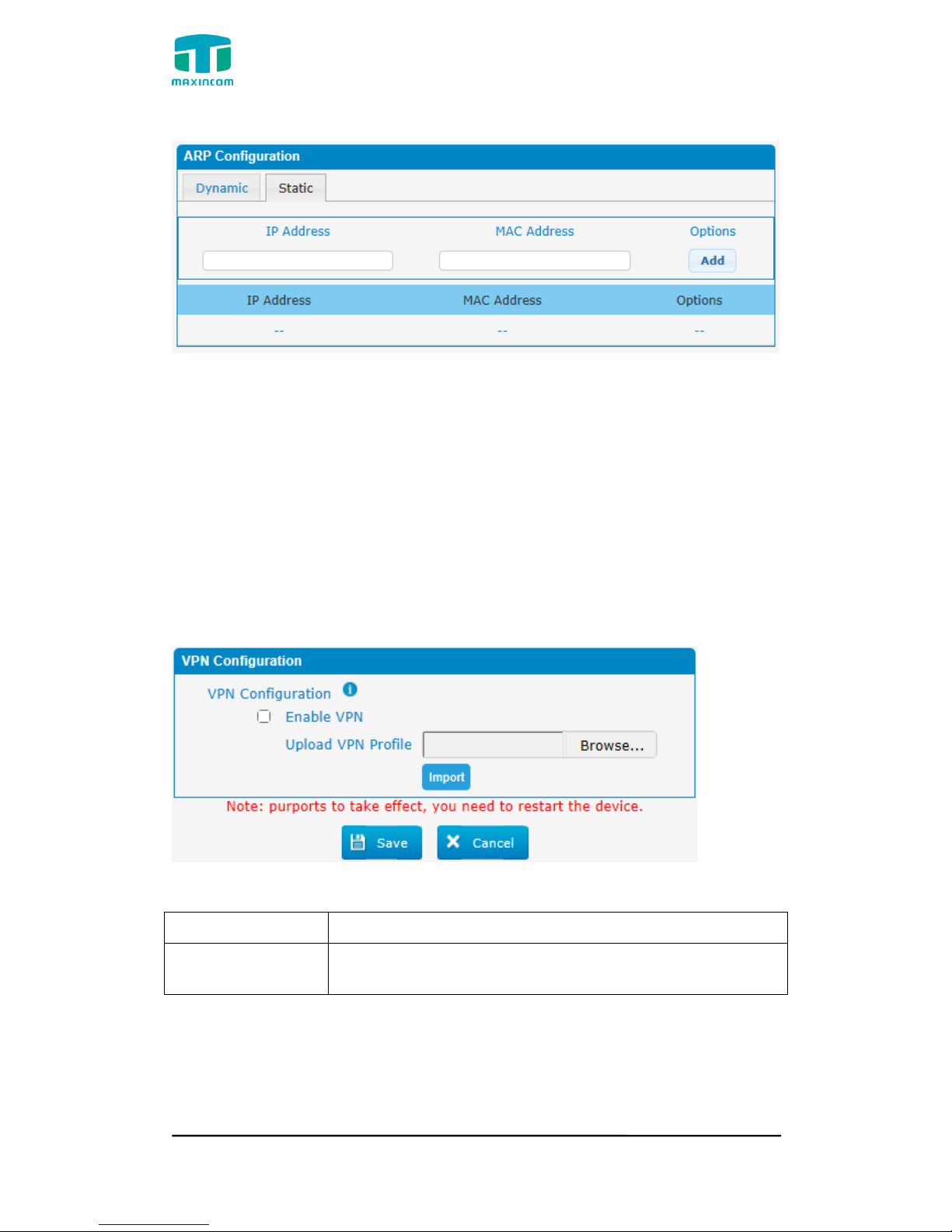
and a MAC address. Gateway provides you the ability to add static ARP entries
to:
● Protect your network against ARP spoofing
● Prevent network confusion as a result of misconfigured network device
Click “Dynamic ARP” to check ARP buffer
Figure 3.4.3a Dynamic ARP
Page 20
MUC1004/2008/2016 Administrator guide
Http://www.maxincom.com 20 / 112
Figure 3.4.3 Add ARP
3.4.4 VPN Configuration
A Virtual Private Network (VPN) is a method of computer networking--typically
using the public internet--that allows users to privately share information
between remote locations, or between a remote location and a business' home
network. A VPN can provide secure information transport by authenticating
users, and encrypting data to prevent unauthorized persons from reading the
information transmitted. The VPN can be used to
send any kind of network traffic securely. PBX supports OpenVPN.
Figure 3.4.4 VPN Configuration
Table 3.4.4 Description of VPN Parameter
Parameters
Description
Import VPN
Configuration Files
Import configuration file of OpenVPN.
Notes:
1. Don't configure “user” and “group” in the “config” file. You can get the config
package from the OpenVPN provider.
2. PBX works as VPN client mode only.
Page 21
MUC1004/2008/2016 Administrator guide
Http://www.maxincom.com 21 / 112
3.Upload file *.tar with *.conf in it.
3.4.5 DDNS Server
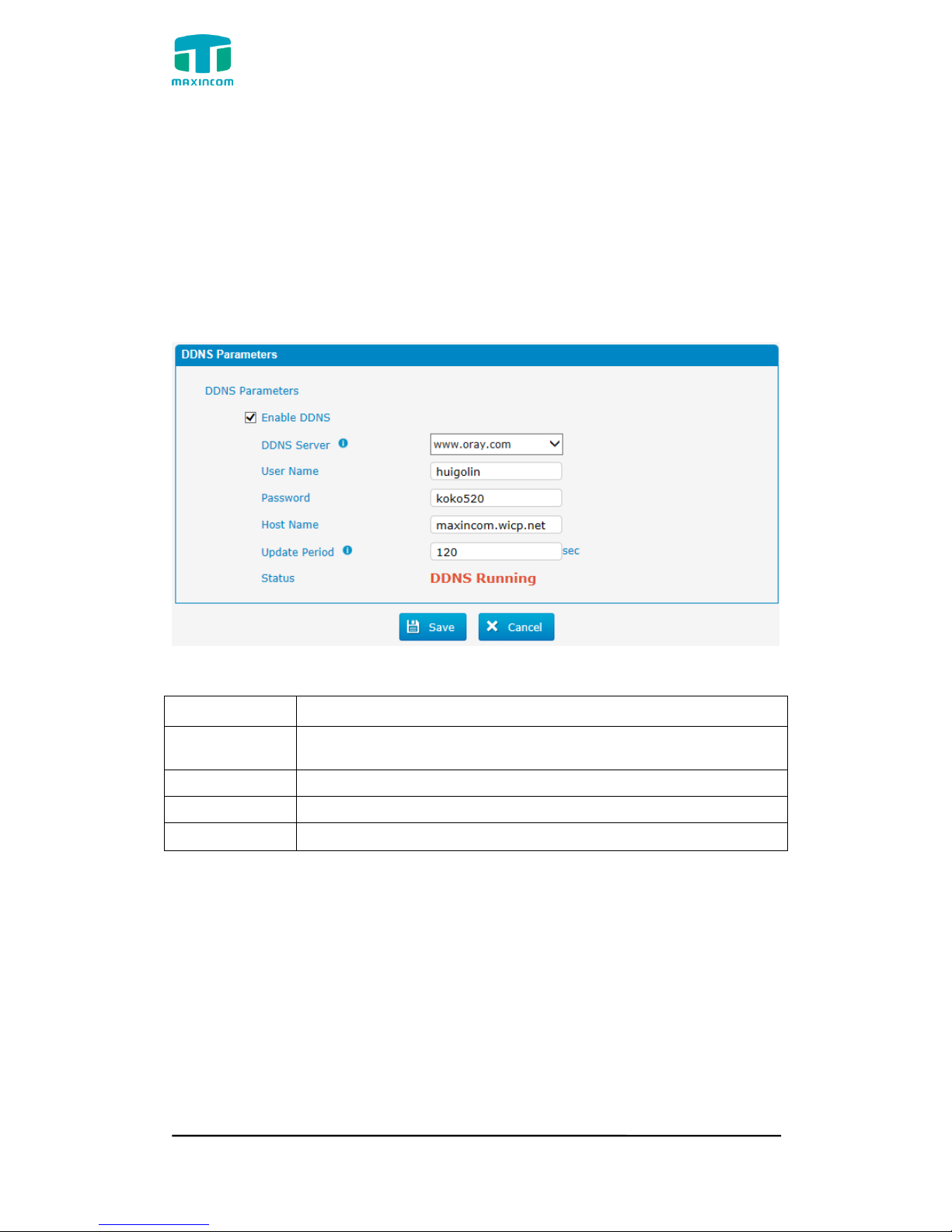
DDNS(Dynamic DNS) is a method / protocol / network service that provides the
capability for a networked device, such as a router or computer system using
the Internet Protocol Suite, to notify a Domain Name System (DNS) name
server to change, in real time, the active DNS configuration of its configured
hostnames, addresses or other information.
Figure 3.4.5 DDNS Server
Table 3.4.5 Description of DDNS Server
Parameters
Description
DDNS Server
Select the DDNS server IP or domain name you sign up for
service.
User Name
User name the DDNS server provides you.
Password
User account‟s password.
Host Name
The domain name you have got from the DDNS server
Note: DDNS allows you to access your network using domain names instead of
IP address. The service manages changing IP address and updates your
domain information dynamically. You must sign up for service through
dyndns.org, freedns.afraid.org, www.no-ip.com, www.zoneedit.com
3.4.6 Static Route
PBX will have more than one internet connection in some situations but it has
only one default gateway. You will need to set some Static Route for PBX to
force it to go out through different gateway when access to different internet.
The default gateway priority of PBX from high to low is VPN/VLAN-> LAN port.
Page 22
MUC1004/2008/2016 Administrator guide
Http://www.maxincom.com 22 / 112
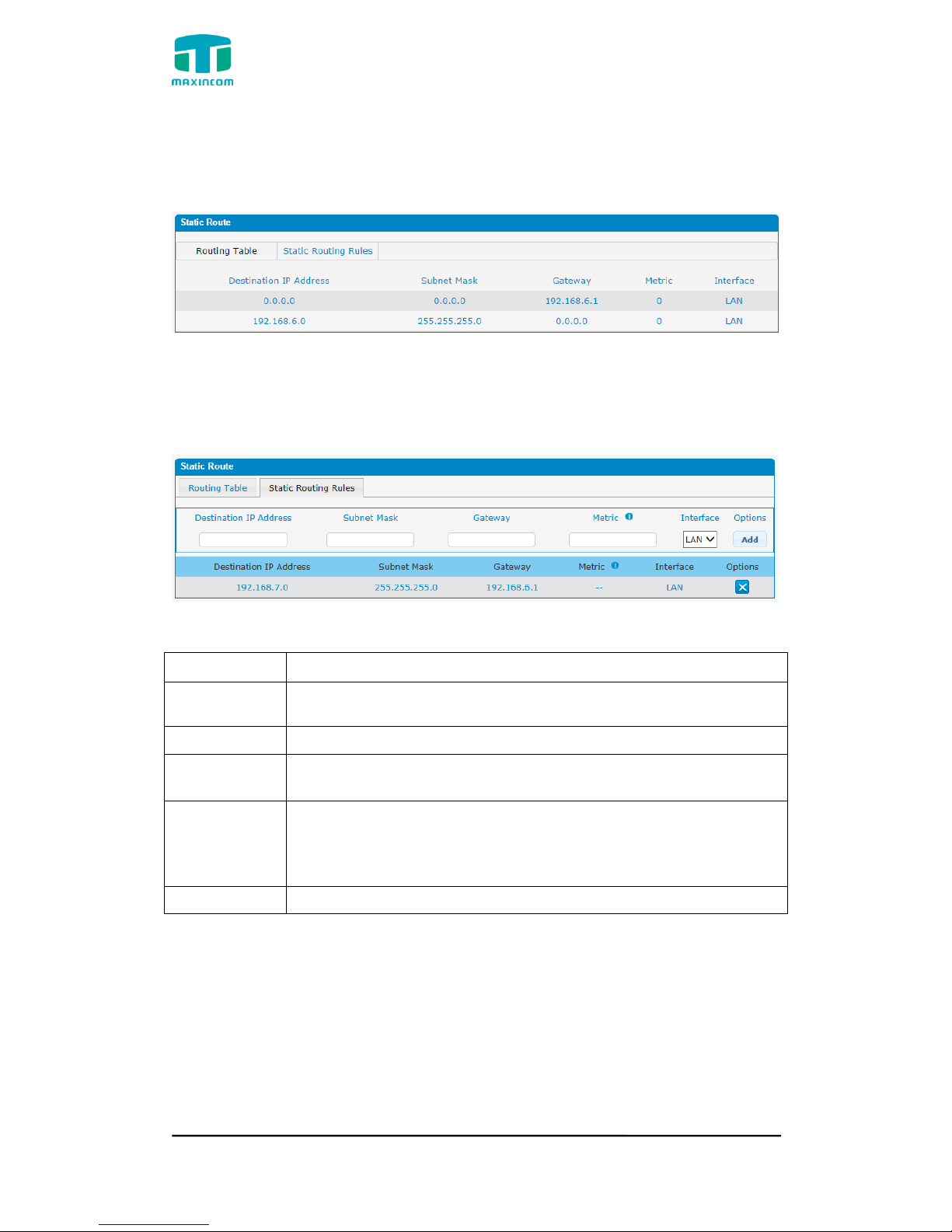
1) Route Table
The current route rules of PBX.
Figure 3.4.6 Static Routing Table
2) Static Route Rules
You can add new static route rules here.
Figure 3.4.6a Static Routing Rules
Table 3.4.6 Description of Static Routing
Parameters
Description
Destination
IP Address
The destination network to be accessed to by PBX.
Subnet Mask
Specify the destination network portion.
Gateway
Define which gateway PBX will go through when access to the
destination network.
Metric
The cost of a route is calculated by using what are called
routing metric. Routing metrics are assigned to routes by
routing protocols to provide measurable statistic which can be
used to judge how useful (how low cost) a route is.
Interface
Define which internet port to go through.
Page 23
MUC1004/2008/2016 Administrator guide
Http://www.maxincom.com 23 / 112
3.4.7 DHCP Server
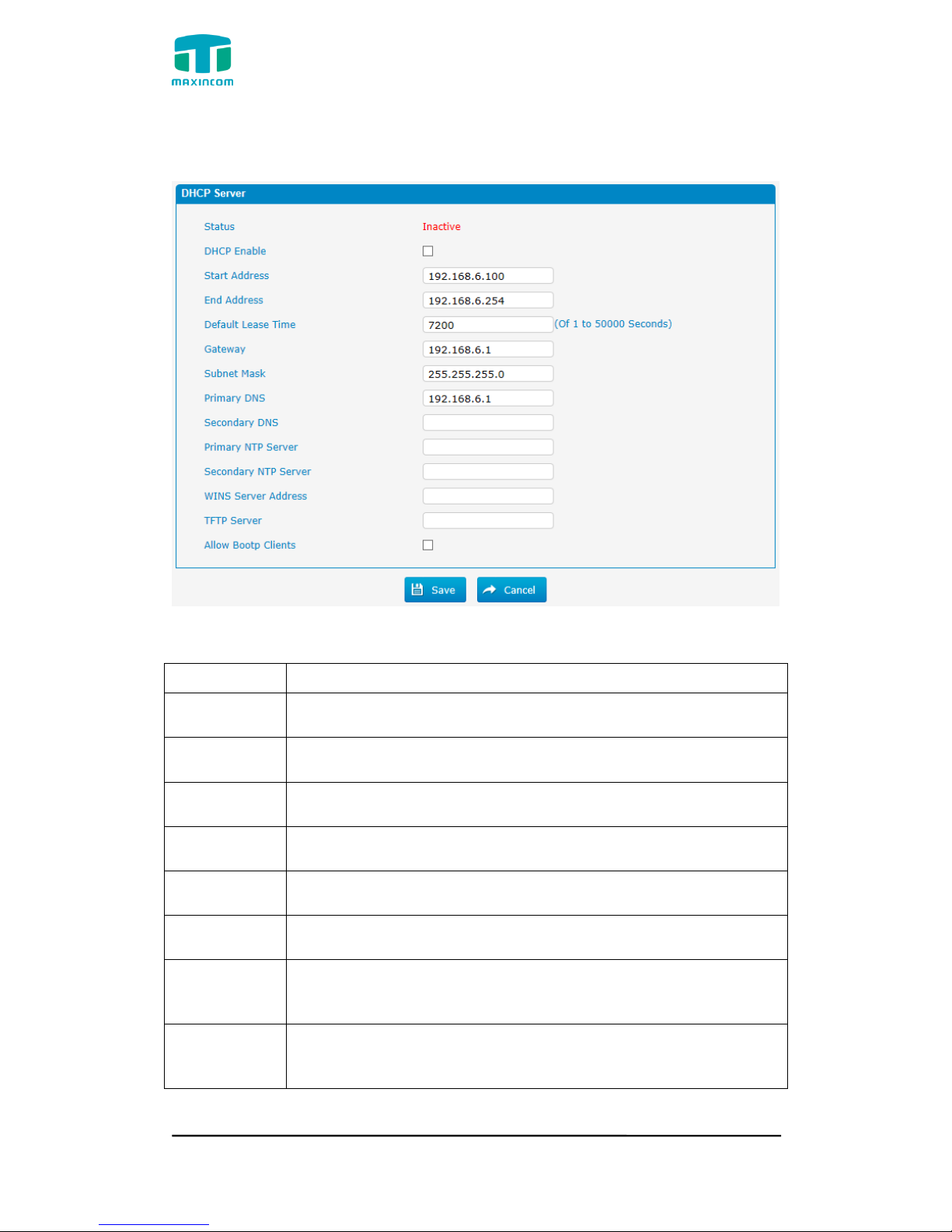
Figure 3.4.7 DHCP Server
Table 3.4.7 Description of DHCP Server
Parameters
Description
Status
DHCP service status
DHCP Enable
Enable DHCP service
Start Address
Start IP of DHCP IP pool
End Address
End IP of DHCP IP pool
Default Lease
Time
Default lease time
Gateway
Gateway address
Subnet Mask
Address
Specify the destination network portion.
Primary DNS
Set the primary DNS Server for PBX.
Page 24
MUC1004/2008/2016 Administrator guide
Http://www.maxincom.com 24 / 112
Secondary
DNS
Set the Secondary DNS Server for PBX.
Primary NTP
Server
Set the primary NTP Server
Secondary
NTP Server
Set the Secondary NTP Server
WINS Server
Address
Set the WINS Server Address
TFTP Server
Server
Set the TFTP Server
Allow Bootp
Clients
Allow bootp clients
3.5 Trunks
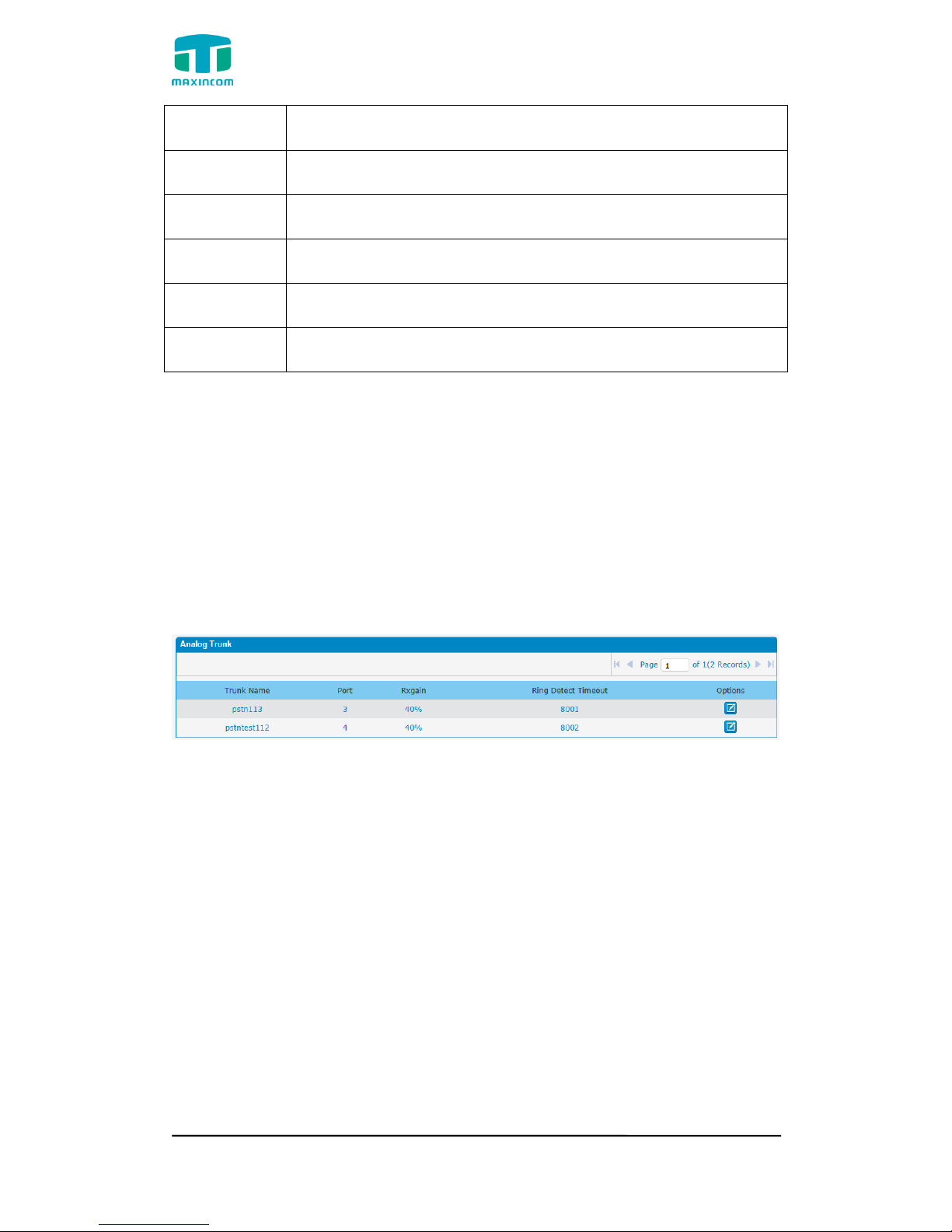
3.5.1 Physical Trunks(PSTN and GSM Trunks)
The public switched telephone network (PSTN) is the network of the world's
public circuit-switched telephone networks.
Figure 3.5.1 Analog Trunks
Page 25
MUC1004/2008/2016 Administrator guide
Http://www.maxincom.com 25 / 112
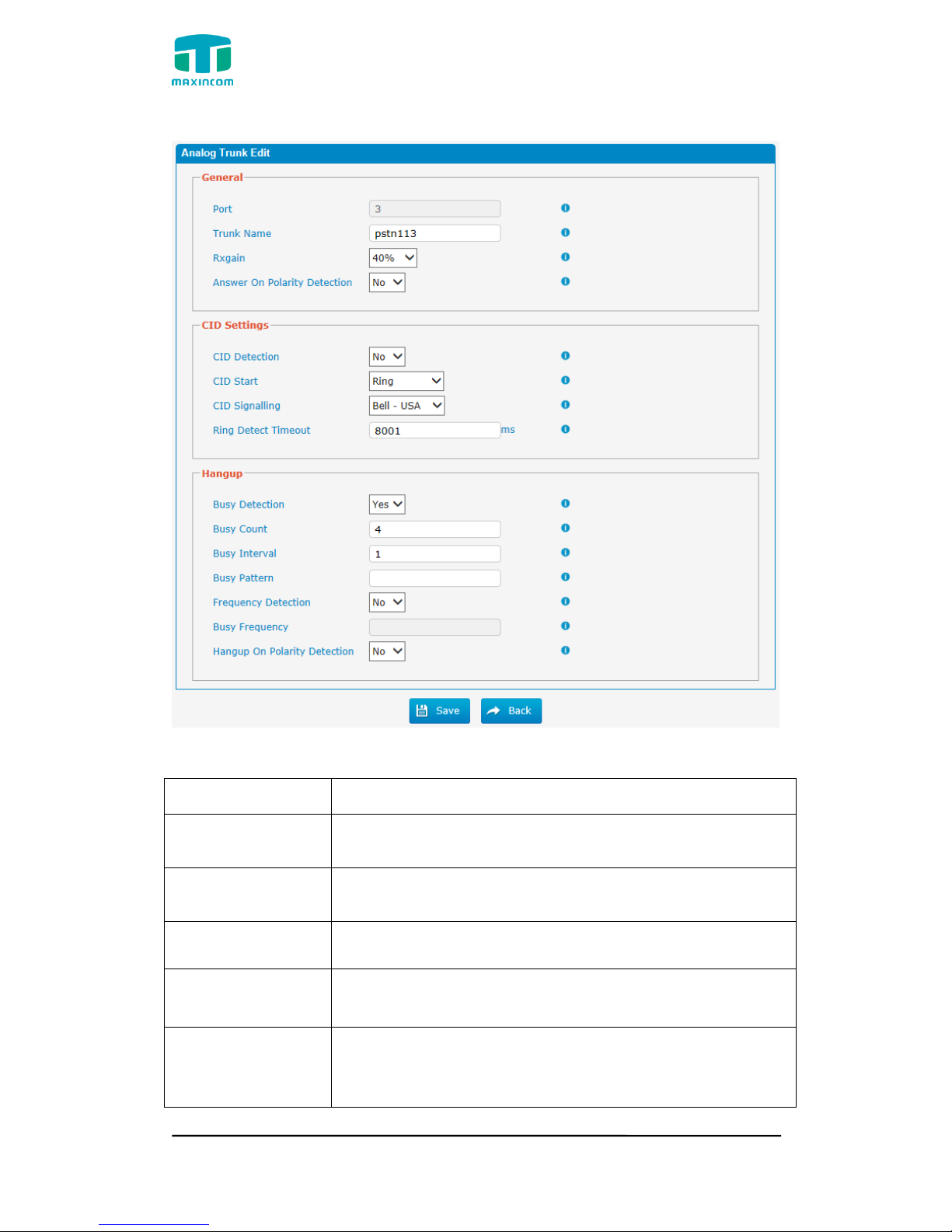
Figure 3.5.1a Analog Trunks Edit
Table 3.5.1 Description of Analog Trunk
Parameters
Description
Trunk Name
A unique label used to identify this trunk when listed in
outbound rules, incoming rules, etc.E.g. “pstn113”.
Rxgain
Used to modify the volume level of this trunk. Normally,
this setting does not need to be changed.
Answer on Polarity
Detection
Use a polarity reversal to mark when a outgoing call is
answered by the remote party
CID Detection
For FXO trunks, this option forces PBX to look for Caller ID
on incoming calls.
CID Start
This option allows you to define the start of a Caller ID
signal:
Ring: Start when a ring is received (Caller ID Signaling:
Page 26

MUC1004/2008/2016 Administrator guide
Http://www.maxincom.com 26 / 112
Bell_USA, DTMF).
Polarity: Start when a polarity reversal is started (Caller ID
Signaling: V23_UK, V23_JP,DTMF).
Before Ring: Start before a ring is received (Caller ID
Signaling: DTMF).
CID Signalling
This option defines the type of Caller ID signaling to use. It
can be set to one of the following:
Bell_USA: bell202 as used in the United States
v23_UK: suitable in the UK
v23_Japan: suitable in Japan
v23-Japan pure: suitable in Japan
DTMF: suitable in Denmark, Sweden, and Holland
Busy Detection
Busy Detection is used to detect far end hang-up or for
detecting a busy signal. Select “Yes” to turn this feature
on.
Budy Count
If Busy Detection is enabled, it is also possible to specify
how many busy tones to wait for before disconnecting the
call. The default is 4, but better results can be achieved if
set to 6 or even 8. Remember, the higher the number, the
more time will be required to release a channel. A higher
setting lowers the probability that you will encounter
random hang-ups.
Busy Interval
The busy detection interval
Busy Pattern
If Busy Detection is enabled, it is also possible to specify
the cadence of your busy signal.In many Countries, it is
500msec on, 500msec off. If a Busy Pattern is not
specified,The system will accept any regular sound-silence
pattern that repeats <Busy Count> times as a busy signal.
If you specify Busy Pattern, then the system will further
check the length of the tone and silence, which will further
reduce the chance of a false positive disconnection.
Frequency
Detection
Used for Frequency Detection (Enable detecting the busy
signal frequency or not).
Busy Frequency
If the Frequency Detection is enabled, you must specify
the local frequency.
Hangup Polarity
Reversal Detection
The call will be considered as “hang up” on a polarity
reversal.
Page 27
MUC1004/2008/2016 Administrator guide
Http://www.maxincom.com 27 / 112
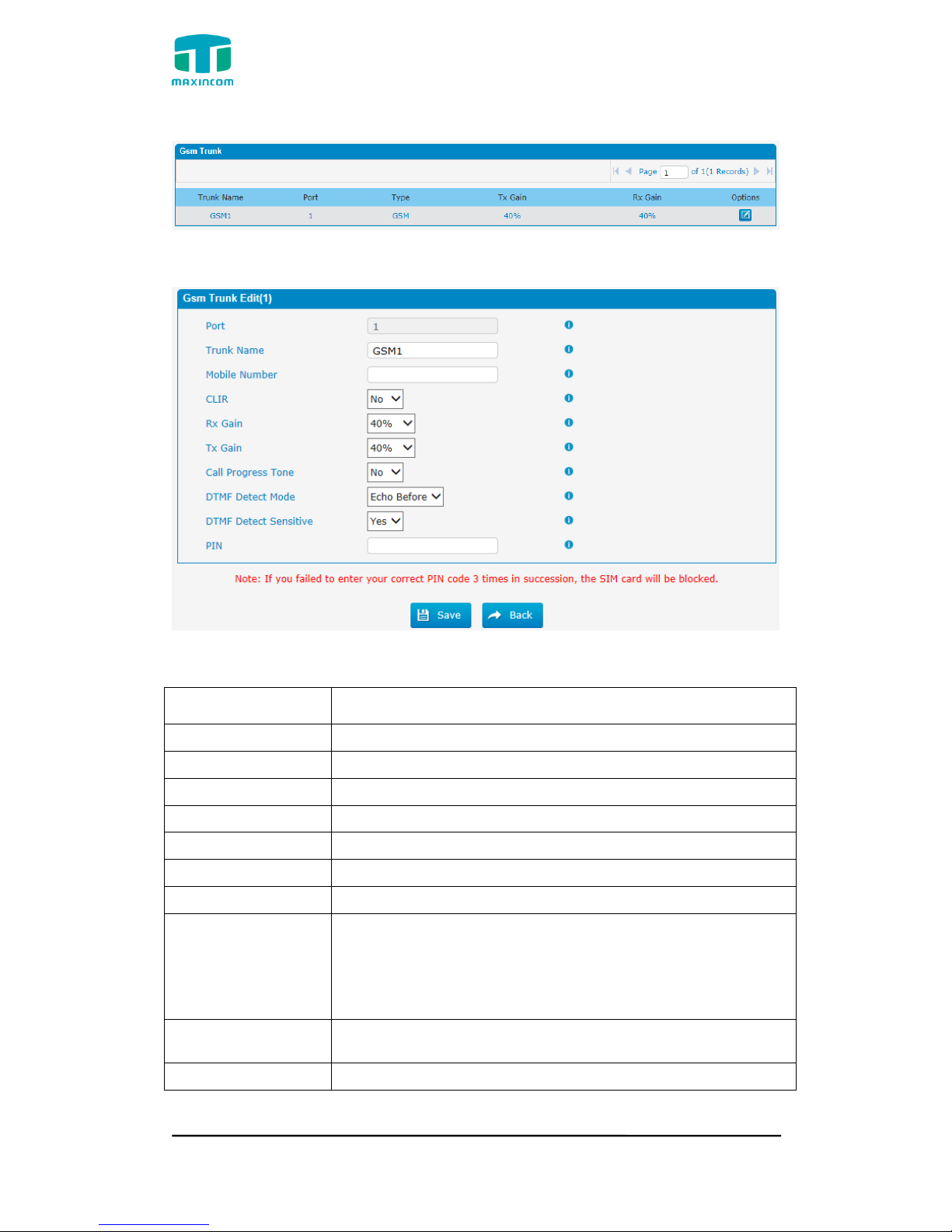
Figure 3.5.1b GSM Trunks
Figure 3.5.1c GSM Trunks Edit
Table 3.5.1c Description of GSM Trunk
Parameters
Description
Port
A port for this trunk.
Trunk Name
A name for this trunk.
Mobile Number
Mobile number for this trunk.
CLIR
Calling Line Identification Restriction.
Rx Gain
The receive volume.
Tx Gain
The transfer volume.
Call Progress Tone
A ringback for this trunk.
DTMF Detect Mode
Set default dtmfmode for detect DTMF.
Default: Echo Before
Echo Before: Detect DTMF before echocan.
Echo After: Detect DTMF after echocan.
DTMF Detect
Sensitive
DTMF detect sensitive.
PIN
The PIN is normally associated with the SIM card.
Page 28
MUC1004/2008/2016 Administrator guide
Http://www.maxincom.com 28 / 112
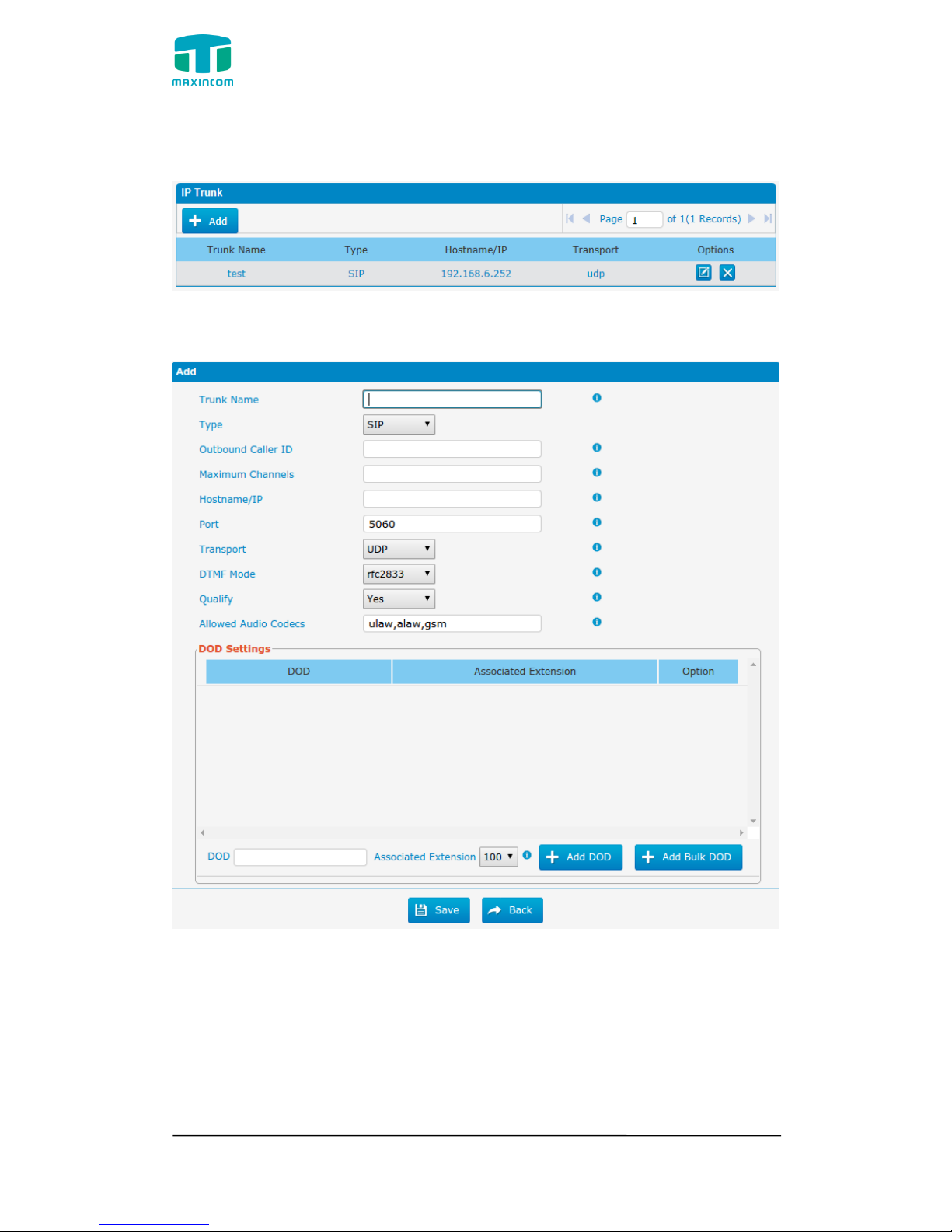
3.5.2 IP Trunk (Peer to Peer Mode)
Figure 3.5.2 IP Trunk
Figure 3.5.2a Add IP Trunk
Page 29
MUC1004/2008/2016 Administrator guide
Http://www.maxincom.com 29 / 112
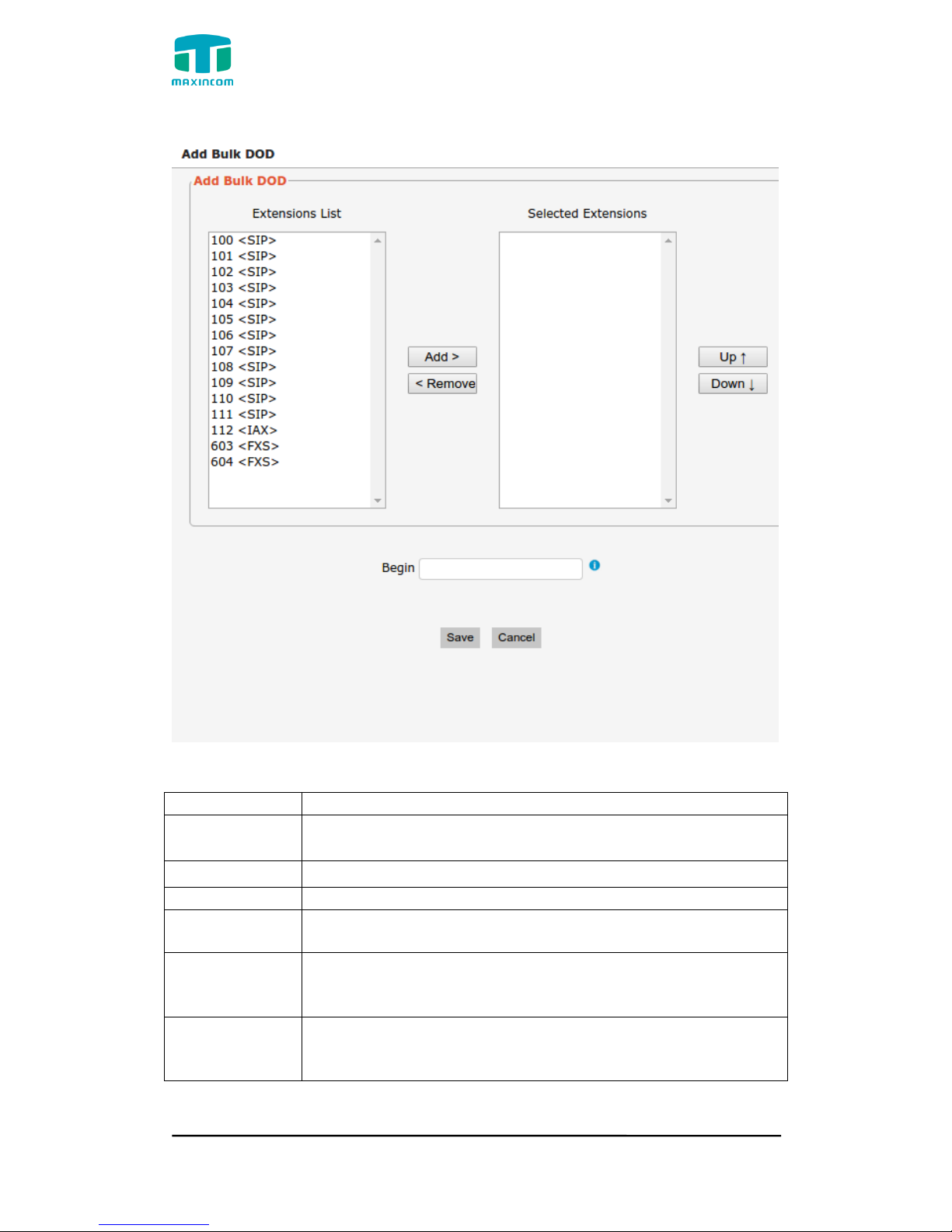
Figure 3.5.2b Add Bulk Dod
Table 3.5.2 Description of IP Trunk
Parameters
Description
IP Trunk
Add remote IP of Softswitch, SIP server which will send call
traffics to gateway.
Trunk Name
It describes the trunk for the ease of identification.
Type
Choose the type of this trunk, SIP or IAX
Outbound
Caller ID
Caller ID for calls placed on out this trunk
Hostname/IP
Address
Service provider‟s hostname or IP address,5060 is the
standard port number used by SIP protocol. Don‟t change
this part if it is not required.
Transport
This will be the transport method used by the SIP Trunk. This
method is given by the SIP trunk provider. The options are
UDP (default) or TCP or TLS.
Page 30
MUC1004/2008/2016 Administrator guide
Http://www.maxincom.com 30 / 112
DTMF Mode
Set default mode for sending DTMF of this trunk. Default
setting: rfc2833, Info, Shortinfo,Inband, Auto
Qualify
Send checking alive packets to the SIP provider. when it‟s
disabled, PBX will ignore the reachability and the status of
this account will be unmonitored.
Allow codecs
ulaw,alaw,gsm
DOD
Settintings
Add dod number to associated extension.
Add Bulk DOD
Add bulk dod number to associated extensions which begin
with Begin number
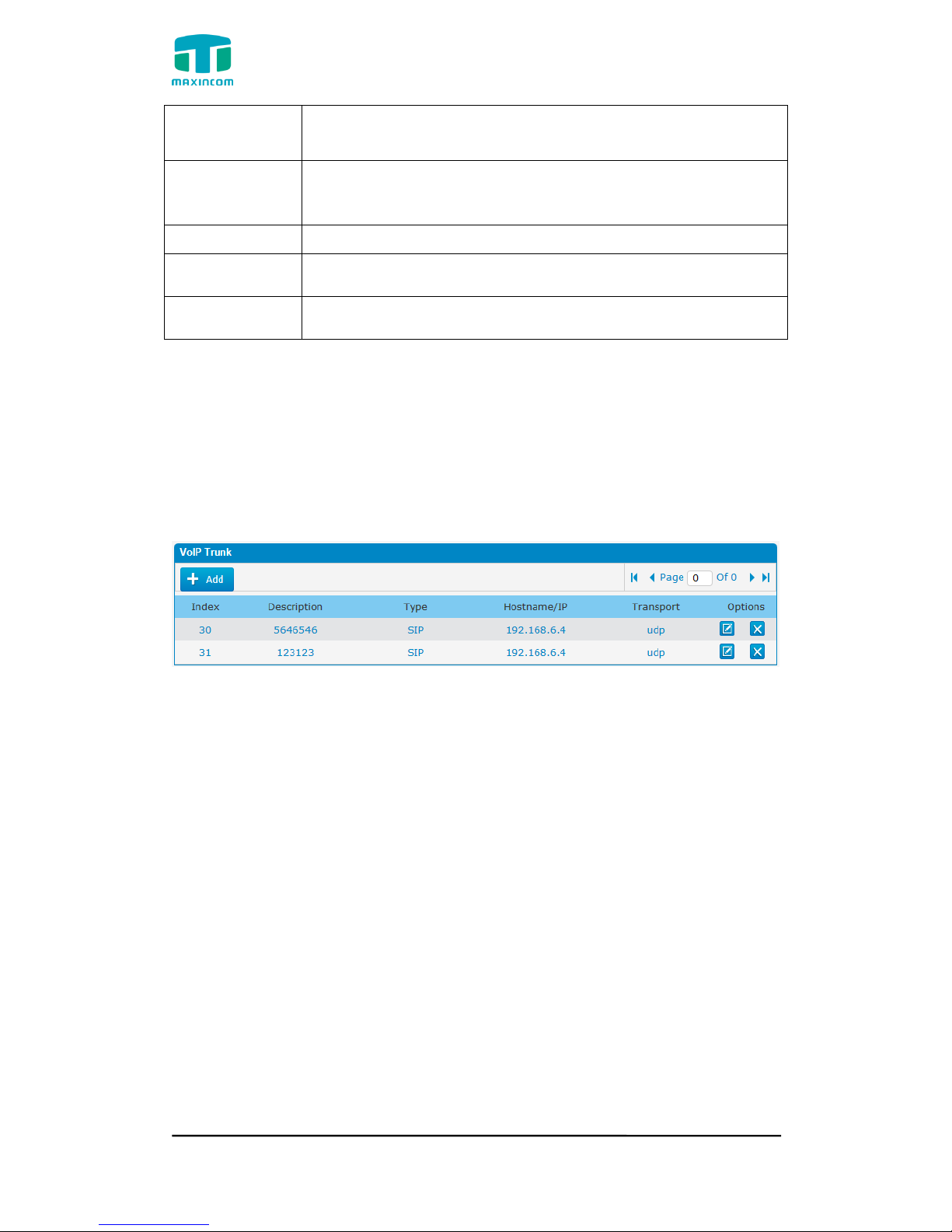
3.5.3 VoIP Trunk
In this page, we can configure VoIP trunk (SIP/ IAX) you have got from
provider with the authorization name and password.
Figure 3.5.3 VoIP Trunk
Page 31
MUC1004/2008/2016 Administrator guide
Http://www.maxincom.com 31 / 112
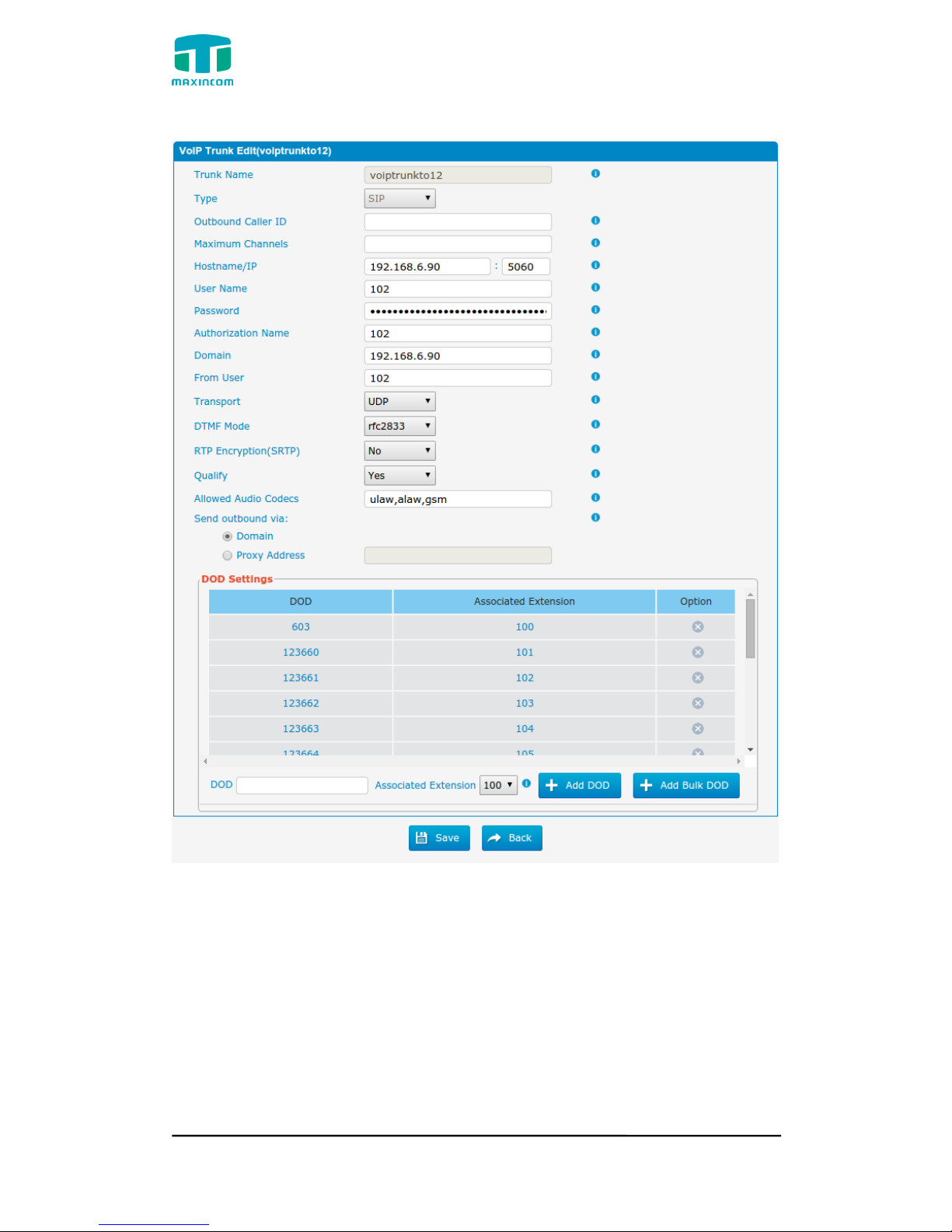
Figure 3.5.3a Add VoIP Trunk
Page 32
MUC1004/2008/2016 Administrator guide
Http://www.maxincom.com 32 / 112
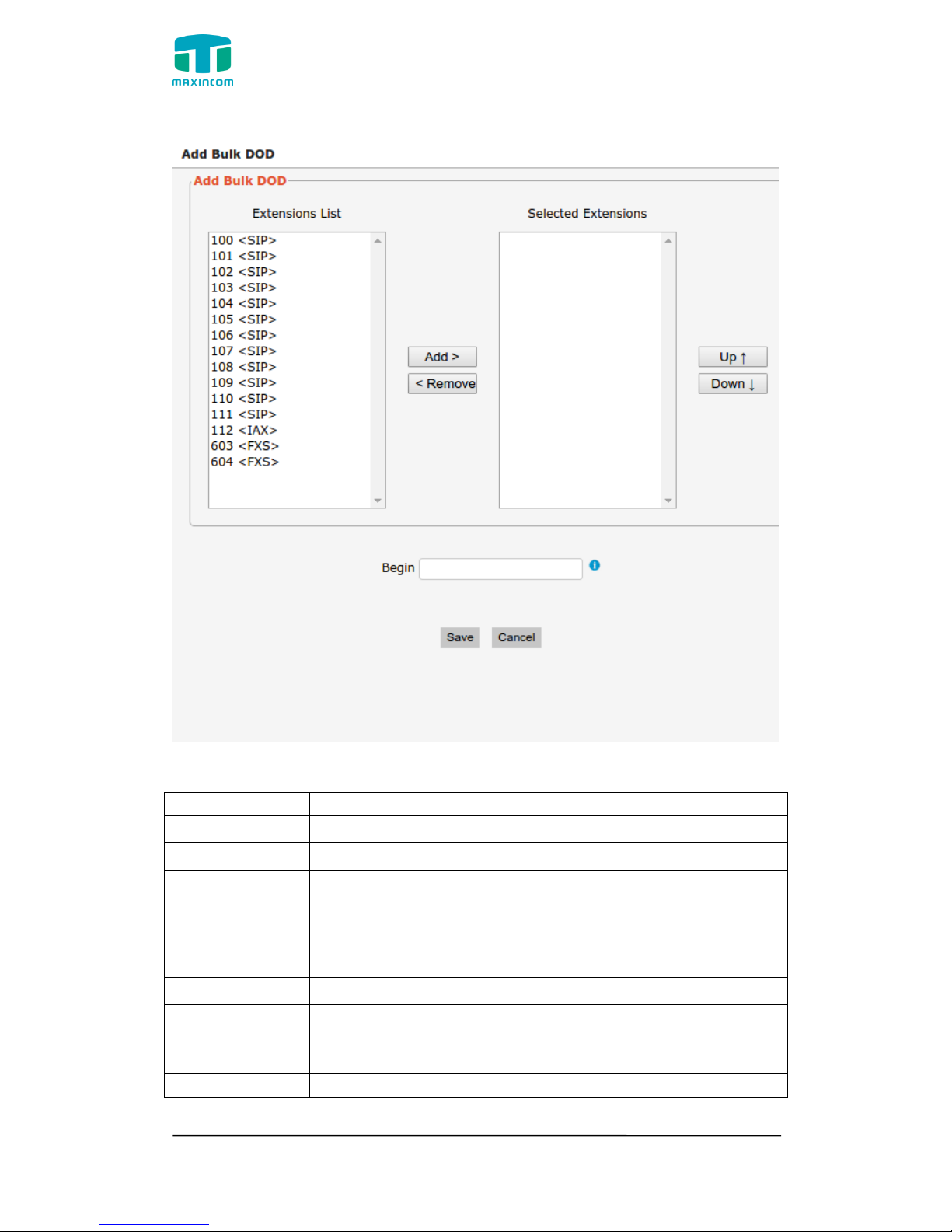
Figure 3.5.3b Add Bulk DOD
Table 3.5.3 Description of VoIP Trunk
Parameters
Description
Trunk Name
It describes the trunk for the ease of identification.
Type
Choose the type of this trunk, SIP or IAX
Outbound Caller
ID
Caller ID for calls placed on out this trunk
Hostname/IP
Address
Service provider‟s hostname or IP address, 5060 is the
standard port number used by SIP protocol. Don‟t change
this part if it is not required.
User Name
User name of SIP account.
Password
Password of SIP account.
Authorization
Name
Used for SIP authentication, it‟s the same as user name
generally.
Domain
VoIP provider‟s server domain name
Page 33

MUC1004/2008/2016 Administrator guide
Http://www.maxincom.com 33 / 112
From User
All outgoing calls from this SIP Trunk will use the From
User in From Header of the SIP Invite package. Keep this
field blank if it‟s not needed.
Transport
This will be the transport method used by the extension.
The options are UDP (default) or TCP or TLS.
SRTP
Define if SRTP is enabled for this trunk, it depends on
provider‟s configuration.
DTMF Mode
RFC2833, Info, Shortinfo, Inband, Auto.
Qualify
Send check alive packets to IP phones, when it‟s disabled,
PBX will ignore the reachability and the status of this
account will be unmonitored.
Allow codecs
ulaw,alaw,gsm
Domain
VoIP provider‟s server domain name
Proxy Address
A proxy that receives requests from a client, even though
it may not be the server resolved by the Request-URI.
DOD Settintings
Add dod number to associated extension.
Add Bulk DOD
Add bulk dod number to associated extensions which begin
with Begin number
Page 34
MUC1004/2008/2016 Administrator guide
Http://www.maxincom.com 34 / 112
3.6 PBX Basic
3.6.1 Extensions
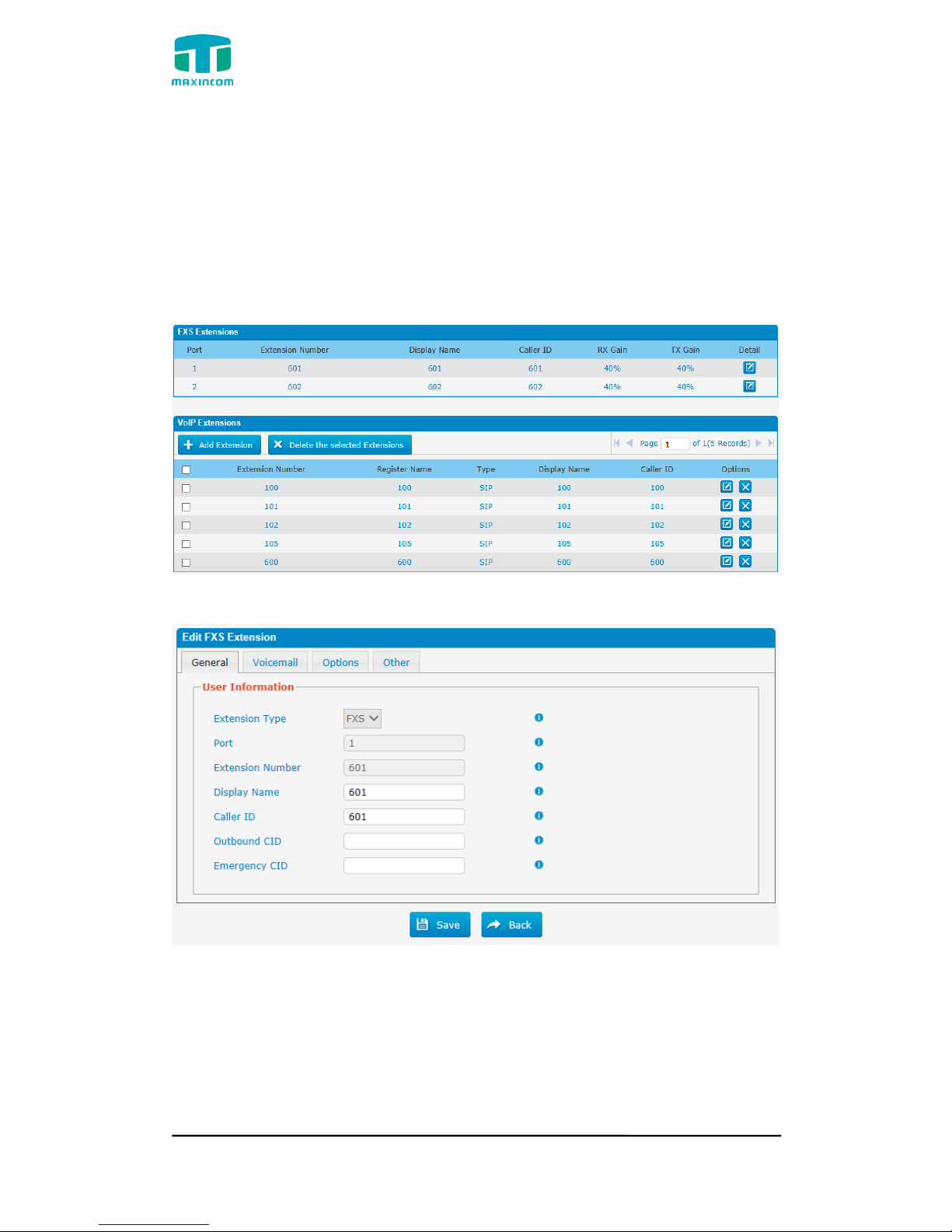
3.6.1.1 FXS Extensions
There are three types of extensions supported in PBX: SIP, IAX and analog
extension(FXS).
Figure 3.6.1.1 Extensions
Figure 3.6.1.1a Fxs Extensions Edit
Page 35
MUC1004/2008/2016 Administrator guide
Http://www.maxincom.com 35 / 112
Table 3.6.1.1a FXS Extensions
Parameters
Description
Port
The extension correspond port.
Extensions
Number
The numbered extension, e.g. 601, that will be associated
with this particular User/Phone.
Display Name
A character-based name for this user, e.g. “Han Jones”.
Call ID
The Caller ID (CID) string will be used when this user calls
another internal user.
Outbound CID
Overrides the caller ID when dialing out a trunk.Any setting
here will override the common outbound caller ID set in the
trunks admin .
Format: “caller name” <######>
Leave this field blank to disable the outbound caller ID
feature for this user
Emergency CID
This Caller ID will always be set when dialing out an
outbound route flagged as emergency.The emergency CID
overrides all other callerID Settings.
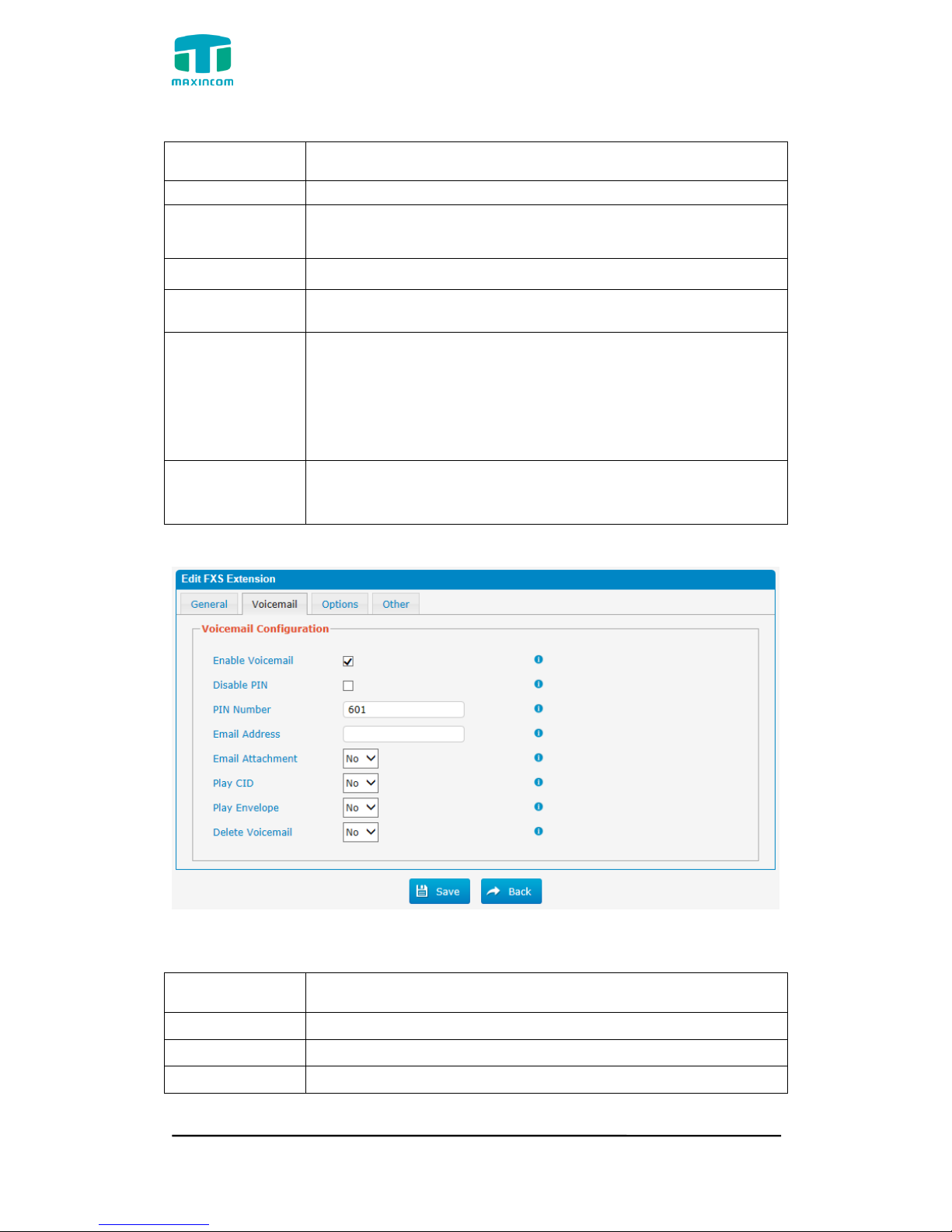
Figure 3.6.1.1b Fxs Extensions Vociemail
Table 3.6.1.1b Description of FXS Extensions Vociemail
Parameters
Description
Enable Voicemail
Check this box if the user should have a voicemail account.
Disable PIN
Disable voicemail PIN authentication.
PIN Number
Password used to access the Voicemail system.e.g. “601”.
Page 36
MUC1004/2008/2016 Administrator guide
Http://www.maxincom.com 36 / 112
Email Address
Email Attachment
This option defines whether or not voicemails/Fax is sent to
the Email address as an attachment.
Note: Please ensure that all voicemail settings are properly
configured on the System
Play CID
Read back caller's telephone number prior to playing the incoming
message.
Play Envelope
Envelope controls whether or nor the Voicemail system will
play the message envelope (date/time) before playing the
voicemail message.
Delete Voicemail
the message will be deleted from the Voicemailbox (after having
been emailed).
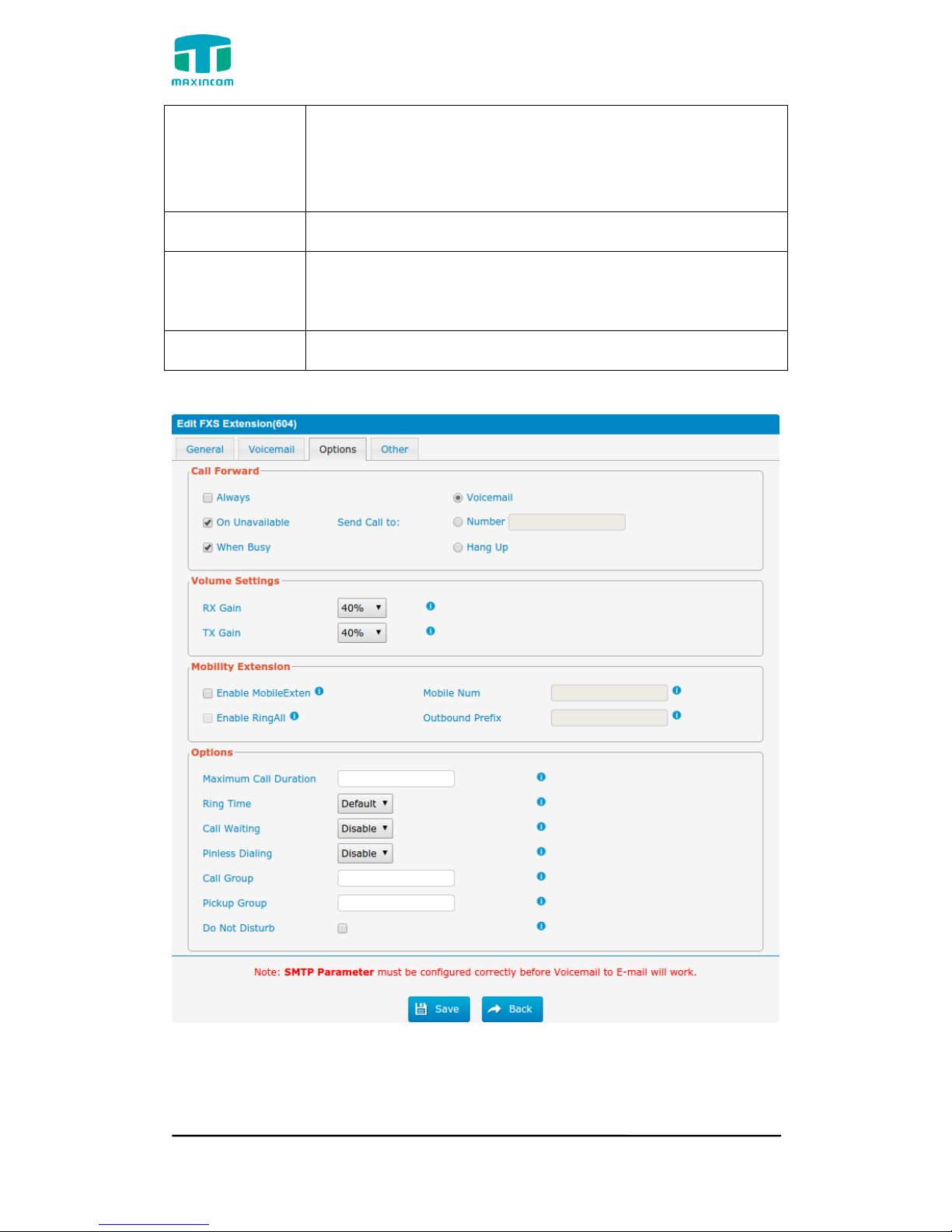
Figure 3.6.1.1c FXS Extensions Options
Page 37

MUC1004/2008/2016 Administrator guide
Http://www.maxincom.com 37 / 112
Table 3.6.1.1c Description of FXS Extensions Options
Parameters
Description
Call Forward
(Follow Me)
This function sets inbound call forwarding on an extension.
An administrator can configure Call Forward for this
extension.
Volume Settings
Rxgain: The Volume sent to FXS extension.
Txgain: The Volume sent out by the FXS extension
Mobility
Extension
Mobile Num: if you set a mobile number as mobility
extension,while you call in PBX with this mobile number, the
mobile phone will get all permission of the associated
extension.for example: dialing the extension, playing the
voicemail.
Enable RingAll: when someone calls the associated
extension,your mobile phone will ring together,what you
need is set outbound route and set Outbound Prefix number.
Maximum Call
Duration
The absolute maximum amount of time permitted for a call,it only
valid for outbound calls
Ring Time
Number of seconds to ring prior to going to voicemail.
Call Waiting
Check this option if the extension should have Call Waiting
capability. If this option is checked, the “When busy” follow
me options will not be available.
Pinless Dialing
Pinless Dialing will allow this extension to bypass any pin codes
normally required on outbound calls
Call Group
Call group for peer/user
Pickup Group
If this extension belongs to a pickup group, any calls that
ring this extension can be picked up by other extensions in
the same pickup group by dialing the Call Pickup feature
code(the default is *8).
Note: *8 is the default setting, it can be changed under
Feature Codes -> General -> Call Pickup.
Do Not Disturb
Do Not Disturb
Page 38
MUC1004/2008/2016 Administrator guide
Http://www.maxincom.com 38 / 112
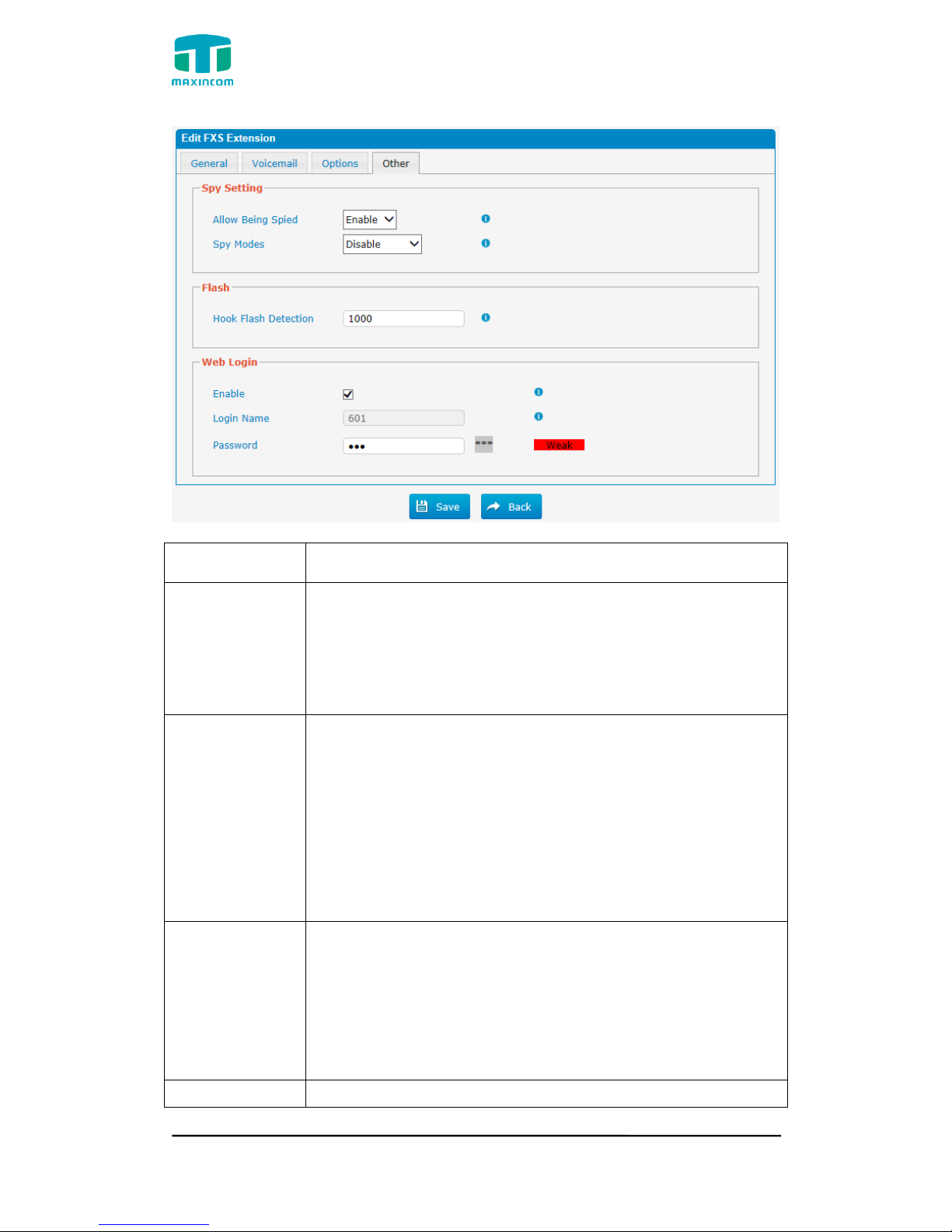
Figure 3.6.1.1d Fxs Extensions Other
Table 3.6.1.1d Description of FXS Extensions Other
Parameters
Description
Spy Settings
PBX allows extension to monitor/barge in other
conversation. Once this feature is enabled, the extension has
the ability to monitor/barge in other calls using the feature
codes for each spy mode. Refer to “Feature Codes” section
for more information.
spy modes
There are 4 spy modes available:
General spy: you have the permission to use the
following 3
modes.
Quiet spy: you can only hear the call, but can't talk.
Whisper spy: you can hear the call, and can talk with the
monitored extension.
Barge spy: you can hear the call and talk with them both.
Flash
Sets the amount of time, in milliseconds, that must pass
since the last hook-flash event received by PBX before it will
recognize a second event. If a second event occurs in less
time than defined by Hook Flash Detection, then PBX will
ignore the event. The default value of Flash is 1000ms, and it
can be configured in 1ms increments.
Web Login
Extension web login setttings.
Page 39
MUC1004/2008/2016 Administrator guide
Http://www.maxincom.com 39 / 112
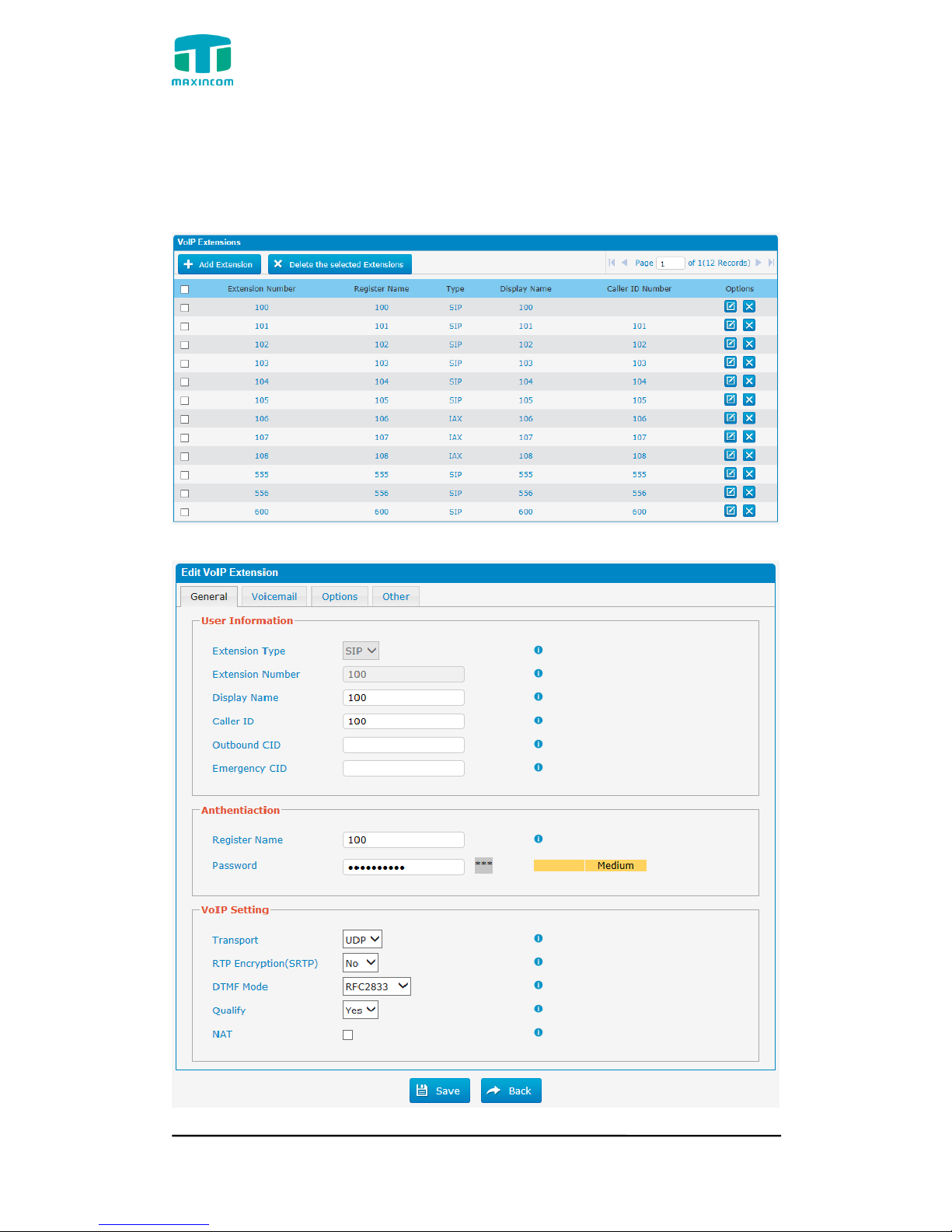
3.6.1.2 VoIP Extensions
A VoIP extension is a SIP/IAX Account that allows an IP Phone or an IP soft
phone client to register on PBX.
Figure 3.6.1.2 VoIP Extensions Edit/Add
Figure 3.6.1.2a VoIP Extensions Edit/Add
Page 40

MUC1004/2008/2016 Administrator guide
Http://www.maxincom.com 40 / 112
Table 3.6.1.2a Description of VoIP Extensions Edit/Add
Parameters
Description
Extension Type
Extension type: SIP, IAX or SIP/IAX.
SIP—The extension sends and receives calls using the
VoIP protocol SIP.
IAX—The extension sends and receives calls using the
VoIP protocol IAX.
Extension
Number
The numbered extension, e.g. 100, that will be associated
with this particular User/Phone.
Display Name
A character-based name for this user, e.g. “Han Jones”.
Caller ID
The Caller ID will be used when this user calls another
internal extension.
Outbound CID
Overrides the caller ID when dialing out a trunk.Any setting
here will override the common outbound caller ID set in the
trunks admin .
Format: “caller name” <######>
Leave this field blank to disable the outbound caller ID
feature for this user
Emergency CID
This Caller ID will always be set when dialing out an
outbound route flagged as emergency.The emergency CID
overrides all other callerID Settings.
Register Name
It is for extension registration validation. Users will not be
able register the extension if the authorization name is
incorrect even though the username and password are
correct.
Password
The password for this extension, but it is not a fixed one.
When you add new extension,a random and robust
password will be generated like “0e3lx9Iz”.
Transport
This will be the transport method used by the extension. The
options are UDP (default) or TCP or TLS.
SRTP
Enable extension for SRTP (RTP Encryption).
DTMF Mode
RFC2833, Info, Short Info,Inband, Auto.
Qualify
Send check alive packets to IP phones.
NAT
This setting should be used when the system is using a
public IP address to communicate with devices hidden
behind a NAT device (such as a broadband router). If you
have one-way audio problems, you usually have problems
with your NAT configuration or your firewall's support of SIP
and/or RTP ports.
Page 41
MUC1004/2008/2016 Administrator guide
Http://www.maxincom.com 41 / 112
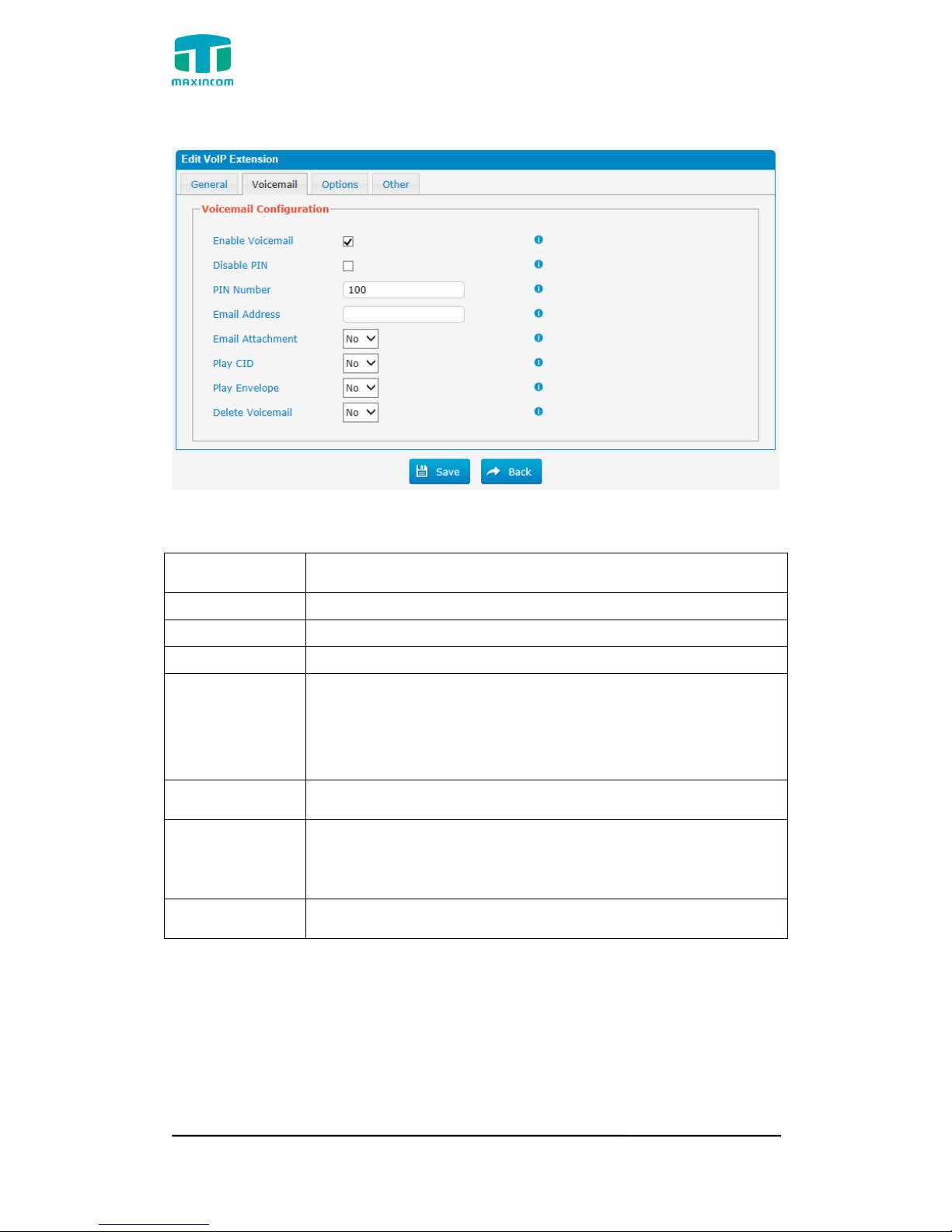
Figure 3.6.1.2b VoIP Extensions Voicemail
Table 3.6.1.2b Description of VoIP Extensions Voicemail
Parameters
Description
Enable Voicemail
Check this box if the user should have a voicemail account.
Disable PIN
Disable voicemail PIN authentication.
PIN Number
Password used to access the Voicemail system.e.g. “100”.
Email Address
Email Attachment
This option defines whether or not voicemails/Fax is sent to
the Email address as an attachment.
Note: Please ensure that all voicemail settings are properly
configured on the System
Play CID
Read back caller's telephone number prior to playing the incoming
message.
Play Envelope
Envelope controls whether or nor the Voicemail system will
play the message envelope (date/time) before playing the
voicemail message.
Delete Voicemail
the message will be deleted from the Voicemailbox (after having
been emailed).
Page 42
MUC1004/2008/2016 Administrator guide
Http://www.maxincom.com 42 / 112
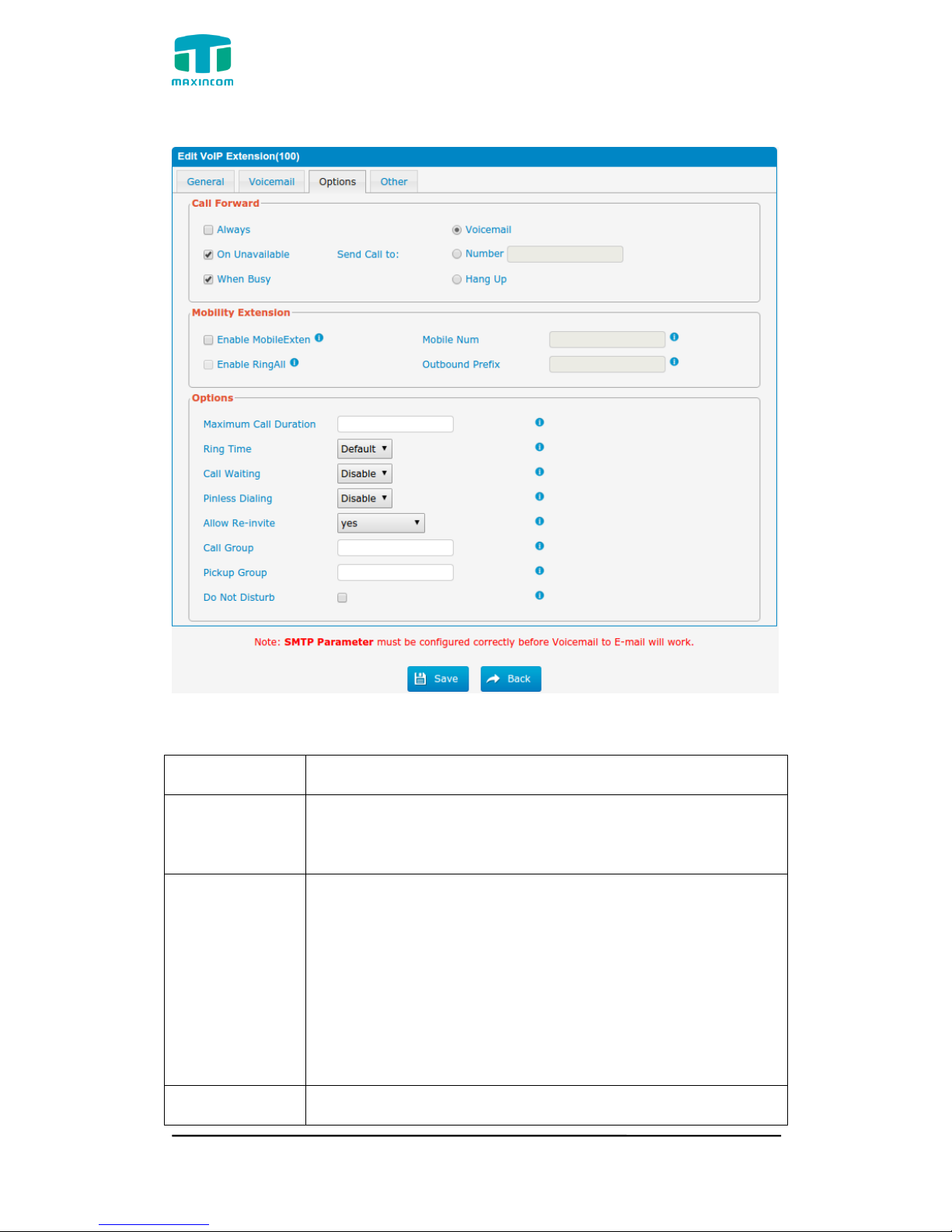
Figure 3.6.1.2c VoIP Extensions Options
Table 3.6.1.2c Description of VoIP Extensions Options
Parameters
Description
Call Forward
(Follow Me)
This function sets inbound call forwarding on an extension.
An administrator can configure Call Forward for this
extension.
Mobility
Extension
Mobile Num: if you set a mobile number as mobility
extension,while you call in PBX with this mobile number, the
mobile phone will get all permission of the associated
extension.for example: dialing the extension, playing the
voicemail.
Enable RingAll: when someone calls the associated
extension,your mobile phone will ring together,what you
need is set outbound route and set Outbound Prefix number.
Maximum Call
The absolute maximum amount of time permitted for a call,it only
valid for outbound calls
Page 43

MUC1004/2008/2016 Administrator guide
Http://www.maxincom.com 43 / 112
Duration
Ring Time
Number of seconds to ring prior to going to voicemail.
Call Waiting
Check this option if the extension should have Call Waiting
capability. If this option is checked, the “When busy” follow
me options will not be available.
Allow Re-invite
Re-Invite policy for this device.
yes: Allow RTP media direct.
no: Deny re-invites.
nonat: Allow reinvite when local, deny reinvite when NAT.
update: Use UPDATE instead of INVITE.
update,nonat: Use UPDATE when local, deny when NAT.",
Pinless Dialing
Pinless Dialing will allow this extension to bypass any pin codes
normally required on outbound calls
Call Group
Call group for peer/user
Pickup Group
If this extension belongs to a pickup group, any calls that
ring this extension can be picked up by other extensions in
the same pickup group by dialing the Call Pickup feature
code(the default is *8).
Note: *8 is the default setting, it can be changed under
Feature Codes -> General -> Call Pickup.
Do Not Disturb
Do Not Disturb
Page 44
MUC1004/2008/2016 Administrator guide
Http://www.maxincom.com 44 / 112
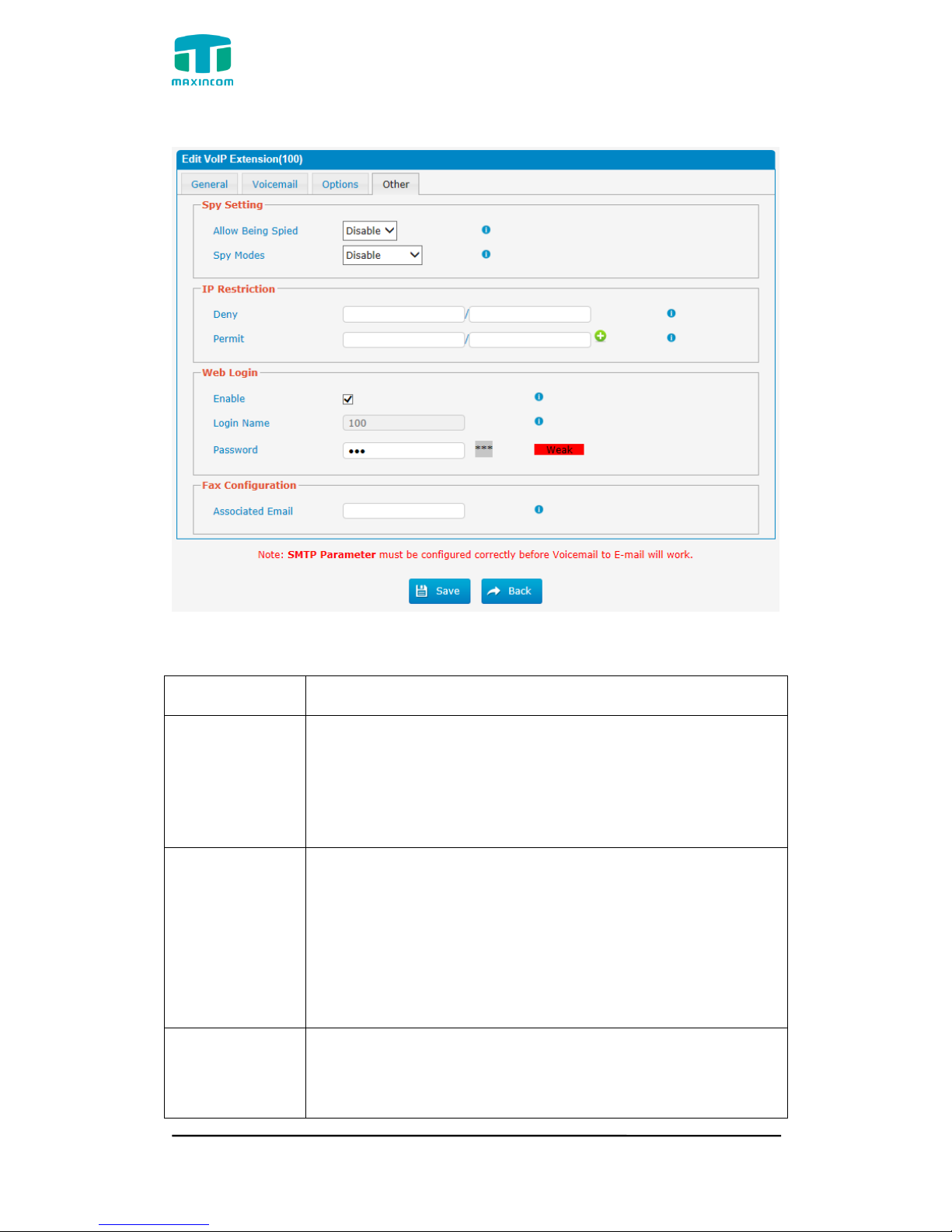
Figure 3.6.1.2d VoIP Extensions Other
Table 3.6.1.2d Description of VoIP Extensions Other
Parameters
Description
Spy Settings
PBX allows extension to monitor/barge in other
conversation. Once this feature is enabled, the extension has
the ability to monitor/barge in other calls using the feature
codes for each spy mode. Refer to “Feature Codes” section
for more information.
spy modes
There are 4 spy modes available:
General spy: you have the permission to use the
following 3 modes.
Quiet spy: you can only hear the call, but can't talk.
Whisper spy: you can hear the call, and can talk with the
monitored extension.
Barge spy: you can hear the call and talk with them both.
IP Restriction
IP Restriction Settings
Default leave it blank on ”IP Restriction” configuration. it
indicate that registration of remote extension is
allowed(remote extension IP Address is not deny)
Page 45

MUC1004/2008/2016 Administrator guide
Http://www.maxincom.com 45 / 112
Deny: IP Address range to deny access to,in the form of
network/netmask, e.g.0.0.0.0/0.0.0.0
Permit: IP Address range to deny access to,in the form of
network/netmask,this can be a very useful security option
when dealing with remote extensions that are at a known
location(such as a branch office ) or within a known ISP
range for some home office situations.
e.g.192.168.6.1/255.255.255.0
Web Login
Extension web login setttings.
Fax
Configuration
Associated Email: the email address that FAXs are send to.
It is used for T.38 FAX
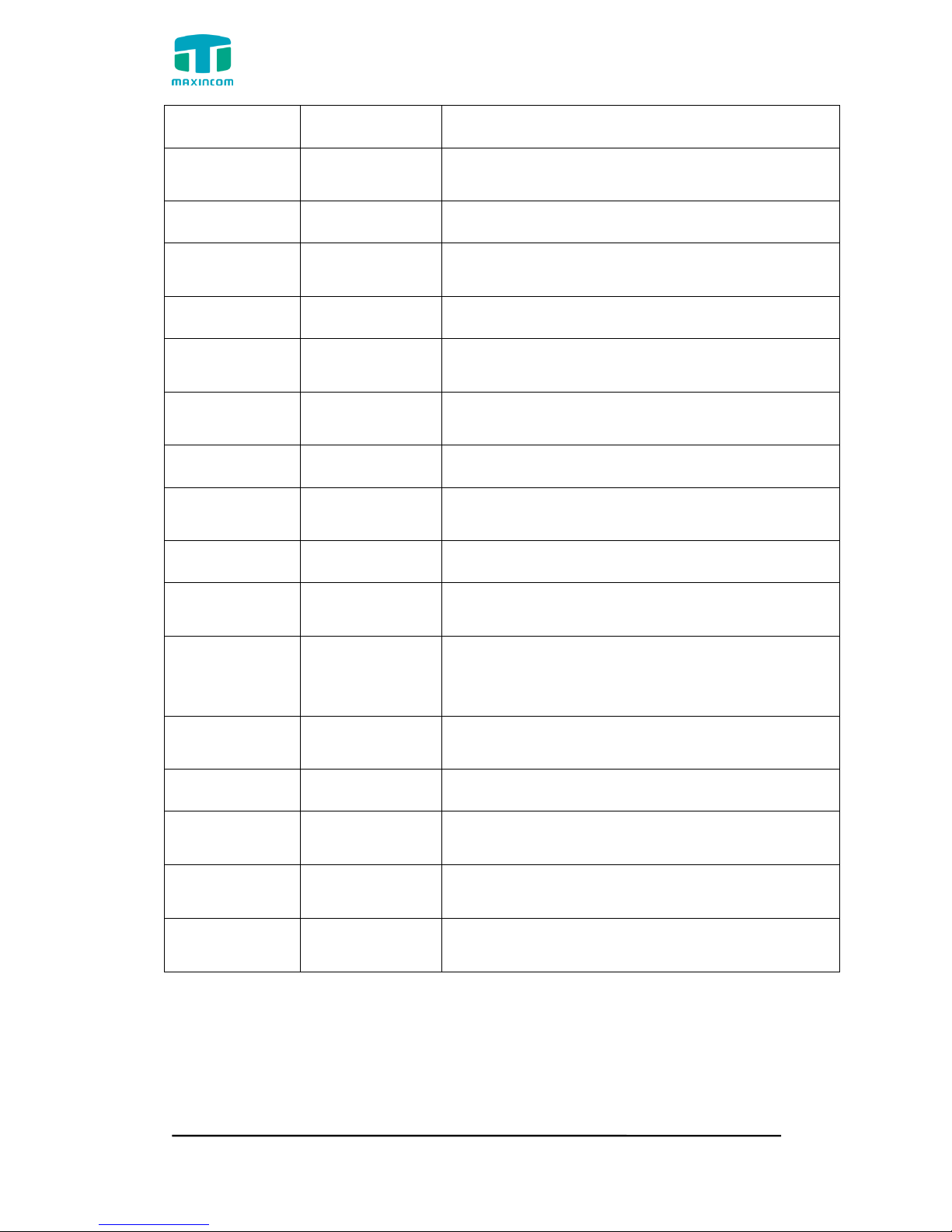
3.6.2 Feature Codes
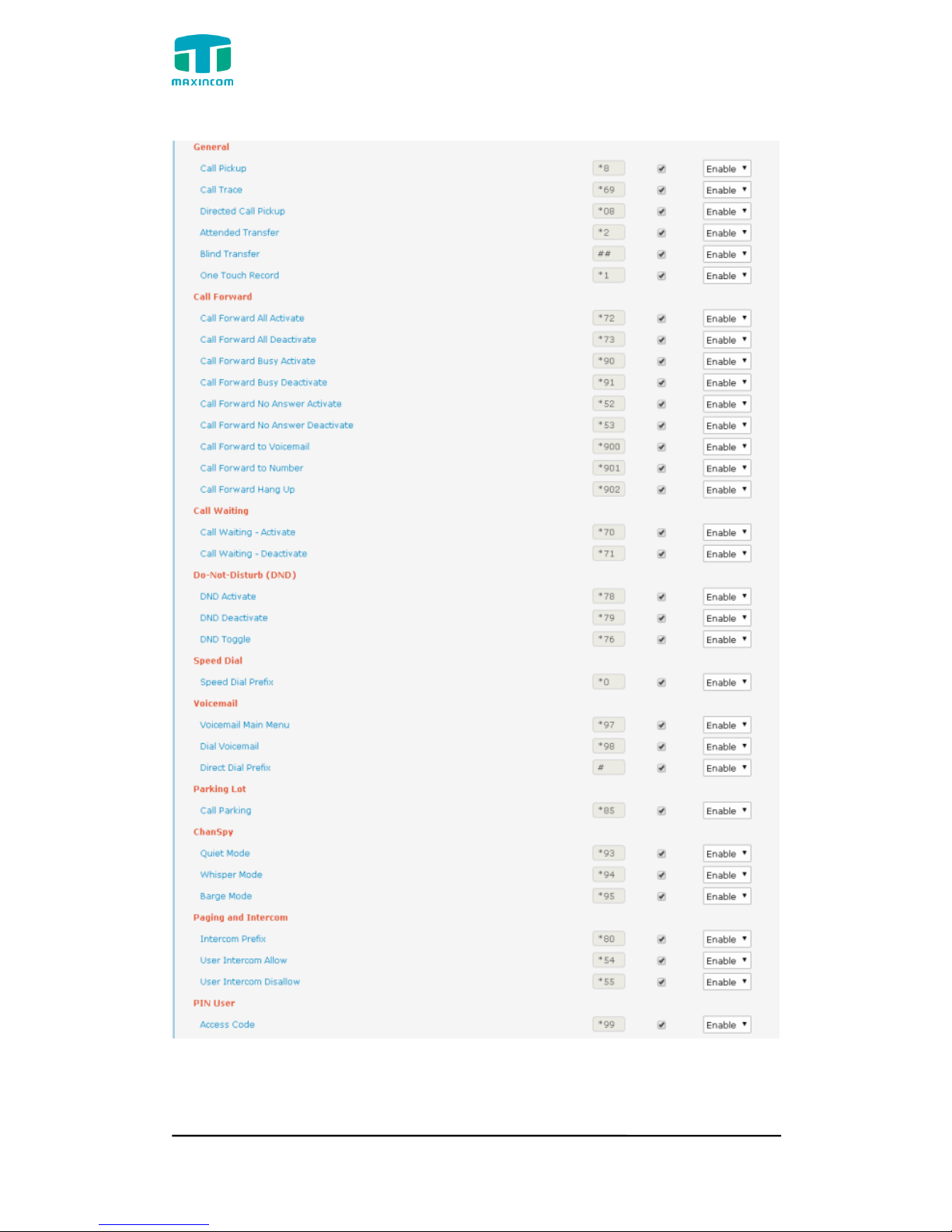
There are many feature codes available in PBX, which allow users to dial from
extension side to realize the exact feature.
Page 46
MUC1004/2008/2016 Administrator guide
Http://www.maxincom.com 46 / 112
Figure 3.6.2 Feature Codes
Page 47

MUC1004/2008/2016 Administrator guide
Http://www.maxincom.com 47 / 112
Table 3.6.2 Description of Feature Codes
Label
Feature Codes
Description
Call Pickup
*8
Pickup extension
Call Trace
*69
Trace last call number,and press 1,dial this
number out.
Directed Call
Pickup
*08
[featurecode] + extension number
Pickup specify extension
Attended
Transfer
*2
[featurecode] + extension number
Specify transfer to extension
Blind Transfer
##
[featurecode] + extension number
After the success of the transfer to extension will
automatically hang up
One Touch
Record
*1
Start recording in call, stop recording when Enter
again
Call Forward All
Activate
*72
Call forward all activate
Call Forward All
Deactivate
*73
Call forward all deactivate
Call Forward
Busy Activate
*90
Call forward busy activate
Call Forward
Busy
Deactivate
*91
Call forward busy deactivate
Call Forward
No Answer
Activate
*52
Call forward no answer activate
Call Forward
No Answer
Deactivate
*53
Call forward no answer deactivate
Call Forward to
Voicemail
*900
Call forward to voicemail
Call Forward to
Number
*901
Call forward to number
Call Forward
Hang Up
*902
Call forward to hang up
Call Waiting -
*70
Call waiting activate
Page 48
MUC1004/2008/2016 Administrator guide
Http://www.maxincom.com 48 / 112
Activate
Call Waiting Deactivate
*71
Call waiting deactivate
DND Activate
*78
DND activate
DND
Deactivate
*79
DND deactivate
DND Toggle
*76
DND toggle
Speed Dial
Prefix
*0
[featurecode] + Speed Dial Source Number =
Speed Dial Destination Number
Voicemail Main
Menu
*97
Into voicemail main menu
Dial Voicemail
*98
Check extension voicemail
Direct Dial
Prefix
#
[featurecode] + Extension number
Leave a message to Specify extension
Call Parking
*85
Eg. Park a call to extension 701
Quiet Mode
*93
[featurecode] + Extension number
you can only hear the call, but can't talk.
Whisper Mode
*94
[featurecode] + Extension number
you can hear the call, and can talk with the
monitored extension.
Barge Mode
*95
[featurecode] + Extension number
you can hear the call and talk with them both.
Intercom Prefix
*80
[featurecode] + Extension number
User Intercom
Allow
*54
Allow user intercom
User Intercom
Disallow
*55
Disable user intercom
Access Code
*99
[featurecode] + [password]
Get into PIN Users function
Page 49
MUC1004/2008/2016 Administrator guide
Http://www.maxincom.com 49 / 112
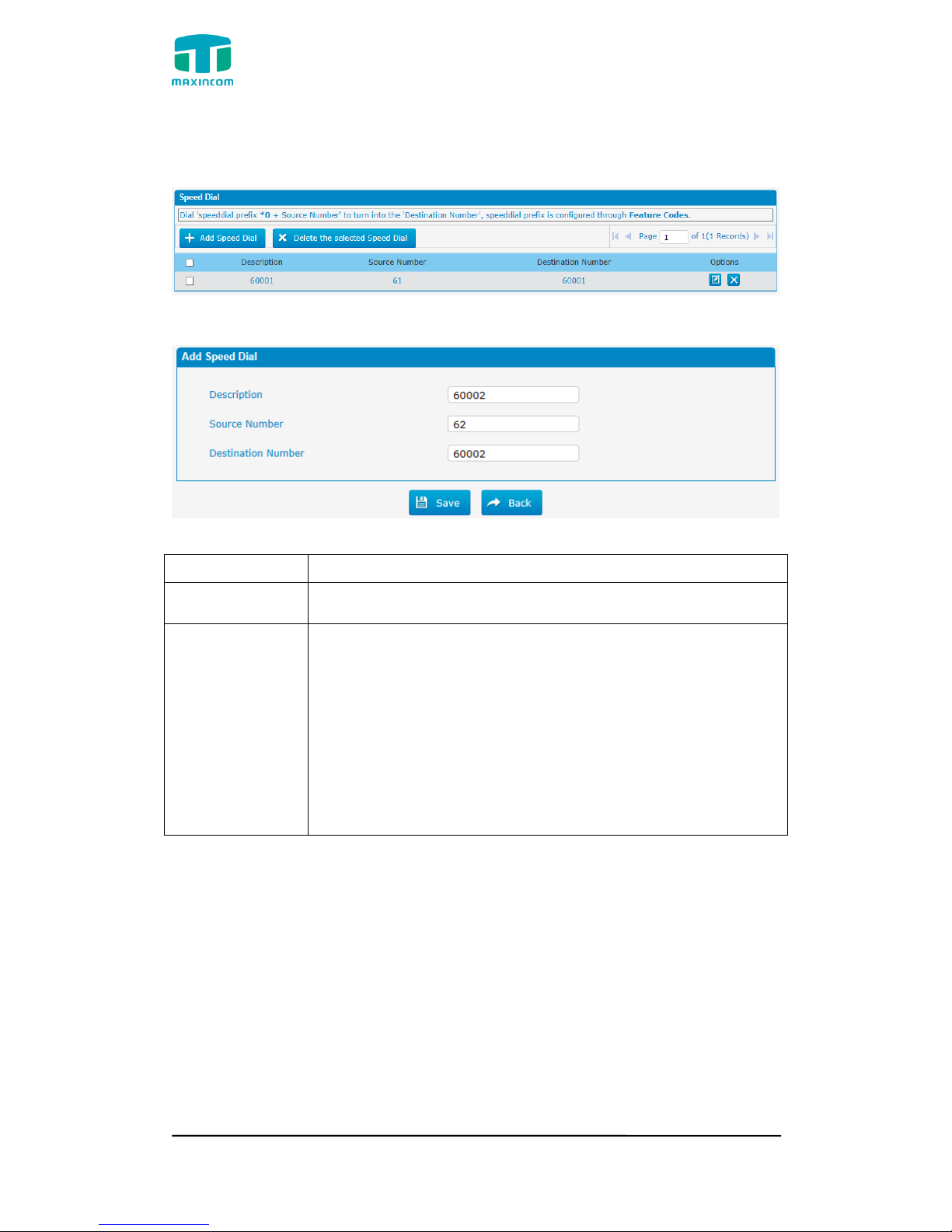
3.6.3 Speed dial
Figure 3.6.3 Speed Dial
Figure 3.6.3a Speed Dial Add
Table 3.6.3 Description of Speed Dial
Parameters
Description
Source Number
The speed dial number.
Destination
Number
The number you want to call.
E.g. the source number is “33”. The destination number is
5528369. The prefix number is *90. You can use an
extension with any type to dial *9033, then it will call the
number 5528369.
The predix of Speed dial is setting on “feathur codes”
Note: Don‟t forget to add the outbound dial prefix if you
would like to dial the speed dial number through trunk.
Page 50
MUC1004/2008/2016 Administrator guide
Http://www.maxincom.com 50 / 112
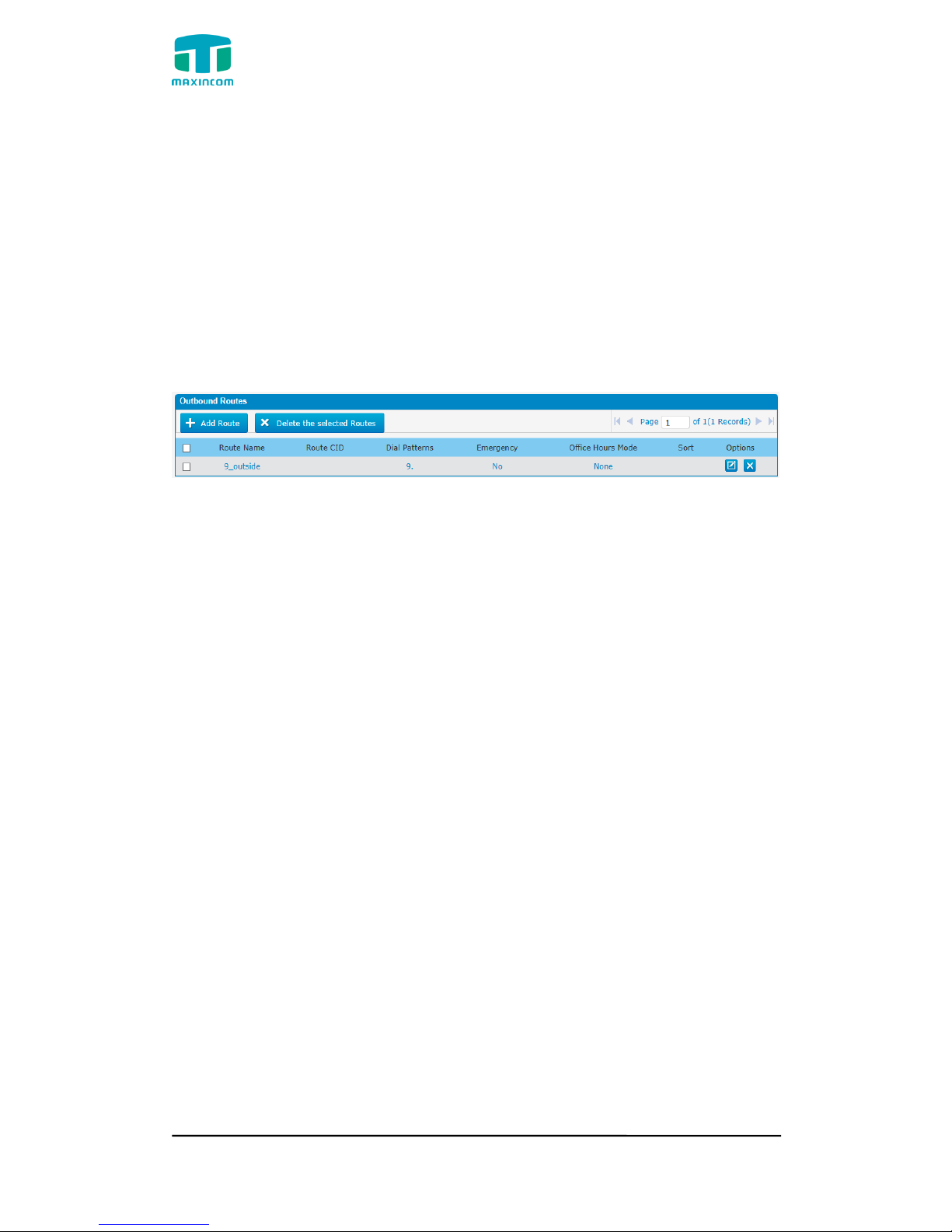
3.6.4 Outbound Routes
In this page, we can configure the outbound rules to control the outgoing calls.
Notes:
1. The max number of outbound route is 32.
2. If the dial patterns are the same in several routes, PBX will choose the
available routes from top to the last one.
3. When you have created a new extension, please edit the outbound route so
that it can dial out too.
Figure 3.6.4 Outbound Routes
We can create outbound route or use the default route “9_outside” (dial
9+numbers to dial out). Also you can delete multiple outbound routes at once
as required.
Page 51
MUC1004/2008/2016 Administrator guide
Http://www.maxincom.com 51 / 112
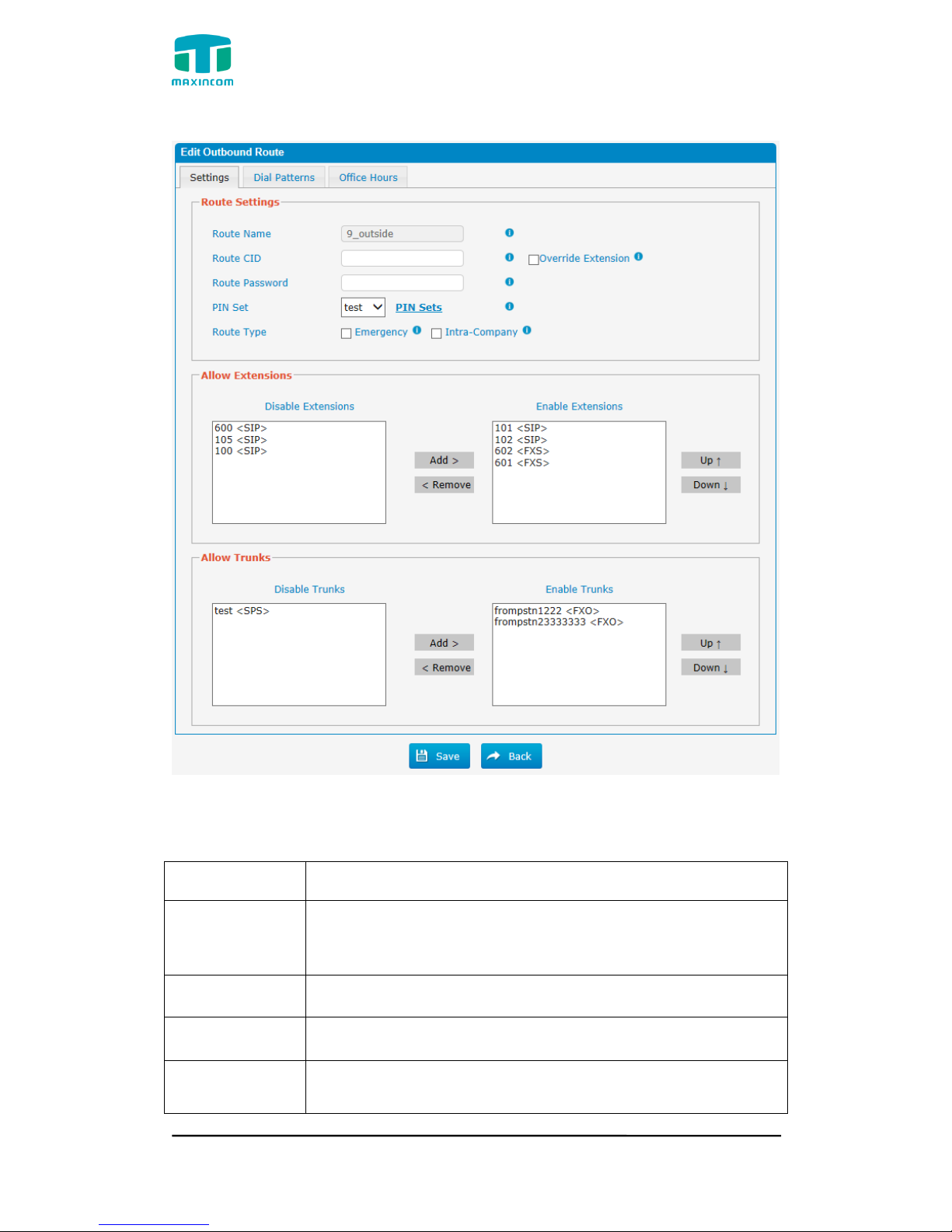
Figure 3.6.4a Outbound Routes Edit
Table 3.6.4a Description of Outbound Routes Edit
Parameters
Description
Route Name
Name of this Outbound Route. E.g. “Local” or “Long
Distance”.
Route CID
CID of this route
Override
Extension
Whether ovrride extension cid
Route Passwd
The route password can be used to protect this route from
being accessed without a password. You can choose one of
Page 52
MUC1004/2008/2016 Administrator guide
Http://www.maxincom.com 52 / 112
the passwords in the PIN list that you can click the “Pin
Settings” to edit it in “Pin Settings” page.
PIN SET
Optional: Select a PIN Set to use.If using this option,Leave
the route password field blank.
Route Type
Emergency
Intra-Company
Disable
Extensions
All disable extensions
Enable
Extensions
Define the extensions that will be permitted to use this
outbound route.
Disable Trunks
All disable trunks
Enable Trunks
Define the trunks that can be used for this outbound route.
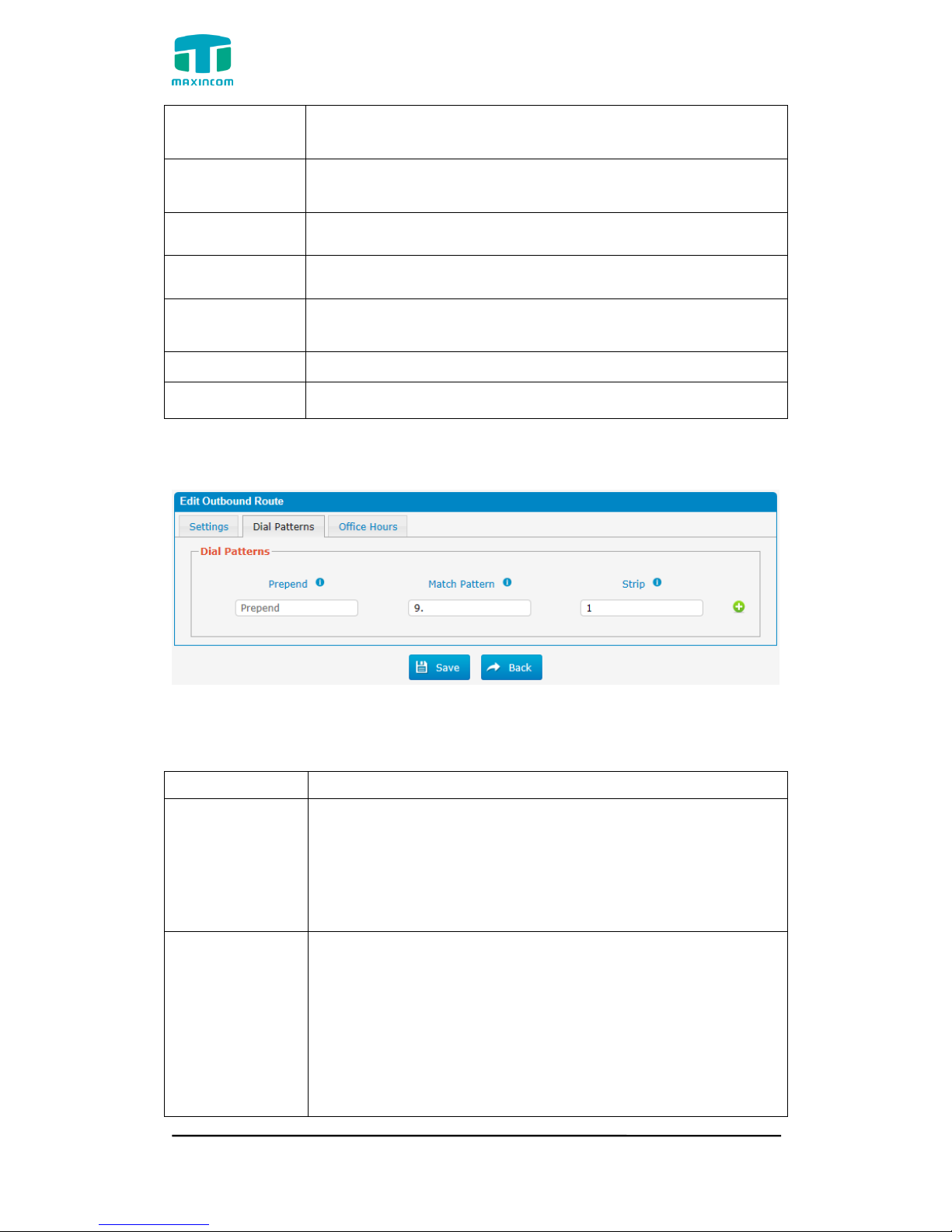
Figure 3.6.4b Outbound Routes Edit
Table 3.6.4b Description of Outbound Routes Edit
Parameters
Description
Prepend
These digits will be prepended to the phone number before
the call is placed. For example,if a trunk requires 10-digit
dialing, but users are more comfortable with 7-digit dialing,
this field could be used to prepend a 3-digit area code to all
7-digit phone numbers before calls are placed.
Match Pattern
Outbound calls that match this dial pattern will use this
outbound route. There are a number of dial pattern
characters that have special meanings:
X: Any Digit from 0-9
Z: Any Digit from 1-9
N: Any Digit from 2-9
[12345-9] : Any digit in the brackets (in this example,
Page 53
MUC1004/2008/2016 Administrator guide
Http://www.maxincom.com 53 / 112
1,2,3,4,5,6,7,8,9)
The “.” Character will match any remaining digits. For
example, “9011.” will match any phone number that starts
with “9011”, excluding “9011” itself.
The “!” will match none remaining digits, and causes the
matching process to complete as soon as it can be
determined that no other matches are possible.
Example 1: 1[5-8]6 will match 156,166,176,186.
Example 2: 1NXXNXXXXX will match a phone number
starting with a 1, followed by a 3-digit area code, and then
6-digit number.
Strip
Allows the user to specify the number of digits that will be
stripped from the front of the phone number before the call
is placed. For example, if users must press 0 before dialing a
phone number, one digit should be stripped from the dial
string before the call is placed.
Add
Add multiple dial patterns in this outbound route.
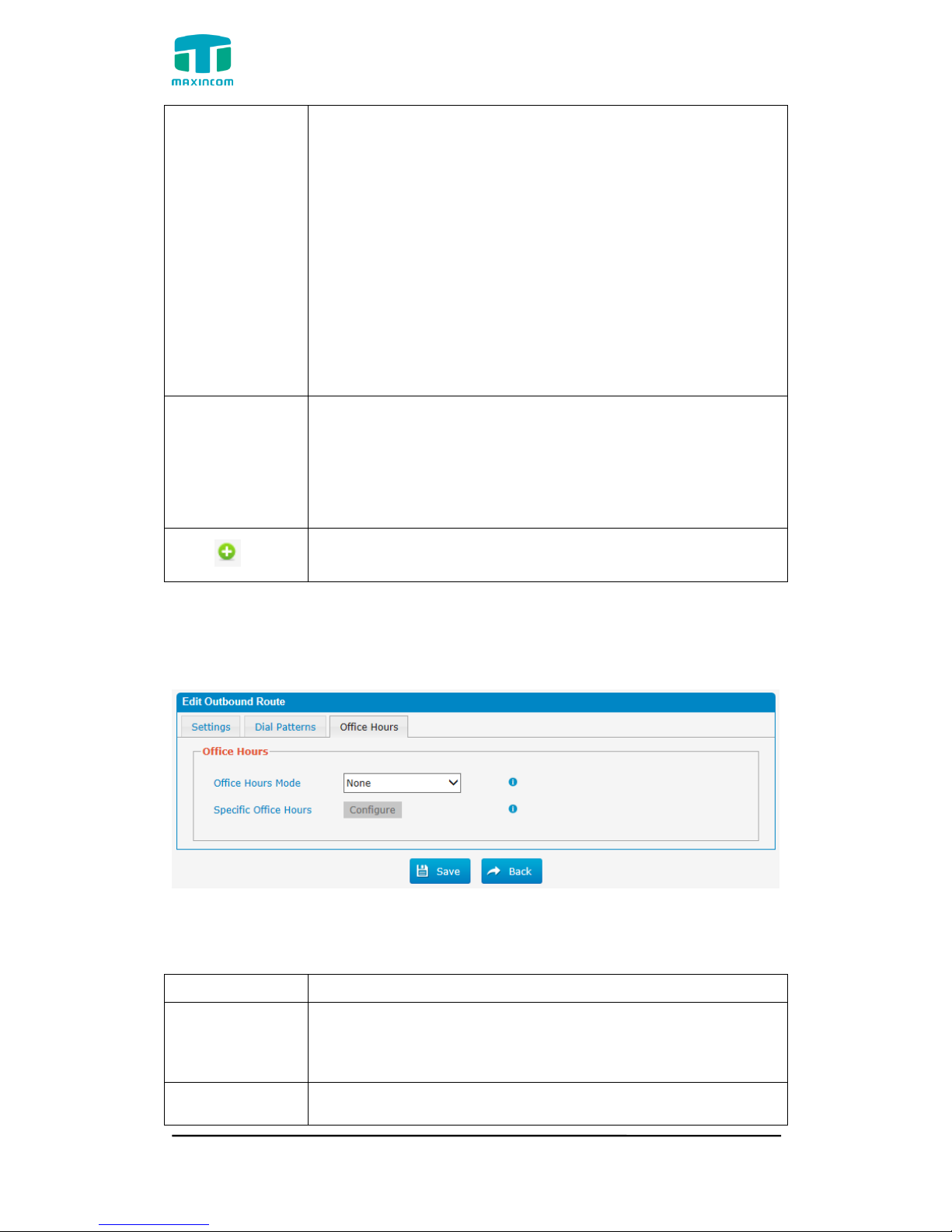
Figure 3.6.4c Outbound Routes Edit
Table 3.6.4c Description of Outbound Routes Edit
Parameters
Description
Office Hours
Mode
When a specific office hour is selected, this outbound route
can only be used during this office hour, and can‟t be used in
non-office hours.
Speciffic Office
Hours
Configure specific office hour
Page 54
MUC1004/2008/2016 Administrator guide
Http://www.maxincom.com 54 / 112
3.6.5 Parking Lot
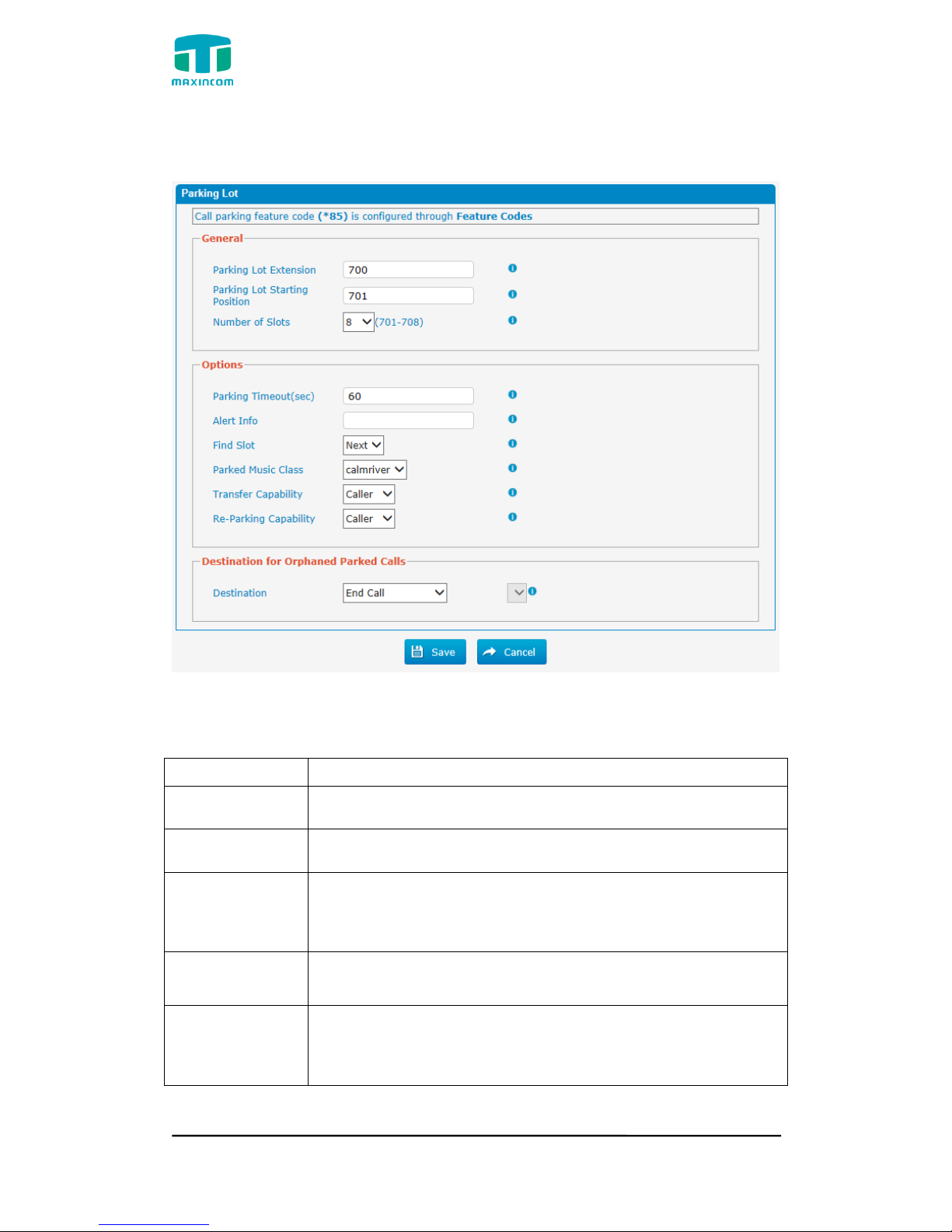
Figure 3.6.5 Parking Lot
Table 3.6.5 Description of Parking Lot
Parameters
Description
Parking Lot
Extension
This is the extension where you will transfer a call to park it.
Parking Lot
Staring Postion
The starting postion of the parking lot
Number of Slots
The total number of parking lot spaces to configure.
Example, if 700 is the extension and 8 slots are configured,
the parking slots will be 701-708
Parking Timeout
(sec)
The timeout period in seconds that a parked call will attempt
to ring back the original parker if not answered(0 for 45s).
Alert Info
This can create distinct rings on some SIP phones and can
serve to alert the recipients that the call is from an Orphaned
parked call.
Page 55
MUC1004/2008/2016 Administrator guide
Http://www.maxincom.com 55 / 112
Parked Music
Class
This is the music class that will be played to a parked call
while in the parking lot UNLESS the call flow prior to parking
the call explicitly set a different music class, such as if the
call came in through a queue or ring group.
Transfer
Capability
Enables or disables DTMF based transfers when picking up a
parked call.
Re-Parking
Capability
Enables or disables DTMF based parking when picking up a
parked call.
Destination
Destination to send the call to after Timeout Recording is
played.
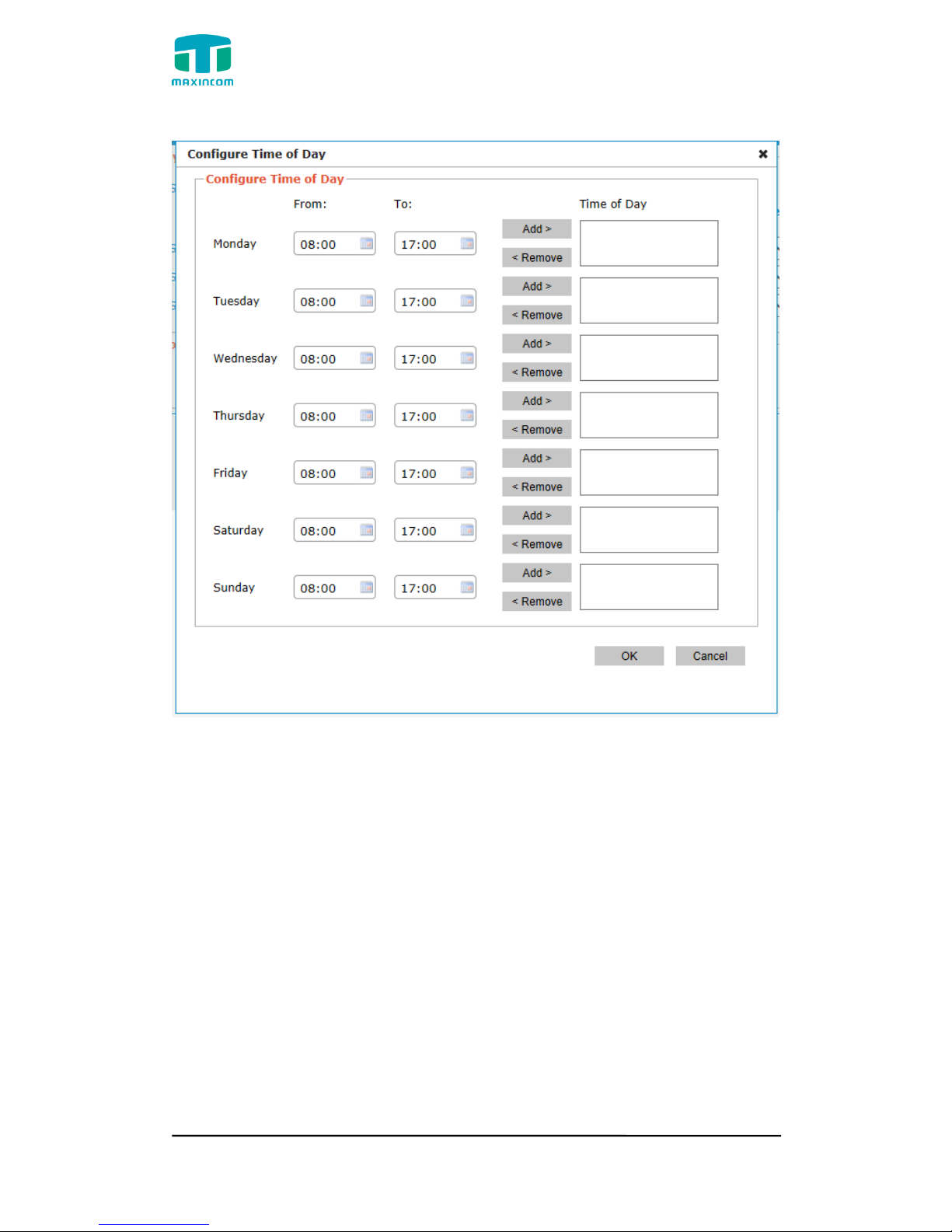
3.6.6 Time Groups
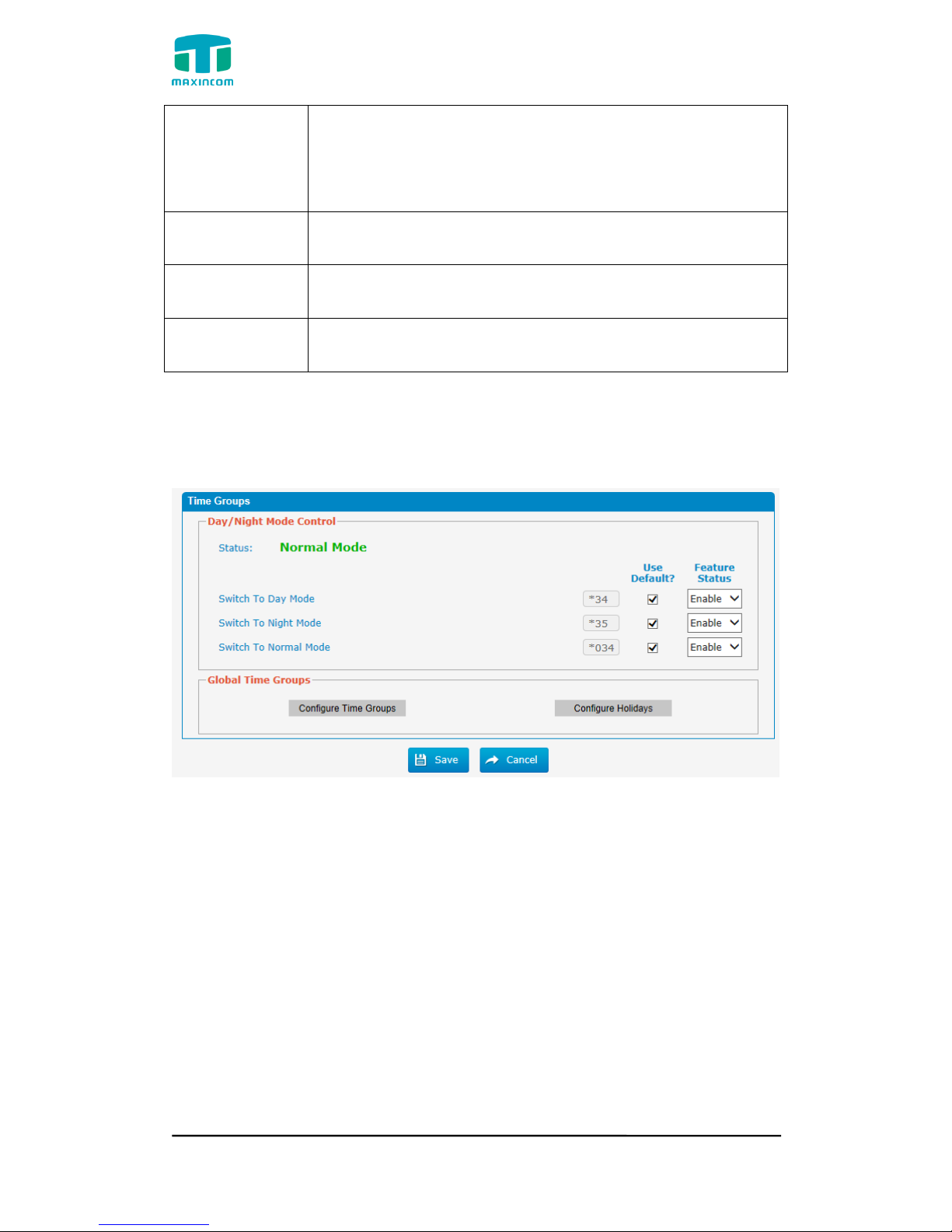
Figure 3.6.6 Time groups configure
Page 56
MUC1004/2008/2016 Administrator guide
Http://www.maxincom.com 56 / 112
Figure 3.6.6a Time groups configure
Page 57
MUC1004/2008/2016 Administrator guide
Http://www.maxincom.com 57 / 112
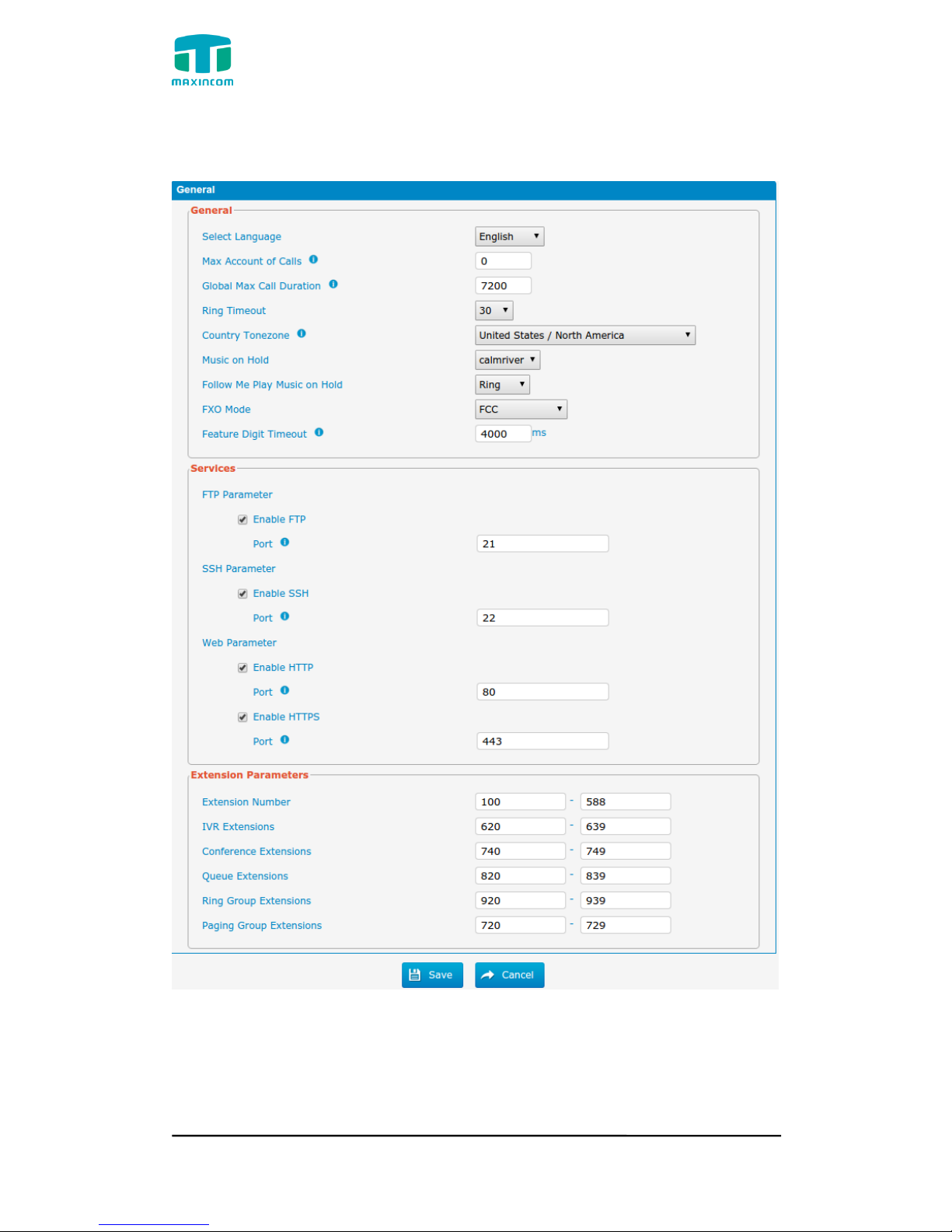
3.6.7 General Preferences
Figure 3.6.7 General Preferences
Page 58

MUC1004/2008/2016 Administrator guide
Http://www.maxincom.com 58 / 112
Table 3.6.7 Description of General Preferences
Parameters
Description
Select Language
Web label language selection
English and Chinese-S
Max Account of
Calls
Maximum concurrent calls limit(0 for unlimited)
Global Max Call
Duration
The absolute maximum amount of time permitted for a call.
A setting of 0 disables the timeout.
Ring Timeout
Global extension ring timeout.
Country
Tonezone
Please select your country or nearest neighboring country to
enable the default dial tone, busy tone, and ring tone for
your region.
Muisc on Hold
Select MOH music
Follow Me Play
Music on Hold
Mucic of follow me
Ring: normal ring back tone
Defaul: default MOH music
None: silence
FXO Mode
FXO coutry mode
Feature Digigt
Timeout
Max time (ms) between digits for feature activation.
Enable FTP
FTP services, Default Port 21
Enable SSH
SSH services, Default Port 8022
Enable HTTP
HTTP services, Default Port 80
Enable HTTPS
HTTPS services, Default Port 443
Extension
Number
The scope of VoIP Extension
IVR Extensions
The scope of IVR
Conference
Extensions
The scope of conference extension
Queue
Extensions
The scope of queue extension
Ring Group
Extensions
The scope of ring group
Page 59
MUC1004/2008/2016 Administrator guide
Http://www.maxincom.com 59 / 112
Paging Group
Extensinos
The scope of paging group
3.7 PBX Inbound Call Control
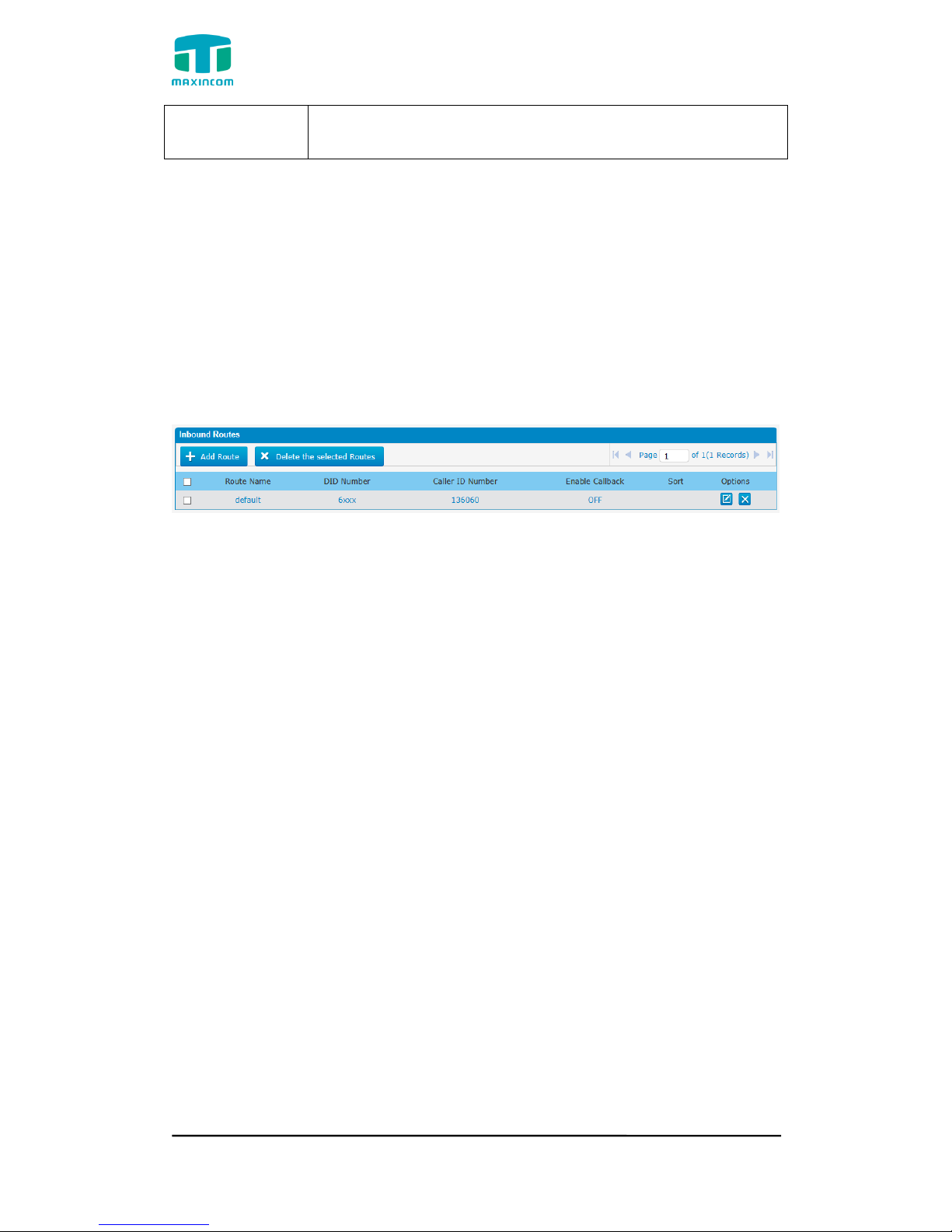
3.7.1 Inbound Routes
Inbound routing processes incoming call traffic to destination extensions during
office hours or outside office hours
Figure 3.7.1 Inbound Routes
There is a default inbound route for all the trunks and set IVR as the destination,
you can edit it or create a new one for your demands or you can delete multiple
outbound routes at once as required.When an incoming call arrives, the system
will first check “Holidays”.
Page 60
MUC1004/2008/2016 Administrator guide
Http://www.maxincom.com 60 / 112
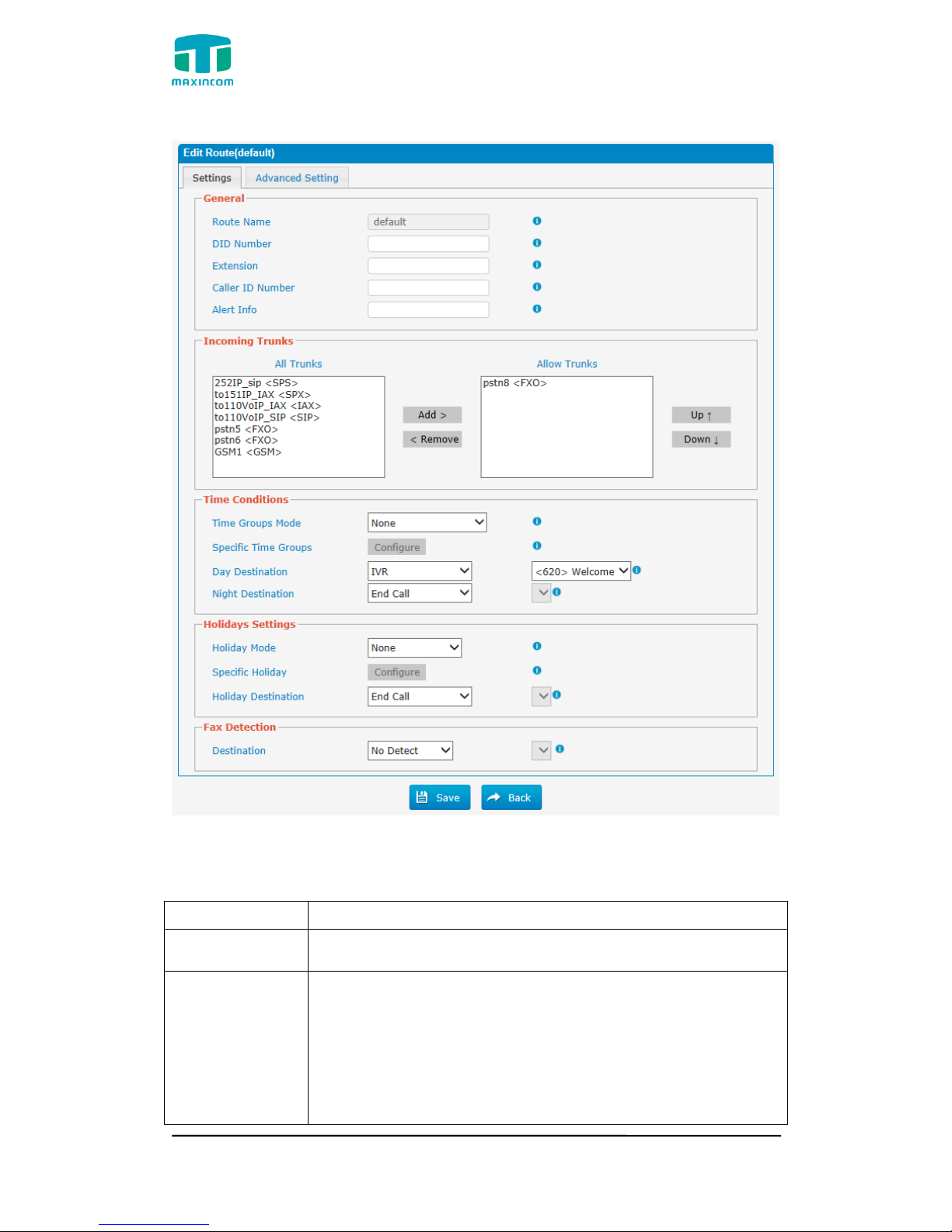
Figure 3.7.1a Inbound Routes Edit
Table 3.7.1a Description of Inbound Routes Edit
Parameters
Description
Route Name
A name for this inbound route. E.g. “default”.
DID Number
Define the expected DID Number if this trunk passes DID on
incoming calls. Leave this field blank to match calls with any
or no DID info. You can also use pattern matching to match
a range of numbers. The following patterns may be used:
X: Any Digit from 0-9
Z: Any Digit from 1-9
Page 61

MUC1004/2008/2016 Administrator guide
Http://www.maxincom.com 61 / 112
N: Any Digit from 2-9
[12345-9]: Any digit in the brackets (in this example, 1, 2,
3, 4, 5, 6, 7, 8, 9)
The “.” Character will match any remaining digits. For
example, “9011.” will match any phone number that starts
with “9011”, excluding “9011” itself.
The “!” will match none remaining digits, and causes the
matching process to complete as soon as it can be
determined that no other matches are possible.
Example 1: NXXXXXX will match any 7-digit phone
number.
Example 2: 1NXXNXXXXX will match a phone number
starting with a 1, followed by a 3-digit area code, and then
6-digit number.
Extension
Define the extension for DID number. This field is only valid
when you use BRI, SIP, SPS or SPX trunk for this inbound
router. You can only input number and “-” in this field and
the format can be xxx or xxx-xxx. The count of the number
must be only one or equal to the count of the DID number.
Caller ID
Number
Define the Caller ID Number to be matched on incoming
calls. Leave this field blank to match any or no DID info.
You can also use a pattern match (e.g. 2[345]X) to match a
range of numbers.
The following patterns may be used:
X: Any Digit from 0-9
Z: Any Digit from 1-9
N: Any Digit from 2-9
[12345-9]: Any digit in the brackets (in this example, 1, 2,
3, 4, 5, 6, 7, 8, 9)
The “.” Character will match any remaining digits. For
example, “9011.” will match any phone number that starts
with “9011”, excluding “9011” itself.
The “!” will match none remaining digits, and causes the
matching process to complete as soon as it can be
determined that no other matches are possible.
Example 1: NXXXXXX will match any 7 digits phone
number.
Example 2: 1NXXNXXXXX will match a phone number
Page 62

MUC1004/2008/2016 Administrator guide
Http://www.maxincom.com 62 / 112
starting with a 1, followed by a 3-digit area code, and then
6-digit number.
Alert Info
Alert info can be used for distinctive ring with SIP devices.
All Trunks
List all available trunks
Allow Trunks
This area allows you to select which trunks will be member
trunks for this route. To make a trunk a member of this
route, please move it to the “Selected” box.
Time Groups
Mode
Select time groups mode.
None: Disable office hours for this route.
Gloal office hours: It is configured through general
preferences.
Specific office hours: Use the specific office hours
settings.
Specific Time
Groups
Set specific time groups
Day Destination
NightDestination
End Calls
Route the incoming calls to end calls, the system will auto
hang up the call.
Extension
Route the incoming calls to a specific extension.
Voicemail
Route the incoming calls to extension‟s voicemail.
IVR
Route the incoming calls to a specific IVR.
Ring Group
Route the incoming calls to a specific Ring Group.
Conference Room
Route the incoming calls to a specific Conference Room.
DISA
Route the incoming calls to a specific DISA.
Queues
Route the incoming calls to a specific Queue.
Outbound Routes
Route the incoming calls to a specific outbound route.
This function is mainly used for the connection of two
branches.
For example: Company A locates headquarters in the USA
Page 63
MUC1004/2008/2016 Administrator guide
Http://www.maxincom.com 63 / 112
with a branch B in China. A and B both have a PBX phone
system. Now if staff of A would like to make a call to a
telephone or mobile phone in China from the extension of A
but via the FXS line of B, that can be done by this
configuration.
Holiday Mode
Define where the calls will be routed during Holidays.
Select which defined Holiday to use.
None: Disable holiday for this route.
Gloal holiday: It is configured through general
preferences.
Specific holiday: Use the holiday settings.
Specific Holiday
Specific holiday time groups
Holiday
Destination
Configure where to route the incoming calls during holidays.
Destination
Fax detect destination
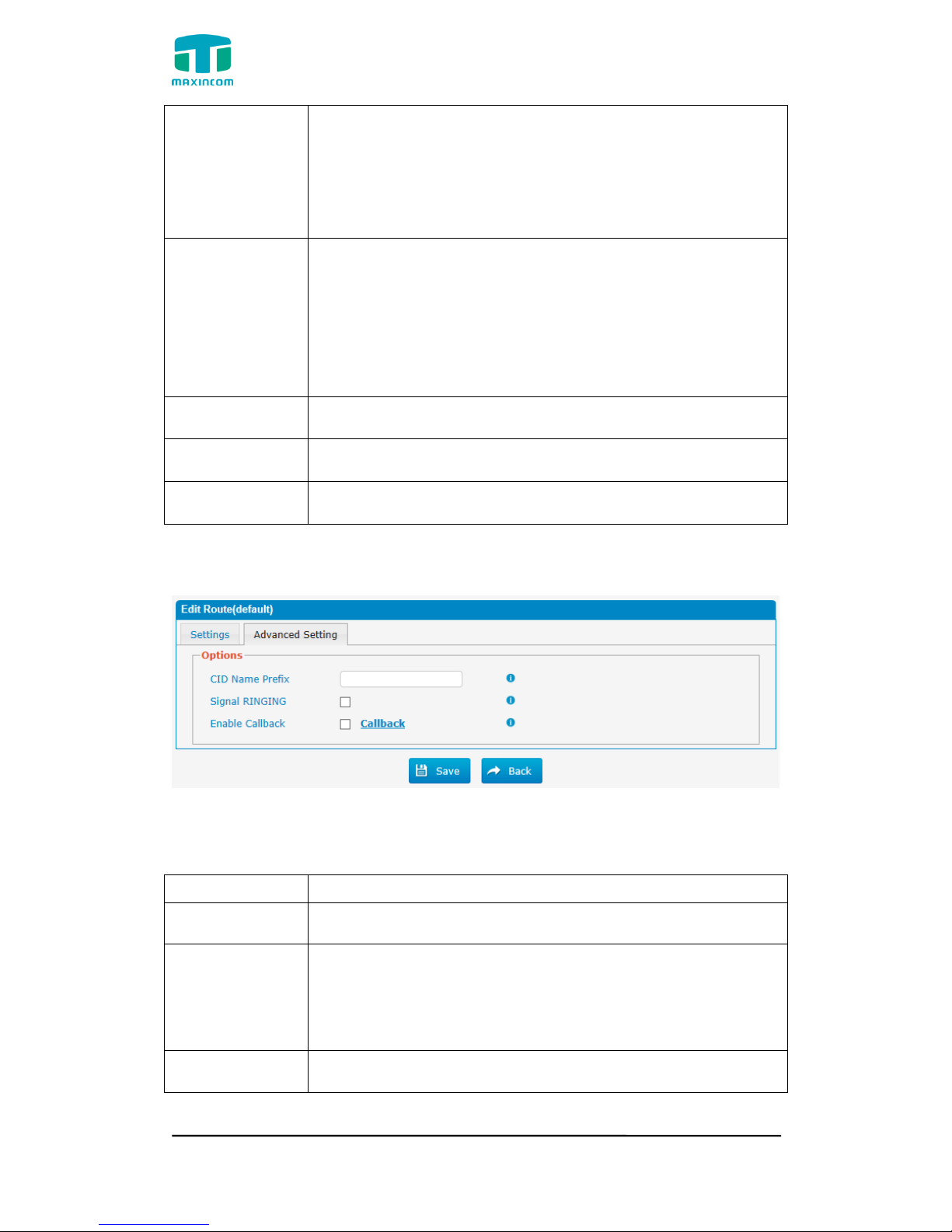
Figure 3.7.1b Inbound Routes Edit
Table 3.7.1b Description of Inbound Routes Edit
Parameters
Description
CID Name Prefix
Set inbound CID preifx
Signal RINGING
Some devices or providers require RINGING to be sent
before ANSWER. You'll notice this happening if you can send
calls directly to a phone, but if you send it to an IVR, it
won't connect the call.
Enable Callback
Enable callback
Page 64
MUC1004/2008/2016 Administrator guide
Http://www.maxincom.com 64 / 112
3.7.2 Blacklist
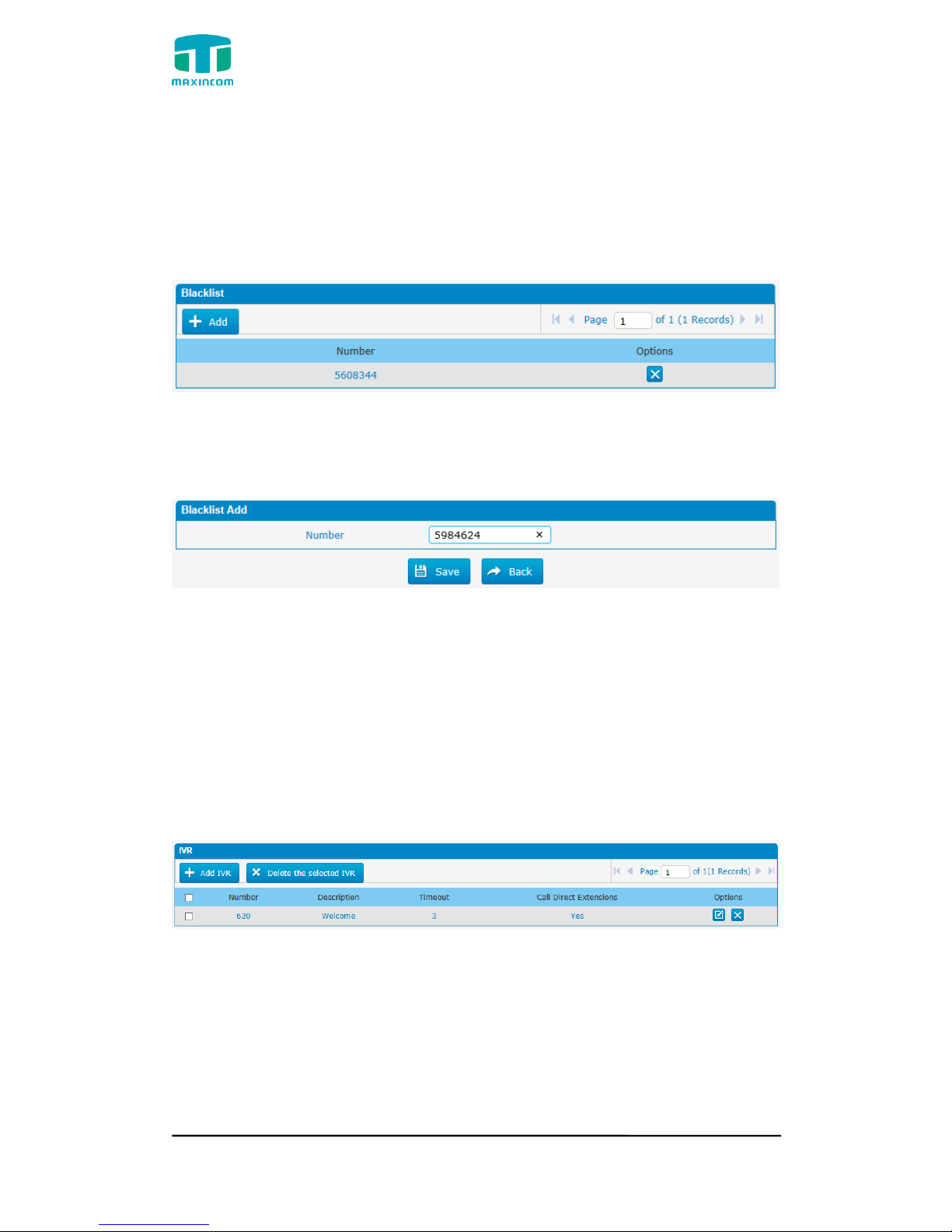
Blacklist is used to block an incoming/outgoing call. If the number of
incoming/outgoing call is listed in the number blacklist, the caller will hear the
following prompt: “The number you have dialed is not in service. Please check
the number and try again”. The system will then disconnect the call.
Figure 3.7.2 Blacklist
We can add a number to blacklist
Figure 3.7.2a Blacklist Add
3.7.3 IVR
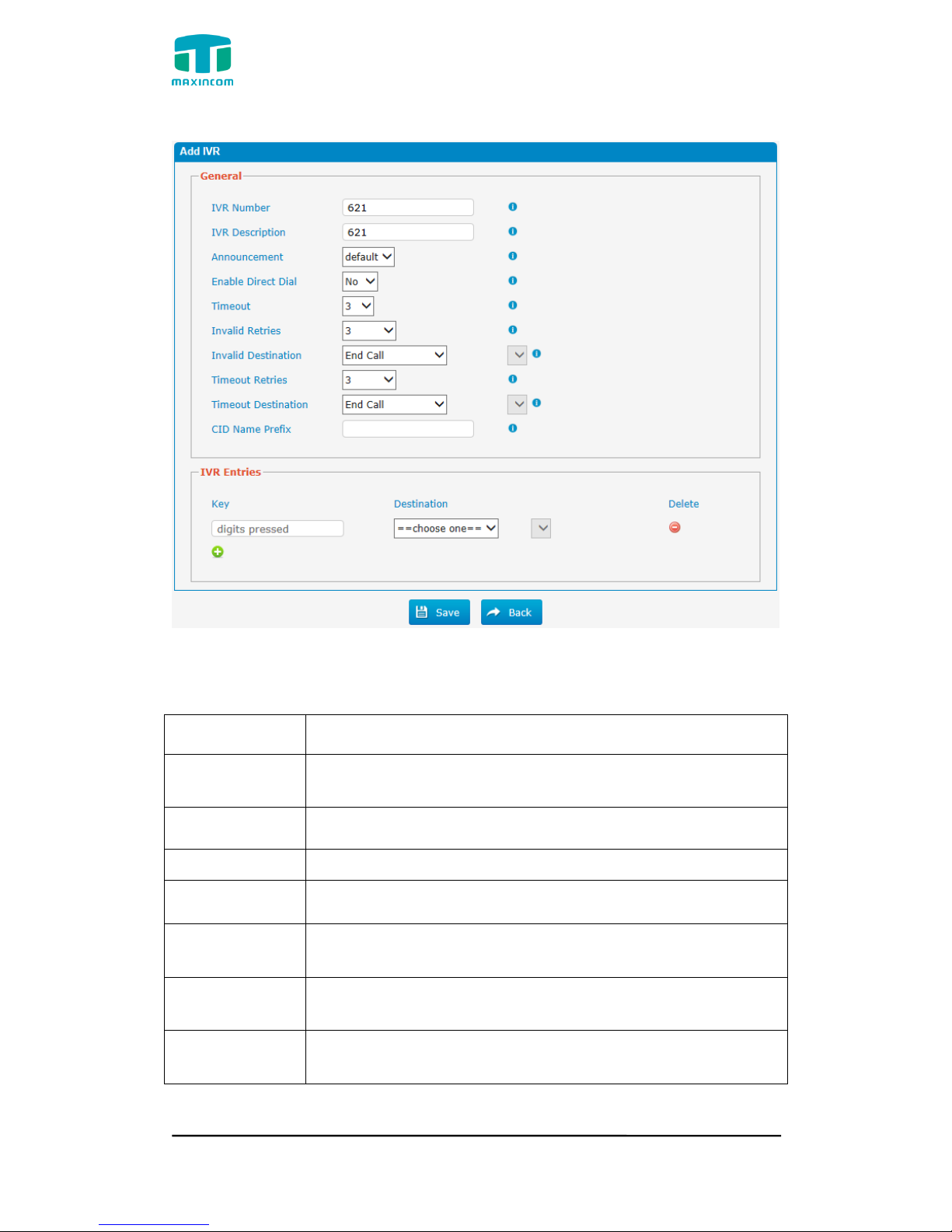
When there‟s an inbound call aims at Auto Attendant, PBX will play an IVR
recording and route the caller to the requested destination (for example,
“Welcome to XX company,for sales press 1, for technical support press 2, for
operator press 0”, etc.). The system will transfer the call to corresponding
extension according to DTMF digits input by the user.
Figure 3.7.3 IVR
There is a default IVR here, we can edit it directly or add IVR by yourself.
Page 65
MUC1004/2008/2016 Administrator guide
Http://www.maxincom.com 65 / 112
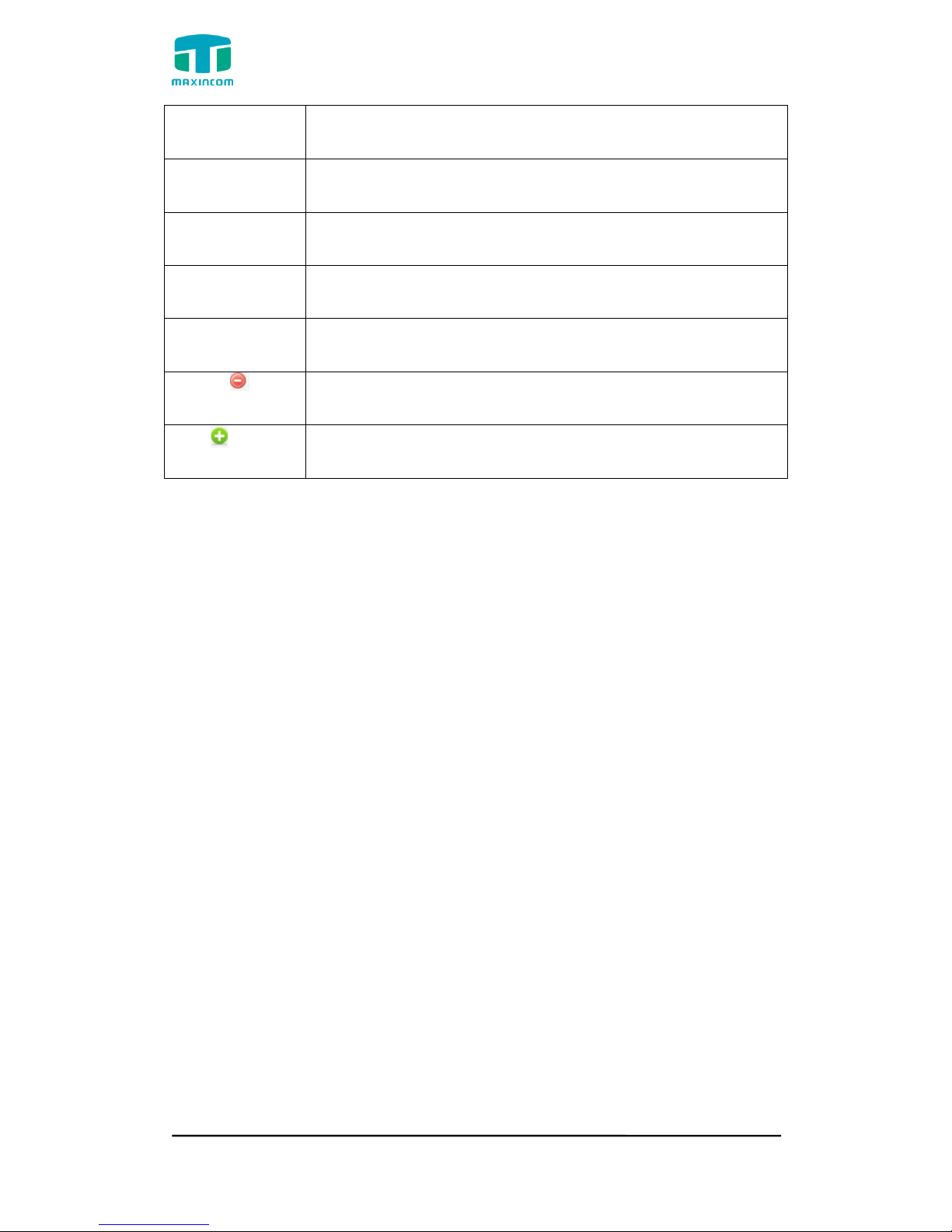
Figure 3.7.3a IVR Add
Table 3.7.3a Description of IVR Add/Edit
Parameters
Description
IVR Number
PBX treats IVR as an extension; you can dial this extension
number to reach the IVR from internal extensions.
IVR Description
Description of this IVR.
Announcement
Greeting to be playd on entry to the IVR.
Enable Direct
Dial
Allow the caller to dial other extensions number directly.
Timeout
The number of times that the selected IVR prompt will be
played.
Invalid Retries
Invalid retries number of keys
Invalid
Destination
Destination when Number of times more than the settings.
Page 66
MUC1004/2008/2016 Administrator guide
Http://www.maxincom.com 66 / 112
Timeout Retries
Retry timeout
Timeout
Destination
Destination of timeout
CID Name
Prefix
IVR CID preifx name
Key
The Key pressed when the callers hear the IVR prompt.
Destination
Where will PBX route the call when the action occurs.
Delete
Delete a key to the destination IVR record.
Add
Add a key to the destination IVR record.
Page 67
MUC1004/2008/2016 Administrator guide
Http://www.maxincom.com 67 / 112
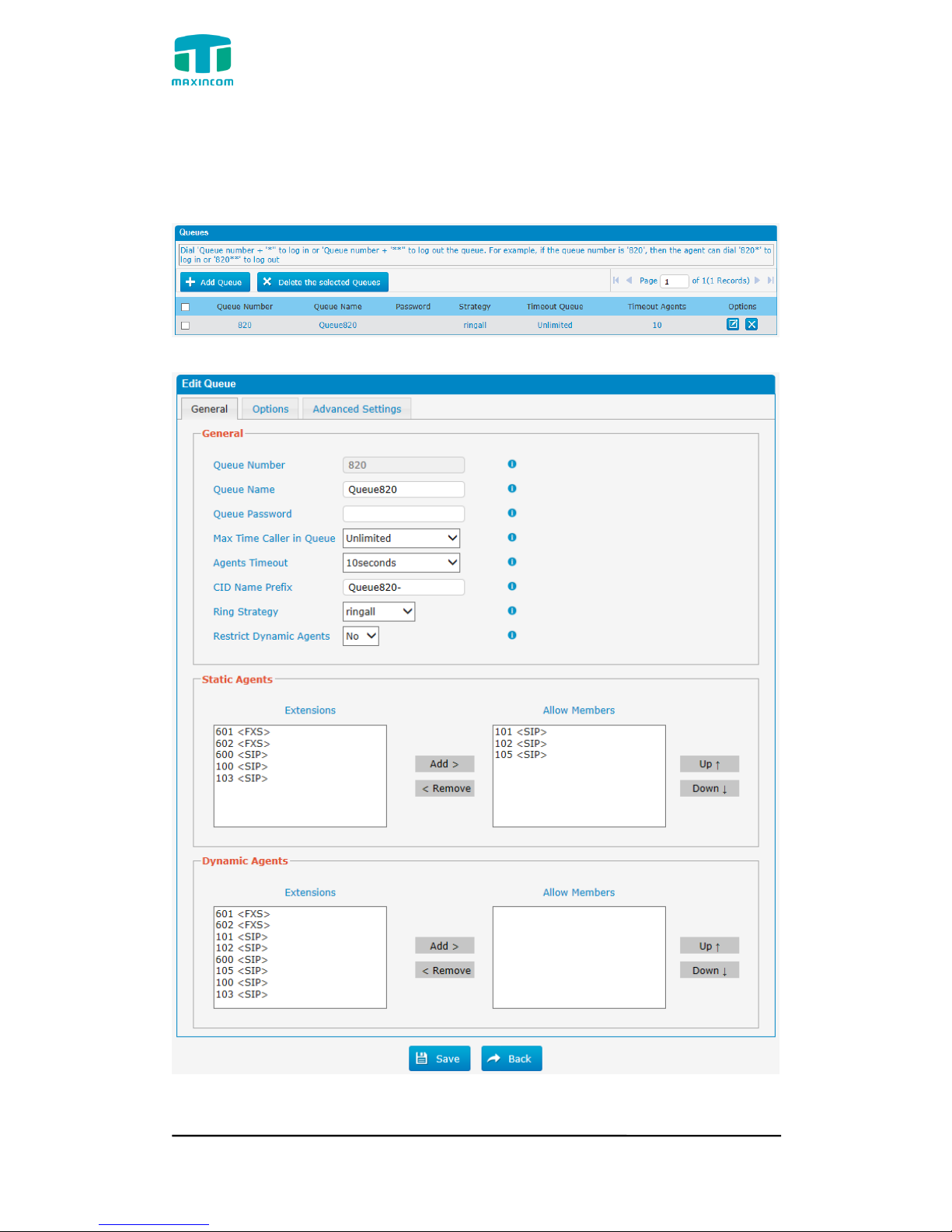
3.7.4 Queue
Call Queues give users (e.g. call centers) an efficient means to have their calls
answeredin the order they were received to deliver top tier customer service.
Figure 3.7.4 Queue
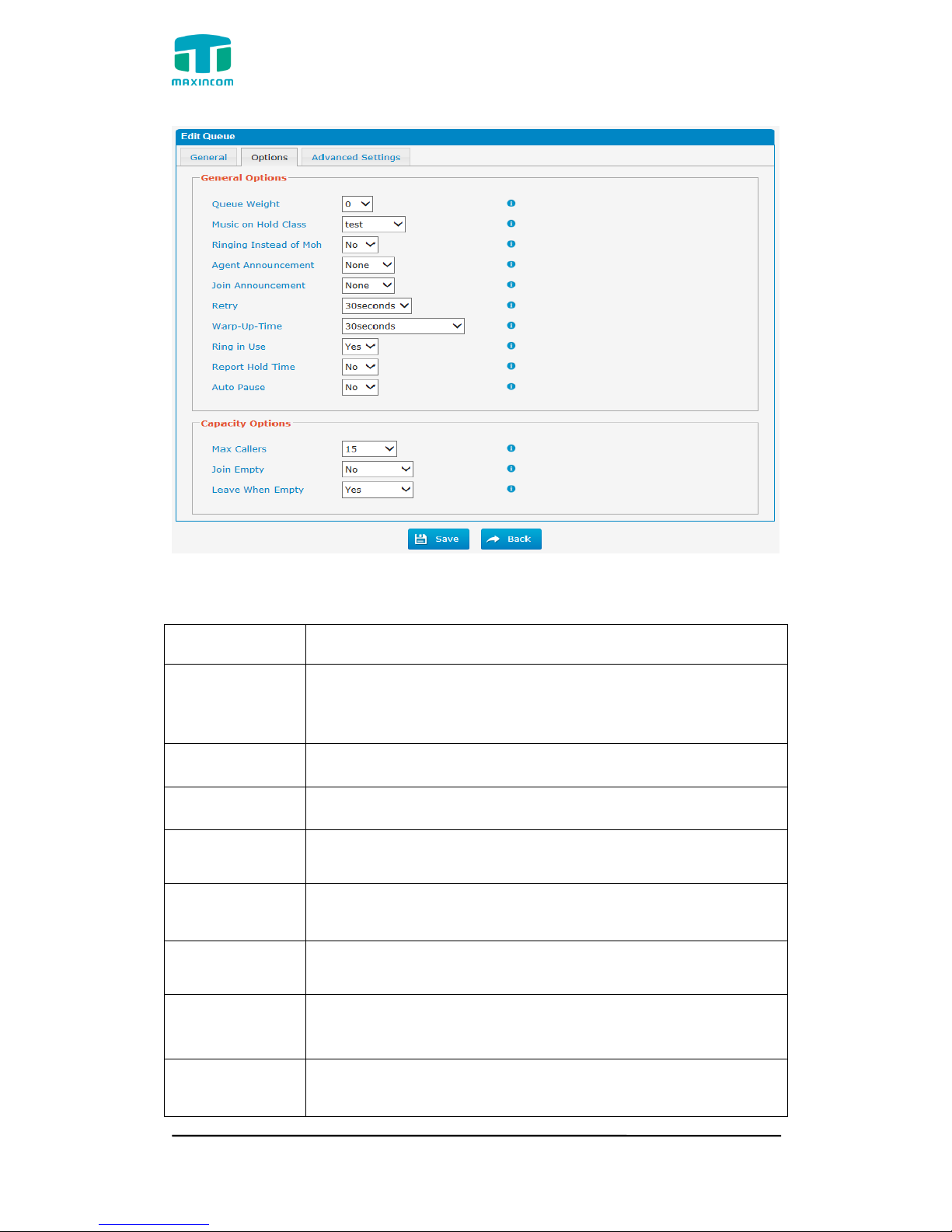
Figure 3.7.4a Queue General
Page 68

MUC1004/2008/2016 Administrator guide
Http://www.maxincom.com 68 / 112
Table 3.7.4a Description of Queue General
Parameters
Description
Queue Number
Use this number to dial into the queue, or transfer callers to
this number to put them into the queue.
Queue Name
A name for the Queue.
Queue
Password
You can require agents to enter a password before they can
log in to this queue.
Max Time Caller
in Queue
The maximum number of seconds a caller can wait in a
queue before being pulled out (0 for unlimited).
Agents Timeout
The number of seconds an agent's phone can ring before we
consider it a timeout.
CID Name
Prefix
CID preifx name
Alert Info
Alert info can be used for distinctive ring with SIP devices.
Ring Strategy
This option sets the Ringing Strategy for this Queue. The
options are
ringAll: Ring all available Agents simultaneously until
one answers.
leastRecent: Ring the Agent which was least recently
called.
fewestCalls: Ring the Agent with the fewest completed
calls.
random: Ring a Random Agent.
rrmemory: Round Robin with Memory, Remembers
where it left off in the last ring pass.
Linear: Rings agents in the other specified,for dynamic
agents in the other they logged in.
Restrict
Dynamic Agents
Restrct dynamic agents
Static Agents
This selection shows all users. Selecting a user here makes
them an agent of the current queue.
Dynamic Agents
Select dynamic agents
Page 69
MUC1004/2008/2016 Administrator guide
Http://www.maxincom.com 69 / 112
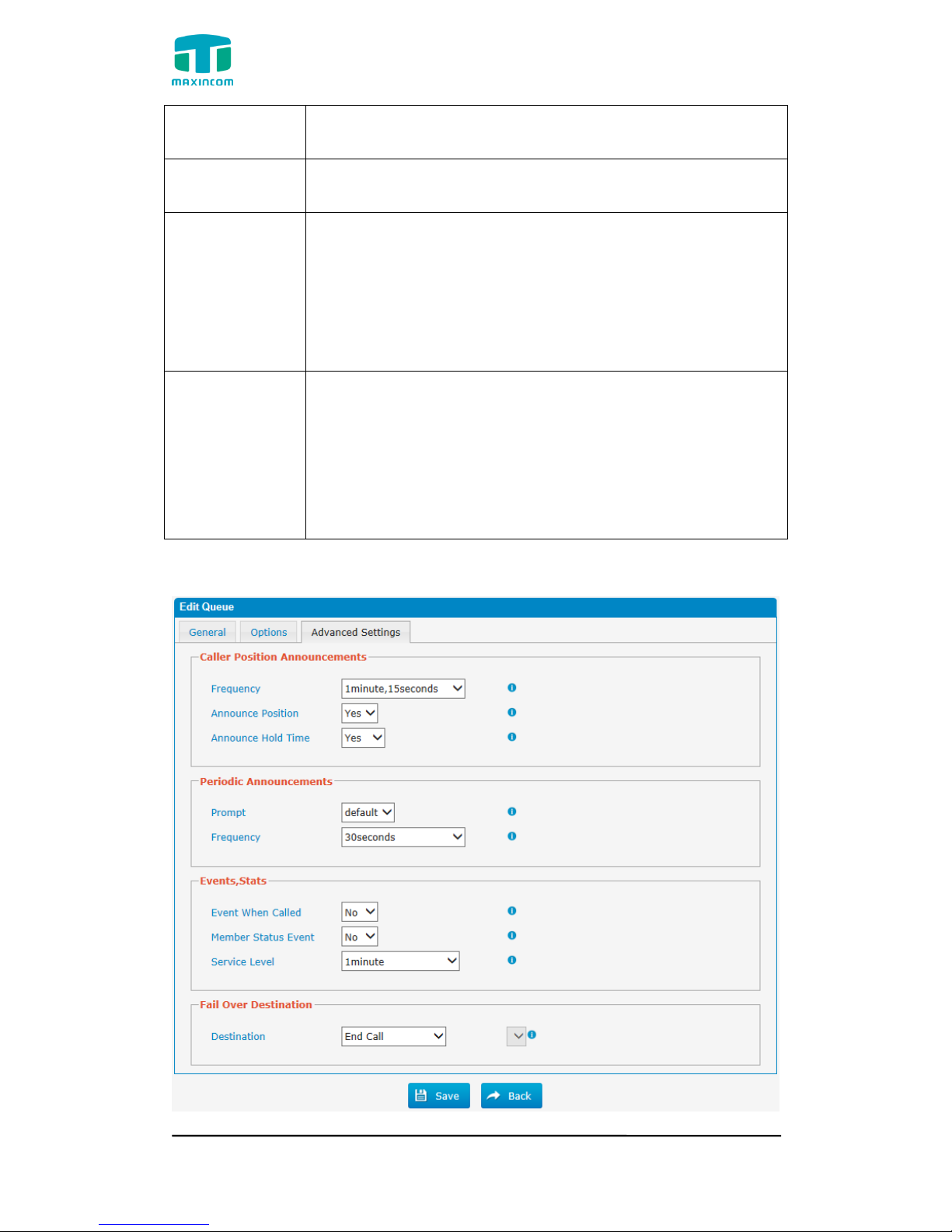
Figure 3.7.4b Queue Options
Table 3.7.4b Description of Queue Options
Parameters
Description
Queue Weight
Gives queues a 'weight' option, to ensure calls waiting in a
higher priority queue will deliver its calls first if there are
agents common to both queues.
Music on Hold
Class
Music (MoH) played to the caller while they wait in line for an
available agent.
Ringing Instead
of Moh
Enabling this option make callers hear a ringing tone instead
of Music on Hold.
Agent
Announcement
Announcement played to the Agent prior to bridging in the
caller
Join
Announcement
Announcement played to callers prior to joining the queue.
Retry
The number of seconds we wait before trying all the phones
again.
Warp-Up Time
How many seconds after the completion of a call an Agent
will have before the Queue can ring them with a new call.(0
for no delay).
Ring In Use
If set to no,the queue will avoid sending calls to members
whose devices are known to be 'in use'.
Page 70
MUC1004/2008/2016 Administrator guide
Http://www.maxincom.com 70 / 112
Report Hold
Time
If you wish to report the caller's hold time to the member
before they are connected to the caller, set this to yes.
Max Callers
Maximum number of people waiting in the queue.
Join Empty
This option controls whether callers can join a call queue that
has no agents. There are two options,
Yes: Callers can join a call queue without agents or only
unavailable agents
No: Callers cannot join a queue when there are no
agents in the queue.
Leave When
Empty
This option controls whether callers already on hold are
forced out of a queue that has no agents. There are two
options.
Yes: Callers are forced out of a queue when no agents
are logged in.
No: Callers will remain in a queue with no agents.
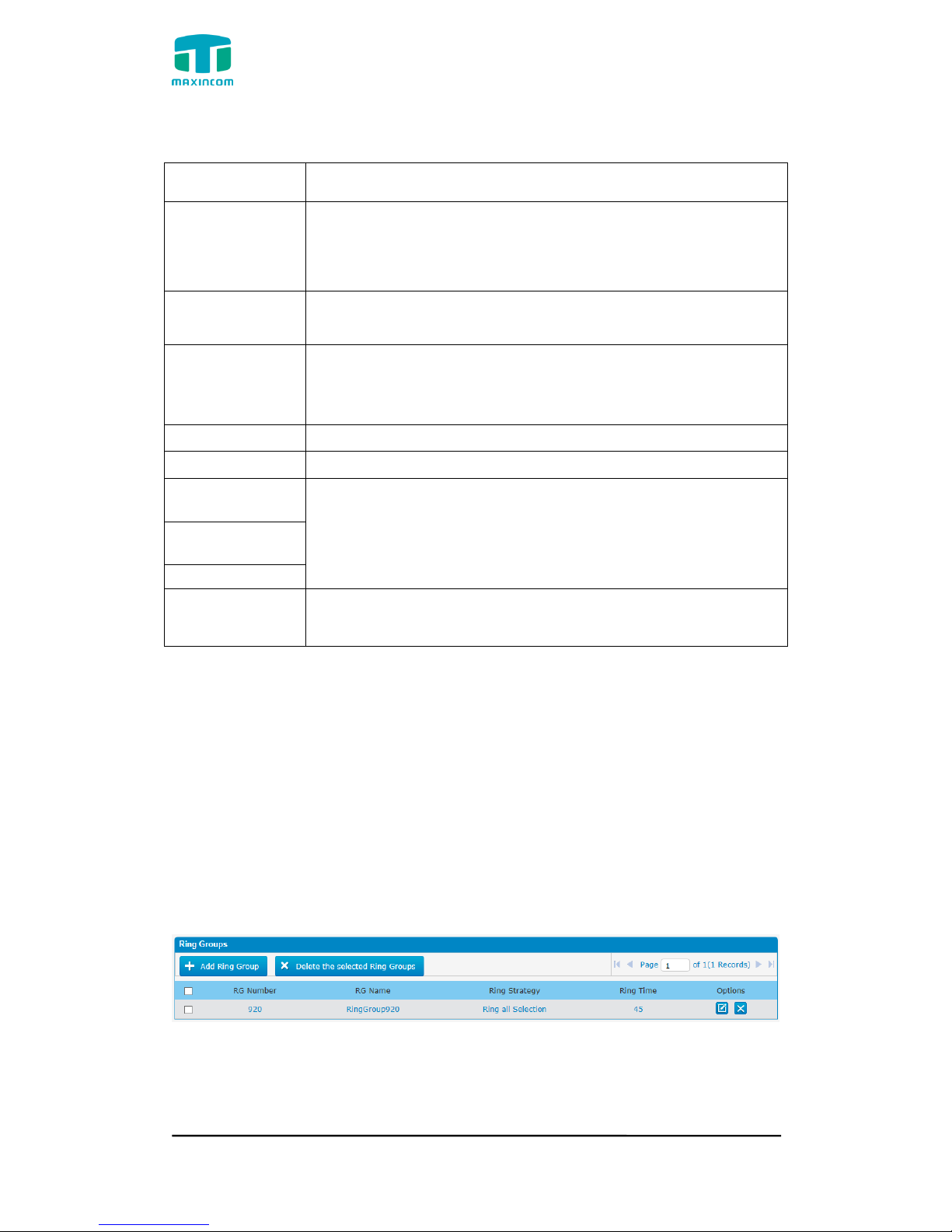
Figure 3.7.4c Queue Advanced Settings
Page 71
MUC1004/2008/2016 Administrator guide
Http://www.maxincom.com 71 / 112
Table 3.7.4c Description of Queue Advanced Settings
Parameters
Description
Frequency
How often to announce queue position and estimated hold
time.
Note: “0 seconds” means disabling the announcement.
Announce
Position
Announce position of caller in the queue
Announce Hold
Time
Enabling this option causes PBX to announce the hold time
to the caller periodically based on the frequency timer. Either
yes or no; hold time will not be announced if <1 minute.
Prompt
Select a prompt file to play periodically.
Frequency
How often to announce a prompt to the caller.
Event When
Called
If a caller presses the key while waiting in the queue, this
setting selects which action should process the key press.
Member Status
Event
Service Level
Destination
Define the failover action. A failover occurs after the user
reach the Queue max wait time.
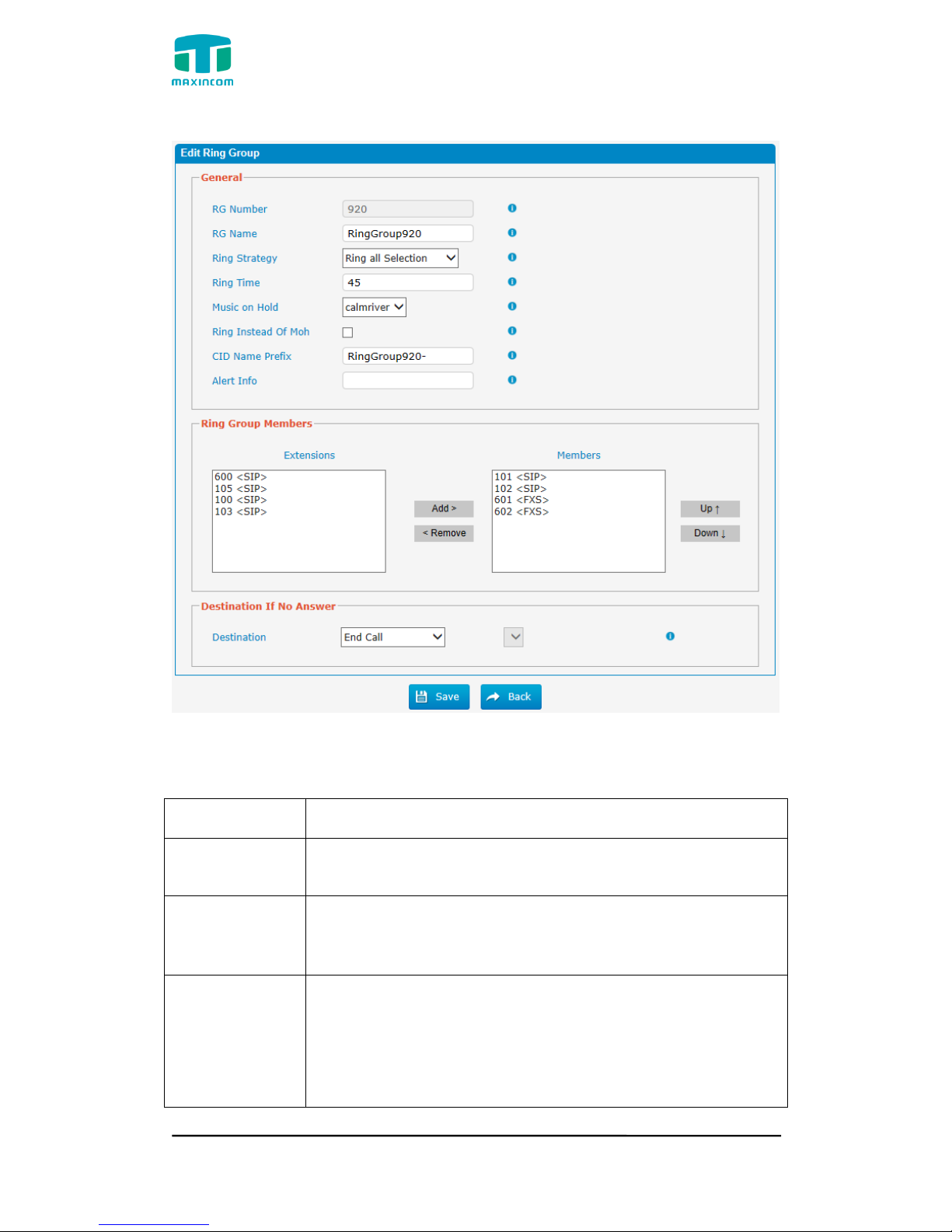
3.7.5 Ring Groups
Ring groups can be configured to balance the call traffic for multiple users and
give callers a higher level of availability for incoming calls. Multiple ring
methods and voicemail are supported.
Note: Call forward(follow me) feature in extension page will not take effect
when it‟s ringing as an agent.
Figure 3.7.5 Ring Grounps
Page 72
MUC1004/2008/2016 Administrator guide
Http://www.maxincom.com 72 / 112
Figure 3.7.5a Ring Grounps Edit
Table 3.7.5a Description of Ring Grounps Edit
Parameters
Description
RG Number
This option defines the numbered extension that can be
dialed to reach this group.
RG Name
This option defines a name for this group, e.g. “Sales”. “Ring
Group Name” is a label to help you identify this group in the
group list.
Ring Strategy
This option sets the Ringing Strategy for this Group. The
options are as follows:
Ring All Simultaneously: Ring all available Extensions
simultaneously.
Ring Sequentially: Ring each extension in the group one
Page 73
MUC1004/2008/2016 Administrator guide
Http://www.maxincom.com 73 / 112
at a time.
Ring Time
1. If the strategy is “Ring All Simultaneously”, it means the
number of seconds to ring this group before routing the call
according to the “Destination if No Answer” settings.
2. If the strategy is “Ring Sequentially”, it means the number
of seconds to ring a single extension before moving onto the
next one.
Music on Hold
If you select a music on hold class to play,instead of
“ring”,they will hear that instead ringing while they are
waiting for someone to pick up
Ring instead Of
Moh
Enabling this option make callers hear a ringing tone instead
of Music on Hold.
CID Name
Prefix
You can optionally prefix the caller ID name when ringing
extensions in this group, ie: if you prefix with “Sales:”,a call
from John doe would display as “Sales:John doe” on the
extensions that ring.
Alert Info
Alert info can be used for distinctive ring with SIP devices.
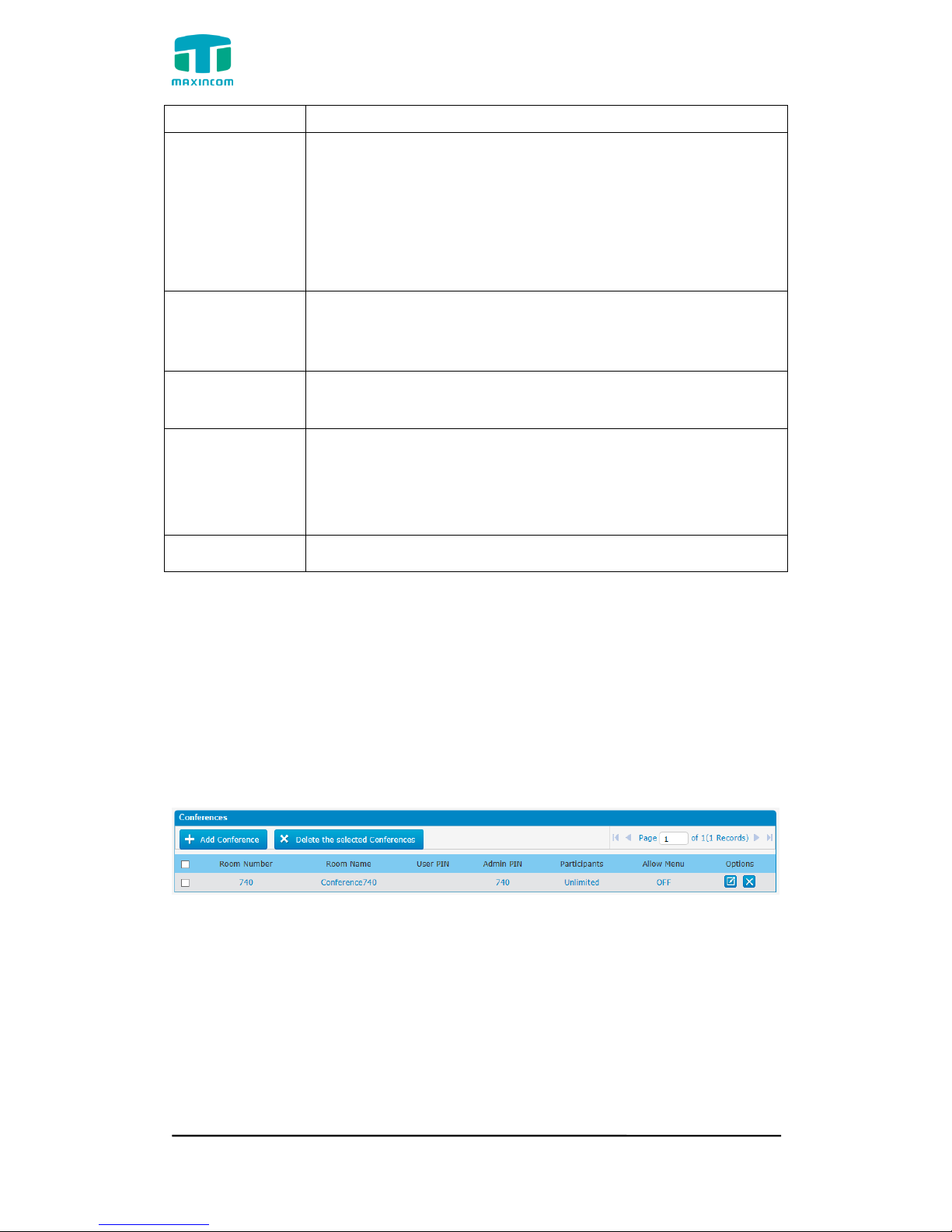
3.7.6 Conferences
Conference Calls increase employee efficiency and productivity, and provide a
more cost-effective way to hold meetings. Conference agents can dial * to
access the settings options and the admin can kick the last user out and can
lock the conference room.
Figure 3.7.6 Conferences
Page 74
MUC1004/2008/2016 Administrator guide
Http://www.maxincom.com 74 / 112
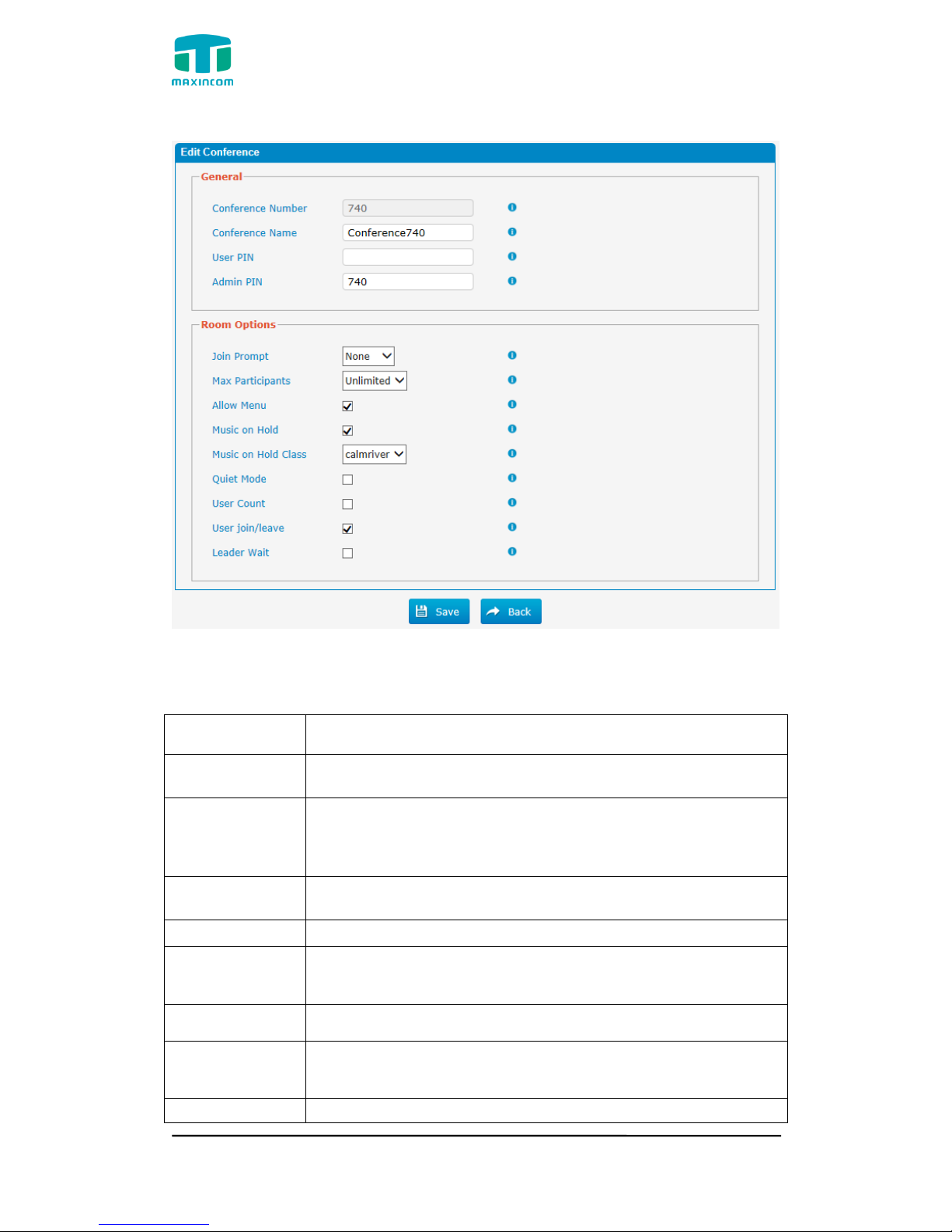
Figure 3.7.6a Conferences Edit/Add
Table 3.7.6a Description of Conferences Edit/Add
Parameters
Description
Conference
Number
This is the number dialed to reach this Conference Room.
Conference
Name
This option defines a name for this conference, e.g. “Sales”.
“Conference Name” is a label to help you identify this
conference in the conference list.
User PIN
Set a PIN that must be entered in order to access this
conference room (e.g. 1234).
Admin PIN
Enter a PIN number for the admin user
Join Prompt
Message to be played to the caller before joining the
conference.
Max Paticipants
Maximum Number of users allowed to join this conference.
Allow Menu
Present Menu (user or admin) when '*' is received ('send' to
menu)
Music on Hold
Enable Music On Hold when the conference has a single
Page 75
MUC1004/2008/2016 Administrator guide
Http://www.maxincom.com 75 / 112
caller.
Muisc on Hold
Class
Music (or Commercial) played to the caller while they wait in
line for the conference to start.
Quiet Mode
Quiet mode (do not play enter/leave sounds)
User Count
Announce user(s) count on joining conference
User join/leave
Announce user join/leave
Leader Wait
Wait until the conference leader (admin user) arrives before
starting the conference.
3.7.7 Callback
PBX allows caller A to dial an inbound route number, and after hearing the ring,
A can hang up the call or wait for PBX to cut off the call, then PBX will call A with
this number. When A picks up the call, A can dial the number he wants to call;
PBX will call the number with its outbound route.
Notes:
1. If you‟d like to use callback feature, please make sure it‟s enabled on the
inbound route setting panel.
2. No callback rules needed to be set if the trunk supports call back with the
caller ID directly.
Figure 3.7.7 Callback
Follow the steps below to use this function.
Step 1: Enable Callback.
Inbound Routes—Choose “Yes” on” Enable Callback” to enable this function.
Page 76
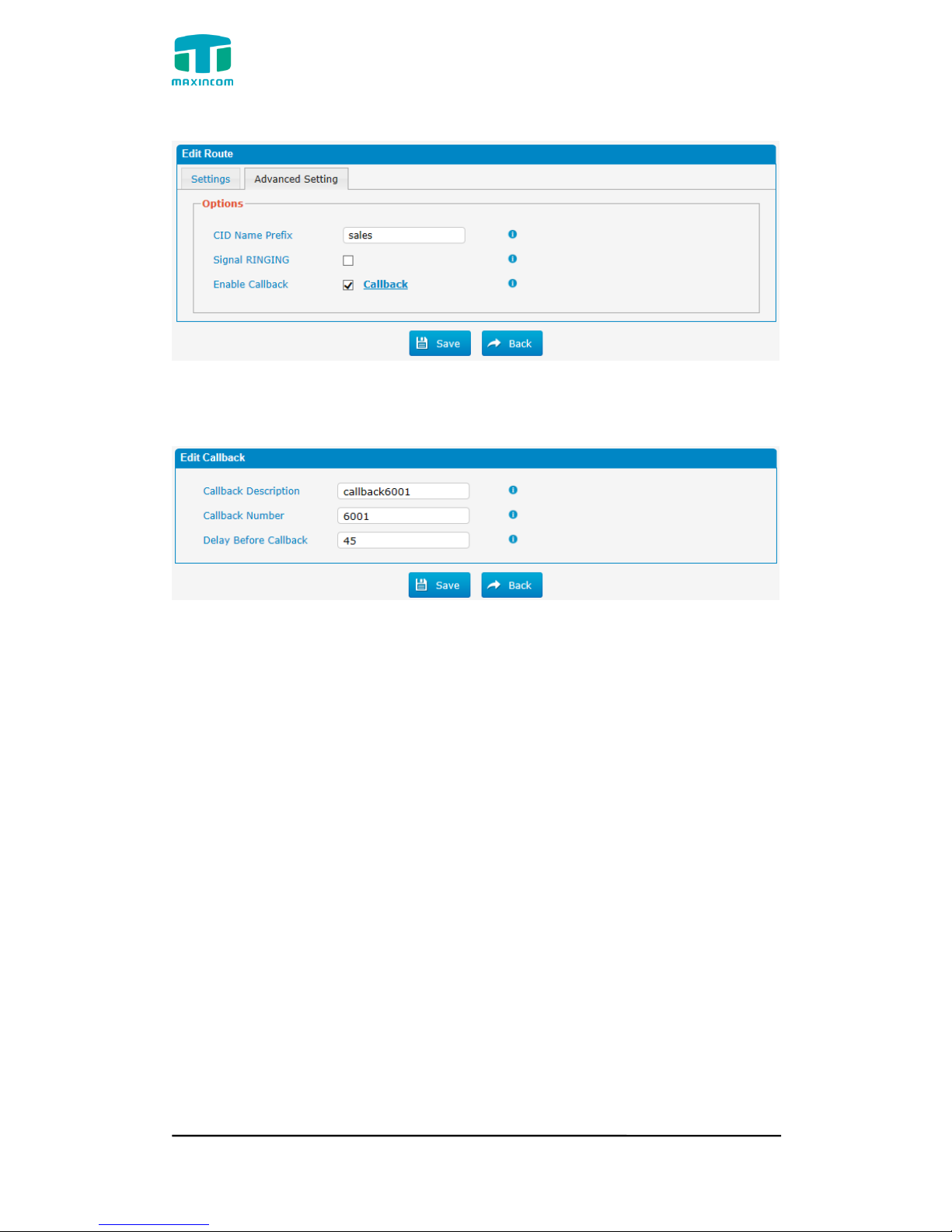
MUC1004/2008/2016 Administrator guide
Http://www.maxincom.com 76 / 112
Figure 3.7.7a Inbound route Callback settings
Step 2: Create Callback number.
Figure 3.7.7b Callback Edit/Add
3.8 PBX Advanced Settings
3.8.1 SIP settings
This is the SIP settings in PBX, including General settings, NAT, Codecs, Qos,
Response code and Advanced settings.
This section describes how to configure SIP server and SIP parameters
3.8.1.1 General
Page 77
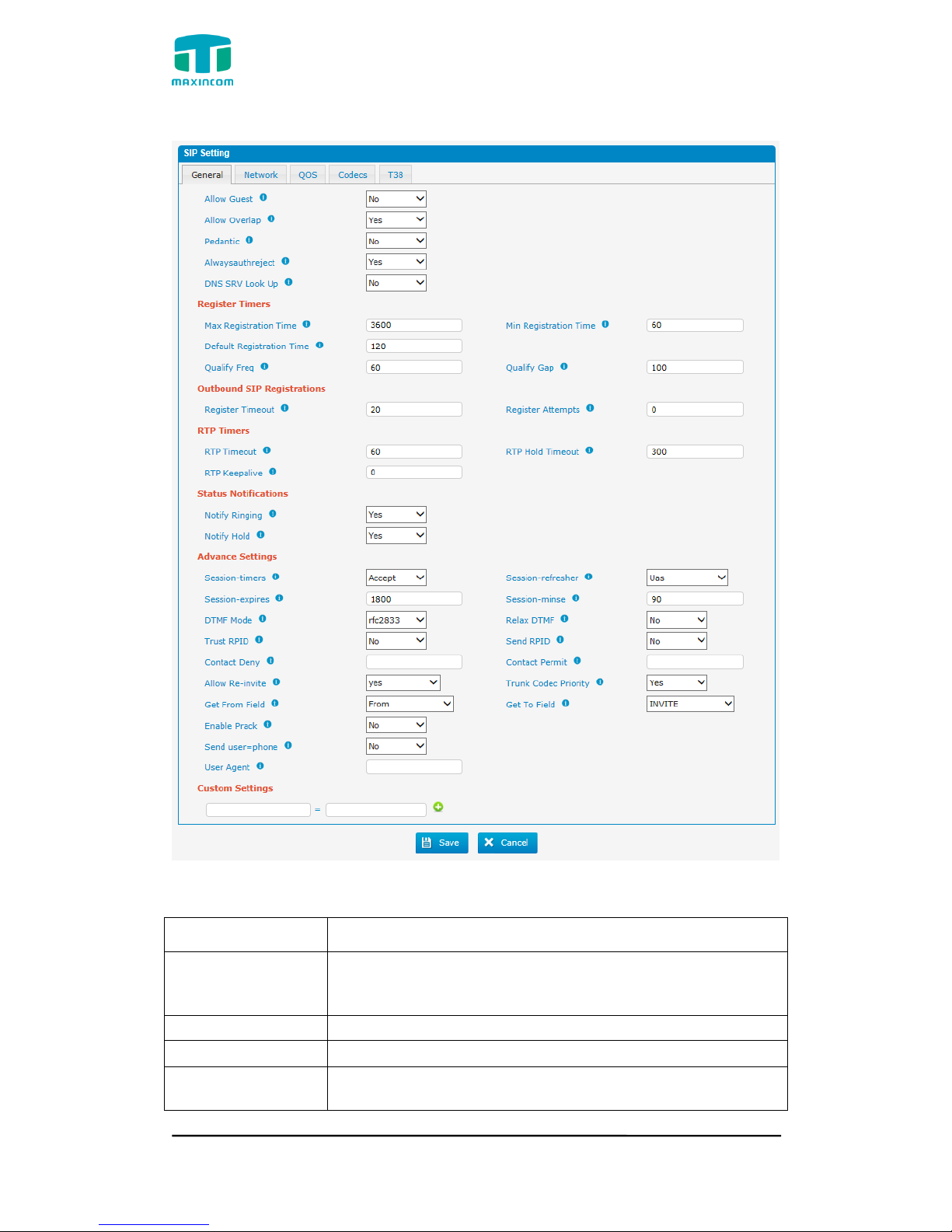
MUC1004/2008/2016 Administrator guide
Http://www.maxincom.com 77 / 112
Figure 3.8.1.1 SIP General Setting
Table 3.8.1.1 Description of SIP General Setting
Parameters
Description
Allowguest
Whether allow anonymous registration extension.
Default: no. It‟s recommended to be disabled for
security.
Allowoverlap
Disable overlap dialing support.(Default is yes )
Pedantic
Enable pedantic parameter. Default: no.
Always authreject
If enabled, when PBX rejects “Register”or “Invite”
packets, PBX always respond the packets using “SIP404
Page 78

MUC1004/2008/2016 Administrator guide
Http://www.maxincom.com 78 / 112
NOT FOUND”. It‟s recommended to be enabled for
security.
DNS SRV Look Up
Please enable this option when your SIP trunk contains
more than one IP address.
Maxexpiry
Maximum duration (in seconds) of a SIP
registration.Default is 3600 seconds.
Minexpiry
Minimum duration (in seconds) of a SIP registration.
Default is 60 seconds.
Defaultexpiry
Default Incoming/Outgoing Registration Time: Default
duration (in seconds) of incoming/outgoing registration.
Qualifyfreq
How ofen to check for the host to be up in seconds and
reported in milliseconds with sip show settings.
Qualifygap
Number of milliseconds between each group of peers
being qualified.
Register Timeout
Number of seconds to wait for a response from a SIP
registrar before timed out. Default is 20 seconds.
Register Attempts
The number of SIP REGISTER messages to send to a
SIP Registrar before giving up. Default is 0 (no limit).
RTPtimeout
Terminate call if set # seconds of no RTP or RTCP activity
on the audio channel when we‟re not on hold.
RTPholdtimeout
Both ends of the call time
RTPkeepalive
Time of packaging
Notifyringing
Control whether subscriptions already INUSE get send
RINGING when another call is sent.
Notifyhold
Notify subscriptions on HOLD state.(default:no)
Session -timers
Enable session-timer mode, default: yes. If you found
the call is cut off every 15 minutes every time, please
disable this.
Session-refresher
Choose session-refresher, the default is Uas
Session-expires
The max refresh interval
Session-minse
The min refresh interval, which mustn't be shorter than
90s.
DTMF mode
Set default mode for sending DTMF. Default setting:
rfc2833
Relaxdtmf
Relax dtmf handing
Trustrpid
If Remote-Party-ID should be trusted
Sendrpid
If Remote-Party-ID should be sent
Contactdeny
Contactpermit
Use contactpermit and contactdeny to restrict at what IPs
your users may register their phones.
Canreinvite
Asterisk by default tries to redirect the RTP media stream
to go directly from the caller to the callee.Some devices
do not support this (especially if one of them is behind a
NAT). The default setting is YES
Audioprefcodec
Once enabled,When the caller call out via SIP/SPS
trunks,the audio codec of calling channel whould be
selected in preference.
Page 79
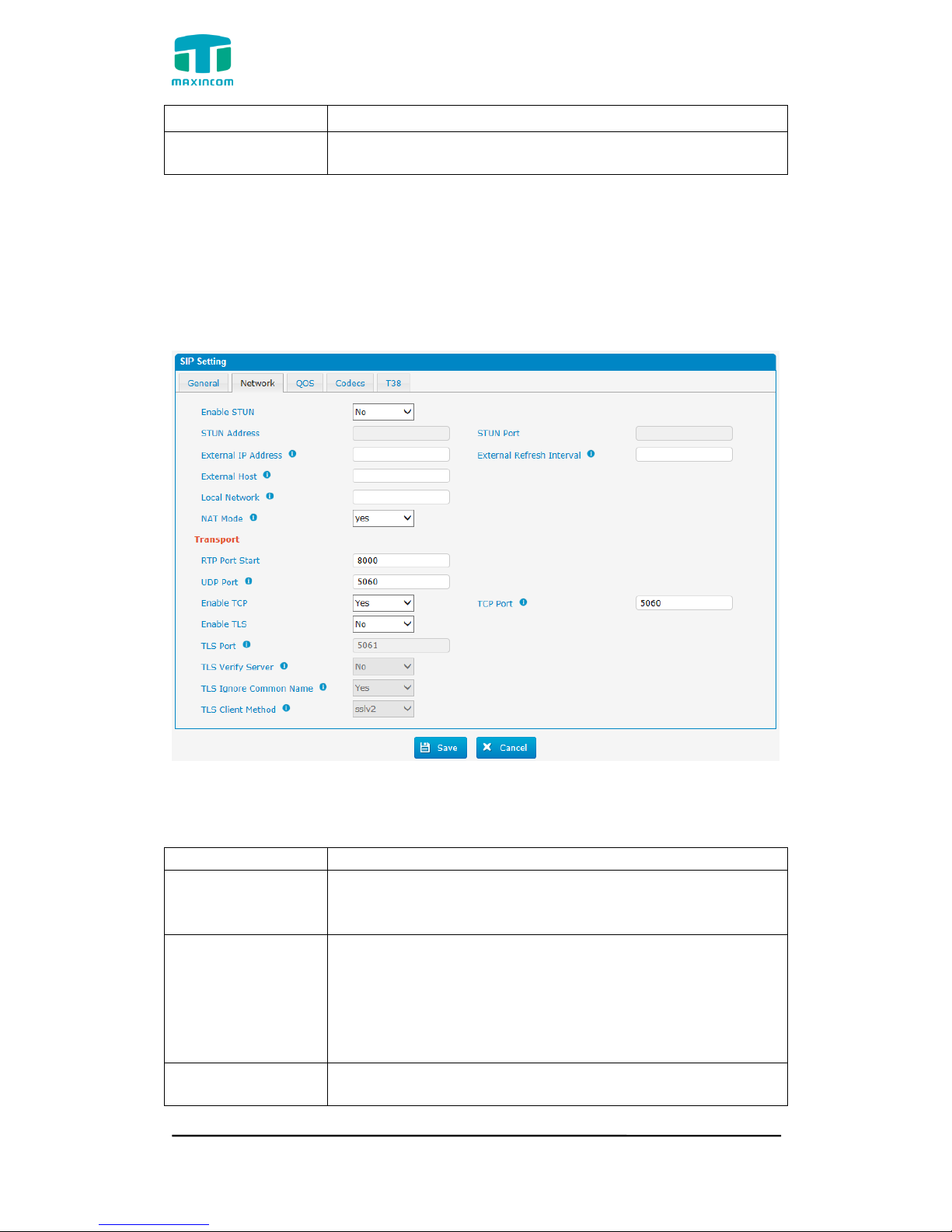
MUC1004/2008/2016 Administrator guide
Http://www.maxincom.com 79 / 112
usereqphone
This provider requires,User=phone on URI
User agent
To change the user agent parameter of asterisk, the
default is “PBX”, you can change it if needed.
3.8.1.2 Network
Note: Configuration of this section is required when using remote extensions
generally.
Figure 3.8.1.2 SIP Network Configuration
Table 3.8.1.2 Description of SIP Network Configuration
Parameters
Description
Enable STUN
STUN (Simple Traversal of UDP through NATs) is a
protocol for assisting devices behind a NAT firewall or
router with their packet routing.
STUN Address
The STUN server allows clients to find out their public
address, the type of NAT they are behind and the
internet side port associated by the NAT with a
particular local port. This information is used to set up
UDP communication between the client and the VOIP
provider and so establish a call.
External IP
Address
The IP address that will be associated with outbound SIP
messages if the system is in a NAT environment.
Page 80

MUC1004/2008/2016 Administrator guide
Http://www.maxincom.com 80 / 112
External Refresh
Interval
Used to identify the local network using a network
number/subnet mask pair when the system is behind a
NAT or firewall.
Some examples of this are as follows:
“192.168.0.0/255.255.0.0”: All RFC 1918 addresses are
local networks;
“10.0.0.0/255.0.0.0”: Also RFC1918;
“172.16.0.0/12”:Another RFC1918 with CIDR notation;
“169.254.0.0/255.255.0.0”: Zero conf local network.
Please refer to RFC1918 for more information.
External host
Alternatively you can specify an external host, and the
system will perform DNS queries periodically. This setting
is only required when your public IP address is not
static. It is recommended that a static public IP address is
used with this system. Please contact your ISP for more
information.
NAT mode
Global NAT configuration for the system; the options for
this setting are as follows:
Yes = Use NAT. Ignore address information in the
SIP/SDP headers and reply to the sender's IP
address/port.
No = Use NAT mode only according to RFC3581.
Never = Never attempt NAT mode or RFC3581 support.
Route = Use NAT but do not include report in headers.
RTP Port Start
Beginning of RTP port range
UDP port
Port used for SIP registrations, Default is 5060
TCP port
Port used for SIP registrations, Default is 5060
TLS port
Port used for SIP registrations, Default is 5061
TLS Verify Server
When using PBX as a TLS client, whether or not to verify
server‟s certificate. It is “No” by default.
TLS Ignore
Common Name
Set this parameter as “No”, then common name must be
the same with IP or domain name.
TLS Verify Client
When using PBX as a TLS server, whether or not to verify
client‟s certificate. It is “No” by default.
TLS Client Method
When using PBX as TLS client, specify the
protocol for outbound TLS connections. You can select
it as tlsv1, sslv2 or sslv3.
Page 81
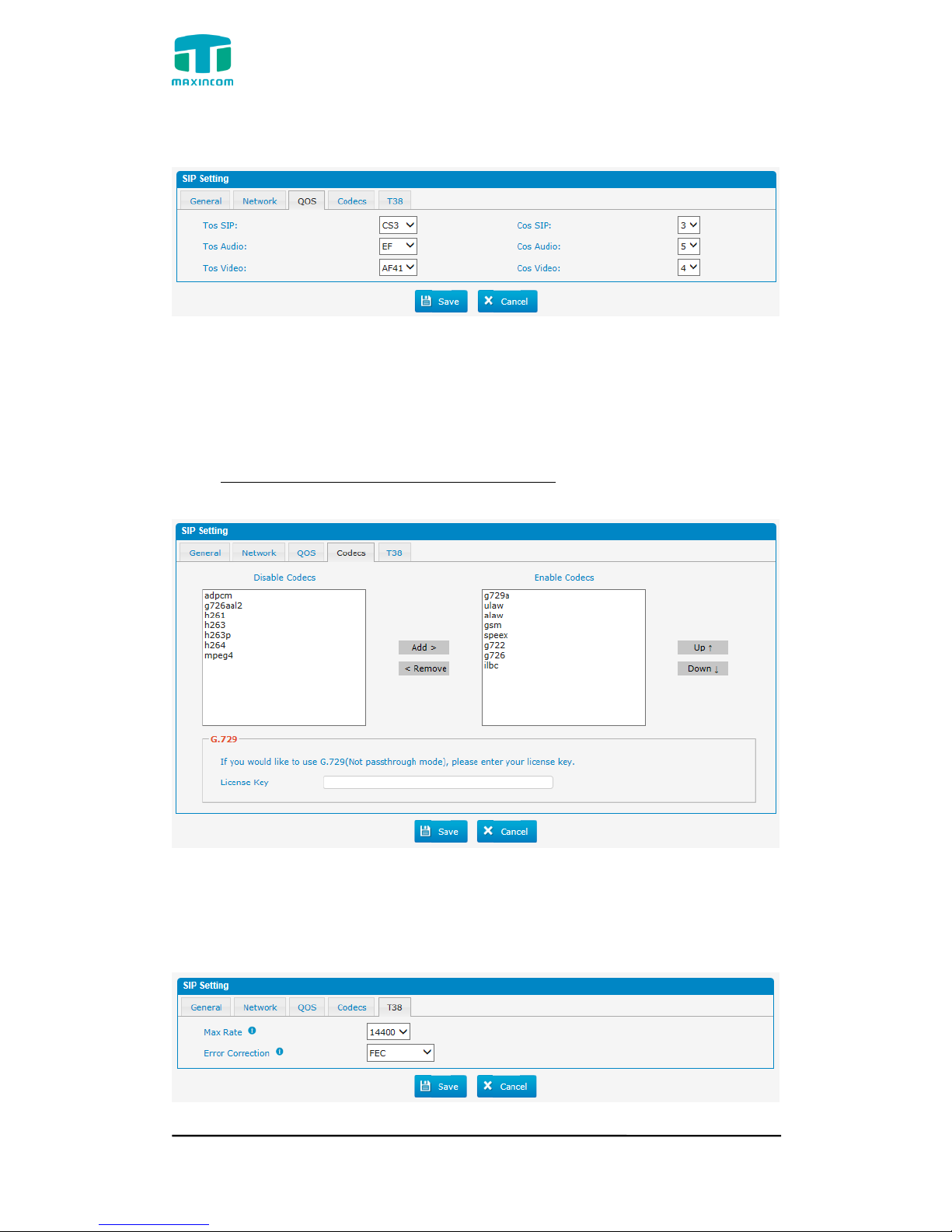
MUC1004/2008/2016 Administrator guide
Http://www.maxincom.com 81 / 112
3.8.1.3 Qos
Figure 3.8.1.3 Qos
3.8.1.4 Codecs
We can choose the allowed codec in PBX, a codec is a compression or
decompression algorithm that used in the transmission of voice packets over a
network or the Internet. More information about codec, you can refer to this
page: http://en.wikipedia.org/wiki/List_of_codecs
Figure 3.8.1.4 codecs
If you want to use codec G729, we recommend buying a license key and input
it here.
3.8.1.5 T.38
Figure 3.8.1.5 T.38
Page 82
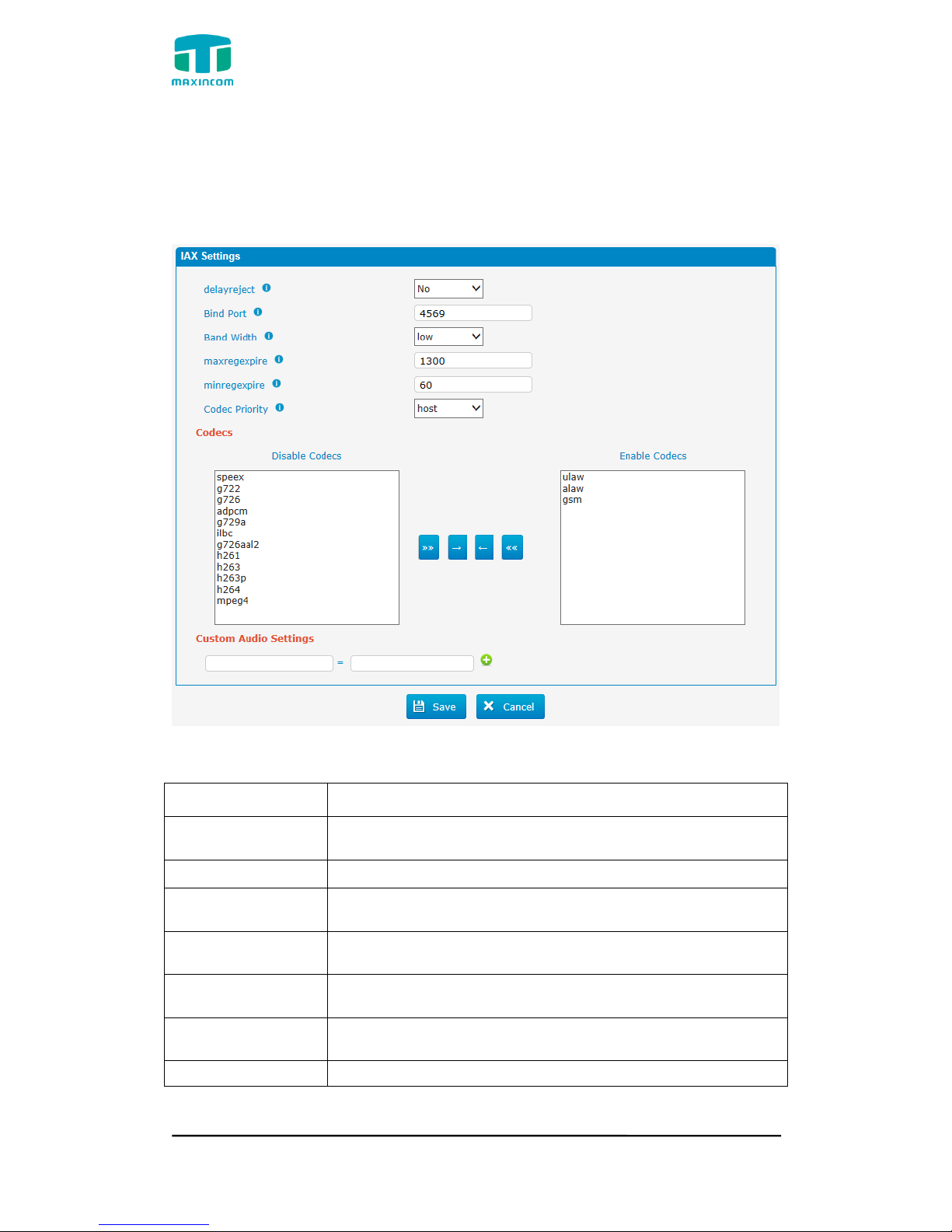
MUC1004/2008/2016 Administrator guide
Http://www.maxincom.com 82 / 112
3.8.2 IAX Setting
IAX is the Internal Asterisk Exchange protocol, you can connect to PBX or
register IAX trunk to another IAX server. It‟s supported by the asterisk-based
IPPBX.
Figure 3.8.2 IAX setting
Table 3.8.2 Description of IAX setting
Parameters
Description
Delayreject
Which will delay the sending of authentication reject for
REGREQ or AUTHREP if there is a password
Bind port
Port used for IAX2 registrations. Default is 4569.
Bandwidth
Low/medium/high with this option you can control
which codec to be used.
Max Registration
Time
Maximum duration (in seconds) of an IAX2 registration.
Default is 1300 seconds.
Min Registration
Time
Minimum duration (in seconds) of an IAX2 registration.
Default is 60 seconds.
Codec priority
Codec priority controls the codec negotiation of an
inbound IAX call.This option is inherited to all user entities
Codec
Enable the codec you want for IAX communication.
Page 83
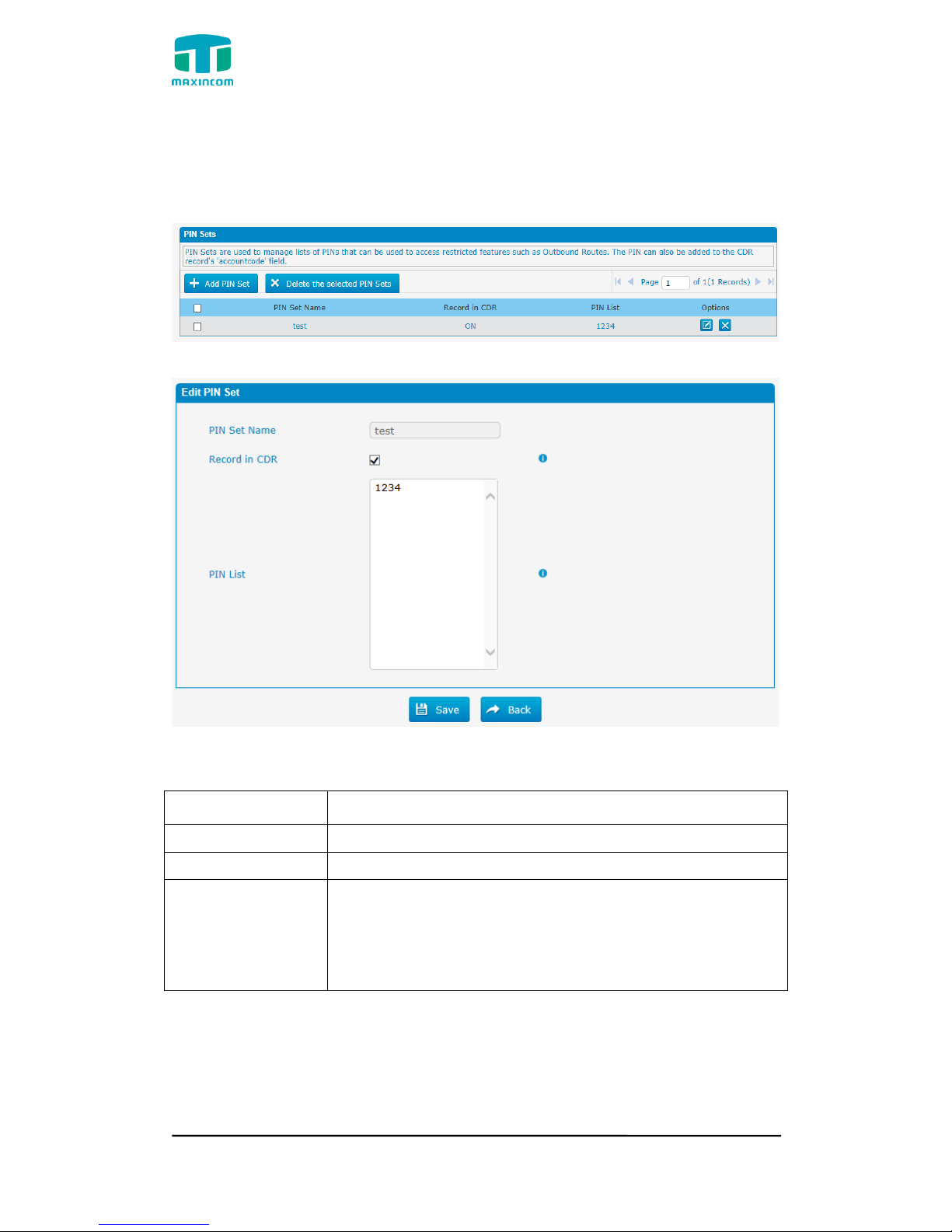
MUC1004/2008/2016 Administrator guide
Http://www.maxincom.com 83 / 112
3.8.3 PIN Sets
In this page users can manage all the passwords of outbound routes, PIN User,
and DISA.
Figure 3.8.3 PIN sets
Figure 3.8.3a PIN Set Edit
Table 3.8.3a Description of PIN Set Edit
Parameters
Description
PIN Set Name
A character-based name for this PIN list, e.g. “testPIN”
Record in CDR
If set yes, the PIN code will be displayed in call log.
PIN List
PIN list is a numeric field. Letters and punctuation are not
allowed in this field.
Fill in one PIN and if you end with enter for each PIN, you
could create multiple PINs.
Page 84
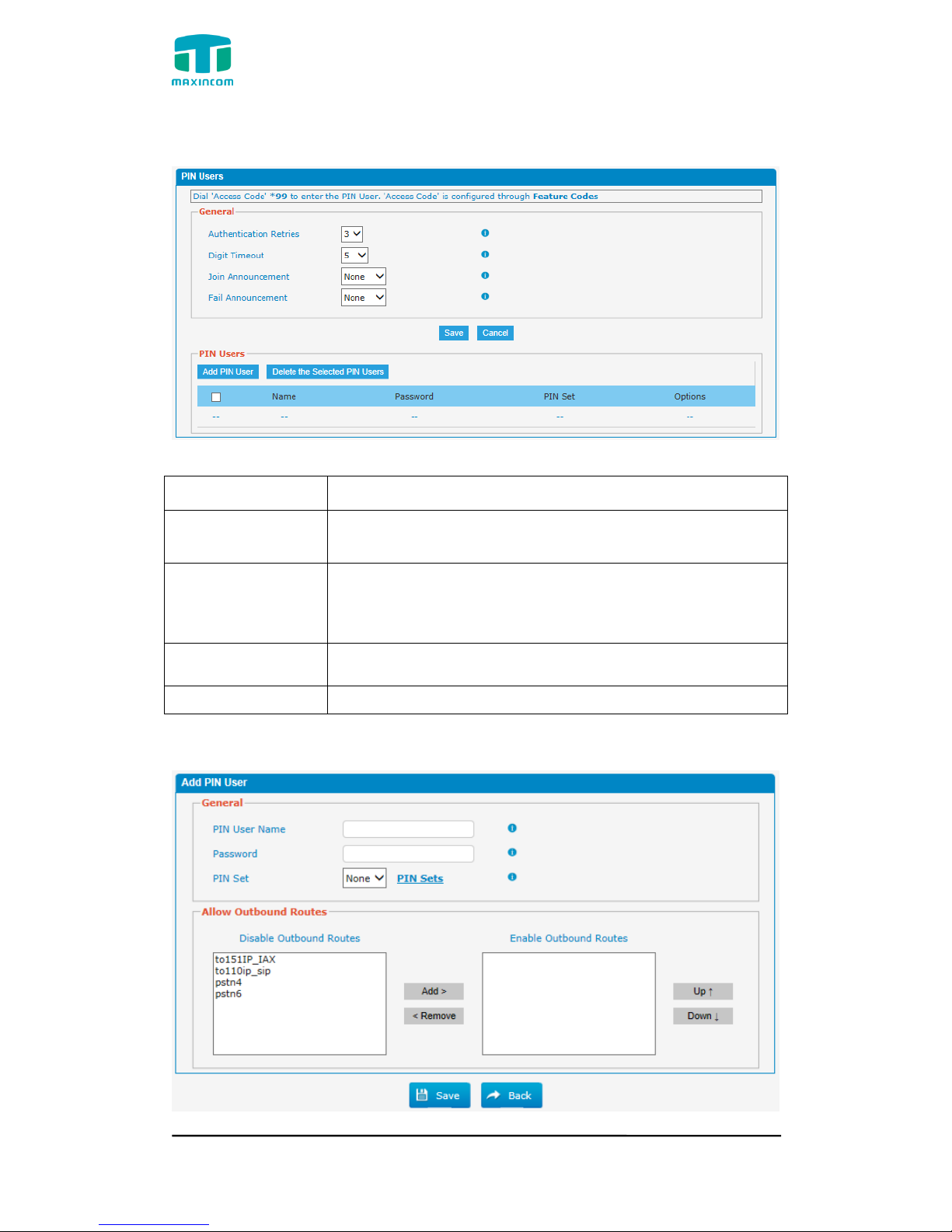
MUC1004/2008/2016 Administrator guide
Http://www.maxincom.com 84 / 112
3.8.4 PIN Users
Figure 3.8.4 PIN Users
Table 3.8.4 Description of PIN Users
Parameters
Description
Authentication
Retries
Number of times to retry when receiving an wrong
password.
Digit Timeout
The maximum amount of time permitted between digits
when the user is typing in an extension. Default of 5
seconds.
Join
Announcement
Waiting for validation, the system will play the prompt.
Fail Announcement
After validation fails, the system will play the prompt.
Figure 3.8.4a PIN Users Add/Edit
Page 85

MUC1004/2008/2016 Administrator guide
Http://www.maxincom.com 85 / 112
Table 3.8.4a Description of PIN Users Add/Edit
Parameters
Description
PIN User Name
A character-based name for this PIN list, e.g. “MUCPIN”
PBX can store a number of PIN Users. PIN Users may be
used to keep track of calls in relation to particular
activities or clients. They can also be used to keep track of
calls by particular users or sets of users.
PINs entered are checked against those stored by the
system. If an invalid PIN is entered, the PIN is requested
again.
The system administrator can configure certain
numbers or types of numbers to require entry of a PIN
before users can continue making a call to such a number.
The system administrator can also configure to
require users to enter a PIN before making any external
call.
Password
The password for this PIN User.
PIN Set
Click to add, delete or edit PIN list.
Allow Outbound
Routes
PIN User can use those outbound route to make call out.
3.8.5 DISA
DISA (Direct Inward System Access) allows someone calling in from outside the
telephone switch (PBX) to obtain an “internal” system dial tone and make calls
as if they were using one of the extensions attached to the telephone switch.
To use DISA, a user calls a DISA number, which invokes the DISA application.
The DISA application in turn requires the user to enter a PIN number, followed
by the pound sign (#). If the PIN number is correct, the user will hear dial tone
on which a call may be placed. Obviously, this type
of access has serious security implications, and great care must be taken not to
compromise your security.
Figure 3.8.5 DISA
Page 86
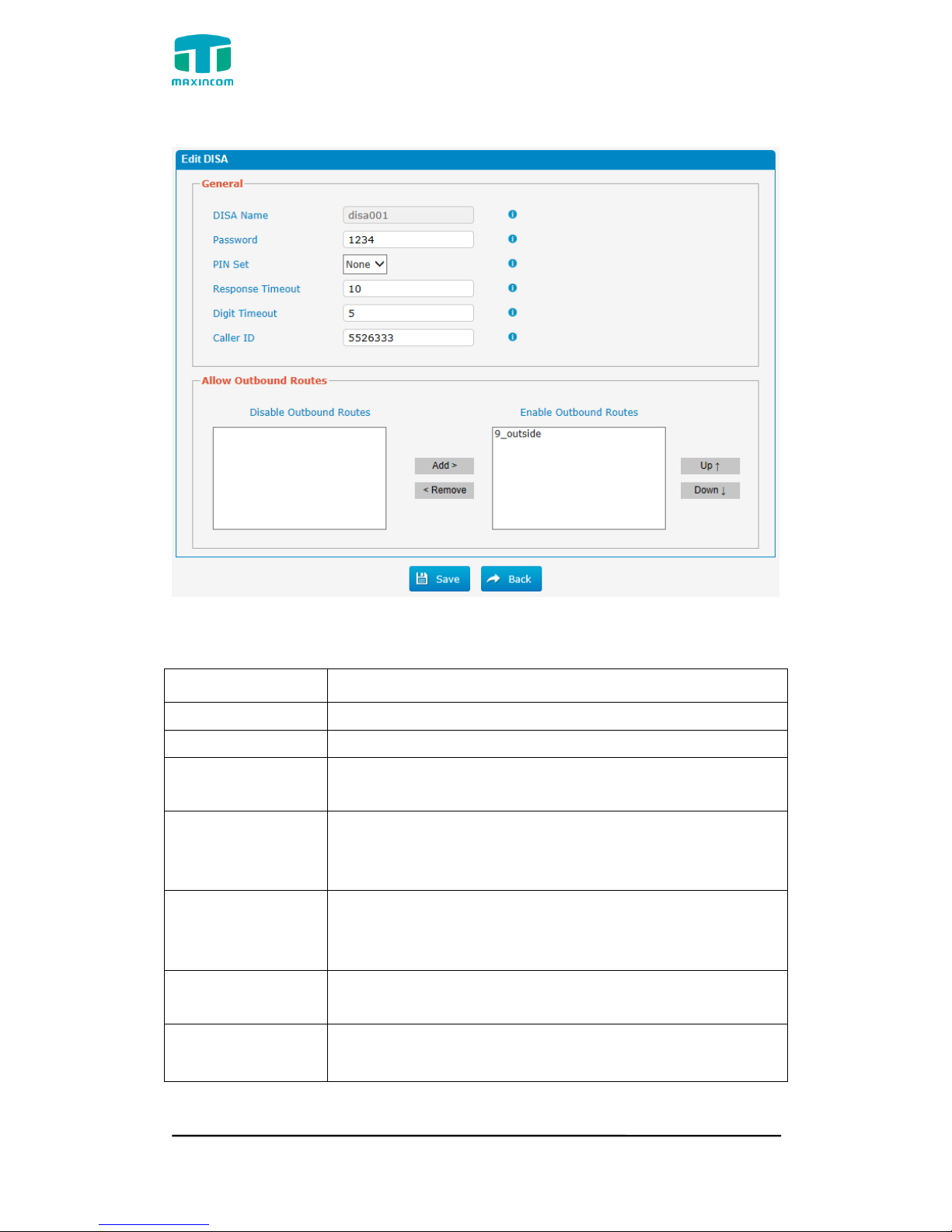
MUC1004/2008/2016 Administrator guide
Http://www.maxincom.com 86 / 112
Figure 3.8.5 DISA Edit
Table 3.8.5 Description of DISA Edit
Parameters
Description
DISA Name
Give this DISA application a name to help you identify it.
Password
The password for this DISA.
PIN Set
Optional: select a PIN set to use.If using this option,leave
the password field blank
Response Timeout
The maximum amount of time the system will wait before
hanging up the call if the user has dialed an incomplete or
invalid number. The default is 10 seconds.
Digit Timeout
The maximum amount of time permitted between each
digit when the user is dialing an extension number. The
default is 5 seconds.
Caller ID
(Optional) When using this DISA, the users CallerID will
be set to this. Format is "User Name" <5551234>.
Allow Outbound
Routes
Used to set the outbound routes that can be accessed
from this DISA.
Page 87
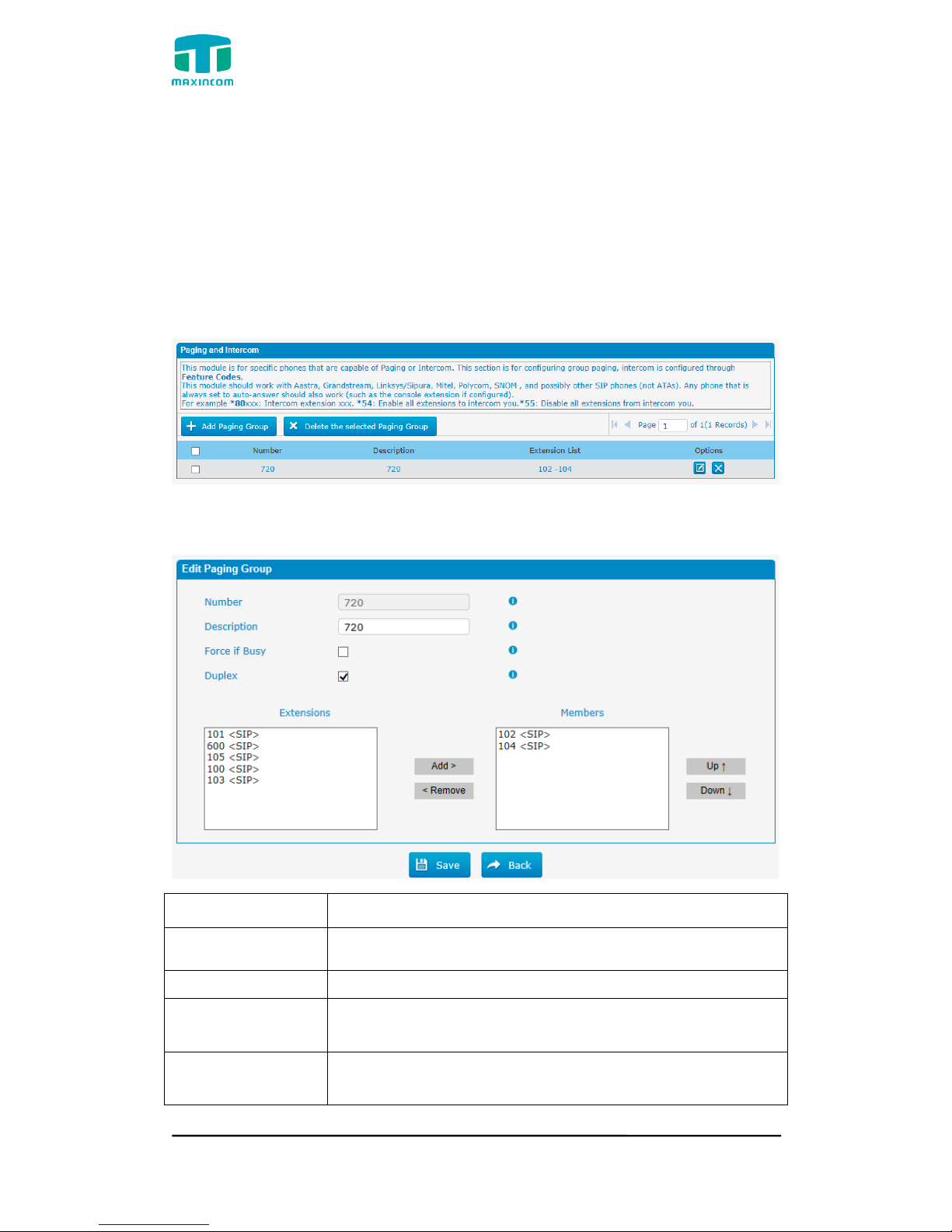
MUC1004/2008/2016 Administrator guide
Http://www.maxincom.com 87 / 112
3.8.6 Paging and Intercom
Paging is used to make an announcement over the speakerphone to a phone or
group of phones. Targeted phones will not ring, but instead answer
immediately into speakerphone mode. Please note that this section is for
configuring paging groups. If you would like to configure Intercom settings,
please open the PBX Basic -> Feature Codes screen.
Note: A paging group can have a maximum of 20 members.
Figure 3.8.6 Paging and Intercom
Figure 3.8.6a Paging and Intercom Edit/Add
Parameters
Description
Number
Define the numbered extension that may be dialed to
reach this group.
Description
The description of this paging group.
Force if Busy
If selected, will not check if the device is in use before
paging it.
Duplex
Paging is typically one way for announcements only.
Checking this will make paging duplex, allowing all users
Page 88
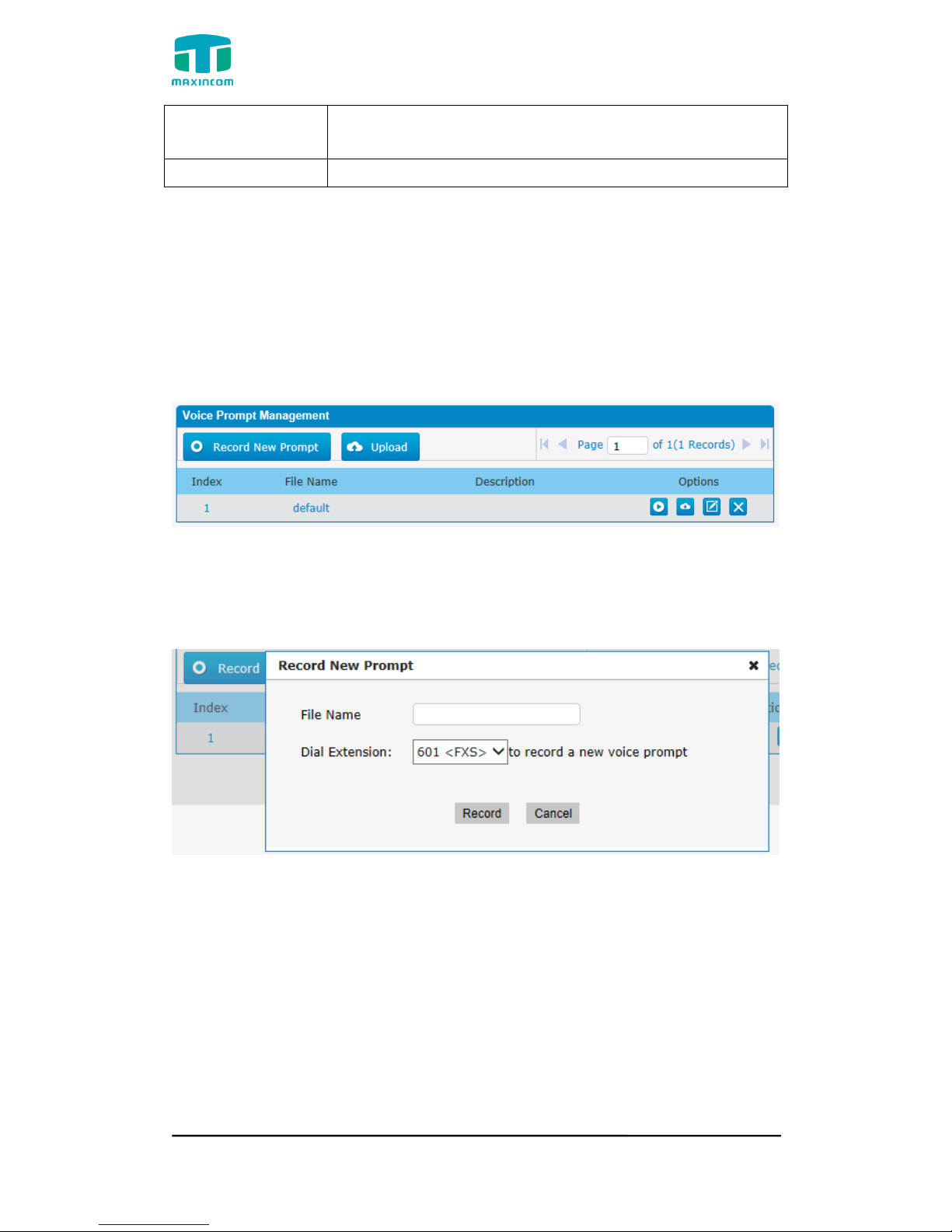
MUC1004/2008/2016 Administrator guide
Http://www.maxincom.com 88 / 112
in the group to talk and be heard by all.
Members
Select members in this group.
3.9 Voice Management
3.9.1 System Recordings
We can record or upload the prompts in this page; you can also play it directly
to confirm if it‟s a valid one, you can also download it and save it as a backup.
Figure 3.9.1 Voice prompt Recording
1. Record New Prompt
Figure 3.9.1a Record New Prompt
The administrator can record custom prompts by doing the following:
1) Click “Record New Custom Prompt”.
2) Input the desired file name on the popup window and choose an extension
to call for recording (such as vp500).
3) Click “Record”. The selected extension will ring and you can pick up the
phone to start recording.
2. Upload Prompt
Click “Upload”
Page 89
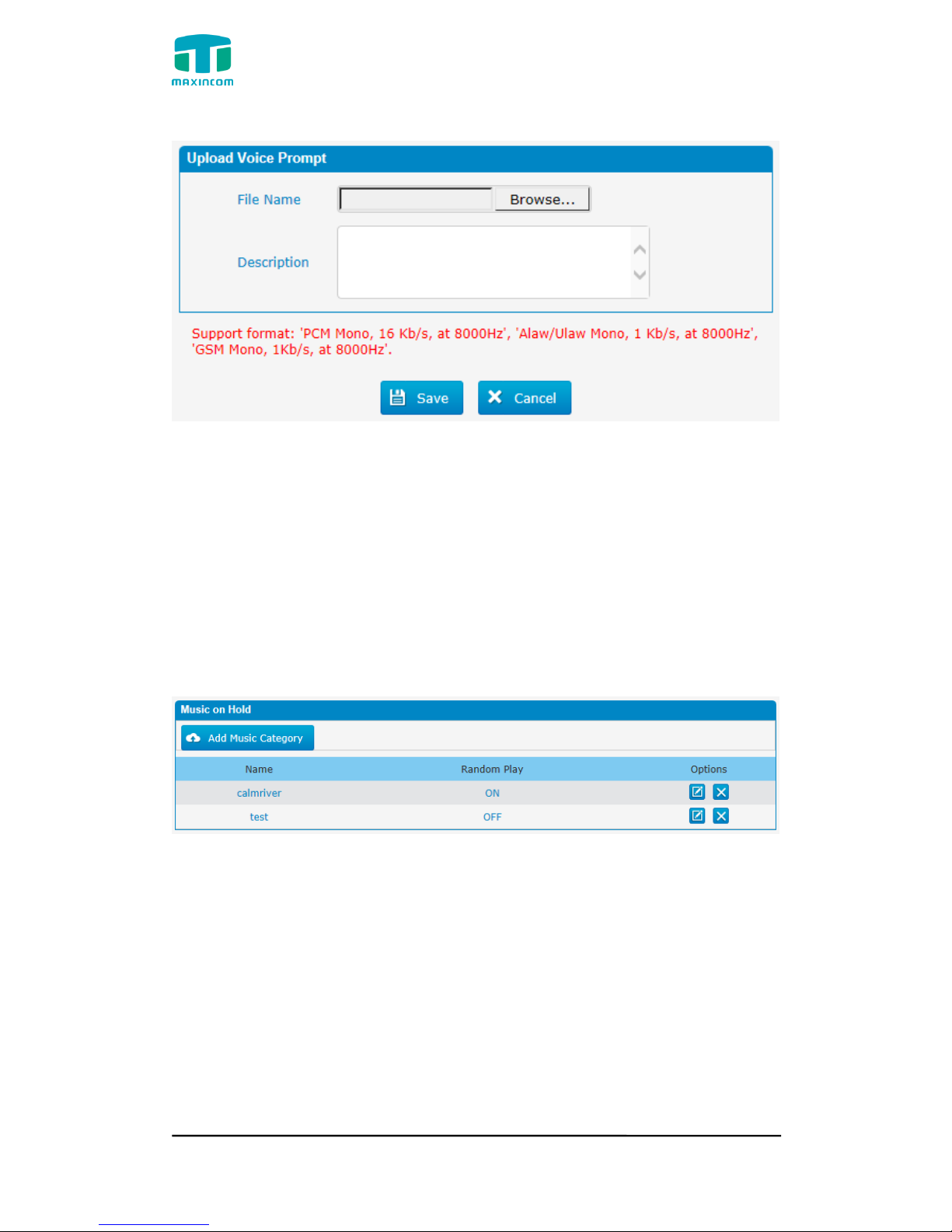
MUC1004/2008/2016 Administrator guide
Http://www.maxincom.com 89 / 112
Figure 3.9.1b Upload Voice Prompt
The administrator can also upload prompts by doing the following:
1) Click “Upload Prompt”.
2) Click “Browse” to choose the desired prompt.
3) Click “Save” to upload the selected prompt.
Note: The file size must not be larger than 1.8 MB, and the file must be WAV format.
3.9.2 Music on Hold
Figure 3.9.2 Music on Hold
Page 90
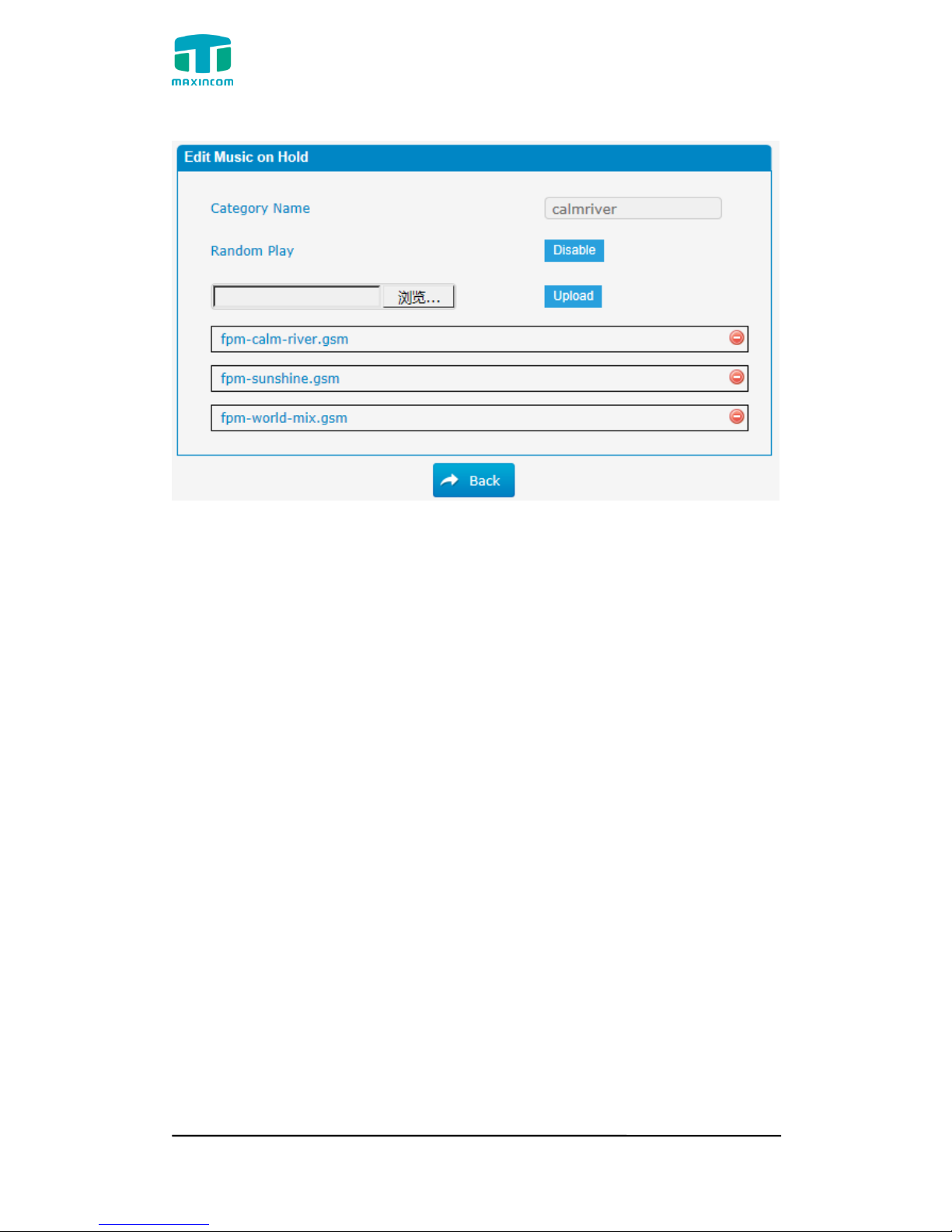
MUC1004/2008/2016 Administrator guide
Http://www.maxincom.com 90 / 112
Figure 3.9.2a Music on Hold Edit
The administrator can upload on hold music as follows:
1) Click “Browse” to choose the desired audio file.
2) Click “Upload” to upload the selected file.
Note: The file size must not be larger than 1.8 MB, and the file must be WAV
format:
GSM 6.10 8 kHz, Mono, 1 Kb/s;
Alaw/Ulaw 8 kHz, Mono, 1 Kb/s;
PCM 8 kHz, Mono, 16 Kb/s.
Page 91
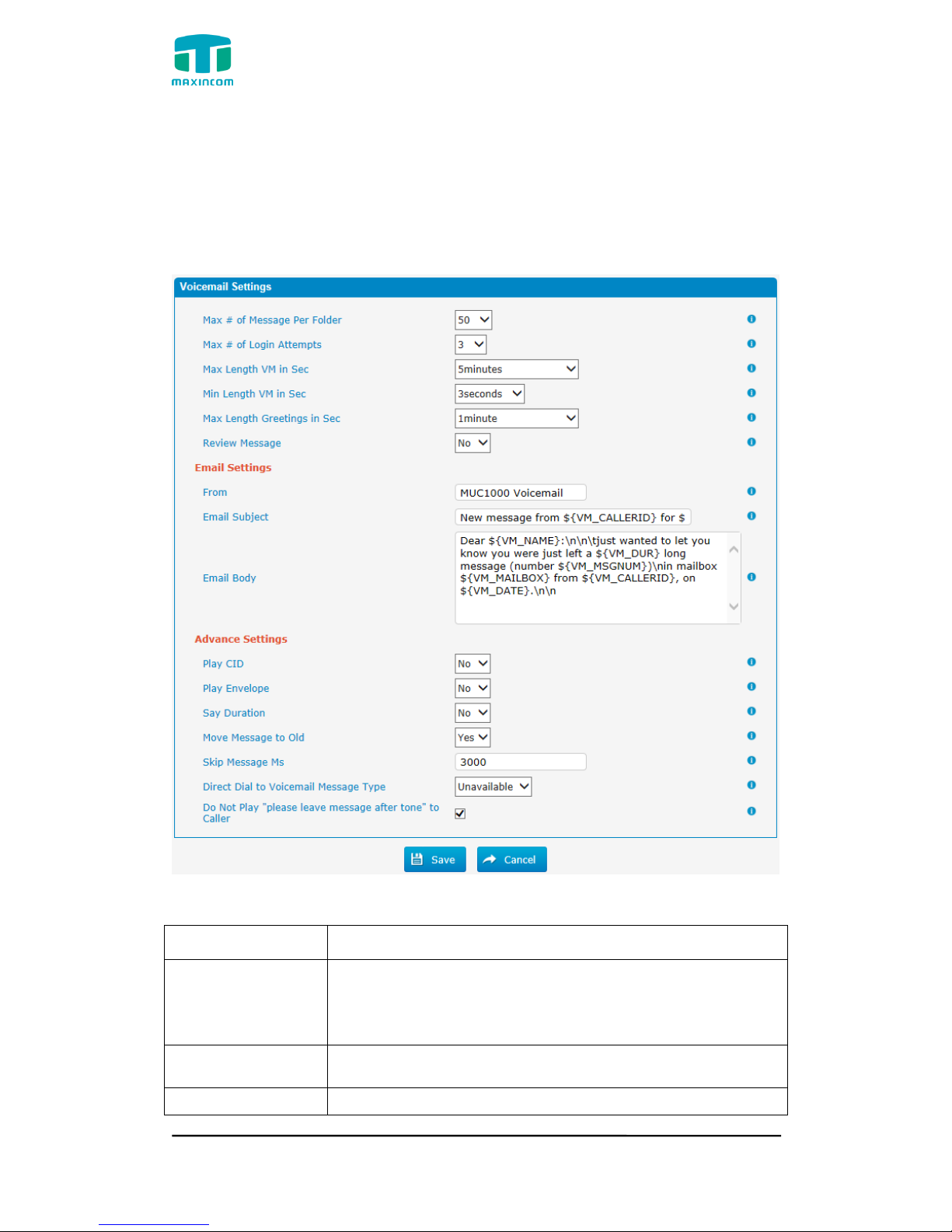
MUC1004/2008/2016 Administrator guide
Http://www.maxincom.com 91 / 112
3.9.3 Voicemail Settings
In this page, we can configure some settings for voicemail feature, including
general voicemail settings and SMTP settings, which is used for “voicemail to
email”.
Figure 3.9.3 Voicemail Setting
Table 3.9.3 Description of Voicemail Setting
Parameters
Description
Max # of Message
Per Folder
Set the maximum number of messages that can be stored
in a single voicemail box.
Max # of Login
Attempts
Max number of failed login attempts
Max Length VM in
Set the maximum length of a single voicemail message.
Page 92
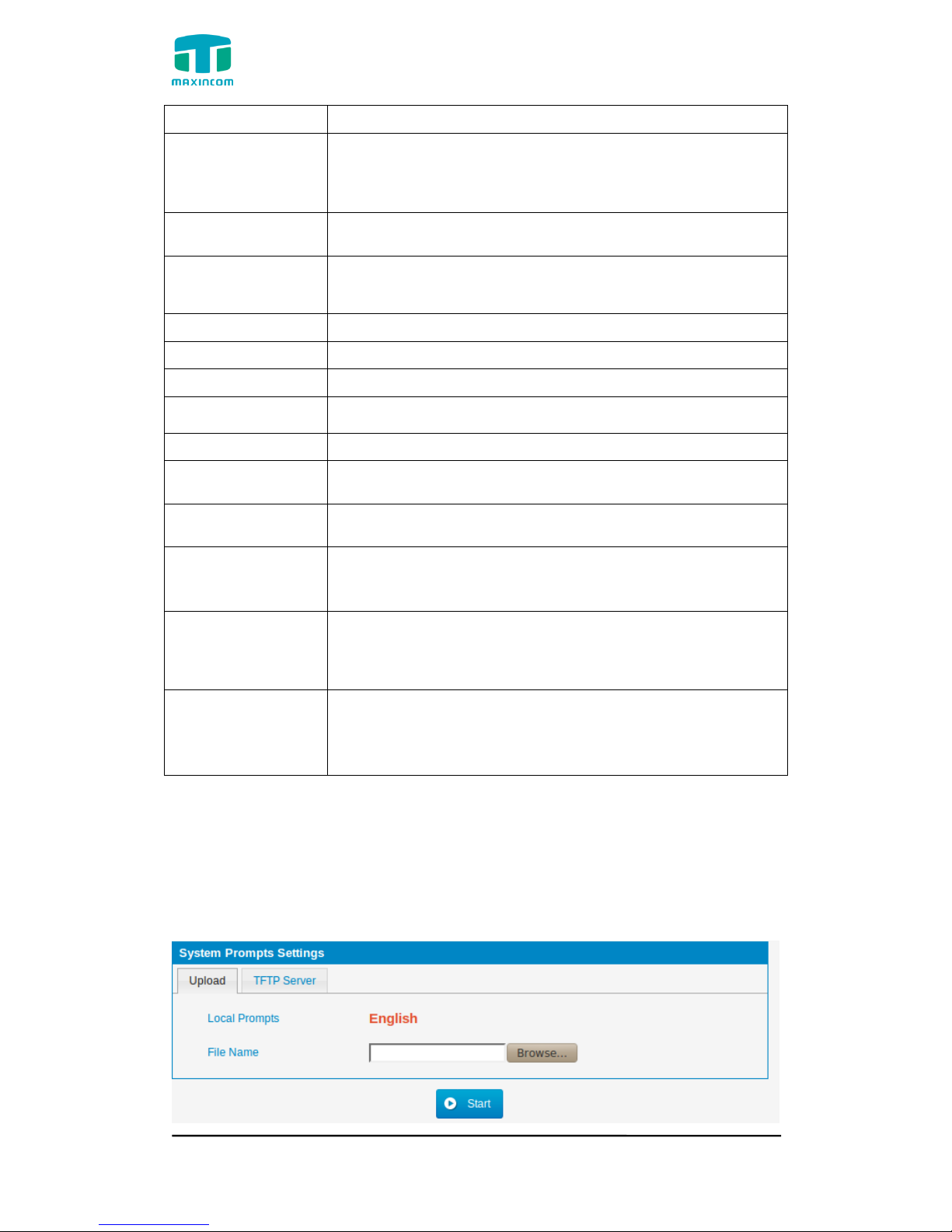
MUC1004/2008/2016 Administrator guide
Http://www.maxincom.com 92 / 112
Sec
Min Length VM in
Sec
Set the minimum length of a single voicemail message.
Messages below this threshold will be automatically
deleted.
Max Length
Greetings in Sec
Max length of greeting in seconds.
Review Message
Allow sender to review/record their message before save
it(No by default)
From
Email from
Email Subject
Email subject
Email Body
Email body
Play CID
Say the called ID information before the message
Play Envelope
Turn on/off envelope playback before message playback.
Say Duration
Turn on/off the duration information before the message.
Move Message to
Old
Move heard messages to the “old” folder automatically
Skip Message Ms
Specifies how many milliseconds to skip forward/back
when the user skips forward or backward during message
playback.
Direct Dial to
Voicemail Message
Type
Default message type to use when dialing direct to an
extensions voicemail
Do Not Play
"please leave
message after
tone" to Caller
Do Not Play "please leave message after tone" to Caller
3.9.4 System Prompts Settings
Upgrading of the system prompts package is possible through the
Administrator Web interface using a TFTP Server or an Upload
Enter your TFTP Server IP address and file location, then click start to update
the system prompts package
Figure 3.9.3 System Prompts Settings Upload
Page 93
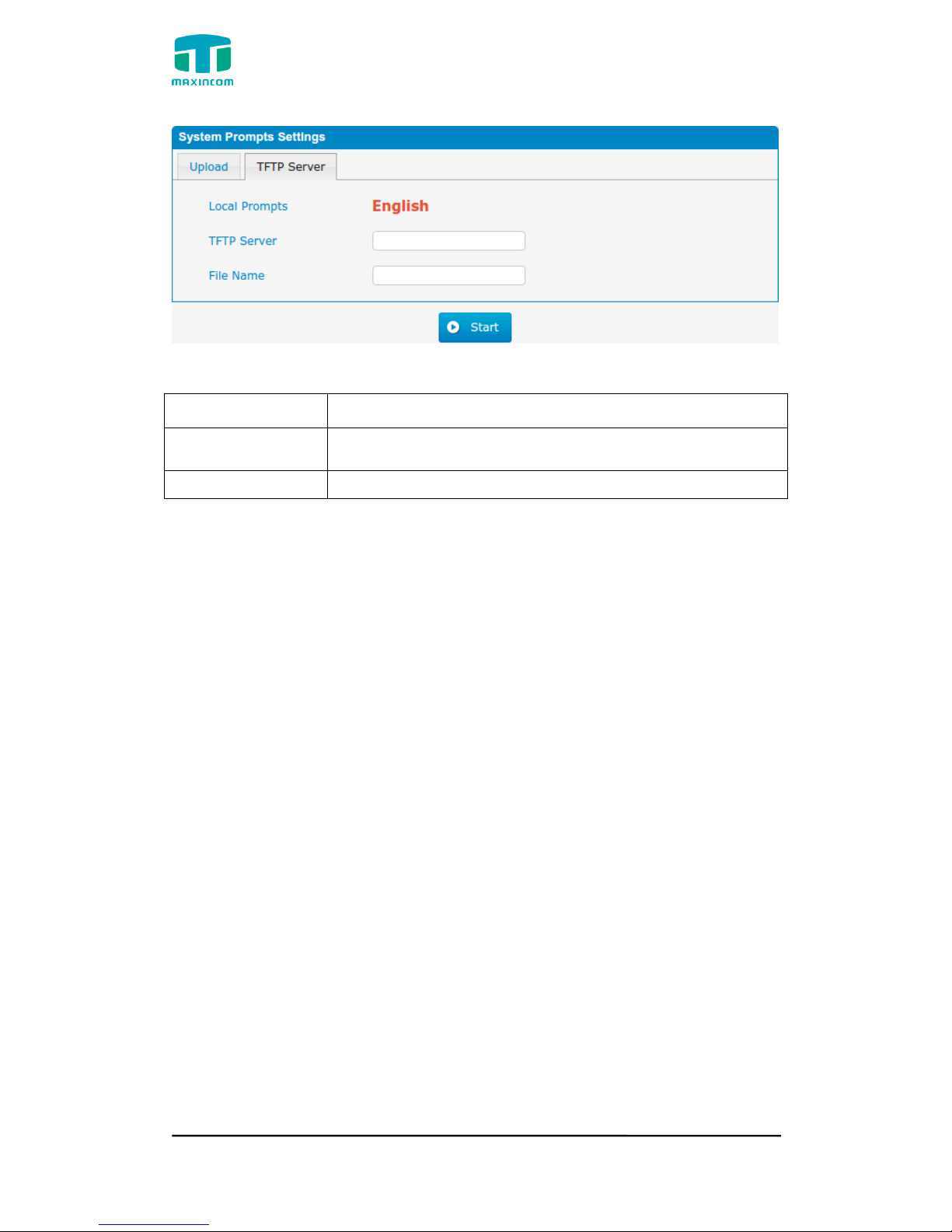
MUC1004/2008/2016 Administrator guide
Http://www.maxincom.com 93 / 112
Figure 3.9.3a System Prompts Settings TFTP
Table 3.9.3 Description of System Prompts Settings
Parameters
Description
File Name
Choose a country voice package,filename must to '.tar.gz'
ending.
TFTP Server
Tftp service server.
Page 94
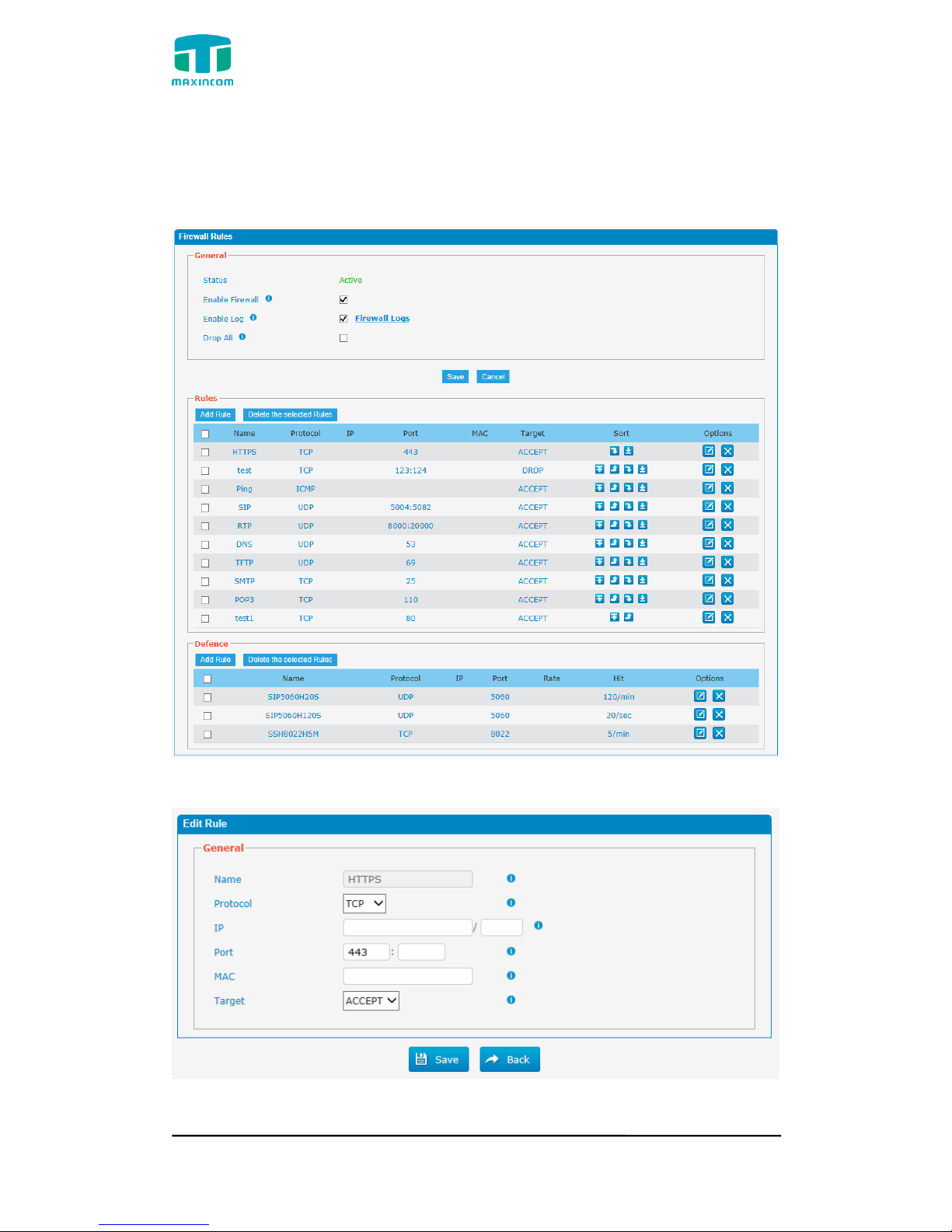
MUC1004/2008/2016 Administrator guide
Http://www.maxincom.com 94 / 112
3.10 System Preferences
3.10.1 Firewall Rules
Figure 3.10.1 Firewall Rules
Figure 3.10.1a Firewall Rules Edit/Add
Page 95
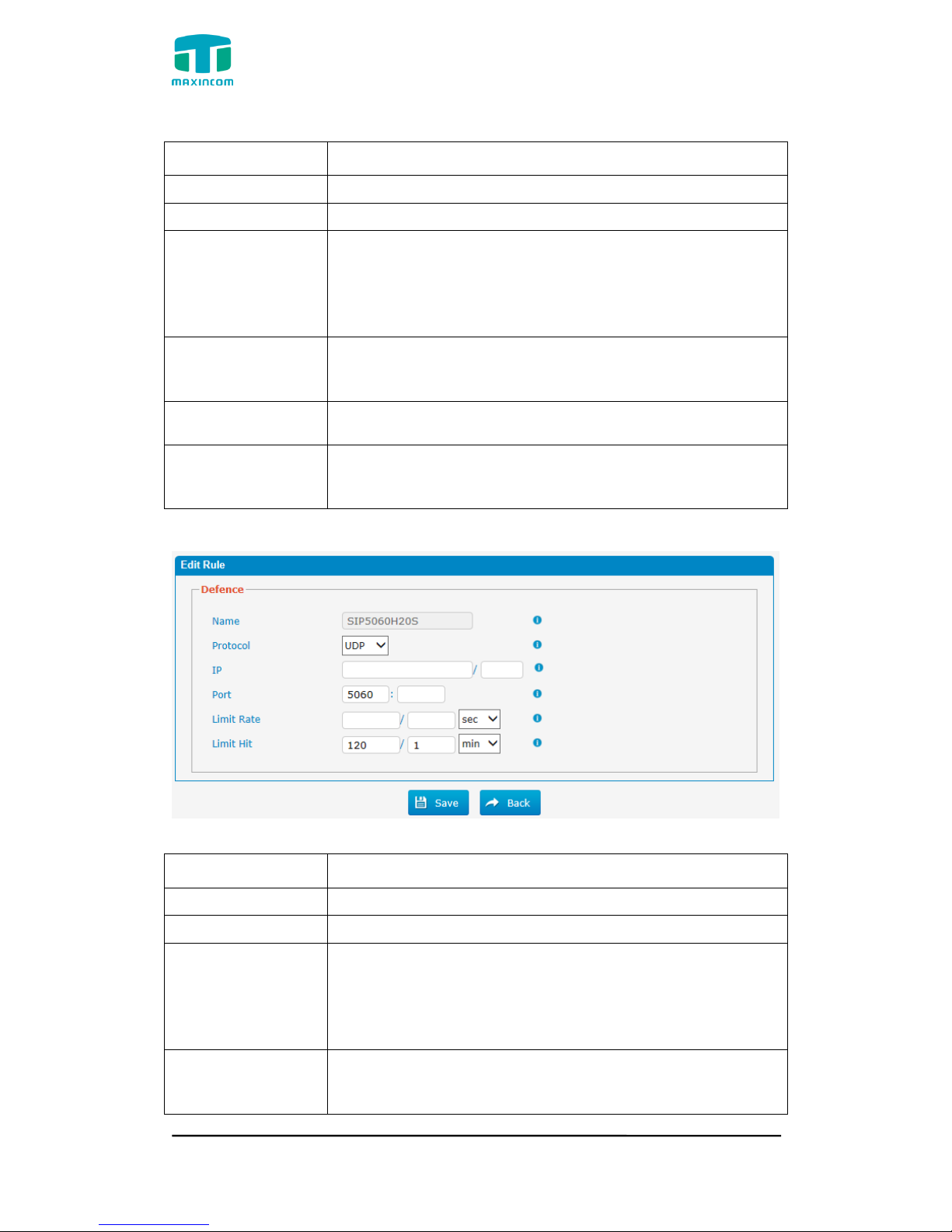
MUC1004/2008/2016 Administrator guide
Http://www.maxincom.com 95 / 112
Table 3.10.1a Description of Firewall Rules
Parameters
Description
Name
A name for this rule. eg: HTTP.
Protocol
The protocols for this rule.
IP
The IP address for this rule. The format of IP address
is:IP/mask
Ex:192.168.6.88/32 for ip 192.168.6.88
Ex:192.168.6.0/24 for ip from 192.168.6.0 to
192.168.6.255
Port
Initial port should be on the left and end port should be on
the right.The port must be equal to or greater than start
port.
MAC
The format of MAC Address is XX:XX:XX:XX:XX:XX, X
means 0~9 or A~F in hex, the A~F are not case sensitive.
Target
ACCEPT:Accept the access from remote hosts
DROP:Drop the access from remote hosts
REJECT:Reject the access from remote hosts
Figure 3.10.1b Firewall Defence Edit/Add
Table 3.10.1b Description of Firewall Defence Edit/Add
Parameters
Description
Name
A name for this rule. eg: HTTP.
Protocol
The protocols for this rule.
IP
The IP address for this rule. The format of IP address
is:IP/mask
Ex:192.168.6.88/32 for ip 192.168.6.88
Ex:192.168.6.0/24 for ip from 192.168.6.0 to
192.168.6.255
Port
Initial port should be on the left and end port should be on
the right.The port must be equal to or greater than start
port.
Page 96
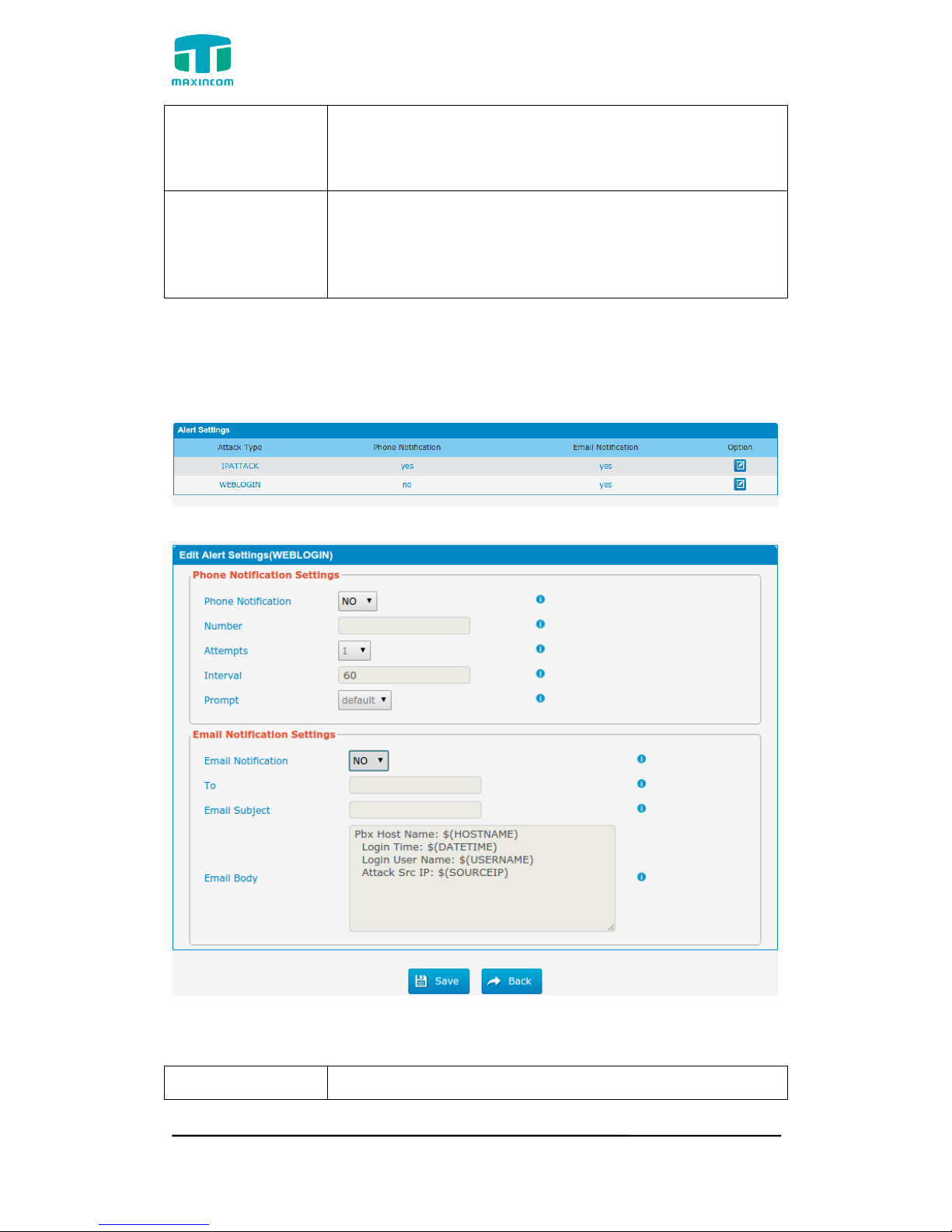
MUC1004/2008/2016 Administrator guide
Http://www.maxincom.com 96 / 112
Limit Rate
The maximum packets can be handled per unit time.
eg:(IP:192.168.6.88/32 Protocol:UDP Rate:10/sec)means
maximum 10 UDP packets from 192.168.6.88 can be
handled per minute,and drop the redundant packets.
Limit Hit
The maximum connections can be handled per unit time.
eg:(Port:8022 Protocol:TCP Hit:10/minute)means
maximum 10 TCP connections to port 8022 can be
handled per minute,the eleventh connection will be
refused directly.
3.10.2 Security Info
Alert Settings, if the device is attacked, the system will notify users the alert via
call or E-mail. the attack modes include IP attack and Web Login.
Figure 3.10.2 Alert Settings
Figure 3.10.2a Alert Settings Edit
Table 3.10.2a Description of Alert Settings Edit
Parameters
Description
Page 97
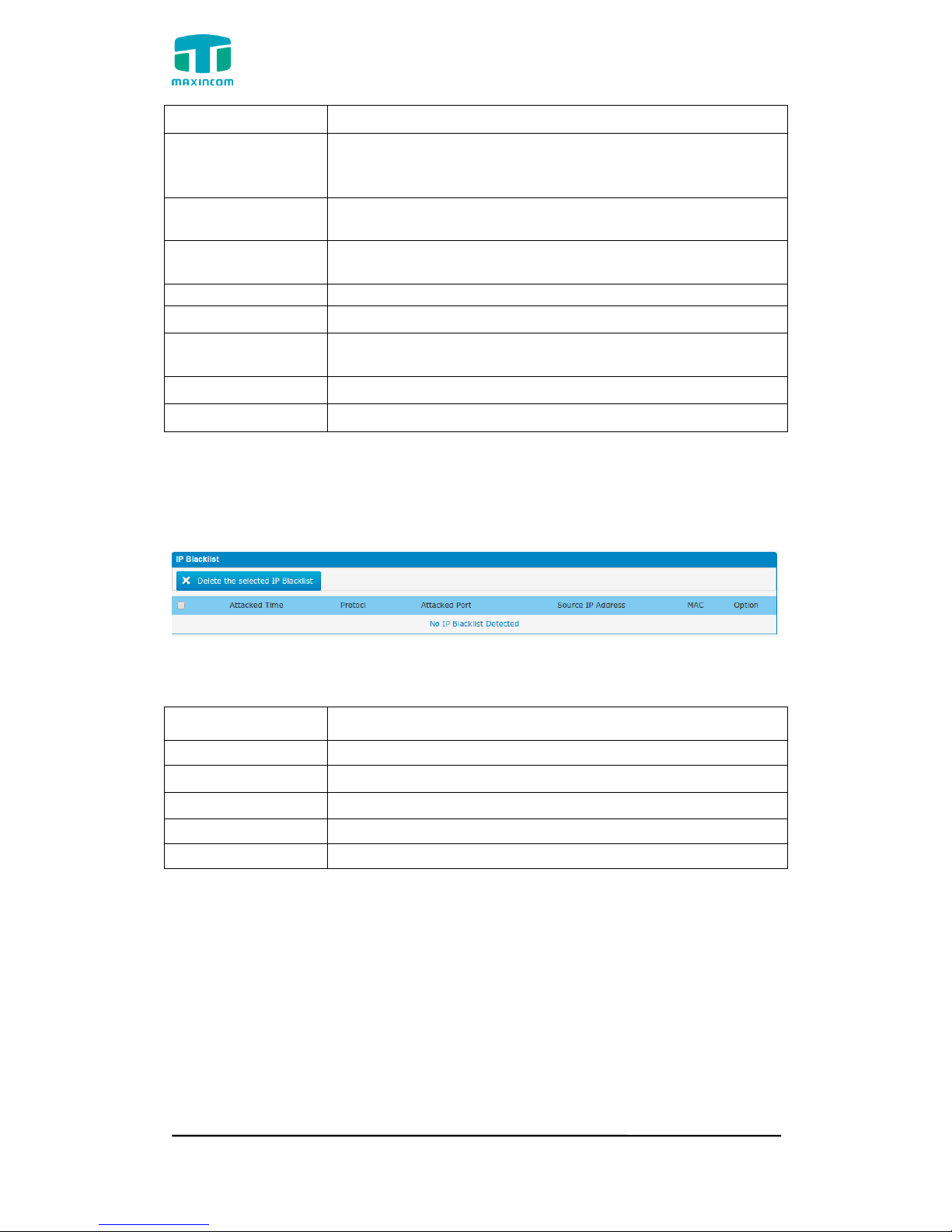
MUC1004/2008/2016 Administrator guide
Http://www.maxincom.com 97 / 112
Phone Notification
Enalbe phone notification
Number
Multiple extensions and outbound phone numbers could
be set for alert phone notification. Please separate them
by ';', e.g. '103;9XXX'.
Attempts
The attempt times to dial a phone number when there is
no answer.
Interval
The interval between each attempt to dial the phone
number.Must be greater than 3 seconds.
Prompt
When answered, System will play this prompt.
Email Notification
Enable email notification
To
Multiple email addresses are allowed; please separate
them by ';', e.g. [email protected]; [email protected].
Email Subject
Email subject
Email Body
Email Body, Until 511 characters
IP Blacklist, if the device is attacked by IP attack.system will add ip to firewall
and Disable this IP access.
Figure 3.10.2b IP Blacklist
Table 3.10.2b Description of IP Blacklist
Parameters
Description
Date
IP Attack time
Protocol
Attack protocol type
IP
Attack ip
MAC Address
Attack MAC address
Dest Port
Attack destination port
3.10.3 Firmware update
Upgrading of the firmware is possible through the Administrator Web interface
using a TFTP Server or an Upload
Enter your TFTP Server IP address and firmware file location, then click start to
update the firmware
Notes:
1. If enabled “Reset configuration to Factory Defaults”, System will restore to
factory default settings.
Page 98
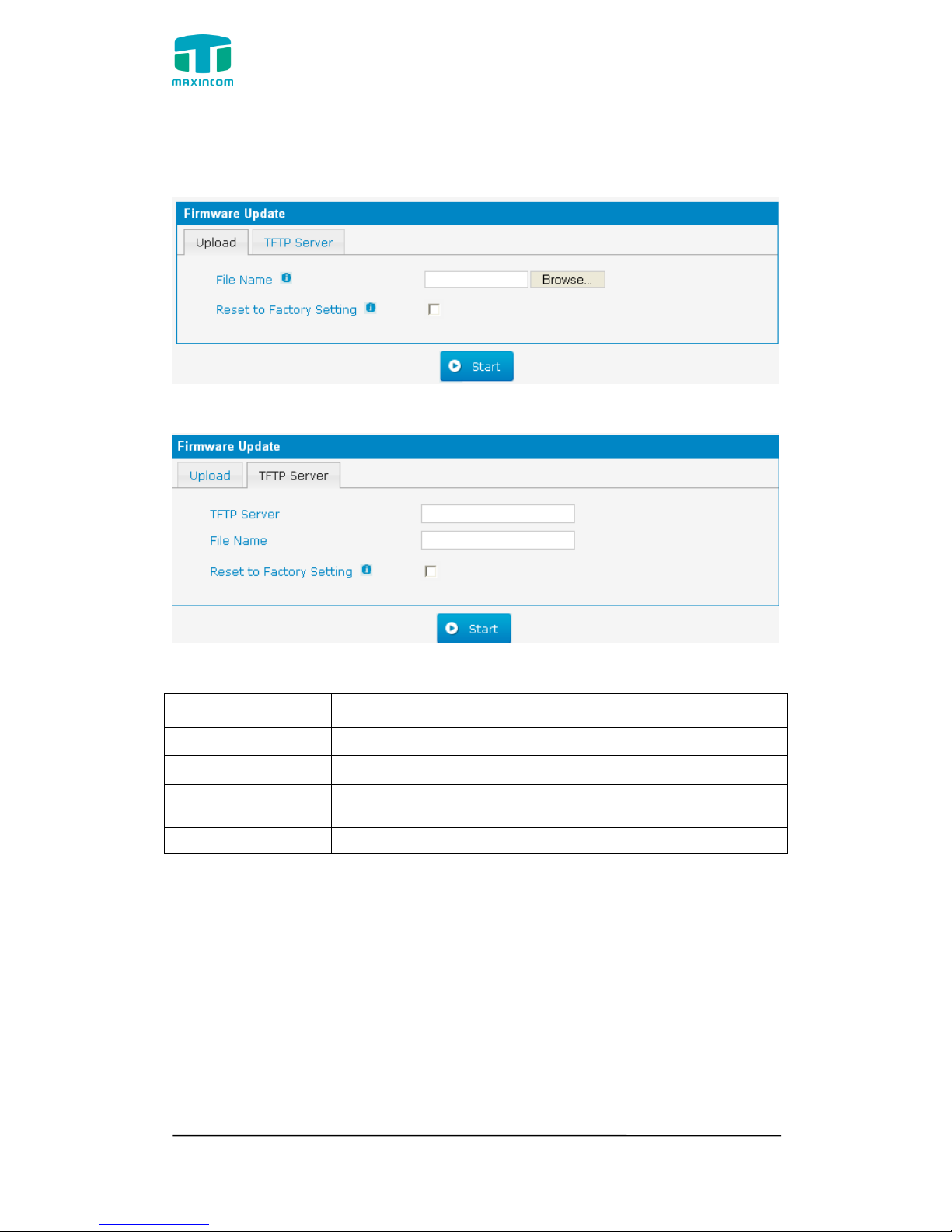
MUC1004/2008/2016 Administrator guide
Http://www.maxincom.com 98 / 112
2. When update the firmware, please don‟t turn off the power. Or the system
will get damaged.
Figure 3.10.3 Firmware Update Upload
Figure 3.10.3a Firmware Update TFTP
Table 3.10.3 Firmware Update
Parameters
Description
Firmware update
Send package file from your computer to the device
File name
Firmware name,file must to „.img‟ ending.
Reset to Factory
Setting
Reset Configuration to Factory Defaults
Browse
Choose File
Page 99
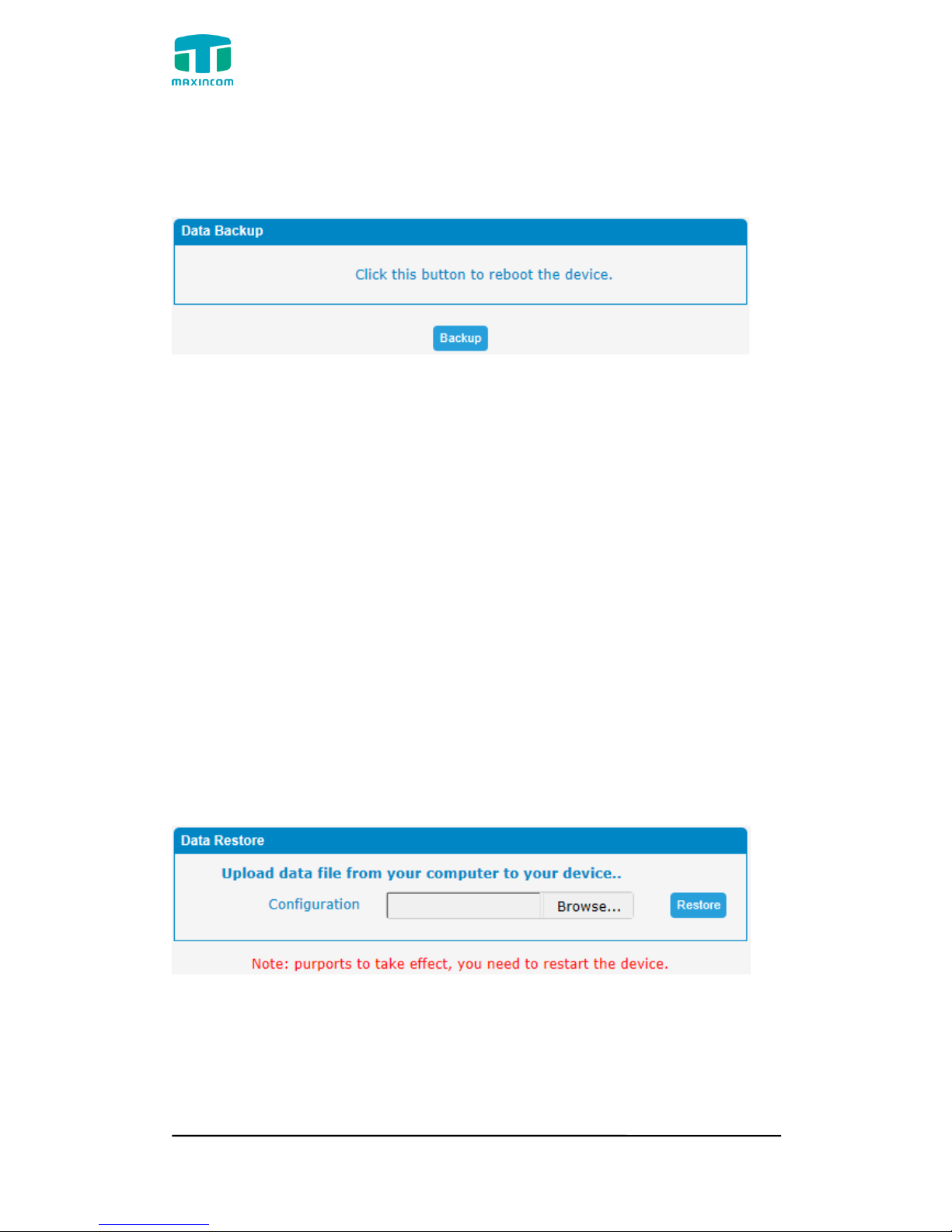
MUC1004/2008/2016 Administrator guide
Http://www.maxincom.com 99 / 112
3.10.4 Data Backup
We can backup up the configurations before reset PBX to factory defaults
Figure 3.10.4
Click 'Backup' to download configuration file to your computer.
Notes:
1. Only configurations, custom prompts will be backed up.
2. When you have updated the firmware version, it‟s not recommended to
restore using old package.
3.10.5 Data Restore
You can restore this configuration in case the unit loses it for any reason or to
clone a unit with the configuration of another unit. The configuration backup
configurations are in txt format. Please note that you can use a backup file from
an older firmware version and use it in a unit with a more recent firmware
version. However, a backup file from a newer firmware version than the one
actually in the unit cannot be used for a restore operation on the unit.
Notes:
1. The upload process will last about 30s.
2. When you have updated the firmware version, it‟s not recommended to
restore using old package.
Figure 3.10.5
Page 100
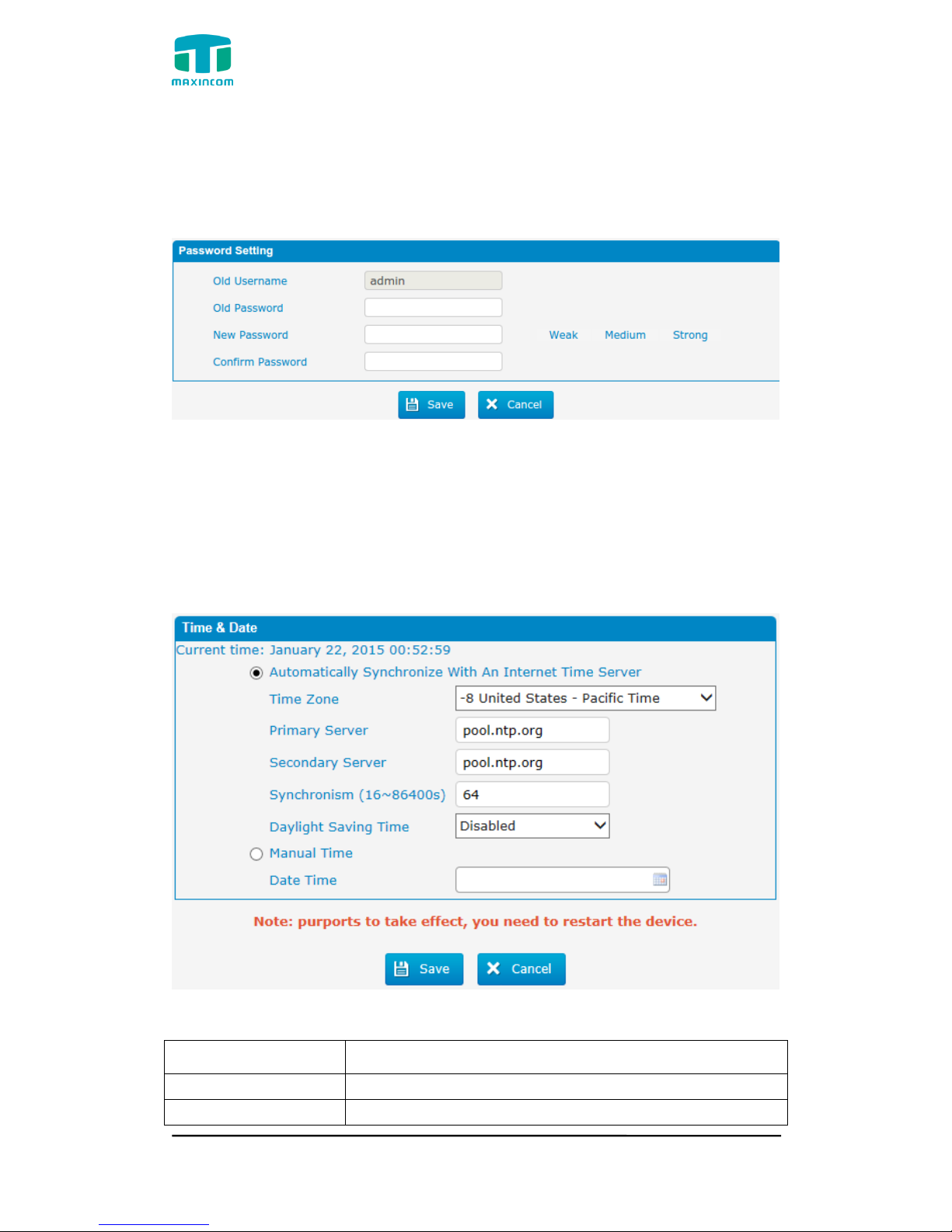
MUC1004/2008/2016 Administrator guide
Http://www.maxincom.com 100 / 112
3.10.6 Password
When using web Configuration, please enter default user name and password.
User can modify the login name and password.
Figure 3.10.6 Password Setting
3.10.7 Time & Date
The Network Time Protocol (NTP) is a protocol and software implementation
for synchronizing the clocks of computer systems over packet-switched,
variable-latency data networks.
User need to fill the NTP Server Address and select Time Zone.
Figure 3.10.7 Time & Date parameter
Table 3.10.7 Time & Date parameter
Parameters
Description
Time zone
You can choose your time zone here.
Primary server
Primary NTP Server Address
 Loading...