

Page 1

1
Maxa Technologies Ltd MT-200E WIFI manual Ver1.1
Maxa Technologies Ltd
MT-200E Wireless Communication Settings
Manual
Ver 1.1
18/06/2013
This Instructions manual is step by step configuration for
Wireless printer MT-200E only, starting from configuring printer
‘out from the box’ to successfully communicate in Infrastructure
mode.
Page 2
2
Maxa Technologies Ltd MT-200E WIFI manual Ver1.1
Configuring printer’s WIFI settings
Printer out from the box doesn’t have any network settings configured so it is not accessible
using IP address. In this step, printer can be configured to ad hoc mode or infrastructure
mode.
The easiest way is configure printer wirelessly using direct communication between printer
and PC/Laptop. In this case:
- Download Wi-Fi tool from Maxatec website: MT-200 WIFI Tool
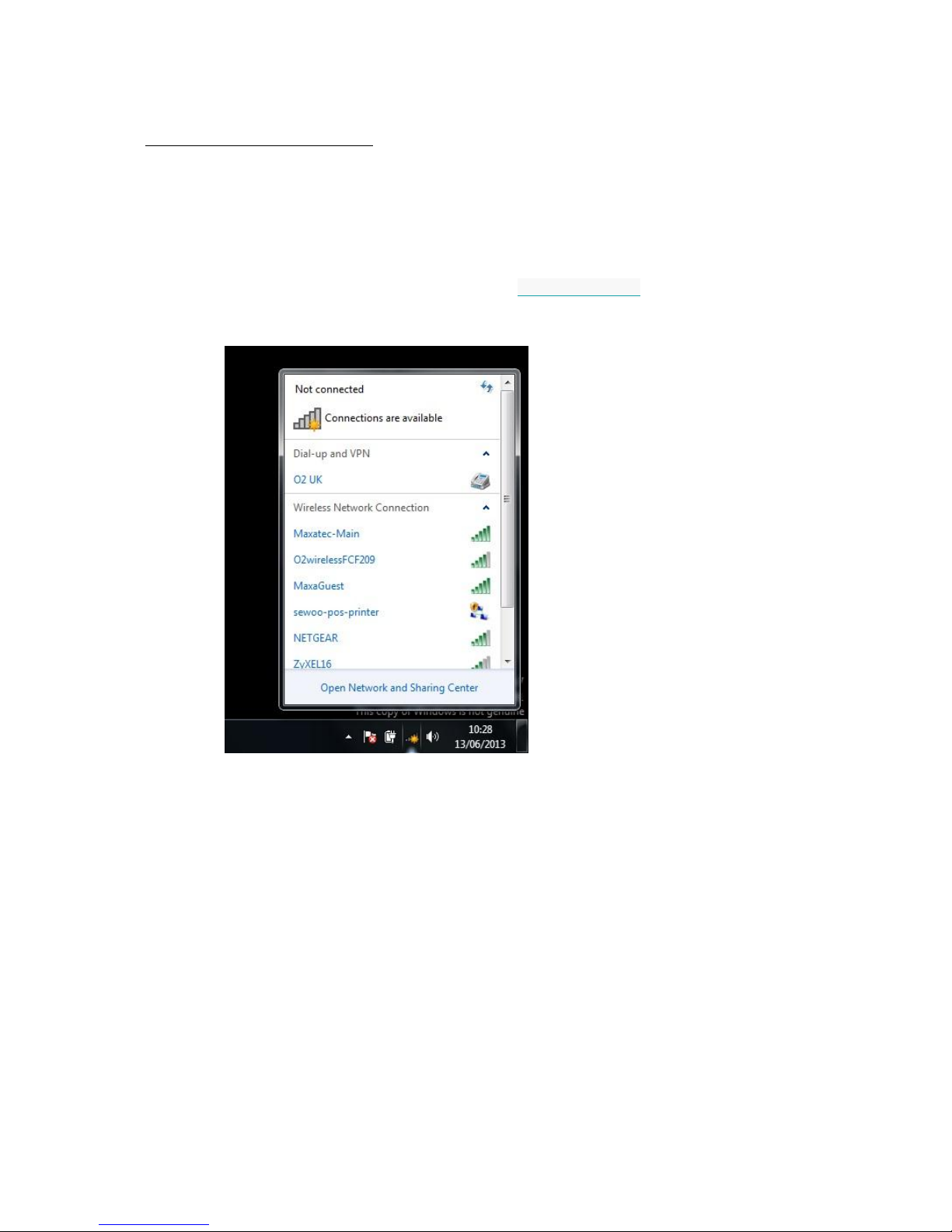
- Connect to ad-hoc printer Wi-Fi network sewoo-pos-printer
- Turn printer on
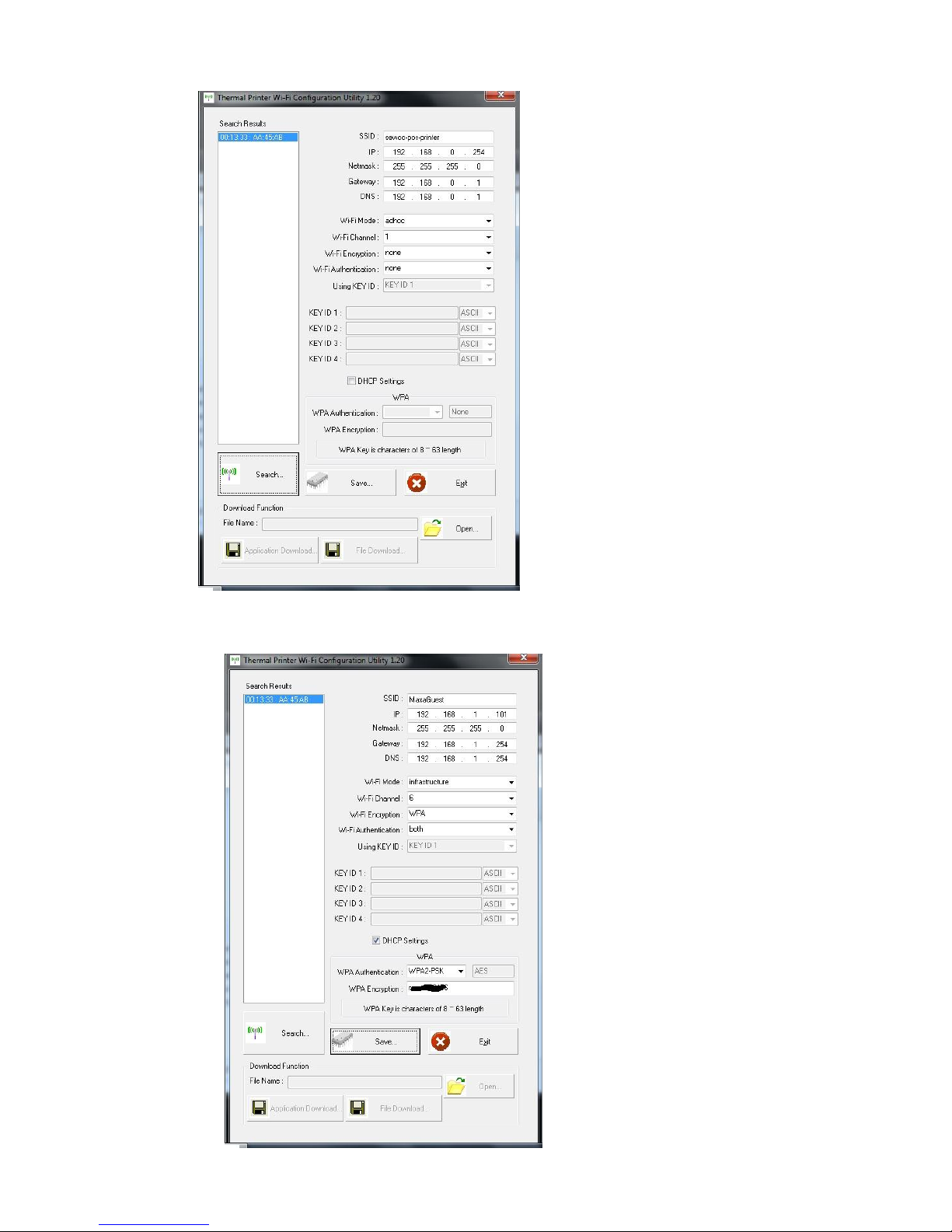
- Start WIFIConfig-1.2 tool and click search
If you have problem to find the printer – turn off firewall also it is worth to set static Ip
address of your PC wireless card to be in the same subnet (default IP printer is
192.168.0.254 when reset button is pressed on printer wireless card) like 192.168.0.10
Page 3
3
Maxa Technologies Ltd MT-200E WIFI manual Ver1.1
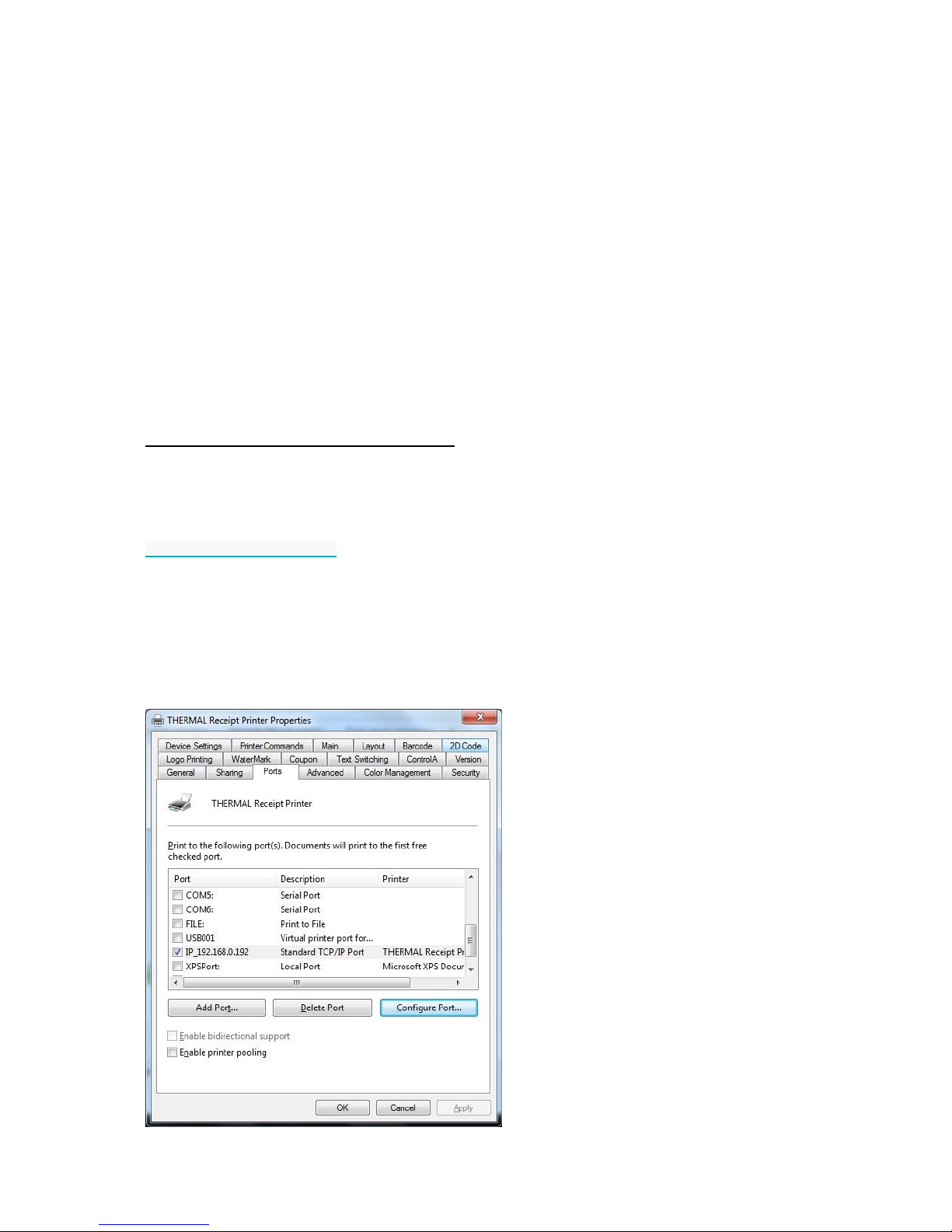
- Set printer to Infrastructure mode which wireless settings that will match your router
configuration. In my case is MaxaGuest and WPA2-PSK key, Chanel 6
Page 4
4
Maxa Technologies Ltd MT-200E WIFI manual Ver1.1
Please note WPA-PSK authentication is available with TKIP only and WPA2-PSK with AES. Please
configure your router accordingly!
- Then test the printer if settings have been stored, by performing ‘SelfTest’ print – when
printer is turned off, hold feed button and turn printer on, after few seconds printer
configuration will be printed.
- If you configured DHCP, IP configuration can be printed by pressing reset button for 1
sec located on back of Wi-Fi card
- Holding reset button for more than 5 seconds, returns Wi-Fi card settings to default
configuration:
IP: 192.168.0.254
Subnet 255.255.255.0
Gateway 192.168.0.1
Printer communication in Infrastructure mode
Network communication can be direct or using Windows driver.
Windows Printer Driver 4.30
1. When driver is installed – it needs to be installed in the same network, in our case
infrastructure network. During installation you will be asked to enter printer IP address:
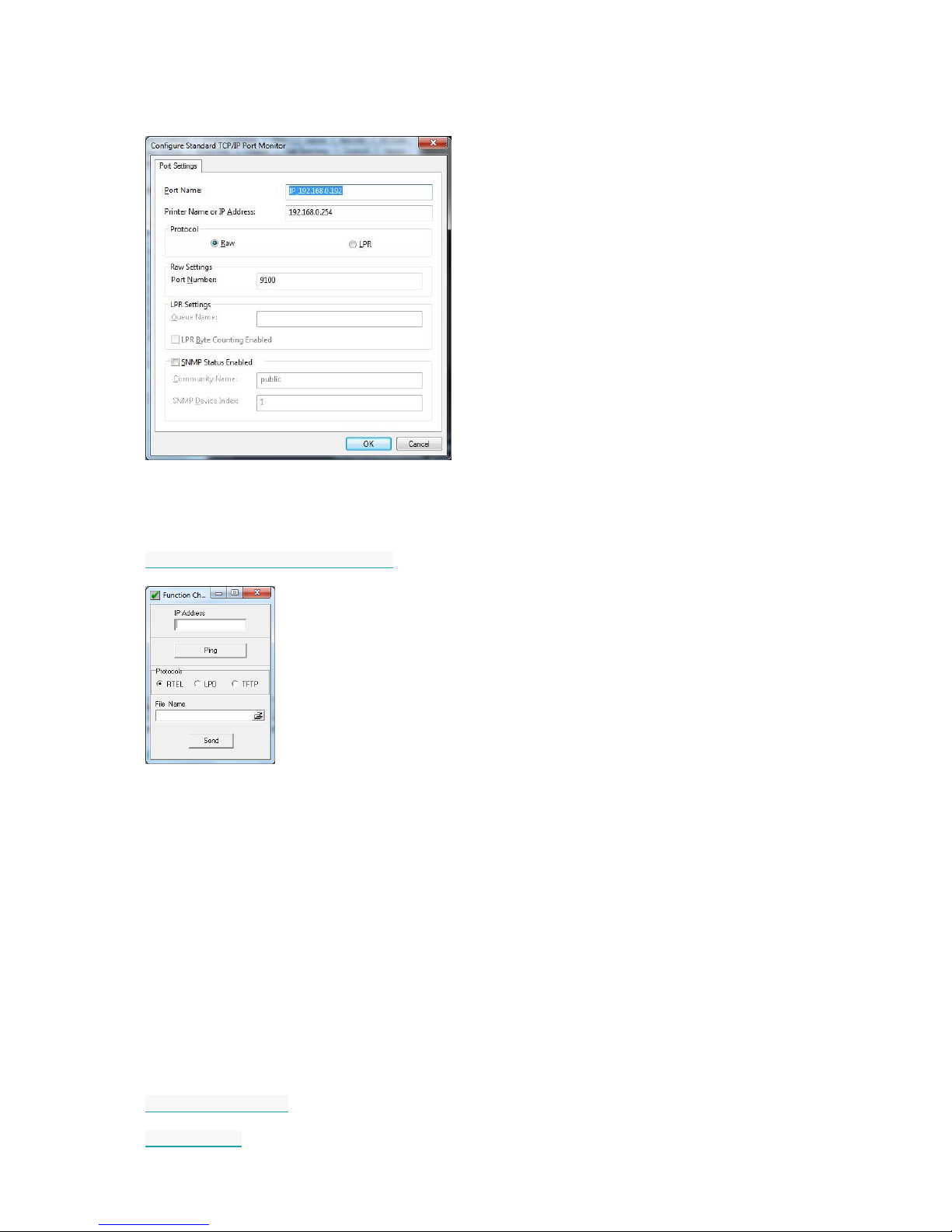
IP address can be changed anytime in Printer Properties under Ports tab/Configure port
Page 5
5
Maxa Technologies Ltd MT-200E WIFI manual Ver1.1
Please note port 9100 is used for proper communication so Wireless router needs to have this port
open and diverted to printer IP address, in below sample it is 192.168.0.254.
Printer communication in Infrastructure mode can be checked using Printer driver by using
‘Print Test Page’ in General Tab or dedicated Function Check tool:
FunctionCheck- IP connection tester
2. Direct communication without printer driver.
Below conditions needs to be met for proper printout without system driver:
- Port 9100 needs to be open in system firewall and router set port forwarding to IP
address of the printer
- Files needs to be send to the printer using printer IP address in ESC/POS format
Above instructions are written for Windows operating systems so Windows driver and function
check cannot be used in other systems, please use ping utility instead to check if printer is accessible
in the network. There is no driver available for other systems, please use manufacturer’s SDK:
Android SDK 1.060C
iOS SDK 1.48
 Loading...