

Page 1
Model: MCA-17
Size: 297 W X 176.5 H (mm)
Date: Aug. 29, 2013
Color: 4C + 4C
Important Message to Consumers
Thank you for purchasing one of MARVEL’s top-quality electronic products. We would appreciate it if you take a few
moments to read through these instructions. This will help you understand the safe and proper way to use this product,
and to help give it the long-lasting life that MARVEL’s products are designed for.
Keep these instructions for future reference as they contain important information.
Troubleshooting
How do I save my artwork/access saved artwork?
Your artwork is automatically saved to the My Artwork folder. To
view saved artwork, open the My Artwork folder and tap on the
desired item to open it.
How to I email/share my artwork?
You can email your artwork after opening it and then tapping on
the Email Button. An internet connection is required.
My stylus doesn’t work.
1. Replace or re-install the battery, checking that the polarity (+
and -) is correct.
2. Try resetting the stylus. To do so, use a pen or similar item to
press in the Reset Button on the back of the stylus while it is on.
3. Make sure the holes at the top of stylus are not covered.
4. Make sure the iPad’s mic hole is not covered by a hand or case.
5. Be sure you set the appropriate ID in the settings section of the
App to match the LED on your stylus.
Stylus is not turning ON or OFF.
Press the Power Button down to turn ON. Note: the stylus has a
battery saving feature which automatically turns it o after 5
minutes of inactivity. The red or blue Power Indicator Light shows
when the stylus is on. Hold the Power Button down for 2 seconds
to turn OFF.
When I shake the stylus, the app won’t respond.
The stylus must be ON and then shaken UP and DOWN 3 or more
times.
Maintenance
Keep the unit as dry and clean as possible. Do not allow dirt, small
particles, water, or other liquids to enter the unit’s casing.
If the unit is to be left unused for an extended period of time, such
as a month or longer, have an adult remove the battery to extend
its life and prevent leaking or corrosion.
One Year Limited Warranty
eKids, a division of SDI Technologies Inc. (hereafter referred to as SDI), warrants
this product to be free from defects in workmanship and materials, under
normal use and conditions, for a period of one (1) year from the date of original
purchase. Should this product fail to function in a satisfactory manner, it is best
to rst return it to the store where it was originally purchased. Should this fail
to resolve the matter and service still be required by reason of any defect or
malfunction during the warranty period, SDI will repair or, at its discretion,
replace this product without charge. This decision is subject to verication of
the defect or malfunction upon delivery of this product to the Factory Service
Center authorized by SDI Customer Service. The product must include proof of
purchase, including date of purchase. An out-of-warranty fee for service will be
charged for units that are received without proof of purchase. Before returning
this product for service, please rst replace the batteries (if applicable) with
fresh ones, as exhausted or defective batteries are the most common cause of
problems encountered. If service is still required:
1. Call SDI Customer Service at 1-888-TOP-TOYS for Return Authorization and
for the address of the Factory Service Center.
2. Remove the batteries (if applicable) and pack the unit in a well padded,
heavy corrugated box. SDI is not responsible for damage that occurs during
shipping to the Factory Service Center.
3. Enclose a photocopy of your sales receipt, credit card statement, or other
proof of the date of purchase, within the warranty period. Also include your
name and address information, a brief description for why the unit is being
returned, and the return authorization number. No unit can be processed
without a return authorization number.
4. Write the return authorization number on the side of the shipping package
and send the unit prepaid and insured to the Factory Service Center
address authorized by SDI Customer Service.
Disclaimer of Warranty
NOTE: This warranty is valid only if the product is used for the purpose for which
it was designed. It does not cover (i) products which have been damaged by
negligence or willful actions, misuse or accident, or which have been modied
or repaired by unauthorized persons; (ii) cracked or broken cabinets, or units
damaged by excessive heat; (iii) damage to digital media players, CD’s or tape
cassettes (if applicable); (iv) the cost of shipping this product to the Factory
Service Center and its return to the owner.
This warranty is valid only in the United States of America and does not extend
to owners of the product other than to the original purchaser. In no event will
SDI or any of its aliates, contractors, resellers, their ocers, directors,
shareholders, members or agents be liable to you or any third party for any
consequential or incidental damages, any lost prots, actual, exemplary or
punitive damages. (Some states do not allow limitations on implied warranties
or exclusion of consequential damages, so these restrictions may not apply to
you.) This warranty gives you specic legal rights, and you may also have other
rights which vary from state to state.
Your acknowledgement and agreement to fully and completely abide by the
above mentioned disclaimer of warranty is contractually binding to you upon
your transfer of currency (money order, cashier's check, or credit card) for
purchase of your SDI product.
Printed in China MCA17-082913-A
For Best Results:
• DO NOT cover the holes at the top of the stylus or you may block the
signals used to communicate with the iPad.
• DO NOT cover the iPad’s microphone at any time as doing so may
block the signal the Stylus uses to communicate with the iPad.
• DO NOT use the Stylus and your iPad in very noisy environments or
places with interference such as near TVs, etc. as some noises can
interfere with the proper operation of the Stylus.
• DO NOT use more than one Stylus in the same room on the same
channel. See ‘Using Two Styli’ for more information.
• DO NOT press down hard on the iPad while using the Stylus.
Visit our website for additional help: www.eKids.com
Customer service: 1-888-TOP-TOYS
™
MCA-17 Quick Start Guide
Visit our website for additional help
www.eKids.com
Page 2
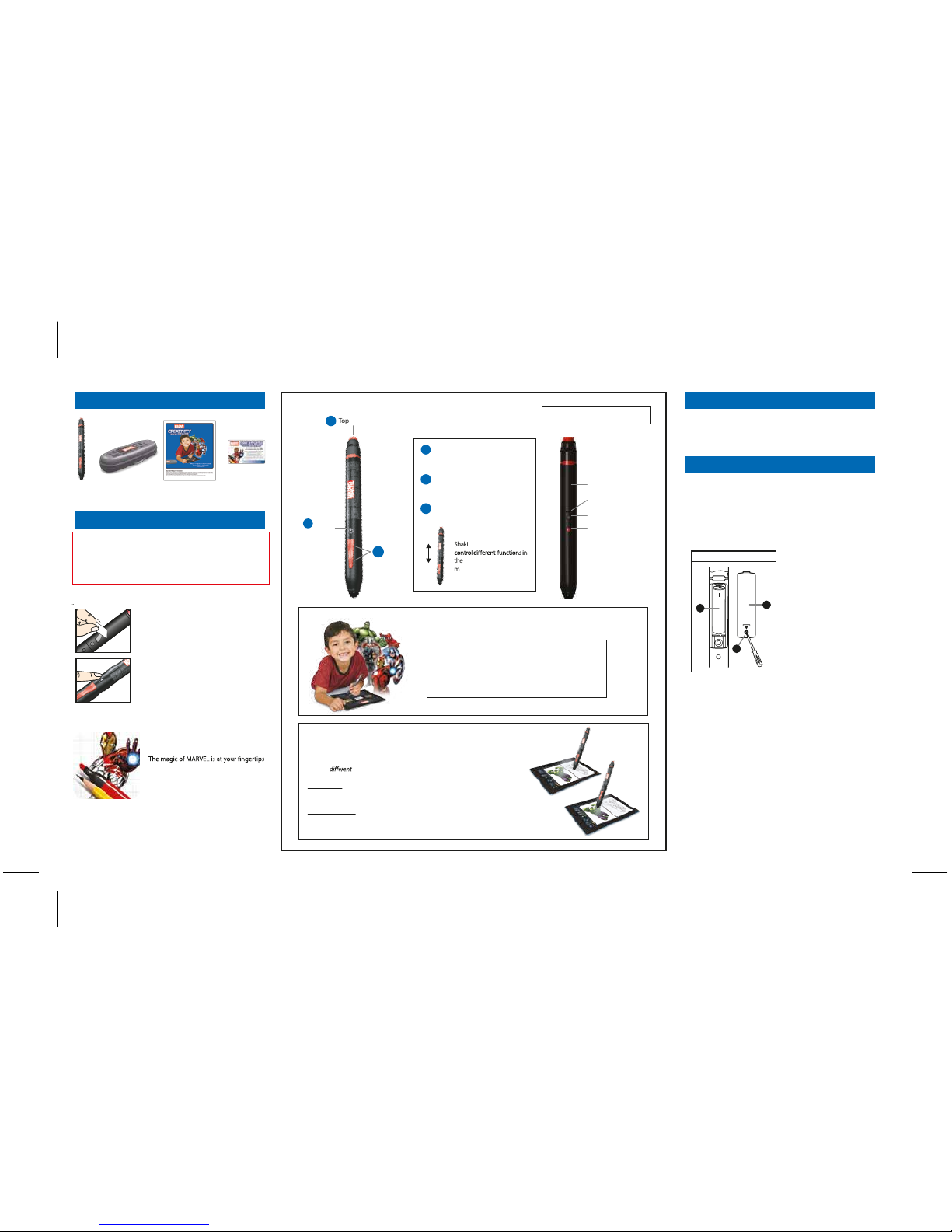
Top Button
The Stylus comes with 1 AAA battery already installed.
Remove the pull tab to enable the battery.
When a low battery notice appears on the app screen, it’s time to
replace the battery.
Note: Battery should always be installed by an adult.
A. Use a small Phillips screwdriver to open the battery compartment
door located on the back of the unit.
B. Insert one AAA (LR03) battery and align the battery’s + and -
terminals with the + and - indicators in the battery compartment.
C.
Replace the compartment door and tighten the screw with a
Phillips screwdriver. Do not over-tighten the screw.
For the Best Possible Performance
• Battery is to be inserted with correct polarity.
• Remove exhausted battery from the unit.
• Do not attempt to recharge non-rechargeable batteries.
• If you are using a rechargeable battery, remove it from the unit
before charging.
•
The battery terminals are not to be short-circuited.
• Battery should be removed if the item will not be used for an
extended period of time, such as a month or longer, to prevent
battery leakage or damage
.
• Rechargeable battery should only be charged under adult
supervision.
• Only use a battery of the same or equivalent type as recommended.
Battery Installation
WARNING: DO NOT DISPOSE OF
BATTERIES IN HOUSEHOLD TRASH.
CONSULT LOCAL REGULATIONS
FOR PROPER BATTERY DISPOSAL.
Using the Stylus
Shaking the Stylus will
the app. See the app for
more details.
Register Your New Smart Stylus Online
Visit ekids.com/register to get started!
Make the most of your new Smart Stylus when you register
online. Receive the latest product updates, access customer
support, and explore our line of kid-friendly electronics
featuring the MARVEL characters you know and love.
Changing the Battery
Press the Power Button once to
turn Stylus ON. Press and hold for 2
seconds to turn OFF.
The Top Button is used for
changing tools. See app for more
details.
Use the Rocker Switch to change
a tool’s characteristics.
Stylus Tip
Power
Button
Rocker
Switch
NOTE: Information below is only needed for users with 2 styli in one room.
If you are using two styli in one room (with 2 iPads), you will need to assign each
stylus a
channel both with the stylus and the app.
IN THE APP:
Navigate to the App’s Settings, then select Channel 1 or Channel 2.
ON THE STYLUS:
When power is on, press and hold the Top Button for 3 seconds to toggle
between Channel 1 (red LED indicator) and Channel 2 (blue LED indicator).
1
2
3
1
2
3
BatteryWhat’s In The Box
Reset Button
Battery Compartment
Screw
Battery Compartment
Pull Tab
A
C
©MARVEL
China
UNSCREW
TO OPEN
RESET
+
B
Using Two Styli
Note: Stylus must be in close proximity
to your iPad to work properly.
Start Guide
Stylus
App Redemption CardCarrying Case
To enable the battery, remove the battery pull
tab from the back of the Stylus and discard.
Keep pull tab away from small children.
Press the POWER BUTTON on the front of the
Stylus to turn it on. A red light will appear to
show the Stylus is on.
when you launch the MARVEL Creativity
Studio App!
Use the Smart Stylus to develop art skills and let imaginations run
wild. Once you've designed a digital canvas of your very own, easily
share your masterpiece online with friends and family.
Redeem Your App
©MARVEL
China
©MARVEL
China
RESET
REMOVE
PULL
TAB
BEFORE
USE
Now Start Your Masterpiece!
Launch the App, Time to draw!
Packed with tutorials and activities, your little artists will enjoy hours
of fun learning to draw their favorite MARVEL characters with the
MARVEL Creativity Studio App.
Refer to the included unique REDEMPTION CARD to download the
app and unlock all the amazing features!
 Loading...