

Page 1
USER’S MANUAL
SmartDual Series UPS
DUL-800A/1200A/1500A/2000A
(SAVE THESE INSTRUCTIONS)
This manual contains important safety instructions. Please read and follow all instructions
carefully during installation and operation of the unit. Read this manual thoroughly before
attempting to unpack, install, or operate the UPS.
Insure the wall outlet and UPS are located near the equipment being attached for proper
accessibility.
To reduce risk of damage and injury, please use batteries with good quality.
Provide adequate ventilation for the battery compartment. The battery enclosure should
be designed to prevent accumulation and concentration of hydrogen gas at the top of the
compartment.
DO NOT expose the UPS to rain, snow or liquids of any type. The UPS is designed for
indoor use only.
DO NOT obstruct the ventilation openings.
DO NOT connect neutral of the power distribution box on the wall to the output neutral of
UPS. Otherwise the reversed polarity will damage the UPS and the connected equipment.
CAUTION! Risk of electric shock, do not remove cover. No user serviceable parts inside.
The battery can energize hazardous live parts inside even when the AC input power is
disconnected.
To avoid electrical shock, turn off the UPS and unplug it from the AC power source before
servicing the battery. Servicing the battery can only be performed by trained personnel.
UNPACKING
Inspect the UPS upon receipt. The box should contain the following:
(1) UPS Unit 1; (2) User Manual 1
OVERVIEW
The UPS provides battery backup during power outages. The SmartDual series ensures
consistent power to your computer system and its included software will automatically save
your open files and shut down your computer system during a utility power loss.
The 1500/2000 model can connect external batteries for longer back up time.
HARDWARE INSTALLATION GUIDE
Before installation, please read and understand the following instructions:
1. Placement
The UPS must be installed in a protected environment away from heat- emitting
appliances such as a radiator or heat register. Do not install this product where
excessive moisture is present.
2. Ventilation
The location should provide adequate air flow around the UPS with 10 CM minimum
clearance on all sides for proper ventilation.
3. Connect the Battery(only for 1500/2000VA)
Connect the external battery with the DC cables from the back of the UPS. Follow
battery polarity guide located near battery cables as below.
Red wire for battery positive polarity;
Black wire for battery negative polarity.
4. Connect to AC and Charge the Battery
Connect the UPS to a wall outlet. Avoid using extension cords and adapter plugs.
Charging the battery for at least 8 hours is recommended to insure that the battery is
fully charged. To recharge the battery, simply leave the unit plugged into a wall outlet.
To maintain optimal battery charge, leave the UPS plugged into an AC outlet at all
times.
This UPS can be charged even when UPS is not turned on.
5. Connect the Load
Connect the equipment to the UPS outlet. Please make sure that the total loads of your
equipment are less than the maximum total power load of the UPS. Connect your
computer, monitor, and any externally-powered data storage device (Hard drive, Tape
drive, etc.) into the outlets only when the UPS is off and unplugged. Do not plug a laser
printer, copier, space heater, vacuum, paper shredder or other large electrical device
into The UPS. The power demands of these devices will overload and possibly
damage the unit.
FRONT PANEL DESCRIPTION
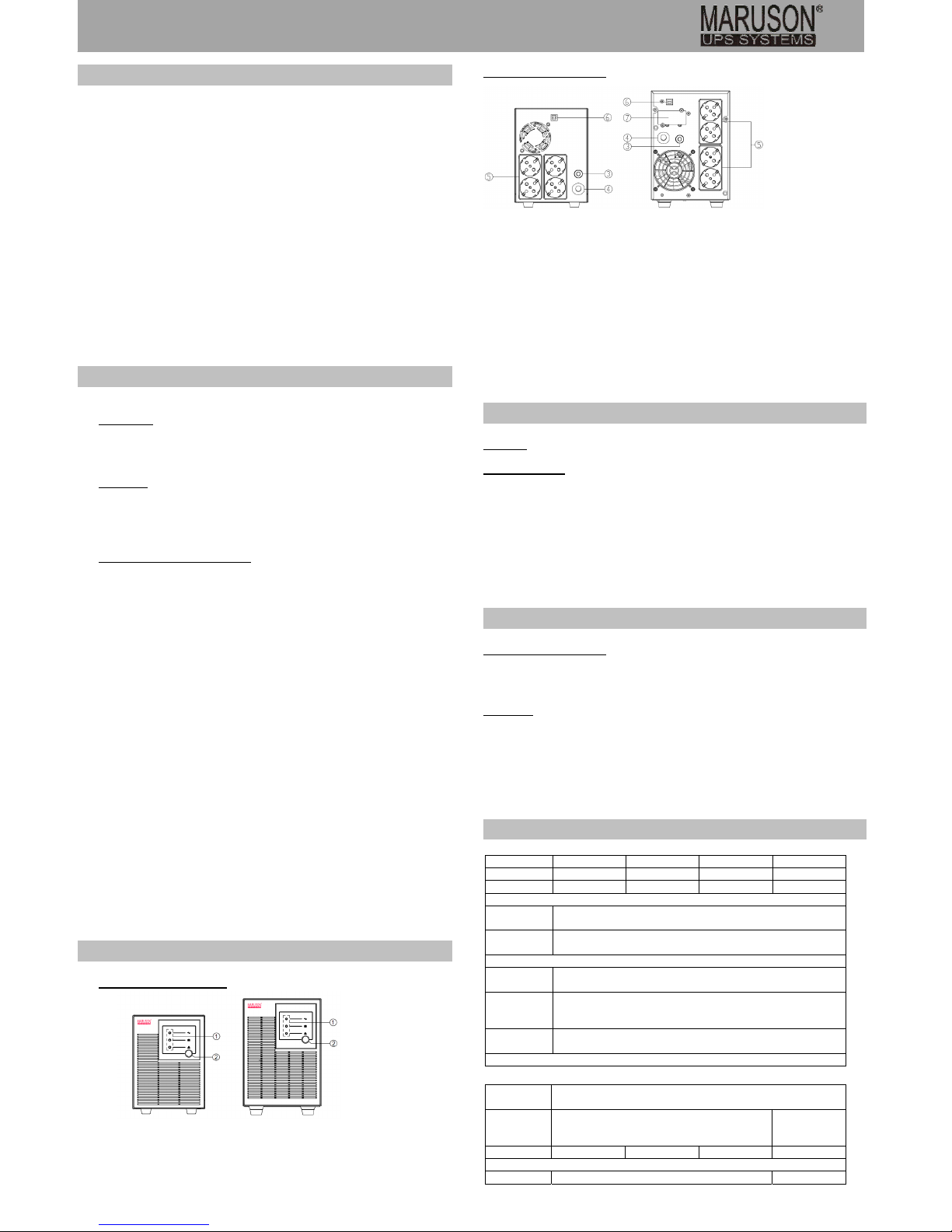
800/1200/1500VA 2000VA
1. LED Indicators
This LED is illuminated when the UPS is working.
2. Power On/Off Button
Press the power Button to turn the UPS ON or OFF.
REAR PANEL DESCRIPTION
800/1200/1500VA 2000VA
3. Input Circuit Breaker
The circuit breaker provides optimal overload protection.
4. Input power cord
Connect to utility power
5. AC Outlet
Provide battery backup protection. They ensure power is provided to connected equipment over a
period of time during a power failure.
6. USB Port to PC
This port allows connection and communication from the USB port on the computer to the
UPS unit.
7. Battery Input Connector
Connect to additional external batteries.
AC Mode
The UPS delivers power to the load derived from the utility and maintains proper battery charge.
On-Battery Mode
The UPS operates on battery when the utility voltage has fallen outside the limits. Local users are
alerted to this mode of operation by visual and audible indicators. The UPS provides power to the load
from the battery and the output voltage of the UPS are regulated within a narrow range
1. Button On
Press the power Button 2 second s and the yellow LED will light up.
2. Button Off
Press the power Button 1 second again, all the LEDs will go off.
3. Cold Start / Start on Battery:
This UPS can be turned on even when AC is not present.
Press the power Button 2 second then the yellow LED will light up.
ROUTINE MAINTENANCE
1. Use dry soft clothes to clean the panel and plastic parts. Do not use any detergent that contains
alcoholic ingredient.
2. Unplug the UPS from power inlet if the UPS will not operate for long period of time.
STORAGE
1. First turn off your UPS and disconnect its power cord from the wall outlet. Disconnect all cables
connected the UPS to avoid battery drain.
2. The UPS should be stored in a cool dry location.
3. Make sure the battery is fully charged before the UPS is stored.
4. For extended storage in moderate climates, the battery should be charged for 12 hours every 3
months by plugging the power cord into the wall receptacle and turning on the main Button.
Repeat it every 2 months in high temperature locations.
Model DUL-800A DUL-1200A DUL-1500A DUL-2000A
Capacity (VA) 800 1200 1500 2000
Capacity(Watts) 490 700 900 1200
Input
Input Voltage
Range
92-148/169-270Vac
Frequency
Range
50/60Hz
Output
On Battery
Output Voltage
Sine Wave at 120Vac +/-10%
On Battery
Output
Frequency
50/60±0.2Hz
Overload
Protection
On Utility: breaker
On Battery: Internal Current Limiting
Physical
Total
UPS outlets
4*SCHUKO
Maximum
Dimensions
(W*H*D) (mm)
140*190.6*327.2 225*151*390
Weight (kg) 10.08 11.57 13.56 20.72
Battery
Voltage 24Vdc 48Vdc
TECHNICAL SPECIFICATIONS
ROUTINE MAINTENANCE AND STORAGE
FUNCTIONAL TEST
BASIC OPERATION
INSTALLING YOUR UPS SYSTEM
IMPORTANT SAFETY INFORMATION
Page 2
USER’S MANUAL
SmartDual Series UPS
DUL-800A/1200A/1500A/2000A
Charger
Current
1A 1A 2A 2A
Communication
Software Windows 7 / 8 / 10 / Vista / XP / 2000 / Server 2003 / Linux
Warning Diagnostics
Indicators Power On
Audible Alarms On Battery, Low Battery, Overload, Fault
Environmental
Operating
Temperature
+32°F to 104°F ( 0°C to 40°C )
Operating
Relative
Humidity
0 to 90% NON-CONDENSING
Management
Auto-Charger Yes
Auto-Restart Yes
USB COMM.
Port
Yes
Project Operation Display
Mute enable Click power button 2
times quickly
In battery mode :Sounding2 times and
yellow LED blinking 2 times,
In line mode :
Sounding 2 times and green LED
blinking 2 times
Mute disable Click power button 2
times quickly again
In battery mode :Sounding 1 time and
yellow LED blinking 1 time,
In line mode :
Sounding 1 time and green LED blinking
1 time
Problem Possible Causes Remedy
Abnormal
Mains normal but not
works on AC mode
AC Input missing 1. Check AC input connection.
Input Breaker is tripped
1. Unplug the power cord of the
UPS then press the circuit
breaker knob.
Input frequency is wrong
2. Connect to the AC power before
you turn on the UPS
Alarm buzzer beeps 1
time every 0.5s
Overload
1. Verify that the load matches the
capability specified in the specs.
The UPS will not turn on.
The on/off Button is
designed to prevent damage
by rapidly turning it off and
on.
1. Turn the UPS off. Wait 10
seconds and then turn the UPS
on.
The unit is not connected to
an AC outlet.
1. The unit must be connected to a
60Hz outlet.
The battery is worn out.
1. Contact Technical Support.
Mechanical problem.
Outlets do not provide
power to equipment
Circuit breaker is tripped due
to overload
1. Turn the UPS off and unplug at
least one piece connected
equipment. Unplug the power
cord of the UPS then press the
circuit breaker knob.
Batteries are discharged
1. Allow the unit to recharge for at
least 4 hours.
Unit has been damaged by a
surge or spike.
1. Contact Technical Support.
Alarm
sound 1 time every 0.5s Overload alarm 1. Shut off non-essential equipment.
If this solves the overload
problem, the UPS will transfer to
normal operation.
Sound continuous Overload /Overheat/ Short
circuit/fan fault
1. Shut down the UPS
2. Remove your attached equipment
and restart the UPS
Sound 4 times every 10s battery damaged or
recharged
1. Shut down the UPS
2. Check the counts of Battery
sound 1 time every 1s Low battery alarm 1. Shut down the UPS
2. Check the counts of Battery
3. Check battery connector when
use battery packages.
Sound 1 time every 10s Backup mode normal
operation
1. The UPS work on bat mode
Fault
Red LED lighting, green
blinking0.5s on, 0.5s off,
yellow off
Output current is short 1. Turn off the UPS.
2. There is something wrong for the
loaded machine. Please cut off
the loaded machine.
Red LED lighting, green
on, yellow off
Charge voltage is too high 1. Unplug the power cord and turn
off the UPS
2. There is something wrong with
the main board and contact the
technical support
Red LED lighting, green
off, yellow on
Temperature is too high 1. Turn off the UPS ,and decrease
some loaded machines
2. Check whether the ventilation
hole has been covered
Red LED lighting, green
off ,yellow blinking0.5s
on, 0.5s off,
The fan has broken or is not
connected to the control
board
1. Turn off the UPS.
2. Check whether the fan is normal.
Red LED lighting, green
on ,yellow blinking0.5s
on, 0.5s off,
Your equipment requires
more power than the UPS
can provide.
1. Turn off the UPS.
2. Shut off non-essential equipment
Red LED lighting, green
off ,yellow off,
Other fault 1. Turn off the UPS.
2. contact the technical support
Other
Software is inactive
The USB is not connected.
1. Connect the USB cable to the
UPS and computer,make sure
that computer serial port is not
occupied. You must use the cable
that came with the unit.
The unit is not providing
battery power.
1. Shutdown your computer and turn
the UPS off. Wait 10 seconds and
turn the UPS back on. This
should reset the unit.
If any abnormal situations occur that are not listed above, please contact service personnel.
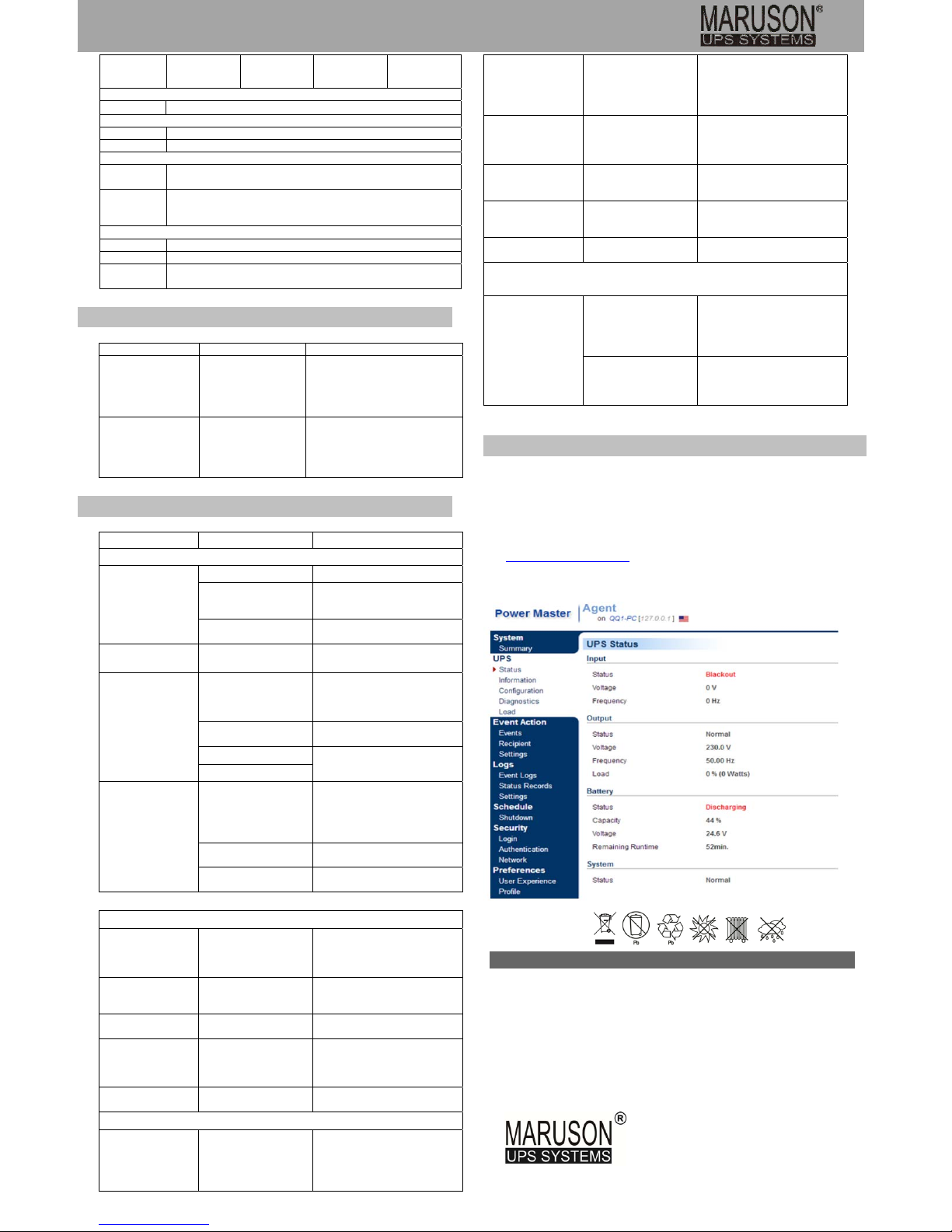
Power Master Management software provides a user-friendly interface for your power systems. The
graphic user-interface is intuitive and displays essential power information at a glance. Please follow
procedure below to install the software.
Installation procedure:
1. Download Power Master from the website:
http://www.powermonitor.software/
2. Double-click the file and follow the installation steps. When your computer restarts, the Power
Master software will appear as a blue icon located in the system tray.
All rights reserved. Reproduction without permission is
prohibited
Product Warranty and Service Information:
Warranty obligations its products to be free from defects in material and workmanship during the warranty
period.
This warranty does not apply to any damage, deterioration, or malfunction resulting from accident, misuse,
neglect, fire, water, lightning, or an adverse operating environment.
For U.S. customers, please register your product at www.MarusonUSA.com. For international customers,
please contact your local authorized distributor or e-mail Support@MarusonUSA.com for assistance.
Maruson Technology Corporation
1351 Titan Way, Brea, CA 92821, U.S.A.
Toll Free: 1-888-MARUSON
TEL: +1-714-870-6888
FAX: +1-714-870-4888
E-mail: [email protected]
Web Site: www.MarusonUSA.com
SOFTWARE DOWNLOAD
TROUBLE SHOOTING
SETTING FUNCTION
 Loading...