

Page 1
Sales & Support: 949 727 4288 - 9am - 6pm PST
MARTIAN VOICE SMARTWATCH
USER GUIDE
Complete product user manual for Martian Envoy, Alpha, Aviator, Electra,
Passport, Victory and G2G.
Save to PDF
U
a
pdfcrowd.com
Page 2

GET STARTED
What’s in the box
Before you start us ing your MARTIAN VOICE COMMAND WATCH, make sure the following items are
in the box:
• Martian Watch
• Micro USB Cable
• Quick Connect Guide
Mobile Device Compatibility
Your mobile device’s operating system has an impact on the features on your watch
functionality. Please take note of iOS and Android differences below.
• Mobile Phones : The “talk and listen” feature of your watch will work with selected iPhone and
Android mobile phones that have Bluetooth wireless technology and a Hands -Free Profile (HFP).
How do you know if your mobile phone works with your watch? First find out if it has Bluetooth
connectivity. To know for sure, borrow a friend’s Bluetooth heads et and pair it with your mobile
phone. If you can place a call by saying a name in your Contact list, or answer a call, and your
phone has a HFP, then your watch will work with your mobile phone for dialing and answering
features . To find out if your phone has a HFP, check the manufacturer’s technical specifications.
• Since your watch connects to your mobile device us ing Bluetooth technology, anything you can do
with your Bluetooth headset, you can do with your watch.
• To us e the Voice Command features on your watch, you must have a com patible Voice Command
feature on your mobile device.
pdfcrowd.com
Page 3

— Voice Command functions for Android are dependent upon your mobile device. If your mobile
device came with an integrated Voice Command app and works with a Bluetooth headset, it will
work with your watch.
— On iPhone 6, iPhone 6 Plus , iPhone 5, iPhone 5s, iPhone 4s, and iPad, watch works with Siri.
On iPhone 4 and iPhone 3GS, MARTIAN works with the integrated Voice Controls .
• Text notification/display on the LED is supported with all mobile devices that have a MAP profile, or
by downloading the Martian Alerts App for Android. The MAP profile is available for all compatible
Apple products using iOS 6 or above.
• Email and social media notifications, world clock, and weather display are available for Android
and iOS devices upon download of the Martian Alerts App to your mobile device.
Setting The Time
The watch crown (knob on right side of watch) is “out” to save battery during shipping. Rotate it to
set the time, then pus h it in until you hear a click.
Charging Your Watch
Before you start us ing your watch, locate the micro USB cable included in the lower compartment of
the box. The charging cable can be plugged into your computer’s USB port or a power outlet via a
USB wall adapter (sold separately).
• A solid red light will appear when the watch is charging.
• A solid green light indicates the watch is fully charged.
Full charge is reached in approximately 2-3 hours when charging from the wall and approximately
3-4 hours when charging from your com puter.
Warning: Due to the nature of the Lithium polymer rechargeable battery, a Martian Watches lithium
battery that is inactive for over one year may fall into a deep discharge state or could cause the
battery to permanently lose it’s ability to charge. For long-term storage, please be sure to charge
and dis charge your Martian Watch at least once every six months to prevent a decrease in battery
perform ance; store your Martian Watch in a dry place with low hum idity and at temperature range of
10 ℃ to 30℃, 50 to 90 F; avoid exposure to temperatures higher than 95 F (35° C).
Turning On and Off
Turning Your Watch On
Press and hold the Bottom Left Button for 2 seconds . When the watch comes on, you will see the
word “MARTIAN” in the dis play. If the watch does not turn on, it needs to be charged (see
“Charging”).
Turning Your Watch Off
pdfcrowd.com
Page 4
Press and hold the Bottom Left Button for 2 seconds . The red light will flash and the OLED will
dis play “Goodbye”.
Check & Update Watch Firmware
As technology changes and adapts, so does your Martian Voice Command. The firmware on your
Martian watch is subject to new updates from tim e to time that may add new features, improve
functionality, and more. Visit the link below to confirm that your Martian Voice Command firmware is
up-to-date, and check back regularly to stay ahead of the pack.
Check Firmware
Checking Battery Life
With the watch turned on, pres s the bottom left button to view watch status information.
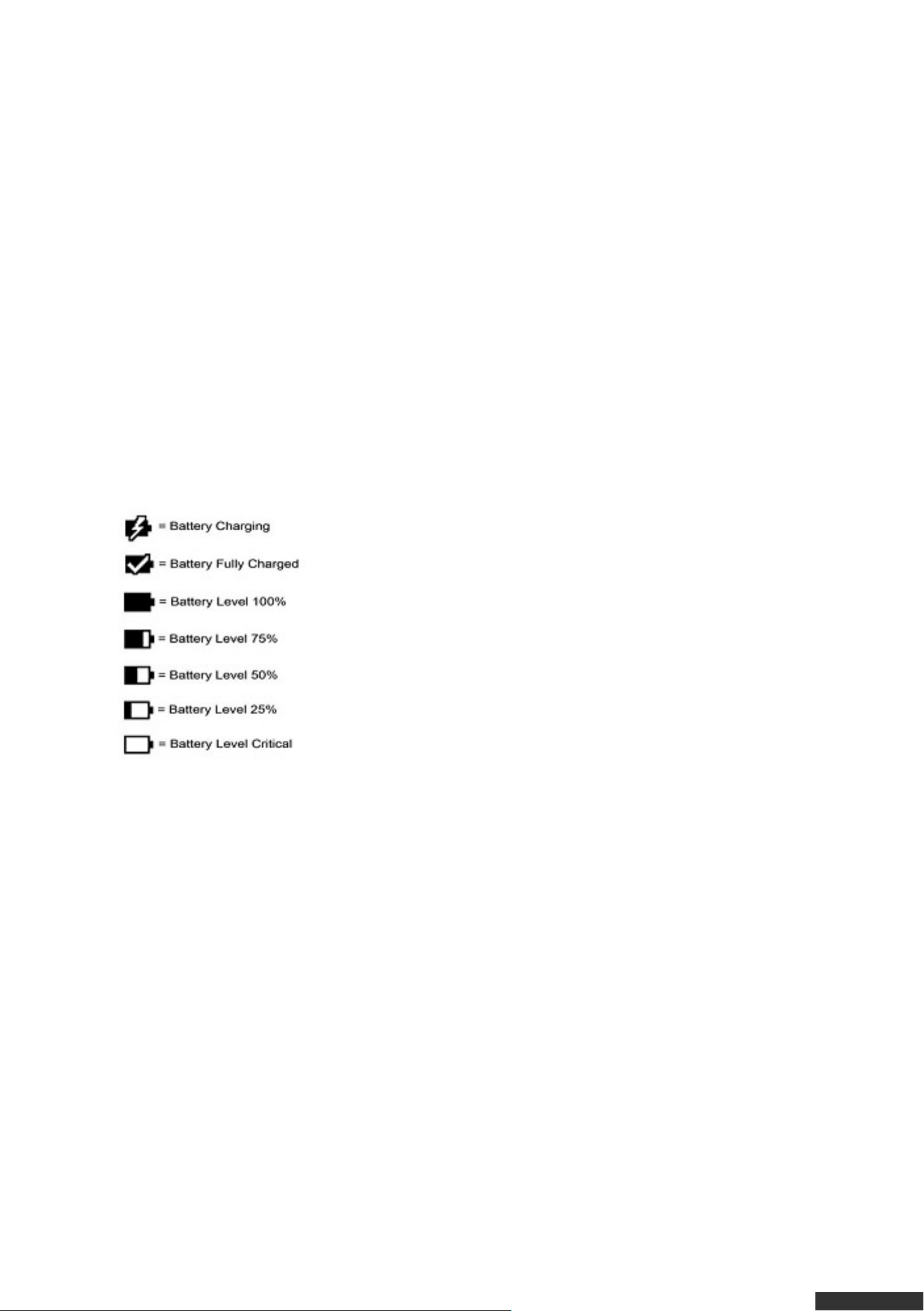
A solid (all white) battery is displayed when fully charged. When the battery level reaches the
“critical” stage, the red light on the watch will flash every 10 seconds until you press the bottom
button to acknowledge.
Battery Usage Time
On a full battery, you will have:
• 2+ hours of talk time
• 5-7 days of standby tim e depending on watch activity
• the analog time piece will run for approximately 2 years on its separate watch battery
PAIRING YOUR WATCH
pdfcrowd.com
Page 5

Pairing watch to your iOS Mobile Device
Your watch has to be paired via Bluetooth with your mobile device before you can use it. It can only
be paired with one mobile device at a time.
Follow these steps to pair your watch to your iOS Mobile Device:
1. On your iOS Mobile Device:
a. Download the blue Martian Alerts App – Go to the App Store; Search for
“Martian Alerts App”; Download the BLUE Martian Alerts App to your device.
Do not download the ORANGE Martian Notifier App as it will not work with
your watch.
b. Turn on Bluetooth – Go to Settings > Bluetooth on your mobile device.
Turn on Bluetooth by toggling the switch to the right. Bluetooth is on if the switch is green.
2. On your watch:
a. Turn on your watch – Press and hold the bottom left button for 2 seconds.
b. Enter pairing mode on the watch – Press and hold the top button until the PIN code “0000”
appears on the dis play of your watch. The “0000” must appear on the Watch until the Watch and
mobile device are paired. If the mode times out, repeat this step.
3. On your iOS Mobile Device:
a. Go to Settings > Bluetooth and look for Martian Watch under OTHER DEVICES. Tap “Martian
Watch” to connect the watch to your iOS Mobile Device.
b. Accept “Bluetooth Pairing Request” – A pop-up window will appear on your mobile device, telling
you that Martian Watch would like to pair with your mobile device; Tap “Pair” to complete the pairing
process. If the codes do not match, tap “Cancel” and try again. If the pairing process is successful,
the watch will vibrate and read “Paired to [device name])”.
c. Connect to the Martian Alerts App – If you have downloaded the Martian Alerts App from the App
Store, another pop-up menu, “Martian” will appear stating that Martian would like to communicate
with the Martian Watches Voice Command Watch. Tap “Allow”. If you do not see this pop-up, open
the Martian Alerts App on your phone manually.
pdfcrowd.com
Page 6

Your iOS mobile device will then display the Home page of the Martian Alerts App. If not already
connected, tap the switch to Connect the App to your watch. At the top of the screen you should see
“Watch and app are connected.”
d. Accept “Bluetooth Pairing Request” – Starting with Vers ion 1.46 of the Martian Alerts App and
Firmware Version 2.17 (see updating your watch Firmware below) an additional Bluetooth
connection is required in order to provide both Notifications and Voice to your watch. This
connection is called “Martian Smart” and a final pop-up menu comes up after the Martian Alerts App
is opened on your mobile device. Tap “Pair”. If succes sful, the watch will vibrate and read “Paired to
Smart”. The final pop-up may take up to 60 seconds to appear on your mobile device.
Unpairing watch from your iOS Mobile Device
Once paired, if you wish to use your watch with a different device, you need to un-pair it from the
current mobile device and start a new pairing procedure with the next mobile device. To un-pair on
iOS, go to Settings > Bluetooth > Martian Watch > Tap the i icon > Forget This Device > Forget
Device. You mus t als o remove the Martian Smart device from your mobile device.
TOP
Pairing watch to your Android Mobile Device
Your watch has to be paired via Bluetooth with your mobile device before you can use it. It can only
be paired with one mobile device at a time.
Follow these steps to pair your watch to your Android Mobile Device:
1. On your Android Mobile Device:
a. Download the Blue Martian Alerts App – Go to the App Store; Search for
“Martian Alerts App”; Download the BLUE Martian Alerts App to your device.
Do not download the ORANGE Martian Notifier App as it will not work with
your watch.
b. Turn on Bluetooth – Go to Settings > Connections > Bluetooth on your
mobile device. Turn on Bluetooth by tapping the switch to the right. Bluetooth is on if the switch is
green.
2. On your watch:
a. Turn on your watch – Press and hold the bottom left button for 2 seconds.
b. Enter pairing mode on the watch – Press and hold the top button until the PIN code “0000”
pdfcrowd.com
Page 7

appears on the dis play of your watch. The “0000” must appear on the Watch until the Watch and
mobile device are paired. If mode times out, repeat this step.
3. On your Android Mobile Device:
a. Go to Settings > Connections > Bluetooth and tap the Scan button at the bottom of the screen.
Look for Martian Watch under Available Devices. Tap “Martian Watch” to connect the watch to your
Android Mobile Device.
b. Accept “Bluetooth Pairing Request” – A pop-up window will appear on your mobile device, telling
you that Martian Watch would like to pair with your mobile device; Tap “OK” to complete the pairing
process. If the codes do not match, tap “Cancel” and try again. If the pairing process is successful,
the watch will vibrate and read “Paired to [device name])”.
c. Connect to the Martian Alerts App – If you have downloaded the Martian Alerts App from the App
Store, another pop-up window will appear requesting permission for Martian to acces s Contacts
and Call His tory; Tap “Yes”; and finally the last pop-up window appears requesting permission for
Martian to access your Mes s ages; Tap “Yes”. If you do not see these pop-up windows, open the
Martian Alerts App on your phone manually.
Within the Martian Alerts App, tap the Connect button to Connect the App to your watch. At the top of
the screen you should see “Connected.” You have finalize the pairing process.
Unpairing watch from your Android Mobile Device
Once paired, if you wish to use your watch with a different device, you need to un-pair it from the
current mobile device and start a new pairing procedure with the next mobile device. To un-pair on
Android, go to Settings > Connections > Bluetooth. Tap the Options icon on the right of Martian
Watch and tap Unpair.
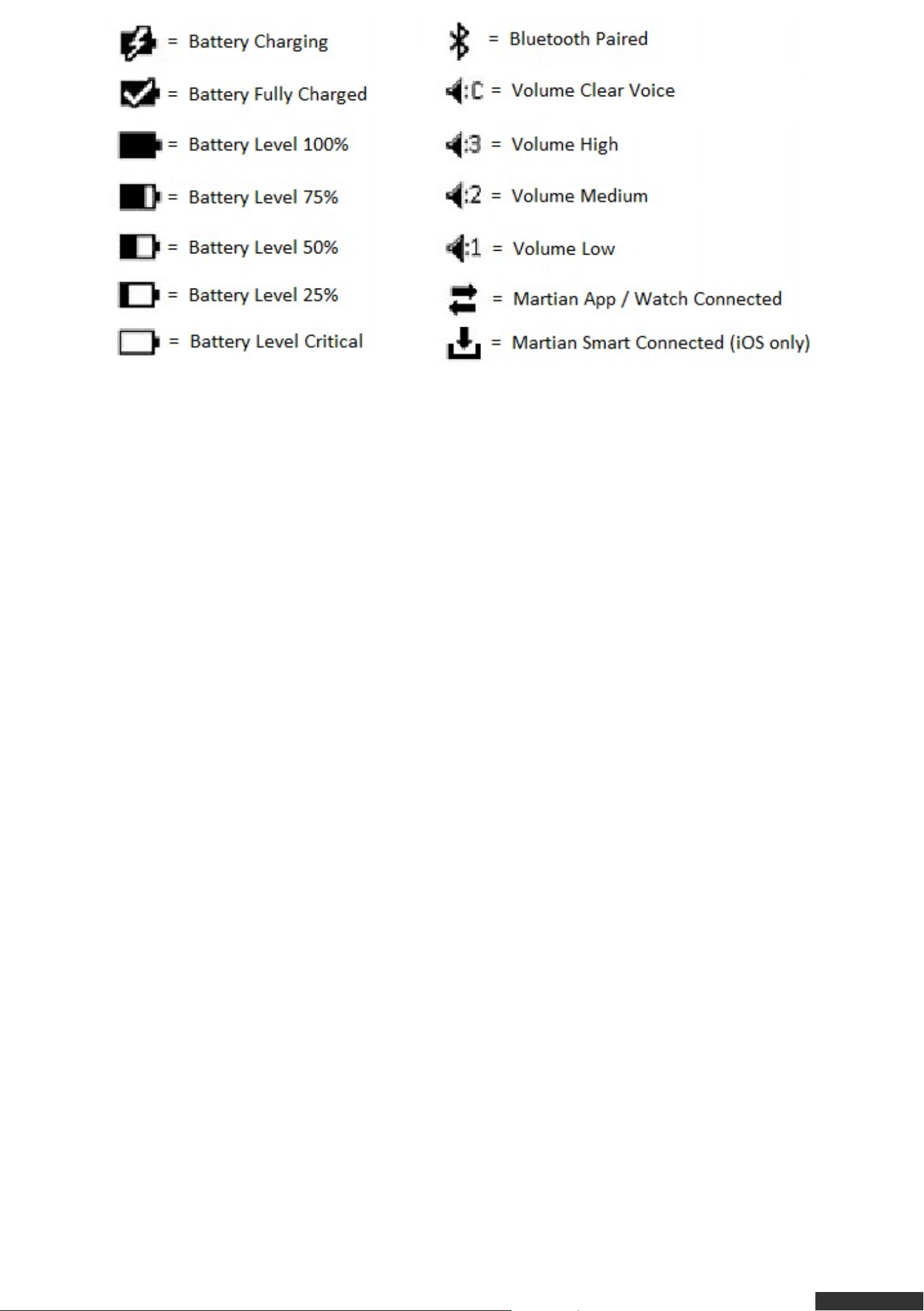
Status Bar
The Status Bar provides operating information that includes battery level, volume
level, Bluetooth connected status, and date. If the MARTIAN WATCH ALERTS App is
installed and open on your mobile device, you can also choose to include World Clock
and Today’s Weather on the Watch LED.
Press the bottom button on the Watch once to view the Status Bar. Icons that may
appear include:
pdfcrowd.com
Page 8
Watch Menu
The Menu allows you to change the settings of select features on the Watch.
To acce ss and navigate the Watch Menu:
• Press the bottom button twice quickly to view the Watch Menu.
• Press the bottom button repeatedly to scroll through the available Menu items.
• Press the top button to change a Menu setting.
• Press the top button to scroll to the preferred setting.
• To save that setting either tap the bottom button and move on to the next Menu item
or do nothing and the Watch Menu will automatically exit and save your changes after
3 seconds.
To exit the Watch Menu
Use the bottom button to scroll to “Exit”, then tap the top button; or the Watch will
automatically exit after 3 seconds.
Music M ode for iOS Mobile Devices
Navigate to the Music Mode Menu item and press the top button on your Watch to
activate Music Mode and pause, play or skip to the next song. To deactivate Music
Mode tap the bottom button.
pdfcrowd.com
Page 9

Volume:
Options are High (3), Medium (2), Low (1) and Clear Voice (C).
The Clear Voice Volume Mode (C) is used for noisy or crowded situations to improve
the call quality heard at the other end. This volume mode will lower the volume of the
call on the Watch and improve the receivers call quality.
To change the Watch volume, enter the Watches Main Menu by double pressing the
bottom button on the Watch. Press the bottom button one more time to view the
Watches current volume setting. To change the volume level press the top button on
the Watch until you reach the preferred volume level. Once the volume is set tap the
bottom button to go back to the Watches Main Menu or do nothing and the Menu will
exit automatically after 3 seconds.
The volume can be changed during an active call by tapping the bottom button
repeatedly.
Options are High (3), Medium (2), Low (1) and Clear Voice (C). You will see the
volume setting your Watch is currently set on – to change it, tap the top button
repeatedly and it will scroll through the volumes. You can then tap the bottom button
to go back to the main menu items, or it will exit automatically after 3 seconds. You
can also change the volume during an active call by tapping the bottom button
repeatedly.
Light:
Navigate to the Light Menu item and press the top button to turn the light on the
Watch. To turn the light off press either button on the Watch.
DND – Do Not Disturb
Navigate to the DND Menu item and tap the top button to activate the DND feature of
the Watch. This feature disables notifications from being sent to the Watch. Silent
Alarms will still be sent to the Watch. Turn this feature off to continue to receive
notifications.
pdfcrowd.com
Page 10

Camera Mode:
Navigate to the Camera Mode Menu item and tap the top button to turn Camera Mode
on. The white LED light on the Watch will start flashing slowly until Camera Mode is
deactivated. To deactivate Camera Mode tap the bottom button. The white LED light
on the Watch will stop flashing. Camera Mode will automatically deactivate after two
minutes in order to save battery life. The Watch will vibrate and display “Deactivated”.
To take additional photos or videos repeat this process.
The Camera Mode feature enables the taking of photos or videos by pressing the top
button on the Watch. For a 2-second delay before the photo is taken, press and hold
the top button until the counter starts.
See “Camera Mode” section for additional details on usage.
Find Phone:
Navigate to the Find Phone Menu item and tap the top button to play a bar of music
on your mobile device if it is within Bluetooth range. The Martian Alerts App must be
open on your mobile device for this feature to work.
Setup M enu
Navigate to the Setup Menu item and tap the top button to enter the Setup Menu. The
Setup Menu contains the following options: language, date format, Leash, LED,
Gesture, A2DP, and Update Mode.
Language
Navigate to the Language option of the Setup Menu and tap the top button to set the
preferred language. Support languages include: English, Spanish, French, German,
Japanese, Chinese and Korean.
pdfcrowd.com
Page 11

Date Format mm/dd
Navigate to the Date Format option of the Setup Menu and tap the top button to
select between the mm/dd or dd/mm date formats.
LED Light On/Off:
Navigate to the LED option of the Setup Menu and tap the top button to turn the LED
On (check mark in box) or to turn the LED Off (no check mark in box). The LED on the
Watch is a visual signal of activities such as pairing, calls, text messages, camera
mode, charged battery, low battery, etc. occurring on the Watch.
Leash On/Off:
Navigate to the Leash option of the Setup Menu and tap the top button to turn the
Leash On (check mark in the box) or to turn the Leash Off (no check mark in box).
When the Leash is turned On, the Watch will vibrate when your mobile device is out-
of-range and again when the mobile device re-connects.
Gesture On/Off:
Navigate to the Gesture option of the Setup Menu and tap the top button to turn the
Gesture On (check mark in box) or to turn the Gesture Off (no check mark in box).
See “Gesture” section for additonal details on usage.
A2DP
Navigate to the A2DP option of the Setup Menu and tap the top button to turn A2DP
On (check mark in box) or to turn A2DP Off (no check mark in box). A2DP controls
whether your music and other sounds (e.g., from games) comes through your mobile
device or Bluetooth® device, in this case your watch. If A2DP is off, music and sounds
will play through your mobile device; if it is on, they will play through the Watch
(please note that this will affect Watch battery life).
Turning A2DP On/Off requires that the Watch is re-paired to the mobile device. You
pdfcrowd.com
Page 12
must “Forget” the previous Martian Watch Bluetooth connections on the Watch prior
to re-pairing. See the appropriate section for details:
Pairing Martian Watch to iOS Mobile Devices
Pairing Martian Watch to Android Devices
Martian Alerts App for iOS Mobile Devices (iPhone, iPad)
Fe atures:
• Connection status information between App and Watch.
• Simple interface to customize which iOS Messages/Notifications/Alerts you want sent
to the Watch.
• Customizable Vibration Patterns for each Message type with customizable Vibration
Intensity settings.
• Set the Watch to vibrate at a Target Minute each hour.
• Set one-time or repeating alarms to be sent to the Watch.
• Find Watch and Find Phone
• Configure other Watch preferences and settings including display of World Clock,
Weather Forecast, Do Not Disturb (DND), LED Light Display, Leash, Gesture, Date
and TimeFormat, Time Zone, Scroll Speed, Alert Scroll Delay, Character Limit, and
Bold Numbers.
• Help Section including access to Product Registration, User Manual, Frequently
Asked Questions, Sample Notifications and Check Firmware Version.
The Martian Alerts App has five tabs: Home, Alerts, Display, Settings, and He lp
Home Tab
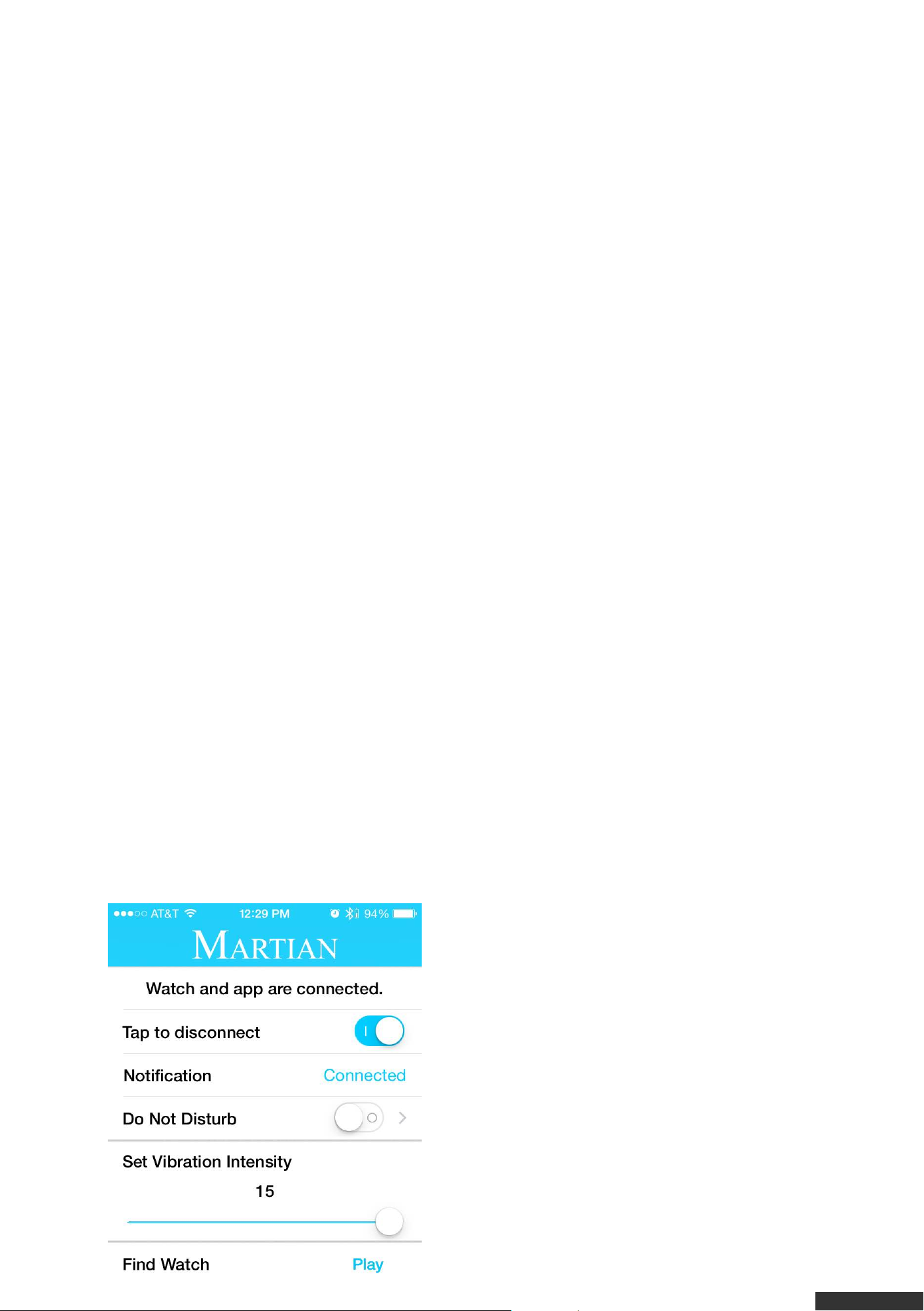
Tap to Conne ct/Tap to Disconnect
This switch connects or disconnects the
Watch and App. The switch is on if it is blue
and off if it is white. A message above this
option indicates if the App and Watch are
connected.
Notifications
This is an informational status message that
indicates if the Watch is connected to the
Bluetooth connection (Martian Smart) that
sends Notifications to the Watch. The
pdfcrowd.com
Page 13
possible statuses are “Connected”,
“Disconnected”, and “Connecting”.
Do Not Disturb:
This switch sets Do Not Disturb to On (blue)
or Off (white). If Do Not Disturb is On (blue)
the Watch will only receive Silent Alarms. No
other Notifications or Messages will be received on the Watch.
Set Vibration Intensity
This slider sets the Vibration Intensity level of messages coming through on the
Watch. Set vibration intensity by sliding the button back and forth across the bar.
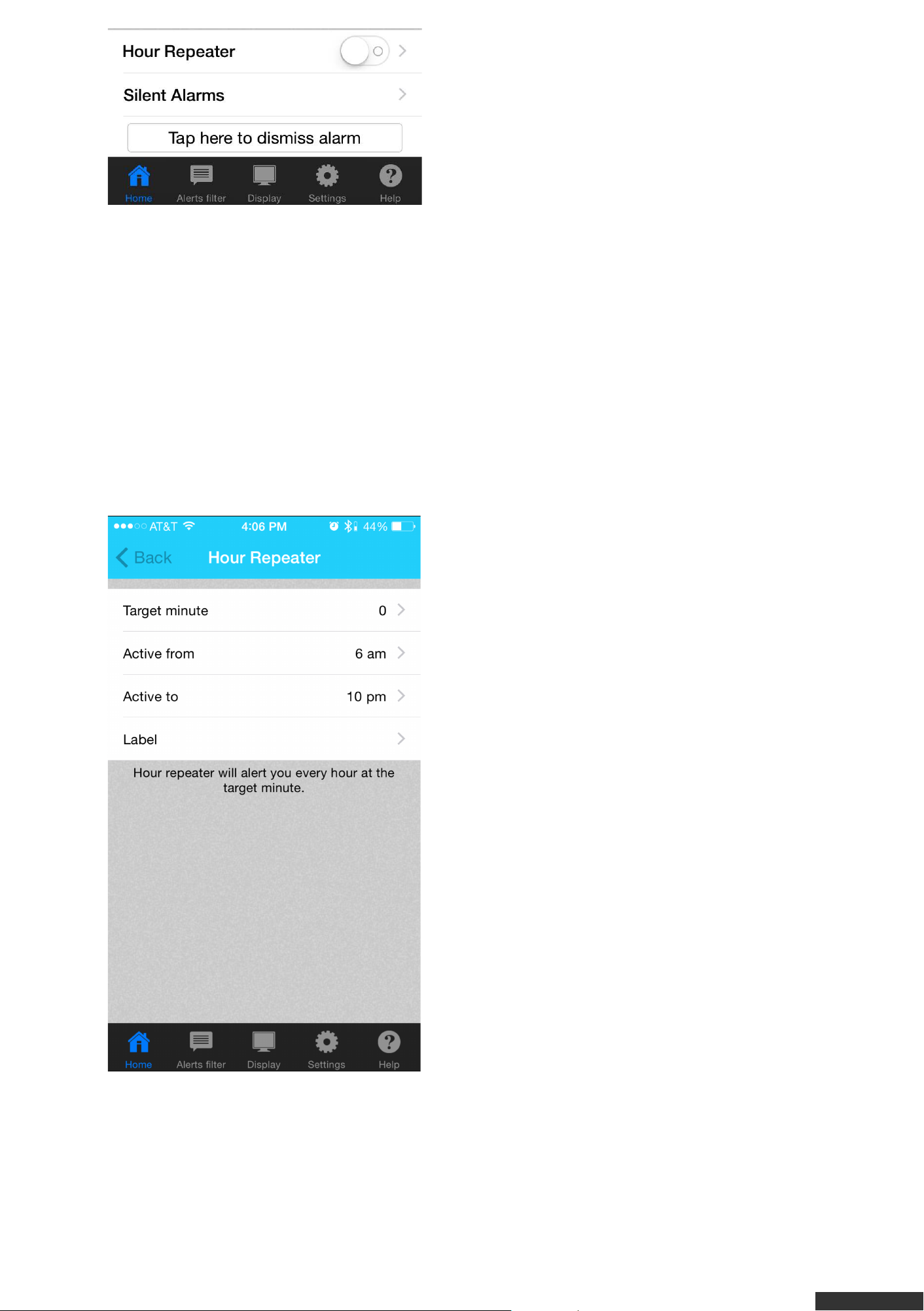
Hour Re pe ate r
This switch sets the Hour Repeater to On
(blue) or Off (white). The Hour Repeater
sends a double-vibration alert to your watch
at the Target Minute of every hour during the
range of hours selected. For example, create
an alert labelled “Stretch! ” sent 5 minutes
before every hour between 9 a.m. and 4 p.m.
To set up the Hour Repeater, tap on the > to
enter options:
Targe t Minute
Tap the number to select a Target Minute
between 0 and 55. For Example, if “35” is
selected, the Watch will alert at 1:35, 2:35,
3:35, etc.
Activ e From and Active To
Tap the time to select the time range that the
Hour Repeater is active throughout the day.
Label (Optional)
Tap the > to assign a Label to the Hour Repeater. This Label will display on the
Watch.
Save
Press the Save button in the top right of the screen to Save the Hour Repeater and
pdfcrowd.com
Page 14
return to the Home tab.
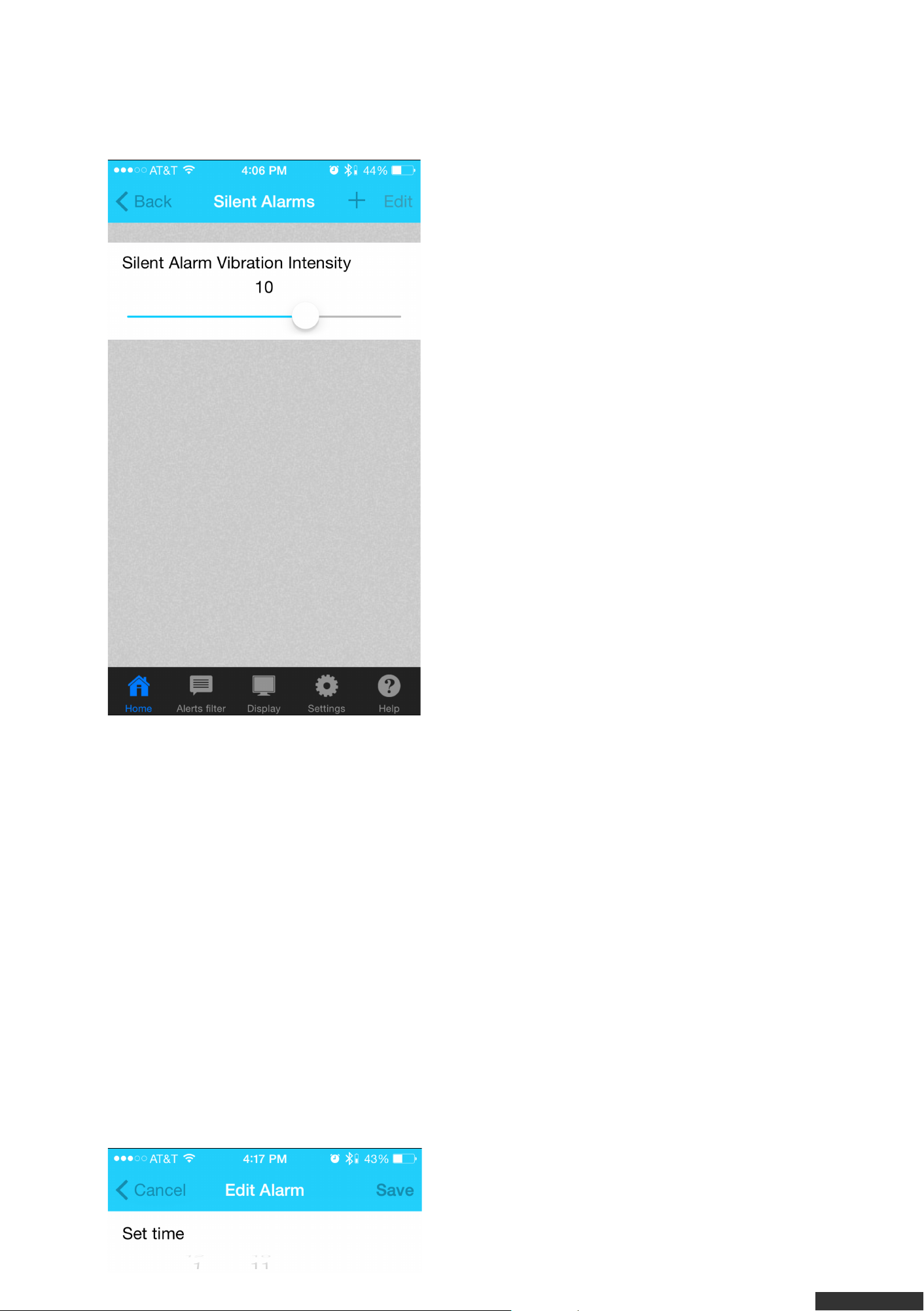
Silent Alarms
Silent Alarms can be used as a personal
morning wake-up without waking anyone else
nearby or for reminders throughout the day.
Tap the > to create up to 5 Silent Alarms.
Adjust the slider on the Silent Alarm screen to
set the Alarm Vibration Intensity.
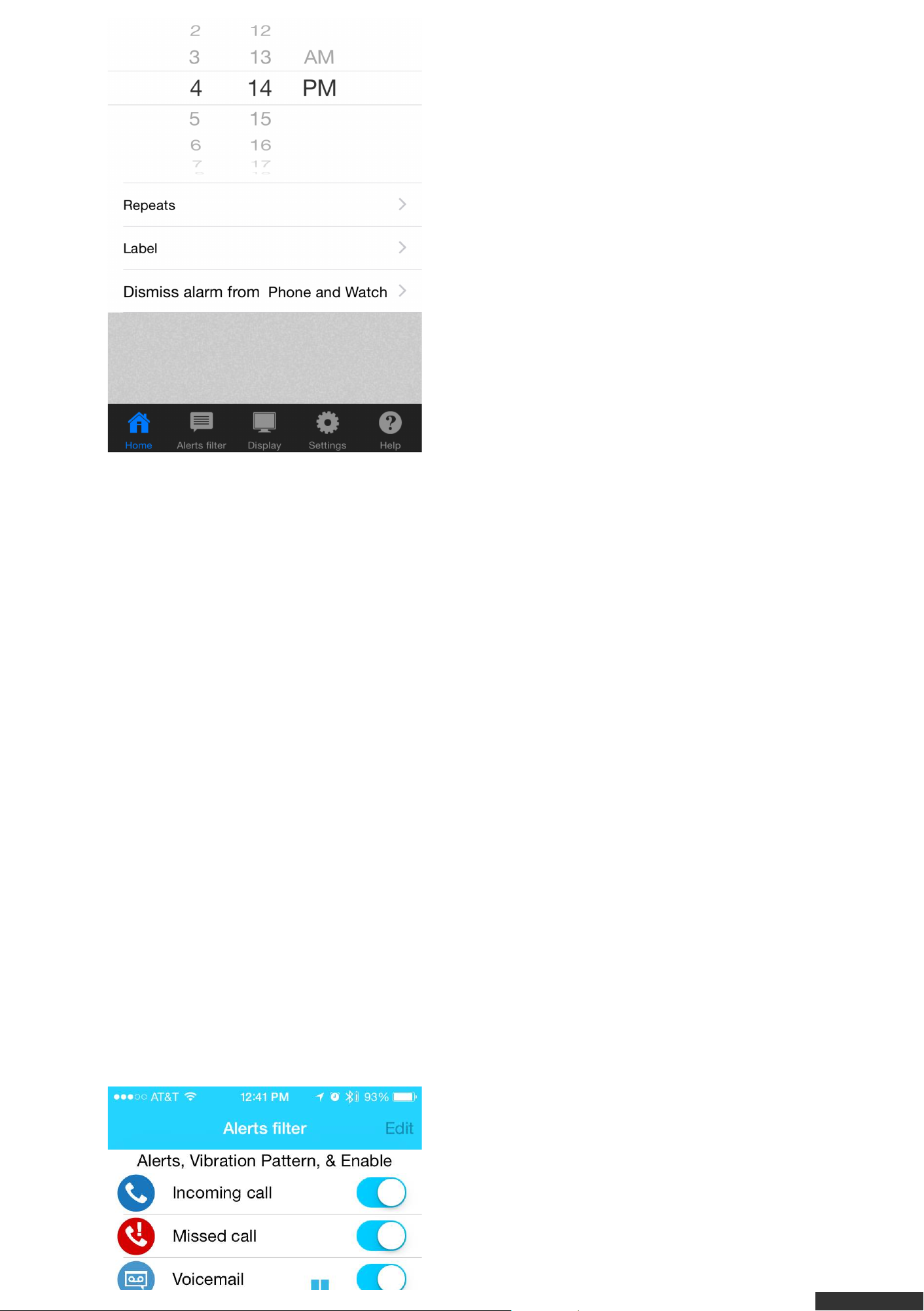
Add Silent Alarm
• Tap the + sign in the top right of the screen
to create a Silent Alarm.
• Set the time the alarm should vibrate by
selecting the hour, minute and AM/PM. Slide
the hour, minute and AM/PM up and down to
select the desired time.
• Tap the > in the Repeats row to select the
frequency the Silent Alarm should repeat
(optional). Tap each day of the week to set
the repeat days. Tap Never to turn off the
Repeat of the Silent Alarm.
• Tap Done at the top right of the screen when you have completed setting the repeat
preferences for the Silent Alarm.
• Tap the > in the Label row to assign a Label to the Silent Alarm. Type the desired
Label into the field and click Save at the top right of the screen.
• Tap the No / Yes in the Only Dismiss From Phone row to select whether to dismiss
the Silent Alarm from the mobile device only (Yes) or from either the mobile device or
Watch (No). Requiring that a Silent Alarm can only be dismissed from the mobile
device is helpful for heavy sleepers.
Snooze Sile nt Alarm
• Short-press the top button of the Watch to Snooze for 5 minutes. Snooze will show
on the Watch screen when the Silent Alarm has been Snoozed. Note: During Snooze
Messages will not be sent to the Watch.
Dismiss Silent Alarm
• Press and hold the top button on the Watch
to dismiss the Silent Alarm. Dismiss will show
on the Watch screen when the Silent Alarm
pdfcrowd.com
Page 15
has been dismissed. Note: If Only Dismiss
From Phone is selected for the Silent Alarm
in the App, long-pressing the top button of
the Watch will not dismiss the Silent Alarm. In
this case the Silent Alarm must be dismissed
from the mobile device.
• Tap the Tap Here To Dismiss Alarm button
on the Home Tab of the App. Note: This is
the only way to dismiss a Silent Alarm that
has been marked as Only Dismiss From
Phone.
Edit Silent Alarm
• Tap the Silent Alarm you want to Edit, make
the desired changes, and tap the Save
button at the top of the Edit Alarm screen.
Delete Silent Alarm
• Tap the Edit button at the top of the Silent Alarm screen.
• Tap the minus (-) button to delete the Silent Alarm.
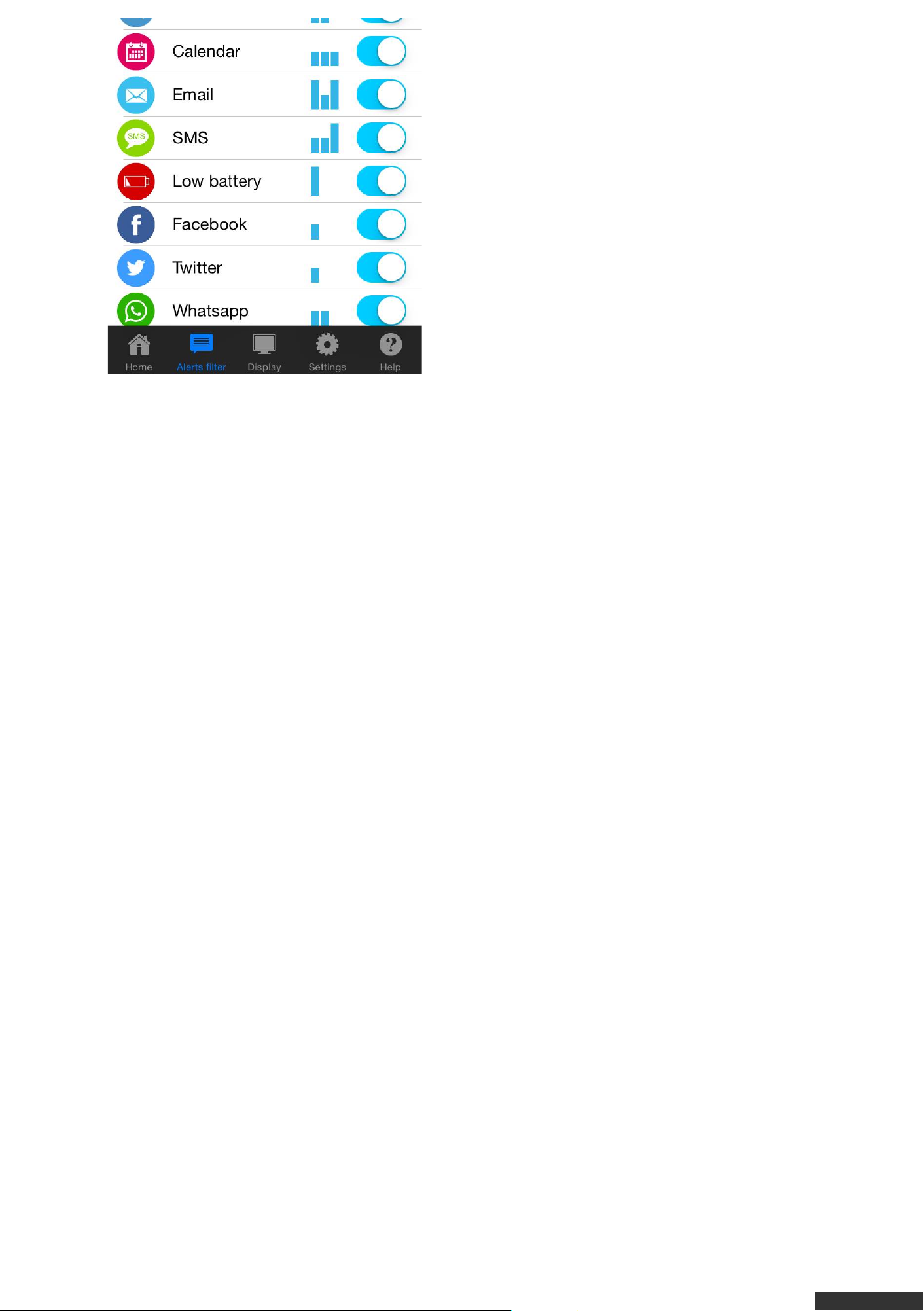
Alerts Tab
The Alerts Filter Tab is pre-populated with both core notification types like Incoming
Call, Missed Call, Voicemail, Calendar, Email, SMS, Low Phone Battery and also many
commonly used Apps such as Facebook, Twitter, Whatsapp, Instagram, Pinterest,
Google+, Skype, etc. Apps appearing in the Alerts Filter tab can be switched On/Off
from sending Notifications to the Watch and can be assigned custom Vibration
Patterns.
Adding Apps to the Alerts Tab
• An App must be both installed on your
mobile device AND configured to Allow
Notifications in the mobile device’s
Notification Settings to receive Notifications
from the App on the Watch.
pdfcrowd.com
Page 16
• To access the iOS mobile device
Notification Settings go to Settings >
Notifications.
• To receive messages from an App on the
Watch, tap on the App icon in the Notification
Settings.
• Turn the switch for Allow Notifications to On
(green).
• Tap on Show in Notification Center and
select 1, 5, or 10 Recent Item(s) to appear in
Notification Center.
• The first time the App sends a Notification
the App will appear within the Alerts Tab of the Martian Alerts App.
• On the Alerts Tab of the Martian Alerts App turn the switch On (blue) next to the App
name and future Notifications will be sent to the Watch.
Turning On Specific App Alerts to the Watch
• An App must be both installed on your mobile device AND configured to Allow
Notifications in the mobile device’s Notification Settings to receive Notifications from
the App on the Watch.
• To access the iOS mobile device Notification Settings go to Settings > Notifications.
• To receive messages from an App on the Watch, tap on the App icon in the
Notification Settings.
• Turn the switch for Allow Notifications to On (green).
• Tap on Show in Notification Center and select 1, 5, or 10 Recent Item(s) to appear in
Notification Center.
• Return to the Martian Alerts App.
• Turn the switch On (blue) next to the App name and future Notifications will be sent
to the Watch.
Turning Off Specific Alerts to the Watch
• Find the App in the Alerts Tab.
• Turn the switch Off (white) next to the App name and future Notifications will not be
sent to the Watch as long as the Martian Alerts App remains open on the mobile
device to filter the Notifications from reaching the Watch.
Customizing Vibration Patte rns
Custom Vibration Patterns help to discern the difference between alerts on the Watch
without looking at the Watch. Each Vibration Pattern contains up to 4 vibration slots.
Each slot can contain a short vibration, long vibration, or a pause between vibrations.
The Apps already configured in the Alerts Tab have a default Vibration Pattern set.
The default Vibration Pattern can be changed to the Vibration Pattern preferred for
each App. Vibration Pattern preferences are saved on the Watch and will remain in
pdfcrowd.com
Page 17
effect even if the Martian Alerts App is not open on the mobile device.
To Set/Change Vibration Patterns
• Find the App in the Alerts Tab and tap the App icon or name to open the Vibration
Pattern screen.
• Scroll each column up/down to highlight the preferred vibration for each slot.
• Tap the Play button to test the Vibration Pattern selected.
• Tap the Save button at the top right of the screen to Save the Vibration Pattern and
return to the Alerts Tab.
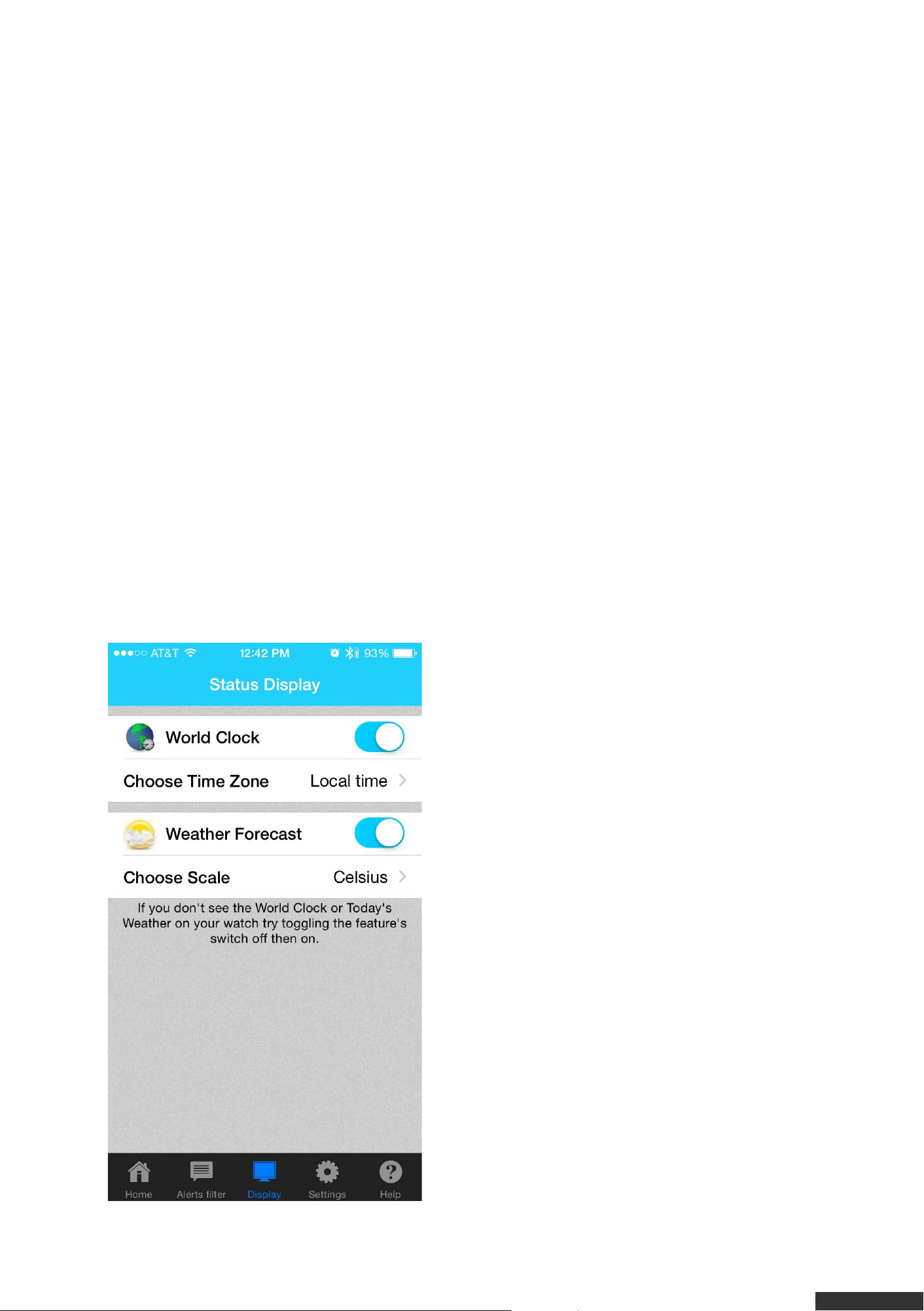
Display Tab
This tab sets the World Clock and Today’s Weather to display on the Watch if
desired.
Location Services/GPS must be set to “On” for these items to display on the Watch.
To turn On Location Services in an iOS mobile device go to Settings > Privacy >
Location Services and switch the Locations Services to On (green). Then scroll down
the list of Apps and tap the Martian Alerts App icon (blue M). Tap While Using the App
to turn on Location Services for the Martian Alerts App only when the App is open on
the mobile device. Ensure that there is a check mark next to the While Using the App
option.
World Clock
This feature pushes accurate time for any
world time zone to the Watch OLED display.
The time appears upon pressing the bottom
button on the Watch.
To enable this feature tap the switch next to
World Clock to turn it On (blue). The switch
will display as white if World Clock is Off.
Next tap Time Zone to select the desired
Time Zone to display on the Watch. Scroll
up/down on the next screen to select the
closest city within the Time Zone desired.
Tap the Save button in the top right corner of
the screen.
The Local Time option will automatically
determine the closest city and send the
appropriate time to the Watch. When you
land in a new city and the App is opened on your mobile device, the App will retrieve
the Local Time and display it on the Watch.
pdfcrowd.com
Page 18
Notes:
• The App must remain open on your mobile device to view World Clock on the Watch.
• Location Services must be turned On within the Settings of your mobile device for
the World Clock to display on the Watch.
Today’s Weathe r
This feature pushes the Today’s Weather to the watch OLED display including Hi and
Lo temperatures for the day and a general description of the weather. To view
Today’s Weather on the Watch tap the bottom button. Today’s Weather will display on
the OLED display after the Time, Status Bar, and Date.
Notes:
• The App must remain open on your mobile device to view Today’s Weather on the
Watch.
• Location Services must be turned On within the Settings of your mobile device for
Today’s Weather to display on the Watch.
• There may be a small delay when the App is first started before Today’s Weather is
displayed on the Watch.
• If you are not in an area where your mobile device can provide your GPS location to
the Martian Alerts App (e.g. inside a building), Today’s Weather will not appear on the
Watch until your GPS location can be obtained.
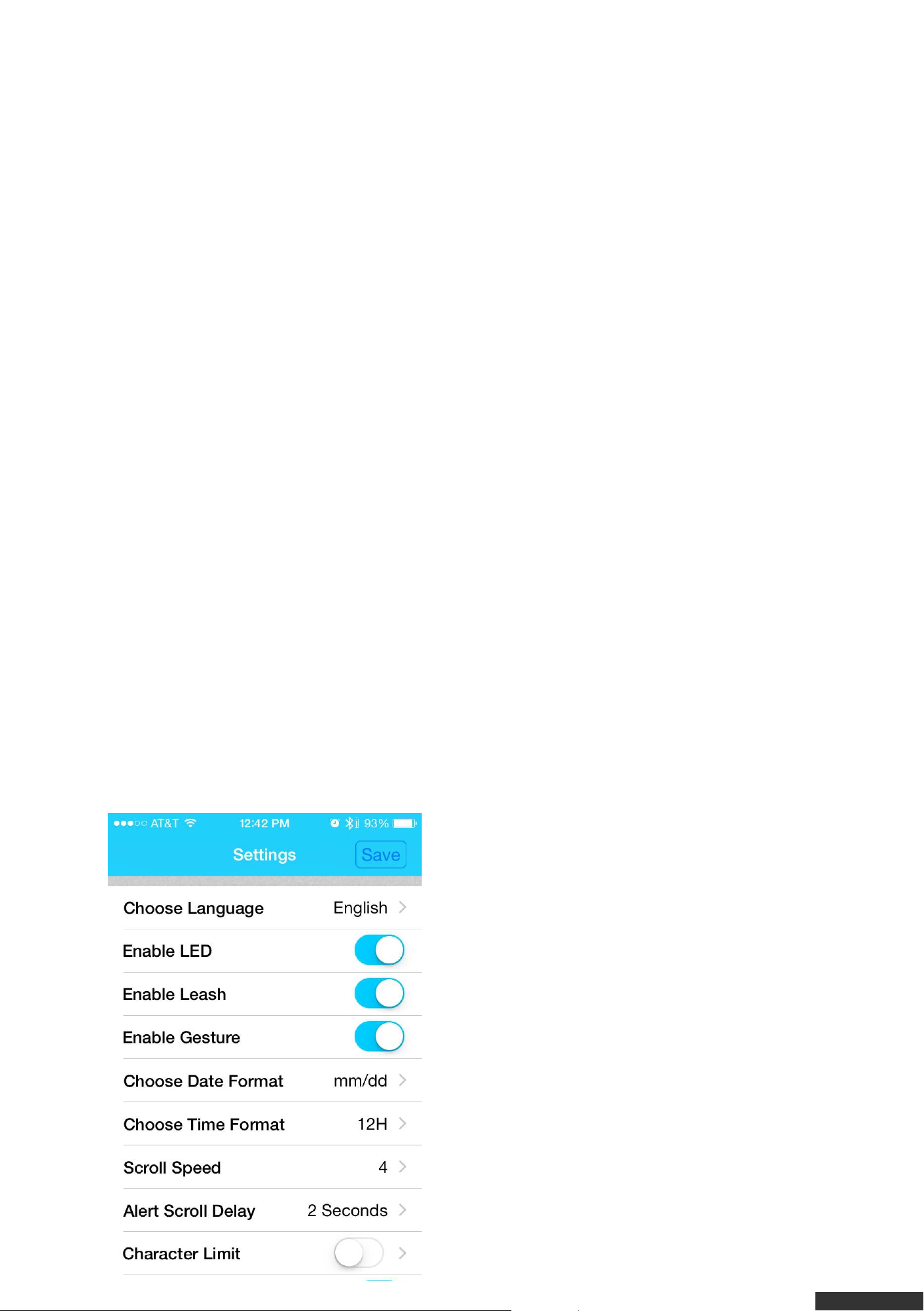
Settings Tab
The Settings Tab contains various settings to customize the Watch to your
preferences. Tap the Save button at the top right of the screen to Save preferences
set on this page.
Language:
Tap Language and scroll up/down through
the list of languages to select the language
desired for the Watch. Tap Save in the top
right of the Language screen to save your
Language preference.
Tap Save in the top right of the Settings Tab
to send your preference to the Watch.
LED:
The LED on the Watch is a visual signal of
activities such as pairing, calls, text
messages, camera mode, charged battery,
low battery, etc. occurring on the Watch.
pdfcrowd.com
Page 19

Enable or disable the red/green/blue LED
light that flashes on your Watch by tapping
the switch in order to turn the LED Light On
(blue) or turn the LED Light Off (white).
Tap Save in the top right of the Settings Tab to send your preference to the Watch.
Leash:
When the Leash is turned On, the Watch will vibrate when your mobile device is out-
of-range and again when the mobile device re-connects.
Enable or disable the Leash by tapping the switch in order to turn the Leash On
(blue) or turn the Leash Off (white).
Tap Save in the top right of the Settings Tab to send your preference to the Watch.
Date Format:
The date can be displayed as mm/dd or dd/mm on the Watch. Tap Date Format and
select your preference from the pop-up window.
Tap Save in the top right of the Settings Tab to send your preference to the Watch.
Time Format:
The time can be displayed as a 12-hour (12H) or 24-hour (24H) clock on the Watch.
Tap Time Format and select your preference from the pop-up window.
Tap Save in the top right of the Settings Tab to send your preference to the Watch.
Scroll Spe ed:
Messages from your mobile device scroll across the OLED of the Watch.
Tap on Scroll Speed to choose a speed from 1 to 4; where 4 is the fastest Scroll
Speed and 1 is the slowest Scroll Speed.
Tap Save in the top right of the Settings Tab to send your preference to the Watch.
Alert Scroll Delay:
When a message from your mobile device first appears on the Watch, it pauses on
the sender name before it starts scrolling the message.
Tap Alert Scroll Delay to choose the length of the pause on the sender’s name, from
2 to 4 seconds.
Tap Save in the top right of the Settings Tab to send your preference to the Watch.
Character Limit:
The Watch is set by default to display the entire message sent from your mobile
device.
pdfcrowd.com
Page 20

You may choose to limit the length of the message sent to the Watch to 40
characters. Tap the switch to turn Character Limit On (blue) or Off (white).
To lock Character Limit to 40 characters tap on the > to the far right of the Character
Limit option. Tap on the switch next to Restriction Lock to turn it On (blue). Enter and
then re-enter a 4-digit passcode to lock the Character Limit of messages on the
Watch to 40 characters. Tap the Save button at the top right of the screen. On the
Restriction Lock screen tap the Back button to return to the Settings Tab.
Tap Save in the top right of the Settings Tab to send your preference to the Watch.
To unlock Restriction Lock tap the switch to turn Restriction Lock Off (white), enter
your Restriction Lock passcode and tap the Done button in the top right of the
screen. Tap the Back button to return to the Settings Tab.
Tap Save in the top right of the Settings Tab to send your preference to the Watch.
IMPORTANT: DO NOT FORGET YOUR 4-DIGIT PASSCODE! IF YOU LOSE IT, YOU
CANNOT UNLOCK THE CHARACTER RESTRICTION YOURSELF. YOU M UST
SEND THE WATCH TO MARTIAN WATCHES TO UNLOCK IT. THIS IS NOT
COVERED UNDER WARRANTY – SEE “SERVICE & REPAIR FOR OUT-OF-
WARRANTY PRODUCTS” SECTION OF
http://www.martianwatches.com/warranty/ FOR M ORE INFORMATION.
Bold Numbe rs:
Activate this option to see bold numbers on your watch. This feature is helpful to see
numbers in bright sunlight or to easily see your progress while on the move with
fitness apps
Tap on the Bold Numbers switch to turn this feature On (blue) or Off (white).
Tap Save in the top right of the Settings Tab to send your preference to the Watch.
Help Tab
Each of the features below requires a connection to the Internet.
Product Registration
Register your watch from within the App or go to our website
http://www.martianwatches.com/register. By registering your Watch you will receive
updates about Firmware and App releases.
User Manual
Access the complete User Manual from within the App.
Freque ntly Aske d Questions
Provides a quick reference guide to find answers to common questions quickly and
pdfcrowd.com
Page 21

easily.
Demo Sample Notifications
After your Watch and phone are paired, tap one of these items to see how a text
message or email notification will appear on your Watch.
Check Firmware Version
Tap this option to determine if there is a new firmware version available for the Watch.
To download the latest Firmware for your Watch visit
http://www.martianwatches.com/support/software-updates/martian-firmware-updaters/.
Email Log Report
If you have an issue with the Watch, our Support team may ask you to Email Log
Report from the Martian Alerts App to help diagnose the problem you are
experiencing.
Martian Alerts App for Android Mobile Devices
Fe atures:
• Connection status information between App and Watch.
• Simple interface to customize which iOS Messages/Notifications/Alerts you want sent
to the Watch.
• Customizable Vibration Patterns for each Message type with customizable Vibration
Intensity settings.
• Set the Watch to vibrate at a Target Minute each hour.
• Set one-time or repeating alarms to be sent to the Watch.
• Find Watch and Find Phone
• Configure other Watch preferences and settings including display of World Clock,
Weather Forecast, Do Not Disturb (DND), LED Light Display, Leash, Gesture, Date
and TimeFormat, Time Zone, Scroll Speed, Alert Scroll Delay, Character Limit, and
Bold Numbers.
• Help Section including access to Product Registration, User Manual, Frequently
Asked Questions, Sample Notifications and Check Firmware Version.
The Martian Alerts App has five tabs: Home, Alerts, Display, Settings, and
Help***fix
Home Tab
Tap to Conne ct/Tap to Disconnect
The Connect and Disconnect buttons to
connect or disconnect the Watch and App. A
pdfcrowd.com
Page 22
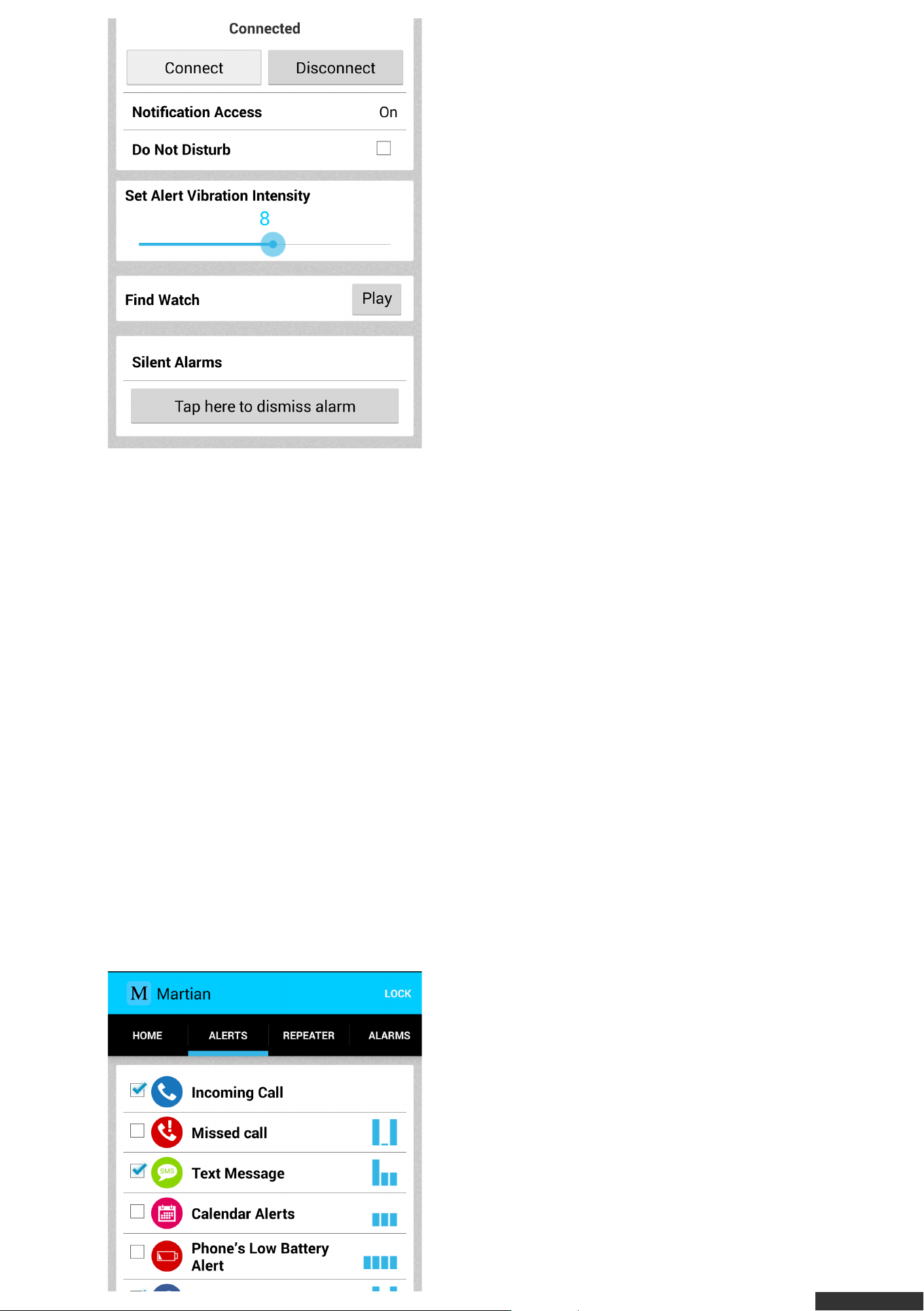
message above these buttons indicate if the
App and Watch are connected.
Accessibility Service
This is an informational message that
indicates if the Accessibility Service is On or
Off.
Do Not Disturb:
This check box sets Do Not Disturb to On
(checked) or Off (unchecked). If Do Not
Disturb is On (checked, the Watch will only
receive Silent Alarms. No other Notifications
or Messages will be received on the Watch.
Vibration Inte nsity
This slider sets the Vibration Intensity level of messages coming through on the
Watch. Set Vibration Intensity by sliding the button back and forth across the bar.
Find Watch
Tap the Play button to play a tone on your Watch in order to locate it. The Watch and
mobile device must be Bluetooth connected.
Silent Alarms
Tap the Tap Here to Dismiss Alarm button to dismiss a Silent Alarm.
Alerts Tab
The Alerts Filter Tab is pre-populated with both core notification types like Incoming
Call, Missed Call, Voicemail, Calendar, Email, SMS, Low Phone Battery and also many
commonly used Apps such as Facebook, Twitter, Whatsapp, Instagram, Pinterest,
Google+, Skype, etc. Apps appearing in the Alerts Filter tab can be switched On/Off
from sending Notifications to the Watch and can be assigned custom Vibration
Patterns.
Adding Apps to the Alerts Tab
• An App must be both installed on your
mobile device AND configured to Show
Notifications in the mobile device’s
Application Manager to receive Notifications
from the App on the Watch.
• To access the Android mobile device
Application Manager go to Settings >
General > Application Manager.
• To receive messages from an App on the
pdfcrowd.com
Page 23

Watch, tap on the App icon in the Application
Manager.
• Check the Show notifications check box to
turn Notifications On for the App selected.
• The first time the App sends a Notification
the App will appear within the Alerts Tab of
the Martian Alerts App.
• On the Alerts Tab of the Martian Alerts App
check the checkbox next to the App name and future Notifications will be sent to the
Watch.
Turning On Specific App Alerts to the Watch
• An App must be both installed on your mobile device AND configured to Show
Notifications in the mobile device’s Application Manager to receive Notifications from
the App on the Watch.
• To access the Android mobile device Application Manager go to Settings > General
> Application Manager.
• To receive messages from an App on the Watch, tap on the App icon in the
Application Manager.
• Check the Show notifications check box to turn Notifications On for the App selected.
• On the Alerts Tab of the Martian Alerts App check the checkbox next to the App
name and future Notifications will be sent to the Watch.
Turning Off Specific Alerts to the Watch
• Find the App in the Alerts Tab.
• Uncheck the checkbox next to the App name and future Notifications will not be sent
to the Watch as long as the Martian Alerts App remains open on the mobile device to
filter the Notifications from reaching the Watch.
Customizing Vibration Patte rns
Custom Vibration Patterns help to discern the difference between alerts on the Watch
without looking at the Watch. Each Vibration Pattern contains up to 4 vibration slots.
Each slot can contain a short vibration, long vibration, or a pause between vibrations.
The Apps already configured in the Alerts Tab have a default Vibration Pattern set.
The default Vibration Pattern can be changed to the Vibration Pattern preferred for
each App. Vibration Pattern preferences are saved on the Watch and will remain in
effect even if the Martian Alerts App is not open on the mobile device.
To Set/Change Vibration Patterns
• Find the App in the Alerts Tab and tap the App icon or name to open the Vibration
Pattern screen.
• Tap each column to select the preferred vibration for each slot.
• Tap the Test button to test the Vibration Pattern selected.
• Tap the Set button to Save the Vibration Pattern and return to the Alerts Tab.
pdfcrowd.com
Page 24
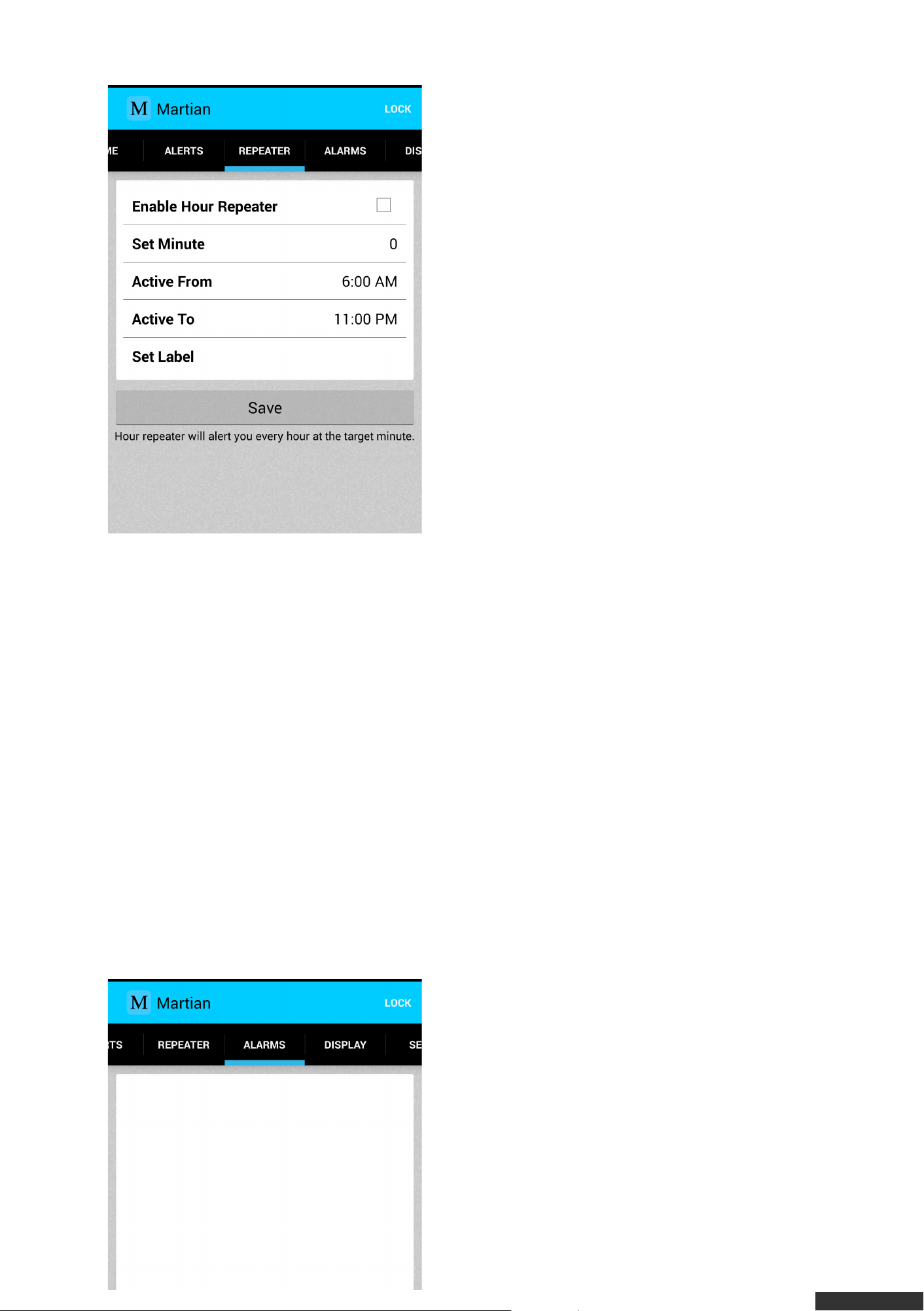
Repeater Tab
The Enable Hour Repeater check box sets
the Hour Repeater to On (checked) or Off
(unchecked). The Hour Repeater sends a
double-vibration alert to your watch at the
Target Minute of every hour during the range
of hours selected. For example, create an
alert labelled “Stretch!” sent 5 minutes before
every hour between 9 a.m. and 4 p.m.
Targe t Minute
Tap the number to select a Target Minute
between 0 and 55. For Example, if “35” is
selected, the Watch will alert at 1:35, 2:35,
3:35, etc.
Activ e From and Active To
Tap the time to select the time range that the Hour Repeater is active throughout the
day.
Label (Optional)
Tap Label to assign a Label to the Hour Repeater. This Label will display on the
Watch.
Save
Press the Save button to Save the Hour Repeater and return to the Home tab.
Alarms Tab
Silent Alarms can be used as a personal morning wake-up without waking anyone
else nearby or for reminders throughout the day.
Adjust the slider on the Silent Alarm screen to set the Alarm Vibration Intensity.
Set Silent Alarm
To set a Silent Alarm ensure that the
checkbox next the desired Silent Alarm is
checked.
Add Silent Alarm
• Tap the Add Alarm button to create a Silent
Alarm.
• Set the time the alarm should vibrate by
tapping Set Time and then scrolling up/down
pdfcrowd.com
Page 25

to select the hour, minute and AM/PM.
• Tap Repeats to select the frequency the
Silent Alarm should repeat (optional). Tap
the checkbox next to each day of the week to
set the repeat days. Tap Never to turn off the
Repeat of the Silent Alarm.
• Tap the Silent Alarm screen to close the
Repeats screen.
• Tap Label to assign a Label to the Silent Alarm. Type the desired Label into the field
and click Done on the keyboard to save the Label to the Silent Alarm.
• Tap the No / Yes in the Dismiss Only From Phone row to select whether to dismiss
the Silent Alarm from the mobile device only (Yes) or from either the mobile device or
Watch (No). Requiring that a Silent Alarm can only be dismissed from the mobile
device is helpful for heavy sleepers.
• Tap the Save button to Save the Silent Alarm.
Snooze Sile nt Alarm
• Short-press the top button of the Watch to Snooze for 5 minutes. Snooze will show
on the Watch screen when the Silent Alarm has been Snoozed. Note: During Snooze
Messages will not be sent to the Watch.
Dismiss Silent Alarm
• Long-press the top button on the Watch to dismiss the Silent Alarm. Dismiss will
show on the Watch screen when the Silent Alarm has been dismissed. Note: If Only
Dismiss From Phone is selected for the Silent Alarm in the App, long-pressing the top
button of the Watch will not dismiss the Silent Alarm. In this case the Silent Alarm must
be dismissed from the mobile device.
• Tap the Tap Here To Dismiss Alarm button on the Home Tab of the App. Note: This
is the only way to dismiss a Silent Alarm that has been marked as Only Dismiss From
Phone.
Edit Silent Alarm
• Tap the Silent Alarm you want to Edit, make the desired changes, and tap the Save
button to save changes to the Silent Alarm.
Delete Silent Alarm
• Tap and hold your finger on the screen on the Silent Alarm to delete.
• Tap Yes to delete the Silent Alarm.
Display Tab
This tab sets the World Clock and Today’s Weather to display on the Watch if
desired.
Location Services must be set to On for these items to display on the Watch. To turn
pdfcrowd.com
Page 26
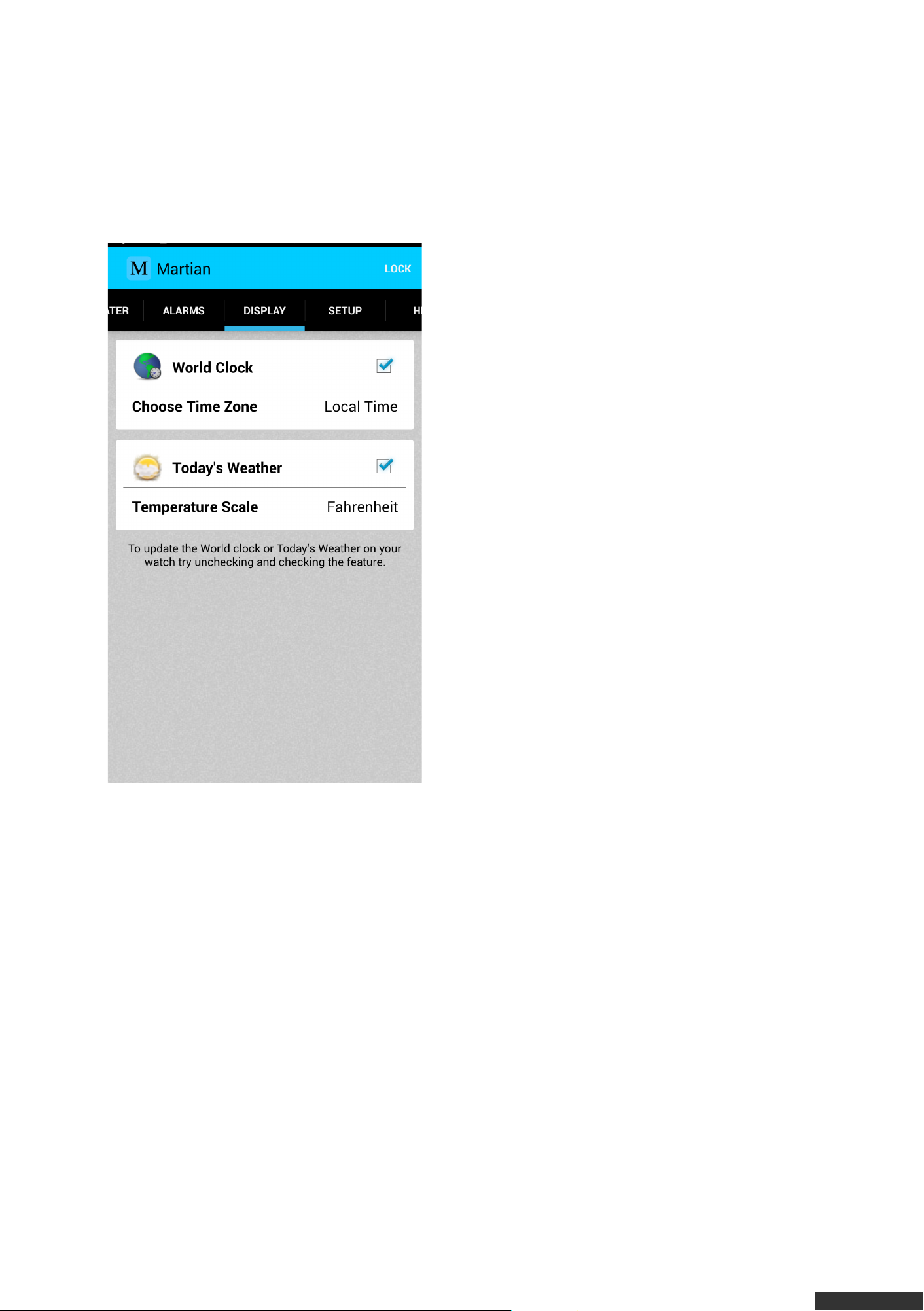
On Location Services in an Android mobile device go to Settings > Connections >
Location and switch the Location On (green). To verify that the Martian Alerts App
can access your location to to Settings > General > Application Manager. Scroll down
the list of Apps installed on your mobile device and tap the icon for the Martian Alerts
App. Scroll down through the information on this screen and ensure that precise
location (GPS and network-based) is listed. If it is then, World Clock and Today’s
Weather can appear on your Watch if desired.
World Clock
This feature pushes accurate time for any
world time zone to the Watch OLED display.
The time appears upon pressing the bottom
button on the Watch.
To enable this feature tap the checkbox next
to World Clock to turn it On (checked).
Next tap Time Zone to select the desired
Time Zone to display on the Watch. Scroll
up/down on the next screen to select the
closest city within the Time Zone desired.
The Local Time option will automatically
determine the closest city and send the
appropriate time to the Watch. When you
land in a new city and the App is opened on
your mobile device, the App will retrieve the
Local Time and display it on the Watch.
Notes:
• The App must remain open on your mobile device to view World Clock on the Watch.
• Location Services must be turned On within the Settings of your mobile device for
the World Clock to display on the Watch.
Today’s Weathe r
This feature pushes the Today’s Weather to the watch OLED display including Hi and
Lo temperatures for the day and a general description of the weather. To view
Today’s Weather on the Watch ensure that the checkbox is checked. Today’s
Weather will display on the OLED display after the Time, Status Bar, and Date.
Notes:
• The App must remain open on your mobile device to view Today’s Weather on the
Watch.
• Location Services must be turned On within the Settings of your mobile device for
pdfcrowd.com
Page 27
Today’s Weather to display on the Watch.
• There may be a small delay when the App is first started before Today’s Weather is
displayed on the Watch.
• If you are not in an area where your mobile device can provide your GPS location to
the Martian Alerts App (e.g. inside a building), Today’s Weather will not appear on the
Watch until your GPS location can be obtained.
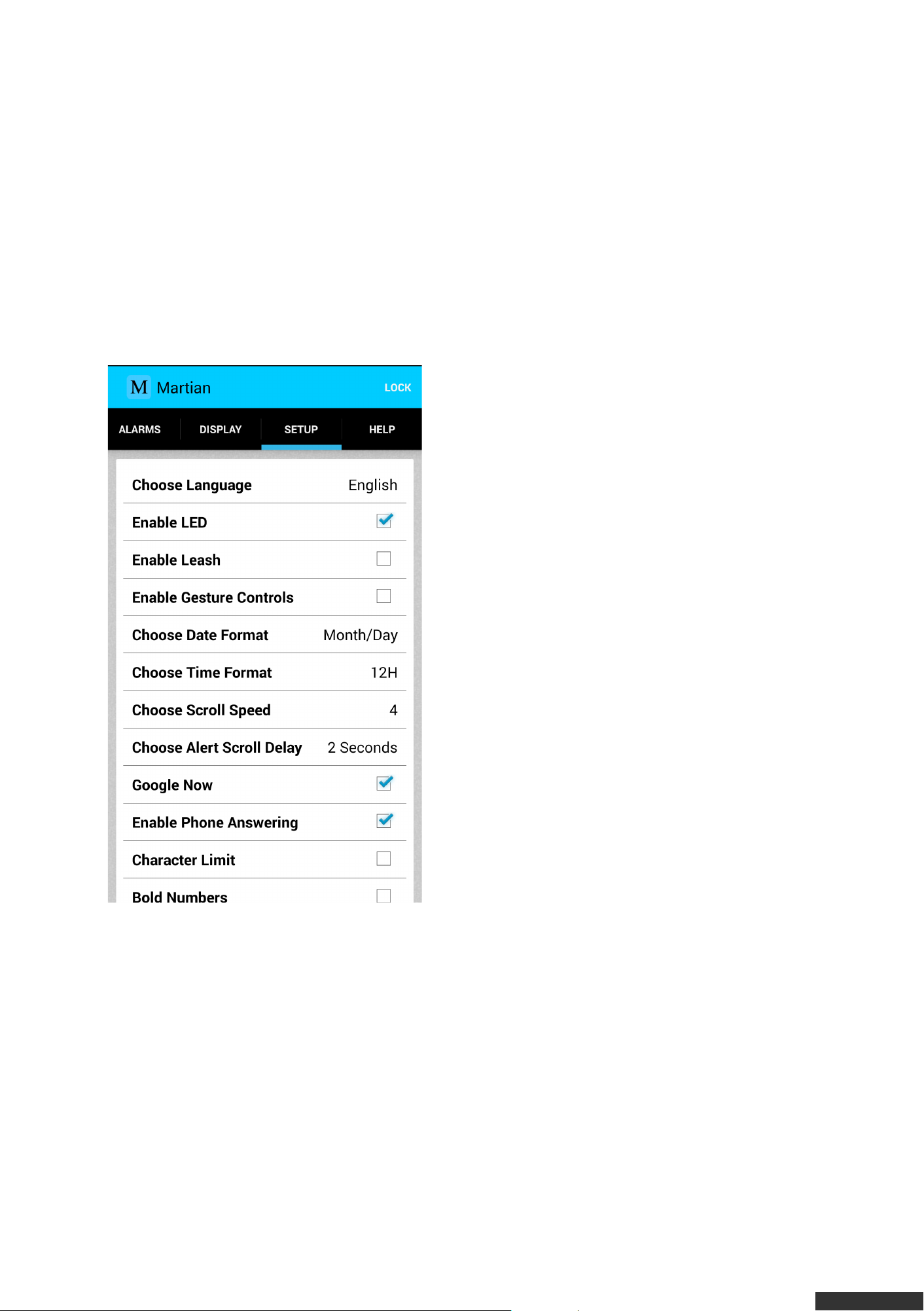
Setup Tab
The Setup Tab contains various settings to customize the Watch to your preferences.
Tap the Confirm Changes button at the bottom of the screen to Save preferences set
on this page.
Language:
Tap Language and select the language
desired for the Watch.
Tap Confirm Changes at the bottom of the
screen to send your preference to the
Watch.
LED:
The LED on the Watch is a visual signal of
activities such as pairing, calls, text
messages, camera mode, charged battery,
low battery, etc. occurring on the Watch.
Enable or disable the red/green/blue LED
light that flashes on your Watch by tapping
the checkbox to turn the LED Light On
(checked) or turn the LED Light Off
(unchecked).
Tap Confirm Changes at the bottom of the screen to send your preference to the
Watch.
Leash:
When the Leash is turned On, the Watch will vibrate when your mobile device is out-
of-range and again when the mobile device re-connects.
Enable or disable the Leash by tapping the checkbox in order to turn the Leash On
(checked) or turn the Leash Off (unchecked).
Tap Confirm Changes at the bottom of the screen to send your preference to the
Watch.
pdfcrowd.com
Page 28

Date Format:
The date can be displayed as mm/dd or dd/mm on the Watch. Tap Date Format and
select your preference from the pop-up window.
Tap Confirm Changes at the bottom of the screen to send your preference to the
Watch.
Time Format:
The time can be displayed as a 12-hour (12H) or 24-hour (24H) clock on the Watch.
Tap Time Format and select your preference from the pop-up window.
Tap Confirm Changes at the bottom of the screen to send your preference to the
Watch.
Scroll Spe ed:
Messages from your mobile device scroll across the OLED of the Watch.
Tap on Scroll Speed to choose a speed from 1 to 4; where 4 is the fastest Scroll
Speed and 1 is the slowest Scroll Speed.
Tap Confirm Changes at the bottom of the screen to send your preference to the
Watch.
Alert Scroll Delay:
When a message from your mobile device first appears on the Watch, it pauses on
the sender name before it starts scrolling the message.
Tap Alert Scroll Delay to choose the length of the pause on the sender’s name, from
2 to 4 seconds.
Tap Confirm Changes at the bottom of the screen to send your preference to the
Watch.
Character Limit:
The Watch is set by default to display the entire message sent from your mobile
device.
You may choose to limit the length of the message sent to the Watch to 40
characters. Tap the checkbox to turn Character Limit On (checked) or Off
(unchecked).
To lock Character Limit to 40 characters tap on Character Limit. Tap on the checkbox
next to Restriction Control to turn it On (checked). Enter and then re-enter a 4-digit
passcode to lock the Character Limit of messages on the Watch to 40 characters.
Tap the Done button on the keyboard. On the Restriction Lock screen tap the Back
button to return to the Setup Tab.
pdfcrowd.com
Page 29

Tap Confirm Changes at the bottom of the screen to send your preference to the
Watch.
To unlock Restriction Lock tap the checkbox to turn Restriction Lock Off (unchecked),
enter your Restriction Lock passcode and tap the Done button on the keyboard. Tap
the Back button to return to the Setup Tab.
Tap Confirm Changes at the bottom of the screen to send your preference to the
Watch.
IMPORTANT: DO NOT FORGET YOUR 4-DIGIT PASSCODE! IF YOU LOSE IT, YOU
CANNOT UNLOCK THE CHARACTER RESTRICTION YOURSELF. YOU M UST
SEND THE WATCH TO MARTIAN WATCHES TO UNLOCK IT. THIS IS NOT
COVERED UNDER WARRANTY – SEE “SERVICE & REPAIR FOR OUT-OF-
WARRANTY PRODUCTS” SECTION OF
http://www.martianwatches.com/warranty/ FOR M ORE INFORMATION.
Bold Numbe rs:
Activate this option to see bold numbers on your watch. This feature is helpful to see
numbers in bright sunlight or to easily see your progress while on the move with
fitness apps.
Tap on the Bold Numbers checkbox to turn this feature On (checked) or Off
(unchecked).
Tap Confirm Changes at the bottom of the screen to send your preference to the
Watch.
Help Tab
Each of the features below requires a connection to the Internet.
Product Registration
Register your MARTIAN VOICE COMMAND WATCH from within the App or go to our
website http://www.martianwatches.com/register. By registering your Watch you will
receive updates about Firmware and App releases.
User Manual
Access the complete User Manual from within the App.
Freque ntly Aske d Questions
Provides a quick reference guide to find answers to common questions quickly and
easily.
Demo Sample Notifications
After your Watch and phone are paired, tap one of these items to see how a text
message or email notification will appear on your Watch.
pdfcrowd.com
Page 30

Check Firmware Version
Tap this option to determine if there is a new firmware version available for the Watch.
To download the latest Firmware for the Watch visit
http://www.martianwatches.com/support/software-updates/martian-firmware-updaters/.
Email Log Report
If you have an issue with the Watch, our Support team may ask you to Email Log
Report from the Martian Alerts App to help diagnose the problem you are
experiencing.
Using Voice Command
A key feature of your Watch is its ability to access your mobile device Voice Command
functions. The Watch essentially acts as a Bluetooth headset (remote speaker and
microphone). All processing of the Voice Commands is done by the mobile device in
the same manner that direct mobile device Voice Commands are processed.
To access Voice Commands via the Watch, tap the top button. The LED light on the
Watch will flash green to acknowledge the Voice Command request. Wait for the
Watch to Beep and then speak your command. Press the top button a second time to
end the connection. The LED light will flash red on the Watch when the Voice
Command “times out” or is terminated manually by pressing the top button.
NOTE:
Because your watch is accessing your mobile device’s Voice Command features, it
can only execute commands that your specific mobile device is capable of executing.
See your mobile device’s Voice Command instructions to find out which commands it
can accept.
Calls
Incoming Call:
When the mobile device is receiving an incoming call, the Watch vibrates repeatedly
and the Watch LED light flashes green. The name or number of the caller is displayed
on the Watch’s OLED display.
To answer press the top button. To reject the call and send it to Voicemail press the
bottom button and the OLED will display “Call Declined”.
pdfcrowd.com
Page 31

When finished with the conversation, press the top button to end the call. The OLED
will display “Call Ended”.
Outgoing Call:
Tap the top button. The Watch LED light will flash green to acknowledge a Voice
Command request. Wait for the Watch to Beep then speak the desired Voice
Command supported by your mobile device for Outgoing Calls.
NOTE: The Outgoing Call feature is available on your watch only if your mobile device
supports Voice Commands for Outgoing Calls.
Call Volume and M ute:
To change the Volume of a call on the Watch press the bottom button to set the
preferred Volume. The volume options are: Low (1), Medium (2), High (3) and Clear
Voice (C).
At the Clear Voice (C) volume, a tap of the bottom button will cause the Watch to
vibrate indicating that the Watch is at the Clear Voice setting. Tap the bottom button
again to reach the Low (1) setting.
To mute the Watch microphone during an active call, press and hold the bottom
button until the “mute” (microphone with a line through it) icon appears on the OLED
display. To un-mute press and hold the bottom button again until the “active”
microphone icon appears.
Text Messages
Incoming Text M essages:
When receiving a text message, the Watch vibrates once, the blue light flashes, and
the name or number of the sender is displayed on the Watch OLED.
To stop an incoming text message from displaying on the Watch, press the bottom
button or tap the Watch face. To recall the most recent message within 5 minutes tap
the Watch face.
If your mobile device supports Voice Commands, tap the top button and after the
beep say “read text”. The last text message received will be read back to you.
Outgoing Text Messages:
If your mobile device supports Voice Commands for sending Outgoing Text
Messages, speak those commands into your watch. See your mobile device’s Voice
Command instructions for the specific commands to use.
pdfcrowd.com
Page 32

ADDITIONAL HELP
Master Reset
To reset your watch plug the USB cable into a power source. Connect the USB cable
to the Watch and immediately disconnect it again.
Factory Restore
Turn on your Watch then, press and hold both buttons on the Watch until the word
“Restored” appears.
TROUBLE SHOOTING
Your OLED display stop working, but the LED & vibration are working
With Android phone, getting a call from Sue Anders but the watch shows another
contact, Sue Anderson
When Bluetooth feature on and off, and the green light on your watch starts
blinking.
On an incoming call, the OLED display briefly displays the caller’s phone number,
then switches to the caller’s name as shown in your address book.
pdfcrowd.com
Page 33
You are standing in an open area like a parking lot, or you have your phone in your
back pants pocket, and your phone reception is not good.
Your Bluetooth 3.0 +HS (high speed) device doesn’t work with your watch
You were talking on your phone and walked into another room, away from your
watch – suddenly, your call transferred to the watch
You received a text message on your iPhone, but only received a green flashing
light – no vibration or display
When speaking to someone on MARTIAN WATCH, the person on the receiving end
experiences your voice “cutting in and out”
On Android phone, Caller ID shows Address Book names for texts, but MARTIAN
WATCH only shows phone numbers for incoming calls
Watch doesn’t reconnect to phone after returning into range
Red battery light doesn’t turn on when Watch is plugged in to charger
Text message notification/display not working
Watch turns off unprompted
pdfcrowd.com
Page 34

SAFETY, REGULATORY & LEGAL
MARTIAN, MARTIAN WATCH, MARTIAN WATCHES, the M logo, MARTIAN Pas s port, MARTIAN
Victory, MARTIAN G2G, and Voice Command Watch are trademarks of MARTIAN WATCHES in the
United States and other countries
Bluetooth®
The Bluetooth® word mark and logos are regis tered tradem arks owned by Bluetooth SIG, Inc. and
any us e of such marks by MARTIAN WATCHES is under license. Other trademarks and trade
nam es are those of their respective owners .
iPod®, iPhone®, iPad®
Made for: · iPhone 6 · iPhone 6 Plus · iPhone 5 · iPhone 5s · iPhone 4s · iPhone 4 · iPhone 3GS ·
iPad (3rd generation) · iPad 2 “Made for iPod,” “Made for iPhone,” and “Made for iPad” mean that an
electronic accessory has been des igned to connect specifically to iPod, iPhone, or iPad,
respectively, and has been certified by the developer to meet Apple performance standards . Apple
is not res ponsible for the operation of this device or its com pliance with safety and regulatory
standards . Please note that the us e of this accessory with iPod, iPhone, or iPad may affect wireless
perform ance. iPod, iPad, iPhone and Siri are trademarks of Apple Inc., registered in the U.S. and
other countries.
Android™
Portions of this page are reproduced from work created and shared by the Android Open Source
Project and us ed according to term s described in the Creative Comm ons 2.5 Attribution License.
Android is a trademark of Google Inc.
Third Party Accessories:
MARTIAN WATCHES is not responsible for any third-party acces sories that may impact your watch
perform ance, including but not lim ited to charging cables and power adapters. Poor quality and
pdfcrowd.com
Page 35
improper use of third-party accessories can be dangerous and may void your watch warranty.
Radio Frequency (RF) Energy:
Your watch contains a Bluetooth transmitter and receiver. When this feature is in use, it receives
and transmits RF energy. Your watch is designed to comply with local regulatory requirements in
your country concerning exposure of hum an beings to RF energy. Nearly every electronic device is
subject to RF energy interference from external sources if inadequately shielded, designed, or
otherwis e configured for RF energy compatibility. In som e circums tances, your watch may cause
interference with other devices .
• Turn off your watch in any location where posted notices instruct you to do so.
• In an aircraft turn off your watch whenever instructed to do so by airline staff.
• If you have an implantable medical device, such as a pacemaker or defibrillator, cons ult your
physician before using watch.
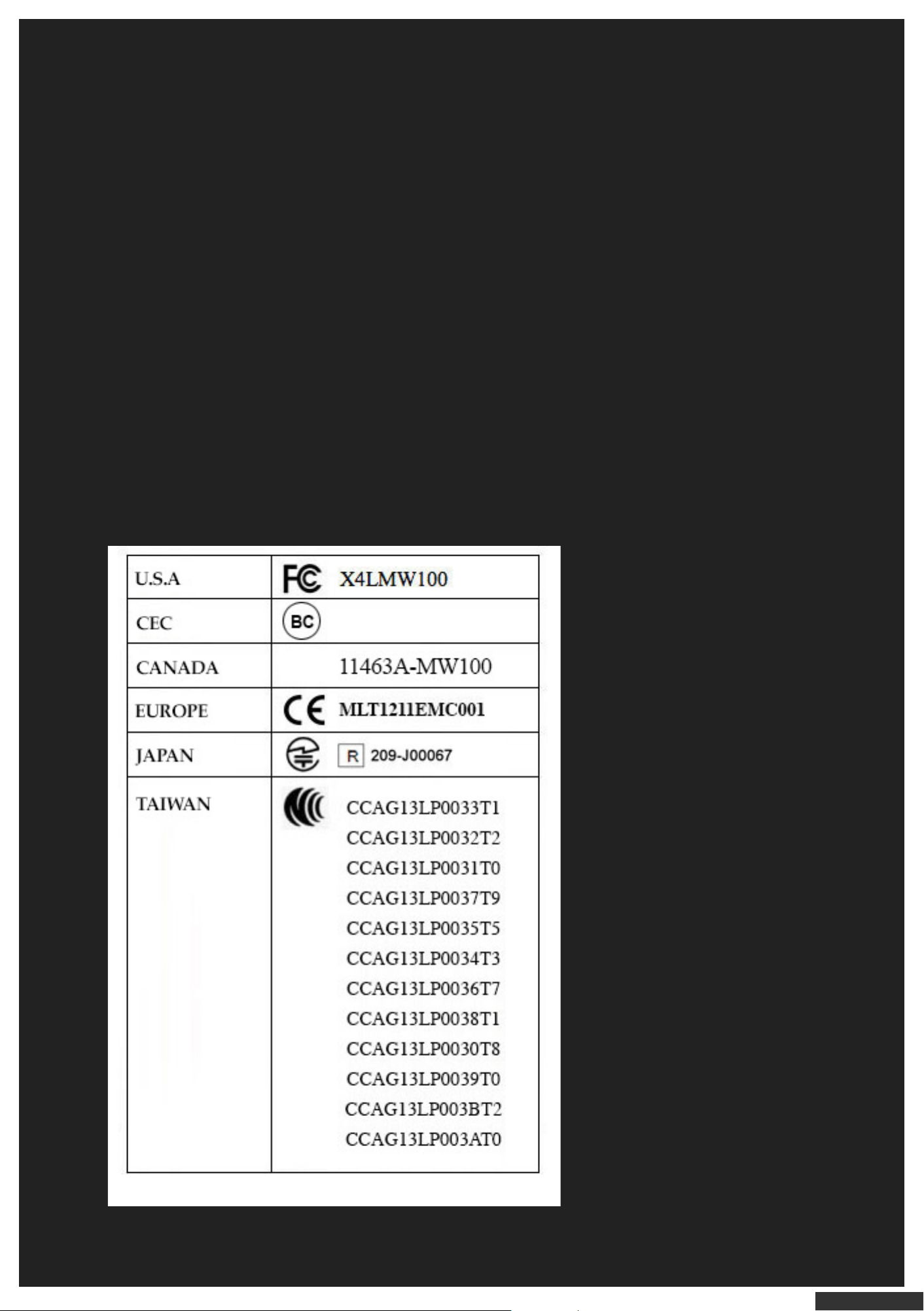
CERTIFICATION AND COMPLIANCE
Important Notice for Users of this Product in Countries Not Listed Above
pdfcrowd.com
Page 36

This product is NOT certified as conforming to Technical Regulations of Radio Law of countries
other than those listed in the table above.
Reading Texts While Driving:
Reading incoming texts on your watch while driving is not recomm ended, and may be illegal in your
state. Pleas e refer to your state laws for further inform ation.
Battery Use and Safety:
The following battery us e and safety information applies to all MARTIAN WATCHES. Important:
Handle and store batteries properly to avoid injury or damage. Most battery issues arise from
improper handling of batteries, and particularly from the continued use of damaged batteries .
• Don’t attempt to remove or change the watch battery. This should only be done by an authorized
MARTIAN WATCHES repres entative.
• Don’t disass emble, crush, puncture, shred, or otherwise attem pt to change the form of your watch
or its battery.
• Avoid liquids, including water. Liquids can get into your watch circuits, leading to corrosion.
• Keep your watch away from heat sources. High tem peratures can cause the battery to swell, leak,
or malfunction.
• Always keep the mini-USB cover closed when not in us e to help keep water from getting in.
• If your watch gets wet, don’t attempt to dry it with any heat source, such as a hair dryer or
microwave oven. Allow it to dry naturally at room temperature.
• Don’t leave your watch in your car. High tem peratures may caus e malfunction.
• Avoid dropping your watch. Dropping it can potentially cause damage.
• Contact a MARTIAN WATCHES representative if your watch or its battery has been damaged due
to a drop, liquid exposure or high tem peratures.
Warning: Use of an unauthorized battery may present a risk of explos ion, fire, leakage, or other
hazard.
Disposal: Dispose of your watch in accordance with local regulations for us ed batteries. Contact
your local recycling center or national recycling organizations for more information on how to
dis pose of batteries .
Warning: Never dispose of batteries in a fire because they may explode.
Battery Charging:
Notes for charging your watch battery:
• During charging, keep your watch and charging cable at room tem perature for efficient battery
charging.
• When you receive your watch, the battery is not fully charged.
• MARTIAN WATCHES have circuitry that protects the battery from damage from overcharging;
however, for longes t life, remove your watch from the charging cable as soon as the battery
pdfcrowd.com
Page 37

indicator shows “full”.
Potentially Explosive Atmospheres:
Areas with potentially explosive atmospheres are often, but not always, posted and can include
fueling areas , such as below decks on boats, fuel or chemical trans fer or storage facilities , or
areas where the air contains chemicals or particles , such as grain dus t, or metal powders. When in
such an area, turn off your watch and do not remove the back cover. In such areas , sparks can
occur and cause an explos ion or fire.
Children:
Keep your watch away from small children. The watch is not a toy and may be hazardous to small
children. For example:
• A choking hazard may exist for sm all, detachable parts such as the USB cover.
• Improper us e could result in loud sounds , pos sibly caus ing hearing injury.
Similar to a computer if a child does us e your watch, monitor their access to help prevent expos ure
to inappropriate Apps or content.
Glass Parts:
The crystal of your watch is made of glass. This glass could break upon subs tantial impact. If the
glass breaks, do not touch or attempt to remove. Stop using your watch and contact a MARTIAN
WATCHES representative to have the glass replaced.
FCC Interference Statement:
This equipment has been tested and found to comply with the limits for a Class B Digital Device,
purs uant to part 15 of the FCC Rules . Thes e lim its are designed to provide reas onable protection
against harmful interference in a residential installation. This equipment generates, uses and can
radiate radio frequency energy and, if not installed and used in accordance with the instructions,
may cause harm ful interference to radio com m unications. However, there is no guarantee that
interference will not occur in a particular ins tallation. If this equipm ent does cause harmful
interference to radio or television reception, which can be determined by turning the equipment off
and on, the user is encouraged to try to correct the interference by one or more of the following
measures :
• Reorient or relocate the receiving antenna.
• Increase the separation between the equipm ent and receiver.
• Connect the equipment into an outlet on a circuit different from that to which the receiver is
connected.
• Cons ult the dealer or an experienced radio/TV technician for help.
pdfcrowd.com
Page 38
This device com plies with Part 15 of the FCC Rules. Operation is subject to the following two
conditions:
1. This device may not caus e harmful interference.
2. This device must accept any interference received, including interference that may cause
undes ired operation.
Manual Disclaimer
This manual is publis hed by MARTIAN WATCHES, without any warranty. Improvements and
changes to this manual necessitated by typographical errors, inaccuracies of current inform ation,
or improvem ents to programs and/or equipment may be made by MARTIAN WATCHES at any time
and without notice. Such changes will, however, be incorporated into new editions of this manual.
All rights reserved. © MARTIAN WATCHES.
Martian Voice Smartwatch
Martian Notifier Smartwatch
Product Features
Shop Now
Get Help
Product F.A.Q
Quick Connect Guide
User Manual
Tips & Tricks
Firmware Updater
Create Support Ticket
Product Features
Shop Now
Get Help
Product F.A.Q
Quick Connect Guide
pdfcrowd.com
Page 39
Subscribe
Get notify for Martian News , Events and Prom otions
Follow Us
Company
Tips & Tricks
Firmware Updater
Create Support Ticket
Email
Subscribe
About Martian
Awards
Testimonials
Product Reviews
Press Release
Martian Corporate News
Martian Voice Command News
Martian Notifier News
Kickstarter
Media
Job Opportunities
Product Registration Terms of Use Terms Of Order Warranty & Services Policy
Return Policy Privacy Policy Contact Us
pdfcrowd.com
Page 40

Copyright © Martian Watches 2015 All rights reserved.
pdfcrowd.com
 Loading...