

Page 1

4. Communications
• Bar Code Data Transmission:
The unit transmits the scanned data to the host computer.
• Command Signal Receipt:
The host computer transmits the command signals to the un it and sets up the operation of the unit.
• Image Data Transmission:
The unit transmits the captured image data to the host computer.
Refer the section 5.5 for the communication parameter conditions.
4.1 Data Transaction
Data transaction setup should be accomplished with sending command from host computer. Asynchronous
protocol is used for barcode data transmission and seri al commands transmission.
4.2 Image Data Transaction
The communication protocol utilizes XMODEM (SUM128) in the ca se of the image data output.
The host side computer should be provided with the software to receive the transmitte d data. The receiving
unit should also be kept “ready” before receiving the data.
15
Page 2
5. Specifications
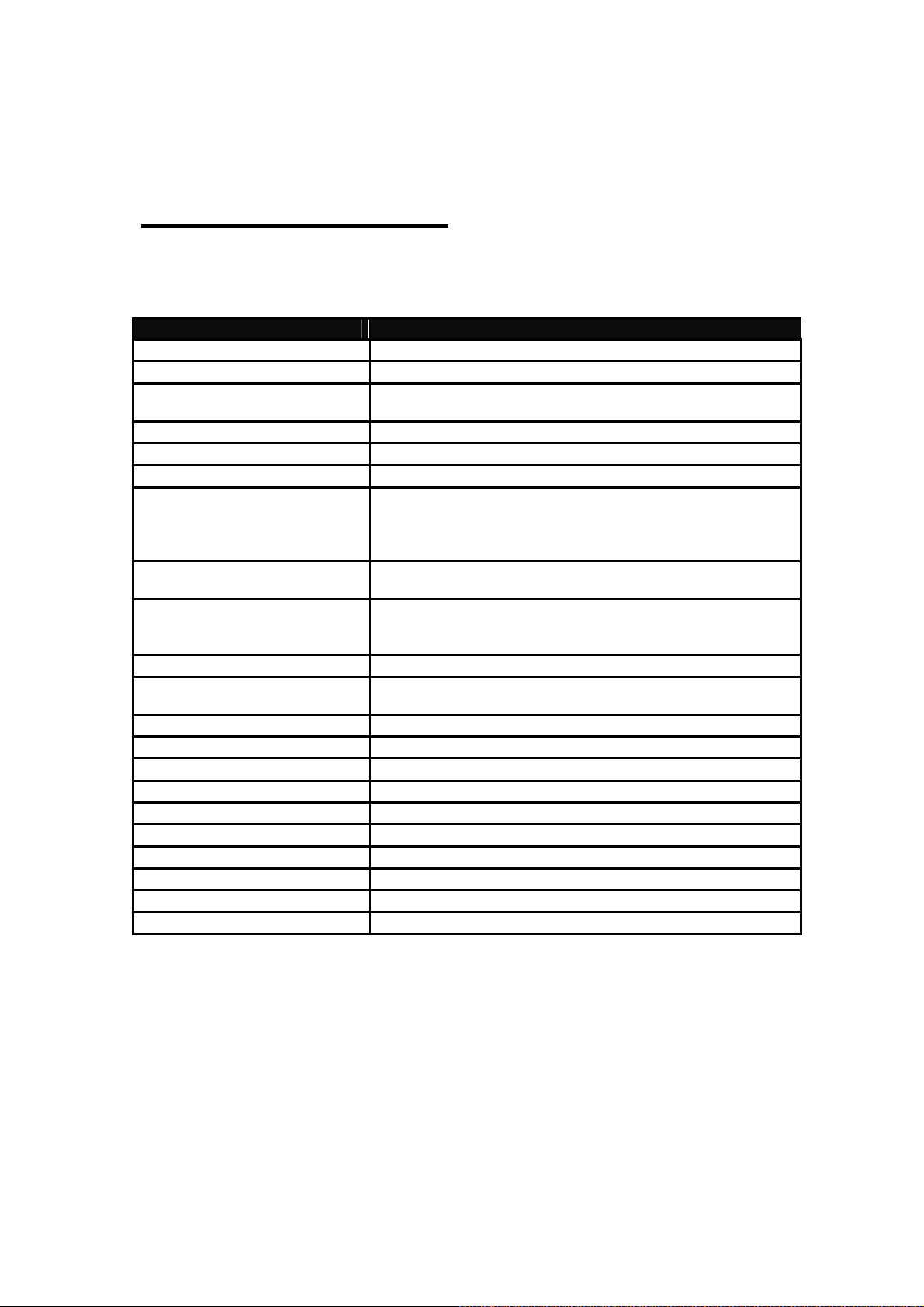
5.1 General specifications
Type THIR-6000(H)
Dimensions
Weight
Illumination
Aiming beam
Indicator
Image sensor
Minimum resolution
Supported barcodes (1D)
Supported barcodes (2D)
Format
Bluetooth interface
Battery
Operating time
Charging time
Environmental specifications
Operational Temperature
Storage Temperature
Operational Humidity
Storage Humidity
Vibration
Shock
159(H)×63(W)×99(D)mm
Approx. 220 g (including the battery)
1. White LED (THIR-6000B, THIR-6000HB)
2. Red LED (THIR-6000DM-B)
Red LED (peak wave length is 644nm)
Monitoring LED (3 colors), Vibration
CMOS color area sensor (1.3M pixel)
1. 0.125mm (1D barcode), 0.19mm (2D barcode)
(THIR-6000B)
2. 0.1mm (1D barcode), 0.167mm (2D barcode )
(THIR-6000HB, THIR-6000DM-B)
Code39, Code128, EAN128, Codabar, ITF,
JAN/EAN/UPC, RSS, Code93
Data Matrix (ECC200), QR Code, Micro QR Code
PDF417, MicroPDF, MaxiCode, Composite
Postal code
ASCII or Bitmap(image)
Bluetooth 2.0 Class1
*can be worked with Windows 2000/XP
Li-ion rechargeable battery (3.7V, 2200mAh)
7 hours (calculated with 5 seconds per 1 barcode reading)
3 hours
0 to 40 degrees centigrade
- 20 to 60 degrees centigrade
35 to 85 %RH (Non-condensing)
35 to 85 %RH(Non-condensing)
10 to 55 Hz(max. 4G)
Durable multiple drops to concrete from 7ft.
16
Page 3

5.2 Functional specification
Reading Direction
・PITCH :±35 degree
・SKEW :±35 degree
・TILT :360 degree
・Ambient Light :0 to 10,000 lx
Viewing angle
17
Page 4

5.3 Reading Range/Depth
Decodable Symbols
Liner: Code39, Code128, EAN128, Codabar, ITF, JAN / EAN / UPC, RSS
Check digit calculation method:
Code39 Modulus 43
Codabar Modulus 16
ITF Modulus 10
2-D: Data Matrix(ECC200),QR Code, Micro QR Code,PDF4 17,
Micro PDF, Maxi Code, Composite
Reading Digit:
(Except ITF) 1〜2047
(Only ITF) 2,4,6〜2047
18
Page 5
(
(
(
(
3
6
5
5
(
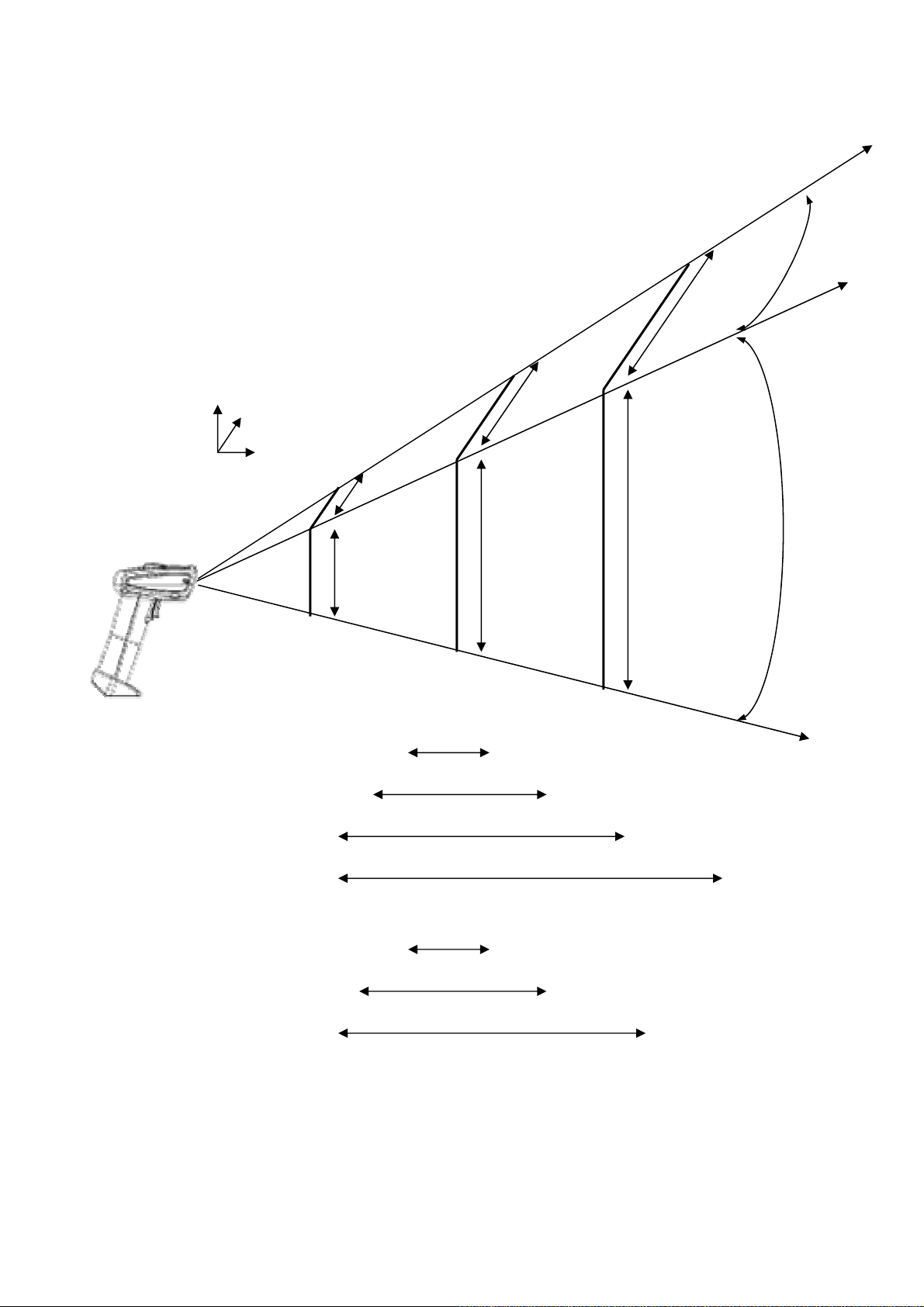
• Reading Range (Normal type)
Vertical
Horizontal
about 34°
9
6
Distance from scanner
3
about 27°
26
50
7
50
100
1D(0.125) 70〜110
1D
0.15) 60〜130
150
1D
0.25) 40〜160
1D(0.33) 40〜180
2D
0.19) 80〜110
2D
0.25) 60〜130
2D
0.33) 50〜160
unit:mm
• Reading ability depends on environment (brightness etc) and the printing quality of scanned
barcodes.
• Measured in 500 to 1000(lx) of homogeneous brightness, printed with good quality, no pitch
and no skew.
19
Page 6

(
5
5
3
6
5
5
(
• Reading Range (High density type)
Vertical
Horizontal
about 34°
9
6
Distance from scanner
3
about 27°
26
50
7
50
100
150
1D(0.1) 40 to 70
0.125) 40 to 7
1D
2D
0.167) 40 to 70
2D(0.19) 40 to 7
unit:mm
• Reading ability depends on environment (brightness etc) and the printing quality of scanned
barcodes.
• Measured in 500 to 1000(lx) of homogeneous brightness, printed with good quality, no pitch
and no skew.
20
Page 7
(
5
5
3
6
5
5
(
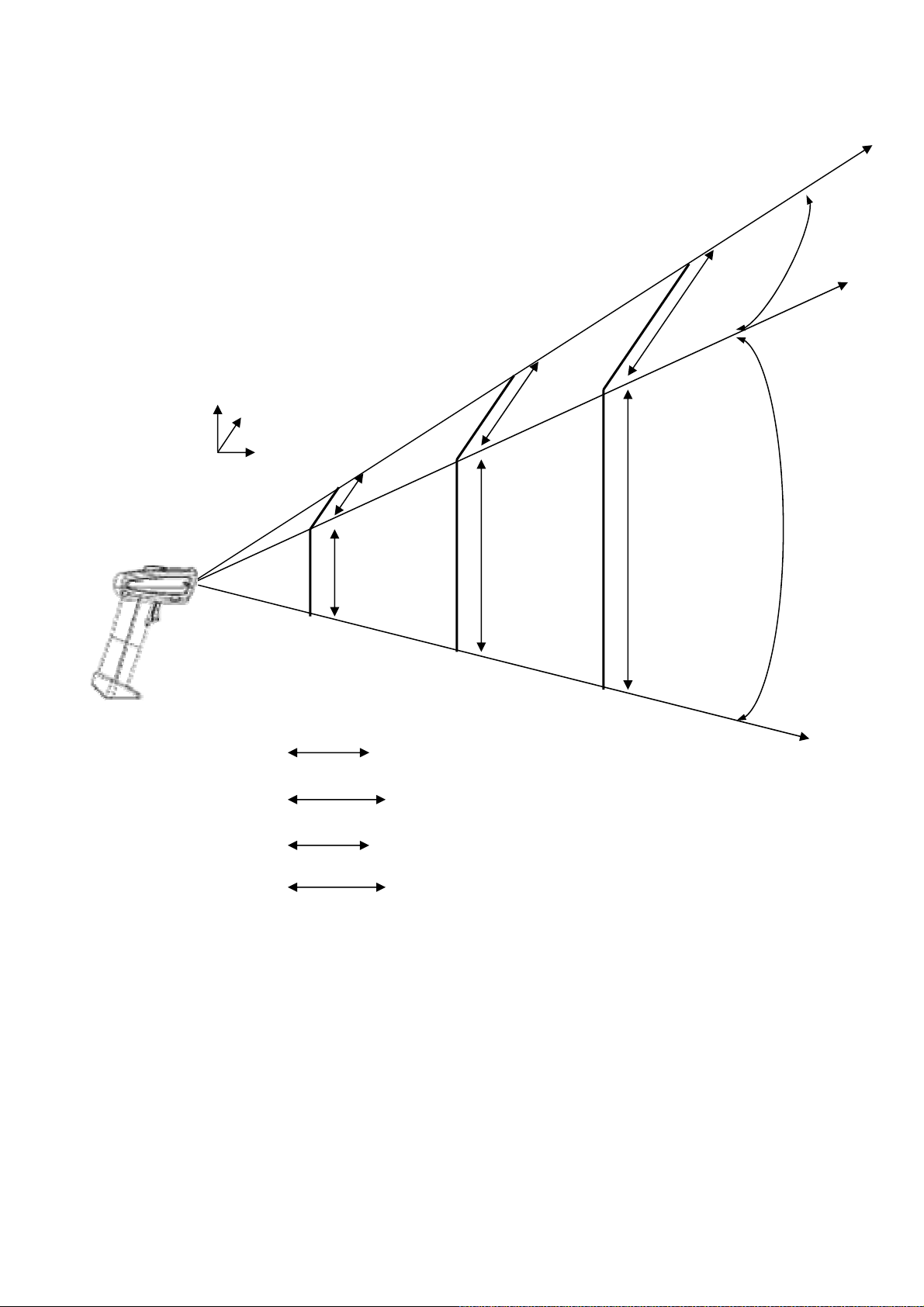
• Reading Range (DM type)
Vertical
Horizontal
about 34°
9
6
Distance from scanner
3
about 27°
26
50
7
50
100
150
1D(0.1) 40 to 70
0.125) 40 to 7
1D
2D
0.167) 40 to 70
2D(0.19) 40 to 7
unit:mm
• Reading ability depends on environment (brightness etc) and the printing quality of scanned
barcodes.
• Measured in 500 to 1000(lx) of homogeneous brightness, printed with good quality, no pitch
and no skew.
21
Page 8

5.4 Default settings
When the unit is shipped from the factory, the initial setup is as follows:
・ THIR-6000B, THIR-6000HB Æ Enabled Symbols: all symbols.
・ THIR-6000DM-B Æ Data Matrix (ECC200) and QR Code
Security settings
As the default, security settings are not configured. Please see “7.4 How to configure security setting”.
22
Page 9
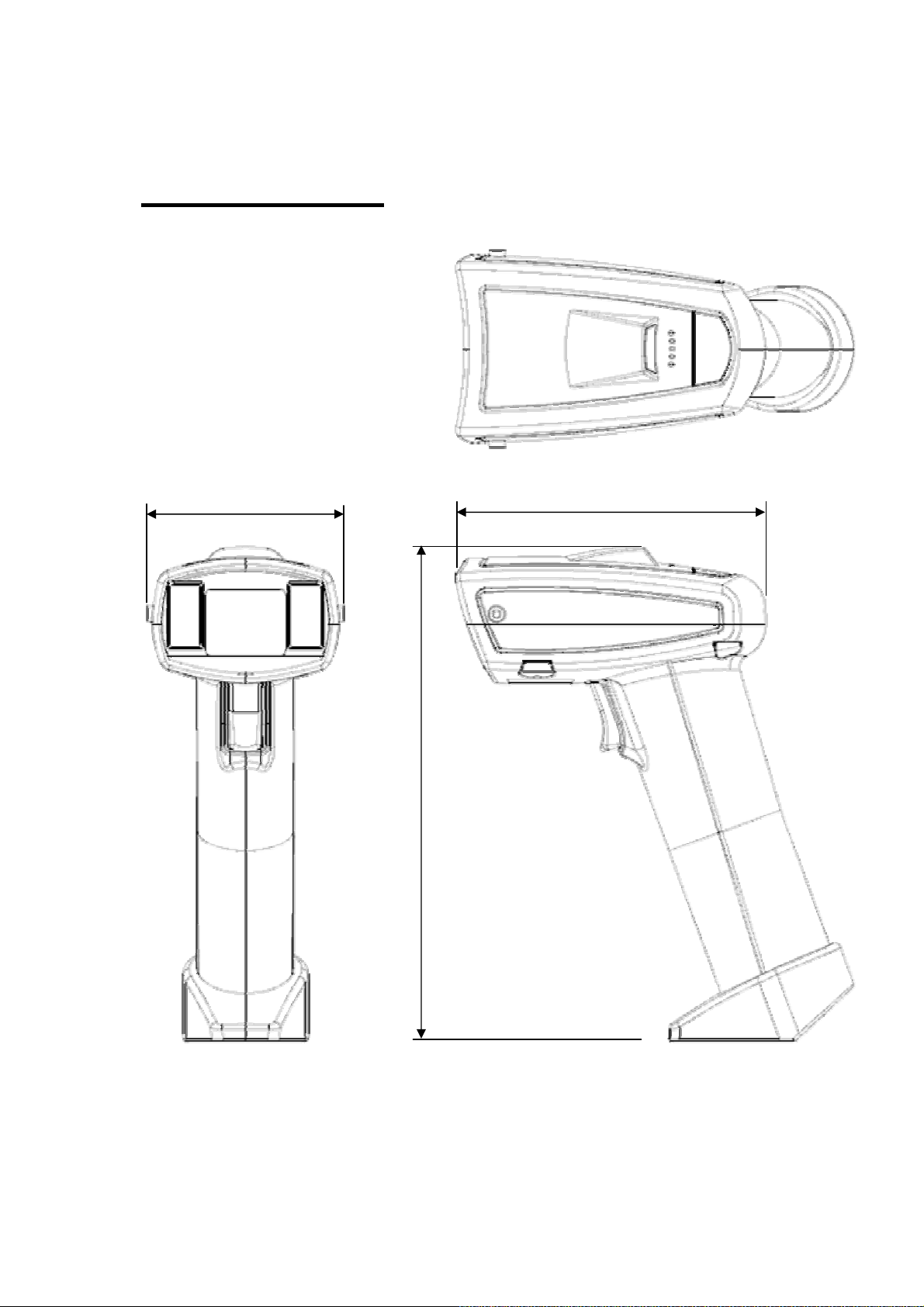
6. Dimensions
159
6.1Housing Dimensions
63
99
Unit: mm
23
Page 10
7. Specialty Function
7.1 Global Shutter
Cropping is a method to remove unwanted areas from the imag e to make the image small.
Following is the procedure to set up this function through the serial i nterface.
Confirming the cropping status
Serial Command ?IMG<cr>
<< Example of reply>>
********STATUS********THIR-6000
BBC=00:2561:162:RLE3:AVE4:AVERLE9:Color
IMODE=0PX=0PY=0WX=1280WY=1024
CAPMODE=0,0,1280,1024
CAPX=0(0:100%,1:75%,2 :50%,3:25%)
CAPY=0(0:100%,1:75%,2 :50%,3:25%)
VMODE=0(0:Mono1:Color)
*********END**********THIR-6000
Systemversion=K85C-V1.0c
Decodeversion=K85A-V1.0c
【 Setting for
Serial Command CAPX=m, CAPY=n (m,n=0,1,2,3)
<< Value >>
Bolded is status of cropping.
0…100%
1…75%
2…50%
3…25%
24
Page 11
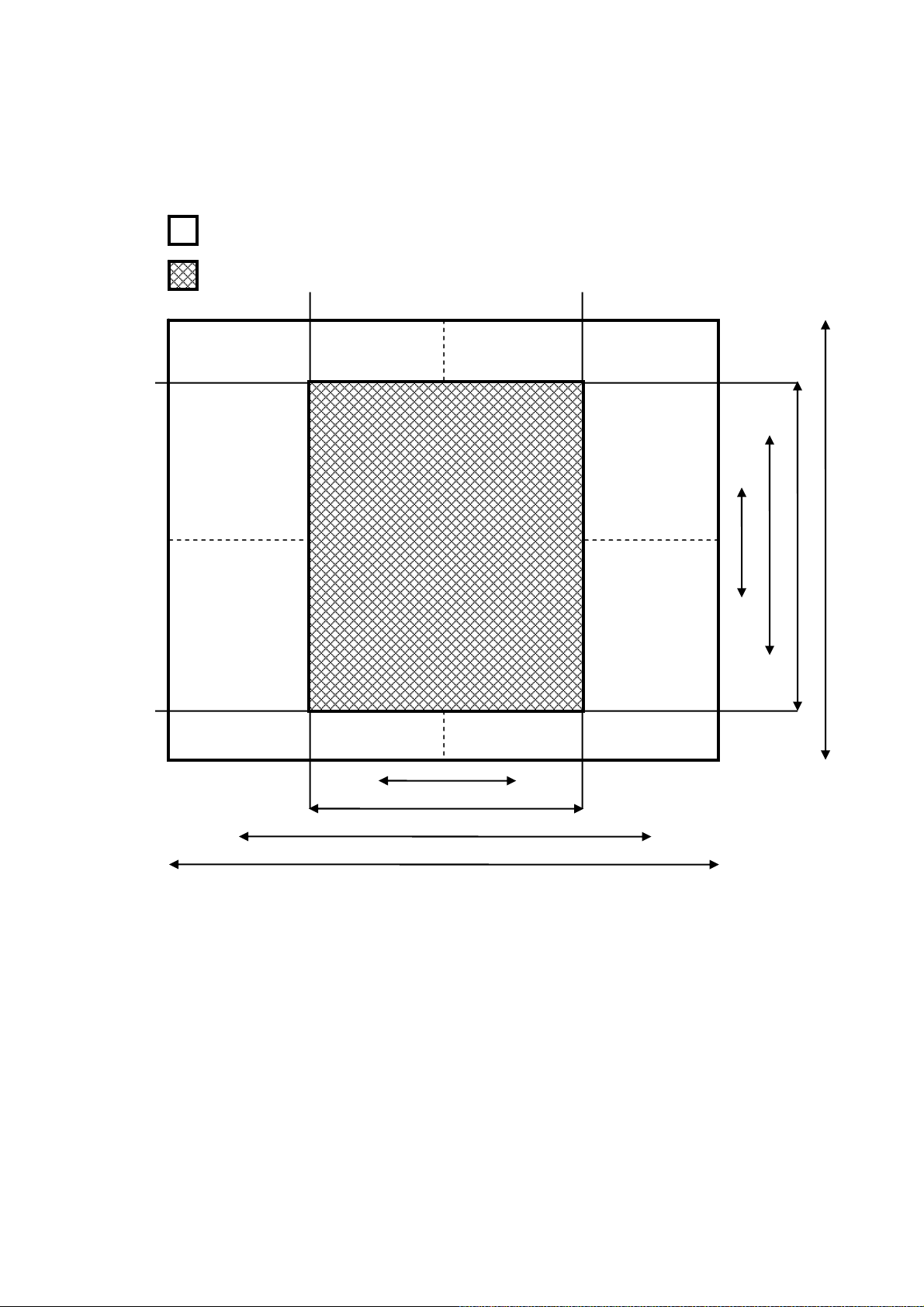
Cropping
5
5
・・・CAPX=0、CAPY=0
・・・CAPX=2、CAPY=1
100%
7
%
50%
25%
25%
50%
7
%
100%
25
Page 12
7.2 Auto detection mode
7.2.1 Overview
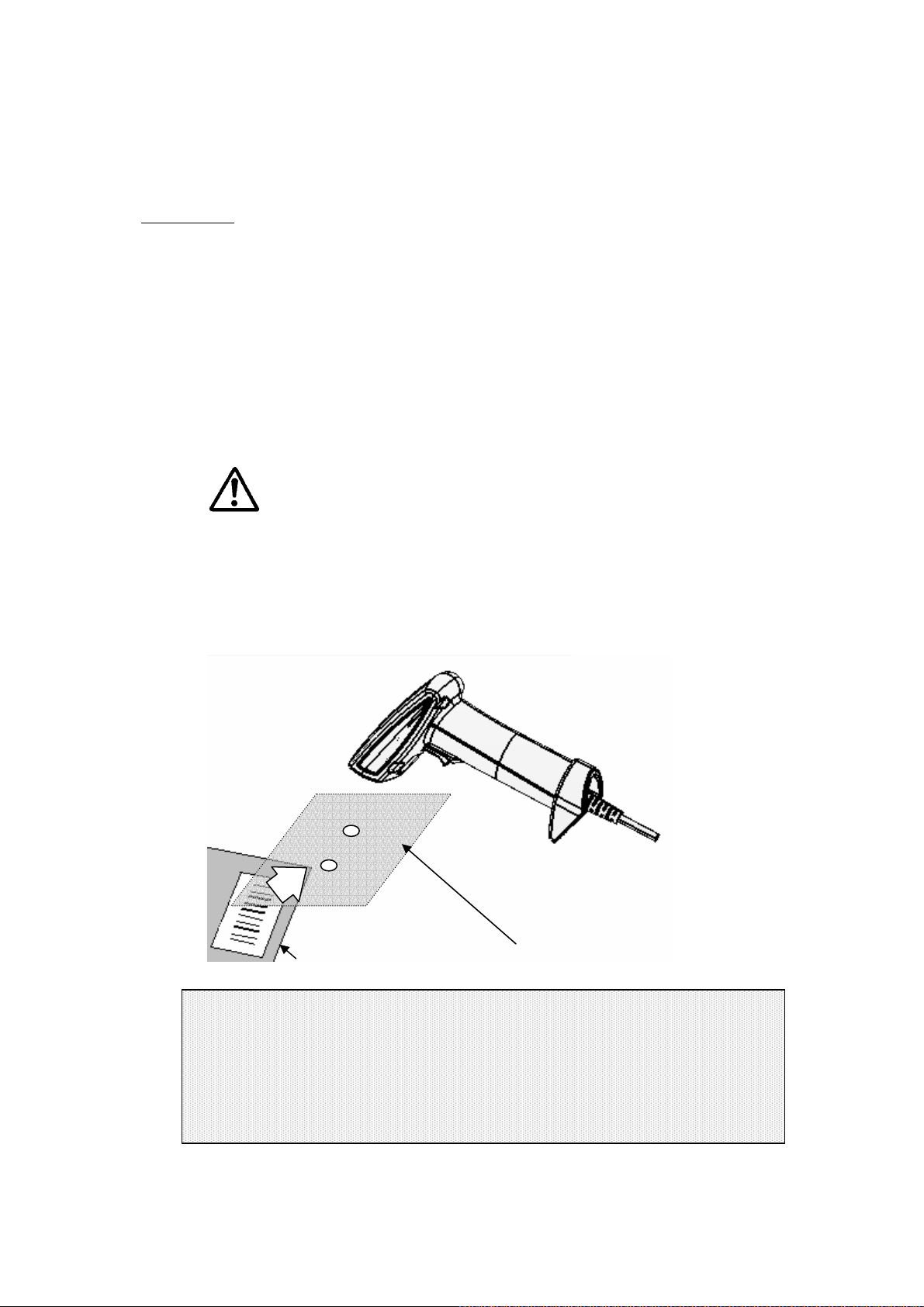
By using this mode, THIR-6000 can read and decode symb ols automatically.
THIR-6000 detects changes of image in its field of view, like change of environmental brightness,
motion of objects. When there is such a change, THIR-6000 starts to capt ure an ima ge and tri es
to decode.
This function is designed for stand mounting use to read documents with printed barcodes. For
example, it is suitable for using on the counter at post office.
CAUTION
With Auto Detection mode, trigging switch does not work.
Plus, neither does capturing an image, receiving a Hex program and executing a Macro program.
Please turn Auto Detection mode OFF if those function are n eeded to be used.
Auto Detection mode may not work well under the too high, too low or un stable brightness.
Object with barcode
Field of view
• Auto Detection mode is not a default setting. Please have THIR-6000 read the
corresponding configuration barcode to chan ge to Auto Detection mode.
• THIR-6000 does not vibrate when it decodes a symbol successfully with Auto Detection
mode regardless of current setting of the vibration.
Note
26
Page 13

7.2.2 How to use
To put the THIR-6000 in the auto detection mode, please follow one of the follo wing methods:
- Send the serial command "LFMODE=1<CR>" to the scanner.
- Read the corresponding barcode from the configuration barcode set.
To exit the auto detection mode, please follow one of the following methods:
- Send the serial command "LFMODE=0<CR>" to the scanner.
- Read the corresponding barcode from the configuration barcode set.
The serial command "?LF<CR>" to check which mo de the scanner is available.
For the details of how to work Auto Detection mode, please see the following figures, flow chart and
timing chart.
27
Page 14
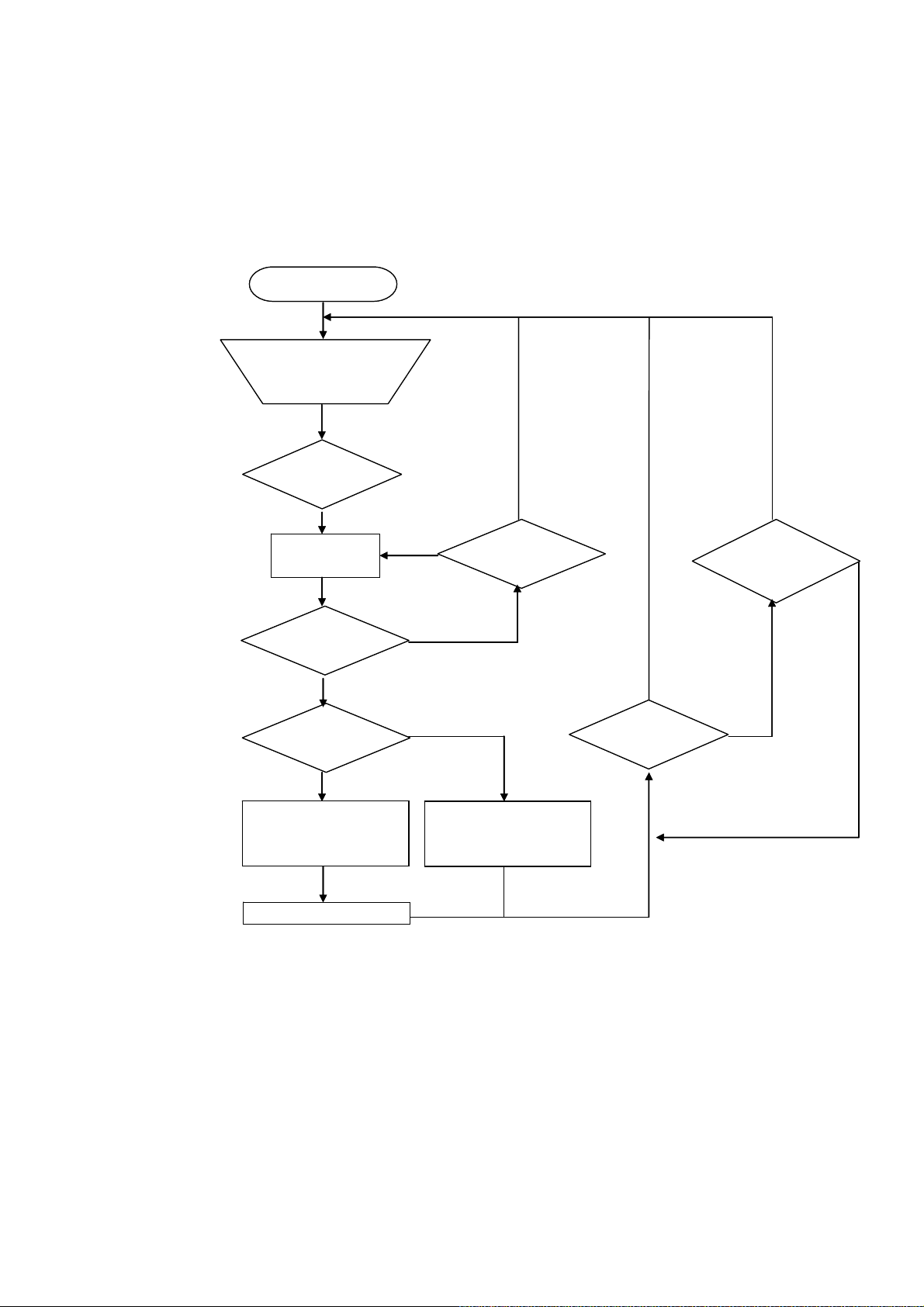
The flow chart of Auto Detection mode
Monitor LED: Orange
Monitor LED: Orange
Aiming beam: Blinking
Aiming beam: Blinking
Standby
Standby
Make an object with
Make an object with
barcodes go into
barcodes go into
THIR-6000’s field of
THIR-6000’s field of
view
view
Label in
Label in
Detected?
Detected?
Yes
Yes
Yes
Yes
Try to decode
Try to decode
Within
Within
decoding time
decoding time
limit?
limit?
No: Timeout
No: Timeout
No: Timeout
No: Timeout
Within
Within
detection
detection
ignored limit?
ignored limit?
No
Decoded?
Decoded?
Yes
Yes
Verify
Verify
Different data Same data
Different data Same data
Monitor LED: Green
Monitor LED: Green
Buzzer : beep 1 time
Buzzer : beep 1 time
Out put the decoded data
Out put the decoded data
No
Compare decoded data
Compare decoded data
with last decode data.
with last decode data.
Monitor LED: Red
Monitor LED: Red
Buzzer : beep 2 times
Buzzer : beep 2 times
Yes
Yes
Label out
Label out
Detected?
Detected?
No
No
Yes
Yes
28
Page 15
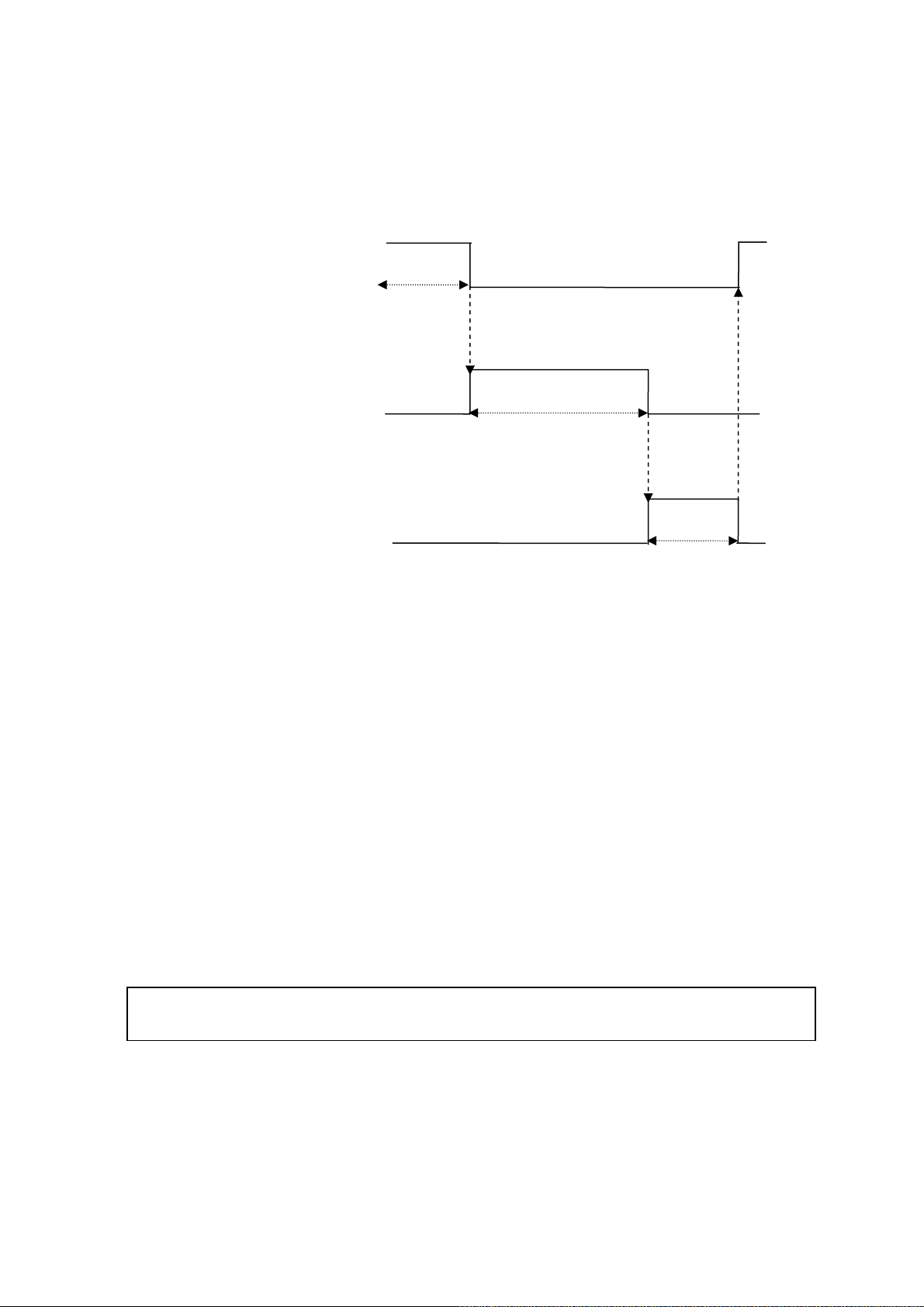
Label in detection
When THIR detects a label is
coming in, this signal turns OFF
ON
OFF
ON
Decoding
OFF
Label out detection
ON
OFF
7.3 For high density barcodes
...
...
This signal is kept ON until THIR decodes
successfully (including discarding the
decoded) or the decoding time limit is not
passed.)
...
When THIR detects a label
goes out from FOV or the
detection ignored time is
passed, this signal turns OFF.
Timing chart
HD mode is designed to read high density barcodes (under 0.167mm of small element si ze) more quickly.
Since this is not a default setting, please change to HD mode by reading th e corresponding configuration
barcode.
7.4 How to configure security settings
Serial command
? Show status data string1
If the data is correctly received, THIR-6000B is connected to the host computer.
PIN CODE=XXXX Put 4 digit numeric to “XXXX”.
Bluetooth connection will be disconnected when PIN CO DE is set. Please enter the PIN CODE to connect
again. If set PIN CODE as “0000”, there is no security.
WSETS Write settings to THIR-6000’s flash memory (make sure the connection is established)
29
Page 16
eading data
eading data
7.5 How to confirm data transmitting
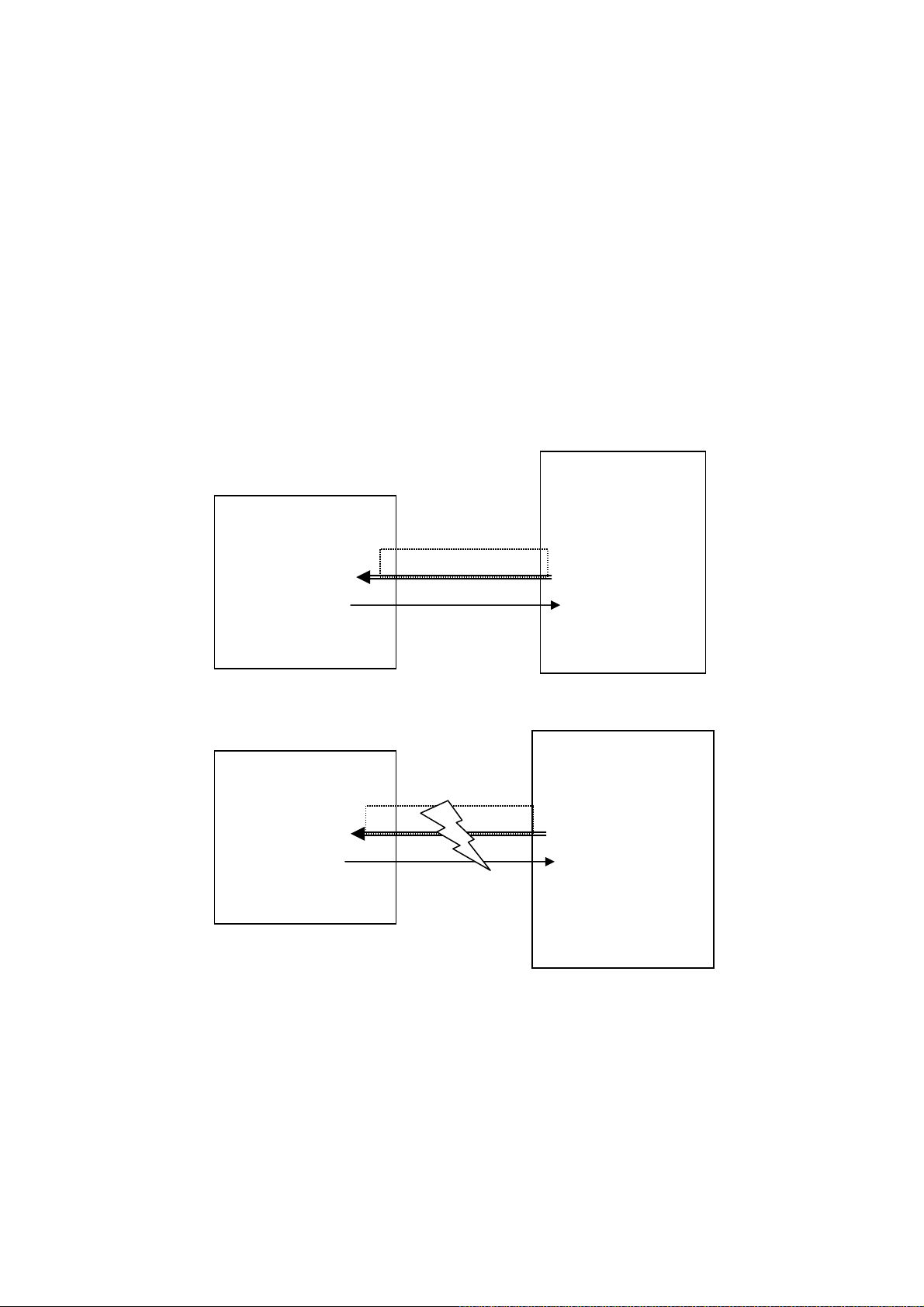
To make sure the connection is established, the following m ethod is strongly recommended.
It will take approx. 20 second to detect disconnection between THIR-6000 and the host computer caused.
The data tried to be sent to the host during this 20 second will be lost. By using the following method,
operator can know if the data is correctly transmitted or not.
THIR-6000B waits response from the host after it sends data. This perio d can be configu red as limit time. If
THIR-6000B does not receive response from the host, THIR-6000B judges the data has been lost. To
complete this function, the host has to have the function to send “received” or ACK (0x06) to THIR-6000B if it
receives data from the scanner.
(1). Normal flow
HOST
(2)In case of NG
HOST
Received or ACK
Received or ACK
BCR
Trigger ON
Read/Decode
R
R
Data transmit
Buzzer beeps
Vibration
BCR
Trigger ON
Read/Decode
Data transmit
After time out
LED ON
Buzzer beeps
30
Page 17
• How to switch confirmation ON ÅÆ OFF
1). Configuration barcode menu (Other document) Æ By reading barcodes
2). By sending serial command
ANSWERBACK=X Confirmation ON/OFF 0: OFF (Default) 1: ON
ANSWERBACKTIM=X Time out limit 1〜3 second (Default:1)
• How it works
THIR-6000B waits response from the host within the time our limit.
During the time out limit, trigger signal and other serial command are not valid.
After getting response from the host or passing the time out limit, trigger signal and other serial
command become valid.
• How to indicate
1). Get response from the host Æ Buzzer and vibrator indicate OK
2). No response from the host Æ Buzzer and red LED indicate NG
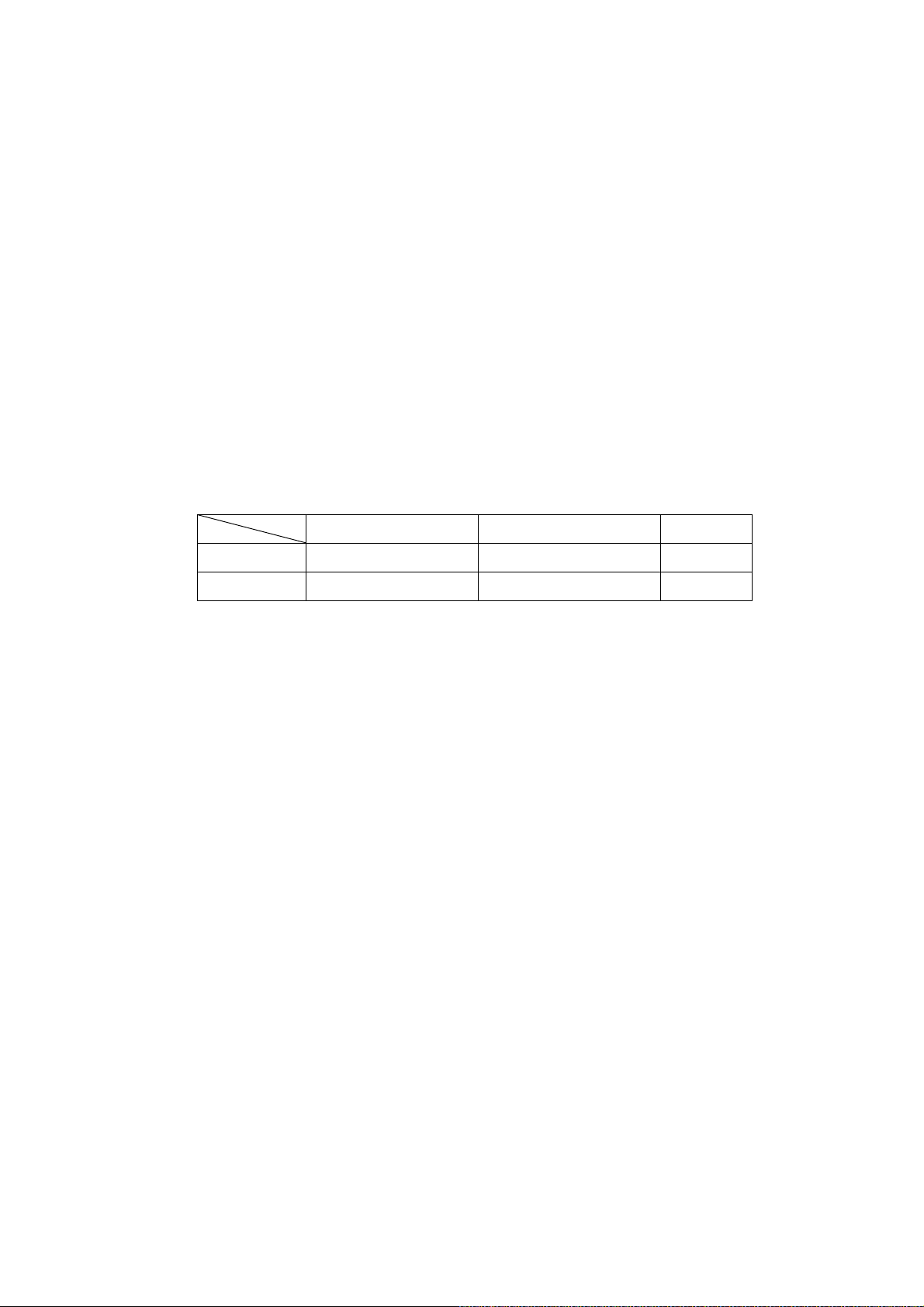
Buzzer
LED
OK 2 times (high tone) non
NG
3 times (low tone) Red LED ON (
Vibration
100msec
700msec) non
31
Page 18
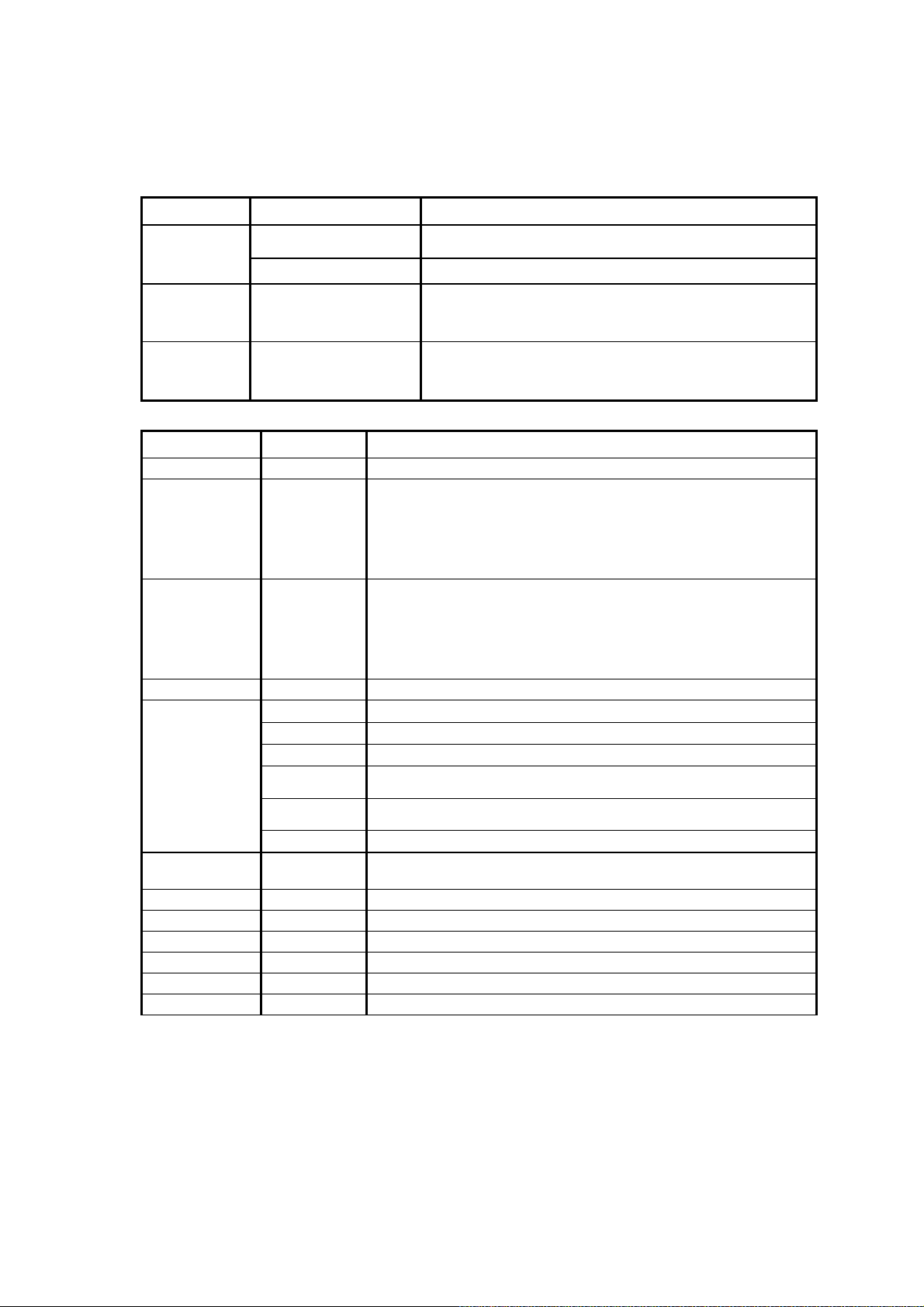
7.6 Image preprocessing
Article Command Contents
Image
Preprocessing
IPFUNC0=a1,a2,a3,a4,a5 No.0 Image Preprocessing Setting
3x3 Mask
Filter
5x5 Mask
Filter
Article Command Description
None 0 No Image preprocessing
Black Erosion 1 Erosion 2x2
3 Erosion 3x3
5 Erosion 5x5
7 Erosion 2x1 (w)
9 Erosion 1x2 (h)
White Dilation 2 Dilation 2x2
4 Dilation 3x3
6 Dilation 5x5
8 Dilation 2x1 (w)
10 Dilation 1x2 (h)
Reverse 20 Reverse White & Black
Contrast 21
Enhancement 22
23
21&22 are used to
enhance black
23&24 are used to
enhance white
26
Gamma
Correction
Smoothing Filter 40 Low pass Filter 3x3 average value
Median 41 Median filter 3x3 median value
3x3 Filter 60 3x3 filter FILTER33, FILTER33DM execution filtering by command
5x5 Filter 61 5x5 filter FILTER55, FILTER55DM execution filtering by command
Down Size 70 Down Size (Quick)Down size whole image with quick mode
Down Size 71 Down Size (Average) Down size whole image with average speed mode
?PROC Indicates the status of a image pre-processing setting contents
FILTER33[ I ] [ j ]=a
FILTER33DM=1-10000 Set magnification value of 3x3 mask filter.
FILTER55[ I ] [ j ]=a
FILTER55DM=1-10000 Set magnification value of 5x5 mask filter.
Cont (L12cut): Cut the rest (from the darkest) 12.5%
Cont (L22cut): Cut the rest (from the darkest) 25%
Cont (H23cut): Cut the most (from the brightest) 12.5%
24
25
27 Gamma(r=0.5) Execution for Gamma Correction 0.5
Cont (H24cut): Cut the most (from the brightest) 25%
Cont (LH12cut): Cut the rest 12.5% and the most 12.5%.
Cont (LH22cut): Cut the rest 25% and the most 25%.
Set coefficient value of 3x3 mask filter.
(i, j=0 through 2, a= -99 through +99)
Set coefficient value of 5x5 mask filter.
(i, j=0 through 2, a= -99 through +99)
Please ask our sales department for more information.
32
Page 19

8. Troubleshooting
8.1 The unit does not work while pushing the read trigger switch.
Does the battery have enough amounts?
If the battery’s voltage is not enough, THIR-6000B may not operate correct ly.
Please see “2.1 Charging battery”.
8.2 Can not charge battery
Is THIR-6000B placed on the cradle correctly?
If THIR-6000B is not placed on the cradle correctly, charging battery may be failed. Please see “2.1
Charging battery”.
Is the AC adapter inserted correctly?
If the AC adapter inserted correctly to the cradle, charging battery may be failed.
Is power supply polarity correct?
When it is connected with reverse polarity, chargi ng battery is failed.
Correct polarity Æ
Is the power rating of the power supply enough?
Unless the power supply capacity is enough, chargi ng battery is failed.
Is the charging terminal clean?
If there is dirt/dust on the charging terminal, charging battery may be faile d.
Isn’t the battery too old?
The rechargeable battery does not last fo rever. If a change in the ba ttery life is noticed, it is probably
time to purchase a new battery. Criterias to know the time to change the battery are 300 times of
charging/discharging or 2 years of usage under proper environmental condition. Please contact our
sales department about alternative battery.
33
Page 20

8.3 Barcode Cannot be Read.
Is there beep from the buzzer when THIR-6000B re ads barcode?
YES Æ Barcode is decoded, but an error is occurred during transmitting data through Bluetooth.
Please see “8.4. Errors in transmitting data”.
NOÆ Barcode is not decoded. Please see the following instruction to decode barcode correctly.
Is a code setup correct?
Check the settings of the reader and that the 2D code is enabled
Is reading distance suitable?
Reading may be impossible when the reading distance is outside the working range of reading depth.
Moreover the printing quality of the code may make it non-readable even if i t is within the readi ng range
limits.
Is the surface of the code glossy?
If the surface of the code is glossy, the illumination will be sometimes reflected like a mirror.
To avoid this, put the scanner in angle relative to the symbol.
Is the reading window clean?
If the window becomes dirty or stained, the image taken by the reader might not be good enough for
reading. Clean with a lens cleaner or similar anti-scratching (non-abrasive) method.
Is the print quality of the code good?
Please check whether print quality of the cells, code size, etc. conforms to the standard.
34
Page 21

8.4 Reading data gets garbled
Do you set fixed digit for ITF
In some cases, cancellation of significant digits (re ading it through wit h a few dig its than a pri nted digits)
in ITF(Interleaved 2 of 5) might be used. We recommend setting spe cific digit of ITF.
8.5 Bluetooth connection is disconnected
Is THIR-6000B in the range or Bluetooth connection?
The Bluetooth unit of THIR-6000B allows staying away 10m from the Bluetooth adapter. But the
distance is varied depending on conditions. Please check the strength of wave if it seems to be weak.
In the utility screen of the driver, the strength can be checked. If it is weak, please use TMU-6000 to
receive wave more efficiently.
8.6 Reading data is missed partially during transmitting
Is the connection disconnected during transmitting?
Reading data can be missed partially if the connection is failed during the transmitting. Please check
connectivity as explained “2.2 Setting up the host computer”.
35
Page 22

8.7 Keyboard wedge interface is needed
If keyboard wedge software is installed to the host computer, THIR-6000B can be used as keyboard
interface device. Please let our sales department know if keyboard wedge is needed.
8.8 PIN CODE is required when Bluetooth connection is established
PIN CODE is not set at the time or shipment from our factory. To initialize PIN CODE, please use
“Default setting” barcode in “Configuration Barcode Menu”.
If PIN CODE is needed to be set, please see “7.4. How to configure security settings”.
36
Page 23
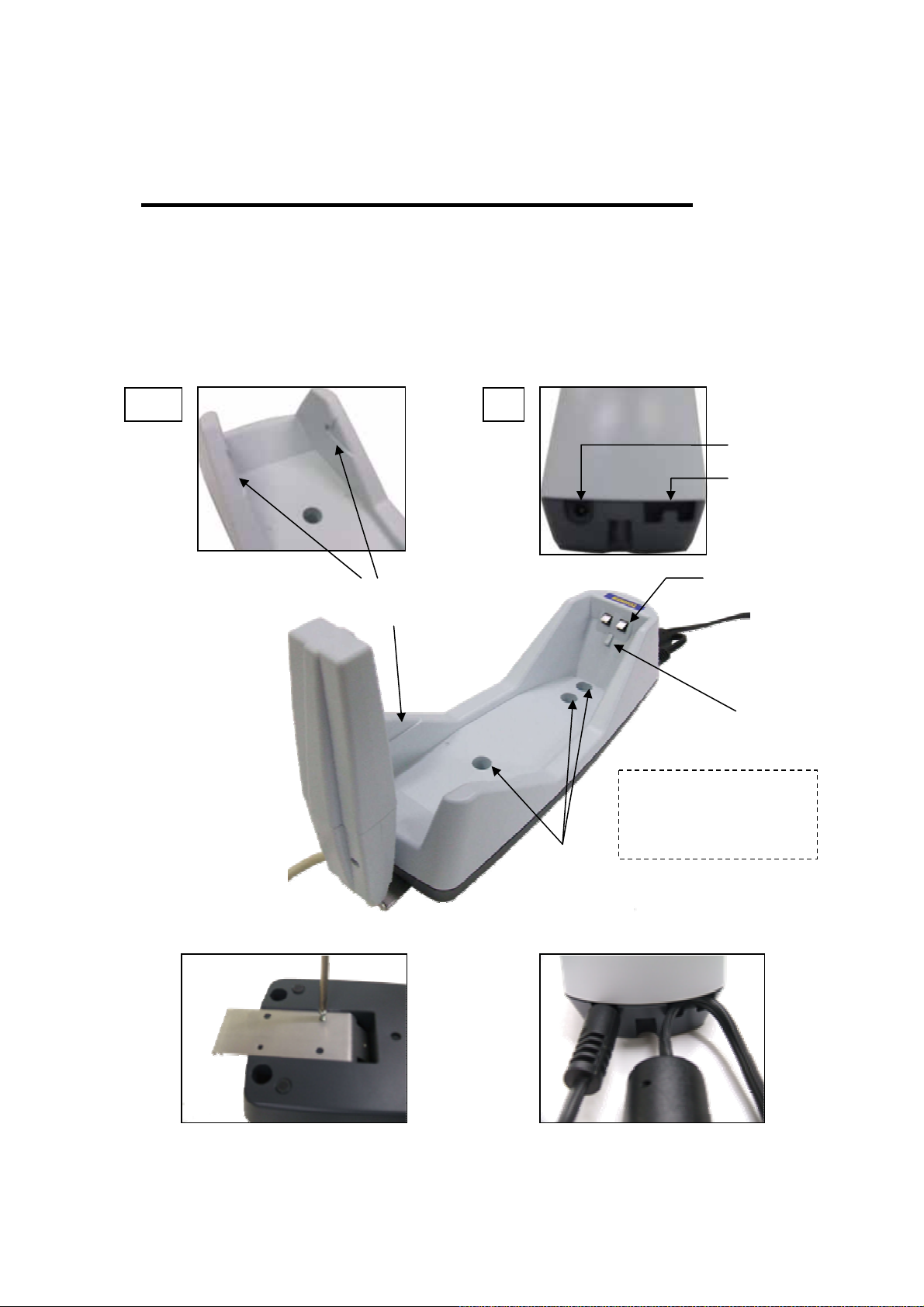
A
Appendix 1 Cradle(TBC-6000)
1. Overview Cradle for THIR-6000B series
2. Specification
Dimensions :72(H)×90(W)×241(D)
Weight :Approx. 215g (AC adapter, wireless unit, and THI R-6000B are not included)
Tapped Hole :φ5 x 3
Screw :M4×M20 2pcs (come with the cradle)
3. Outlook
Edge
Slit
Rear
C adapter jack
Cable clamper
Charging terminator
Hook
※Please use one of the two
tapped hole for charging
terminator side.
Tapped hole
Fix the metal plate
Hook the cable of AC adapter
37
Page 24

[Memorandum]
Warranty Obligations
Exclusive of the cases with special mentions in quotations, contracts or specifications, TOHKEN
warrants this products as the following.
1. Term of warranty
One year from the date of purchase.
2. Warranty Coverage
TOHKEN will repair or replace the product at no charge if the reasons of defects are co me from
our responsibility. The losses caused by the defect of this product are not covered. If the reasons
of defects are the following, they are not covered by this warranty.
(1). If the product is not used in accordance with all operation instructions.
(2). If the product is modified by outsiders of TOHKEN.
(3). If the defects are not caused by the product itself.
(4). If the defects are caused by fire, pollution, abnormal voltage, or natural disasters, such as
earthquake, thunderstorm or flood.
3. Usage outside of Japan
This warranty coverage is based on the usage in Japan. Please contact our sales department
if there need to use this product ourside of Japan.
39
Page 25
40
Page 26

TOHKEN CO., LTD
Head quarters
2-7-1 Nishi-Shinjuku, Shinjuku-ku, Tokyo Japan 163-0710
Sales 03-5325-4311 to 4315
Sales Promotion 03-5325-4322
Nagoya office
4-2-12 Meieki, Nakamura-ku, Nagoya Japan 450-0002
Sales 052-565-9091
Osaka office
2-9-1 Higashi-Tenman, Kita-ku, Osaka Japan 530-0044
Sales 06-6353-5476
Fukuoka office
8-36 Hakata-eki Chuogai, Hakata-ku, Fukuoka Japan 812-0012
Sales 092-441-3638
Hitachi office
2-1-10 Hashikabe, Hitachinaka, Ibaragi Japan 312-054
Sales 029-276-9555
Field support department (Technical Center 3)
1-43-2 Tamagawa, Chofu, Tokyo Japan 182-0025
Field support 042-484-5190
41
 Loading...