

Page 1
CAUTION
RISK OF EXPLOSION IF BATTERY IS REPLACED
BY AN INCORRECT TYPE.
DISPOSE OF USED BATTERIES ACCORDING
TO THE INSTRUCTIONS.
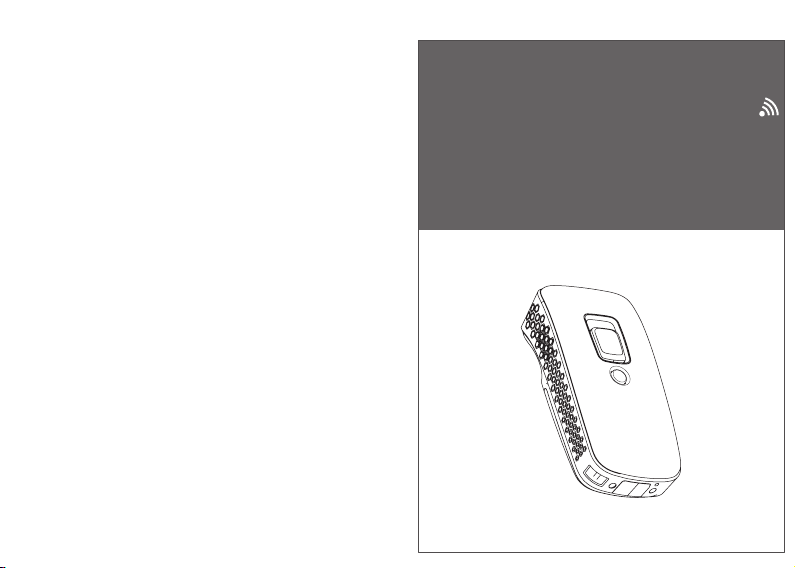
Mobile UHF Reader Quick Guide (Rev1)
P/N: 8012-0064000
Mobile UHF Reader
Quick Guide
Page 2
Federal Communications Commission (FCC) Statement
15.21
You are cautioned that changes or modifications not expressly approved by the
partresponsible for compliance could void the user’s authority to operate the equipment.
15.105(b)
This equipment has been tested and found to comply with the limits for a Class B digital
device, pursuant to part 15 of the FCC rules. These limits are designed to provide
reasonable protection against harmful interference in a residential installation.
This equipment generates, uses and can radiate radio frequency energy and, if not
installed and used in accordance with the instructions, may cause harmful interference
to radio communications. However, there is no guarantee that interference will not
occur in a particular installation. If this equipment does cause harmful interference to
radio or television reception, which can be determined by turning the equipment off
and on, the user is encouraged to try to correct the interference by one or more of the
following measures:
- Reorient or relocate the receiving antenna.
- Increase the separation between the equipment and receiver.
- Connect the equipment into an outlet on a circuit different from that to which the receive
is connected.
- Consult the dealer or an experienced radio/TV technician for help.
This device complies with Part 15 of the FCC Rules. Operation is subject to the following
two conditions:
1) this device may not cause harmful interference and
2) this device must accept any interference received, including interference that may
cause undesired operation of the device.
FCC RF Radiation Exposure Statement
• This Transmitter must not be co-located or operating in conjunction with any other antenna
or transmitter.
• For body worn operation, this device has been tested and meets FCC RF exposure
guidelines. Use of accessories that contains metal may not ensure compliance with
FCC RF exposure guidelines.
NON-MODIFICATION STATEMENT
Changes or modifications not expressly approved by the party responsible for
compliance could void the user's authority to operate the equipment.
-
RoHS
- 1 -
WARNING AND CAUTION
1. Take any metals into contact with the terminals in connectors.
2. Use the scanner where any inflammable gases.
If following condition occur, immediately power off the host computer,
disconnect the interface cable, and contact your nearest dealer.
1. Smoke, abnormal odors or noises come from the scanner.
2. Drop the scanner so as to affect the operation or damage its housing.
Do not do behavior below.
1. Put the scanner in places excessively high temperatures such as expose
under direct sunlight.
2. Use the scanner in extremely humid area or drastic temperature
changes.
3. Place the scanner in oily smoke or steam environment such as cooking
range.
4. Be covered or wrapped up the scanner in bad-ventilated area such as
under cloth or blanket.
5. Insert or drop foreign materials or water into scanning window or vents.
6. Using the scanner while hand is wet or damp.
7. Use the scanner with anti-slip gloves containing plasticizer and
Do Not
chemicals or organic solvents such as benzene, thinner, insecticide etc
to clean the housing. Otherwise, it could not result fire and electrical
shock but housing may be broken and injured.
8. Scratch or modify the scanner and bend, twist, pull or heat its interface
cable.
9. Put heavy objects on interface cable.
Do not stare the light source from the scanning window or do not point the
scanning window at other people’s eyes or eyesight may be damaged
by direct exposure under the light.
Do not put the scanner on an unstable or inclined plane.
The scanner may drop, creating injuries.
Once the interface cable is damaged such as exposed or broken copper
wires, stop using immediately and contact your dealer. Otherwise, it could
result fire or electrical shock.
- 2 -
Page 3
OUT OF THE BOX
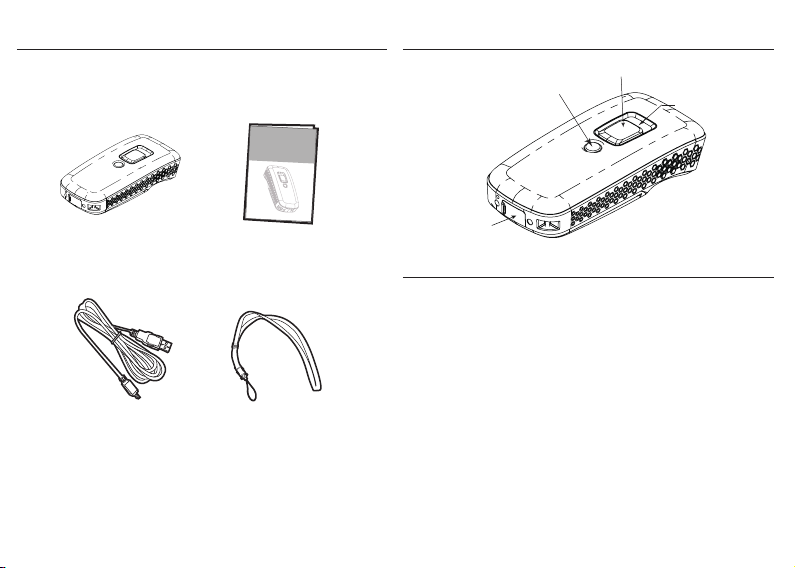
1
Mobile UHF Reader
Quick Gui de
2
INTRODUCTION
Function Button
Trigger Button
LED Indicator
Mobile UHF Reader Quick Guide
USB Charger Cable
Neck Strap
- 3 -
Micro USB port
SPECIFICATIONS
Frequency
Standard
Read Range
Memory
Housing
Weight
Profile/Interface
Battery Life
Charge Time
Radio Bluetooth 2.1 + EDR (Class2)
Radio Coverage
Operating Temp
915 MHz (US)/ 868 MHz (EU)
EPC Gen2/ ISO 18000-6C
Up to 100CM (3.3ft.)
2MB
PC + ABS
103.5g (w/ battery)
BT HID, BT SPP, USB HID, USB VCP
6000 scans
4 hours (fully charged)
10M/33ft. (line of sight)
-10 to 40˚C (14˚F to 104˚F)
- 4 -
Page 4
BEEPER INDICATION
Single long beep Power up
Single beep Good read
Two beeps i. Wireless connection
ii. The reader successfully enters or
Three beeps Wireless disconnection
Three short beeps The reader reads a tag while
Four beeps
Five beeps Low power
exits configuration mode
disconnected.
(Hi-Lo-Hi-Lo) Out of range/Poor connection
READING RFID TAGS
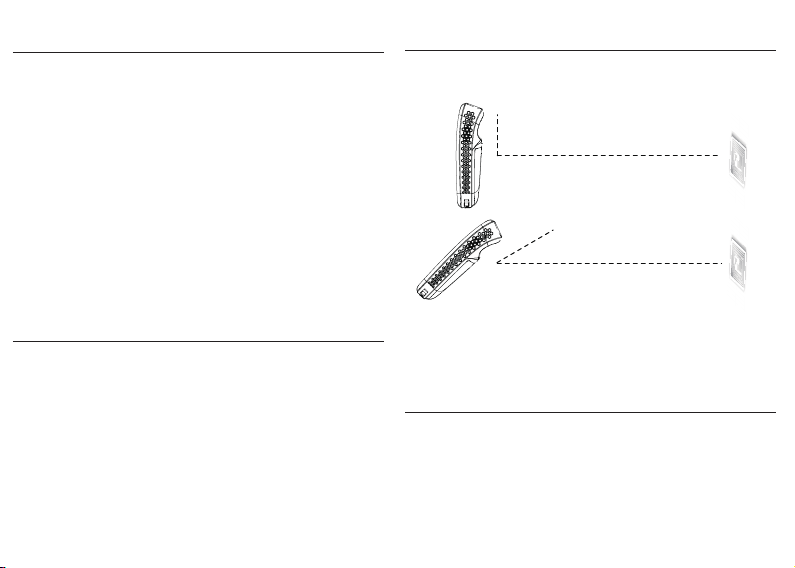
Below figures show the optimal orientation of reader and RFID
Tag for reading.
RFID Tag
90˚
Reading Distance ( > 100cm)
RFID Tag
30˚
Reading Distance (60 ~ 80cm)
LED INDICATION
Off
Flashing Blue
Green for 2 sec
Flashing Red
Solid Red
Reading distance may be impacted by the type of tag and
Standby or Power off
Disconnected or Discoverable
Good Read
Low power
Charging
- 5 - - 6 -
environmental conditions. Above is based on Alien 964X
Higgs-3 tag and tested in an office environment (25˚C)
CHARGING THE BATTERY
1. Flip open the micro USB port on the reader.
2. Plug the micro USB connector into the port on the
reader and USB A connector into a USB port on
the host PC or power adapter.
3. Please fully charge the reader for 4 hours (or until
the red LED indicator turns off) before use.
Page 5
POWER UP
Press the Trigger Button for 2 seconds. The unit will emit one (1)
long beep and light the LED red as confirmation that the reader
has successfully powered up.
SHUT DOWN
METHOD 1:
By default, the unit shuts down automatically after 5 minutes of
inactivity.
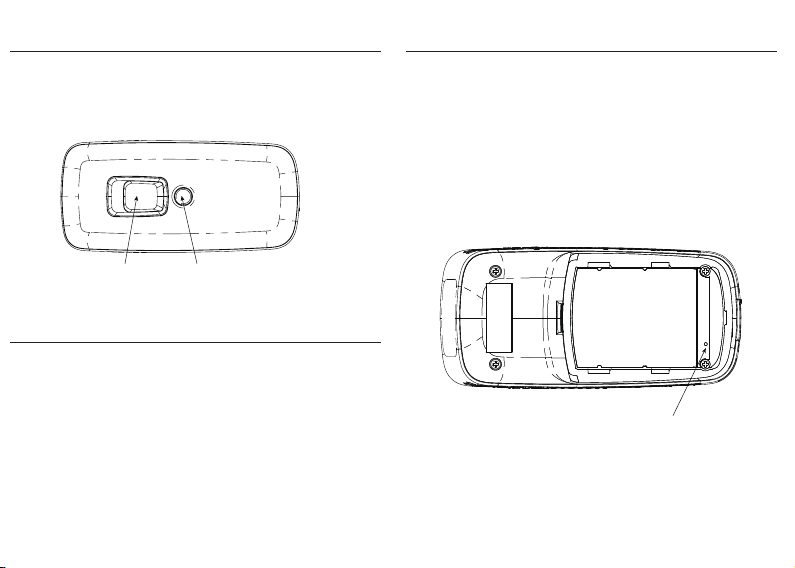
Trigger Button Function Button
DISCONNECT/ CLEAR PAIRING RECORD
STEP 1:
Remove/Forget the the “UHF RFID reader” from the Bluetooth
device list on your host device.
STEP 2:
Long press on the Function Button for 5 seconds without releasing.
The unit will emit three (3) beeps and the blue LED will start flashing
as confirmation that the reader is discoverable.
- 7 - - 8 -
METHOD 2:
Using a needle or paper clip, press the Reset Button located at
the bottom of the reader once. This will force a shut down.
Reset Button
Page 6

GETTING CONNECTED
Connecting to a PC/ Notebook Connecting to an Apple iOS Device
1. Press and hold the Trigger Button for 2 seconds to power up the
unit, after which the blue indicator LED will flash continuously.
1. Press and hold the Trigger Button for 2 seconds to power up the
unit, after which the blue indicator LED will flash continuously.
2. Enter the PC/Notebook’s Bluetooth application, and click
“Add a Device”.
3. In the Add a device window, double click “UHF RFID Reader”
to connect.
4. When successfully connected the reader will emit two short
beeps, and the blue LED indicator will shut off.
5. Launch a program that can accept HID keyboard input, such
as Notepad. RFID Tag data read by the reader will output to
that program.
- 9 - - 10 -
2. On the Apple iOS device, go to Settings > Bluetooth, and turn
on Bluetooth.
3. In the discoverable devices list, select “UHF RFID Reader”.
4. Upon establishing connection the reader will emit two short
beeps and turn off its blue LED indicator. Also, the UHF RFID
Reader will list as “Connected” in the Apple iOS device’s
Bluetooth devices list.
5. Launch an app that can accept HID keyboard input, such as
Notes. RFID Tag data read by reader will output to that app.
6. If a virtual keyboard is required, please press the Function Button
once. At this moment the reader will emit one short beep, and the
Apple iOS device’s virtual keyboard will pop out.
Page 7
GETTING CONNECTED
Connecting to an Android Device
1. Press and hold the Trigger Button for 2 seconds to power up the
unit, after which the blue indicator LED will flash continuously.
2. On the Android device, go to Settings > Bluetooth, and turn on
Bluetooth.
3. In the available devices list, select “UHF RFID Reader”.
4. Upon establishing connection the reader will emit two short
beeps and turn off its blue LED indicator. Also, the UHF RFID
Reader will list as “Connected” in the Android device’s
Bluetooth devices list.
5. Launch an app that can accept HID keyboard input, such as
ColorNotes. RFID Tag data read by reader will output to
that app.
- 11 - - 12 -
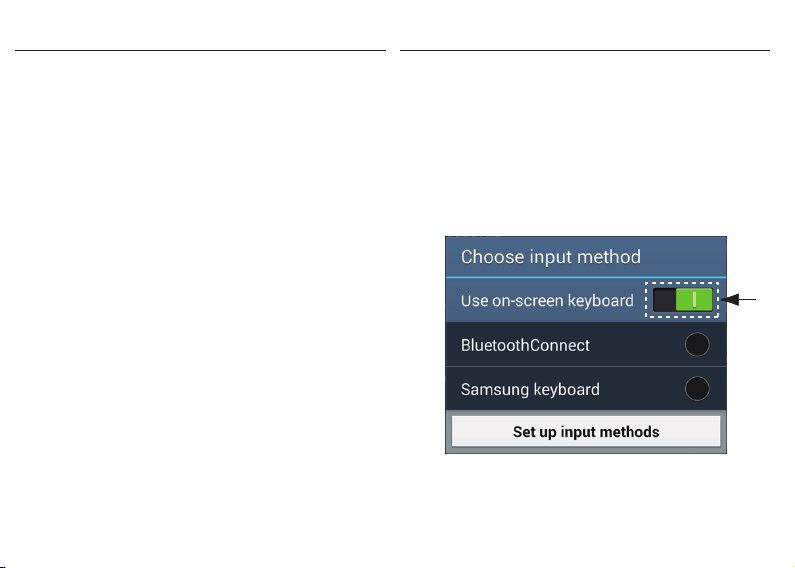
6. If a virtual keyboard is required, please do the following:
(1) Enter “Settings”
(2) Enter ”Language & Input”
(3) Tap on “Default keyboard”
(4) Turn off “Physical keyboard”, or turn on “On-screen keyboard”
and the Touch Keyboard will function properly again.
Slide to
turn on/off
Page 8
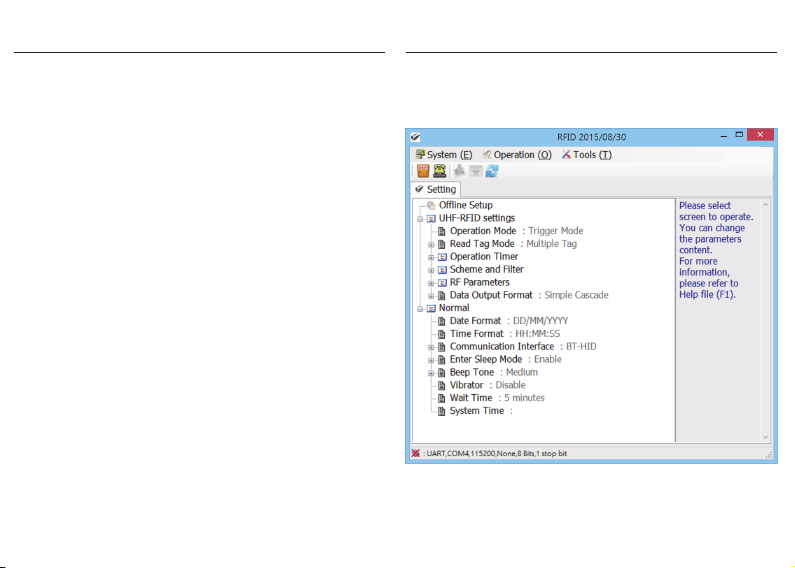
DEFAULT RFID SETTINGS RFID UTILITY
Operation Mode = Trigger Mode
Read Tag Mode = Single Tag
Tag Info = EPC Code
Tag List Counter = 64
Operation Timer
Session Time = Disable
Delay Time = Disable
Scheme and Filter
EPC Scheme Tag = All
Accepted Filter = Disable
Rejected Filter = Disable
Affected Scheme Filter = SGTIN-96
RF Parameters
RF Output Power = Low
Data Output Format = Simple Cascade
Time Log Data = Disable
RSSI Data = Disable
EPC Scheme Data = Disable
EPC Code Data = Enable
EPC Code Caption = Disable
- 13 - - 14 -
RFID Utility enables you to configure the reader with your
PC/Laptop via USB connection. For more information on RFID Utility
, please contact your local distributor.
 Loading...